

This document will continue to evolve as existing sections change and new information is added. All updates appear in the following table:
| Date |
What's Changed |
Notes |
|---|---|---|
| 18 MAY 2018 |
Created initial document. |
This guide outlines the information you need to know about new or improved functionality included in Release 18B for Oracle Taleo Learn Cloud. Each section includes a brief description of the feature, the steps you need to take to enable or begin using the feature, any tips or considerations that you should keep in mind, and the resources available to help you.
Oracle Taleo Learn Cloud platform and general technology updates can affect complex or custom LearnCenter pages. If you are using a custom CSS file, it is important to verify your site CSS with each product release. Based on changes in the platform, there is a chance that you could see alignment or positioning issues after a release due to the custom CSS used on your site. Often any updates that your CSS requires are minor and easy to make. Contact Customer Support through My Oracle Support for any additional information.
For the latest information on browser support, please refer to the Oracle Taleo Learn Cloud System Requirements document; My Oracle Support DOC ID 1461788.1 .
Key Resources
For additional information about any of the features and enhancements discussed in this document, refer to Oracle Taleo Learn Cloud Online Help.
Give Us Feedback
We welcome your comments and suggestions to improve the content. Please send us your feedback at talent_acquisition_doc_feedback_ww_grp@oracle.com.
We continue to add many new features to Oracle Cloud Applications and we now give you the option to take advantage of new functionality at a pace that suits you. The table below offers a quick view of the actions required to enable each of the new features.
| Action Required to Enable Feature |
||||
|---|---|---|---|---|
| Feature |
Automatically Available |
End User Action Required |
Administrator Action Required |
Oracle Service Request Required |
|
|
|
|||
|
|
|
|||
|
|
|
|||
|
|
|
|||

There are two new check boxes available in both the Search and Catalog Widget setups that enable you to refine what items are displayed in Widgets to end Users or Groups.
NOTE: This feature is supported for use with Dynamic Groups and not Classic Groups.
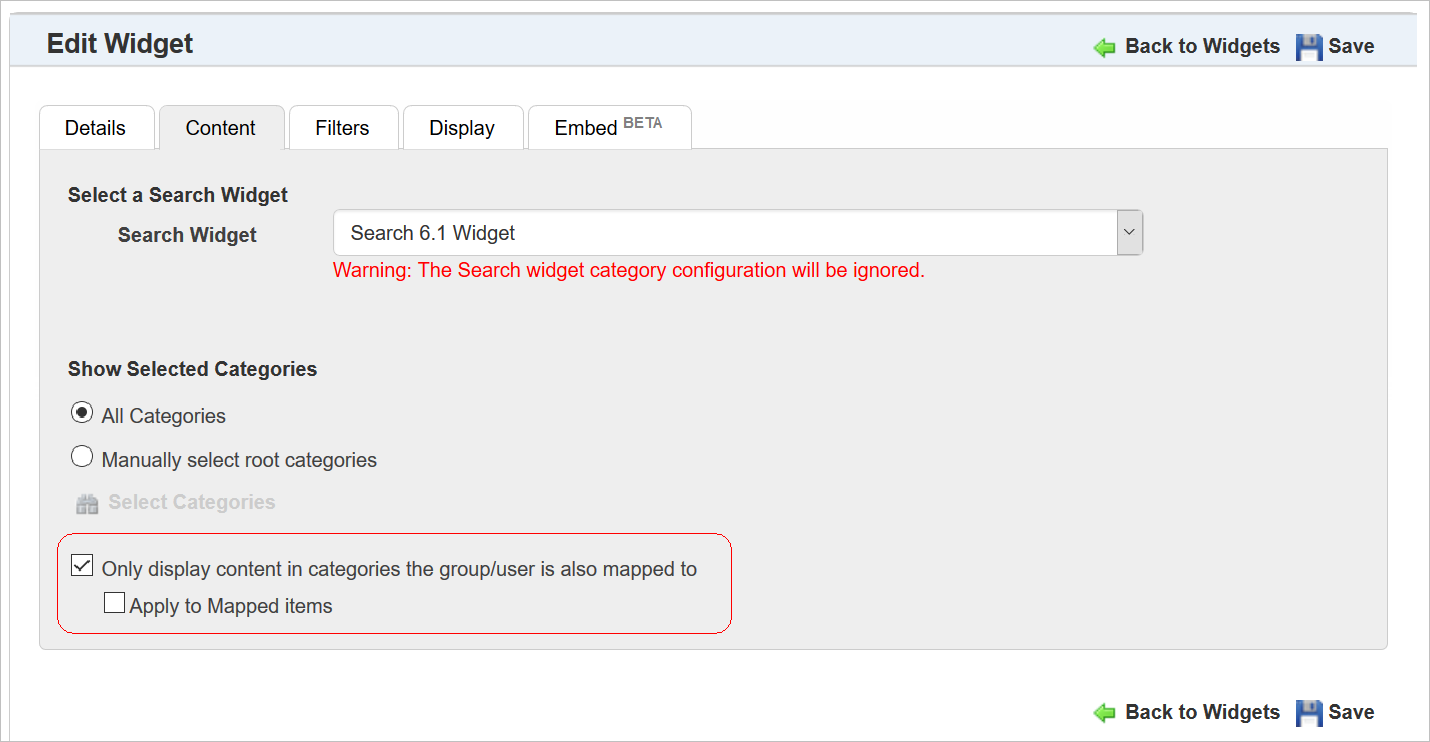
New Option for Catalog and Search Widget Setup
The Only display content in categories the group/user is also mapped to check box (available on the Content tab of either the Catalog or Search Widget setup) enables you to display only the items that are mapped to the same Categories to which the end User or Group is also mapped. What this means is:
- If John Smith and Couse 1 are both mapped to the Human Resources Category, when John looks at the Category Widget, Course 1 will display to him.
- If John Smith is mapped to the Finance Category and Course 1 is mapped to the Human Resources Category, John will not see Course 1 on the Category Widget.
- If the Sales Team Dynamic Group is mapped to the Sales Team Category, but Course 1 is mapped to Human Resources Category, then the Users mapped to the Sales Team Dynamic Group will not see Course 1 when they view the Category Widget.
WARNING: Selecting this check box makes your selection implicit, and inheritance from root or parent Categories does not apply. Users and items must be mapped to the exact same Category or sub Category in order for the items to display to Users on the Widget.
The Apply to Mapped Items check box lets you filter even further by only displaying the items within containers (Learning Plans, Enrollments, and Training Offerings) that are also mapped to the same Category as the User. What this means is that everything mapped to a container such as a Learning Plan (Courses, Enrollments, etc.) must also be mapped to the same Category as the User in order for the User to see it on the Widget.
USE CAUTION: Be sure to inspect the learning items that are mapped to Learning Plans to ensure that they are also mapped to the same Category as the Learning Plan and the Users. If required Learning Plan mapped items are not mapped to the same Category as the Learning Plan Users, then Users will not be able to complete the Learning Plans, because they will not have access to all of the Learning Plan’s required learning items.
For example if this check box is selected and:
- Learning Plan ABC is mapped to the New Users Category
- Course 1 – Required. Mapped to the New Users Category
- Course 2 – Required. Not mapped to any Category
- John Smith – Mapped to the New Users Category
John Smith cannot complete Learning Plan ABC, because Course 2 does not display to him on the Widget.
Key Resources
Refer to the online help topic called “Widgets” (TOC > LearnCenter Designer > Widgets) for complete instructions on working with Widgets.
New Alert Message for Users Without Supervisors
There is a new alert message available for configuration on the Communications tab of the Configuration Options page.
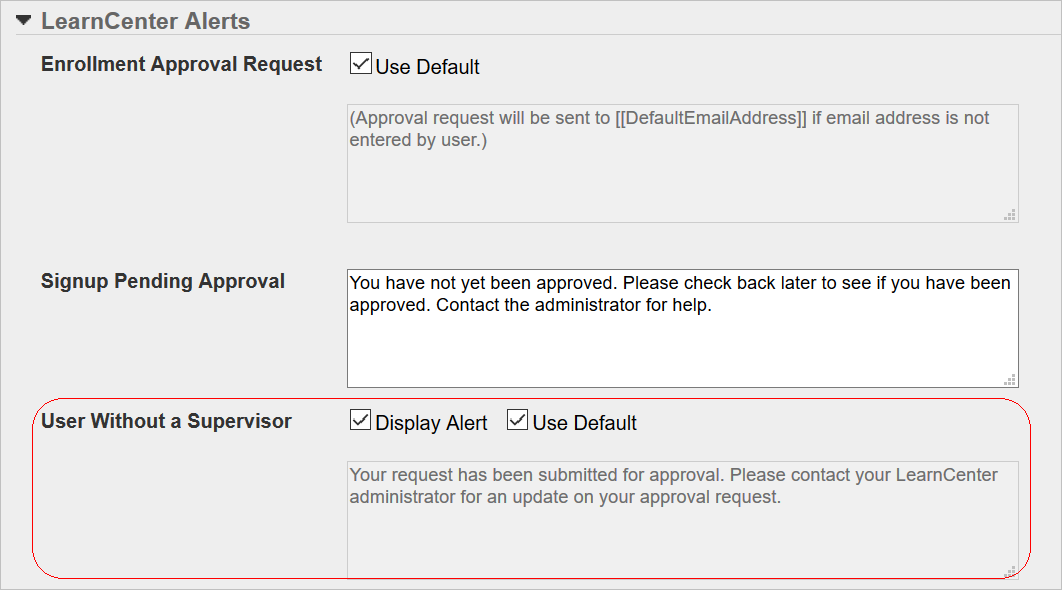
User Without a Supervisor Alert Message Configuration
This alert displays to Users who have no Supervisors when they self-map or self-register for training that requires supervisor approval. No Communication Messages are sent, but the designated Administrator can view and approve the pending or nominated requests. You can use the default LearnCenter text, or clear the Use Default check box and write your own message.
Key Resources
Refer to the topic in online help called “Configuring Contacts and Communication Options” (TOC > Options > Configuration Options > Configuring Contacts and Communication Options) for instructions on configuring alerts.
There is a new Bulk Loader included with this release. It enables you to do the following:
- Bulk upload Supervisors
- Map Supervisors to Supervisor Roles
- Map and un-map Users to the Supervisors.
Key Resources
Refer to online help for complete details on Supervisors (TOC > User Accounts > Supervisor Accounts) and Supervisor Roles (TOC > User Accounts > Supervisor Roles). Refer to online help for complete details on Bulk Loader (TOC > Integrations > Bulk Loader).
Table 1. Supervisor Username
| Text Editor Column |
Excel Column |
Required |
Notes |
| 1 |
A |
Yes |
The username of the user to be added or removed from supervisor accounts. |
| Accepted Values |
Any Value up to 100 characters in length |
||
Table 2. Supervisor Action
| Text Editor Column |
Excel Column |
Required |
Notes |
| 2 |
B |
No |
Action to be applied on the Supervisor username |
| Accepted Values |
|
||
| • Example: Add • Example: Remove |
|||
Table 3. Supervisor Role
| Text Editor Column |
Excel Column |
Required |
Notes |
| 3 |
C |
No |
Sets the role to the Supervisor |
| Accepted Values |
|
||
| • Example: Role1 • Example: Role1;Role2 |
|||
Table 4. Supervisor Role Action
| Text Editor Column |
Excel Column |
Required |
Notes |
| 4 |
D |
No |
Action to be applied on the Supervisor role. |
| Accepted Values |
|
||
| • Example: Add • Example: Remove |
|||
Table 5. User’s Username
| Text Editor Column |
Excel Column |
Required |
Notes |
| 5 |
E |
No |
Users to be mapped to Supervisor |
| Accepted Values |
|
||
| • Example: User1 • Example: User1;User2;User3 |
|||
Table 6. User Action
| Text Editor Column |
Excel Column |
Required |
Notes |
| 6 |
F |
No |
Action to be applied on the Users Username |
| Accepted Values |
|
||
| • Example: Add • Example: Remove |
|||
The new REST API can support creating and updating Dynamic Groups for those customers with integrations who may have complex business requirements that are not currently supported by the Dynamic Groups feature. The REST API supports the creation and management of Dynamic Groups, and the adding and removing of Users for Dynamic Groups.
The Oracle Taleo Learn REST API document contains everything a Developer would need to begin working with the API.
Key Resources
If you are interested in working with the API, you must first complete a certification course. This course is located here: https://nmtaleo.learn.taleo.net/LearnIntegration.
---

Copyright © 2018, Oracle and/or its affiliates. All rights reserved.
This software and related documentation are provided under a license agreement containing restrictions on use and disclosure and are protected by intellectual property laws. Except as expressly permitted in your license agreement or allowed by law, you may not use, copy, reproduce, translate, broadcast, modify, license, transmit, distribute, exhibit, perform, publish, or display any part, in any form, or by any means. Reverse engineering, disassembly, or decompilation of this software, unless required by law for interoperability, is prohibited.
The information contained herein is subject to change without notice and is not warranted to be error-free. If you find any errors, please report them to us in writing.
If this is software or related documentation that is delivered to the U.S. Government or anyone licensing it on behalf of the U.S. Government, then the following notice is applicable:
U.S. GOVERNMENT END USERS: Oracle programs, including any operating system, integrated software, any programs installed on the hardware, and/or documentation, delivered to U.S. Government end users are "commercial computer software" pursuant to the applicable Federal Acquisition Regulation and agency-specific supplemental regulations. As such, use, duplication, disclosure, modification, and adaptation of the programs, including any operating system, integrated software, any programs installed on the hardware, and/or documentation, shall be subject to license terms and license restrictions applicable to the programs. No other rights are granted to the U.S. Government.
This software or hardware is developed for general use in a variety of information management applications. It is not developed or intended for use in any inherently dangerous applications, including applications that may create a risk of personal injury. If you use this software or hardware in dangerous applications, then you shall be responsible to take all appropriate fail-safe, backup, redundancy, and other measures to ensure its safe use. Oracle Corporation and its affiliates disclaim any liability for any damages caused by use of this software or hardware in dangerous applications.
Oracle and Java are registered trademarks of Oracle and/or its affiliates. Other names may be trademarks of their respective owners.
Intel and Intel Xeon are trademarks or registered trademarks of Intel Corporation. All SPARC trademarks are used under license and are trademarks or registered trademarks of SPARC International, Inc. AMD, Opteron, the AMD logo, and the AMD Opteron logo are trademarks or registered trademarks of Advanced Micro Devices. UNIX is a registered trademark of The Open Group.
This software or hardware and documentation may provide access to or information about content, products, and services from third parties. Oracle Corporation and its affiliates are not responsible for and expressly disclaim all warranties of any kind with respect to third-party content, products, and services unless otherwise set forth in an applicable agreement between you and Oracle. Oracle Corporation and its affiliates will not be responsible for any loss, costs, or damages incurred due to your access to or use of third-party content, products, or services, except as set forth in an applicable agreement between you and Oracle.
