
This document will continue to evolve as existing sections change and new information is added. All updates appear in the following table:
| Date | Product | Feature | Notes |
|---|---|---|---|
| 07 AUG 2020 | Created initial document. |
This guide outlines the information you need to know about new or improved functionality in this update.
We are announcing the general availability of the 20C update of the Oracle Taleo Cloud for Midsize (TBE) on August 21, 2020. This is considered a minor update.
Column Definitions:
Features Delivered Enabled
Report = New or modified, Oracle-delivered, ready to run reports.
UI or Process-Based: Small Scale = These UI or process-based features are typically comprised of minor field, validation, or program changes. Therefore, the potential impact to users is minimal.
UI or Process-Based: Larger Scale* = These UI or process-based features have more complex designs. Therefore, the potential impact to users is higher.
Features Delivered Disabled = Action is needed BEFORE these features can be used by END USERS. These features are delivered disabled and you choose if and when to enable them. For example, a) new or expanded BI subject areas need to first be incorporated into reports, b) Integration is required to utilize new web services, or c) features must be assigned to user roles before they can be accessed.
| Ready for Use by End Users Reports plus Small Scale UI or Process-Based new features will have minimal user impact after an update. Therefore, customer acceptance testing should focus on the Larger Scale UI or Process-Based* new features. |
Action is Needed BEFORE Use by End Users Not disruptive as action is required to make these features ready to use. As you selectively choose to leverage, you set your test and roll out timing. |
|||||
|---|---|---|---|---|---|---|
| Feature |
Report |
UI or |
UI or |
|
||
This release introduces a new Talent Center page ("My Team"), which includes one goal-based ("My Team's Goals"). This new page is only available to customers who have enabled TBE Perform. In addition, it will only display to employees with user records in TBE having at least one direct report (that is, managers). The new page will not be visible to other employees. Future widgets will be employee-based, and therefore will also be available for customers with TBE Onboard enabled.
The My Team's Goals widget displays the goals assigned to direct reports, and optionally, subordinates, for the logged-in Talent Center employee. It also allows the manager to create goals for their direct reports and subordinates. Managers can create and update goals for their team members inside the Talent Center rather than from Taleo Business Edition Perform. As additional 'My Team' widgets are added in the future, managers will be able to handle more tasks directly from the Talent Center, with its user-friendly, responsive interface.
Steps to Enable
Steps to Enable the My Team Page
- Select Administration, then select Organization.
- Click System & Email Settings.
- Scroll down to the User Interface Settings, and check the option Enable 'My Team' page on Talent Center.
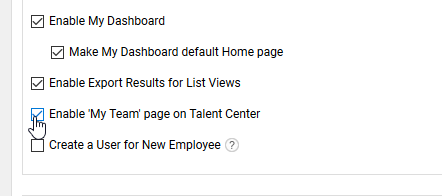
- Click Save.
- Select Administration, then select Customize Perform.
- Locate the desired Talent Center and click Edit Pages.
- Click the new My Team page at the top of the page.
- You should see the My Team's Goals widget. Click the widget to add or remove any columns, if needed.
- Click Done to save the widget.
- To view the current page layout for these goals, choose Assign Goal Layout from the Manage Layouts drop-down.
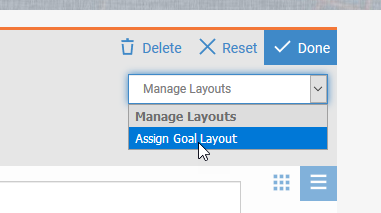
- Update the page layout by adding or removing fields as you would do for any other Talent Center page layout. Be sure to save each widget on the page layout.
- Click Save & Publish to save all your changes.
By default, the widget will include goals for only a manager's direct reports. In addition, when a manager assigns a goal, only the direct reports will be listed. However, administrators can change the default to include all subordinates as well.
Steps to Include/Exclude Subordinates
- Click the My Team's Goals widget to edit the widget.
- Click on the option Show Goals for All Subordinates, which currently says No, to change this to Yes.
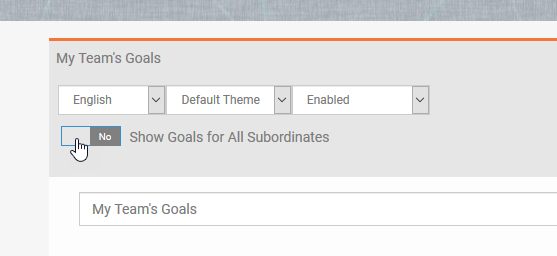
- Click Done to save the widget.
Now when managers go to the My Team page, goals listed in the widget will include those belonging to subordinates as well as direct reports. In addition, when managers assign a goal, subordinates will be listed as well. Goals for employees listed as indirect reports will not appear.
Using the Widget
When logging into the Talent Center, the My Team page will only appear if the employee logged into the Talent Center has a TBE Perform User record (the User record and Employee record must be linked) AND the employee is listed as the manager for at least one person. Your employees who are not currently managers will not see My Team page at all.
Any goals assigned to direct reports or subordinates, depending on the setting mention above, will automatically appear in this widget. Managers can edit the goals to update as needed by clicking the Edit button.
Steps to Assign New Goals
- The manager clicks the Assign Goals button on the widget.
- On the new page that appears, click the drop-down in the Assign Goal to Employee section.
- Select one or more names from the list. Click the 'select all' link to assign the same goal to all the employees, which will then change to 'unselect all.'
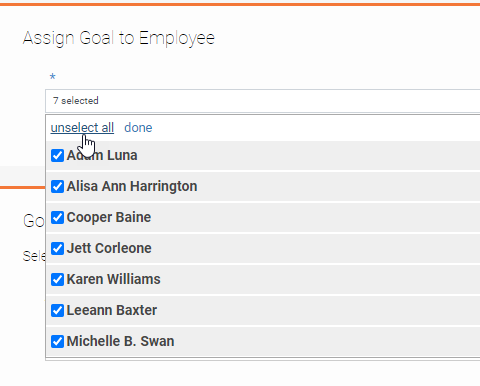
- Click done or click outside the drop-down to close it.
- Continue filling out the rest of the fields.
- Click Save when done.
The manager is taken back to the My Team page, and the newly created goals appear in the widget. They will also appear in the My Goals widget for the corresponding employees.
Tips And Considerations
You can add Template HTML widgets as well as the Document Repository widget to this page, if needed. However, unlike other pages on the Talent Center, you cannot add the other standard widgets to this 'My Team' page.
Due to the nature of this widget, the two first columns (First Name and Last Name) cannot be sorted. The other columns can be sorted. You can add the field 'Employee Name' that will list last name followed by first name, if you want to give users the option to sort by name instead of title or due date. The First and Last name fields can then be removed from the widget.
In addition, while page layouts are always applied to all Talent Centers, for this widget, changing the list view applies to all Talent Centers as well. You cannot have different fields appear for different Talent Centers for this widget.
Taleo Candidate Search Enhancements
This update enhances the Taleo Candidate Search functionality, released in 20B. Please refer to the Help > Recruit guide for more information on Taleo Candidate Search.
Relevance Score
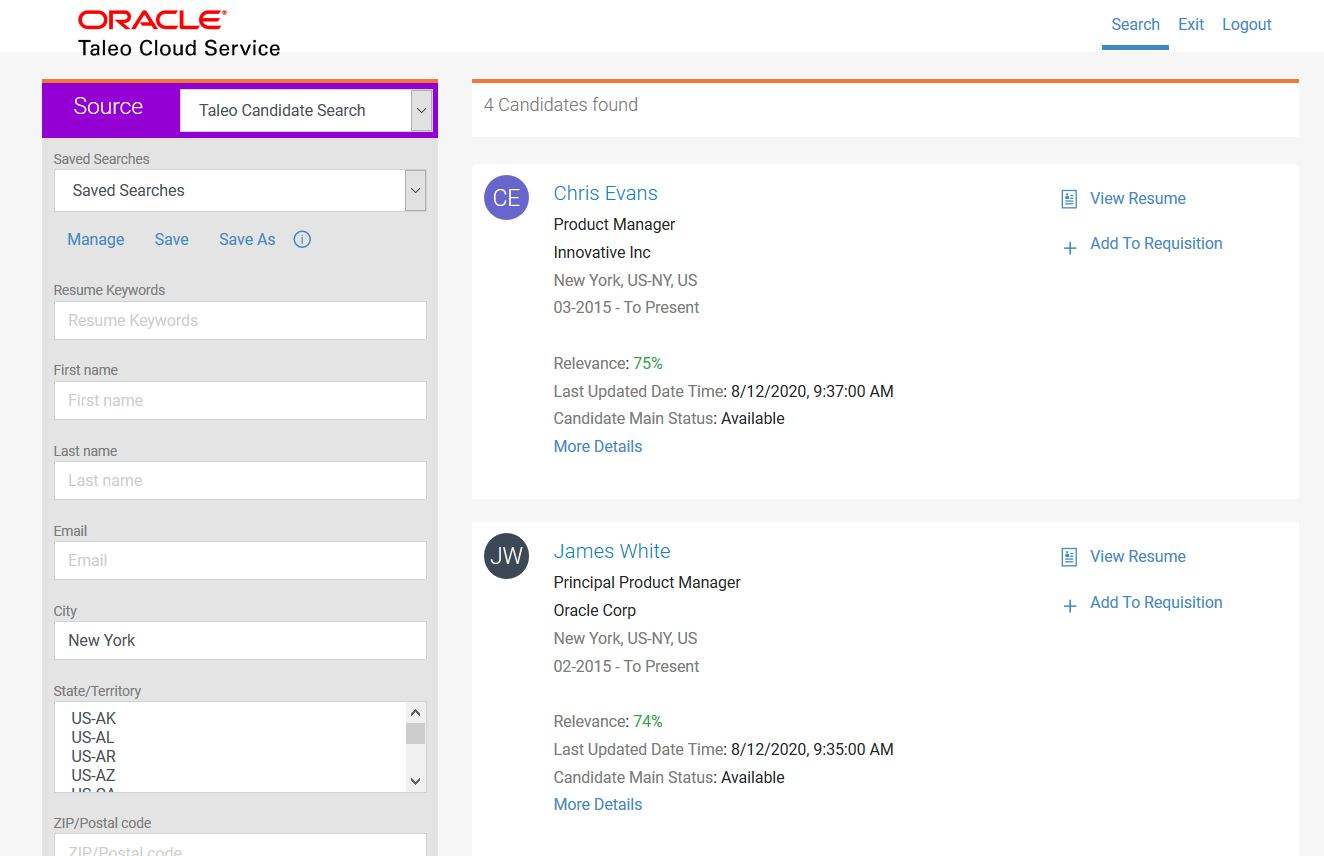
Searching for candidates now displays the relevance score for each returned candidate. Search results are sorted by the relevance score, with the highest score on top. This feature allows your users to easily determine the candidates that best match the desired criteria.
Requisition-Specific Candidate Fields
Users can now search on commonly used requisition-specific candidate fields when using Taleo Candidate Search, such as the req-specific candidate status and rejection reason. All fields currently present on the Search Candidate page layout are available for users to add to the Talent Candidate Search panel. Please note that there are a few requisition-specific fields that do not currently work. These are: Requisitions, Requisition Location, Requisition Owner, Application Form, Requisition-Specific Gender and Race.
Please continue to search from Candidate Search page for these less common use cases.
Multi-Select Fields for a Non-English locale
Users with a non-English locale can now select values from picklists when using Taleo Candidate Search. Previously, this type of search didn't work correctly for locales other than English.
These enhancements enrich Taleo Candidate Search further, encouraging customers to try the newer search interface.
Steps to Enable
You don't need to do anything to enable this feature.
REST API Support of Screening Question Answers
This update extends the TBE REST APIs so customers or partners can POST (submit) a candidate's answers to screening questions during the creation of a job application in TBE Recruit. One can also GET (retrieve) the list of answers supplied by a candidate during application.
Specific details will be included in the REST API guide at the time of the 20C release. The latest guide can always be found at this location: https://www.oracle.com/technical-resources/documentation/taleobusiness.html
A number of high-profile TBE partners (who are either middleware application workflow providers of job boards themselves) have expressed the need of this enhancement to fully round out native candidate application experience, without having to redirect them to the Career Center apply flow to complete it. Uptaking this API-driven enhancement will allow such partners, as well as any customers building ad hoc integrations, to submit well-formed candidate applications entirely outside TBE, while reducing application drop-offs due to disjoint experiences when going from the job board to Career Center apply flow.
Steps to Enable
Review the REST service definition in the REST API guides, available from the Oracle Help Center > your apps service area of interest > REST API. If you're new to Oracle's REST services you may want to begin with the Quick Start section.
IMPORTANT Actions and Considerations
APPLICATION SNAPSHOT
For those customers that use the Application Snapshot for their Career Center applications, please be aware that starting with the 20C update, you may notice some small formatting differences in the snapshots. This change will be rolled out over a period of a few months to various TBE servers. All of the important data that you rely on to justify hiring decisions is still present, but the formatting will change slightly in order to optimize the capture of such information. Snapshots previously captured will not change.
UPDATED CC-305 FORM
The CC-305 form was updated in July for your career sites. Please note that this version of the form has a few changes from the last version.
- There is a new 'Employee ID' field that is available for your current employees to fill in, if desired, if they apply for a new position via an internal career site. Because this field doesn't exist for candidates, it will be part of the CC-305 PDF, but has no effect on the Candidate record.
- The 'For Employer Use only' section at the bottom of the form cannot be edited within TBE because only candidates update this form. If you want to use this portion of the form you must print out the PDF, fill this in, and then upload as an attachment.
- The values for the drop down (Yes, I have a disability, etc.) have changed slightly. If you have an integration of any sort using these values, be sure to update the values accordingly.