
This document will continue to evolve as existing sections change and new information is added. All updates appear in the following table:
| Date | Product | Feature | Notes |
|---|---|---|---|
| 09 AUG 2022 | Created initial document. |
 HAVE AN IDEA?
We’re here and we’re listening. If you have a suggestion on how to make our cloud services even better then go ahead and tell us. There are several ways to submit your ideas, for example, through the Ideas Lab on Oracle Customer Connect. Wherever you see this icon after the feature name it means we delivered one of your ideas.
GIVE US FEEDBACK
We welcome your comments and suggestions to improve the content. Please send us your feedback at oracle_fusion_applications_help_ww_grp@oracle.com.
DISCLAIMER
The information contained in this document may include statements about Oracle’s product development plans. Many factors can materially affect Oracle’s product development plans and the nature and timing of future product releases. Accordingly, this Information is provided to you solely for information only, is not a commitment to deliver any material, code, or functionality, and should not be relied upon in making purchasing decisions. The development, release, and timing of any features or functionality described remains at the sole discretion of Oracle.
This information may not be incorporated into any contractual agreement with Oracle or its subsidiaries or affiliates. Oracle specifically disclaims any liability with respect to this information. Refer to the Legal Notices and Terms of Use for further information.
Column Definitions:
Report = New or modified, Oracle-delivered, ready to run reports.
UI or Process-Based: Small Scale = These UI or process-based features are typically comprised of minor field, validation, or program changes. Therefore, the potential impact to users is minimal.
UI or Process-Based: Larger Scale* = These UI or process-based features have more complex designs. Therefore, the potential impact to users is higher.
Features Delivered Disabled = Action is needed BEFORE these features can be used by END USERS. These features are delivered disabled and you choose if and when to enable them. For example, a) new or expanded BI subject areas need to first be incorporated into reports, b) Integration is required to utilize new web services, or c) features must be assigned to user roles before they can be accessed.
| Ready for Use by End Users Reports plus Small Scale UI or Process-Based new features will have minimal user impact after an update. Therefore, customer acceptance testing should focus on the Larger Scale UI or Process-Based* new features. |
Customer Must Take Action before Use by End Users Not disruptive as action is required to make these features ready to use. As you selectively choose to leverage, you set your test and roll out timing. |
|||||
|---|---|---|---|---|---|---|
| Feature |
Report |
UI or |
UI or |
|
||
Document Repository Organization Restrictions
With the 22C release, administrators can set view and access restrictions to particular documents in the Document Repository widget of a particular Talent Center.
You can organize the documents available to employees so that they only see and access a more succinct and relevant set of documents.
Steps to Enable
- Select Administration, then select Organization.
- Select Document Repository.
- Add a new document, or edit an existing one.
- Add a document and title.
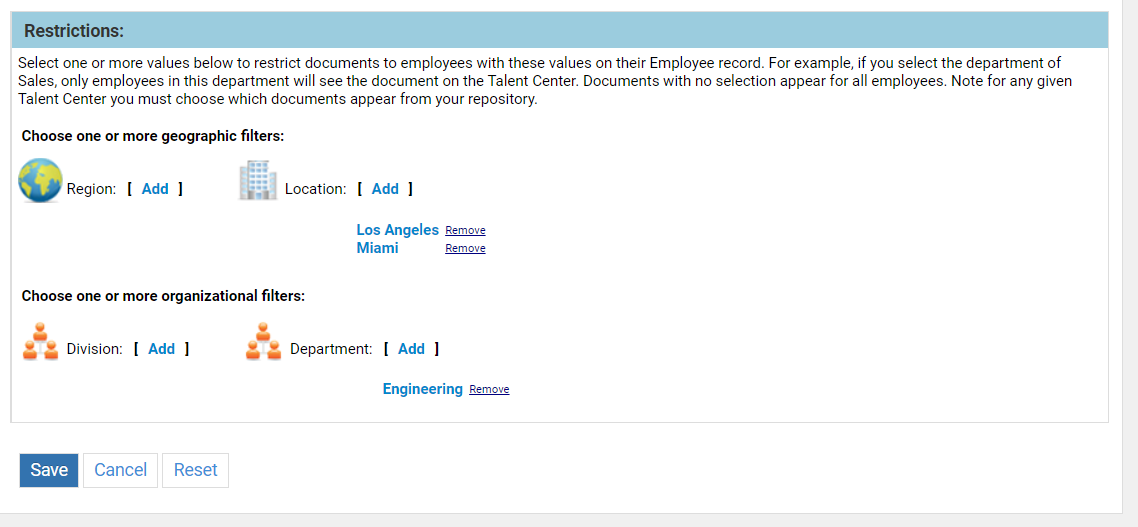
- In the Restrictions section, add one or more region, location, division or department.
- Click Save. In the list of documents, a small lock icon will appear for any documents with a restriction.
- If you haven't already done so, select the documents to appear per Talent Center by going to one of the 'Customize' pages, and clicking Edit Pages for the correct Talent Center.
- Click the Document Repository widget, or add the widget if it's not already on the page.
- Click the Choose Files button.
- Select all of the files which should appear for the given Talent Center, and click Done. Please note: You are selecting all of the documents that would appear if the restrictions do not apply to the employee. In other words, this selection establishes the maximum set of documents for the Talent Center in question.
- Click Save & Publish at the top of the page.
- Click Exit to return to TBE, or continue editing the Talent Center.
Tips And Considerations
Documents set up with no restrictions will appear for all employees logged into the Talent Center, assuming you have selected the document for the widget in a given Talent Center.
When you set up restrictions, selecting both a region and a location will function as an OR. Selecting multiple regions or multiple locations also functions as an OR. If you have a location of Los Angeles, which is part of your West region, there is no need to select both the West region and the Los Angeles location, as every employee in Los Angeles is already in the West.
Similarly, selecting multiple divisions and multiple departments also functions as an OR, as does selecting one division and one department.
However, when selecting geographic filters (at the top) along with organizational filters (at the bottom), this functions as an AND statement. In the below example, the current document will appear for all employees in either the Los Angeles and Miami locations only if they are also in the Engineering department.
Email Verification for New Job Seekers
This security feature enables email verification to all new job applicants in a particular Career Center, before they can continue the application process, thus ensuring that all applicants enter valid email addresses before recruiters communicate with them.
Enabling this feature ensures that all applicants enter valid email addresses (as humans and not bots) before recruiters or hiring managers start communicating with them.
Steps to Enable
- Select Administration, then select Customize Recruit.
- Click Edit Settings for the desired Career Center.
- Scroll down to the button of the settings section.
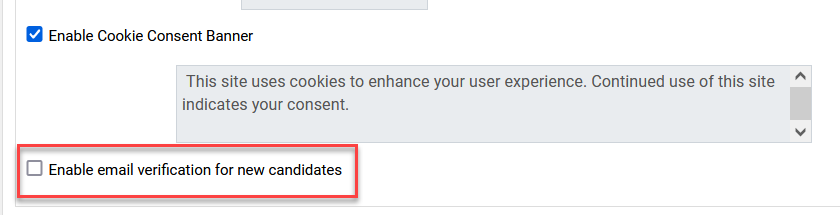
- Check the option Enable email verification for new candidates.
- Click Save.
Tips And Considerations
This verification email will not be sent to your existing candidates if they apply again. The email template for this feature is not available for customization. It contains the following text, translated into all available languages:
You have started an application at <<COMPANY_NAME>>. Please click the link below to verify your email address.
Confirm (this will be the link which returns them to the application)
Thank you,
Human Resources
<<COMPANY_NAME>>