
This document will continue to evolve as existing sections change and new information is added. All updates appear in the following table:
| Date | Product | Feature | Notes |
|---|---|---|---|
| 25 MAR 2021 | Created initial document. |
Oracle Utilities Digital Self Service - Transactions includes a suite of digital experiences that empowers customers to perform self-service transactions on any desktop or mobile device and reduces cost to serve. The responsive design allows customers to complete all transactions on any device or screen size and orientation, and ensures a consistent brand experience across access channels.
This guide outlines the information you need to know about new or improved functionality in this update, and describes any tasks you might need to perform for the update. Each section includes a brief description of the feature, the steps you need to take to enable or begin using the feature, any tips or considerations that you should keep in mind, and the resources available to help you.
NOTE: The Oracle Utilities Opower What's New document has information about Digital Self Service - Energy Management features and other features that may also be available to your utility.
Column Definitions:
Report = New or modified, Oracle-delivered, ready to run reports.
UI or Process-Based: Small Scale = These UI or process-based features are typically comprised of minor field, validation, or program changes. Therefore, the potential impact to users is minimal.
UI or Process-Based: Larger Scale* = These UI or process-based features have more complex designs. Therefore, the potential impact to users is higher.
Features Delivered Disabled = Action is needed BEFORE these features can be used by END USERS. These features are delivered disabled and you choose if and when to enable them. For example, a) new or expanded BI subject areas need to first be incorporated into reports, b) Integration is required to utilize new web services, or c) features must be assigned to user roles before they can be accessed.
| Ready for Use by End Users Reports plus Small Scale UI or Process-Based new features will have minimal user impact after an update. Therefore, customer acceptance testing should focus on the Larger Scale UI or Process-Based* new features. |
Customer Must Take Action before Use by End Users Not disruptive as action is required to make these features ready to use. As you selectively choose to leverage, you set your test and roll out timing. |
|||||
|---|---|---|---|---|---|---|
| Feature |
Report |
UI or |
UI or |
|
||
Digital Self Service - Energy Management Disaggregation Dashboard |
||||||
Customer Service Representative Masquerading from Customer Care and Billing |
||||||
Digital Self Service Transactions
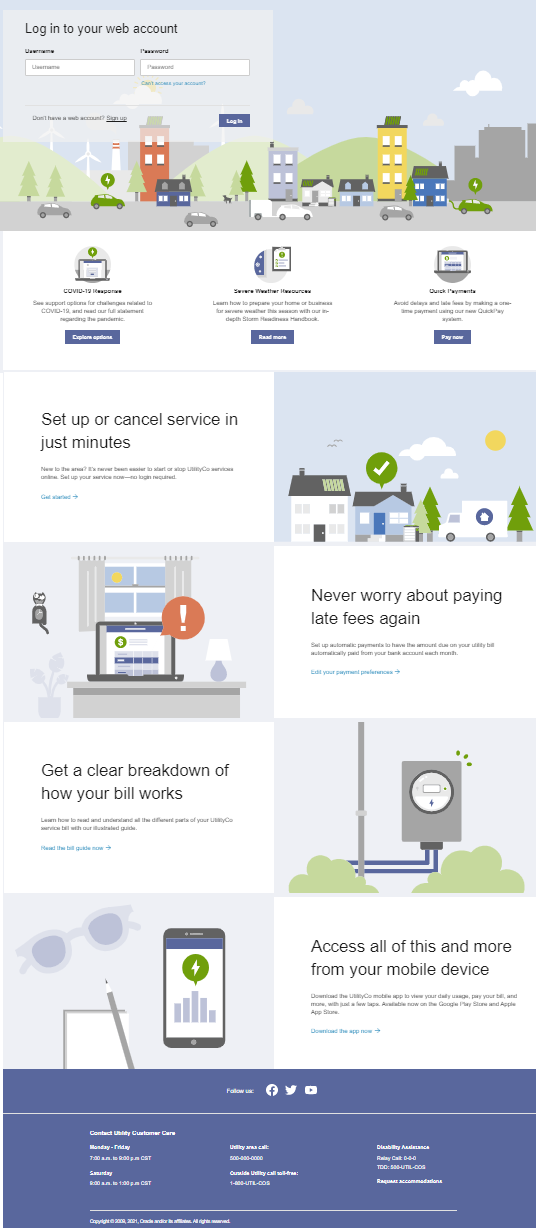
Customize the Digital Self Service - Transactions Login page to highlight utility content, brand imagery, and programs from the most frequently visited page of the portal. Utilities can use these enhancements to share resources and direct customers to programs they can take advantage of without needing to log into their web account. Utilities also have the ability to configure three quick links to external content, such as a COVID-19 response directly beneath the login form.
Watch a Demo
Utilities can use their customized Digital Self Service - Transactions Login page to share resources and direct customers to programs without needing to log into their web account.
Steps to Enable
A Cloud configuration is required to enable this feature.
To open a service request for Cloud configuration:
- Go to My Oracle Support (https://support.oracle.com). Click Cloud Support and log in.
- Click the Create Service Request button and follow the prompts to complete the Service Request.
Tips And Considerations
This feature requires an Oracle Identity Cloud Service license.
Key Resources
- Watch the Promoting Utility Programs Demo
- Oracle Identity Cloud Service User Experience Configuration
- Digital Self Service - Transactions Configuration Guide
Restrict Cash-only Support for Multiple Account Payment
The cash-only restriction is enabled on the multi-account payment workflows by default. Users who have one or more accounts with the cash-only status cannot select those accounts for payments. Utilities can use this feature to ensure that users who use the multi-account payment option to pay their accounts in a single transaction are now also subject to cash-only verification.
The Restrict Cash-only Support for Multiple Account Payment enables cash-only verification for customers using the multi-account payment option to pay their accounts in a single transaction.
Steps to Enable
A Cloud configuration is required to enable this feature.
To open a service request for Cloud configuration:
- Go to My Oracle Support (https://support.oracle.com). Click Cloud Support and log in.
- Click the Create Service Request button and follow the prompts to complete the Service Request.
A patch install is required to enable this feature.
To install the patch:
- Locate the applicable patch. See Supported Versions And Required Patches And APIs For Oracle Utilities Opower Digital Self Service for a full list of available patches.
- Install the applicable Oracle Utilities Customer Care and Billing patch and make the required Oracle Utilities Customer Care and Billing configuration updates.
Configure Payment Terms and Conditions
Utilities can configure the Clearing House payment terms and conditions to appear in the customer’s Terms and Conditions Statement. Digital Self Service - Transactions requires customers to accept the terms and conditions set by their utility before submitting payment.
Configure Payment Terms and Conditions ensures utilities are in compliance with National Automated Clearing House Association rules for processing payments.
Steps to Enable
A Cloud configuration is required to enable this feature.
To open a service request for Cloud configuration:
- Go to My Oracle Support (https://support.oracle.com). Click Cloud Support and log in.
- Click the Create Service Request button and follow the prompts to complete the Service Request.
A combined single and multi-account payment workflow is available to manage different accounts within a single transaction. The payment process supports a new calendar input field and additional summary and verification processes to allow users to confirm their payment details before submitting the payment. Utilities can add mandatory terms and conditions for users to agree to before submitting the payment.
The combined single and multi-account payment workflow provides the capability to manage different accounts within a single transaction.
Steps to Enable
A Cloud configuration is required to enable this feature.
To open a service request for Cloud configuration:
- Go to My Oracle Support (https://support.oracle.com). Click Cloud Support and log in.
- Click the Create Service Request button and follow the prompts to complete the Service Request.
A patch install is required to enable this feature.
To install the patch:
- Locate the applicable patch. See Supported Versions And Required Patches And APIs For Oracle Utilities Opower Digital Self Service for a full list of available patches.
- Install the applicable Oracle Utilities Customer Care and Billing patch and make the required Oracle Utilities Customer Care and Billing configuration updates.
Customers can use the Web Login Details widget to manage the email address associated with their web account without contacting the utility. This feature reduces customer support needs by making it possible for customers to self-serve aspects of their web account management.
The Web Login Details widget reduces customer support needs by providing a self-management web account.
Steps to Enable
A Cloud configuration is required to enable this feature.
To open a service request for Cloud configuration:
- Go to My Oracle Support (https://support.oracle.com). Click Cloud Support and log in.
- Click the Create Service Request button and follow the prompts to complete the Service Request.
Tips And Considerations
This feature requires an Oracle Identity Cloud Service license.
In their High Bill Alerts email, customers can identify the time of day in which they tend to use the most water and modify their behavior to be more efficient. The Water Time of Day module includes a usage value that represents usage-to-date within the current bill period. The six-hour time period with the most usage is highlighted, while the other three time periods are displayed in a faded color. When included in a High Bill Alert email, customers can see what their bill is expected to be this month, a graph of how much they are spending on water compared to last year, the time of day in which they are using the most water, and tips to save water in and out of their home.
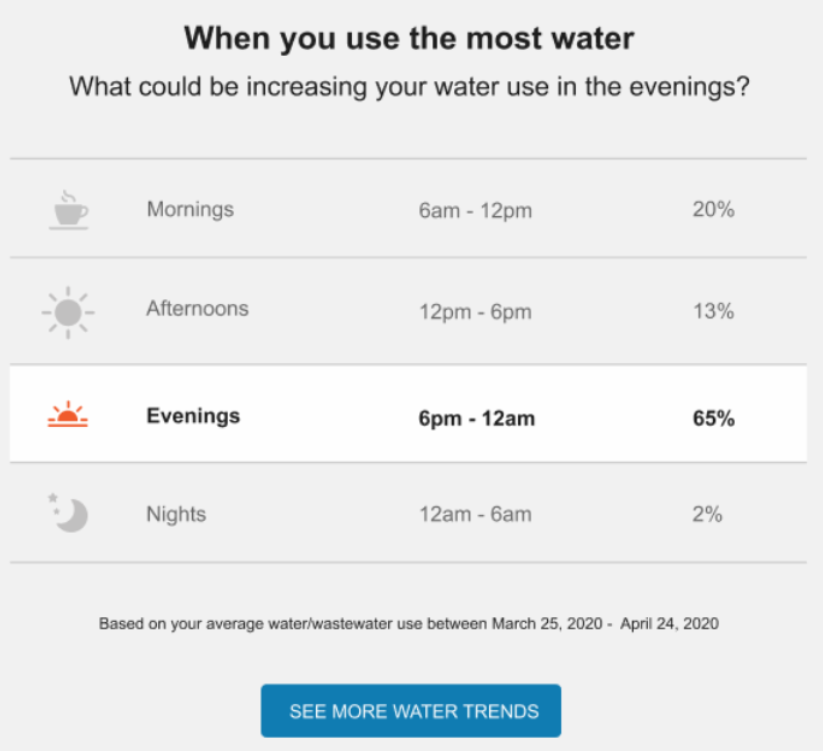
The Water Time of Day module allows customers to view what their bill is expected to be this month.
Steps to Enable
Contact your Service Delivery Manager to coordinate configuration of the module.
To open a Service Request:
- Go to My Oracle Support (https://support.oracle.com). Click Cloud Support and log in.
- Click the Create Service Request button and follow the prompts to complete the Service Request.
Start, Stop, and Transfer Service
Invite Guest Confirmation Enhancements
The Phone field validation can be set to optional for utilities when validating an existing person during the guest acceptance process.
The enhancements to Invite Guest Confirmation make validation more efficient for utilities that do not have phone number information for existing customers in Customer To Meter.
Steps to Enable
A patch install is required to enable this feature.
To install the patch:
- Locate the applicable patch. See Supported Versions And Required Patches And APIs For Oracle Utilities Opower Digital Self Service for a full list of available patches.
- Install the applicable Oracle Utilities Customer Care and Billing patch and make the required Oracle Utilities Customer Care and Billing configuration updates.
Link Non-Main Persons to Accounts
Customers who are associated with an account but are not the main customer on the account can use their own personal identifiers to link to accounts directly though Digital Self Service - Transactions. This feature allows customers to more efficiently self-serve, and offers utilities an alternative to the standard Invite Guest feature which requires that the account holder invite additional guests.
The Link Non-Main Person to Accounts feature provides utilities with an alternative to the Invite Guest feature that allows customers to use their own personal identifiers to link to accounts directly when they are not the main customer on the account.
Steps to Enable
A patch install is required to enable this feature.
To install the patch:
- Locate the applicable patch. See Supported Versions And Required Patches And APIs For Oracle Utilities Opower Digital Self Service for a full list of available patches.
- Install the applicable Oracle Utilities Customer Care and Billing patch and make the required Oracle Utilities Customer Care and Billing configuration updates.
Guest user roles option set up is required to enable this feature.
To define guest user options:
Refer to the Defining Invite Guest User Tasks, Roles, and Alerts section of the Digital Self Service - Transactions Configuration Guide.
Key Resources
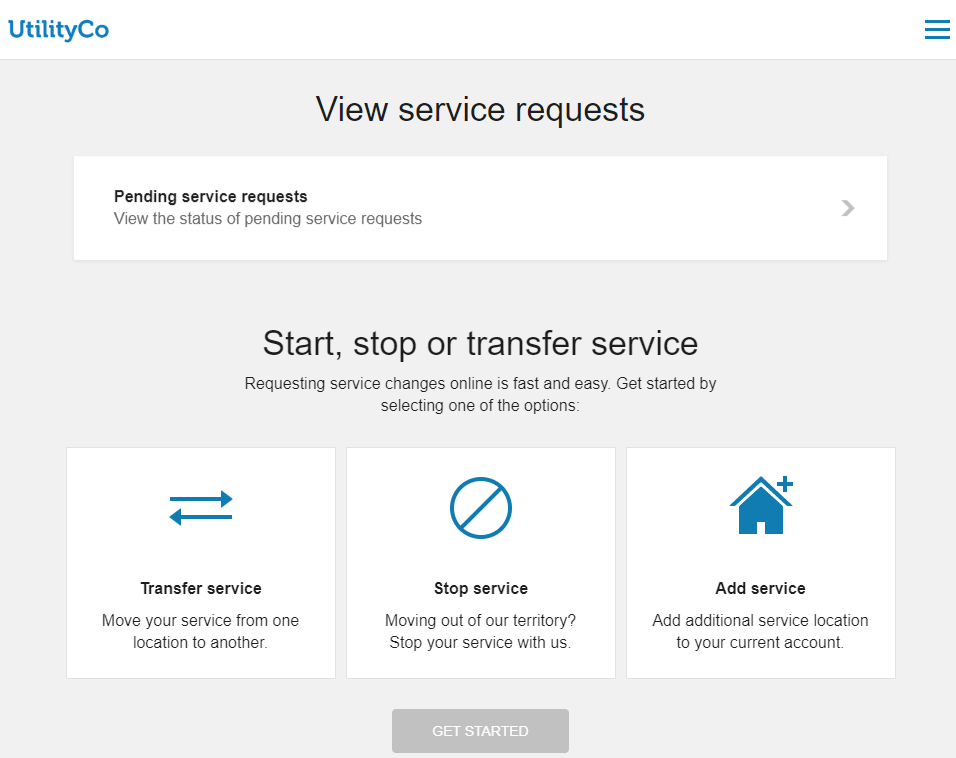
Customers can view their pending start, stop, and transfer service transactions in Digital Self Service - Transactions and review important details such as the address, date of request, and requested services. Utilities can configure which types of service agreements are shown in order to provide the clearest picture of pending work to their customers.
Watch a Demo
The Pending Service Requests enables utilities to configure the display order of Service Agreement Types to provide customers with a clear picture of pending work.
Steps to Enable
A Cloud configuration and patch install are required to enable this feature.
To open a service request for Cloud configuration:
- Go to My Oracle Support (https://support.oracle.com). Click Cloud Support and log in.
- Click the Create Service Request button and follow the prompts to complete the Service Request.
To install the patch:
- Locate the applicable patch. See Supported Versions And Required Patches And APIs For Oracle Utilities Opower Digital Self Service for a full list of available patches.
- Install the applicable Oracle Utilities Customer Care and Billing patch and make the required Oracle Utilities Customer Care and Billing configuration updates.
Key Resources
- Watch the Pending Service Requests Demo
- Reviewing Start, Stop, and Transfer Service Configuration Options
- Digital Self Service - Transactions Configuration Guide
Utilities have the ability to provide additional messaging to users when they invite guests to access their account. Customers will see this message as they enter details for their guest and initiate the invitation process.
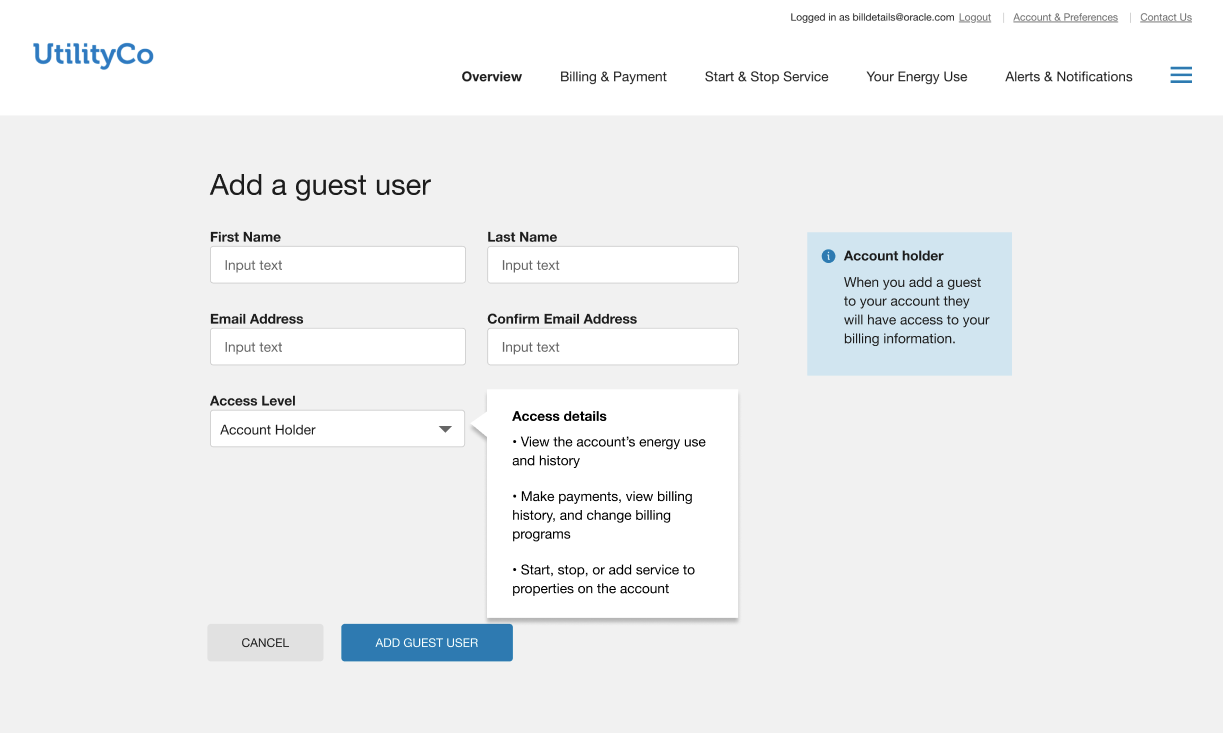
Customers see additional messaging when they invite guests to their account.
Steps to Enable
A Cloud configuration is required to enable this feature.
To open a service request for Cloud configuration:
- Go to My Oracle Support (https://support.oracle.com). Click Cloud Support and log in.
- Click the Create Service Request button and follow the prompts to complete the Service Request.
Key Resources
Digital Self Service - Energy Management Disaggregation Dashboard
The Home Energy Audit Call to Action feature was replaced with the Digital Self Service - Energy Management Disaggregation Dashboard feature. The Digital Self Service - Energy Management Disaggregation Dashboard feature dynamically includes a call to action for customers who have not yet taken the Home Energy Audit. Once the customer completes the audit, the dashboard provides the customer with disaggregation details.
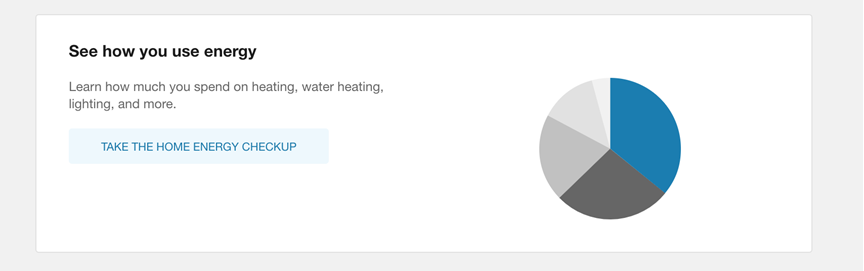
The Digital Self Service - Energy Management Disaggregation Dashboard feature provides customers with disaggregation details of the completed Home Energy Audit.
Steps to Enable
Contact your Service Delivery Manager to coordinate configuration of the module.
To open a Service Request:
- Go to My Oracle Support (https://support.oracle.com). Click Cloud Support and log in.
- Click the Create Service Request button and follow the prompts to complete the Service Request.
Tips And Considerations
This feature requires a Digital Self Service - Energy Management Cloud Service license.
Digital Self Service - Transactions automatically displays the maintenance page when Oracle Utilities Customer Care and Billing is unavailable and automatically resumes normal operation when Oracle Utilities Customer Care and Billing becomes available again. The maintenance mode content can be configured to display a custom message.
The maintenance mode content provides uninterrupted use of Oracle Utilities Customer Care and Billing by automatically displaying the maintenance page when the product becomes unavailable and resumes normal operation when the product becomes available.
Steps to Enable
Contact your Service Delivery Manager to coordinate configuration of the module.
To open a Service Request:
- Go to My Oracle Support (https://support.oracle.com). Click Cloud Support and log in.
- Click the Create Service Request button and follow the prompts to complete the Service Request.
Customer Service Representative Masquerading from Customer Care and Billing
Customer Service Representatives can use the Web User Summary zone in Oracle Utilities Customer Care and Billing or Oracle Utilities Customer To Meter to masquerade as the customer in the Digital Self Service - Transactions portal. Masquerading gives Customer Service Representatives additional context into what a customer might be trying to describe to them over the phone, as well as the ability to make changes to the customer's account through the Digital Self Service - Transactions portal.
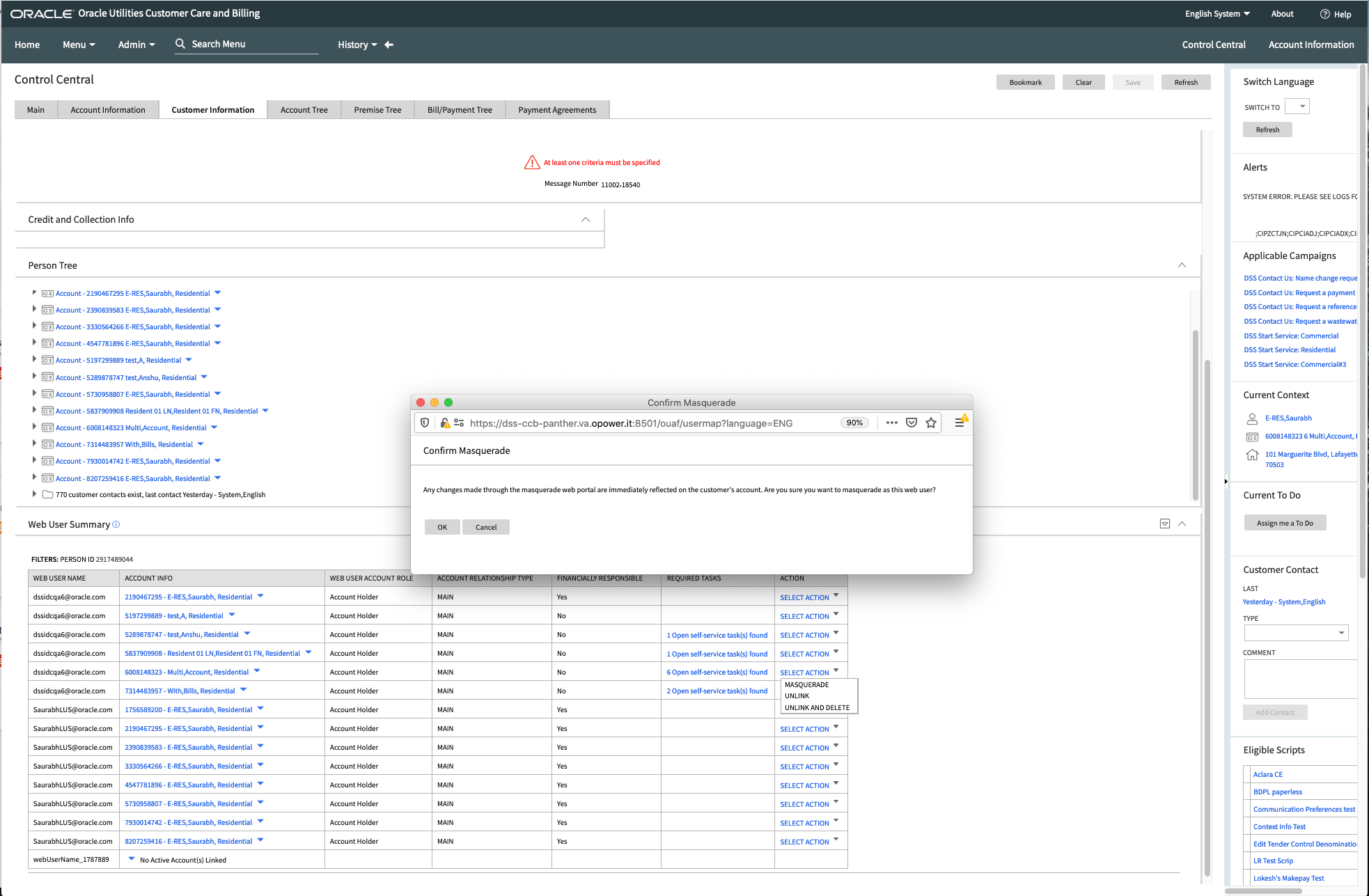
Masquerading from Oracle Utilities Customer Care and Billing
Watch a Demo
The Web User Summary zone enables you to answer questions about what a customer is seeing in their online account, troubleshoot, and resolve concerns or problems without having to access a separate system.
Steps to Enable
A Cloud configuration is required to enable this feature.
To open a service request for Cloud configuration:
- Go to My Oracle Support (https://support.oracle.com). Click Cloud Support and log in.
- Click the Create Service Request button and follow the prompts to complete the Service Request.
A Customer Service Representative Masquerading configuration is requires to enable this feature.
To configure Customer Service Representative Masquerading:
Refer to the Configuring CSR Masquerading section of the Digital Self Service - Transactions Configuration Guide.
Key Resources
- Watch the Providing Customer Support - Web User Summary Zone & CSR Masquerade Demo
- Configuring CSR Masquerading
- Digital Self Service - Transactions Configuration Guide.