
This document will continue to evolve as existing sections change and new information is added. All updates appear in the following table:
| Date | Product | Feature | Notes |
|---|---|---|---|
| 02 AUG 2021 | Created initial document. |
Oracle Utilities Digital Self Service - Transactions includes a suite of digital experiences that empowers customers to perform self-service transactions on any desktop or mobile device and reduces cost to serve. The responsive design allows customers to complete all transactions on any device or screen size and orientation, and ensures a consistent brand experience across access channels.
This guide outlines the information you need to know about new or improved functionality in this update, and describes any tasks you might need to perform for the update. Each section includes a brief description of the feature, the steps you need to take to enable or begin using the feature, any tips or considerations that you should keep in mind, and the resources available to help you.
NOTE: The Oracle Utilities Opower What's New document has information about Digital Self Service - Energy Management features and other features that may also be available to your utility.
Column Definitions:
Report = New or modified, Oracle-delivered, ready to run reports.
UI or Process-Based: Small Scale = These UI or process-based features are typically comprised of minor field, validation, or program changes. Therefore, the potential impact to users is minimal.
UI or Process-Based: Larger Scale* = These UI or process-based features have more complex designs. Therefore, the potential impact to users is higher.
Features Delivered Disabled = Action is needed BEFORE these features can be used by END USERS. These features are delivered disabled and you choose if and when to enable them. For example, a) new or expanded BI subject areas need to first be incorporated into reports, b) Integration is required to utilize new web services, or c) features must be assigned to user roles before they can be accessed.
| Ready for Use by End Users Reports plus Small Scale UI or Process-Based new features will have minimal user impact after an update. Therefore, customer acceptance testing should focus on the Larger Scale UI or Process-Based* new features. |
Customer Must Take Action before Use by End Users Not disruptive as action is required to make these features ready to use. As you selectively choose to leverage, you set your test and roll out timing. |
|||||
|---|---|---|---|---|---|---|
| Feature |
Report |
UI or |
UI or |
|
||
Prevent ACH Payments and Autopay Enrollment During Masquerade |
||||||
Digital Self Service Transactions
Oracle Identity Cloud Service administrators can configure passwords to expire after a defined number of days. If a customer’s password has expired and they try to log in with their previous password, they are directed to the password reset page. The customer is required to provide their current password and set a new password in accordance with the current password policy to regain access to their account. Previously, customers would not know their password had expired and would receive an error trying to use their last known password.
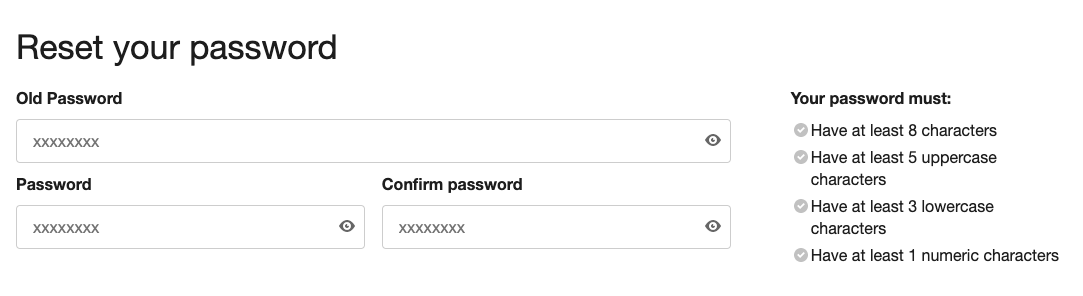
This feature allows customers to regain access to their account without contacting customer support, and enforces the utility's security policies for password rotation.
Steps to Enable
A Cloud configuration is required to enable this feature.
To open a service request for Cloud configuration:
- Go to My Oracle Support (https://support.oracle.com). Click Cloud Support and log in.
- Click the Create Service Request button and follow the prompts to complete the Service Request.
Tips And Considerations
An Oracle Identity Cloud Service license is required to use this feature.
Key Resources
- Refer to Oracle Identity Cloud Service User Experience and Update the Password Policy of the Digital Self Service - Transactions SSO Configuration Guide for more information.
Password Reset and Account Registration UX Enhancements
In a prior release, the Digital Self Service Login page was enhanced to support a hero background image to prominently feature a photo or illustration that represents the utility's market area. Now, utilities can apply the same image to the Password Reset and Web Account Creation pages.
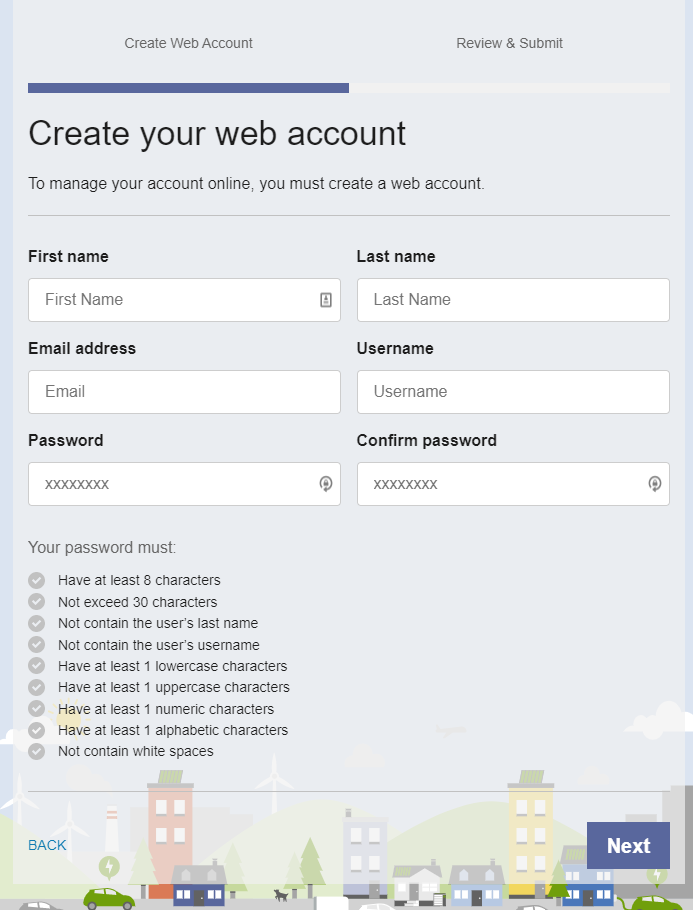
Password Reset and Web Account Creation
Using a hero background image across the Digital Self Service Login, Password Reset, and Web Account Creation pages enhances the portal user interface and provides a consistent and friendly user experience to unauthenticated customers as they get started online or need to regain access to their account.
Steps to Enable
A Cloud configuration is required to enable this feature.
To open a service request for Cloud configuration:
- Go to My Oracle Support (https://support.oracle.com). Click Cloud Support and log in.
- Click the Create Service Request button and follow the prompts to complete the Service Request.
Tips And Considerations
An Oracle Identity Cloud Service license is required to use this feature.
Key Resources
- Refer to Oracle Identity Cloud Service User Experience of the Digital Self Service - Transactions SSO Configuration Guide for more information.
Utilities can post a link to their Terms and Conditions web page and require customers to accept the terms before completing their web account registration. If a customer does not acknowledge this prompt, they will not be able to complete their account registration. This feature ensures that registering customers are made aware of and agree to follow the regulations in order to use the online portal.
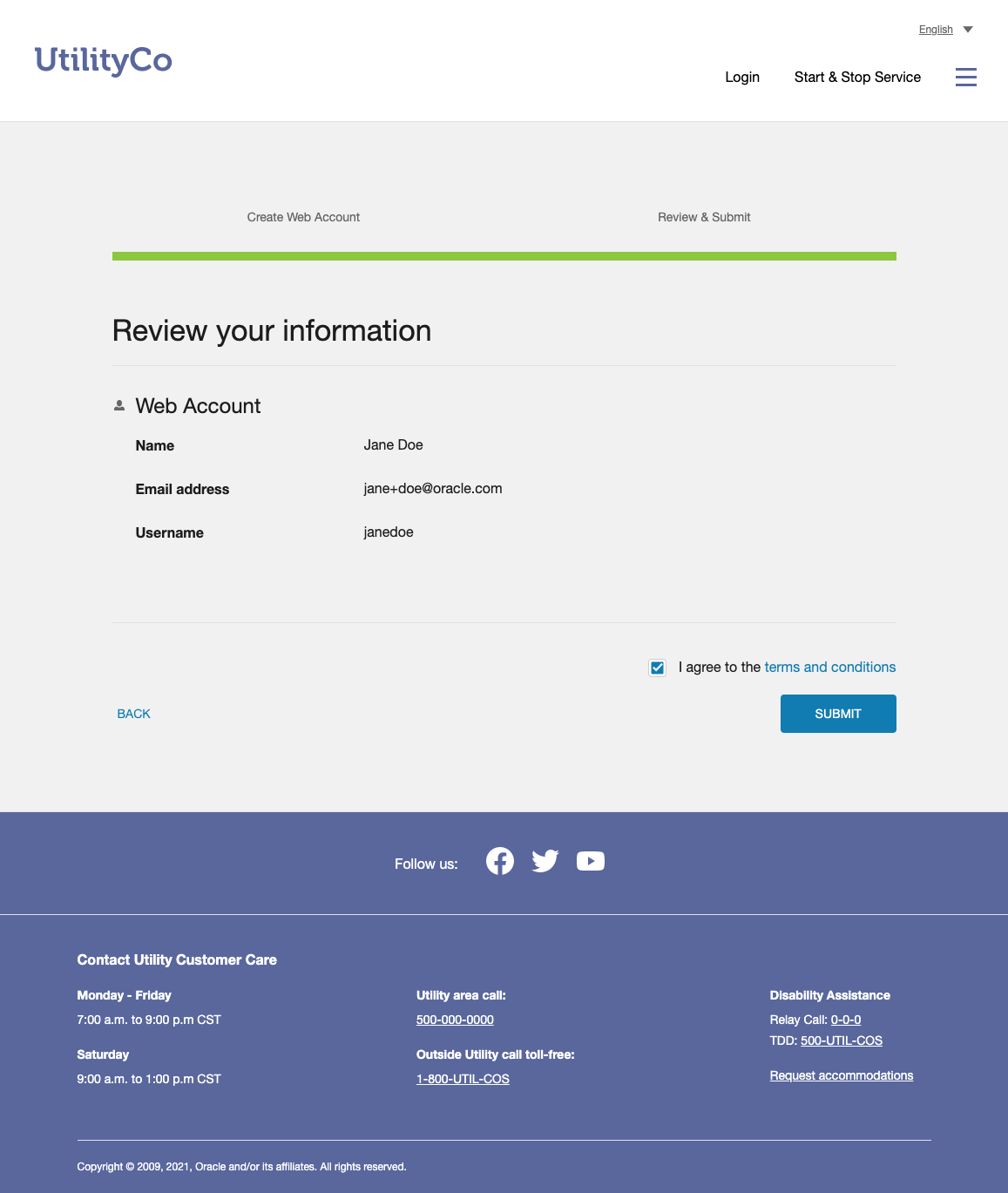
The Terms and Conditions feature helps utilities maintain the rules and regulations for using their organization's website, and helps protect the business by reducing the utility's risk of liability.
Steps to Enable
A Cloud configuration is required to enable this feature.
To open a service request for Cloud configuration:
- Go to My Oracle Support (https://support.oracle.com). Click Cloud Support and log in.
- Click the Create Service Request button and follow the prompts to complete the Service Request.
Tips And Considerations
An Oracle Identity Cloud Service license is required to use this feature.
Key Resources
- Refer to Oracle Identity Cloud Service User Experience of the Digital Self Service - Transactions Authentication Configuration Guide for more information.
Billing and Payment History Transaction Type Filter
In addition to the existing date filter in billing and payment history, Digital Self Service - Transactions provides customers with a transaction type filter. Customers can filter between payments, pending transactions, and bills. This helps customers easily navigate their account history and locate the transaction they need.
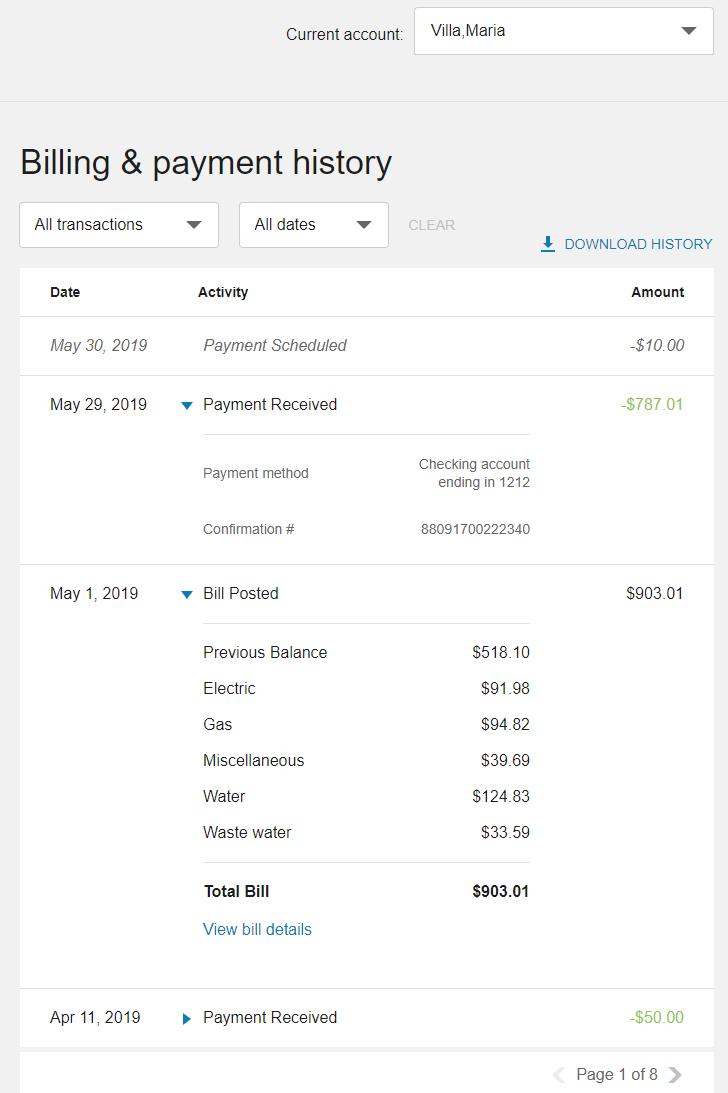
Billing and Payment History Transaction Type Filter
Pre-set filters enable customers to easily locate and focus on certain aspects of their account. Filters are a widely adopted way to help users restrict the data they are viewing to items of interest and make their workflows much more efficient.
Steps to Enable
A Cloud configuration is required to enable this feature.
To open a service request for Cloud configuration:
- Go to My Oracle Support (https://support.oracle.com). Click Cloud Support and log in.
- Click the Create Service Request button and follow the prompts to complete the Service Request.
A patch install is required to enable this feature.
To install the patch:
- Locate the applicable patch. See Supported Versions And Required Patches And APIs For Oracle Utilities Opower Digital Self Service for a full list of available patches.
- Install the applicable Customer Care and Billing patch and make the required Customer Care and Billing configuration updates.
Tips And Considerations
Data integration is required to enable this feature.
Key Resources
- Refer to Billing and Payment of the Digital Self Service - Transactions Cloud Service Overview for more information.
The Genesys Chat Service has been integrated to Digital Self Service - Transactions for utilities who would like to use the service. The Genesys chat service is a third-party service that requires a separate service agreement and contracting. Digital Self Service - Transactions has been configured to seamlessly work with Genesys and provide utilities the option to offer their customers chat services.
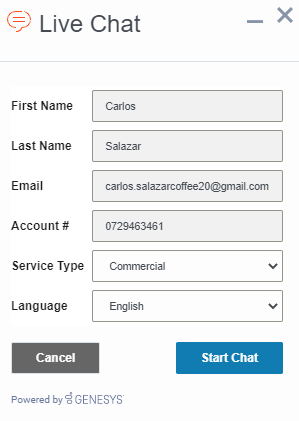
Genesys Chat Support
Genesys Chat Integration allows customers and utilities to communicate in real time in a chat channel. This feature helps utilities adapt their customer service in order to meet their customer's expectations, and brings additional benefits including increased customer satisfaction and revenue.
Steps to Enable
A Cloud configuration is required to enable this feature.
To open a service request for Cloud configuration:
- Go to My Oracle Support (https://support.oracle.com). Click Cloud Support and log in.
- Click the Create Service Request button and follow the prompts to complete the Service Request.
Key Resources
- Refer to Chat Support of the Digital Self Service - Transactions Cloud Service Overview and Customer Support of the Digital Self Service - Transactions Configuration Guide for more information.
Digital Self Service - Transactions allows customers to request a payment extension on their unpaid balance, giving them more time to pay without incurring late fees. Customers have the option to extend their total balance or just their unpaid balance. The number of days available for extensions can be defined by a utility and generally is between 10-20 days. Utilities have the flexibility to offer this program whenever they need to and can change the eligibility criteria to suit their own needs.
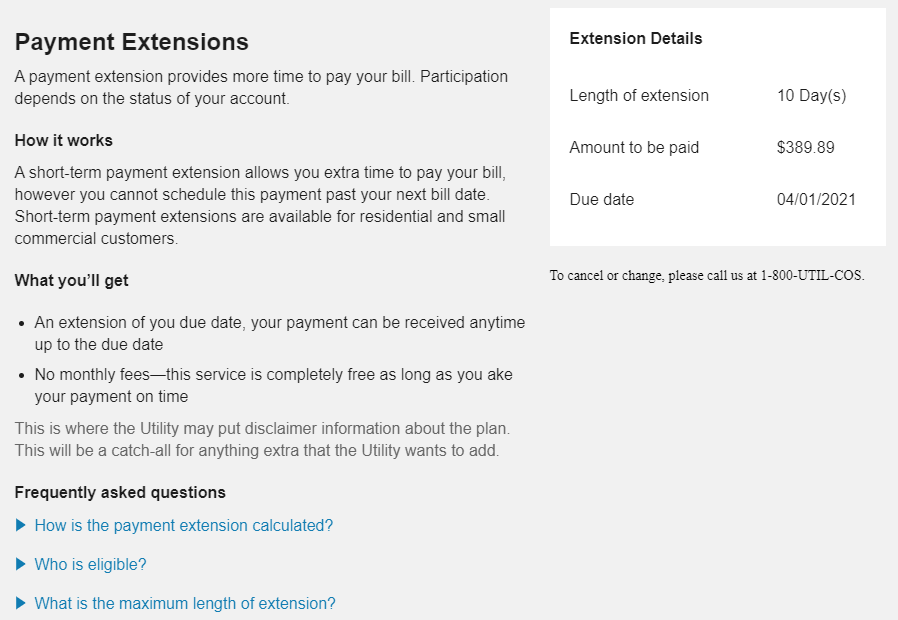
Payment Extensions
Utilities can use this feature to build customer trust and satisfaction by helping customers manage their bills and provide them with the flexibility they need to make their payments when they cannot pay on time.
Steps to Enable
A patch install is required to enable this feature.
To install the patch:
- Locate the applicable patch. See Supported Versions And Required Patches And APIs For Oracle Utilities Opower Digital Self Service for a full list of available patches.
- Install the applicable Customer Care and Billing patch and make the required Customer Care and Billing configuration updates.
Key Resources
- Refer to Billing Payment of the Digital Self Service - Transactions Cloud Service Overview and Program Enrollment of the Digital Self Service - Transactions Configuration Guide for more information.
Digital Self Service - Transactions allows customers to choose a set due date for their utility bill. Utilities have the option of offering the preferred due date program to users as an extension of their current due date by a certain number of days or as a list of available due dates set by the utility. Utilities can define eligibility criteria for requesting a due date change. For example, customers must have an active account with no past due balances.The request is automatic and in real time to the Oracle Utilities Customer Care and Billing Cloud Service, and is effective as early as the next bill.
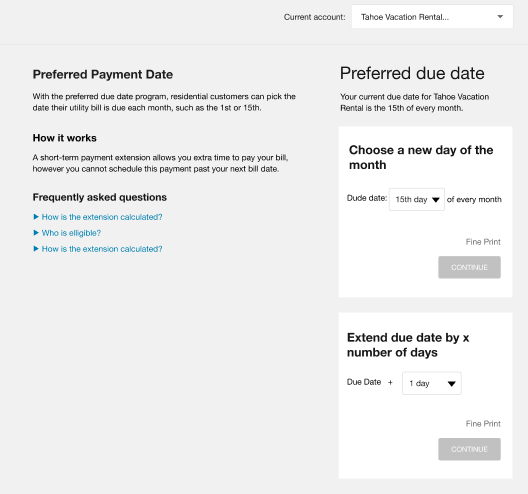
Utilities can improve the customer experience by making it easier for customers who receive their paychecks at specific times during the month to choose their preferred due date.
Steps to Enable
A Cloud configuration is required to enable this feature.
To open a service request for Cloud configuration:
- Go to My Oracle Support (https://support.oracle.com). Click Cloud Support and log in.
- Click the Create Service Request button and follow the prompts to complete the Service Request.
A patch install is required to enable this feature.
To install the patch:
- Locate the applicable patch. See Supported Versions And Required Patches And APIs For Oracle Utilities Opower Digital Self Service for a full list of available patches.
- Install the applicable Customer Care and Billing patch and make the required Customer Care and Billing configuration updates.
Data integration is required to enable this feature.
- Work with your Service Delivery Manager to complete the required data integration detailed in the Opower Data Transfer Standard.
Key Resources
- Refer to Billing and Payment of the Digital Self Service - Transactions Cloud Service Overview and Program Enrollment of the Digital Self Service - Transactions Configuration Guide for more information.
Customers can manage their Automated Clearing House (ACH) payments directly from within Digital Self Service - Transactions using the Digital Self Service Wallet. Customers can use this feature to add or delete their bank accounts online without calling their utility. The wallet feature also eliminates the customer's need to add their bank account for every payment. The wallet also provides customers with additional account information help customers manage and distinguish between multiple bank accounts.
The ACH Payment Wallet provides utilities with digitization and automation features that enable customers to take control of their transactions.
Steps to Enable
A Cloud configuration is required to enable this feature.
To open a service request for Cloud configuration:
- Go to My Oracle Support (https://support.oracle.com). Click Cloud Support and log in.
- Click the Create Service Request button and follow the prompts to complete the Service Request.
A patch install is required to enable this feature.
To install the patch:
- Locate the applicable patch. See Supported Versions And Required Patches And APIs For Oracle Utilities Opower Digital Self Service for a full list of available patches.
- Install the applicable Customer Care and Billing patch and make the required Customer Care and Billing configuration updates.
Key Resources
- Refer to Oracle Identity Cloud Service User Experience of the Digital Self Service - Transactions Authentication Configuration Guide for more information.
Digital Self Service - Transactions displays password policies configured in Oracle Identity Cloud Service to customers during web user registration, password reset, and during certain tasks when the customer is authenticated in the portal. This feature allows utilities to configure the messages displayed to customers across supported languages.
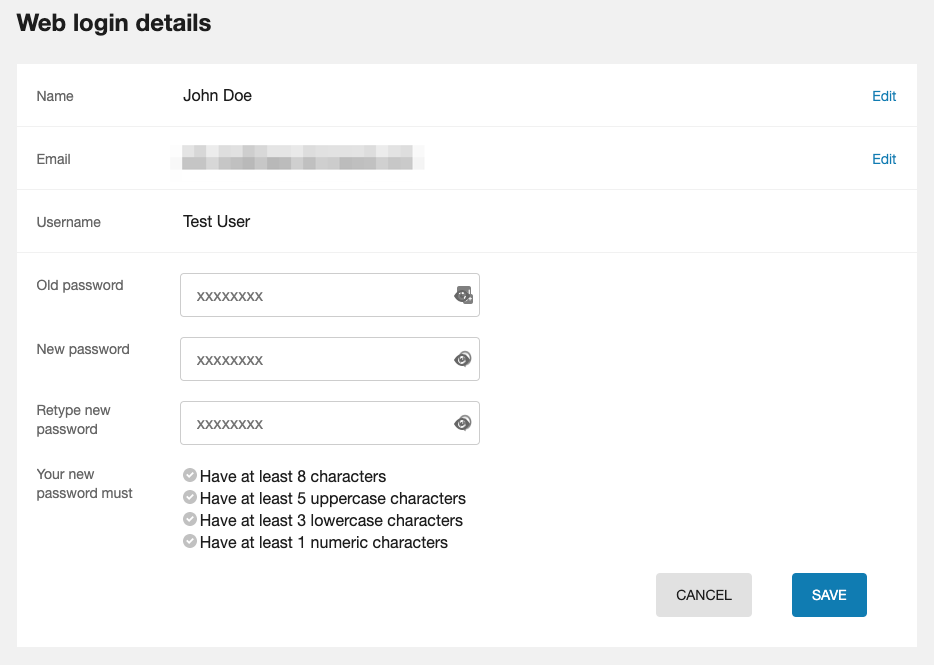
Utilities can customize the default password policy text to align with their brand voice or clarify the requirement using language that resonates with their customers.
Steps to Enable
A Cloud configuration is required to enable this feature.
To open a service request for Cloud configuration:
- Go to My Oracle Support (https://support.oracle.com). Click Cloud Support and log in.
- Click the Create Service Request button and follow the prompts to complete the Service Request.
Tips And Considerations
An Oracle Identity Cloud Service license is required to use this feature.
Key Resources
- Refer to Oracle Identity Cloud Service User Experience of the Digital Self Service - Transactions Authentication Configuration Guide for more information.
Web Login Details Enhancements
The web login details widget and account details widgets were consolidated to allow customers to independently manage the details of their web user account from within Digital Self Service - Transactions. The first name and last name are displayed on the dashboard greeting, website header, and web login details section of the Manage Web Account page.
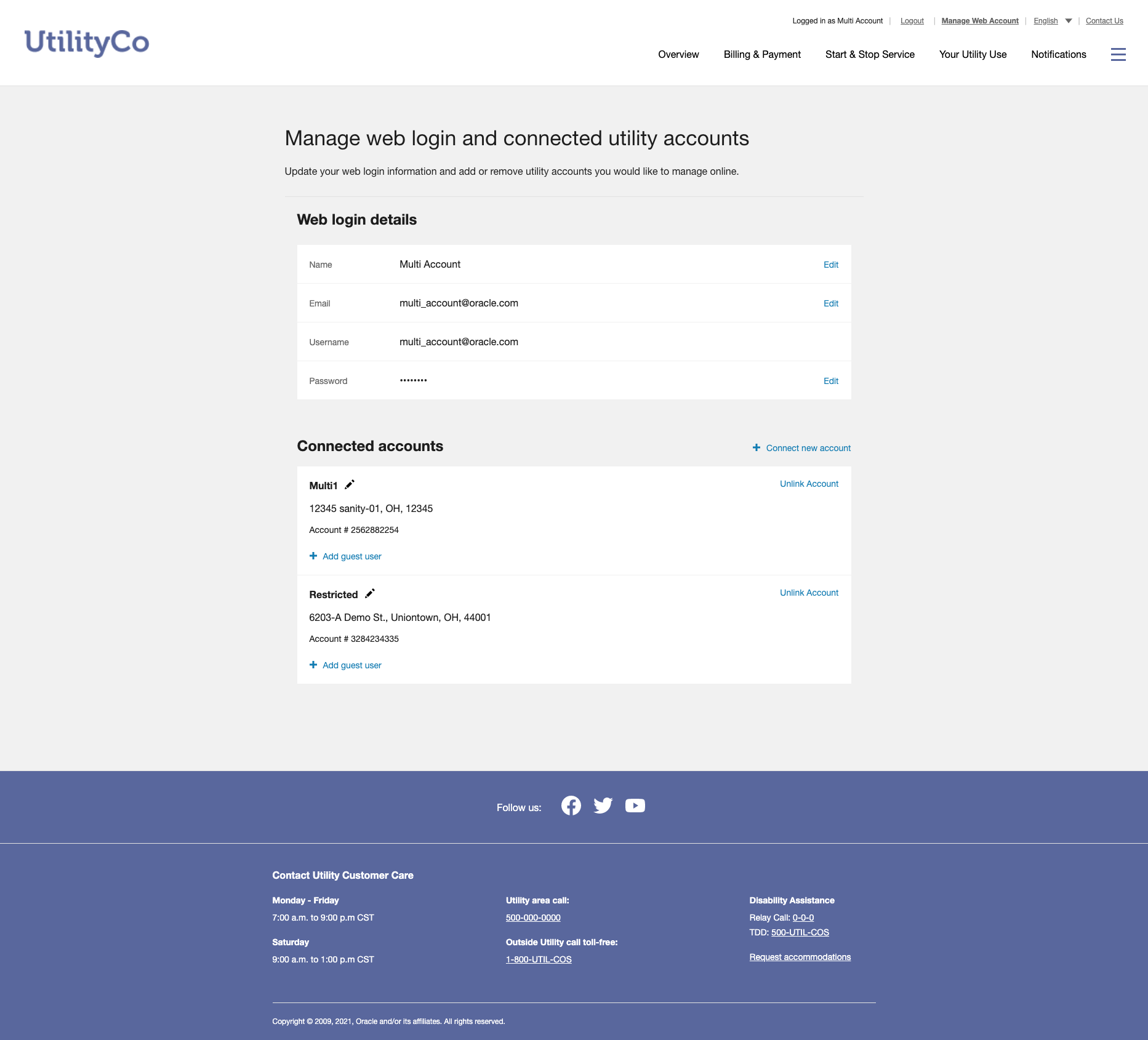
Customers can use these enhancements to independently manage all details of their web user account independently, eliminating another potential call to the call center.
Steps to Enable
A Cloud configuration is required to enable this feature.
To open a service request for Cloud configuration:
- Go to My Oracle Support (https://support.oracle.com). Click Cloud Support and log in.
- Click the Create Service Request button and follow the prompts to complete the Service Request.
Tips And Considerations
An Oracle Identity Cloud Service license is required to use this feature.
Key Resources
- Refer to Manage Web Account of the Digital Self Service - Transactions Cloud Service Overview and Manage Web Account Configuration Options of the Digital Self Service - Transactions Guide for more information.
Start, Stop, and Transfer Service
Customers can enroll in paperless billing, set preferences, and enroll in available programs at the start of their service from the Contact Information page of Digital Self Service - Transactions. This feature allows customers to receive digital bills from the very beginning of their relationship with the utility.
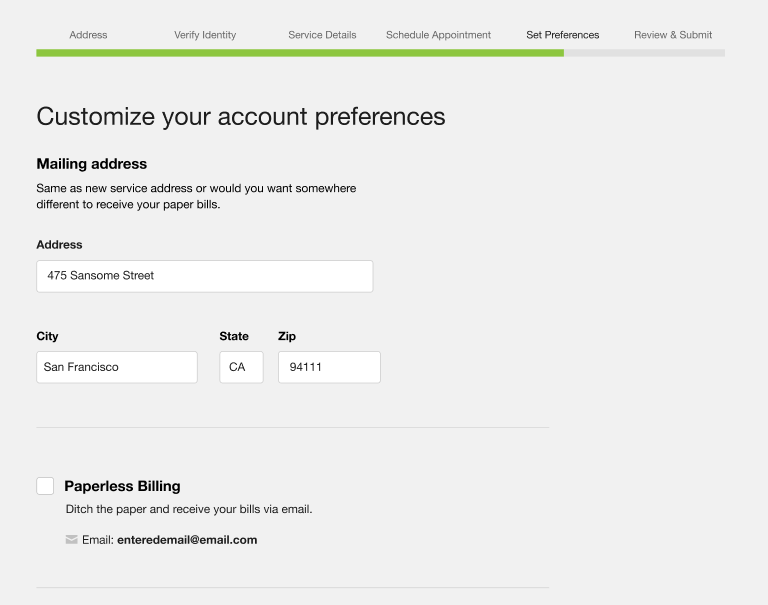
Paperless Billing
Paperless billing allows customers to enroll at the very start of their relationship with the utility, and reduces print costs for the utility,
Steps to Enable
To enable this feature you need to log a Service Request (SR).
A Cloud configuration is required to enable this feature.
To open a service request for Cloud configuration:
- Go to My Oracle Support (https://support.oracle.com).
- Click Cloud Support and log in.Click the Create Service Request button and follow the prompts to complete the Service Request.
A patch install is required to enable this feature.
To install the patch:
- Locate the applicable patch. See Supported Versions And Required Patches And APIs For Oracle Utilities Opower Digital Self Service for a full list of available patches.
- Install the applicable Customer Care and Billing patch and make the required Customer Care and Billing configuration updates.
Start Stop Identity and Program Pages
The Verify Identity page was updated to require customers to provide their email, phone number, and birth date at the start of service. This information is used to complete existing person validation, identity checks, and credit checks for the customer. For example, the customer's name, identifiers, and birth date can be verified with the Oracle Utilities Customer Cloud Service or by a third-party identity validation service to prevent fraud and ensure that the customer does not already exist in the system. Additionally, the Contact Information page was updated to allow the customer to select paperless billing options and automate their interactions with the utility.
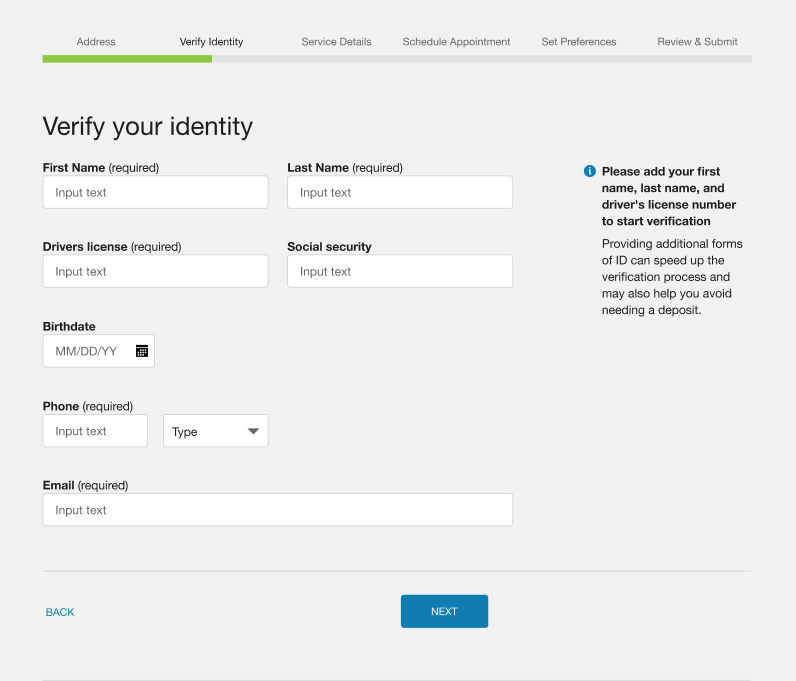
Verify Identity page
This feature streamlines the identity verification process and supports customer validation and fraud prevention.
Steps to Enable
A Cloud configuration is required to enable this feature.
To open a service request for Cloud configuration:
- Go to My Oracle Support (https://support.oracle.com). Click Cloud Support and log in.
- Click the Create Service Request button and follow the prompts to complete the Service Request.
A patch install is required to enable this feature.
To install the patch:
- Locate the applicable patch. See Supported Versions And Required Patches And APIs For Oracle Utilities Opower Digital Self Service for a full list of available patches.
- Install the applicable Customer Care and Billing patch and make the required Customer Care and Billing configuration updates.
Digital Self Service - Transactions is set to English by default unless the language preference is changed by the customer. The Language Selector serves as a toggle to switch between English or Spanish in Digital Self Service - Transactions.

Language Selector
When users switch to their preferred language, their person record in Oracle Utilities Customer Care and Billing (or Oracle Utilities Customer Cloud Service) is also updated to reflect their preferred language. When a person record is updated with a preferred language, all their communications default to the selected language.
As the number of Spanish-speaking customers grows for many utilities, it is essential that the utilities engage with these customers and offer accurately translated content.
Watch a Demo
Steps to Enable
A patch install is required to enable this feature.
To install the patch:
- Locate the applicable patch. See Supported Versions And Required Patches And APIs For Oracle Utilities Opower Digital Self Service for a full list of available patches.
- Install the applicable Customer Care and Billing patch and make the required Customer Care and Billing configuration updates.
Contact your Service Delivery Manager to coordinate configuration of the module.
Open a Service Request:
- Go to My Oracle Support (https://suport.oracle.com). Click Cloud Support and log in.
- Click the Create Service Request button and follow the prompts to complete the Service Request.
Key Resources
- Watch the Changing Preferred Language Demo.
- Refer to Customer Experience of the Digital Self Service - Transactions Cloud Service Overview and Language Selection of the Digital Self Service - Transactions Configuration Guide for more information.
Prevent ACH Payments and Autopay Enrollment During Masquerade
A configuration was added to prevent Customer Service Representatives from making Automated Clearing House (ACH) payments and enrolling customers in autopay during a masquerade session.
This feature gives utilities the convenience of seeing exactly what a customer sees in their online account portal without sacrificing securities and internal policies for accessing customer payment information.
Steps to Enable
To enable this feature you need to log a Service Request (SR).
A Cloud configuration is required to enable this feature.
To open a service request for Cloud configuration:
- Go to My Oracle Support (https://support.oracle.com). Click Cloud Support and log in
- .Click the Create Service Request button and follow the prompts to complete the Service Request.
Key Resources
- Refer to the Digital Self Service - Transactions CSR Guide for more information.
IMPORTANT Actions and Considerations
REPLACED OR REMOVED FEATURES
From time to time, Oracle replaces existing cloud services with new features, or removes existing features. Replaced features may be put on a path to removal. As a best practice, you should use the newer version of a replaced feature as soon as a newer version is available.
This section identifies the features in this Cloud service that have been replaced or removed.
PLANNED REMOVAL
Plan to Remove IE11 Support from Masquerade Feature of Oracle Utilities Digital Self Service - Transactions
Digital Self Service - Transactions enables Customer Service Representatives to launch a session of the application and simulate a specific customer experience. This feature has been replaced by a newer version where the masquerade session is triggered from Customer Care and Billing or Customer To Meter and now adheres strictly to Digital Self Service - Transactions’ supported browsers.