
This document will continue to evolve as existing sections change and new information is added. All updates appear in the following table:
| Date | Module | Feature | Notes |
|---|---|---|---|
| 01 DEC 2022 | Created initial document. |
Oracle Utilities Digital Self Service - Transactions includes a suite of digital experiences that empowers customers to perform self-service transactions on any desktop or mobile device and reduces cost to serve. The responsive design allows customers to complete all transactions on any device or screen size and orientation, and ensures a consistent brand experience across access channels.
This guide outlines the information you need to know about new or improved functionality in this update, and describes any tasks you might need to perform for the update. Each section includes a brief description of the feature, the steps you need to take to enable or begin using the feature, any tips or considerations that you should keep in mind, and the resources available to help you.
 HAVE AN IDEA?
We’re here and we’re listening. If you have a suggestion on how to make our cloud services even better then go ahead and tell us by submitting a service request. Wherever you see this icon after the feature name it means we delivered one of your ideas.
DISCLAIMER
The information contained in this document may include statements about Oracle’s product development plans. Many factors can materially affect Oracle’s product development plans and the nature and timing of future product releases. Accordingly, this Information is provided to you solely for information only, is not a commitment to deliver any material, code, or functionality, and should not be relied upon in making purchasing decisions. The development, release, and timing of any features or functionality described remains at the sole discretion of Oracle.
This information may not be incorporated into any contractual agreement with Oracle or its subsidiaries or affiliates. Oracle specifically disclaims any liability with respect to this information. Refer to the Legal Notices and Terms of Use for further information.
Column Definitions:
Report = New or modified, Oracle-delivered, ready to run reports.
UI or Process-Based: Small Scale = These UI or process-based features are typically comprised of minor field, validation, or program changes. Therefore, the potential impact to users is minimal.
UI or Process-Based: Larger Scale* = These UI or process-based features have more complex designs. Therefore, the potential impact to users is higher.
Features Delivered Disabled = Action is needed BEFORE these features can be used by END USERS. These features are delivered disabled and you choose if and when to enable them. For example, a) new or expanded BI subject areas need to first be incorporated into reports, b) Integration is required to utilize new web services, or c) features must be assigned to user roles before they can be accessed.
| Ready for Use by End Users Reports plus Small Scale UI or Process-Based new features will have minimal user impact after an update. Therefore, customer acceptance testing should focus on the Larger Scale UI or Process-Based* new features. |
Customer Must Take Action before Use by End Users Not disruptive as action is required to make these features ready to use. As you selectively choose to leverage, you set your test and roll out timing. |
|||||
|---|---|---|---|---|---|---|
| Feature |
Report |
UI or |
UI or |
|
||
Digital Self Service - Transactions
Digital Self Service - Transactions
Notification Preference Enhancements
The Digital Self Service -Transactions Communication Preference pages were improved to include push and subscription notification preferences. This update makes it easier for customers to manage their account notification preferences, understand how their contact information will be used, and identify which outbound notifications are required.
This update reduces implementation costs and makes it easier for customers to manage their account notification preferences.
Steps to Enable
A Cloud configuration is required to enable this feature.
To open a service request for Cloud configuration:
- Go to My Oracle Support (https://support.oracle.com). Click Cloud Support and log in.
- Click the Create Service Request button and follow the prompts to complete the Service Request.
Key Resources
Reporting Service Issues for Multiple Service Points
Customers whose premises have multiple service points of the same service type can report their service issues for one or more of those service points in the same transaction.
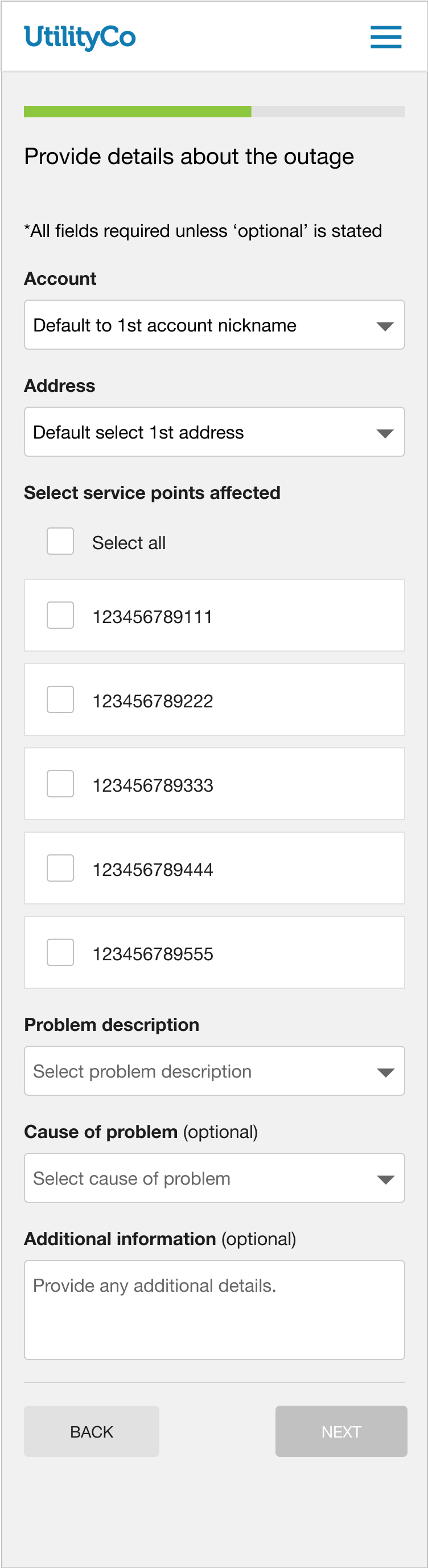
This makes it easier for customers to report an issue impacting multiple service points.
Steps to Enable
A Cloud configuration and a patch install are required to enable this feature. .
To open a service request for Cloud configuration:
- Go to My Oracle Support (https://support.oracle.com). Click Cloud Support and log in.
- Click the Create Service Request button and follow the prompts to complete the Service Request.
To install the patch:
- Locate the applicable patch. See Supported Versions And Required Patches And APIs For Oracle Utilities Opower Digital Self Service for a full list of available patches.
- Install the applicable Customer Care and Billing patch and make the required Customer Care and Billing configuration updates.
Key Resources
Customers can use the My Outages section of the Digital Self Service - Transactions My Service Issues page to learn what active outages are affecting them, the causes of those issues, and when they can expect resolution based on the real-time information available in the Customer Information Service (CIS).
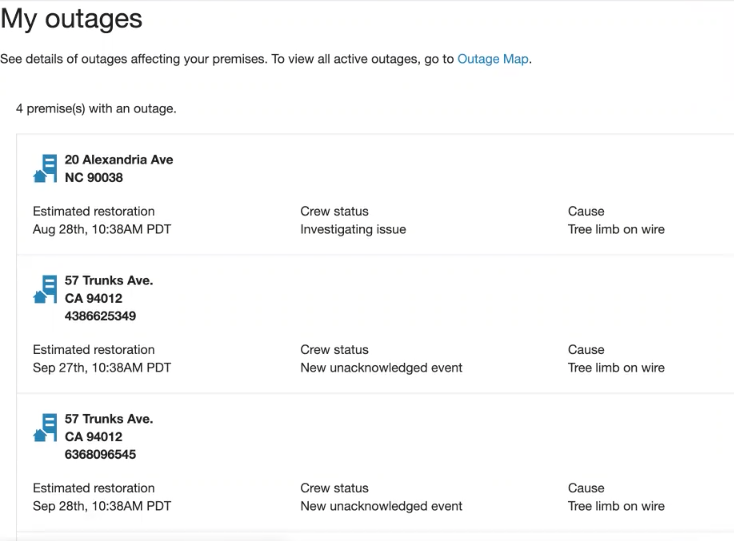
This reduces the customer's need to call into the call center for service issue updates by providing them with a self-service option for resolution times.
Steps to Enable
A Cloud configuration and patch install is required to enable this feature.
To open a service request for Cloud configuration:
- Go to My Oracle Support (https://support.oracle.com). Click Cloud Support and log in.
- Click the Create Service Request button and follow the prompts to complete the Service Request.
To install the patch:
- Locate the applicable patch. See Supported Versions And Required Patches And APIs For Oracle Utilities Opower Digital Self Service for a full list of available patches.
- Install the applicable Customer Care and Billing patch and make the required Customer Care and Billing configuration updates.
Key Resources
Outbound Service Issue Notifications
New integration and data algorithms are available to support service issues and outage-related notifications sent to customers through Digital Self Service - Transactions.
This update allows utilities to deliver critical information to their customers in near-real time, including: confirmation when a customer reports an account issue through Digital Self Service - Transactions, planned outage notices, outage started notices, restoration estimation notices, and restoration notices.
Steps to Enable
A patch install is required to enable this feature.
To install the patch:
- Locate the applicable patch. See Supported Versions And Required Patches And APIs For Oracle Utilities Opower Digital Self Service for a full list of available patches.
- Install the applicable Customer Care and Billing patch and make the required Customer Care and Billing configuration updates.
Tips And Considerations
- This feature requires integration between Oracle's billing system and an outage management system (OMS) and an outbound communications platform.
- This feature is available to on-prem versions of Oracle Utilities Customer Care and Billing and Oracle Utilities Customer To Meter and Advanced Meter Solutions 2.9.0.1 and later, or Cloud 22C release and later.
Key Resources
- Refer to the Digital Self Service - Transactions Configuration Guide.
- Refer to Oracle Utilities Notifications Hub Documentation.
The Digital Self Service - Transactions Outage Map provides customers with information about all of the outage events affecting their service territory, including:
- Individual outage details: Outage causes, crew status, estimated restoration times, outage start times, and the number of customers affected.
- Service territory aggregated view: A summary view of outages in the customer’s service territory.
- County/city aggregated view: A summary view of outages in the customer’s county or city.
This improves the customer experience by making it easier for customers to find the information they need about an ongoing outage event. Utilities can use this feature to help reduce customer calls placed to their call center.
Steps to Enable
A Cloud configuration is required to enable this feature.
To open a service request for Cloud configuration:
- Go to My Oracle Support (https://support.oracle.com). Click Cloud Support and log in.
- Click the Create Service Request button and follow the prompts to complete the Service Request.
Key Resources
-
Refer to the Digital Self Service - Transactions Configuration Guide.
Payment Wallet Confirmation Page
The Manage Bank Account section of the Digital Self Service - Transactions Payment Wallet Confirmation page prompts the customer to either continue with their one-time payment transaction or to sign up for autopay after the customer has added a payment method to their account wallet. T
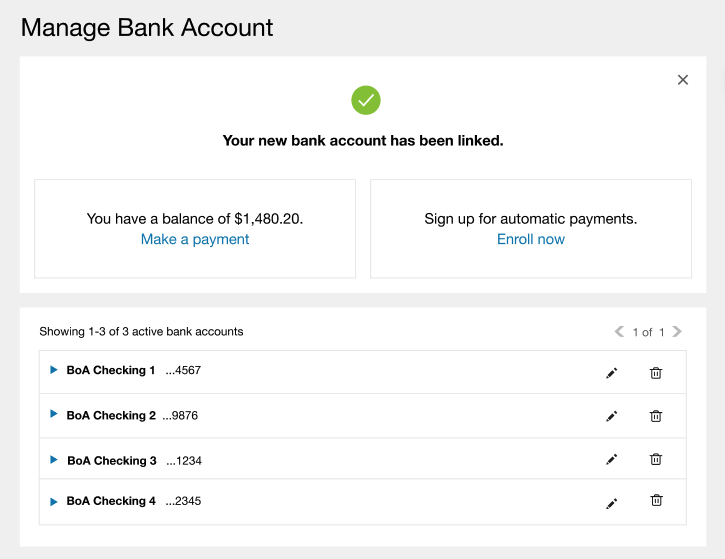
This ensures that customers are aware that additional steps are required to finalize their payment, and reduces confusion that may lead to an increase in calls places to their utility call center.
Steps to Enable
A Cloud configuration is required to enable this feature.
To open a service request for Cloud configuration:
- Go to My Oracle Support (https://support.oracle.com). Click Cloud Support and log in.
- Click the Create Service Request button and follow the prompts to complete the Service Request.
Key Resources
- Refer to the Digital Self Service - Transactions Cloud Service Overview.
-
Refer to the Digital Self Service - Transactions Configuration Guide.
Payment Extension Start Date Configuration
Utilities can configure their online payment extensions to start either on the request date, or the date of the last bill due date.
This provides utilities with additional flexibility to apply their own business rules to customer payment extensions, and allows customers to submit extension requests without call center assistance.
Steps to Enable
A Cloud configuration and patch install is required to enable this feature.
To open a service request for Cloud configuration:
- Go to My Oracle Support (https://support.oracle.com). Click Cloud Support and log in.
- Click the Create Service Request button and follow the prompts to complete the Service Request.
A patch install is required to enable this feature.
To install the patch:
- Locate the applicable patch. See Supported Versions And Required Patches And APIs For Oracle Utilities Opower Digital Self Service for a full list of available patches.
- Install the applicable Customer Care and Billing patch and make the required Customer Care and Billing configuration updates.
Key Resources
- Refer to the Digital Self Service - Transactions Configuration Guide.
Add Bank Account Option for One-Time Payment
Utilities with a real-time payment method validation service can enable customers to add a new payment method directly to their wallet during a one-time payment transaction. Customers can add their new payment method by selecting Manage Bank Accounts from the Payment method section of the Payment Summary.

This feature supports NACHA validation requirements and makes it easier for customers to add payment methods to their wallet.
Steps to Enable
A Cloud configuration is required to enable this feature.
To open a service request for Cloud configuration:
- Go to My Oracle Support (https://support.oracle.com). Click Cloud Support and log in.
- Click the Create Service Request button and follow the prompts to complete the Service Request.
Key Resources
- Refer to the Digital Self Service - Transactions Cloud Service Overview.
- Refer to the Digital Self Service - Transactions Configuration Guide.
CSR Payment Plans in the Payment Extension Program Page
Customers can use the Digital Self Service - Transactions Payment Extension Program page to view details about the custom payment plans created for them by their utility's Customer Service Representatives.
This reduces calls placed to the utility’s call center by allowing customers to review their custom payment plan information without contacting their utility’s call center.
Steps to Enable
A Cloud configuration and patch install is required to enable this feature.
To open a service request for Cloud configuration:
- Go to My Oracle Support (https://support.oracle.com). Click Cloud Support and log in.
- Click the Create Service Request button and follow the prompts to complete the Service Request.
To install the patch:
- Locate the applicable patch. See Supported Versions And Required Patches And APIs For Oracle Utilities Opower Digital Self Service for a full list of available patches.
- Install the applicable Customer Care and Billing patch and make the required Customer Care and Billing configuration updates.
Detailed View of New Charges in Bill Trends
Utilities can enable a detailed breakdown of their new monthly bill charges in the Digital Self Service - Transactions Bill Trends. Customers can use this breakdown to explore the details of each monthly bill charge within the context of their larger bill trends.
Utilities can use this feature to help customers resolves confusion around additional charges or adjustments within a particular billing period; for example past due charges.
Steps to Enable
A Cloud configuration and patch install is required to enable this feature.
To open a service request for Cloud configuration:
- Go to My Oracle Support (https://support.oracle.com). Click Cloud Support and log in.
- Click the Create Service Request button and follow the prompts to complete the Service Request.
To install the patch:
- Locate the applicable patch. See Supported Versions And Required Patches And APIs For Oracle Utilities Opower Digital Self Service for a full list of available patches.
- Install the applicable Customer Care and Billing patch and make the required Customer Care and Billing configuration updates.
Key Resources
Start, Stop, and Transfer Service
Meter IDs When Stopping or Transferring Service
Customers can review the meter ids associated with their premise when completing a stop or transfer of service through their utility website. Utilities have the option to include the service agreement id instead of the meter id.
The Stop and Transfer workflow enhancement makes it easier for customers to easily identify the service they need to update.
Steps to Enable
A Cloud configuration and patch install are required to enable this feature.
To open a service request for Cloud configuration:
- Go to My Oracle Support (https://support.oracle.com). Click Cloud Support and log in.
- Click the Create Service Request button and follow the prompts to complete the Service Request.
To install the patch:
- Locate the applicable patch. See Supported Versions And Required Patches And APIs For Oracle Utilities Opower Digital Self Service for a full list of available patches.
- Install the applicable Customer Care and Billing patch and make the required Customer Care and Billing configuration updates.
Key Resources
-
Refer to the Digital Self Service - Transactions Configuration Guide.