RichTextEditor Usage Guideline 

RCUX Document Version 5.1.0 for Oracle® Fusion Middleware 11g Release 1 Patch Set 1 (11.1.1.2.0)
Last Updated 22-Feb-2011
The richTextEditor allows users to input and edit formatted text.
Related Guidelines
| Guideline | Section | For Information About |
|---|---|---|
| Input/Output Text | All | Equivalent component for entry and display of plain text. |
| Toolbars | All | General description. |
Related ADF Elements
Refer to the ADF Faces Rich Client page to find demos and tag documentation for the ADF elements related to this component:
| ADF Element | Notes |
|---|---|
| af:richTextEditor | RichTextEditor component. |
| af:richTextEditorInsertBehavior | Inserts text into a RichTextEditor component. |
General Principles

Purpose:
Allows users to input and edit formatted text.
Description:
- The richTextEditor component allows for rich formatting of text, including:
- Common structural elements, such as bulleted and numbered lists
- Alignment of paragraphs
- Increasing and decreasing indenting of paragraphs
- Font selection
- Text styling, such as bold and italic
- Hyperlinks
- An enabled rich text editor consists of:
- A pair of toolbars containing text formatting controls, and
- An editing region similar to a text area for entering and editing formatted text.
Examples:
A rich text editor is commonly used in:
- Web-based e-mail
- Instant messaging
- Online discussion forums
- Web publishing
- Entering and editing notes
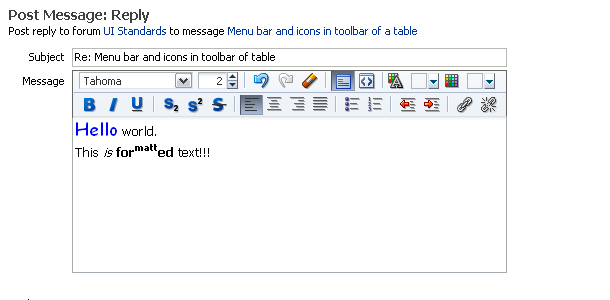
Rich Text Editor in a Discussion Forum
Usage:
- A rich text editor can be used in a page, a section of a page, or in a dialog.
- The primary purpose of the rich text editor is text editing, so it should not be used in page locations that are typically reserved for navigation components, such as the global region.
- Due to the width required to display the rich text editor, it is generally not recommended to use it in multiple column layouts. However, if this is necessary, then the component should be set to span multiple columns.
- Do not use a rich text editor when the text does not require formatting, or will be displayed without formatting, which is typical practice in tables. Use a Text Box instead.
- The rich text editor has no built-in Save functionality. Product teams need to provide Save functionality at the section or page level.
- The entire rich text editor control should have either a header or a prompt to indicate its function. See the Headers guideline for details. When displayed in a dialog box, the dialog title may serve as the header.
Elements
The following image show the elements of a rich text editor:
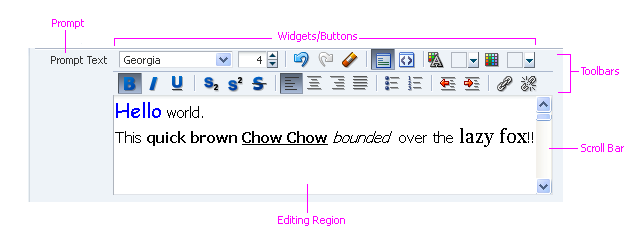
Rich Text Editor Elements
Toolbars
The following images show all toolbar elements:
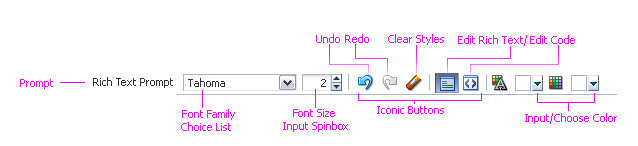
Upper Toolbar Elements

Lower Toolbar Elements
Description:
- When a rich text editor is read-only, both the toolbars and border are hidden.
- Rich text editor toolbars cannot be configured by product teams, except as described in the following subsections.
Font Family and Size
Purpose:
Allow users to specify the typeface and size of text.
Usage:
- The default font family can be changed for non-English locales as needed. For instance, if an application is localized for Chinese, the default font family and size can be set to an East Asian font such as "Ming Liu".
- The default font size should be set to match the default locale font. For instance, the standard default size for the font "Tahoma" in the U.S. English locale is "2", whereas the standard default size for the font "Ming Liu" for Traditional Chinese is "3". Always set the appropriate default font size so that text is legible.
Editing Mode
Purpose:
Allows users to switch between rich text and source code views.
Description:
- Text formatting in the rich text editor is implemented using standard HTML tags, which are displayed in source code view.
- When users switch modes:
- Text and style changes sync between the two editing modes. For instance, if bold is applied to text selection in the rich text editing mode and the user switches to source code editing mode, bold format tags associated with the selected text will appear.
- Text that is copied from the rich text view and pasted into the source code view will appear as plain text (without formatting codes) in the source code view. For example, if the user copies the bold text " Fred" from rich text view, the text is pasted as plain text "Fred" into source code view.
- Text that is copied from the source code view is pasted verbatim into the rich text view, without interpreting any formatting codes included in the selected text. For example, if the user copies "<strong>Fred</strong>" from the source code view, the text is pasted as "<strong>Fred</strong>" into the rich text view, rather than being interpreted as Fred (with bolding).
- The rich text editor does not support scripts.
Usage:
The default editing mode for the rich text editor is rich text mode. In this mode, users can input and edit text as rich text. If a product includes the rich text editor primarily as a code editor, then the default editing mode can be set to source code editing mode.
Editing Region
Purpose:
Provides a space for users to enter and edit text.
Usage:
- When not showing read-only content, the default size of the editing region is 5 rows by 85 columns. However, product teams can increase or decrease the size to match expected content, and to fit within the layout of the page region where the rich text editor is used.
- The editing region should be disabled when users are not able to enter data, but it is still necessary to display the editing region because it may be enabled in different contexts.
- The editing region should be shown as read-only when data is displayed in a read-only page, such as a printable page. Read-only data may also be displayed when the user has permission to view the text, but not to edit it. When the editing region is read-only, its entire content is displayed without scrolling.
- When using a rich text editor to display read-only content with hard line breaks, such as a contract, set the editing region width to avoid additional line breaks that could make the content harder to scan.
- When possible, size the box to fit the expected data—this avoids clipping and minimizes scrolling.
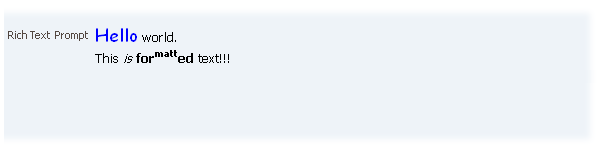
Read-Only Rich Text Editor (Border and Toolbars Hidden)
Prompt
Purpose:
Identifies the purpose of the rich text editor.
Usage:
Same as Input/Output Text.
Required Field Indicator
Purpose:
Identifies fields that must be completed before submitting the page.
Description:
ADF provides ALT text and tooltips to indicate required fields. Product teams may additionally provide key notation to define the Required Field Indicator. Refer to Key Notation in the Headers guideline for information regarding usage.
Usage:
Same as Input/Output Text.
Changed Field Indicator
Purpose:
Indicates that the text in the rich text editor changed after page submission.
- ADF provides ALT text and tooltips to indicate changed fields. Product teams may additionally provide key notation to define the Changed Field Indicator. Refer to Key Notation in the Headers guideline for information regarding usage.
Usage:
Same as Input/Output Text.
Help Text
Purpose:
Provides users with additional information about the rich text editor.
Usage:
Same as Input/Output Text.