Coherence Queries, Indexes and Explain Plans
Overview
- Filters - How can we select a specific set of data from a cache based on a given criteria?
- Coherence Query Language - How can we simplify Filters to use a select like syntax
- Explain Plan - How can we estimate the cost of a filter or select?
- Trace - How can we evaluate the actual cost of a filter or select?
- Using Filters - Filters, based on the com.tangosol.util.Filter
class, allow the development of queries using combinations of
value extractors and combinations of and, or,
not, like and similar filters to perform
queries. Filters are then executed against a cache and return
a result set.
- Using Queries - Queries use and SQL like syntax and the
import com.tangosol.util.QueryHelper
class to create a Filter
instance. Behind the scenes
QueryHelper creates a set of Filters which match the
provided select statement.
- Explain plans - a static analysis of a query producing an estimated cost for the query
- trace - a dynamic analysis of the query, producing an actual
effectiveness rating for a query.
- Use basic Filter
and QueryHelper
classes to query a cache.
- Estimate the performance of a query using explain plans
- Evaluate performance of a query and the impact of filters
- Explore queries using the Coherence query application
- Coherence 3.7.1, which can be downloaded here.
- Coherence CQL sample code, which can be downloaded here.
- Have a basic working knowledge of Linux commands and command
line syntax
- Have access to and have already installed Coherence 3.7.1
- Have downloaded and unpacked the OBE sample code. This code is designed to run on Linux and similar operating systems but can be adapted to Windows if required.
- Have downloaded and installed an Oracle Java JDK version
1.6.0_26 or later. The Oracle JDK kits and associated products
can be found here.
The installation of Java is outside the scope of this OBE. For more information, see the JDK download and installation pages. - Have a working knowledge of Java annotations.
Purpose
Prior to Coherence 3.6 developers were required to perform queries against caches using a filtering mechanism which, while concise and efficient, required a fair amount of developer effort to code correctly. Coherence 3.6, introduced the Coherence Query Language or CohQL, a lightweight SQL like language for performing select type operations on caches. Coherence 3.7 introduced additional functionality to support selections but focused on performance. The purpose of this tutorial is to examine and exercise:
Time to Complete
Approximately 45 minutes
Introduction
The Coherence Query Language or CohQL allows developers to create complex SQL like queries against cached data. Queries are performed in one of two ways:
Filters are then executed against a cache which performs the operation on each member of the cluster, aggregates the results and returns it. Filter performance can then be improved by the thoughtful use of indexes. Indexes provide an identical function to their database cousins allowing Coherence to more quickly return data. However indices are not without cost, requiring memory and processing power to keep up to date and are directly dependent on their entity objects for data extraction. Entities may or may not efficiently extract data and as a result, keeping an index up to date may not be worth the time saved in a query.These are but a few of the concerns about why you may or may not apply a index to an entity field.
Prior to Coherence 3.7.1 there was no way to determine the
performance of a query other then timing it in code or by hand,
neither of which being optimal or even convenient. In
addition it was impossible to determine which portions of the
query had the most impact. For example did a specific and
filter have more impact on the query performance then a like
filter? Would an index on one of the fields changed the
performance?
Coherence 3.7.1 introduced two new features to support static
and dynamic evaluation of query performance. These two
features are:
Using explain plans and trace statements developers can examine
how queries are executed, in what order clauses are executed and
the effect of a given index. Both of these features can be
executed from both the command line, or from within an
applications code. Providing an easy to use robust mechanism for
examining the performance of a given query.
The purpose of this tutorial is to:
Hardware and Software Requirements
The following is a list of hardware and software requirements:
Prerequisites
Before starting this tutorial, you should:
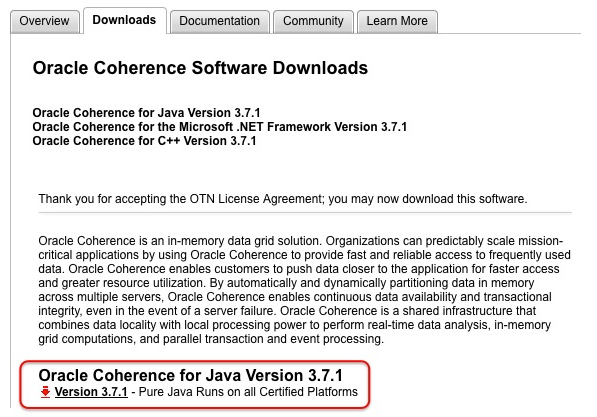
Before running this tutorial, you should download and
install Oracle Coherence 3.7.1 and the associated example
source code. The following steps review the installation
process of Coherence 3.7.1, as well as the expected
installation locations. Note that if you have previously
installed Coherence 3.7.1 you may skip this step.
Note that for this tutorial, it is assumed that files are downloaded to/tmp/. and installed into /opt.
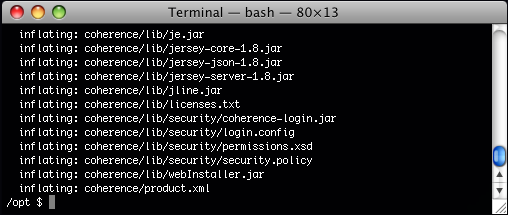
Open a command prompt and change directory to the
location where Oracle Coherence will be installed.
Unzip the contents of Coherence zip using a command that
is similar to:
unzip
/tmp/coherence-java-3.7.1...zip
Note that the exact name of the file may vary.
For this tutorial, all files will be unzipped to /opt/coherence.
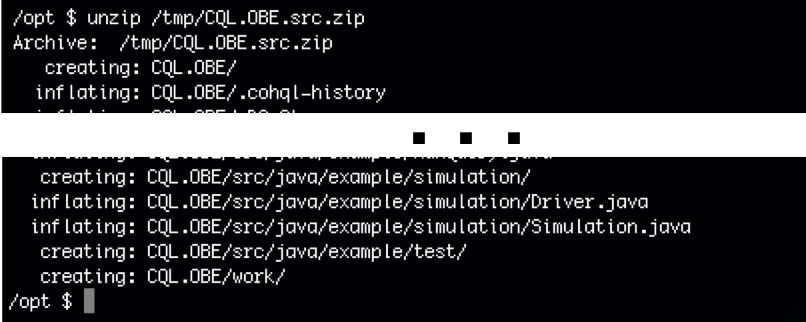
Unzip the contents of the OBE example code using a
command similar to:
unzip
/tmp/CQL.OBE.src.zip
Query a Coherence Cache using Filters and Selects
- AndFilter - Returns the logical "and" of two other filters.
- OrFilter - Returns the logical "or" of two other filters.
- LikeFilter - Compares a value for pattern match. A pattern can include regular characters and wildcard characters '_' and '%'.
- EqualsFilter - Compares a value with a constant for equality
- Filter greaterThen = new GreaterFilter( new ReflectionExtractor("getAge"), 16);
- Filter lessThen = new LessFilter(new ReflectionExtractor("getAge"), 50));
- Filter and = new AndFilter( greaterThen,lessThen);
- Coherence has been installed into /opt/coherence
- The OBE source has been unzipped to /opt/CQL.OBE.
- example.entity.Person.java
- a representation of a person, defining characteristics
of such as name, sex, age, and address
- example.entity.Address.java
- a representation of an address, including street, city
and state
- example.test.RunQuery.java
- This class provides some boiler plate code for
accessing a cache and will be modified over the course
of this tutorial.
- example.simulation.Driver and Simulation- these two classes are used to simulation cache interaction and add, modify and delete data as they run from the 'dist-person' cache.
-
- bin/build.sh- Recompiles and repackages all source code.
- bin/start-sim.sh-Starts a simulation which generates and adds Person objects to a cache, then randomly changes the objects over time.
- bin/stop-sim.sh- Stops the simulation scripts.
- bin/check-sim.sh-Reports whether the PIDs associated with simulation processes are running..
- bin/runquery.sh
-Runs the query test application.
- select - select {field set} from "{cache}" where
{where clause}.
- QueryHelper - com.tangosol.util.QueryHelper,
a class which provides a set of factory methods which
can be used to generate instances of Filter objects.
For more information on QueryHelper see here.
Filters
Coherence uses a filter mechanism to query cache data. Filters
are similar to query statements in that a collection of
operations, like, equals, greater, less and others, are combined
with a set of logical operations to return a specific set of
data in a cache. Filters are then used with the NamedCache.entrySet
method to return results.
Examples of Filters might include (all of which can be found in the com.tangosol.util.filter.* package):
These examples represent only a small subset of the filters available, see the Oracle Coherence documentation for a complete list of filters.
Some example filters might include, assuming a Person object with age, first name and last name attributes:
Combining these two filters using and might include:
Example
Assuming:NamedCache cache = . . .;
A query would then be performed using calls similar to:
cache.entrySet(filter,null);
Note that the 2nd argument, null, represents a comparator which would be used to sort the result.
A note on field/data access in objects: In order to access data in a object, some form of 'extractor' must be used.
In the examples used in this tutorial a ReflectionExtractor is used. The reflection extractor takes a method name, and applies it to a object to return a value.
Assuming an appropriate cache object similar with methods font face="Courier New, Courier, monospace">getAge, getFirstName, and so forth, a reflection extractor can be specified which uses something such as: ReflectionExtractor("getAge") to return the value of a age field from an object. For more information on extractors see the Extractors package page.
Configure the environment
-
A variety of scripts have been provided to simplify the
testing of POF. These scripts depend on certain
environment variable settings.
Appropriate defaults have been provided for these variable, which if correct need not be changed.
The scripts assume:
If either of these values is different follow the instructions below.
In a command prompt window ensure that you are in the directory where the OBE source was unpacked.
In your favorite editor open the bin/set-env.sh script.
Un-comment th two variables and set them to the appropriate values for your environment.
Note that if the default values of /opt/coherence and /opt/CQL.OBE are used no changes are required.
#!/bin/bash
export OBE_HOME=/opt/my.cql.obe.location
export COH_HOME=/opt/my.coherence.location
Modify a class to support a
Filter.
This tutorial provides two sample entity object classes which are used as examples
These two classes implement java Serializable by default and can be used with Coherence caches without change. Additionally the Person class implements the Java Comparable interface and sorts results on last name when used in a query.
Additionally several classes are provided which can be used support generation of test data and as a starting point for developing queries:
Specifically students will define a filter which returns all Person objects which have a first name which starts with 'Al' and have age between 17 and 49 inclusive.

gedit src/java/example/RunQuery.java class
Note that a completed version of this section can be found in: {OBE_HOME}/completed/1.RunQuery.java.public Filter getFilter() {
/*
* Enter filter here
*/
return null;
}
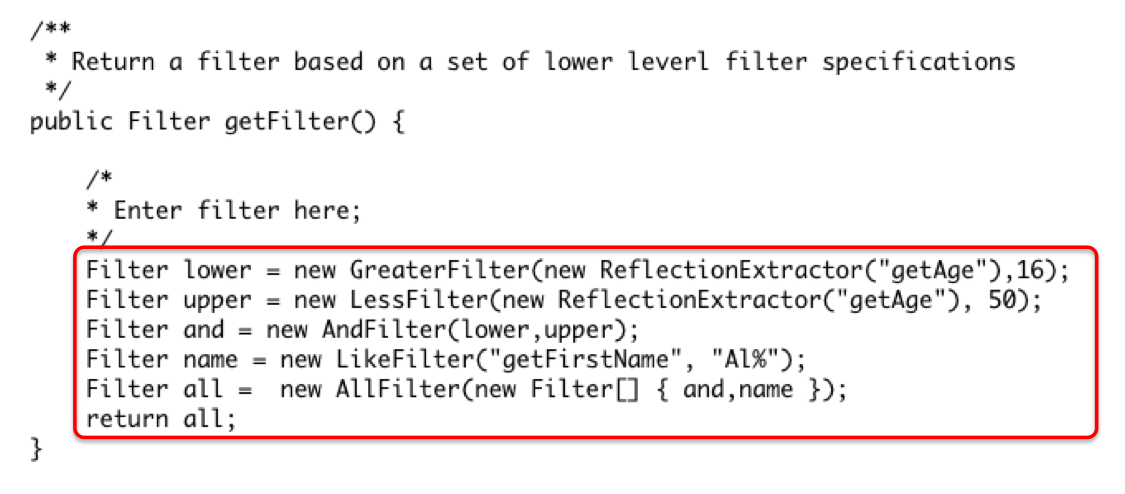
Directly below the comment enter greater and less filters resembling:
Filter lower = new
GreaterFilter(new ReflectionExtractor("getAge"), 16);
Filter upper = new LessFilter(new
ReflectionExtractor("getAge"), 50);
The partially completed code should resemble:
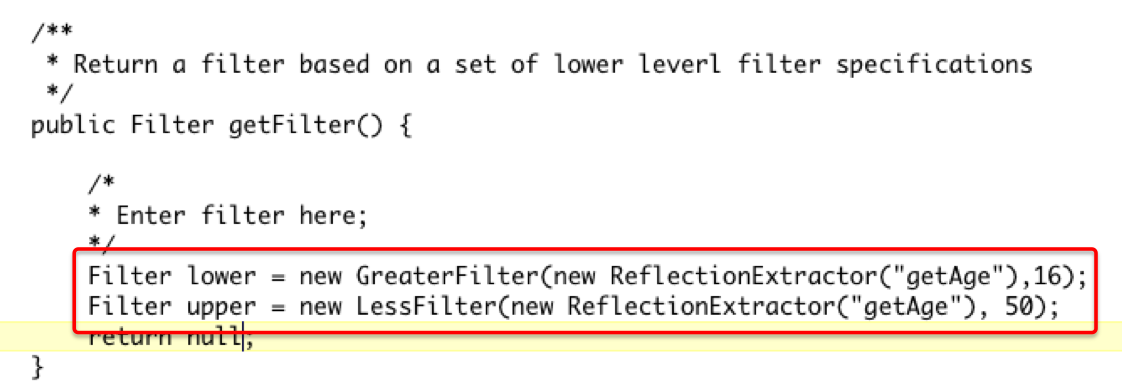
Note that the required imports have been added for you. All filters can be found in the com.tangosol.util.filter.* package.
Filter and = new AndFilter(lower,upper);
Filter name = new LikeFilter("getFirstName", "Al%");
Filter all = new
AllFilter(new Filter[] { and,name });
return all;
Build and test the Filters
-
Tests are built and run using several scripts, the primary
purpose of these scripts is to provide an environment for
development and to ease testing issues such as correct
classpath and related concerns.
bin/build.sh
The command should produce output similar to: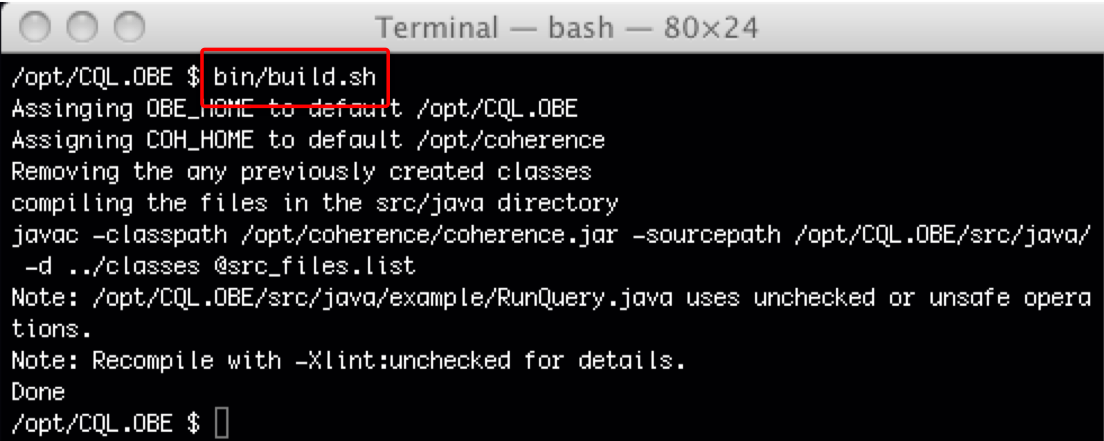
bin/start-sim.sh
The command should produce output similar to: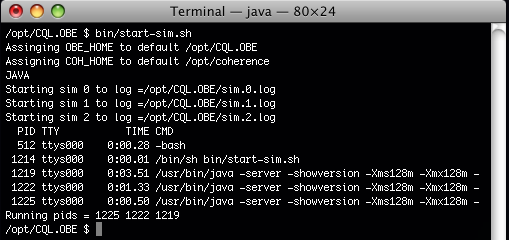
tail -f sim.0.log
The output should resemble that shown below. Note that the simulation will randomly generate Person objects so the exact content will vary.
bin/runquery.sh >
query.log 2>&1
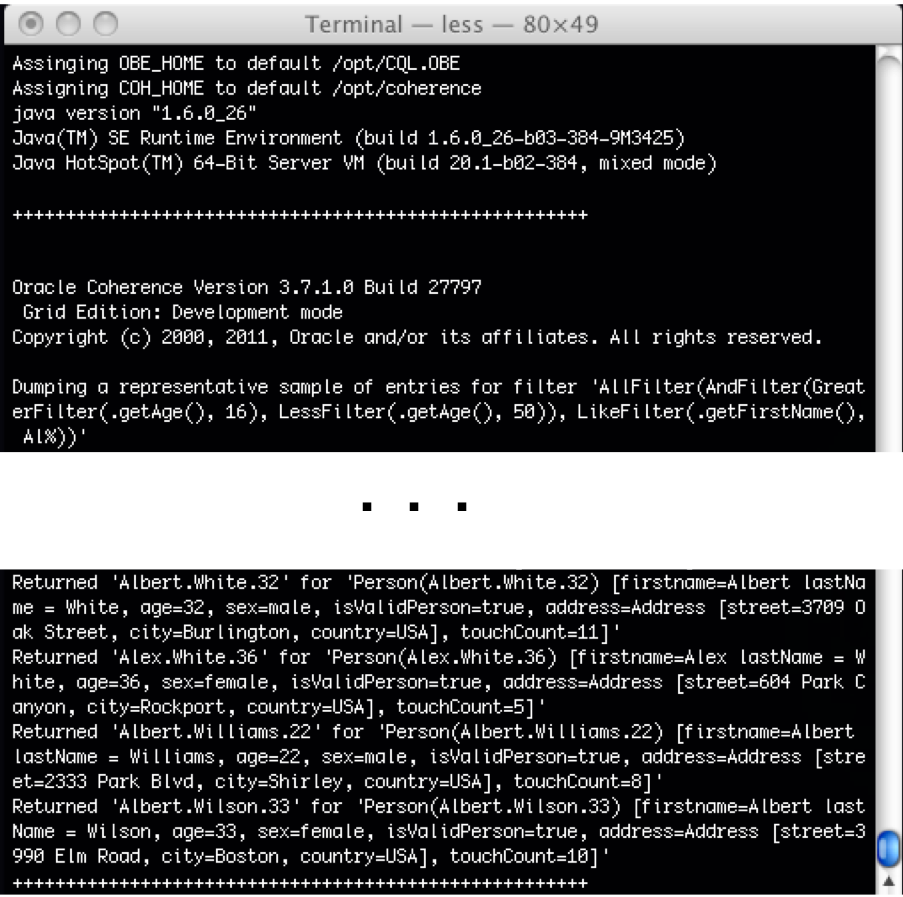
If the query has been correctly specified the command should produce output similar to those shown below. Use less, gedit or a similar tool to examine the results:
Modify query to use CohQL.
-
The Coherence query language, or CQL, is a SQL like language
which can be used to access cache data using select style
statements.
Depending on how CQL is used you might be supplying an entire select statement or only a where clause. Additionally CQL supports filling in variables and values at run time to avoid hard coding queries.
For example, when using the Coherence command line tool, an entire statement including select, from and where is required. However, in an application, given a specific NamedCache instance, only the where portion of the select is required. For this section we focus on application use only..
Primary components of query are:
gedit src/java/example/RunQuery.java class
Note that a completed version of this section can be found in:completed/2.RunQuery.java
The updated method should resemble:
public Filter getFilter() {
String where = "firstName like
'Al%' and (age > 16 and age < 50)";
}
Note that the appropriate import com.tangosol.util.QueryHelper has been added for you.
Filter filter = QueryHelper.createFilter(where); return filter;
The completed method should resemble:

bin/build.sh
Correct any compiler errors if required.The simulation uses a set of configuration files which are define how the simulation runs, including how long to run.
By default the simulation runs for 60 minutes. You can confirm that the simulation is running using the check-sim.sh script which examines the set of know PIDs for the simulation and checks that they are executing. To execute the script enter:
bin/check-sim.sh
Which will produce output similar to:
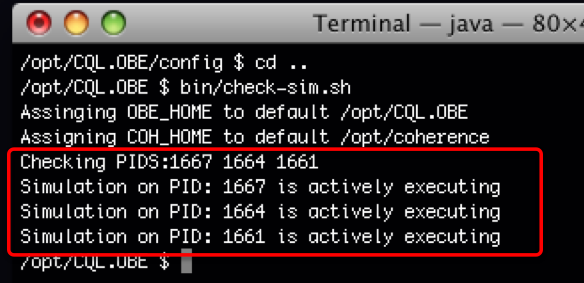
If the simulations have completed the command will produce output similar to:
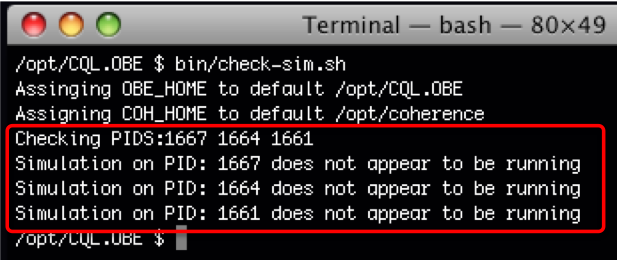
In which case simply restart the simulation using the bin/start-sim.sh command
bin/runquery.sh >
query.log 2>&1
If the query has been correctly specified the command should produce results virtually identical to the past section.
Remember that data is generated and constantly changing so the results may not match exactly.
Working with Explain plan and Trace Statements
- Name –
This column shows the name of each filter in the query.
Composite filters show information for each of the filters
within the composite filter.
- Index – This column shows whether or not an index can be used with the given filter. If an index is found, the number shown corresponds to the index number on the Index Lookups table shown beneath the cost table.
- Cost –
This column shows an estimated cost of applying the filter.
If an index can be used, the cost is given as 1 becayse the operation of applying the index requires just a single access to the index content.
In the example, there are 3 storage-enabled cluster members and thus the cost reflects accessing the index on each of the three members. If no index exists, the cost is calculated as EVAL_COST * number of keys where EVAL_COST value is a constant value= 1000. Each row is intended to show the relative cost of doing a full scan to reduce the key set using the filter.
In the example, there are ~1500 cache entries which need to be evaluated. Querying indexed entries is always relatively inexpensive as compared to non-indexed entries but does not necessarily guarantee effectiveness. - Name – This column shows the name of each filter in the query. Composite filters show information for each of the filters within the composite filter.
- Index – This column shows whether or not an index can be used with the given filter. If an index is found, the number shown corresponds to the index number on the Index Lookups table.
- Effectiveness – This column shows the amount a key set was actually reduced as a result of each filter. The value is given as prefilter key set size | postfilter key set_size and is also presented as a percentage. The prefilter key set size value represents the key set size prior to evaluating the filter or applying an index. The post filter key set size value represents the size of the key set remaining after evaluating the filter or applying an index. For a composite filter entry, the value is the overall results for its contained filters. Once a key set size can no longer be reduced based on an index, the resulting key set is deserialized and any non index filters are applied.
- Duration – This column shows the number of
milliseconds spent evaluating the filter or applying an index.
A value of 0 indicates that the time registered was below the
reporting threshold.
Explain Plan and Trace
Applications can profile queries using the com.tangosol.util.aggregator.QueryRecorder class, documentation for which can be found here.
The process works by creating a QueryRecorder
instance and then is submitted to a cache for execution using
the NamedCache.aggregate(filter,agent)
method.
The method examines the provided filter on all members of the
cluster and returns a QueryResult
record, which can be examined to understand how the query
performed.
Example
Query Recorders are instantiated for explain or trace by creating an instance based on a QueryRecorder.RecordType, and passing the instance to the cache for execution.In general you need:
Imports:
import
com.tangosol.util.aggregator.QueryRecorder;
import static
com.tangosol.util.aggregator.QueryRecorder.RecordType;
Note the use of static above to avoid the need to fully qualify RecordType later.
Create and execute the recorder:
QueryRecorder agent = new
QueryRecorder(RecordType.EXPLAIN);
Object resultsExplain = cache.aggregate(filter, agent);
System.out.println("\n" + resultsExplain + "\n");
Examine and evaluate an Explain Plan:
Name                                  Index        Cost
======================================================================================
com.tangosol.util.filter.AndFilter  | ----       | 0
  LikeFilter(.getFirstName(), Al%)  | 0          | 2300000
  com.tangosol.util.filter.AndFilte | ----       | 0
    GreaterFilter(.getAge(), 16)    | 1          | 2300000
    LessFilter(.getAge(), 50)       | 1          | 2300000


Index Lookups
Index  Description                               Extractor             Ordered
======================================================================================
0      No index found                            .getFirstName()       false
1      No index found                            .getAge()             false
The output can then be evaluated as follows:
Examine and evaluate a Query Trace:
Trace differs from Explain Plans in that the query is run and timed for the provided dataset and each index evaluated for a relative effectiveness.
When using trace we simply create the recorder using RecordType.TRACE rather then RecordType.EXPLAIN as shown below:QueryRecorder agent = new QueryRecorder(RecordType.TRACE);
However the resulting report is considerably different.Trace
Name Index Effectiveness Duration
======================================================================================
com.tangosol.util.filter.AndFilter | ---- | 12852|1386(89%) | 134
LikeFilter(.getFirstName(), Al%) | 0 | 12852|2142(83%) | 85
com.tangosol.util.filter.AndFilte | ---- | 2142|1386(35%) | 42
GreaterFilter(.getAge(), 16) | 1 | 2142|2058(3%) | 17
LessFilter(.getAge(), 50) | 1 | 2058|1386(32%) | 24
Index Lookups
Index Description Extractor Ordered
======================================================================================
0 SimpleMapIndex: Extractor=.getFirstName( .getFirstName() true
1 SimpleMapIndex: Extractor=.getAge(), Ord .getAge() true
++++++++
Trace output can be interpreted as follows:Using Explain Plans
-
In this section we will modify the RunQuery.java
class to examine and test a query using Explain plans to
determine the cost of queries and associated indexes.
gedit src/java/example/RunQuery.java class
Note that a completed version of this section can be found in:completed/3.RunQuery.java
/**
* Execute the provided query against the named
cache.
*/
public void executeQuery() {
dumpReturnedEntries(getNamedCache(), getFilter());
/*
* Enter trace and/or explain
plan code here.
*/
}
Note: The getNamedCache() and getFilter() were provided/previously created.
The additional code should resemble:
NamedCache cache =
getNamedCache();
Filter filter = getFilter();
The additional code should resemble:
QueryRecorder agent = new
QueryRecorder(RecordType.EXPLAIN);
Object results = cache.aggregate(filter, agent);
Note: The required imports have been added for you and are shown below.
import
com.tangosol.util.aggregator.QueryRecorder;
import static
com.tangosol.util.aggregator.QueryRecorder.RecordType;
System.out.println("\n" +
results + " \n");
Check that the sim is running
bin/check-sim.sh
Build the code.bin/build.sh
Correct any compiler errors and run the query.bin/runquery.sh > query.log 2>&1
The result should resemble:
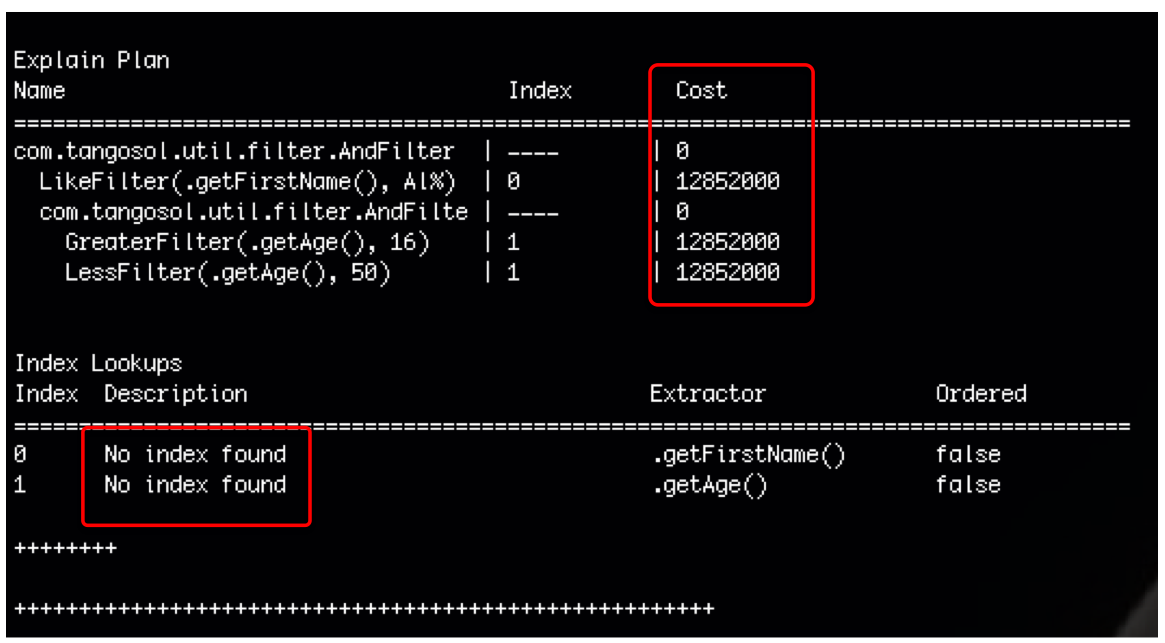
Add indices and examine results
-
In the last section we used an explain plan to examine the
cost of a query. Indices can be used to improve performance.
In this section we examine a query after adding indexes to
various values.
gedit src/java/example/RunQuery.java class
Note that a completed version of this section can be found in:completed/4.RunQuery.java
The new code should resemble:
cache.addIndex(new
ReflectionExtractor("getAge"), true, null);
cache.addIndex(new
ReflectionExtractor("getFirstName"), true, null);
Following the System.out line, add code to remove the indexes, the remove index code should resemble:
cache.removeindex(new=""
reflectionextractor("getfirstname"));
cache.removeIndex(new ReflectionExtractor("getAge"));
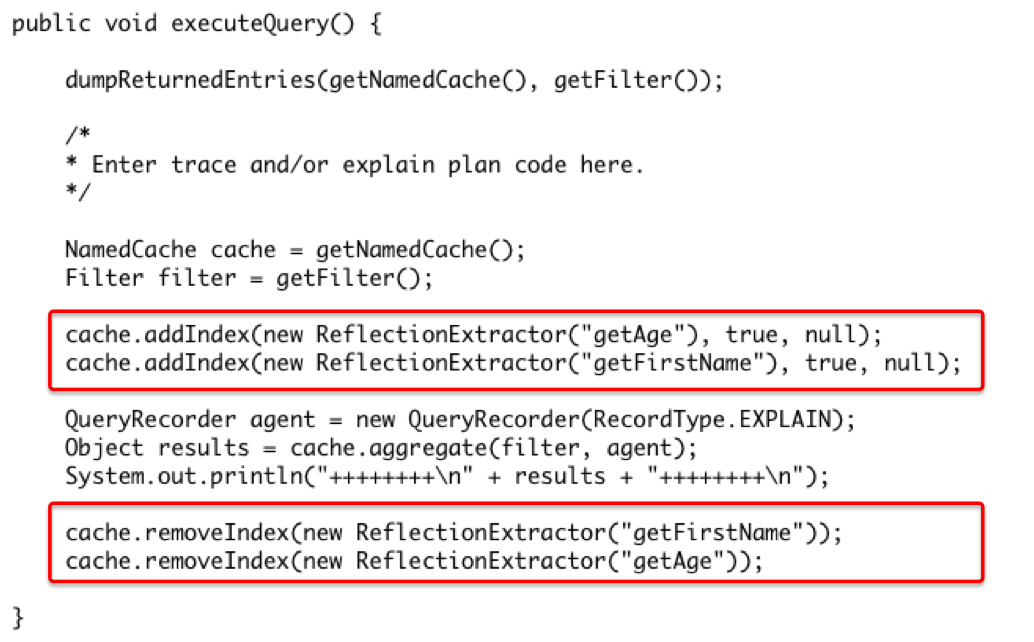
Check that the sim is running
bin/check-sim.sh
Build the code.bin/build.sh
Correct any compiler errors and run the query.bin/runquery.sh > query.log 2>&1
Using gedit or less examine the output, search for the Explain Plan. Note that the cost of the query has dropped dramatically.
The result should resemble:

Using Trace vs Explain Plan
-
In this section we will modify the RunQuery.java
class to determine the relative effectiveness of a index.
gedit src/java/example/RunQuery.java class
Note that a completed version of this section can be found in:completed/5.RunQuery.java
When complete the method should resemble:
QueryRecorder agent = new QueryRecorder(RecordType.TRACE);
Check that the sim is running, ensure that the sim has been running for a few minutes.
bin/check-sim.sh
Build the code.bin/build.sh
Correct any compiler errors and run the query.bin/runquery.sh > query.log 2>&1

Question: How effective is the use of the age index?
Using the Coherence Query Command Line Tool
-
Coherence provides a mechanism for querying data from the command
line. The class com.tangosol.coherence.dslquery.QueryPlus
implements much of the functionality normally used in querying a
database.
- select - select from a cache
- insert - insert an element into a cache
- delete - delete an element from a cache
- create index - create an index on a cache
- drop index - Remove an index from a cache
- And others For a complete list of supported commands and the syntax of each see here.
QueryPlus supports:
bin/querytool.sh
Note: Use the bin/check-sim.sh script if needed to ensure the simulation is runningYou should be presented with a CohQL> prompt similar to that shown below:
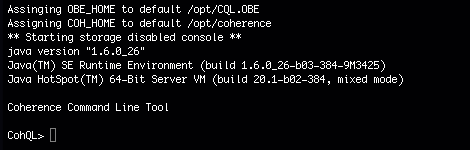
Note:Command line editing is enabled, so you can use the arrow keys to retrieve or edit prior commands.
select * from "dist-person" [CR]
Note: [CR] represents a carriage return and is not to be entered.A set of Person objects will be returned.
select FirstName, LastName, Age from "dist-person"
select FirstName,LastName,Age from
"dist-person" where age > 15 and age < 50 and
FirstName like "Al%"
trace select
FirstName,LastName,Age from "dist-person" where age > 15
and age < 50 and FirstName like "Al%"
explain plan for select
FirstName,LastName,Age from "dist-person" where age > 15
and age < 50 and FirstName like "Al%"
create index "dist-person"
FirstName;
trace select
FirstName,LastName,Age from "dist-person" where age > 15
and age < 50 and FirstName like "Al%"
explain plan for select FirstName,LastName,Age from "dist-person" where age > 15 and age < 50 and FirstName like "Al%
drop index "dist-person" FirstName
quit
Summary
- Use basic Filter
and QueryHelper
classes to query a cache.
- Estimate the performance of a query using Explain
Plans
- Evaluate performance of a query and the impact of filters
- Explore queries using the Coherence query application
- The Oracle Coherence 3.7.1 documentation, which is found here
- Various Oracle Coherence Development and Administration
classes and advance training that can be found here
- To learn more about Oracle Coherence, additional OBEs in the
Oracle
Learning Library
- Lead Curriculum Developer: Al Saganich
- Other Contributors: Jason Howes, Tim Middleton, Noah Arliss,
and others
In this tutorial, you have learned:
Resources
Credits
To help navigate this Oracle by Example, note the following:
- Hiding Header Buttons:
- Click the Title to hide the buttons in the header. To show the buttons again, simply click the Title again.
- Topic List Button:
- A list of all the topics. Click one of the topics to navigate to that section.
- Expand/Collapse All Topics:
- To show/hide all the detail for all the sections. By default, all topics are collapsed
- Show/Hide All Images:
- To show/hide all the screenshots. By default, all images are displayed.
- Print:
- To print the content. The content currently displayed or hidden will be printed.
To navigate to a particular section in this tutorial, select the topic from the list.