WCF Data Services and OData for Oracle Database
Overview
Purpose
This tutorial covers developing WCF Data Services and Open Data Protocol (OData) applications for the Oracle Database using Visual Studio.
Time to Complete
Approximately 15 mins
Introduction
Microsoft WCF Data Services enables creating and consuming Web data services. To do so, it uses OData, which exposes data as URI-addressable resources, such as web site URLs. Entity Data Models (EDMs) via Microsoft Entity Framework can expose data through WCF Data Services and OData to allow EDMs to be more widely consumed.
In this tutorial, you learn how to expose Oracle Database data via WCF Data Services and OData through Oracle's Entity Framework support.
You will start by creating a new EDM from the HR schema. Next, you will create a WCF Data Service that uses OData to expose this EDM via the web. Last, you will run the Web application and execute URL queries to retrieve data from the database.
Prerequisites
Before starting this tutorial, you should:
-
Install Microsoft Visual Studio 2013 or later with .NET Framework 4.5.1 or higher.
-
Install Oracle Database 12c or later.
-
Install Oracle Data Access Components (ODAC) 12.1.0.1.2 or later from OTN. The ODAC download includes Oracle Developer Tools for Visual Studio and ODP.NET that will be used in this lab.
-
Install Internet Explorer 9 or later versions or any browser that supports modern Web protocols.
-
Extract these files on to your working directory.
Creating a New Web Site Project
-
Open Visual Studio. Click File. Select New > Web Site....

-
Select ASP.NET Web Forms Site and click OK. You have now created a new ASP.NET Web Forms Site project.

Creating a new ADO.NET Entity Data Model
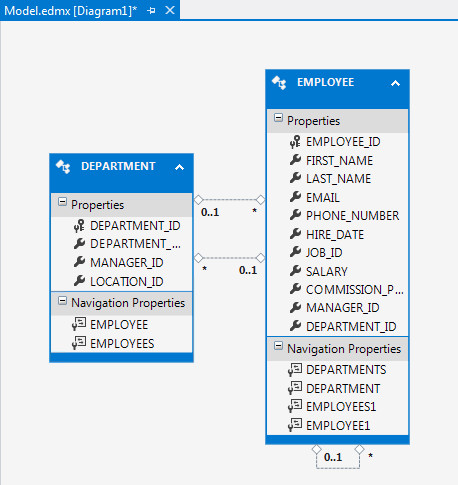
An EDM is required to expose Oracle data via WCF Data Services. In this section, you will create an EDM from the EMPLOYEES and DEPARTMENTS tables in the HR schema using the Entity Data Model Wizard.
-
In the Solution Explorer, right-click on the newly created web site project. Select Add > Add New Item....

-
Select ADO.NET Entity Data Model and click Add.

-
Click Yes in the dialog box.

-
In the Entity Data Model Wizard, select Generate from database and click Next.

-
If you do not have a HR data connection, then click New Connection. Enter hr for both the User name and Password. Check the Save password checkbox. Select an available Data source name, such as ORCL. Click Test Connection. The Test Connection succeeded dialog box appears, click OK. In the Connection Properties, click OK.


If you already have a HR connection, select the data connection, such as HR.ORCL in the screen shot. Select "Yes, include the sensitive data in the connection string". Click Next.

-
Choose the version as Entity Framework 5.0 and click Next.

-
Choose the Oracle tables to map to the EDM. Expand Tables > HR and select DEPARTMENTS and EMPLOYEES. Click Finish.

-
The Model.edmx page will appear with the new EDM.
Creating a WCF Data Service with EDM data
In this section, you create a WCF Data Service. Then, you configure the data service to use the EDM to retrieve EMPLOYEES and DEPARTMENTS data from the database. Last, you will retrieve Oracle data using a browser by modifying the URL to perform queries. Underlying the data access is the use of OData.
-
In the Solution Explorer, right-click on the web site project. Select Add > Add New Item....

-
Scroll down and select WCF Data Service 5.6 from the Installed Visual C# Templates and click Add.

-
Configure the WcfDataService.cs code page to retrieve data and provide access privileges. To retrieve data for WCFDataService : DataService, replace the section < /* TODO: put your data source class name here */ > with <Entities>. This is the EDM you just created.

Uncomment the config.SetEntitySetAccessRule and replace "MyEntitySet" with a "*".


Click
 to run the application.
-
The Web site opens up with the URL: http://localhost:<portname>/WcfDataService.svc. You can view the entities that have been included in the web site.

-
Before executing queries via the URL, make sure that Feed reading view has been disabled for Internet Explorer. Otherwise, it will treat the returned AtomPub encoded document as an XML feed instead of displaying the raw XML data.
To do this:
Click
 >
Internet Options
>
Internet Options
-
Select the Content tab. Select Settings from the Feeds and Web Slices section.

-
Deselect Turn on feed reading view and click OK. Click OK in the Internet Options window.

-
To execute some sample queries via the URL, open the Sample Queries - HR.txt from your working directory. The port number may be different from your project. Thus, use these sample queries as a guide, rather than copying and pasting them directly to the browser.
To query the EMPLOYEES entity, add /EMPLOYEES to the URL. The web site will execute the query as shown below.

-
To query for EMPLOYEE_ID = 100, copy /EMPLOYEES(100) from the Sample Queries - HR.txt and paste it in the URL. The web site will execute the query as shown below.

Note: The web site returns the first name, last name, email and other details of the employee whose EMPLOYEE_ID=100.
-
To query for the FIRST_NAME of EMPLOYEE_ID = 100, copy /EMPLOYEES(100)/FIRST_NAME from the Sample Queries - HR.txt and paste it in the URL. The web site will execute the query as shown below.

-
To count the number of rows, copy /EMPLOYEES/$count from the Sample Queries - HR.txt and paste it in the URL. The web site will execute the query as shown below.

-
To query for the first 2 employees, copy /EMPLOYEES?$top=2 from the Sample Queries - HR.txt and paste it in the URL. The web site will execute the query as shown below.

-
To query for EMPLOYEES with the KING surname, copy /EMPLOYEES?$filter=LAST_NAME eq 'King' from the Sample Queries - HR.txt and paste it in the URL. The web site will execute the query as shown below.

-
To query for EMPLOYEES paid more than 10,000 per pay period, copy EMPLOYEES?$filter=SALARY gt 10000 from the Sample Queries - HR.txt and paste it in the URL. The web site will execute the query as shown below.

-
To stop debugging in Visual Studio, close the browser.
Summary
In this tutorial you have learned how to:
- Create a new Web site project in Visual Studio.
- Create a new ADO.NET Entity Data Model from an Oracle schema.
- Create an Oracle WCF Data Service with EDM data and execute various queries with OData by modifying the URL.
Resources
- Visit the Oracle Technology Network Portal to learn the latest developments in Oracle .NET.
- To learn more about Oracle .NET with Visual Studio refer to additional OBEs in the Oracle Learning Library.
Credits
- Lead Curriculum Developer: Ashwin Agarwal
- Other Contributors: Alex Keh, Christian Shay
To navigate this Oracle by Example tutorial, note the following:
- Topic List:
- Click a topic to navigate to that section.
- Expand All Topics:
- Click the button to show or hide the details for the sections. By default, all topics are collapsed.
- Hide All Images:
- Click the button to show or hide the screenshots. By default, all images are displayed.
- Print:
- Click the button to print the content. The content that is currently displayed or hidden is printed.
To navigate to a particular section in this tutorial, select the topic from the list.