Working with GPIO by Using Java ME Embedded and a Raspberry Pi
Overview
Purpose
This tutorial covers how to create Java Embedded applications that read and write to general-purpose input/output (GPIO) pins on a Raspberry PI by using Oracle Java ME Embedded 8.
Time to Complete
Approximately 1 hour
Introduction
Intelligent devices are becoming an ever more important and ubiquitous part of our every day lives. Mobile phones represented the first wave of smaller personal computers. And now, as the price of electronics and processing power continues to fall, there is an intersection between sensors and other electromechanical devices and computers that live on the edge of the Internet: close to the source of the data, processing the data locally and sending just what is required to other computers to consume. This wave of machine-to-machine (M2M) technology, or more broadly, the Internet of Things (IoT), is rapidly shaping the future of computing. Oracle Java Platform, Micro Edition (Java ME) provides Java developers with a direct path to this new market space by using their existing knowledge and skills.
Scenario
In this tutorial, you create a Java ME Embedded 8 application by using a desktop development environment. Using a breadboard, you wire a simple circuit to connect a push button switch to a GPIO pin (input) and you wire a light-emitting diode (LED) to an output pin. The application changes the state of the LED (on or off) every time you press the button. This circuit illustrates the use of a pull-down resistor and a modification to the trigger type on the input pin.
Hardware
The following is a list of hardware requirements:
- Raspberry Pi Model B Revision 2.0 (512 Mb)
- Raspberry Pi Cobbler Kit or equivalent GPIO header to breadboard connector (For this tutorial, we used the Adafruit Raspberry Pi starter kit, which contains all parts that are needed.)
- Breadboard
- Breadboard wires (solid core copper wires with stripped ends recommended)
- Momentary push button (four leg recommended)
- 10 K and 560 Ohm resistors
- LED (2.2 V forward voltage, 20 mA recommended)
Prerequisites
Before starting this tutorial, you should:
- Have completed the Oracle By Example tutorial titled: Configuring the Raspberry Pi as an Oracle Java Embedded Platform.
- Have purchased the hardware required for the tutorial.
Creating a Java ME Embedded Project That Uses GPIO
In this section, you create a project by using NetBeans and you test it locally by using the Windows emulator. You also add the necessary permissions to access GPIO pins.
Creating a NetBeans Java ME Embedded Project
-
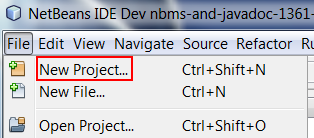
Select File > New Project.
-
Select Java ME Embedded from Categories and Java ME Embedded Application from Projects and click Next.

-
In the New Java ME Embedded Application window, perform the following steps:
- Enter TestGPIO as the project name.
- Make sure that the device is EmbeddedDevice1 (emulator).
- Enter com.example.GPIOIMlet in theCreate Midlet field.
- Click Finish.

Adding and Implementing the GPIOPinTest Class
The GPIOPinTest class listens for changes on an
input pin (button) and changes the state of an output pin
(LED).
-
Right-click
com.exampleand select New > Java Class.
-
Enter GPIOPinTest as the class name and click Finish.

-
Modify the class to implement PinListener and AutoCloseable. Implementing AutoCloseable allows instances of this class to be used in a try-with-resources clause, and requires that the class implement a close method.
public class GPIOPinTest implements PinListener, AutoCloseable { } -
Below the class definition, enter the following class fields for the GPIO pin that will be a button (input) and the GPIO pin that is the output (LED).
// Emulator Port names private static final int LED1_ID = 1; private static final int Button_Pin = 0; private GPIOPin led1; private GPIOPin button1; -
The
startmethod of the class attempts to initialize the LED and button components. Copy this method into the class. Note the two different approaches used to open a pin. The LED is opened as a output pin using the integer id of the pin. This pin is an output pin by default. See the Resources section for more information on which pins are input and output by default.
The button is opened as an input pin using a GPIOConfig object to define the pin port number, pin number, direction, mode, trigger and initial value. In general, it is a good practice to use a config object to open pins.public void start() throws IOException { // Open the LED pin (Output) led1 = DeviceManager.open(LED1_ID); // Config file for the button - trigger on a rising edge (from low to high) GPIOPinConfig config1 = new GPIOPinConfig(DeviceConfig.DEFAULT, Button_Pin, GPIOPinConfig.DIR_INPUT_ONLY, DeviceConfig.DEFAULT, GPIOPinConfig.TRIGGER_RISING_EDGE, false); // Open the BUTTON pin (Input) button1 = DeviceManager.open(config1); // Add this class as a pin listener to the buttons button1.setInputListener(this); // Turn the LED on, then off - this tests the LED led1.setValue(true); try { Thread.sleep(1000); } catch (InterruptedException ex) { } // Start with the LED off (false) led1.setValue(false); }Notice that the button is configured to trigger on the rising edge.
-
The
closemethod is called to close the LED and button resources. Copy this method into the class.@Override public void close() { try { if (led1 != null) { led1.setValue(false); led1.close(); } if (button1 != null) { button1.close(); } } catch (IOException ex) { System.out.println("Exception closing resources: " + ex); } } -
The
valueChangedmethod is invoked when the state of the input pin changes. Because of the button configuration, this method is invoked when the button changes state from low to high (rising trigger). Copy this method into the class.@Override public void valueChanged(PinEvent event) { // Simple one button = one LED try { System.out.println("setting led1"); led1.setValue(!led1.getValue()); // Toggle the value of the led } catch (IOException ex) { System.out.println("IOException: " + ex); } } -
Press Ctrl + Shift + I to add the required import statements.
Implementing the GPIOIMlet Class
-
Add the following class fields to the
GPIOIMletclass.private GPIOPinTest pinTest; -
The
startAppmethod is invoked when the IMlet changes state from paused to running. Copy this code over thestartAppmethod that is generated by NetBeans.@Override public void startApp() { pinTest = new GPIOPinTest(); try { pinTest.start(); } catch (IOException ex) { System.out.println("IOException: " + ex); notifyDestroyed(); } } -
The
destroyAppmethod is invoked when the IMlet changes state from active state to destroyed. In this method, all resources should be released, and all threads should be stopped. Copy this code over thedestroyAppmethod that is generated by NetBeans.@Override public void destroyApp(boolean unconditional) { if (pinTest != null) { pinTest.close(); } } -
Press Ctrl + Shift + I to add the required import statements.
Requesting API Permissions
Applications that require access to Device Access APIs must request appropriate permissions in JAD files.
-
Right-click the project and select Properties.

-
In the Project Properties window, select Application Descriptor from Categories and the API Permissions tab and click Add...

-
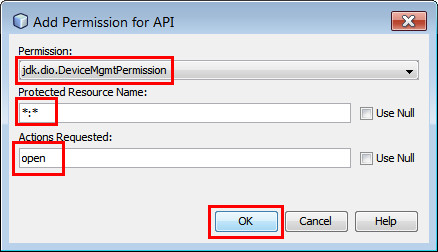
In the Add Permission for API window, perform the following steps:
- Select jdk.dio.DeviceMgmtPermission from Permission.
- Enter *:* as the protected resource name.
- Enter open as the actions requested.
- Click OK.
-
Click Add...

-
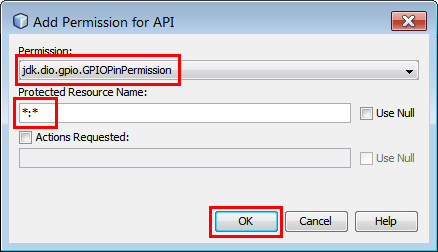
In the Add Permission for API window, perform the following steps:
- Select jdk.dio.gpio.GPIOPinPermission from Permission.
- Enter *:* as the protected resource name.
- Enter open as the actions requested.
- Click OK.
-
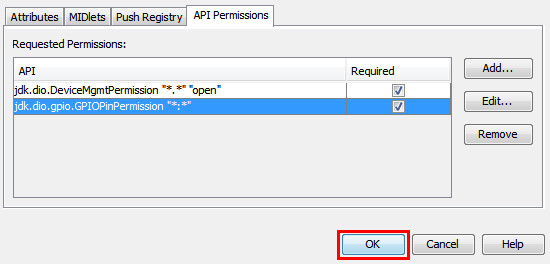
Click OK.
Running and Testing the Code in the Windows Emulator
-
Right-click the project and select Run.

The emulator starts and the IMlet appears in the EmbeddedDevice1 emulator with a status of Running.

-
Click the GPIO Pins tab to open the view of the current pins state.
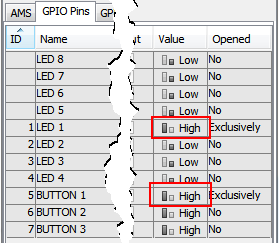
Notice that the Opened column indicates that LED 1 and BUTTON 1 are opened (exclusively).

-
Click the External Events Generator icon.

-
Click the GPIO tab in the External Events Generator dialog box.

-
Click Button 1. (The label of the button shows its current state. Low equals off.)

The button label changes to its new state, High (on).

Because the button changed state from low to high, it triggered a rising edge event, and the LED state was changed from Low (off) to High (on).
-
Click Button 1 again.
The Button state changes to Low, yet the LED remains High, because the trigger for the event in the code is only on the rising edge of transition (that is, only when the button state is changing from Low to High).

-
Click Button 1.
The state again transitions from Low to High, and the LED state changes from High to Low.

Creating the Application Circuit by Using the Breadboard
In this section, you lay out the application circuit by using a switch, LED, resistors, and wires on a breadboard.
Introduction to the Breadboard and Header Pin Out
-
Orient your breadboard vertically.

A breadboard is a convenient way to prototype a circuit. A breadboard is "split" into two halves by a slot running vertically down the center of it. Each row of five holes on each half is connected electrically and isolated from any other row. The columns on the left and right edges are "rails." Each rail is electrically connected for the entire length of the board (unless indicated otherwise).
-
Orient the Raspberry Pi vertically. Pin 1 of the GPIO header is labeled in the image.

The pins on the header are connected as follows on the Raspberry Pi:

The pins are numbered from 1 through 26, with the odd-numbered pins on the left and the even-numbered pins on the right. The pins with white labels should not be connected and are marked "DNC" (do not connect) on many headers.
Checking the Hardware Version of Your Raspberry Pi
Important: Be sure that you have a Raspberry Pi Model B Revision 2.0 board before wiring your Raspberry Pi.
-
Start a PuTTY connection with your Raspberry Pi and enter cat /proc/cpuinfo.

If the displayed revision value is
000d,000e, or000f, you have a Raspberry Pi Model B, 512 Mb, Version 2. For more information about revision codes, see the Resources section.
Wiring the Circuit on the Breadboard
-
Place the 26-pin header connector into the breadboard so that:
- The connector straddles the center.
- Pin 1 (labeled "3V3") is in the first column at the top left.
- The "key" (the square cutout in the center of the connector) is on the left side.

Note: Your breadboard may look different.
-
Perform the following tasks, using the row numbers shown in the image as a reference:
- Insert a push button switch starting at row 20 on the breadboard. The switch should straddle the center of the board.
- Insert an LED. The long lead should go into row 18 on the right side of the board, and the short lead should go into the right negative (blue) rail.
- Insert a 10 K Ohm resistor (brown, black, orange) between row 20 on the right side and the negative (blue) rail on the right. This is one side of the switch. Note: It does not matter which way the resistor is facing (left or right).
- Insert a 560 Ohm resistor (green, blue, brown) into row 18, with one lead on either side of the center of the board.
- Insert a red wire from pin 1 to the positive (red) rail on the left.
- Insert a red wire between the positive (red) rail and row 22 on the left (this is the other side of the switch).
- Insert a white wire between GPIO pin 17 (row 6 on the right side of the board) and row 20 on the right side of the board.
- Insert a blue wire between GPIO pin 23 (row 8 on the right side of the board) and row 18 on the left side of the board.
- Insert a green wire between row 3 on the right and the negative (blue) rail.

Your wiring should look similar to this picture:

Caution: Double-check that pin 1, marked 3V3 (on the left), is connected to the positive rail, and pin 6, the third one from the top on the right, is connected to the negative rail. If you connect to the 5V pin by accident, you could damage your Raspberry Pi.
- Review the application circuit that you created.
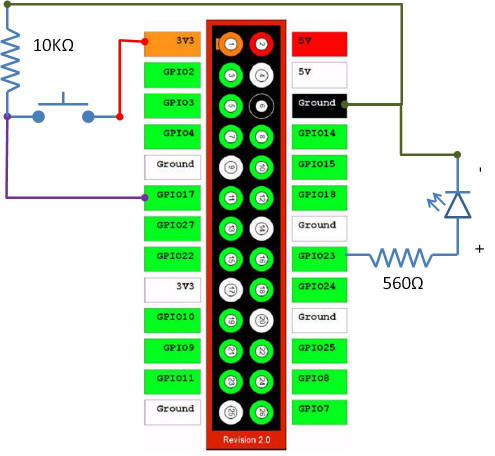
The 10 K resistor attached to the ground pulls the value of the input pin (#17) low until the switch is momentarily pressed. When the value of the input pin goes high, it signals an event to the PinListener. When the output pin (#23) is set high, the LED illuminates. The 560 Ohm resistor lowers the current that reaches the LED.
Connecting the Ribbon Cable Between the Raspberry Pi and the Header
- Power off your Raspberry Pi by unplugging the power cable.
Caution: Before handling your Raspberry Pi, take care to touch a metal object in order to discharge static electricity.
-
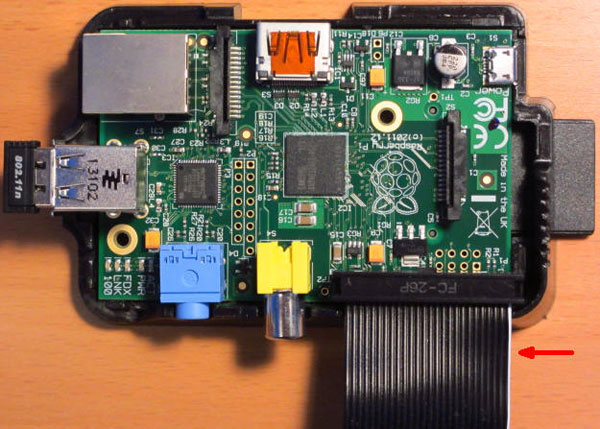
Connect the ribbon cable to the GPIO header on the Raspberry Pi so that the white stripe (pin 1) is on the right.
Caution: Make sure that the cable is not offset before pushing it down onto the header. All pins should be covered by the cable header.
-
Connect the other end of the ribbon cable to the connector attached to the breadboard. The ribbon cable header can be inserted only one way into the connector on the breadboard.

-
Reconnect power to your Raspberry Pi.
Running and Testing the TestGPIO Project on the Raspberry Pi
In this section, you test the application that you created by using NetBeans with the application circuit that you wired.
Connecting the Emulator to the Raspberry Pi
-
Perform the following steps:
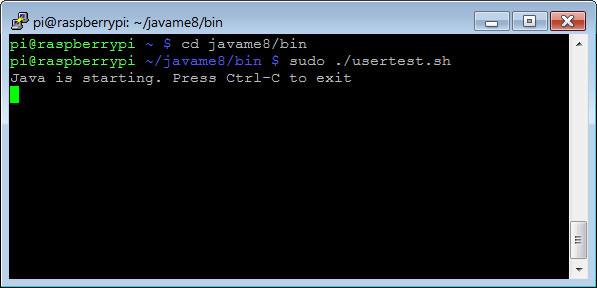
- Connect to your Raspberry Pi with PuTTY.
- Change directories with the cd javame8/bin command.
- Start the Application Management System with the sudo ./usertest.sh command.
-
In the Windows tray, a message will appear indicating that the Device Manager has added a new device.

Note: If your Device Manager does not appear in the windows tray, click the Show hidden icons button to set it to "Show icon and notifications".
-
The Device Connections Manager will show the IP of the Raspberry Pi and a status Connected. Click Close.

Modifying the NetBeans Project to Use the EmbeddedExternalDevice1 (Raspberry Pi)
-
In
GPIOPinTest.java, comment out the class fields that define the LED and button pin information for the emulator and replace them with the class fields for the Raspberry Pi.// Emulator Port names //private static final int LED1_ID = 1; //private static final int Button_Pin = 0; // Raspberry Pi Pin values private static final int LED1_ID = 23; private static final int Button_Pin = 17; -
Right-click the project and select Properties.
-
Click Platform, select EmbeddedExternalDevice1 from the Device list, and click OK.

-
Right-click the project and select Run.
The LED on the breadboard will light for about 1 second and then go out.

-
Press the button on the breadboard to turn the LED on.

Notice the message written to the PuTTY window.

-
Press the button on the breadboard again to turn off the LED.

Notice the message written to the PuTTY window.

-
Try pushing the button several times more.
You may notice that occasionally, the LED flickers, or does not turn off. This is a result of switch "bounce". Because the switch is a mechanical device, there can be more than one rising edge event as the switch mechanism is pressed or released. There are hardware and software solutions for switch bounce.
-
Press the Stop button in the emulator to quit the IMlet.

A software solution for switch bounce
-
Modify the
valueChangedmethod to start an anonymous thread that sets a boolean variable and then sleeps to allow the switch to bounce. Subsequent pin events will be thrown away while the thread is sleeping.private boolean bouncing = false; @Override public void valueChanged(PinEvent event) { if (!bouncing) { new Thread(new Runnable() { @Override public void run() { bouncing = true; try { led1.setValue(!led1.getValue()); // Toggle the value of the led Thread.sleep(500); // Delay to allow switch to settle } catch (InterruptedException | IOException ex) { System.out.println("IOException: " + ex); } bouncing = false; } }).start(); } } - Run the project again and test the code.
Summary
In this tutorial, you learned to:
- Create a Java ME Embedded Project that uses GPIO
- Test the project locally by using the Windows emulator
- Wire an application circuit by using a breadboard, an LED, a switch, resistors, and some wire
- Connect the Raspberry Pi to the breadboard by using a ribbon cable
- Run and test the application on the Raspberry Pi and light an LED based on input from a switch
- Debounce a circuit using a simple software solution
Resources
- Raspberry Pi hardware revision codes
- Oracle® Java ME
Embedded 8 Documentation
- Device I/O API Javadoc
- To learn more about Java Embedded, refer to additional OBEs in the Oracle Learning Library.
Credits
- Lead Curriculum Developer: Tom McGinn
- Other Contributors: Edgar Alberto Martinez Cruz
To navigate this Oracle by Example tutorial, note the following:
- Topic List:
- Click a topic to navigate to that section.
- Expand All Topics:
- Click the button to show or hide the details for the sections. By default, all topics are collapsed.
- Hide All Images:
- Click the button to show or hide the screenshots. By default, all images are displayed.
- Print:
- Click the button to print the content. The content that is currently displayed or hidden is printed.
To navigate to a particular section in this tutorial, select the topic from the list.