Configuring the Raspberry Pi as an Oracle Java ME Embedded Development
Platform
Overview
Purpose
This tutorial covers how to configure a Raspberry Pi as a
development platform for the Oracle Java ME Embedded 8 platform.
Time to Complete
Approximately 1 hour
Introduction
Intelligent devices are becoming an ever more important and ubiquitous part of our everyday lives. Mobile phones represented the first wave of smaller personal computers. And now, as the price of electronics and processing power continues to fall, there is an intersection between sensors and other electromechanical devices and computers that live on the edge of the Internet: close to the source of the data, processing the data locally and sending just what is required to other computers to consume. This wave of machine-to-machine (M2M) technology, or more broadly, the Internet of Things (IoT), is rapidly shaping the future of computing. Oracle Java Platform, Micro Edition (Java ME) provides Java developers with a direct path to this new market space by using their existing knowledge and skills.
In this tutorial, you prepare a Raspberry Pi to run Java ME
Embedded 8, the released version of Java ME Embedded. The
Raspberry Pi is a computer that is about the size of a deck of
cards, yet it is capable of running a Linux distribution on its
ARM 11 processor. The Raspberry Pi also supports USB, Ethernet,
audio, HDMI, and RCA video output. But most importantly, the
Raspberry Pi provides a 26-pin header that connects the computer
to the outside world, through general-purpose input/output (GPIO)
pins that can drive LEDs, read switches and other electronic
signals, and connect to a wealth of inter-integrated circuit (I2C)
devices, universal asynchronous receiver/transmitter (UART)
devices, and more.
Hardware and Software Requirements
The following is a list of hardware and software requirements:
- Windows 7 desktop or laptop computer (The Java ME SDK runs
only on Windows platforms.)
- Raspberry Pi Model B Revision 2, power supply, Ethernet cable
- USB to TTL Serial Cable (Alternatively, use a USB keyboard and mouse and an HDMI cable and monitor.)
- 4 GB (or larger) Secure Digital (SD) memory card
- (Optional) Wireless USB
module
- Raspbian Wheezy
image (2014-01-07-wheezy-raspbian or later. Scroll down
until you see Raspbian. Do not install NOOBS.)
- SD
Association Formatter tool
- SHA-1 checksum verifier tool for Windows
- Java JDK 8 (latest)
- Oracle
Java ME SDK 8 (only Windows supported)
- Oracle
Java ME Embedded 8 Raspberry Pi binary (Version 8.1
Early Access)
- NetBeans
8 or later (all versions)
- Oracle Java ME SDK 8 Plugins for NetBeans
- Win32DiskImager
- PuTTY Telnet and Secure Shell (SSH) Client
- PSFTP
Client
Prerequisites
Before starting this tutorial, you should:
- Install Java JDK 8, Java ME SDK 8, NetBeans IDE, and plugins for Java ME SDK. See this supporting video.
- Download and install the following software:
- SD Formatter tool
- SHA-1 checksum verifier
- Win32DiskImager
- PuTTY client
- PSFTP client
- Download the Oracle Java ME Embedded 8 Raspberry Pi binary zip
file to the
C:\Tempdirectory.
Creating a Bootable Image for the Raspberry Pi
In order to boot, the Raspberry Pi requires a bootable Linux
image on an SD memory card. There is no hard drive for the
computer. Instead, the 4 GB card stores the image that the
computer runs when it is powered on. This SD memory card also acts
as the storage for other applications that are loaded onto the
card.
Formatting the SD Memory Card with the SD Formatter Tool
-
Insert the SD memory card into your computer or connect it to your computer by using an SD card peripheral.
-
Start the SD Formatter tool and click Option.

-
In the Option Setting dialog box, select FULL (Overwrite) for Format Type and ON for Format Size Adjustment, and then click OK.

-
Click Format to start the SD Formatter tool.

-
Click OK to format the SD memory card.
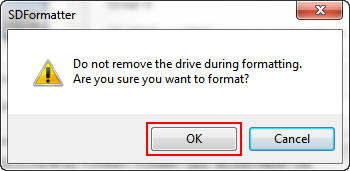
A dialog box displays the progress of the format.

-
When the format is complete, click OK to close the dialog box.

-
Click Exit to close the SD Formatter tool.
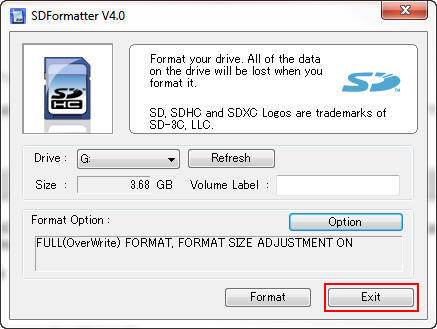
You are now ready to install the Raspbian Wheezy image in the
SD memory card. Leave the card in the computer.
Downloading and Confirming the Raspbian Wheezy Image
-
Make a note of the SHA-1 checksum for the zip file that you downloaded.

Note: The SHA-1 checksum might be in a file with a
sha1extension. -
Open a command window in the directory where you downloaded the zip file and enter sha1sum.exe 2014-01-07-wheezy-raspbian.zip.

Note: If the SHA-1 checksum does not match the checksum listed on the download page, try downloading the zip file again.
- Open an unzip tool and extract the contents of unzip 2014-01-07-wheezy-raspbian.zip.
-
Start the Win32DiskImager application. Make sure that the device address is the same as the mount point for the SD memory card.

-
Click the folder button, navigate to the location of the image file, and click Write.

-
Click Yes to confirm that you want to overwrite the contents of the SD memory card.

A progress meter is displayed.

-
When the Write Successful message is displayed, click OK.

-
Click Exit to close the Win32 Disk Imager.

-
Perform one of the following steps:
- Remove the SD memory card from the computer.
- If you used a USB SD card reader, remove the SD card from the reader.
- If you used a micro or mini SD card, remove it from the reader and reinsert it into a full-sized SD adapter.
You are now ready to boot the Raspberry Pi and install the
Java ME Embedded 8 binary for Pi.
Setting Up the Raspberry Pi as a Headless Embedded Device
To set up the Raspberry Pi as a headless embedded device, you
configure Raspbian to allow SSH connections by using a USB/TTY
cable or by using a USB keyboard and an HDMI monitor. To ensure
that the Raspberry Pi always has the same IP address, you
configure the Raspberry Pi to use a static IP address.
Note: If you want to connect your Raspberry Pi
to your network by using both wireless (WLAN) and wired (ETH0)
options, choose a different fixed IP address for each connection
type. Do not use the same IP address.
Option 1: Configuring SSH by Using a USB/TTY Cable
Important: You must install the PL2303HX.A drivers before you plug the USB cable into your PC.
- Download and unzip the PL2303HX.A
driver software.
Note: The Prolific drivers will not work with Windows 8.
-
Double-click the PL2303_Prolific_DriverInstaller_v1.9.0.exe file to launch the installer and click Next on the Welcome page.

-
When the InstallShield Wizard displays a success message, click Finish.

-
Attach the connector of the USB/TTL cable to the Raspberry Pi as follows:
- Red on the farthest right (closest to the edge of the board) pin of the GPIO header.
- Black on the third pin from the right.
- White on the fourth pin from the right.
- Green on the fifth pin from the right.

-
Perform the following steps:
- Insert the SD memory card into the Raspberry Pi.
- Connect the Ethernet cable to the Raspberry Pi and to your network.
- Plug the USB end of the cable into your PC.
Note: The USB cable will power the Raspberry Pi. Do not plug in the micro-USB power cable at the same time. The Raspberry Pi should only be powered by one source at a time.
-
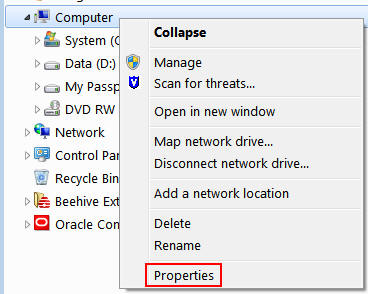
Open an Explorer window, right-click Computer and select Properties.
-
In the Control Panel dialog box, click Device Manager.

-
Scroll to Ports and then perform the following steps:
- Expand Ports.
- Make a note of the port number for the Prolific USB-to-Serial Comm Port connection.

Note: If you don't see the Prolific USB-to-Serial Comm Port connection, try rebooting your PC.
-
Start putty.exe and then perform the following steps:
- Enter the COM port number that you noted in step 8.
- Enter 115200 for the speed.
- Select Serial as the connection type.
- Click Open.

-
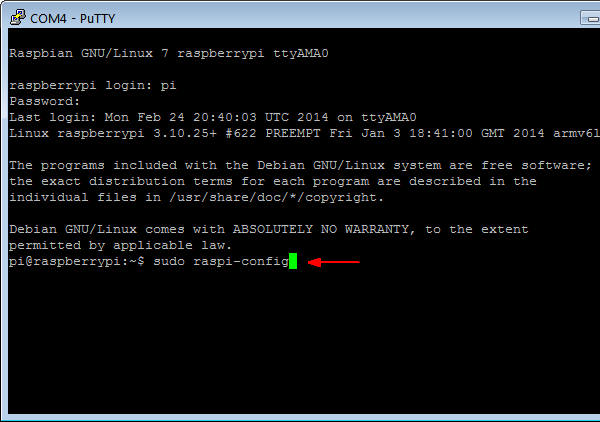
In the PuTTY window, enter pi as the login name and raspberry as the password.

Note: You may have to press the Enter key to establish the initial connection.
-
Enter sudo raspi-config.
-
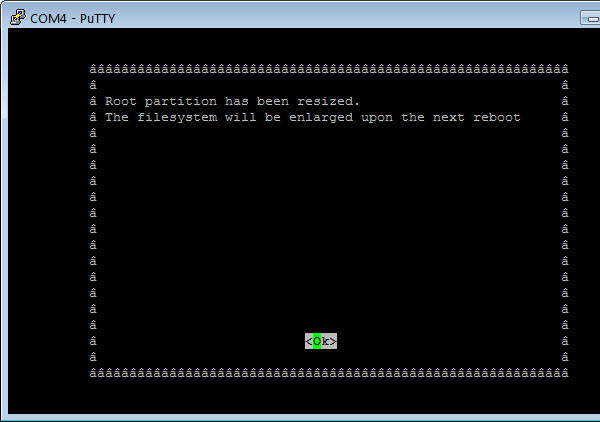
Select Expand Filesystem (setup option 1) and press Enter to expand the file system and use all of the SD memory card storage.

-
Press Enter to close the confirmation screen.
-
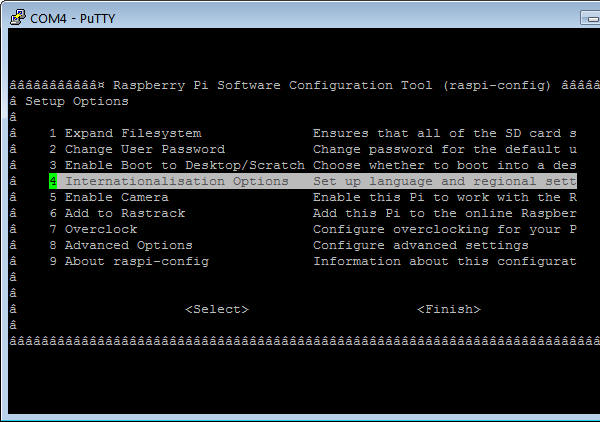
Press the up or down arrow key to select Internationalisation Options (setup option 4) and press Enter.
-
Press the up or down arrow key to select Change Timezone (internationalisation option I2) and press Enter.

-
Press the up or down arrow key to select your country and press Enter.

-
Press the up or down arrow key to select the time zone in your country (if applicable) and press Enter.

-
Press the up or down arrow key to select Advanced Options (setup option 8) and press Enter.

-
Press the up or down arrow key to select SSH (advanced option A4) and press Enter.

-
Press the left or right arrow key to select Enable and press Enter

-
Press Enter.

-
Press the left or right arrow key to select Finish and press Enter.

-
Press the left or right arrow key to select Yes and press Enter to reboot the Raspberry Pi.

The Raspberry Pi reboots.

-
Enter pi as the login and raspberry as the password.

-
Enter ifconfig -a.

Make a note of the IP address that your network provided for the Raspberry Pi.

-
Unplug the USB cable from the PC and disconnect the leads from the Raspberry Pi.
-
Plug the power cable into the Raspberry Pi.
Skip to the section titled "Connecting to the Raspberry Pi with the Secure Shell."
Option 2: Configuring SSH by Using a USB Keyboard and HDMI
Monitor
-
Perform the following steps:
- Insert the SD memory card into the Raspberry Pi.
- Connect the USB keyboard and USB mouse.
- Connect the HDMI display.
- Connect the Ethernet cable.
- Plug in the power cable.

After a few moments, the monitor displays text, and the Raspberry Pi raspi-config configuration screen appears.
-
Select Expand Filesystem (setup option 1) and press Enter to expand the file system and use all of the SD memory card storage.

-
Press Enter to close the confirmation screen.

-
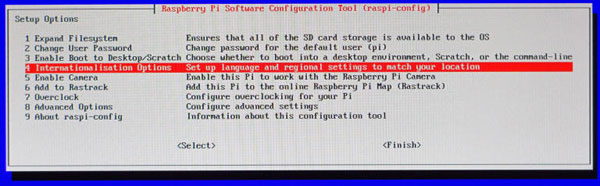
Press the up or down arrow key to select Internationalisation Options (setup option 4) and press Enter.
-
Press the up or down arrow key to select Change Timezone (internationalisation option I2) and press Enter.

Note: You may also need to change your locale in order to properly identify your keyboard.
-
Press the up or down arrow key to select your country and press Enter.

-
Press the up or down arrow key to select the time zone in your country (if applicable) and press Enter.

-
Press the up or down arrow key to select Advanced Options (setup option 8) and press Enter.

-
Press the up or down arrow key to select SSH (advanced option A4) and press Enter.

-
Press the left or right arrow key to select Enable and press Enter.

-
Press Enter.

-
Press the left or right arrow key to select Finish and press Enter.

-
Press the left or right arrow key to select Yes and press Enter to reboot the Raspberry Pi.

The Raspberry Pi reboots.

Notice the line that indicates the IP address of the Raspberry Pi.
At this point, you can disconnect the HMDI monitor, the USB mouse, and the USB keyboard.
Connecting to the Raspberry Pi with the Secure Shell
-
Start putty.exe and perform the following steps:
- In the boot screen, enter the IP address in the IP address field.
- Enter Raspberry SSH in the Saved Sessions field.
- Click Save.
-
Click Open.

-
Click Yes to accept the security alert.

-
Enter pi as the login name and raspberry as the password.


Configuring the Raspberry Pi with a Fixed IP Address by Using a
Wired or Wireless Network
To ensure that the Raspberry Pi always has the same IP address,
you configure the Raspberry Pi to use a static IP address. You may
choose to set your Raspberry Pi by using a wired or wireless
network.
Note: If you want to connect your Raspberry Pi
to your network by using both wired (ETH0) and wireless (WLAN)
options, choose a different fixed IP address for each connection
type. Do not use the same IP address.
Option 1: Setting Up the Raspberry Pi to Use a Fixed Wired IP Address
-
In a separate command prompt window, enter ipconfig to display the netmask and default gateway for your network.

Note: If you are using a wireless connection, the information appears under the Wireless LAN adapter heading.
-
In a PuTTY window, enter sudo nano /etc/network/interfaces and then perform the following steps:
- Comment out the iface eth0 inet dhcp line by placing a # symbol at the beginning of the line.
- Below that, add the iface eth0 inet static line.
- Use your network settings to add the IP, network,
netmask, broadcast, and gateway addresses. For example:
address 192.168.1.105
network 192.168.1.0
netmask 255.255.255.0
broadcast 192.168.1.255
gateway 192.168.1.1

-
Press Ctrl + O and then press Enter to write the file.

-
Press Ctrl + X and then press Enter to close nano and return to the prompt.
-
Enter sudo reboot to reboot the Raspberry Pi and make the changes.

Option 2: Setting Up the Raspberry Pi to Use a Wireless
Network with a Fixed IP Address
If you plan to use a wireless USB module with your Raspberry Pi, you need to edit the network interfaces file.
-
In a PuTTY window, enter sudo nano /etc/network/interfaces and then perform the following steps:
- Comment out the following lines: allow-hotplug wlan0
- Below that, add the following lines: auto wlan0
- Use your network settings to add the IP address,
network mask, and gateway address. For example:
address 192.168.1.105
netmask 255.255.255.0
gateway 192.168.1.1
- Add the network SSID and passkey for your network in
double quotation marks. For example:
wpa-ssid "mynetwork"
wpa-psk "cants@y"
iface wlan0 inet manual
wpa-roam /etc/wpa_spplicant/wpa_supplicant.conf
iface wlan0 inet static

-
Press Ctrl + O and then press Enter to write the file. Press Ctrl + X to exit nano.
-
Enter sudo halt to stop the Raspberry Pi.

-
Unplug the power cable to the Raspberry Pi.
-
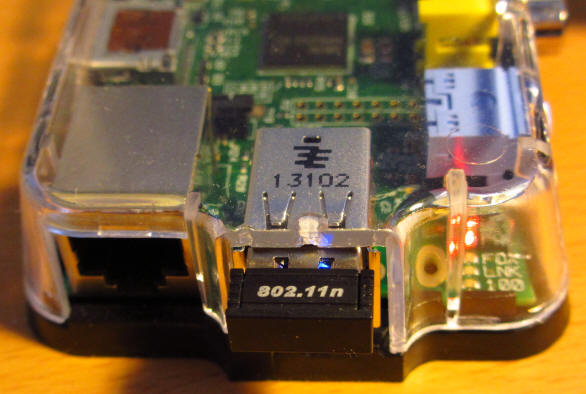
The Raspberry Pi supports only two USB connections. To use the USB Wifi Module, unplug the USB mouse, USB keyboard, and Ethernet cable, and then plug in the USB Wifi module.
-
Plug the power cable into the Raspberry Pi.
Installing the Java ME Embedded 8.1 Early Access Binary on the
Raspberry Pi
To install the Java ME 8.1 EA Embedded binary on the
Raspberry Pi, you transfer the Raspberry Pi binary zip file from
your desktop to the Pi over the SSH connection. Next, you unzip
the file into a new directory.
Restarting the PuTTY Connection
-
To reconnect to the Raspberry Pi, right-click in the header of the PuTTY window and select Restart Session.

-
Enter pi as the login name and raspberry as the password.

Transferring the Java ME Embedded 8.1 Early Access Binary to
the Raspberry Pi by Using PSFTP
-
Launch the PSFTP tool and then perform the following steps:
- Enter open 192.168.1.105.
- Enter pi as the login name and raspberry as the password.

-
Enter lcd C:\Temp to change the local directory to the location of the Java ME Embedded 8 binary zip file for the Raspberry Pi.

-
Enter put oracle-jmee-8-1-ea-raspberrypi-linux-bin-b01-20_may_2014.zip.

Depending on your connection speed, this action can take several minutes.
-
Enter exit to quit and close the PSFTP tool.

Unzipping the Raspberry Pi Binary and Starting the AMS
-
Enter unzip oracle-jmee-8-1-ea-raspberrypi-linux-bin-b01-20_may_2014.zip -d javame8 to unzip the Raspberry Pi binary into a new
javame8directory.
-
Enter cd javame8/bin to change directories to the
javame8/bindirectory.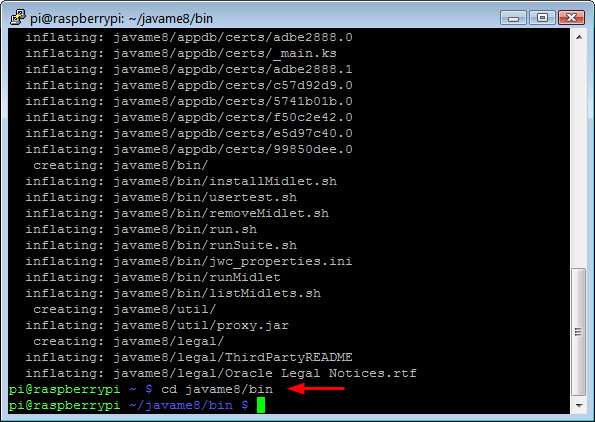
-
Enter sudo ./usertest.sh to start the Application Management System (AMS).

Note: Because you must run the script as root, be sure to use sudo.
Connecting the Emulator to the Raspberry Pi
To connect the NetBeans IDE to the Raspberry Pi as a deployment platform, you add the Raspberry Pi as an Embedded External Device.
-
In the lower left corner of your Windows desktop, click the Show Hidden Icons button, and then click Oracle Java ME SDK Device Manager.

-
In the Driver Connections Manager dialog box, click Add.

-
In the Add Device Connection dialog box, perform the following steps:
- If the IP address of the Raspberry Pi wasn't automatically populated, manually enter it.
- Click OK.

The following message is displayed in the Windows tray: "Device is now registered."

-
In the Device Connections Manager, review the Raspberry Pi IP address and status, and then click Close.

Running a Simple IMlet on the Raspberry Pi
To test the connection between NetBeans and the Raspberry Pi, you
write a small program to test the IMlet lifecycle methods (startApp
and destroyApp). Next, you deploy the IMlet to the
Raspberry Pi through the EmbeddedExternalDevice1 emulator and
control the IMlet application by using the emulator.
-
In NetBeans 8.0, select File > New Project to create an IMlet project in NetBeans.

-
Select Java ME Embedded from Categories and Java ME Embedded Application from Projects and click Next.

-
In the New Java ME Embedded Application dialog box, perform the following steps:
- Enter TestME8Embedded as the project name.
- Select EmbeddedExternalDevice1 as the device.
- Change the Midlet package name (the string before the dot) to com.example.
- Click Finish.

-
Add console messages to the
startAppanddestroyAppmethods in the class.public class TestME8Embedded extends MIDlet { @Override public void startApp() { System.out.println("Starting..."); } @Override public void destroyApp(boolean unconditional) { System.out.println("Destroyed..."); } } -
Right-click the project and select Run.

In the PuTTY window that is connected to the Raspberry Pi, a message indicates that the console output is written to the window where the AMS was started.

An emulator window also opens.

You can include multiple IMlets in a single suite. In this case, the suite name and IMlet name are the same.
-
Click Stop in the emulator window.

The Destroyed message is displayed in the PuTTY window (the running AMS on the Raspberry Pi).

-
In the emulator window, click Output to open the Output Console.

Messages also appear in the Output Console.

Summary
In this tutorial, you learned to:
- Create a bootable image for the Raspberry Pi
- Set up the Raspberry Pi as a headless device
- Install the Java ME Embedded 8 binary in the Raspberry Pi
- Connect the Windows emulator to the Raspberry Pi
- Run a simple IMlet on the Raspberry Pi
Resources
- Java ME Developer Tools Documentation
- Raspberry Pi Foundation
- Troubleshooting WiFi issues resource
- To learn more about Java Embedded, refer to additional OBEs in
the Oracle
Learning Library
Credits
- Lead Curriculum Developer: Tom McGinn
- Other Contributors: Edgar Alberto Martinez Cruz, Matt Heimer
To navigate this Oracle by Example tutorial, note the following:
- Topic List:
- Click a topic to navigate to that section.
- Expand All Topics:
- Click the button to show or hide the details for the sections. By default, all topics are collapsed.
- Hide All Images:
- Click the button to show or hide the screenshots. By default, all images are displayed.
- Print:
- Click the button to print the content. The content that is currently displayed or hidden is printed.
To navigate to a particular section in this tutorial, select the topic from the list.