
|
|
Business Rules Check |
The Business Rules Check processor enables users to check data against a set of business rules, which can be defined and maintained outside of OEDQ. Validation errors can be output for each record checked.
The Business Rules Check processor is used to apply potentially complex validation rules to data in a single processor. The business rules can be defined in reference data or in an external file, allowing the rules to be maintained externally to OEDQ.
The processor accepts:
Please see the Defining Business Rules topic for information on how to define business rules.
|
Option |
Type |
Purpose |
Default Value |
|
Configuration Source |
Selection |
To specify the type of the configuration source. |
XLS File |
|
File Name (only available when XLS File is in use) |
Selection |
To specify the file which contains the business rule configuration. |
None |
|
Rules (only available when Reference Data is in use) |
Reference data |
To specify the reference data containing the Rules configuration for the processor. |
None |
|
Conditions (only available when Reference Data is in use) |
Reference data |
To specify the reference data containing the Conditions configuration for the processor. |
None |
|
Checks (only available when Reference Data is in use) |
Reference data |
To specify the reference data containing the Checks configuration for the processor. |
None |
If an Excel file is used to define the business rules, it must be placed in the [Install Path]/config/businessrules directory, where [Install Path] represents the root of your OEDQ installation, and must conform to the format specified in the Defining Business Rules topic.
Identifiers are used to map the input attributes of the Business Rules Check processor onto the attribute tags referenced in the business rules document. The mappings between identifiers and attributes are defined on the Identify tab of the Business Rules Check processor dialog:
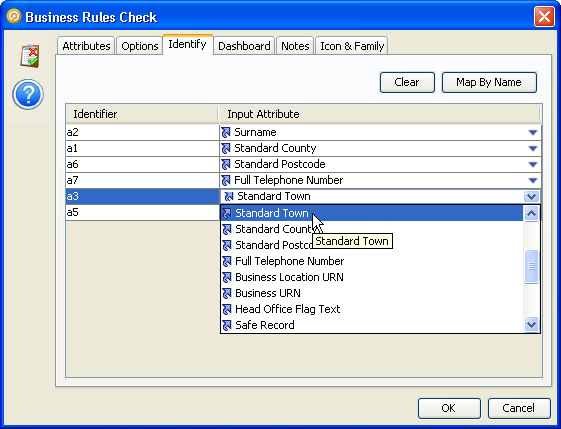
For each identifier, select the appropriate input attribute from the drop-down on the right.
|
Note:Unmapped identifiers are treated differently by the Business Rules Check processor, depending on the context.
|
|
Data attribute |
Type |
Purpose |
Value |
|
ErrorCodes |
Added |
Stores the error codes generated by validating the record. |
An array of the error codes associated with the business rules which failed for the record. The error codes are defined as part of the business rule configuration. |
|
ErrorSeverities |
Added |
Stores the severities of the errors generated by validating the record. |
An array of the error severities associated with the business rules which failed for the record. The error codes are defined as part of the business rule configuration. |
|
ErrorMessages |
Added |
Stores the error messages generated by validating the record. |
An array of the error messages associated with the business rules which failed for the record. The error codes are defined as part of the business rule configuration. |
|
Flag attribute |
Purpose |
Possible Values |
|
RulePass |
Indicates whether or not the record passed all of the validation rules. |
Y/N |
|
RuleFailures |
Indicates the number of rules that failed for the record. |
Integer |
|
RuleFailureIDs |
Indicates, by ID, the rules which failed for the record. |
Array of rule IDs corresponding to the rules which failed for the record. |
|
RuleFailureLabels |
Indicates, by label, the rules which failed for the record. |
Array of rule labels corresponding to the rules which failed for the record. |
|
AttributeNames |
Indicates, by name, the attributes which caused validation to fail for the record. |
Array of attribute names which caused the rules to fail for the record. |
|
Result |
Dashboard Interpretation |
|
Pass |
Pass |
|
Fail |
Alert |
|
Execution Mode |
Supported |
|
Batch |
Yes |
|
Real time Monitoring |
Yes |
|
Real time Response |
Yes |
|
Note:This processor always appears with a re-run marker, indicating that it will be completely re-executed each time the process is run, regardless of whether or not its configuration has changed. This will also mean that processors that are downstream of the processor will need to be rerun. This is because there may be changes made outside of the OEDQ application that could lead to different results on subsequent executions. |
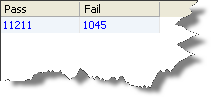
The Business Rules Check processor produces a summary view of its results, showing the following statistics:
|
Statistic |
Meaning |
|
Pass |
The number of records which passed the logic check |
|
Fail |
The number of records which failed the logic check |
The following output filters are available from a Logic Check:
In the example below, the user wishes to use an Excel file called contactDetailsCheck.xls to validate some of the contact details in their customer data:

This file contains rules which check that:
Summary view
Drilldown on Records Passing Check

Drilldown on Records Failing Check

Oracle ® Enterprise Data Quality Help version 9.0
Copyright ©
2006,2011 Oracle and/or its affiliates. All rights reserved.