
Connect to Oracle Commerce Cloud
Configure widgets to show offers
Connect to Oracle Responsys

Connect to Oracle Commerce Cloud
Note: If you use a different commerce application, read how to connect it here and skip these steps.
1Register Oracle Adaptive Intelligent Offers in Oracle Commerce Cloud
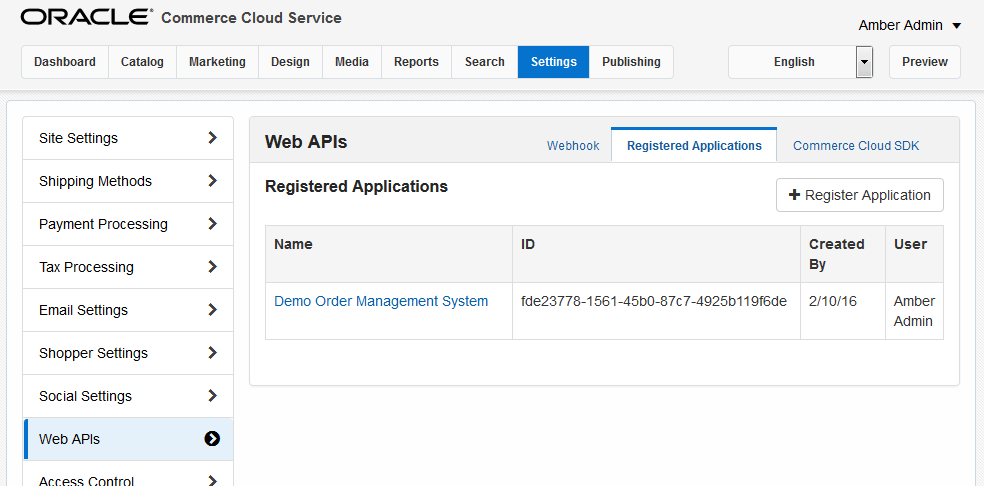

On the Settings page in the Oracle Commerce Cloud Service administration area, click Web APIs > Registered Applications > Register Application.
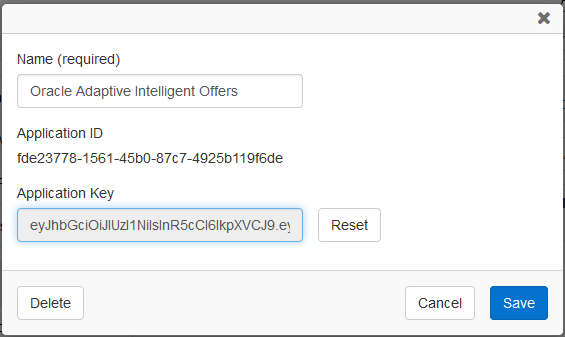
Enter a unique name, such as Oracle Adaptive Intelligent Offers, and then click Save.
Reveal and copy the application key, and save it to a temporary location.
Obtain your storefront URL and service endpoint (agent) URL.
2Connect to your commerce site
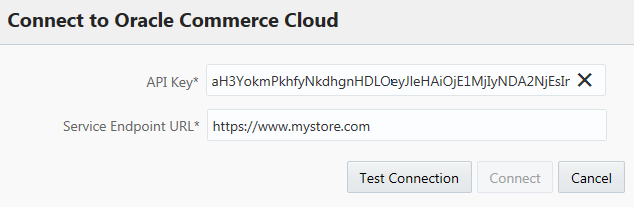
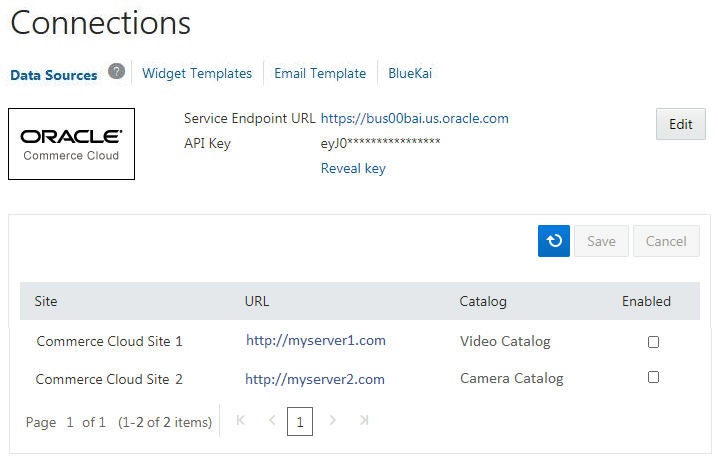
On the Connections page in Oracle Adaptive Intelligent Offers, click Oracle Commerce Cloud.
Enter the application key and service endpoint URL you obtained.
Click Test Connection, and then click Connect.
Enable the sites you want enabled for adaptive intelligence.
Note: The background service jobs check for new sites every 15 minutes. If you don't see your sites, click Refresh.
Configure widgets to show offers
Note: These steps are for Oracle Commerce Cloud. If you use a different commerce application, read how to configure widgets here and skip these steps.
3Create an extension ID
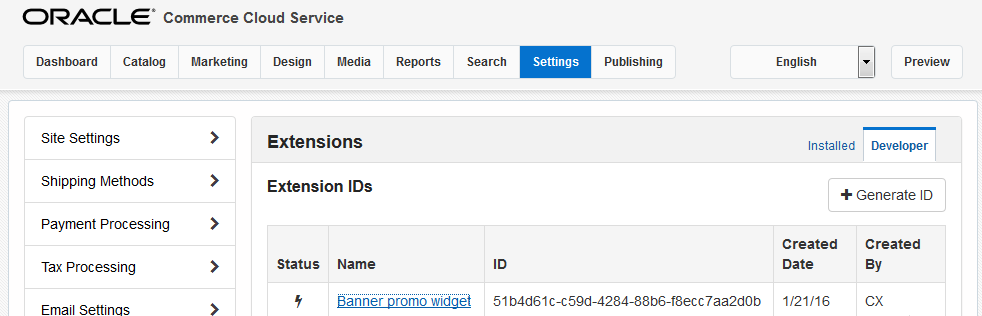
On the Settings page in the Oracle Commerce Cloud Service administration area, click Extensions > Developer > Generate ID.
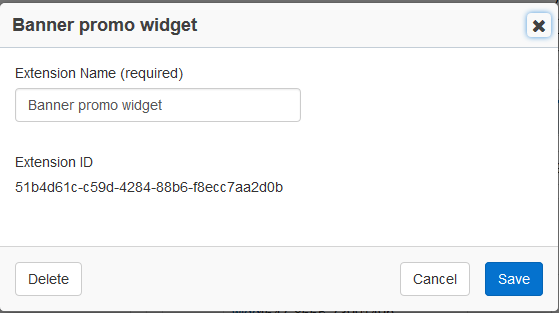
Enter a unique name and then click Save.
Copy the newly generated extension ID.
4Download the widget code
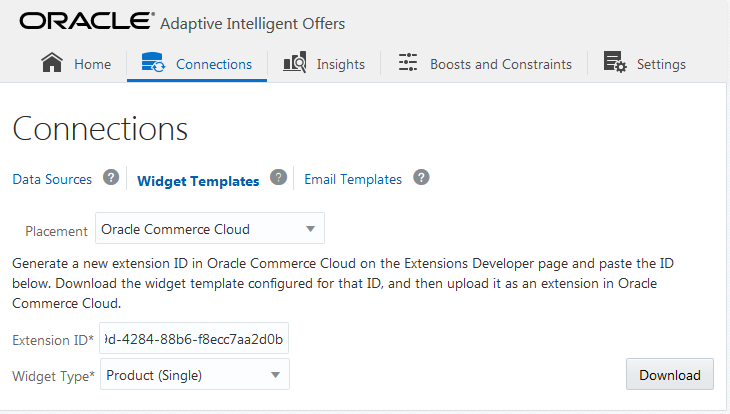
On the Connections page in Oracle Adaptive Intelligent Offers, click Widget Templates.
Enter the copied extension ID and select a widget type.
Click Download and save the zip file.
5Upload the widget code to Oracle Commerce Cloud
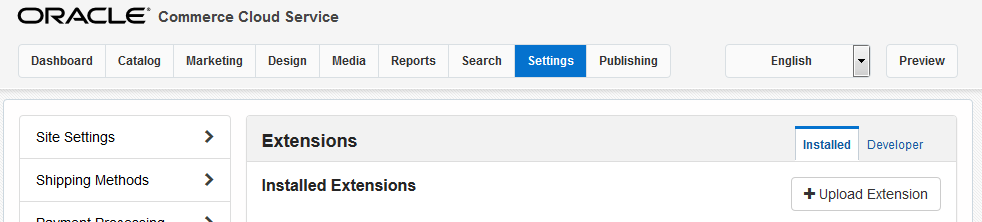
On the Settings page in the Oracle Commerce Cloud Service administration area, click Extensions > Installed > Upload Extension.
Browse to find the zip file and click Open.
6Enable promotions for display and click tracking
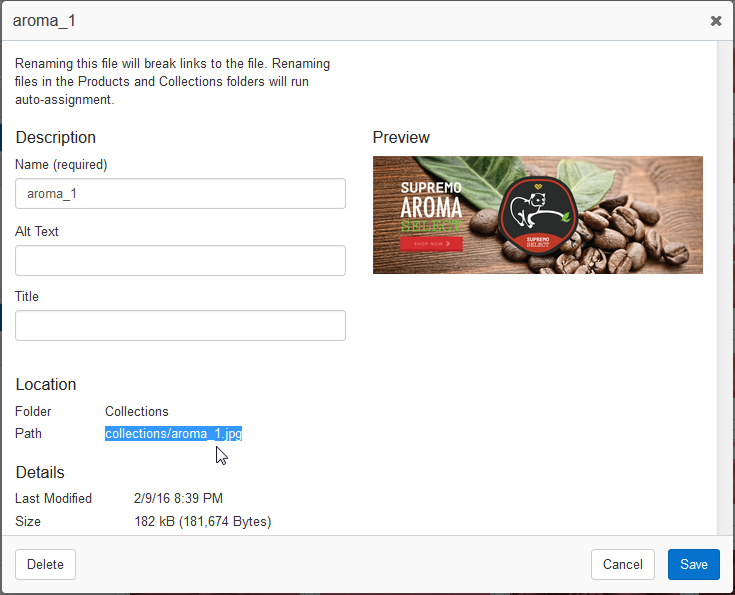
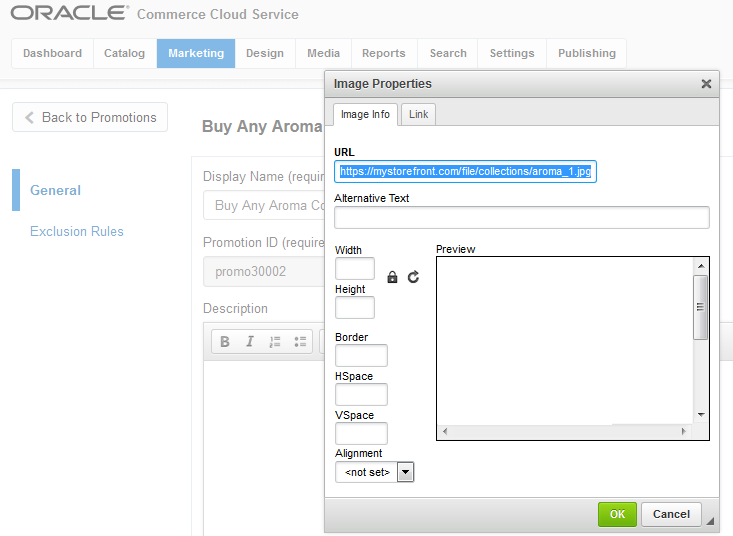
On the Media page in Oracle Commerce Cloud, click the image for the promotion and copy the value from the Path field.
On the Marketing page, open the promotion and click the image icon.
Enter the path you just copied, prefixed by your storefront URL and /file/. For example: https://mystore
front.com/file/products/CoffeeCup.png
On the Link tab, enter the URL you want consumers to see when they click on the widget. This is typically the product or collection detail page. For example: https://mystorefront.com/cups/product/1024.
Click OK.
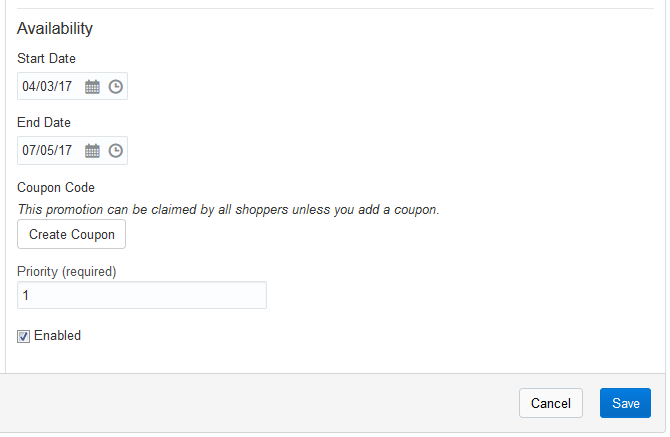
Ensure that the promotion has valid start and end dates and is enabled.
Click Save.
Connect to Oracle Responsys
Note: If you work with programs, and want to connect to Oracle Responsys, read the following steps.
7Copy connection information from Responsys
.png "Responsys: Adaptive Intelligence Connectivity page")
.png "Add Responsys Connection dialog box")
In Oracle Responsys, click Account > Responsys – Adaptive Intelligence Connectivity.
On the Responsys – Adaptive Intelligence Connectivity page, copy the connection information.
On the Connections page in Oracle Adaptive Intelligent Apps, click Oracle Responsys.
Paste the connection information.
Click Connect.
8Copy connection information from Oracle Adaptive Intelligent Apps
.png "Responsys: Adaptive Intelligence Connectivity")
.png "Responsys Connection Information page")
Copy connection information from the Oracle Adaptive Intelligence Connection Information section.
Click Download SSH2 Key.
On the Responsys – Adaptive Intelligence Connectivity page, paste values that you copied.
Click Test Connection.
9Upload the SSH2 key
.png "Manage SSH2 Keys page")
On the Account Management page, click Manage SSH2 Keys.
Upload the SSH2 key file.
Note: If you don't have the Manage SSH2 Keys link in Responsys, contact Oracle Support to upload the key for you.
10Export data from Responsys
Export contacts list data.
Export feed data.
See the topic Exporting Contacts List Data and Feed Data from Oracle Responsys for more information.
 You're done!
Find out more about the Oracle Adaptive Intelligent Apps for Customer Experience
See: cloud.oracle.com/adaptive-intelligent-apps and docs.oracle.com
New FeaturesSee events.oracle.com and blogs.oracle.com/cloud for information about Oracle Cloud events.
Join the CommunityOracle Cloud Community: cloud.oracle.com
Follow Oracle Cloud on Facebook
 Twitter
 YouTube
Connect to Oracle Commerce Cloud
Configure widgets to show offers
Connect to Oracle Responsys