Set up your account
Set up your service

Set up your account
1Request a free account
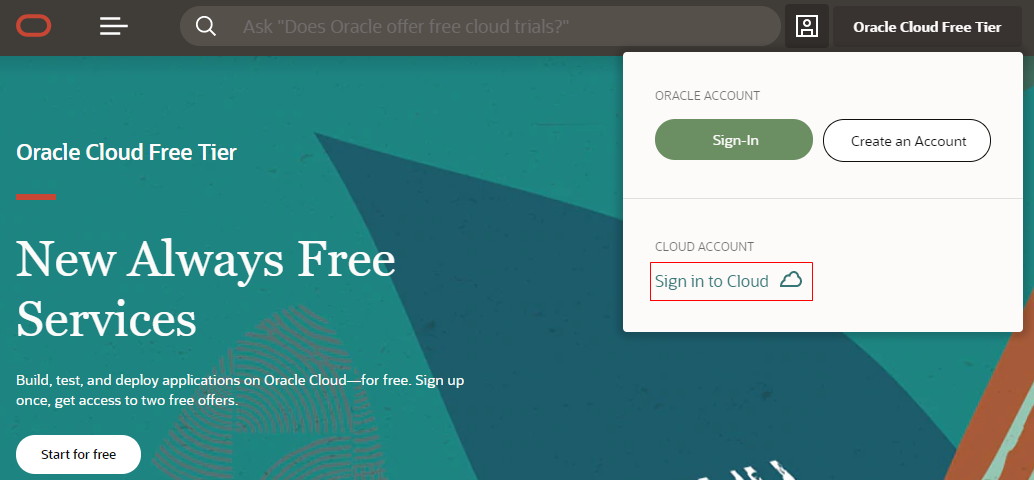

Request a free Oracle Cloud account with credits from https://www.oracle.com/cloud/.
See the Overview of the Free Oracle Cloud Promotion infographic for more information.
2Create the DevCS service instance
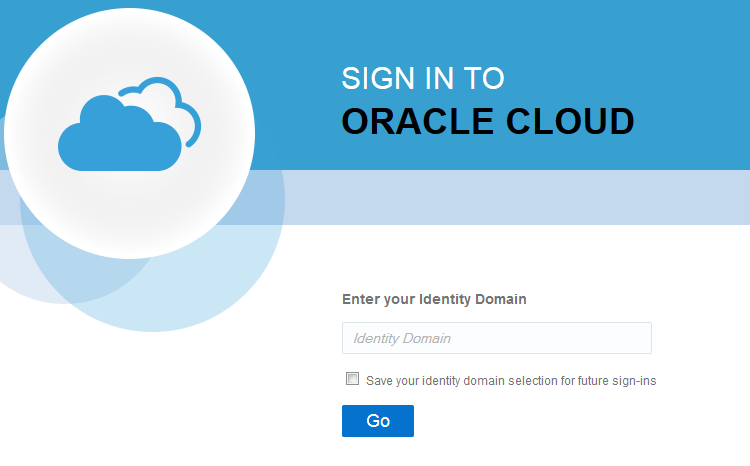
When you get a Welcome to Oracle Cloud email, sign into your Oracle Cloud account using the details provided.
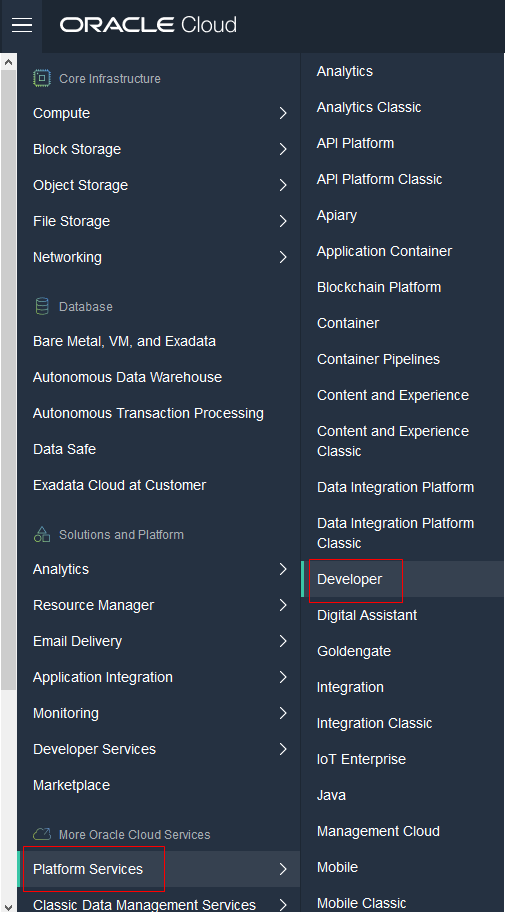
On the Oracle Cloud page, open the navigation menu. Under More Oracle Cloud Services, select Platform Services, and then select Developer.
Click Create Instance.
On the Create New Instance page, enter the required details and click Next.
On the Service Details page, verify the entered details and click Next.
On the Confirmation page, click Create.
3Set up Compute and Storage
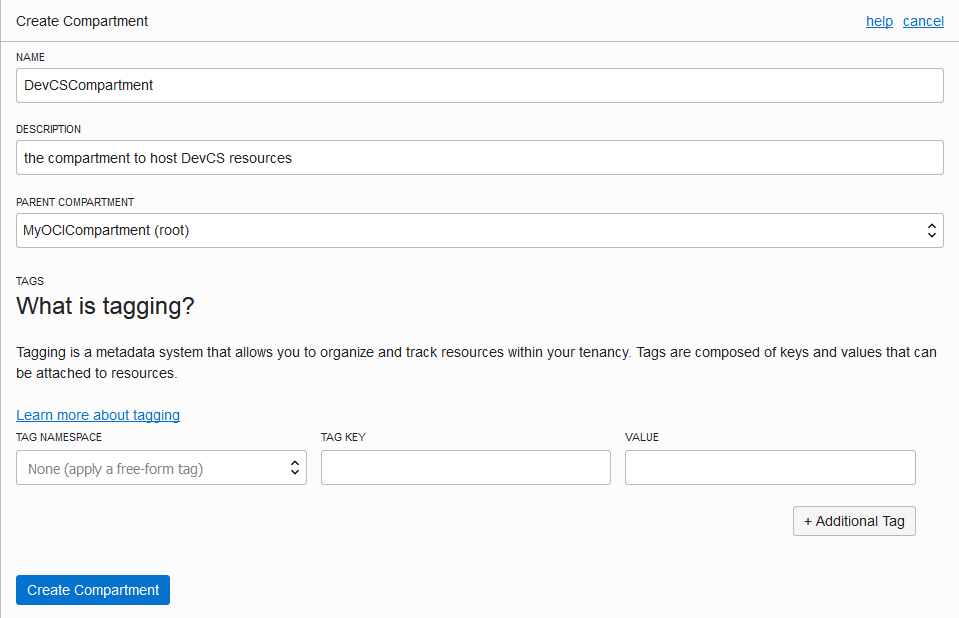
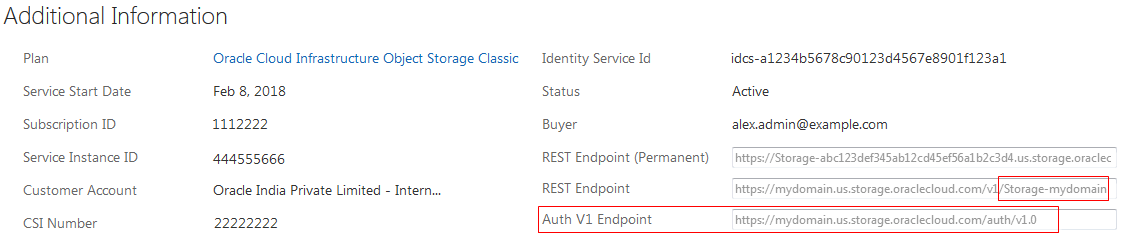
You're either an Oracle Cloud Infrastructure (OCI) user or an Oracle Cloud Infrastructure Classic (OCI Classic) user. Set up the appropriate service.
The OCI Compute and OCI Compute Classic services provide the virtual machines (VMs) on which DevCS runs its builds. The OCI Storage and OCI Object Storage Classic services provide storage for build and Maven artifacts.
On OCI, create an OCI Compute compartment and an OCI Object Storage bucket.
On OCI Classic, create an OCI Compute Classic instance and get the Service ID and Authorization URL of OCI Object Storage Classic.
Set up your service
4Sign in to DevCS

Sign in to Oracle Cloud.
In the navigation menu, under More Oracle Cloud Services, select Platform Services, and then select Developer.
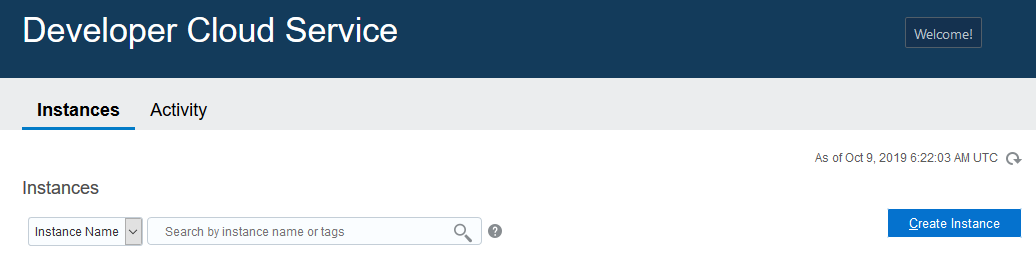
On the Developer Cloud Service page, click Action Menu and select Access Service Instance.
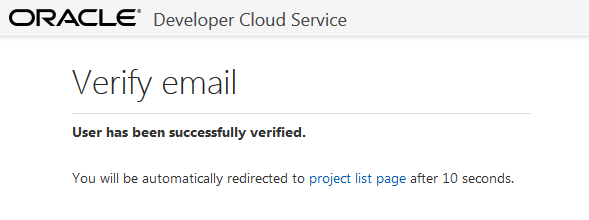
When you open DevCS for the first time, you'll receive an email with the subject Verify your Oracle Developer Cloud Service email.
Open the email and click the verification link. The link opens the verify email page and then redirects to the DevCS console.
After you verify your email address, you'll receive another email with the subject Welcome to Oracle Developer Cloud Service.
5Configure Connections to Compute and Storage
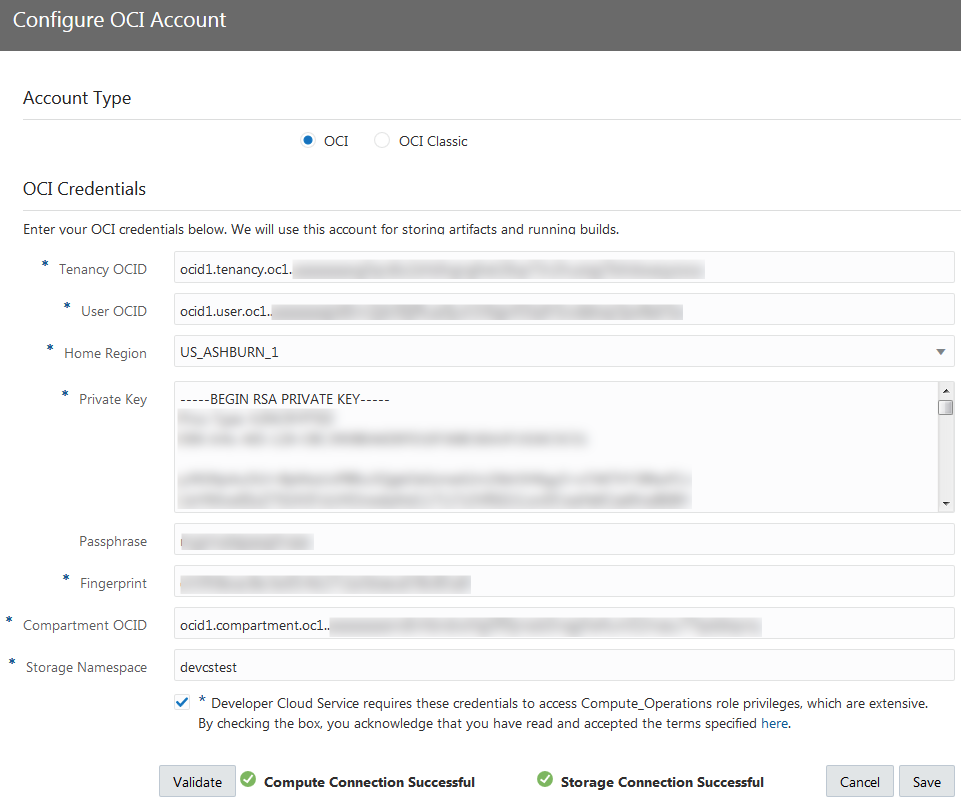
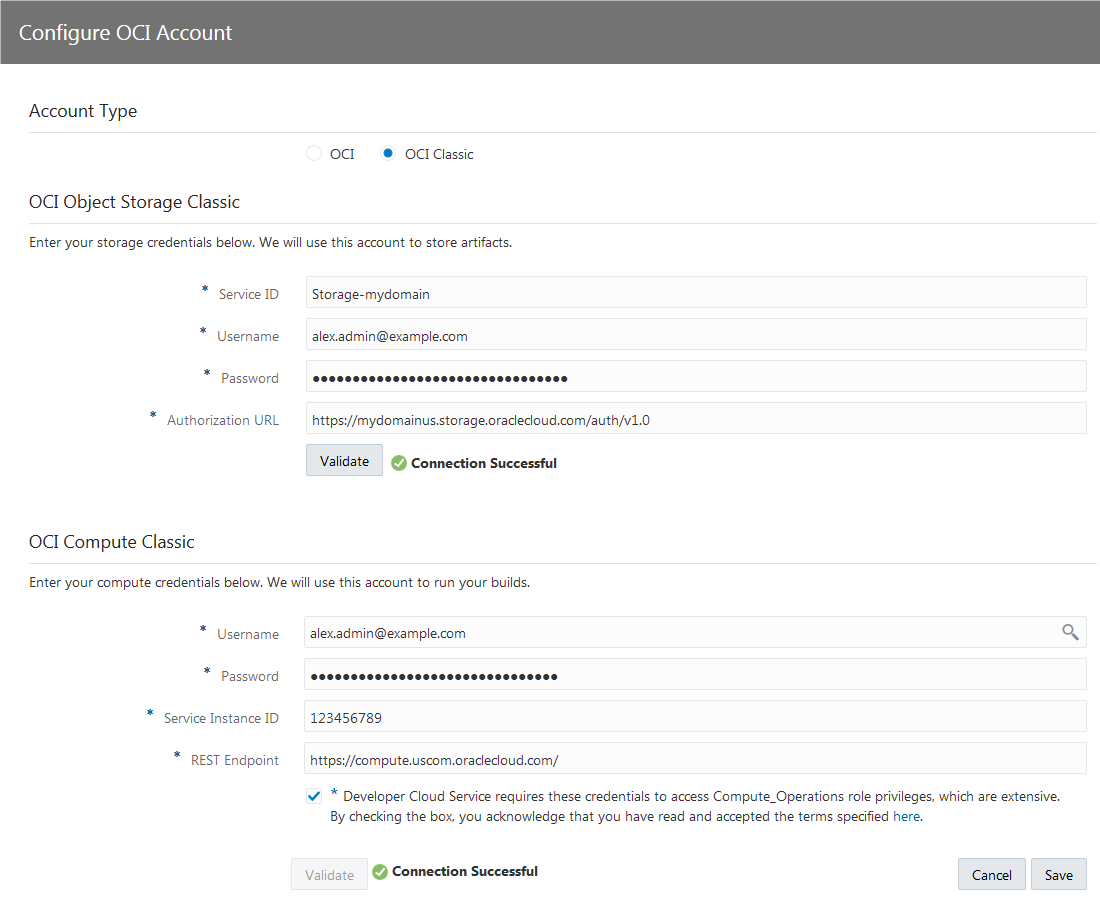
Before your users can use DevCS, you must configure an authenticated connection to OCI or OCI Classic.
In DevCS, Compute VMs that run builds are called Build VMs. Build VM Templates define the software available on Build VMs.
Click the DevCS URL in the Welcome to Oracle Developer Cloud Service email.
Sign in using your Oracle Cloud account name, username, and password.
On the Organization page, click the OCI Account tab.
Click Connect.
Select the OCI account type and enter the required details.
Click the Virtual Machines Templates tab, and then click Create Template. Specify the platform and the software for the Build VM.
Click the Virtual Machines tab, and then click Create VM. Specify the Build VM name, its VM template, and the number of VMs.
6Create a project
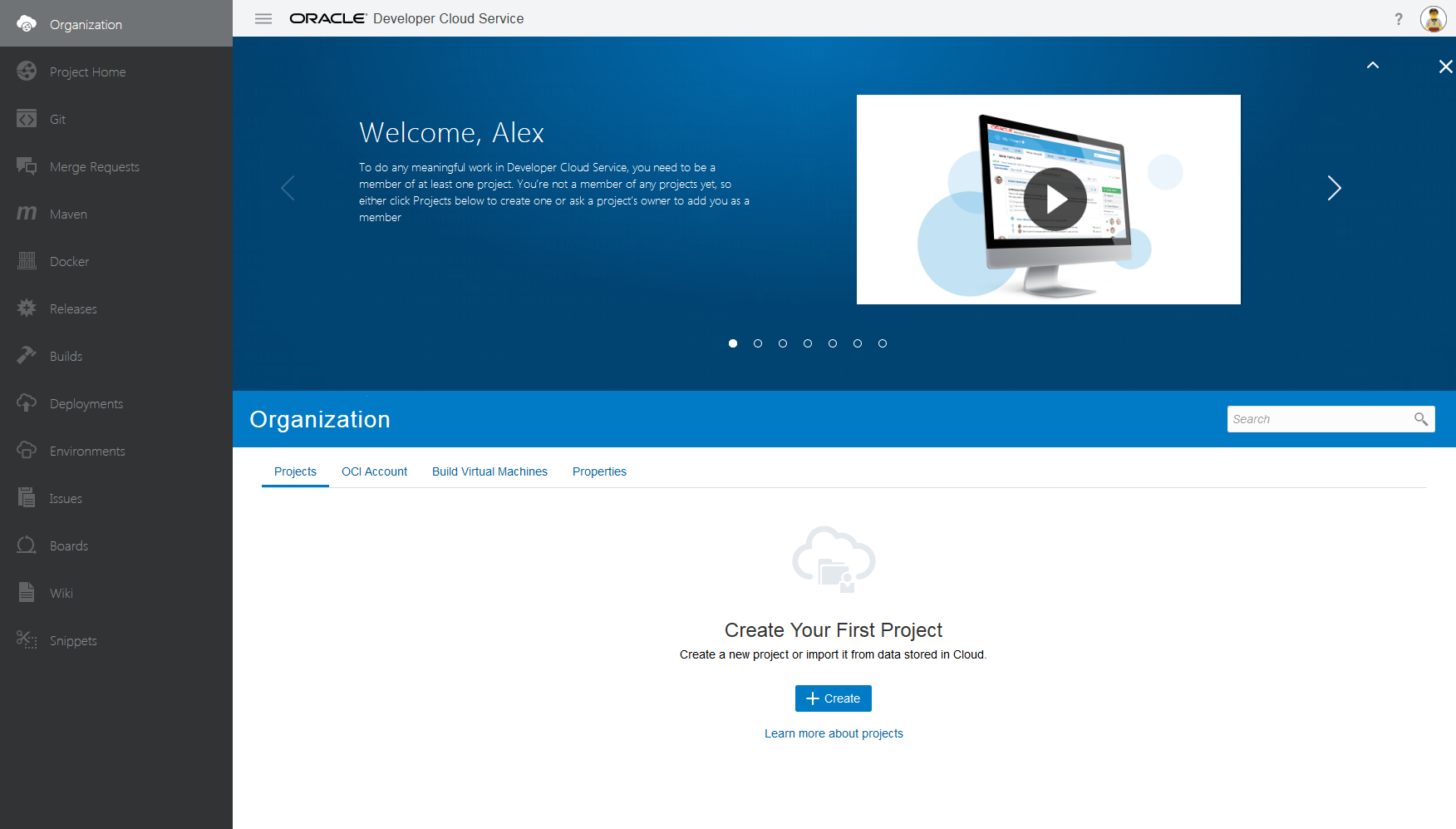
On the Organization page, in the Projects tab, click the Create button.
Assign users to the project in the Team tab.
Upload application files to the Git repository, manage issues, review code, run builds, and deploy to Oracle Cloud.
 You're
done!
You're
done!
Find out more about Oracle Developer Cloud Service
See events.oracle.com and blogs.oracle.com/developers.
Join the Community Follow Oracle Cloud on Facebook
 Twitter
 YouTube