Deploying an Application to Oracle Java Cloud Service
Overview
Purpose
This tutorial covers how to prepare an application for deployment and how to deploy it to Oracle Java Cloud Service.Time to Complete
Approximately 30 minutes
Introduction
This tutorial shows how to check a sample Java web application with the Whitelist tool, a Java utility that prevents applications from using unsupported features. The tutorial then shows how to edit one of the application's deployment descriptors to ensure that the web application uses the previously provisioned Oracle Database Cloud Service. Finally, the tutorial shows how to deploy the application to Oracle Java Cloud Service by using the Java Cloud Services Control console.
Scenario
This tutorial assumes that you are an Oracle customer. It also assumes that you have completed the Oracle by Example tutorial titled Signing Up for a Trial Oracle Java Cloud Service.
Prerequisites
Before starting this tutorial, you should :
- Have an Oracle.com account.
- Already completed the Oracle by Example tutorial titled Signing Up for a Trial Oracle Java Cloud Service.
- Downloaded the sample Java web application
visitors.wararchive file. Download the file here: visitors.war.
Note for Internet Explorer Users: Internet
Explorer may download visitors.war as visitors.zip.
It is the same file. Just rename it visitors.war.
Downloading and Unzipping the Oracle Java Cloud Service SDK
In this section, you download and unzip the Oracle Java Cloud Service Software Development Kit (SDK), which contains the Whitelist tool.
-
Open a web browser to the Oracle Cloud home page:
https://cloud.oracle.com. -
In the Resources drop-down list, select Downloads.
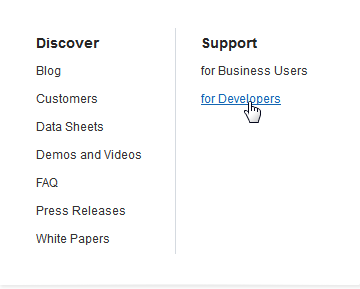
-
Under Oracle Cloud Downloads and Java Cloud Service, click the Oracle Java Cloud Service SDK link.
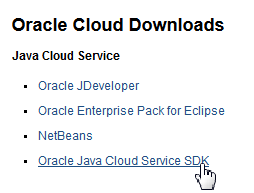
-
Under Oracle Java Cloud Service SDK, click the Download Oracle Java Cloud Service SDK link.
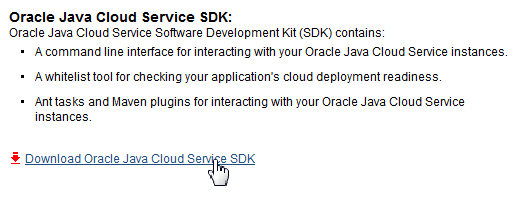
-
Select Accept License Agreement.
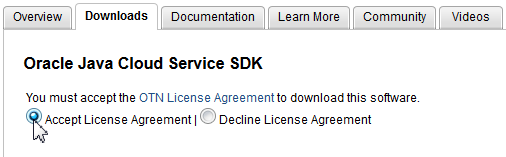
-
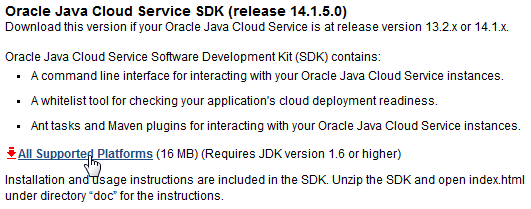
Click the All Supported Platforms link to download the Oracle Java Cloud Service SDK to your local machine.
-
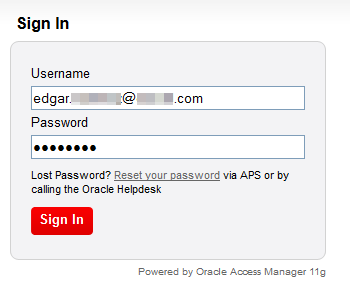
On the Sign In screen, enter your Oracle.com username and password and click Sign In.
-
After the file is downloaded, unzip it on your local machine to the
<SDK_HOME>directory.Note: For this tutorial, the
<SDK_HOME>directory isC:\oracle-javacloud-sdk.
Testing an Application for Disallowed Packages
Applications that are deployed to Oracle Java Cloud Service
cannot use a few Java packages, such as java.rmi. In
this section, you use the Whitelist tool to test an application
for disallowed packages and verify if the application can be
deployed.
-
Open a command prompt and navigate to the
libdirectory under the<SDK_HOME>directory.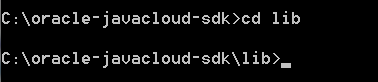
-
Run the following command to see help information about the Whitelist tool:
java -jar whitelist.jar -help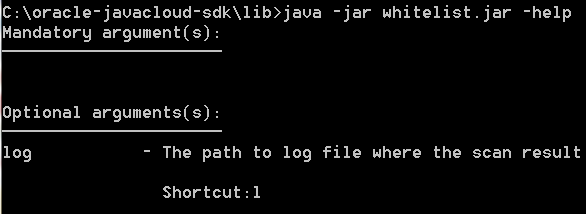
-
Run the following command to check the sample web application
visitors.wararchive file:
java -jar whitelist.jar -l whitelist.log <APP_LOCATION>/visitors.warNote:
- In this tutorial, the
<APP_LOCATION>of thevisitors.wararchive file is theapplicationsdirectory. - The
whitelist.logfile lists any usage violations that need to be corrected. In general, you can ignore warnings. If there are no violations, a message indicates that the validation was completed with zero errors.

- In this tutorial, the
-
Examine the
whitelist.logfile in the current directory.The message indicates that the application can be deployed to Oracle Java Cloud Service.

Ensuring That the Application Uses the Oracle Database Cloud Service
The sample web application in the visitors.war
archive file uses the database to store information about visitors
to a fictitious aquarium. Before deploying the web application,
you need to edit its persistence deployment descriptor to ensure
that it uses the Oracle Database Cloud Service that was
provisioned when you signed up for Oracle Java Cloud Service.
-
Perform the following steps to open the
persistence.xmlfile:- Make a copy of the
visitors.warfile and rename it visitors.zip. - Unzip the
visitors.zipfile into a directory named visitors. - In the new
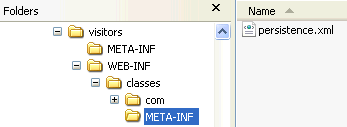
visitorsdirectory, expandWEB-INF > classes > META-INF. - Open the
persistence.xmlfile in a text editor.
- Make a copy of the
-
Perform the following steps to edit the
persistence.xmlfile:- Scroll to the following line in the
persistence.xmlfile:<jta-data-source><Database Cloud Service data source Name></jta-data-source> - Change the generic value of the
<jta-data-source>tag to the name of the Oracle Database Cloud Service that was provisioned with your Oracle Java Cloud Service. In this tutorial, the database service name is javatrial6235db. With javatrial6235db inserted as the value of the<jta-data-source>tag, the XML is<jta-data-source>javatrial6235db</jta-data-source>. - Insert the following property within the
<properties>tag: <property name="eclipselink.target-database" value="Oracle10g" /> - Save the file. It should look like this:
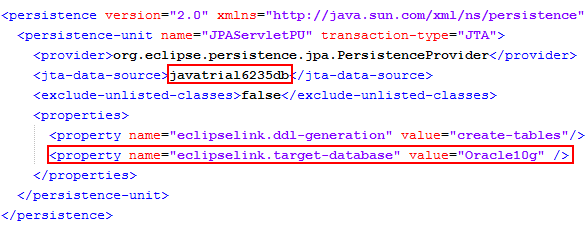
- Scroll to the following line in the
-
Perform one of the following steps to create a new
visitors.zipfile:- WinZip: Zip the contents of the
visitorsdirectory into a newvisitors.zipfile. Include all subdirectories, but not their full path, and do not include thevisitorsdirectory itself. For example, if you examined the zip file in WinZip, the path of thefish.jpgfile would be blank rather thanvisitors. - Command-Line Version of WinZip: Add the
WinZip folder to the path (set PATH="C:\Program
Files\WinZip";%PATH%). Change to the
visitorsdirectory, and then enter the following command to zip all files for recursion but not full path (-r -p), and include all files (*.*): wzzip -r -p visitors.zip *.*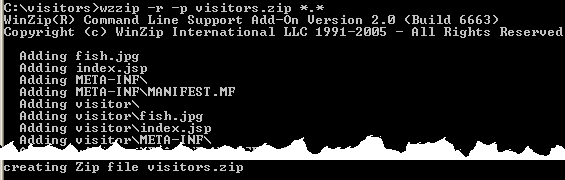
- Mac Users: Download the WinZip Mac Edition, and then follow the steps for WinZip. Do not use the default Finder utility to zip the new archive file. If you do, extra files are placed in the archive, and they cause a 403 error when you try to access the application after it is deployed.
- WinZip: Zip the contents of the
-
Rename the new zip file visitors.war.
You will deploy this web application archive file next.
Deploying and Testing the Application
In this section, you deploy the application to Oracle Java Cloud Service and then test it.
-
In a web browser, enter the URL for the Java Cloud Services Control console.
The link to this URL is in the welcome email that you received when you signed up for the trial Oracle Java Cloud Service. Look for Java Service Console in the Service Details section.
-
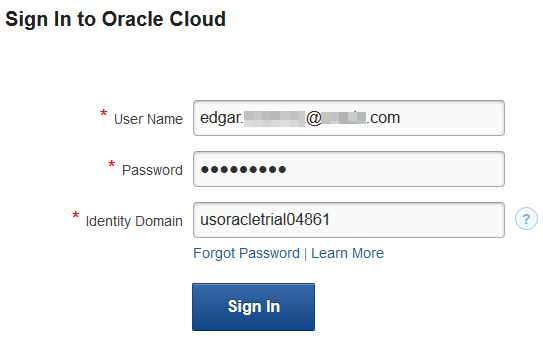
Sign in with the service administrator's credentials.
- Enter the service administrator's username in the User Name field. In this tutorial, it is edgar.*******@*******.com.
- Enter the service administrator's password in the Password field.
- Enter the identity domain name in the Identity Domain field. You can find the name in the welcome email. In this tutorial, it is usoracletrial04861. (Your identity domain name will be different.)
- Click Sign In.
The Java Cloud Services Control console for your Oracle Java Cloud Service is displayed.
-
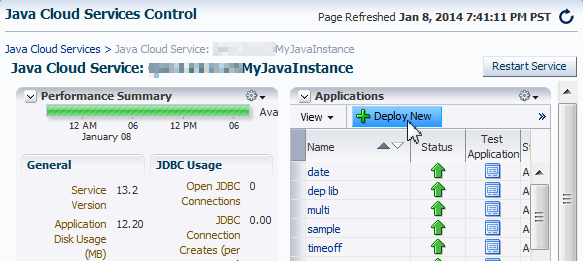
In the Applications section, click Deploy New.
-
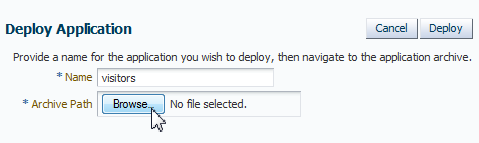
On the Deploy Application screen, enter visitors in the Name field, and click Browse to search for the application archive file.
-
Browse to the location of the
visitors.warfile with the updated deployment descriptor, select the file, and click Open.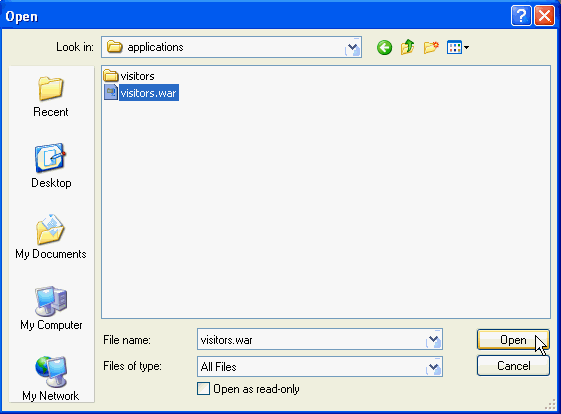
-
On the Deploy Application screen, click Deploy.
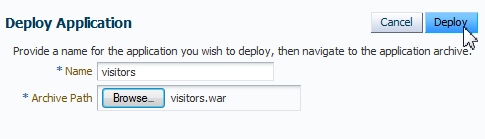
After the file is uploaded, you are returned to the Java Cloud Services Control screen. The Information message indicates that the application was uploaded and will be deployed.

-
Click the Reload button to refresh the page.
The
visitorsapplication is eventually displayed in the Applications table.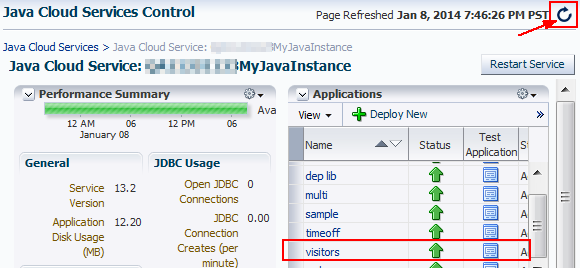
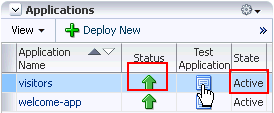
The green arrow in the Status column and the Active notation in the State column indicate that the deployment was successful.
-
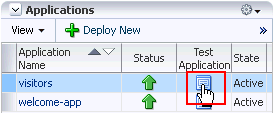
In the Test Application column, click the icon to access the deployed application.
-
In the Application URLs pop-up window, click the URL for the application to display the application in another browser window or tab.
-
Perform one of the following steps:
- Skip to the next step if you are not asked to log in to the Java Cloud Services Control console. (You are already logged in and your web browser uses one session ID for all open windows and tabs.)
- Log in to this application with your service administrator's credentials and identity domain name. For login purposes in this tutorial, the login username is edgar.*******@*******.com, and the identity domain is usoracletrial04861.
-
On the first page of the sample application, click the Start link.
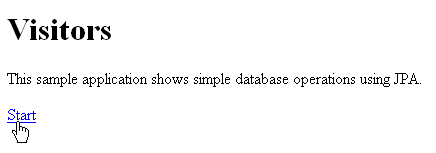
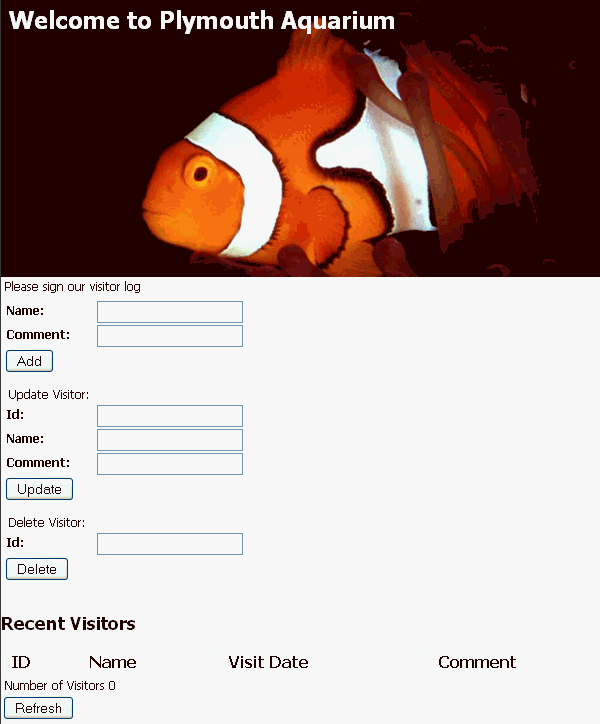
Here's the screen that is displayed on the application's home page. This sample application enables you to add a name and comment about a fictitious aquarium. You can also update or delete visitor comments. The information is stored in Oracle Database Cloud Service.
Summary
In this tutorial, you learned to:
- Use the Whitelist Java utility to check a sample application before deploying it
- Modify the
persistence.xmldeployment descriptor of a sample application so that it uses Oracle Database Cloud Service - Deploy an application to Oracle Java Cloud Service by using the Java Cloud Services Control console
Resources
- Oracle Java Cloud Service
- Oracle Cloud Tools
- Using the Oracle Java Cloud Service
- To learn more about Oracle Cloud or Oracle Java Cloud Service, refer to additional OBEs on the Oracle Learning Library website.
Credits
- Lead Curriculum Developer: Edgar Martinez
- Curriculum Developer: Bill Bell
- Editorial: Susan Moxley
- Other Contributors: Reza Shafii
To navigate this Oracle by Example tutorial, note the following:
- Topic List:
- Click a topic to navigate to that section.
- Expand All Topics:
- Click the button to show or hide the details for the sections. By default, all topics are collapsed.
- Hide All Images:
- Click the button to show or hide the screenshots. By default, all images are displayed.
- Print:
- Click the button to print the content. The content that is currently displayed or hidden is printed.
To navigate to a particular section in this tutorial, select the topic from the list.