
 Configuring Continuous Integration and Continuous Delivery in Oracle Developer Cloud Service Classic
 Before You Begin
This 10-minute tutorial shows how to configure a job and a deployment configuration to enable continuous integration and continuous delivery in an Oracle Developer Cloud Service project.
Background
You can configure a job in the Oracle Developer Cloud project to run a build automatically after a commit is pushed to the project Git repository. You can also configure a deployment configuration to automatically deploy the build artifact of a job to the target Oracle Cloud service after the build is complete.
What Do You Need?
- A web browser
- An Oracle Cloud account with an active Oracle Developer Cloud subscription
- Your Oracle Cloud account credentials
- An Oracle Developer Cloud project with a populated Git repository.
To populate a project Git repository, see the Create and Populate a Git Repository of Developer Cloud OBE. - A per-configured job in the Build page of the Oracle Developer Cloud project.
To create a build job, see the Creating a Build Job in Oracle Developer Cloud Service Classic OBE. - A per-configured deployment configuration in the Deploy page of the Oracle Developer Cloud project.
To create a deployment configuration, see the Deploy an Application to Oracle Application Container Cloud Service from Oracle Developer Cloud Service OBE.
 Configure a Job to Run a Build Automatically
You can configure a job from the Build page to run a build when the specified source Git repository is updated.
- In the navigation bar of the project, click Build.
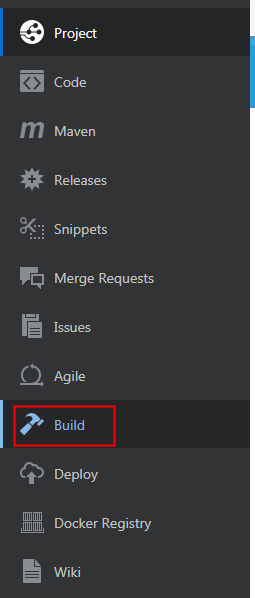
Description of the illustration devcs_navbar_build.png - On the Jobs Overview page, click the employee-app-build job name link in the Job column.
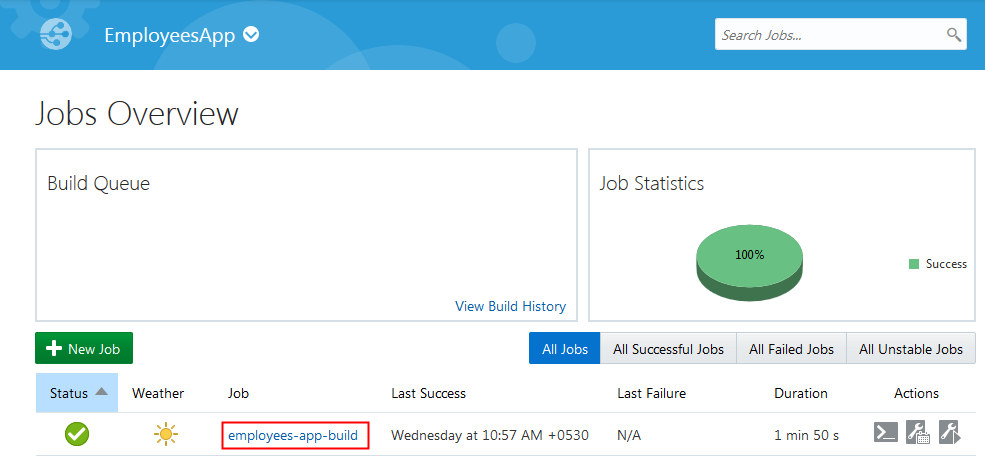
Description of the illustration devcsc_jobsoverview.png - On the Job details page, click Configure.
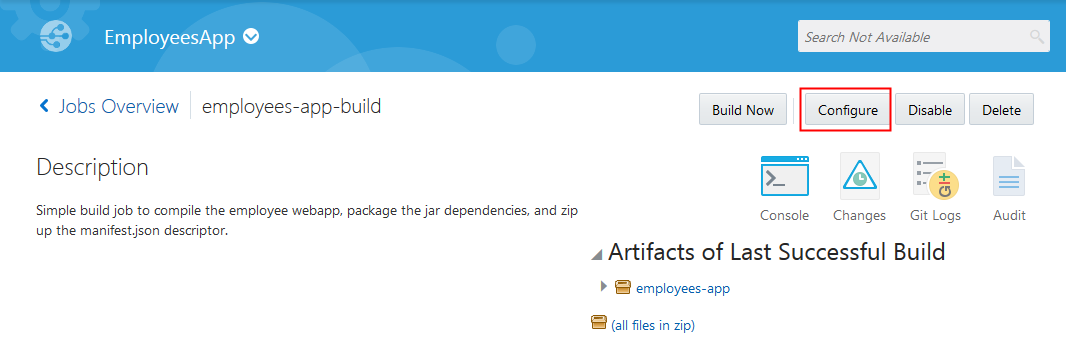
Description of the illustration devcsc_jobdetails.png - Click the Triggers tab, select the Based on SCM polling schedule check box, and then click Save.
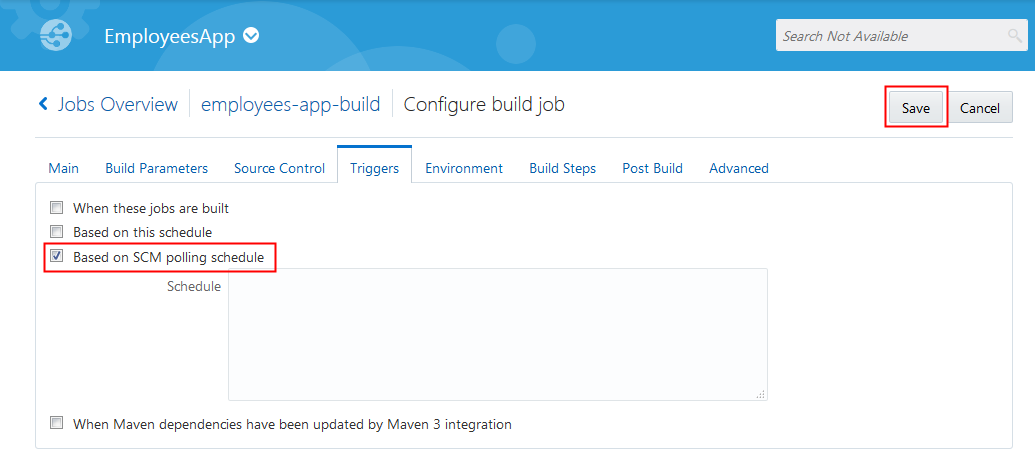
Description of the illustration devcsc_jobconfig_sourcecontrol.png
 Configure a Job Configuration to Deploy Build Artifact Automatically
- In the navigation bar of the project, click Deploy.
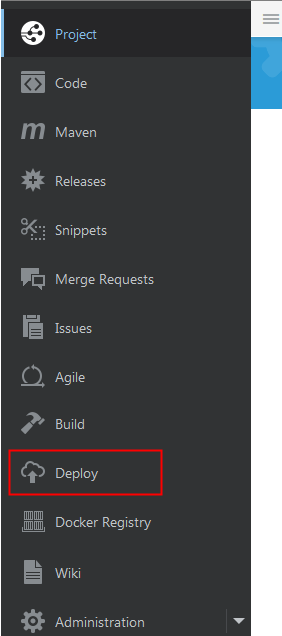
Description of the illustration devcs_navbar_deploy.png - In the Employees deployment configuration, click Gear
 and select Edit Configuration.
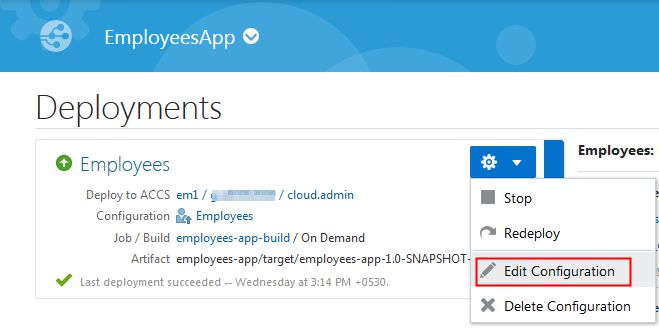
Description of the illustration devcs_deployments_gearmenu.png - In the Edit Configuration page, select Type as Automatic, and then click Save.
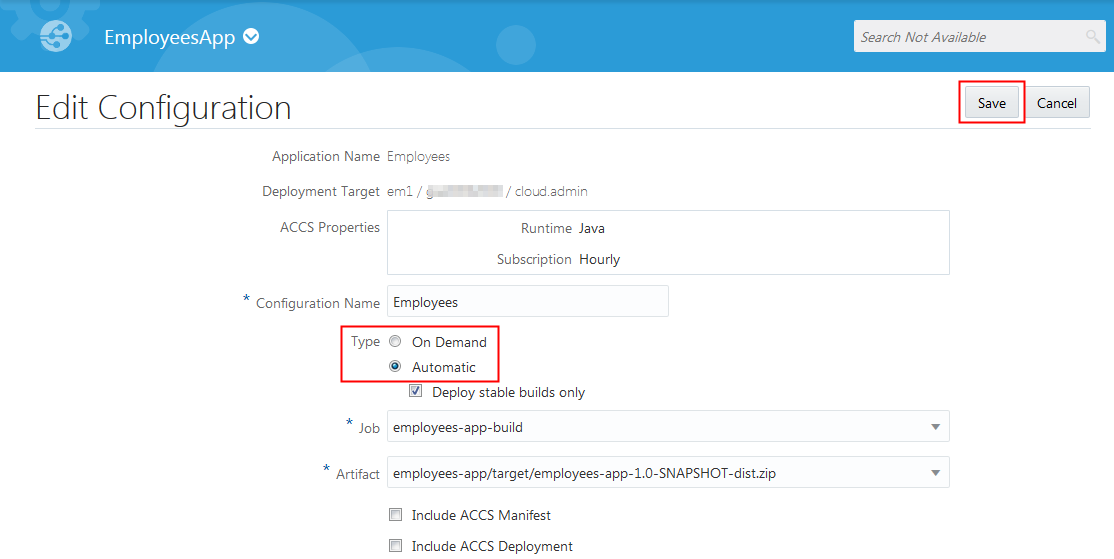
Description of the illustration devcs_deployments_editconfig.png
 Test Continuous Integration and Continuous Delivery
- Clone the
employee-app.gitGit repository. - Open the
employee-app\employees-app\src\main\webapp\jsp\list-employees.jspfile in a code editor or a text editor. Change theEmployeestitle text toMy Org Employees.
Description of the illustration devcs_codecompare.png - Commit the file and push the commit to the project Git repository.
- Open the Project page of the project and verify the commit.
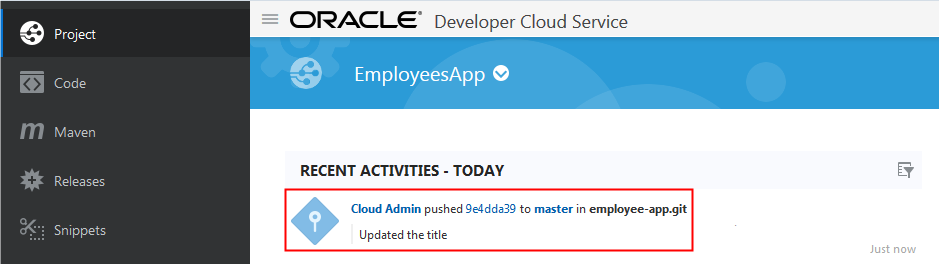
Description of the illustration devcs_project_recentactivities_commit.png - Wait for some time. A build of the employees-app-build job runs automatically and the activity appears on the Project page Recent Activities feed. Wait for the build to complete.
After the build is successful, the Employees deployment configuration automatically deploys the artifact of the latest build to the target Application Container Cloud service. Wait for deployment to complete too.
Description of the illustration devcs_project_recentactivities_build&deploy.png - Open the URL of the deployed application and verify the change you made to the source file.
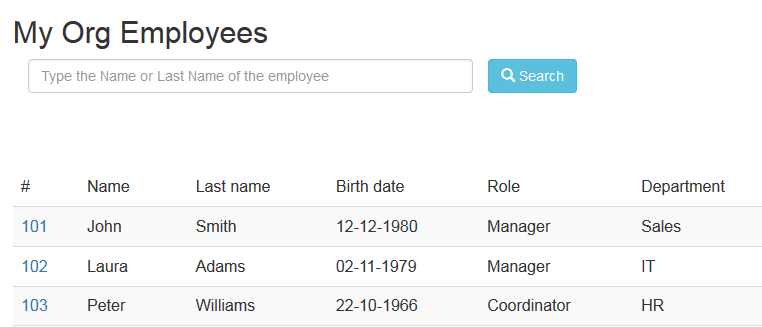
Description of the illustration devcs_updatedapp.png
 Want to Learn More?
- Managing Project Jobs and Builds and Deploying an Application in Using Oracle Developer Cloud Service Classic
- Oracle Developer Cloud Service product page
- Oracle Developer Cloud Service Classic documentation page in the Oracle Help Center