
 Navigating Planning
 Before You Begin
This 25-minute tutorial shows you how to log on to Planning, navigate Planning, and access Planning in Smart View.
Background
Service Administrators are tasked with setting up Planning and provisioning users. With a provisioned user name and password, you can log on to an EPM Cloud Service instance using a URL, also provided by your Service Administrator. Here is a sample URL:
https://epmidDomain.epm.dataCenter.oraclecloud.com/epmcloud
Familiarize yourself with Planning by navigating the home page and Navigator menu, and accessing it in Smart View.
What Do You Need?
An EPM Cloud Service instance allows you to deploy and use one of the supported business processes. To deploy another business process, you must request another EPM Cloud Service instance or remove the current business process.
- Have Service Administrator access to Planning for EPM Enterprise Cloud Service or Legacy Subscription.
- Depending on the EPM Cloud service that you purchased, upload and import one of the following snapshots into your Planning instance:
For more information on uploading and importing migration snapshots, refer to the Administering Migration for Oracle Enterprise Performance Management Cloud documentation.
- Ensure that Microsoft Excel is installed.
- Install Oracle Smart View for Office from the Downloads page of Planning or the Oracle Technology Network. Oracle Smart View is an add-in to Microsoft Office products.
 Logging On to Planning
In this section, you log on to the Planning URL provided by your Service Administrator, using your user name and password.
- Go to the URL provided by your Service Administrator.
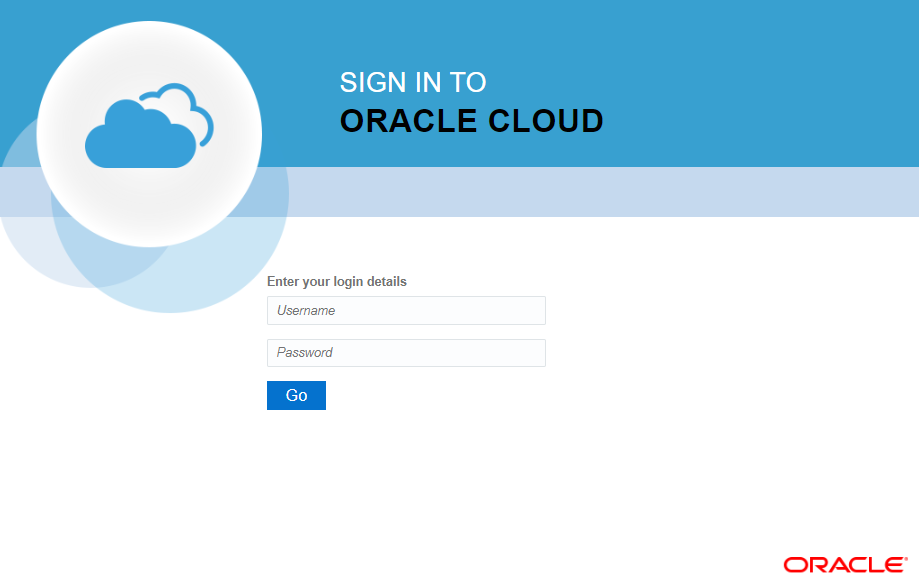
The logon page is displayed.
- Enter your user name and password.
- Click Go.
Selecting a Navigation Flow
- Click the (
 ) Navigation Flow icon on the top right portion of the Home page.
 - If not already selected, click Financial Flow - Admin.
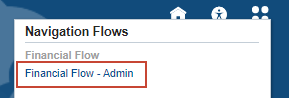
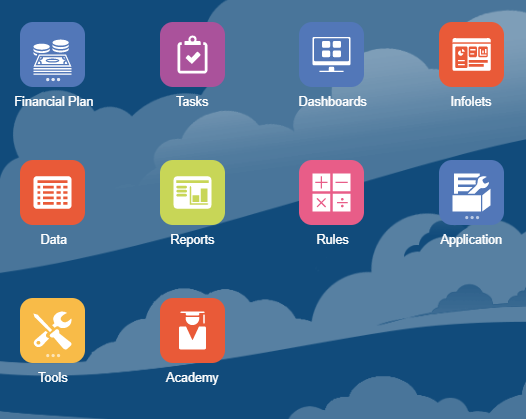
When the Financial Flow - Admin is selected, the cards and clusters on the home page are updated to display:
 Navigating the Planning Home Page
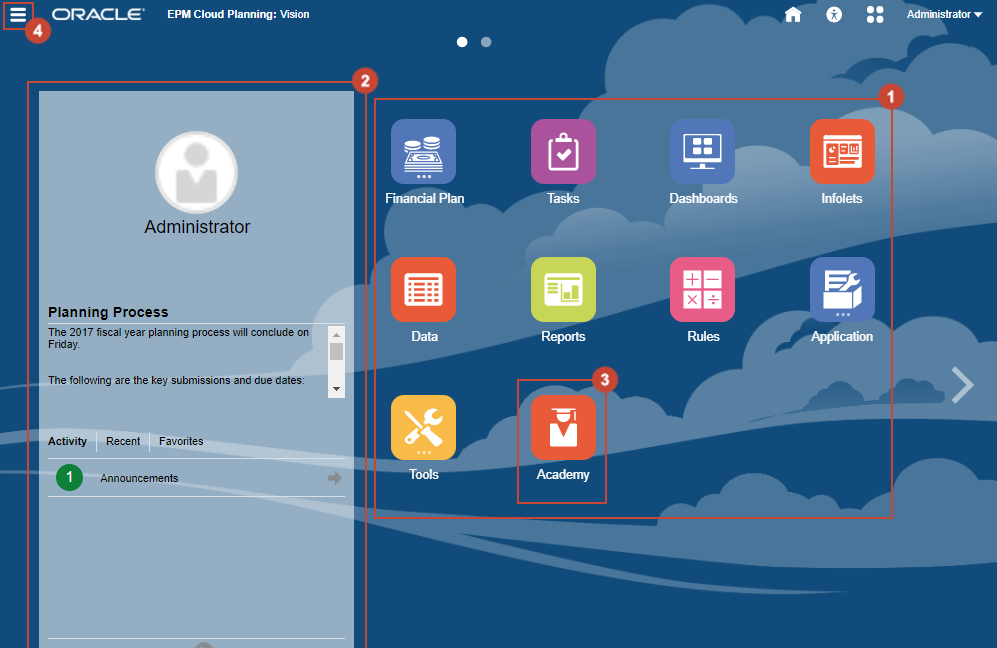
In this section, you identify sections of the Planning home page.
 Cards and Clusters
When you log on to an environment, the Planning home page displays clusters and cards that group the activities that you can perform in the environment.
Cards provide access to key tasks, tutorials, and related information. When you click a card, a page containing available shortcuts or tasks opens. Availability of shortcuts and tasks on a page depends on the role you have in the environment.
You can customize which cards and clusters to display by setting up Navigation Flows.
 Announcements Area
The Announcements area gives you quick access to key information including messages and the tasks assigned to you.
 Academy
The Academy gives you access to a variety of resources for understanding and working with the service. Available resources include video overviews, tutorials, and information on key tasks.
 Navigator
The Navigator menu opens a list of shortcuts to features and functionality that you normally access from the cards available on the Planning home page. Click Navigator to display the list of shortcuts.
 Exploring the Navigator Menu
Clicking Navigator displays a list of links that connect you to Planning functionality.
For Legacy subcriptions, you select navigation flows using the Navigation Flow icon on the top right portion of the Home page. In EPM Standard Cloud Service and EPM Enterprise Cloud Service, you can also select which Navigation Flow to use by selecting it in the Navigator.
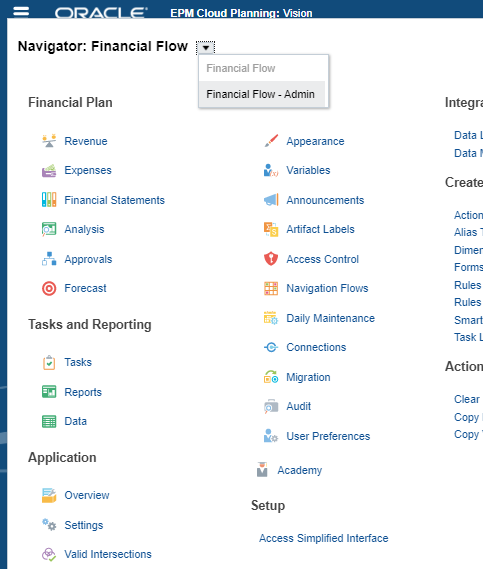
In this example, the Financial Flow – Admin navigation flow is selected. Included in that custom navigation flow is a Financial Plan cluster. The Financial Plan cluster includes cards that open Planning tasks and data entry forms.
The custom Financial Flow – Admin navigation flow includes the predefined clusters and cards from the default navigation flow: Tasks, Dashboards, Infolets, Data, Reports, Rules, Application, Tools, Academy, Setup, Integration, Create and Manage, Actions, Reporting, Monitor and Explore, Workflow.
 Navigating to the Application Pages
In this section, you navigate to the Application page and review the tasks you can perform on each tab.
- From the Planning home page, click Application, then Overview.
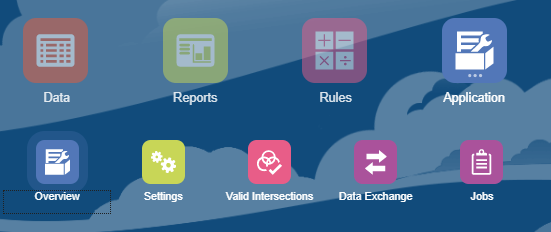
- On the Overview tab, review the following information:
- Name (application name)
- Description
- Application Type
- Application Chart Data, displaying the number of tasks, data entry forms, rules, approval units, and dimensions in each cube.
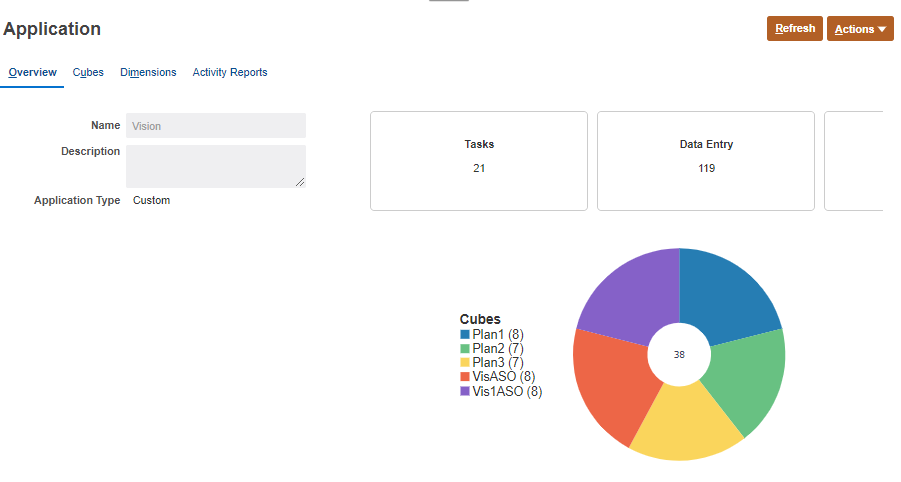
- Click Refresh to update page content.
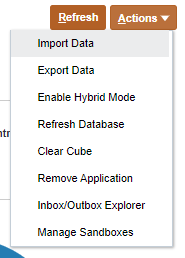
- Click the Actions menu to access tasks.
- Click the Cubes tab.
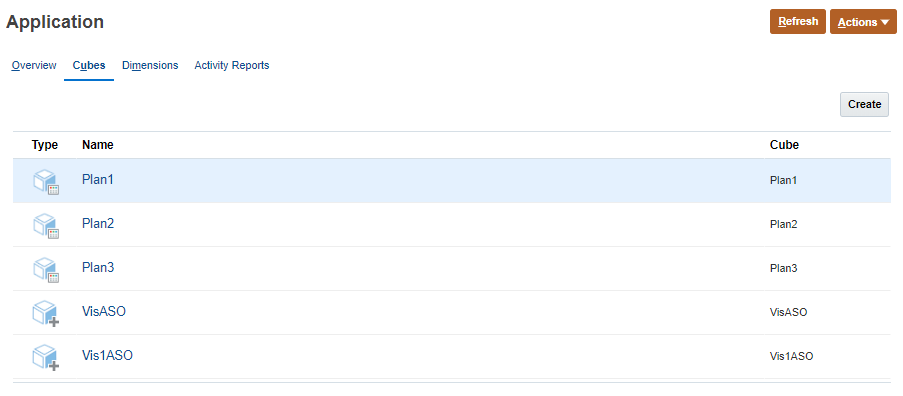
Create cubes or review cube information on this tab.
- Click a cube name to display basic cube information.
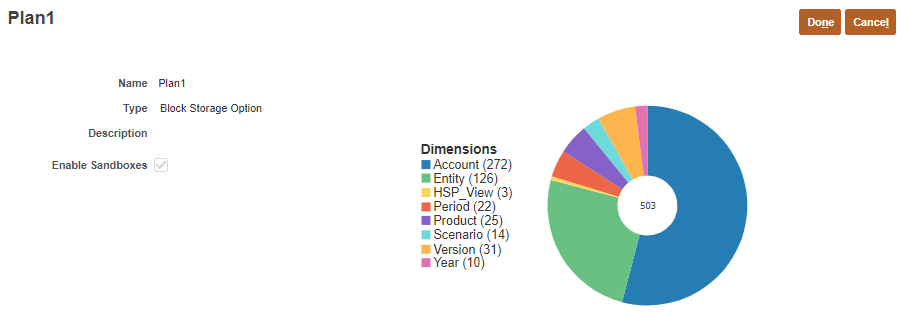
- When finished reviewing, click Done.
- Click the Dimensions tab.
Create, import, or export dimensions on this tab.
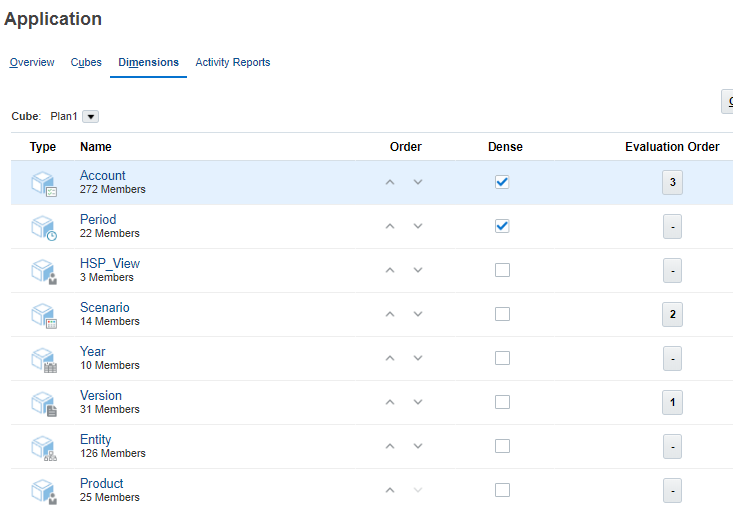
Dimensions and its number of members are displayed for each cube. You can choose dimensions displayed by selecting All or a cube name from the Cube dropdown list.
- Click a dimension name.
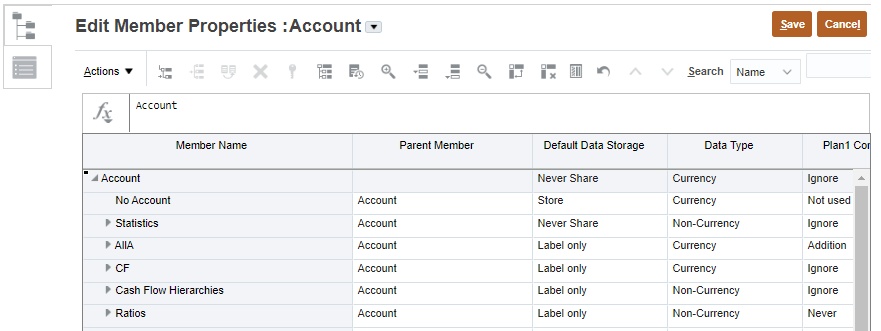
The Edit Member Properties dialog box is displayed. You can manage dimensions and members here.
- Click Cancel to close the dialog box without making any changes.
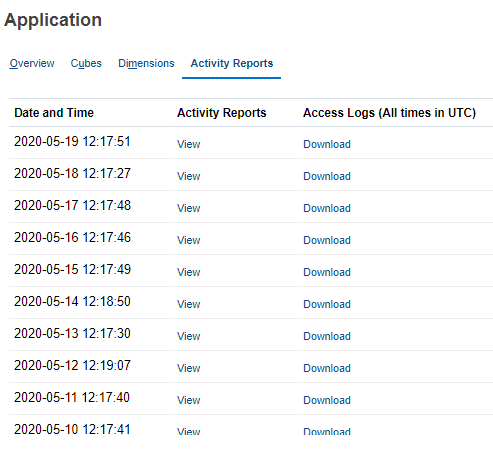
- Click the Activity Reports tab.
You can diagnose performance issues with business rules and pinpoint and address any issues using activity reports.
 Accessing Planning in Smart View
In this section, you launch Smart View and connect to Planning.
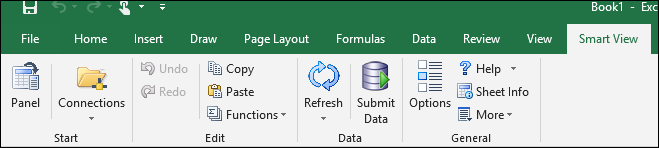
- Launch Excel. Ensure that you have a blank worksheet open.
- On the Smart View ribbon, click Options.
- Under Advanced, verify that you have the correct Shared Connections URL entered.
Sample URL:
http://server:port/workspace/SmartViewProviders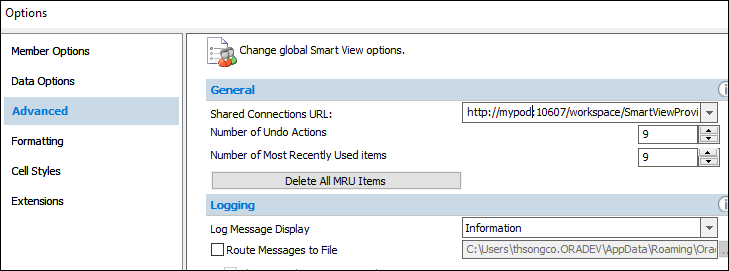
If you do not have the correct Shared Connections URL entered, contact your Service Administrator.
- Click OK.
- On the Smart View ribbon, click Panel.
- Click Shared Connections.
- If prompted to log on, enter your user name and password, and then click Go.
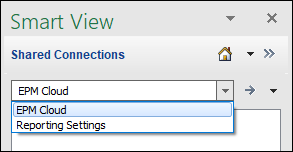
- In Shared Connections, from the dropdown list, select EPM Cloud.
- Expand the server node.
- Expand the Planning business process node to display the business process components.
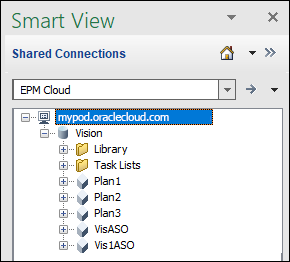
You can now start Planning with Smart View.
For more information on tasks you can perform with Smart View, see the Working with Oracle Smart View for Office documentation.
 Want to Learn More?