
 Creating a New MySQL Cloud Service Instance from a Backup
 Before You Begin
This 15-minute tutorial shows you how to migrate a database to MySQL Cloud Service by creating a new MySQL Cloud Service instance from a backup.
Background
You can migrate a MySQL database from your local computer to a MySQL Cloud Service by uploading a compressed, transportable tablespace (TTS) backup image file and creating a new MySQL Cloud Service instance from the backup.
What Do You Need?
- A MySQL database that you intend to migrate to MySQL Cloud Service
- MySQL Enterprise Backup
- Access to the Oracle Cloud Storage Service
- Access to the MySQL Cloud Service
- Experience with creating a MySQL Cloud Service instance, including providing a public key, configuring the instance, and configuring backup and recovery options. If you have never created a MySQL Cloud Service, review the Getting Started with MySQL Cloud Service tutorial.
 Creating a Backup of Your Database to Migrate
Use MySQL Enterprise Backup to create a compressed, transportable tablespace (TTS) image backup of the database you intend to migrate.
Enter the mysqlbackup command. To back up all tables in mydatabase, using mybackupdir as the temporary directory and including the --compress and --use-tts options, enter the following command:
mysqlbackup --include-tables=mydatabase.* --backup-dir=mybackupdir --backup-image=~/mydatabase.mbi --compress --use-tts backup-to-image -u root -p
 Creating a Storage Cloud Container
- Open your browser and log into your cloud account.
- Navigate to Storage Classic console.
- Click Create Container
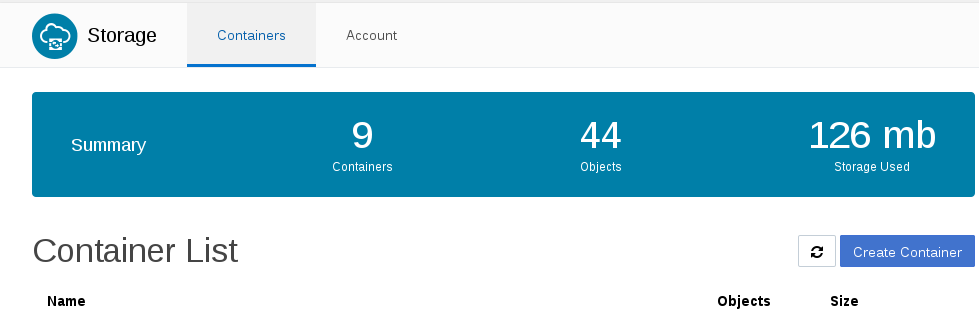
Description of the illustration createcontainerbutton.png - Enter a name for your storage container and click Create

Description of the illustration createcontainerdialog.png
 Uploading a Backup to Oracle Storage Classic
- Select your container from the Container List.
- Click Upload Objects.
- Navigate to select your database backup image file and click Open.


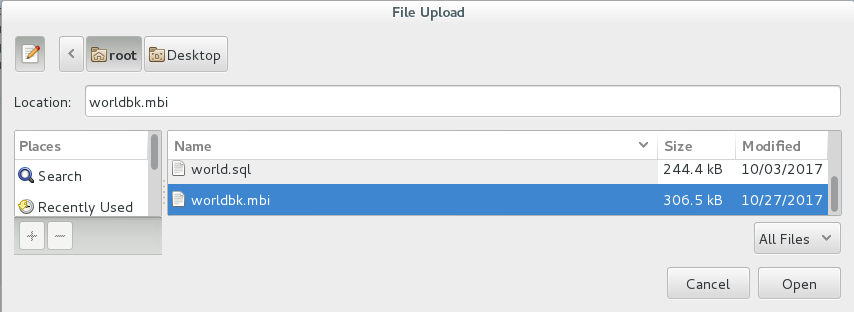
When the upload completes, the uploaded backup image file is displayed in the storage container.

 Creating a MySQL Cloud Service Instance from a Backup
- Navigate to your MySQL Cloud Service Console.
- Click Create Service.
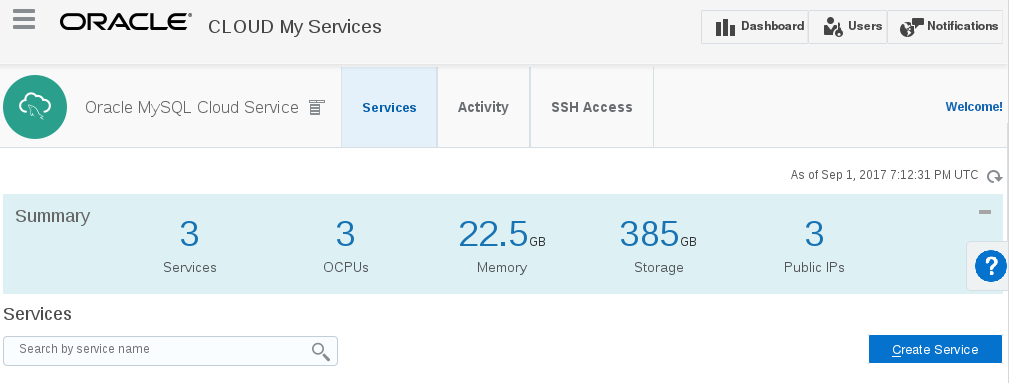
Description of the illustration createservice.png - Enter a Service Name and Service Description. Click Next.
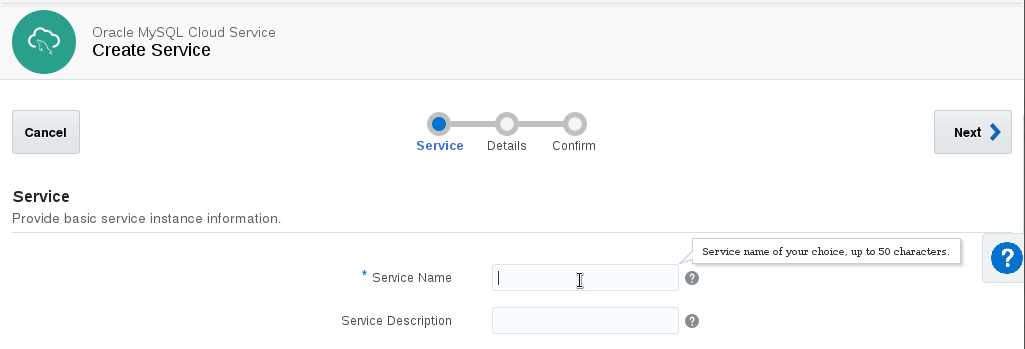
Description of the illustration createservice02.png - Provide the SSH Key for the Configuration. Enter or update values for the MySQL Configuration. Set up Backup and Recovery Configuration options.

Description of the illustration createservice03.png - Under Initialize Data From Backup, for Create Instance from Existing Backup, select Yes.
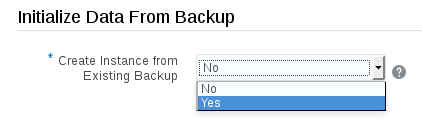
Description of the illustration createservice04.png - Enter the Backup File Cloud Storage Path in the format
storageservicename-cloudaccountname/containername/backupfilename. For example:Storage-mytestcorp/mystoragecontainer/mydatabase.mbi. Enter your Username and Password for your cloud service account.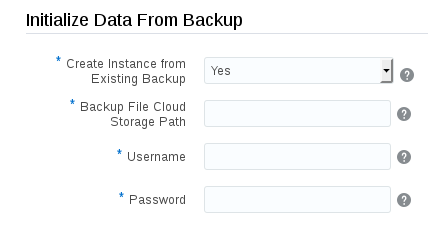
Description of the illustration createservice05.png - Click Next.
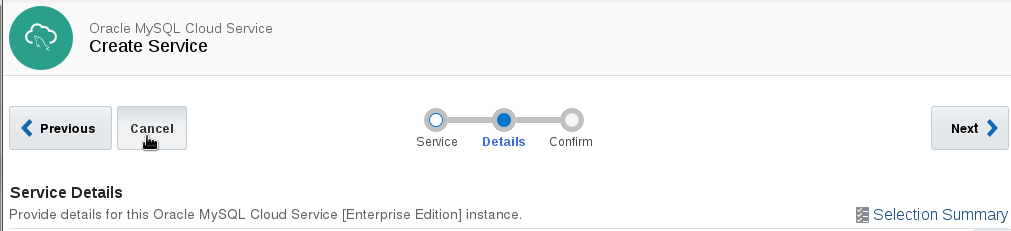
Description of the illustration createservice06.png
The service creation process starts. When the service creation is complete, the new instance appears in the list of Services.
 Want to Learn More?
- Getting Started with MySQL Cloud Service OBE
- Using Oracle MySQL Cloud Service in the Oracle Help Center