Building Dynamic Actions in Oracle Application Express 4.2
Overview
Purpose
This tutorial shows you how to use the built-in declarative dynamic actions in Oracle Application Express 4.2.
Note: Some screenshots in this tutorial may be slightly different depending on what browser or operating system you use.
Time to Complete
Approximately 60 minutes.
Introduction
What are Dynamic Actions?
In APEX, Dynamic Actions provide developers with a way to define client-side behavior declaratively without the need to know JavaScript. Using a simple wizard, developers can select a page item, a condition, enter a value, and select an action (for example, Show, Hide, Enable, and Disable). Previously, this involved hand crafting JavaScript and AJAX but now many Dynamic Actions require zero coding using the built-in wizards.
Please keep in mind the following while running this tutorial:
- Logging into your Oracle Application Express workspace
- Your Oracle Application Express workspace may reside in an
on-premise Oracle Database or in Oracle Database Cloud Service
(Database Schema).
The login credentials differ depending on where your workspace is located:
Logging into Oracle Application Express workspace in Oracle Database Cloud (Schema):
From your browser, go to the Service URL found in your Welcome email or the Service URL provided by your Service Administrator.Logging in to Oracle Application Express on-premise:
From your browser, go to the location of your on-premise installation of your Oracle Application Express workspace provided by your Workspace Administrator. - Application ID - Screenshots in this tutorial show an Application ID of 101. Your Application ID may be different.
- Schema - If you are accessing an Oracle Application Express workspace in Oracle Database Cloud Service (Schema) you have one schema assigned to you with a schema name that you cannot change. If you are accessing the workspace in an on-premise Oracle database, you may have more than one schema assigned to your workspace by the Oracle Application Express Instance Administrator.
Prerequisites
Before starting this tutorial, you should have:
- Access to an Oracle Database 11g or later release, either on-premise or in Oracle Database Cloud Service (Schema).
- Installed Oracle Application Express Release 4.2 into your Oracle Database (for on-premise only).
- At least one Oracle Application Express user provisioned. See
Creating
New User Accounts in Oracle Application Express
Administration Guide.
- Download and unzip the files.zip file into a working directory to use during this tutorial.
Creating a Database Application
To create a database application with a few initial pages, log into your application express workspace and perform the following steps:
-
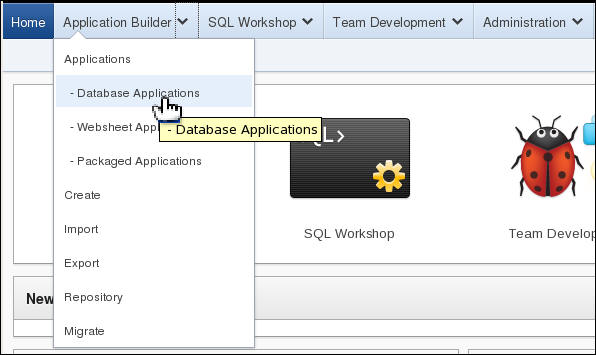
From the Oracle Application Express home page, click the down arrow next to the Application Builder tab and select Applications > Database Applications.
-
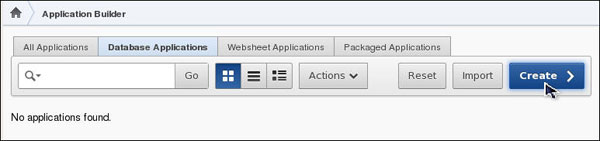
Click Create >.
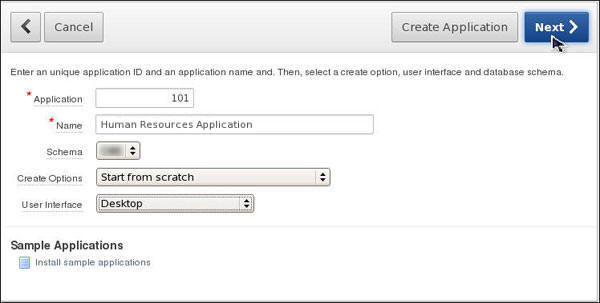
- For Name, enter Human Resources Application.
Select Start from Scratch for the Create Options, and
click Next >.
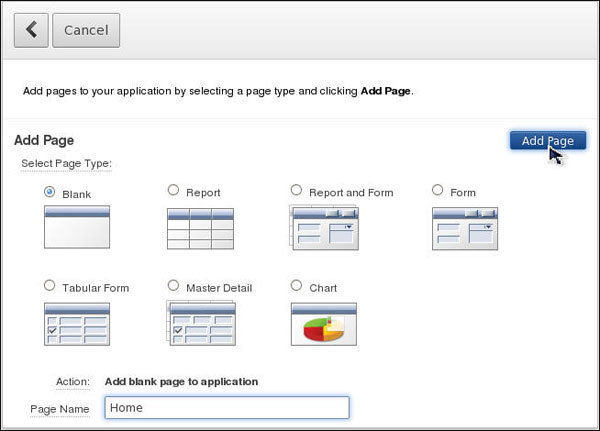
- Enter Home for Page Name and click Add
Page.
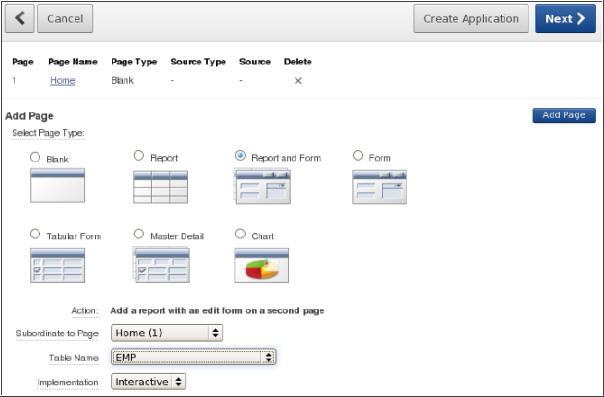
- You want to create an Interactive Report and a Form on the EMP
table. Select Report and Form for Page Type. Select Home(1)
for Subordinate to Page, EMP for Table Name, and click Add
Page.
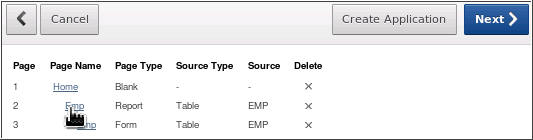
- The Report and Form pages were created. You want to change the
Name of the Report page. Select the Emp link
for the Report.
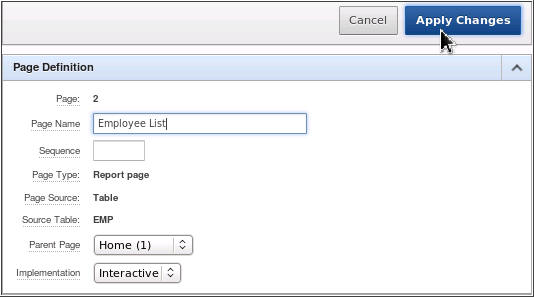
- Change the Page Name to Employee List and
click Apply Changes.
- You also want to change the Name of the Form page. Select the
Emp link for the Form.
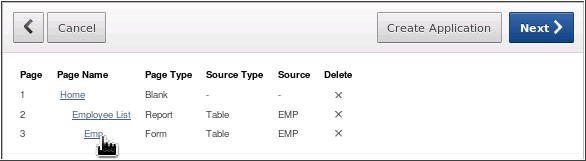
- Change the Page Name to Employee Details and
click Apply Changes.
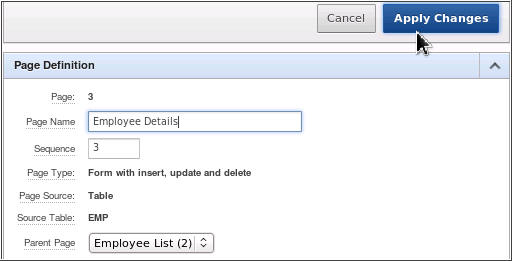
- You are now ready to continue to the next wizard page, click Next
> .
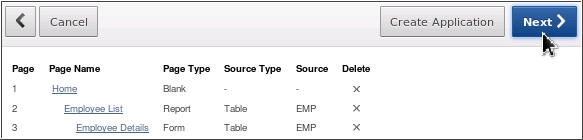
- Accept the default and click Next >.
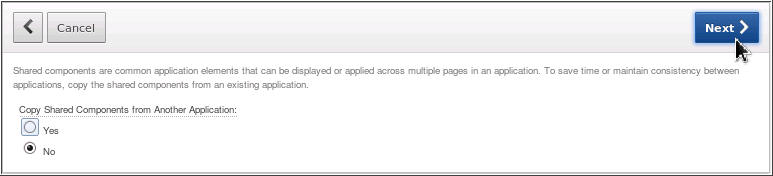
-
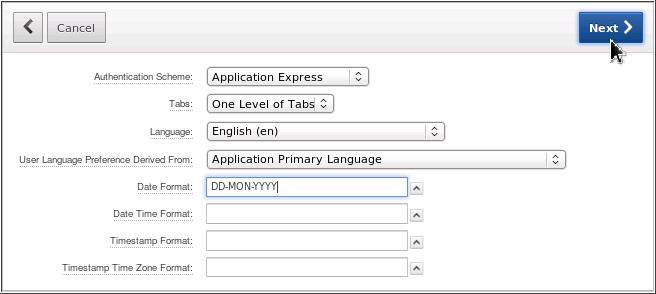
You want to specify the type of authentication used to access this application. Select Application Express for Authentication Scheme.
You can also define a date format that will be used throughout your application. This date format will be used to alter the NLS_DATE_FORMAT database session setting prior to showing or submitting any page within the application. This format is used by all reports showing dates and is also picked up by form items of type 'Date Picker (use Application Date Format)'. Select an DD-MON-YYYY as Application Date Format for your Application and click Next >.
-
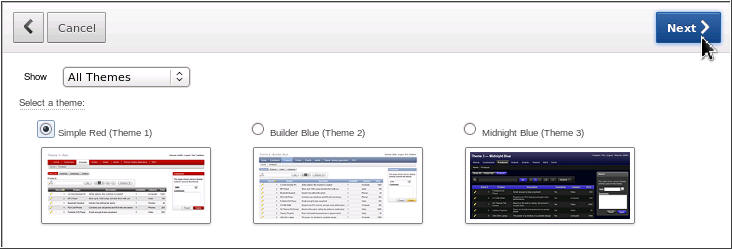
Select All Themes from the Show menu and then select Theme 1 and click Next>.
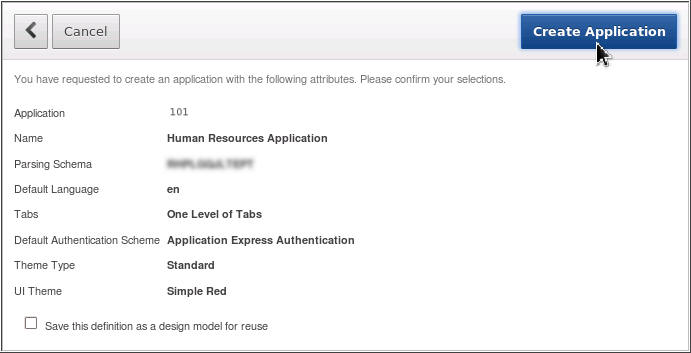
- Click Create Application.
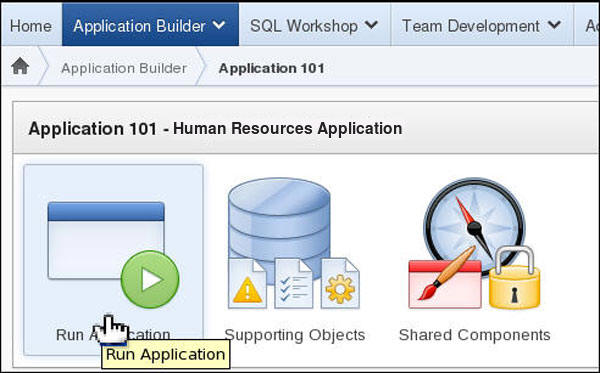
- Your application was created successfully. Click Run
Application.
- If the login screens appears, enter the user's Oracle
Application Express credentials and click Login.

- Select Employee List.
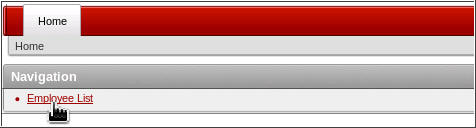
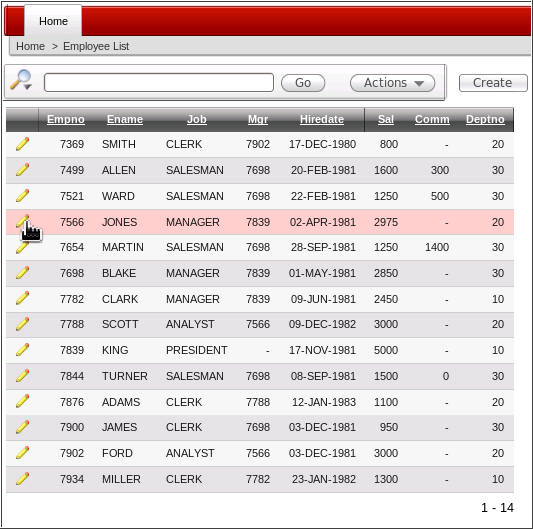
- A report containing the list of employees is automatically
created. Select the Edit (
 )icon next to one of the employees to
view the Form.
)icon next to one of the employees to
view the Form.
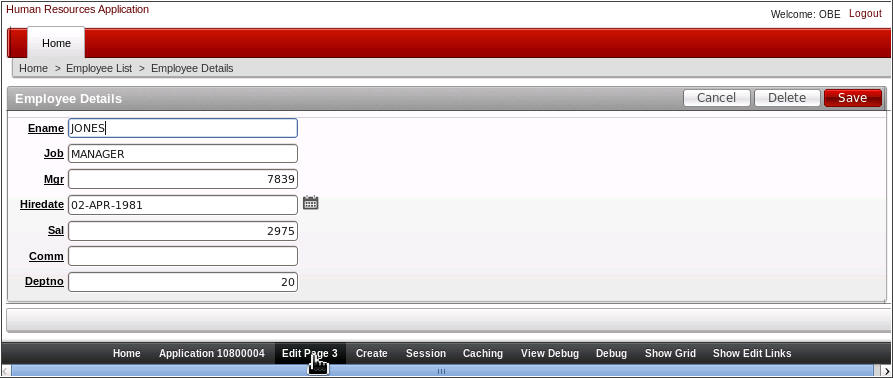
- The Form is displayed. In the next section, you will make some
changes to the items on this page. Click Edit Page 3
in the developer toolbar.
Making Some Changes to Items on Your Page
Before you create some Dynamic Actions, you want to make some changes to the Items on your page. Perform the following steps:
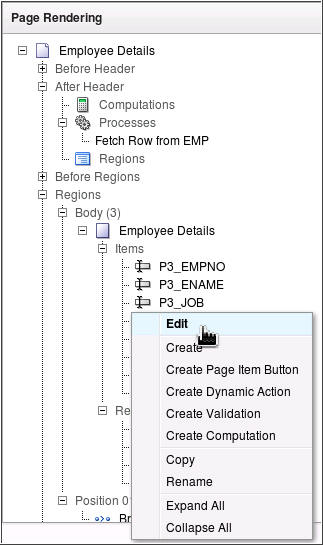
- In the Page Rendering area under Regions, locate the P3_JOB
item under the Employee Details region. Right click P3_JOB
and select Edit.
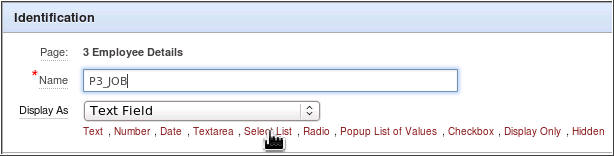
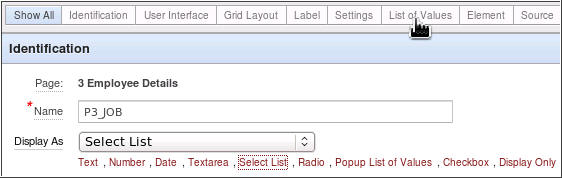
- Click the Select List quick link for Display
As.
- Click the List of Values tab.
-
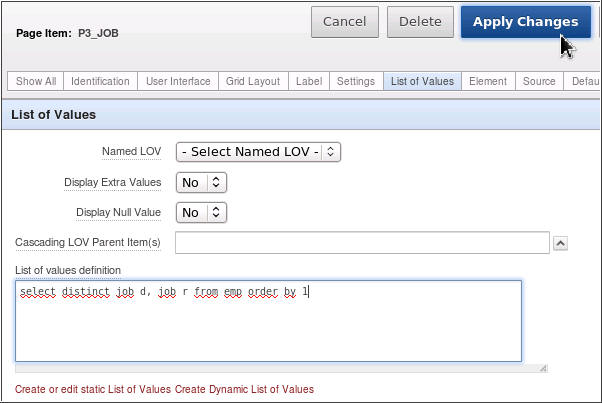
Select No for Display Extra Values and enter the following SQL statement in the List of values definition area and click Apply Changes.
select distinct job d, job r from emp order by 1
- To test the change you just made, click Run.

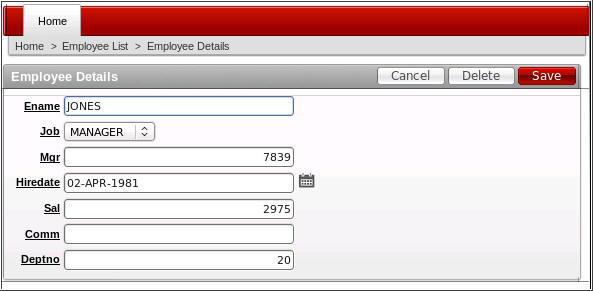
- Notice that Job is now a select list. You want to make some
additional changes. Click Edit Page 3 from the
developer toolbar.
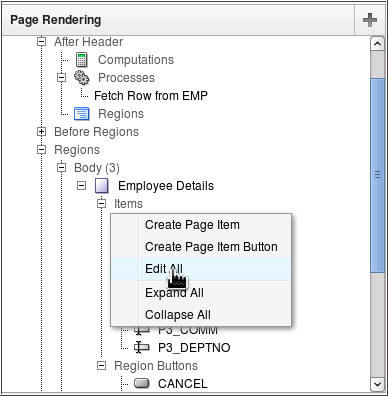
- You want to change many of the item labels. Right click Items
and select Edit All.
- Change the following Prompts for each of the items below and
click Apply Changes.
Item Prompt P3_ENAME Name P3_MGR Manager P3_HIREDATE Hire Date P3_SAL Salary P3_COMM Commission P3_DEPTNO Department 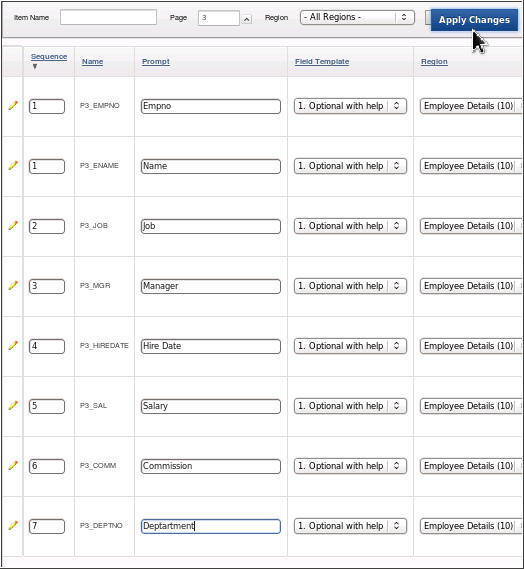
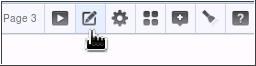
- Click the Edit Page 3 icon.
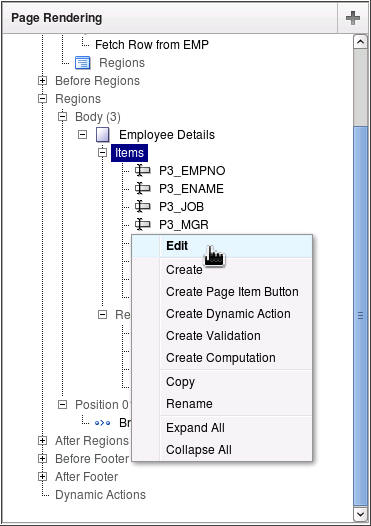
- You also want to change the Manager (currently a number) to a
list of Manager Names. Right click P3_MGR and
select Edit.
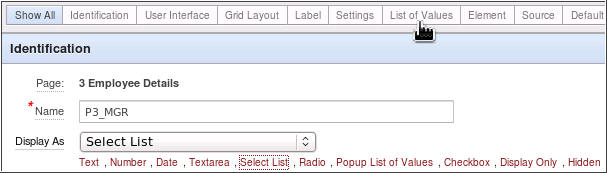
- Select Select List for Display As and click
the List of Values tab.
-
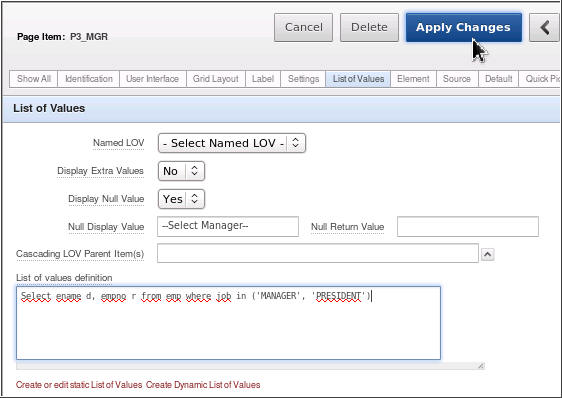
Select No for Display Extra Values, select Yes for Display Null Value, and enter -- Select Manager-- for Null Display Value. Enter the following SQL statement in the List of values definition area and click Apply Changes.
Select ename d, empno r from emp where job in ('MANAGER', 'PRESIDENT')
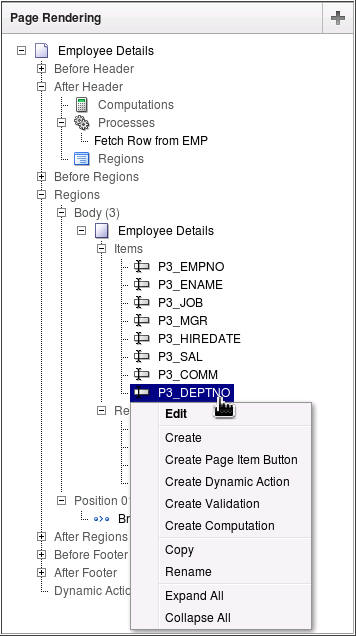
- You want to change the Deptno to a list of Department Names.
Right-click P3_DEPTNO and select Edit.
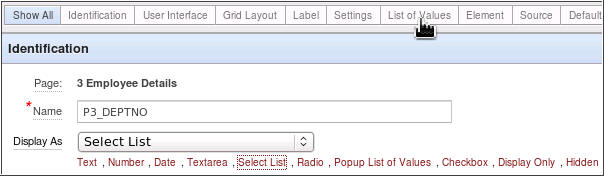
- Select Select List for Display As and click
the List of Values tab.
-
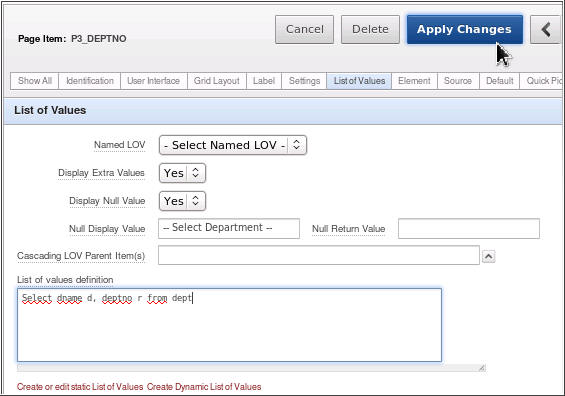
Select Yes for Display Extra Values, select Yes for Display Null Value, and enter -- Select Department -- for Null Display Value. Enter the following SQL statement in the List of values definition area and click Apply Changes.
Select dname d, deptno r from dept
- To see all the changes you made, click Run.

- Notice the changes to the labels, and the Job, Manager and
Department fields are now select lists. In the next section, you
will create a Dynamic Action to enable the Commission item only
when the Job is equal to SALESMAN. Select the Edit Page
3 link in the developer toolbar.
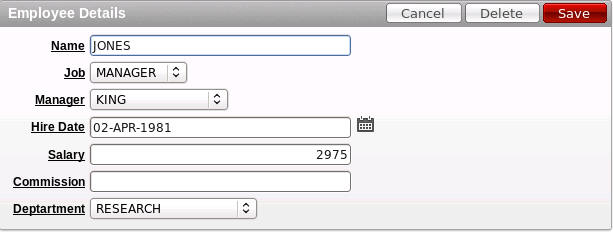
Creating an Enable/Disable Declarative Dynamic Action
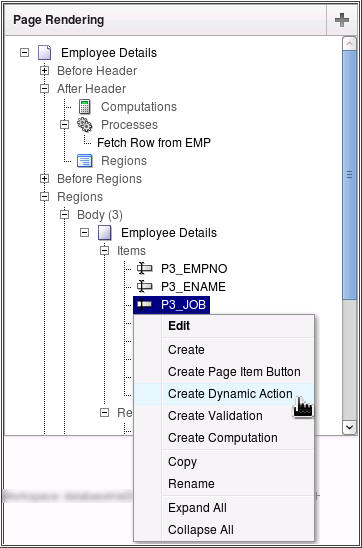
You want to create a Dynamic Action that will enable the Commission item when the Job equals SALESMAN. All other Jobs will set the Commission item to Disable. Perform the following steps:
-
Right click P3_JOB and select Create Dynamic Action.
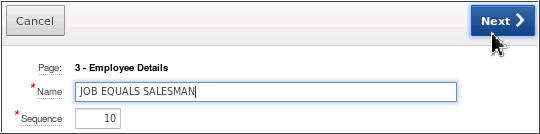
- Enter JOB EQUALS SALESMAN for Name and click
Next >.
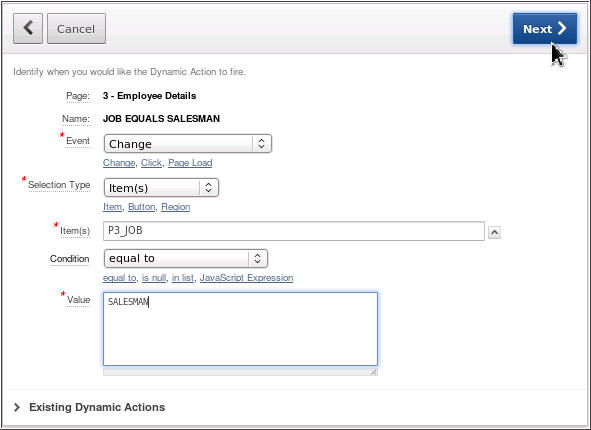
- You want the Dynamic Action to be fired when the Job item is
equal to SALESMAN. Confirm that, by default the value of Event
is set Change. Because you created a dynamic action on the
P3_JOB item, the values for Selection Type and Item(s) should
already be specified. Select equal to and
enter SALESMAN for Value. Then click Next
>.
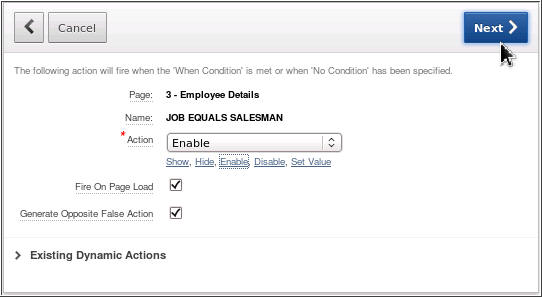
- Select Enable to Specify the True Action.
This action will be invoked when the value of P3_JOB is equal to
'SALESMAN'. Note that the Create Opposite False Action is
checked, which will create a Disable action that will be invoked
when the value of P3_JOB is not equal to SALESMAN. Click Next
>.
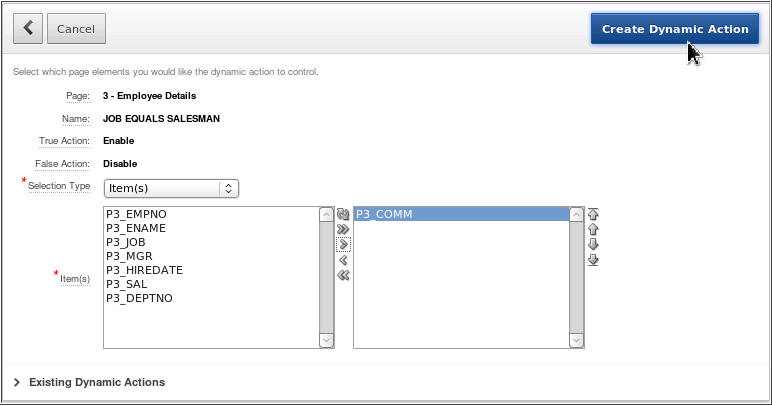
- The item that will be enabled or disabled is Commission.
Select Item(s) for Selection Type and select P3_COMM
from the list of items and click the Move icon to move it to the
right and click Create Dynamic Action.
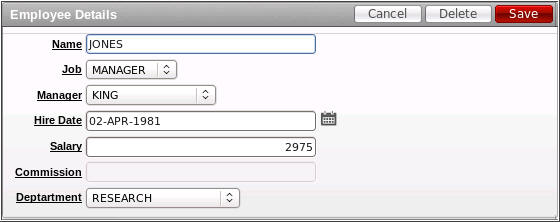
- To run the page, click Run.

- Notice that the Commission item is disabled because the Job is
not equal to SALESMAN.
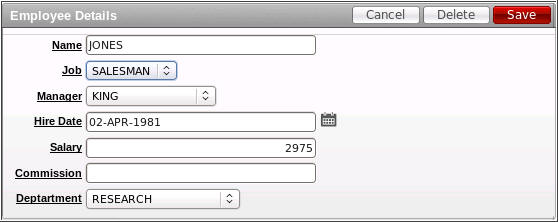
- Change the Job to SALESMAN and notice that
the Commission field gets enabled. Select the Edit Page
3 link in the developer toolbar.
Creating a Set Value Dynamic Action With a SQL Statement
In this section, you will create a set value Dynamic Action that will show the location of a Department and the number of employees when it is changed. Perform the following steps:
- You first need to create a new item for Location. Under
Employee Details, right click Items and select
Create Page Item.
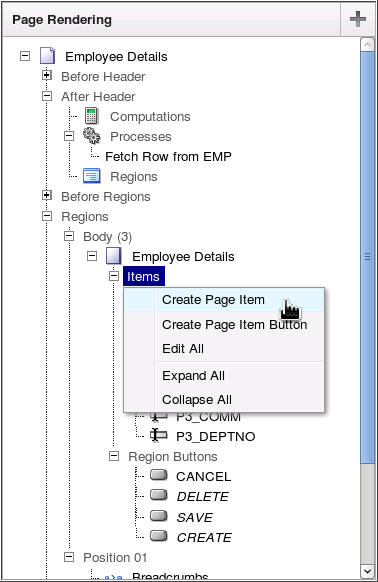
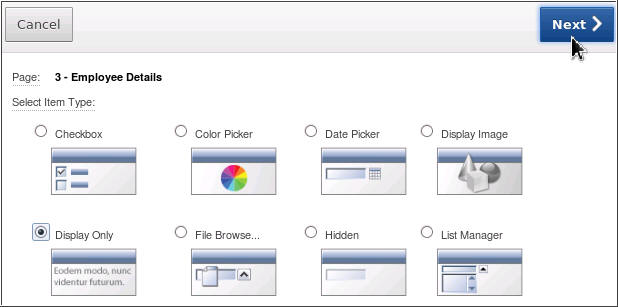
- Select the Display Only Item Type and click
Next >.
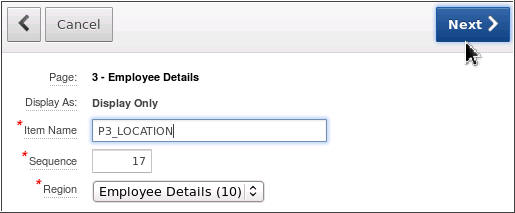
- Enter P3_LOCATION for Item Name and click Next
>.
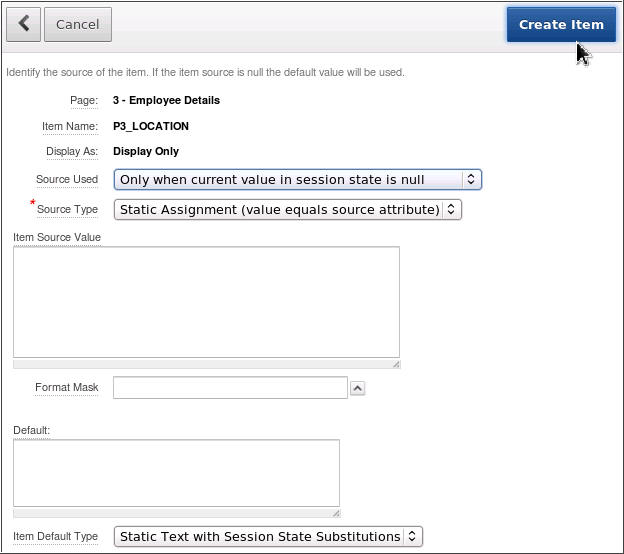
- Accept the defaults and click Next >.
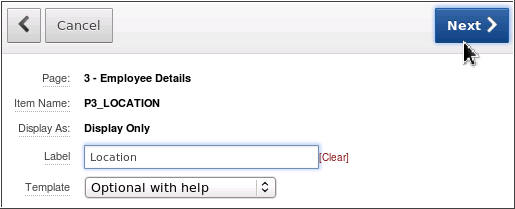
- Select No for Show Line Breaks and click Next
>.
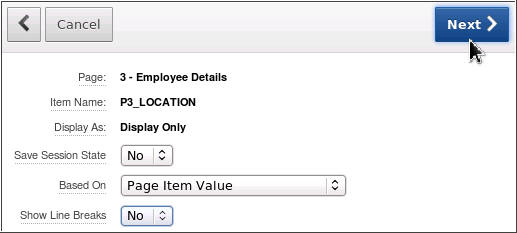
- Accept the defaults and click Create Item.
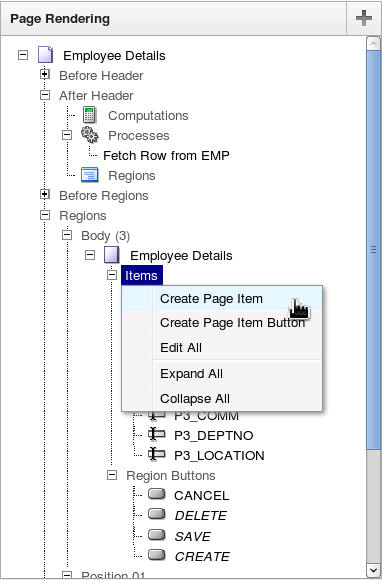
- You need to create another new item for Number of Employees.
Under Employee Details, right click Items and
select Create Page Item.
- Ensure that Display Only item type is selected and
click Next >.
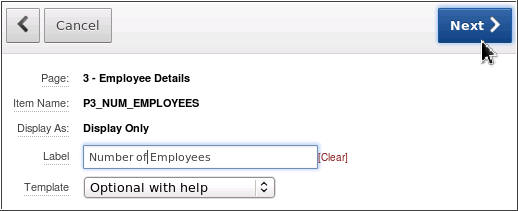
- Enter P3_NUM_EMPLOYEES for Item Name and click Next
>.
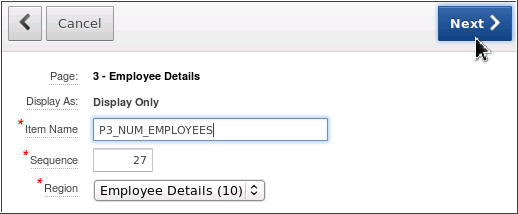
- Enter Number of Employees for Label and click Next
>.
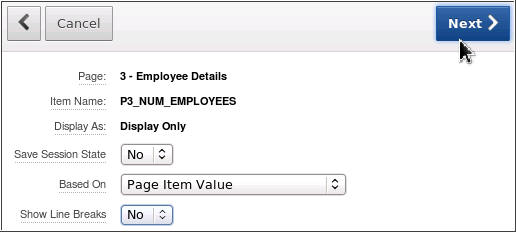
- Select No for Show Line Breaks and click Next >.
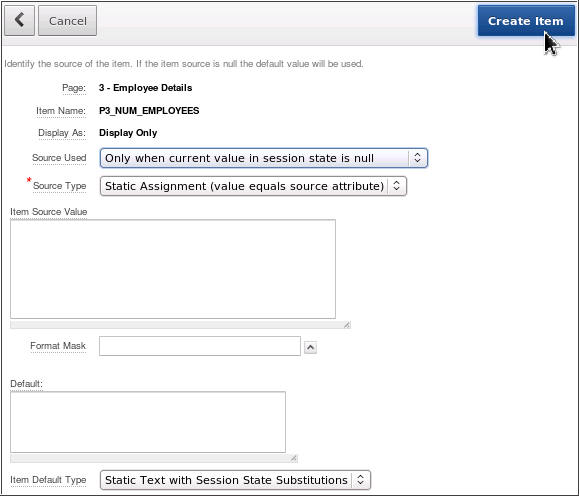
- Click Create Item.
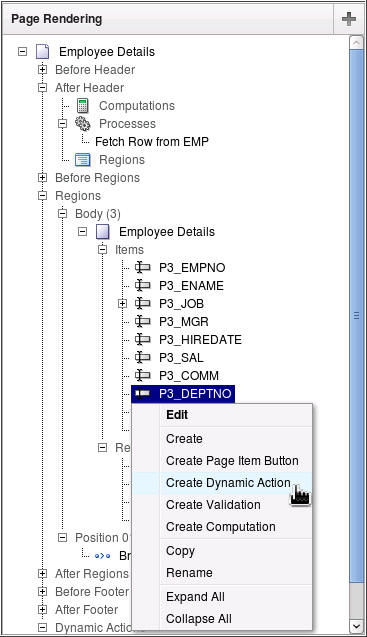
- Now you can create the Dynamic Action to set the value of the
new P3_LOCATION and P3_NUM_EMPLOYEES items. You want the
department's location and the number of employees to be
displayed when the value of the Department changes. Right click
P3_DEPTNO and select Create Dynamic
Action.
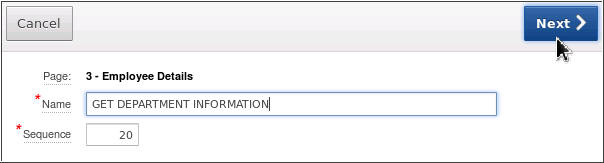
- Enter GET DEPARTMENT INFORMATION for Name
and click Next > .
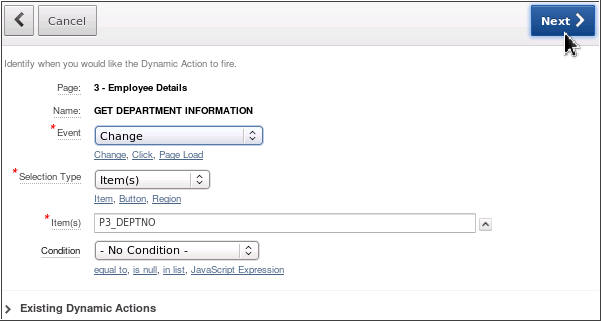
- The Event, Selection Type and Item(s) fields are prepopulated.
Click Next >. Note that you don't want to
specify a condition because you want the dynamic action to
always be invoked.
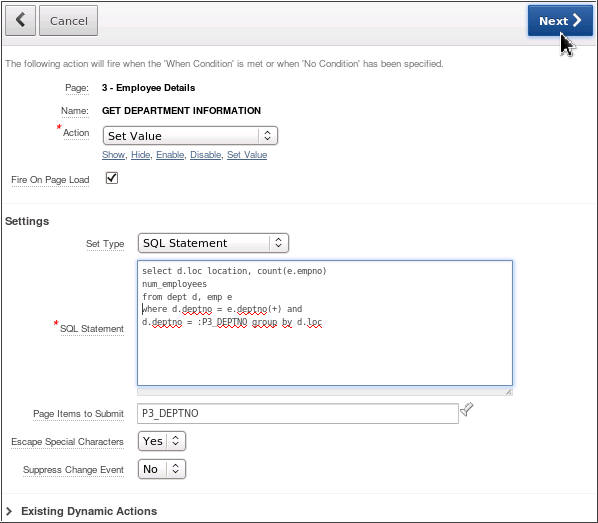
-
Select Set Value for Action, select SQL Statement for Set Type, enter the following SQL Statement in the area provided, and enter P3_DEPTNO for Page Items to Submit. Click Next >.
select d.loc location, count(e.empno) num_employees from dept d, emp e where d.deptno = e.deptno(+) and d.deptno = :P3_DEPTNO group by d.loc
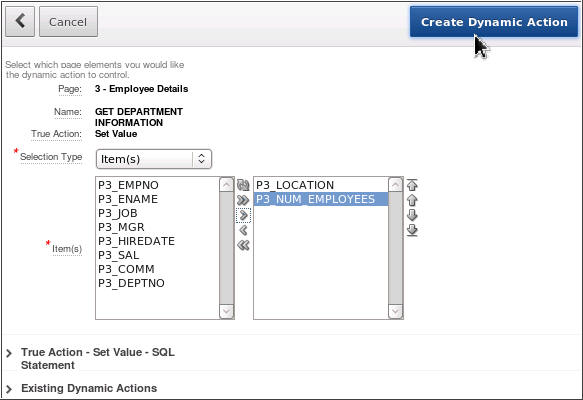
- This page contains the page elements the dynamic action should
control. In this case, you want to set the value of the
P3_LOCATION, P3_NUM_EMPLOYEES items. Select Item(s)
for Selection Type and select P3_LOCATION,
P3_NUM_EMPLOYEES for Item(s) and click Create
Dynamic Action.
- To run the page, click Run.
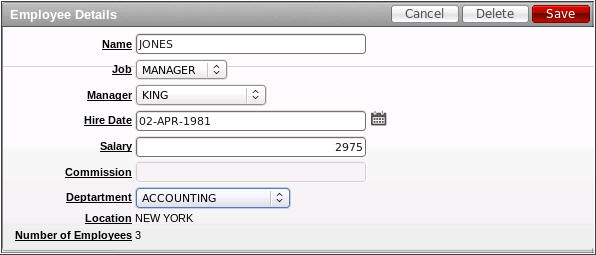
- The location and number of employees is displayed based on the
Department specified.
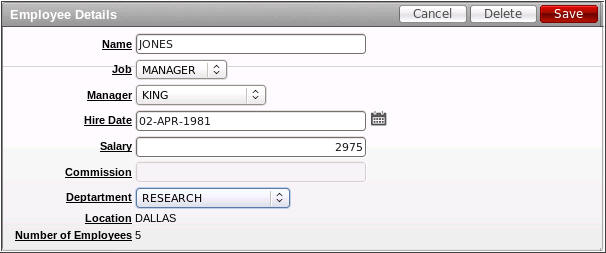
- Change the Department name. Notice that the location and
number of employees changes automatically. In the next section,
you will set a value using a dynamic action but this time you
will use PL/SQL instead of a SQL statement. Select Edit
Page 3 in the developer toolbar.
Create a Set Value Dynamic Action Using PL/SQL
You want to calculate the bonus that a particular employee gets based on their job and salary. In this section, you will create a new Bonus item and then a dynamic action that will calculate the bonus based on both the job and salary specified. Perform the following steps:
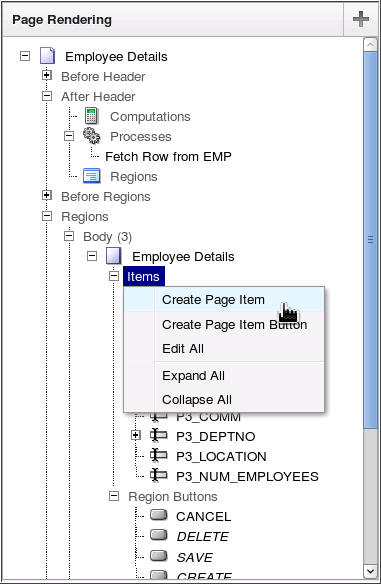
- You want to first create the Bonus item. Under the Employee
Details region, right click Items and select Create
Page Item.
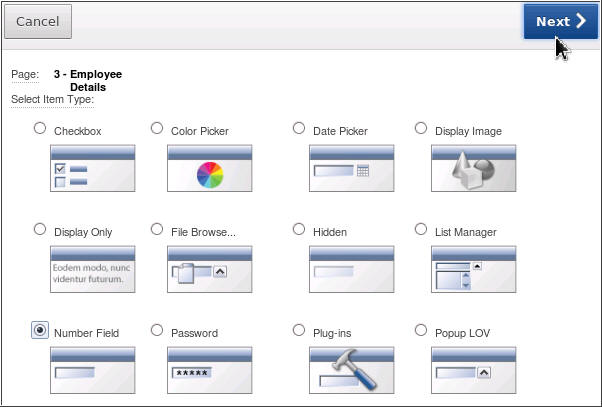
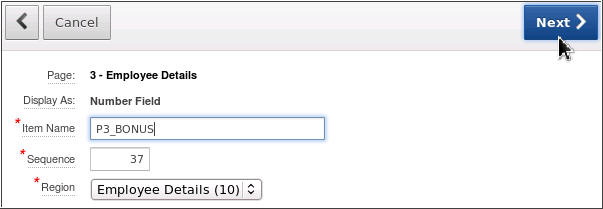
- Select Number Field and click Next
>.
- Enter P3_BONUS for Item Name and click Next
> .
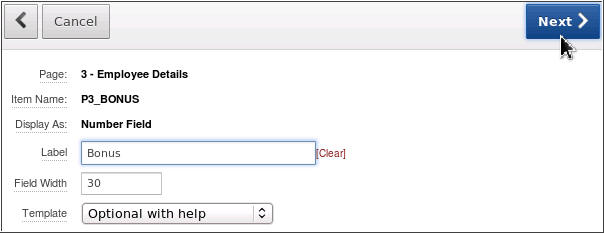
- Accept the defaults and click Next >.
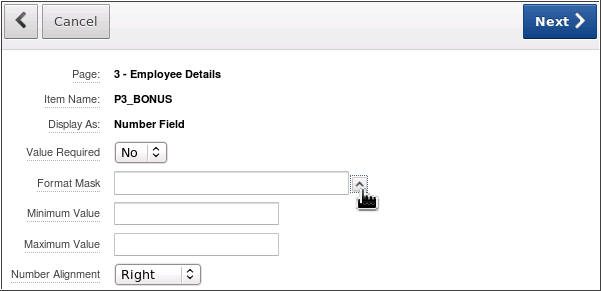
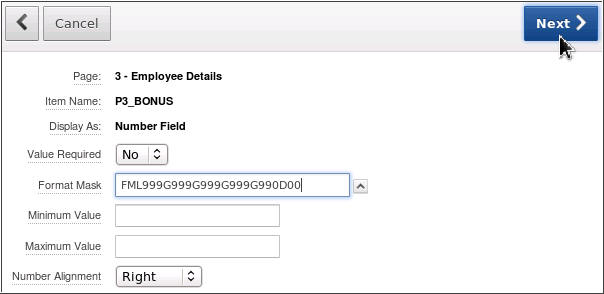
- Select the up arrow next to the Format Mask field.
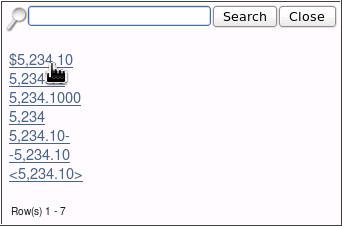
- Select the $5,234.10 link.
- Click Next >.
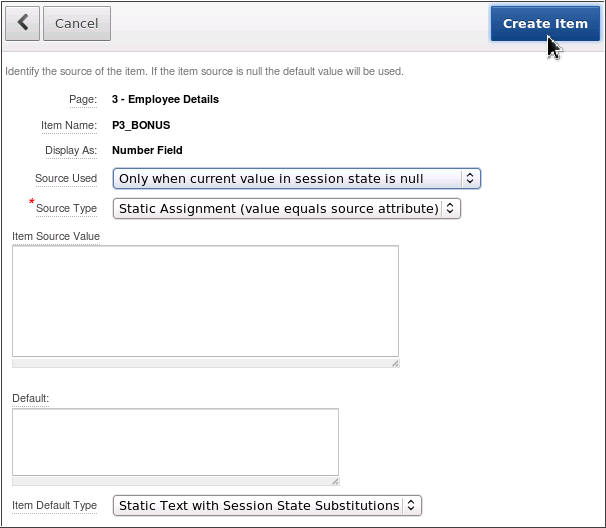
- Accept the defaults and click Create Item.
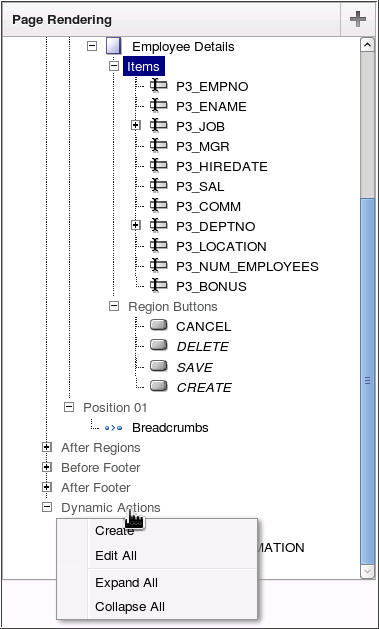
- Now you are ready to create your dynamic action. Right click Dynamic
Actions and select Create.
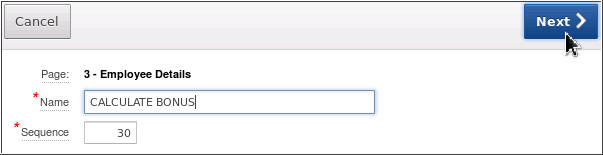
- Enter CALCULATE BONUS for Name and click Next
> .
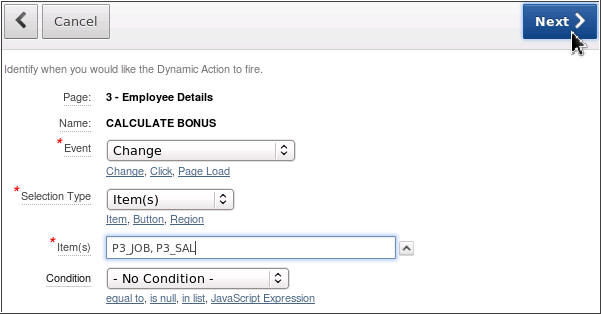
- The Event and the Selection Type are prepopulated. Enter P3_JOB,
P3_SAL for Item(s) and click Next >.
- Select Set Value for Action and
PL/SQL Function Body for Set Type. Enter the
following PL/SQL code into the PL/SQL Function Body area, enter
P3_JOB,P3_SAL in the Page Items to Submit field
and click Next >.
declare
    l_multiplier number;
begin
    -- determine multiplier based on job
    case :P3_JOB
        when 'CLERK'        then l_multiplier := .1;
        when 'ANALYST'      then l_multiplier := .2;
        when 'SALESMAN'     then l_multiplier := .3;
        when 'MANAGER'      then l_multiplier := .4;
        when 'PRESIDENT'    then l_multiplier := .5;
        else                     l_multiplier := 0;
    end case;
    -- return bonus which is calculated by multiplying salary my multiplier
    return :P3_SAL * l_multiplier;
END;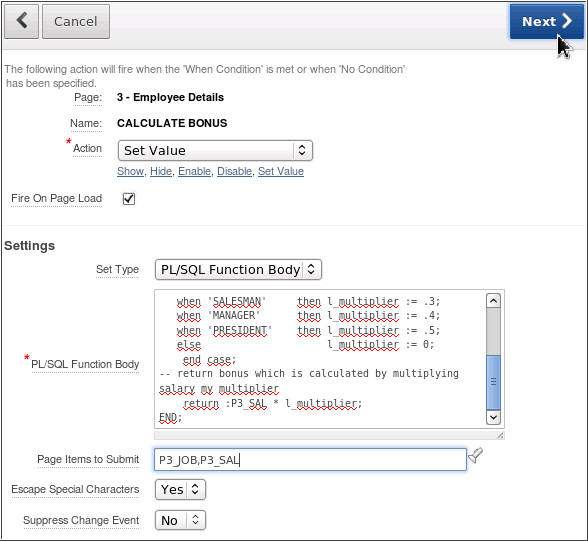
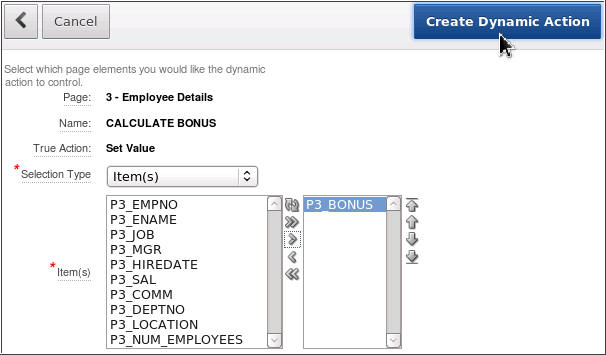
- Select Items for Select Type and enter P3_BONUS
for Item(s). Click Create Dynamic Action.
- You can now run the page to test the dynamic action. Click Run.

- The bonus is calculated automatically.
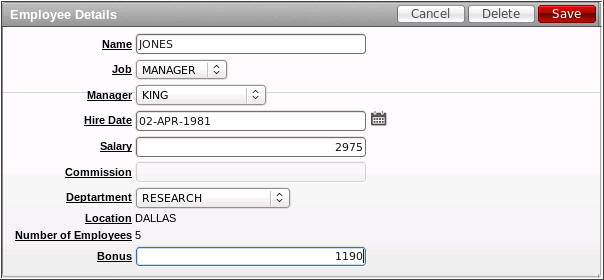
- Change the Job to CLERK. Alternatively, you
could change the value of the Salary which would also invoke the
dynamic action. Notice that the bonus was recalculated
automatically. Select the Edit Page 3 link in
the developer toolbar.
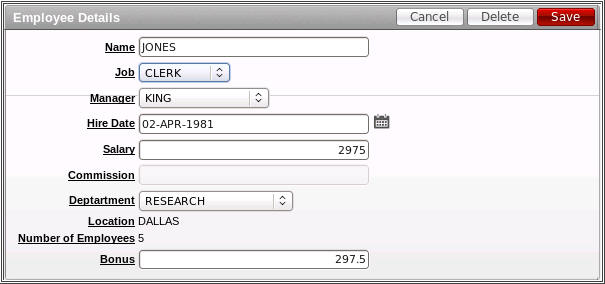
Using a Plug-in in a Dynamic Action
In this section, you will use a plug-in in a dynamic action. Perform the following steps:
- You want to import the slider plugin. Click the Shared
Components icon.

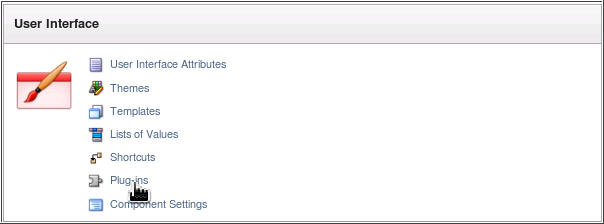
- Under User Interface, select Plug-ins.
- The slider plugin has been provided for you in the files
directory. Click Import.

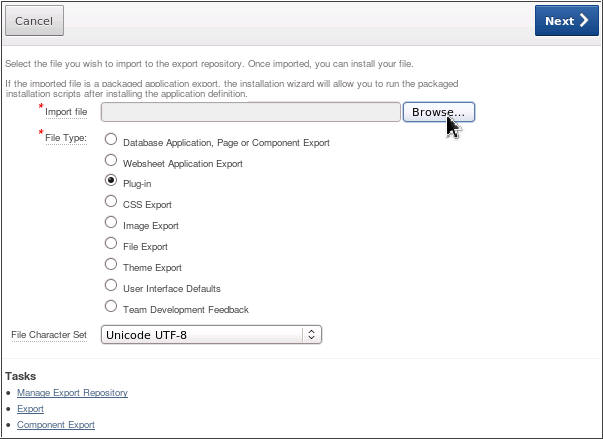
- Click the Browse button to locate the file.
Select the
item_type_plugin_com_oracle_slider.sql
file in the files directory and click Open.
- Click Next >.
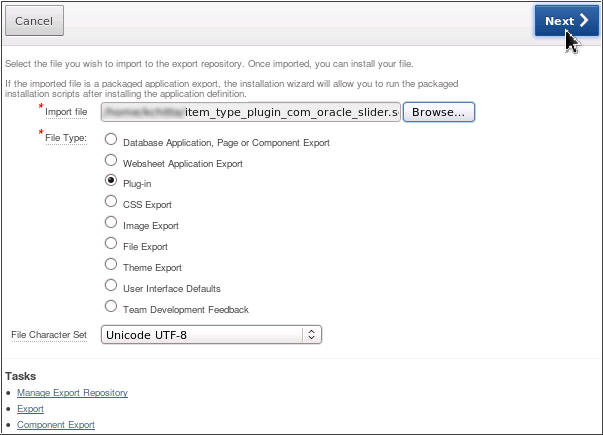
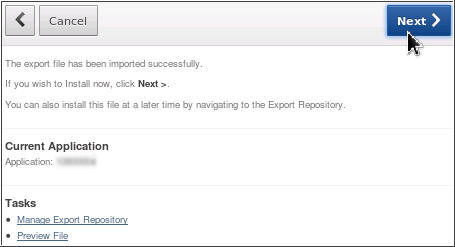
- The file was successfully imported. Click Next >.
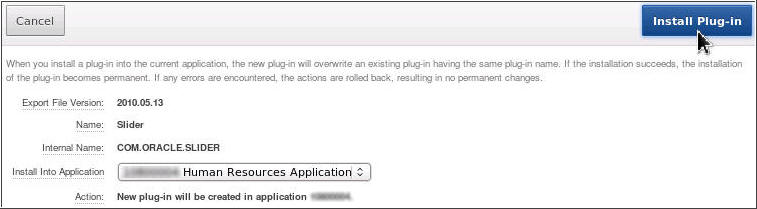
- Make sure that your Application is selected from the drop-down
list and click Install Plug-in.
- You want to use this Slider Plugin for the P3_SAL item. Click
the Edit Page icon.

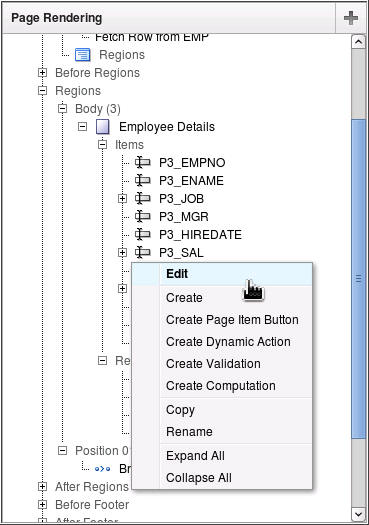
- You want to change the P3_SAL item to use the slider plugin
you just imported. Right-click the P3_SAL item
and select Edit.
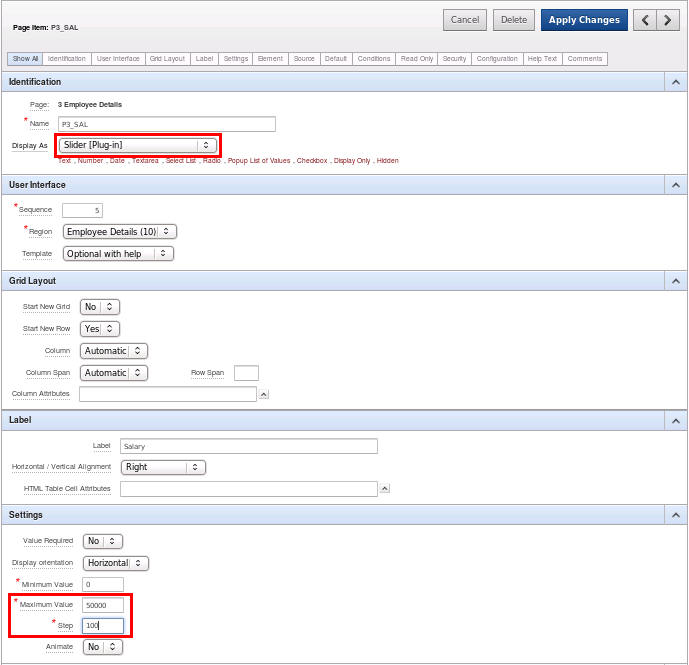
- Select Slider [Plug-in] for Display As and
enter 50000 for Maximum Value and 100
for Step. These settings configure the slider for this item.
Then click Apply Changes.
- Now you are ready to create the dynamic action. Right-click
the P3_SAL item and select Create
Dynamic Action.
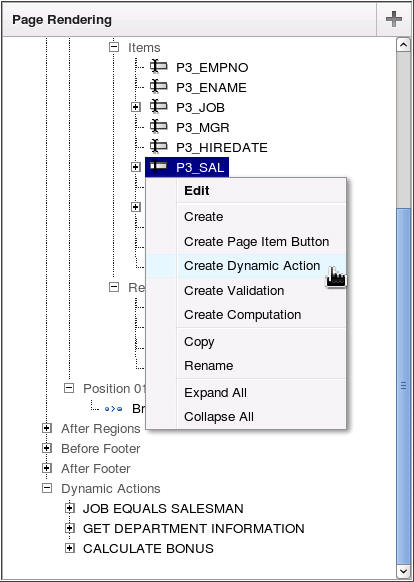
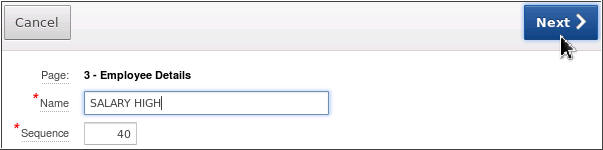
- Enter SALARY HIGH for Name and click Next
>.
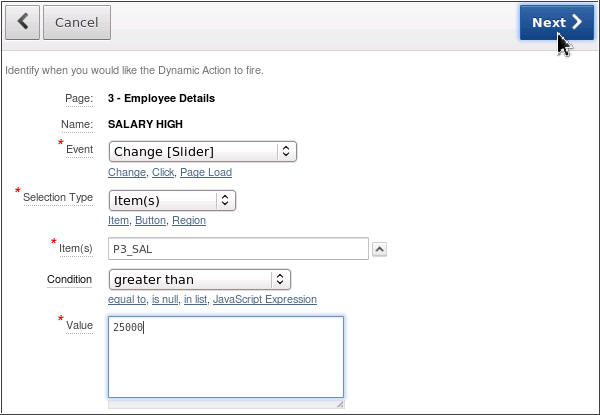
- Select Change [Slider] for Event, make sure
P3_SAL is selected for Item(s), select greater
than for Condition and enter 25000
for Value. These settings will determine when the dynamic
action's true and false action will fire. Then click Next
>.
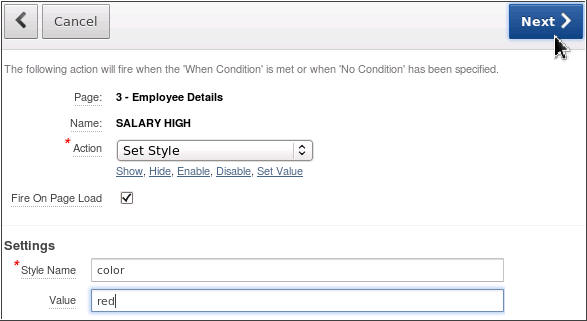
- Select Set Style for Action and enter color
for Style Name and red for Value. These 'True'
action settings will be invoked when the salary value is greater
than 25000. Click Next >.
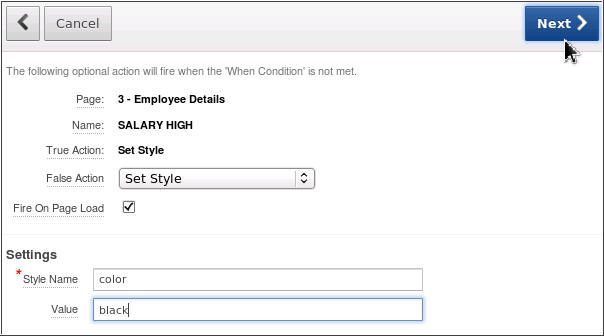
- You also need to select the action that will take place when
the action is false. Select Set Style for False
Action and enter color for Style Name and black
for Value. These 'False' action settings will be invoked when
the salary value is not greater than 25000. Click Next
>.
-
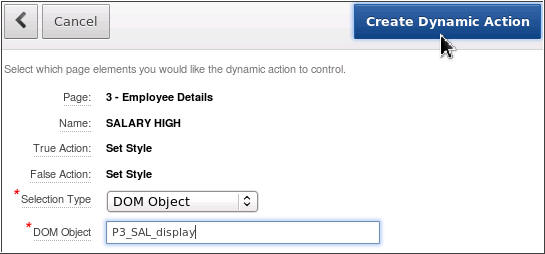
Select DOM Object for Selection Type and enter P3_SAL_display for DOM Object and click Create Dynamic Action. The DOM Object is case sensitive so make sure you enter it exactly as specified in the screenshot below.
Note: If you want to change the appearance of the displayed value of the Slider you have to access it using P3_SAL_display which is the ID for that object in the DOM object tree generated by the Slider plug-in. This naming convention is specific to the Slider plug-in and could be completely different for another plug-in.
- You are now ready to test the slider plug-in and dynamic
action. Click Run.

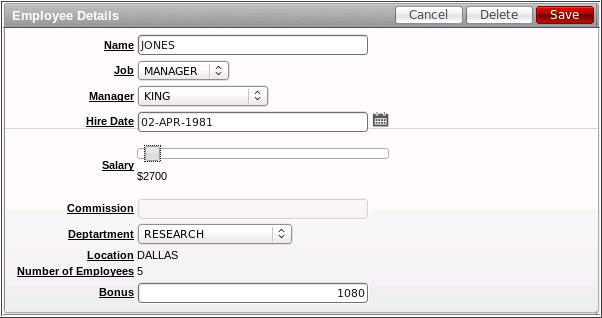
- Notice that the Salary field is a slider type. Drag the bar to
the right so that it is greater than 25000 and release your
mouse.
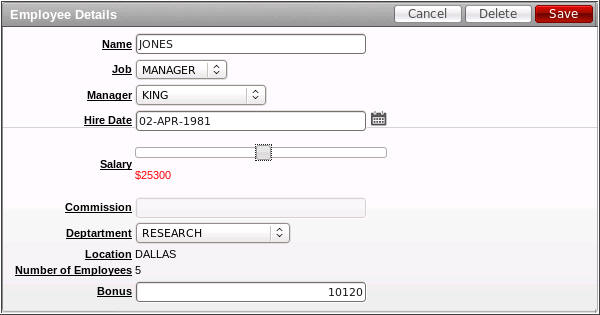
- Notice that the display value is now in red because the
dynamic action was fired. You can also drag it to less than
25000 and release and you will see that it changes back to
black.
Creating a Dynamic Action on a Button
In this section, you will create a dynamic action on the Save button. When this button is clicked, the entire page gets grayed out so that users can not click the Save again or any other button. Any changes to the form are saved and you are returned to the reports page. Perform the following steps:
- Before creating the dynamic action on the button, you will
view the current functionality of the Save button. To save the
changes you made to the Salary value, click the Save
button.
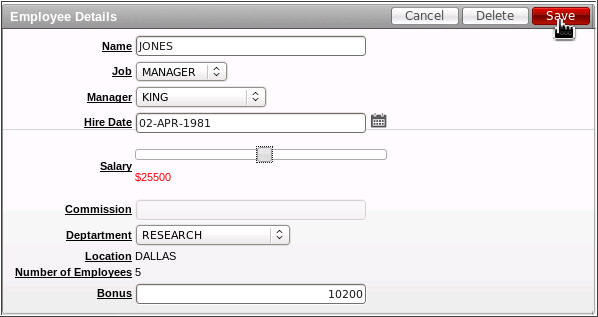
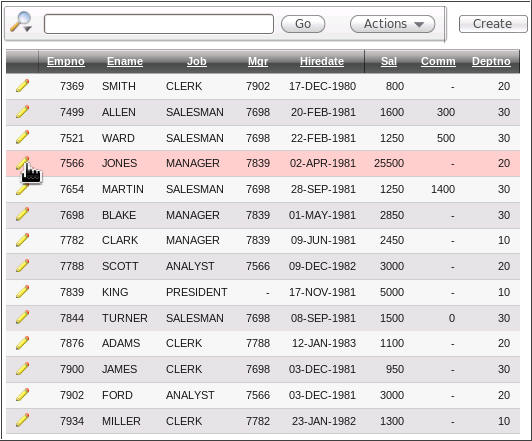
- The changes are saved to the database and you are returned to
the reports page. Notice that during the few seconds the SAVE
action is being processed, it is possible to click the button
again or make some other change to the form. To avoid this
situation, you will create a dynamic action on the Save button.
Click the edit icon of the employee you just edited.
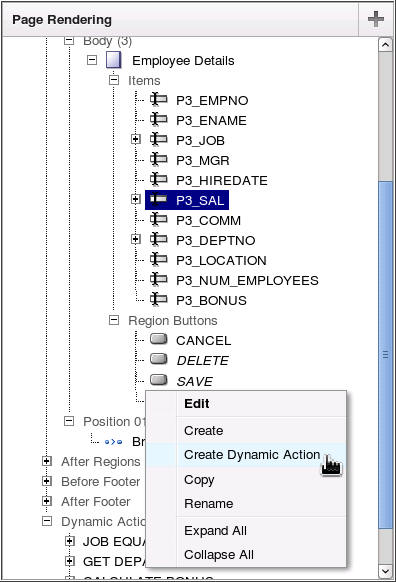
- Click Edit Page 3 from the developer toolbar.
Right-click the SAVE button and select Create
Dynamic Action.
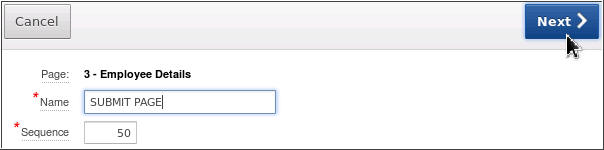
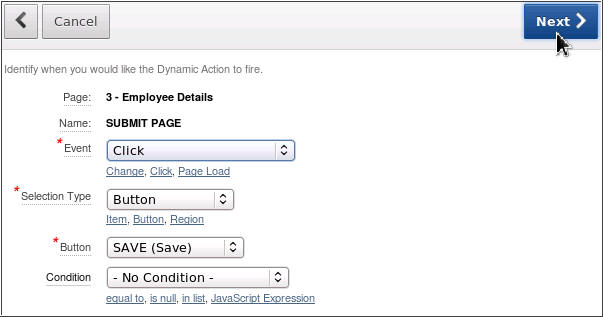
- Enter SUBMIT PAGE for Name and click Next >.
- The Event, Selection Type and Item(s) fields are prepopulated.
Click Next >.
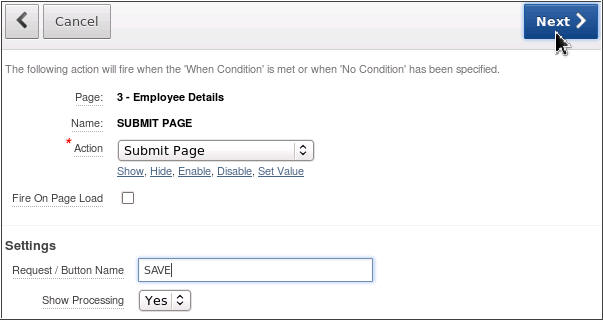
- Select Submit Page for Action and enter SAVE
for Request / Button Name. Setting this value to be the same as
the button name will ensure that the button's 'Execute
Validations' attribute is respected during page processing and
also that any page processing components defined to fire when
this button is pressed will also still fire when expected. Click
Next >.
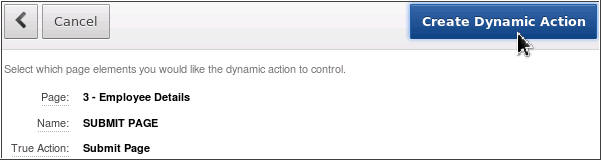
- Click Create Dynamic Action. When a dynamic
action is created on a button, the button's Action property is
automatically changed to "Defined by Dynamic Action."
- Click Run to see how the dynamic action works.
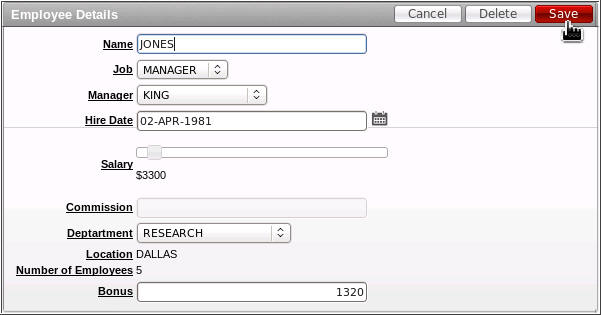
- Make some changes to the form, for example change the salary
value.
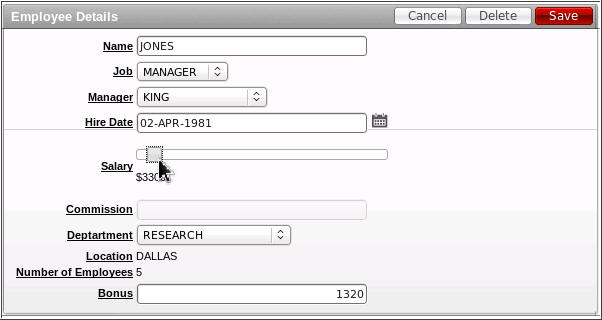
- Click Save.
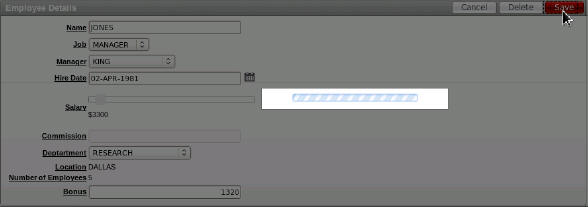
- Notice that the page is grayed out. A processing bar is also
displayed, which you can turn off if you do not want that to
display.
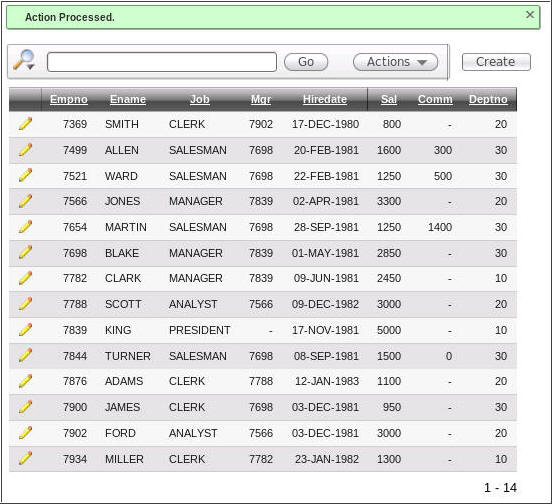
- After the changes are saved to the database, you are returned
to the reports page.
Summary
In this tutorial, you learned to:
- Create an enable/disable standard dynamic action
- Create a Set Value dynamic action using a SQL Statement
- Create a Set Value dynamic action using PL/SQL
- Use a Plugin in a dynamic action
- Create a dynamic action on a button
Resources
- Oracle Application Express homepage on OTN.
- Oracle Learning Library
- Oracle University
Credits
- Lead Curriculum Developer: Veerabhadra Rao Putrevu, Drue Swadener
To navigate this Oracle by Example tutorial, note the following:
- Topic List:
- Click a topic to navigate to that section.
- Expand All Topics:
- Click the button to show or hide the details for the sections. By default, all topics are collapsed.
- Hide All Images:
- Click the button to show or hide the screenshots. By default, all images are displayed.
- Print:
- Click the button to print the content. The content that is currently displayed or hidden is printed.
To navigate to a particular section in this tutorial, select the topic from the list.