Performing a Unit Test of Your PL/SQL in Oracle SQL Developer 2.1
Purpose
This tutorial shows you how to perform a unit test of your PL/SQL in Oracle SQL Developer 2.1.
Time to Complete
Approximately 30 minutes
Overview
The SQL Developer unit testing framework involves a set of sequential steps for each test case. The steps are as follows, including the user input for before the step is run and the framework activities for the step while the test is being run.
- Identify the object to be tested.
- User Input: Identify the object, such as a specific PL/SQL procedure or function.
- Framework Activities: Select the object for processing.
- Perform any startup processing.
- User Input: Enter the PL/SQL block, or enter NULL for no startup processing.
- Framework Activities: Execute the block.
- Run the unit test object.
- User Input: (None.)
- Framework Activities: Execute the unit test.
- User Input: Identify the expected return (result), plus any validation rules.
- User Input: (None.)
- Framework Activities: Check the results, including for any validation, and store the results.
- Perform any end processing (teardown).
- User Input: Enter the PL/SQL block, or enter NULL for no teardown activities.
- Framework Activities: Execute the block.
Prerequisites
Before starting this tutorial, you should:
- Install Oracle SQL Developer 2.1 early adopter from OTN here. Follow the readme instructions here.
- Install the Oracle Database 10g and later.
- Unlock the HR user. Login to SQL*Plus as the SYS user and execute the following command:
alter user hr identified by hr account unlock; - Download and unzip the sqldev_unit_test.zip file that contains all the files you need to perform this tutorial.
Create a Procedure to Award Bonuses to Employees
In the HR schema, you will create a table called EMPLOYEES2 based on the EMPLOYEES table. You will then create a PL/SQL procedure called AWARD_BONUS which will calculate an employee's bonus if they have a commission_pct. The input parameters for the AWARD_BONUS procedure are the emp_id and the sales_amt. The emp_id identifies the employee, the sales_amt is used in the bonus calculation. Perform the following steps:
|
. |
Open SQL Developer.
|
|---|---|
|
. |
Right-click Connections and select New Connection.
|
|
. |
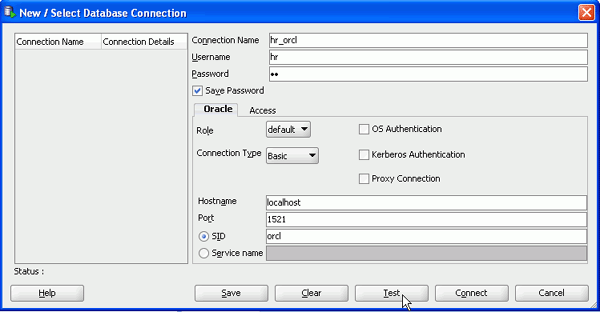
Enter the following and click Test: Connection Name: hr_orcl
|
|
. |
Your test was successful. Click Connect.
|
|
. |
Your connection was created successfully. You will create an EMPLOYEES2 table from the EMPLOYEES table for purposes of this tutorial. In the SQL Worksheet window, enter the following SQL command and click Run Statement. create table "HR".EMPLOYEES2 as select * from "HR".EMPLOYEES;
|
|
. |
Your table was created successfully.
|
|
. |
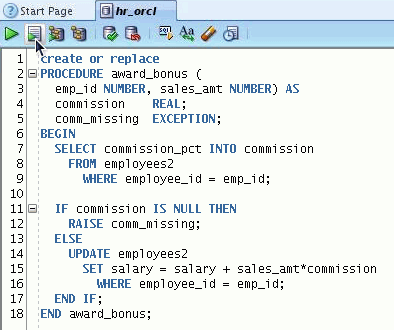
Now you want to create a procedure. In the SQL Worksheet window, enter the following script and click Run Script. This code is also in the file award_bonus.sql from the directory where you downloaded the zip file from the Prerequisites section. create or replace
|
|
. |
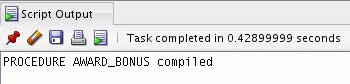
Your procedure was created successfully. In the next section, you will create a database user for the unit testing repository.
|



Creating a Database User for the Testing Repository
In this section, you create a database user called UNIT_TEST_REPOS. You create this user to hold the Unit Testing Repository data. Perform the following steps:
|
. |
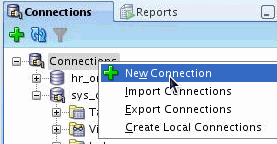
Create a connection for the SYS User. Right-click Connections and select New Connection.
|
|---|---|
|
. |
Enter the following information and click Connect. Connection Name: sys_orcl
|
|
. |
Your connection was created successfully. Expand the sys_orcl connection and right-click Other Users and select Create User.
|
|
. |
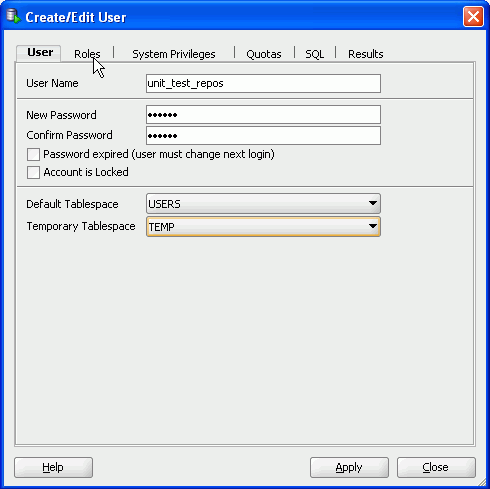
Enter the following information and select the Roles tab. Username:unit_test_repos
|
|
. |
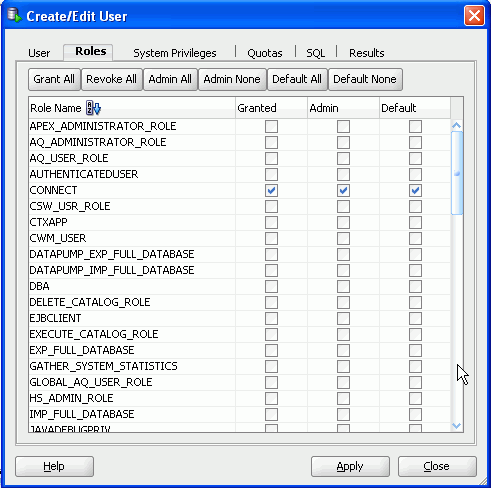
Select the Connect and Resource roles and click Apply.
|
|
. |
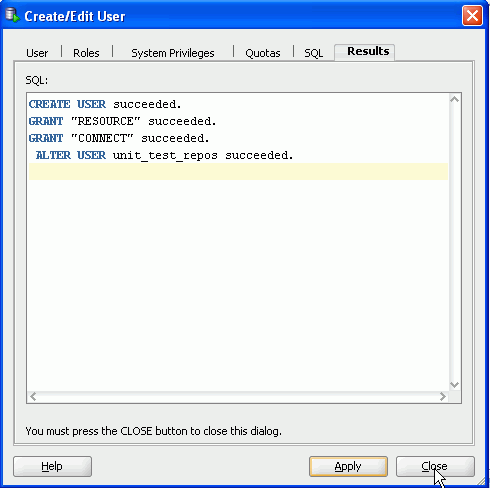
The unit_test_repos user was created successfully. Click Close.
|
|
. |
You now want to create a connection to the unit_test_repos user. This user will hold the unit testing repository data. Right-click Connections and select New Connection.
|
|
. |
Enter the following information and click Connect. Connection Name: unit_test_repos_orcl
The unit_test_repos user and unit_test_repos_orcl connection were created successfully.
|




Creating the Unit Testing Repository
In order to create a unit test, you need to create a unit testing repository. You will create the repository in the schema of the user that you created. Perform the following steps:
| . |
Select Tools >Unit Test > Repository, then select Select Current Repository.
|
|---|---|
| . |
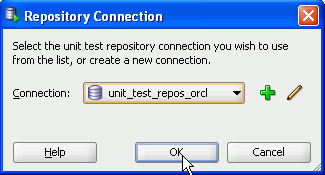
Select the unit_test_repos_orcl connection and click OK.
|
| . |
You would like to create a new repository. Click Yes.
|
| . |
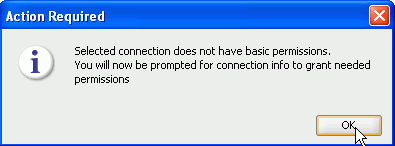
This connection does not have the permissions it needs to create the repository. Click OK to show the permissions that will be applied.
|
| . |
Login as the sys user and click OK.
|
| . |
The grant statement is shown. Click Yes.
|
| . |
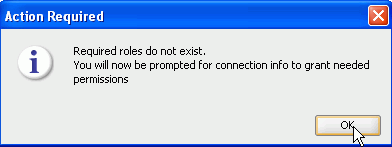
The UNIT_TEST_REPOS user needs select access to some required tables. Click OK.
|
| . |
The grant statements are displayed. Click Yes.
|
| . |
The UNIT_TEST_REPOS user does not currently have the ability to manage repository owners. Click OK to see the grant statements that will be executed.
|
| . |
The grant statements are displayed. Click Yes.
|
| . |
A progress window appears while the repository is created.
|
| . |
Your repository was created successfully. Click OK.
|






Creating a Unit Test
Now that the Unit Testing Repository has been created, you need to create a unit test for the PL/SQL procedure you created earlier in this tutorial. Perform the following steps:
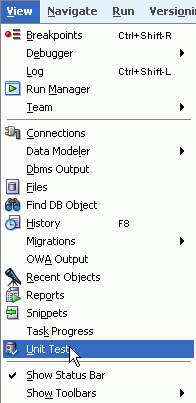
| . | Select View > Unit Test.
|
|---|---|
| . |
In the Unit Test navigator, right-click Tests and select Create Test.
|
| . |
In Select Operation, select the HR_ORCL connection that you used to create the AWARD_BONUS procedure.
|
| . |
Expand Procedures, select AWARD_BONUS and click Next.
|
| . |
In Specify Test Name window, make sure that AWARD_BONUS is specified for Test Name and that Create with single Dummy implementation is selected, then click Next.
|
| . |
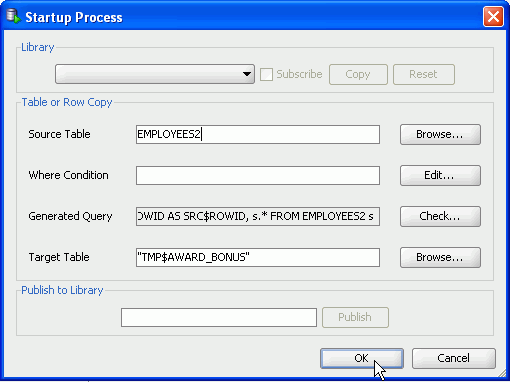
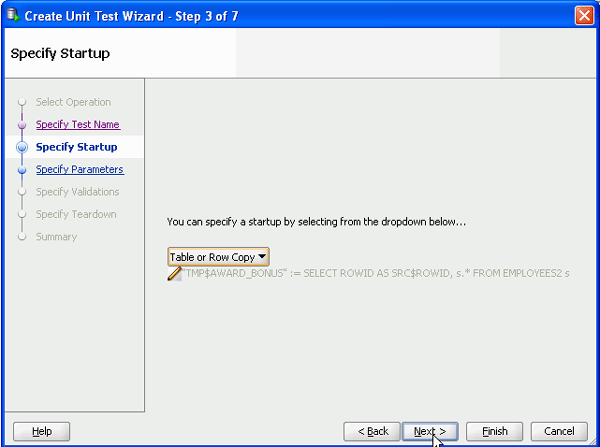
In Specify Startup window, select Table or Row Copy from the drop down list box.
|
| . |
Enter EMPLOYEES2 for Source Table and click OK. Note that the table affected by the test will be saved to a temporary table and query to the table is automatically generated.
|
| . |
Click Next.
|
| . |
In the Specify Parameters window, change the Input string for EMP_ID to 177 and SALES_AMT to 5000 and click Next.
|
| . |
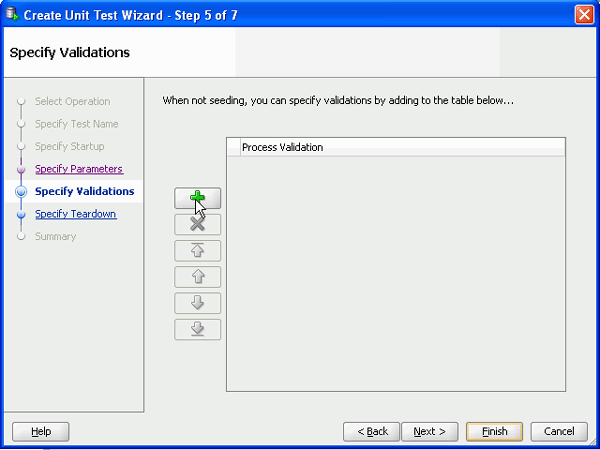
In the Specify Validations window, select the '+' icon to create a process validation.
|
| . |
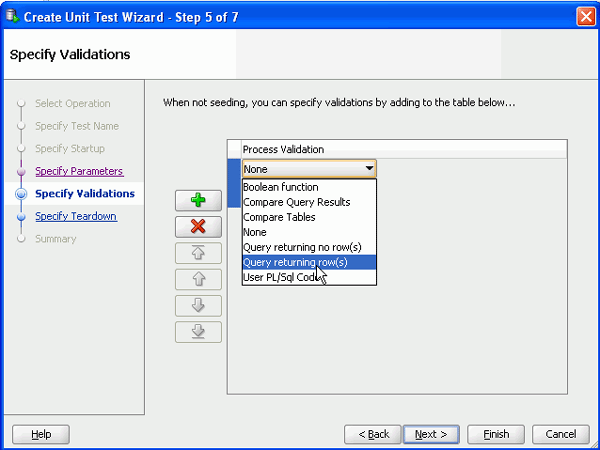
Select Query returning row(s) from the drop down list.
|
| . |
Specify the following query and click OK. This query will test the results of the change that the unit test performed. SELECT * FROM employees2 WHERE employee_id = 177 and salary = 9400;
|
| . |
Click Next.
|
| . |
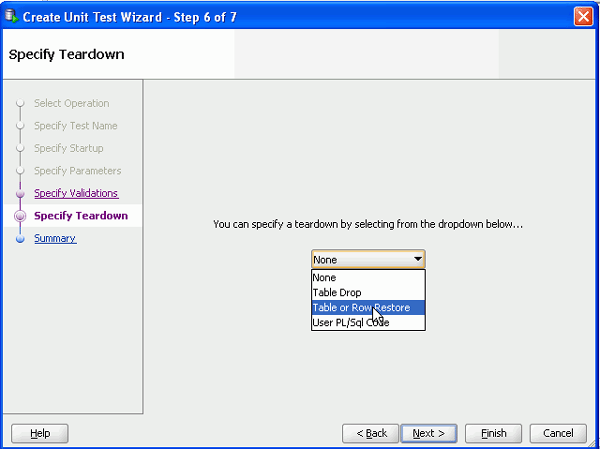
In the Specify Teardown window, select Table or Row Restore from the drop down list.
|
| . |
Change the Row Identifier to ROWID since the table you copied doesn't currently have a Primary Key and click OK.
|
| . |
Click Next.
|
| . |
Click Finish.
|
| . |
Expand Tests. Your test appears in the list.
|







Running the Unit Test
Next you will run the unit test to see if various values will work. Perform the following steps:
| . | Select the AWARD_BONUS test in the left navigator. Notice that the test details are displayed on the right panel.
|
|---|---|
| . |
Run the test by clicking the Debug Implementation
|
| . |
The results are displayed. Notice that the test ran successfully. Click Cancel.
|
| . |
Expand AWARD_BONUS in the navigator to see the detail nodes.
|
| . |
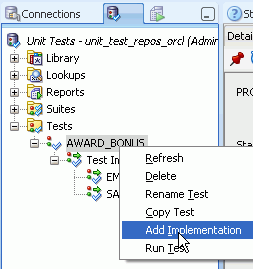
At this point you want to test when an Employee does not have a commission percent to see what will happen. You can create another implementation of this same test and then change the test parameters. Right-click AWARD_BONUS and select Add Implementation.
|
| . |
Enter empty_comm_pct for the Name and click OK.
|
| . |
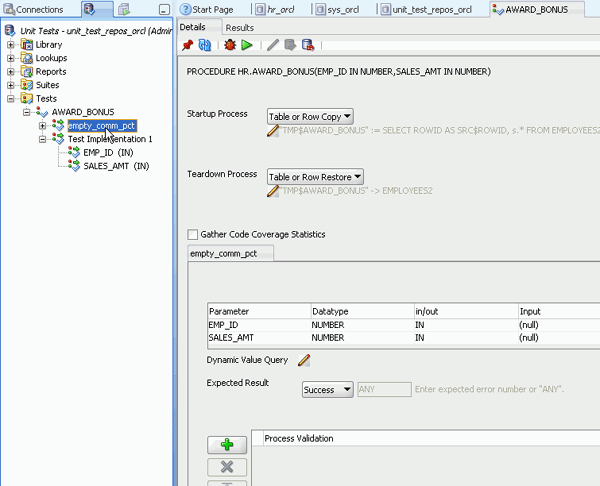
Select empty_comm_pct in the left navigator to show the test details for this implementation.
|
| . |
Change the Input parameter for EMP_ID to 101 and SALES_AMT to 5000. Click the Debug Implementation icon again.
|
| . |
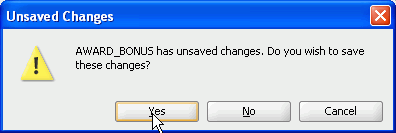
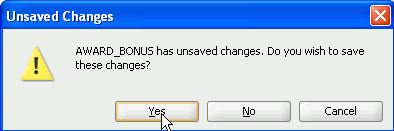
Click Yes to save your changes before running the test.
|
| . |
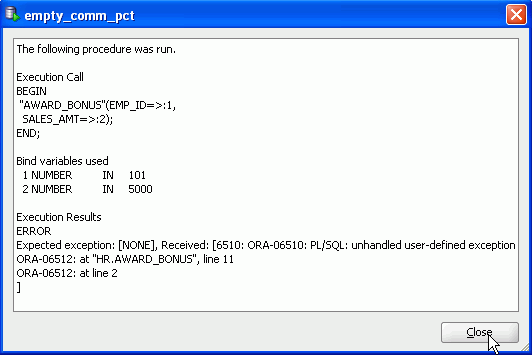
Notice that you received an error. This error indicates that there was an exception because a commission_pct does not exist for this employee. You want to specify this exception in your test. Click Close.
|
| . |
For Expected Result, select Exception and enter 6510 in the field next to it. This means that an error will not be found if the exception has an error code of 6510. Click the Debug Implementation icon.
|
| . |
Click Yes to confirm changes.
|
| . |
Notice that the test executed successfully this time because the exception was handled. Click Close.
|
| . |
At this point, you want to run the test
and save the results. Click the
|
| . |
Your test run has been saved with results for both implementations.
|

 icon.
icon.






 icon.
icon.

Summary
In this tutorial, you have learned how to:
- Create a unit test repository
- Create a unit test
- Review the results of the unit test
Resources
To learn more about Oracle SQL Developer, you can review the following:
|
Related Documentation |
Description |
|
Online Help |
To access this help, Select the Help menu within Oracle SQL Developer. Search on topics of interest. |
| Oracle SQL Developer on OTN | This page provides access to all the information related to Oracle SQL Developer including documentation, downloads, tutorials, etc. |


|
About
Oracle |Oracle and Sun |  | Careers | Contact
Us | Site Maps | Legal
Notices | Terms of Use | Your Privacy Rights | Careers | Contact
Us | Site Maps | Legal
Notices | Terms of Use | Your Privacy Rights
|