Optimizing Data Access Performance with ODP.NET
Overview
Purpose
This tutorial teaches several coding techniques to enhance ODP.NET data access performance. These .NET techniques are exclusive for Oracle database development.
Time to Complete
Approximately 30 minutes
Introduction
The Oracle database has numerous methods to optimize query execution and data retrieval to clients. ODP.NET enables these performance optimizations, allowing .NET developers to build more efficient database programs. This tutorial covers some of the most commonly used ODP.NET performance tuning methods.
The first section discusses statement caching. Statement caching eliminates the need to re-parse each executed SQL or PL/SQL statement by caching server cursors created during the initial statement execution. Subsequent executions of the same statement can reuse the parsed information from the cursor, and then execute the statement without re-parsing for better performance. In order to see performance gains from statement caching, Oracle recommends caching only those statements that will be repeatedly executed. The newest ODP.NET versions automate this task by self-tuning the statement cache. Furthermore, SQL or PL/SQL statements should use parameters rather than literal values. Doing so takes full advantage of statement caching since parsed information from parameterized statements can be reused even if the parameter values change in subsequent executions.
The second section shows how to control the amount of data retrieved per database round trip by using the ODP.NET FetchSize and RowSize properties. It can be inefficient to make multiple round trips to retrieve one distinct set of data. These two properties allow developers to fine-tune the amount of data to retrieve from the database server so that fewer database round trips need to be used.
The third section demonstrates how to pass a PL/SQL associative arrays between ODP.NET and the Oracle database. PL/SQL associative arrays allow Oracle to pass large amounts of data of the same datatype to .NET arrays. This method provides a flexible and easy way to batch data together in a single parameter to pass between the two tiers as needed.
The fourth section shows how to batch SQL, use the Oracle REF Cursor, and demonstrates multiple active result sets (MARS). Batching SQL allows developers to execute multiple SQL statements in a single database round trip. The Oracle REF Cursor is a data type unique to the Oracle database. It provides unique result set handling capabilities that allow for flexible data handling and tuning. MARS has been a feature that Oracle has always supported. This allows for a single connection to have more than one result set active at the same time.
Note: Performance gains seen in this demonstration may not necessarily reflect results seen in production environments. Real-world results may be better or worse than the demonstration's results, depending on set up, hardware, database configuration, etc. differences. For example, if you run this demonstration with the client and server on the same machine, improvements gained from reducing the number of database round trips will be greater in a production environment where the client and server are generally on two different machines.
This tutorial uses ODP.NET, Unmanaged Driver, but you can also use these same techniques with ODP.NET, Managed Driver.
Prerequisites
Before starting this tutorial, you should:
-
Install Microsoft Visual Studio 2013 or later.
-
Install Oracle Database 12c or later.
-
Install Oracle Data Access Components (ODAC) 12.1.0.1.2 or later from OTN. The ODAC download includes Oracle Developer Tools for Visual Studio and ODP.NET that will be used in this lab.
-
Extract these files into your working directory.
Using Statement Caching
Statement caching is beneficial when you repeatedly execute the same SQL or PL/SQL statements. By default, ODP.NET will cache the most recently used statements and will automatically adjust the cache size to accommodate the number of statements being frequently executed. Cached statements improve performance by retaining the statement's parse tree and allowing it to be quickly looked up. Because statement caching is on by default, there is no setup required. This part of the tutorial will merely demonstrate statement caching's benefit by turning it on and off explicity. Perform the following steps:
-
Open Visual Studio. Select File > Open > Project/Solution. Navigate to the OptimizingDotNet files you have downloaded in your working directory as part of the prerequisites and select the ODP.NET Performance Best Practices solution and click Open.

-
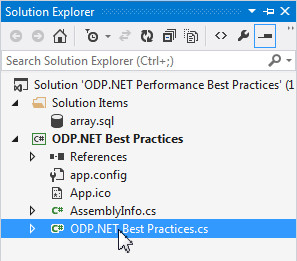
Select View > Solution Explorer.

-
Double-click ODP.NET Best Practices.cs to open the code for this tutorial.
-
Review your connection string to allow the ODP.NET application to connect to Oracle's sample HR schema. You may have to modify the Password and Data Source values for the conString String variable.
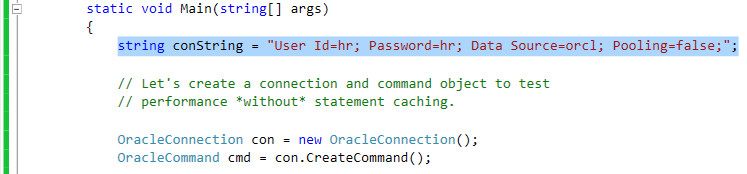
Scroll down to the Demo 1 section of the code. Note, the code file is interspersed with comments to mark areas where you need to enter code in the following steps. Make sure you enter the relevant code under the relevant comment section. This is done to ensure the code is entered in proper sequence and to avoid mixing up of code in the file.
Note: In this OBE, connection pooling is turned off, which disables ODP.NET statement cache self-tuning. Self-tuning automatically optimizes the statement cache size based on run-time sampling, which saves developers from having to manually tune. However, to demonstrate statement caching's benefits, self-tuning has been disabled in this OBE.
-
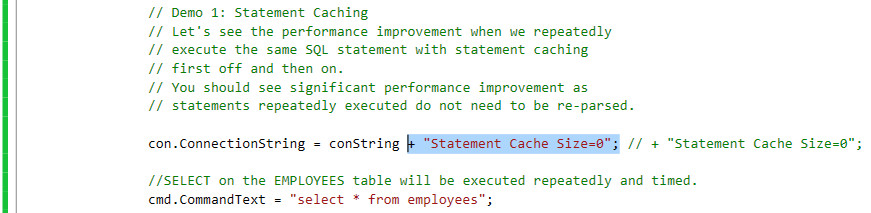
To see how statement caching works, you will execute a statement 10,000 times with Statement Cache Size set to 0.
Set the Statement Cache Size to 0. Append the following code to the con.ConnectionString statement, as shown in the screenshot below:
"Statement Cache Size=0";
-
Further down in the same file, the same code is executed, but with statement caching on. Set Statement Cache Size to 1 and re-execute the statement 10,000 times. Scroll down and append the following code to the con.ConnectionString statement, as shown in the screenshot below:
"Statement Cache Size=1";
The application calculates the performance percentage improvement with caching enabled for the statement.

-
Now that you have reviewed the code, you can execute the application to see the results. Select Build > Build Solution.
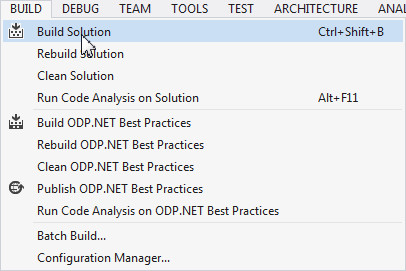
The output window should not show any errors. The code should compile successfully.

-
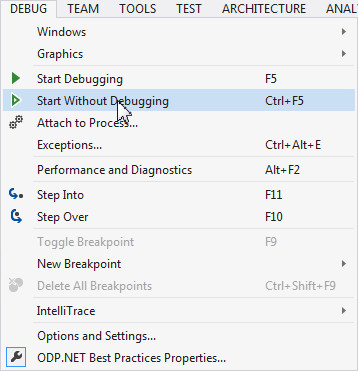
Select Debug > Start Without Debugging or press Ctrl+F5.
A command window opens. Wait for the output. Do not close the window.
-
Your results may differ slightly from the results in the screenshot.
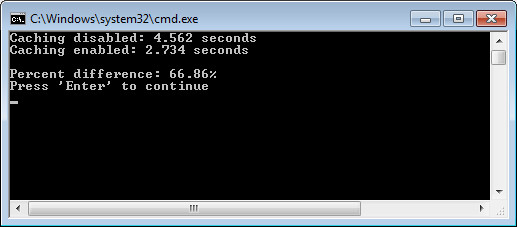
As you can see, there can be a substantial performance improvement when using statement caching for SQL or PL/SQL statements that are repeatedly executed.
Do not press Enter. To continue program execution, add code in the program in subsequent topics. Close the command window.
Using FetchSize and RowSize
Controlling the amount of data fetched per database round trip can optimize application performance. For example, it is inefficient to retrieve five rows of data per round trip when the end user needs to use ten rows. Instead of making two round trips, one round trip should have been made for optimum performance. ODP.NET provides the query row size via the RowSize property, allowing developers to then specify a FetchSize using a set number of rows to be retrieved per round trip. This feature makes optimizing data retrieval much simpler for .NET programmers.
In this topic, you run a query that fetches one row at a time and then run the same query that fetches 100 rows at a time to see the performance improvement from making fewer round trips. Perform the following steps:
-
Execute a query with FetchSize set to 1 row on the OracleDataReader.
When ODP.NET executes an OracleCommand, it first retrieves metadata on how large the row size is and populates the RowSize property. A developer can then set the number of rows to retrieve from the database per round trip by multiplying RowSize by that number. In this example, you are only retrieving one row per round trip.
Scroll down to the Demo 2 section of the code. Locate the For loop. Enter the following code:
reader.FetchSize = cmd.RowSize * 1;

-
Since RowSize is determined at runtime, the query or underlying table can change, but the same number of rows will still be retrieved per round trip. Compare the time difference between when FetchSize is set to 100 rows in this step and the time when FetchSize was set to one row.
Scroll down to the next For loop. Enter the following code:
reader.FetchSize = cmd.RowSize * 100;

-
Note: You can comment out the For loops in the Demo 1 section you ran in the previous topic to avoid spending time on the demo you already executed. Commenting out just the loops will not affect the results for the remaining tutorial topics.
If you do not comment the For loops in the Demo 1 section, then press Enter after you get the Demo 1 section's results to continue program execution for this section.
Now that you have reviewed the code, you can execute the application to see the results. Select Build > Build Solution.
-
Select Debug > Start Without Debugging or press Ctrl+F5.
-
Note that your results may differ slightly from the results in the screenshot.

Do not press Enter. To continue program execution, you add code in subsequent topics. Close the command window.
Passing Array Parameters
In this topic, you learn how to pass array parameters between .NET and Oracle Database. Array parameters allow large amounts of data of the same type to be passed as a single parameter. This example uses a stored procedure that takes an input array parameter and returns an output array parameter.
-
In the Solution Explorer, right-click array.sql and select Open.

-
Review the procedure. Note that a PL/SQL package MYPACK is created with a PL/SQL stored procedure MYSP. PL/SQL must be used since a PL/SQL associative array is used. The stored procedure has a PL/SQL associative array input parameter that just passes its values back as an output PL/SQL associative array. Select all the code in the file and press Ctrl+C to copy it to the clipboard.

-
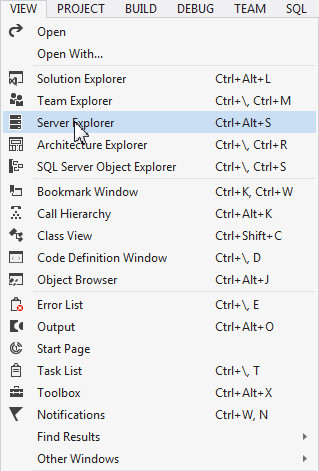
Select View > Server Explorer.
-
You need to create a data connection for the HR user. You can review how to do this in Oracle Developer Tools for Visual Studio tutorial. Right-click the HR.ORCL connection and select Query Window. In this example, ORCL is the database alias, which may be different from the database alias on your system.

-
Press Ctrl+V to paste the code in the Query Window. Select all the text in the Query Window and click Execute.

-
Once the stored procedure has executed successfully, switch back to ODP.NET Best Practices.cs code to review the code.

-
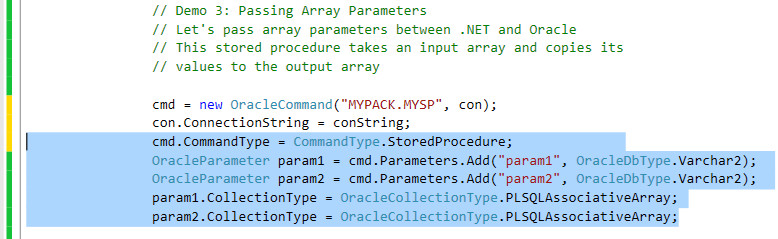
Scroll down to Demo 3 section. Enter the following code:
cmd.CommandType = CommandType.StoredProcedure;
OracleParameter param1 = cmd.Parameters.Add("param1", OracleDbType.Varchar2);
OracleParameter param2 = cmd.Parameters.Add("param2", OracleDbType.Varchar2);
param1.CollectionType = OracleCollectionType.PLSQLAssociativeArray;
param2.CollectionType = OracleCollectionType.PLSQLAssociativeArray;
This code sets up the call to the MYPACK.MYSP stored procedure and binds its array parameters. The arrays' elements contain values of data type Varchar2. The code then sets the parameters as PL/SQL associative arrays, which is an Oracle database collection data type.
-
Now, setup the parameter direction (input or output) and then specify the value for each parameter. Set the param2 value to NULL as its value will be populated when the stored procedure executes.
Enter the following code:
param1.Direction = ParameterDirection.Input;
param2.Direction = ParameterDirection.Output;
param1.Value = new string[3]{"Oracle", "Database", "Rules"};
param2.Value = null;
-
Then you specify the maximum number of elements in the arrays (in this case, 3) and the maximum size of the varchar2 (in this case, 20 characters).
Enter the following code:
param1.Size = 3;
param2.Size = 3;
param1.ArrayBindSize = new int[3]{20,20,20};
param2.ArrayBindSize = new int[3]{20,20,20};
To execute the stored procedure and output the results, enter the following code:
con.Open(); cmd.ExecuteNonQuery(); con.Close(); for(int i=0; i<3; i++) { Console.Write((param2.Value as OracleString[])[i]); Console.WriteLine(); } - Note that you can comment out the For loops in the Demo 1 and
Demo 2 sections you ran in the previous topics to avoid spending
time on the demos you already executed. Commenting out just the
loops will not affect the results for the remaining tutorial
topics. It saves you time from repeatedly executing the loops
again. If you do not comment the For loops in the Demo 1 and
Demo 2 sections, then press Enter twice (after results for
previous demos are shown) to continue program execution for this
section.
Now that you have reviewed the code, you can execute the application to see the results. Select Build > Build Solution.
-
Select Debug > Start Without Debugging or press Ctrl+F5.
-
Examine the results.
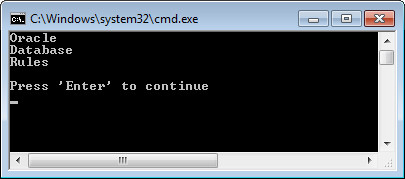
Do not press Enter. To continue program execution, you add code in the program in the subsequent topic. Close the command window.
Using Batch SQL, REF Cursors and Multiple Active Result Sets
Many times you want to execute multiple SQL statements in a single batch to save the number of database round trips. In ODP.NET, this is accomplished via anonymous PL/SQL syntax. Anonymous PL/SQL can be used to batch any number of queries, updates, inserts, and, deletes.
Anonymous PL/SQL is just a string of text following PL/SQL syntax that contains a "BEGIN" keyword and terminates with an "END;". Within these keywords lies the SQL statements to execute in a single round trip.
In this topic, use anonymous PL/SQL to execute three queries in a single database round trip. To retrieve the results, use Oracle REF Cursors to show how data can be flexibly retrieved from the database. With REF Cursors, you can choose to retrieve only data you require from the result set. Lastly, observe that ODP.NET can maintain multiple active result sets open for the same connection. Perform the following steps:
-
Create an anonymous PL/SQL block with three queries to be batched. Set that block to a string parameter, which will be executed as command text. Parameters are bound so that ODP.NET can return the query results to the client. Oracle executes anonymous PL/SQL like any other text command. As such, the command is bound as CommandType.Text.
Scroll down to the Demo 4 section of the code. Enter the following code:
string cmdtxt = "BEGIN " +
"OPEN :1 for select FIRST_NAME, DEPARTMENT_ID from EMPLOYEES where DEPARTMENT_ID = 10; " +
"OPEN :2 for select FIRST_NAME, DEPARTMENT_ID from EMPLOYEES where DEPARTMENT_ID = 20; " +
"OPEN :3 for select FIRST_NAME, DEPARTMENT_ID from EMPLOYEES where DEPARTMENT_ID = 30; " +
"END;";

cmd = new OracleCommand(cmdtxt, con);
cmd.CommandType = CommandType.Text;
con.ConnectionString = conString;
-
You then bind three output REF Cursors to the command. In this case, you select employees in departments 10, 20 and 30 each into a different REF Cursor.
Enter the following code:
OracleParameter p1 = cmd.Parameters.Add("refcursor1", OracleDbType.RefCursor);
p1.Direction = ParameterDirection.Output;
OracleParameter p2 = cmd.Parameters.Add("refcursor2", OracleDbType.RefCursor);
p2.Direction = ParameterDirection.Output;
OracleParameter p3 = cmd.Parameters.Add("refcursor3", OracleDbType.RefCursor);
p3.Direction = ParameterDirection.Output;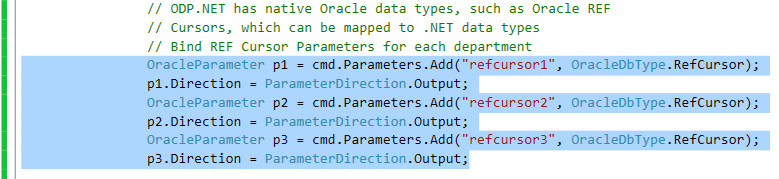
-
Execute the batched statements and then retrieve the data from the 2nd and 3rd parameter without having to fetch the results from the first parameter. This is one of the benefits of using REF Cursors whereby you can retrieve data only when the client requires it. With REF Cursors, you can selectively choose data within a result set to fetch as well. With MARS, you can observe that both OracleDataReaders are actively reading data at the same time.
Enter the following code after the relevant comments:
cmd.ExecuteNonQuery();
OracleDataReader dr1  = ((OracleRefCursor)
cmd.Parameters[2].Value).GetDataReader();
OracleDataReader dr2 = ((OracleRefCursor)
cmd.Parameters[1].Value).GetDataReader();
Add a while loop to retrieve both DataReaders at one time to test if MARS works. Enter the following code to output the results of the two REF Cursors:
while (dr1.Read() && dr2.Read())
{
 Console.WriteLine("Employee Name: " + dr1.GetString(0) + ", "
 + "Employee Dept:" + dr1.GetDecimal(1));
 Console.WriteLine("Employee Name: " + dr2.GetString(0) + ", "
 + "Employee Dept:" + dr2.GetDecimal(1));
 Console.WriteLine();
}
-
Now that you have reviewed the code, you can execute the application to see the results. Select Build > Build Solution.
-
Select Debug > Start Without Debugging or press Ctrl+F5.
-
Examine the results.
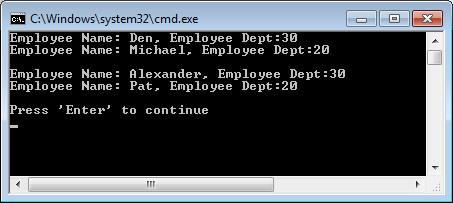
Summary
In this tutorial, you have learned how to:
- Use statement caching
- Use FetchSize and RowSize
- Pass array parameters
- Use batch SQL, REF Cursors, and Multiple Active Result Sets (MARS)
Resources
- Visit the Oracle Technology Network Portal to learn the latest developments in Oracle .NET.
- To learn more about Oracle .NET with Visual Studio refer to additional OBEs in the Oracle Learning Library.
Credits
- Lead Curriculum Developer: Ashwin Agarwal
- Other Contributors: Alex Keh, Christian Shay
To navigate this Oracle by Example tutorial, note the following:
- Topic List:
- Click a topic to navigate to that section.
- Expand All Topics:
- Click the button to show or hide the details for the sections. By default, all topics are collapsed.
- Hide All Images:
- Click the button to show or hide the screenshots. By default, all images are displayed.
- Print:
- Click the button to print the content. The content that is currently displayed or hidden is printed.
To navigate to a particular section in this tutorial, select the topic from the list.