Building ASP.NET Web Applications with Oracle Developer Tools for Visual Studio
Overview
Purpose
This tutorial describes how you can build ASP.NET web applications that access Oracle Database using Oracle Developer Tools for Visual Studio.
Time to Complete
Approximately 20 minutes.
Introduction
Oracle Developer Tools for Visual Studio is a tightly integrated "add-in" for Visual Studio. This tight integration makes it easy to create ASP.NET Web Applications that access Oracle database with minimal coding.
Prerequisites
Before starting this tutorial, you should:
-
Install Microsoft Visual Studio 2013 or later.
-
Install Oracle Database 12c or later.
-
Install Oracle Data Access Components (ODAC) with Oracle Developer Tools for Visual Studio version 12.1.0.1.2 or later from OTN.
Creating a Web Site
To create an ASP.NET web site, perform the following steps:
-
From your Windows Start menu, start Visual Studio.
-
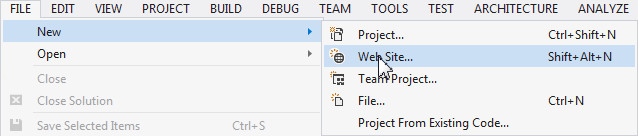
From File menu, select New > Web Site.
-
In the New Web Site window, select Visual C# : ASP.NET Web Forms Site and click OK.

-
The project opens.

Creating the GridView
To create a gridview, perform the following steps:
-
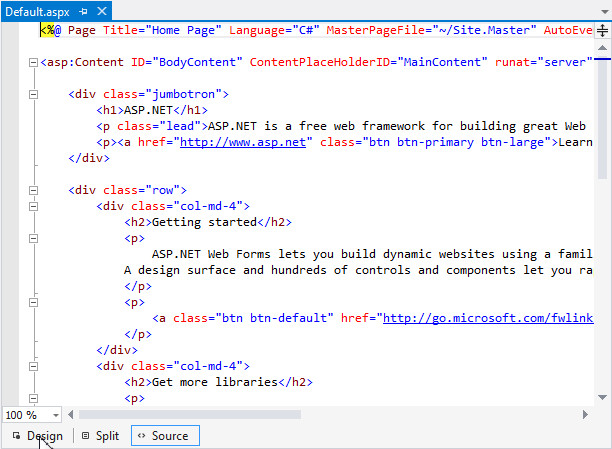
In the Default.aspx tabbed page, click the Design tab.
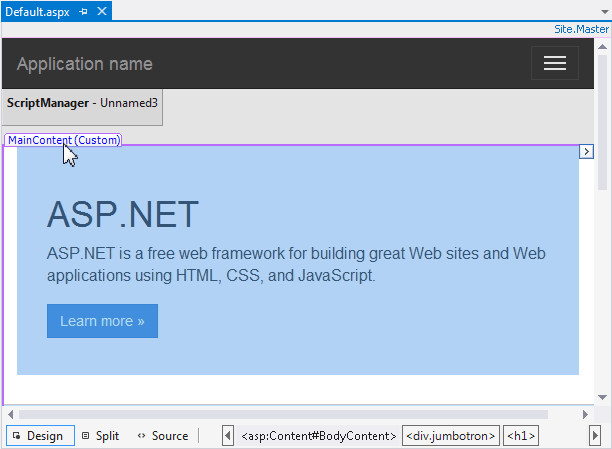
Highlight the text in the "MainContent" subsection in the lower half of the design form.
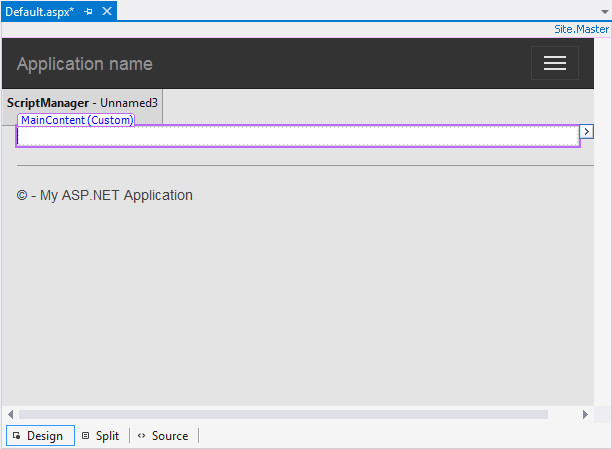
Delete all the text by clicking the delete key.
-
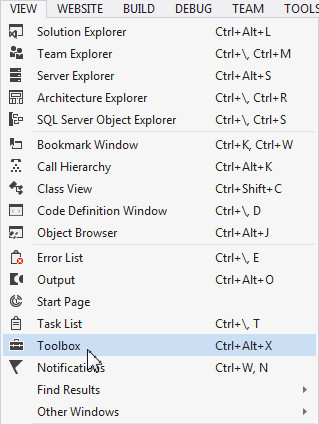
From the View menu, select Toolbox.
-
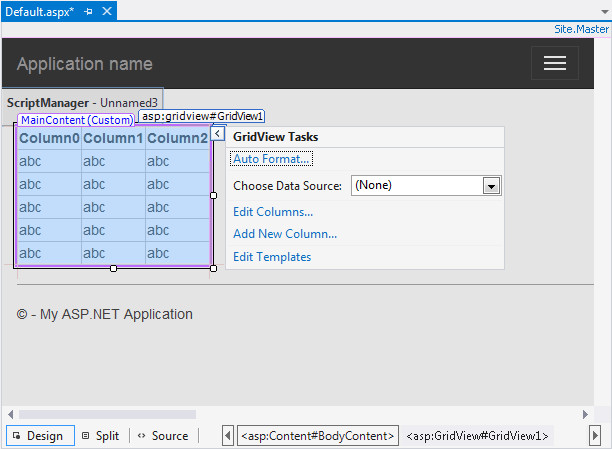
Scroll down. In the toolbox, expand Data. Drag the GridView control to the Design area.

The design area gets the GridView control as shown in the screenshot below.
Creating a Data Source
To create a new data source, perform the following steps:
-
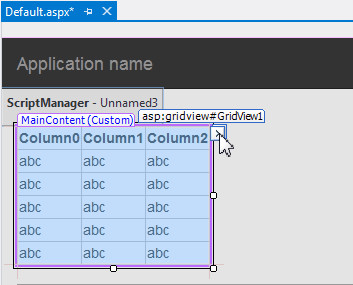
If you do not see the GridView Tasks pane, click the > symbol to get it, as highlighted in the screenshot.
Select <New data source...> from the Choose Data Source drop down.
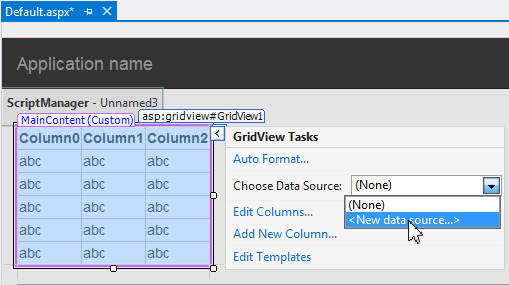
A Data Source Configuration wizard starts.
-
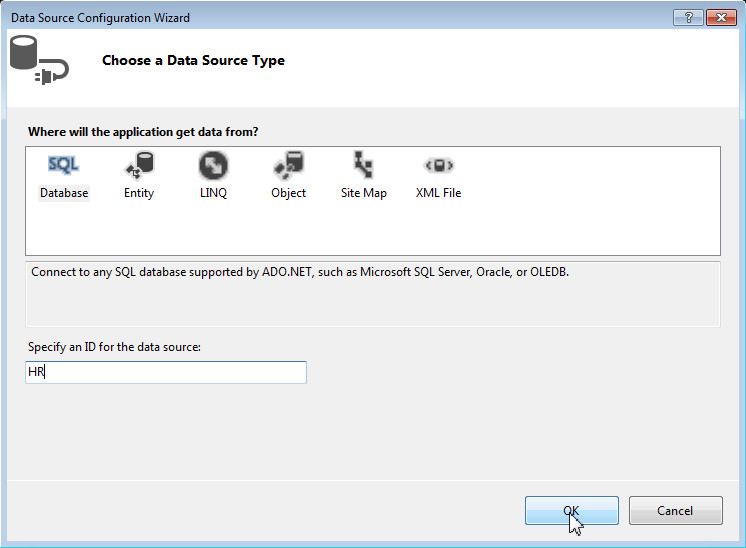
Select Database. Enter HR as the ID for the data source. Click OK.
-
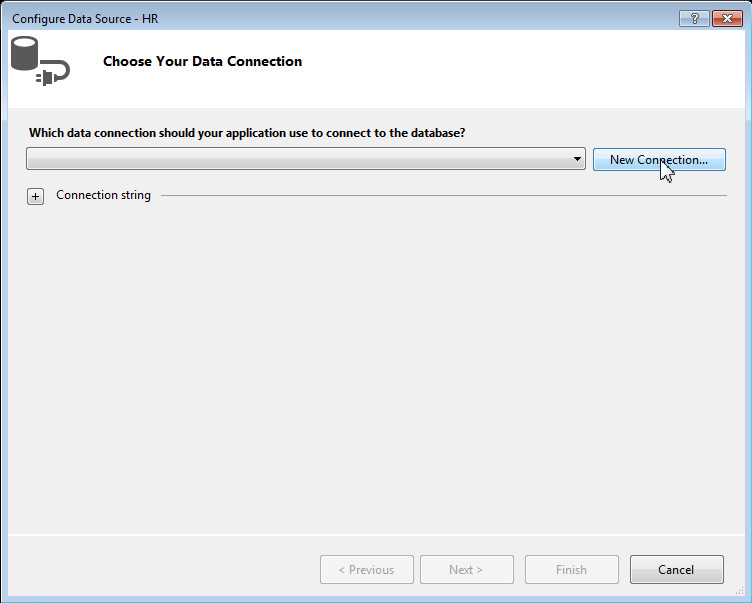
Click New Connection...
-
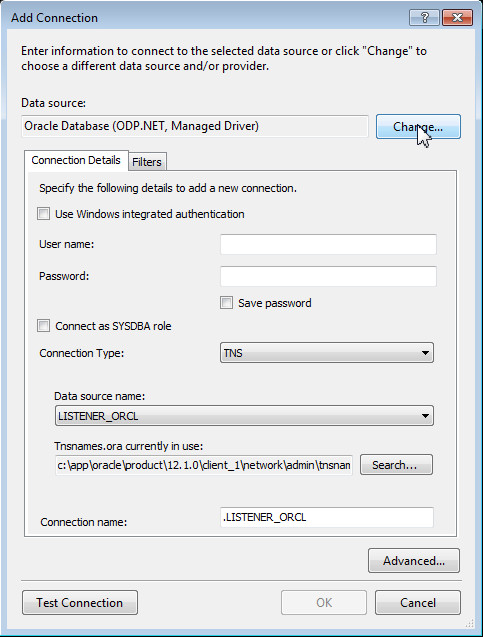
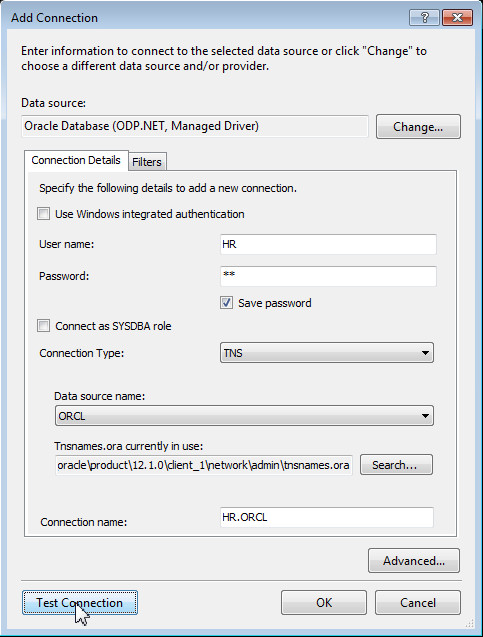
In the Add Connection window, the Data source selected should be Oracle Database (ODP.NET, Managed Driver). If the Data source is different then click "Change..." and change the Data source.
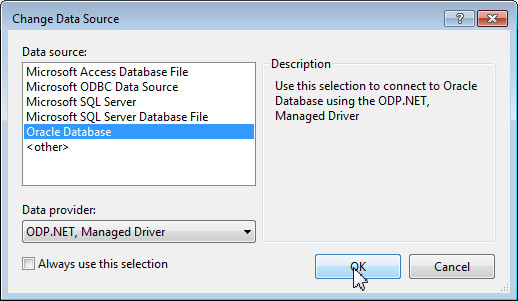
To change the Data source, select Oracle Database as the Data source and ODP.NET, Managed Driver as the Data Provider. Click OK.
-
Enter HR for the Username and Password. Select the "Save password" checkbox. Select ORCL for Data source name or choose one that provides access to the HR schema. Click Test Connection.
-
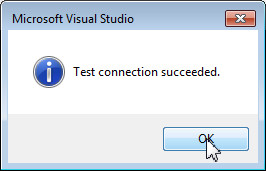
Your test was successful. Click OK.
-
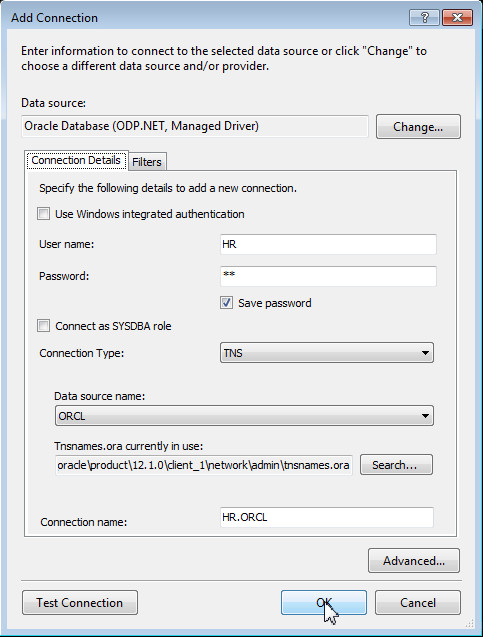
Click OK.
-
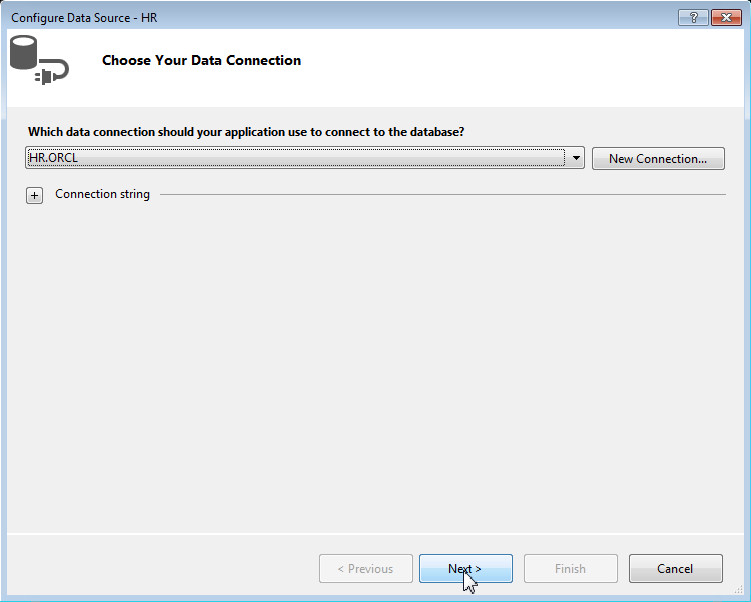
Click Next.
-
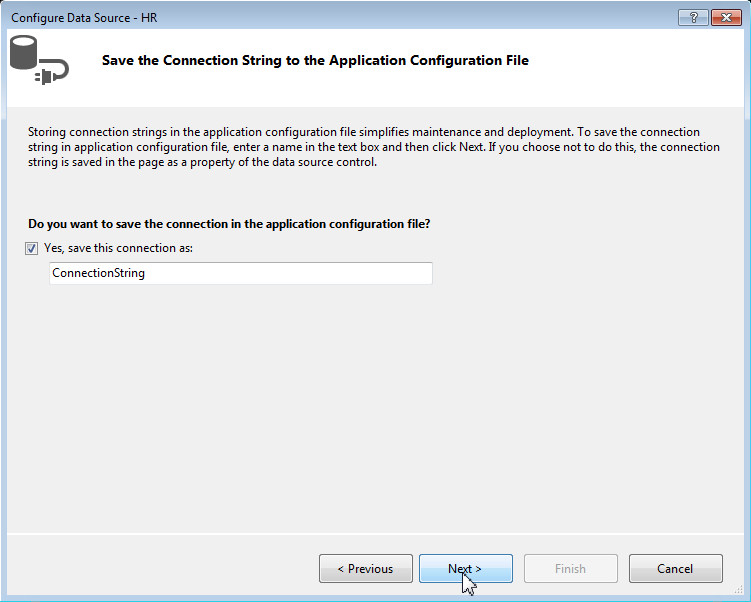
Click Next to save the Connection String in the application configuration file.
-
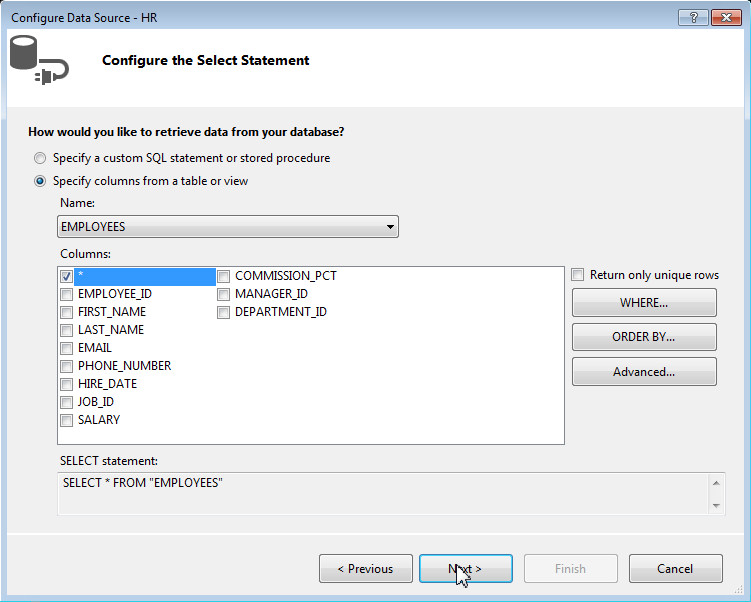
Select the EMPLOYEES table from the Name drop down. Click the checkbox in front of *. Click Next.
-
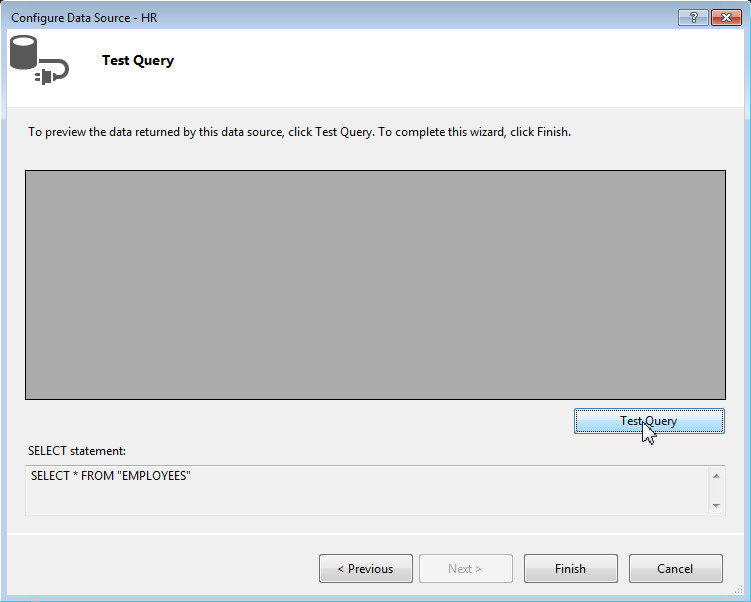
Click Test Query.
-
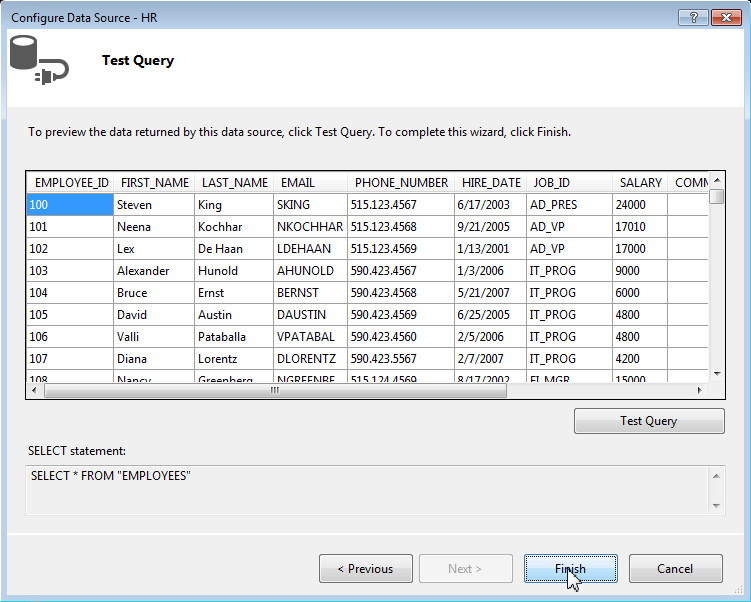
The result of your query is shown. Click Finish.
-
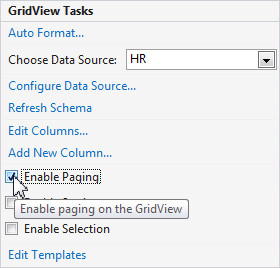
Select the Enable Paging checkbox from the GridView Tasks window.
Executing your Web Site
To run the ASP.NET web application, perform the following steps:
-
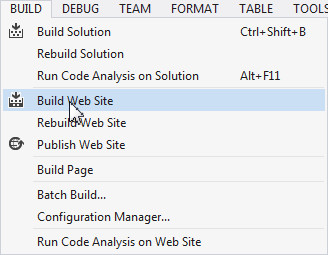
Select Build > Build Web Site.
-
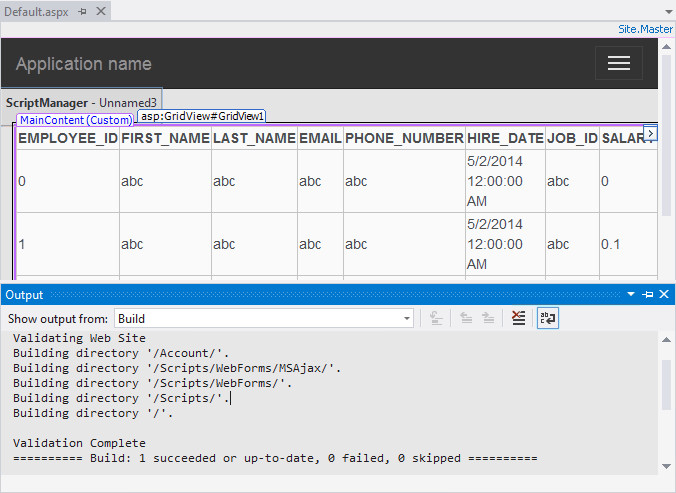
Your website was built.
Note: You may receive a script warning message that can be safely ignored.
-
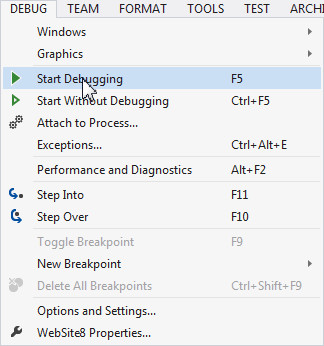
Select Debug > Start Debugging.
-
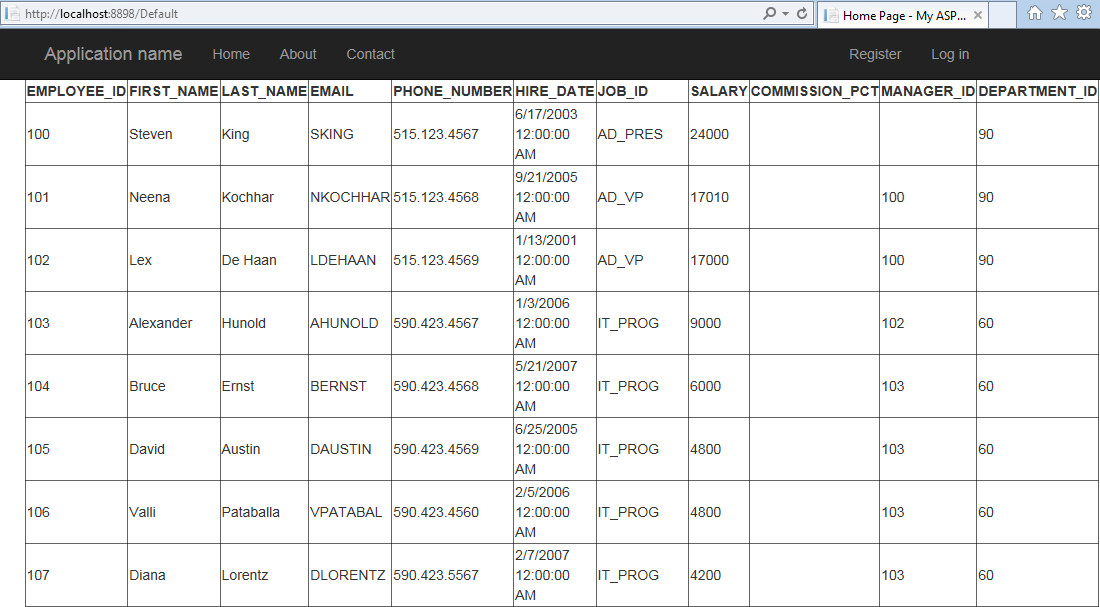
A web browser will open showing the web application with the query results. You can page through the results.
Note: If you are using Internet Explorer, make sure that it is not in "Work Offline" mode as it doesn't operate as expected in this mode.
-
When finished with the application, click "Stop Debugging" icon in Visual Studio.

Summary
In this tutorial, you have learned how to:
- Create an ASP.NET web site
- Create a GridView
- Create and configure a new Data Source
- Execute your web site
Resources
- You may visit the Oracle Technology Network Portal to know the latest developments in Oracle .NET.
- To learn more about Oracle .NET with Visual Studio refer to additional OBEs in the Oracle Learning Library.
Credits
- Lead Curriculum Developer: Ashwin Agarwal
- Other Contributors: Alex Keh, Christian Shay
To navigate this Oracle by Example tutorial, note the following:
- Topic List:
- Click a topic to navigate to that section.
- Expand All Topics:
- Click the button to show or hide the details for the sections. By default, all topics are collapsed.
- Hide All Images:
- Click the button to show or hide the screenshots. By default, all images are displayed.
- Print:
- Click the button to print the content. The content that is currently displayed or hidden is printed.
To navigate to a particular section in this tutorial, select the topic from the list.