Interacting With the Database From a Websheet Application
Purpose
This tutorial shows you how to interact with the database from a Websheet Application in Oracle Application Express 4.1.
Note: Some screenshots in this tutorial may be slightly different depending on what browser you use.
Time to Complete
Approximately 30 minutes
Overview
Websheet applications are collections of pages that support wiki syntax. Each page can be organized into sections. Pages can also be organized into a hierarchy. Sections can be edited using a friendly editor.
Prerequisites
Before starting this tutorial, you should:
- Install Oracle Database 11g.
- Install Oracle Application Express 4.1.
- Download and unzip the files.zip file into a working directory to use during this tutorial.
- Complete the Building a Websheet Application in Application Express 4.1 and Manipulating a Data Grid in a Websheet Application tutorials.
Editing Application Properties
To interact with the database from a websheet application, you need to edit the application properties. Perform the following steps:
|
. |
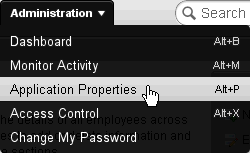
Click the Administration button and select Application Properties.
|
|---|---|
|
. |
Expand the SQL and PL/SQL region and click Edit SQL and PL/SQL Access and Suggested Objects.
|
|
. |
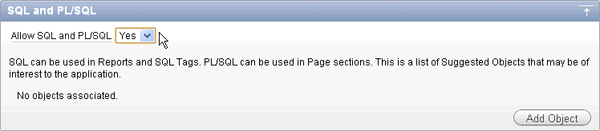
The Application Properties page in the Application Express development environment opens. Select Yes for Allow SQL and PL/SQL.
|
|
. |
Click Apply Changes.
|
|
. |
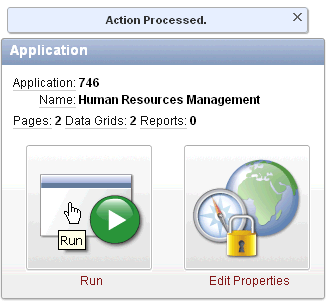
Click Run to view the application.
|
|
. |
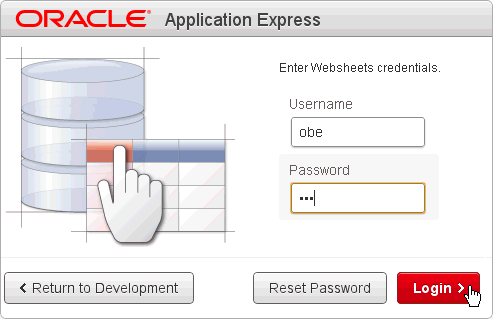
Enter the credentials you used to log in to your Application Express workspace and click Login >.
|


Creating a Report
In this topic, you will create a report in a websheet application based on a table from the database. Perform the following steps:
|
. |
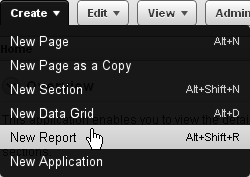
Click the Create button and select New Report.
|
|---|---|
|
. |
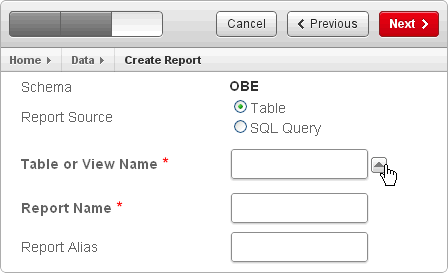
Ensure Table is selected and click the up icon for Table or View Name.
|
|
. |
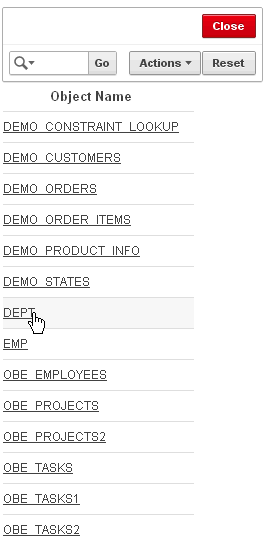
Select the DEPT link.
|
|
. |
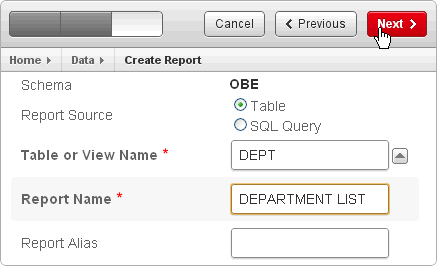
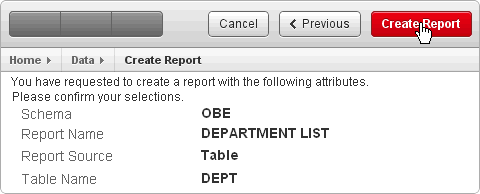
Enter DEPARTMENT LIST for Report Name and click Next >.
|
|
. |
Click Create Report.
|
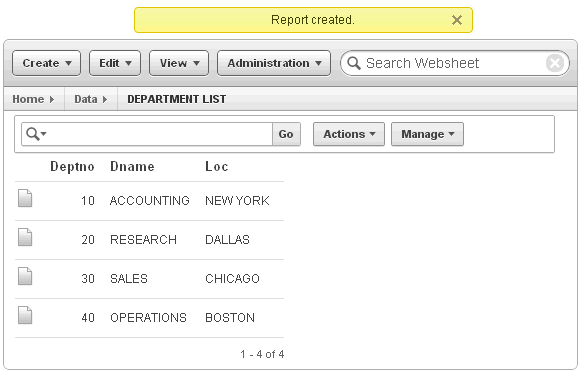
| . | The report is created successfully.
|
Creating a Data Section Based on a Report
In this topic, you will create a new page in the websheet application and create a data section based on the report you created in the previous section. Perform the following steps:
|
. |
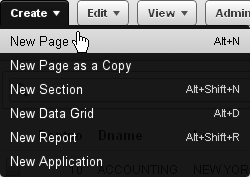
Click the Create button and select New Page.
|
|---|---|
|
. |
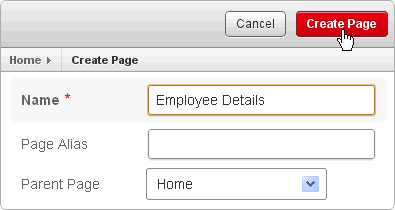
Enter Employee Details in the Name field and click Create Page.
|
|
. |
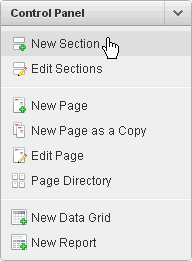
Click New Section from the Control Panel.
|
|
. |
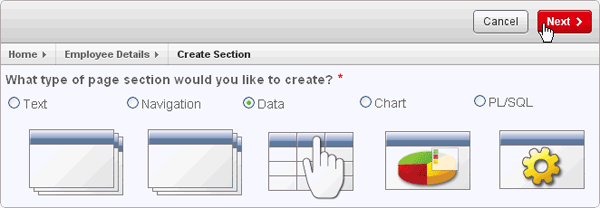
Select Data and click Next >.
|
|
. |
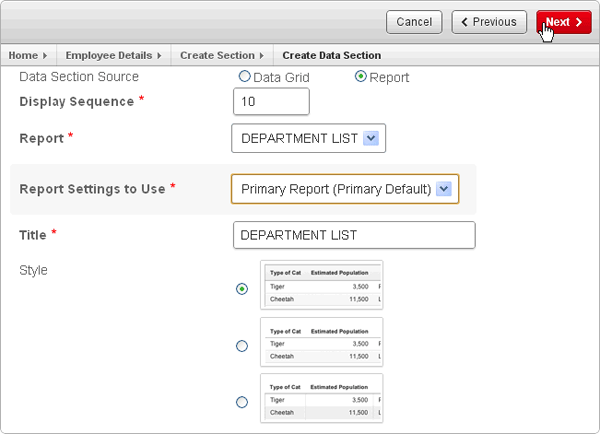
Select Report for Data Section Source and DEPARTMENT LIST for Report. Select Primary Report for Report Settings to Use and click Next >.
|
|
. |
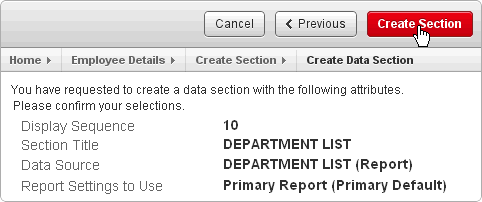
Click Create Section.
|
|
. |
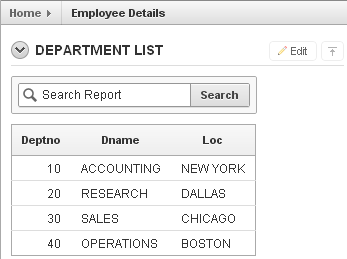
A report is created as a new section in the page.
|
Creating a Section Using SQL and SQLVALUE tags
You can include tabular results of a SQL query in your pages by using the syntax [[SQL:<query>]]. You can also include a single value within a sentence by using the syntax [[SQLVALUE:<query>]]. Perform the following steps:
|
. |
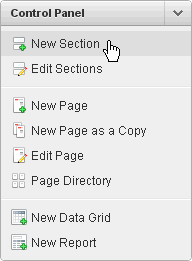
Select New Section from the Control Panel.
|
|---|---|
|
. |
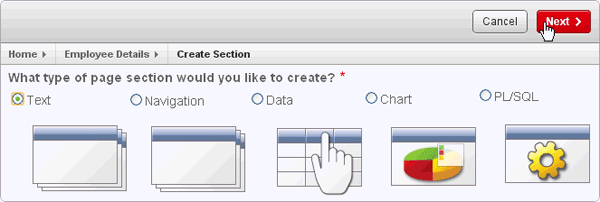
Ensure that Text is selected and click Next >.
|
|
. |
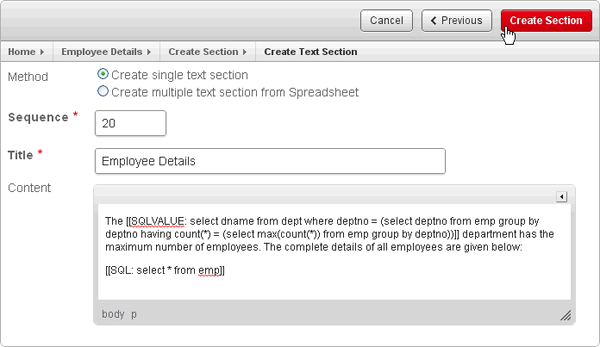
Enter Employee Details for Title and copy paste the text from the sql.txt file in the Content field. Note the use of the SQL and SQLVALUE tags. Then , click Create Section.
|
|
. |
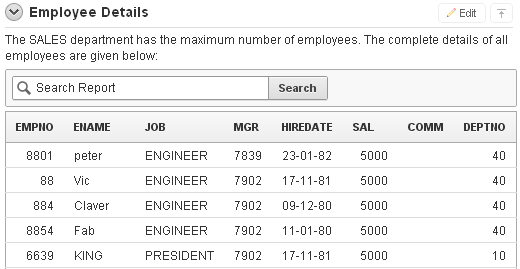
The section is created successfully. Note how the result of the SQL queries are displayed.
|
Creating a PL/SQL Section
To create a PL/SQL section, perform the following steps:.
|
. |
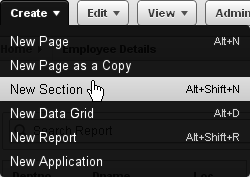
Click Create and select New Section.
|
|---|---|
|
. |
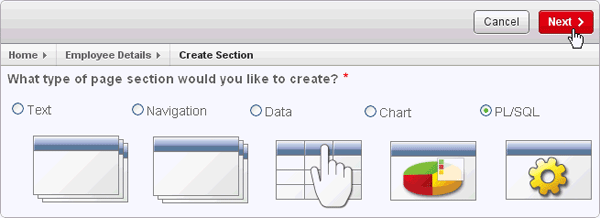
Select PL/SQLand click Next >.
|
|
. |
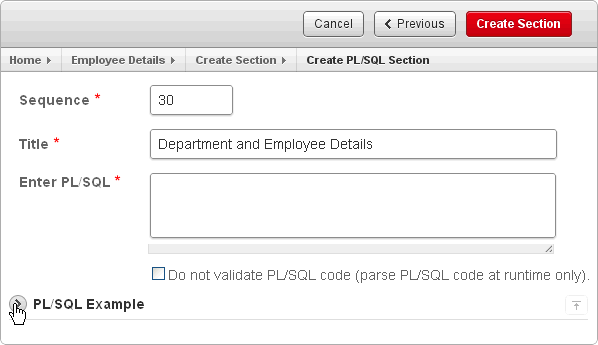
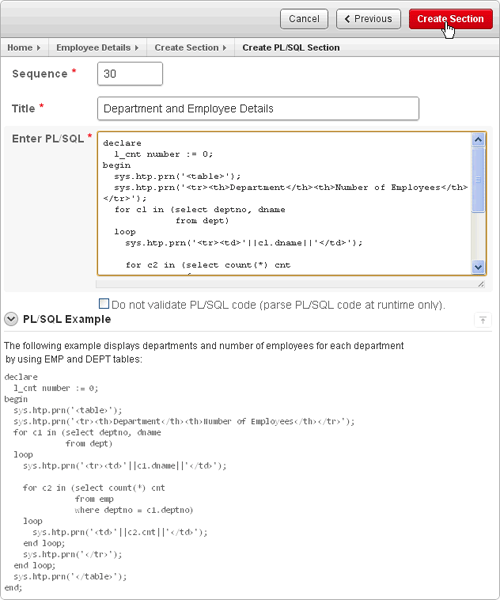
Enter Department and Employee Details for Title and expand the PL/SQL Example region.
|
|
. |
Copy the PL/SQL example and paste it in the Enter PL/SQL field. Then, click Create Section.
|
|
. |
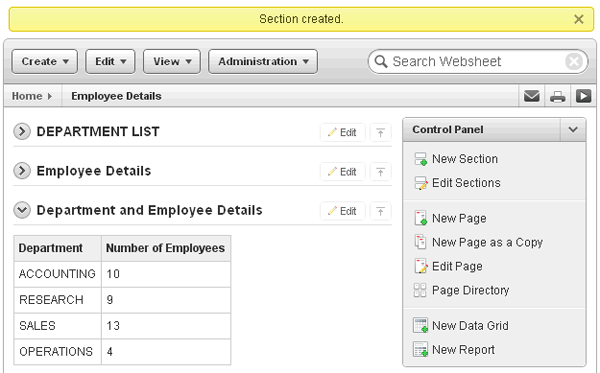
The PL/SQL section is created successfully.
|
Summary
In this tutorial, you have learned how to:
- Edit a websheet application
- Create a report in a websheet application
- Create a data section based on a report
- Create a section based using SQL and SQLVALUE tags
- Create a PL/SQL section
Resources
- Oracle Application Express homepage on OTN.
- Oracle Learning Library
- Oracle University

 |
Copyright © 2011, Oracle and/or its affiliates. All rights reserved |