Manipulating Database Objects Using Oracle Application Express 4.2
Overview
- Install
Oracle Database 11g or later.
- Install Oracle Application Express Release 4.2.
- Download and unzip the apexstart.zip file into your working directory.
- Create a workspace and user to perform this tutorial.
Purpose
This tutorial shows you how to manipulate database objects using Oracle Application Express.
Time to Complete
Approximately 30 minutes
Introduction
What Is Oracle Application Express?
Oracle Application Express is a hosted declarative development environment for developing and deploying database-centric Web applications. Thanks to built-in features such as user interface themes, navigational controls, form handlers, and flexible reports, Oracle Application Express accelerates the application development process.
What Components Make Up Oracle Application Express?
Oracle Application Express contains four main components:
| Application Builder |
Used to build database-centric interactive Web applications. |
|
| SQL Workshop | Used to access database objects, run SQL statements and SQL scripts. | |
| Team Development | Facilitates the management of the application development process. | |
| Administration | Used to manage services and users and to monitor activity. | |
Terminology
The following concepts are important to know when working with Oracle Application Express:
| Workspace |
A workspace is a virtual private database allowing multiple users to work within the same Oracle Application Express installation but keeping their objects, data and applications private. |
|
| Application |
An application is a collection of pages with branches that connect them. Its attributes include the authentication method, default UI templates, and authorization rules. |
|
| Page | A page is the basic building block of an application. When you build an application in Application Builder, you create pages that contain user interface elements, such as tabs, lists, buttons, items, and regions. | |
| Region | Content is displayed in regions, which are logical subsections of a page. Each page can have any number of regions of several different types. These types include: HTML text, SQL Queries, PL/SQL-generated HTML, and charts. Each region is rendered using a region template. Regions are positioned on the page using display points defined in the page template. | |
| Item | An item can be a text field, text area, password, select list, check box, and so on. Item attributes affect the display and behavior of items on a page. For example, these attributes can impact where a label displays, how large an item is, and whether or not the item is displayed next to, or below the previous item. The value of an item is automatically stored into the application's session state, which can be referenced at any point within the user's session. | |
Architecture
Oracle Application Express installs with your Oracle database and is comprised of data in tables and PL/SQL code.
Oracle Application Express utilizes a Web browser on the user's computer communicating through a Web listener to the Oracle Database. No client software, other than a browser, is required for development, deployment or runtime as Application Express pages are rendered using HTML within the browser. Page requests and submissions are sent to the Application Express engine within the Oracle Database.
When you create or extend an application, Oracle Application Express creates or modifies the meta data stored in its database tables. When the application is run, the Application Express engine then reads the meta data and displays the requested page or processes page submissions.
To provide stateful behavior within an application, Oracle Application Express transparently manages session state in the database. Application developers can get and set session state using simple substitutions as well as standard SQL bind variable syntax.
Apache MOD_PLSQL
One way to access the Oracle Application Express engine is to
configure the Oracle HTTP Server (Apache) containing the
mod_plsql plug-in . The plugin functions as communication broker
between the Web server and the Oracle Application Express
objects in the Oracle database. This maps browser requests into
database stored procedure calls. Images are stored on the file
system and served by Apache. Using Apache allows the web
listener to be placed on the same physical machine as the
database, or on a separate physical machine.
Oracle Application Express Listener Oracle Application
Express is a Java-based Web server. It features file system
caching, support for FOP transformations to PDF, offers improved
file upload capability, and is certified against Web Logic,
Tomcat, and OC4J. The Oracle Application Express architecture
requires some form of Web server to proxy requests between a Web
browser and the Oracle Application Express engine. The APEX
Listener was created to satisfy that need but its use goes
beyond that of Application Express configurations. The use of
the Oracle APEX listener simplifies the deployment process
because there is no Oracle home required as connectivity is
provided using an embedded JDBC driver.
Embedded PL/SQL Gateway (EPG)
The embedded PL/SQL gateway runs in the XML DB HTTP server
in the Oracle database and includes the core features of
mod_plsql, but does not require the Oracle HTTP Server powered
by Apache. The EPG stores and serves all files, including
images, CSS, and Javascript from the database. The EPG is
convenient for smaller configurations. The EPG is not
recommended for larger scale production use cases or Internet
facing applications.
What is new in Oracle Application Express 4.2?
The following is the summary of the new features in Oracle Application Express 4.2.
| Application Builder for Mobile |
Oracle Application Express 4.2 provides declarative support for building mobile Web applications. Mobile pages use jQuery Mobile to render content on the vast majority of mobile devices. Each application can include both desktop and mobile user interfaces. |
|
| Mobile and Responsive Themes |
Oracle Application Express 4.2 includes mobile and responsive themes to support the development of mobile pages, new theme has been introduced which is based on jQuery Mobile. This theme supports mobile page transitions and gestures such as swipe, tap, and pinch. You can also declaratively specify JavaScript and CSS files for use within the mobile templates and pages. Another new theme introduced, Theme 25, incorporates reponsive design principles. Reponsive design automatically adjusts to the screen dimensions. Such themes work well on desktop, tablet and mobile devices. |
|
| HTML5 Charts |
Oracle Application Express Release 4.2 now includes HTML5 charts. Charts can now be rendered as either HTML5 or Flash, where Flash charts have automatic fallback to HTML5 when Flash is not detected. |
|
| HTML5 Item Types |
Oracle Application Express has introduced new item types have been introduced including Slider, HTML5 Date Picker, and Yes/No Flip Toggle Switch. Incorporating such HTML5 attributes as sub-types for Email, Phone, and URL together with Placeholders will allow you to improve your end user experience. |
|
| Mobile Calendars |
Interactive reports now support icon and detail views, calendar views, inline edit, compound filter expressions, email notification, and a new group by functionality. Additionally, each report features enhanced Save options, can be downloaded to searchable HTML, and offers more granular printing capabilities. |
|
| Packaged Applications |
Oracle Application Express Release 4.2 includes a suite of business productivity applications, easily installed with only a few clicks. These solutions can be readily used as production applications to improve business processes and are fully supported by Oracle. Packaged Applications also include a collection of sample applications which demonstrate some of the major features of Oracle Application Express. |
|
| RESTful Web Services* |
RESTful Services in Release 4.2 provides stateless access to data and logic, through the use of SQL and PL/SQL. RESTful Services are accessed through the use of Uniform Resource Identifiers (URIs), defined within Oracle Application Express. Data can be easily served in JSON or CSV format, or additional formats by choosing PL/SQL as the source. * This feature requires APEX Listener 2.0 or later. |
|
Prerequisites
Before starting this tutorial, you should:
Creating a Table from a Spreadsheet
To load the data for this tutorial from a spreadsheet, perform the following steps:
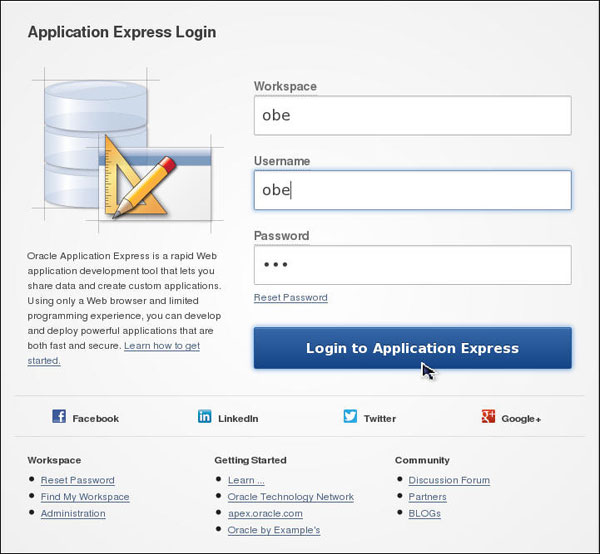
Enter the following URL to log in to Oracle Application
Express (change the <hostname> to localhost, your
specific hostname or apex.oracle.com).
Log into the Application Express Login page using your
login credentials. Enter the following credentials and click
Login.
Note: Here, the Workspace, Username and Password
used are obe.
Workspace: OBE
Username: OBE
Password: obe
To create the table, first you need to load the spreadsheet data. Click the down arrow next to SQL Workshop and then select Utilities > Data Workshop.

Click Spreadsheet Data.

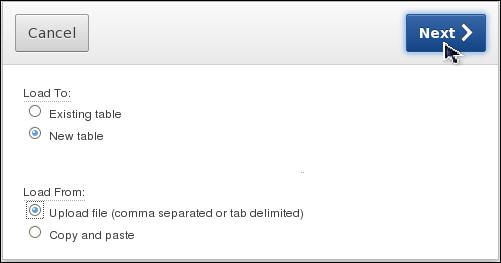
Ensure that the import target (Load To) is set to New table. For Load From, select the Upload file (comma separated or tab delimited) option. Click Next >.
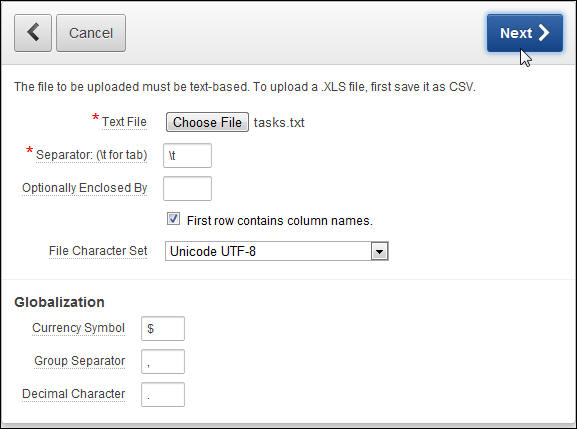
Click Choose File.

Locate the tasks.txt file in the directory where your files are located and click Open. Because the data in the text file is tab delimited, enter \t in the Separator field. Click Next >.
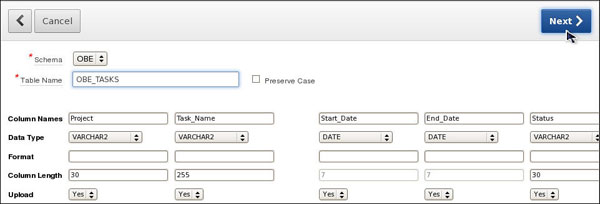
The Table Information page displays the columns in the table and their formats, as well as the data to be inserted into the table after the table is created. For Table Name, enter OBE_TASKS, and click Next >.
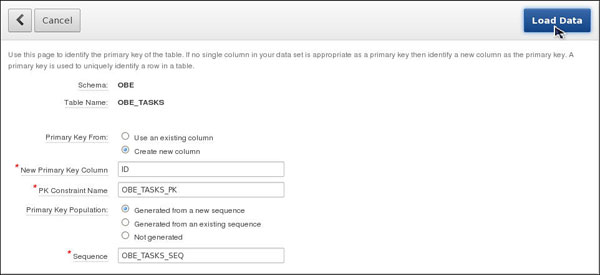
Using the Primary Key page, you can add a system-generated primary key to your table and populate that column with a new sequence. Review the default values, and click Load Data.
After the table is created and the data is loaded, you are left on the Text Data Load Repository page. You can see the file that you just uploaded with 16 rows successfully uploaded.
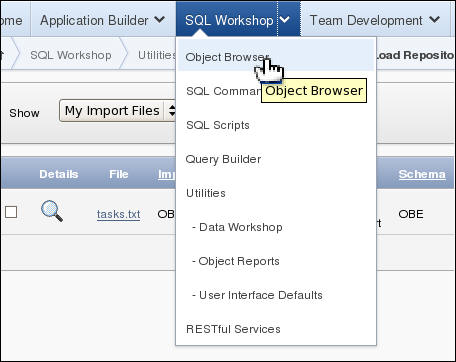
To view your new table, click the down arrow next to SQL Workshop tab and select Object Browser.
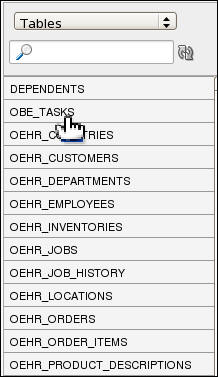
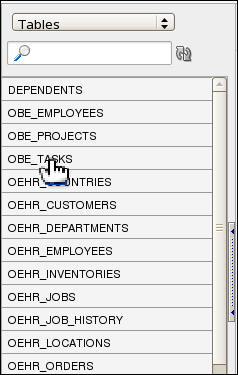
To view the table definition, click the OBE_TASKS table under the list of tables in the left navigator.
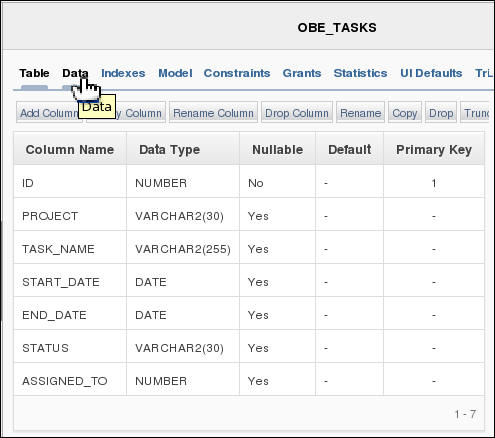
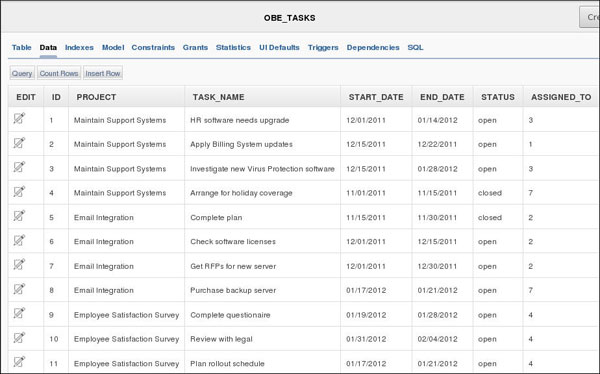
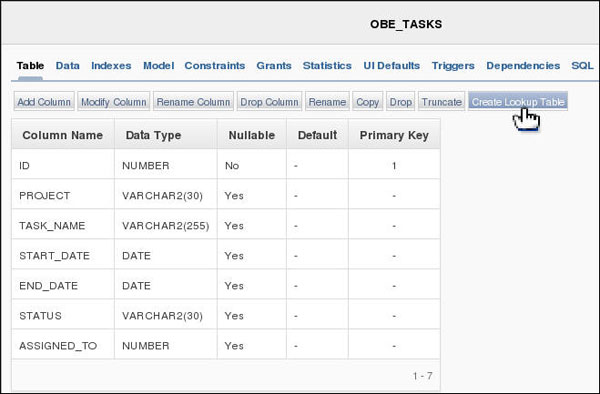
This page displays the table definition. To view the data in the table, click the Data tab.
You see all the data in the table. You can change any of the data in the table from this page, and also add rows to the table.
Adding a Master Table
To make the project name maintainable and to be able to track other information about a project, you can move the Project information into a separate table. Perform the following steps:
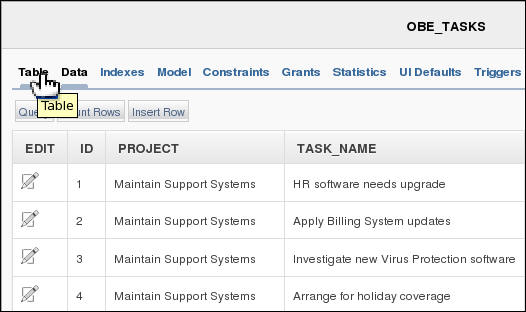
Click the Table tab.
Click Create Lookup Table.
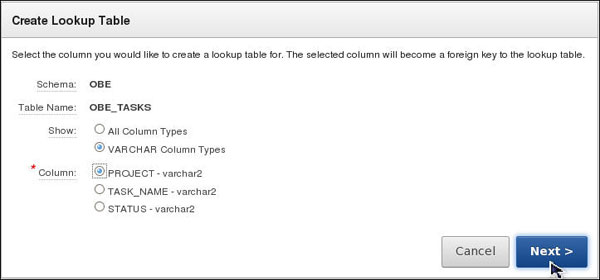
To specify the column on which the master table is to be created, select PROJECT - varchar2, and click Next > .
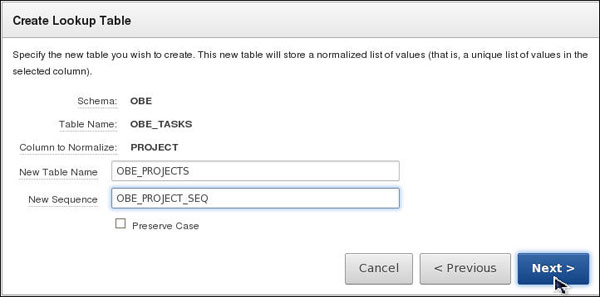
Enter the following values, and click Next >.
New Table Name: OBE_PROJECTS
New Sequence: OBE_PROJECT_SEQ
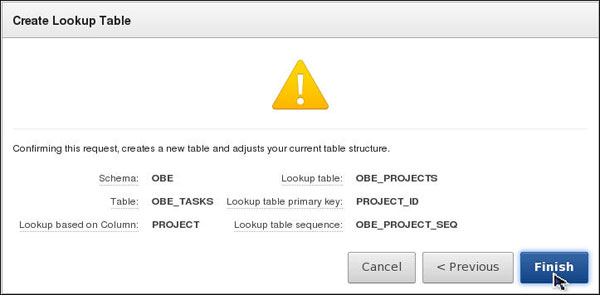
Click Finish.
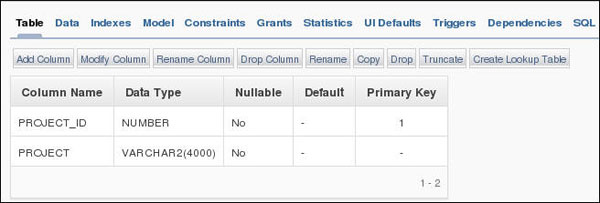
Notice that the new OBE_PROJECTS table contains a numeric primary key along with the PROJECT column.
Modifying a Table
Now that you have the two main tables, enhance the OBE_PROJECTS table by adding some additional columns. To do this, perform the following steps:
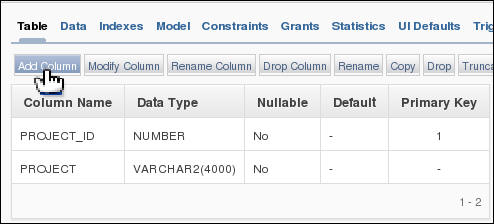
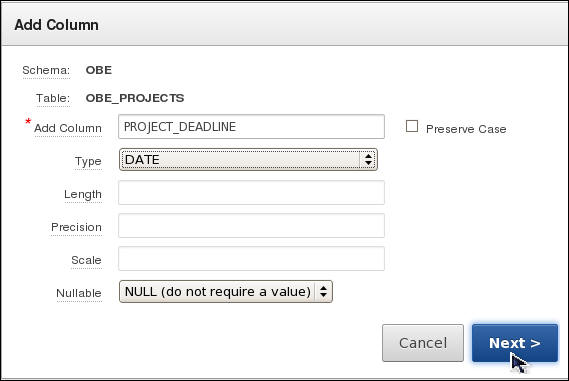
Make sure the OBE_PROJECTS table is selected. You are going to add a column to the table. Click Add Column.
Enter the following values, and click Next >.
Add Column: PROJECT_DEADLINE
Type: DATE
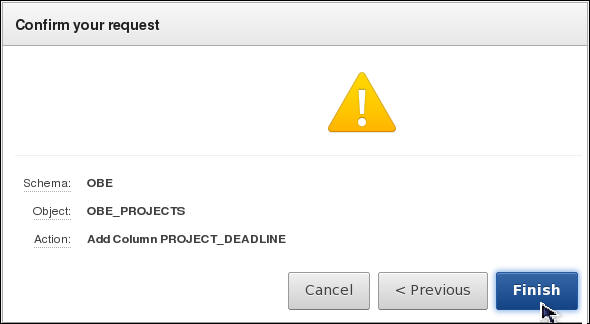
Click Finish.
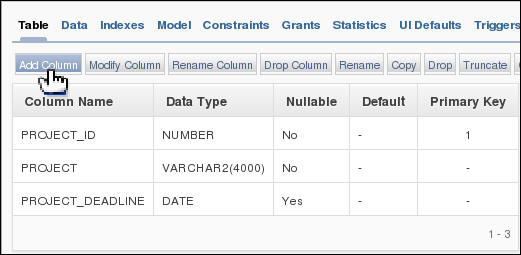
You see the modified table definition with the new PROJECT_DEADLINE
column added. You want to create one more column for PROJECT_PRIORITY.
Click Add Column.
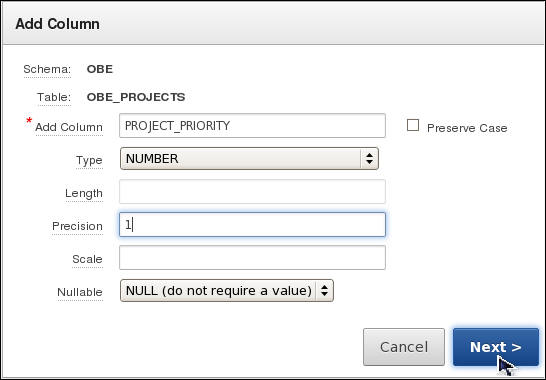
Enter the following values, and click Next >.
Add Column: PROJECT_PRIORITY
Type: NUMBER
Precision: 1
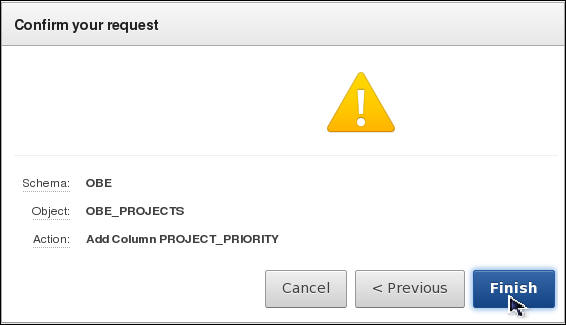
Click Finish.
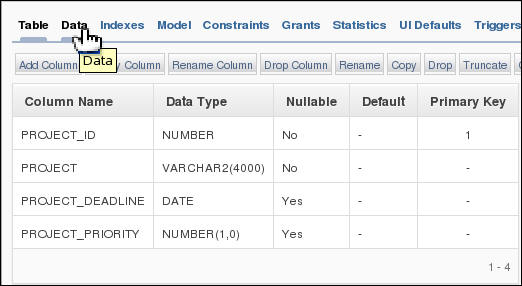
The PROJECT_PRIORITY column is added. Click the Data tab to view the data.
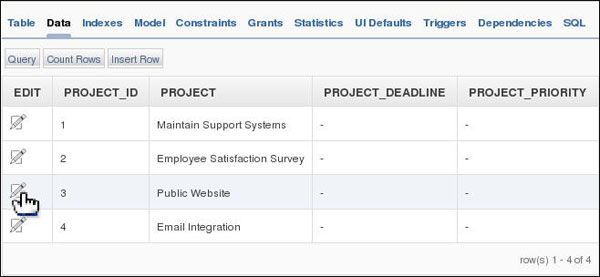
You see all the projects that were referenced in the OBE_TASKS table. You can change
data from here. Click the Edit icon ( ) on the
left of PROJECT_ID for Public
Website.
) on the
left of PROJECT_ID for Public
Website.
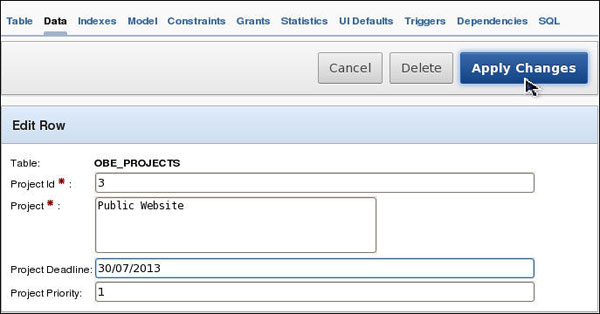
For Project Deadline, enter a date greater than today's date. Enter 1 for Priority. Then click Apply Changes.
You see the data that you added. Another way to create database objects and load data is to use a script. Select SQL Scripts icon.

Adding a Table Using a Script
You may have noticed that the OBE_TASKS.ASSIGNED_TO column was a number. In this topic, you run a script to create the OBE_EMPLOYEES table and load a list of current employees. Each employee has an EMPLOYEE_ID that corresponds to the numbers found in the OBE_TASKS.ASSIGNED_TO column. Perform the following steps:
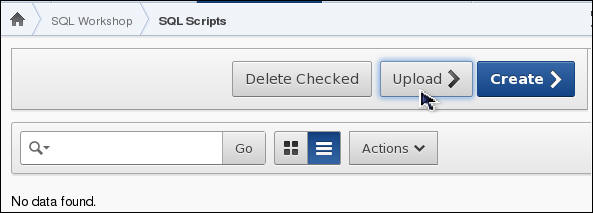
You are in the SQL Scripts page. Click Upload.
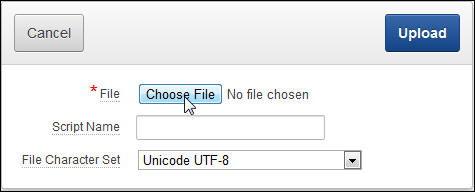
Click Choose File.
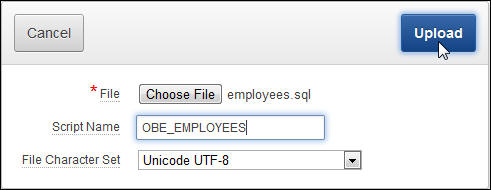
Select employees.sql from your working directory and click Open. Enter OBE_EMPLOYEES for the Script Name and click Upload.
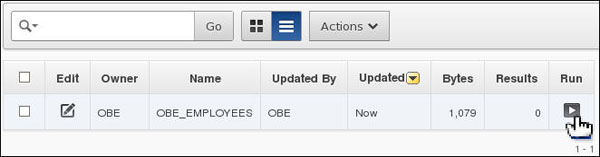
Click the Run icon.
Click Run Now to confirm.
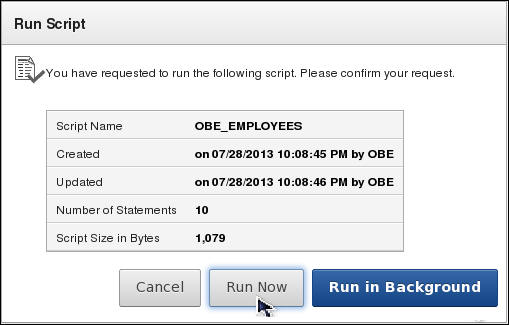
The script was executed. To view the results, click the View Results icon.
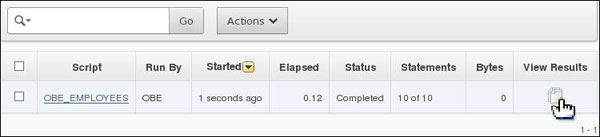
The OBE_EMPLOYEES table was created and some data was inserted. Click the SQL Workshop breadcrumb.
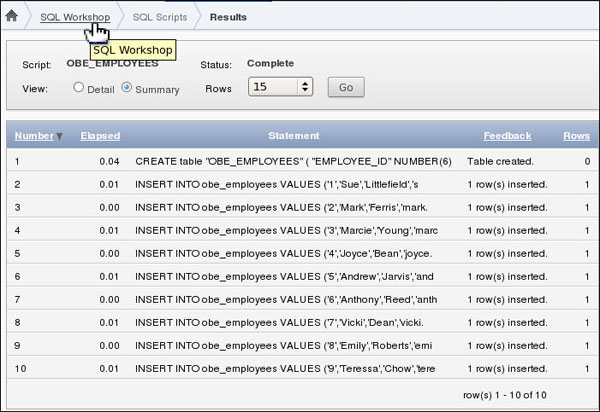
Adding a Constraint
You now have the employee data that is referenced by the OBE_TASKS.ASSIGNED_TO column but need to identify a foreign key between the tables. The foreign key ensures that each ASSIGNED_TO column references a valid Employee. It also ensures that an Employee cannot be deleted who has tasks assigned. Perform the following steps:
Click Object Browser.
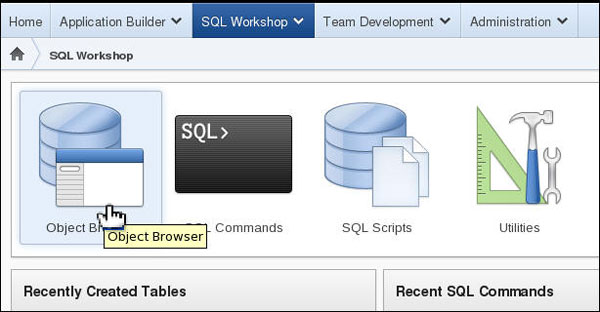
Select the OBE_TASKS table.
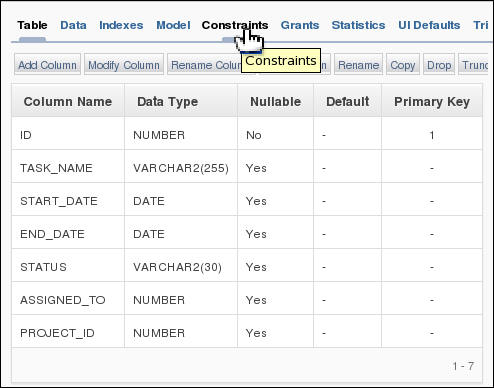
Click the Constraints tab.
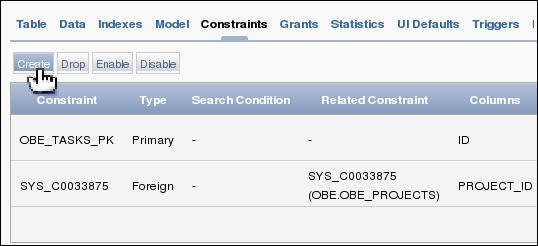
Click Create.
Select Foreign Key for the Constraint Type. Select ASSIGNED_TO for the Foreign Key Column, select OBE_EMPLOYEES table for the Reference Table Name and select EMPLOYEE_ID from the Reference Table Column List. Then click Next > .

Click Finish.
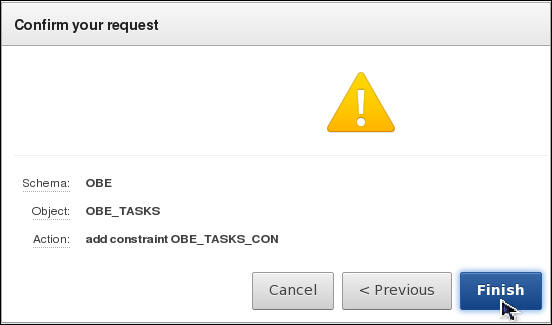
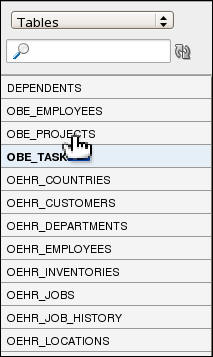
The constraint was created successfully. You want to also create a check constraint on the PROJECT_PRIORITY column so that the data is validated when the data is inserted or updated. Select OBE_PROJECTS table.
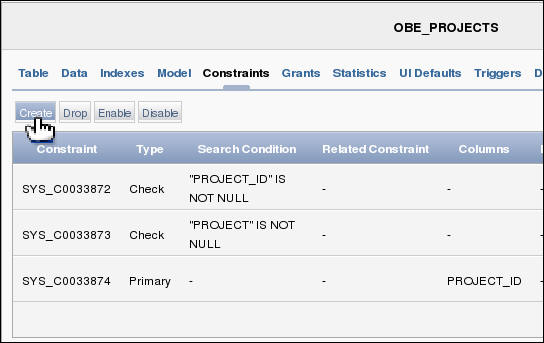
Click Create.
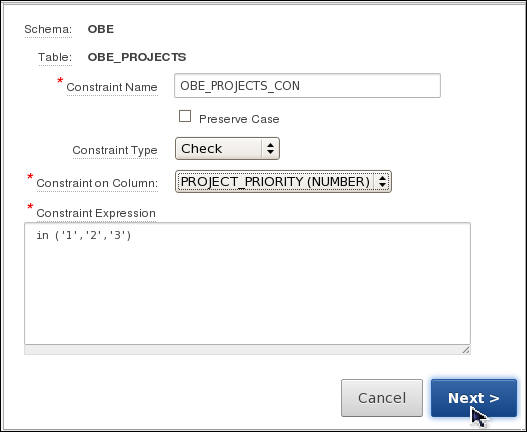
Select PROJECT_PRIORITY for the Constraint on Column field and enter in ('1','2','3') for the Constraint Expression. Ensure that Check Constraint Type is selected. Then click Next >.
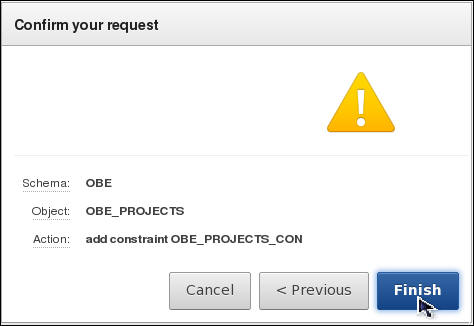
Click Finish.
The constraint was created successfully. Click the Home breadcrumb.

Summary
- Create a table from a spreadheet
- Create a lookup table
- Modify a table
- Run a script to create a table
- Create a constraint in a table
- APEX OTN Home Page
- Oracle Application Express: Developing Web Applications.
- Oracle Learning Library
- Oracle University
- Lead Curriculum Developer: Dimpi Sarmah
- Other Contributors: David Peake, Chaitanya Koratamaddi
In this tutorial, you have learned how to:
Resources
Credits
To navigate this Oracle by Example tutorial, note the following:
- Hide Header Buttons:
- Click the title to hide the buttons in the header. To show the buttons again, click the title again.
- Topic List:
- Click a topic to navigate to that section.
- Expand All Topics:
- Click the button to show or hide the details for the sections. By default, all topics are collapsed.
- Hide All Images:
- Click the button to show or hide the screenshots. By default, all images are displayed.
- Print:
- Click the button to print the content. The content that is currently displayed or hidden is printed.
To navigate to a particular section in this tutorial, select the topic from the list.