Last updated: 04/17/15 01:30 pm EDT
Before You Begin
Purpose
This tutorial shows you how to create a Data Loading Wizard for your application so that end users can add data into a table.
Time to Complete
Approximately 15 minutes
Introduction
Applications with data loading capability allow end users to dynamically import data into a table within any schema to which the user has access. To do this, end users run a Data Load Wizard that uploads data from a file or copies and pastes data entered by the end user directly into the wizard.
With Oracle Application Express 5.0, you can create a series of data load wizard pages in your application using the new Data Loading page wizard. The wizard allows you to add table lookups and transformation rules that are executed when the Data Load Wizard runs.
In this tutorial, you create a DEPENDENTS table, create an application with a report, use the Data Loading page wizard to create the Data Load wizard pages in your application that the end user uses to load the data. The Data Loading definition contains a table lookup for the relative name and a data transformation rule to make sure that Gender is stored in uppercase.
Prerequisites
Before starting this tutorial, you should:
- Have install Oracle Database 11g or later.
- Have install Oracle Application Express Release 5.0.
- Download and unzip the files.zip file into a working directory to use during this tutorial.
- Create a workspace and user to perform this
tutorial.
Create the DEPENDENTS table using a SQL Script
In this section, you upload a SQL Script and run it to create the DEPENDENTS table. Perform the following steps:
-
To log in to Oracle Application Express, enter the following details, and click Sign In.
Workspace: <your workspace name>
Username: <your username>
Password: 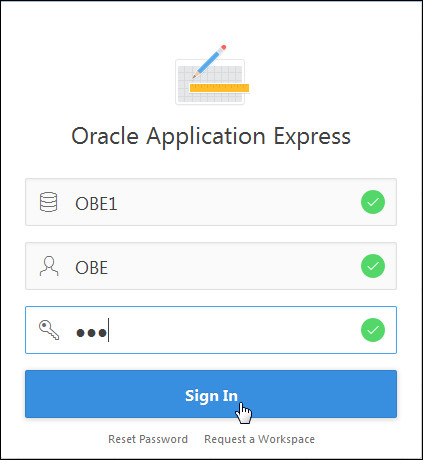
-
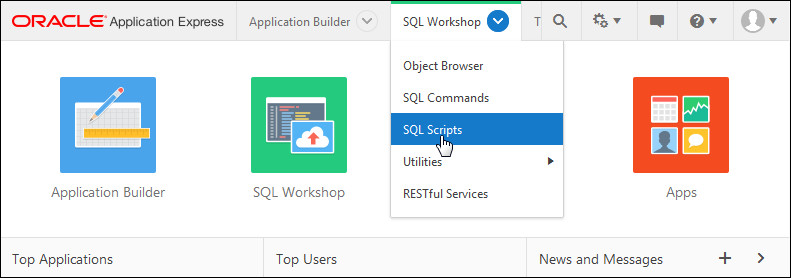
Select SQL Workshop > SQL Scripts.
-
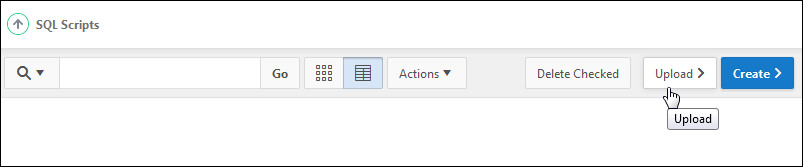
Click Upload >.
-
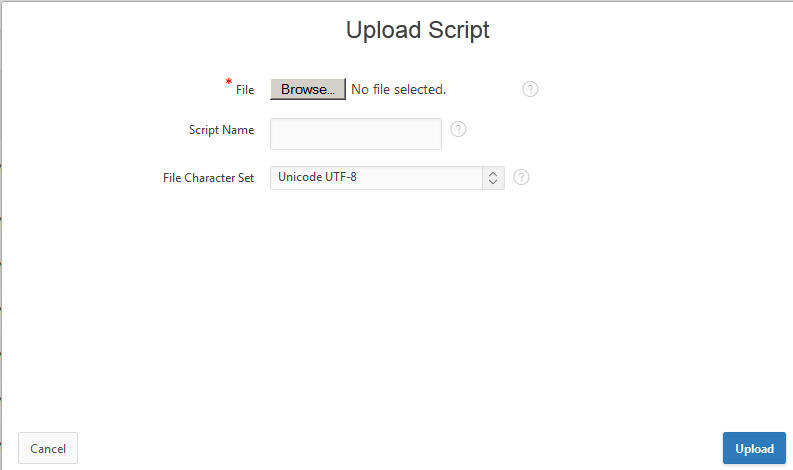
Click Browse.
-
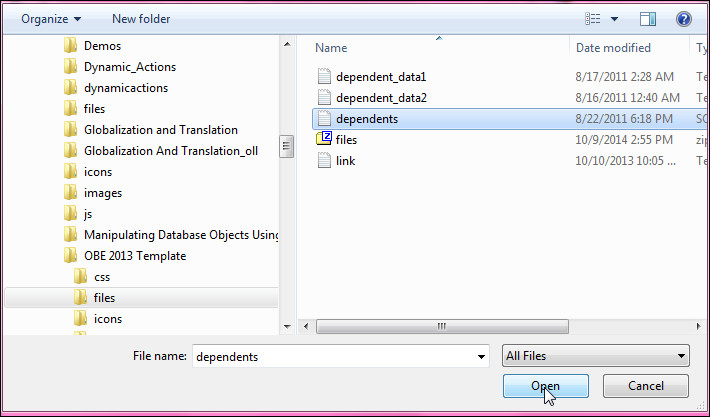
Select dependents.sql from the files you downloaded from the prerequisites section of this tutorial and click Open.
-
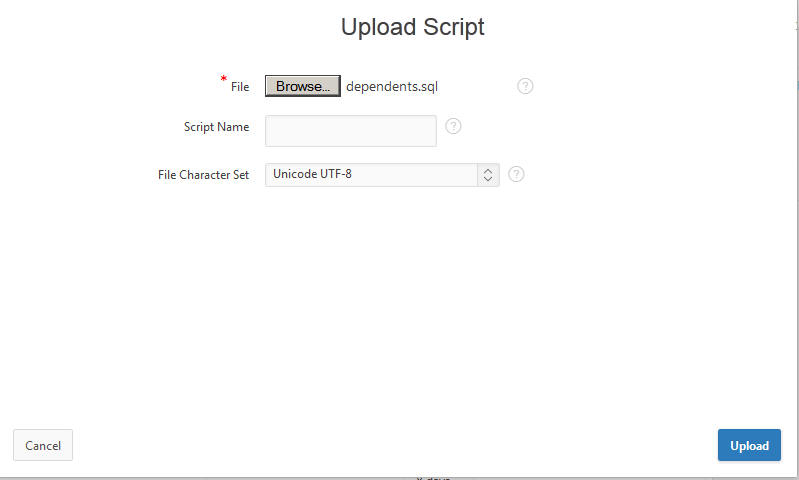
Click Upload.
-
Your script was uploaded successfully. click the Run icon.

-
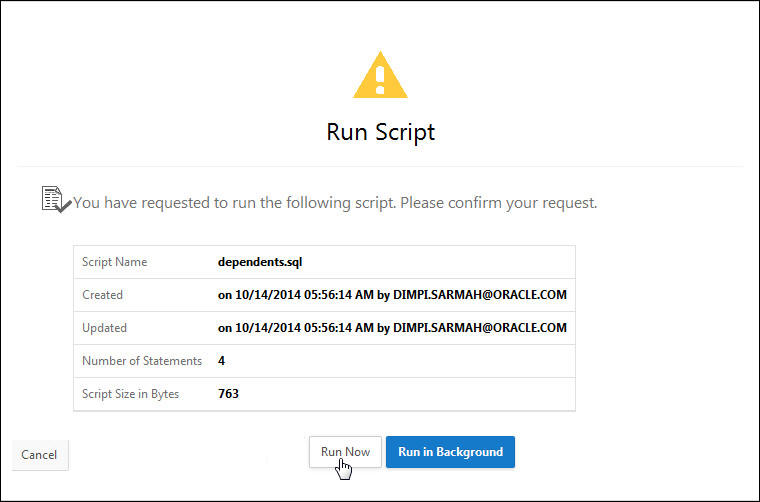
Click Run Now.
-
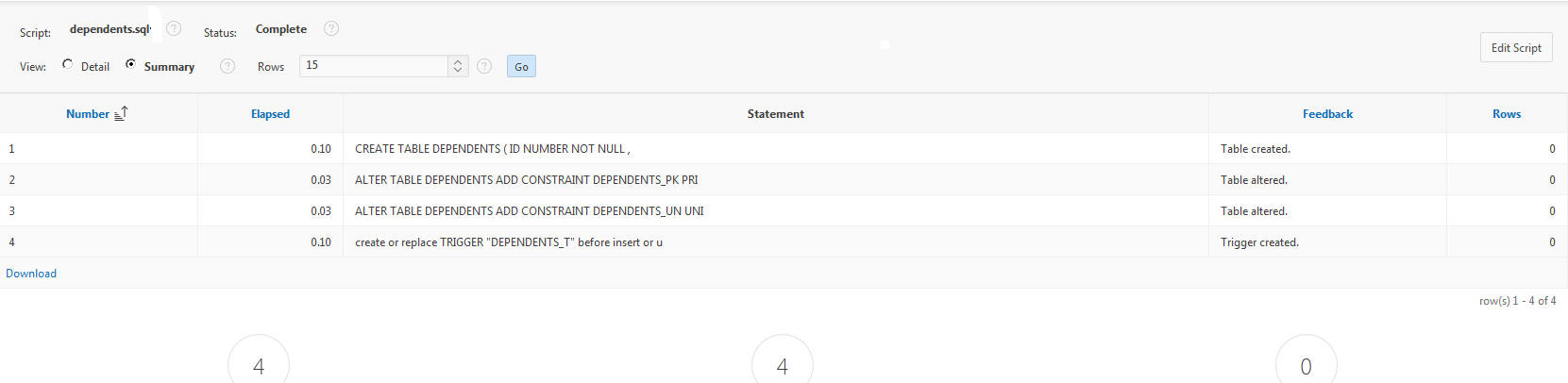
Your script ran, click the View Results icon.

-
The script ran successfully. In the next section you create an instant application and a report region on the Home page.
Create an Application with a Report
In this section, you create an instant database application and create an interactive report that shows all the data in the DEPENDENTS table. Perform the following steps:
-
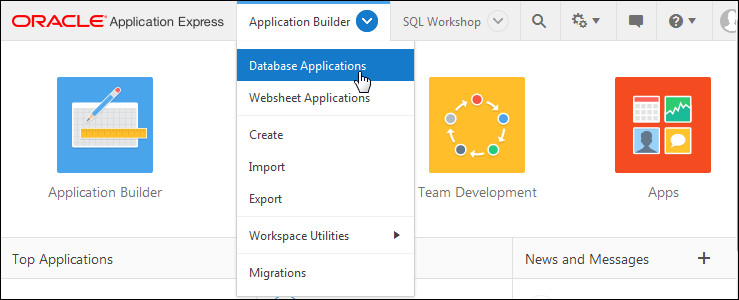
Select Application Builder > Database Applications.
-
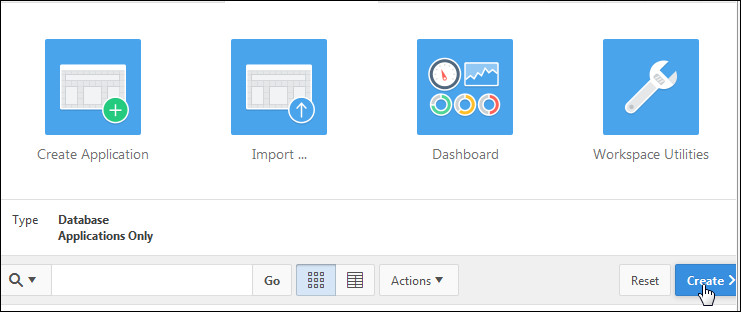
Click Create >.
-
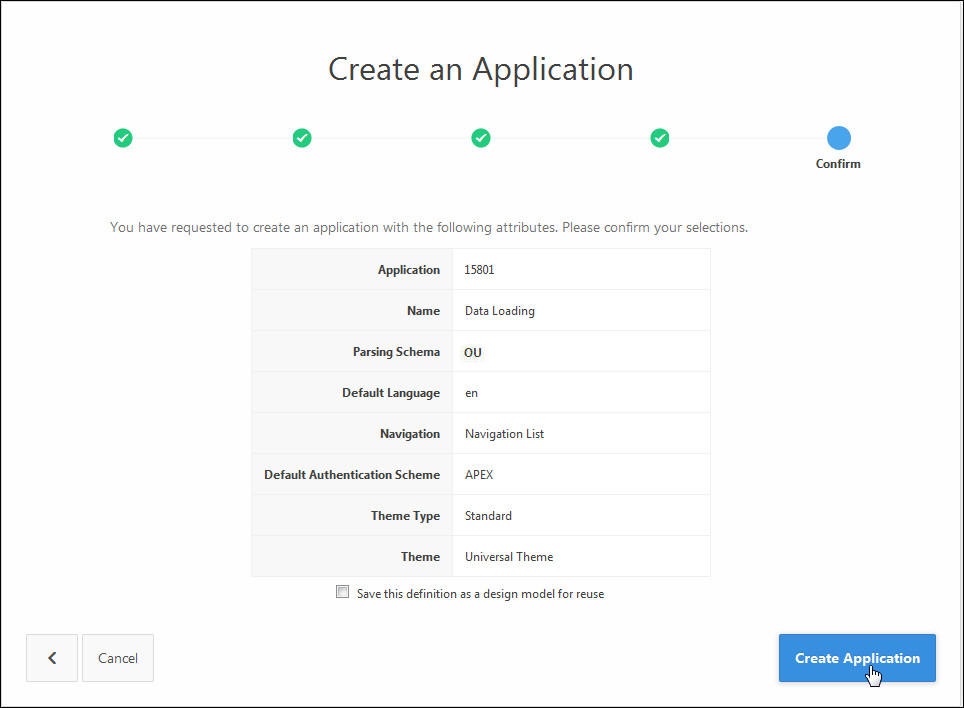
Change the Name to Data Loading and click Create Application.

-
Click Create Application.
-
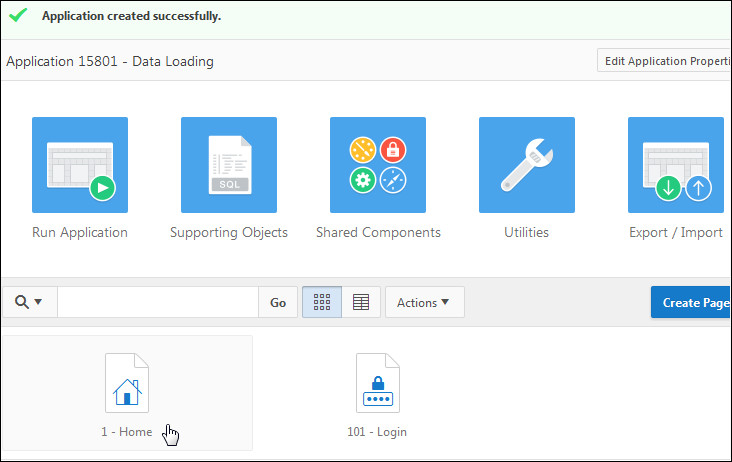
Your application was created successfully. You want to create a report region on the Home page. Select the Home page icon.
-
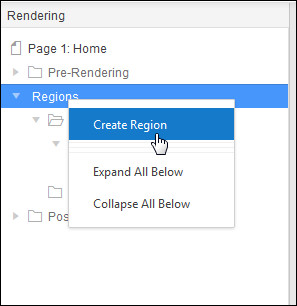
Right-click Regions and select Create Region.
-
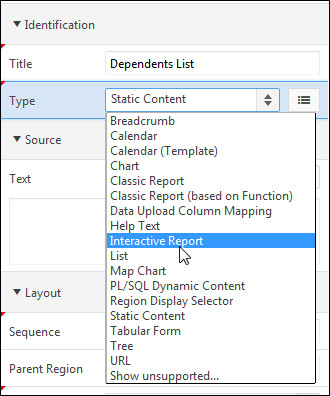
Enter Dependents List for Title and select Interactive Report for Type.
-
Enter the following SQL SELECT statement and click Save and Run Page.
select FIRST_NAME,
LAST_NAME,
BIRTHDATE,
RELATION,
GENDER,
RELATIVE_ID
from DEPENDENTS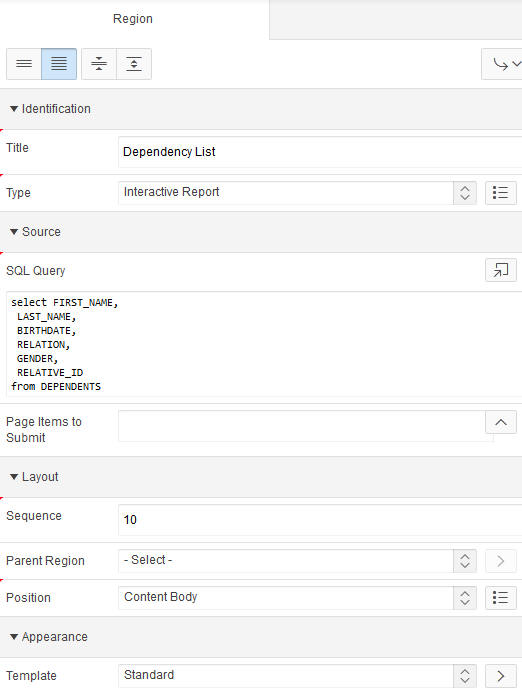
-
Login as a valid user and click Login.
-
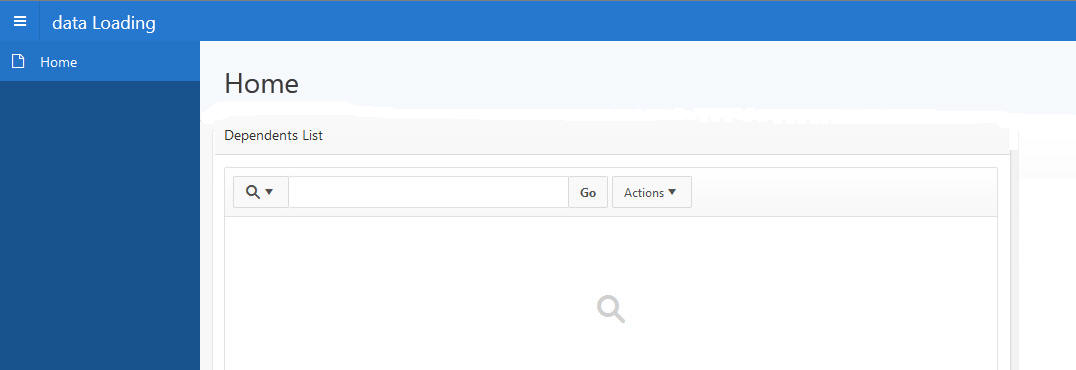
The Home page displays the report. The reason you see the “No data found” message is because the table is currently empty. In the next section, you use the Data Loading Page wizard to create a Data Load wizard. You will then use the Data Load wizard to load data into the DEPENDENTS table. After the data is loaded into the table, this report will display the loaded data. Click the Application link in the developer toolbar.
Creating a Data Load Wizard Using the Data Loading Page Wizard
In this section, you use the Data Loading page wizard to create four pages in your application that an end user will run to load data into the DEPENDENTS table. Perform the following steps:
-
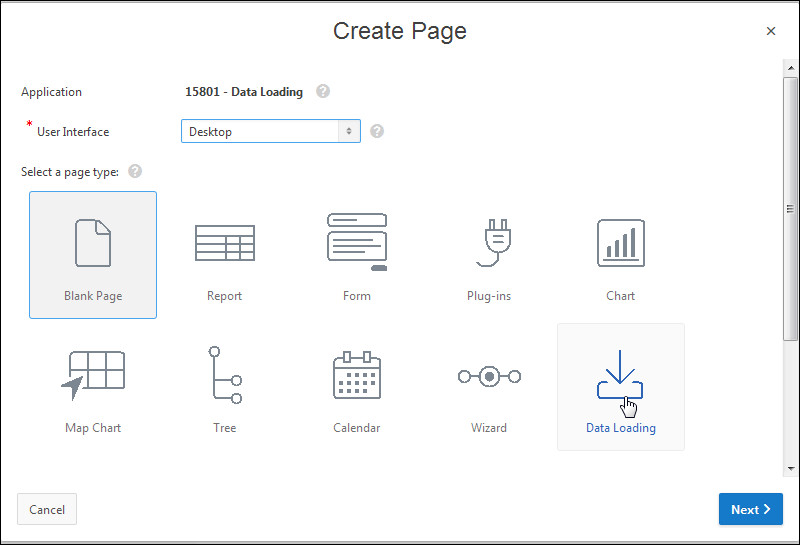
Click Create Page >.

-
For Page type, click the Data Loading icon.
-
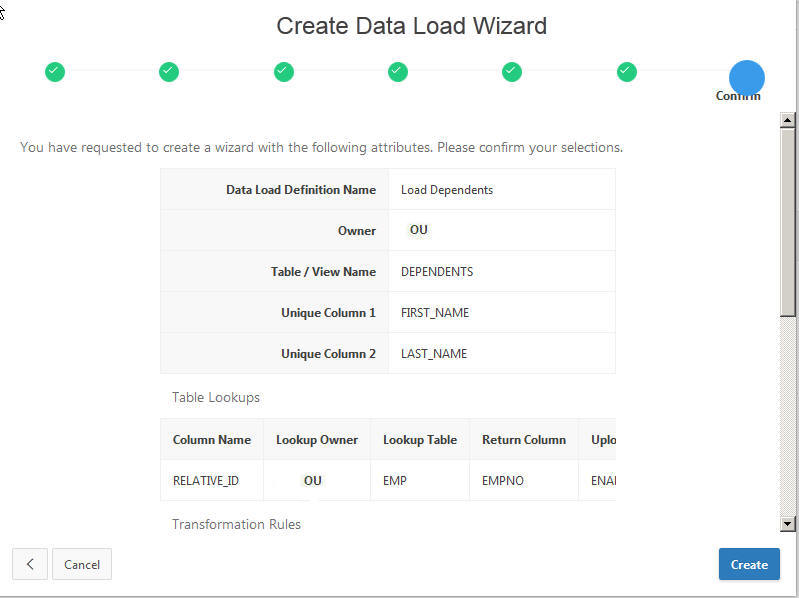
You need to specify the table you want to load data into and what columns uniquely identify the dependent in the table. In this case, the concatenation of FIRST_NAME and LAST_NAME uniquely identify a Dependent in the DEPENDENTS table. Specify and/or select the following and click Next >.
Data Load Definition Name Load Dependents Table Names DEPENDENTS Unique Column 1 FIRST_NAME (Varchar2) Unique Column 1 LAST_NAME (Varchar2) 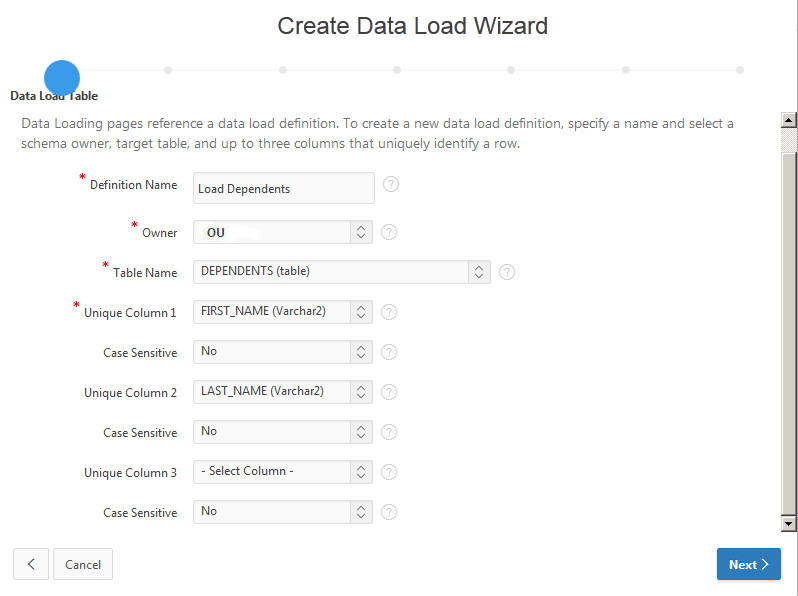
-
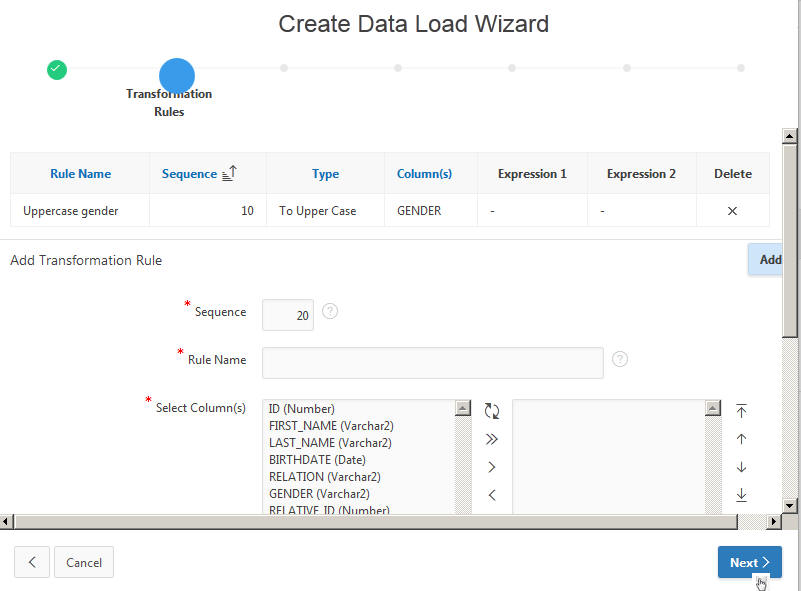
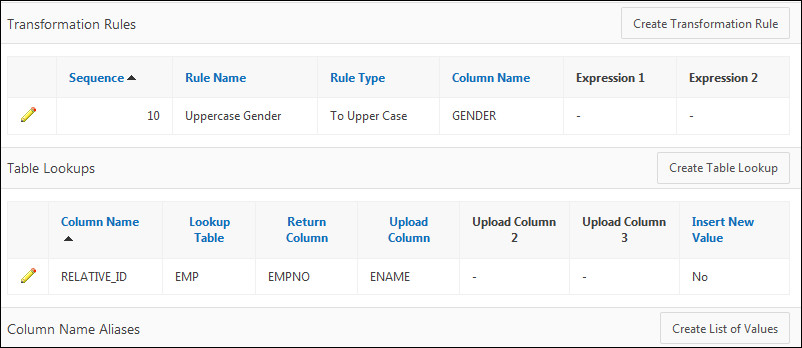
You want to create a transformation rule to make sure that when the data is stored, the data for the GENDER column is stored in Upper Case. Specify and/or select the following and click Add.
Column Name Gender Name Uppercase Gender Type
To Upper Case 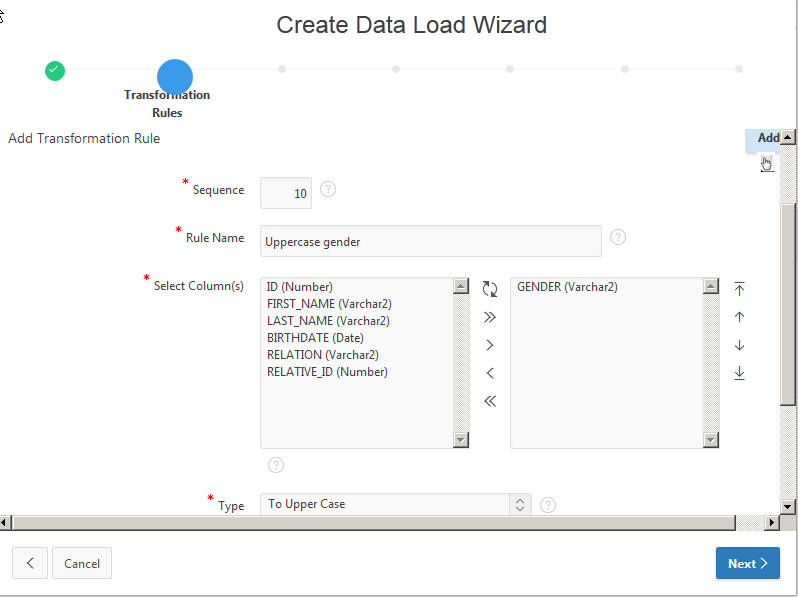
-
The transformation was created. Click Next >.
-
You want to add a lookup for this data load. In this case, the relative_id should correspond to the id of the EMP table so that it is a valid employee of this dependent. Specify and/or select the following and click Add.
Column Name RELATIVE_ID Table Name EMP
Column Name(of key value)
EMPNO Uploaded Column
ENAME 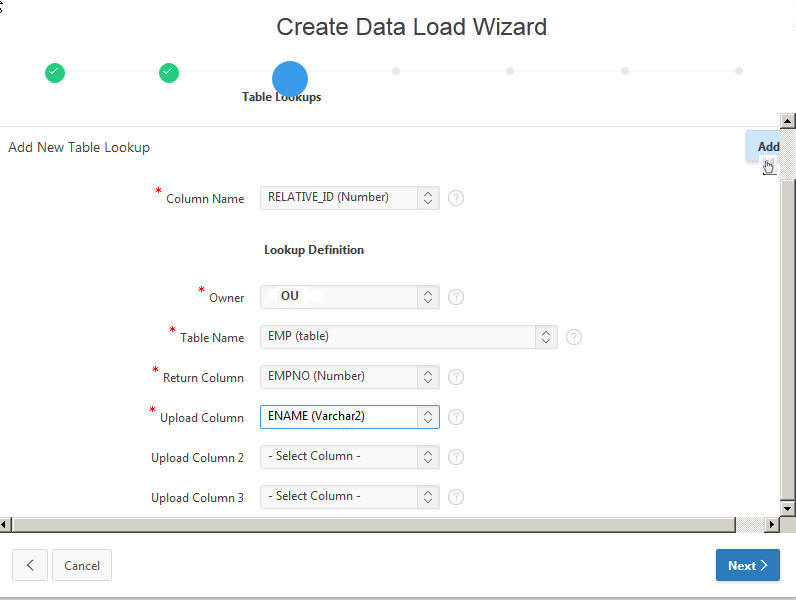
-
The lookup for RELATIVE_ID was created, click Next >.
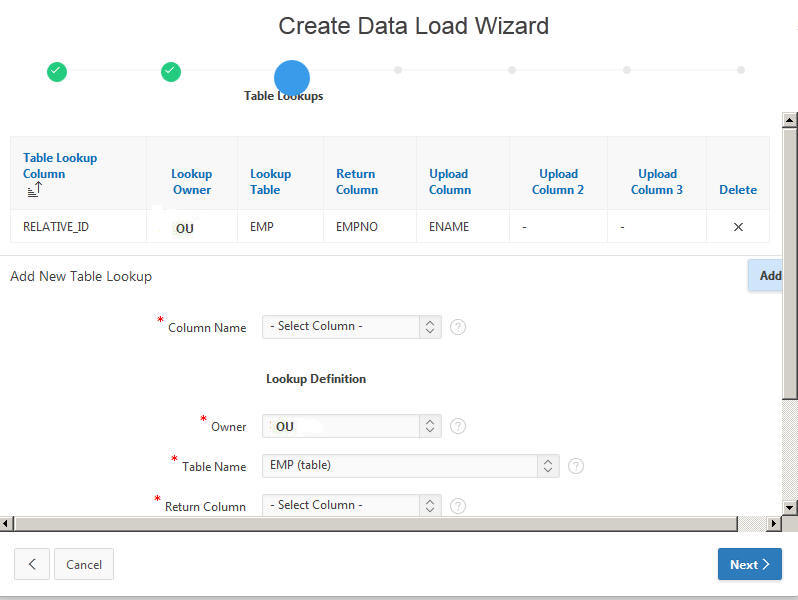
-
The four pages in the screenshot will be created as a result of this Data Load. Click Next >.
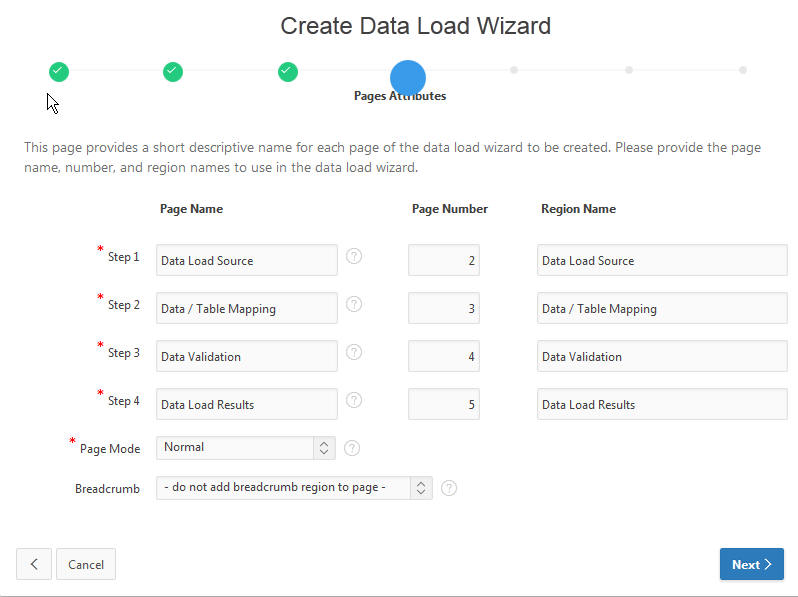
-
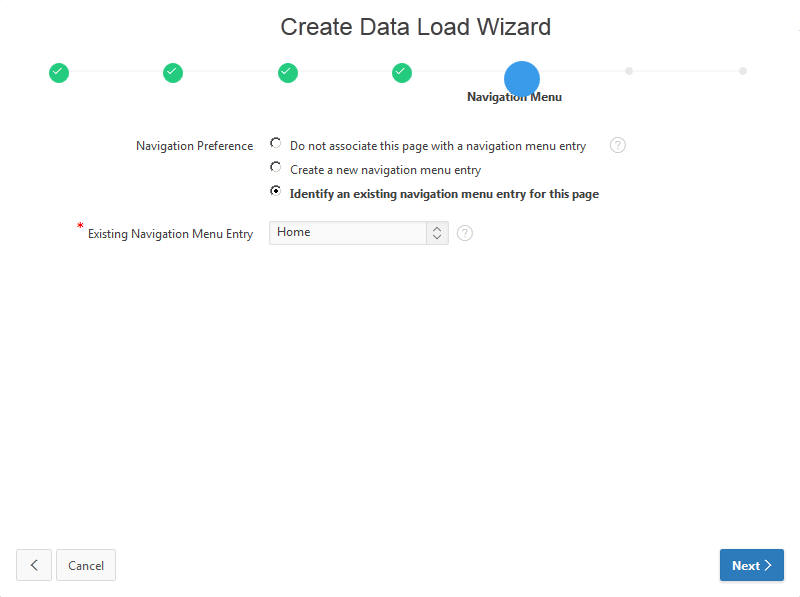
For navigation preference, select Identify an existing navigation menu entrE for this page option. Select Homefor Existing Navigation Menu Entry Click Next >.
-
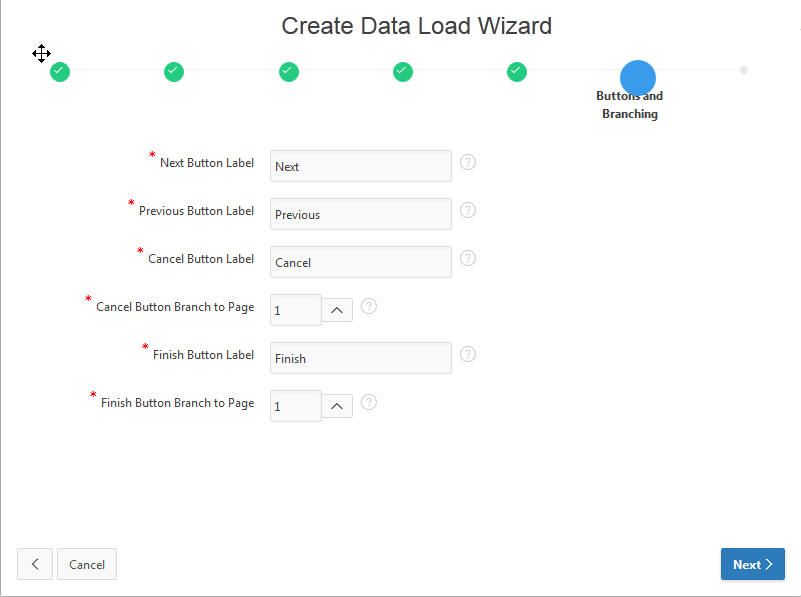
You want to branch to the Home page if the user selects the Cancel or Finish buttons. Enter 1 for both Branch to Page fields and click Next >.
-
Click Create to create the wizard pages for the data load. In the next section, you test the Data Load Wizard pages that were created.
Testing Your Data Load Wizard
In this section, you test your data load wizard pages by loading some data. Perform the following steps:
-
Click Save and Run Page.
-
Enter your login information and click Login.
-
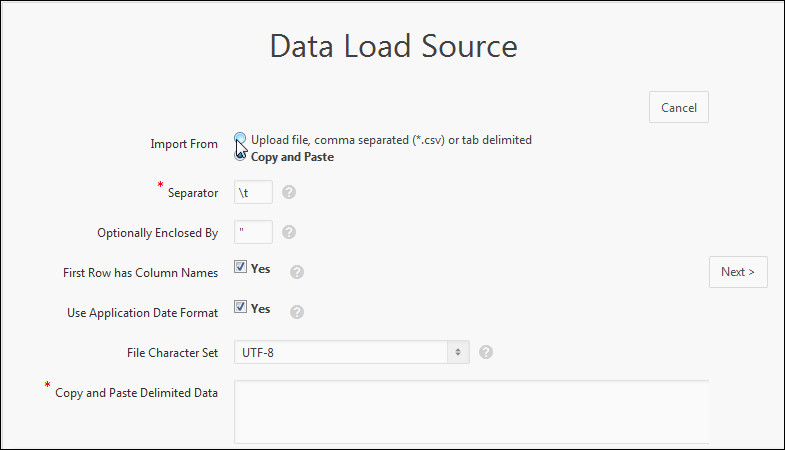
You want to load the data using a tab delimited file. Click the Upload file option for Import From.
-
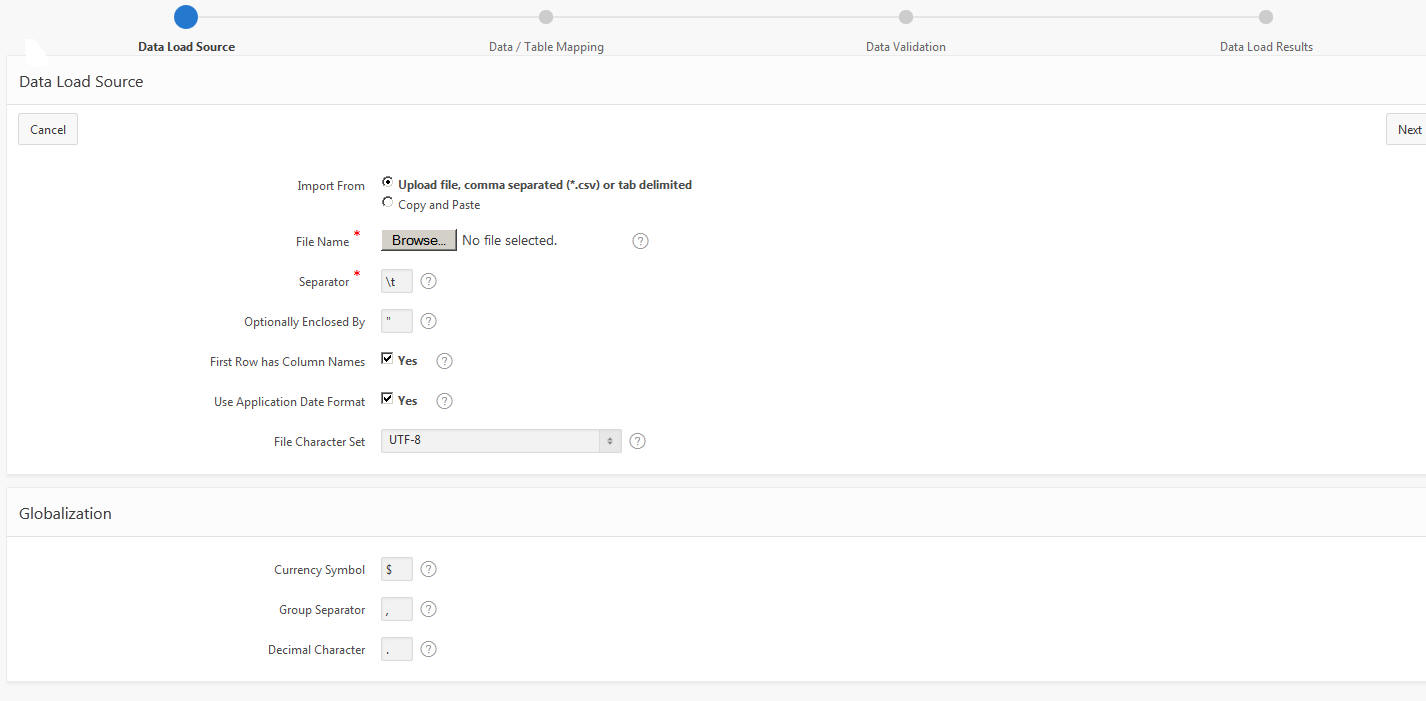
Click Browse.
-
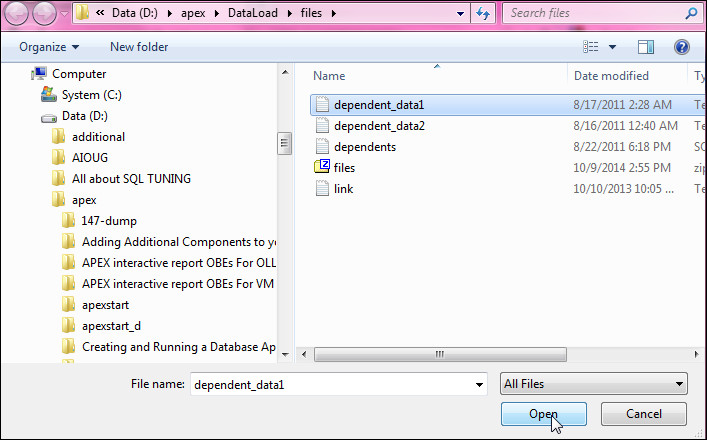
Select the dependent_data1.txt file and click Open.
-
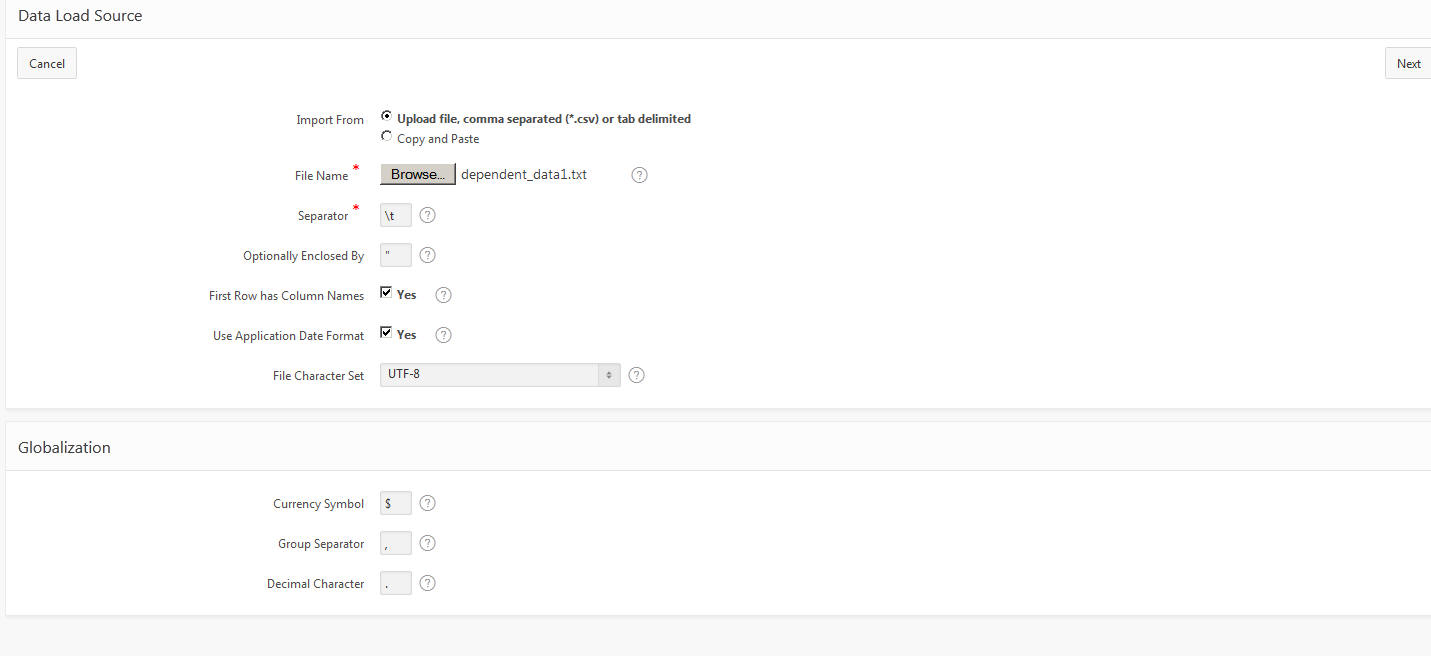
Click Next >.
-
Notice that there are some values for the GENDER column that are lower case and that the values for RELATIVE_ID are the employee name that the dependent is a relative of. When you click Next, the Lookup and Transformation Rules will be applied. Click Next >.
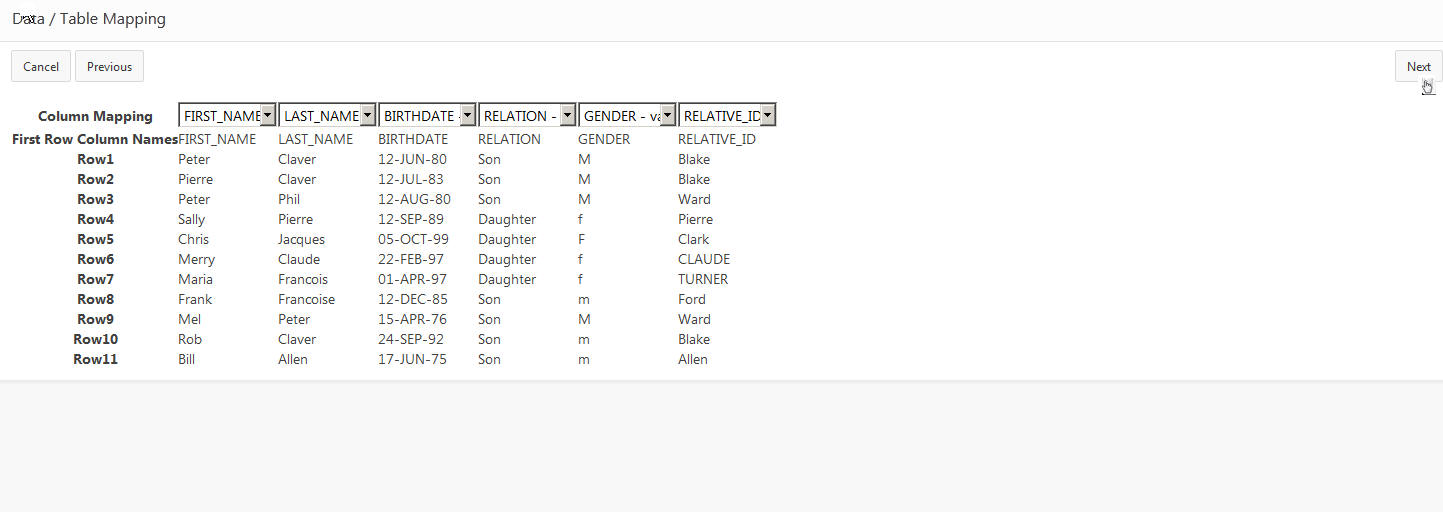
-
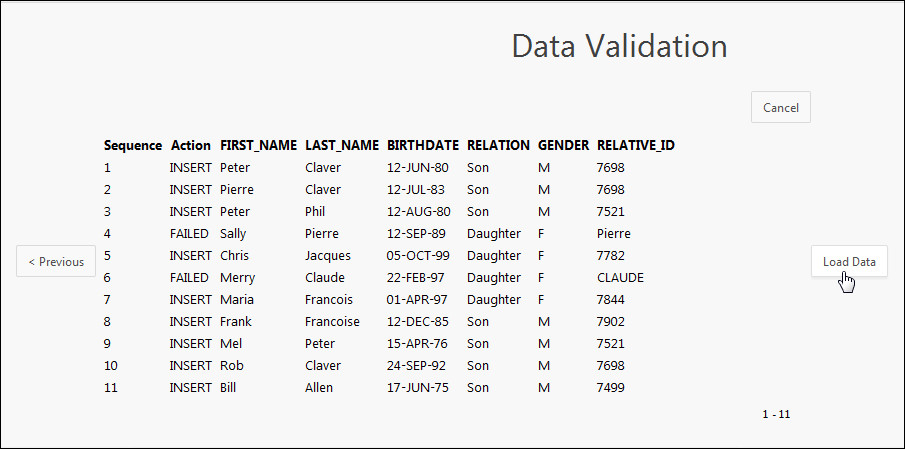
Notice now that all the values for GENDER are uppercase and the EMPNO of the relative is applied for each ENAME that if found in the EMP table. Notice that there are two names it did not find so an error will be generated when the Load takes place. Click Load Data.
-
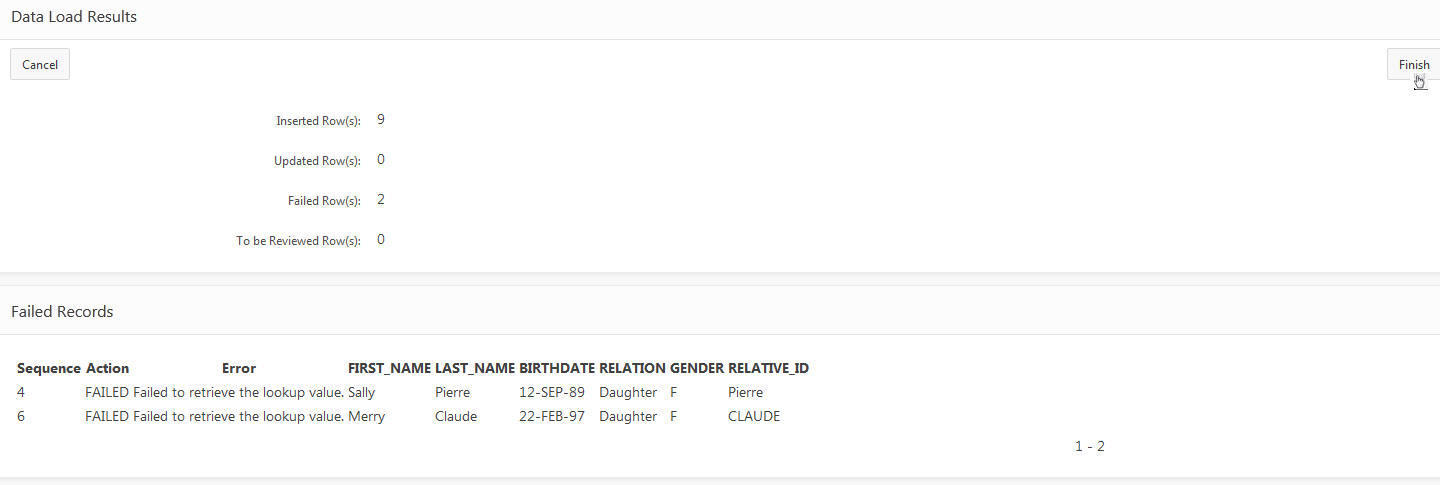
Notice that 9 rows were inserted and the 2 rows for the lookup that were not found failed. Click Finish.
-
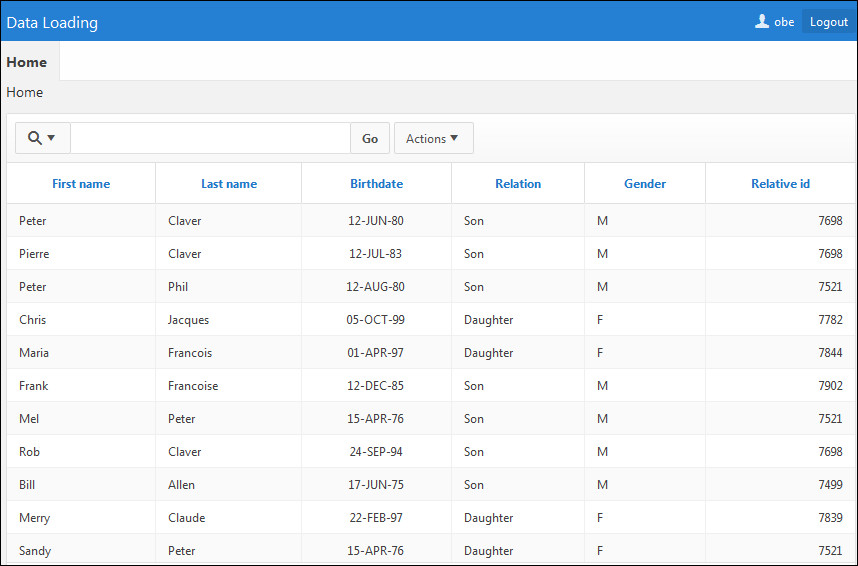
The Home page is now displayed and the report contains the data that you just loaded.
-
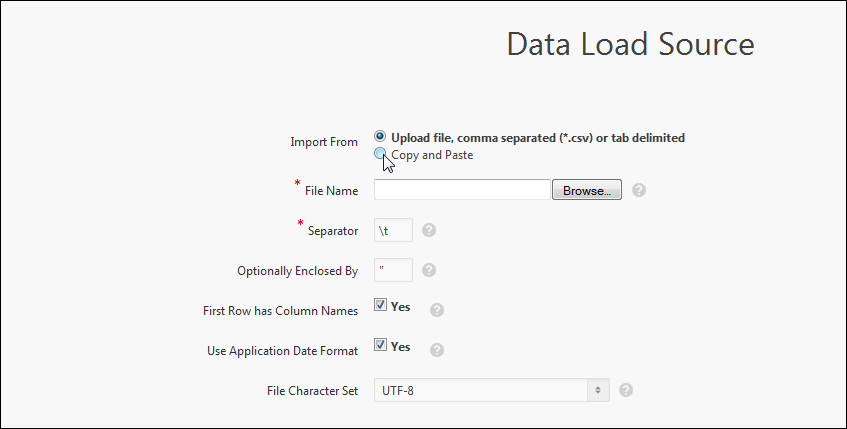
This time you want to use the Copy and Paste option instead of uploading a file. Click Copy and Paste.
-
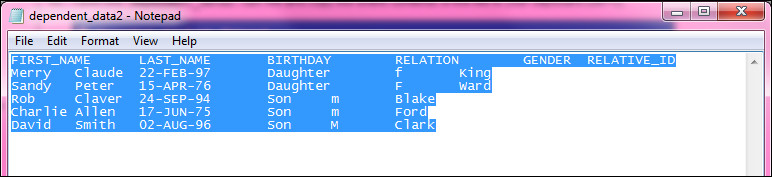
Open the dependent_data2.txt file and copy the entire contents of the file to your clipboard (ctrl+c).
-
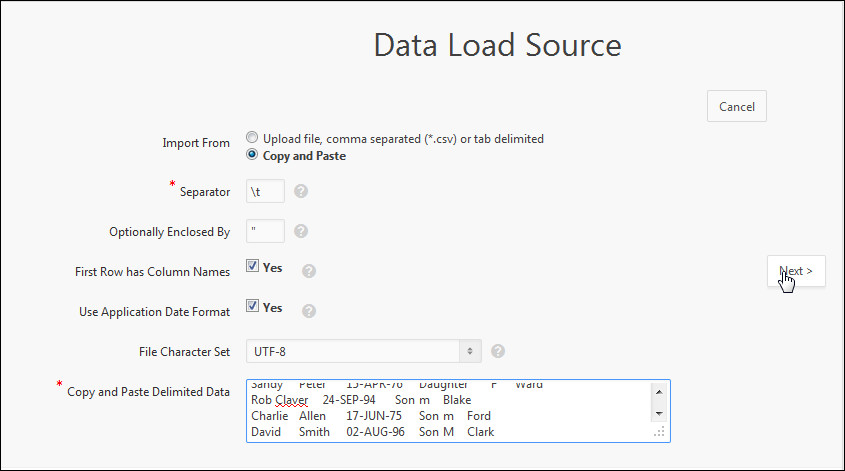
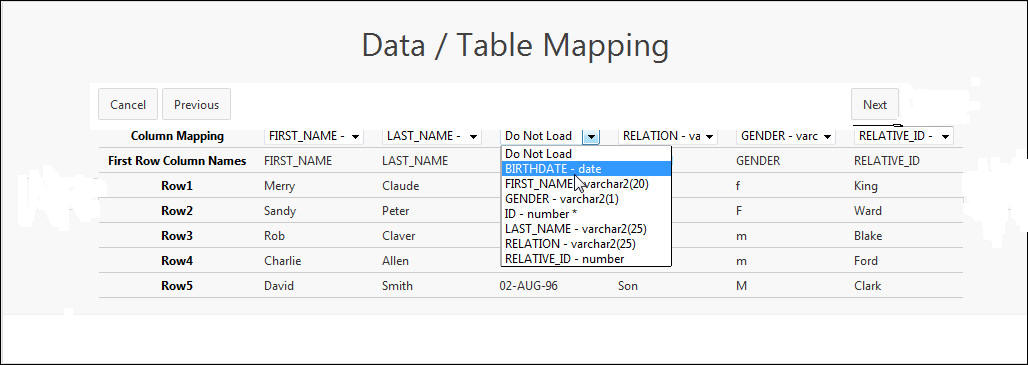
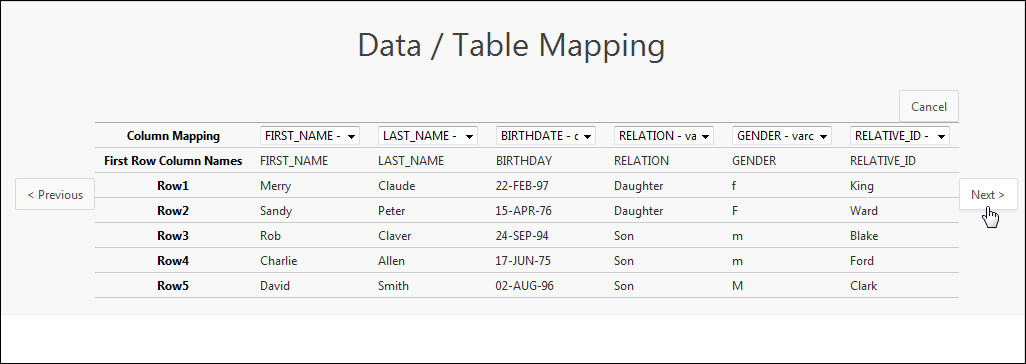
Paste the contents into the Copy and Paste Delimited Data area, make sure the First Row has Column Names is still checked and click Next >. Note that the third column name is set to BIRTHDAY instead of the column name in the DEPENDENTS table which is BIRTHDATE.
-
Because the column name did not match, you need to select the column name from the list. Select BIRTHDATE from the list for the third column.
-
Click Next to apply the lookup and transformation rule.
-
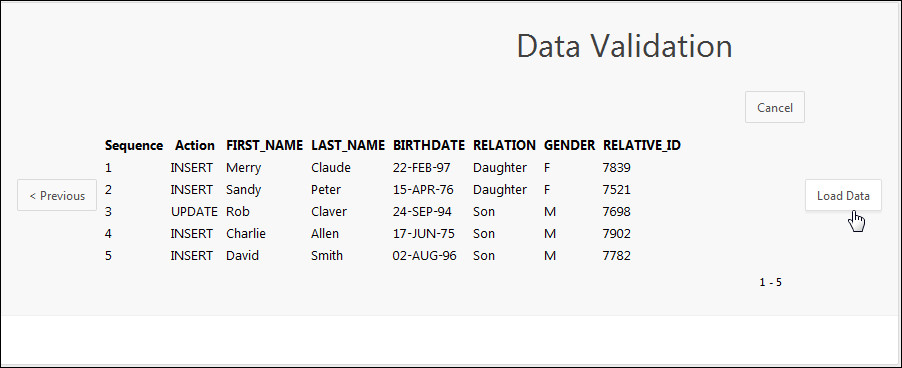
Notice the values for GENDER are in uppercase and all the EMPNO values were found in the EMP table. All the data will be inserted and one row will be updated because it had the same FIRST_NAME and LAST_NAME as the previous load. Click Load Data.
-
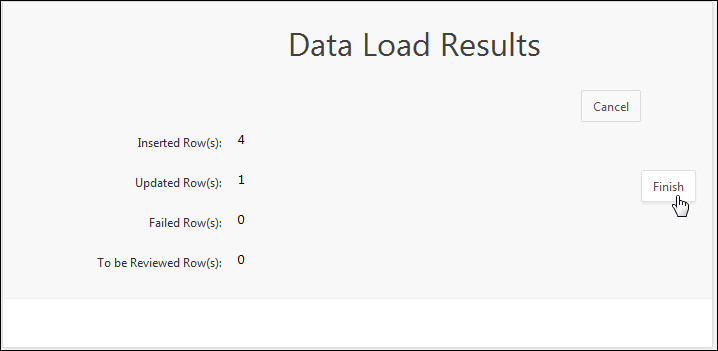
The data load results are displayed. Click Finish to return to the Home page.
-
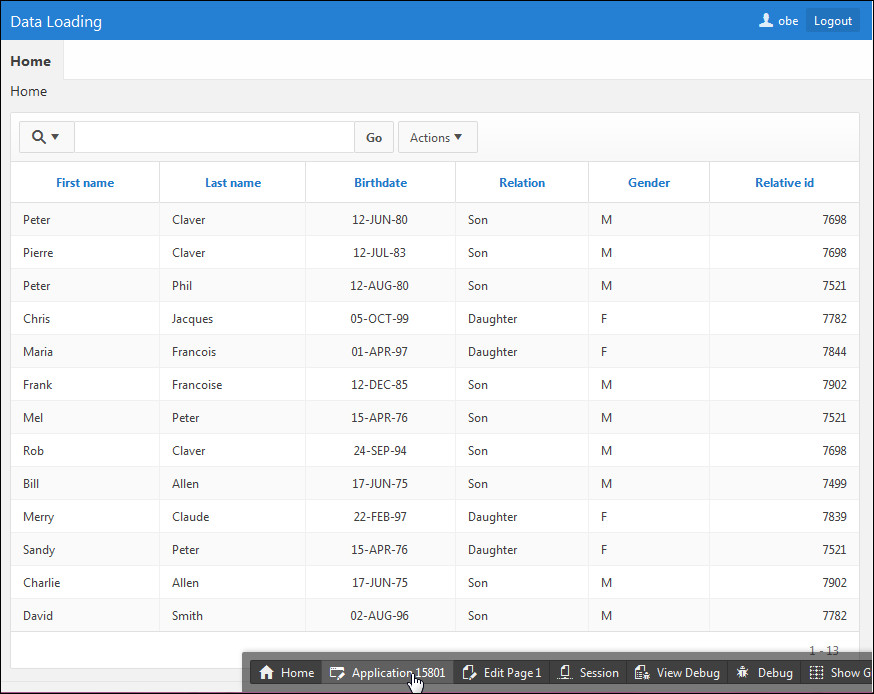
The report is updated with the additional and revised data. In the next section, you review the data load definition. Click the Application link in the developer toolbar.
Review the Data Load Definition
In this section, you review the Data Load definition so that if desired, you can make changes. Perform the following steps:
-
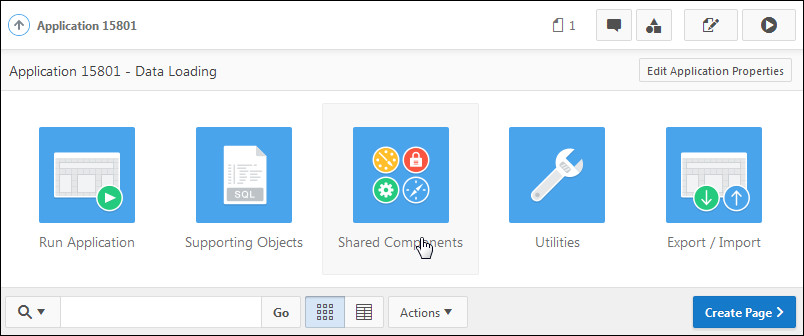
Notice that four Data Load pages were created in your application. To see the Data Load definition for these pages, Click Shared Components.
-
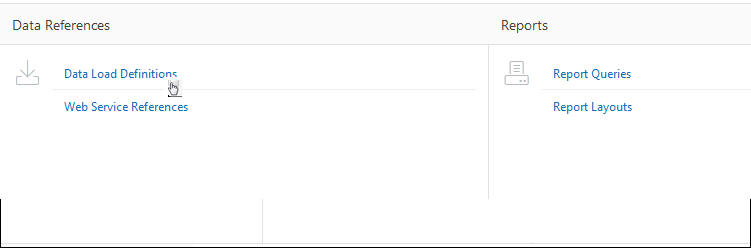
Under Data References, click Data Load Definitions.
-
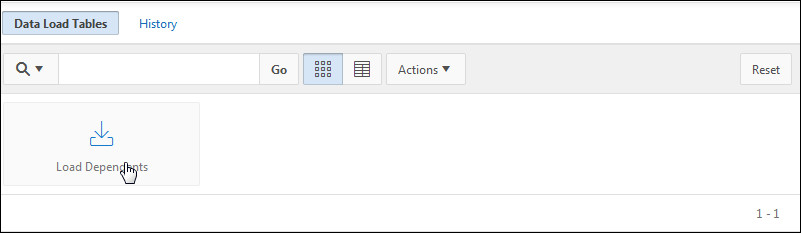
Click the Load Dependents definition.
-
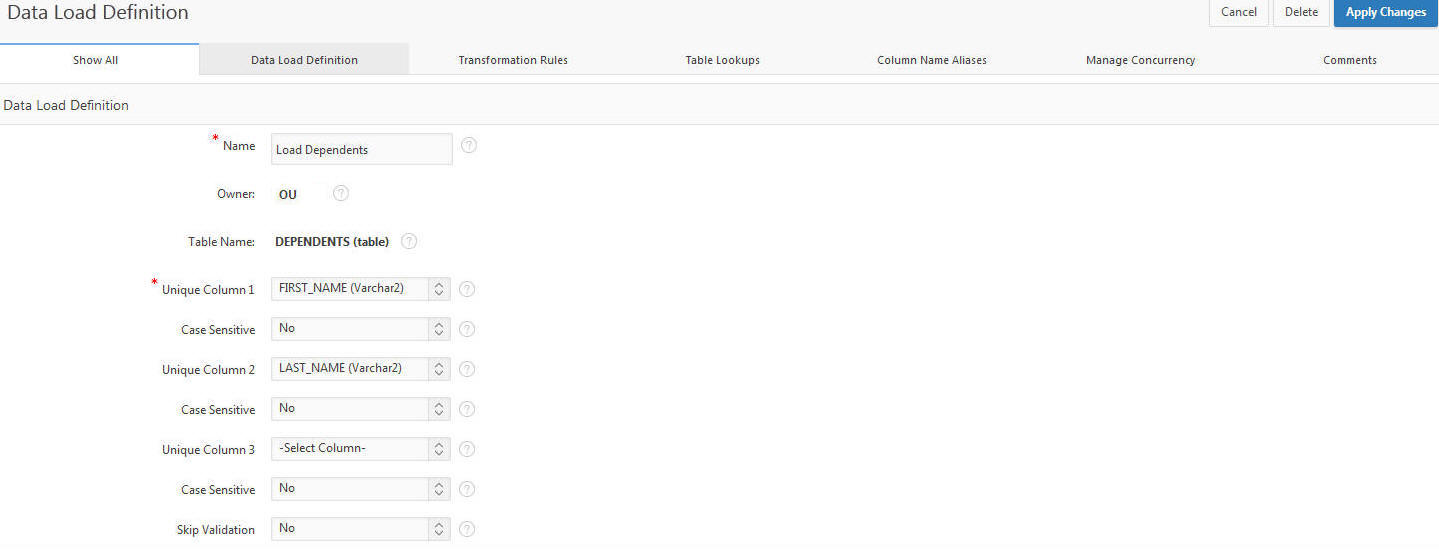
The definition is displayed. Note that you can create or modify any existing Table Lookups or Transformation Rules from this page.
Want to Learn More?
In this tutorial, you learned to:
- Create a Data Loading wizard
- Test your Data Loading wizard by loading data into a table
- View the Data Loading definition
Resources
- Oracle Application Express homepage on OTN.
- Oracle Application Express: Workshop I
- To learn more about Application Express 5.0, refer to additional OBEs in the Oracle Learning Library
- Oracle University
Credits
-
Lead Curriculum Developer: Dimpi Sarmah