 |
|
|
Installing and Administering Oracle Entitlements Server and the WebLogic Server SSM
Purpose
This tutorial covers the installation and configuration of Oracle
Entitlements Server (OES) 10.1.4.3 using WebLogic Server (WLS) 10.3, as
well as the application of OES cumulative patch 4 (CP4). This
tutorial then shows you how to install and configure the
WebLogic Server Security Service Module (SSM). This tutorial
assumes that you are configuring a development environment where there
is
only one installation of WebLogic Server, which is then updated with
the Oracle Entitlements Server
Administration software and the Oracle Entitlements Server Security
Service Module software.
Time to Complete
Approximately 2 hours
Overview
This tutorial covers the following topics:- Installing and configuring Oracle Entitlements Server:
- Installing Oracle Entitlements Server using WebLogic Server as the container
- Installing Cumulative Patch 4 - Admin
- Installing the Oracle Entitlements Server schema and general
database configuration
- Starting and stopping the Oracle Entitlements Server processes
- Verifying the installation using the Oracle Entitlements Server
console
- Installing and configuring the WebLogic Server SSM:
- Installing the SSM
- Installing the SSM patch
- Enrolling and Enrollment
- Creating a WLS Domain and configuring it for Oracle
Entitlements Server
Scenario
In this tutorial, we begin by configuring a database to support
Oracle Entitlements Server (Oracle Entitlements Server). Configuring
the database is done via
either scripts or directly within a database console. In the case of
Oracle Database, we also require a tablespace for containing the Oracle
Entitlements Server data. This
software runs in any of the several compliant Servlet containers; for
this
tutorial, we use WebLogic Server. We then install Oracle Entitlements
Server cumulative
patch 4, and create the database schema to support Oracle Entitlements
Server. The
tutorial then continues installing the Oracle Entitlements Server
Security Service Module (SSM) for WebLogic Server, including the SSM
specific CP4.
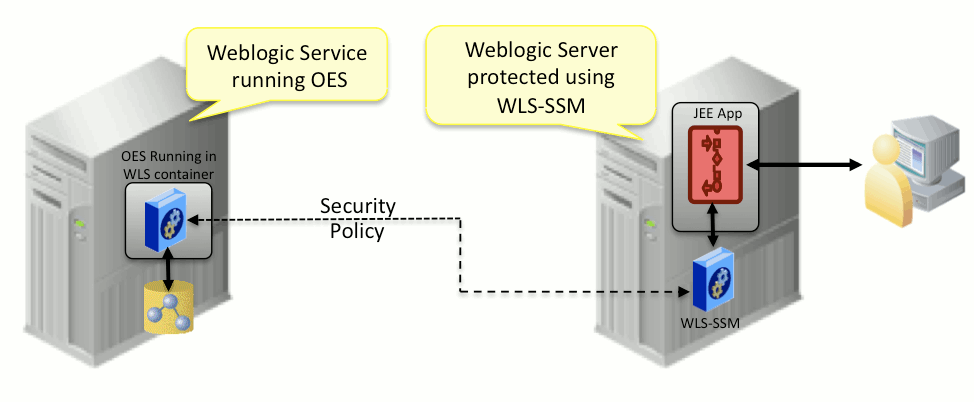
The diagram below displays the resulting solution after all the
steps
have been completed.
Software Requirements
The following is a list of software requirements:
- Operating System: Oracle Entitlements Server supports a number of
operating systems. For
this
tutorial, Windows XP Professional with Service Pack 2 is used..
- Database: Oracle Entitlements Server supports a number of databases. For this tutorial, Oracle Database 10g, Express edition is used.
- JEE/Servlet container: Oracle Entitlements Server supports WebLogic Server, Apache Tomcat, and IBM WebSphere. For this tutorial, WebLogic Server 10.3.2 is used.
- Oracle Entitlements Server: Multiple versions of Oracle Entitlements Server exist, this tutorial uses Oracle Entitlements Server 10.1.4.3.
- Oracle Entitlements Server Administration Patch: This tutorial shows the installation of Oracle Entitlements Server Admin Cumulative Patch 4, for Windows Oracle Entitlements Server version 10.1.4.3.
- Oracle Entitlement Server SSM: This tutorial uses Oracle Entitlements Server 10.1.4.3 SSM for WebLogic Server.
- Oracle Entitlements Server SSM Patch: This tutorial shows the installation of Oracle Entitlements Server SSM Cumulative Patch 4, for Windows Oracle Entitlements Server version 10.1.4.3.
Prerequisites
Before starting this tutorial, you should:
|
. |
Have access to or have installed the following software: This tutorial assumes that you have installed the Oracle XE database and WebLogic Server. Oracle WebLogic Server installs a Java 1.6 JDK, which is required for running the server and other products. After the products are installed, ensure that it is the WebLogic-supplied JDK that you are using by setting your system's path environment settings appropriately. Although you can install WebLogic Server in the location of your choice, the following label refer to the locations in the tutorial instructions:
|
|---|---|
|
. |
Have access to the following software:
During the course of this tutorial, Oracle Entitlements Server Admin and the WLS SSM for Windows will be installed and configured. You must have these products available for use during the tutorial if you want to follow the outlined steps. |
|
. |
Refer to the following documentation: |
Installing Oracle Entitlements Server
Create Database Schema
In order to install the Oracle Entitlements Server Administration Server, you must first create appropriate accounts and database space. The following steps describe this process.
This section assumes that you:
- Have installed Oracle Database
- Have access to a DBA-level Oracle Database account
- Have downloaded the required DBConfig tool files
- Have a statically assigned IP address on the server on which
Oracle Entitlements Server
is being
installed. Oracle Entitlements Server cannot be used with dynamic IP
addresses. If
the target machine has a dynamic IP address, check with the local
system
administrator for a static address.
|
. |
Unzip the DB Config tool zip file. The file name will vary
based on version and operating system:
|
||||||||||||||||||
|---|---|---|---|---|---|---|---|---|---|---|---|---|---|---|---|---|---|---|---|
|
. |
Run the WebLogic Server common environment script to specify the correct Java version: C:\...\dbconfig\> %MIDDLEWARE_HOME%\wlserver_10.3\common\bin\commEnv.cmd Note that this tutorial assumes that %MIDDLEWARE_HOME% points to
the directory where WebLogic Server is installed; typically, this
directory is c:\Oracle\Middleware
on Windows. C:\...\dbconfig>c:\oracle\middleware\wlserver_10.3\common\bin\commEnv.cmd
|
||||||||||||||||||
|
. |
Modify the appropriate configuration script to provide
appropriate values from the JAVA_HOME
and INSTALL_HOME
variables. Note that you are using a database other than
Oracle; you may also need to set the DB_JDBC_DRIVER_LOC
variable. See the documentation for a complete list of when this
variable needs to be set. Note: On Windows, you
should use the "short" name of the directory. This name can
be found using the dir/x
command. 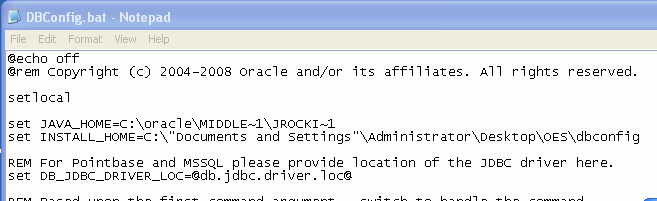
|
||||||||||||||||||
|
. |
Execute the DBConfig script from the command line. Note: The following example
assumes that the Oracle database runs on localhost and the device
contains at least 10 MB of available space for the database
tables.
Please input Database type <oracle|sybase|mssql|pointbase>: oracle Enter the JDBC URL for the database server. Eg. Oracle - jdbc:oracle:thin:@myDBserver:1521:myDBsid Please input JDBC URL: jdbc:oracle:thin:@localhost:1521:XE Enter the JDBC driver used to connect to the database. Eg. Oracle - oracle.jdbc.driver.OracleDriver Please input JDBC Driver: oracle.jdbc.driver.OracleDriver Please input new database user name: oesuser Enter new database user password:hidden Confirm new database user password:hidden Please input database admin name (Eg. sys): sys Please input database admin password:hidden -- Configuring table space [ales_oracle] Please input new tablespace position in DB server (Eg. c:\oracle\data.dbf):c:\oracle\data.dbf -- Creating new tablespace [ales_oracle] .......Done -- Creating new user [oesuser] .......Done -- Configuring ALES role [asi_role] -- Assigning privs to ALES role .......Done -- Assigning privs to new user [oesuser].......Done -- Closing down connection -- Successfully created ALES Database Account --
|
Installing the Oracle Entitlements Server Software
In order to install the Oracle Entitlements Server Administration Server, you must first create appropriate accounts and database space.This section assumes that you:
- Have preconfigured the database for use with Oracle Entitlements Server
- Have an appropriate installer. This tutorial assumes a Microsoft Windows installer.
|
. |
Unzip the Oracle Entitlements Server Installer. On
non-Microsoft
Windows platforms, you many need to untar or un-gzip the file. Additionally,
you may need to chmod +x
the unpacked file.
|
|---|---|
|
. |
Run the installer using a command similar to the one shown
below. The preparing dialog box is displayed as
the installer unpacks and prepares to run. C:\. . . >Oracle Entitlements Server10.1.4.3.0_admin_win32.exe  |
|
. |
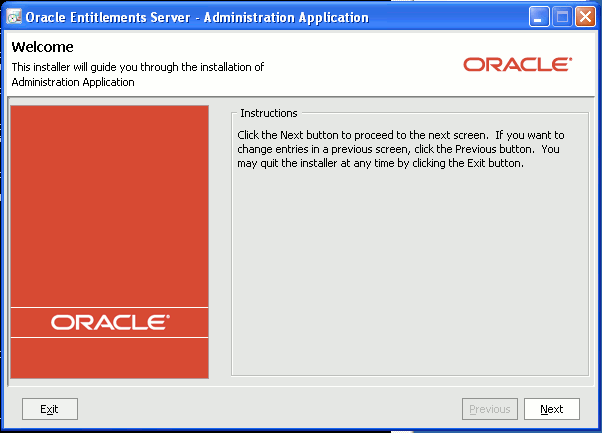
Click Next on the
Welcome screen.
|
|
. |
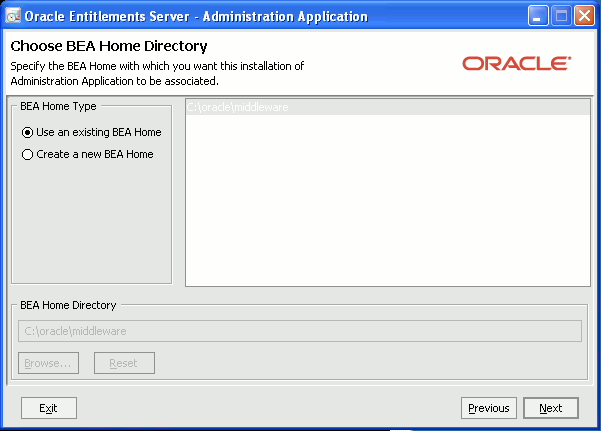
Oracle Entitlements Server requires an appropriate servlet
container and will use
Oracle WebLogic Server if a BEA_HOME
is found.
|
|
. |
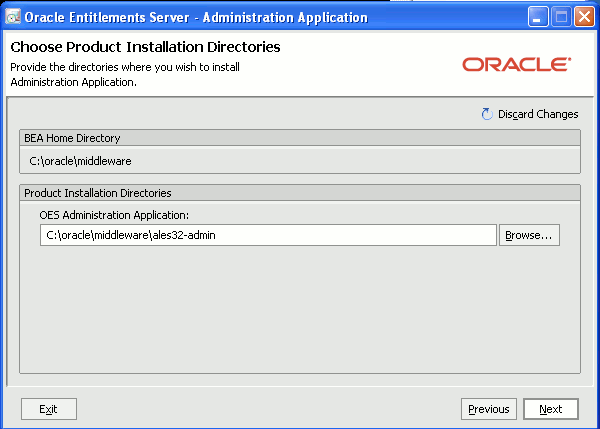
Enter a fully qualified path for the Oracle Entitlements
Server administration
software. The default name should be sufficient in most cases. Click Next to
continue.
|
|
. |
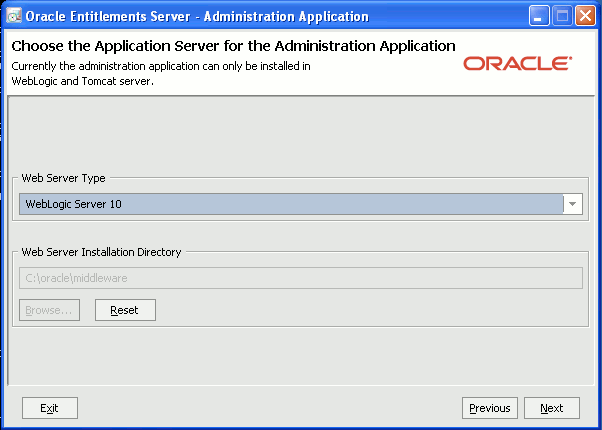
You may select either WebLogic Server or Tomcat. For this
tutorial, we use WebLogic server as the servlet container. Select
WebLogic Server 10 from the Web Server Type drop-down list and
then click Next.
|
|
. |
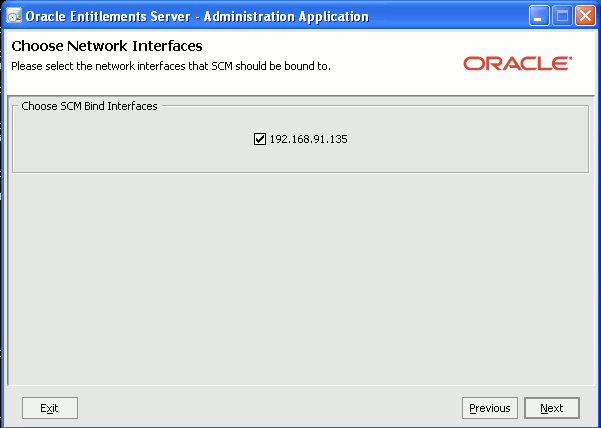
Select the interface the Service Control Manager (SCM) should
bind
to. In this case, only one interface is provided. However, if your
installation contains multiple IP addresses, check the correct
address and click Next.
|
|
. |
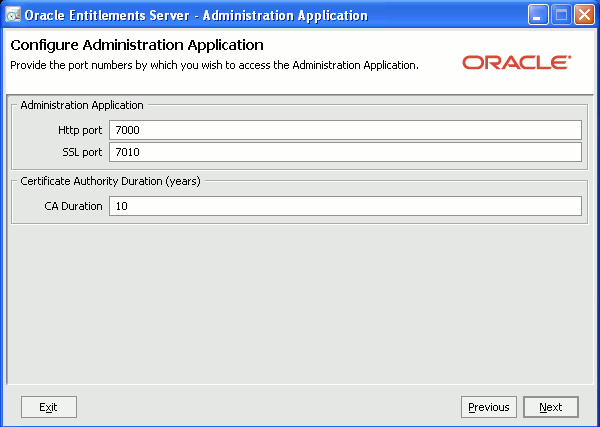
Choose the HTTP and SSL ports that Oracle Entitlements Server
should bind
to. For the tutorial, the defaults are acceptable. Then click Next.
|
|
. |
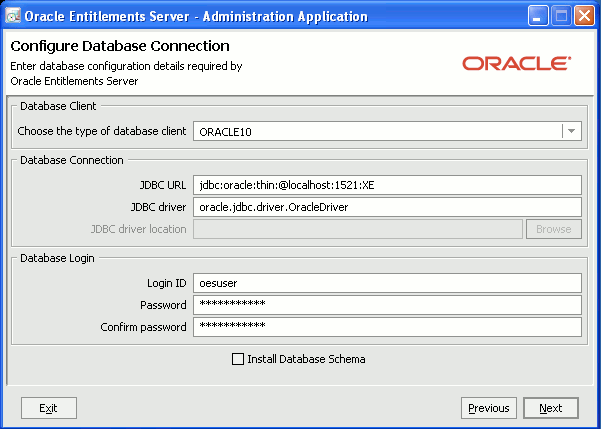
Select the appropriate database and click Next. The
values here should exactly match the values used in the previous task.
Note that Login ID should be entered in lowercase. Ensure that Install
Database Schema is NOT selected. Then click Next.
|
|
. |
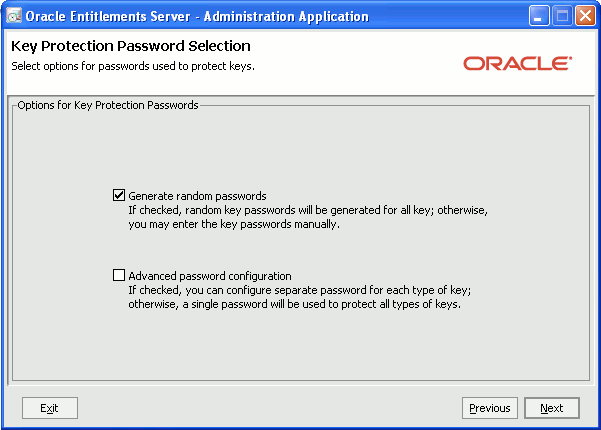
Select Generate random
passwords, and click Next.
|
|
. |
Select an appropriate SDK. Either JRockit or the Sun SDK
is acceptable. The tutorial uses the Sun JDK. See the Oracle
Entitlements Server
documentation if you are concerned about supported JDKs. Click Next.
|
|
. |
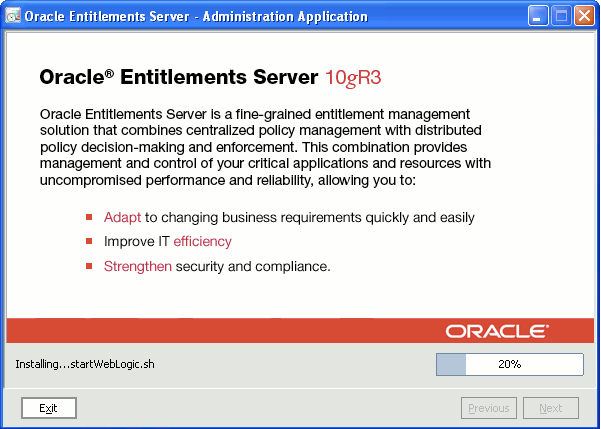
The installation progress screen is displayed. Allow the
installation to complete, or click Exit
to abort. The installation can take up to a few minutes to complete.
|
|
. |
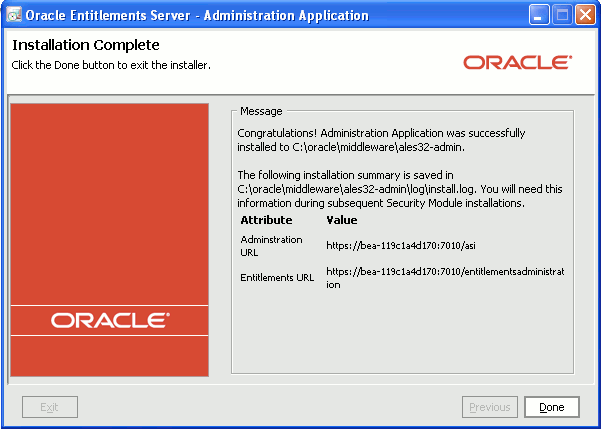
When the installation completes, URLs for the Administration
and
Entitlements applications are displayed. Make a note of these
URLs. Additionally, these URLs can be found in C:\oracle\middleware\ales32-admin\log\
install.log.
|

Installing Admin
Cumulative
Patch 4
If an SSM was installed onto the same server as Oracle Entitlements Server, the ales32-scm and ales32-shared
directories can be shared between the Oracle Entitlements Server administration server and the installed SSM products and upgraded only once. If you have the SSM installed and running on a different server, you will need to install the patch on these servers as well.
This section assumes that:
- Oracle Entitlement Server is not running when the patch is applied
- The application server directories have been backed up and so in case of a problem, they can be restored easily
- The default locations described in the previous sections are used
|
. |
Open a command prompt and change the directory to the %MIDDLEWARE_HOME%\ales32-admin
directory. For this tutorial, the
fully qualified path is C:\oracle\middleware\ales32-admin.
|
|---|---|
|
. |
Unzip the patch file. Assume that the patch is located in
c:\temp and the command
is
being executed in C:\oracle\middleware\ales32-admin: |
|
. |
Change the directory to patches\cp4: cd patches\cp4 Edit the ApplyAdminPatch.bat
file: notepad ApplyAdminPatch.bat |
|
. |
Modify the JAVA_HOME
and ALES_ADMIN_HOME
properties. Assuming
the values used for this tutorial, the variables should resemble:
Note that depending on your installation of WLS different JDKs may
exist. |
|
. |
Modify the isAdmin setting to represent whether the patch is
being run from the Administrator account. The account used for this
tutorial is Administrator, so the setting is marked true. set IsAdmin=true
Save the changes and close the editor. |
|
. |
Validate that the machine requires the patch via the status action by using a command similar to: ApplyAdminPatch.bat status Review and ensure that the installation is at version 0. Results should be similar to: Buildfile: ApplyPatch.xml status: [echo] Existing Admin product Version: 10.1.4.3; Current CP version: 0 [echo] Patch product Version: 10.1.4.3; Patch CP version: 4 BUILD SUCCESSFUL Total time: 2 seconds |
|
. |
Run the patch to upgrade to CP4 by using the following
command: ApplyAdminPatch.bat
upgrade This produces results similar to the following:
shared.backup: |
|
. |
Validate that the patch was successfully applied by using:
|
Initializing the
Oracle
Entitlements Server Schema
During the previous installation steps, we skipped the initialization of the Oracle Entitlements Server database schema. This was done so that the patch software can be run, which upgrades various Oracle Entitlements Server software including the schema definition itself.
To install the schema, perform the following:
|
. |
In a command window, change the directory to the %MIDDLEWARE_HOME%\ales-admin32\bin
directory. cd
c:\oracle\middleware\ales-admin32\bin |
|---|---|
|
. |
Execute the install_ales_schema
script to install the schema
and start an instance of Oracle Entitlements Server. C:\oracle\middleware\ales32-admin\bin>install_ales_schema.bat
oesuser oespassword If all the previous steps were completed successfully, the
script
will run and start an instance of Oracle Entitlements Server producing
output similar to the
following: . . . Load internal policy... . . . The OES
Administration
server has now been properly initialized and started. |
Managing Oracle Entitlements Server Processes
Oracle Entitlements Server runs as two services within Windows or Linux. The server processes can be managed manually by using scripts provided in the ales32-admin/bin and ales32-scm/bin directories. On Microsoft Windows, two services are created, which can be used to start and stop these processes. On Linux/UNIX, the services can be installed to start at run levels 3 and 5. For this tutorial, we will use the Windows scripts to manage these processes.
An example of the Windows services, after installation, is as follows:

Note that the following commands are OPTIONAL, you can start and stop the Oracle Entitlements Server processes using Windows Services.
|
. |
Open a command prompt and change the directory to C:\Oracle\middleware\ales32-admin\bin\. |
|---|---|
|
. |
Stop the Oracle Entitlements Server Server process by entering
the following command: |
|
. |
Change the directory to C:\Oracle\middleware\ales32-scm\bin\. |
|
. |
Stop the Oracle Entitlements Server SCM Server by entering the following command: start WLESscm stop |
|
. |
Restart the Oracle Entitlements Server SCM in console mode by
using the following
command: start WLESscm console A new window will open and show commands similar to those
below. Note that until the Oracle Entitlements Server policy process is
started, informational
messages will be generated. 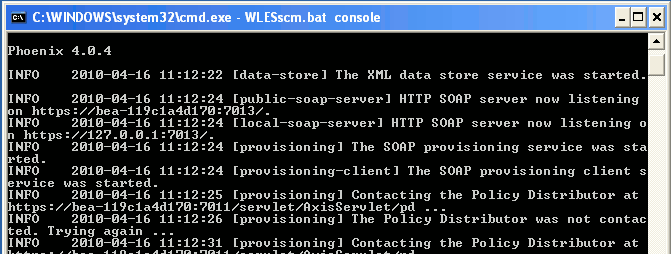 |
|
. |
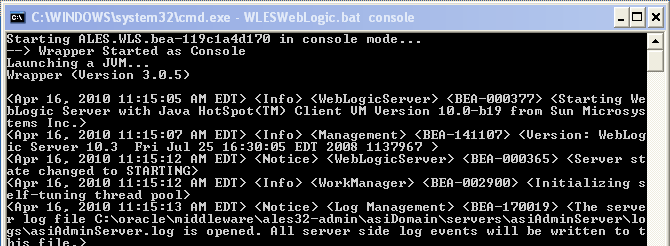
Return to the ales32-admin\bin
directory and start the policy process using the following command: start WLESWebLogic console
|
Verifying the Oracle
Entitlements Server Console
After it is installed and started, the Oracle Entitlements Server console can be examined to ensure that the software is running properly.
|
. |
In Firefox or a browser of your choice, enter the following
URL: https://localhost:7010/entitlementsadministration/ If prompted for certificates, accept for this session and
continue.
|
|---|---|
|
. |
Log in to the Administration Console using credentials admin/password.
|
|
. |
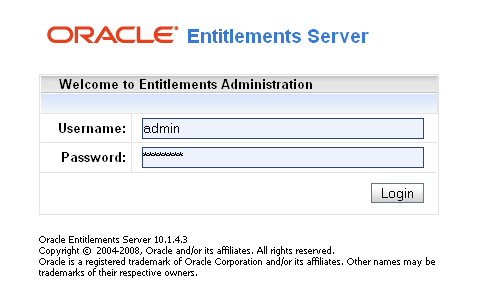
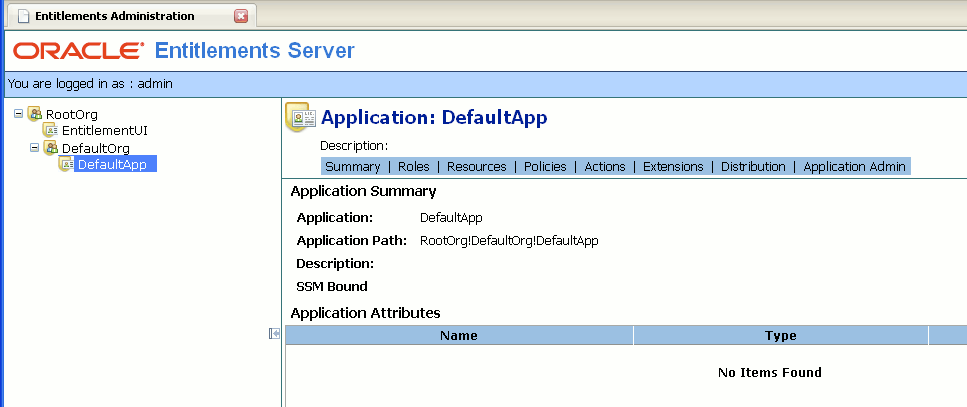
The Oracle Entitlements Server console should display,
looking similar to that shown below.
|
Installing the WLS SSM
Installing the SSM
Software
In order to install the Oracle Entitlements Server Administration SSM for WebLogic Server, you must:
- Have a static IP address
- Have downloaded the SSM installer for your platform. This tutorial assumes that you are installing the SSM on Windows.
- When installing on Windows, you must install to an NTFS
formatted drive. FAT devices are not supported.
- Have downloaded the SSM patch, previously noted but downloadable here
- Have installed Oracle Entitlements Server - Admin, as previously presented
- Have downloaded and installed the JDK Java plug-in for Firefox or
your browser of choice,
Note that this requirement is only for be benefit of accessing the Oracle Entitlements Server Administration console and not strictly an SSM requirement,
For a complete description of the SSM installation process, see the Oracle Entitlements Server SSM installation guide found here. Oracle Entitlements Server - SSM 10.1.4.3 can be downloaded from here.
|
. |
c:\..\> Oracle
Entitlements Server10.1.4.3.0_ssm_win32.exe
-log=ssm.install.log -log_priority=debug
|
|---|---|
|
. |
|
|
. |
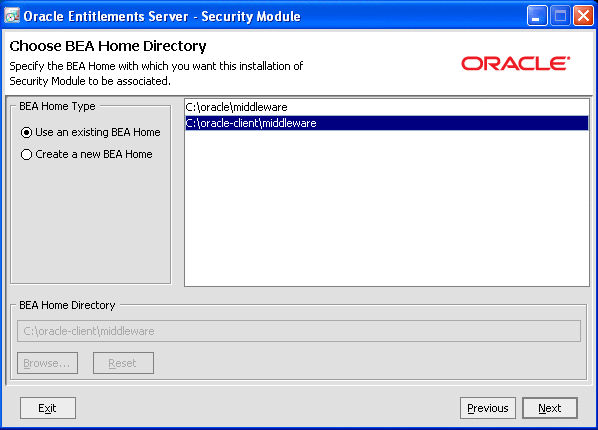
Select an appropriate middleware home directory and click Next. This tutorial uses a
separate client middleware home (c:\oracle-client\middleware)
to more closely replicate an
environment where the administration console server is separate from a
remote SSM.
|
|
. |
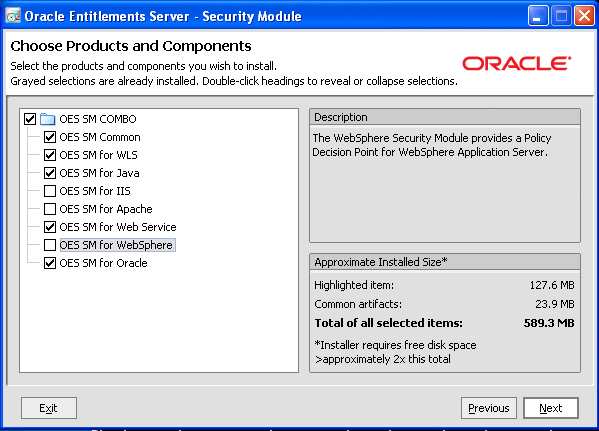
Select one or more Security Modules to install. For
this tutorial, only the SSM for WebLogic is required. Click Next.
|
|
. |
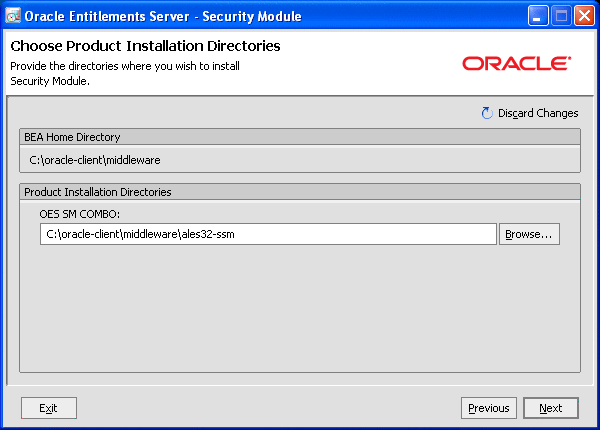
In the Choose Product Installation Directories dialog box,
click Next.
|
|
. |
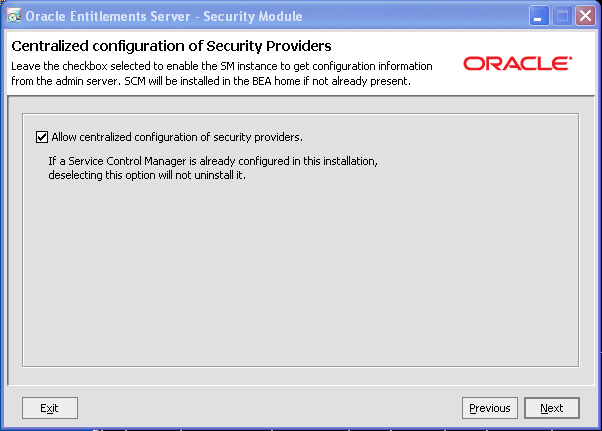
Ensure that the Allow centralized configuration of security
providers check box is
selected. Click Next.
|
|
. |
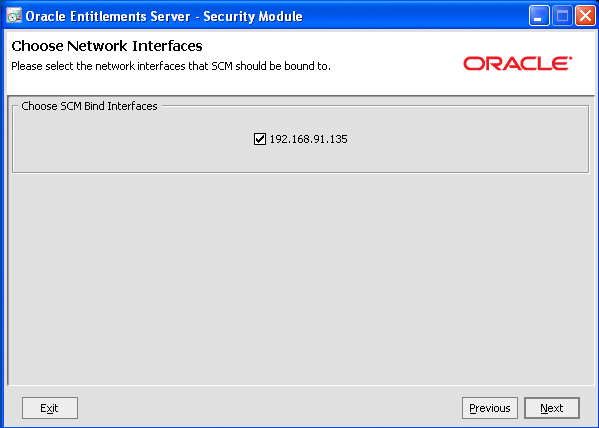
In the Choose Network Interfaces dialog box, select a bind
interface for
the SCM associated with the SSM. Note that in this scenario, only
a single IP address is available. Click Next.
|
|
. |
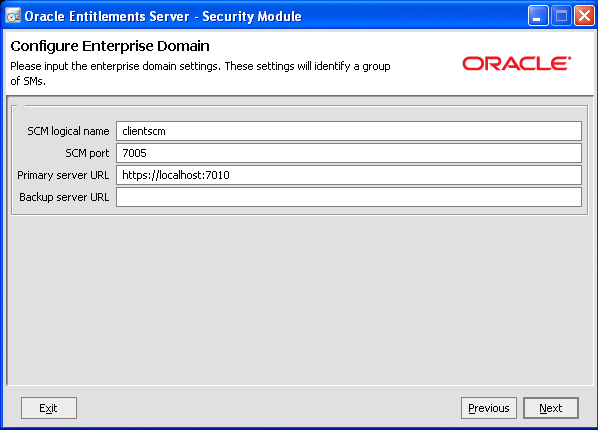
Enter an SCM logical name. This name represents the name of
the SCM as it will be entered later in the Administration
console. Choose an appropriate name. Enter the URL of the
primary server, which in the case of the tutorial is https://localhost:7010, the prefix
portion of the administration URLs from earlier steps. Click Next. Note that this is not strictly required for the WLS-only SSM
installations, and by requiring it you will need to uncomment the scm.name setting when running
the config tool. This is discussed later.
|
|
. |
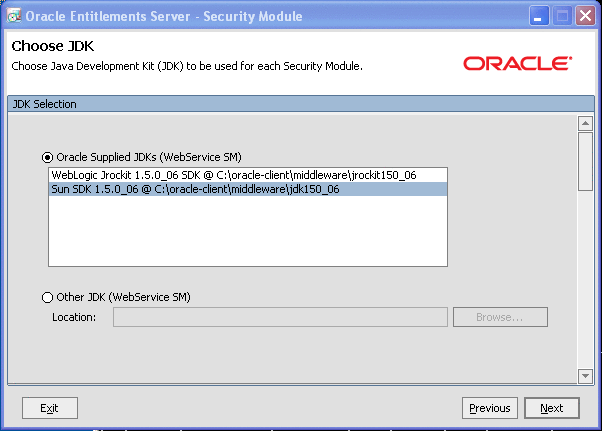
Select a JDK. For this tutorial, the Sun JDK is used.
|
|
. |
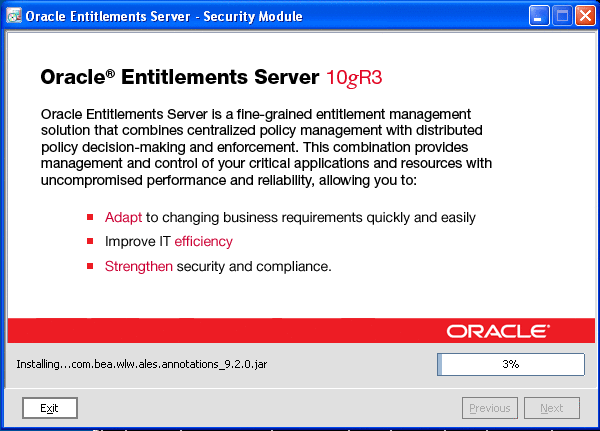
The progress dialog box is displayed. The installation can take anywhere between 1 to 3 minutes depending on disk input/output (I/O) performance.
|
|
. |
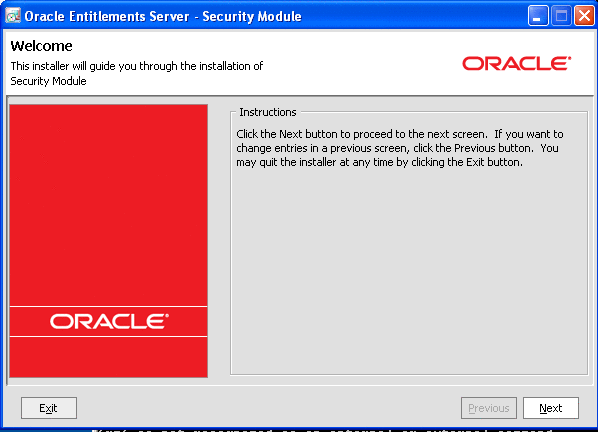
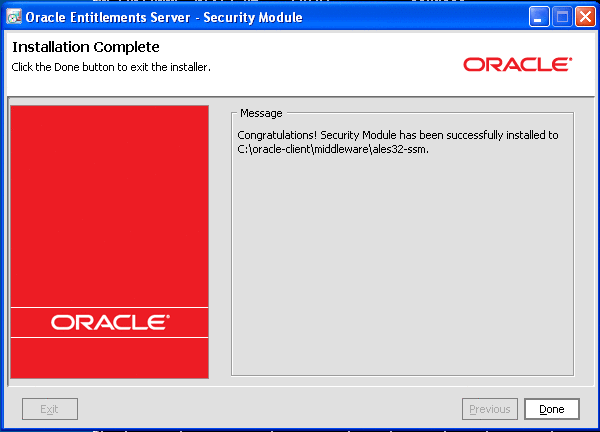
On completion, click Done.
|
Installing the SSM patch
The Oracle Entitlements Server Security Module also includes a CP 4
patch that must be installed.
To install the patch, unzip the patch, update ApplySsmPatch script
and then run the patch. .
|
. |
Open a command prompt and change the directory to the %MIDDLEWARE_HOME%\ales32-ssm
directory. For this tutorial, the
fully qualified path is C:\oracle-client\middleware\ales32-ssm. |
|---|---|
|
. |
Unzip the patch file. Assume that the patch is located in c:\temp and the command is
being executed in C:\oracle-client\middleware\ales32-ssm. |
|
. |
Change the directory to patches\cp1
and update the ApplySsmPatch
script. cd patches\cp1 Edit ApplySsmPatch.bat
and set the JAVA_HOME, ALES_ADMIN_HOME
and JVM_VERSION
properties. Assuming
the values used for this tutorial, the variables should resemble: Note that the ALES_ADMIN_HOME
variable includes any
installed SSM, such as the wls-ssm
SSM.
|
|
. |
Validate that the machine requires the patch via the status
action
using a command similar to: ApplySsmPatch.bat status Review and ensure that the installation is at version 0. Results should be similar to the following: Buildfile: ApplyPatch.xml status: [echo] Existing SSM product Version: 10.1.4.3; Current CP version: 0 [echo] Patch product Version: 10.1.4.3; Patch CP version: 4 BUILD SUCCESSFUL Total time: 2 seconds
|
|
. |
Run the patch to upgrade to CP 4 using the following command: ApplySsmPatch.bat
upgrade This will produce results similar to the following:
upgrade: upgrade.ssm: [propertyfile] Creating new property file: C:\oracle\middleware\ales32-ssm\common\lib\CpVersion.properties ssm.backup: [mkdir] Created dir: C:\oracle\middleware\ales32-ssm\patches\cp1\backup_dir [copy] Copying 1 file to C:\oracle\middleware\ales32-ssm\patches\cp1\backup_dir . . . upgrade.ssm.to.cp1: upgrade.scm: [echo] *** Skipping SCM (it was already patched by a prior Admin or SSM patch upgrade) upgrade.shared: [echo] *** Skipping shared directory (it was already patched by a prior Admin or SSM patch upgrade) print.output: BUILD SUCCESSFUL Total time: 1 minute 0 seconds
|
|
. |
Validate that the patch was successfully applied using the
following: status: [echo] Existing SSM product Version: 10.1.4.3; Current CP version: 4 [echo] Patch product Version: 10.1.4.3; Patch CP version: 4
|
Pre-SSM Preparation
Before you create an SSM instance, a number of steps must be
performed.
These steps include:
- Enrolling: Register an SSM with an Administration Server.
- Defining an SCM: Oracle Entitlements Server Administration interacts with SSMs via an SCM, which must be defined in the Oracle Entitlements Server database using the Oracle Entitlements Server administration console.
- Establishing secure communications: The asipassword utility is used to configure secure communications between an SCM for the SSM and the Administration server.
After you complete these steps, you can configure the SSM. Note that these steps are only for the WebLogic Server SSM. Other SSMs may use similar but different processes.
Before installing you must ensure that the Oracle Entitlements Server installation is configured for one-way SSL. See the documentation here for further details.
Enrolling
Enrollment is the process by which an Oracle Entitlements Server component on a remote machine registers with the Administration Server. As part of this process, the SSM system exchanges security certificates with the Administration Server.
All components located under a specific MIDDLEWARE_HOME directory use the same set of keys located in MIDDLEWARE_HOME/ales32-shared/keys. Therefore, the enrollment process should be run only once for any given MIDDLEWARE_HOME.
|
. |
Ensure that the Administration Server and SCM are
running. If not, open a command prompt and execute the following
commands: C:\oracle\middleware\ales32-admin\bin>start WLESWebLogic.bat console C:\oracle\middleware\ales32-admin\bin>cd ..\..\ales32-scm\bin C:\oracle\middleware\ales32-scm\bin>start WLESscm.bat console Close the command prompt when done. You may use the cut and pasteable version of these instructions to enter these commands: cd \oracle\middleware\ales32-admin\bin start WLESWebLogic.bat console cd ..\..\ales32-scm\bin start WLESscm.bat console |
|---|---|
|
. |
Open a second command prompt to avoid confusion with environment settings, and change the directory to: C:\oracle-client\middleware\ales32-shared\bin |
|
. |
Execute the set-env.bat
script to configure the environment. C:\oracle-client\middleware\ales32-shared\bin>set-env.bat |
|
. |
Execute the enroll script. For this example, the password password is used for all prompts. C:\oracle-client\middleware\ales32-shared\bin>enroll demo ============================================================================== AquaLogic Enterprise Security Enrollment/Unenrollment Utility ============================================================================== Enter admin username :> admin Enter admin password :> password Enter SSM private key password :> password Confirm SSM private key password :> password Enter password for identity.jceks :> password Confirm password for identity.jceks :> password Enter password for peer.jks :> password Confirm password for peer.jks :> password Enter password for trust.jks :> password Confirm password for trust.jks :> password Submitting enrollment request Processing enrollment response Updating trusted CA keystore Updating peer keystore |
Running the ASI Password Script
Before configuring the SSM, you must use the asipassword utility to set the Administration Server's system user password on the SSM machine. This password is required to secure communications between the SSM and the Administration Server.|
. |
Ensure that the Administration Server and SCM are
running. |
|---|---|
|
. |
Open a command prompt and change the directory to C:\oracle-client\middleware\ales32-shared\bin. |
|
. |
Run the asipassword command specifying the name of a password XML file and a password key file. C:\...> asipassword admin c:\oracle-client\middleware\ales32-shared\keys\password.xml c:\oracle-client\middleware\ales32-shared\keys\password.key Enter password for alias: admin> password Confirm password for alias: admin> password Password saved. Note that this command should be run on a single line, but is broken for clarity of display.
|
Configuring the WLS-SSM and its Associated WLS Domain
Before configuring a domain to use the WLS-SSM, you should:
- Create a backup of your domain, at a minimum you should ZIP or TAR your domain to guard against error or mistakes
- For the Sun JDK, set the minimum memory for your domain as -XX:PermSize=128m -XX:MaxPermSize=256m
- Stop the domain if it is running
- Note that for this tutorial a basic WLS domain, housed in c:\oracle\domains\oes_secured is used.
- Before running these steps under Windows it is strongly
recommended that you read and review the Microsoft support note: http://support.microsoft.com/default.aspx?scid=kb;en-us;196271.
The PolixyIX tool uses a port allocation scheme for import/export which may exceed the available number of ports under certain version of Microsoft Windows, this note describes how to configure WIndows to use ports above 5000 and avoid the problem. If you see errors similar to bea_fault=". . . ">java.net.BindException: Address already in use, then refer to this note.
|
. |
Ensure that the Administrator server and SCM are running. |
||||||||||||||||||||||||||
|---|---|---|---|---|---|---|---|---|---|---|---|---|---|---|---|---|---|---|---|---|---|---|---|---|---|---|---|
|
. |
Return to the command prompt and copy ales_security_provider_ext.jar to the domain\console-ext directory using a command similar to: C:\oracle-client\. . . >copy c:\oracle-client\middleware\ales32-ssm\wls-ssm\lib\ales_security_provider_ext.jar c:\oracle\domains\oes_secured\console-ext\ Note that the command is shown in two lines for clarity. |
||||||||||||||||||||||||||
|
. |
Change directory to the wls-ssm administration directory: C:\oracle-client\. . . >cd \oracle-client\middleware\ales32-ssm\wls-ssm\adm |
||||||||||||||||||||||||||
|
. |
Using Notepad, modify C:\oracle-client\middleware\ales32-ssm\wls-ssm\template\config\WLESarme.properties and specify: passwordfile =
c:/oracle-client/middleware/ales32-shared/keys/password.xml Save your changes and exit. |
||||||||||||||||||||||||||
|
. |
Copy the
myssm_config.properties template to an appropriate name such as
oes_secured_config.properties.
|
||||||||||||||||||||||||||
|
. |
Open the copied file in Notepad. notepad oes_secured_config.properties |
||||||||||||||||||||||||||
|
. |
Modify the following properties to match the settings
below. Note that these properties assume the values used in the
tutorial so far. Some of these properties are prefixed with
the comment character #. Deletethis character if it is present.
Save your changes and close Notepad. |
||||||||||||||||||||||||||
|
. |
Confirm that the settings are correct by running the following command: configtool.bat
-check oes_secured_config.properties |
||||||||||||||||||||||||||
|
. |
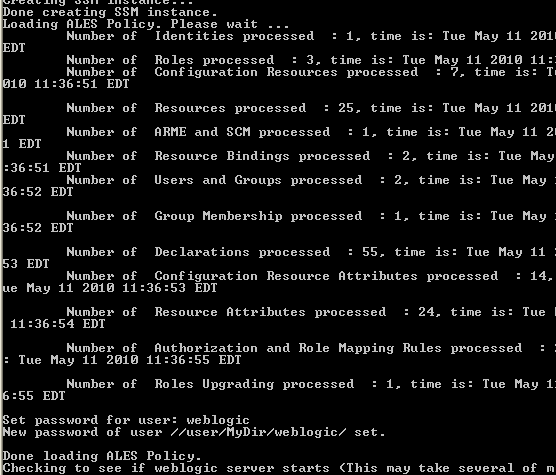
To configure the domain to use Oracle Entitlements Server for
security, return to the
command prompt and run the following command: configtool.bat
-process oes_secured_config.properties You should see status resembling that shown below.
If there are any errors between the Loading
ALES Policy and set password
for user statements, you've made an error.
|
||||||||||||||||||||||||||
|
. |
If errors were detected, you must restore your domain,
and remove the newly created instance in the wls-ssm/instance/subdirectory.
After restoring the domain and removing the
instance, correct whatever error was made and rerun the OES
configuration tool.
|
||||||||||||||||||||||||||
|
. |
You may now restart the domain and log in to the console normally. Congratulations! You have successfully created a WLS domain secured by Oracle Entitlements Server.
|
Summary
The preceding steps documented the process of installing the Oracle
Entitlements Administration software and WebLogic Server SSM.
In this tutorial, you have learned how to:
- Install Oracle Entitlements Server, patch it to the current patch
level, and start all required processes
- Install the Oracle Entitlements Server WebLogic Server SSM and
patch it to the current patch level
- Configure a WebLogic Server SSM instance to secure a WLS domain

 |
About Oracle |  |
Careers
| Contact Us | Site Maps | Legal Notices | Terms
of Use | Your Privacy Rights |
Careers
| Contact Us | Site Maps | Legal Notices | Terms
of Use | Your Privacy Rights |