
 Part 1:

 Read more...
The EditDept_LOV workbook contains a list of values field and a table that has insert/update/delete functionality. You also add menu items to the Excel ribbon in the workbook.

-
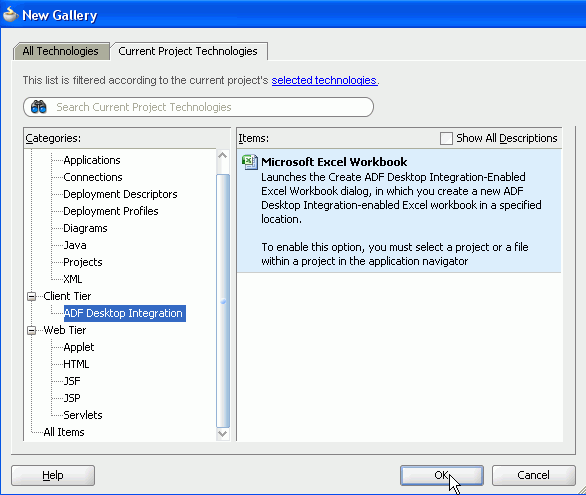
Right-click the ViewController project in the Navigator and select New... from the context menu. In the New Gallery expand the Client Tier node if it is not already expanded, and select ADF Desktop Integration. Microsoft Excel Workbook should be automatically highlighted in the Items pane, so click OK to select it.
-
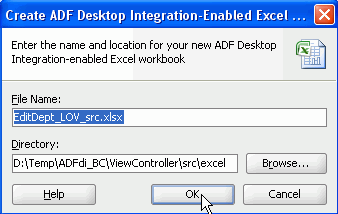
Name the workbook EditDept_LOV_src.xlsx and click OK.
-
In the Application Navigator, double-click EditDept_LOV_src.xlsx to open Excel.

-
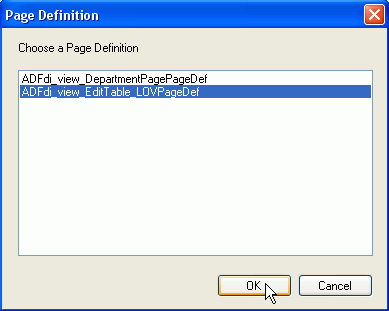
Excel opens, loading Oracle ADF Desktop Integration. In the Page Definition dialog, select the ADFdi_view_EditTable_LOVPageDef page definition.
-
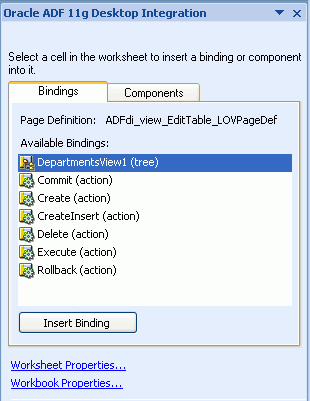
The ADFdi task pane displays in Excel, presenting the available bindings from the page definition.
-
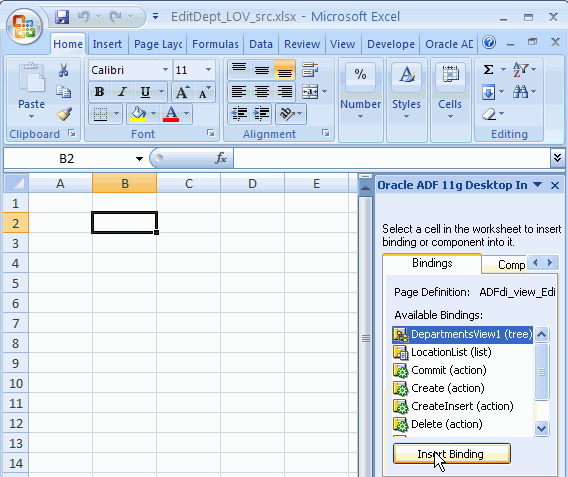
When the worksheet displays, select a cell and in the Bindings tab, select DepartmentsView1 and click Insert Binding.
-
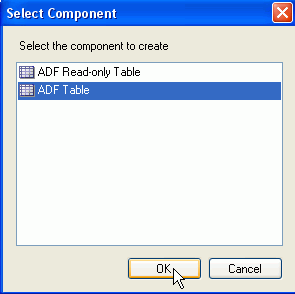
In the Select Component dialog, select ADF Table. Click OK.
-
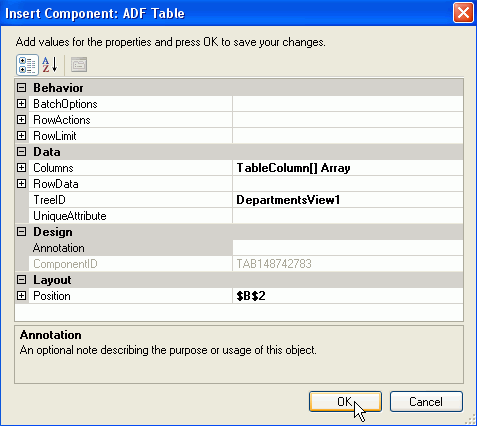
In the Insert Component: ADF Table dialog, click OK to accept default values.
-
The Excel worksheet should look like this:
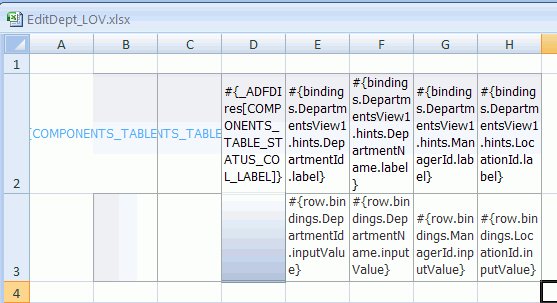
Notice that the first three columns are automatically generated in the context of an editable table for information purposes.
-
Click the Save icon
 to save the workbook.
This first step - creating the EditDept_LOV workbook - involves exactly the same tasks as for creating the previous worksheet. Read more...
You create a new ADF desktop integration-enabled workbook.
You open the workbook in Excel.
You choose a page definition for the worksheet.
You add a binding to the worksheet.
You choose a component to add to the worksheet.
Read more... Notice the different bindings in the screenshot of the data bindings for the EditTable_LOV.jspx page: the action bindings represent the button actions that the JSF page contains.

-
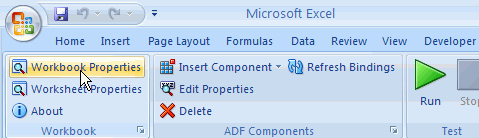
Click the Workbook Properties link in the Oracle ADF tab of the Excel ribbon.
-
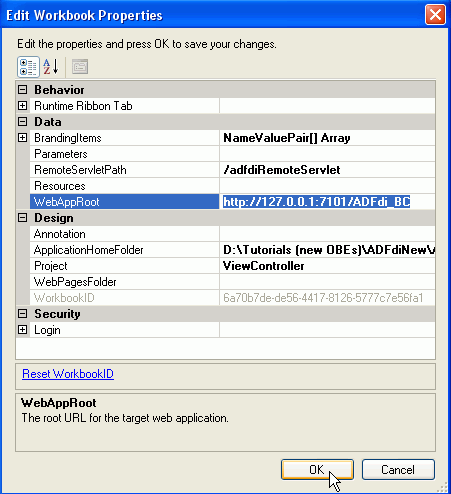
In the Edit Workbook Properties, next to the WebAppRoot field, enter http://127.0.0.1:7101/ADFdi_BC as before, and click OK. This is the URL for the Fusion Web application with which the workbook is integrated.
-
In the Excel worksheet, select the top left cell of your table (i.e. B2), and click the properties icon
 in the ADF Components group of the Oracle ADF tab in the Excel ribbon.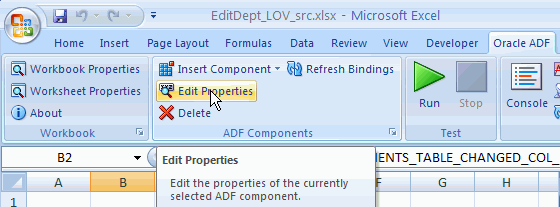
-
In the Edit Component: ADF Table dialog, expand the RowActions node and click the more button
 next to the DeleteRowActionID field.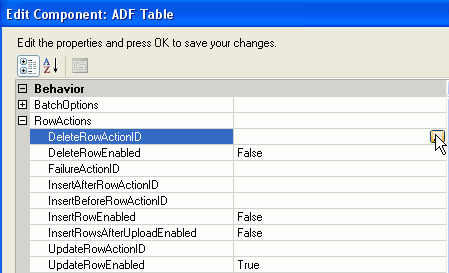
-
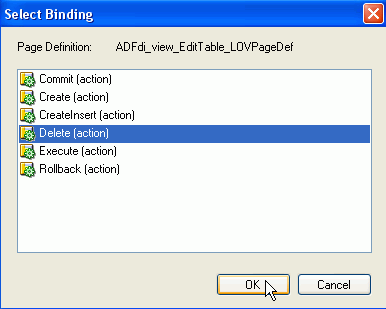
In the Select Binding dialog, select Delete (action) and click OK.
-
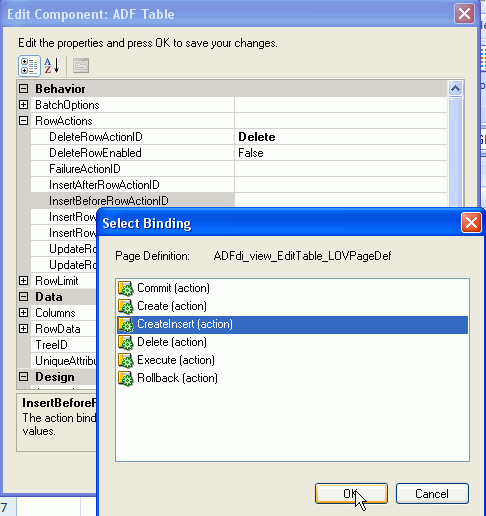
Repeat the previous step for the InsertBeforeRowActionID field and choose the CreateInsert (action). Click OK.
-
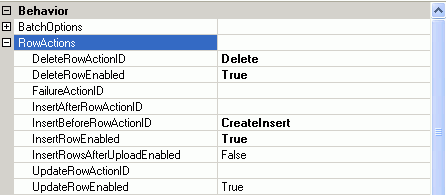
In the RowActions section, set the following additional values:
DeleteRowEnabled True InsertRowEnabled True UpdateRowEnabled True The RowActions properties should look as follows:
-
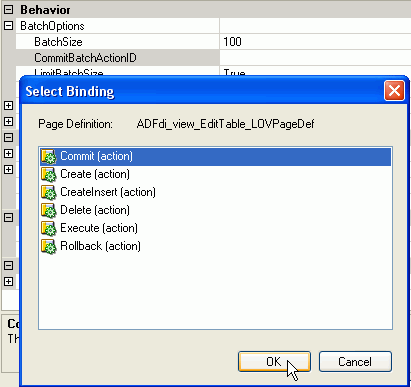
In the BatchOptions section, set the CommitBatchActionID to Commit and click OK.
-
In the Edit Component dialog, click the more button
next to the Columns field. 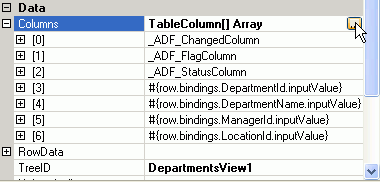
-
Click the Add button to add a new column, then click the more button
next to the HeaderLabel field. 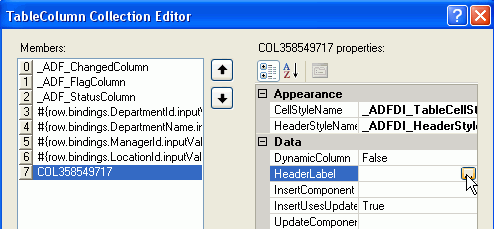
-
In the Edit Expression dialog, expand the bindings > DepartmentsView1 > DepartmentsView > hints > LocationId > label field, click the Insert Into Expression button.
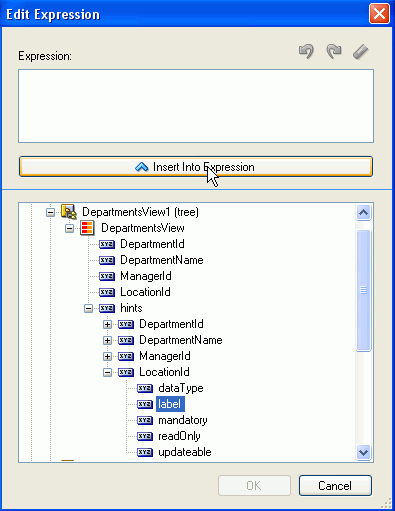
Click OK.
-
Click the more button
next to the UpdateComponent field. 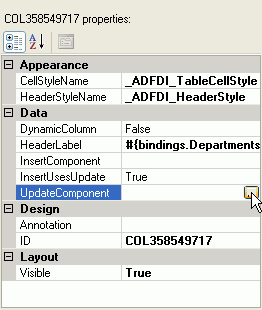
-
In the Select subcomponent to create dialog, select TreeNodeList and click OK.
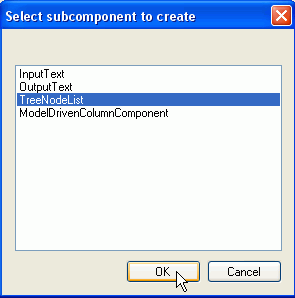
-
Expand the UpdateComponent node and click the more button
next to the List field. 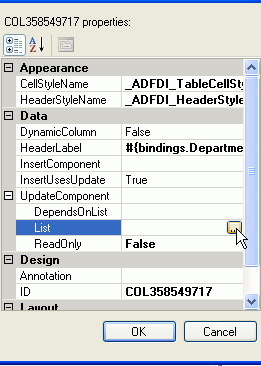
-
In the Select Tree Binding Attribute, select LocationId and click OK.
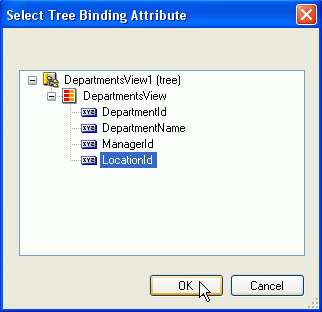
-
Select column 6 and click the Remove button to remove the original LocationId column and replace it with this new column that supports a list of values.
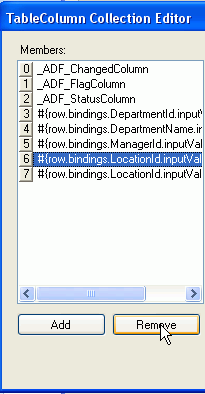
-
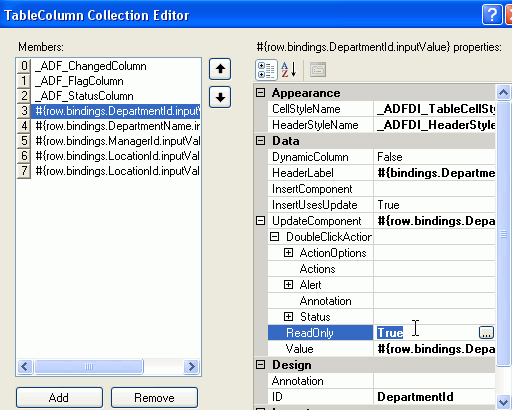
Select column number 3 (DepartmentId) and expand the UpdateComponent node. Change the ReadOnly property to True.
-
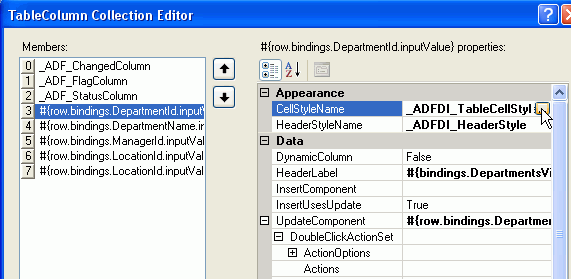
With column number 3 (DepartmentId) still selected, click the more button in the CellStyleName field.
-
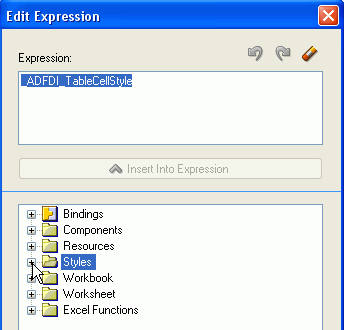
In the Edit Expression dialog, expand the Styles node.
-
Select _ADFDI_TableCellROStyle (this is the style that visually indicates that a column is read-only) and click Insert Into Expression.
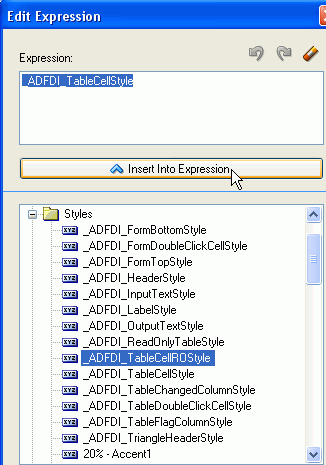
Click OK and OK again to exit the Edit Component dialog.
-
Save your Excel workbook.
Read more... For example selecting Delete in this step defines the action binding that should be invoked for each flagged row during DeleteFlaggedRows. The steps that follow define behaviors for other rows in the worksheet.
Read more...
However you already have a data bound LocationId column in the table... The reason for creating the new column is so that you can add list of values functionality to it. You do this in the steps that follow. Then you delete the original LocationId column. Read more... To implement this requirement you set the ReadOnly property to True (which you have just done in this step) and you also apply a style to the field as a visual indicator to users that they cannot update the DepartmentId field. In this step you add a command item to the Excel ribbon at the top of the worksheet.
-
In the Oracle ADF tab, click the Worksheet Properties button. Locate Ribbon Commands and click the more button.

-
In the WorksheetMenuItem Collection Editor click Add.
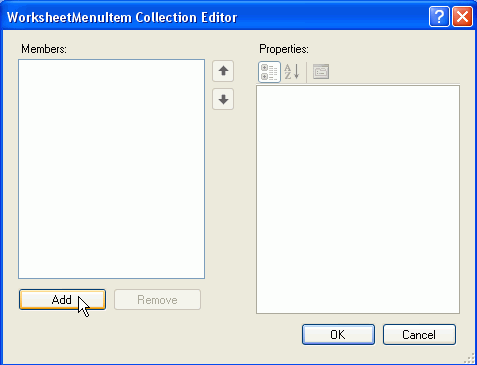
-
In the right-hand pane, click the more button
next to the Actions field. 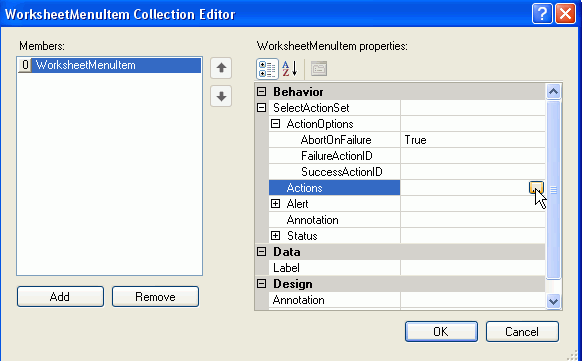
-
In the Action Collection Editor dialog, click the Add button and select ADFmAction from the drop down list.
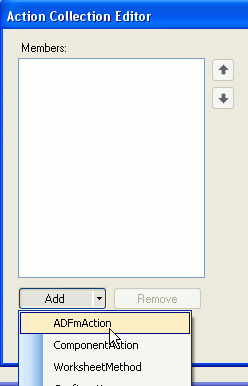
-
In the ADFmAction properties, click the more button
next to the ActionID field.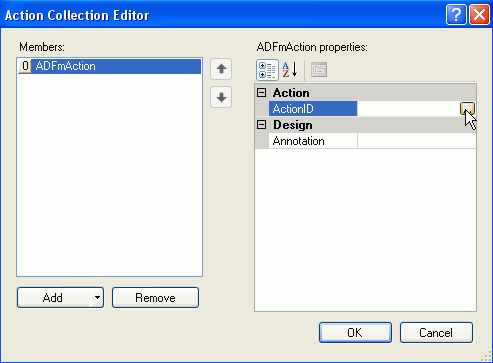
-
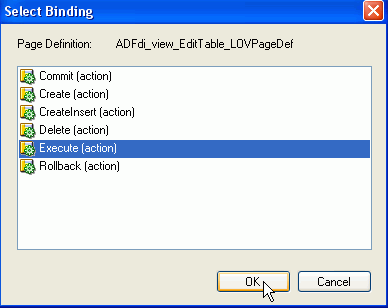
In the Select Binding dialog, select Execute and click OK.
-
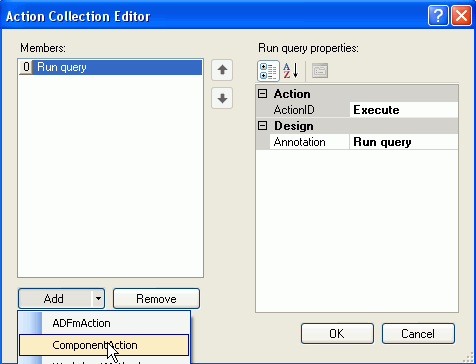
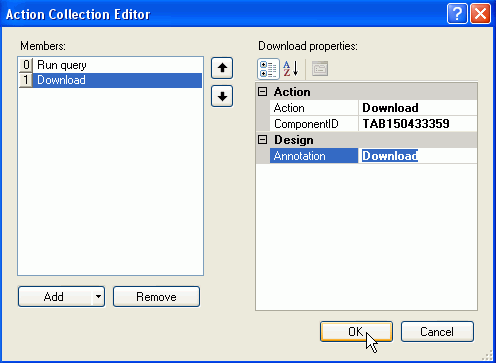
Back in the Action Collection Editor, in the Design > Annotation field, type Run query .

-
In the Action Collection Editor dialog, click the Add button and select ComponentAction from the drop down list.
-
Click the more button
at the right-hand end of the Action field. 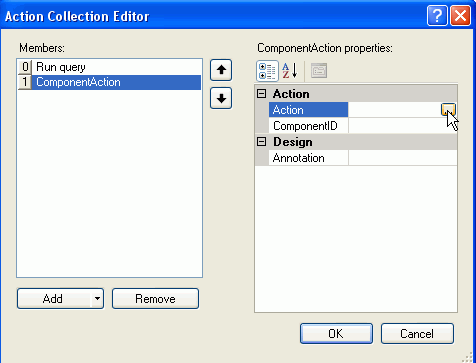
-
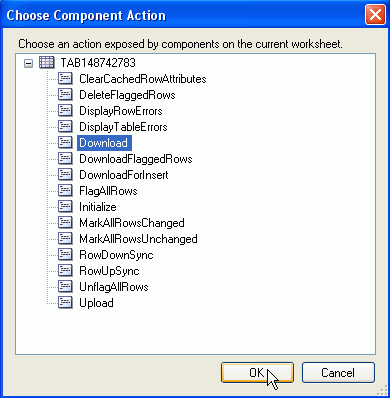
In the Choose Component Action dialog, select Download and click OK.
-
Then, back in the Action Collection Editor, in the Design > Annotation field, type Download and click OK.
-
Back in the WorksheetMenuItem Collection Editor, type Query in the Label field.
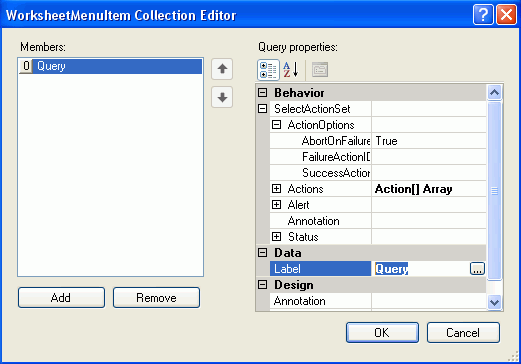
Click OK and OK again.
-
Save your Excel workbook.
Read more... When the user clicks the Query command item, data is downloaded to the table in the worksheet. Read more... This time the ribbon command deletes flagged rows in the table and requests confirmation from the user before performing the action. -
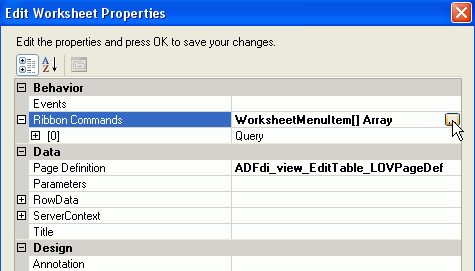
In the Oracle ADF tab, click the Worksheet Properties button. Locate Ribbon Commands and click the more button.
-
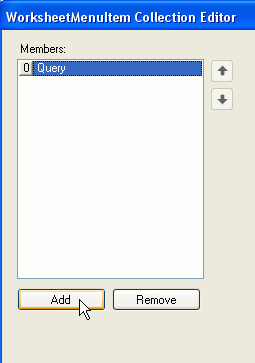
In the WorksheetMenuItem Collection Editor click Add.
-
In the right-hand pane, click the more button
next to the Actions field. 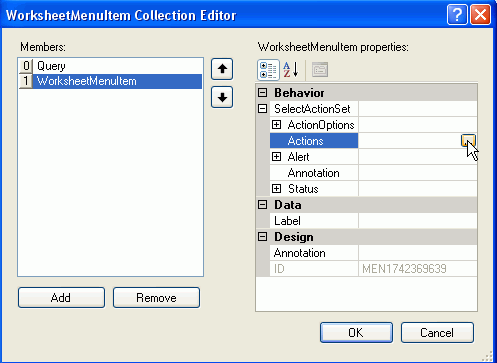
-
Click the Add button and from the drop down list select Confirmation.
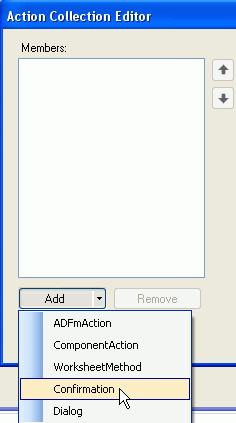
-
In the Data section, enter the following values:
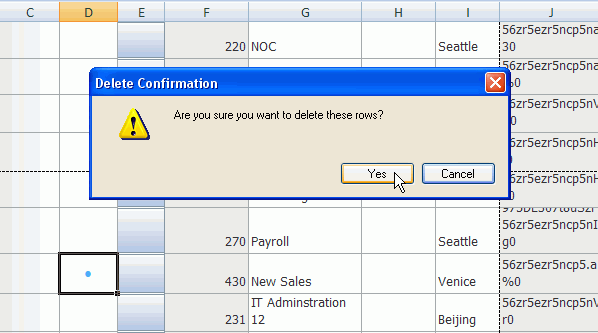
CancelButtonLabel Cancel OKButtonLabel Yes Prompt Are you sure you want to delete these rows? Title Delete Confirmation
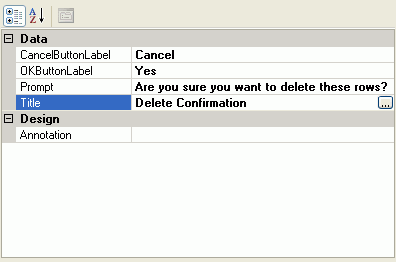
-
Click the Add button and from the drop down list select ComponentAction.
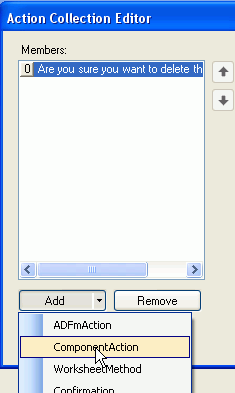
-
In the ComponentAction properties, click the more button
next to the Action field.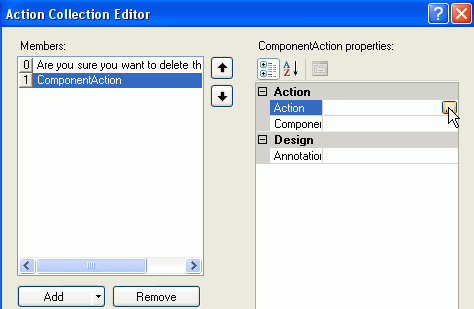
-
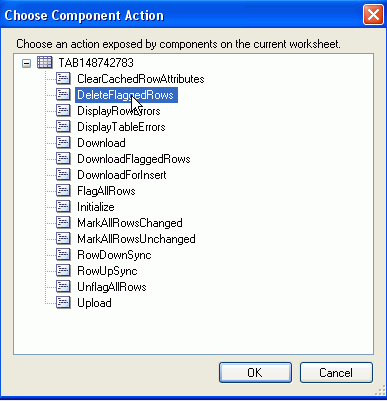
In the Choose Component Action, select DeleteFlaggedRows.
-
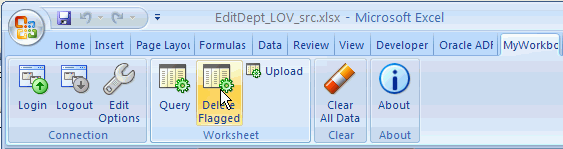
In the WorksheetMenuItem Collection Editor, type Delete Flagged in the Label field.
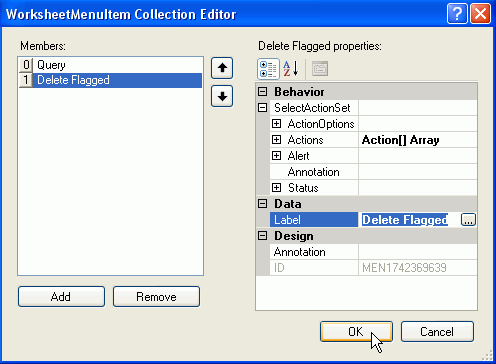
Click OK.
Click OK and OK again.
Step 5: Defining an Upload Ribbon Command
Read more... This time the command item uploads data to the table. -
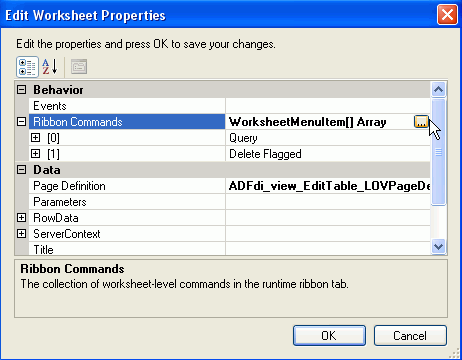
In the Oracle ADF tab, click the Worksheet Properties button. Locate Ribbon Commands and click the more button.
-
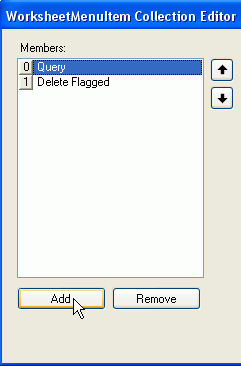
In the WorksheetMenuItem Collection Editor click Add.
-
In the right-hand pane, click the more button
next to the Actions field. 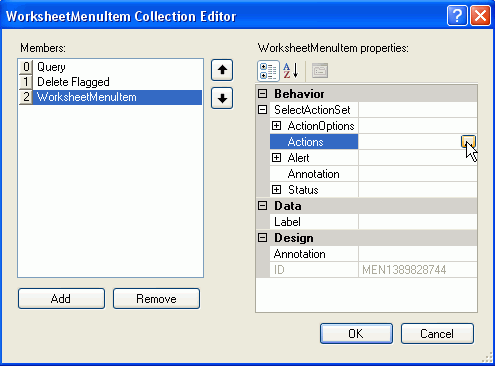
-
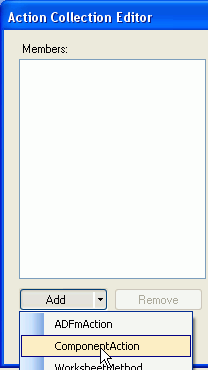
In the Action Collection Editor dialog, click the Add button and select ComponentAction from the drop down list.
-
In the ComponentAction properties, click the more button
next to the Action field.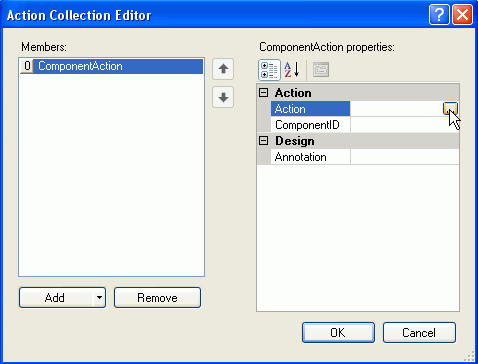
-
In the Choose Component Action dialog, select Upload. Click OK.
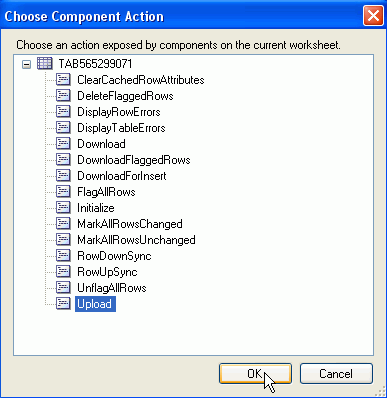
Click OK again.
-
In theWorksheetMenuItem Collection Editor, type Upload in the Label field and click OK.
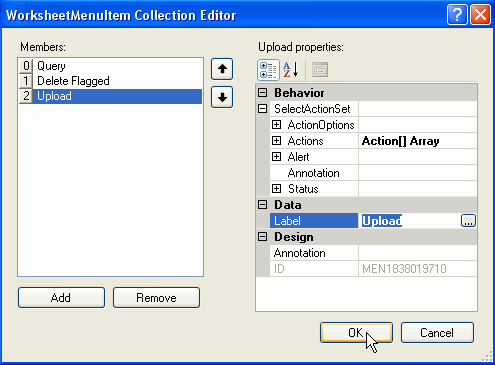
Click OK again.
-
Save the workbook.
-
Click the Oracle ADF tab in the Excel ribbon.
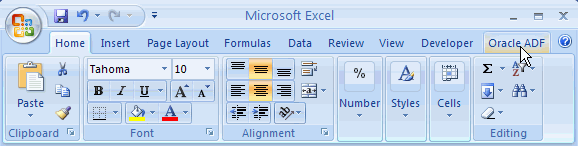
-
Click the Run button in the Test group.
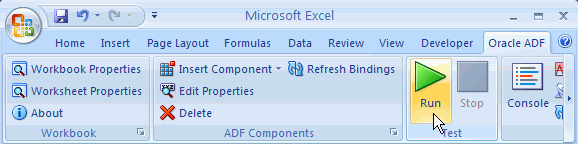
-
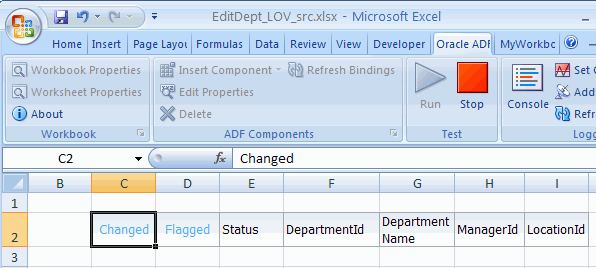
The workbook loads, displaying the ADF table, not yet populated with data.
-
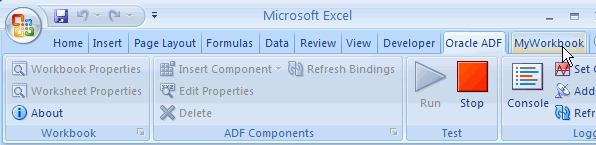
Click the MyWorkbook tab, displayed in the Excel ribbon to the right of the Oracle ADF tab.
-
Notice the three command items that you have just created, in the Worksheet group.
Click the Query button.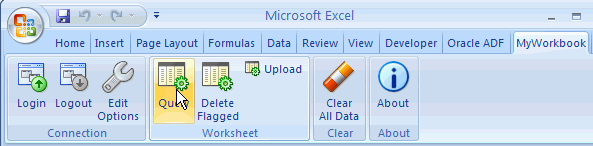
-
Retrieved data are then displayed in the worksheet.
-
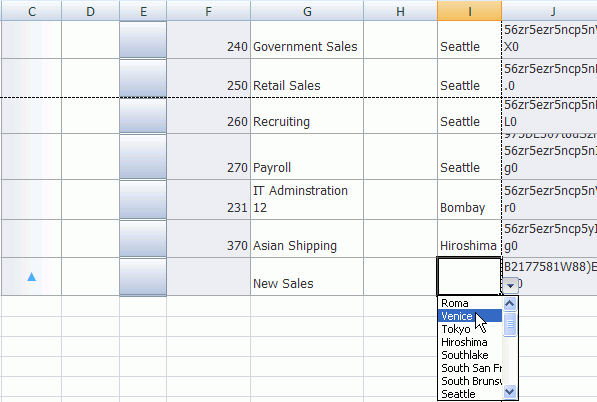
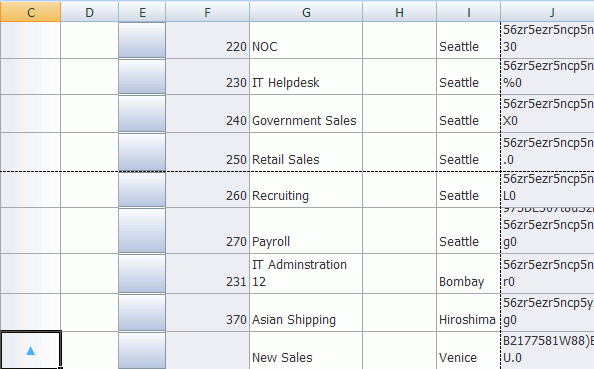
At the bottom of the worksheet, after the last row, insert a new row, by right-clicking in an empty row and choosing Insert from the context menu. Type a new department name and select a city from the drop down list.
-
Notice that the new row is automatically flagged in the Changed column.
-
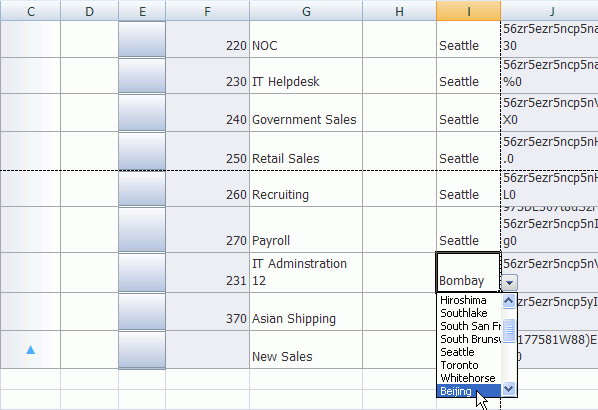
For an existing row, try changing the location from the drop down list.
-
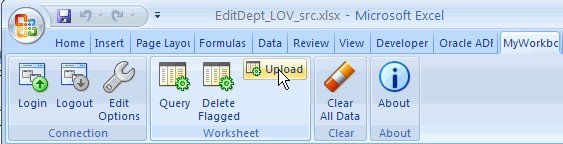
Click the newly-created Upload command item in the Excel ribbon to save the changes.
-
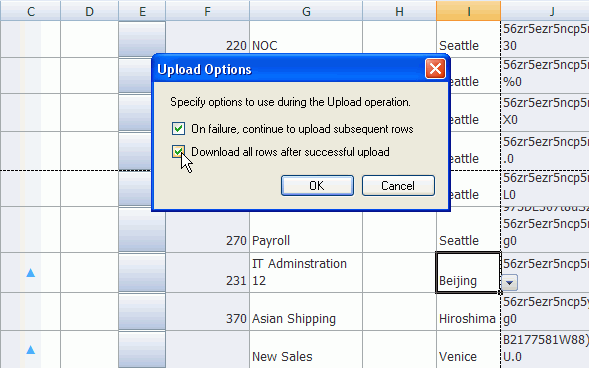
On the Upload Options dialog check the Download all rows after successful upload checkbox.
-
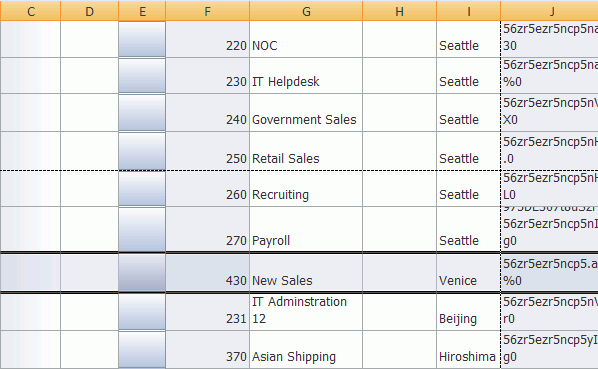
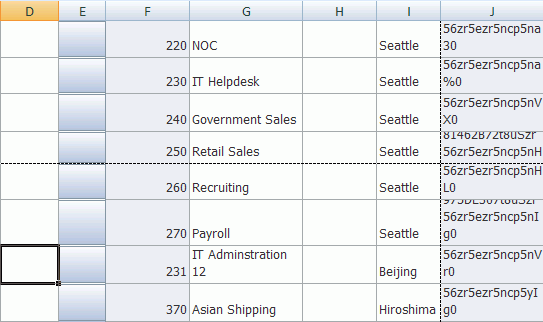
Notice that the new row has been inserted, a Department Id has been generated, and the flags have been removed.
-
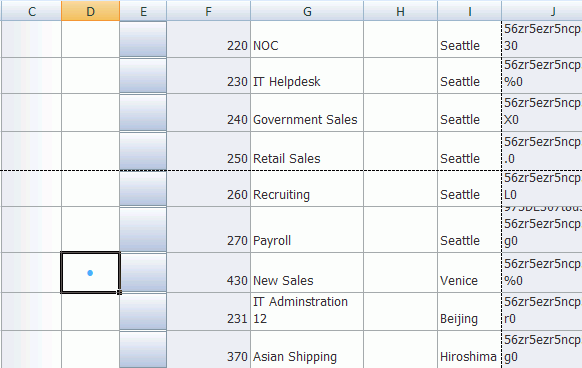
Click in the Flagged column for the row you just inserted.
-
Click the Delete Flagged button.
-
In the Delete Confirmation dialog you created previously, click Yes.
-
The worksheet is updated.
-
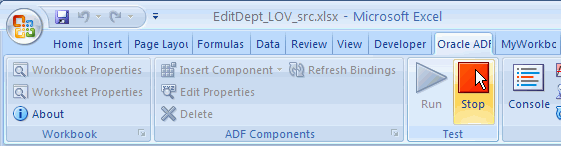
Click the Stop button, to return to design mode.
You have created a fully-functioning workbook that is integrated with a Fusion Web application, and which allows you to insert, update and delete data from the database. The next part of this tutorial guides you through publishing your workbooks.
Read more... This is the read-only style that you applied to the DepartmentId column as a visual indicator to the user that the column cannot be updated. Visual clues like this can greatly enhance the usability of an application. 
 Expand all |
Hide all
Expand all |
Hide all