Getting Started with Java Using Alice 3
Overview
Course Description
Learn how to create 3D animated stories, movies, and games using basic Java programming in this self-paced, online course. No programming experience required! We will define and animate a story using the Alice 3 animation development software.
Course objectives
Approximately 12 hours to complete the lessons.
Course Lessons
Prepare for this course
In this lesson, students will learn to check system requirements, download necessary software, and describe the purpose for using Alice 3 tools to learn Java.
Get started with Alice 3
In this lesson, students will learn the basics of Alice 3 by creating a simple animation project.
Add and position objects
In this lesson, students will learn how to add and position objects in an initial animation scene.
Use procedures and arguments
In this lesson, students will learn how to use procedures and arguments to create animation.
Add rotation and randomization
In this lesson, students will learn how to rotate objects and randomize movement in an animation.
Declare procedures
In this lesson, students will use procedural abstraction and functional decomposition to declare procedures and simplify development.
Use control statements
In this lesson, students will learn to use control statements to control animation timing.
Use functions
In this lesson, students will learn to use functions to control movement in an animation based on a returned value.
Use IF and WHILE control structures
In this lesson, students will learn to use the IF and WHILE control structures to affect the execution of instructions and create conditional loops.
Use expressions
In this lesson, students will learn how to create an expression to perform a math operation.
Use variables
In this lesson, students will learn how to use variables to save time and simplify the program code.
Use keyboard controls
In this lesson, students will learn how to use keyboard controls to manipulate an animation.
Develop a complete animation
In this lesson, students will learn how to create a complete animation in Alice 3 using all of the skills learned in the course.
Prepare for this course
This lesson will provide an overview of Java and Alice 3, review the system requirements for the tutorial, and provide instruction for downloading software.
Lesson Objectives
In this lesson you will learn to:
- Describe the purpose for using Alice 3 to learn Java
- check system requirements needed for this course
- Install necessary software for the course
What is Java?

Have you ever wanted to build a video game or make an animated movie? Are you interested in making your own smartphone application? Many of today’s video games, movies, and smartphone applications are created using the Java programming language.
Java is a programming language and computing platform developed by Sun Microsystems in 1995. Java runs on more than 850 million personal computers worldwide, and on billions of devices worldwide, including mobile and TV devices.
Java allows you to play online games, chat with people around the world, use interactive maps, and view images in 3D. From laptops to datacenters, game consoles to scientific supercomputers, cell phones to the Internet, Java is everywhere!
Visit this link to see videos of Java in Action: http://www.java.com/en/java_in_action/
Watch this video to learn more about Java technology: http://www.java.com/en/download/whatis_java.jsp
What is Alice 3?

Alice is a fun program that helps you learn the basics of computer programming using characters that interact in a virtual world. It is made by Carnegie Mellon University. The best part about Alice is that you learn to program without even knowing it!
Java is designed for production systems
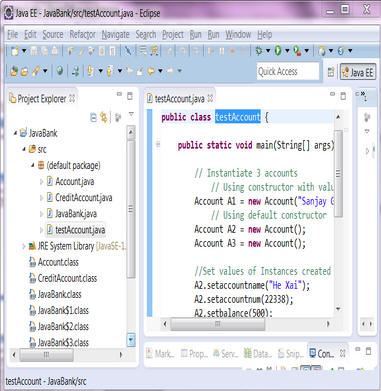
The Java programming language, like C++ and other languages, is designed for creating code that runs in production systems like Amazon.com, Facebook, and Instagram. The language and syntax can be hard to learn, especially for beginners. Below is some sample Java code in the Eclipse development environment.
Alice is designed to teach programming theory without the complex language and rules of production languages. Using Alice, you can place objects from a gallery into a virtual world and then create programming statements to animate the objects in the world in a fun and engaging way.
3d objects
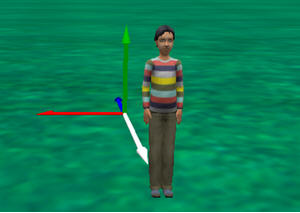
Alice 3 uses three-dimensional (“3D”) objects that programmers can drag-and-drop into a scene to create a virtual world.
| Terminology |
|---|
|
A 3D object is one with width, height, and depth. |
Virtual world
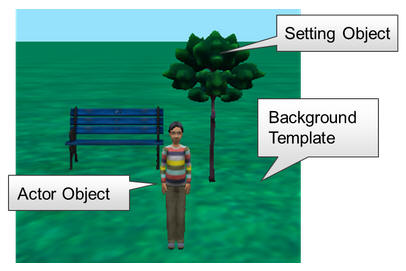
You will use Alice 3, and your imagination, to create a virtual world. Your virtual world will contain the following 3D objects:
- Settings: objects that will remain stationary in your animation (a tree, rocks, or a building).
- Actors: objects that will move in your animation (people, animals, or vehicles).
- Background Template: a background onto which you place both setting and actor objects.
Here is an example of a 3D world. A 3D world is referred to as a “virtual world.” The example virtual world has both setting and actor objects as well as a background template.
| Terminology |
|---|
|
A virtual world contains 3D objects and simulates a real or imaginary physical environment. |
Programming objects in an animation
You can “program” the objects in the virtual world by dragging and dropping tiles that represent logical structures. These logical structures are instructions that correspond to standard statements in a production programming language such as Java.
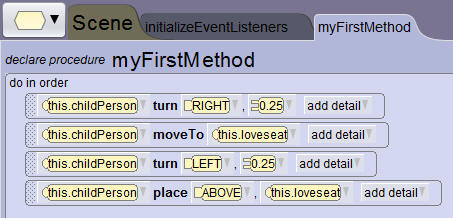
All of the instructions in an Alice project can be run to create an animation.
| Terminology |
|---|
|
An animation is a series of independent movements that when viewed rapidly, one-after-another, creates the illusion of movement. |
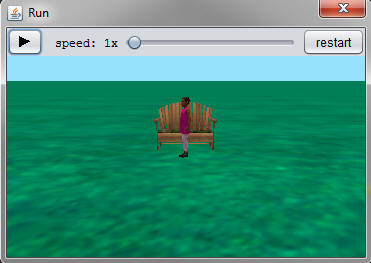
As an animation creator, you will program in Alice 3 what the animation should do, and Alice will render the animation for you.
| Terminology |
|---|
|
Rendering is the process whereby the system converts the image frames into a seamless animation. Alice3 does all of the work necessary to render the animation based on the instructions you provide for how the objects should act. |
Summary
Alice is a programming environment that makes it easy and fun to create an animation for telling a story, playing an interactive game, or sharing a video on the web. Students who have never learned a programming language enjoy using Alice because the interactive development environment is fun and engaging. So by learning Alice, you are actually learning how to program! Alice is also used at many colleges and universities in Introduction to Programming courses.
Visit the Alice 3 website to learn more about Alice 3:
http://www.alice.org/index.php?page=what_is_alice/what_is_alice
Check system requirements
This online course includes practice exercises that you can work on to reinforce the concepts being taught. You will need to have Flash, the Java Development Kit (JDK) and Alice 3 installed on your machine. Use this checklist to ensure that your system meets the minimum system requirements for using Alice 3:
| Try it: Check System Requirements |
|---|
|
Instructions:
|
| Category | Requirement | |
|---|---|---|
|
Processor |
Pentium 4 or higher |
|
|
Operating System |
One of the following:
|
|
|
Browsers |
Any modern browser that supports Java:
|
|
|
Memory |
1 GB |
|
|
Free Disk Space |
|
|
|
Graphics |
|
|
|
Sound Card |
Required |
|
|
Software |
|
Download the JDK
The Java Development Kit (JDK) is required to use Alice 3.
Steps to download the Java Development Kit
- Open any Internet Browser and type the following URL in the address bar:
http://www.oracle.com/technetwork/java/javase/downloads/index.html - From the Oracle Technology Network website, click Java Platform (JDK).
- From the Java SE Development Kit 7 Downloads page, review the License Agreement.
- Accept or Decline the License Agreement (if you decline, the software will not download).
- Locate and select the Java SE Development Kit for your computer operating system.
- When prompted, save the file to a location you easily remember. Click OK.
Steps to launch the JDK executable file
- Locate the executable file and double click it to execute.
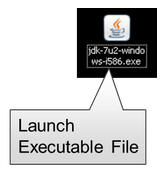
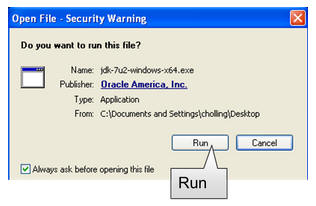
- When prompted to run the executable file, click Run.
Steps to run the JDK Installation Wizard
- From the Installation Wizard dialog box, click Next>.
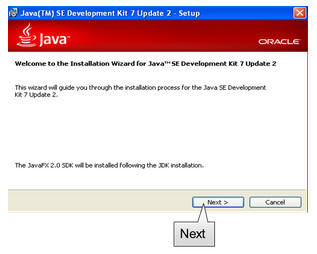
- To accept the default settings, Click Next>.
- When prompted for installation location, click Next>. If prompted, close the Internet browser window.
- Click Continue to acknowledge the successful installation.
- You will be prompted to set-up the Software Developer Kit (SDK). Click Next>.
- When prompted for the installation location, click Next>.
- When the set-up is complete, click Close.
| Downloading and installing the JDK |
|---|
|
Watch this video demo to see an example installation of the Java Development Kit (JDK). |
| Try it: Download and install the JDK |
|---|
|
Instructions: |
Download Alice 3
The Java Development Kit (JDK) is required to use Alice 3.
Steps to download Alice 3
- Open any Internet Browser and type the following URL in the address bar: http://www.alice.org
- From the Downloads list, select the Get Alice 3 link.
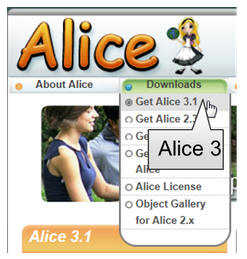
- Locate and select the Alice 3 Offline Installer option. The Offline Installer can take up to 60 minutes to download.
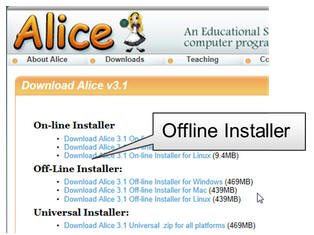
- When prompted, click Save to save the Alice 3 Installer file.
Steps to launch the Alice Installer Wizard
- Locate the folder in which you saved the file.
- Double click the executable file. A progress window will appear.
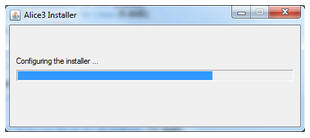
- Once the installer is downloaded, the Alice 3 Installer Wizard appears. Click Next to begin the installation.
Steps to install Alice 3
- From the Installer Wizard, select the Install option.
- To accept the default installation option, click Next>.
- Review the License Agreement.
- If you agree, select the box next to “I accept the terms in the license agreement.” Click Next> to continue. You will not be able to install the software unless you accept the terms of the license agreement.
- To accept the default setting that installs a desktop shortcut, click Next>.
- To begin the installation, click Install. A progress window will display while Alice 3 is installed on your computer.
- To complete the installation, click Finish.
Steps to launch Alice 3
- After Alice 3 is installed, the Alice 3 icon will appear on your desktop.

- Double-click the icon to launch Alice 3.
Installing Alice 3 on a Windows 8 Machine
- Vista, Windows 7 and Windows 8 all have a strong malware protection scheme that may resist installing non-standard software directly on the hard drive.
- For this reason, if you are using a Windows 8 machine, download the Universal ZIP file for Alice 3 instead of using the Offline Installer option.
Steps to download the Universal ZIP file:
- Go to the Alice website at: http://www.alice.org/.
- From the Downloads list, select the Get Alice 3 link
- Locate and select the Alice 3 Universal Installer option.
- Download the zipped file to your desktop.
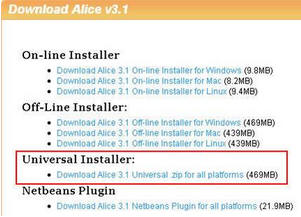
Steps to install Alice 3 using the Universal ZIP file:
- Unzip the file on the desktop.
- Move the unzipped folder (containing all of Alice 3) to the Program Files (X86) folder on the C:\ drive.
- Create a shortcut on the desktop to Alice3.bat.
- Click the shortcut to launch Alice.
Alice 3 download and installation support links
- Join the forum to get help from other users:
http://alice.org/community/ - Alice FAQs:
http://alice.org/index.php?page=faq
| Demo: Downloading and installing Alice 3 |
|---|
|
Watch this video demo to see an example installation of the Alice 3 software. |
| Try it: Download and install Alice 3 |
|---|
|
Instructions: |
Summary
In this lesson you have learned to:
- Describe the purpose for using Alice 3 to learn Java
- Check system requirements needed for the course
- Install necessary software for the course
Get started with Alice 3
Lesson objectives
In this lesson you will learn to:
- Identify scene components
- Create and save a new project
- Add an object to a scene
- Communicate the value of saving multiple versions of a scene
- Code a simple programming instruction
- Use the copy and undo command
- Understand the value of testing and debugging
| Demo: Lesson preview |
|---|
|
Watch this video to see a preview of what you will learn in this lesson. |
Understand the initial scene
An initial scene is the starting point of your animation. It has three components:
- A background template which provides the sky, ground, and light.
- One or more non-moving scenery objects which provide the setting.
- One or more moving objects which provide the action.
| Terminology |
|---|
|
The initial scene is the first scene of an animation where you select the background template and position the objects. |
Below is a graphic depicting components of an initial scene. The components include:
- The ocean floor template
- The non-moving coral scenery objects
- The moving fish objects
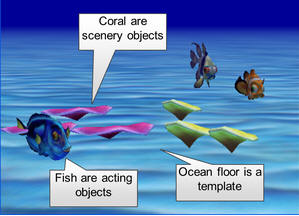
| Demo: Understanding the initial scene |
|---|
|
Watch this video demo to better understand the components of the initial scene. |
Create and save a project
When you launch Alice 3 to create a new project, it is a good idea to save the project so that you do not lose any of your work.
Steps to create and save a project
- Launch Alice 3.
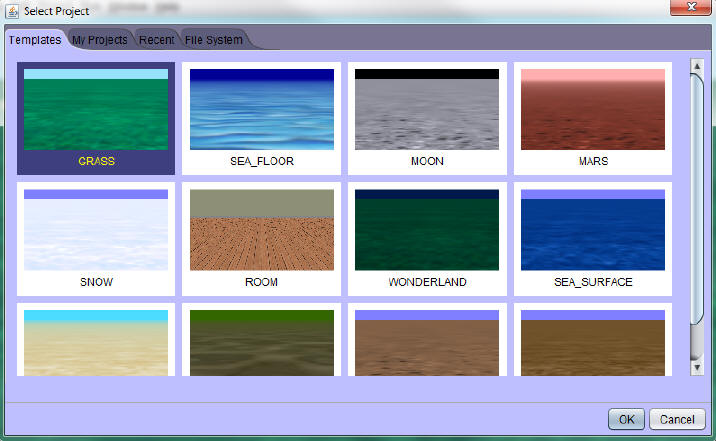
- In the dialog box, select the Templates tab.
- Select a template, then click OK.
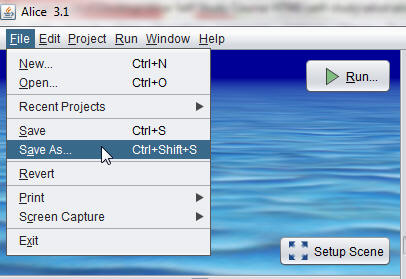
- In the File menu, select Save As...
- Note that you are choosing Save As instead of Save.
- If you choose Save you will overwrite the template that you selected.
- Select the location to save the project (e.g., computer, file server, memory stick).
- You will need to recall the location into which you save your file when you wish to open it at a later time.
- Enter the project name.
- Click Save.
- Save projects frequently to avoid losing your work.
Use this dialog box to select a template:
Use this menu option to save your project:
| Demo: Create and save a project |
|---|
|
Watch this video demo to see how to create and save a project. |
| Try it: Create and save a new project |
|---|
|
Instructions:
|
Add an object to a scene
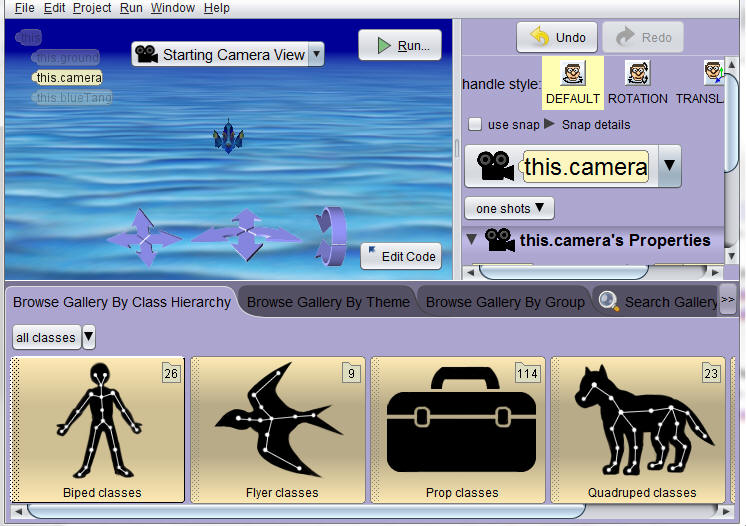
After you select a template for your project, Alice will open to its default work space editor called the Code editor. A work space editor is also known as a perspective in Alice. Alice has two primary perspectives within which you will build an animation: the Edit Code perspective and the Scene Setup perspective. These perspectives will be referred to as the Code editor and the Scene editor from this point on.
The creation of an animation often involves frequent switching between the Code and the Scene editors. To toggle between the two editors, click the Setup Scene button in the bottom right corner of the Scene View panel in the Code editor, or click the Edit Code button in the bottom right corner of the Scene View Panel in the Scene editor. After selecting a template for your scene, your next step is to add objects to the scene by first switching to the Scene editor.
Scene editor
A class is a blueprint that defines the actions and the attributes of an object. Every object is an instance of the class from which it was created. Adding an object (instance of a class) to a scene can be done by using your mouse to...
- Drag an object from the gallery into the scene, or
- Select an object by clicking it once; complete the dialog box that displays, and then let Alice add it to the center of the scene.
In the Scene editor, you can:
- Select objects from the gallery to add to the scene.
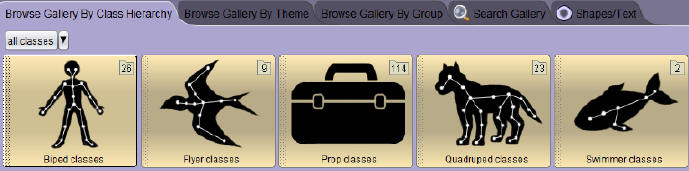
- Position and rearrange objects in the scene using the Handles palette.

- Edit an object's properties using the Properties panel.
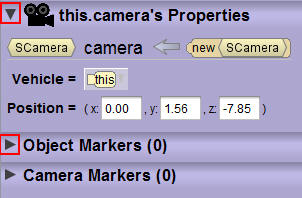
Note the triangle that appears before the Selected Object Properties button title. The triangle is a handle. When you click the triangle, it will either point down or point to the right. When it points down, it expands to show you what is under the title. When it points to the right, it hides what is under the title.
- A Run button is available in both the Scene editor and the Code editor. After adding objects in the Scene editor or adding programming statements in the Code editor, click the Run button to start the animation.

Gallery tabs
The Gallery contains the class objects that you can add to your scene. The Gallery has 5 tabs:
- Browse Gallery By Class Hierarchy
- Organizes objects by mobility.
- Browse Gallery By Theme
- Organizes objects by region and folklore context.
- Browse Gallery By Group
- Organizes objects by categories.
- Search Gallery
- Searches for an object by name.
- Shapes/Text
- Gives access to shape and 3D text objects.
To find objects, browse using the object tabs or search by keyword using the Search Gallery tab. Notice the breadcrumb menus that appear as you open the gallery views. You can use the breadcumb menus to more quickly navigate between the objects. Select the icon of the object that you want to add to the scene.
When finished adding objects from the gallery, toggle to the Code editor to add programming statements to the animation.

| Terminology |
|---|
|
A class is the blueprint that defines the appearance and movement of an object. The class provides instructions to Alice 3 to create and display the object when it is added to your scene. After an object is added to a scene, it is referred to as an instance of the class. You can add many instances of the same class to a scene (many different coral objects in the water, for example). Each instance must have a unique name. The gallery is a collection of 3D objects that can be inserted into the scene. |
| Demo: Adding an object to a scene |
|---|
|
Watch this video demo to see an object being added to a scene. |
| Try it: Add an object to a scene |
|---|
|
Download: The activity below requires that you start with the project file that was saved in the previous topic. Download this Alice 3 project file if you did not complete the Try it activity from the previous topic.
|
Save new project version
Save time by creating multiple versions of your project. Once objects are positioned in the initial scene, save multiple versions of your project, giving each version a different name.
The benefits of saving multiple versions of a project are that you can:
- Use the same scene to create different animations.
- Save time recreating the scene if you encounter programming errors or need to start over.
To save a project version:
- Select File.
- Select Save As...
- Select the location to save the project (e.g., computer, file server, memory stick).
- Enter the project name.
- Click Save.
Save projects frequently, in case your computer crashes or loses power.
| Demo: Saving a new version of a project |
|---|
|
Watch this video demo to see a new version of a scene being saved. |
| Try it: Save a new version of a project |
|---|
|
Download: The Try it activity below requires that you start with the project file that was saved in the previous topic. Download this Alice 3 project file if you did not complete the previous topic's Try it activity.
|
Code a programming instruction
Code editor
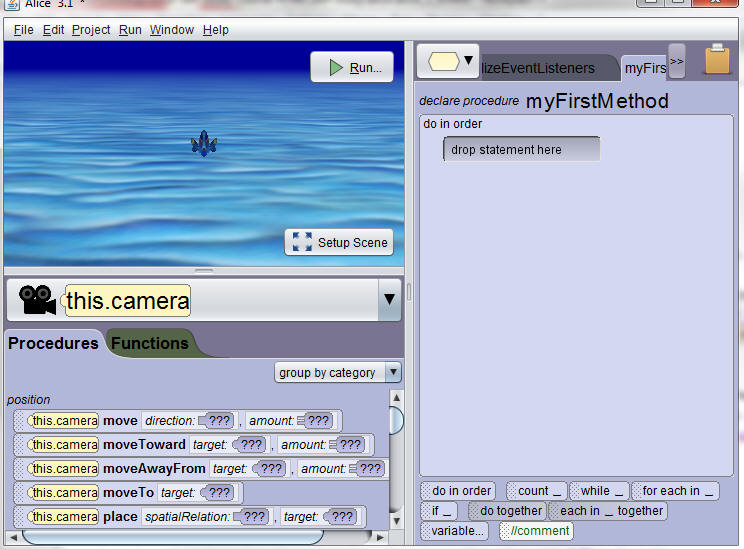
Click the Edit Code button to access the Alice 3 Code editor. The Code editor is where you add programming instructions to program your animation.
You can tell that you are in the Code editor when you see programming instructions (procedures and functions) in the left window pane. You can tell that you are in the Scene editor when you see the gallery of objects. You switch between each editor by using either the Edit Code button or Setup Scene button.
Methods Panel
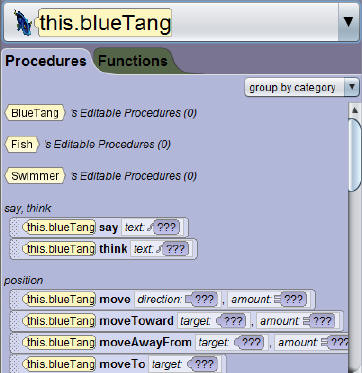
The Procedures tab, within the Methods Panel, displays pre-defined procedures for the entire class of objects as well as for the specific instance of the class currently selected in the instance drop-down menu.
Note: The instance menu is the drop-down menu that displays above the Procedures tab. The down-pointing triangle on the right side of the menu indicates that the menu drops down when selected.
| Terminology |
|---|
|
A procedure is a piece of program code that defines how the object should execute a task. Alice 3 has a set of pre-defined procedures for each class; however, users can also create or "declare" new procedures of their own. |
From the Procedures tab, click and drag the desired programming instruction (procedure) into the myFirstMethod tab of the Code editor.
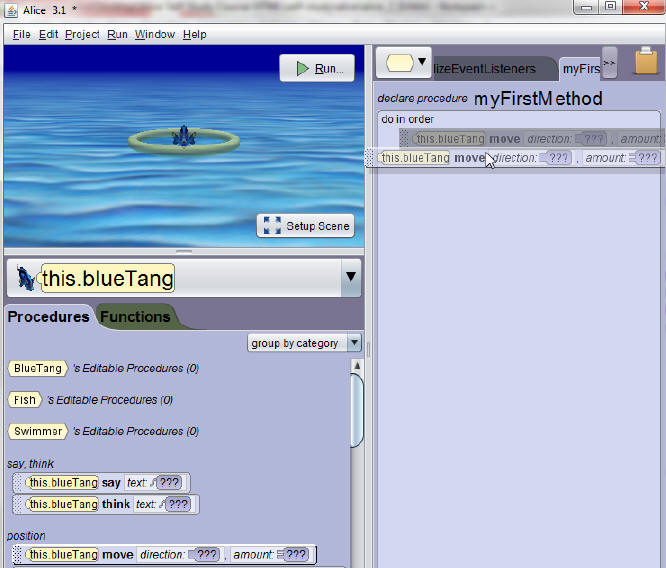
After you release your mouse to position the programming instruction into the myFirstMethod tab, use the cascading menus to select the values for each argument in the procedure. An argument is a required value that a procedure uses to complete an action.
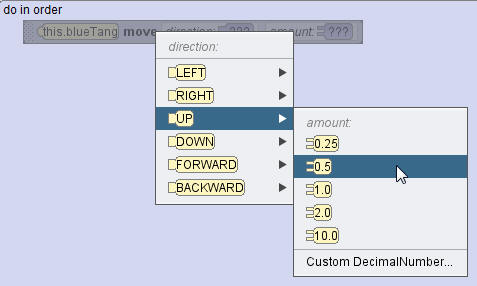
The arguments are selected after the procedure is dragged into the Code editor.
Argument types may include:
- Direction
- Amount
- Duration
- Text
The Alice 3 program recognizes how many arguments each programming instruction requires, and it presents you with the correct number of cascading menus so that you can specify the values for each argument.
| Terminology |
|---|
|
An argument is a value used by the procedure to perform an action. |
| Demo: Coding a programming instruction |
|---|
|
Watch this video demo to see a programming instruction being created. |
| Try it: Code a programming instruction |
|---|
|
Download: The Try it activity below requires that you start with the project file that was saved in the previous topic. Download this Alice 3 project file if you did not complete the previous topic's Try it activity.
|
Copy and undo instructions
After you have dragged a programming instruction into the Code editor panel and set its arguments, you may need to move it to another panel or duplicate it (copy and paste). The commonly used shortcut to copy and paste using Ctrl + C and Ctrl + V are not yet implemented in Alice 3, but you can move or duplicate an instruction using one of these techniques:
- Using the CTRL + drag method (duplicate the instruction)
- Right-clicking and using the copy to clipboard option (duplicate the instruction)
- Clicking and dragging the programming instruction to the clipboard (move the instruction)
To use the CTRL + drag method (Command key on the Mac) to duplicate an instruction, follow these steps:
- Hold down the CTRL key.
- Point your mouse at the programming instruction handle.
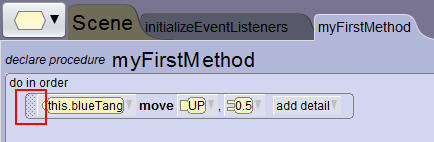
- Click and hold the programming instruction handle.
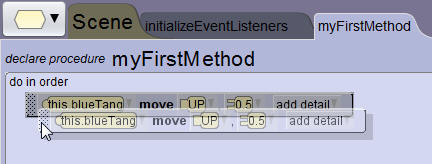
- Drag the instruction towards the clipboard icon in the upper-right corner of the window until the clipboard icon turns green.
Release the mouse button before releasing the CTRL key. This creates a copy of the instruction that is now available on the clipboard icon.
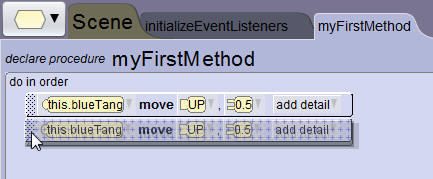
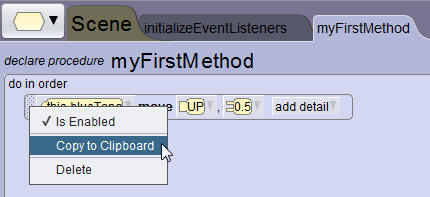
To use the right-click copy method to duplicate an instruction, follow these steps:
- With your mouse, right-click on the programming instruction handle.
- Choose the option to copy the programming instruction to the clipboard. A copy of the instruction is now available on the clipboard icon.
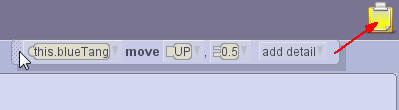
To use the click and drag method to move an instruction, follow these steps:
- Click and drag the programming instruction towards the clipboard icon until the icon turns green. This will remove the instruction from the Code editor panel and copy it to the clipboard icon. This technique is used to copy programming instructions between tabs.
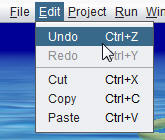
You can Undo an action using the Undo option on the Edit menu, or the keyboard shortcut CTRL + Z.
| Demo: Copying a programming instruction and using the undo command |
|---|
|
Watch this video demo to see copying techniques and use of the Undo command. |
| Try it: Copy, edit, and undo programming instructions |
|---|
|
Download: The Try it activity below requires that you start with the project file that was saved in the previous topic. Download this Alice 3 project file if you did not complete the previous topic's Try it activity.
|
Test and debug animation
While creating the programming instructions for your animation, you will need to test and debug your program frequently.
To test your program click the Run button.

Run the animation to test that it functions properly and executes the actions planned for the animation.
Running the animation, making corrections or additions to the programming instructions, and running the animation again is referred to as debugging your program.
| Terminology |
|---|
|
Many software programs, including Alice animations, are tested by entering unanticipated argument values into programming instructions to try and "break" the code. When something is broken or doesn't work as intended in a software program, the problem is often referred to as a "bug". Debugging is the process of finding and eliminating bugs in a software program. |
Test and debug the animation frequently during its development.
Use some of the following debugging techniques as you program the animation in Alice 3:
- Adjust the direction, distance, and duration that objects move.
- Adjust math calculations that help refine the distance or duration that objects move.
- Refine instructions in the code that do not work as intended.
- Resolve errors created by the programmer.
| Demo: Testing and debugging an animation |
|---|
|
Watch this video demo to see testing and debugging techniques in action. |
| Try it: Test and debug an animation |
|---|
|
Download: The Try it activity below requires that you start with the project file that was saved in the previous topic. Download this Alice 3 project file if you did not complete the previous topic's Try it activity.
|
Summary
In this lesson you have learned to:
- Identify scene components
- Create and save a new project
- Add an object to a scene
- Communicate the value of saving multiple versions of a scene
- Code a simple programming instruction
- Use the copy and undo command
- Understand the value of testing and debugging
Add and position objects
Lesson objectives
In this lesson you will learn to:
- Open a saved version of a project
- Add multiple objects to a scene
- Describe the difference between precise positioning and drag-and-drop positioning
- Use a one-shot procedure to precisely position an object in a scene
- Edit properties of an object in the Scene editor
- Describe three-dimensional positioning axes
- Position the sub-parts of an object in the Scene editor
| Demo: Lesson preview |
|---|
|
Watch this video to see a preview of what you will learn in this lesson. |
Open an existing project
Saved Alice 3 project files can be opened and edited. To open an existing Alice 3 project file after launching Alice you can use either the My Projects tab or the File System tab from the Select Project dialog box.
To use the My Projects tab follow these steps:
- Open Alice 3.
- From the Select Project dialog choose the My Projects tab.
- Scroll to the name or thumbnail of the project to open.
- Select the name or thumbnail of the project and click OK.
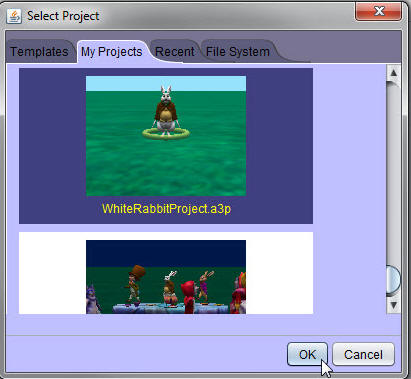
The saved project file is now open and ready for editing. If you are already in Alice 3 you can also open an existing project by choosing the Open option from the File menu, and then navigating to the stored location of the project file.
To use the File System tab follow these steps:
- Open Alice 3.
- From the Select Project dialog box choose the File System tab.
- Select the Browse button.
- Use the navigation window to navigate to the directory structure on your computer where the Alice 3 file is located.
- Click OK after the Alice 3 file has been selected.
Note that Alice 3 cannot open Alice animations that were created with the Alice 2 software.
| Demo: Open an existing project |
|---|
|
Watch this video demo to see an existing project being opened. |
| Try It: Open an existing project |
|---|
|
Download: The Try it activity below requires that you start with the project file that was saved in the previous topic. Download this Alice 3 project file if you did not complete the previous topic's Try it activity. Save the project file in this folder on your hard drive: \Documents\Alice3\MyProjects
|
Position an object
One-shot procedures:
- Are used to make scene adjustments and position objects
- Are not included in the set of programming instructions that control the animation and are not executed when the Run button is selected to execute the animation
| Terminology |
|---|
|
A procedure is a set of instructions, or programmed code, that tells an object how it should perform a task. |
Steps to use one-shot procedures:
- Right-click on the name of an object in the Scene editor instance menu (upper left corner of the scene pane).
- Select procedures.
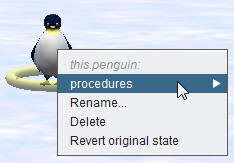
OR
- Select the one shots procedure menu in the properties panel.
- Select procedures.
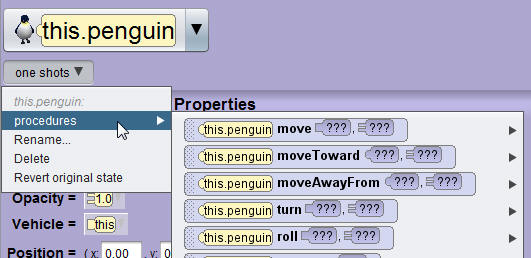
- Select the desired one-shot procedure.
- Specify the argument values (direction, distance).
Notice that the object will automatically adjust based on the procedure selected and the values of its arguments.
One-shot procedures are structurally the same as procedures that are available as programming instructions in the Code editor. They are called one-shot procedures in the Scene editor because they only execute once at the time they are selected in the Scene editor, whereas the procedures in the Code editor will execute every time the Run button is clicked to start the animation.
| Demo: Positioning objects using one-shot procedures |
|---|
|
Watch this video demo to see a one-shot procedure executed. |
| Try It: Position an object using a one-shot procedure |
|---|
|
Download: The Try it activity below requires that you start with the project file that was saved in the previous topic. Download this Alice 3 project file if you did not complete the previous topic's Try it activity.
|
Position objects using one-shot procedures
One-shot procedures:
- Are used to make scene adjustments and position objects
- Are not included in the set of programming instructions that control the animation and are not executed when the Run button is selected to execute the animation
| Terminology |
|---|
|
A procedure is a set of instructions, or programmed code, that tells an object how it should perform a task. |
Steps to use one-shot procedures:
- Right-click on the name of an object in the Scene editor instance menu (upper left corner of the scene pane).
- Select procedures.
OR
- Select the one shots procedure menu in the properties panel.
- Select procedures.
- Select the desired one-shot procedure.
- Specify the argument values (direction, distance).
Notice that the object will automatically adjust based on the procedure selected and the values of its arguments.
One-shot procedures are structurally the same as procedures that are available as programming instructions in the Code editor. They are called one-shot procedures in the Scene editor because they only execute once at the time they are selected in the Scene editor, whereas the procedures in the Code editor will execute every time the Run button is clicked to start the animation.
| Demo: Positioning objects using one-shot procedures |
|---|
|
Watch this video demo to see a one-shot procedure executed. |
| Try It: Position an object using a one-shot procedure |
|---|
|
Download: The Try it activity below requires that you start with the project file that was saved in the previous topic. Download this Alice 3 project file if you did not complete the previous topic's Try it activity.
|
Add multiple objects to a scene
Scene editor
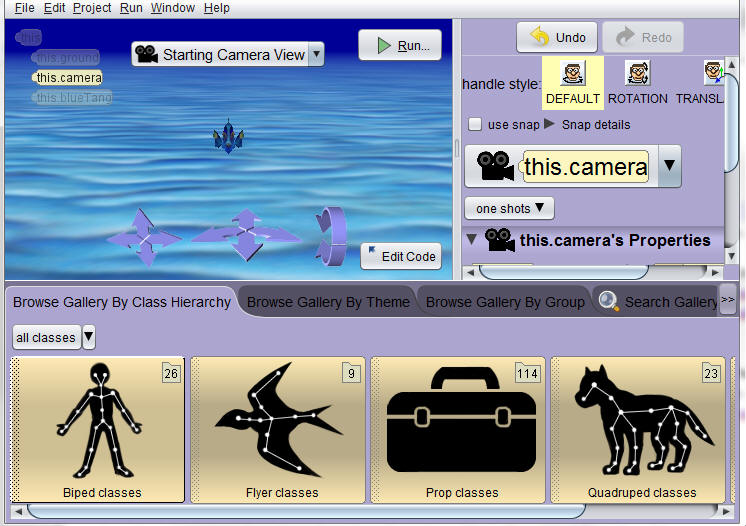
By default, after Alice 3 launches and a template is selected, the Code editor displays. To access the Scene editor, you need to click the Setup Scene button.
In the Scene editor, you can:
- Select objects (instances of a class) from the gallery to add to the scene.
- Position objects in the scene by using the Handles palette.
- Edit object properties (color, size, etc.) using the Properties panel.
- Run the animation.
- Access the Code editor.
Gallery tab
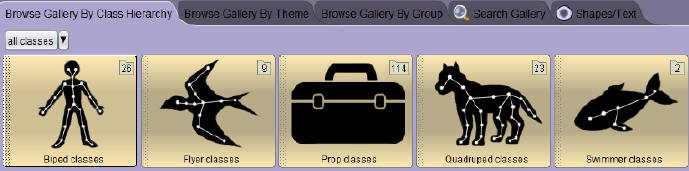
The gallery contains the collection of objects that can be added to the scene.
- Objects are organized into tabs.
- To view objects, select a tab and scroll through its contents, or search for objects using a keyword.
- A class defines the appearance and movement of a 3D object, such as a Biped or a Swimmer.
| Terminology |
|---|
|
The gallery is a collection of 3D models that can be inserted into the scene. |
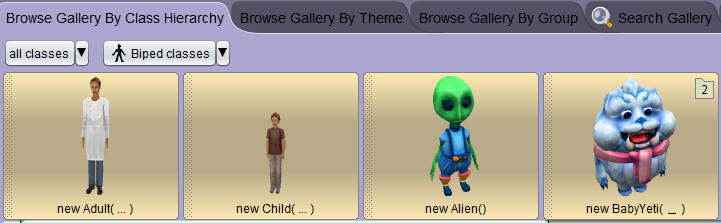
To add an object to the scene:
- Select a class icon in the gallery.
- Click once to select the object to add to the scene, or click and drag the object to the scene.
Alice creates and displays an instance from the chosen class into the scene. In Java, adding an object to the scene is referred to as creating an instance of a class. Remember, you can add multiple instances of the same class to a scene, but each instance must have a unique name (chicken1, chicken2, chicken3, etc.)
Class example
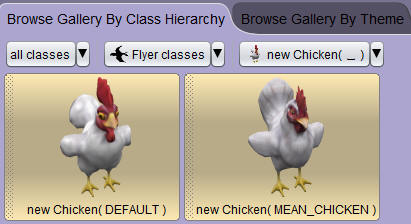
In the example above, the Flyer icon (upper left corner of each image) represents the Flyer class, and the chicken is an instance of that class. Every chicken added to a scene has the same properties as every other object in the Flyer class: two legs, two wings, feathers, and the ability to fly.
Why is it important to know that you are creating instances of a class? Because it will save you time and effort in your programming. For example, if you create a chicken called Chicken1 and you want its head to bob up and down, you would have to add multiple procedures to the Code editor to make its head bob up and down.
If you create a second chicken, Chicken2, and you want its head to bob up and down, you will have to again add multiple procedures to the Code editor for the second chicken. And the more chickens you add to the scene, the more time and work it takes to write the code to make their heads bob up and down.
However, you can save yourself time and effort by writing one procedure for the Flyer class that contains the multiple procedures to make a head bob up and down, giving it a name (like bobUpAndDown), and making it available to the entire class of objects to use. This saves you time in creating an animation. Instead of having to program every instance to do the same thing, you can write one set of programming instructions for the class that can be used by every instance in the class.
| Terminology |
|---|
|
An instance is an object from a class once it is added to the scene. |
Positioning objects as they are added to a scene
By default, instances are initially placed in the center of the scene unless the drag-and-drop method is used to create the instances. After adding multiple instances to the center of a scene, use one-shot procedures to place them in different locations in the scene so that all objects are visible. You can always tell there are multiple instances in a scene by viewing the object list in the upper left corner of the scene window. Be sure to select the name of the instance you want to position prior to executing the one-shot procedure.
Sometimes it is very convenient to have many instances placed in the center of the scene. For example, if you want to put several yetis on a floating iceberg, it would be easier to position the floating iceberg and all of the yetis together in the center of the scene first, and then move them precisely with one-shot procedures as opposed to trying to drag-and-drop them into the correct location on top of a floating iceberg.
| Demo: Adding multiple objects to a scene |
|---|
|
Watch this video demo to see instances of classes added to the animation scene. |
| Try it: Add multiple objects to a scene |
|---|
|
Download: The Try it activity below requires that you start with the project file that was saved in the previous topic. Download this Alice 3 project file if you did not complete the previous topic's Try it activity.
|
Position objects using drag and drop
To position objects using the drag and drop method:
- Select the object, or the sub-part of the object, using the cursor.
- Select a handle style.
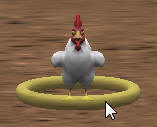
Note that each handle style presents rings or arrows to assist you with your positioning. For example, the Translation handle style will present you with three arrows to use in positioning the object along the x, y, and z axes.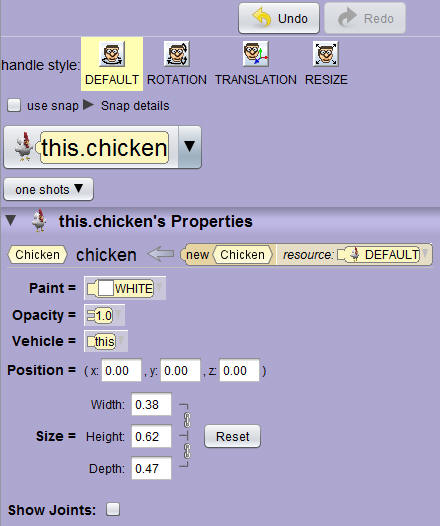
- Position the object with the cursor by selecting and dragging either the object or the rings that surround the object.
| Handle Styles | Description |
|---|---|
|
Default |
Simple rotation and movement |
|
Rotation |
Rotate about the x, y, and z axes |
|
Translation |
Move along the x, y, and z axes |
|
Resize |
Change size of the object and stretch it along the x, y, and z axes |
| Terminology |
|---|
|
The gallery is a collection of 3D models that can be inserted into the scene. |
Note: If you select a very large object in the scene, and then select the Resize handle, the positioning arrow that helps you resize the object may appear off of the screen. If the positioning arrow is off screen, you can use the scrolling button on your mouse to resize an object.
| Demo: Positioning objects using drag and drop |
|---|
|
Watch this video demo to see how the drag and drop method is used to position objects in a scene. |
| Try it: Position objects using drag and drop |
|---|
|
Download: The Try it activity below requires that you start with the project file that was saved in the previous topic. Download this Alice 3 project file if you did not complete the previous topic's Try it activity.
|
Position objects using coordinates
The Position property is located in the right hand panel of the screen.
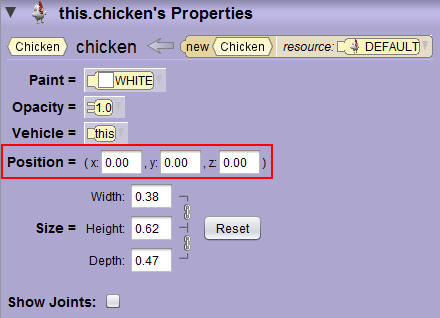
To position an object using coordinates, follow these steps:
- In the properties panel, locate the Position property.
- Enter a value in the x axis and press enter.
- Enter a value in the y axis and press enter.
- Enter a value in the z axis and press enter.
The object will automatically re-position to the coordinates entered in the x, y, and z axes fields. Note that you must press the enter key after entering each value.
| Demo: Positioning objects using coordinates |
|---|
|
Watch this video demo to see an object being positioned using the x, y, and z axes values. |
| Try it: Position objects using coordinates |
|---|
|
Download: The Try it activity below requires that you start with the project file that was saved in the previous topic. Download this Alice 3 project file if you did not complete the previous topic's Try it activity.
|
Change object properties
The Object Panel located in the right hand panel of the Code editor provides you the ability to change the properties of the instance currently selected in the scene. Properties can be set during scene setup or modified during animation execution.
For example, setting the Opacity property of an instance to 0 during scene setup will make the instance disappear from the scene. You can then create a programming statement to alter the opacity during execution, making the instance seem to appear from nowhere.
Steps to change the properties of an instance:
- Select the instance in the Scene editor.
- Change its properties, such as its paint (color), opacity, or size, in the Object Panel.
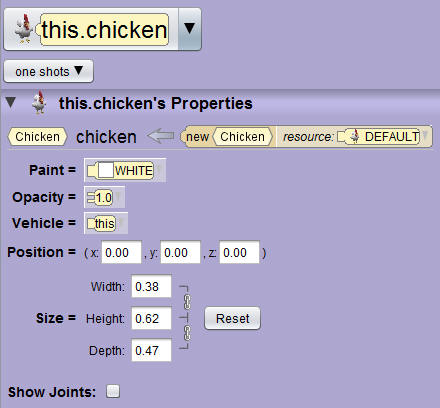
Note that the triangle in front of the object's name can hide or show the properties of an instance. If the property fields are not displaying for an instance, you will need to click the triangle to display the options.
| Demo: Changing the properties of an object |
|---|
|
Watch this video demo to see how to change the properties of an object. |
| Try it: Change the properties of an object |
|---|
|
Download: The Try it activity below requires that you start with the project file that was saved in the previous topic. Download this Alice 3 project file if you did not complete the previous topic's Try it activity.
|
Position object sub-parts
Use handle styles to position object sub-parts during scene setup. For example, you may want an instance of a child object looking to the left when the animation begins.
Follow these steps to position object sub-parts:
- Select the instance of the object from the object properties menu.
- Note the right-pointing triangle that indicates that there are additional cascading menus for the instance selected.
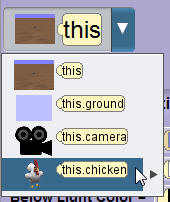
- Using the cascading menus, select the sub-part to position.
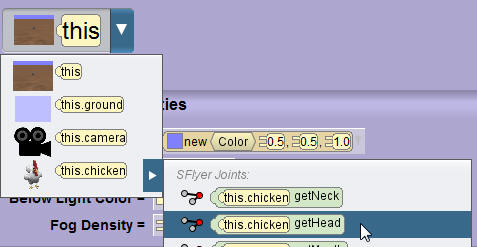
- Use the rings around the sub-part to position it.
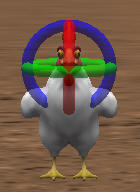
- Repeat these steps to position additional sub-parts.
Note: Remember to use the Undo feature when necessary.
| Demo: Positioning sub-parts of an object |
|---|
|
Watch this video demo to see how to position sub-parts of an object using handles. |
| Try it: Position sub-parts of an object |
|---|
|
Download: The Try it activity below requires that you start with the project file that was saved in the previous topic. Download this Alice 3 project file if you did not complete the previous topic's Try it activity.
|
Summary
In this lesson, you have learned how to:
- Open a saved version of a project
- Add multiple objects to a scene
- Describe the difference between precise positioning and drag-and-drop positioning
- Use a one-shot procedural method to precisely position an object in a scene
- Edit properties of an object in the Scene editor
- Describe three-dimensional positioning axes
- Position the sub-parts of an object in the Scene editor
Use procedures and arguments
Lesson objectives
In this lesson you will learn how to:
- Toggle between, and describe the visual difference between, the Scene editor and Code editor
- Locate and describe the purpose of the methods panel and procedures tab
- Use procedures to move objects
- Add Java programming procedures to the Code editor
- Demonstrate how procedure values can be altered
- Create programming comments
- Reorder, edit, delete, copy, and disable programming statements
- Test and debug an animation
| Demo: Lesson preview |
|---|
|
Watch this video to see a preview of what you will learn in this lesson. |
Tour the code editor
Display the Code editor
Click Edit Code to display the Code editor. The Code editor is where you program your animation.

Select instance
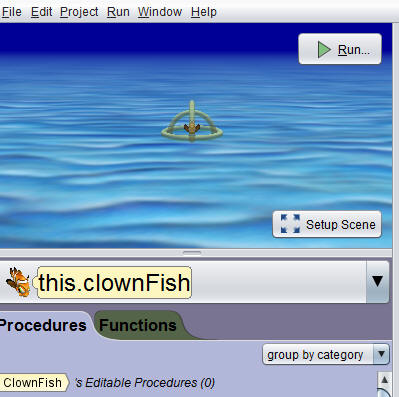
To ensure that you create a programming instruction for the correct instance, first select the instance that you want to program. You can select an instance by clicking on the instance in the small Scene view window or by using the instance pull down menu below the small Scene view window.
Methods panel
The Methods panel contains two tabs:
- Procedures: All pre-defined procedures for an object.
- Functions: All pre-defined functions for an object.
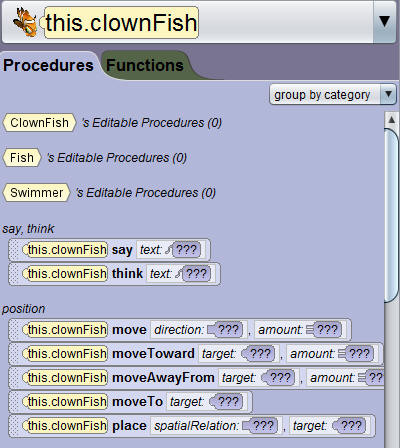
Procedures Tab
The Procedures tab displays pre-defined procedures for the class, as well as procedures that you define for the class.
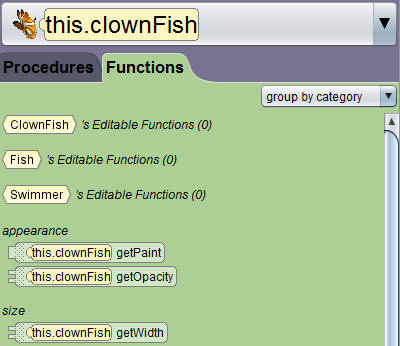
Functions Tab
The Functions tab displays pre-defined functions for the class, as well as functions that you define for the class.
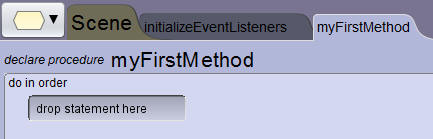
Code editor tabs
The Class Menu displays to the left of the Scene tab. You create your programming instructions on the myFirstMethod tab. By default, Alice creates a Do in order control statement in myFirstMethod. The area labeled drop statement here is the location onto which you will place programming instructions.
At the bottom of the myFirstMethod tab, you will find the Alice control structures.

| Terminology |
|---|
|
A procedure is a complete programming statement that defines how the object should execute a task. Alice 3 has a pre-defined set of procedures for each class; however, users can create (“declare”) new procedures of their own. |
| Demo: Taking a tour of the Code editor |
|---|
|
Watch this video demo to see features of the Alice 3 Code editor. |
Program objects to move
Create a programming instruction
From the Procedures tab, click and drag the desired procedure into the myFirstMethod tab of the Code editor. Use the cascading menus to set the argument values of the selected procedure.
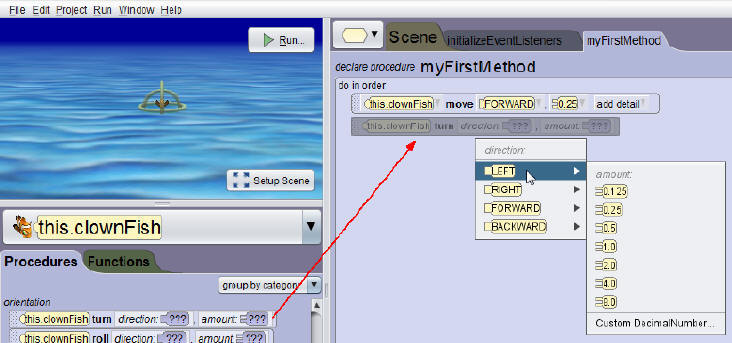
Select and edit argument values
After the programming statement is created, you can use the drop-down menus to edit the values for each argument. To access the argument drop-down menu, click on the down-pointing triangle just to the right of the argument value.
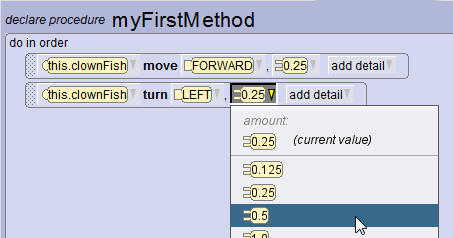
Execute the program
Click the Run button to execute the programming instructions. Run the program frequently should you need to alter the values of the arguments to achieve desired results.

Object movement
Object movement is egocentric – objects move relative to the direction they currently face.
An object can move in six directions:
- Up
- Down
- Forward
- Backward
- Right
- Left
Examples of movement procedures
| Procedure | Description |
|---|---|
|
Move |
Moves the object in any one of six different directions. |
|
Move Toward |
Moves the object toward another object. |
|
Move Away From |
Moves the object away from another object. |
|
Move To |
Moves the object the distance to the center of the target object. |
|
Move and Orient To |
Moves the object the distance to the center of the target object and adjusts the object’s orientation to match the orientation of the target object. |
|
Delay |
Halt an object’s movement for a certain number of seconds. |
|
Say |
Create a call-out bubble with text that makes the object appear to talk. |
Note: You can use a delay programming statement to slow down the execution of an animation.
Examples of rotation procedures
| Procedure | Description |
|---|---|
|
Turn |
Rotates an object left and right on its vertical axis, and rotates an object forward and backward on its horizontal axis. |
|
Roll |
Rolls an object left and right on its horizontal axis. |
| Demo: Programming objects to move |
|---|
|
Watch this video to learn how to program objects to move in Alice 3. |
| Try it: Program an object to move |
|---|
|
Download: The Try it activity below requires that you start with the project file that was saved in the previous topic. Download this Alice 3 project file if you did not complete the previous topic's Try it activity.
|
Edit arguments
Arguments
Arguments are selected after the procedure is dropped onto the Code editor.
Argument types may include:
- Direction
- Amount
- Duration
- Text
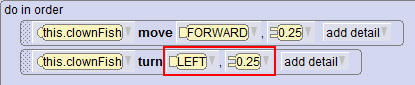
The argument menu offers default argument values or, if none of the defaults are suitable, a custom option so that you can specify a more accurate argument value.
| Terminology |
|---|
|
An argument is a value used by the procedure to perform a precise task. A procedure may require one or more arguments that tell it precisely how to perform a task. Some examples of Alice 3 arguments are: object direction, direction amount, distance, and time duration. |
Edit arguments
A procedure’s arguments may be edited or further defined to control object movement and timing.
An argument defines the degree to which an action is performed by the procedure.
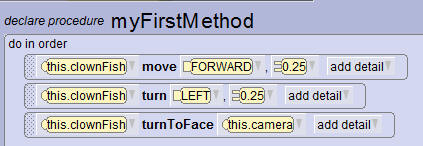
Steps to edit arguments
- Next to the argument’s value, click the arrow to display the menu of values.
- Select a new value.
- Use the Custom Decimal Number option to specify a value that differs from the default list of values.
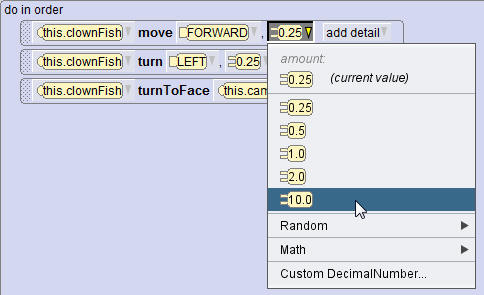
Arguments as placeholders
When a procedure is dropped into the Code editor, all argument values must be specified even if you are unsure of the perfect value to use to perform the task. In those instances, you will select an argument value simply as a placeholder value that you will later replace.
For example, you may want an object to move forward but you're not sure how far. You can select a placeholder value of 2 meters, run the animation, determine that a larger number is needed, and then edit the value to something larger. You can also specify a placeholder value that will be replaced with a function or a variable. These techniques are described in another topic.
| Demo: Editing arguments in procedures |
|---|
|
Watch this video to learn how to edit the arguments in a procedure in Alice 3. |
| Try it: Edit arguments in a procedure |
|---|
|
Download: The Try it activity below requires that you start with the project file that was saved in the previous topic. Download this Alice 3 project file if you did not complete the previous topic's Try it activity.
|
Reorder, edit and delete
Steps to reorder programming statements
- Click the handle of the programming statement.
- Drag the programming statement to its new position.
- Drop the programming statement in its new position.
Note that a green position indicator line will appear to help you align the programming statement in the desired position.
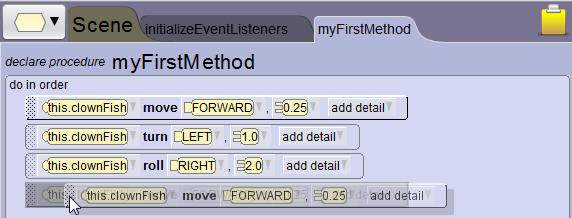
Edit programming statements
Use the drop-down lists to edit the values of the arguments in a programming statement.
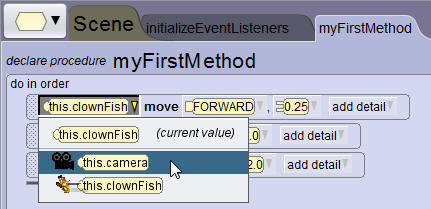
Delete programming statements
Right-click programming statements to delete them.
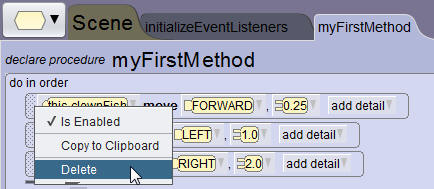
| Demo: Reordering, editing, copying, and deleting programming statements |
|---|
|
Watch this video to learn quick ways to modify your code. |
| Try it: Reorder, copy, edit and delete programming statements |
|---|
|
Download: The Try it activity below requires that you start with the project file that was saved in the previous topic. Download this Alice 3 project file if you did not complete the previous topic's Try it activity.
|
Test and debug
Edit and test the program
Run the animation to test it, and the edit the code as necessary. It may take several cycles of testing and editing to get the animation to run as desired.

Testing and debugging
Testing and Debugging is the process of running the animation many times, adjusting the control statements, procedures, and arguments after each execution to verify that the animation executes as expected.
Save often while debugging your program.
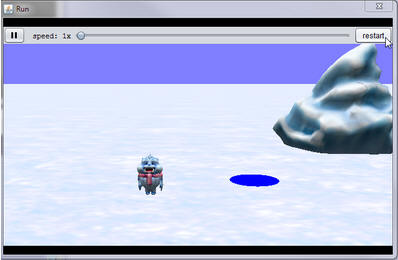
You can insert temporary programming statements into your code to help with debugging. For example, if the baby yeti above is supposed to turn towards the hole in the ice, but he doesn't, you can insert a Say procedure just before the Turn procedure and click Play.
If the yeti Says something but still doesn't move, you know that the animation is at least reaching the Move procedure, so the problem lies within the procedure itself. However, if the yeti does not Say something, you know that the Move procedure is not the problem because the animation is not even reaching the procedure.
This is a simple example, but when working with complex animations where randomization or hidden movements are occurring, you may need to employ a debugging method such as this to help pinpoint the problem.
| Demo: Testing and debugging the program |
|---|
|
Watch this video to see an example of the testing and debugging process. |
| Try it: Test and debug the program |
|---|
|
Download: The Try it activity below requires that you start with the project file that was saved in the previous topic. Download this Alice 3 project file if you did not complete the previous topic's Try it activity.
|
Disable programming statements
Programming statements can be disabled in the Code editor. Disabling programming statements can help you isolate portions of code during testing, or help you focus on programming and testing just one specific instruction or set of instructions.
Steps to disable a programming statement:
- Right-click on the programming statement.
- Unselect "Is Enabled" from the drop-down list.
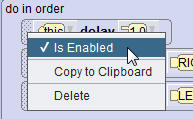
- The color of the programming statement will change to gray hashmarks to show that it is disabled.
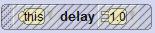
Steps to re-enable a disabled programming statement:
- Right-click on the programming statement that has been disabled.
- Select "Is Enabled" from the drop-down list.
| Demo: Disabling programming statements |
|---|
|
Watch this video to learn how disable programming statements in Alice 3. |
| Try It: Disable a programming statement |
|---|
|
Download: The Try it activity below requires that you start with the project file that was saved in the previous topic. Download this Alice 3 project file if you did not complete the previous topic's Try it activity.
|
Create programming comments
Programming comments
Comments are lines of code in your program that are not executed when the Play button is clicked. Comments are notes in your code that are written to yourself or other programmers to communicate something important. They may communicate something related to the structure, purpose, or failure of the code.
- Comments explain something important about the programming instruction and do not affect the functionality of the program.
- Comments are typically placed above the programming statement or the block of statements being described.
- Comments are often written first before any programming instructions are written.
Steps to enter comments in a program
- Drag and drop the //comment tile above a code segment. The //comment tile is located at the bottom of the Code Editor panel.

- Type comments that describe the sequence of actions in the code segment.
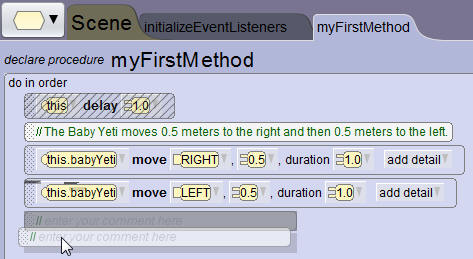
Comments can be an excellent tool for organizing the development of a program. When a large program is being created, it is often a good habit to create a comment that indicates the end of a program. An end of program comment also helps to minimize scrolling when adding programming statements to a lengthy myFirstMethod.
| Demo: Creating programming comments |
|---|
|
Watch this video to learn how add programming comments to your code. |
| Try it: Add programming comments |
|---|
|
Download: The Try it activity below requires that you start with the project file that was saved in the previous topic. Download this Alice 3 project file if you did not complete the previous topic's Try it activity.
|
Summary
In this lesson, you have learned how to:
- Toggle between, and describe the visual difference between, the Scene editor and Code editor
- Locate and describe the purpose of the methods panel and procedures tab
- Use procedures to move objects
- Add Java programming procedures to the Code editor
- Demonstrate how procedure values can be altered
- Create programming comments
- Reorder, edit, delete, copy, and disable programming statements
- Test and debug an animation
Add rotation and randomization
Lesson objectives
In this lesson you will learn to:
- Add motion to objects
- Add a control statement to the Code editor
- Use random numbers to randomize motion
Compare turn and roll procedures
Object movement
Object movement is egocentric – objects move relative to the direction they currently face.
An object can move in six directions:
- Up
- Down
- Forward
- Backward
- Right
- Left
Examples of rotation procedures
| Procedure | Description |
|---|---|
|
Turn |
Rotates objects left, right, forward, and backward on their center point. |
|
Roll |
Rolls objects left and right on their center point. |
Comparison of turn and roll procedures
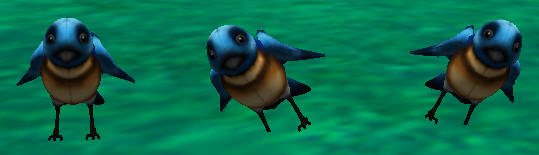
The object turns right and left on its center point using a vertical axis:
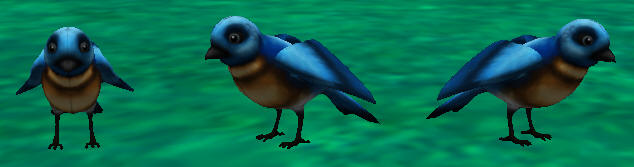
The object rolls right and left on its center point using a horizontal axis:
Some objects have moveable sub-parts that can turn and roll.
The pocketwatch has moveable hour and minute hands that can roll on the clock's center point:
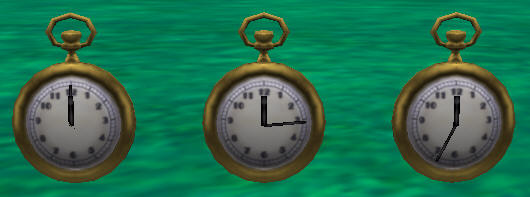
| Demo: Comparing different ways objects can turn and roll |
|---|
|
Watch this video to see a comparison of turn and roll procedures. |
Program objects to rotate
Object rotation
Steps to program an object to rotate:
- Select the instance of the object to rotate.
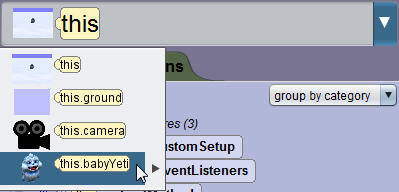
- Drag a turn or roll procedure to the Code editor.
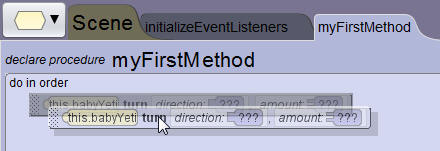
- Select a value for the direction argument.
- Select a value for the amount argument (1.0=one full turn or roll).
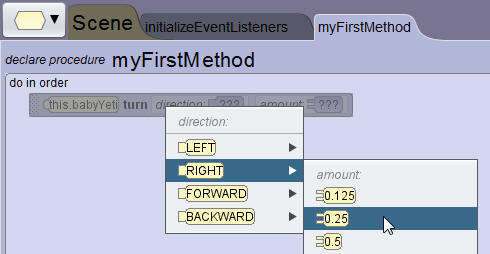
Turn and roll procedures
| Procedure | Description |
|---|---|
|
Turn |
Rotates objects left, right, forward, and backward on their center point. |
|
Roll |
Rolls objects left and right on their center point. |
Note: The key to successful rotation is knowing the center point of an object.
| Demo: Programming objects to rotate |
|---|
|
Watch this video to learn how to program objects to rotate in Alice 3. |
| Try It: Program an object to rotate |
|---|
|
Download: The Try it activity below requires that you start with the project file that was saved in the previous topic. Download this Alice 3 project file if you did not complete the previous topic's Try it activity.
|
Create control statements
Control statements
Control Statements define how to execute programming statements in the program. The myFirstMethod tab is created with a default Do in order control statement so that all programming statements execute sequentially by default.
Examples of control statements
| Procedure | Description |
|---|---|
|
Do in order |
Execute programming statements in sequential order. |
|
Do together |
Execute programming statements contained within the control statement simultaneously. |
|
Count |
Execute statements contained within the control statement a specific number of times. |
|
While |
Execute statements contained within the control statement while a specified condition is true. |
Control statements in the Code editor
Control statement tiles are located at the bottom of the myFirstMethod tab. You can drag them into the Code editor before or after you have entered other programming statements.
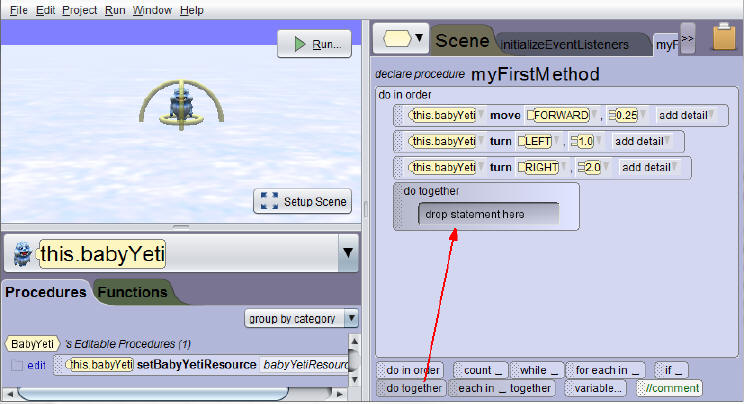
Add procedures to a control statement
Drag new or existing programming statements into the new control statement. In the example illustrated below, the flamingo will simultaneously move forward, turn left, and roll to the right.
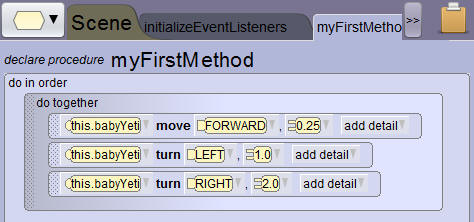
Tip: Even though myFirstMethod contains a default Do in order control statement, you can always add another Do in order tile inside it.
Doing so allows you to keep your programming instructions together in blocks, and blocks can be easily copied to the clipboard or moved around in a large program. Nesting is the process of putting one thing inside of another, like a bird's eggs are safely contained within its nest.
In the example above, three statements are nested in the Do together control statement, and the Do together control statement is nested in the Do in order control statement. Nested statements do not impact the performance of an Alice animation, and they can make program editing easier for the programmer if structured properly.
| Demo: Creating control statements |
|---|
|
Watch this video to learn how to create control statements in Alice 3. |
| Try It: Create a control statement |
|---|
|
Download: The Try it activity below requires that you start with the project file that was saved in the previous topic. Download this Alice 3 project file if you did not complete the previous topic's Try it activity.
|
Program object sub-parts to rotate
Sub-part rotation
Some objects have moveable sub-parts.
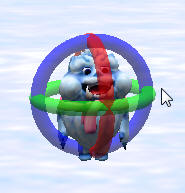
- The baby yeti's head can turn or roll. Rotation can be applied to an entire object, or to specific sub-parts of the object.
- The object's head displays rings that show its range of motion.
Steps to program an object's sub-part to rotate
- Select the sub-part of the object to rotate.
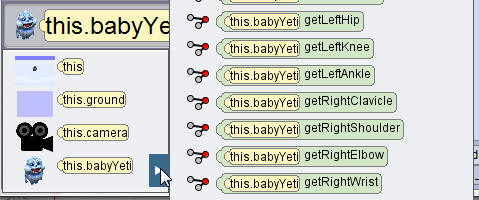
- Drag a turn or roll procedure to the Code editor.
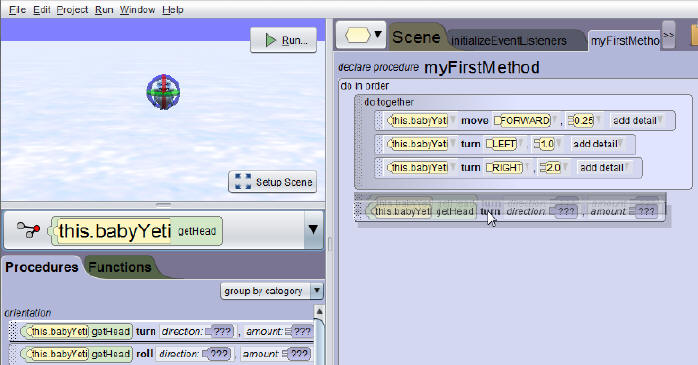
- Select the value for the direction argument.
- Select the value for the amount argument (1.0 = one full turn or roll).

| Demo: Programming object sub-parts to rotate |
|---|
|
Watch this video to learn how to program object sub-parts to rotate in Alice 3. |
| Try it: Program an object sub-part to rotate |
|---|
|
Download: The Try it activity below requires that you start with the project file that was saved in the previous topic. Download this Alice 3 project file if you did not complete the previous topic's Try it activity.
|
Randomize movement
Random numbers
Random numbers are numbers generated by the computer with no pattern in their sequence. Random numbers are generated within a given range of numbers.
Computers require random numbers for:
- Security: Randomly generated passwords
- Simulation: Earth science modeling (e.g., erosion over time)
Examples of random numbers:
- 15674
- -6934022.1133
- 0.3
Random numbers in animations
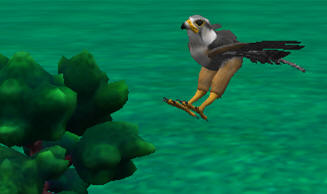
Animals do not move in straight geometric lines. They change direction slightly as they walk, swim, and fly. Random numbers may be utilized in the distance argument of a procedure so that the object moves in a less predictable manner that is more life-like. Random numbers are often used when creating games that require unpredicable behavior.
Steps to use random numbers in an animation
- Click the procedure’s duration argument to open the drop-down list.
- Select Random.
- Select nextRandomRealNumberInRange ???, ???.
- Select the low and high values.
- Run the animation. Alice 3 will randomly select a value within that range each time the procedure is executed.
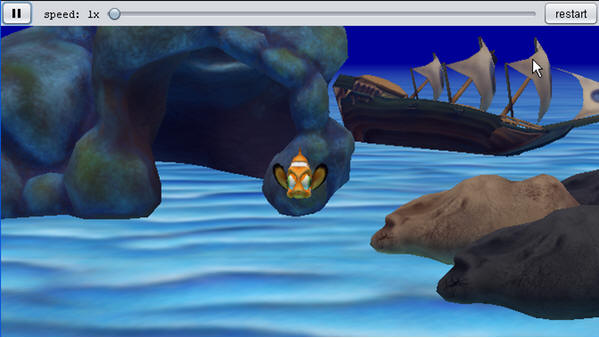
Example
The fish moves a random amount up and down at runtime.

| Demo: Randomizing movement |
|---|
|
Watch this video to learn how to randomize movement in Alice 3 animation. |
| Try it: Randomize object movement |
|---|
|
Download: The Try it activity below requires that you start with the project file that was saved in the previous topic. Download this Alice 3 project file if you did not complete the previous topic's Try it activity.
|
Summary
In this lesson, you have learned how to:
- Add motion to objects
- Add a control statement to the Code editor
- Use random numbers to randomize motion
Declare procedures
Lesson objectives
In this lesson you will learn to:
- Define and compare an animation and a scenario
- Use functional decomposition to write a storyboard
- Flowchart a storyboard
- Describe inheritance and how traits are passed from superclasses to subclasses
- Describe when to implement procedural abstraction
- Demonstrate how to declare a user-defined procedure
- Identify and use procedural abstraction techniques to simplify animation development
| Demo: Lesson preview |
|---|
|
Watch this video to see a preview of what you will learn in this lesson. |
Define the scenario
What is a Scenario?
Professional animators begin the animation process by developing a scenario—or story—that gives the animation a purpose.
Examples:
- A story representing a conflict and resolution
- A lesson to teach a math concept
- A process to simulate or demonstrate
- A game to play
Scenario and animation examples
| Scenario type | Scenario | Animation |
|---|---|---|
|
Story |
A cat is stuck in a tree and needs help to get down. |
A firefighter or a policeman climbs up the tree to save the cat. |
|
Lesson |
Students have trouble memorizing chemistry symbols. |
A timed matching game to match chemistry symbols with their definitions. |
|
Process |
A demonstration of how to change a car tire. |
Virtual tools to show you how to change a tire on a virtual car. |
|
Game |
An airplane flies through the sky but should not hit objects in its path. |
An interactive game to fly an airplane around objects in the sky. |
Defining the scenario, and the animation to represent the scenario, is the first step to programming your animation.
| Demo: Defining a scenario |
|---|
|
Watch this video to learn how to define a scenario for an animation. |
| Try it: Define a scenario |
|---|
|
Instructions:
|
Plan with a storyboard
What is a storyboard?
A storyboard identifies the design specifications for the animation scenario: how objects appear, move, speak, interact, and so on. Once a scenario is defined, you can begin to develop the animation storyboard.
There are two types of storyboards:
- Visual: a series of illustrated images that represent the main scenes in the animation
- Textual: a detailed, ordered list of actions that each object performs in each scene in the animation
Storyboard formats:
- Drawn with paper and pencil
- Created using digital tools such as a word processing program, paint or drawing program, or presentation software
Visual storyboard: Example
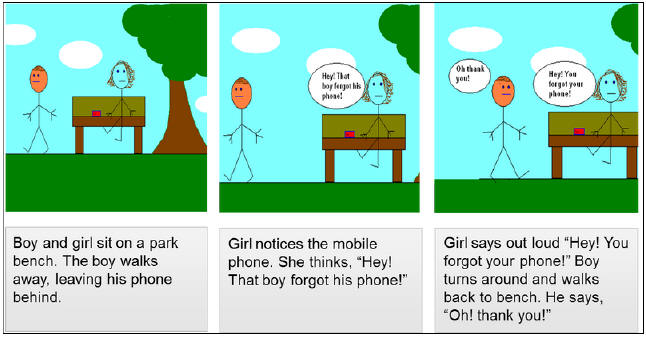
The visual storyboard illustrated above helps a reader understand the components of a scene, the initial scene set-up, the moving and non-moving objects in a scene, the actions that will take place, and the user interactions that might occur during the animation execution.
Textual Storyboard: Example
|
Do in order Boy and girl sit on a park bench. Boy stands up and walks away, leaving his mobile phone on the park bench. Girl turns to look at the phone. Girl thinks, “Hey! That boy forgot his phone!” Girl says out loud, “Hey! You forgot your phone!” Boy stops and turns around. Boy walks back to the park bench and says, “Oh, thank you!” |
The textual storyboard listed above helps a reader understand the actions that will take place during the animation. Many of the moving and non-moving objects can be identified from the action statements, but some (like the tree and the clouds) are not mentioned and may require further description if another programmer is expected to implement the initial scene as it was originally imagined by the author of the storyboard.
| Terminology |
|---|
|
In computing, a textual storyboard is called an algorithm: a list of actions to perform a task or solve a problem. |
Textual storyboard components
Textual storyboards should contain the objects listed in the table below to support the program development of the animation. Storyboards can be thought of as the building plans for a house - you would probably not want to build a house until the plans were complete.
| Component | Definition | Example |
|---|---|---|
Object |
A moving or non-moving character that you position and/or program to move and act. |
Animals, cars, people, trees |
Scene |
The place (or “world” in Alice 3) where your story occurs. |
Park, library, school, home |
Actions |
The instructions for each object to act in the scene. |
Walk 2 meters, turn left, say “Hello!” |
User Interactions |
The ways in which the user can manipulate the objects in the animation. |
Keyboard commands or mouse clicks to make objects move |
Design Specifications |
How the objects and scenery should look in the animation. |
Walk 2 meters, turn left, say “Hello!” |
Storyboard process flow
Flowcharting a storyboard helps you organize the flow of the animation actions and conditions. In the example illustrated below two different actions can take place based on the boy leaving the phone on the bench. If the boy does leave the phone on the bench, the girl will let the boy know so he can turn around and retrieve his phone. If the boy does not leave his phone on the bench, the girl will do nothing as the boy walks away.
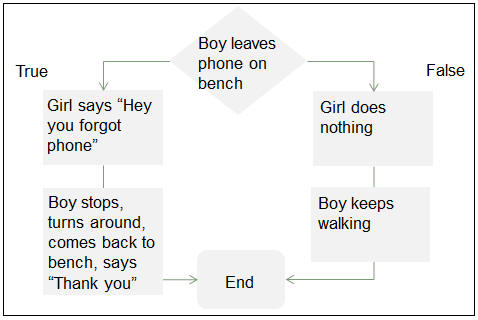
Textual storyboards can be used to generate program comment statements and organize program development. Storyboards can also help programmers identify repetitive actions, or actions that may be performed by more than one object.
| Demo: Planning with a storyboard |
|---|
|
Watch this video to learn how to plan an animation using a storyboard. |
| Try it: Plan an animation with a storyboard |
|---|
|
Instructions:
|
View inherited characteristics
Inherited characteristics
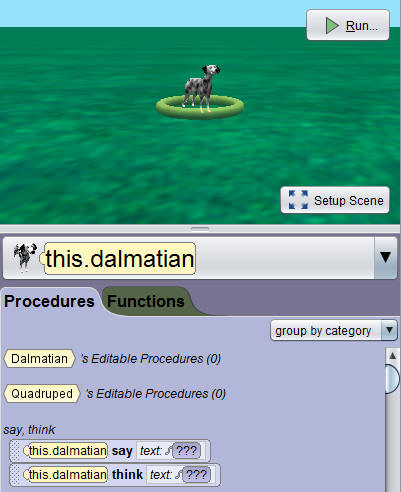
To understand how characteristics can be inherited in programming, let's examine how a Dalmatian inherits two types of characteristics:
- Characteristics of the dog class (the parent or “superclass”) include four legs, two eyes, fur, and the ability to bark.
- Characteristics of the Dalmatian breed class (the child or “subclass” which is a subset of the dog class) include white fur, black spots, floppy ears, long nose, and other characteristics specific to Dalmatians.
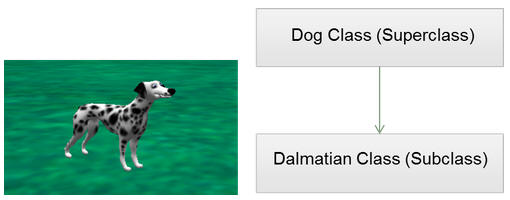
Class inheritance
Just like animals in the real world, objects inherit the characteristics of their class in the programming world, including all of the procedures, functions, and properties of the class. For example, all objects within the quadruped class in Alice inherit the quadruped characteristics of four legs, a head, a body, etc. Within the quadruped superclass there are subclasses for dogs, cats, wolves, lions, cows, etc.
Understanding that subclasses are related to superclasses helps you, as a programmer, determine where you want to identify repetitive behaviors in your storyboard. For example, if you are going to have a dog, a cat, and a lion in an animation, and you are going to make each of them walk, you should program the repetitive behavior of walking at the superclass level (the biped level) so that all of the subclass objects (dogs, cats, and lions) can use the inherited characteristic of walking. This will save you time because you won't have to program the repetitive behavior of walking for each one of the objects.
| Terminology |
|---|
|
Inheritance means that each subclass inherits the methods and attributes of its superclass. Procedures and Functions are methods of the class, and Properties are attributes of the class. Together, the methods and attributes are the members of a class. |
When a Dalmatian object is created, it inherits the members (the procedures, functions, and properties) of the Quadruped class and they become available to you in the Code editor. In addition to these pre-defined members, you can create your own members in any superclass and have them display, or be available to, any subclass object. Inherited members will always display at the top of the pre-defined list once they are created.
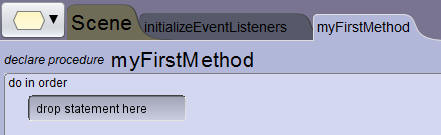
myFirstMethod tab
The myFirstMethod tab is displayed by default when the Code editor is opened.
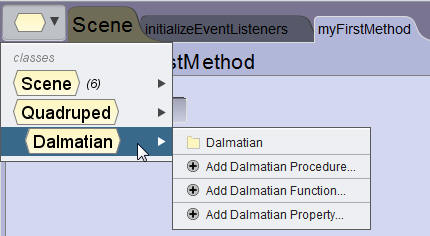
Class hierarchy
Click the class hierarchy drop-down menu to the left of the Scene tab to view the list of classes and subclasses in your animation. Select a superclass or subclass to view the procedures, functions, and properties defined for the selected class.
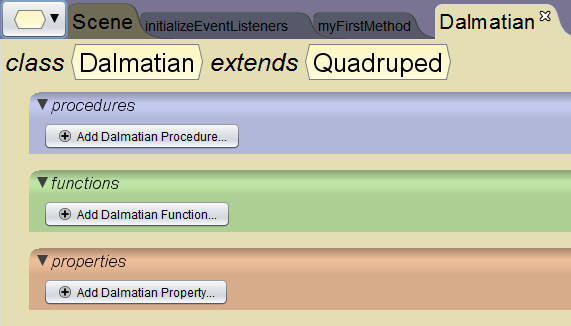
| Demo: Viewing inherited characteristics |
|---|
|
Watch this video to learn how view the inherited characteristics of an object. |
| Try it: View inherited characteristics |
|---|
|
Download: The Try it activity below requires that you start with the project file that was saved in the previous topic. Download this Alice 3 project file if you did not complete the previous topic's Try it activity.
|
Use procedural abstraction
Procedural abstraction
Review the existing code or the textual storyboard to identify and plan the user-defined procedures that you may want to declare in your program.
Removing repetitive behaviors from the Code editor and saving them within a user-defined procedure:
- Simplifies the code, making it easier to read
- Allows many objects of a class to use the same procedure
- Allows subclasses of a superclass to use the procedure
| Terminology |
|---|
|
Procedural abstraction is the concept of being able to look at programming code, identify a block of repetitive programming statements, and place them within one procedure that can be referenced by many objects, thus making the code easier to understand and reuse. |
An example of this is to remove repetitive or lengthy programming statements from myFirstMethod and put them in a single procedure to make the code easier to read, understand, and reuse by multiple objects, and in some cases, multiple classes.
Procedural abstraction: Example 1
An object may perform the same repetitive motions.
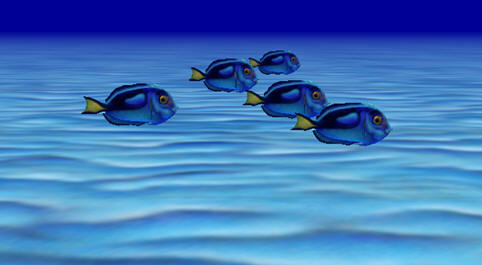
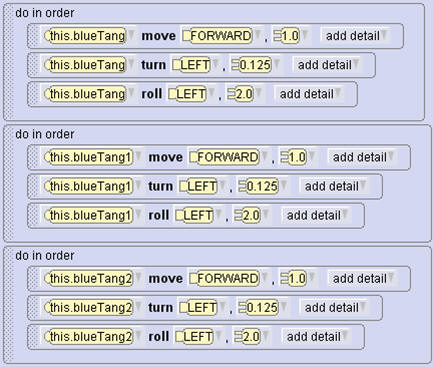
A school of five fish swim together. It takes many procedures to program this swim movement for each fish instance, which takes up a lot of space in myFirstMethod.
Procedural Abstraction: Example 2
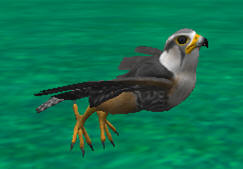
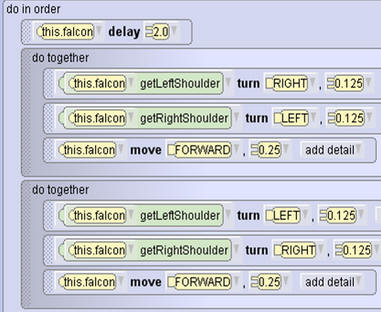
Sometimes, the procedures needed to perform an action are not available by default. For example, a bird needs to fly, but there is no fly procedure available for bird objects.
Procedural abstraction can occur either before or after programming statements are created. However, the thorough development of a storyboard can help a programmer identify the procedures that will be needed before programming begins and save hours of programming (or reprogramming) time in the process.
| Demo: Using procedural abstraction |
|---|
|
Watch this video to learn how to use procedural abstraction. |
Declare a Procedure
Declare a user-defined procedure when actions for an object:
- are not available in the list of pre-defined procedures, such as a bird flying.
- need to be used by multiple objects or classes, such as the ability of all quadrupeds to hop up and down in the animation.
- require many repetitive programming statements, such as a person moving many body parts to walk.
Declaring a procedure: Example 1
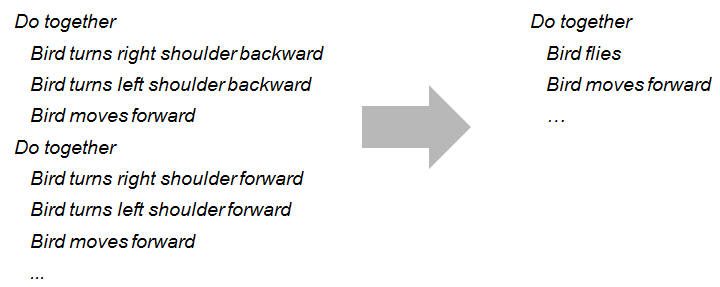
The bird flies by turning its shoulders and moving forward simultaneously. This repetitive motion could be extracted into its own flying procedure.
Declaring a procedure: Example 2
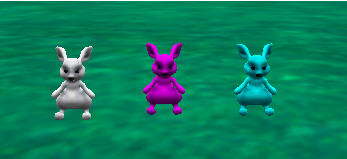
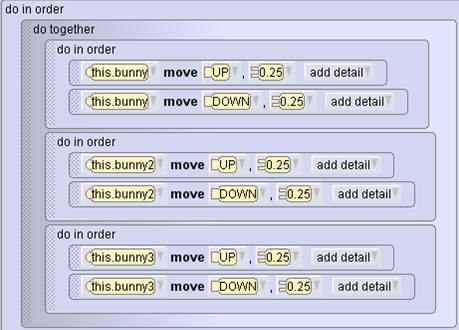
Each bunny moves up and down in order to simulate a hopping motion. This repetitive motion that needs to be used by all bunny objects could be extracted into its own hop procedure.
Steps to declare a procedure:
- Select the class that should inherit the procedure from the class hierarchy. All subclasses will also inherit the procedure (indicated by a + or ++ next to the subclass name).
- Click the Add Procedure... button.
- Specify a name for the procedure and then click OK.
- A new tab will open (with the name of the procedure) where the procedure will be coded.
- Add the new procedure to myFirstMethod before coding, so you can run and test the animation code as you write the procedure.
- Click the Back to MyScene button.
- Click the myFirstMethod tab.
- Select the instance for which you are coding the procedure from the instance menu.
- In the Procedures tab, locate the declared procedure and drag it into myFirstMethod.
- Go back to editing the procedure.
| Demo: Declaring procedures |
|---|
|
Watch this video to learn how to declare a procedure. |
| Try it: Declare a procedure |
|---|
|
Download: The Try it activity below requires that you start with the project file that was saved in the previous topic. Download this Alice 3 project file if you did not complete the previous topic's Try it activity.
|
Add user-defined procedures
The user-defined (or user-declared) procedures are available with the pre-defined procedures on the Procedures tab of all objects that inherit them.
Steps to add a user-defined (declared) procedure:
- Select the instance of the object to which you wish to add the user-defined procedure.
- Find the user-defined procedure listed on the Procedures tab in the Methods panel.
- Drag the user-defined procedure to the code.
| Demo: Adding a user-defined (declared) procedure |
|---|
|
Watch this video to learn how to add a user-defined procedure to myFirstMethod. |
| Try it: Add a user-defined procedure |
|---|
|
Download: The Try it activity below requires that you start with the project file that was saved in the previous topic. Download this Alice 3 project file if you did not complete the previous topic's Try it activity.
|
Access and edit declared (user-defined) procedures
Steps to access and edit declared (user-defined) procedures:
- In the class menu, select the class where the procedure was declared. Select the procedure name.
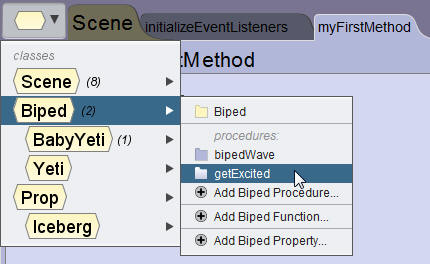
- Create or edit the programming instructions for the procedure.
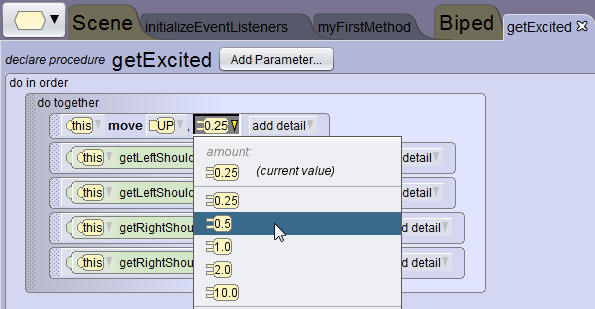
- Click the Run button to test the procedure and debug as necessary.

- When finished editing the procedure, click the Back to Scene button to return to myFirstMethod.

| Demo: Accessing and editing declared procedures |
|---|
|
Watch this video to learn how to access and edit a declared procedure. |
| Try it: Access and edit a declared procedure |
|---|
|
Download: The Try it activity below requires that you start with the project file that was saved in the previous topic. Download this Alice 3 project file if you did not complete the previous topic's Try it activity.
|
Optimize procedures
Identify opportunities for declared procedures
As you code, continually identify procedural abstraction techniques to declare your own procedures.
In the code below, the fish needs to bob up and down. A separate “bob” procedure could be declared.
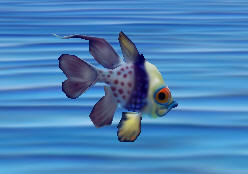
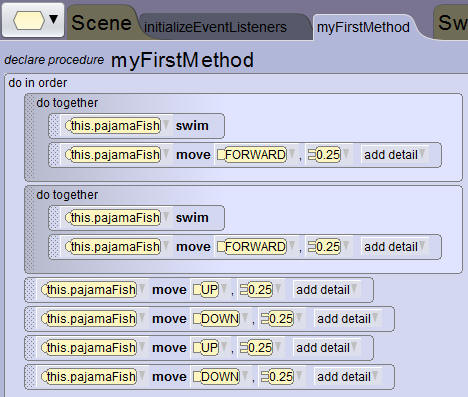
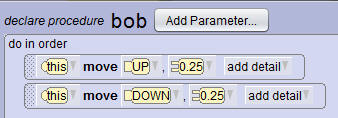
Procedural abstraction and using the clipboard
You may find that you create many programming instructions in the myFirstMethod tab before determining that the code would be better served by using a declared procedure.
Use the clipboard to copy the programming instructions and then, after creating the declared procedure, drag the programming instructions from the clipboard to the declared procedure.
| Demo: Optimizing procedures |
|---|
|
Watch this video to learn when it is beneficial to optimize procedures. |
Use inherited procedures
Any procedures that you declare at the superclass level will be available to any other objects in that class.
Example
The "yetiWave" procedure that was created to make a baby Yeti wave his arms in the air can be used to make an adult Yeti's arms wave in the air.

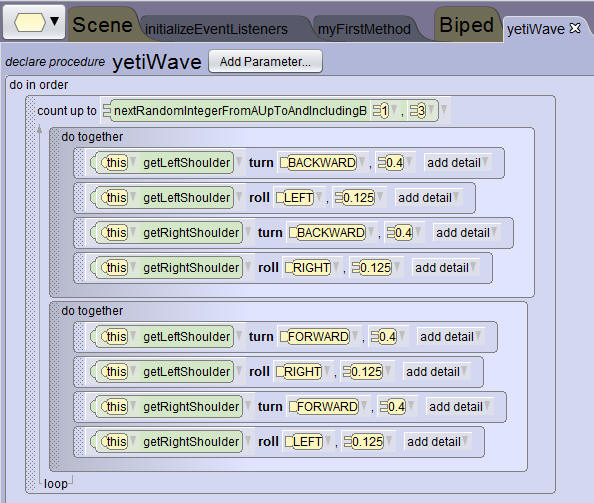
When a declared procedure is created, the object identifier this is used to refer to the instance of the class that is calling the procedure.
For example, if the baby yeti is selected in the instance menu, and the YetiWave procedure is added to the myFirstMethod for the baby yeti, this in the declared procedure is actually referring to the baby yeti.
If the adult yeti is selected in the instance menu, and the YetiWave procedure is added to the myFirstMethod for the adult yeti, this in the declared procedure is actually referring to the adult yeti. In essence, this refers to the instance that is calling the procedure.
| Demo: Using inherited procedures |
|---|
|
Watch this video to learn how to use inherited procedures among members of the same class. |
| Try it: Use inherited procedures |
|---|
|
Download: The Try it activity below requires that you start with the project file that was saved in the previous topic. Download this Alice 3 project file if you did not complete the previous topic's Try it activity.
|
Summary
In this lesson, you have learned how to:
- Compare and define an animation and a scenario
- Use functional decomposition to write a storyboard
- Flowchart a storyboard
- Describe inheritance and how traits are passed from superclasses to subclasses
- Describe when to implement procedural abstraction
- Demonstrate how to declare a user-defined procedure
- Identify and use procedural abstraction techniques to simplify animation development
Use control statements
Lesson objectives
- Define multiple control statements to control animation timing
- Create an animation that uses a control statement to control animation timing
- Recognize programming constructs to invoke simultaneous movement
| Demo: Lesson preview |
|---|
|
Watch this video to see a preview of what you will learn in this lesson. |
Edit arguments
The arguments of a procedure may be edited or further defined to control object movement and timing.
| Terminology |
|---|
|
An argument is a value used by the procedure to perform a precise task. A procedure may require one or more arguments that tell it precisely how to perform a task. |
Examples of Alice 3 arguments include:
- Object
- Direction
- Direction amount
- Time duration
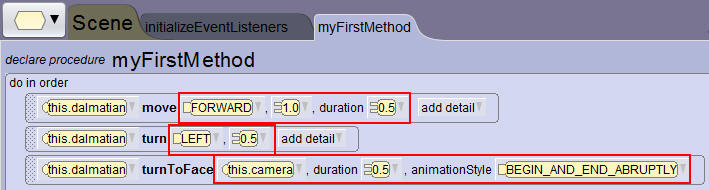
Steps to edit arguments:
- Next to the argument’s value, click the arrow to display the menu of values.
- Select a new value.
Notice that the menu indicates the current value, followed by many pre-set values to choose from, followed by additional menu options to specify randomization, math calculations, or a custom decimal number.
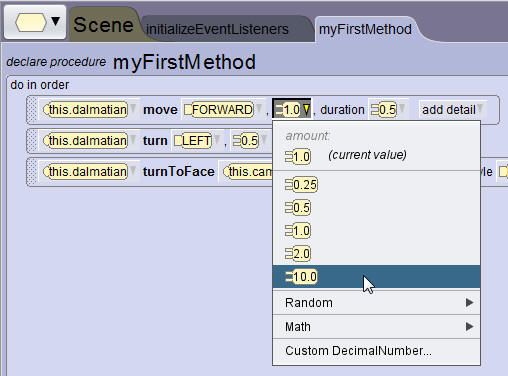
Selecting a placeholder argument
When adding a procedure to the code, you are required to select an argument. Often times you will choose a pre-set value as a placeholder which is later changed during an edit cycle. Using a placeholder value is a common approach to creating and refining animation performance.
| Demo: Editing arguments |
|---|
|
Watch this video to learn how to edit arguments in Alice 3 programming statements. |
| Try it: Edit arguments |
|---|
|
Download: The Try it activity below requires that you start with the project file that was saved in the previous topic. Download this Alice 3 project file if you did not complete the previous topic's Try it activity.
|
Create simultaneous movements
Simultaneous movements
To create simultaneous movements for an object, use the Do Together control statement.
| Control Statement | Description |
|---|---|
|
Do In Order |
|
|
Do Together |
|
Example 1: Both hands raised
One example of simultaneous movements is the raising of both arms above the head. The steps to raise the left arm above the head are executed at the exact same time that the steps to raise the right arm are executed.
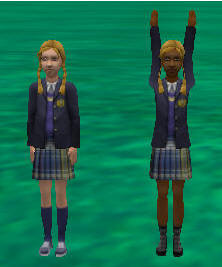
Example 2: Walking motion
A walking motion for a biped object requires simultaneous movement of the hips and shoulders.
To create the walking motion for a biped, use:
- A series of move, roll, and turn procedures
- The Do Together control statement
Note that different programming may be required for different objects – no two objects walk exactly the same way.
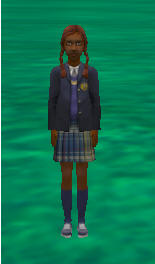
Walking textual storyboard: Example
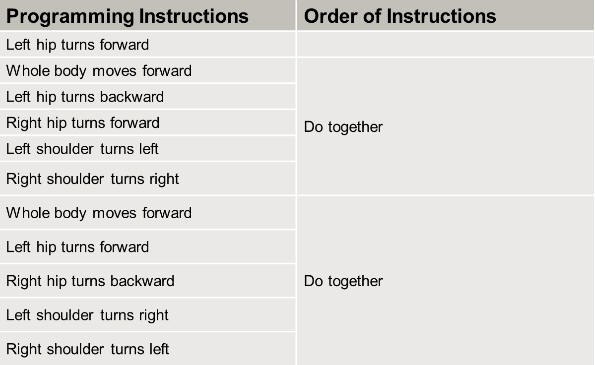
Walking motion programming code: Example
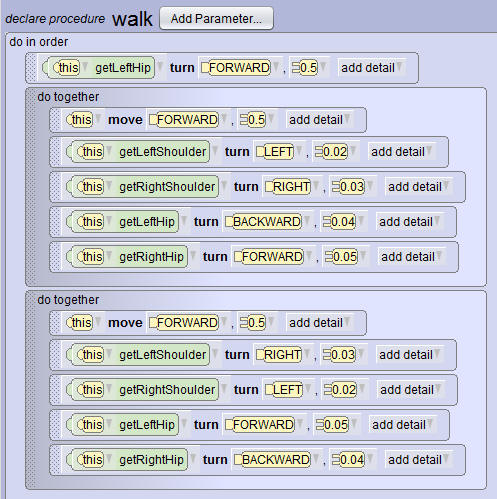
Note: A common mistake while programming an animation is to include in a Do Together control two procedures that will offset each other. For example, if you include both a move hand up 1 meter procedure, followed by a move hand down 1 meter procedure in a Do Together construct, nothing will happen because the two procedures offset each other.
| Demo: Creating simultaneous movements |
|---|
|
Watch this video to learn how to program simultaneous movements for an object. |
| Try it: Create simultaneous movement |
|---|
|
Download: The Try it activity below requires that you start with the project file that was saved in the previous topic. Download this Alice 3 project file if you did not complete the previous topic's Try it activity.
|
Animate vehicle riding
The setVehicle procedure
The setVehicle procedure joins together in simultaneous movement a rider object and a vehicle object. The setVehicle procedure requires two arguments: the first argument is a reference to an existing object designated as the rider, and the second argument is a reference to a second object designated as the vehicle. Then, anytime the vehicle object is programmed to move, the rider object will automatically move with it. Note: the rider does not have to ride upon or touch the vehicle.
Examples:
- Dog walks alongside a person
- Person rides a camel or horse
- Camera follows a helicopter to shoot the scene from the helicopter’s point of view
setVehicle procedure: Example 1
The child is positioned on the camel in the Scene editor. Then, the camel is set as the vehicle of the child in the Code editor. When the camel moves, the child stays on top and moves with the camel.
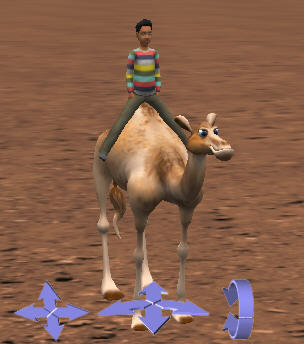
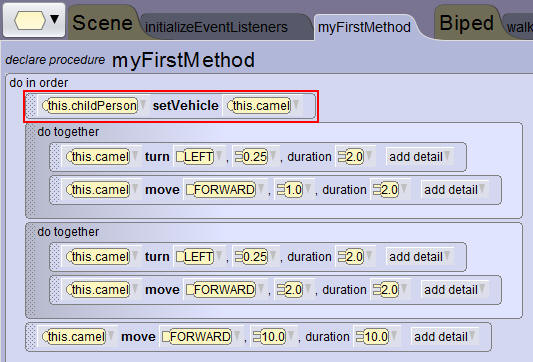
setVehicle procedure: Example 2
The helicopter is set as the vehicle of the camera. When the helicopter moves, the camera films the scene from the helicopter's perspective.
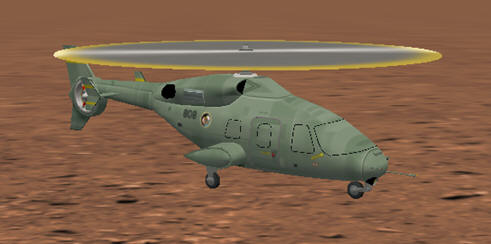
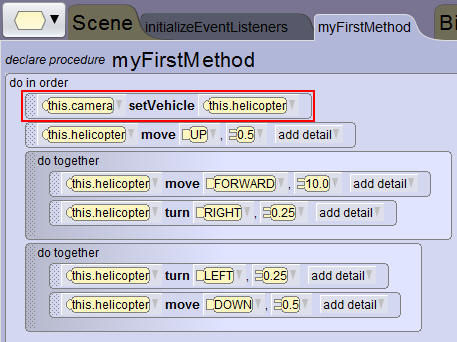
Steps to use the setVehicle procedure
- Determine the vehicle object and the rider object.
- In the code editor, select the rider object from the Instance menu.
- From the Procedures tab, drag the setVehicle procedure into the Code editor.
- Select the vehicle object from the menu.
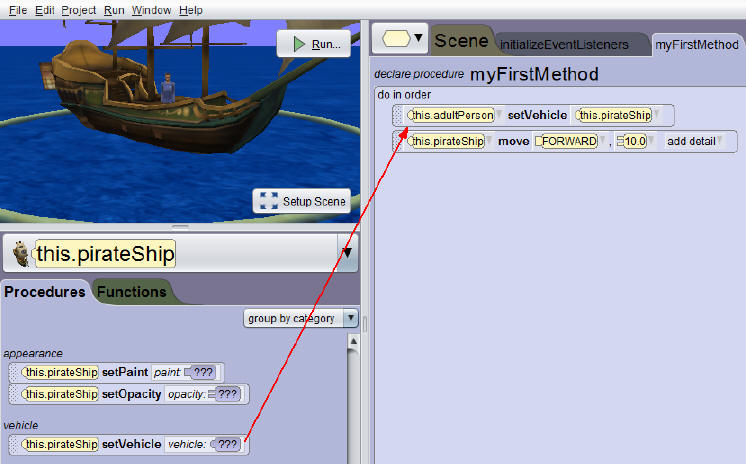
| Demo: Animating an object riding a vehicle |
|---|
|
Watch this video to learn how to animate an object riding a vehicle. |
| Try it: Animate an object riding a vehicle |
|---|
|
Download: The Try it activity below requires that you start with the project file that was saved in the previous topic. Download this Alice 3 project file if you did not complete the previous topic's Try it activity.
|
Animate stop riding vehicle
Steps to stop the setVehicle procedure
- If at some point you want to disconnect the rider object from the vehicle object, drag another setVehicle procedure into the Code editor at the point where the rider disconnects from the vehicle.
- Set the vehicle to this, which sets the vehicle of the rider back to the scene.
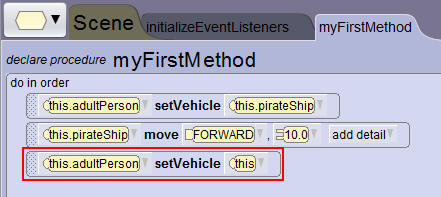
| Demo: Animating the rider to stop riding a vehicle |
|---|
|
Watch this video to learn how to animate a rider object to stop riding a vehicle. |
| Try it: Animate the rider object to stop riding a vehicle |
|---|
|
Download: The Try it activity below requires that you start with the project file that was saved in the previous topic. Download this Alice 3 project file if you did not complete the previous topic's Try it activity.
|
Summary
In this lesson, you have learned how to:
- Define multiple control statements to control animation timing
- Create an animation that uses a control statement to control animation timing
- Recognize programming constructs to support simultaneous movement
Use functions
Lesson objectives
In this lesson, you will learn to:
- Use functions to control movement based on a return value
| Demo: Lesson preview |
|---|
|
Watch this video to see a preview of what you will learn in this lesson. |
Use the functions tab
Functions
- Are used to ask questions about properties of an object
- Are similar to procedures except that they return a value of a specific data type
- Can be used to compute a value
Functions precisely answer questions
Functions provide precise answers to questions, such as:
- What is the distance between the helicopter and the ground?
- What is the height of the cat?
- What is the width of the owl?
A boolean function returns either a true or false value. For example, if the isFacing function is called to determine if the person object is facing the tree object, a true or false value will be returned.
| Terminology |
|---|
|
Functions answer questions about an object, such as its height, width, depth, or distance to another object. |
Functions tab
The Functions tab is in the methods panel. Select the object from the Instance menu, and then view its functions.
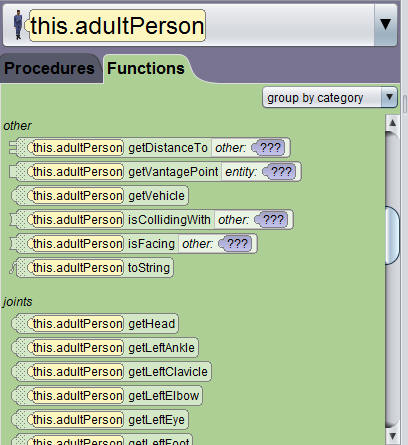
| Demo: Using the Functions tab |
|---|
|
Watch this video to learn how to locate and use the Functions tab. |
| Try it: Select an object and view its functions |
|---|
|
Download: The Try it activity below requires that you start with the project file that was saved in the previous topic. Download this Alice 3 project file if you did not complete the previous topic's Try it activity.
|
Set a movement distance
Functions solve distance problems
In this scene, we want to move the lion directly to the rock, but we don't know the distance between the two. Using trial-and-error, we could manually guess the distance by specifying a placeholder value and testing until we get close to the desired end result. Or we could use a function that precisely calculates the distance for us.
Use the getDistanceTo function in the move procedure to solve this distance problem.
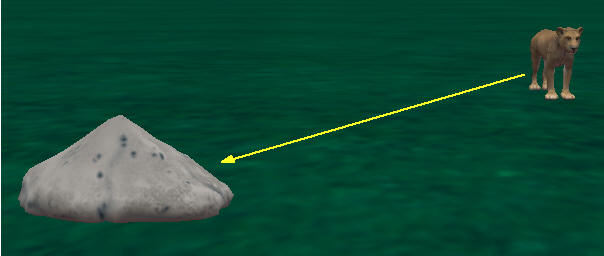
Steps to use the getDistanceTo function
- Determine the moving object and target object.
- Select the moving object from the Instance menu.
- Drag the move procedure into the code editor.
- Select the direction and a placeholder argument for distance (the distance argument will be modified in the next step).
- From the Functions tab, drag the getDistanceTo tile onto the highlighted distance value.
- Select the target object.
Test the function
Click the Run button to test the programming statement. The lion moves to the center of the rock at runtime.
The example below could be read out loud as "determine the distance from the lioness to the rock and then move the lioness forward that amount."
The key to using functions is to recognize that a placeholder value can be established first, and then replaced by an appropriate function call.

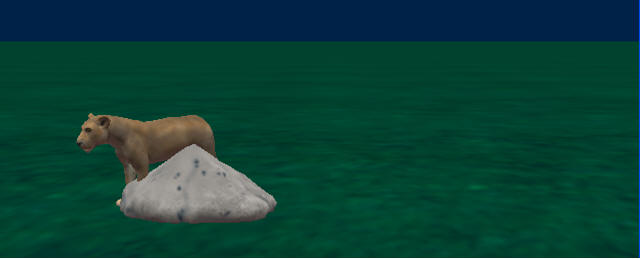
Note that the lioness is moving to the middle of the rock. This is because the getDistanceTo function calculates the distance between the "centers" of both objects. So the getDistanceTo function calculated the distance from the center of the lioness to the center of the rock, and moved the object using that value.
| Demo: Using a function to set a movement distance |
|---|
|
Watch this video to learn how to set a movement distance for an object using the getDistanceTo function. |
| Try it: Use a function to set a movement distance |
|---|
|
Download: The Try it activity below requires that you start with the project file that was saved in the previous topic. Download this Alice 3 project file if you did not complete the previous topic's Try it activity.
|
Avoid collissions using math operators
Avoid collisions
You can enhance function calls using the math operators (+) addition, (-) subtraction, (*) multiplication, and (/) division. For example, by using the subtraction operator, you can avoid a collision by reducing the distance an object moves.
In the example below, use the getDistance function to determine the distance between the centerpoint of the lioness and the centerpoint of the rock. If you were to move the lioness this distance, the centerpoint of the lioness would be located on the centerpoint of the rock.
To move the lioness to the edge of the rock instead of the center of the rock, reduce the value returned by the getDistance function by the width of the rock. Use the getWidth function to determine the width of the rock.
Let's examine the math calculation Z = X - Y:
- Z represents the total distance the lion will move.
- X represents the distance between the centerpoint of the lion and the centerpoint of the rock.
- Y represents the width of the rock.
Z = X – Y
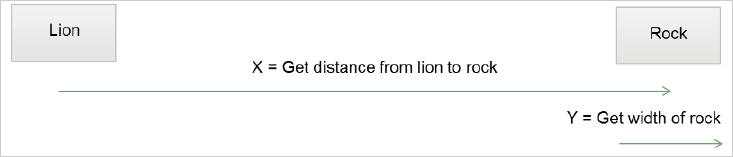
Steps to use math operators to avoid a collision
- Click the outer arrow next to the function argument.
Note that if you do not see the Math option in the menu, you probably selected the incorrect arrow. - Select Math.
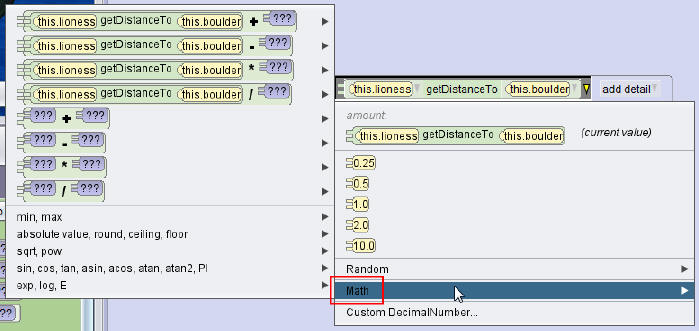
- Select the getDistanceTo subtraction option.
- Select any distance amount as a temporary placeholder.
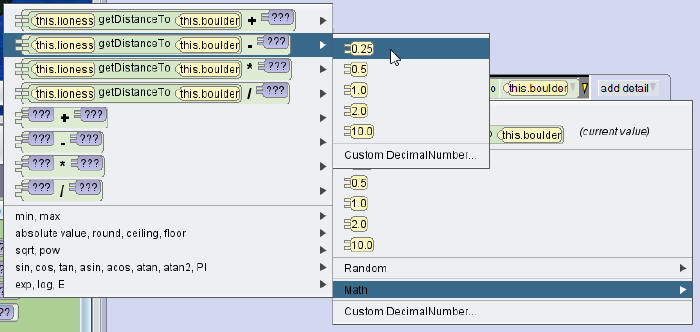
- Run the animation to test the object's movement at runtime.
Understanding the math menus
To better understand the options in the math menu, consider the following examples:
- The following image displays the math operators (+ - * / ) and the arguments they require.
Note that each option will provide a cascading menu to specify the argument values.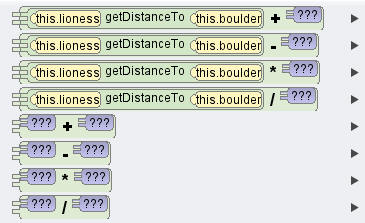
- The following image displays an addition(+)operator requiring a single argument.

- The following image displays the math operators requiring two arguments.
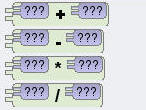
Remember, you can choose placeholder values for the arguments. Placeholder values can always be edited.
| Demo: Using a math operator to avoid a collision |
|---|
|
Watch this video to learn how to use a math operator to avoid a collision between two objects. |
| Try it: Use a math operator to avoid a collision |
|---|
|
Download: The Try it activity below requires that you start with the project file that was saved in the previous topic. Download this Alice 3 project file if you did not complete the previous topic's Try it activity.
|
Avoid collisions using depth
Remove object's depth from function
In the previous example, we avoided a collision with the rock by using the width of the rock as part of the calculation. Another option you might use to avoid a collision is to remove the depth of the lioness from the calculation. In the example below the lioness will move the distance to the rock, minus the depth of the lioness. If the depth of the lioness is not subtracted from our distance formula, the centerpoint of the lioness will overlap the centerpoint of the rock.
Note: Remember when a distance value is calculated, it is measured from one object's centerpoint to another object's centerpoint. When the depth of the lioness is subtracted from the rock, it is being subtracted from the center of the rock.
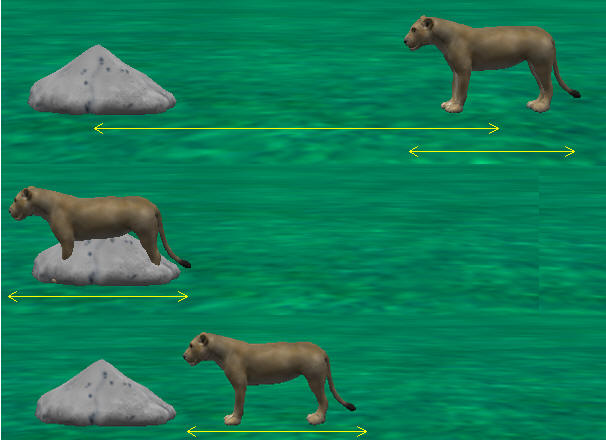
Steps to remove depth from function
- In the Functions tab, drag the moving object’s getDepth function onto the highlighted distance value.
- Run the animation to test how the object moves at runtime. Adjust with additional math calculations if necessary.

| Demo: Avoiding collisions using depth |
|---|
|
Watch this video to learn how to avoid a collision using depth. |
| Try it: Avoid a collision using depth |
|---|
|
Download: The Try it activity below requires that you start with the project file that was saved in the previous topic. Download this Alice 3 project file if you did not complete the previous topic's Try it activity.
|
Summary
In this lesson, you have learned how to:
- Use functions to control movement based on a return value
Using the IF and WHILE control structures
Lesson objectives
In this lesson you will learn to:
- Use the IF control structure to affect execution of instructions
- Use the WHILE control structure to create a conditional loop for repetitive behavior
| Demo: Lesson preview |
|---|
|
Watch this video to see a preview of what you will learn in this lesson. |
Understand the IF and WHILE structures
Control structures
Control structures are pre-defined statements that determine the order in which programming instructions are executed. You should be familiar with the do together and do in order control structures from previous topics. All available pre-defined control structures include:
- do in order
- count
- while
- for each in
- if
- do together
- each in together
You can drag a control structure to the myFirstMethod tab either before or after creating the programming instructions that will be included in the control structure.
For example, if you have created a move and turn instruction for an object, and then you decide that the actions should execute simultaneously, you can create a do together control structure and reposition the move and turn instructions within the control structure. Or, you can anticipate that you are going to need a do together control structure, insert the control structure first, and then create and position the programming instructions within the control structure.
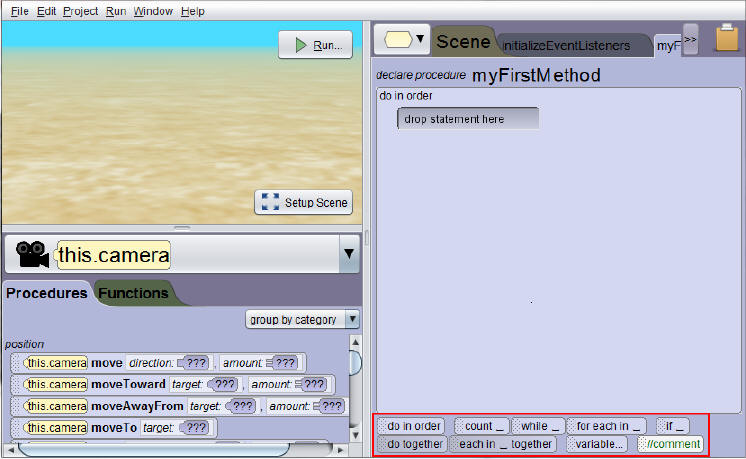
Nesting control structures
Control structures may be nested, meaning that one structure is contained within another. For example, if a person is going to move his left leg and right leg in a walking motion while at the same time moving forward, nested control structures would be necessary.
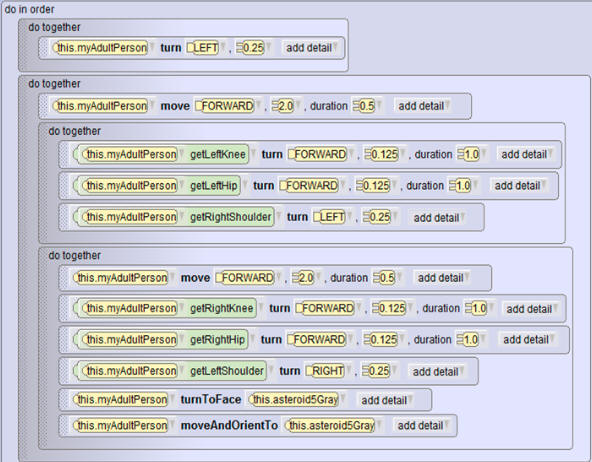
Conditional execution using control structures
Conditional control structures allow you to control execution based on a condition, or a decision being made.
Consider these examples:
- If the current color of an object is blue, change the color to orange.
- If the width to the rock is less than 1 meter, move forward 1/2 meter.
- If the object opacity is 0, change the opacity to 1.
IF control structure

The IF control structure requires that you specify a condition of true or false when the structure is dragged into the program.
- This initial condition is a placeholder. You will need to establish the condition to be evaluated.
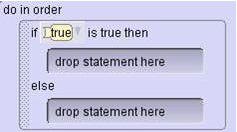
IF control structure parts
The IF control structure has two parts: the IF part, and the ELSE part. Only one of the two parts will ever execute after the condition is evaluated; never will both of them execute after the condition is evaluated.
- If the IF part is executed, the ELSE part is not executed.
- If the IF part is not executed, the ELSE part is executed.
- Both the IF part and the ELSE part can nest another IF control structure.
WHILE control structure
The WHILE statement first evaluates a condition. If the condition is true, it executes all of the programming instructions within the WHILE control structure. When the code within the WHILE is finished executing, the condition is evaluated again. This cycle repeats indefinitely as long as the condition continues to evaluate to true. This cycle of conditional execution is known as "looping" or “repetition.”
The WHILE condition:
- Acts like a gatekeeper to an event.
- Must be true to allow the programming instructions within the loop to execute.
Once all programming instructions within a loop are executed, the WHILE condition is evaluated again.
- If the condition is still true, execution of the programming instructions will repeat.
- If the condition is false, the control structure will be skipped and execution will continue with the next programming statement following the WHILE control structure.
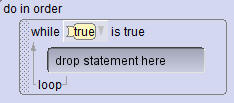
| Demo: Examples of IF and WHILE control structures |
|---|
|
Watch this video to see examples of IF and WHILE control structures used in an animation. |
Create an IF process flow
Interpret an IF control structure
- An IF statement is a decision based on a condition.
- Example condition: If it rains today I will wear a raincoat. Otherwise, I will wear a sweater.
- IF statements can be interpreted using a process flow.
| Terminology |
|---|
|
A process flow is a graphical representation of a process model. Process flows use shapes to represent the actions in the model. |
IF statement process flow
"If it rains today, then I will wear a raincoat. Otherwise, I will wear a sweater."
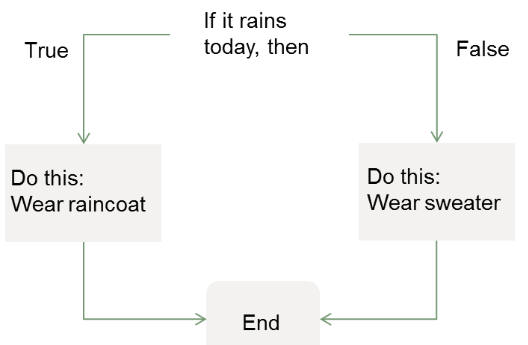
IF statement process flow: Example
If the cat walks into the dog, then the cat says “Excuse me!”
Otherwise, the cat continues walking.
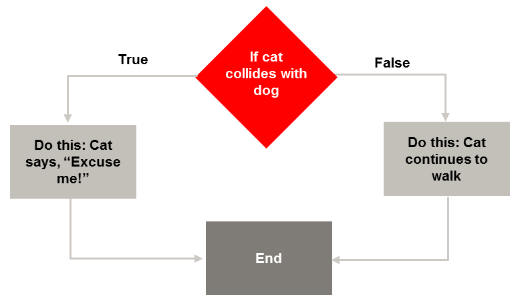
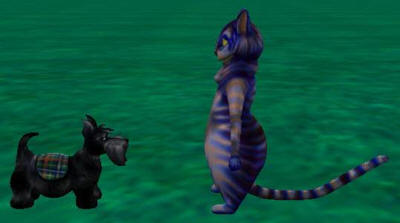
| Demo: Creating an IF statement process flow |
|---|
|
Watch this video to learn how to create an IF statement process flow. |
| Try it: Create an IF statement process flow |
|---|
|
Download: The Try it activity below requires that you start with the project file that was saved in the previous topic. Download this Alice 3 project file if you did not complete the previous topic's Try it activity.
|
Program an IF statement
Steps to program an IF statement
- Insert the initial motions that happen before the IF statement is executed.
- Drag and drop the IF statement control structure into the code editor and select the true condition as a placeholder during setup.
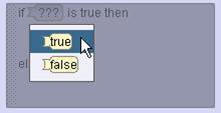
- Replace the true condition with a condition to evaluate, such as a function.
- Insert procedures that will execute if the condition is true (IF) and those that will execute if the condition is false (ELSE).
- Run the animation to test the conditional behavior. Debug as necessary.
IF control structure: Example
If the cat collides with the dog, then the cat moves backward and says “Excuse me!”
Otherwise, the cat continues to move forward.
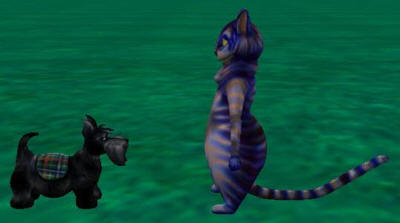
isCollidingWith function
The isCollidingWith function was dragged onto the true condition placeholder. This function tells us if one object is colliding with another.
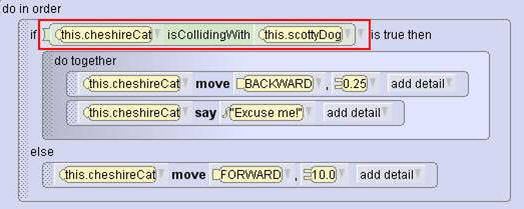
| Demo: Programming an IF statement |
|---|
|
Watch this video to learn how to program an IF statement. |
| Try it: Program an IF statement |
|---|
|
Download: The Try it activity below requires that you start with the project file that was saved in the previous topic. Download this Alice 3 project file if you did not complete the previous topic's Try it activity.
|
Create a WHILE process flow
Conditional execution
The use of conditional control structures allows two types of loops:
- Conditional loops
- Infinite loops
Conditional loops: Stop when a condition is true.
Example:
The propeller of a helicopter turns while the helicopter is moving or flying. If the helicopter stops, then the propeller stops turning.
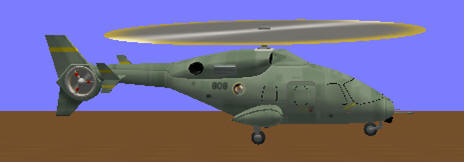
Infinite loops: Never stop.
The hour and minute hands on a clock continue rolling.
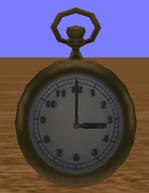
WHILE Statement
The WHILE statement performs conditional loops.
- While a condition is true, the programming instructions within the loop are executed.
- Once the condition is no longer true, program execution will skip the while condition and continue with the programming instruction that follows the while loop.
| Terminology |
|---|
|
The WHILE statement consists of the WHILE control structure and the programming instructions nested within it. The condition is evaluated first at the beginning of the WHILE control structure before any of the programming instructions within it are executed. After executing the instructions, the condition at the beginning of the statement is evaluated again. This is known as a loop. The WHILE statement will continue to loop through its programming instructions as long as its condition evaluates to true; when its condition evaluates to false, the WHILE control structure is bypassed and the looping terminates. |
WHILE Statement Process Flow
The Queen moves forward, unless she collides with the Playing Card. If the Queen collides with the Playing Card, she stops and turns to face the camera.
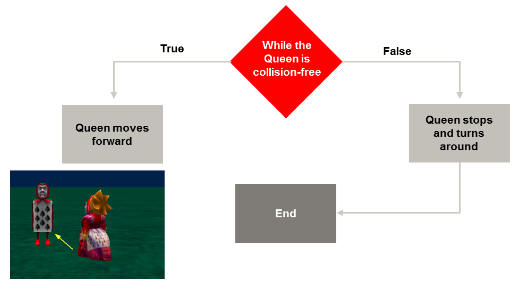
| Demo: Creating a WHILE statement process flow |
|---|
|
Watch this video to learn how to create a process flow for a WHILE statement. |
| Try It: Create a WHILE statement process flow |
|---|
|
Download: The Try it activity below requires that you start with the project file that was saved in the previous topic. Download this Alice 3 project file if you did not complete the previous topic's Try it activity.
|
Program a WHILE statement
Steps to program a WHILE statement
- Drag and drop the WHILE statement into the Code Editor and select the true condition as a placeholder.
- Replace the true condition placeholder with the condition to evaluate.
- Insert procedures that will be executed while the condition is true.
- Insert the procedures that are executed after the while loop stops executing.
WHILE statement example code
While the Queen is not colliding with the playing card, the queen moves forward repeatedly. If the Queen does collide with the playing card, the WHILE loop stops and the program continues with the next instruction: the Queen stops and turns to face the camera.
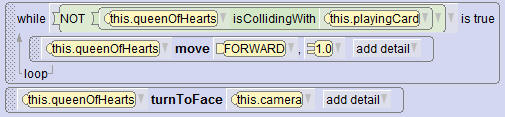
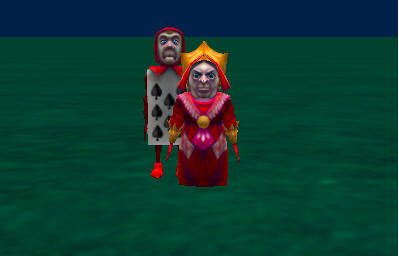
Steps to test a WHILE statement
- Position objects such that the while condition will evaluate to true.
- Observe that all programming instructions within the while loop execute.
- Ensure that the while loop execution stops when the while condition is no longer true.
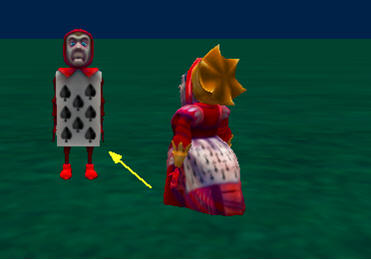
| Demo: Programming a WHILE statement |
|---|
|
Watch this video to learn how to program a WHILE statement. |
| Try it: Program a WHILE statement |
|---|
|
Download: The Try it activity below requires that you start with the project file that was saved in the previous topic. Download this Alice 3 project file if you did not complete the previous topic's Try it activity.
|
Summary
In this lesson, you have learned how to:
- Use the IF control structure to affect execution of instructions
- Use the WHILE control structure to create a conditional loop for repetitive behavior
Use expressions
Lesson objectives
In this lesson you will learn to:
- Create an expression to perform a math operation
- Interpret a math expression
| Demo: Lesson preview |
|---|
|
Watch this video to see a preview of what you will learn in this lesson. |
Learn about expressions
Using expressions
An expression is a mathematical phrase that may contain numbers, variables, operators, and symbols.
Examples:
2 + 2 two values (2, 2) and one operator (+)
4x / 6 two values (4, 6), one variable (x), and one operator(/)
2 + (3 * y) two values (2, 3), one variable (y), two operators (+, *), and two parentheses symbols ()
Expressions are typically used in Alice 3 to solve timing and distance problems in your programs.
Expressions in Alice 3
Expressions are created in Alice 3 using the following built-in math operators:
- Add (+)
- Subtract (-)
- Multiply (*)
- Divide (/)
Math operators are available in the cascading menus where you select the argument values for:
- Amount and Duration
- getDistance functions
View expressions in distance argument
Select the Math option to view the available math operators in a procedure’s distance argument.
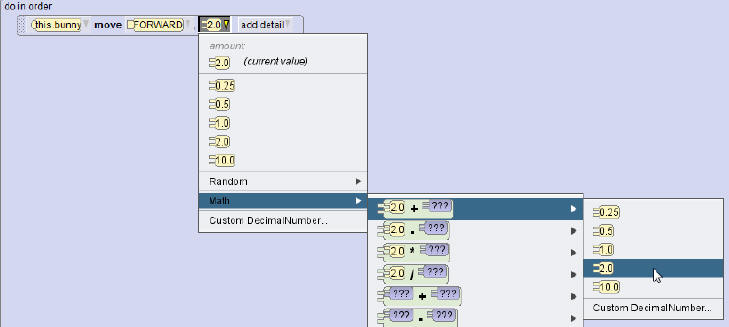
View expressions in the getDistanceTo function
Select the Math option to view the math operators available for the getDistanceTo function's argument.
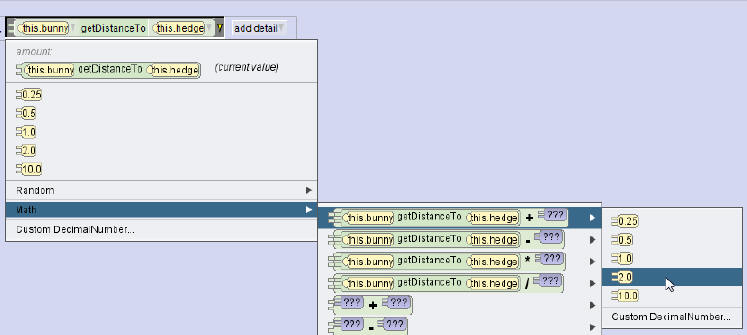
| Demo: View expressions in Alice 3 |
|---|
|
Watch this video to learn how to view and access math expressions in Alice 3. |
Solve a distance problem
Distance problem
Let's examine a distance problem where the person object moves to the center of the asteroid object, but we only want the person to move close to the asteroid without touching it. Since the getDistanceTo function calculates the distance from the center of the person object to the center of the target object, we need to reduce the distance the person moves so that he does not collide with the asteroid. We use a math calculation to reduce this distance.
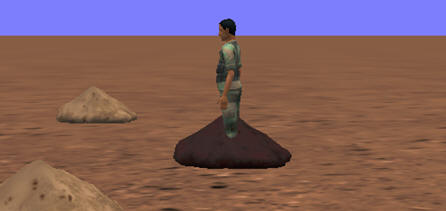

| Demo: Solving a distance problem with an expression |
|---|
|
Watch this video to learn how to solve a distance problem with an expression. |
| Try it: Solve a distance problem with an expression |
|---|
|
Download: The Try it activity below requires that you start with the project file that was saved in the previous topic. Download this Alice 3 project file if you did not complete the previous topic's Try it activity.
|
Code an expression
Steps to create an expression
- Summarize the timing or distance problem in your program.
- Consider the expression that will solve the problem.
- Code the expression.
- Test and debug the expression until the animation works as intended.
Steps to code an expression to reduce distance
- Drag the move procedure for an object into the Code editor. Select forward and a distance placeholder value.
- From the Functions tab, drag the getDistanceTo function onto the distance argument placeholder.
- From the cascading menu, select the target object to which the object should move.
- From the getDistanceTo tile, click the outer-most arrow to open the menu of distance values, and then select the Math option.
- Select getDistanceTo - ???
- Select a default value to reduce the distance by, or select Custom DecimalNumber… to enter a value.
- Test and debug the expression as necessary.
Example of an expression
The expression below reduces the distance that the person travels so the person does not collide with the asteroid. This was tested and debugged several times until the correct expression was achieved.

Editing the expression
During the debugging process, you may need to adjust the value of the expression. Click the arrow next to the value, and select a new default value or use the Custom DecimalNumber... menu to select a more defined value.
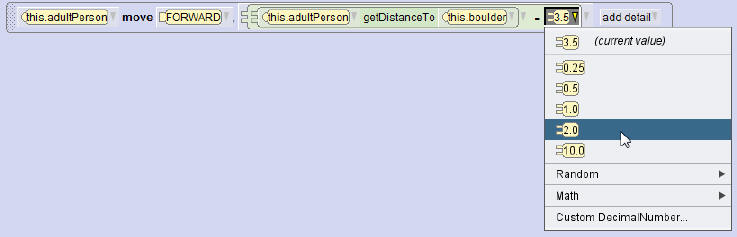
| Demo: Coding an expression |
|---|
|
Watch this video to learn how to code an expression in Alice 3. |
| Try it: Code an expression |
|---|
|
Download: The Try it activity below requires that you start with the project file that was saved in the previous topic. Download this Alice 3 project file if you did not complete the previous topic's Try it activity.
|
Subtrace depth from expression
Subtract depth from the expression
To ensure that the moving object lands near the target object without going through its center, you can subtract the depth of one of the objects in the expression.
Steps to subtract depth from the expression
- Select the target object in the instance menu.
- From the Functions tab, drag the getDepth tile onto the existing distance value in the expression.
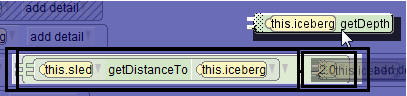
- Test and debug the animation, and adjust the expression as necessary.
| Demo: Subtracting depth from an expression |
|---|
|
Watch this video to learn how to subtract depth from an expression to get a more accurate distance for a Move procedure. |
| Try it: Subtract depth from an expression |
|---|
|
Download: The Try it activity below requires that you start with the project file that was saved in the previous topic. Download this Alice 3 project file if you did not complete the previous topic's Try it activity.
|
Interpret an expression
Interpret an expression
To understand a programming statement that includes an expression, you often need to read, or interpret, the expression. To interpret expressions, you can:
- Read them from left to right.
- Recognize the instances specified in the expression and describe what each one does.
Expression: Example
Examine the visual associated with this expression. The madHatter and teaTray instances are moving towards the cave. Will they go inside?
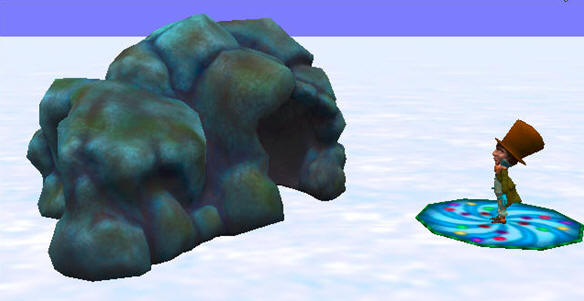

Interpretation of an expression
The expression tells us the following:
- The teaTray is moving toward the cave.
- The distance between the teaTray and the cave is determined by the getDistanceTo function.
- The distance determined by the getDistance function is reduced by half the width of the cave.
- The width of the cave is determined by the getWidth function.
Formulating the expression
To help interpret an expression, draw a picture or write the known values before formulating the expression.
Example:
Z = X – (a / b)
Z = Distance moved
X = Distance from tea tray to cave
a = Cave width
b = 2
| Demo: Interpreting an expression |
|---|
|
Watch this video to learn how to interpret an expression. |
| Try it: Interpret an expression |
|---|
|
Download: The Try it activity below requires that you start with the project file that was saved in the previous topic. Download this Alice 3 project file if you did not complete the previous topic's Try it activity.
|
Summary
In this lesson, you have learned how to:
- Create an expression to perform a math operation
- Interpret a math expression
Use variables
Lesson objectives
In this lesson, you will learn to:
- Understand variables and how they are used in programming
| Demo: Lesson preview |
|---|
|
Watch this video demo to see a preview of what you will learn in this lesson. |
Understand variables
Variables
Programmers frequently need to store specific pieces of information for use later in their programs. For example:
- The number of times a procedure should be executed
- An object's properties, such as its size or color
- The number of coins that a character has collected
| Terminology |
|---|
|
A variable is a named memory location. It is a place in memory where data of a specific type can be stored for later retrieval and use by your program. Each variable is given a unique name to make it easy to find and reference. Once a variable is declared, it can be used to store and retrieve data. To declare a variable is to give it a name and assign it a datatype. |
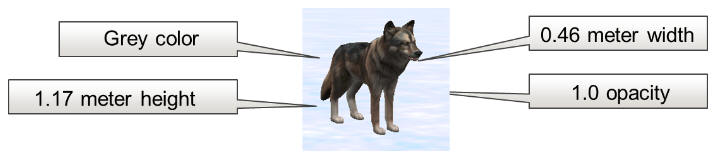
Variables for data storage
A variable is like a container that stores a specific type of data for later retrieval and use by your program. The animal above has four properties, and the value for each property is saved in a variable. The color variable stores the text "Grey", and the opacity variable stores the number 1.0, etc.
Declare a variable by naming it, and then selecting the type of data to store in it. You'll also need to specify a default value for the variable. In the variable below (the blue box), you could choose to store numbers, boolean values, Strings, or other objects, just to name a few of your choices.
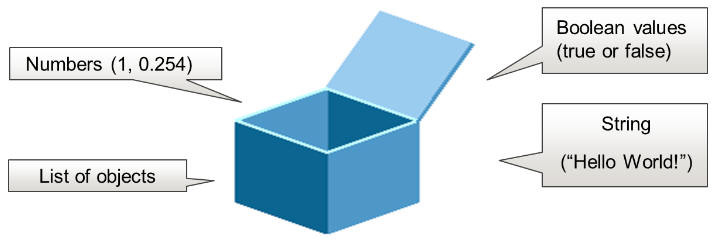
Object properties
Object properties are variables that store information about an object, such as color, height, width, and depth.
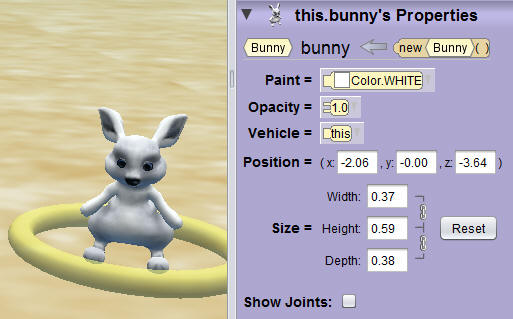
Variable data types in Alice 3
| Data type | Description |
|---|---|
|
Decimal number |
|
|
Whole number |
|
|
Boolean |
|
|
Object |
|
|
Classes |
|
|
TextString |
|
|
Other |
|
| Demo: See how variables are used in Alice 3 |
|---|
|
Watch this video to see how variables can be used in an Alice 3 animation. |
Declare variables
Declaring variables
Declaring a variable involves two steps: 1) identifying the type of data that the variable will contain and 2) giving the variable a name.
Variables are declared (created) in the Code editor.
Variables are useful because they allow you to:
- Consistently assign the same value(such as a distance to move) to multiple arguments.
- Instantly change the values stored in multiple arguments (such as duration) by changing the value stored in the single variable they reference.
- Pass information from one procedure to another.
- Simplify programming statements using many functions and math expressions.
Variable: Example
A "Spins" variable is declared and initialized to a whole number with an initial value of 3. This variable is dragged into the distance argument of each bunny's turn procedure. When the animation is executed, each bunny spins three times. Change the initialized value of "Spins" to 4 and, when the animation is executed, all of the procedures will spin based on the current value of the variable, which is now 4.
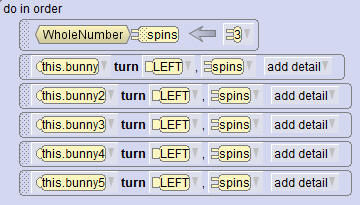
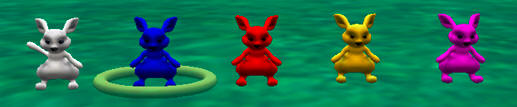
Process to declare a variable
- Drag the variable tile into the Code editor.
- Select the value type and name the variable.
- Initialize the variable (set the first value that the variable will hold) and click OK.
- Note that the preview of the variable, above the thin line, displays the variable settings.
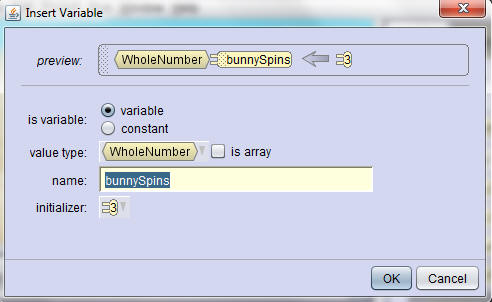
Remember, the initial value you specify for the variable can be considered a placeholder value that you can change at a later time.
| Demo: Declaring a variable |
|---|
|
Watch this video to learn how to declare a variable in Alice 3. |
| Try it: Declare a variable |
|---|
|
Download: The Try it activity below requires that you start with the project file that was saved in the previous topic. Download this Alice 3 project file if you did not complete the previous topic's Try it activity.
|
Add a variable to a procedure
Using variables in procedures
To use a variable in a procedure, drag the variable tile onto the procedure's argument value. The argument is replaced with the variable's current value. When you drag the variable tile, Alice 3 helps you understand which locations can accept the variable by darkening the screen and highlighting the values that can accept the variable.
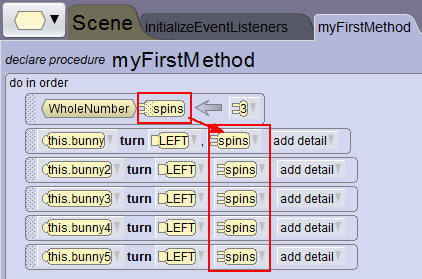
Note that variables can also be created and used in math calculations. You can drag a declared variable onto any value within a math expression.
| Demo: Adding a variable to a procedure |
|---|
|
Watch this video to learn how to add a variable to a procedure. |
| Try it: Add a variable to a procedure |
|---|
|
Download: The Try it activity below requires that you start with the project file that was saved in the previous topic. Download this Alice 3 project file if you did not complete the previous topic's Try it activity.
|
Change an initialized value
Changing an initialized value
You can change the initialized value of a variable using the drop-down list for the variable. All procedure arguments using the value of the variable will change when the initialized value is changed. If one of the default values listed on the drop-down are not what you need, use the CustomWholeNumber menu option to specify another value.
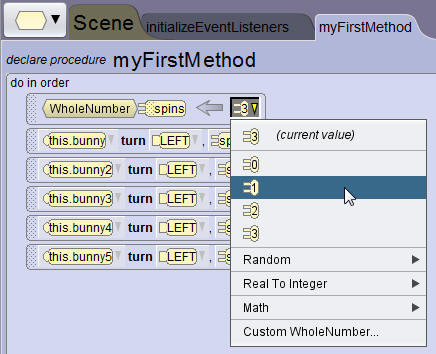
| Demo: Changing an initialized value |
|---|
|
Watch this video to learn how to change the initialized value of a variable. |
| Try it: Change an initialized value |
|---|
|
Download: The Try it activity below requires that you start with the project file that was saved in the previous topic. Download this Alice 3 project file if you did not complete the previous topic's Try it activity.
|
Randomize a variable value
Randomize an initialized value
Variable values can be randomized. To randomize a variable, a range of numbers (all of the numbers between a low number and a high number) must be identified from which the computer will randomly select a number. The range can be very large or very small.
The range values will depend on the variable data type. If the variable data type is whole numbers, then the range can only contain whole numbers. If the variable data type is decimal numbers, then the range can contain both whole numbers and decimal numbers.
To change a variable’s initialized value to a random value:
- Click the down arrow next to the initialized value.
- Select Random from the drop-down list.
- Choose either the option to randomize using a predefined range or the option to randomize based on a range that you establish.
- If you choose the option to randomize based on a range that you establish, select the starting and ending values for the range using the cascading menus.
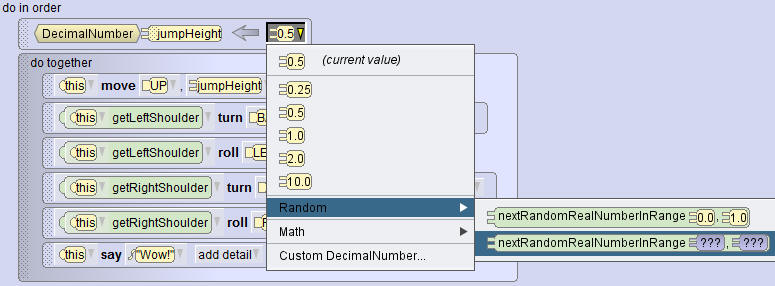
Remember, argument values can always be changed.
Variables and relational operators
Randomizing the values in a variable can add excitement to an animation or game by creating random behavior. You can also use variables with relational operators to complete a comparison. For example, you could program a game to have two objects race to a finish line. The movement of both objects can be randomized. The game finish can be programmed so that it is appropriate for whichever object reaches the finish line first.
Relational operators are used to express a relationship between two expressions. The relational operators available in Alice 3 include:
| Relational operator | Description |
|---|---|
| < | Less than |
| < | Less than or equal to |
| > | Greater than |
| > | Greater than or equal to |
| = = | Equal to |
| ≠ | Not equal to |
Note: The single = sign is not a relational operator; it is an assignment operator used to assign the value on the right to the variable on the left.
For example:
x = 5 means "assign the value 5 to variable x"
x == 5 looks at the relationship between the value on the right and the value on the left. It results in either a true or false value because it is asking the question, "Is variable x equal to the value 5?"
Let's consider some examples:
| Expression | Relational operator | Expression |
|---|---|---|
| yetiSpeed | < | penguinSpeed |
| rabbitColor | = = | treeColor |
The above examples can be read as:
- Is it true or false that yetiSpeed is less than penguinSpeed?
- Is it true or false that rabbitColor is equal to treeColor?
Or, when used in a programming control statement (like an IF statement or a WHILE loop), it is more accurately read as:
- If the value in the yetiSpeed variable is less than the value in the penguinSpeed variable then... (do this).
- If the color stored in the rabbitColor variable is the same as the color stored in the treeColor variable then... (do this).
Relational operators are an efficient tool to complete a comparison in an IF statement or a While loop. Remember, you can create an expression with placeholder values that can later be changed using a variable.
| Terminology |
|---|
|
A relational operator is a lexical unit used to express the relationship between two values (variables or mathematical expressions). Two suitable values combined with a relational operator form a relational expression or condition in a programming language. |
| Demo: Randomizing variable values |
|---|
|
Watch this video to learn how to generate a random number for an initialized value of a variable. |
| Try it: Randomize the value of a variable |
|---|
|
Download: The Try it activity below requires that you start with the project file that was saved in the previous topic. Download this Alice 3 project file if you did not complete the previous topic's Try it activity.
|
Summary
In this lesson, you have learned how to:
- Understand variables and how they are used in programming
Use keyboard controls
Lesson objectives
In this lesson, you will learn to:
- Use keyboard controls to manipulate objects in an animation
| Demo: Lesson preview |
|---|
|
Watch this video to see a preview of what you will learn in this lesson. |
Learn about keyboard controls
Event handling
It is true to say that when an animation is playing, a computer program is running. Many computer programs request interaction from a user. These interactive programs allow a user to influence the order of actions that will occur in the program. To program this type of interactivity into an animation, the programmer creates a "listener" to listen for any user interactivity (pressing a key or clicking a mouse button) called the event. This is often referred to as event handling. Typically, when an event occurs, a procedure or method is executed. For example, when a user presses an up arrow key on the keyboard (the event), the event listener moves the object upward in the animation (the event handling method).
Keyboard controls
Inserting keyboard controls into a program allows the user to control one or more objects while the animation is running. The user can press a key on the keyboard, or click the mouse button to control the next programming action.
With keyboard controls, you can:
- Create scenes where the user controls an object that interacts with other objects.
- Create animations that execute conditionally, based on a key press or mouse click.
- Create games where the user is required to control an object to win the game.
Keyboard controls: Example
In Alice 3, you can assign a procedure to a key on your keyboard. When the user clicks the keyboard key, the procedure assigned to it is executed.
| Terminology |
|---|
|
In programming, a keystroke or a mouse click is an event. Writing the code to react to, or handle, an event is referred to as event handling. |
In the following example, clicking the right-arrow key on the keyboard turns the submarine right.
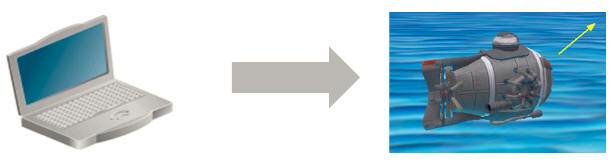
Event listeners
Keyboard event listeners listen for keyboard input while the animation is running.
Keyboard keys can be programmed to do many things, such as:
- Move an object up or down when a certain key (or even a combination of keys) is pressed
- Move an object forward, backward, left, and right using the arrow keys
- Make an object perform an action, such as speak or disappear
- Change the value of a variable
Types of event listeners
While this topic focuses specifically on keyboard listeners, four types of event listeners are available in Alice 3:
- Scene Activation/Time
- Keyboard
- Mouse
- Position/Orientation
Access event listeners
Steps to access event listeners
- In the Code editor, click the Scene tab.
- Click the button next to initializeEventListeners and choose Edit.
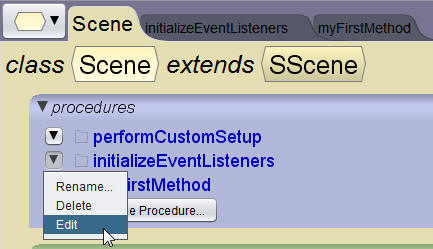
View event listeners
View the initializeEventListeners tab. You will Add an Event Listener to this tab.
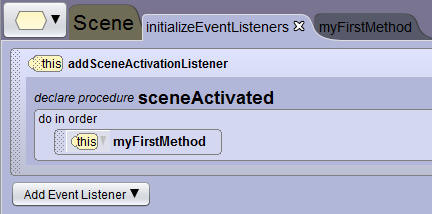
| Demo: Accessing event listeners |
|---|
|
Watch this video to learn how to access event listeners in Alice 3. |
| Try it: Access event listeners |
|---|
|
Download: The Try it activity below requires that you start with the project file that was saved in the previous topic. Download this Alice 3 project file if you did not complete the previous topic's Try it activity.
|
Create a key press listener
Keyboard listeners
Keyboard listeners are a menu item in the Add Event Listener drop-down list.
They listen for, and react to, a keyboard keystroke that you specify.
There are four types of keyboard listeners:
- addKeyPressListener()
- This listener lets you program procedures for the keyboard key(s) you specify.
- addArrowKeyPressListener()
- This listener lets you program procedures for the arrow key(s) you specify.
- addNumberKeyPressListener()
- This listener lets you program procedures for the number key(s) you specify.
- addObjectMoverFor(???)
- This listener lets you program the user-defined movement for a specified object.
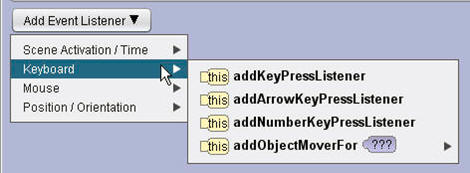
Add keyboard event listener
- Select the Add Event Listener drop-down list.
- Select Keyboard.
- Select addKeyPressListener.
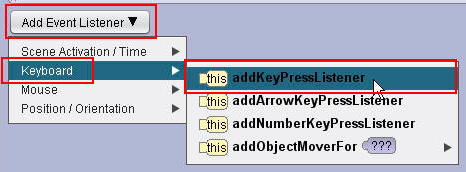
| Demo: Adding a key press listener |
|---|
|
Watch this video to learn how to add a key press listener to a program. |
| Try it: Add a key press listener |
|---|
|
Download: The Try it activity below requires that you start with the project file that was saved in the previous topic. Download this Alice 3 project file if you did not complete the previous topic's Try it activity.
|
Selecting the keyboard keyPressListener option displays the structure you use to program the actions that should occur when a keyboard key is pressed. Your next step will be to create the programming statements to execute when a specified key is pressed.
Examine the summary of actions to take here:
- Select the addKeyPressListener option from the Add Event Listener menu.
- Program an IF statement that ties the keyboard key to the programming statements that are executed when the keyboard key is pressed.
For example: if the A keyboard key is pressed, then move up 1 meter - Repeat steps to program additional keyboard keys using additional nested IF statements.
Program the conditional statement
- Drag the IF statement tile into the addKeyPressListener structure.
- Select the true condition.
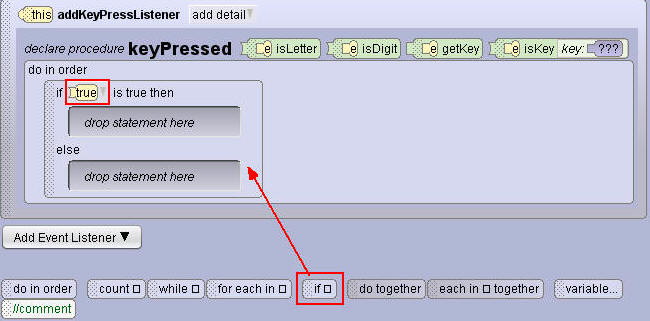
Your next task is to specify the keyboard key for which the keyPressListener is listening. When a keyboard key is pressed, Alice 3 stores the value of the pressed key in a variable. The default name of this variable is "e" which is an abbreviation for the word "event".
Select Keyboard isKey
- Drag the isKey tile onto the true condition.
- Select the keyboard key from the key menu.
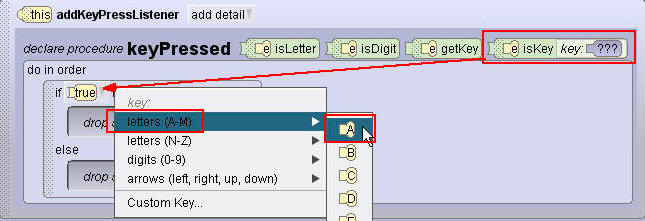
The keyPressListener can now be read as "If the A key is pressed on the keyboard, then do the following...". Your next task is to program the actions that should occur when the key is pressed.
Program actions activated by key press
- From the Instance menu, select the object controlled by the keyboard key.
- Drag the programming statement(s) into the if statement and select the arguments.
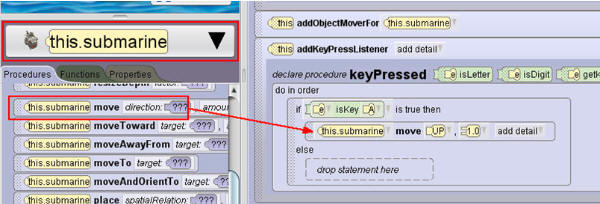
Test keyboard listeners
- Run the animation.
- Click once inside the animation window with your cursor. This single click is necessary for Alice to begin listening for events.
- Press the keyboard key (the one specified in addKeyPressListener) to make the object perform the procedure.
| Demo: Programming an event listener |
|---|
|
Watch this video to learn how to program an event listener in Alice 3. |
| Try it: Program an event listener |
|---|
|
Download: The Try it activity below requires that you start with the project file that was saved in the previous topic. Download this Alice 3 project file if you did not complete the previous topic's Try it activity.
|
Program additional listener actions
To program the keyPressListener to listen for more than one keyboard key you will need to include additional IF statements in the listener structure. You can do this in two ways:
- Add additional IF statements and always leave the ELSE condition empty
- Nest IF statements in the ELSE condition
Both methods execute with the same results. The following example uses the second method, nesting IF statements in the ELSE condition, to save display space.
Program additional listener actions
- Drag an if statement into the else condition.
- Select the true condition.
- Drag the isKey variable onto the true argument.
- Specify the keyboard key to listen for.
- Specify the programming statements to execute.
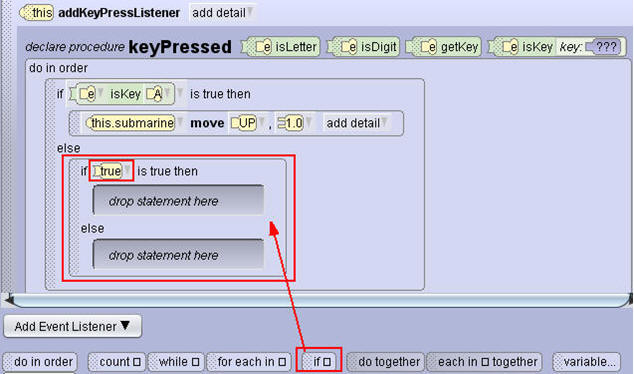
Complete program: Example
Below is an example of a submarine programmed to move up and down using the A and B keyboard keys.
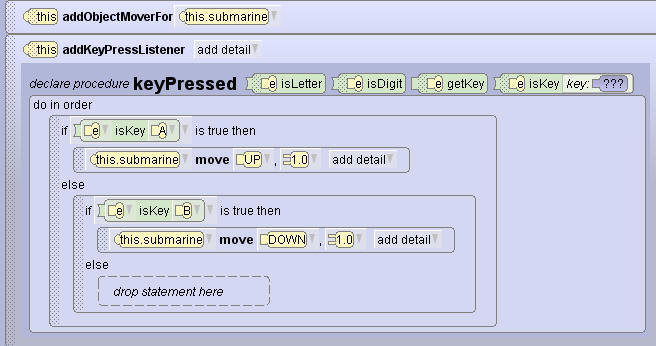
Test keyboard listeners
- Run the animation.
- Click inside the animation window with your cursor.
- Use the keyboard keys that were specified in addKeyPressListener to make the object perform the procedure(s).
| Demo: Programming additional motions |
|---|
|
Watch this video to learn how to add additional keystroke behaviors to an event listener. |
| Try it: Program additional motions |
|---|
|
Download: The Try it activity below requires that you start with the project file that was saved in the previous topic. Download this Alice 3 project file if you did not complete the previous topic's Try it activity.
|
Summary
In this lesson, you have learned how to:
- Use keyboard controls to manipulate objects in an animation
Develop a complete animation
Lesson objectives
In this lesson, you will learn to:
- Write a scenario and storyboard
- Complete an animation
- Test an animation
- Reposition objects at runtime
- Plan the presentation of a completed animation project
| Demo: Lesson preview |
|---|
|
Watch this video demo to see a preview of what you will learn in this lesson. |
Define a scenario
Step 1: Define the scenario
Defining the scenario, and the animation to represent the scenario, is the first step to programming your animation.

Any problem, whether big or small, can often be solved by breaking down the process into smaller parts.
Examine this high-level process:
- Consider a math concept that requires many steps.
- Identify the high-level steps for the math concept.
- Further refine and define the tasks needed for each high-level step.
| Terminology |
|---|
|
Functional decomposition is the process of taking a complex problem or process and breaking it down into smaller parts that are easier to manage. |
Animation development process
The process to develop an animation is similar to the problem-solving process. Compare the two processes below.
Problem-solving process

Animation development process

Professional animators begin their process by developing a scenario—or story—that gives the animation a purpose.
Examples:
- A story representing a conflict and resolution
- A lesson to teach a math concept
- A process to simulate or demonstrate
- A game to play
Scenario and animation examples
| Scenario type | Scenario | Animation |
|---|---|---|
| Story | A cat is stuck in a tree and needs help to get down. | A firefighter or a policeman climbs up the tree to save the cat. |
| Lesson | Students have trouble memorizing chemistry symbols. | A timed matching game to match chemistry symbols with their definitions. |
| Process | A demonstration of how to change a car tire. | Virtual tools to show you how to change a tire on a virtual car. |
| Game | An airplane flies through the sky but should not hit objects in its path. | An interactive game to fly an airplane around objects in the sky. |
| Demo: Defining a scenario |
|---|
|
|
| Try it: Define a scenario for a complete animation |
|---|
|
Download: The Try it activity below requires that you start with the project file that was saved in the previous topic. Download this Alice 3 project file if you did not complete the previous topic's Try it activity.
|
Design a storyboard
Step 2: Design a storyboard

What is a storyboard?
A storyboard identifies the design specifications for the animation scenario: how objects appear, move, speak, interact, and so on. Once a scenario is defined, you can begin to develop the animation storyboard.
There are two types of storyboards:
Visual: A series of illustrated images that represent the main scenes in the animation
Textual: A detailed, ordered list of actions that each object performs in each scene in the animation
Storyboard formats:
- Drawn with paper and pencil
- Created by using digital tools such as a word processing program, paint or drawing program, or presentation software
Visual storyboard: example
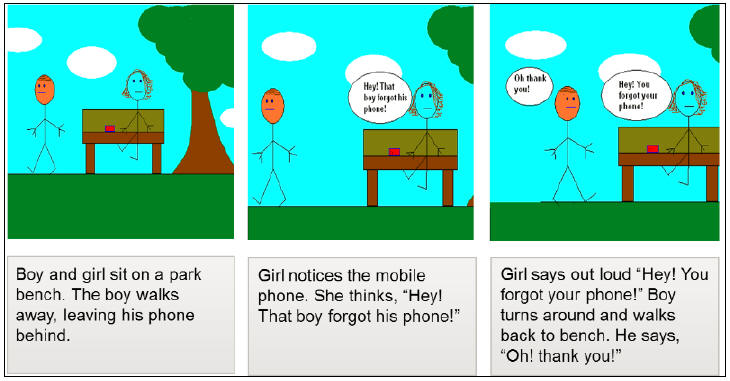
The visual storyboard illustrated above helps a reader understand the components of a scene, the initial scene set-up, the moving and non-moving objects in a scene, the actions that will take place, and the user interactions that might occur during the animation execution.
Textual storyboard: Example
|
Do in order Boy and girl sit on a park bench. Boy stands up and walks away, leaving his mobile phone on the park bench. Girl turns to look at the phone. Girl thinks, “Hey! That boy forgot his phone!” Girl says out loud, “Hey! You forgot your phone!” Boy stops and turns around. Boy walks back to the park bench and says, “Oh, thank you!” |
The textual storyboard listed above helps a reader understand the actions that will take place during the animation. Many of the moving and non-moving objects can be identified from the action statements, but some (like the tree and the clouds) are not mentioned and may require further description if another programmer is expected to implement the initial scene as it was originally imagined by the author of the storyboard.
| Terminology |
|---|
|
In computing, a textual storyboard is called an algorithm: a list of actions to perform a task or solve a problem. |
Textual storyboard components
Textual storyboards should contain the objects listed in the table below to support the program development of the animation. Storyboards can be thought of as the building plans for a house - you would probably not want to build a house until the plans were complete.
| Component | Definition | Example |
|---|---|---|
| Object | A moving or non-moving character that you position and/or program to move and act | Animals, cars, people, trees |
| Scene | The place (or “world” in Alice 3) where your story occurs | Park, library, school, home |
| Actions | The instructions for how each object should act in the scene | Walk 2 meters, turn left, say “Hello!” |
| User Interactions | The ways in which the user can manipulate the objects in the animation | Keyboard commands or mouse clicks to make objects move |
| Design Specifications | How the objects and scenery should look in the animation | Size, position, location, color |
Storyboard process flow
Flowcharting a storyboard helps you organize the flow of the animation actions and conditions. In the example illustrated below two different actions can take place based on the boy leaving the phone on the bench. If the boy does leave the phone on the bench, the girl will let the boy know so he can turn around and retrieve his phone. If the boy does not leave his phone on the bench, the girl will do nothing as the boy walks away.
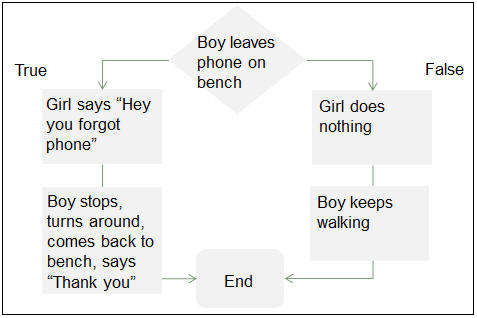
Textual storyboards can be used to generate program comment statements and organize program development. Storyboards can also help programmers identify repetitive actions, or actions that may be performed by more than one object.
| Demo: Designing a storyboard for a complete animation |
|---|
|
Watch this video to learn how to design a storyboard for a complete animation. Click Download File below to download the animation storyboard shown in the demo. |
| Try it: Design a storyboard for a complete animation |
|---|
|
Download: The Try it activity below requires that you start with the project file that was saved in the previous topic. Download this Alice 3 project file if you did not complete the previous topic's Try it activity.
|
Program a complete animation
Step 3: Program the animation
After completing the scenario and storyboard, program the animation in Alice 3.

The storyboard identifies the design specifications for the animation (how objects appear, move, speak, interact, and so on). The program code provides the run-time instructions to Alice 3.
Checklist for animation completion
During the animation development process, use this checklist to ensure that your animation meets all animation principles.
| Area | Check | |
|---|---|---|
|
Scenario |
Did you clearly define the scenario? |
|
|
Storyboard |
Did you think through the programming code by creating a storyboard? |
|
|
Program |
Did you compete the programming of the animation? |
|
|
Scene |
Has the scene been created? |
|
|
Object orientation |
Are all objects accurately positioned in the scene? |
|
|
Procedures |
Did you assign procedures to all acting objects? |
|
|
Arguments |
Have all arguments (direction, amount, duration, etc.) been assigned and are they operating as expected? |
|
|
Control statements |
Did you assign control statements and are they operating as expected? |
|
|
Comments |
Have you added comments to each sequence of instructions? |
|
|
Object timing |
Do objects move with smooth timing, or are they too fast or too slow? |
|
|
Object motion |
Do acting objects' motions (move, turns, rolls, etc.) operate as expected? |
|
|
Math calculations |
Are all math calculations operating as expected? |
|
|
Event listeners |
Are all event listeners operating as expected? |
|
|
Test |
Do objects move with smooth timing, or are they too fast or too slow? |
|
|
Save |
Has the animation been saved? Do you require multiple saved files (i.e., will the animation be used for another purpose?) |
To create a complete animation, use all of the following components that you have learned in this course:
- Complete scene of multiple objects from multiple classes, including props and shapes
- Declared procedures
- Movement procedures
- Object rotation and object sub-part rotation procedures
- Simultaneous movement with the Do Together control statement
- Vehicle riding with the setVehicle procedure
- Functions
- IF and WHILE control statements
- Random numbers
- Math expressions
- Variables
- Keyboard controls
| Demo: Programming a complete animation |
|---|
|
Watch this video to learn how to program a complete animation from the concepts you have learned in this course. |
| Try it: Program a complete animation |
|---|
|
Download: The Try it activity below requires that you start with the project file that was saved in the previous topic. Download this Alice 3 project file if you did not complete the previous topic's Try it activity.
|
Test, edit, and debug
Step 4: Run the animation

When you finish programming your animation, you run and test the animation to ensure proper execution.
This process is often referred to as testing and debugging the software.
| Terminology |
|---|
|
Programs are tested by entering unanticipated commands to try and “break” the code. When something is broken or doesn't work as you intended in a software program, it is often referred to as a “bug”. Debugging is the process of finding software bugs in a software program. |
Debugging tasks
Test and debug your animation frequently.
Debugging tasks you may consider:
- Adjust the direction, distance, and duration that objects move.
- Adjust math calculations that help refine the distance or duration that objects move.
- Change procedures (instructions in the code) that do not work as intended to the ones that work better.
- Resolve errors created by the programmer.
Test these elements of your animation:
- Math calculations operate as expected.
- Objects move with smooth timing.
- Comments are added to each sequence of instructions.
- Control statements are operating as expected.
- Event listeners operate as expected.
| Demo: Testing and debugging a complete animation |
|---|
|
Watch this video to learn how test, edit and debug a complete animation. |
| Try it: Test and debug a complete animation |
|---|
|
Download: The Try it activity below requires that you start with the project file that was saved in the previous topic. Download this Alice 3 project file if you did not complete the previous topic's Try it activity.
|
Reposition objects at runtime
Reposition objects at runtime
You may wish to move the objects in your animation around in the scene after your animation is running.
To add this functionality to your program, include the addDefaultModelManipulation procedure in your program.
To add the addDefaultModelManipulation procedure to your project:
- Go to the Scene tab.
- Click the edit button next to initializeEventLIsteners
- Drag the addDefaultModelManipulation procedure (Scene class) into the initalizeEventListeners Code editor
This procedure allows you to reposition objects at runtime as follows:
- To move an object around in the scene, click and drag the object with your cursor.
- To turn an object to the left or right, press and hold the Control (ctrl) key, and then click and drag the object with your cursor.
- To move an object up and down, press and hold the Shift key, and then click and drag the object with your cursor.
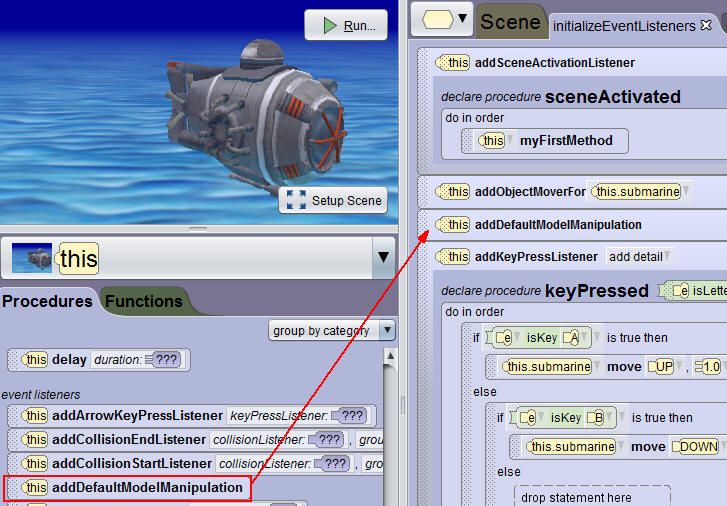
| Demo: Repositioning objects at runtime |
|---|
|
Watch this video to learn how to reposition objects at runtime with the addDefaultModelManipulation procedure. |
| Try it: Reposition objects at runtime |
|---|
|
Download: The Try it activity below requires that you start with the project file that was saved in the previous topic. Download this Alice 3 project file if you did not complete the previous topic's Try it activity.
|
Present the animation
It’s time to present your complete animation project! Here are some tips to ensure that your presentation is the best it can be.
Organizing your presentation
Here are some steps to follow when organizing your animation project presentation:
- Make sure your presentation is fully tested and complete.
- Plan to demonstrate how you used each of the concepts learned in this course.
- Find out how much time you will have for your presentation.
- If it is a group presentation, plan who will do which parts of the presentation.
Preparing an outline
Create a presentation outline to plan your complete animation project presentation.
Section 1: Introduction
- Gain your listeners’ attention.
- Introduce the theme of the animation project.
- Preview your animation.
- Establish your credibility as a speaker.
- Give the audience a reason to listen to the presentation.
Section 2: Presentation of animation project
- Organize the presentation in a logical flow.
- Show all capabilities of your animation project.
- Demonstrate how each course concept was used in the animation project.
- Time visual aids to support the spoken presentation.
- Include helpful transitions between ideas.
Section 3: Conclusion
- Summarize the animation in a memorable way.
- Motivate the audience to respond.
- Provide closure.
Practicing your presentation
When rehearsing your presentation:
- Rehearse aloud.
- Time your speech and, if it is too long or too short, revise it.
- Rehearse standing up.
- Rehearse in front of someone.
- Record your speech (video or audio), or practice in front of a mirror if you do not have access to recording equipment.
- Rehearse using your visual aids and technology.
Group presentations
If you will be making your presentation with a group, here are some steps your group can follow to make sure that all group members have an equal part in preparing and delivering the presentation:
- Include all group members in all steps of the presentation planning.
- Divide presentation tasks equally among group members.
- Practice the presentation as a group.
- Give one another constructive feedback immediately following the presentation delivery practice.
| Demo: Presenting the complete animation |
|---|
|
Watch this video to learn how to plan a presentation for your animation project. |
| Try it: Present a complete animation |
|---|
|
Download: The Try it activity below requires that you start with the project file that was saved in the previous topic. Download this Alice 3 project file if you did not complete the previous topic's Try it activity.
On your own or with your project group, plan, practice, and deliver a presentation of your complete Alice 3 animation. Show all aspects of your animation and show how each concept learned in this course was used in your complete Alice 3 animation project. |
Summary
In this lesson, you have learned how to:
- Use functional decomposition to write a scenario and storyboard
- Complete an animation
- Test an animation
- Reposition objects at runtime
- Plan a presentation for a complete animation project