


This document will continue to evolve as existing sections change and new information is added. All updates appear in the following table:
| Date | Feature | Notes |
|---|---|---|
| 22 AUG 2019 | Created initial document. |
This guide outlines the information you need to know about Oracle Adaptive Intelligent Applications for Manufacturing 19C and describes any tasks you might need to perform for the update. Each section includes a brief description of the feature, the steps you need to take to enable or begin using the feature, any tips or considerations that you should keep in mind, and the resources available to help you.
Security & New Features
We would like to remind you if your system has modified security structures you may need to advise your security administrator of new features you would like to take advantage of. To assist you Appendix A provides a listing of the new features and the security attributes needed to employ the new features when you have decided to implement them.
Give Us Feedback
We welcome your comments and suggestions to improve the content. Please send us your feedback at AIMFGCS_help_ww_grp@oracle.com.
Column Definitions:
Report = New or modified, Oracle-delivered, ready to run reports.
UI or Process-Based: Small Scale = These UI or process-based features are typically comprised of minor field, validation, or program changes. Therefore, the potential impact to users is minimal.
UI or Process-Based: Larger Scale* = These UI or process-based features have more complex designs. Therefore, the potential impact to users is higher.
Customer Action Required = You MUST take action before these features can be used by END USERS. These features are delivered disabled and you choose if and when to enable them. For example, a) new or expanded BI subject areas need to first be incorporated into reports, b) Integration is required to utilize new web services, or c) features must be assigned to user roles before they can be accessed.
| Ready for Use by End Users Reports plus Small Scale UI or Process-Based new features will have minimal user impact after an update. Therefore, customer acceptance testing should focus on the Larger Scale UI or Process-Based* new features. |
Customer Must Take Action before Use by End Users Not disruptive as action is required to make these features ready to use. As you selectively choose to leverage, you set your test and roll out timing. |
|||||
|---|---|---|---|---|---|---|
| Feature |
Report |
UI or |
UI or |
Customer Action Required |
||
Allow Dataset Extraction Based on Selected Input Features and Target Attributes |
||||||
Allow Splitting of Training and Test Data for Predictive Analysis |
||||||
Visualize Analysis Target Value Range in the Model Definition Flow |
||||||
Allow Navigation from an Insight to Genealogy and Trace Visualization |
||||||
Allow Material Lot Visualization Using Genealogy and Trace Timeline Viewer |
||||||
Enhanced User Access and Security Control with IDCS Integration |
||||||
Appendix A: Function Security Privileges and Aggregate Privileges |
||||||
Allow Ingestion of Prepared Case Record Data
Allow ingestion of externally prepared case record data that needs to be analyzed using predefined comma separated value (csv) template.
Using the case record data template you can import the externally prepared case record data either via user interface or REST services. The case record data should include record identifier, analysis context attributes, input attributes / features and target attributes in the csv format.
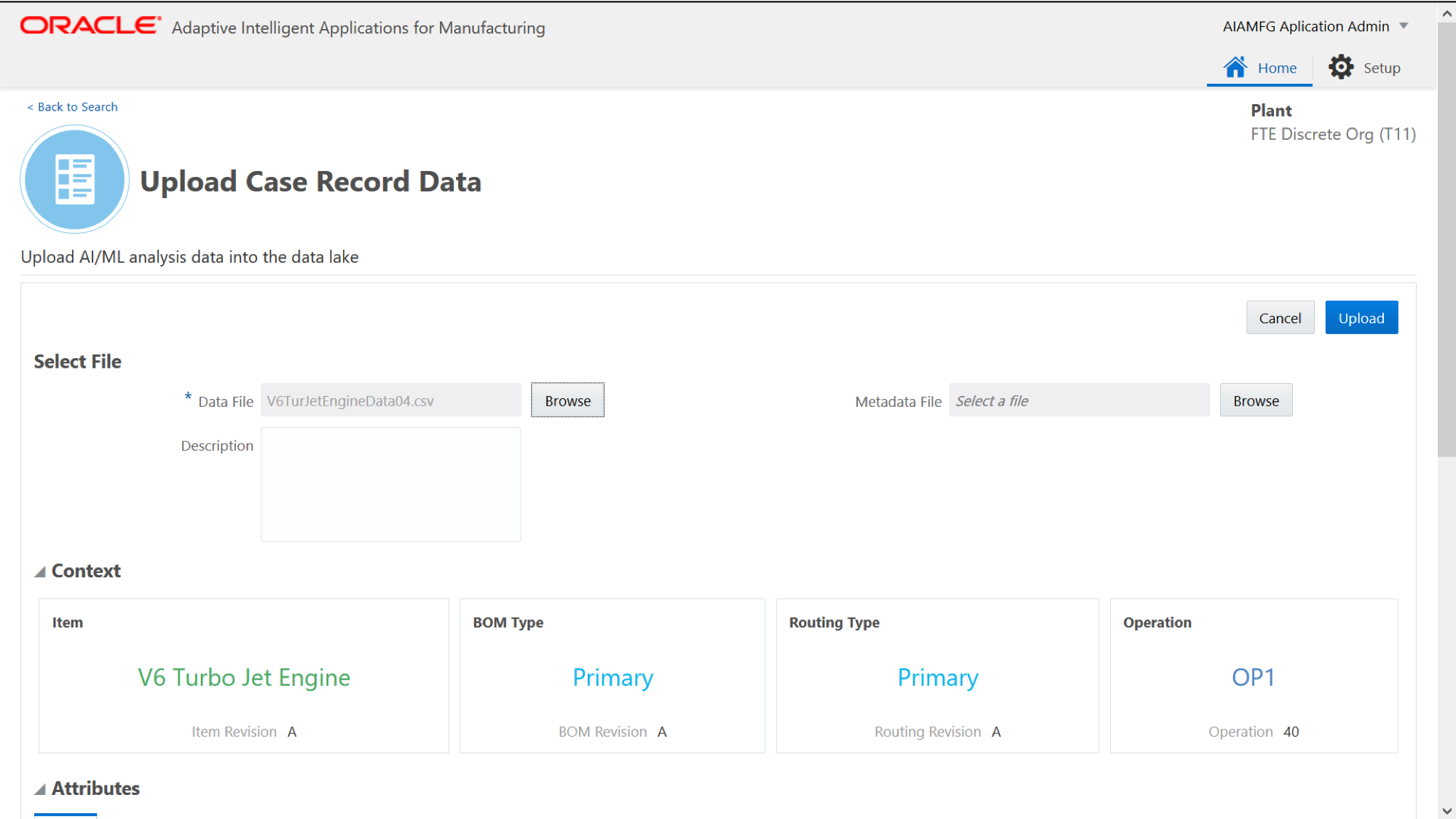
Case Record Data Upload UI
This data ingestion mechanism allows you to quickly create dataset for patterns and correlations analysis.
Steps to Enable
You don't need to do anything to enable this feature.
Tips And Considerations
- Case record data file size should be maximum 5GB. You can split into multiple files If the file size exceeds 5GB.
- Case record data file supports a single context and it can be provided in the first row and need not be repeated. For example, context attributes like item, bom, routing and operation can be given in one row.
Role Information
- Data Analyst
- Data Scientist
- Applications Administrator
Allow Ingestion of Business Entity Data
Allow ingestion of detailed master and transactional data related to Manufacturing, Supply Chain and ERP using predefined comma separated value (csv) templates.
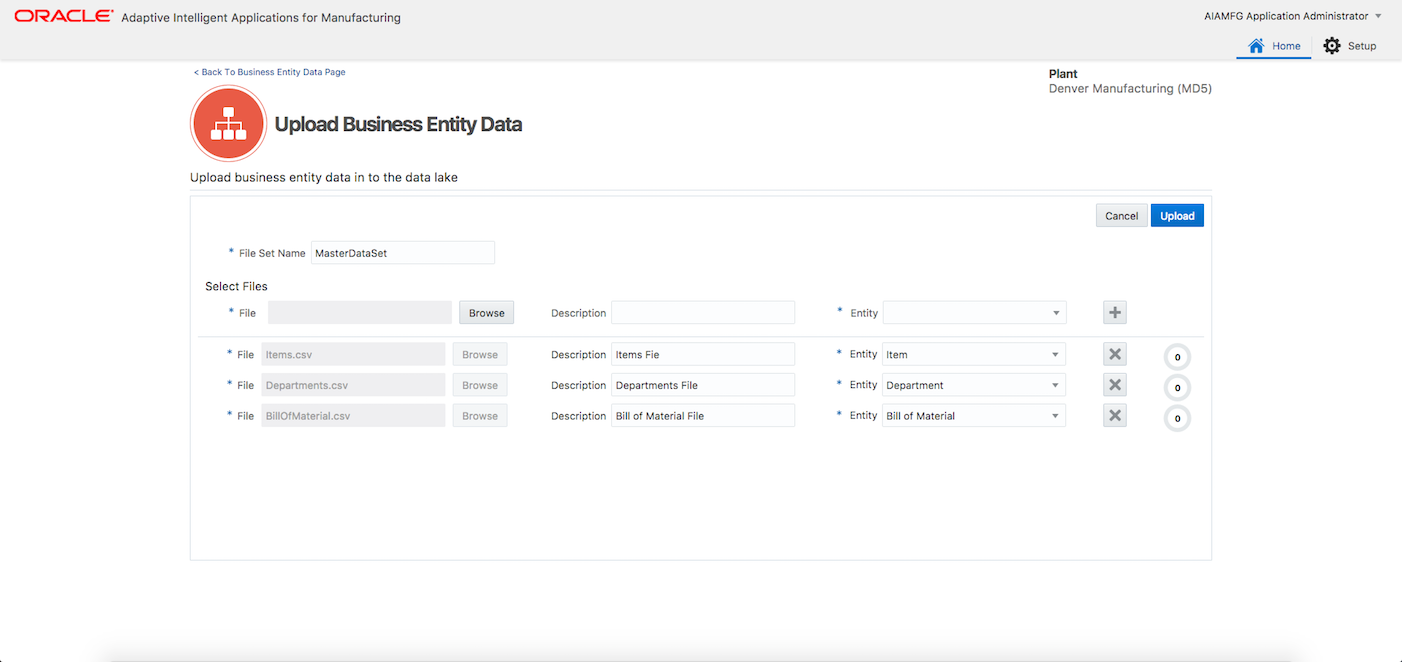
Business Entity Data Upload UI
Using business entity data templates, you can import business entity data from different source systems via user interface or REST services. You can ingest the master data such as items, bill of materials, routings, recipes and also the transactional data such as work orders and related transactions, sales order shipments, purchase order receipts. The ingested data for different entities should include pre-defined attributes and optional custom/flex attributes.
The business entity data is processed and prepared for insights and predictive machine learning analysis, genealogy and trace and factory command center application visualizations.
Steps to Enable
You don't need to do anything to enable this feature.
Tips And Considerations
- Business entity data file size shoule be maximum 5GB. You can split into multiple files If the file size exceeds 5GB.
- You need to upload and import master data before uploading the transactional data entities.
Role Information
- Data Analyst
- Data Scientist
- Applications Administrator
Allow Dataset Extraction Based on Selected Input Features and Target Attributes
Allow extraction of dataset based on the selected input features and target attributes from large prepared data containing several features. It allows you to have the flexibility to pick the specific input features and target attributes from the list of prepared features. The extracted dataset can be used for machine learning based insights and predictive analysis model building.
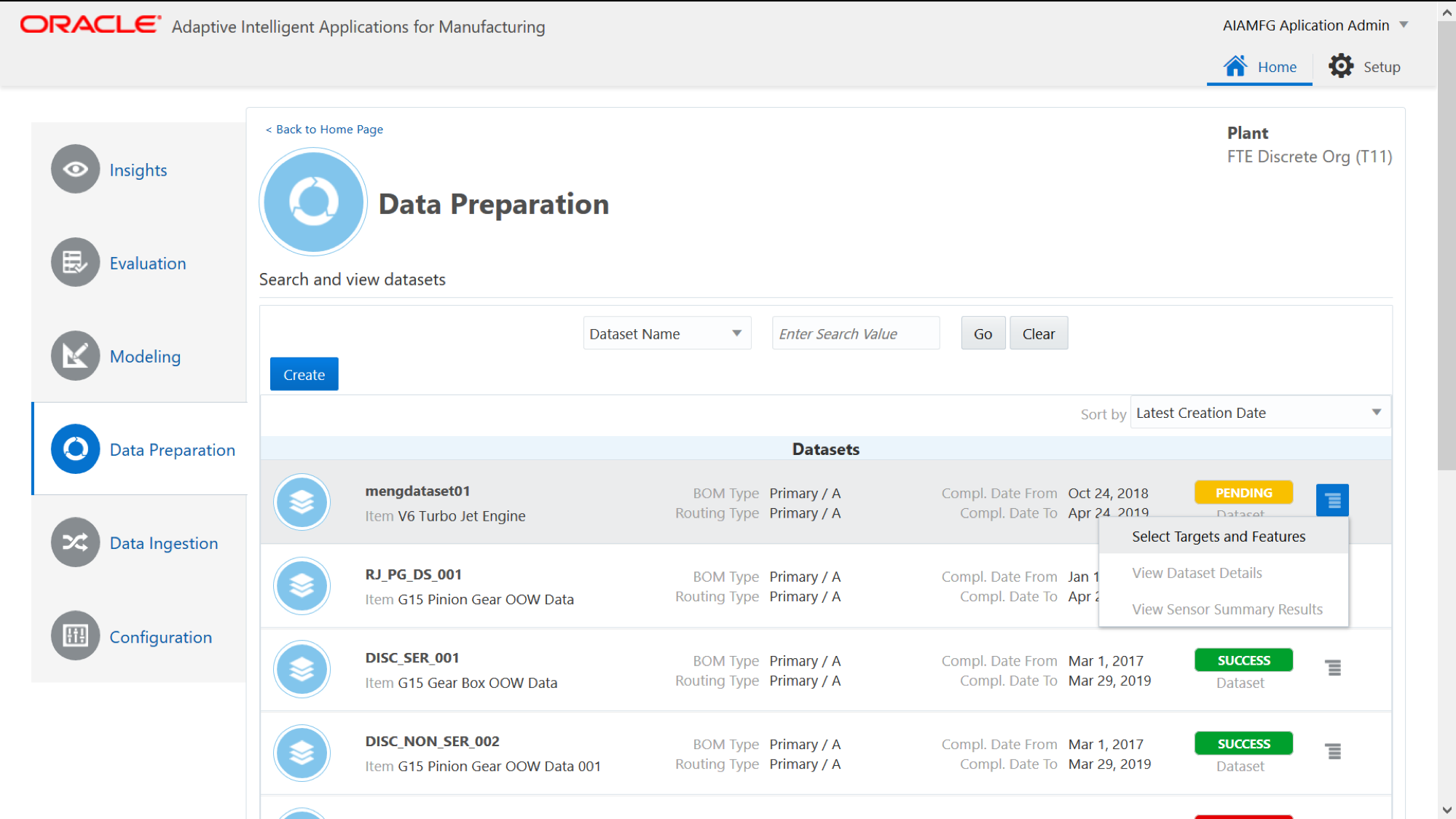
Data Preparation UI
Data Preparation user interface is enhanced to allow dataset creation for selected target attributes and input features from a larger prepared data. It allows you to provide the context information for the dataset definition. It then uses the context information to extract the metadata information and build the dataset just for the selected input features and target attributes.
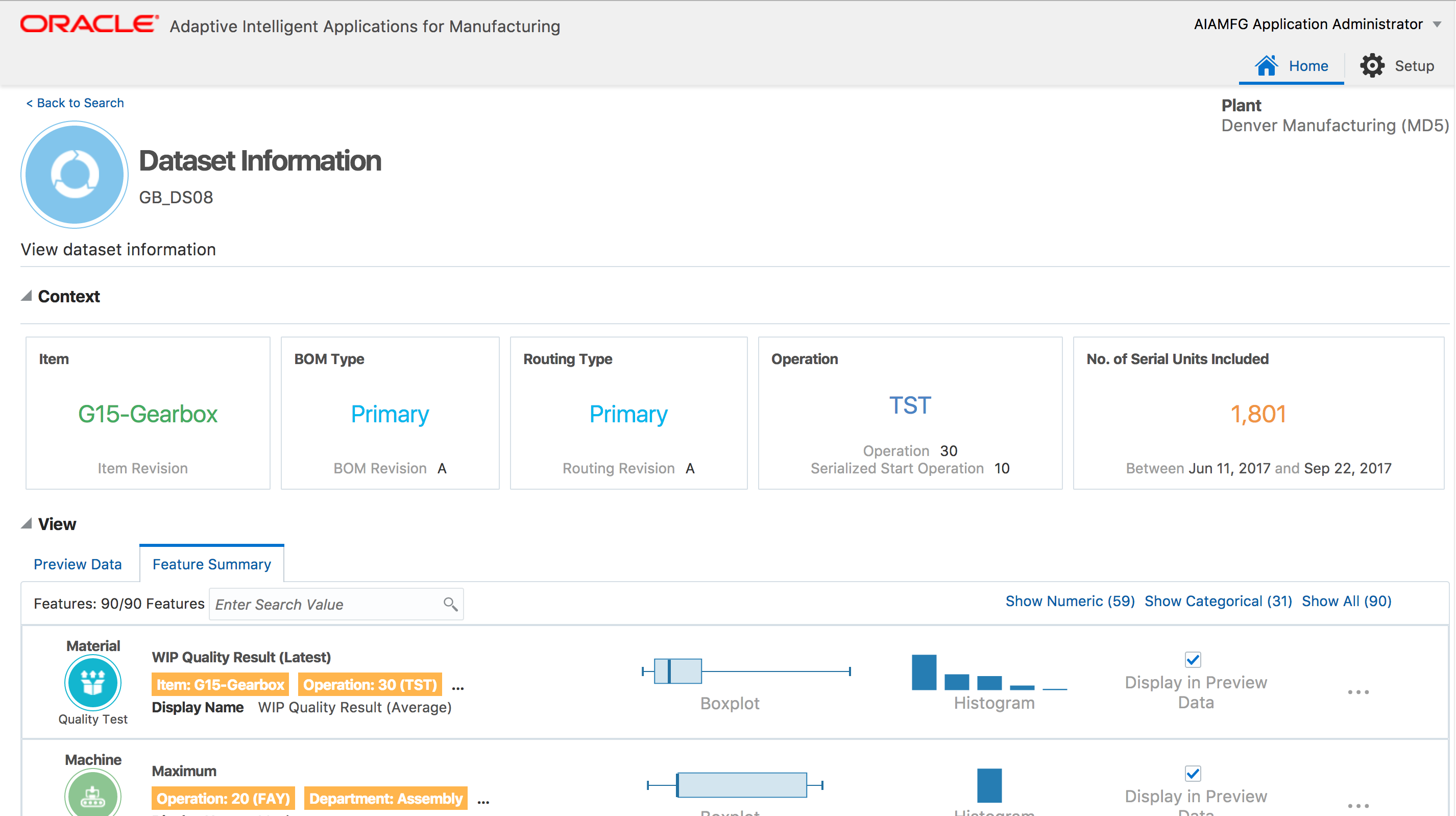
View Dataset UI
You can view the dataset with the sample data extracted for the selected features and targets. You can also view the descriptive statistics and exploratory statistics such as histograms and box plots.
Steps to Enable
You don't need to do anything to enable this feature.
Tips And Considerations
The dataset consists of the data brought into the data lake for the selected features and targets. It is expected that you take care of the sanctity of the data records by doing the necessary clean up, exclusions or field value corrections before the data ingestion.
Role Information
- Data Analyst
- Data Scientist
- Applications Administrator
Allow Custom / Flex Attributes for Dataset Definition
The flex attribute data ingested into the data lake can be used as input features and/or target attributes in the dataset definition. You can then use the dataset with flex attributes in the machine learning model building to perform insight and predictive analysis.
In Discrete Manufacturing, you can use the flexfields for the transactional data entities such as assembly work order, work order operation, work order component, work order person, work order equipment and work order exception. You can also use flexfields for the reference data entities such as item, lot, serial, person and equipment.
In Process Manufacturing, you can use the flexfields for the transactional data entities such as batch header, batch step, batch material and batch exception.
Steps to Enable
You don't need to do anything to enable this feature.
Tips And Considerations
You can use the flexfields to bring in any business specific attributes that can be used as input features or target attributes in the model building for insights and predictive analysis.
Role Information
- Data Analyst
- Data Scientist
- Applications Administrator
Allow Splitting of Training and Test Data for Predictive Analysis
The model building flow for the predictive analysis is enhanced to provide you the flexibility to split the historical data into training data and test data. The training data is used to build the model and the test data is used to evaluate the prediction model performance.
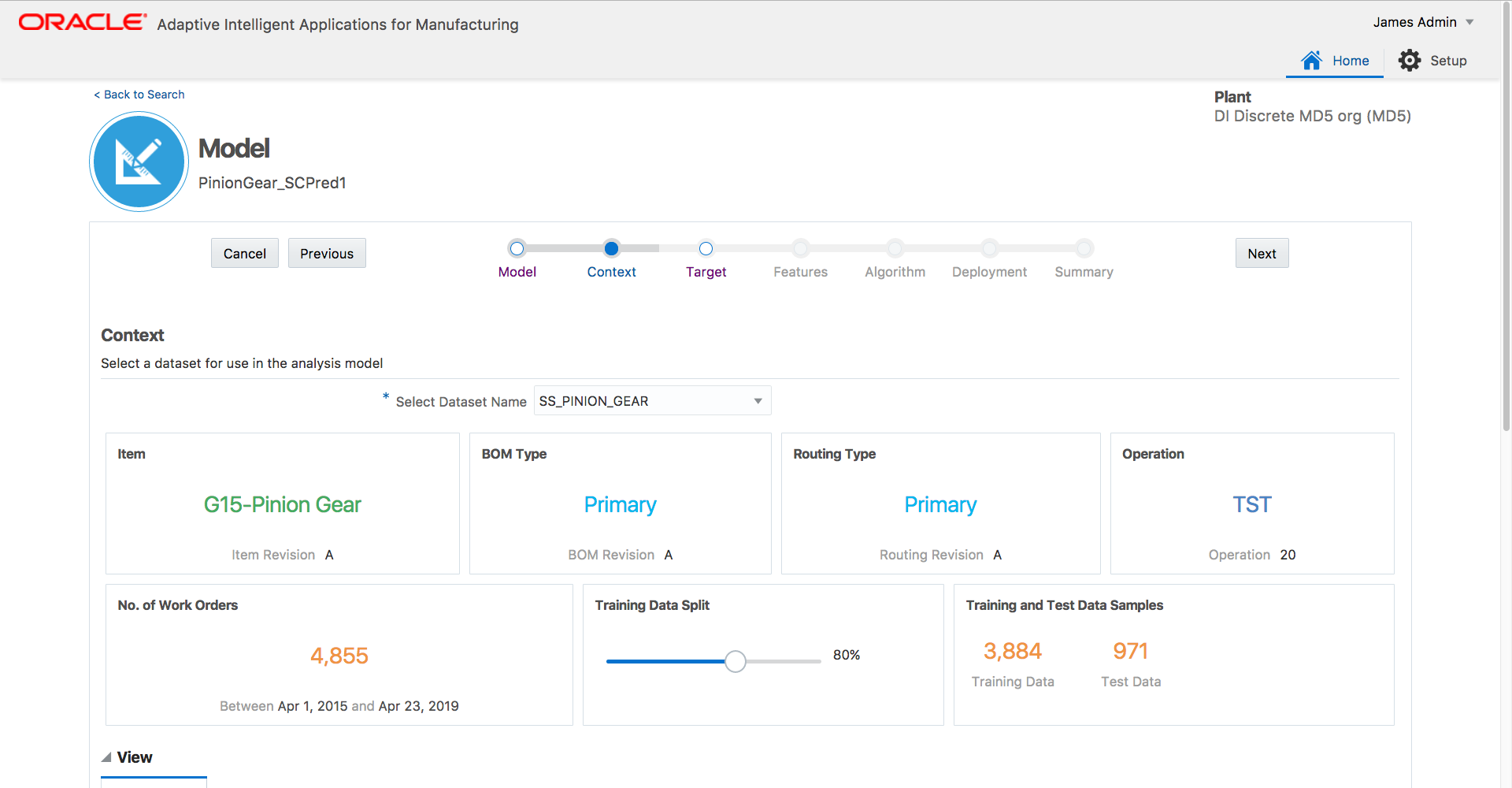
Model Building Flow for Predictions - Split Data
You can use the training data slider feature in the model building flow 'Context' step to specify the training and test data split of the selected dataset for prediction model definition. The default setting for the slider is 80% training data and 20% test data. You can use the slider to select a training sample anywhere between 50% and 100%. The predictions model uses stratified sampling to proportionately to split the dataset into training and test samples.
Steps to Enable
You don't need to do anything to enable this feature.
Tips And Considerations
The recommendation is to use default 80 and 20 split which suits most of the common use cases.
Role Information
- Data Analyst
- Data Scientist
- Applications Administrator
View Prediction Model Performance F-Score
The confusion matrix page is enhanced to include a new metric, F-Score that measures accuracy of the prediction model performance incase of uneven class distribution or imbalanced datasets.
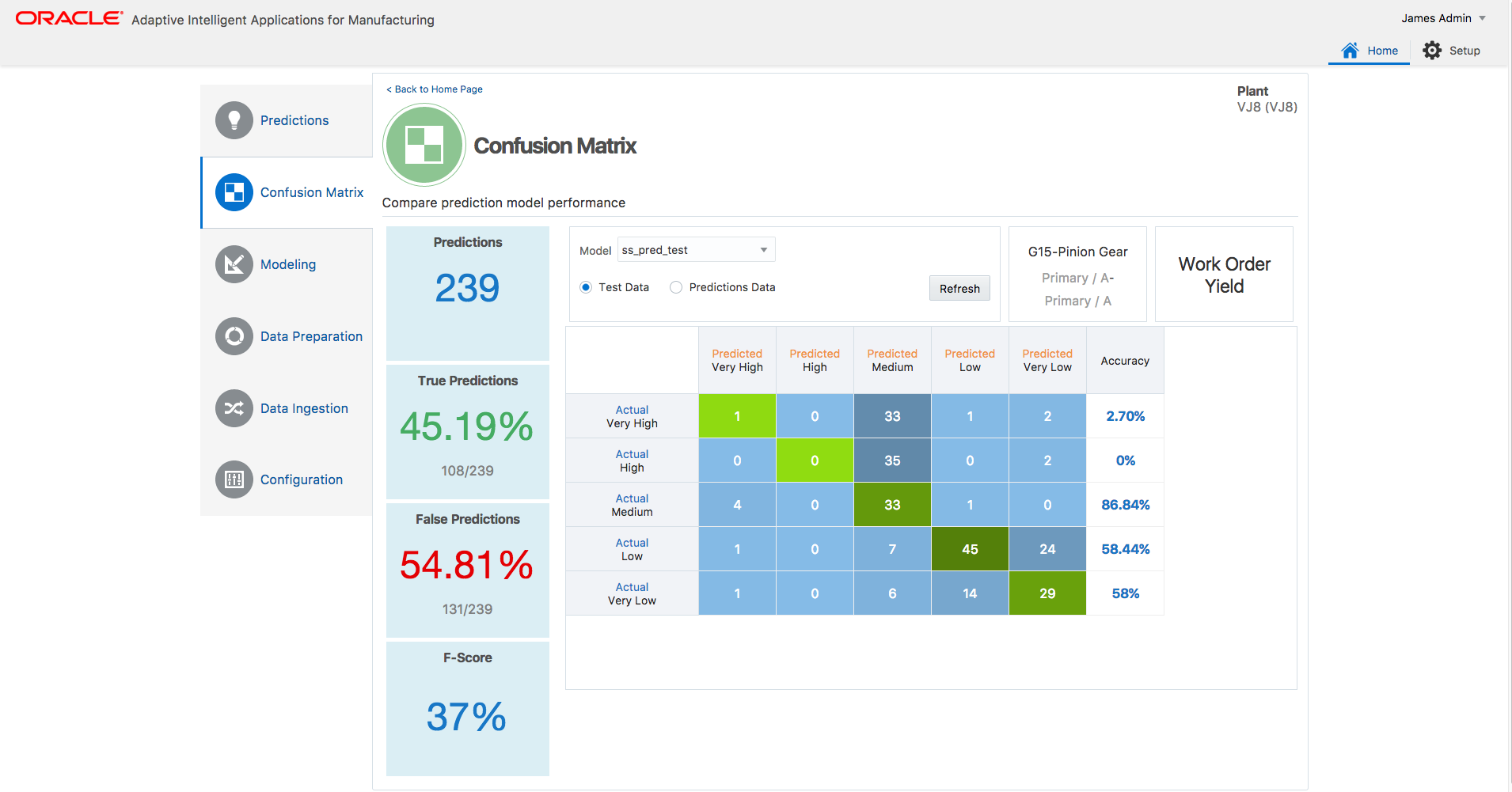
Confusion Matrix UI
The F-Score is computed as a harmonic mean between precision and recall. F-Score value ranges between 0 to 100% and higher the F-Score, the more accurate the model. You can evaluate prediction model using the F-score from confusion matrix page visualization and deploy the right model for production use.
Steps to Enable
You don't need to do anything to enable this feature.
Role Information
- Data Analyst
- Data Scientist
- Applications Administrator
Visualize Analysis Target Value Range in the Model Definition Flow
The analysis target classification step in the model building flow is enhanced to include graphical visualizations that can assist you in defining bins for the target attribute value ranges. Box Plot, Scatter Plot and Histograms can be used to visualize the target attribute data distribution and assist the definition of bin ranges by simply dragging the data selection area from the chart.
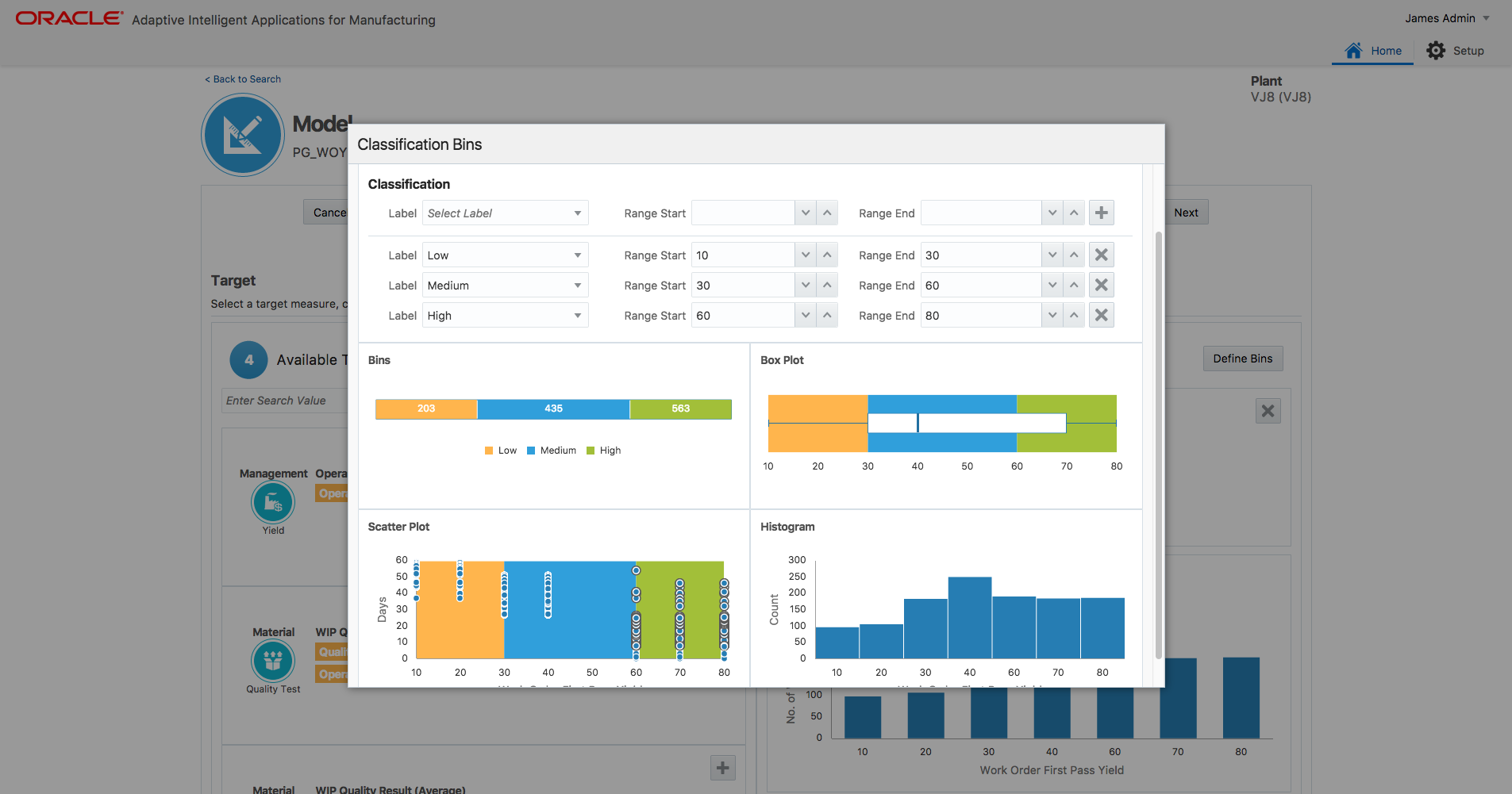
Target Classification Window in Model Building Flow
You can mouse over the chart and drag to highlight the specific rectangular area of data points that would automatically be entered as the bin range. You specify the different bin ranges to cover all the data points for the analysis.
Steps to Enable
You don't need to do anything to enable this feature.
Tips And Considerations
You can define bin ranges by dragging the selection area from scatter plot or you can enter bin ranges with visual aid from histograms.
Role Information
- Data Analyst
- Data Scientist
- Applications Administrator
Allow Analysis of Custom Key Performance Indicators (KPI)
Allow machine learning analysis of custom key performance indicators (KPI) based on your business needs. You can configure multiple custom KPIs, target attributes and target value classification bins for each custom KPI to use in the insight analysis.
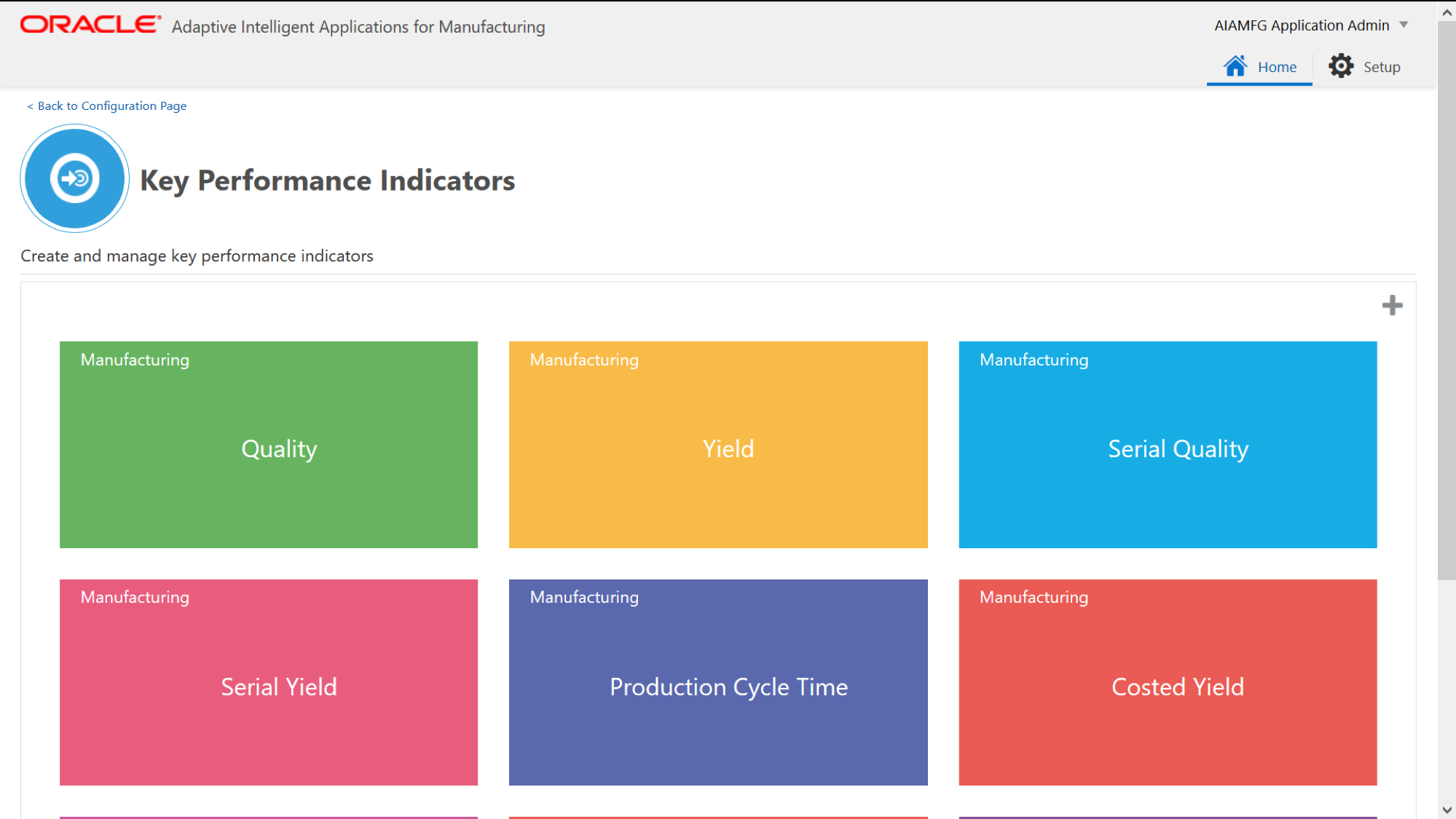
Key Performance Indicators
Using the Key Performance Indicators UI, you can define business specific KPIs. You can associate analysis target attributes and configure classification bins. The defined KPIs are available for patterns and correlations analysis.
Steps to Enable
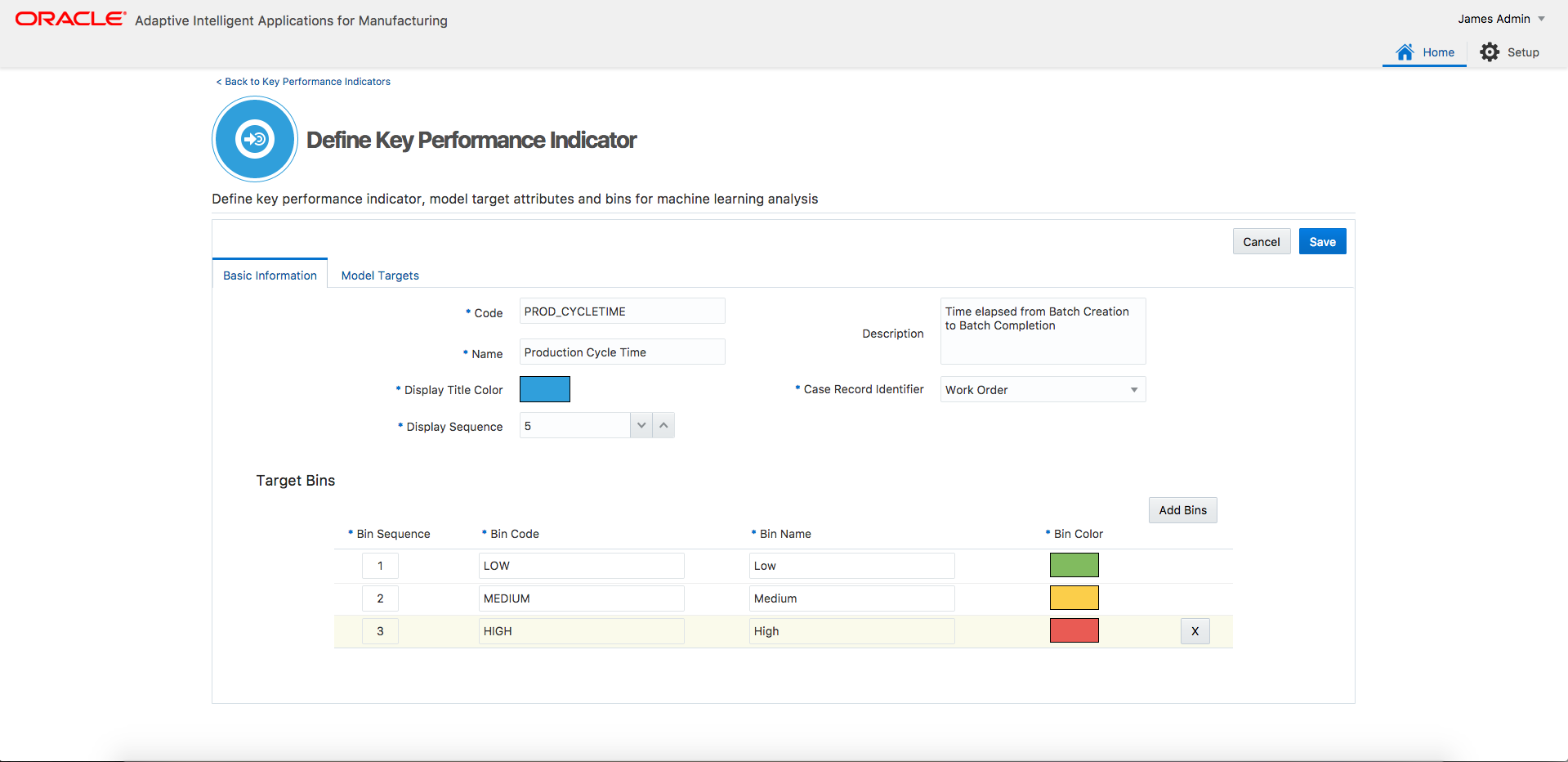
Define Key Performance Indicators
- Create new KPI using define key performance indicators screen.
- Create classification bins and configure colors.
- Associate target attributes to be analyzed.
Tips And Considerations
The data for the custom KPI can be ingested into AIMFG datalake via flexfields of business entities or web services for custom predictor data.
Role Information
- Data Analyst
- Data Scientist
- Applications Administrator
Allow Navigation from an Insight to Genealogy and Trace Visualization
While viewing an Insight you can navigate to the Genealogy and Trace visualization by selecting a specific work order, batch or serial number. You can either navigate to Timeline Viewer to trace the events that took place for the selected work order, batch or serial number or you can navigate to the Network Viewer to trace the end to end manufacturing process.
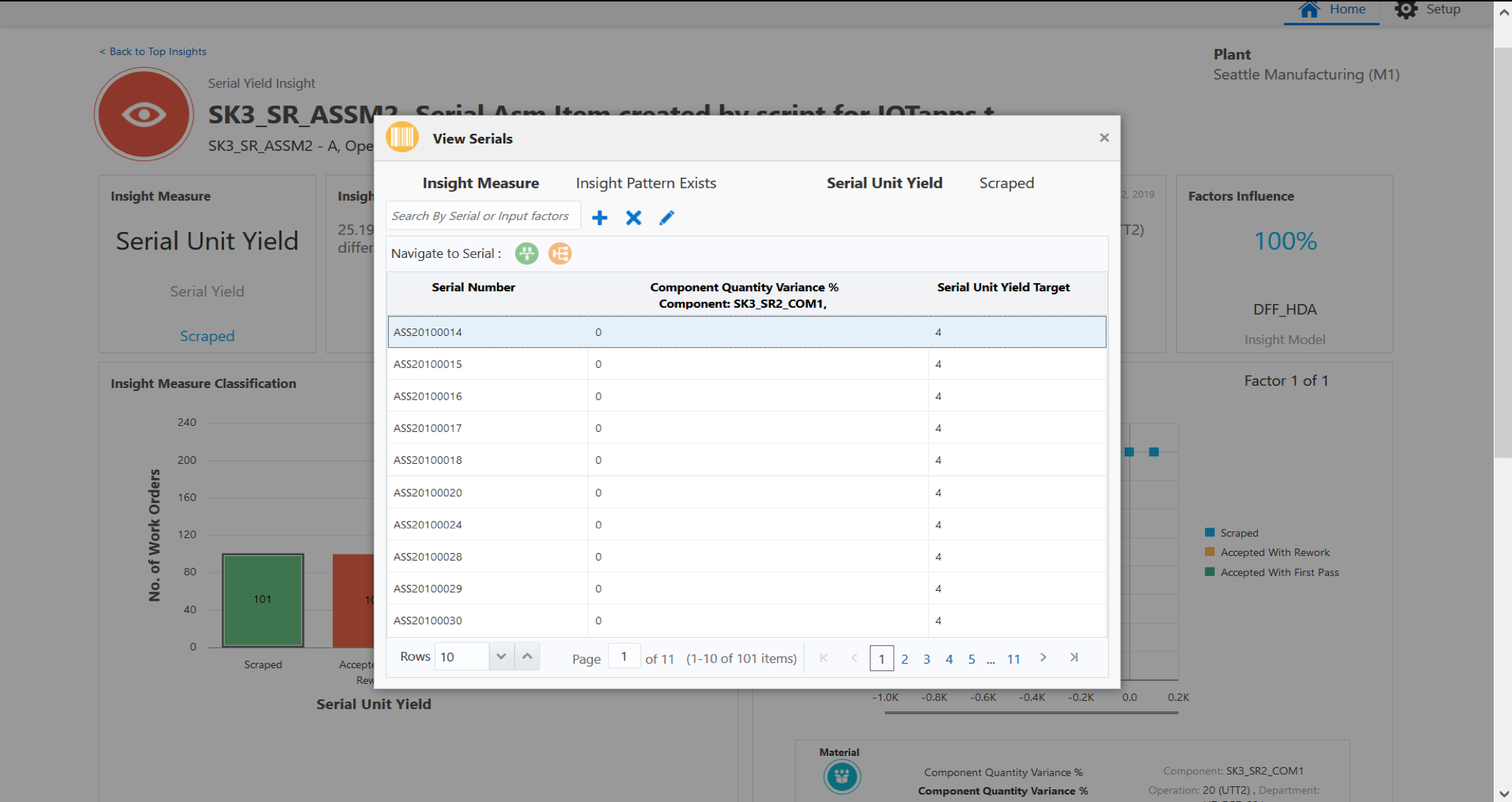
Navigation from Insight Detail to Genealogy and Trace
From the insights detail page, you can click on a bar segment of insight measure classification chart to choose a work order, batch or serial number of interest. By clicking on the Timeline or Network Viewer icon, you can navigate seamlessly from the Insights detail page to the Genealogy and Trace visualization.
Steps to Enable
You don't need to do anything to enable this feature.
Tips And Considerations
You can quickly shortlist work order, batch or serial numbers for the factors having specific values.
Role Information
- Business User
- Data Analyst
- Applications Administrator
Allow Material Lot Visualization Using Genealogy and Trace Timeline Viewer
The Timeline Viewer of the Genealogy and Trace visualization is enhanced to include material lot entity. You can view the timeline of all the events for a specific material lot across its lifecycle.
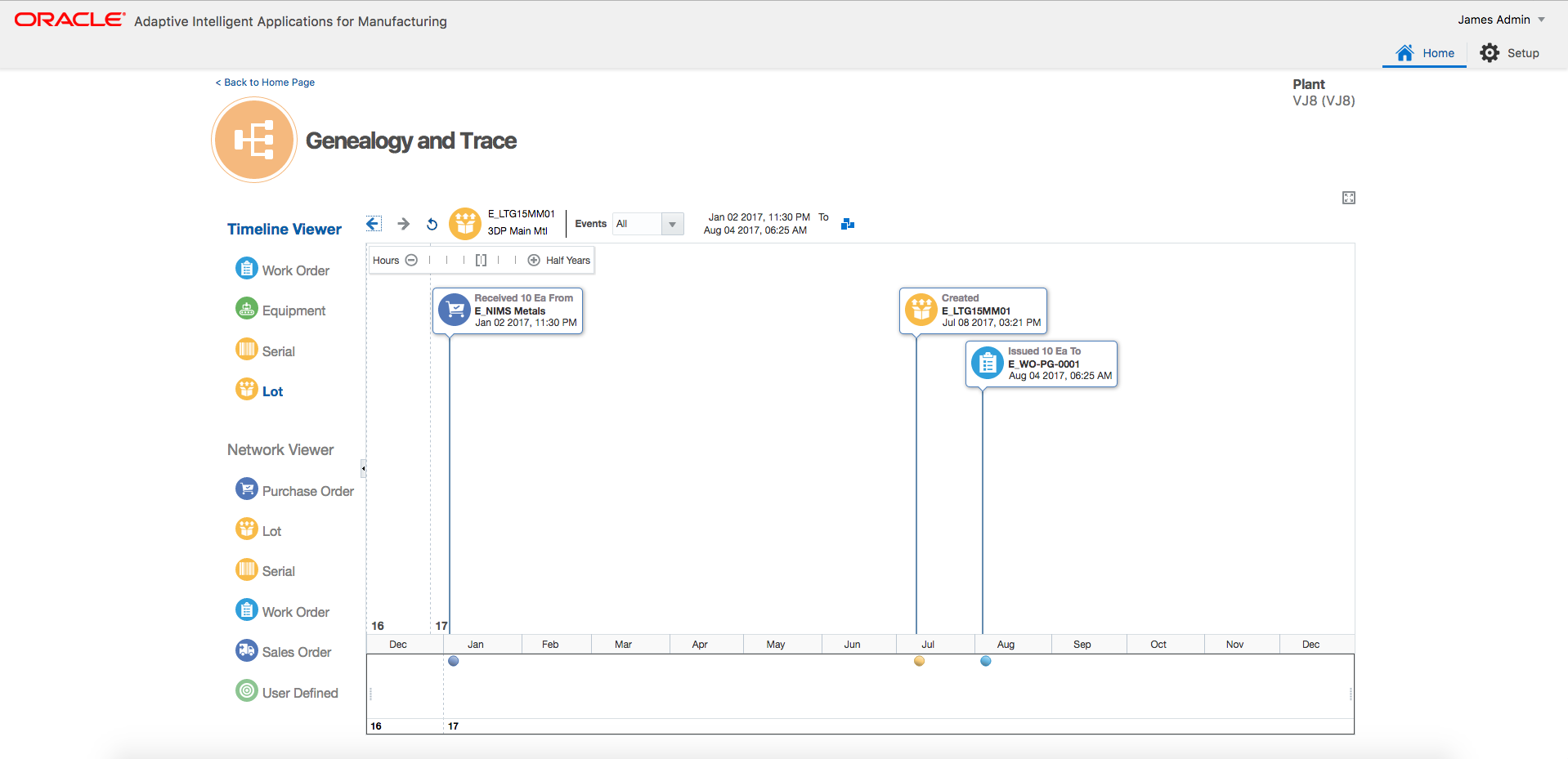
Lot Timeline Viewer
You can view the timeline for a specific material lot to analyze the sequence of events that includes procurement, inventory, manufacturing, lot status changes, lot quality and shipment events.
Steps to Enable
You don't need to do anything to enable this feature.
Role Information
- Business User
- Data Analyst
- Applications Administrator
Enhanced Visualization for Genealogy and Trace Network Node
The Network Viewer is enhanced to include the indicator icons in the network node to highlight exceptions or alerts. The entity details of each node are enhanced to include the descriptive flexfields and the additional attributes for the material lot and serial unit nodes.
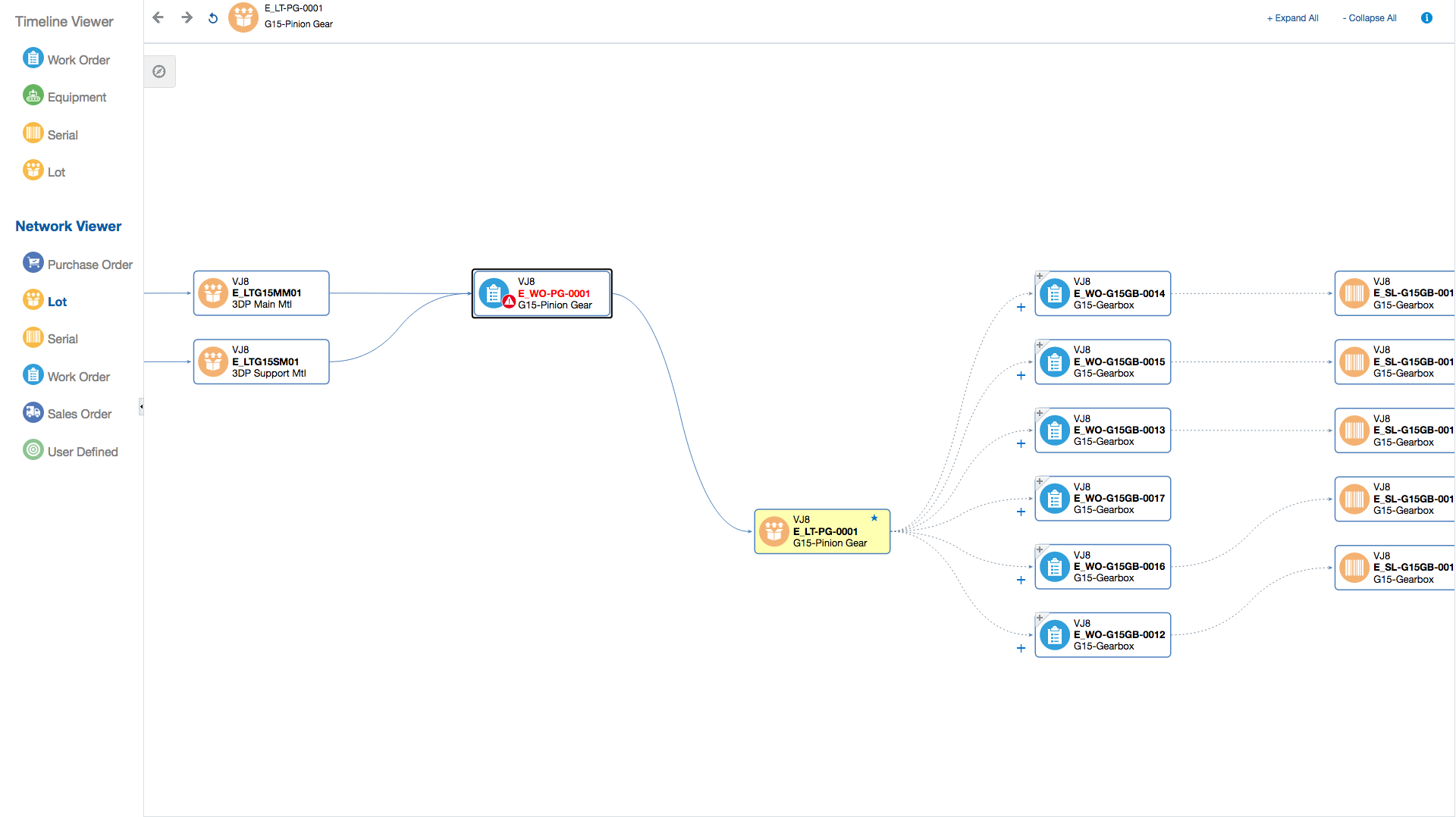
Network Viewer with Indicator Icons
The indicator icons on the network nodes visually enhances user experience of the track and trace analysis by highlighting the exception or alert related nodes such as expiring lots, work order delays etc.
Steps to Enable
Review the REST service definition in the REST API guides, available from the Oracle Help Center > your apps service area of interest > REST API. If you're new to Oracle's REST services you may want to begin with the Quick Start section.
Tips And Considerations
Use REST services to configure the colors of the indicator icons.
Role Information
- Business User
- Data Analyst
- Applications Administrator
Allow Custom Nodes in Genealogy and Trace Network Viewer
The Network Viewer is enhanced to support displaying custom or user-defined entity nodes. You can query the custom or user-defined entities to view the entire network related to the node.
You can define your business specific custom entities and ingest related data using REST services and use the information to track and trace end-to-end supply chain by searching for a specific custom/user defined node.
Steps to Enable
Review the REST service definition in the REST API guides, available from the Oracle Help Center > your apps service area of interest > REST API. If you're new to Oracle's REST services you may want to begin with the Quick Start section.
Tips And Considerations
The user defined entity node colors can be configured using the REST services
Role Information
- Business User
- Data AnalystData Analyst
- Applications Administrator
Managing Security and Access Control
Enhanced User Access and Security Control with IDCS Integration
User access and security control is enhanced with Identity Cloud Service (IDCS) integration. You can create and manage users and assign roles for accessing the application.
The Identity Cloud Service enables administrators to define application users and allow assigning seeded roles like Application Administrator, Data Analyst, Data Scientist, Business User and Data Integrator roles to the defined users.
Steps to Enable
Make the feature accessible by assigning or updating privileges and/or job roles. Details are provided in the Role section below.
Tips And Considerations
The IDCS link with the adminstrator details will be emailed upon the application instance provisioning.
Role Information
- IDCS Administrator
Support for GDPR Compliance Requirements
This enhancement allows the application to meet General Data Protection Regulation (GDPR) compliance requirements regarding the removal of personally identifiable information (PII). The application allows administrators to run a background process program to remove the personal data of specific users across different entities used in the application.
You need to run the program, "Remove Person Data" by providing the input parameters such as the person identifier to obfuscate the user names or emails.
Steps to Enable
You don't need to do anything to enable this feature.
Role Information
- Applications Administrator
Allow Sensor Data Ingestion Using REST Web Services
Allow sensor data ingestion using REST web services for historical and incremental data.
You can use the REST services to ingest sensor device data into the Storage Cloud and contextualize it with the business entity data.
Steps to Enable
Review the REST service definition in the REST API guides, available from the Oracle Help Center > your apps service area of interest > REST API. If you're new to Oracle's REST services you may want to begin with the Quick Start section.
Tips And Considerations
Using REST services, you can upload multiple sensor data files and then run the contextualization.
Role Information
- Applications Administrator
Appendix A: Function Security Privileges and Aggregate Privileges
Pre-defined roles have been provided for access to the Oracle Adaptive Intelligent Applications for Manufacturing. The roles and the functions they have access to are described below. A user can be assigned one or more roles.
Table A-1 Oracle Adaptive Intelligent Applications for Manufacturing Roles
| Role |
Function |
|---|---|
| Business User AIMFG Business User Role |
This role grants a user complete access to Predictions, Insights, Genealogy and Trace and Factory Command Center dashboards pages. |
| Data Analyst AIMFG Data Analyst Role |
This role grants a user complete access to Predictions, Insights, Genealogy and Trace and Factory Command Center dashboards pages. This role also grants access to Modelling, Model Evaluation and Data Preparation pages. |
| Data Scientist AIMFG Data Scientist Role |
This role grants a user complete access to Configuration, Time Series Feature Sets, Sensor Device, Modelling, Model Evaluation, Insights and Predictions dashboards pages. |
| Application Administrator AIMFG Application Administrator Role |
This role grants a user administrative access to the application. The administrator will have complete access to all functions of the application. This includes all the tabs (Background Process, Security and Configuration) of the Administration page through which the administrator will be able to manage background processes, organization access and application setup. |
| IDCS Administrator IDCS Administrator Role |
This role grants a user access to the Identity Cloud Service((IDCS) administration console page. The IDCS administrator can perform tasks like user administration (create/update/delete users, provide/revoke AIAMfg roles to the user) & client administration(Create/delete clients used to access external REST APIs). |