
- Revision History
- Overview
- Feature Summary
- HCM Common
- IMPORTANT Actions and Considerations for HCM Common
- Controlled Availability for HCM Common
- Compensation
-
- Compensation
- Individual Compensation
-
- Prevent Submission Without Changes
- Carry Forward an Optional Standard Component
- Warn When Correcting Salary
- Honor Salary Data Security While Copying From Source Assignment
- Honor Individual Compensation Data Security While Copying from Source Assignment
- Enable Save and Save and Close Buttons in Salary Actions using HCM Transaction Design Studio
- Enable the Save and Save and Close Buttons in Individual Compensation Actions Using HCM Transaction Design Studio
- Change in Transaction Design Studio Show or Hide Regions Behavior for Change Salary
- Workforce Compensation
-
- Exit Plan Setup
- Change In Navigation From Worksheet To Landing Page
- Change In Location Of Number Of Available Plans Link
- Change In Budget Pool Configuration Behavior After You Run the Start Workforce Compensation Process
- Disabled Alerts No Longer Appear In Alerts Analytic In Approval Task
- Configure Budget Overview Properties
- Edit Base Salary Change Amount And Base Salary Change Percentage In Worksheet
- Change In Downloaded Workbook Behavior
- Allow for Statement Actions to Be Completed After Viewing Compensation Change Statements
- Grade Step Progression
-
- Carry Forward Optional Standard Components in Grade Step Progression
- Allow Progression When a Future Assignment Exists
- Allow Progression Without Salary Increase When Proposed Salary is Less Than or Equal to Current Salary
- Allow Proposed Salary Less Than or Equal to Current Salary in Grade Step Progression Processes
- Total Compensation Statement
- Market Data
- Compensation Replaced or Removed Features
- Transactional Business Intelligence Enterprise for Compensation
- Compensation
- IMPORTANT Actions and Considerations for Compensation
This document will continue to evolve as existing sections change and new information is added. All updates appear in the following table:
| Date | Product | Feature | Notes |
|---|---|---|---|
| 24 JUN 2022 | Compensation/ Workforce Compensation | Disabled Alerts No Longer Appear In Alerts Analytic In Approval Task | Updated document. Revised feature information. |
| 29 APR 2022 | Compensation | Total Compensation Statement: Ability to Share Statement Definitions | Updated document. Revised feature information. |
| 25 MAR 2022 | Compensation | Disabled Alerts No Longer Appear In Alerts Analytic In Approval Task | Updated document. Revised feature information. |
| 04 MAR 2022 | Created initial document. |
IMPORTANT NOTE: If you are being updated directly from 21D to 22B you should review the content of both 22A and 22B sections to ensure you see all the changes included in the update.
HCM Cloud applications have two types of patches you can receive that are documented in this What’s New:
- Release Updates (22A, 22B, 22C, and 22D)
- Optional Monthly Maintenance Packs to each update
It is important for you to know what Release Update your environment is on. You can find this in your Cloud Portal.
____________________
 HAVE AN IDEA?
We’re here and we’re listening. If you have a suggestion on how to make our products better, please let us know. To enter an idea go to the Ideas Lab on Oracle Customer Connect. In this document wherever you see the light bulb icon after the feature name it means we delivered one of your ideas.
____________________
Suggested Reading for all HCM Products:
- Human Resources What’s New – In the Global Human Resources section you will find features on the base application in which other application are built upon.
NOTE: Not all Global Human Resource features are available for Talent and Compensation products.
- Oracle Human Capital Management Cloud Functional Known Issues and Maintenance Packs (Document ID 1554838.1). These documents identify bug fixes and possible known issues. You will also need to review these documents based in the release update version you are currently on or will be moving to.
- Oracle Help Center – Here you will find guides, videos and searchable help.
- Release Readiness – New Feature Summary, What’s New, Feature Listing Spreadsheet, Spotlights and Release Training
GIVE US FEEDBACK
We welcome your comments and suggestions to improve the content. Please send us your feedback at oracle_fusion_applications_help_ww_grp@oracle.com. Indicate you are inquiring or providing feedback regarding the HCM Cloud What’s New in the body or title of the email.
Column Definitions:
Report = New or modified, Oracle-delivered, ready to run reports.
UI or Process-Based: Small Scale = These UI or process-based features are typically comprised of minor field, validation, or program changes. Therefore, the potential impact to users is minimal.
UI or Process-Based: Larger Scale* = These UI or process-based features have more complex designs. Therefore, the potential impact to users is higher.
Features Delivered Disabled = Action is needed BEFORE these features can be used by END USERS. These features are delivered disabled and you choose if and when to enable them. For example, a) new or expanded BI subject areas need to first be incorporated into reports, b) Integration is required to utilize new web services, or c) features must be assigned to user roles before they can be accessed.
This section covers features used across all HCM Applications.
Autocomplete Rules for HCM Experience Design Studio Enhancements
Enhance the user experience authoring new rules in Autocomplete Rules for HCM Experience Design Studio with more capabilities for Global Human Resources, Goal Management, and Recruiting.
- Ensures accurate and consistent data by validating the user-entered values
- Allows your organizations to adjust quickly with HR compliance without relying on new releases
Steps to Enable
To enable this feature you need to log a Service Request (SR).
To enable Autocomplete Rules in the HCM Experience Design Studio, you need to log a Service Request (SR). Please review and follow the instructions provided in the My Oracle Support document, Enabling Oracle HCM Cloud Autocomplete Rules (Document ID 2767655.1) to get access.
Key Resources
For more information on Autocomplete Rules for HCM products, refer these What's New features in Update 22B:
- Global Human Resources
- Goal Management
- Recruiting
Role Information
You must be granted the Human Capital Management Application Administrator role to work in a sandbox.
Transaction Design Studio for HCM Experience Design Studio Enhancements
Required Regions
Increase your data quality by ensuring that your users complete the required fields before submitting the transaction. In the example below, for the Hire an Employee flow the Payroll Details and Salary sections have been made mandatory. When the user initiates the process, the behavior of the questionnaire remains the same. Payroll Details and Salary are not displayed as an option as they must be part of the guided process.
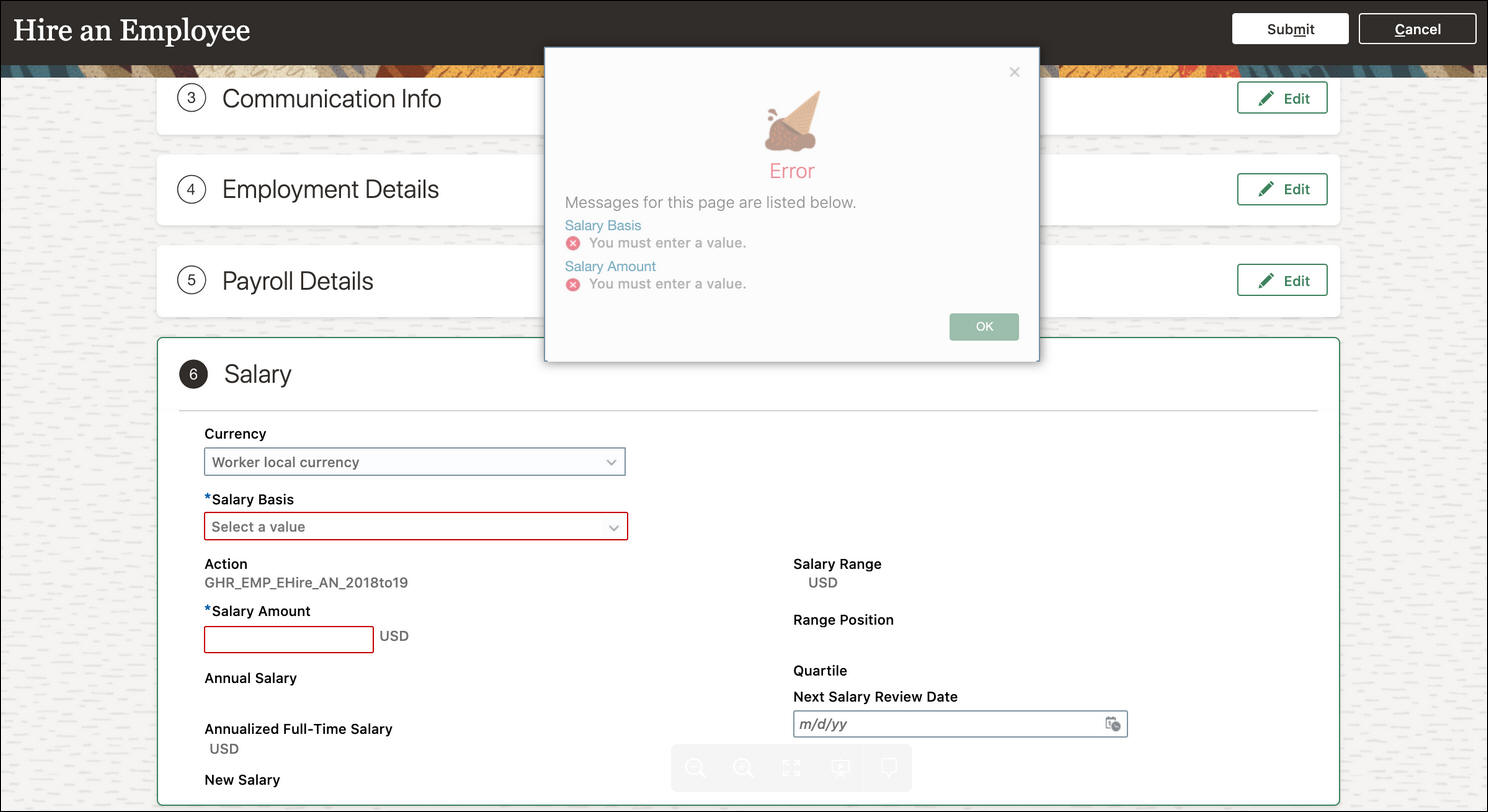
The feature is available for the following actions:
| Release | Action |
|---|---|
| 22A | Change Assignment |
| 22A | Change Location |
| 22A | Change Manager |
| 22A | Change Working Hours |
| 22A | Create Job |
| 22A | Create Location |
| 22A | Direct Reports |
| 22A | Employment Start Dates |
| 22A | Promote |
| 22A | Request a New Position |
| 22A | Request a Position Change |
| 22A | Resignation |
| 22A | Termination |
| 22A | Transfer |
| 22A | Work Relationship |
| 21D | Add Assignment |
| 21D | Add Contingent Worker |
| 21D | Add Pending Worker |
| 21D | Add a Nonworker |
| 21D | Create Work Relationship |
| 21D | Edit Pending Worker |
| 21D | Hire an Employee |
| 21D | Local and Global Transfer |
| 21C | Recruiting - Create Job Requisition |
Personalize the Save and Save and Close Actions in the Toolbar
Enhance the user experience by allowing your users to save their transactions at any point of time.
For example, a user is adding a new contractor and has already provided half of the required info. If they need to switch to another task, they can save their work, resume later where they left off. Out-of-the-box, the two buttons are hidden.

The feature has been extended to more actions.
| Release | Action |
|---|---|
| 22B | Administer Compensation |
| 22B | Change Salary |
| 22B | Individual Compensation |
| 22B | Manage Personal Contributions |
| 22B | Salary History |
| 22A | Change Assignment |
| 22A | Change Location |
| 22A | Change Manager |
| 22A | Change Working Hours |
| 22A | Create Job |
| 22A | Create Location |
| 22A | Direct Reports |
| 22A | Job Details |
| 22A | Location Details |
| 22A | Position Details |
| 22A | Employment Start Dates |
| 22A | Promote |
| 22A | Request a New Position |
| 22A | Request a Position Change |
| 22A | Resignation |
| 22A | Termination |
| 22A | Transfer |
| 22A | Work Relationship |
| 21D | Add Assignment |
| 21D | Add Contingent Worker |
| 21D | Add Pending Worker |
| 21D | Add a Nonworker |
| 21D | Create Work Relationship |
| 21D | Edit Pending Worker |
| 21D | Hire an Employee |
| 21D | Local and Global Transfer |
How You Setup Warning or Error Message and Save Options
Both features are setup from the Page Attributes section of the action in the Transaction Design Studio.
Here are the steps to enable the warning or error display and the save options for the above actions.
- Navigate to Home > My Client Groups > HCM Experience Design Studio.
- Click Transaction Design Studio.
- Select the action for which you want to configure these settings.
- Click Add and add provide the required rule details.
- Select Reference Info Regions from the Region list in the Page Attributes section.
- Click the Edit icon to enable the attributes
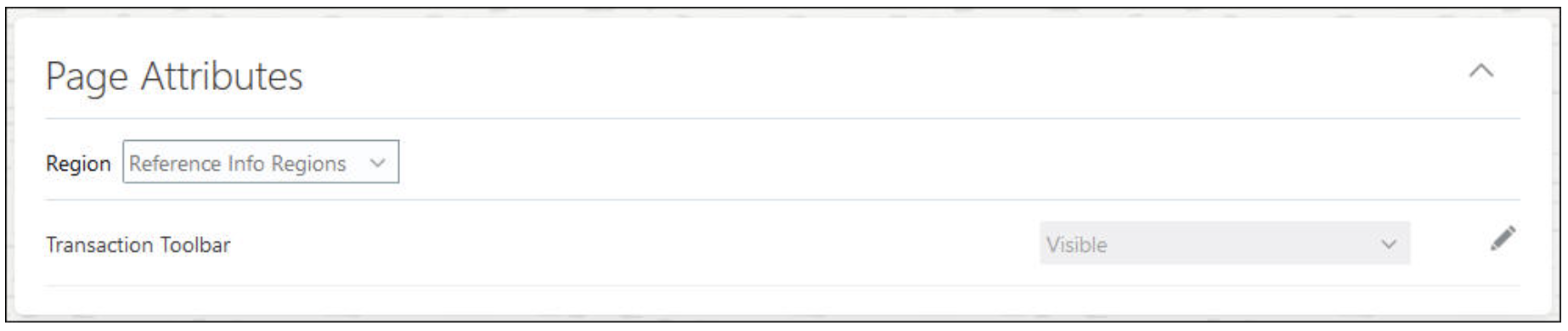
- The two action buttons, Save and Save and Close, can be simply set using the 2 options. Select the options to make them visible.
- Out-of-the-box, the severity of the message is a warning.
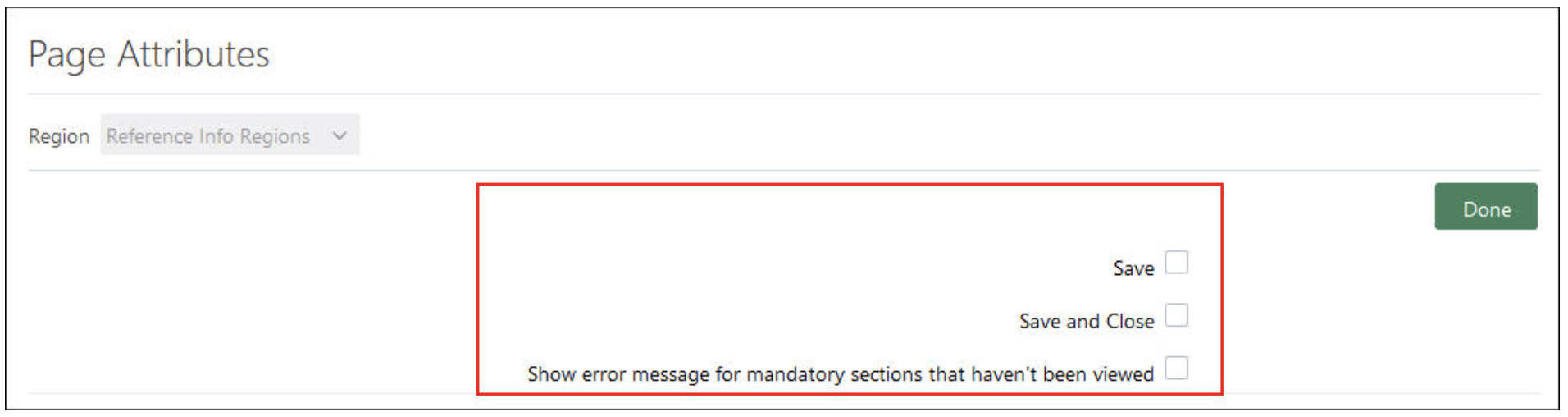
- Click Done.
- Click Save and Close.
- Ensures accurate and consistent data by enforcing entry of the required fields for a specific process.
- Improves your user experience and reduces time spent setting up your solution by simplifying the personalization of HCM Cloud
- Streamlines your transactions and processes by allowing your users to save their work at any point of time and resume later where they left off.
Steps to Enable
You don't need to do anything to enable this feature.
Tips And Considerations
Required Regions
From this release onward:
- Users will get a warning message if they have configured sections as required in the Transaction Design Studio.
- Users will get a warning message if they have not visited the mandatory sections in employment flows.
Save and Save and Close
A point to note is that rules will be evaluated for each attribute for active rules in the Transaction Design Studio. If the same attribute is defined in multiple rule definitions, only the first in order of active rule attribute conditions are applied. For example, if you define:
- Rule 1: Generic rule where Save and Close is available unconditionally, but not Save.
- Rule 2: Save is available only for a specific legal employer
As a result, rule 1 is evaluated as the first rule in order of active rules and so the Save button won't be displayed for the legal employer selected in rule 2.
Key Resources
For additional information, refer to this feature in Update 21C - Required Sections During Job Requisition Creation
For more information, see the following help topics in the Oracle Help Center:
- How You Personalize the Save and Save and Close Actions in the Toolbar, Responsive User Experience Setup, Implementing Global Human Resources guide
- How You Configure Rules in the Transaction Design Studio, Responsive User Experience Setup, Implementing Global Human Resources guide
Role Information
You must be granted the Human Capital Management Application Administrator role to enable a sandbox.
HCM Common Replaced or Removed Features
From time to time, Oracle replaces existing features with new features, or removes existing features.
Replaced features may be put on a path of removal, the features below will let you know what update you will have to have moved to the newer feature. As a best practice, you should move to the newer feature as soon as possible for full support and to stay up with the latest updates that the product offers.
Any feature that is removed, will have an Update in which that feature is no longer available. Please make necessary plans to move off the feature by the Update indicated, as it will no longer be available.
HCM Data Loader Must Be Used For All Payroll Objects
In Update 22B, Oracle has decommissioned ALL objects enabled for the Payroll Batch Loader. Payroll Batch Loader objects are NOT available for use in 22B or in subsequent HCM releases.
HCM Data Loader (HDL) is the tool for data loading and update tasks for 22B and going forward.
Oracle now supports a single, powerful loader for bulk loading and maintaining data. The data can be from any source. You can use HCM Data Loader for data migration, ongoing maintenance of HCM data, and coexistence scenarios, where core HR/Payroll data is uploaded regularly.
Steps to Enable
You don't need to do anything to enable this feature.
HCM Data Loader provides a flexible and efficient method of bulk loading business object data for data-migration and on-going incremental updates to Oracle Human Capital Management Cloud.
Extend your data loading capabilities with these new and enhanced business objects:
NEW BUSINESS OBJECTS
Global HR
Extended Object Hierarchy:
| Business Object | Component | Description |
|---|---|---|
| Document Type | Document Type Attachment | Attachment files associated with a document type. |
Recruiting
New Object Hierarchy:
| Business Object | Description |
|---|---|
| Agent | An agent is associated with an agency, which is a third-party entity. Recruiters can invite agents to submit candidates to agency-enabled requisitions. Agents have access to an agency portal where they can perform several tasks, such as view talent, submit candidates for requisitions, create candidate profiles and view job applications of candidates the agency represents. |
Extended Object Hierarchy:
| Object Hierarchy | New Component | Description |
|---|---|---|
| Job Requisition | Staffing Agent | Agents that are invited to submit candidates for the job requisition. |
NEW ROLL BACK SUPPORT
These objects now support the roll back of newly created records, you can't roll back updates or deletes. Only records created since this enhancement can be rolled back.
- Payroll Absence Record
- Payroll Time Card
UPDATED BUSINESS OBJECTS
Absence Management
| Business Object | Component | Removed Attributes |
|---|---|---|
| Absence Entry | Absence Entry | This attribute is no longer supported. Including it will cause your files and templates to fail:
|
Compensation
| Business Object | Component | New Attributes |
|---|---|---|
| Market Data Job List | Market Data Job List |
|
Global HR - Checklists
| Business Object | Component | New Attributes |
|---|---|---|
| Allocated Checklist | Allocated Checklist |
|
| Allocated Checklist | Allocated Checklist Tasks |
|
| Allocated Checklist Task Translation | Allocated Checklist Task Translation |
|
| Checklist Template | Checklist Template |
|
| Checklist Template | Tasks |
|
| Checklist Task Translation | Checklist Task Translation |
|
| Task Library | Task Library |
|
| Task Library Translation | Task Library Translation |
|
Global HR - Person and Worker
| Business Objects | Component | Decommissioned Attributes |
|---|---|---|
| Person Contact | Contact Address |
|
| Worker | Person Address |
|
Global HR - Workforce Structures
| Business Object | Component | New Attributes |
|---|---|---|
| Job | Job Evaluation |
|
| Position | Position Evaluation |
|
Global Payroll
Object Functionality Changes
| Business Object | Update |
|---|---|
| Element Entry With Costing | This object now supports update. You can provide date-effective updates, the same effective start date is used for the element entry and associated costing records. |
| External Bank Account | This object now supports integration keys to identify the external bank account and owner, along with the references to the bank, bank branch and the person who owns the bank account. CountryCode remains a required attribute, even when identifying the record with source keys. You can't identify external bank accounts that were created before this enhancement by source key, only those that have been created since this enhancement will have a source key associated with them. |
Attribute Changes
| Business Object | Component | Update |
|---|---|---|
| Electronic Income Withholding Orders | Electronic Income Withholding Orders | This attribute is no longer available:
|
| Payroll Interface Inbound Record | Payroll Interface Inbound Record | This attribute is no longer available:
|
| Payroll Time Card | Time Entry | New attributes: Segment1 through to Segment30 This object now supports update, previously you could only create and delete records. |
Recruiting
| Business Object | Component | Attributes Changes |
|---|---|---|
| Candidate | Candidate | New attributes:
|
| Candidate Job Application | Candidate Job Application | Decommissioned Attributes:
New attributes:
|
| Candidate Job Application | Questionnaire Response Participant | New attributes:
|
| Candidate Job Application | Questionnaire Response | New attributes:
|
| Candidate Job Application | Question Response | New attributes:
|
| Job Requisition | Job Requisition | New attributes:
|
| Referral | Referral | New attributes:
|
Talent Management
| Business Object | Component | New Attributes |
|---|---|---|
| Question | Question |
|
| Questionnaire | Questionnaire Question |
|
| Questionnaire Template | Template Question |
|
| QuestionTranslation | Question Translation |
|
REMOVED BUSINESS OBJECTS
Recruiting
The following child components have now been removed having been replaced by BackgroundCheckScreeningPackageV2 in release 21B.
| Business Object | Component | File Discriminator |
|---|---|---|
| Job Requisition | Background Check Screening Package | BackgroundCheckScreeningPackage |
| Job Requisition Template | Background Check Screening Package | BackgroundCheckScreeningPacakge |
NOTE: If you include METADATA lines for these in your HCM Data Loader files, or attributes in your HCM Spreadsheet Data Loader templates, they will now fail.
Extend your bulk-loading capabilities with these new and extended objects available with HCM Data Loader and HCM Spreadsheet Data Loader.
Steps to Enable
You don't need to do anything to enable this feature.
Key Resources
Use the View Business Objects task to review and download the latest business object information.
HCM Spreadsheet Data Loader provides a flexible and efficient method of bulk loading business object data for data-migration and on-going incremental updates to Oracle Human Capital Management Cloud.
Secured Business Objects Now Available to Business Users
You can now extend your business users' bulk-loading capabilities. Spreadsheets based on these objects now implement the user's data security and can be shared with business users:
Learning
- Global Access Group Relation
Your business users can bulk load data for this object using spreadsheets.
Steps to Enable
When creating a new spreadsheet template, the template security automatically defaults to the setting where data is uploaded as the session user. For existing templates based on these objects, you can update the template configuration and set the user type to session user.
Key Resources
For more information, see the following help topics in the HCM Data Loader guide located in the Oracle Help Center:
- HCM Spreadsheet Data Loader Template
- How You Associate a User Name with a Data Upload
Refer to the Oracle By Example tutorial available in the Oracle Learning Library:
- Configure HCM Spreadsheet Data Loader Security
Spreadsheet Template Design Changes
The Spreadsheet Templates task for defining bulk-loading spreadsheets has been enhanced:
Template Validation
The save and validation options have changed. You can now validate and save in one step. Alternatively, use the choice list to save without validation.
You can no longer save changes to active templates without first successfully validating them. Therefore for active templates only the Validate and Save option is available.
Automatically Selected Attributes
When you duplicate attributes for a child record, attributes from the parent record will be automatically added, if they haven't already been selected. This ensures that the child records are validated and loaded together.
Defining valid spreadsheet templates for bulk-data loading is now easier.
Steps to Enable
You don't need to do anything to enable this feature.
Tips And Considerations
When designing spreadsheet templates that will include attributes from more than one child record, or duplicated child records, always include the required attributes from the parent record first. As you add the child attributes, the parent-child relationships are configured for you; the template designer automatically adds the attributes that define the parent reference, defaulting their values and hiding them from the spreadsheet.
Key Resources
Refer to the HCM Spreadsheet Data Loader Templates chapter within the HCM Data Loader guide located in the Oracle Help Center.
This section covers features used across all HCM Applications.
Enhancements to Approvals and Notifications
Leverage these enhancements to the Transaction Console that are part of this release:
- Alerts enhancements
- Faceted filters on Test Approval Rules page
Alerts Enhancements
You can now send alerts to other users apart from the initiator for failed transactions. You can also select a different alert template for each user. This way you can send different messages to different users so that they can take appropriate action to correct the failed transaction.
You can send alerts for failed transactions in these ways:
- Send alerts on demand.
- Configure alerts for different approval rules.
Send Alerts on Demand
On the Transaction Summary tab, you can now select a failed transaction and then send alerts on demand.
- Locate the row of the failed transaction for which you want to send an immediate alert.
- Select the check box for that row.
- From the Actions menu, select Alert Initiator on Error. You can see the Configure Alerts dialog box.
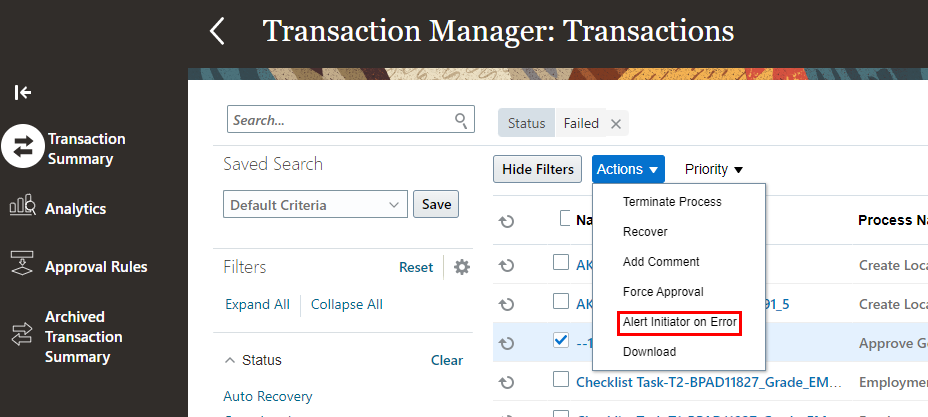
Alert Initiator on Error Action
- To send an alert to the initiator:
- Select the Alert Initiator check box.
- From the adjacent list, select the alert template to use.
- To send alerts to approvers:
- Select the Alert Approvers check box.
- From the adjacent list, select the alert template to use.
- To send alerts to other users:
- Select the Alert Users check box.
- Click Add Row.
- Search for and select the user.
- Select the alert template to use.
- Repeat steps 6b to 6d for all users you want to add.
- Click Save and Close.
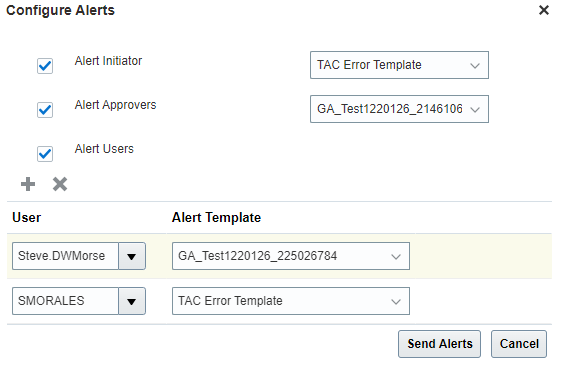
Transaction Summary Tab - Configure Alerts Dialog Box
Configure Alerts for Approval Rules
On the Approval Rules tab, as administrators, you can configure alerts to send for failed transactions for each process type. When you do this, alerts are triggered when a transaction is marked as Failed in any of these scenarios:
- A user checks the details of a transaction that has underlying faults.
- A user refreshes the status of one or more transactions that have underlying faults.
- The scheduled process for refreshing the transactions changes the status of a transaction with underlying faults.
Here’s how you configure alerts:
- Select the row of the transaction for which you want to configure alerts.
- Click the Configure Alerts icon. You can see the Configure Alerts dialog box.
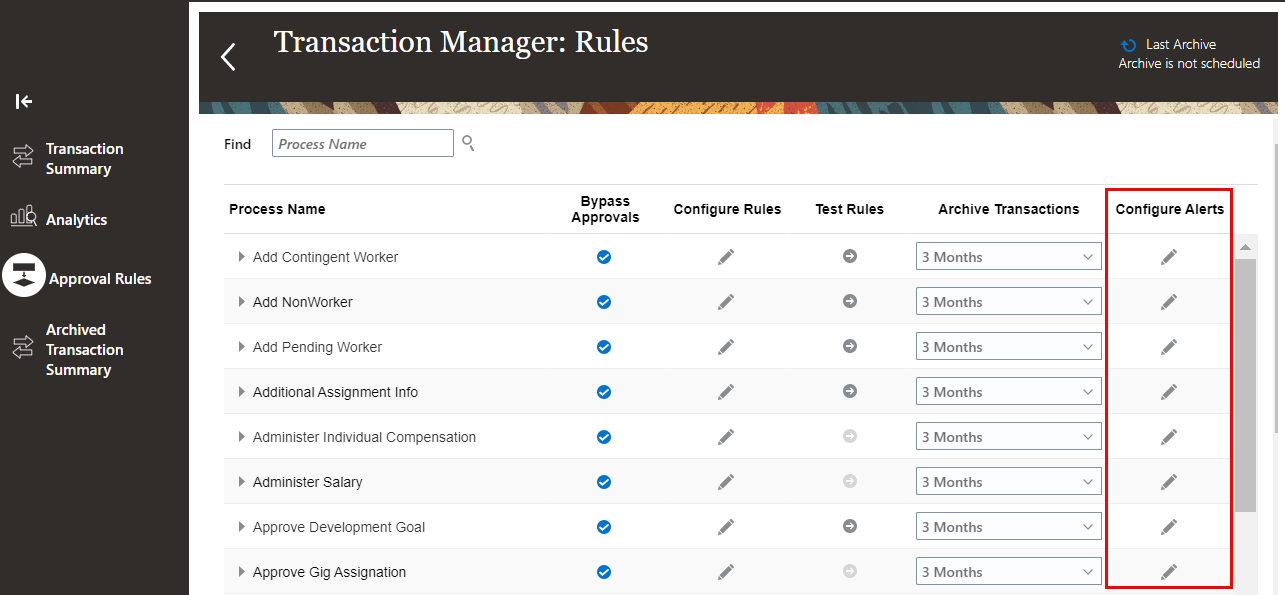
Approval Rules Tab – Configure Alerts Column
- To send an alert to the initiator:
- Select the Alert Initiator check box.
- From the adjacent list, select the alert template to use.
- To send alerts to other users:
- Select the Alert Users check box.
- Click Add Row.
- Search for and select the user.
- Select the alert template to use.
- Repeat steps 4b to 4d for all users you want to add.
- Click Save and Close.
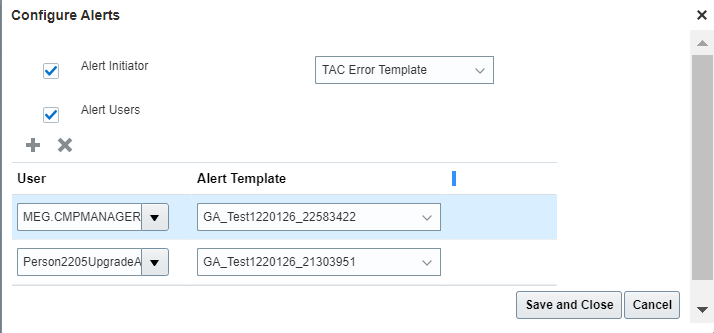
Approval Rules Tab – Configure Alerts Dialog Box
Approvals Alert Template Variables in Transaction Console
You can now use any of the attributes listed in this table when you create new approval error alert templates for your organization.
| Alert Template Attribute |
Description |
|---|---|
| Initiator_UserName |
User name of the approval initiator |
| Transaction_TransactionId |
Unique identifier for the transaction |
| Transaction_ObjectName |
Object name of the transaction |
| Transaction_ProcessName |
Process name of the transaction |
| Transaction_ConsoleTransactionStatus |
Console transaction status of the transaction |
| Transaction_TaskID |
Unique identifier for the associated task |
| Transaction_TaskOutcome |
Outcome of the associated task |
| Transaction_TaskStatus |
Status of the associated task |
| Transaction_IssueDescription |
Reason for the fault associated with the transaction |
| Transaction_IssueResolution |
Steps to execute to fix the fault |
| Transaction_IssueTypeCode |
Issue type code of the underlying fault |
| Transaction_FaultCode |
Fault code of the underlying fault |
| Transaction_TaskHistory |
A table showing all the stages the task has gone through |
| Transaction_Title |
Title of the associated task |
| Transaction_Description |
Transaction details table |
| Transaction_ErrorDetails |
A table with the fault details of the transaction |
| Transaction_Recipient |
User name of the recipient of the alert message Note: In all new approval error alert templates that you configure using the TAC_Error_Alert template in Alerts Composer, ensure that the ${Transaction_Recipient} attribute is set to the Worklist recipient for that template. |
Faceted Filters on Test Approval Rules UI
Search for transactions easily in the Test Approval Rules page using the new faceted filters. You can filter the transactions based on these attributes:
- Status
- Name
- User who created the transaction
- Transaction period
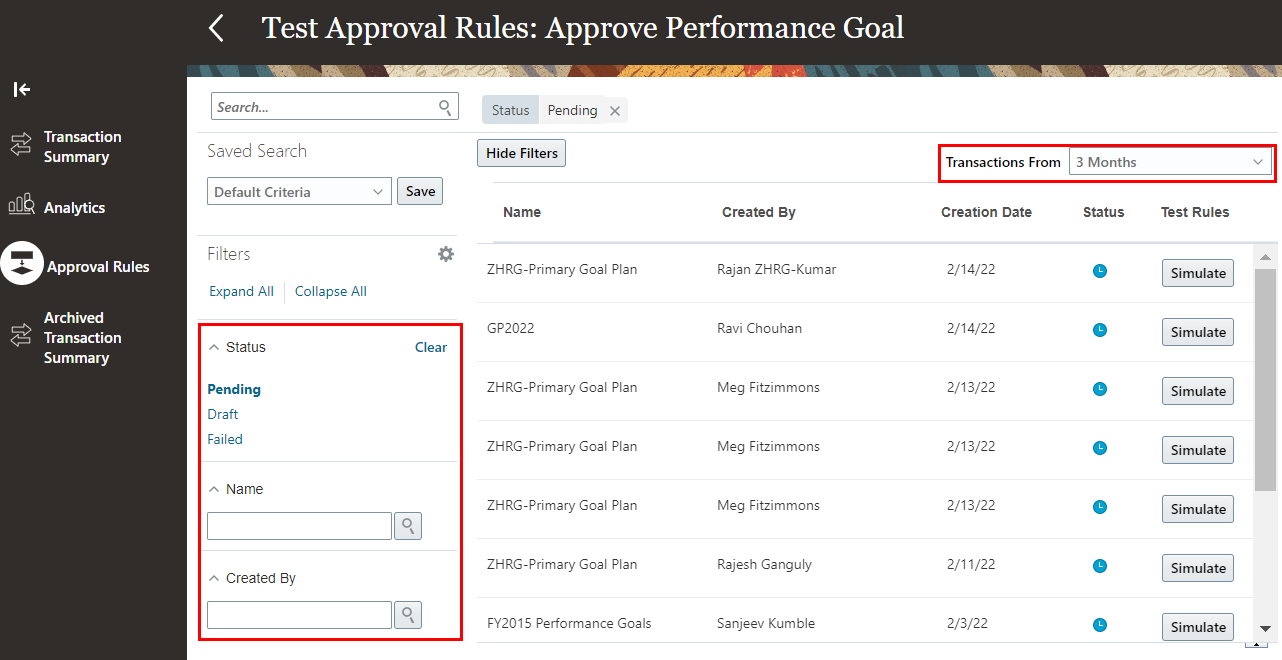
Faceted Filters on Test Approval Rules Page
By leveraging these enhancements, you gain these advantages:
- Send appropriate alert messages to various users so that they can resolve failed transactions.
- Locate easily the transactions that you want to test your approval rules on and modify your approval rules.
Steps to Enable
To leverage the approval alerts enhancement, you need to do these actions:
- Create the TAC_ALERT_CONFIG_FEATURE profile option and set it to true.
- Edit the TAC_Error_Alert alert in Alerts Composer, add templates, and enable the templates.
To create the TAC_ALERT_CONFIG_FEATURE profile option:
- Navigate to the Setup and Maintenance work area.
- Search for and select the Manage Profile Options task.
- In the Search Results section, click New. You can see the Create Profile Option page.
- Specify the values indicated in this table for the new profile option.
| Field |
Value |
|---|---|
| Profile Option Code |
TAC_ALERT_CONFIG_FEATURE |
| Application |
Global Human Resources |
| Module |
Global Human Resources |
- Click Save and Close.
- On the Manage Profile Options page, select the Enabled and Updatable check boxes for the Site level.
-
Click Save and Close.
Key Resources
For more information on using alerts composer, see this chapter on the Oracle Help Center:
- Chapter 18, Alerts Composer, Implementing Global Human Resources guide
Role Information
This table shows the function security privilege that supports this feature and the predefined role that inherits this privilege.
| Function Security Privilege Name and Code |
Job Role Name |
|---|---|
| Test Approval Rules PER_TEST_APPROVAL_RULES_PRIV |
Review HCM Approval Transactions as Administrator |
If you’re using the predefined role, then no action is necessary. However, if you’re using custom versions of this role, you must add this aggregate privilege to your custom roles to use this feature. See the Release 13 Oracle Human Capital Management Cloud Security Upgrade Guide on My Oracle Support (Document ID 2023523.1) for instructions about implementing new functions in existing roles.
IMPORTANT Actions and Considerations for HCM Common
REPLACED OR REMOVED FEATURES
From time to time, Oracle replaces existing Cloud service features with new features or removes existing features. When a feature is replaced the older version may be removed immediately or at a future time. As a best practice, you should use the newer version of a replaced feature as soon as the newer version is available.
| Product | Removed Feature | Target Removal | Replacement Feature | Replaced In | Additional Information |
|---|---|---|---|---|---|
| HCM Common | HCM Data Loader Must Be Used For All Payroll Objects | 22B | HCM Data Loader |
_________________________
KNOWN ISSUES / MAINTENANCE PACK SPREADSHEETS
Oracle publishes a Known Issues document for every Update to make customers are aware of potential problems they could run into and the document provides workarounds if they are available.
Oracle also publishes Maintenance Pack and Statutory Maintenance Pack documentation of bugs that are fixed in the monthly or statutory patching.
To review these documents you must have access to My Oracle Support:
Oracle Human Capital Management Cloud Functional Known Issues and Maintenance Packs (Document ID 1554838.1)
Controlled Availability for HCM Common
The following is a list of Controlled Availability features that are being offered by our Controlled Availability Program.
NOTE: These features are not generally available for all customers at this time. These are only available through the Controlled Availability Program and will require approval to become a part of the features program. To be a part of these programs you will be required to participate in testing and providing feedback. Some programs may require other participation as well.
Not to worry if you don't have to time to be a part of these early stage programs. You can uptake this feature when it is generally available for all customers. When these features are available for all customers you will see the features under their product headings as usual.
We invite you all to browse through the list of features to see if there are any features you are interested in implementing in advance of the features scheduled release. The table below will provide information on signing up for features. Please sign up soon, as these programs have limited availability and some are designed for specific types of customers.
The table below gives you a brief description of the features available and how to sign up. Some features are bigger than others, so for more information there may be a What's New describing the feature in more detail below this table.
We look forward to hearing your thoughts and ideas as you participate the Controlled Availability programs!
| Product | Feature Name | Feature Description | Type of Customer Needed to Test | How to Sign Up | Controlled Availability Release | Is the Program Still Open? |
|---|---|---|---|---|---|---|
| Across All HCM Products |
Oracle Search is a dedicated search engine available in your Human Capital Management Cloud environments. It is based on Oracle Search Person Index Updates (feature below), a dedicated search platform for Oracle Cloud. |
Is dependent on Oracle Search-Based Global Search above or Connections that can be found in the 21A Global HR What's New under Controlled Availability Features. |
Customers cannot request Oracle Search as a standalone feature. It has to be requested as via specific Oracle Search-dependent feature like Connections (In 21A Global HR What's New Under Controlled Availability Features or Oracle Search-based Global Search (In the 21A HCM Common What's New under Controlled Availability Features: |
Revised 21A - 22A |
Open | |
| Across All HCM Products |
Oracle Search person index is optimized for better performance. This feature is needed for the Oracle Search-dependent features, see Oracle Search for HCM above. Controlled availability customers using HCM Oracle Search features (Connections, Oracle Search-based Global Search, Succession Organization Chart) are required to rebuild the index. |
Use of HCM Oracle Search features (Connections, Oracle Search-based Global Search, Succession Organization Chart). |
Only customers using Oracle Search features (Connections, Oracle Search-based Global Search, Succession Organization Chart). |
21C - 22A | Open |
Oracle Compensation enables your organization to plan, allocate, and communicate compensation using the most complete solution in the market. Make better business decisions using embedded analytics and a total compensation view of workers, regardless of geographic location or pay package components.
Prevent Submission Without Changes
You can now prevent people from submitting a Personal Contribution, an Individual Compensation, or an Administer Compensation action without making changes. Or you can instead warn them that they haven’t made changes.

Error When Trying to Submit Without New Contributions or Changes to Existing Contributions
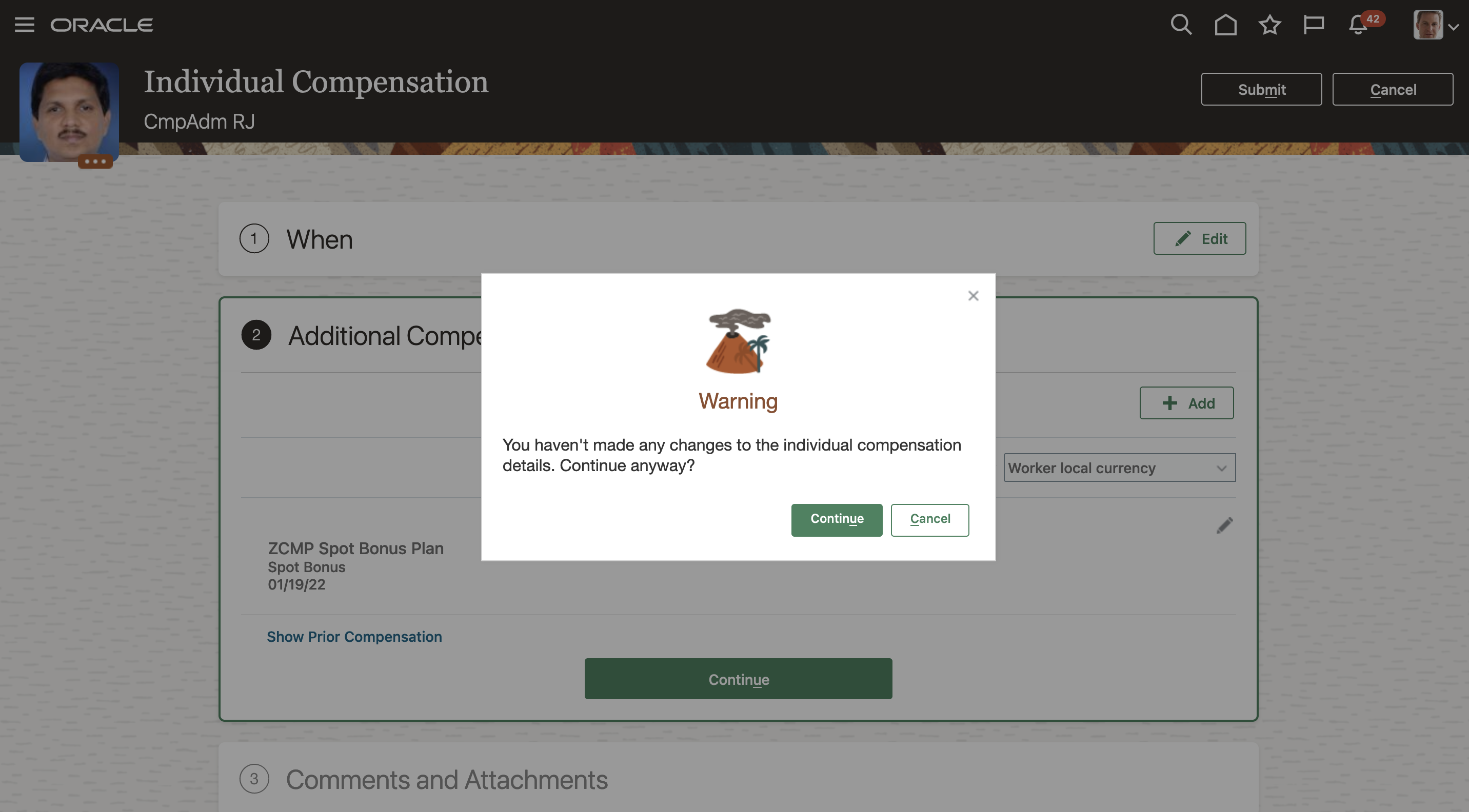
Warning When Trying to Submit Without New Contributions or Changes to Existing Contributions
This enhancement lets you prevent blank submissions, minimize manual intervention, improves accuracy and relevance.
Steps to Enable
You need to configure these profile options to error or warn when there are no changes:
| Profile | Description |
|---|---|
| ORA_CMP_PERSONAL_CONTRIBUTION_BLANKSUBMIT |
Allow personal contribution submission without any change |
| ORA_CMP_INDIVIDUAL_COMPENSATION_BLANKSUBMIT |
Allow individual compensation submission without any change |
| ORA_CMP_ADMINISTER_COMPENSATION_BLANKSUBMIT |
Allow administer compensation submission without any change |
To configure a profile option, complete these steps to the Setup and Maintenance work area:
- Search for and click the Manage Administrator Profile Values task.
- Search for and select the profile option.
- Set the Level to Site.
- In the Profile Value field, choose Error, Warning or Allow.

Setup to Prevent Personal Contribution Submission Without Changes
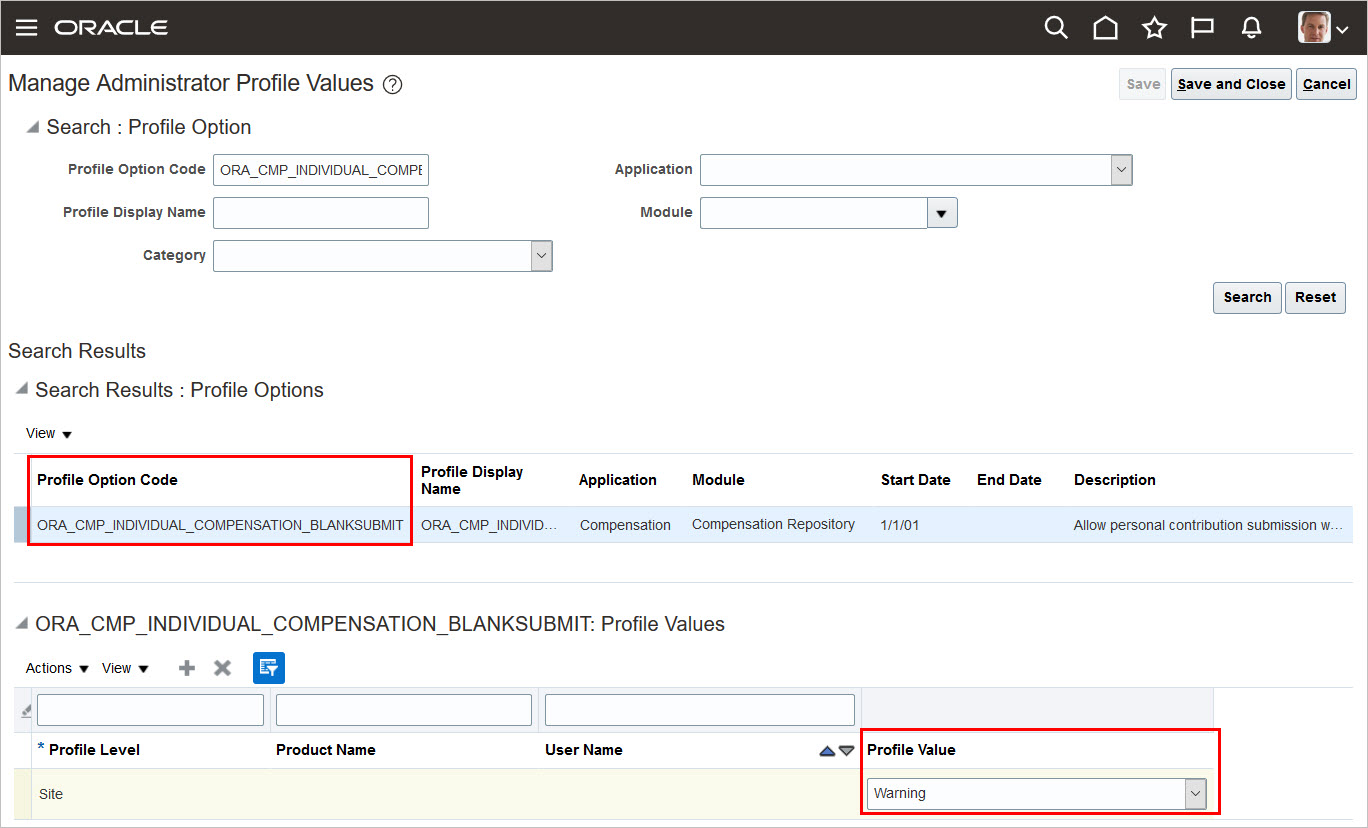
Setup to Warn Individual Compensation Submission Without Changes
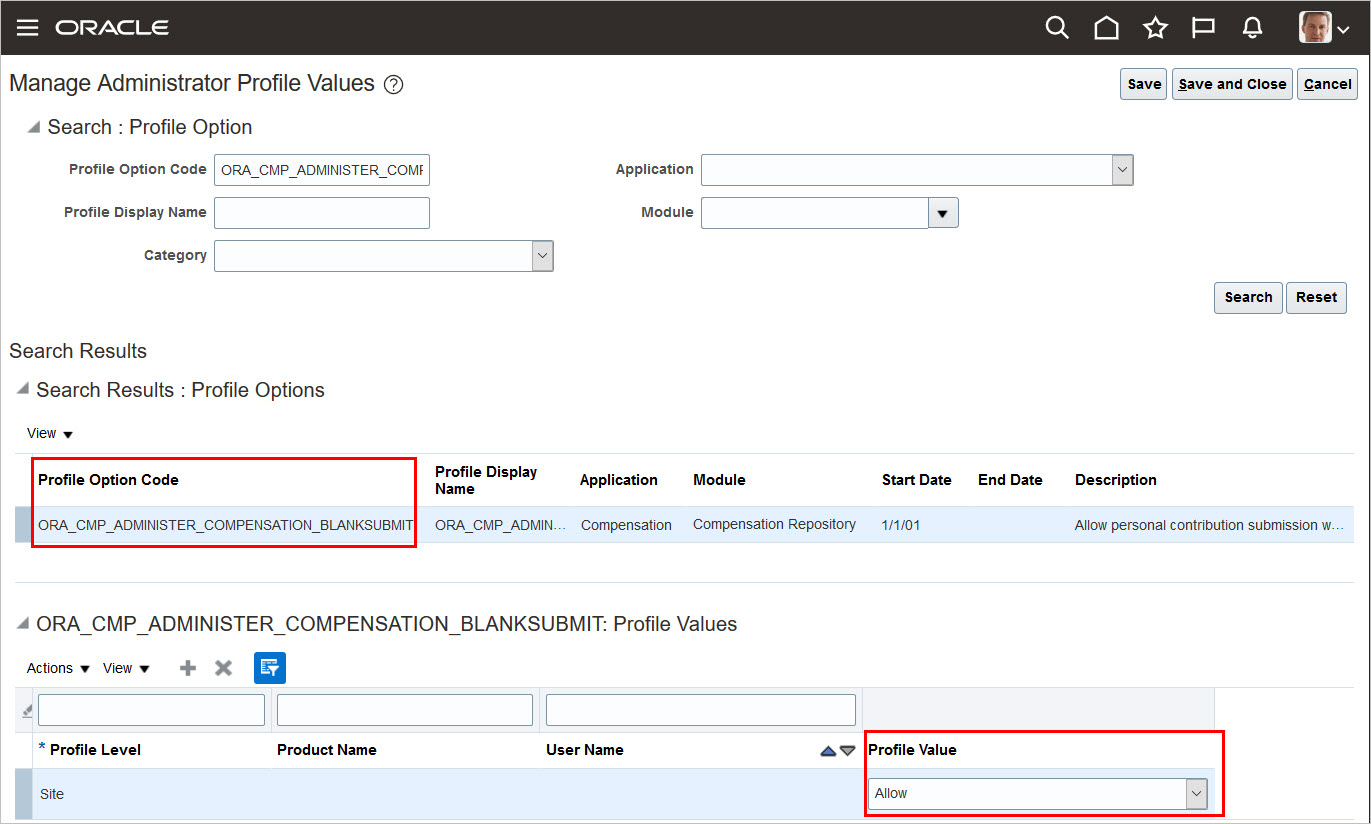
Setup to Allow Administer Compensation Submission Without Changes
Tips And Considerations
- Changes made in the Individual Compensation section are tracked to show the warning or error.
- This feature doesn't impact approvers ability to edit and submit without making changes.
Carry Forward an Optional Standard Component
You can now carry forward an optional standard component to the next salary proposal or limit it to only the current salary proposal. For example, you set a car allowance as an optional component to carry forward. After a manager explicitly includes it in a salary proposal, all future salary proposals for that person continue to include the car allowance component until it’s explicitly removed.
The previous behavior of optional components is to not carry forward to the next salary proposal. The optional setting for existing optional components will be set to No carry forward. If you update them to be carried forward, the effect will be seen in new salary proposals.
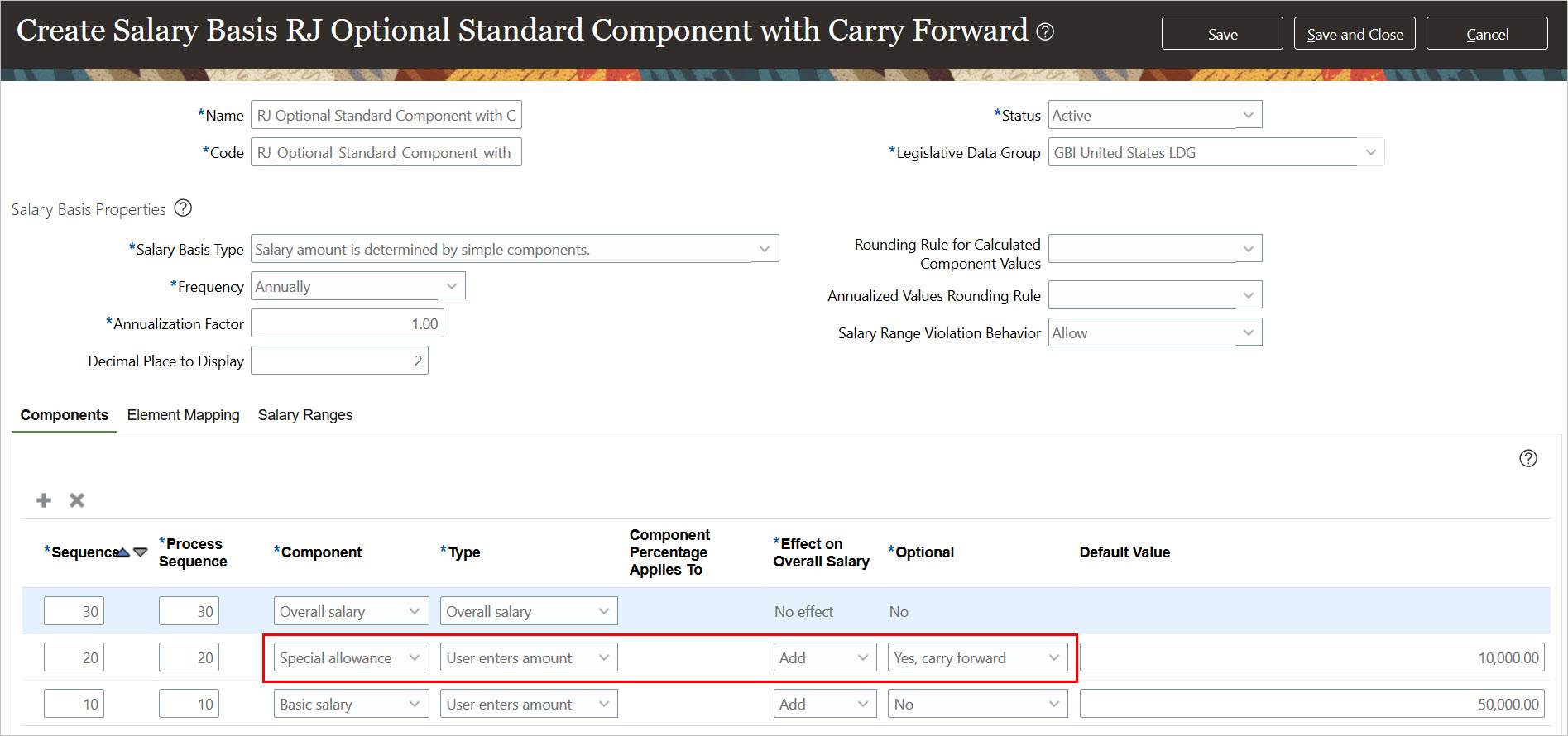
Salary Basis Setup Showing an Optional Standard Component Configured to Carry Forward
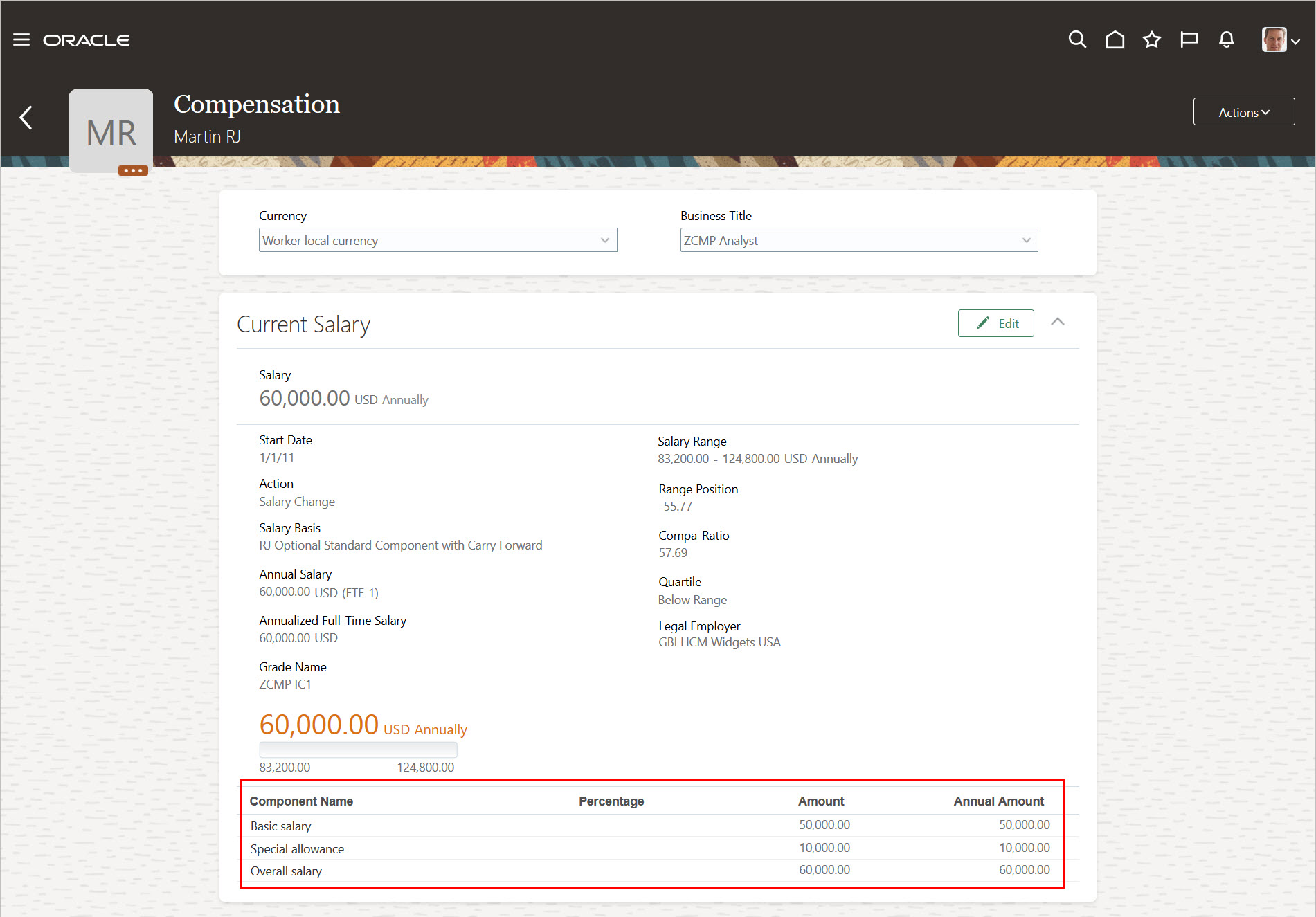
Existing Salary Proposal with the Optional Standard Component
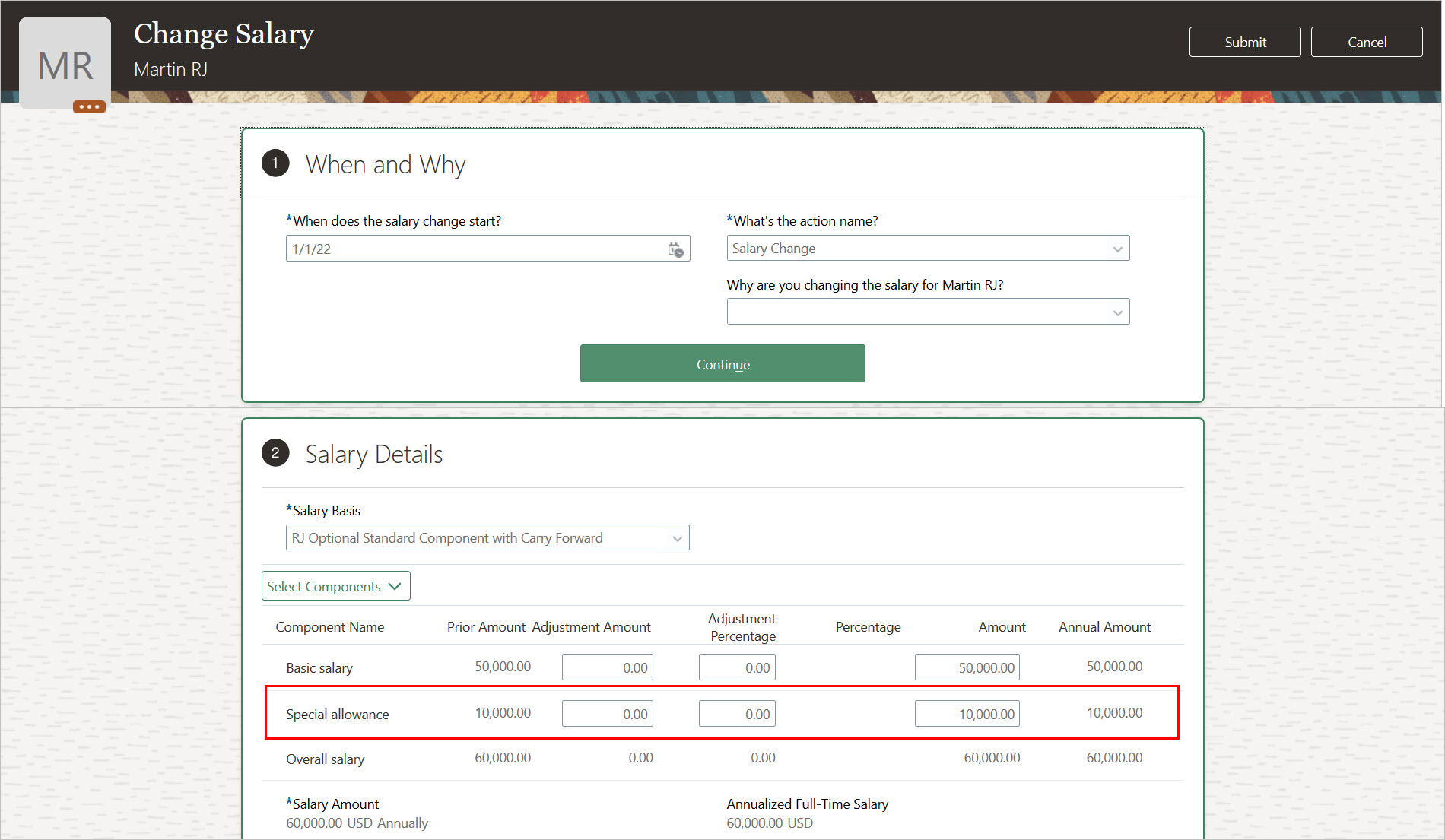
New Salary Proposal Also Carrying Forward the Optional Standard Component
This enhancement lets you minimize manual intervention and prevent data errors
Steps to Enable
You don't need to do anything to enable this feature.
Tips And Considerations
| Value in Optional LOV | Effect |
|---|---|
| No |
The standard component is required and will appear in all salary changes. |
| Yes, don't carry forward |
The standard component is optional and won't automatically appear in future salary changes. |
| Yes, carry forward |
The standard component is optional, but continues to appear in future salary changes. |
Key Resources
For more information about standard salary components, see these key resources:
- The Salary Basis chapter in the Implementing Workforce Compensation guide in Oracle Help Center
- The Standard Components Salary Basis Introduction document (ID 2717145.1) in My Oracle Support
You now see a warning that you're correcting the salary when a salary record exists on the proposed salary change date. The warning appears for the responsive Change Salary, Salary History, and employment change actions, such as Promote, Transfer, Change Assignment. For example, a person is currently making $80,000 and their salary is set to increase to $90,000 on January 1, 2022. You're promoting them effective January 1, 2022 and also increasing their salary to $95,000 effective that same day. In the Promote flow, you see their current salary of $80,000 and the proposed salary defaulted to $90,000. The new warning makes you aware that you're correcting an existing salary instead of adding new salary.
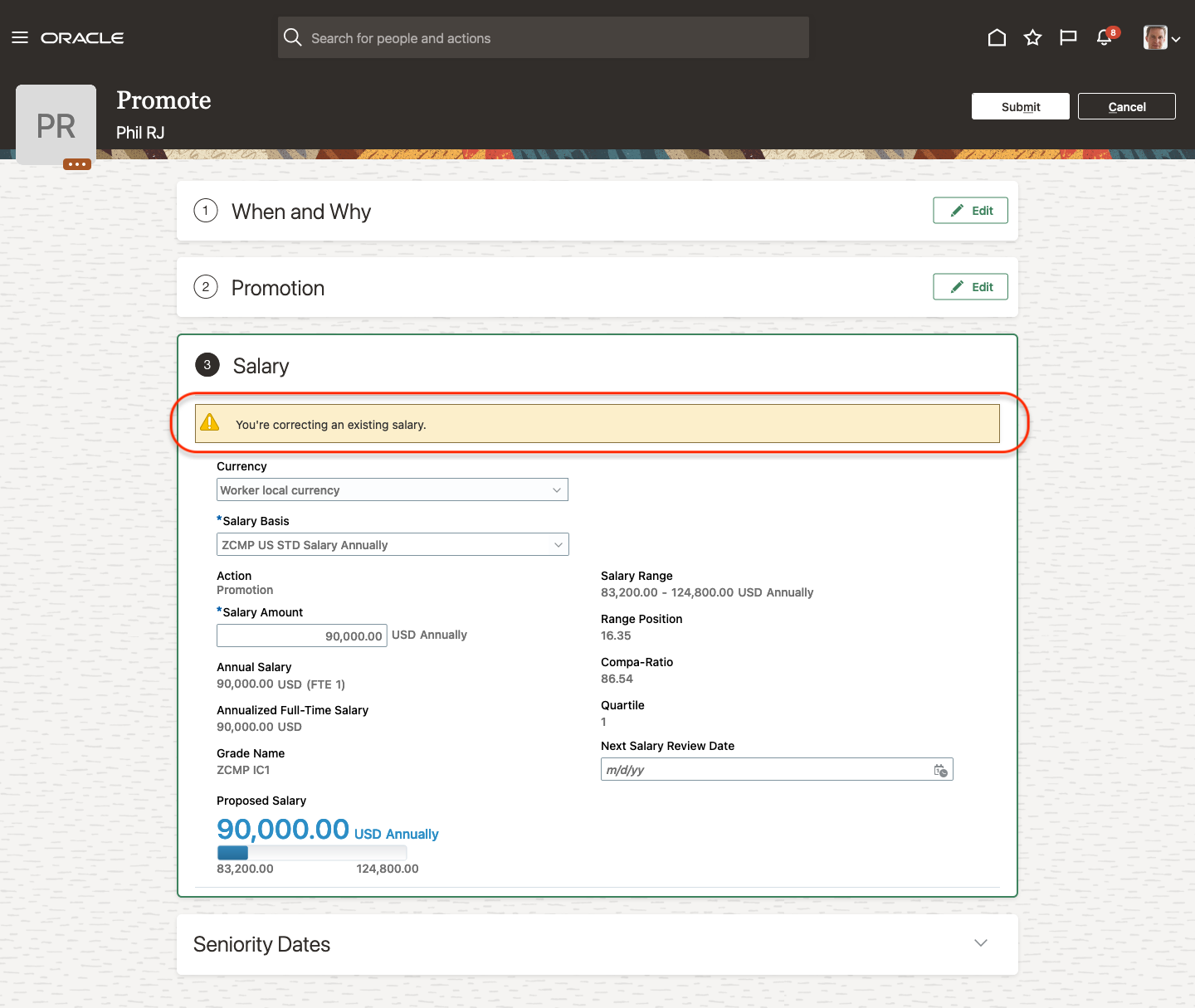
Warning in the Promote Action for Global HR
This enhancement minimizes data errors. It also provides better visibility into current changes so the proposer can make an informed decision.
Steps to Enable
You don't need to do anything to enable this feature.
Tips And Considerations
When you're using autocomplete defaulting rules for the Salary business object, the warning also helps you identify cases where defaulting won't happen. The default rules run for only new salaries. They don't run for corrections.
Honor Salary Data Security While Copying From Source Assignment
You can now prevent people from proposing salary during a Global Transfer action, when the source and destination legal employer have the same legislative data group and they don’t have data security access to the source assignment salary. Or you can prevent copying source assignment salary, but still let people propose it.
The current and the default behavior is to copy salary from the source assignment and let people change it whenever the source and target legal employer have the same legislative data group. You can change this behavior to only let people enter salary, or to not copy nor let people enter it.

The Proposer Doesn't Have Data Security Access to the Source Assignment Salary But Can Still Propose Salary
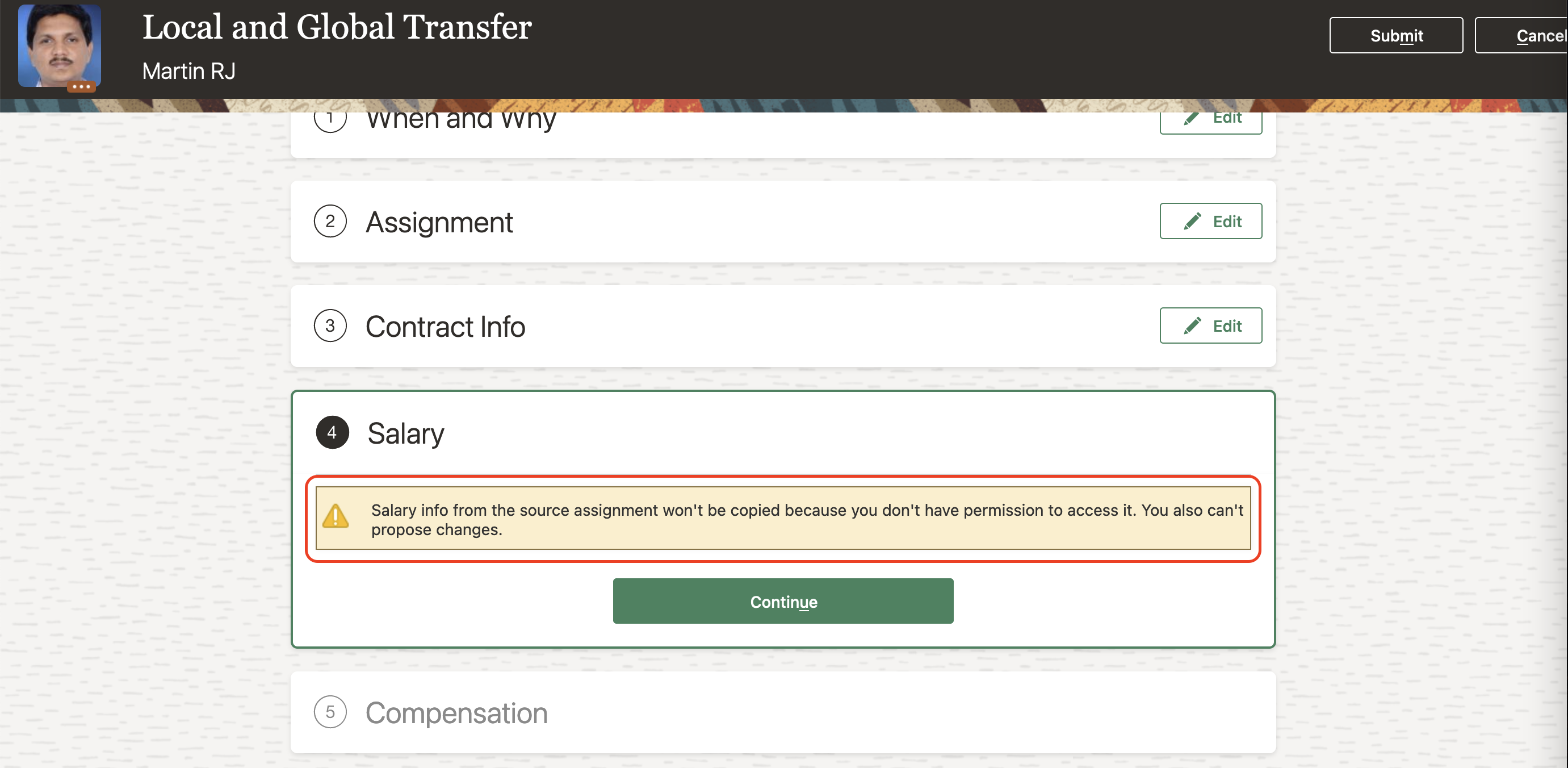
The Proposer Doesn't Have Data Security Access to the Source Assignment Salary and Can’t Propose Salary Either
This enhancement improves salary data security while supporting your policies about proposing salary changes.
Steps to Enable
You need to set up this profile option:
| Profile Name / Code | Profile Value | Outcome |
|---|---|---|
| ORA_CMP_LGT_WHEN_MISSING_SALARY_DATASECURITY |
Copy and allow entry (default) |
Copy the salary from the source assignment and let people make changes |
| Don’t copy but allow entry |
Don't copy the salary from the source assignment, but let people propose a new salary |
|
| Don’t copy nor allow entry |
Don't copy the salary from the source assignment and don't let people propose a new salary |
To configure the profile option, complete these steps in the Setup and Maintenance work area:
- Search for and click the Manage Administrator Profile Values task.
- Search for and select the profile option.
- Set the Level to Site.
- In the Profile Value field, select the appropriate option.
Tips And Considerations
- The feature goes into effect only when the proposer doesn't have data security access to the source assignment salary and the source and destination legal employers have the same legislative data group.
- Salary is copied from the source assignment to the destination assignment whenever the legislative data group is same, and for certain salary basis types. For more details, see the Changing a Worker's Legal Employer in HCM Cloud document (ID 2649381.1) on My Oracle Support.
- When salary can't be copied from the source assignment to the destination assignment, then people can propose salary regardless of the profile configuration.
- When you have data security access on the source assignment salary, future salary is copied for certain salary basis types. But when you don’t have access, future salary won't be copied, even when people can propose the salary. For more details on future salary copy, see Future Salary Updates Move During Legal Employer Change Introduction in 21B What’s New.
Honor Individual Compensation Data Security While Copying from Source Assignment
You can now prevent people from proposing individual compensation during a Global Transfer action, when the source and destination legal employer have the same legislative data group and the people don’t have data security access to the source assignment individual compensation awards. Or you can prevent copying source assignment individual compensation awards, but still let people propose it.
The current and default behavior's to copy individual compensation awards from the source assignment and let people change it, whenever the legislative data group's same. You can change this behavior to only let people enter, or to not copy nor let people enter it.
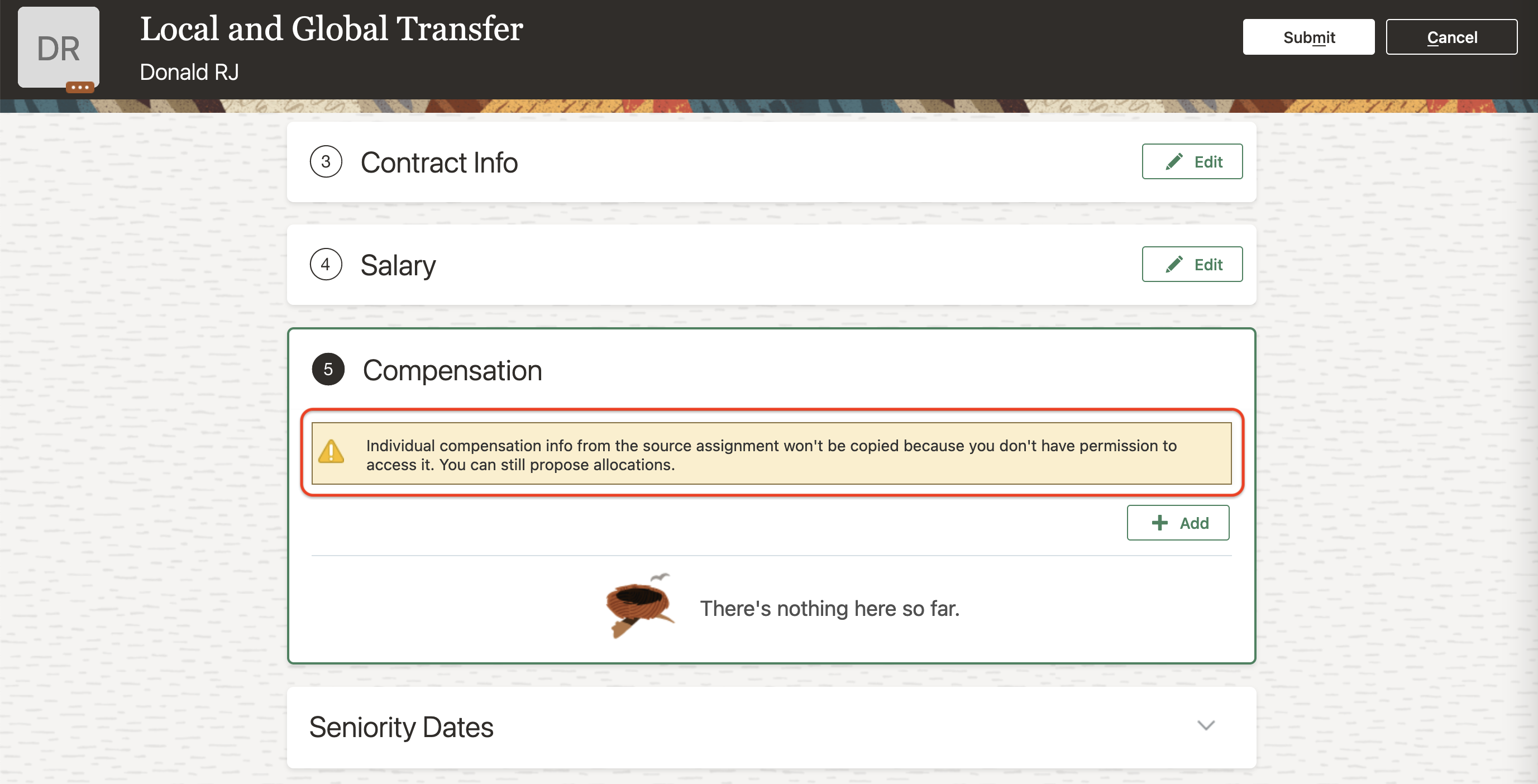
The Proposer Doesn't Have Data Security Access to the Source Assignment Individual Compensation Awards But Can Still Propose
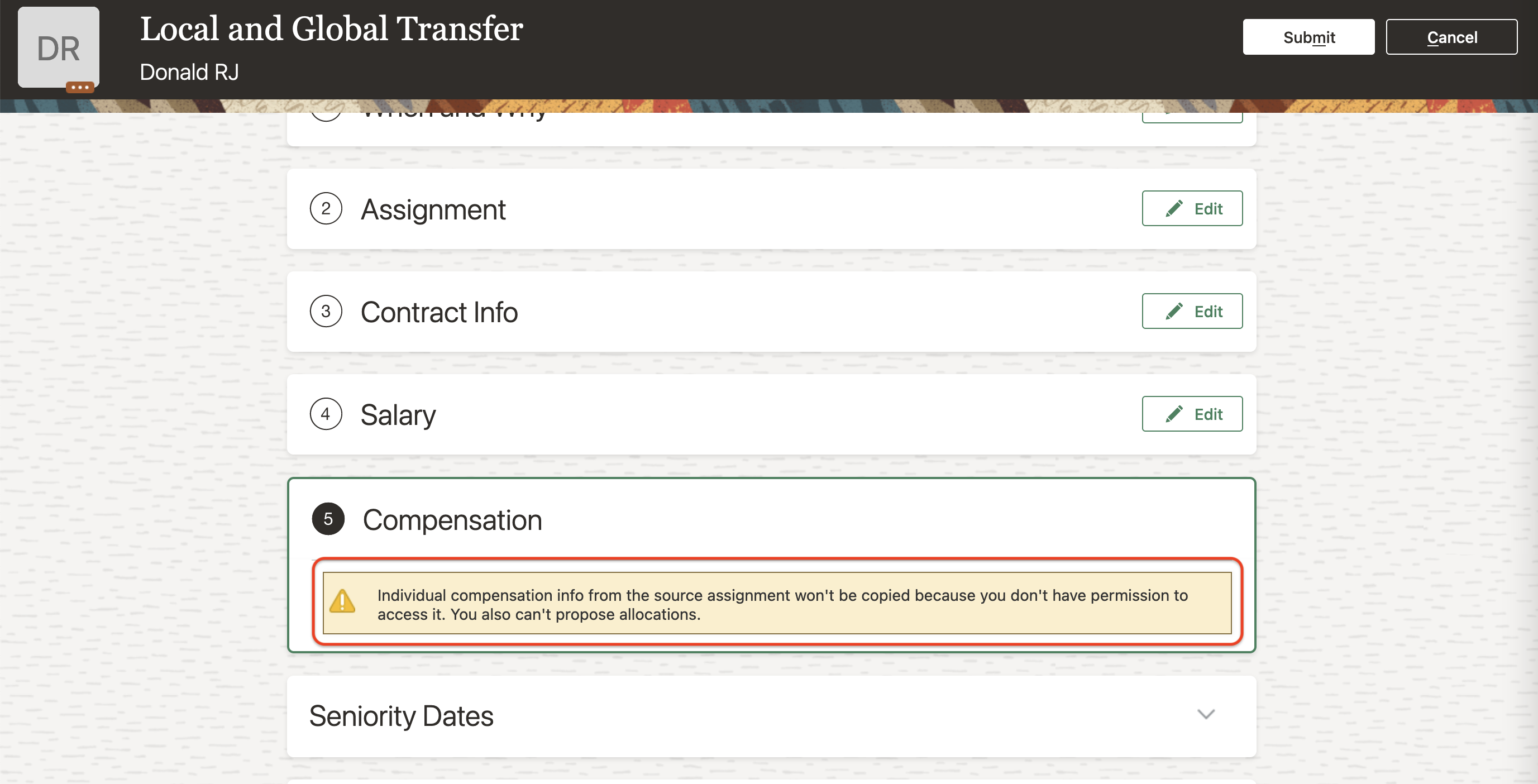
The Proposer Doesn't Have Data Security Access to the Source Assignment Individual Compensation Awards and Can’t Propose Salary Either
This enhancement improves salary data security while supporting your policies about proposing salary changes.
Steps to Enable
You need to set up this profile option:
| Profile Name / Code | Value | Outcome |
|---|---|---|
| ORA_CMP_LGT_WHEN_MISSING_IC_DATASECURITY |
Copy and allow entry (default) |
Copy the individual compensation awards from the source assignment and let people make changes. |
| Don’t copy but allow entry |
Don't copy the individual compensation awards from the source assignment, but let people propose a new. |
|
| Don’t copy nor allow entry |
Don't copy the individual compensation awards from the source assignment and don't let people propose too. |
To configure the profile option, complete these steps in the Setup and Maintenance work area:
- Search for and click the Manage Administrator Profile Values task.
- Search for and select the profile option.
- Set the Level to Site.
- In the Profile Value field, select the appropriate option.
Tips And Considerations
- The feature goes into effect only when the proposer doesn't have data security access to the source assignment salary and the source and destination legal employers have the same legislative data group.
- Individual compensation awards are copied from the source assignment to the destination assignment whenever the legislative data group is same. For more details, see the Changing a Worker's Legal Employer in HCM Cloud document (ID 2649381.1) on My Oracle Support.
- When individual compensation can't be copied from the source assignment to the destination assignment, then people can propose individual compensation awards regardless of the profile configuration.
Enable Save and Save and Close Buttons in Salary Actions using HCM Transaction Design Studio
You can now configure the Save and Save and Close buttons in responsive page salary actions using HCM Transaction Design Studio settings. And you can make them visible for only certain actions. Earlier you had to use Page Composer to customize the page and include the buttons. And you couldn’t make them visible for only certain actions.
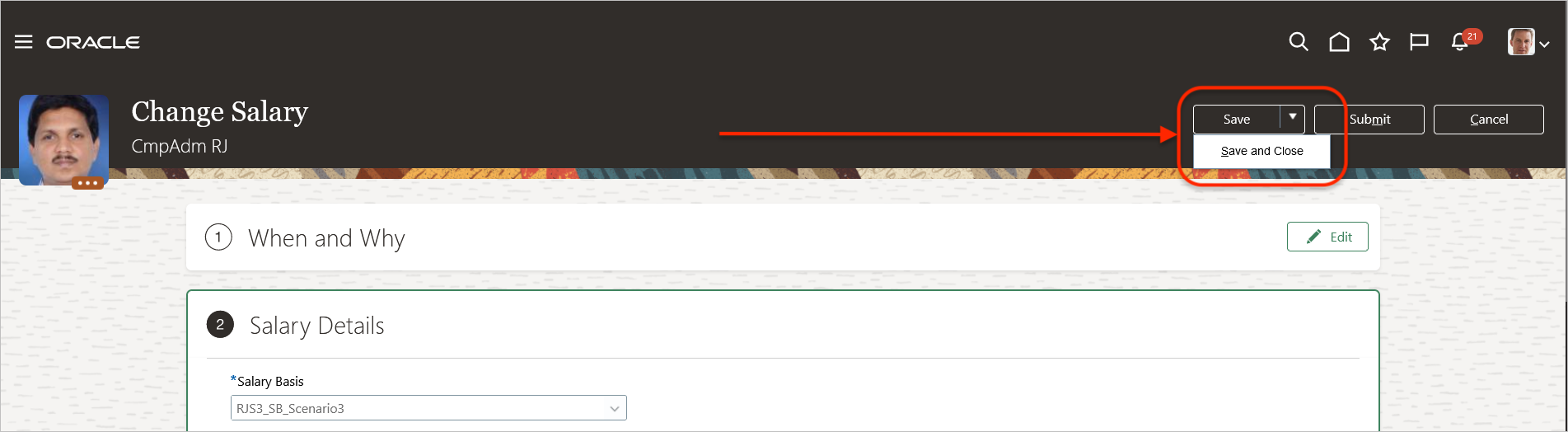
Change Salary Action for Line Manager with the Save and Save and Close Buttons
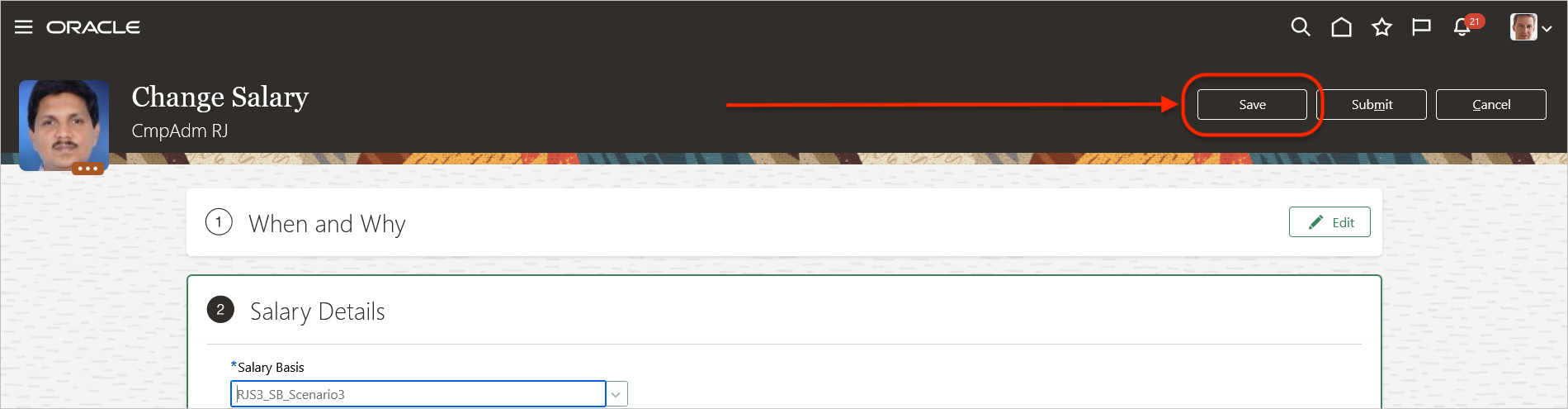
Change Salary Action for Compensation Manager with the Save Button
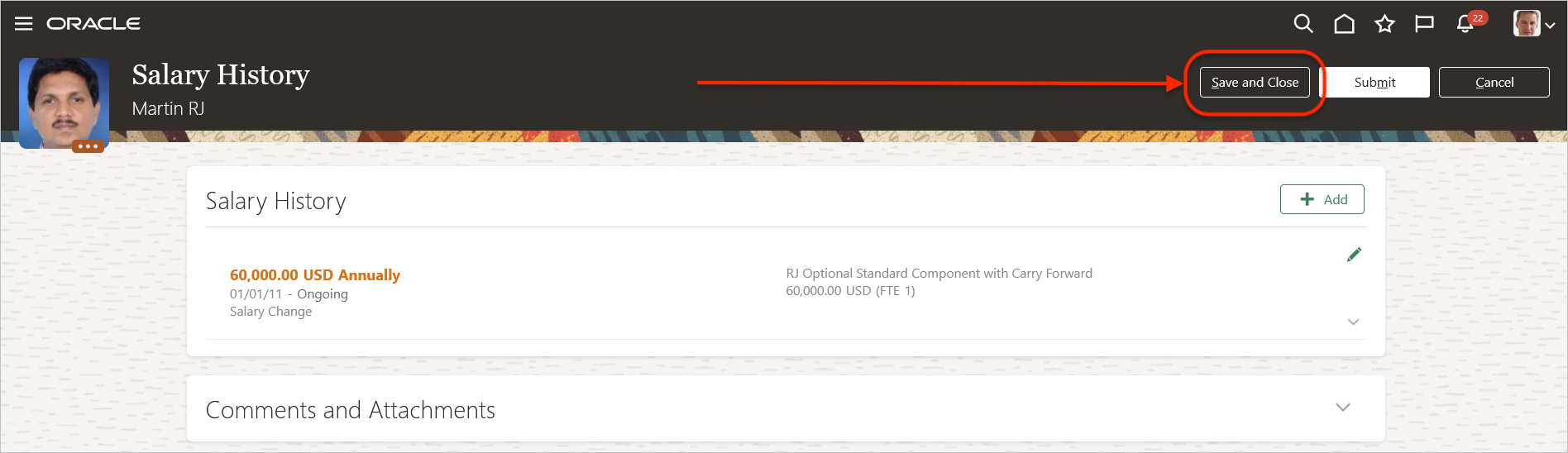
Salary History Action with Only the Save and Close Button
When you do an action that has a saved transaction, you're prompted to either resume or discard the saved transaction.
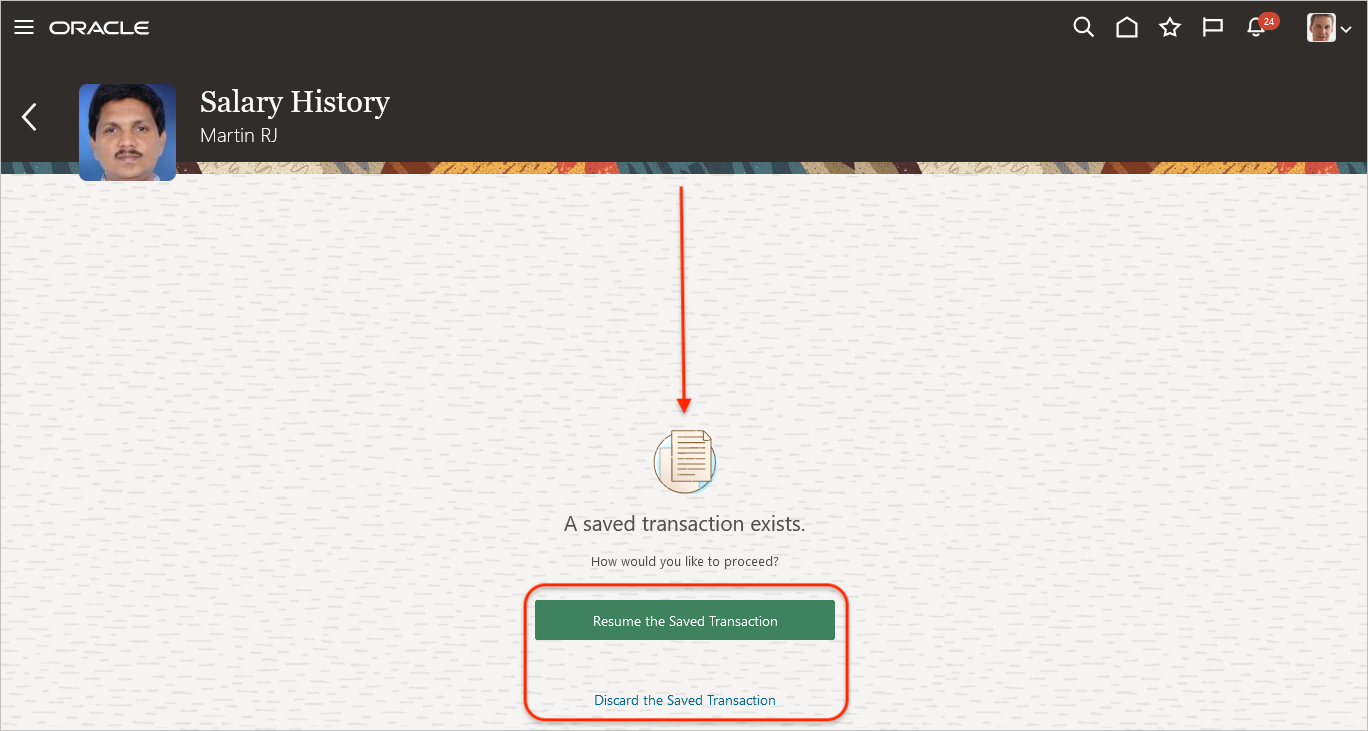
Resume or Discard the Saved Administer Compensation Transaction
This enhancement reduces the customization maintenance and improves design flexibility.
Steps to Enable
To define a rule for the Change Salary action in Transaction Design Studio use these steps:
- Enable a sandbox with Transaction Design Studio.
- In Transactional Design Studio, click Change Salary.
- Name the rule and enter a description.
- Set other parameters as required.
- In the Page Attributes field, select Reference Info Region for Line Manager or Reference Info Region for Compensation Manager
- On the toolbar, click the Edit icon
- Select Save, Save and Close, or both.
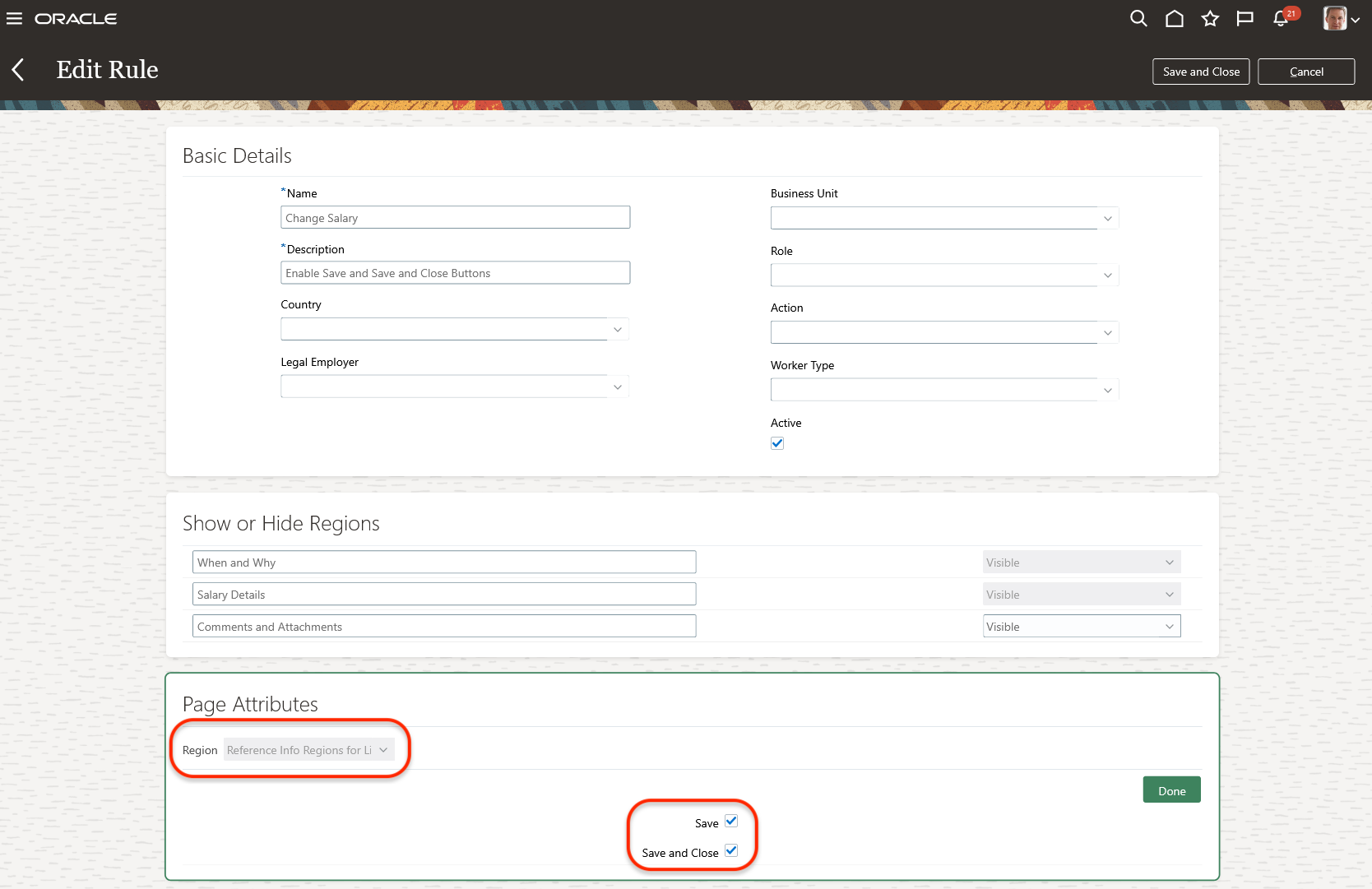
Reference Info Region for Line Manager
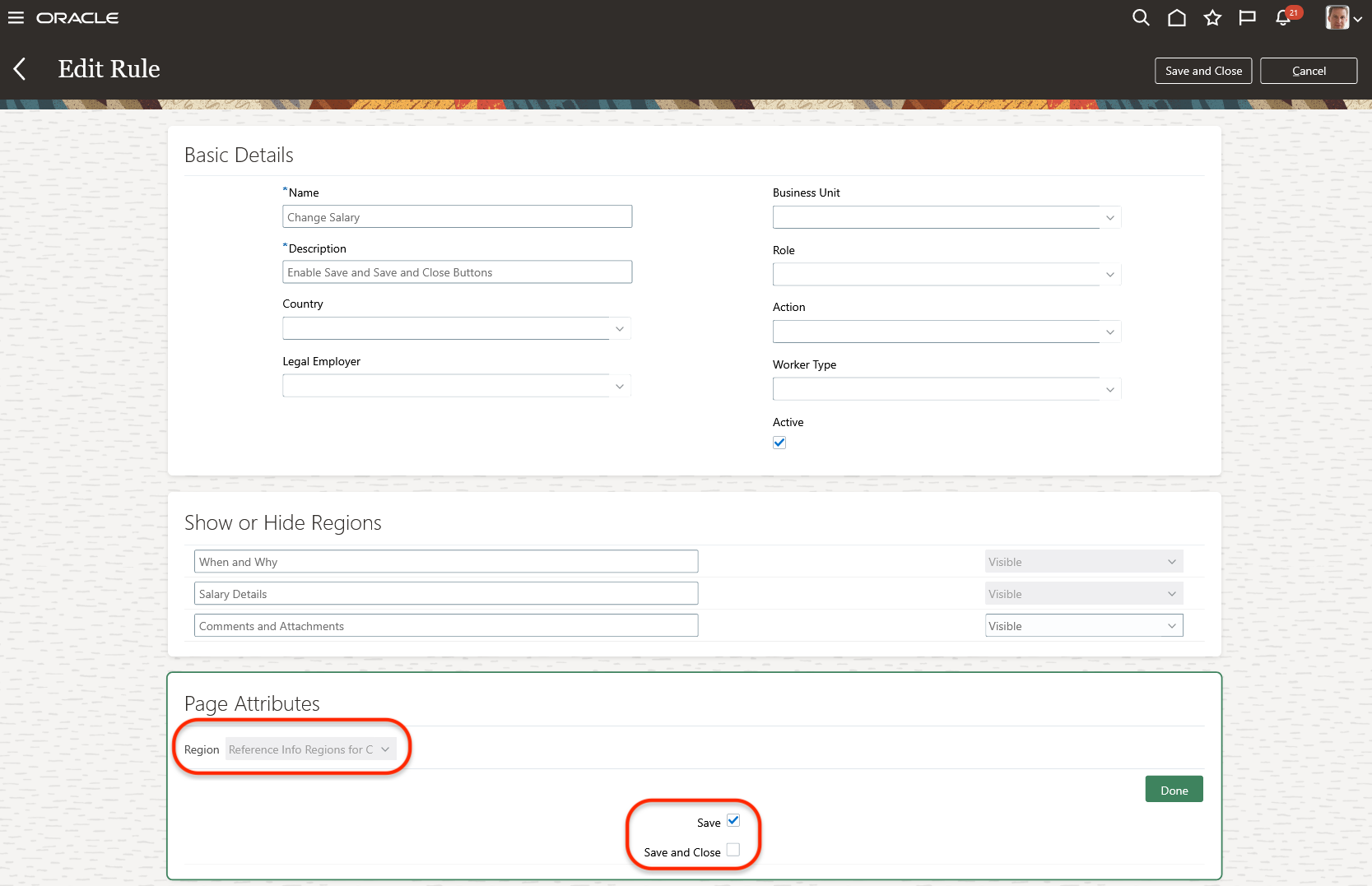
Reference Info Region for Compensation Manager
- Click Done
- Save and close the rule.
To define a rule for the Salary History action in Transaction Design Studio, use these steps.
- Enable a sandbox with Transactional Design Studio
- In Transactional Design Studio, click Salary History.
- Name the rule and enter a description.
- Set other parameters as required.
- In the Page Attributions field, select Salary History.
- On the toolbar, click the Edit icon.
- Select Save, Save and Close, or both.
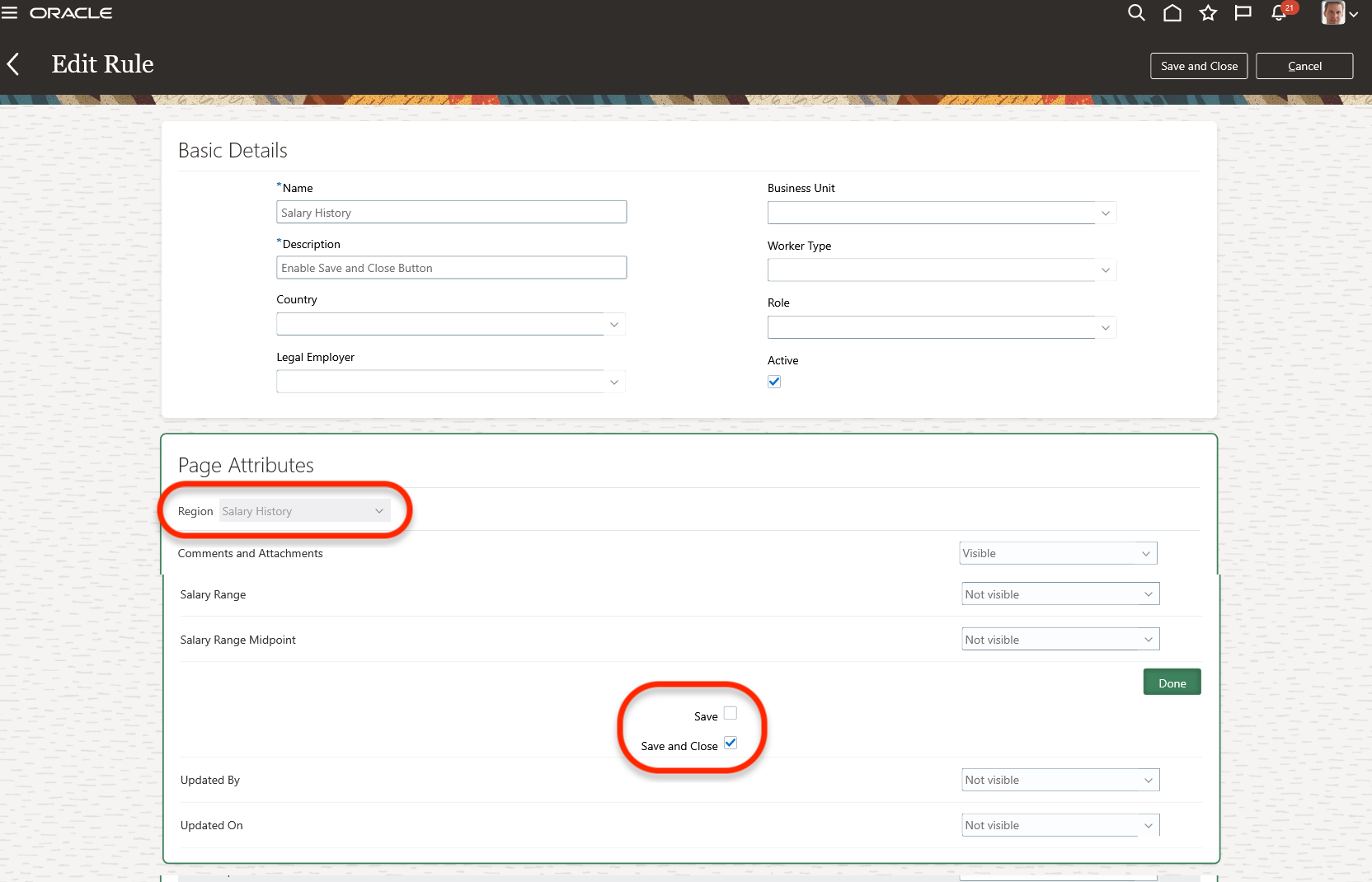
Show Only the Save and Close Button
- Click Done.
- Save and close the rule.
Tips And Considerations
You see the resume or discard transaction option only when you saved the same transaction earlier. For example, when you save the transaction using the line manager's Change Salary action, you can see the resume or discard option only when you use the line manager's Change Salary action. You won't see it when you use the compensation manager's Change Salary action. And you won't see it if you edit salary using the Compensation Info or Salary History tasks.
Also, your saved transaction's lost when another person submits the same transaction for the same person. For example, you save a salary transaction for your subordinate Bob. When anyone else submits a salary transaction for Bob, your saved transactions are lost.
Key Resources
- For more information about Transaction Design Studio for HCM Experience Design Studio, see the enhancements in the 21D What's New - Transaction Design Studio for HCM Experience Design Studio Enhancements.
Enable the Save and Save and Close Buttons in Individual Compensation Actions Using HCM Transaction Design Studio
You can now configure the Save and Save and Close buttons in individual compensation actions using HCM Transaction Design Studio settings. And you can make them visible only for certain actions. Earlier you had to use Page Composer to customize the page and include the buttons. And you could make them visible only for certain actions.
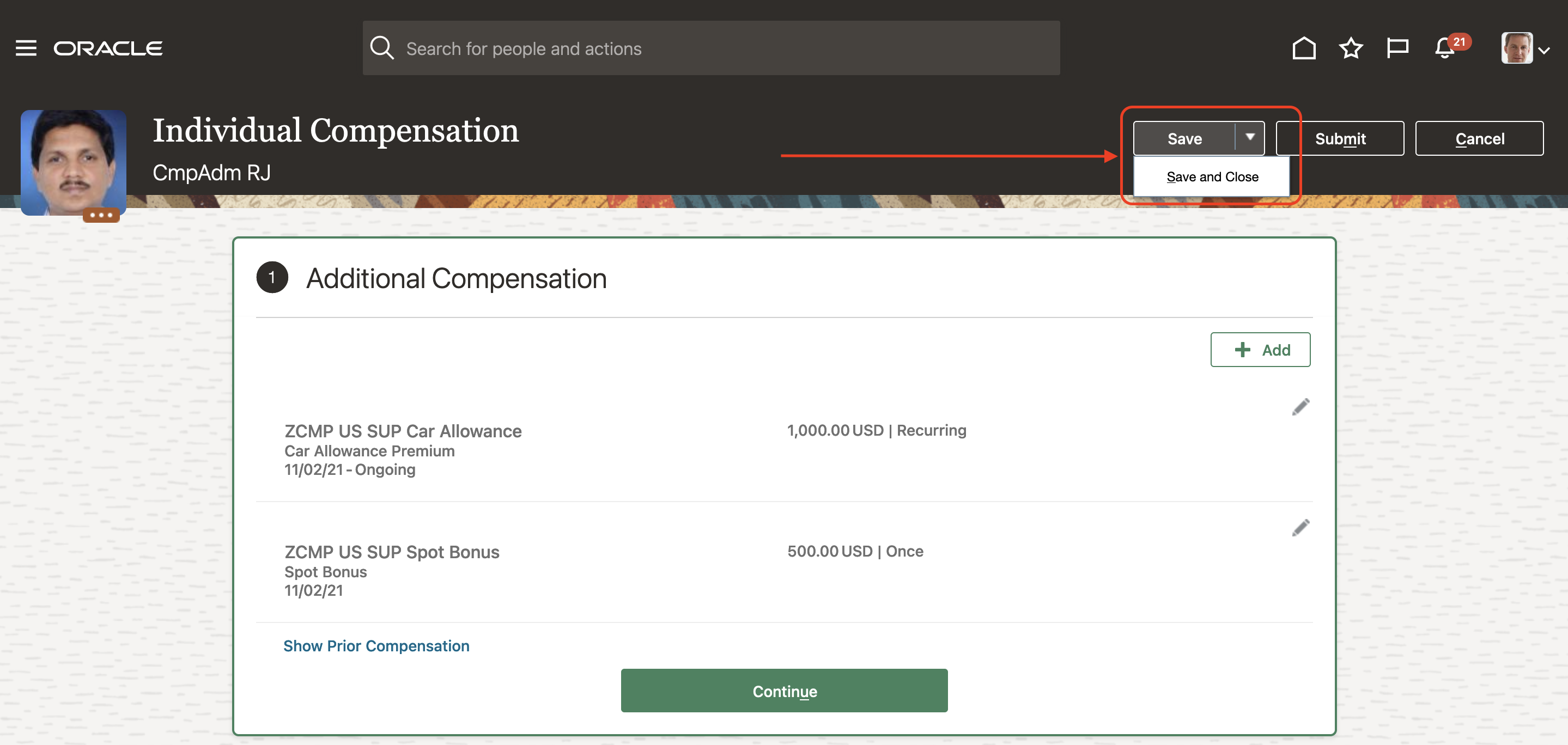
Individual Compensation Action with the Save and Save and Close Buttons
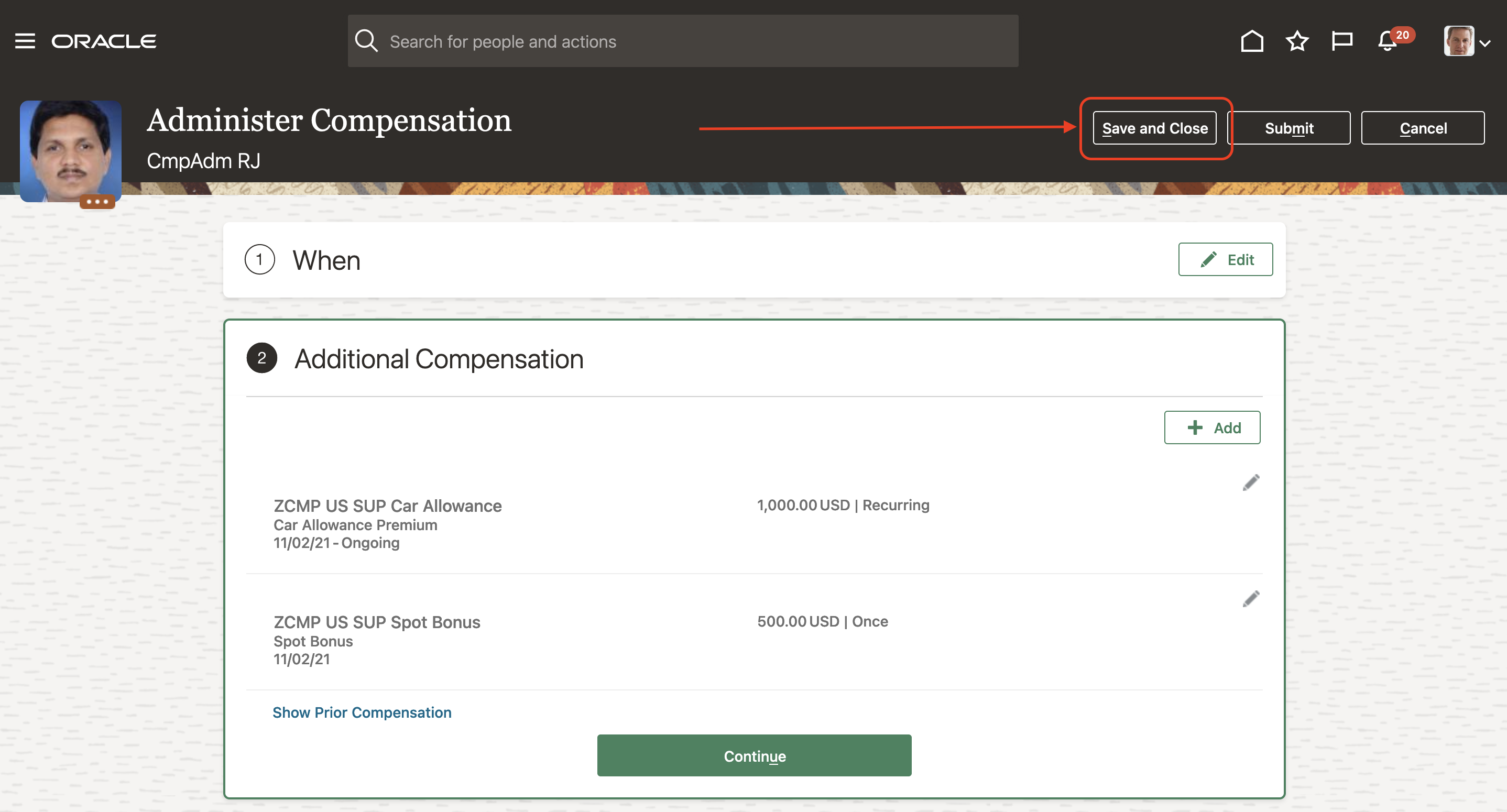
Administer Compensation Action with Only the Save and Close Button
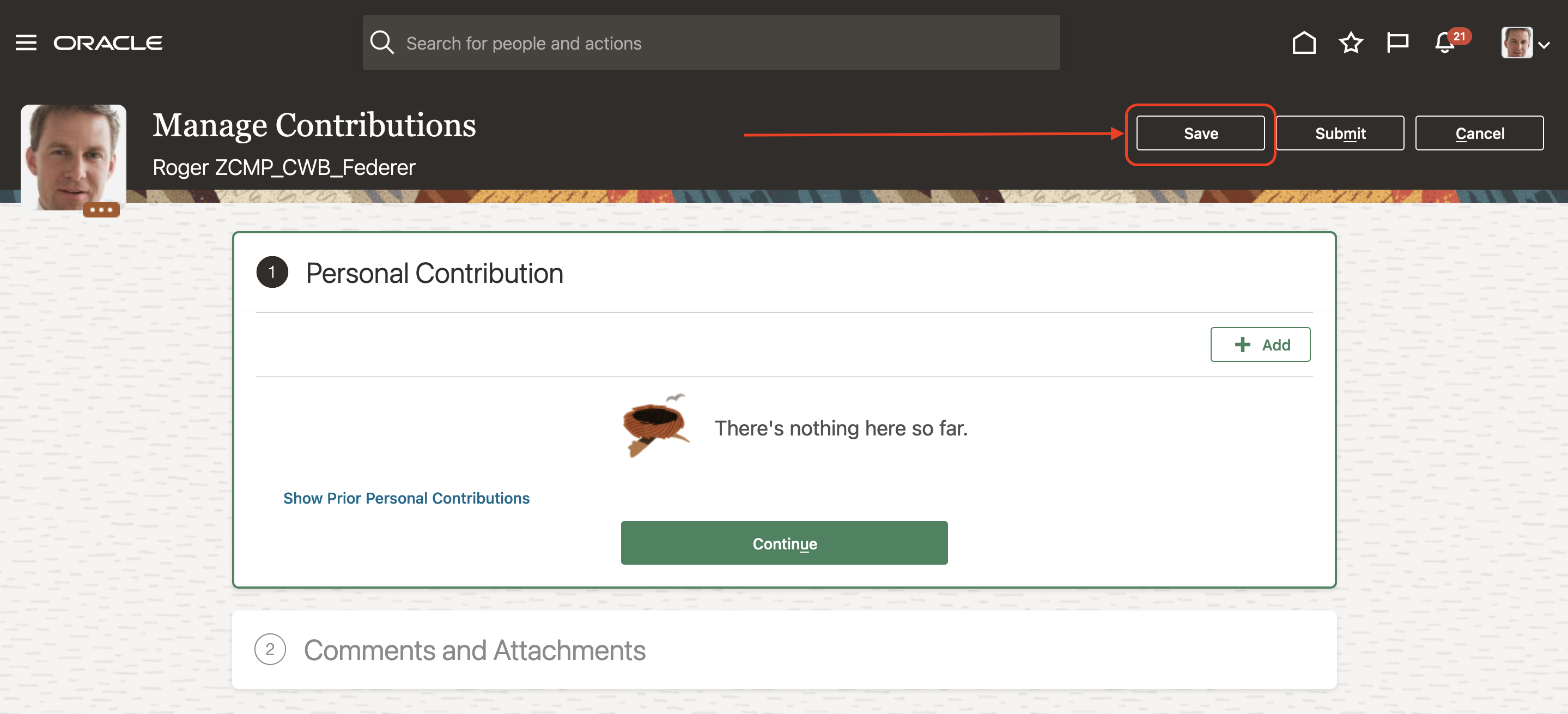
Personal Contribution Action with Only the Save Button
When you do an action that has a saved transaction, you're prompted to either resume or discard the saved transaction.
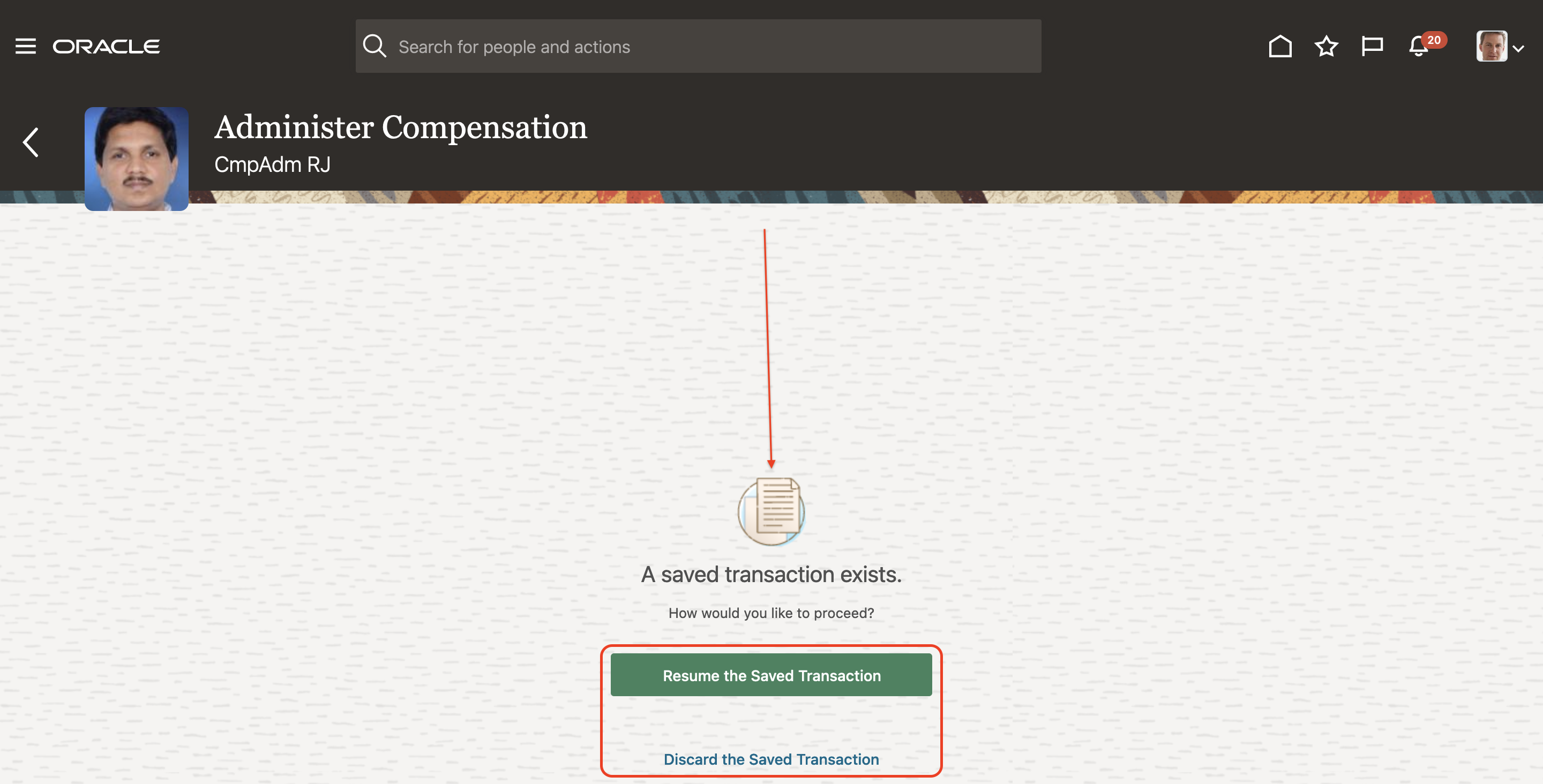
Resume or Discard the Saved Administer Compensation Transaction
This enhancement reduces the maintenance of customizations and improve design flexibility.
Steps to Enable
Define a rule for each of action using HCM Transaction Design Studio using these steps.
- Enable a Sandbox.
- In HCM Transaction Design Studio, choose an action, either Manage Personal Contribution, Administer Compensation, or Manage Compensation.
- Name the rule and enter a description.
- Set other parameters as required.
- Set Page Attributes to Reference Info Region.
- On the tool bar, click the Edit icon
- Select the Save and Save and Close options.
- Click Done.
- Save and close the rule.
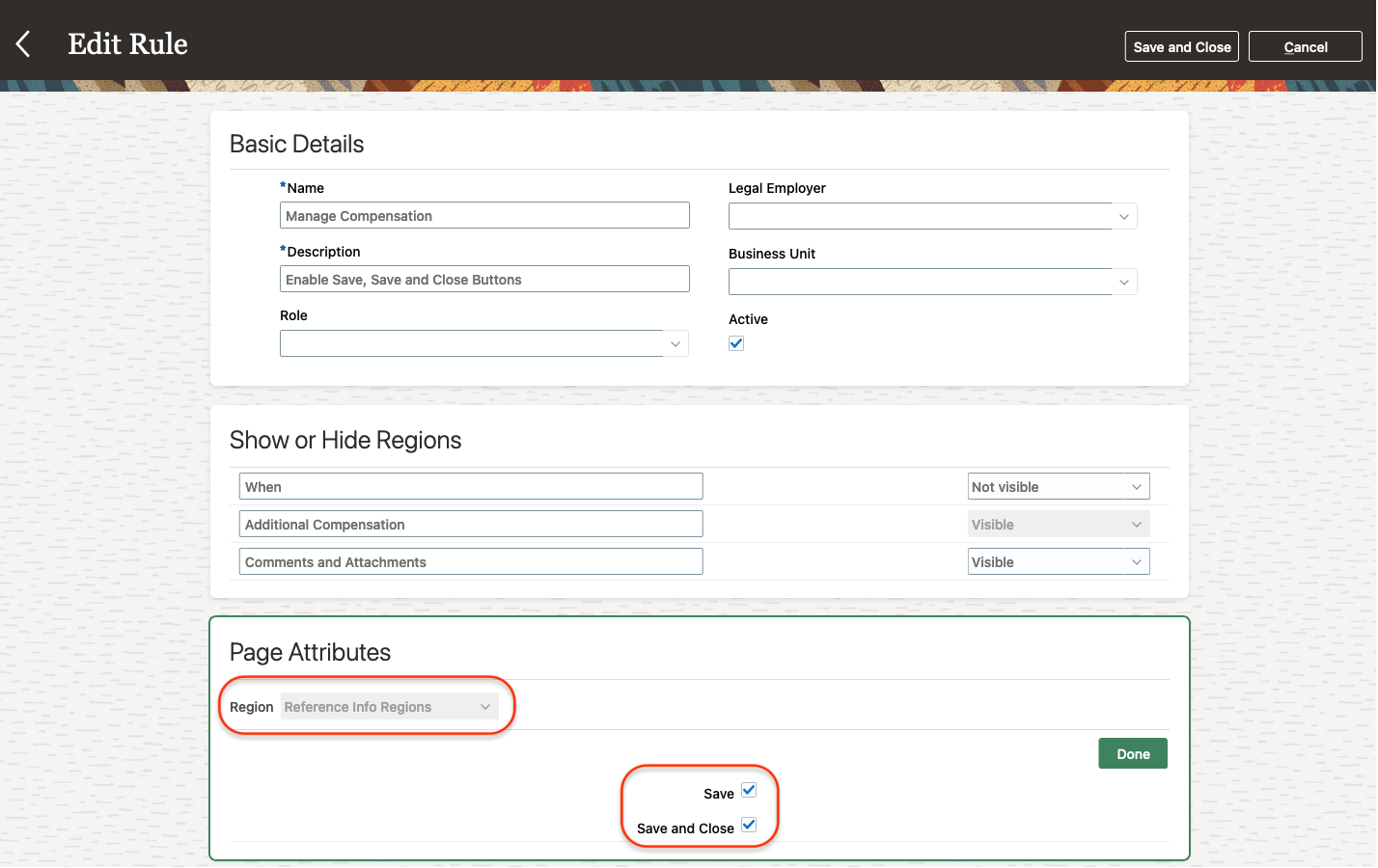
Transaction Design Studio Rule for Manage Compensation to Show Both Save and Save and Close Buttons
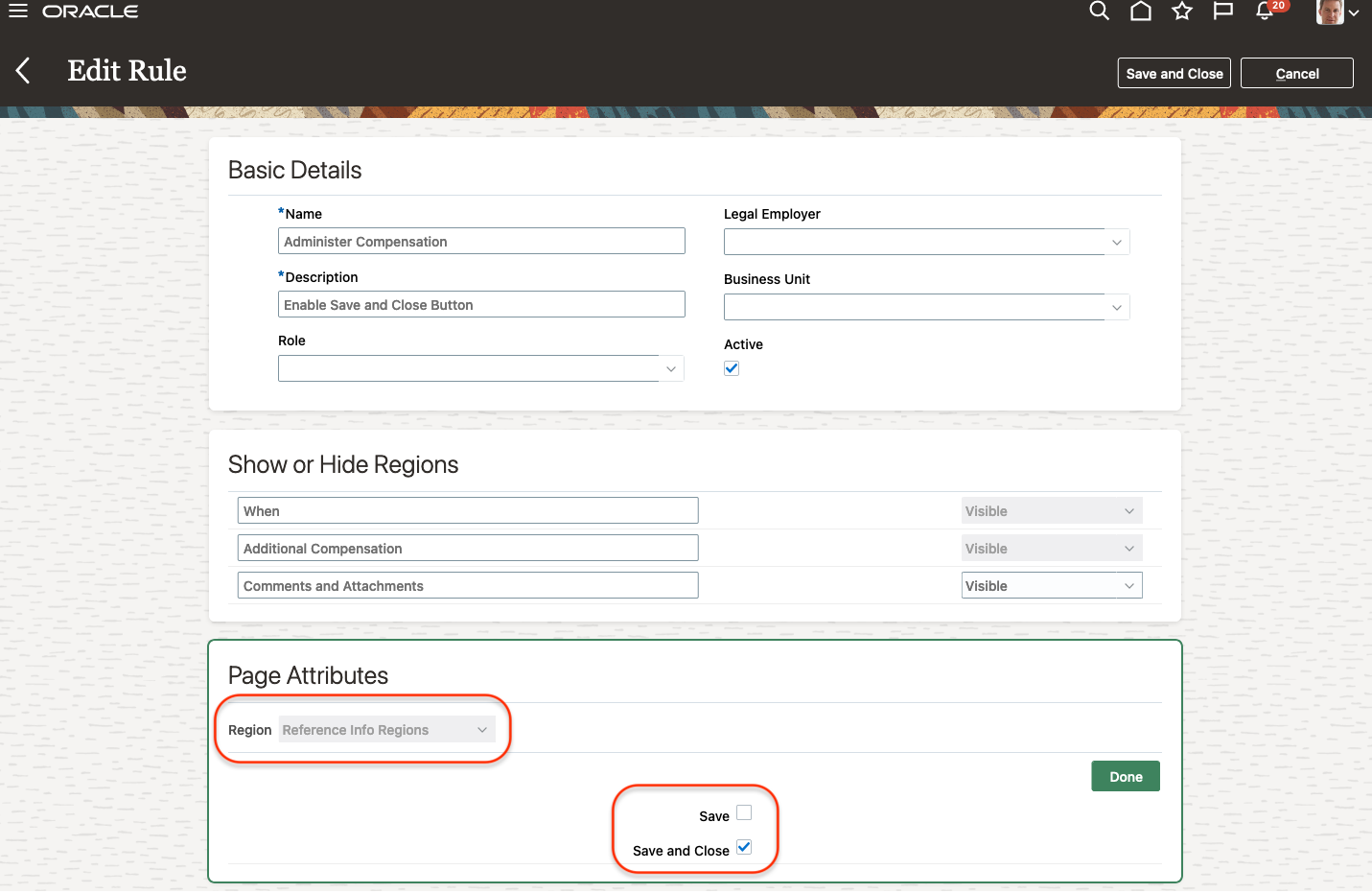
Transaction Design Studio Rule for Administer Compensation to Show Only the Save and Close Button
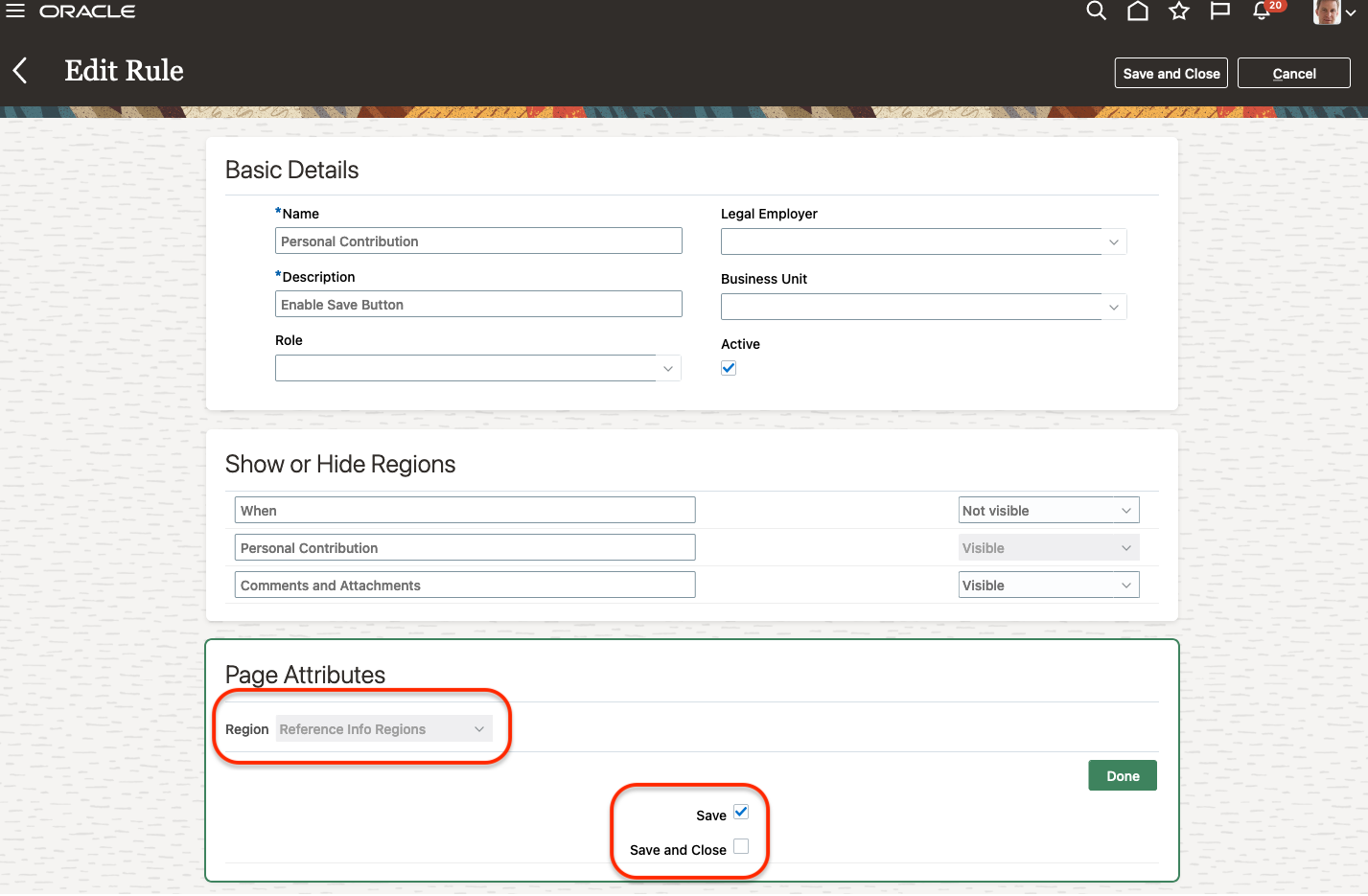
Transaction Design Studio Rule for Manage Personal Contribution to Show Only the Save Button
Tips And Considerations
You see the resume or discard transaction option only when you saved the same transaction earlier. For example, when you save the transaction using the Individual Compensation action, you can see the resume or discard option only when you use the Individual Compensation action. You won't see it when you use the Administer Compensation action.
Your saved transactions are lost when another person submits the same transaction for the person. For example, you save an individual compensation transaction for your subordinate Bob. When anyone else submits an individual compensation transaction for Bob, your saved transactions are lost.
Key Resources
- For more information about Transaction Design Studio, see the 21D feature Transaction Design Studio for HCM Experience Design Studio Enhancements.
Change in Transaction Design Studio Show or Hide Regions Behavior for Change Salary
When you configure the Show or Hide Regions for Change Salary action in Transaction Design Studio, it will now affect line managers, who use either the My Team > Change Salary or My Team > Compensation > Change Salary action.
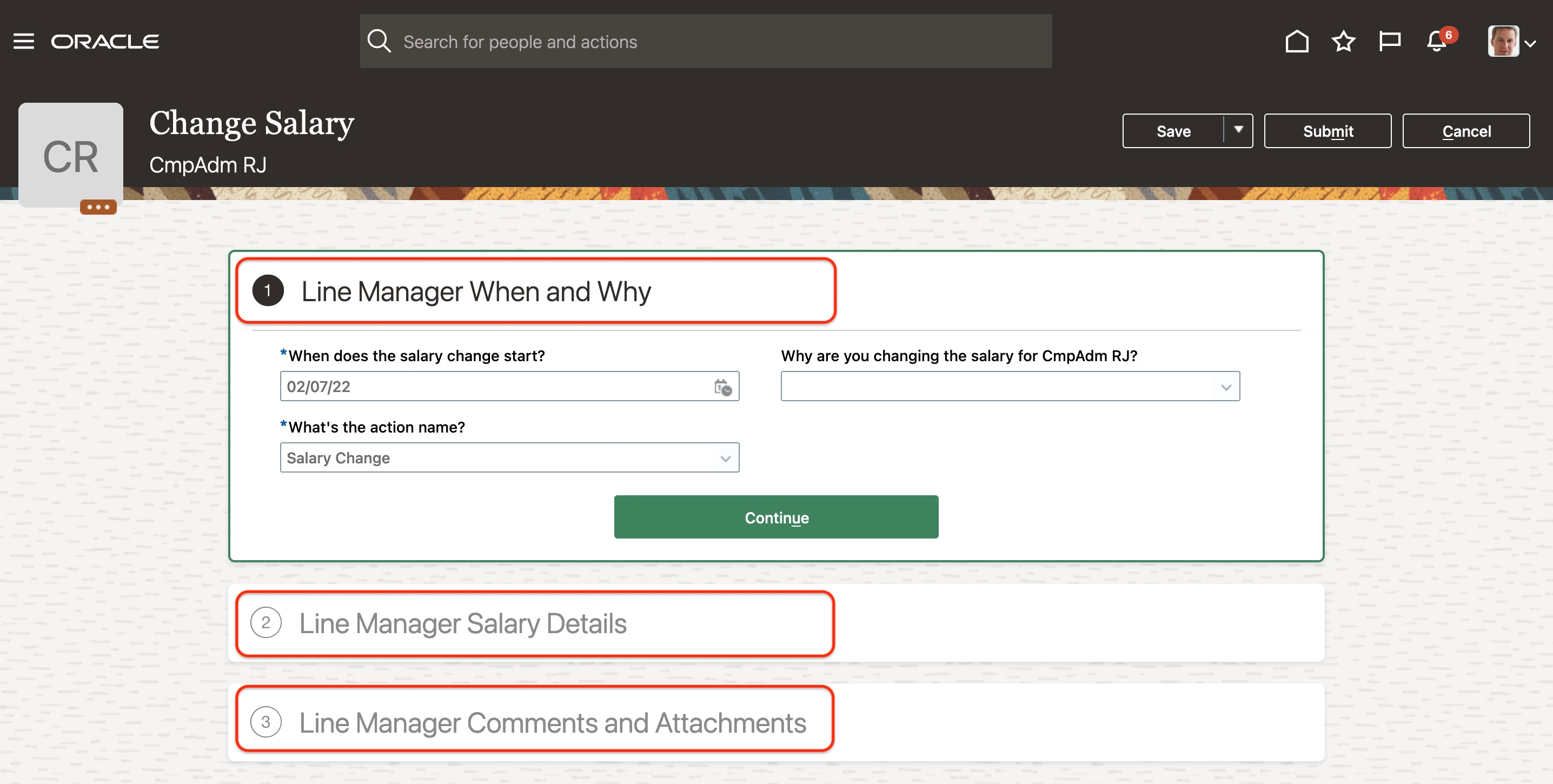
Line Manager Change Salary Action Showing Region Names Configured in Transaction Design Studio
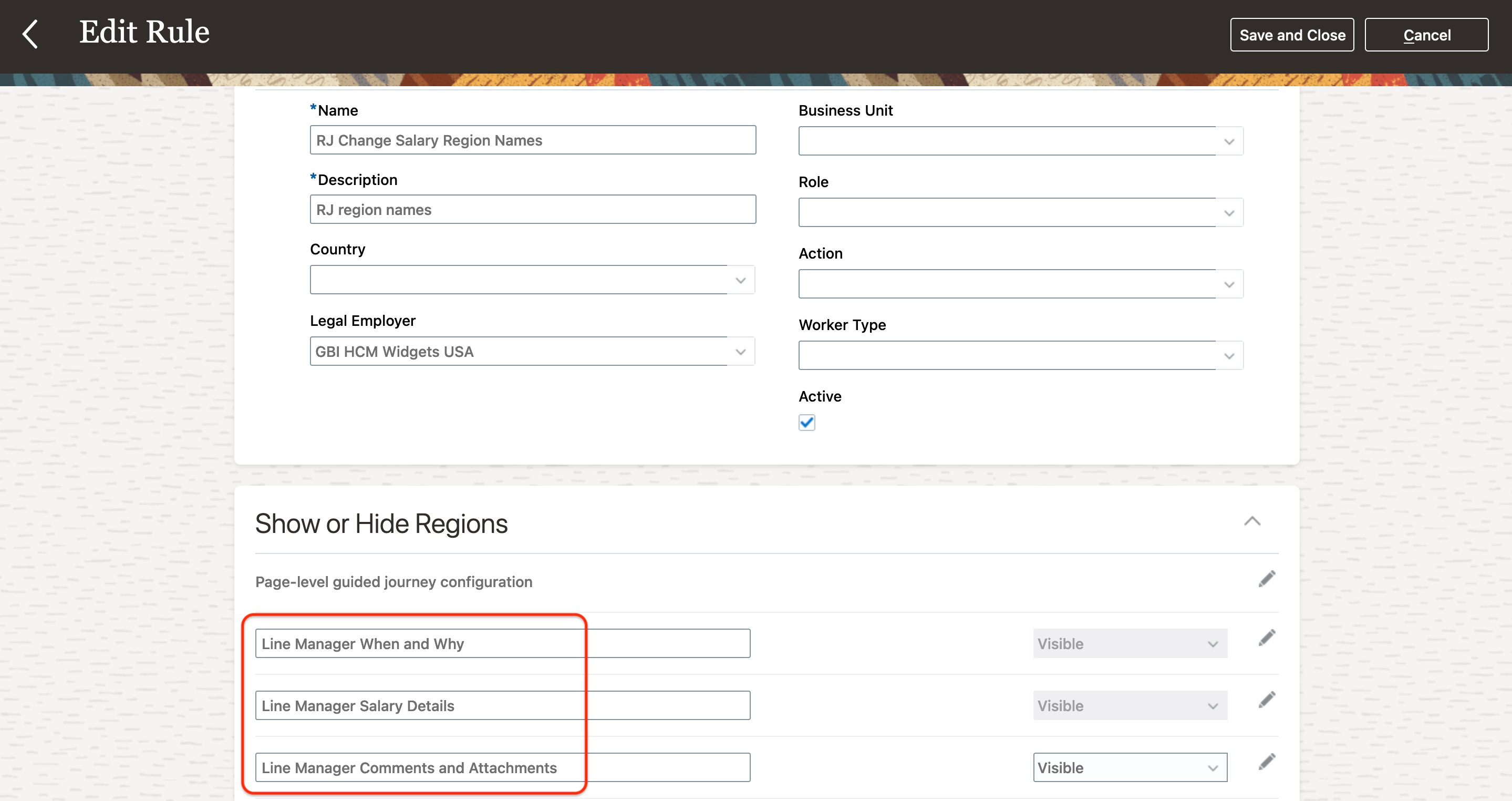
Change Salary Action Rule in Transaction Design Studio
Previously the configuration affected compensation managers, who use either the My Client Group > Change Salary or My Client Group > Compensation Info > Edit action.
This enhancement improves configurability for line manager role.
Steps to Enable
You don't need to do anything to enable this feature.
Tips And Considerations
- When you use the CHANGE_SALARY_LINEMANAGER_FLOW lookup type to configure the Comments and Attachments section name for the line manager’s change salary, you won't be affected until you create a new transaction design studio rule or make changes.
- You can configure the Comments and Attachment section name for the compensation manager’s change salary action by defining the CHANGE_SALARY_ADMIN_FLOW lookup type, with the COMMENTS_ATTACHMENT_TITLE lookup code. Set the lookup code meaning to the section name you want compensation managers to see while changing salary.
- The Page Attributes section behavior hasn't changed. You can continue to configure the attributes using Change Salary for Compensation Manager and Change Salary for Line Manager.
Key Resources
- For more details about renaming the section, see How to Rename Comments And Attachments Section On The Manager Self Service (MSS) My Team Change Salary Flow (document ID 2755174.1) on My Oracle Support.
We made it easier for you to navigate back to the list of plan pages with the new Exit Plan button. Previously, you had to use the individual page navigation buttons.
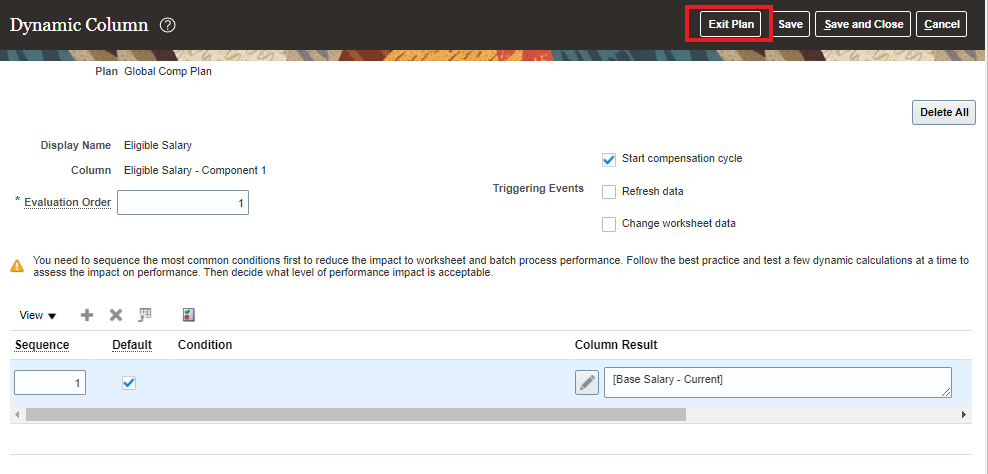
Exit Plan Button
This feature helps administrators work more efficiently when they make plan changes by reducing the number of clicks it takes to navigate in plan setup.
Steps to Enable
You don't need to do anything to enable this feature.
Tips And Considerations
The "Exit Plan" button is not available in the following pages:
- Configure Individual Worker Display > Page Content
- Configure Individual Worker Display > Preview
- Validate Plan > Start Comp Cycle
Change In Navigation From Worksheet To Landing Page
You can now use a back arrow to navigate back to the landing page from worksheet pages. We removed the Cancel button.
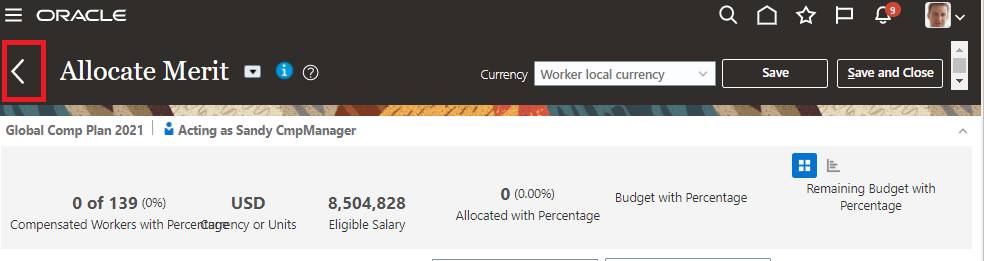
New Back Arrow To Navigate Back To The Landing Page
This feature reduces confusion for managers. The warning message asking managers if they want to save any unsaved changes still appears.
Steps to Enable
You don't need to do anything to enable this feature.
Change In Location Of Number Of Available Plans Link
You can now more easily find the Number of Available Plans link on the Workforce Compensation landing page in its new location.
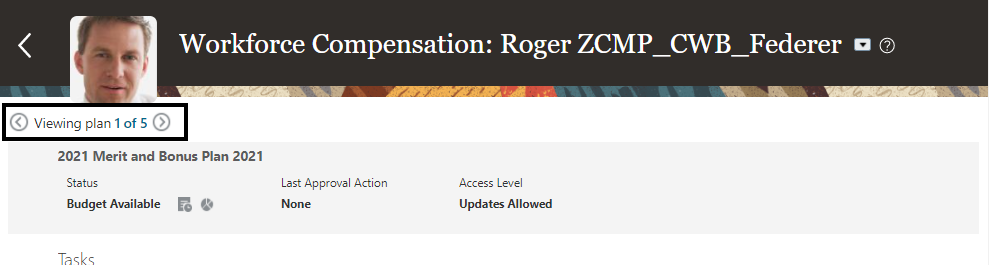
New Number Of Available Plans Link Location
We moved the link from the upper right of the page to the left under the manager information. We've also changed the layout of the available plans. Instead of all plans in a list, there is now a tabbed view in the pop out:
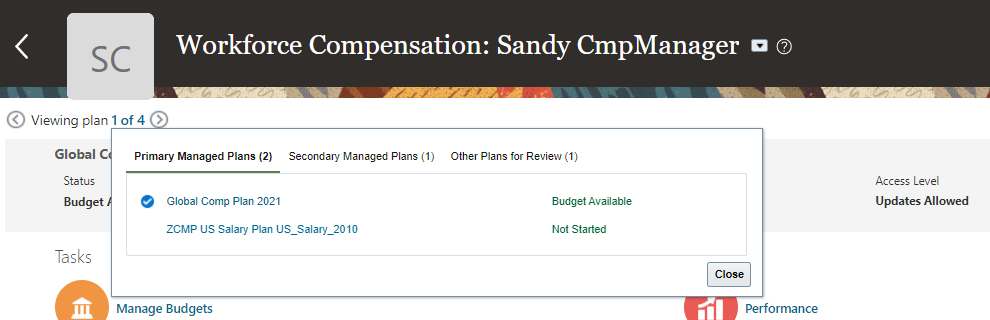
New Available Plans Pop Out Layout
This change allows managers to discover the navigation more easily and is more in line with other page level navigation options.
Steps to Enable
You don't need to do anything to enable this feature.
Tips And Considerations
If a worksheet manager does not have a Primary, Secondary, or Review plan, the tab will not appear in the pop out.
Change In Budget Pool Configuration Behavior After You Run the Start Workforce Compensation Process
You can no longer update the configuration of a budget pool after you've run the Start Workforce Compensation Cycle process. Previously, this was allowed. Administrators are still able to review the configuration:
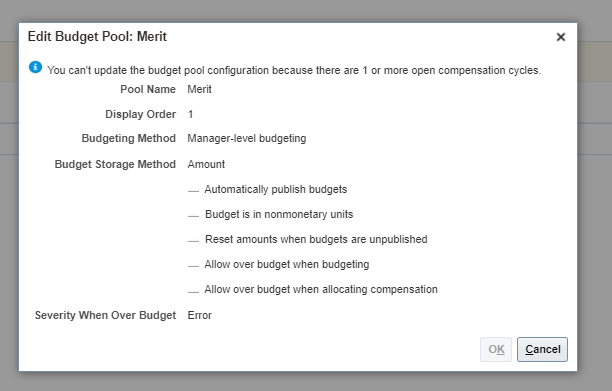
Read-Only Budget Pool Configuration
You can update or create a budget pool if there are no open cycles. Administrators need to make sure all cycles are backed out or closed prior to making any changes.
This feature prevents confusion when administrators make changes to the budget pool configuration without backing out the plan cycle and then running the Start Workforce Compensation Cycle process with the updated configuration.
Steps to Enable
You don't need to do anything to enable this feature.
Disabled Alerts No Longer Appear In Alerts Analytic In Approval Task
We made the status of the Approval task analytics clearer. After you disable the alerts in plan setup, they no longer appear in the Alerts analytic in the Approvals task. Previously, if you disabled the alerts, they still appeared in the analytic. If you don't configure any of the following alerts that section of the analytic doesn't appear:
- Delegation Removal Pending
- Delegation Pending
- Reassignment Pending
- Eligibility Change Pending
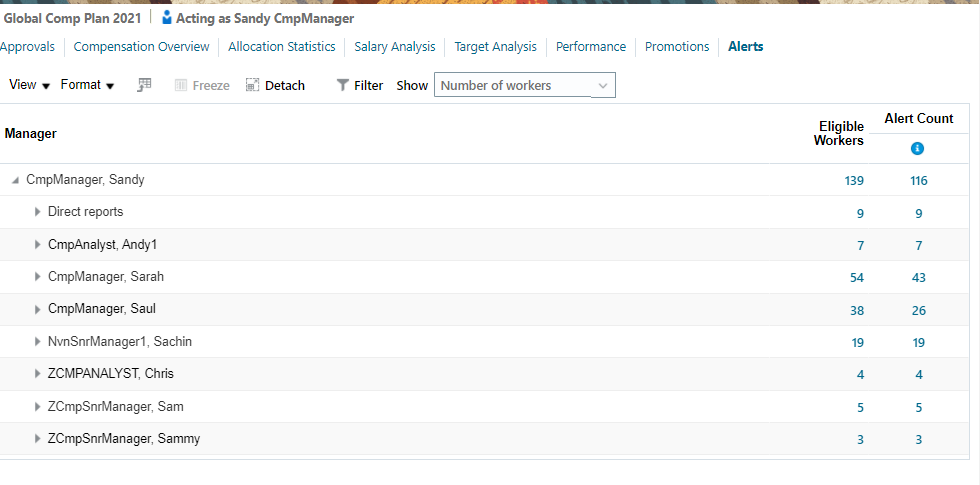
Alerts Analytic Showing No Seeded Alerts
This feature reduces confusion for people because only enabled alerts appear in the analytic.
Steps to Enable
You don't need to do anything to enable this feature.
Tips And Considerations
To disable alerts of this type and remove them from the analytic view, you might need to validate they are not enabled in both Configure Worksheet Display> Actions> Right Click Menu and Configure Worksheet Display > Actions > Actions.
Key Resources
- Additional information about disabling the alerts in plan setup can be found here: Configure Predefined Alerts and Prevent from Displaying in the Alerts Filter.
Configure Budget Overview Properties
You can now configure the decimals to display, display name and column information in the Manage Budgets overview page, depending upon the column type. Previously, this was not possible. For example, to change the decimals to display for the Budget Value column, navigate to the properties icon within Configure Budget Display > Budget Pools > Overview > Properties:
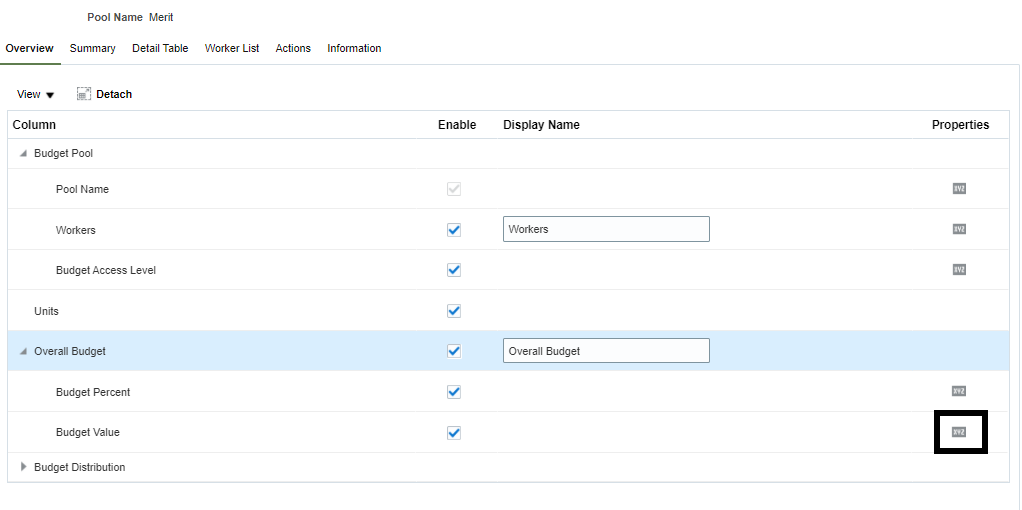
Budget Overview Properties
For this column, only the Decimal Place to Display and Information options are available:
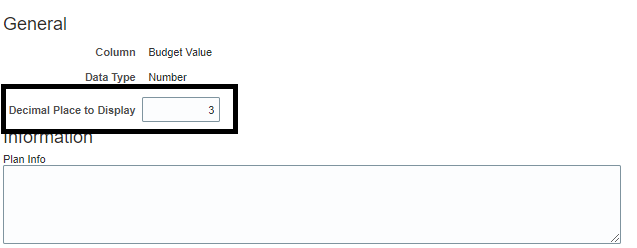
Budget Value Column Properties
Here is a screenshot showing the difference between the two budget pools. The Merit budget shows 3 decimals to display for the Overall Budget:
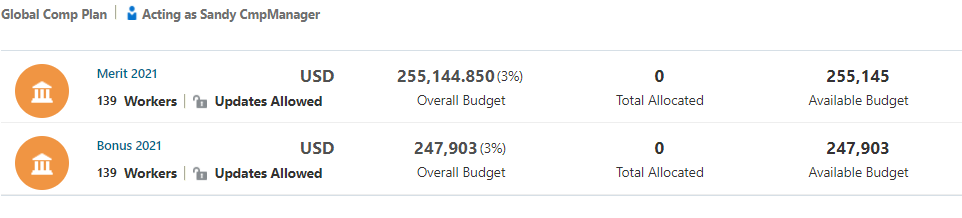
Merit Budget With Decimals To Display Set To 3
This feature allows for more flexibility when you configure your Workforce Compensation plan.
Steps to Enable
You don't need to do anything to enable this feature.
Edit Base Salary Change Amount And Base Salary Change Percentage In Worksheet
You can now let managers edit the Base Salary Change Amount and Base Salary Percentage Change columns in the worksheet. Previously, this was not allowed. To support this feature, we added the Read-Only configuration option to both columns. You need to deselect the check box to let managers edit the column in the worksheet because the default value is selected.
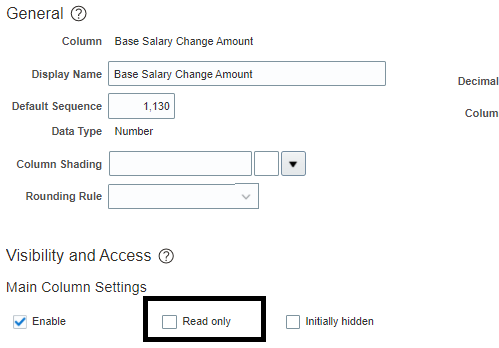
Base Salary Change Amount Column Properties
When you configure this option in setup and your plan has a single salary component, you can edit the Base Salary Change Amount and Base Salary Percentage Change columns in the worksheet. Managers enter the salary change amount and the worksheet uses that amount to reverse calculate the compensation amount in the plan frequency.

Worksheet Showing The New Editable Columns
In the screenshot above, Andy Anderson is an hourly employee with an annualization factor of 2080. The plan frequency is set to Annually. You can see that the Base Salary Change Amount (named Salary Change Amount) shows as 1, which is the Salary Adjustment (the Compensation Amount column for the salary component) divided by the annualization factor.
The same behavior is available in Individual Worker Display:
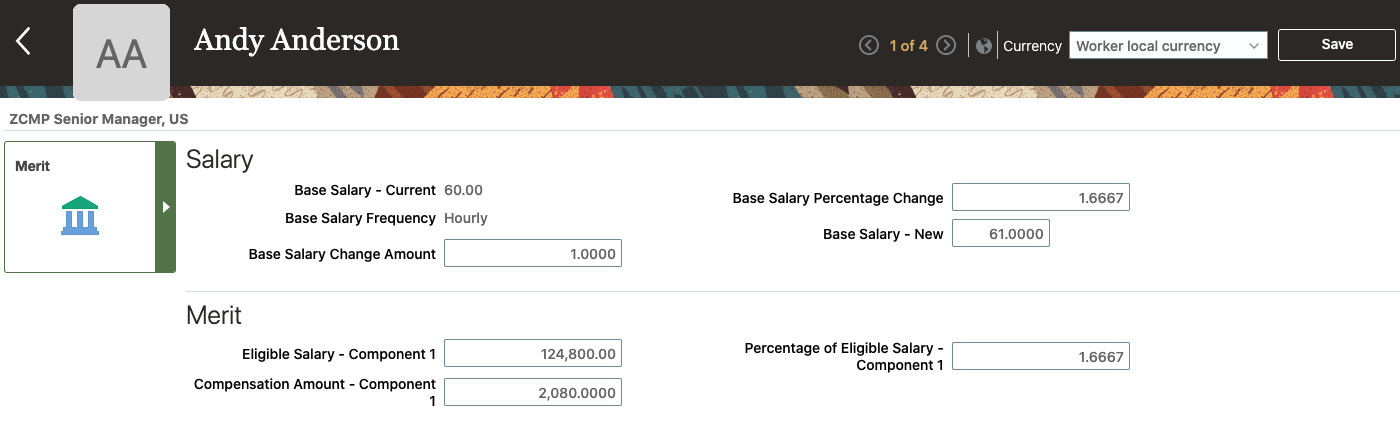
Individual Worker Display Showing The New Editable Columns
And in Administer Workers, where previously only Base Salary - New was editable:
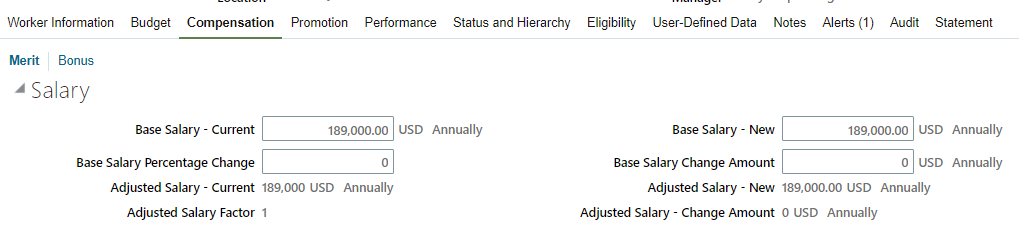
Administer Workers Showing The New Editable Columns
This feature lets managers more easily enter salary changes for people of different salary basis frequencies.
Steps to Enable
You don't need to do anything to enable this feature.
Tips And Considerations
-
The application honors any dynamic calculations you've defined on these columns.
-
Rounding Rule Behavior
-
Base Salary - New, Base Salary Change Amount, and Base Salary Percentage Change can have rounding rules configured in setup.
-
If all three of the columns have rounding rules, only the rounding rule on Base Salary - New is honored and the other rounding rules are ignored.
-
If there's no rounding rule configured for Base Salary - New, and both Base Salary Change Amount and Base Salary Percentage Change columns have rounding rules configured, preference is given to Base Salary Change Amount. Rounding rule configuration on Base Salary Percentage Change is ignored.
-
If there is no rounding rule on either Base Salary - New or Base Salary Change Amount, a rounding rule on Base Salary Percentage Change is honored.
-
The rounding rule order of preference is Base Salary - New > Base Salary Change Amount > Base Salary Percentage Change, depending on which column has a rounding rule configured.
-
-
You can't edit these columns in the downloaded workbook.
Change In Downloaded Workbook Behavior
We added the following features in the downloaded workbook:
1. A date selector is now available in all date fields. Previously, you had to manually enter the date.
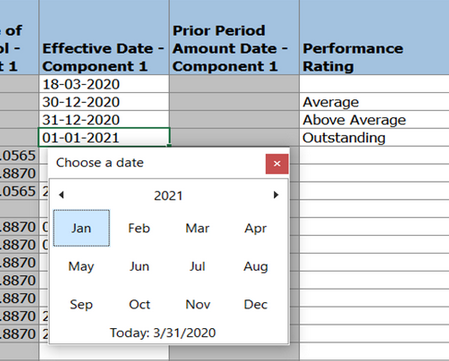
Date Selector In Downloaded Workbook
2. Data is now validated in the downloaded workbook. When a person enters text in a numeric column, this message appears:
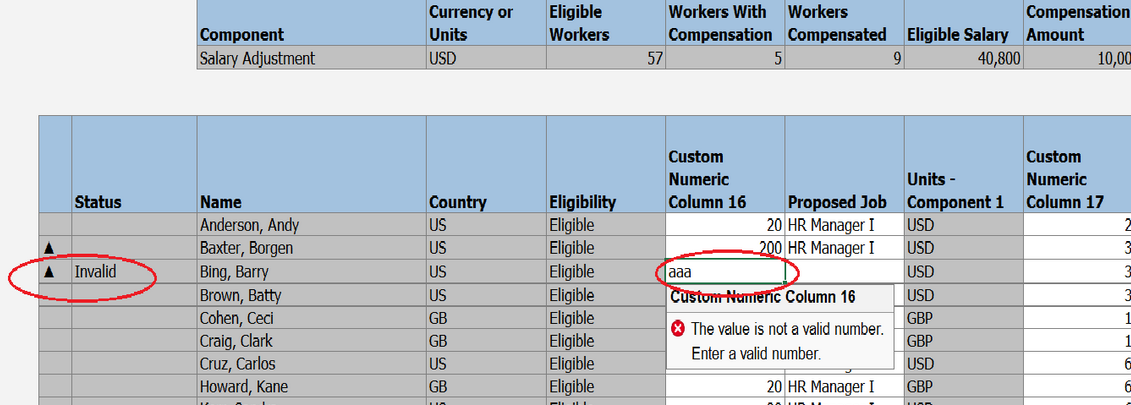
Numeric Data Validation Message
Previously, data was not validated in the downloaded workbook.
This feature reduces the number of data errors in the downloaded workbook. People also have an easier time selecting dates.
Steps to Enable
You don't need to do anything to enable this feature.
Tips And Considerations
We changed the hard-coded date format (DD-MM-YYYY) for all 'date' fields to a dynamic date format which honors people's local system's date format. The data validators don't prevent people from uploading data to the workbook. They are informational only.
Allow for Statement Actions to Be Completed After Viewing Compensation Change Statements
You can now configure worker statements actions to be completed after a person has reviewed their compensation change statements. Previously, people needed to complete statement actions before accessing the statement. To support this feature, there is a new configuration option at the statement level in Plan Setup> Configure Compensation Change Statements> Manage Statement Groups:
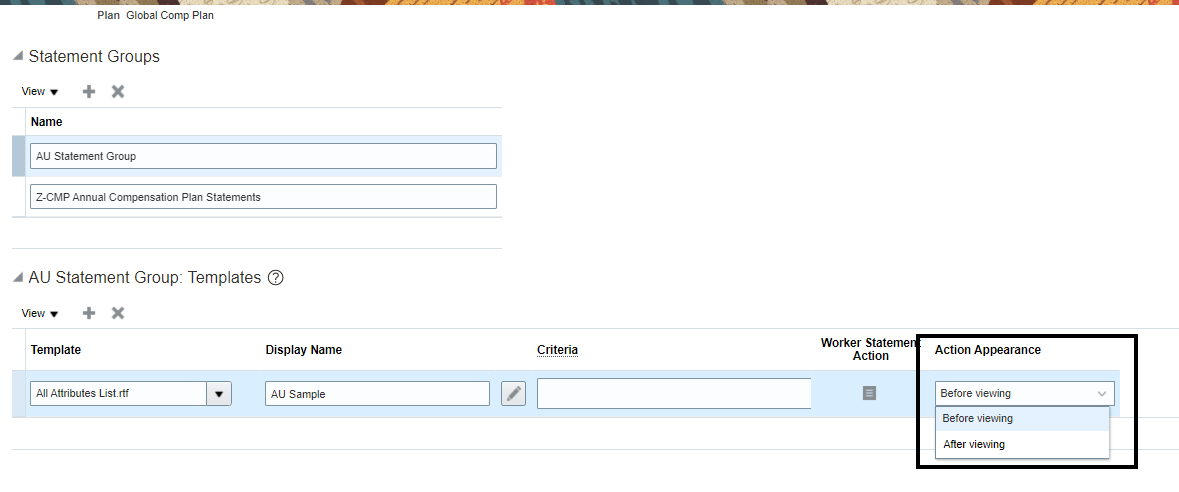
New Configuration Options To Allow For Statement Actions After Viewing
The available options are:
- Before viewing
- After viewing
Before viewing retains current behavior and is the default value. After viewing lets people view their statement and then take action after. After you configure this option people see the following:

Statement Actions Are Not Available Before Viewing
The "accept" and "decline" buttons are not available. After people access the statement, they become available:

Statement Actions Are Now Available After Viewing
This feature lets you allow people to review and approve the compensation before taking action on the statement.
Steps to Enable
You don't need to do anything to enable this feature.
Carry Forward Optional Standard Components in Grade Step Progression
You can now run grade step progression batch processes when your salary is determined by standard components and includes optional components.
If your progression grade ladder rates optional, set the Optional attribute to Yes, carry forward. This lets you run the batch processes without getting an error for people with the optional progression grade ladder rate component. You can still remove the optional progression grade ladder rate component in HR actions, as needed.

Salary Basis with Optional Progression Grade Ladder Rate Component
If other components are optional, set the Optional attribute to Yes, carry forward if you don't want the batch process to drop them when it updates the salary. In the following example, the variable allowance is Yes, carry forward and the travel allowance is Yes, don't carry forward. When grade step progression updates the salary record, it retains the variable allowance but drops the travel allowance. There's no error or warning message about optional components the process drops if the component isn't the progression grade ladder rate component.

Salary Basis with Mandatory Progression Grade Ladder Rate Component and Other Optional Components
If you set your progression grade ladder rate component to Yes, don't carry forward you get the revised error message, as shown here. The message states that the salary can't be updated because the progression grade ladder rate component's optional without carry forward.
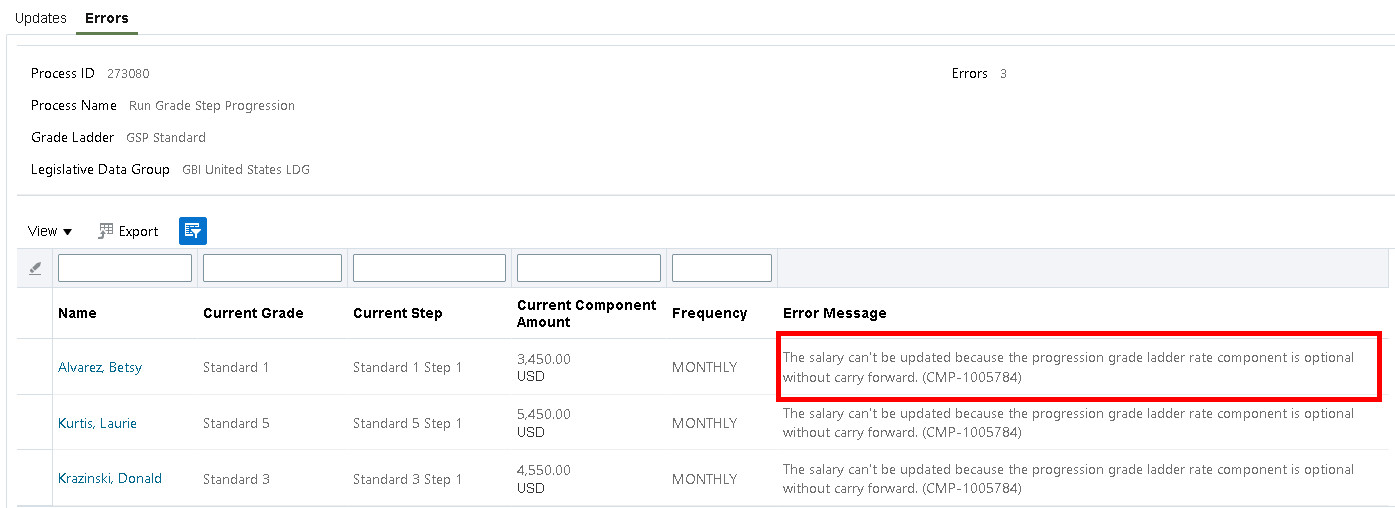
Error Message When Progression Grade Ladder Rate Component's Optional Without Carry Forward
With this enhancement you can expand your use of grade step progression when salary is determined by standard components.
Steps to Enable
To use this feature, update your salary basis to include an optional standard component that carries forward. For details, see the related 22B Compensation feature titled Carry Forward an Optional Standard Component.
Key Resources
For more information about standard salary components, see these key resources:
- The Salary Basis chapter in the Implementing Workforce Compensation guide in Oracle Help Center
- Introducing the Standard Components Type of Salary Basis (Document ID 2717145.1) on My Oracle Support
- Standard Components in Grade Step Progression (Document ID 2812366.1) on My Oracle Support
Allow Progression When a Future Assignment Exists
You can now configure the Run Grade Step Progression process to allow a progression when a future assignment change exists. You have several options for configuration.
If you don't want to allow progression when there is any type of future-dated assignment, you can continue to see an error message, as you do today. The example below shows the error messages listed for all assignments where the individual has a future-dated assignment. The error message says: A grade or step update can't be proposed for the given start date because a future-dated assignment record exists.
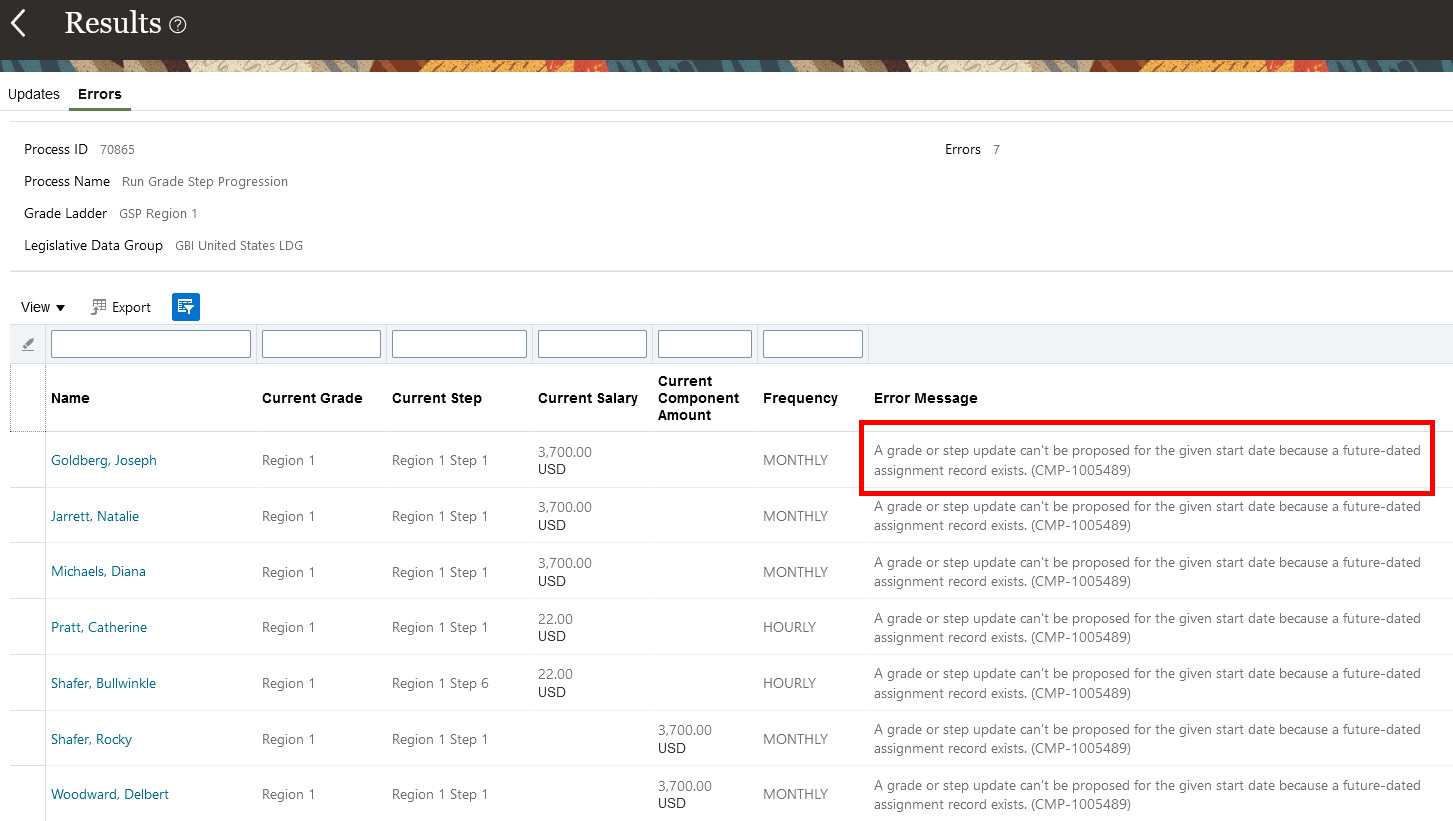
Error Message When Future Assignment Exists
Or, you may opt to configure the process so that it only allows progression if the future-dated assignment doesn't include a change to the grade step. Examples of this type of change include changes to location, working hours, manager, or future employment termination. In this case, you see an error message when the future-dated assignment changes the grade step. Otherwise, the process allows the progression. The following example image has three people whose assignments are in error. They're all on the first step of the grade and eligible to move to the second step of the same grade. The first person, Joseph Goldberg, has a future-dated assignment change to a new grade and step. The second person, Diana Michaels, has a future-dated transfer to a new grade ladder, grade, and step. The third person, Catherine Pratt, has a future-dated promotion to a new job with no grade ladder or step, but a new grade. For all three people, you see the error message saying that proposing a step update for this start date isn't allowed because a future-dated grade step or a change that end-dates the grade step exists. If you don't want to see this error message, deselect the Error when a future-dated grade step or a change that end-dates the grade step exists option.
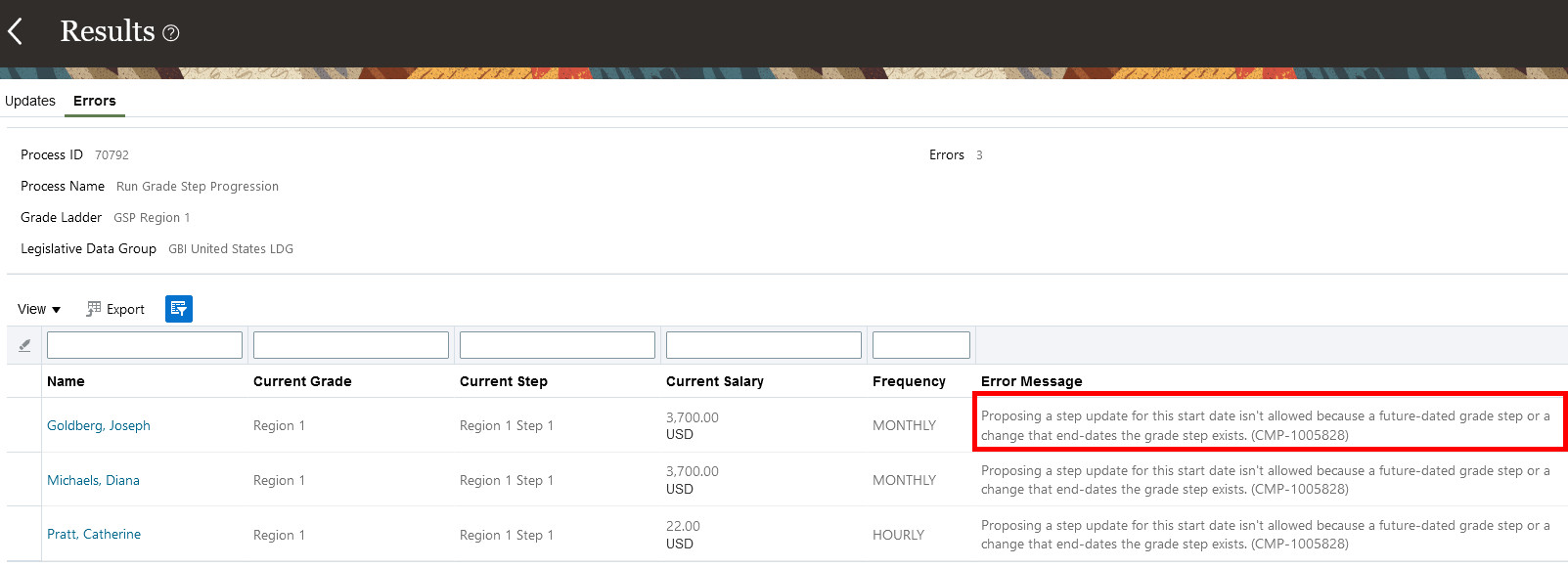
Error Message When Future Grade Step Change Exists
If you don't want to see either error related to future assignments, you can deselect these two options:
- Error when assignment record exists with a future date
- Error when a future-dated grade step or a change that end-dates the grade step exists
If the future assignment includes a step change, the newly inserted assignment is only valid until the start date of the future-dated assignment. Consider an example where you run the process effective Feb 1, 2022. A person has a current assignment dated Jan 1, 2022 with Grade 1, step 1 and another, future-dated assignment dated March 1, 2022 with Grade 1, step 4. After running the process, the current assignment is updated to Grade 1, step 2 with a start date of Feb 1, 2022. The future-dated March 1, 2022 assignment remains at Step 4, so the newly inserted assignment grade step with the start date of Feb 1, 2022 has an end date of Feb 28, 2022.
To prevent data corruption where the assignment grade step doesn't match the grade in the parent assignment record, grade progressions aren't allowed unless the future-dated assignment has a grade step record on the same date. Consider an example where you run the process effective Feb 1, 2022. A person has a current assignment dated Jan 1, 2022 with Grade 1, step 6 and another, future-dated assignment dated March 1, 2022. The future-dated assignment is a location change. Because the step didn’t change on March 1, 2022, there isn’t a grade step record effective March 1. There’s only an assignment dated March 1, 2022. Now, the person is eligible to move to Grade 2, step 1--a grade progression. But, if you insert an assignment dated Feb 1, 2022 with Grade 2, step 1, the Feb 1, 2022 assignment grade step record would be effective until end-of-time. The problem with this is that the March 1 (future-dated) assignment would revert the assignment to Grade 1. But the assignment would inherit the Feb 1, 2022 step 1 that belongs to Grade 2. This would cause a data corruption for the March 1 assignment row. So, you see an error message if this condition is met. This example shows the specific error message, which says: Inserting a step update for this start date isn't allowed because there's a future-dated assignment without a grade step record on the same date. And, the future grade is different from the proposed grade.
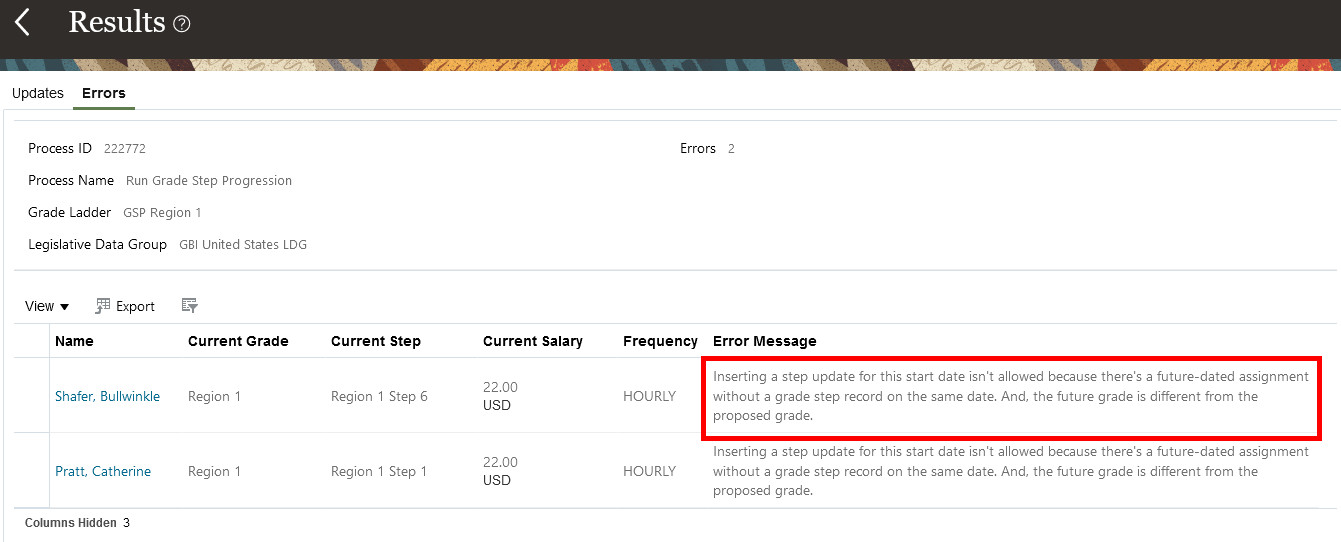
Error When There's a Future Assignment Without a Grade Step on the Same Date, and the Future Grade Is Different from the Proposed Grade
With this enhancement, reduce the manual effort of updating assignments and salary records when there's a future-dated assignment.
Steps to Enable
- In Setup and Maintenance, click the Configure Global Compensation Settings task:
- Offering: Compensation Management
- Functional area: Base Pay
- Scroll to the Grade Step Progression section of the page.
- Under the heading Batch Error Conditions for Assignment Date:
- To allow updates no matter what type of future dated assignment exists, deselect both of these options: Error when assignment record exists with a future date and Error when a future-dated grade step or a change that end-dates the grade step exists.
- To allow updates that aren't related to a change in grade step, deselect just the Error when assignment record exists with a future date option.
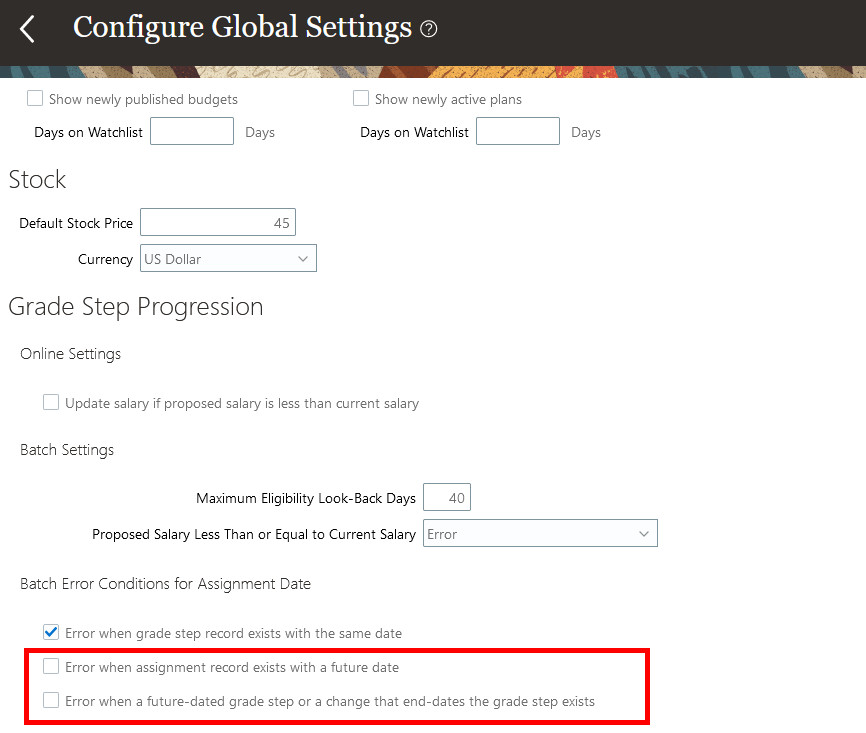
Configure Global Compensation Settings task
Tips And Considerations
Here's what happens if you deselect both of the options: Error when assignment record exists with a future date and Error when a future-dated grade step or change that end-dates the grade step exists:
1. A step progression is allowed for all types of existing future-dated assignments, such as:
- future-dated transfer which includes a step change
- future-dated progression to a new step within the grade
- future-dated manager change
- future-dated termination
- future-dated location change
2. A grade progression is allowed as long as the future-dated assignment has a corresponding grade step record on the same date.
Here's what happens if you deselect the Error when assignment record exists with a future date option and enable the Error when a future-dated grade step or a change that end-dates the grade step exists option:
1. A step progression is allowed for the types of existing future-dated assignments that don't have a step change, such as:
- future-dated manager change
- future-dated termination
- future-dated location change
2. A grade progression isn't allowed if there's a future-dated assignment.
Key Resources
- For more information, see the Implementing Workforce Compensation guide, Grade Step Progression Processing chapter, in the Oracle Help Center.
Allow Progression Without Salary Increase When Proposed Salary is Less Than or Equal to Current Salary
You can now configure the Run Grade Step Progression batch process so that it moves an assignment to the next grade or step, but skips the salary update, if the proposed salary's less than or equal to the current salary. Previously you got an error message for this condition. You have a new configuration option to change this behavior.
If you want to continue to see an error message when the proposed salary's not greater than the current salary, set the new configuration option to Error. The following example shows the error message indicating that the proposed salary's not greater than the current salary. If salary basis is determined by simple components, the message refers to the progression grade ladder rate component amount and not the overall salary amount.
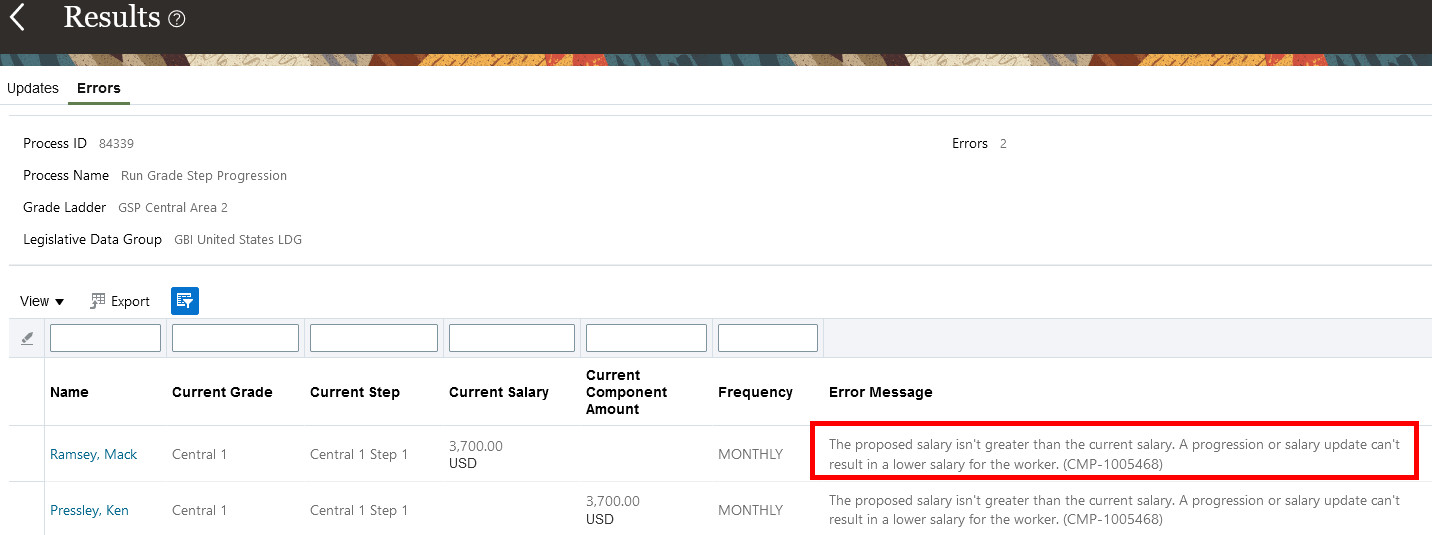
Error Message Showing Proposed Amount Not Greater Than Current Amount
If you want to update the assignment but not the salary, when the proposed salary's less than or equal to the current salary, set the new configuration option to Update assignment only. The following example shows the results from running Run Grade Step Progression. Two people are on step 1 and are eligible to move to step 2, which has a lower rate. Mack Ramsey's result shows that he's moved to step 2, but there's no proposed salary amount. Ken Pressley has a salary basis determined by simple components. His result shows that he's moved to step 2, but there's no proposed progression grade ladder rate component amount. When the progression's accepted, the assignment updates but the salary doesn't.
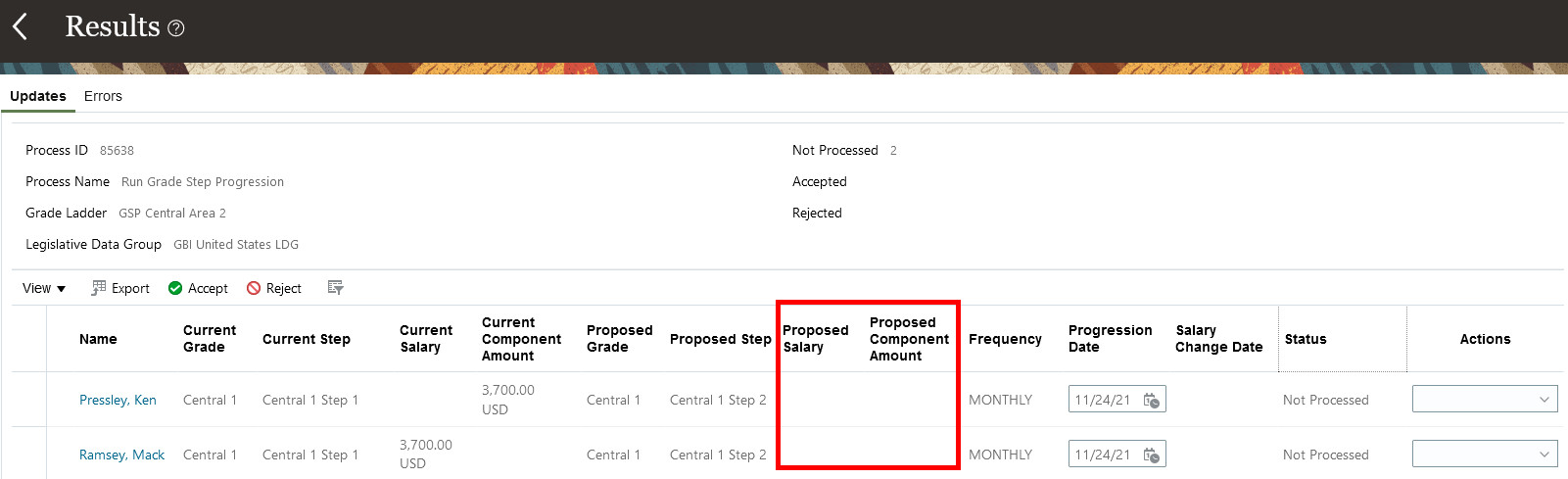
Only Assignment's Updated When Proposed Amount's Less Than Current Amount
The Update assignment only setting has no impact when you run Synchronize Grade Step Rates. If you use the setting with Synchronize Grade Step Rates, the behavior's the same as if you had used the Error setting. The process only updates salary records, so there's nothing to update when the proposed amount's less than the current amount with the Update assignment only setting.
With this enhancement, you can reduce the manual effort of updating assignments after getting an error in the Run Grade Step Progression process.
Steps to Enable
- In Setup and Maintenance, click the Configure Global Compensation Settings task:
- Offering: Compensation Management
- Functional area: Base Pay
- Scroll to the Grade Step Progression section of the page.
- Under the heading Batch Settings, set the Proposed Salary Less Than or Equal To Current Salary attribute to Update assignment only
- Or if you want the process to update the assignment and the salary so that the proposed salary's less than or equal to the current salary, you can set the attribute to Update assignment and salary. See related feature for 22B: Allow Proposed Salary Less Than or Equal to Current Salary in Grade Step Progression Processes.
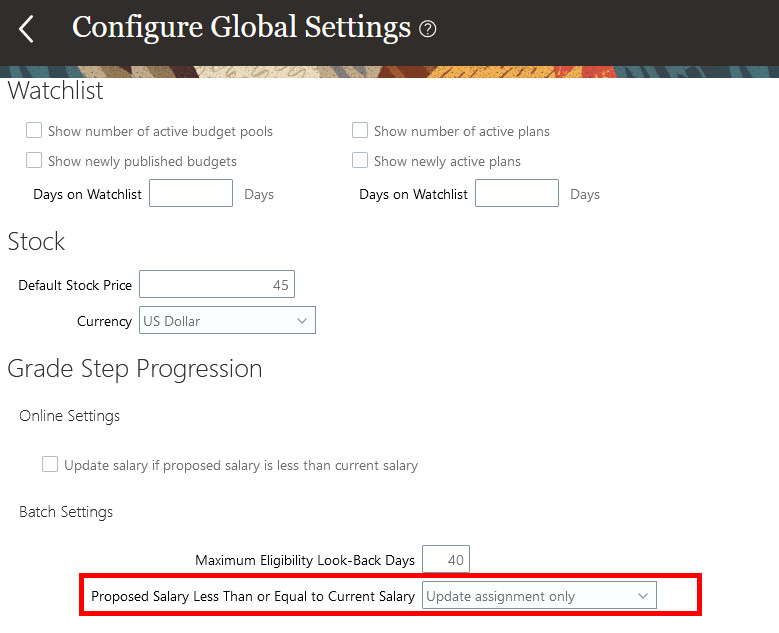
Configuration to Update Only Assignment When Proposed Salary's Not Greater Than Current
Tips And Considerations
You may still see error messages related to salary, even if the process isn't updating the salary. If your grade ladder's configured to include salary updates, the process runs the salary-related validations on each assignment, even if the proposed salary ends up being less than or equal to the current salary. It does this because it runs the salary validations before the progression's proposed.
Key Resources
- For more information, see the Implementing Workforce Compensation guide, Grade Step Progression Processing chapter, in the Oracle Help Center.
Allow Proposed Salary Less Than or Equal to Current Salary in Grade Step Progression Processes
You can now configure the Run Grade Step Progression and Synchronize Grade Step Rates batch processes so that they update the salary with an amount that's less than or equal to the current amount. Previously you saw an error for this condition. You have a new configuration option to change this behavior.
If you want to continue to see an error message when the proposed salary's not greater than the current salary, set the new configuration option to Error. The following example shows the error message indicating that the proposed salary's not greater than the current salary. If salary basis is determined by simple components, the message refers to the progression grade ladder rate component amount and not the overall salary amount.
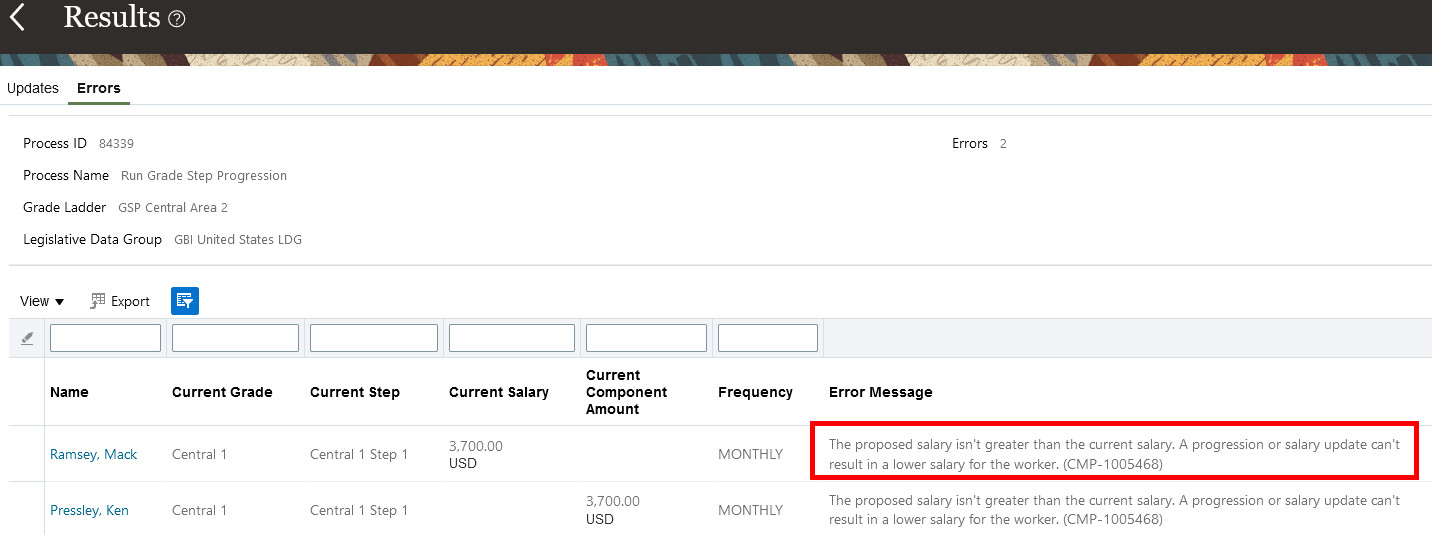
Error Message Showing Proposed Amount Not Greater Than Current Amount
If you want to update the assignment and salary when the proposed salary's less than or equal to the current salary, set the new configuration option to Update assignment and salary. The following example shows the results from running Run Grade Step Progression. Two people are on step 1 and are eligible to move to step 2, which has a lower rate. Mack Ramsey's result shows a proposed salary less than his current salary. Ken Pressley has a salary basis determined by simple components. His result shows a proposed progression grade ladder rate component amount that's less than his current progression grade ladder rate component amount. No matter which type of salary basis is used, the negative change amount reflects that the proposed amount's less than the current amount. If the proposed amount's equal to the current amount, you see 0 in the change amount column.
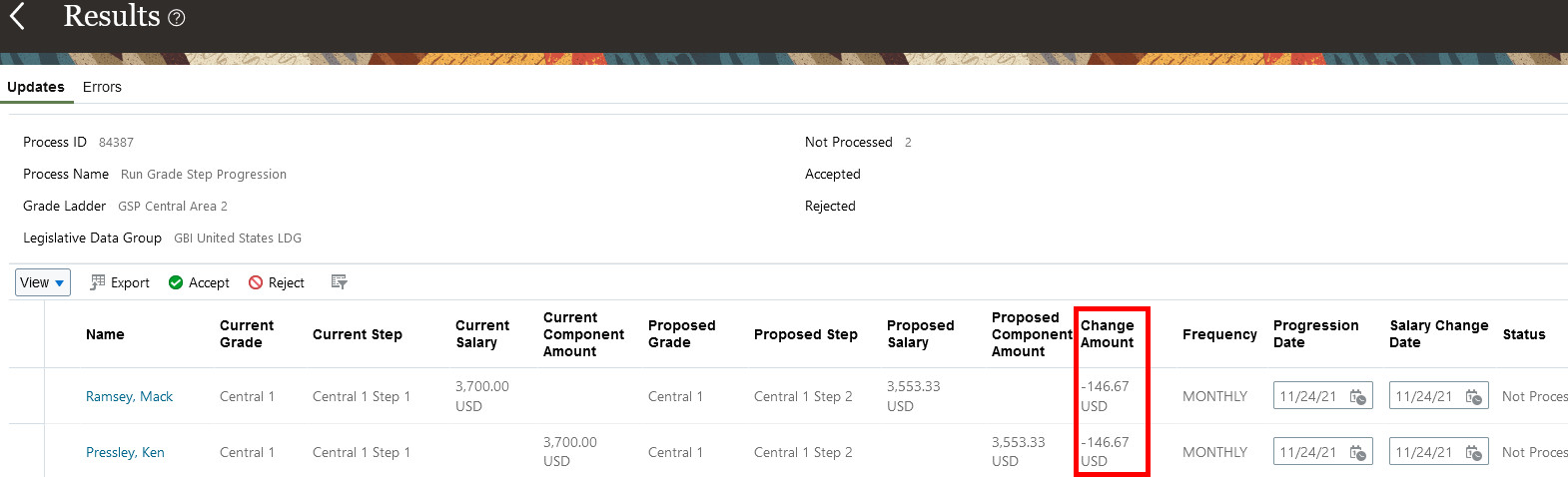
Proposed Salary or Component Amount's Less Than Current Salary or Component Amount in Run Grade Step Progression Process
The Update assignment and salary setting has similar impact when you run Synchronize Grade Step Rates. Since the process only update salaries, you won't see any results reflecting updates to the assignment. The following example shows the results from running Synchronize Grade Step Rates. Two people are on step 1, which has a new rate that's lower than their current salary or component amount. Patrick Lane's result shows a proposed salary less than his current salary. Cheryl Kugleman has a salary basis determined by simple components. Her result shows a proposed progression grade ladder rate component amount that's less than her current progression grade ladder rate component amount. No matter which type of salary basis is used, the negative change amount reflects that the proposed amount's less than the current amount. If the proposed amount's equal to the current amount, you see 0 in the change amount column.
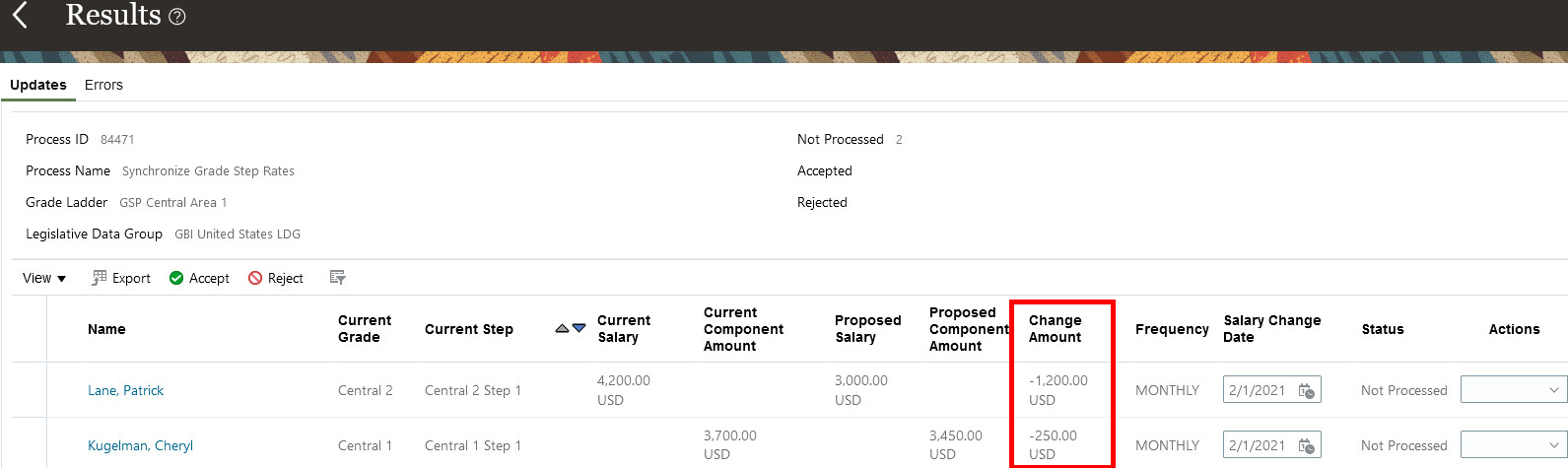
Proposed Salary or Component Amount's Less Than Current Salary or Component Amount in Synchronize Grade Step Rates Process
With this enhancement, you can reduce the manual effort of updating assignments and salaries after getting an error in the grade step progression batch processes.
Steps to Enable
- In Setup and Maintenance, click the Configure Global Compensation Settings task:
- Offering: Compensation Management
- Functional area: Base Pay
- Scroll to the Grade Step Progression section of the page.
- Under the heading Batch Settings, set the Proposed Salary Less Than or Equal to Current Salary attribute to Update assignment and salary
- Or if you want to update only the assignment and not the salary, you can set the attribute to Update assignment only. See the related feature in 22B: Allow Progression Without Salary Increase When Proposed Salary is Less Than or Equal to Current Salary. This alternate setting only impacts Run Grade Step Progression, since Synchronize Grade Step Rates doesn't update the assignment.
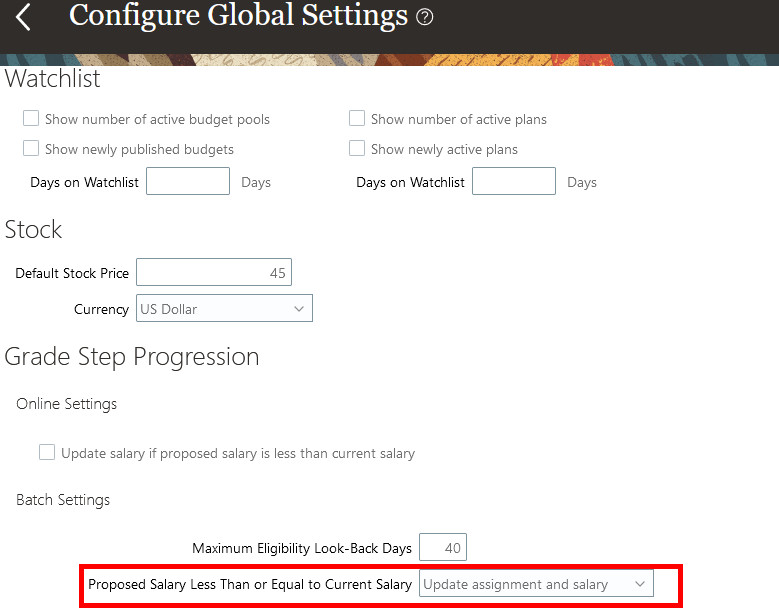
Configuration to Update Assignment and Salary When Proposed Salary's Less Than or Equal to Current Salary
Key Resources
- For more information, see the Implementing Workforce Compensation guide, Grade Step Progression Processing chapter, in the Oracle Help Center.
Total Compensation Statement: Ability to Share Statement Definitions
We made it possible for you to share statement definitions by using the new Export XML and Import XML actions. You can export and import statement definitions and share them across environments or with your colleagues. You still use Functional Setup Manager (FSM) to migrate completed configurations from test to production.
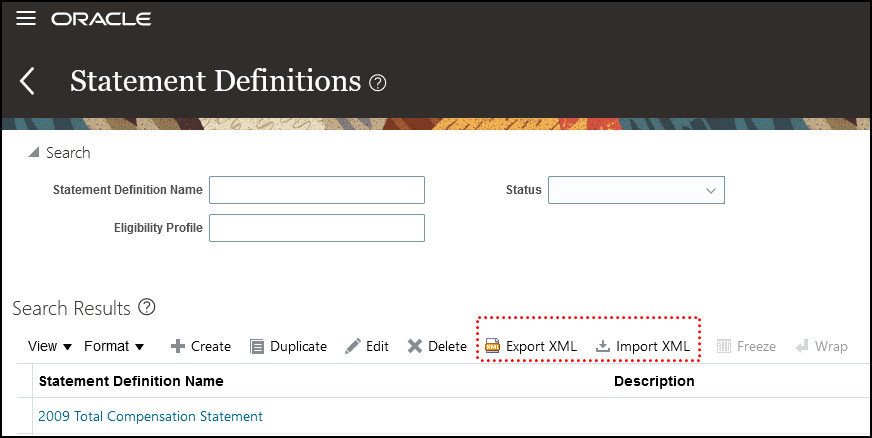
Statement Definitions
First you Export XML and save the file.
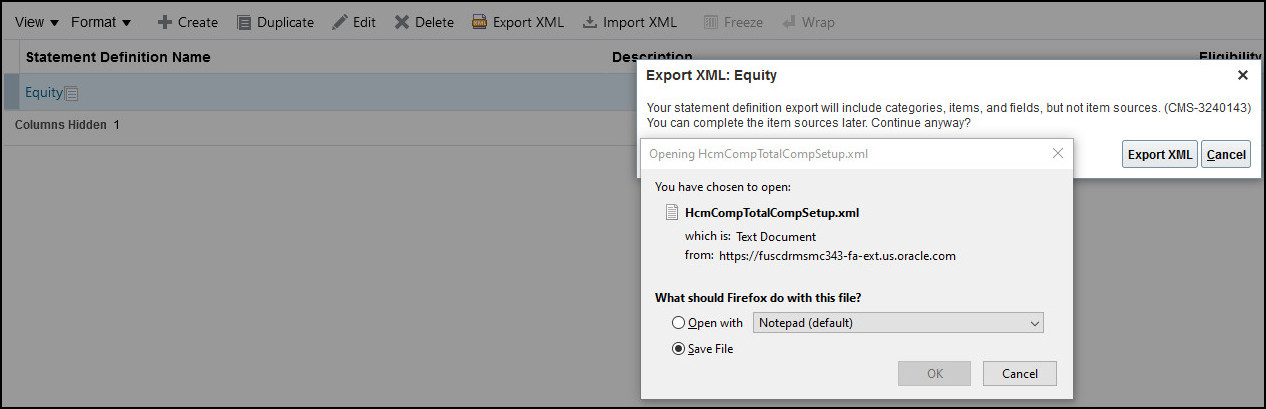
Export XML
Next you Import XML.

Import XML
Notice that when you import you'll have objects that are in progress. If you share statement definitions with colleagues, then your sources will be different.
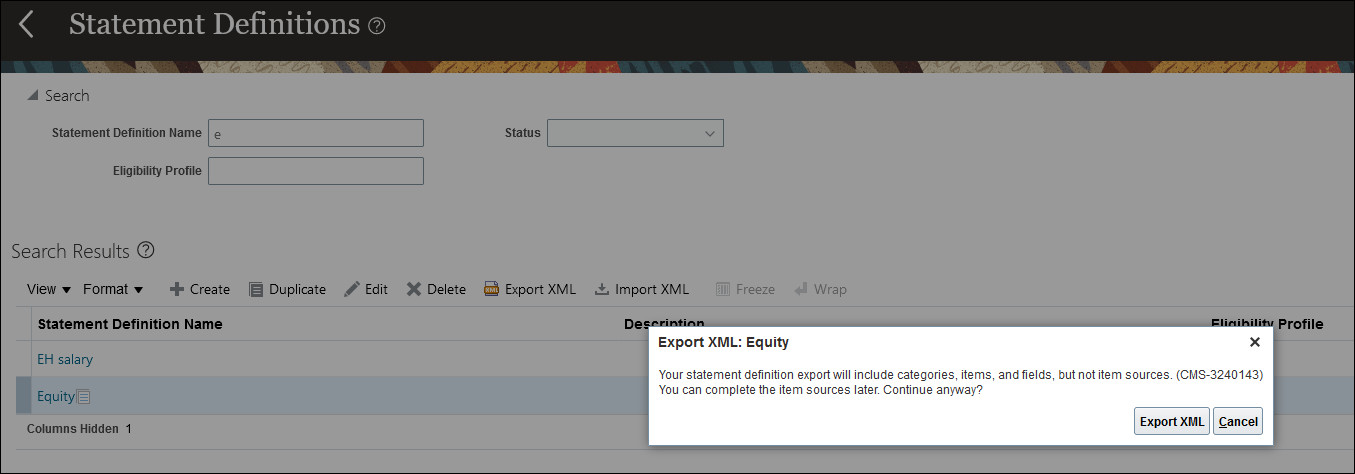
Export XML
The imported statement definition is in progress.

Statement Definition Name
Categories and subcategories display partially completed icons. You need to complete any unfinished items or categories.
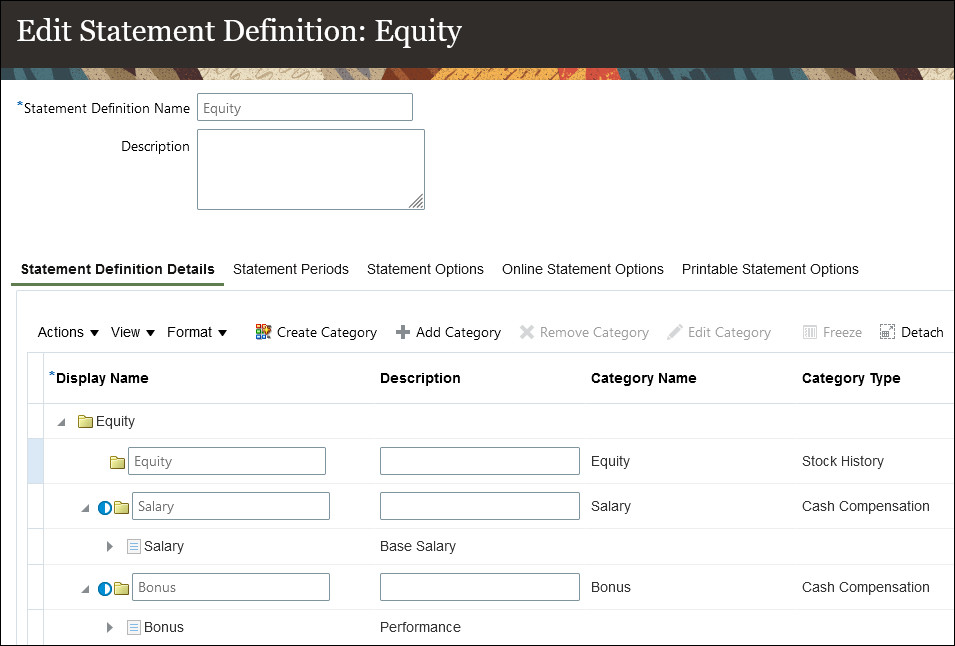
Edit Statement Definition
Resolve any incomplete objects until all statuses are complete.
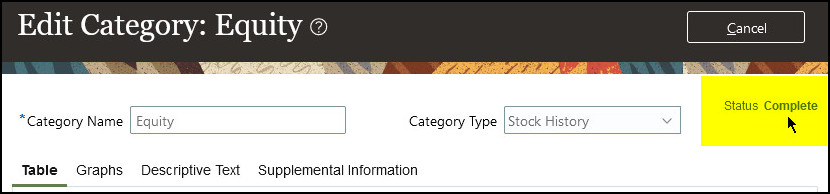
Edit Category
Finish and Generate Statements using the imported Statement Definition.
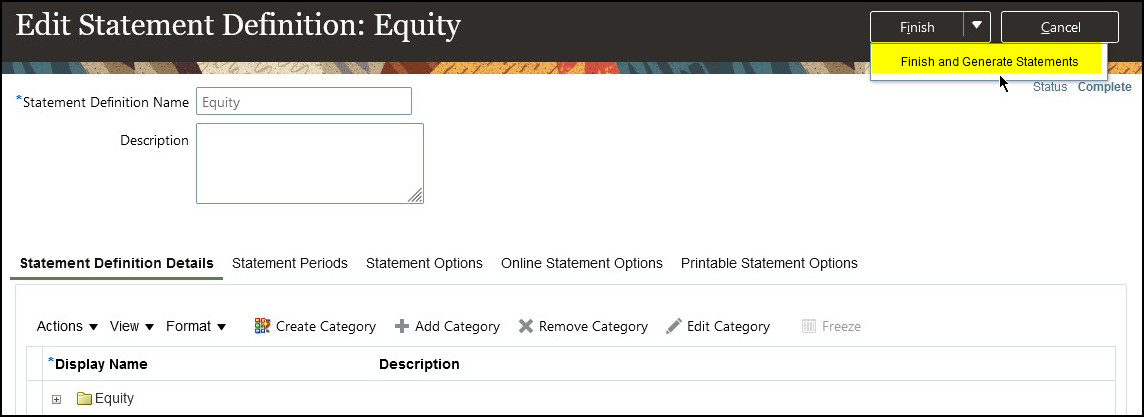
Finish and Generate Statements
Share statement definitions with colleagues or among test environments. Implement Total Compensation Statements faster.
Steps to Enable
You don't need to do anything to enable this feature.
Tips And Considerations
Use the Import Process dialog box to find items with missing sources, warnings, or errors. Use the Incomplete Fields dialog box to find and complete fields in the rich text editors.
This doesn't update existing statement definitions. If one of the objects you are importing from the statement exists in the target system, you can't import the statement.
Total Compensation Statement: Stock History Category
Now you can separately control which stock history columns display in the online versus printable statement. Previously, selected columns were the same for both. Now you can select as many columns as you want for the printable statement and initially display only a few by default. For the online statement, people have control to view more or all of the columns. This was always the case. However we recommend limiting the printable statement to 8 columns for readability.
For example, in the online statement you can select 15 columns as Available for Display in Online Statement, while defaulting 10 of those for initial Display in Online Statement. People can use the View > Columns action to enable more than the initial 10 columns.
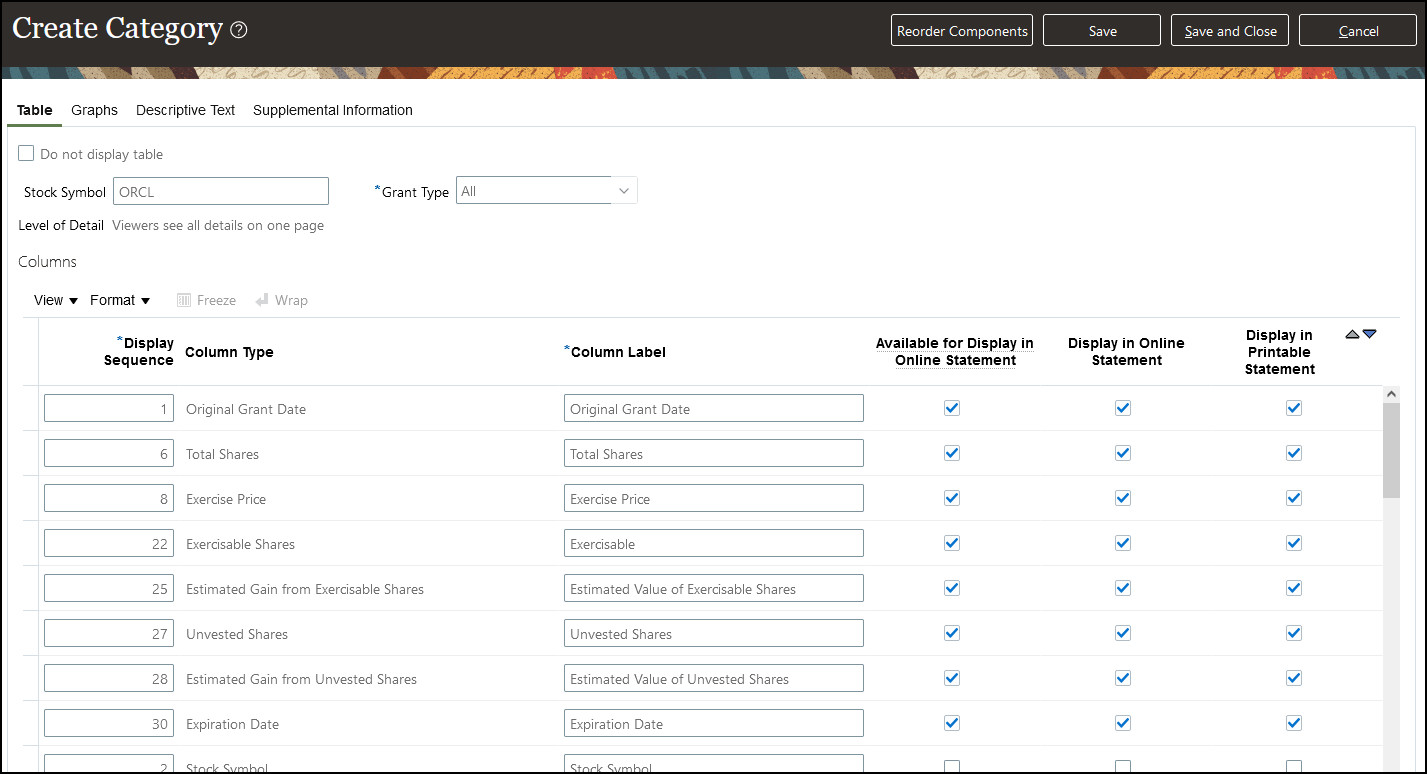
Create Category

View > Columns (available in the Online Statement only)
For example, in the printable statement we recommend you select no more than 8 columns for readability. Keep in mind that the interactive Estimated Stock Price is not available in the printable statement. Below are 2 examples of selecting too many columns versus the recommendation.
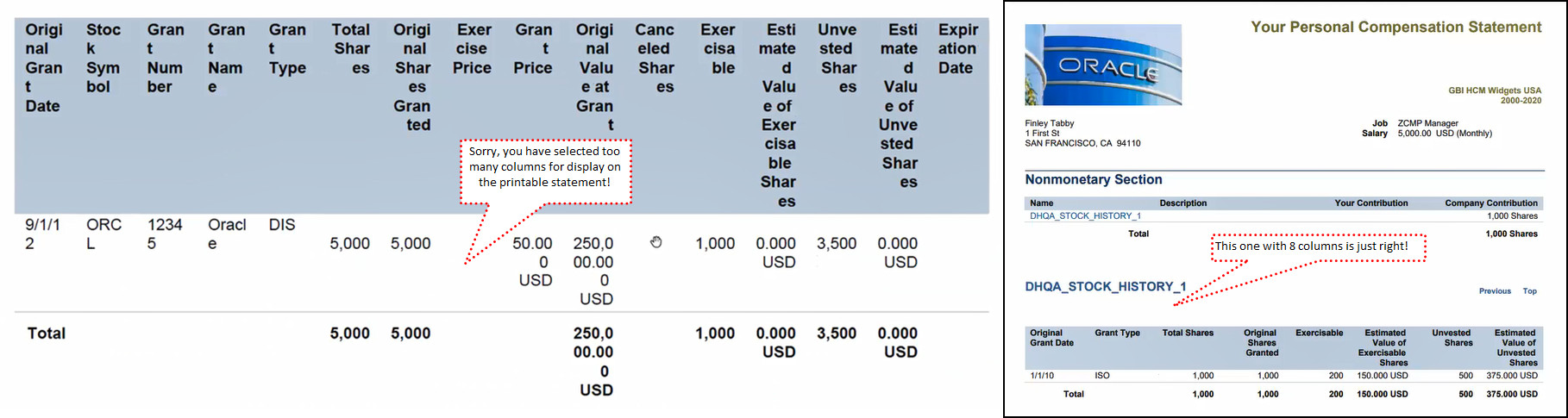
Printable Statements - examples
Provides more flexibility when you use both online and printable statements.
Steps to Enable
You don't need to do anything to enable this feature.
Total Compensation Statement: Display Title and Salary for Successive Job
Now you can display the latest title and salary for successive jobs in the statement header. Previously a successive job did not display in the statement header area, instead it appeared only in the statement detail. Here's when title and salary can display in the header:
- Person has only 1 assignment
- Person has only 1 assignment for the employer
- Person has more than 1 assignment but the entire data of the statement comes from 1 assignment
- The data comes from more than 1 assignment but the person has only 1 valid/active assignment at the end of the period
This applies to both online and printable statements. This doesn't apply to multiple concurrent jobs where the data will only appear in the detail and not in the header, as per usual.
Typical example below, where the person has only 1 assignment during the period; this was always possible.
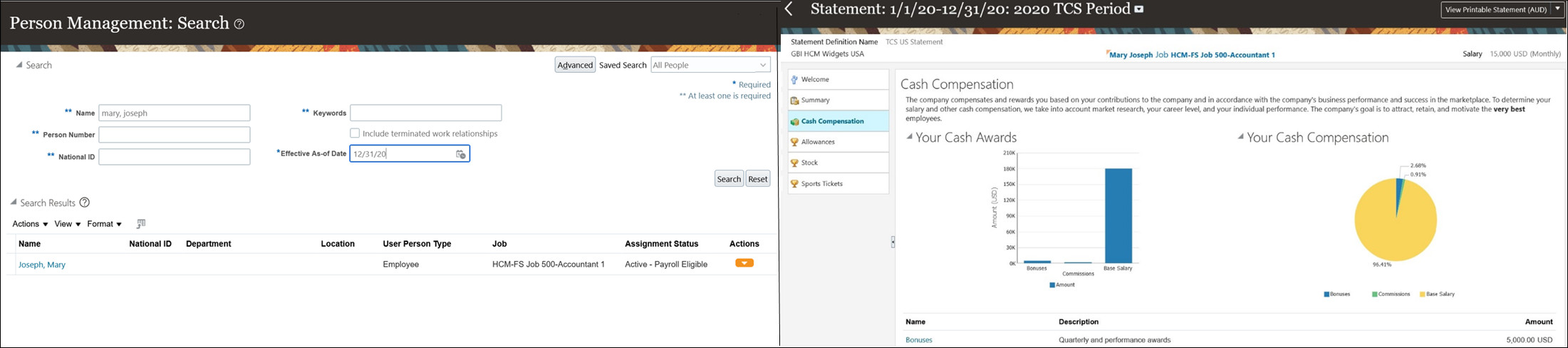
New example below, where the above person now has more than 1 assignment during the period, but the person has only 1 valid/active assignment at the end of the period. Previously this would not display in the statement header. It only displayed in the detail. This is new, and the use case that the Idea Lab and this enhancement was created for.
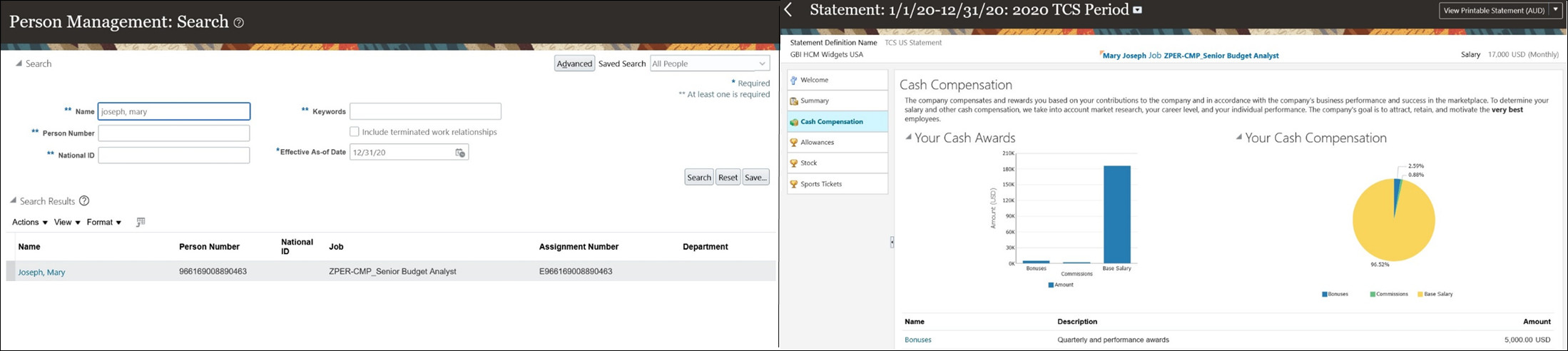
Below, if the person globally transfers to a new legal entity, 3 statements are generated. A combined All Employers statement, and one for each legal entity. The All Employers statement doesn't display the title and salary in the header, only in the details. The separate legal entity statements will each display the title and salary in the header. Items relevant to each legal entity appear in the separate statements. This was always the case and the behavior has not changed.
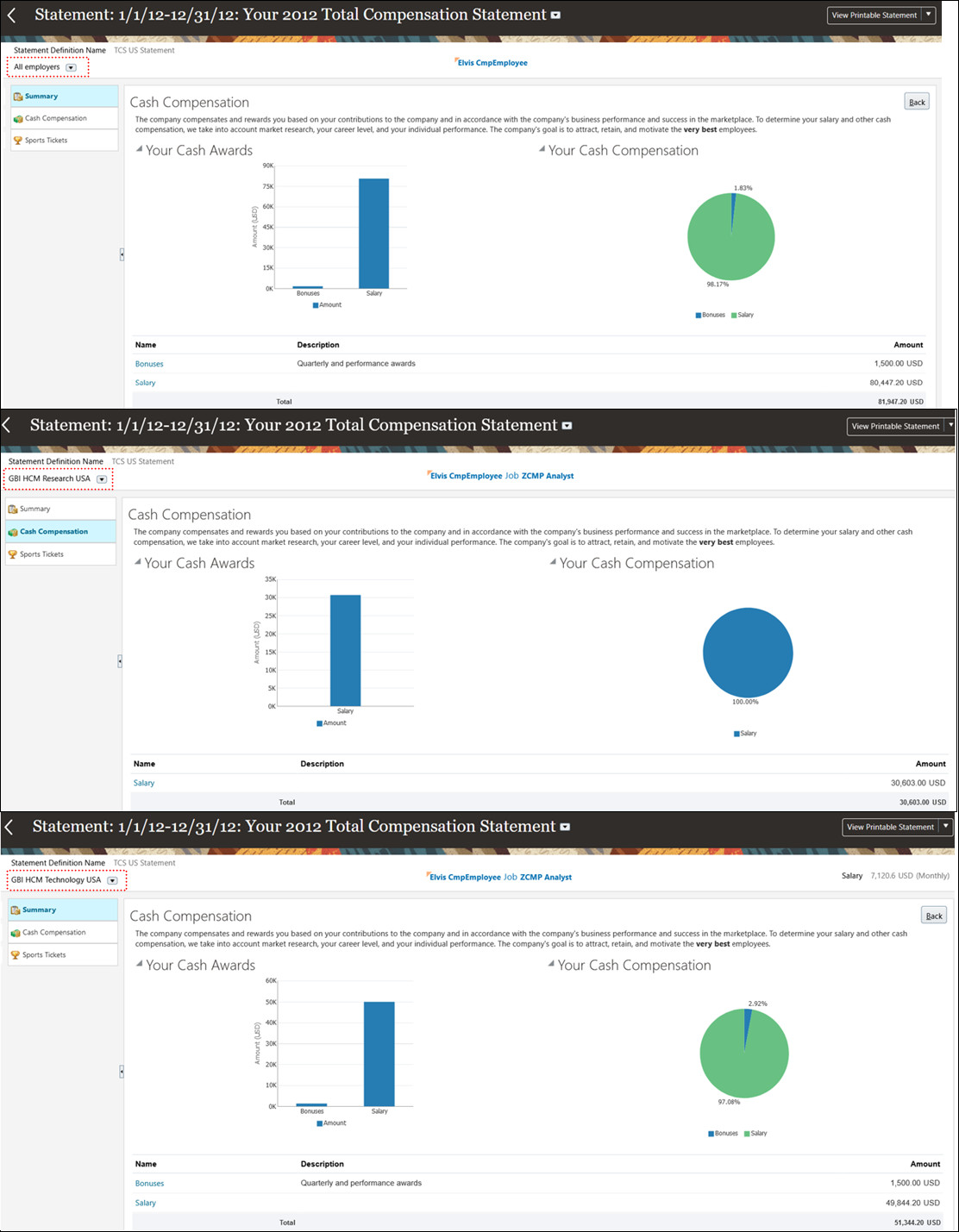
Below, if the person has multiple concurrent jobs then title and salary don't display in the header, but are part of the detail. This was always the case and the behavior has not changed.

People now can see the most recent valid or active title and salary in the header even when a person was rehired or changed jobs.
Brought to you by the Idea Lab – Payroll, Compensation and Benefits Idea Lab
Steps to Enable
You don't need to do anything to enable this feature.
Market Data: HDL and HSDL for Positions
Now you can automate the mapping of survey jobs to internal positions with HCM Data Loader (HDL) and HCM Spreadsheet Data Loader (HSDL). Previously, mapping for positions was only available manually in the page. Now you can load the survey jobs and map them to internal positions within the load. Mapping for internal jobs within HDL and HSDL was already possible. In addition, now you can double click on either job or position to get the list of values.
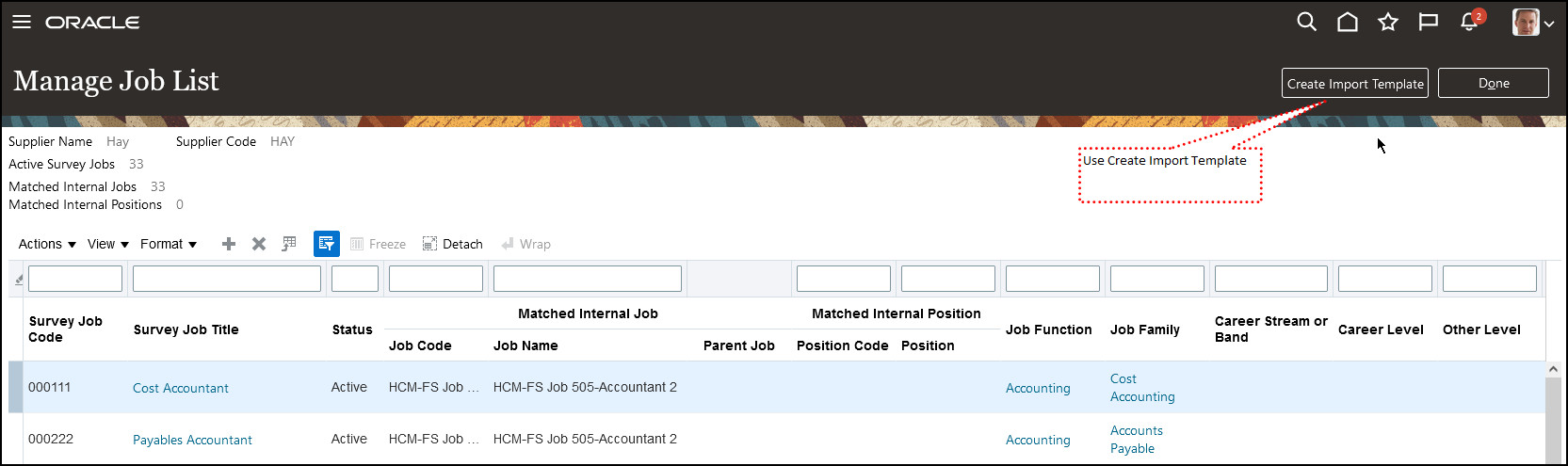
Create Import Template
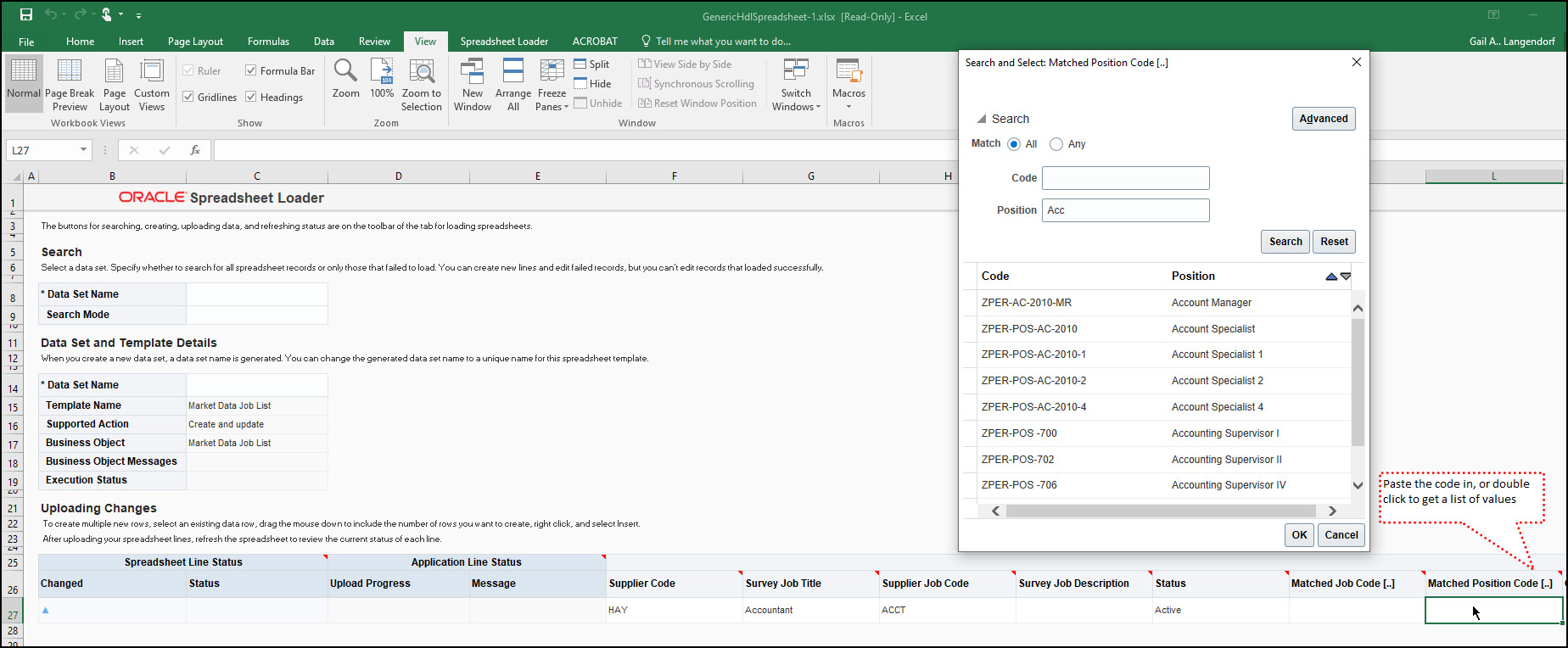
Spreadsheet Loader
People can automate the mapping of internal positions to survey jobs.
Steps to Enable
You don't need to do anything to enable this feature.
Compensation Replaced or Removed Features
Removal Of Defaulting For Amount Last Updated By Worksheet Columns
We removed the ability to default the following worksheet columns:
- Amount Last Updated by - Component 1
- Amount Last Updated by - Component 2
- Amount Last Updated by - Component 3
- Amount Last Updated by - Component 4
- Amount Last Updated by - Component 5
This feature reduces confusion for administrators because the ability to default these columns was never supported.
Steps to Enable
You don't need to do anything to enable this feature.
Discontinued Support for Salary Default From Grade Ladder Rates In HCM Classic Simplified User Interface
The feature that populates salary from progression grade ladder rates on the HCM classic simplified pages will be removed from the Person Management > Employment page in an upcoming release. Currently the feature updates the salary record when you change the grade ladder, grade, or step on a person's assignment. The classic Employment page doesn't contain a compensation or salary section so the feature depends on a service to update the salary record. Support for the service will be removed from the classic Employment page in an upcoming release. Other classic pages, such as Hire an Employee and Add a Contingent Worker, include the compensation section, so these pages won't be impacted.
When support for the service is removed from the classic Employment page, related event triggers will also be removed.
Going forward, if you default salary from grade ladder rates, use the responsive HR actions.
Steps to Enable
You don't need to do anything to enable this feature.
Key Resources
For more information, see these documents:
- Oracle Fusion Cloud HCM Known Issues and Maintenance Packs (Doc ID 1554838.1)
- Implementing Workforce Compensation guide, Base Pay Overview chapter, How You Populate a Salary Amount with a Rate from the Grade Ladder topic, in the Oracle Help Center
- Troubleshooting Grade Step Progression (Document ID 2753020.1) on My Oracle Support.
Removal Of Dynamic Column Configuration Option From Unsupported Columns
We removed the ability to configure dynamic columns from the following columns:
- Adjusted Salary - Change Amount
- Adjusted Salary - Current
- Adjusted Salary - Frequency
- Adjusted Salary - New
- Adjusted Salary Factor
- Annualized Full-Time Salary - Change Amount
- Annualized Full-Time Salary - Current
- Annualized Full-Time Salary - New
- Annualized Full-Time Salary Factor
- Business Unit
- Department
- Direct Manager
- Grade
- Grade Code
- Hierarchy Level
- Job
- Job Code
- Manager
- Payroll
- Performance Management Calculated Competency Rating
- Performance Management Calculated Development Goal Rating
- Performance Management Calculated Goal Rating
- Performance Management Calculated Overall Rating
- Performance Management Overall Competency Rating
- Performance Management Overall Development Goal Rating
- Performance Management Overall Goal Rating
- Performance Management Overall Rating
- Performance Management Rating Date
- Position
- Position Code
- Primary Manager
- Primary Worksheet Manager - Two Levels Up
- Prior Salary Change Amount
- Prior Salary Change Percentage
- Processing Status
- Ranking
- Review Manager
- Salary Range Compa-Ratio - New
- Salary Range Decile - New
- Salary Range Position - New
- Salary Range Quartile - New
- Salary Range Quintile - New
- Secondary Manager
- Worker Name
Previously people could configure the dynamic columns but the application didn't support the process.
This feature reduces confusion for administrators by only allowing configuration where it is supported in the application.
Steps to Enable
You don't need to do anything to enable this feature.
Transactional Business Intelligence Enterprise for Compensation
Oracle Transactional Business Intelligence is a real time, self-service reporting solution offered to all Oracle Cloud application users to create ad hoc reports and analyze them for daily decision-making. Oracle Transactional Business Intelligence provides human resources managers and specialists, business executives, and line managers the critical workforce information to analyze workforce costs, staffing, compensation, performance management, talent management, succession planning, and employee benefits.
Don’t want to start from scratch building a report or analytics? Check out the library of sample reports for all products on Customer Connect on the Report Sharing Center.
Currency Attribute in Stocks Real Time
We enhanced reports that use the Stocks Real Time subject area by including the new Currency Code attribute. The attribute is under Compensation - Stock Details Real Time > Stock Details.
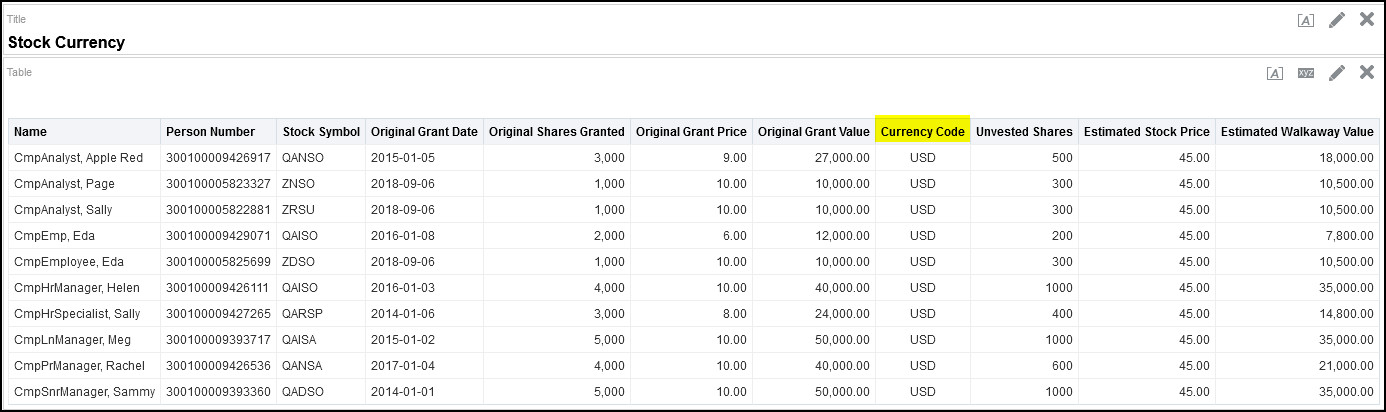
Stock Currency Code
This feature helps you better understand the value of stock with the addition of the currency attribute.
Steps to Enable
You don't need to do anything to enable this feature.
Market Data Subject Area Enhancements
We enhanced the mapping of compensation market survey data to internal HR data for:
- Survey jobs to internal jobs
- Survey locations to internal locations
- Survey jobs to internal positions
We added these new folders to Compensation - Market Data Real Time subject area:
- Market Survey Job > Mapped Internal Job
- Market Survey Job > Mapped Internal Position
- Market Survey Location > Mapped Internal Location
Note: A dimension-only query that includes these combinations gets all of the survey and internal data setup information:
-
Attributes from Market Survey Job and Mapped Internal Job only
-
Attributes from Market Survey Job and Mapped Internal Position only
-
Attributes from Market Survey Location and Mapped Internal Location only

Sample Market Data Reports
This feature lets you report on what internal jobs or positions you have mapped to survey jobs, or what internal locations you have mapped to survey locations.
Steps to Enable
You don't need to do anything to enable this feature.
Grade Rate Values of Grade Step Progression
The Progression Grade Ladder Rates folder was added to the salary subject areas, so you can report on compensation Minimum, Midpoint, Maximum, and Value for Grade Steps.
| Subject Area | Folder | Metrics | Sub Folder | Attributes |
|---|---|---|---|---|
| Compensation - Salary Details Real Time | Salary > Progression Grade Ladder Rates |
|
Progression Grade Ladder Rates Details |
|
| Compensation - Salary History Details Real Time |
Salary History > Progression Grade Ladder Rates |
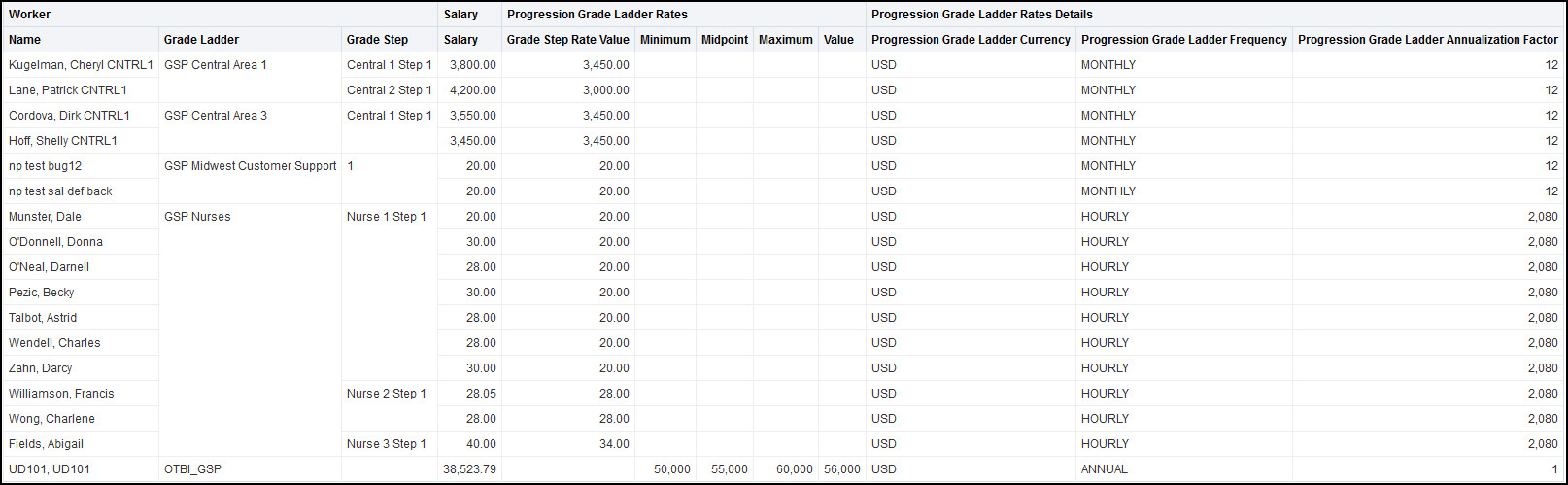
GSP Report Sample
Enhance your reporting on the salary subject areas with the addition of grade rate values and related columns for people with grade step progression.
Steps to Enable
You don't need to do anything to enable this feature.
IMPORTANT Actions and Considerations for Compensation
REPLACED OR REMOVED FEATURES
From time to time, Oracle replaces existing Cloud service features with new features or removes existing features. When a feature is replaced the older version may be removed immediately or at a future time. As a best practice, you should use the newer version of a replaced feature as soon as the newer version is available.
| Product | Removed Feature | Target Removal | Replacement Feature | Replaced In | Additional Information |
|---|---|---|---|---|---|
| Compensation | Removal Of Defaulting For Amount Last Updated By Worksheet Columns | 22B | None | ||
| Compensation |
Discontinued Support for Salary Default From Grade Ladder Rates In HCM Classic Simplified User Interface | 22B | Responsive Pages | In order to use you need to move from the classic pages to the responsive pages. | |
| Compensation |
Removal Of Dynamic Column Configuration Option From Unsupported Columns | 22B | None |
_________________________
KNOWN ISSUES / MAINTENANCE PACK SPREADSHEETS
Oracle publishes a Known Issues document for every Update to make customers are aware of potential problems they could run into and the document provides workarounds if they are available.
Oracle also publishes Maintenance Pack and Statutory Maintenance Pack documentation of bugs that are fixed in the monthly or statutory patching.
To review these documents you must have access to My Oracle Support:
Oracle Human Capital Management Cloud Functional Known Issues and Maintenance Packs (Document ID 1554838.1)