
- Revision History
- Overview
- Feature Summary
- Learning
-
- Learning
- Learner Experience
-
- Category Cover Art
- Redwood Browse and Search Learning Pages Update
- Redwood Commenting and Viewing Conversations
- Redwood Enrollment Details Page
- Redwood Rate Learning and View Existing Ratings
- Redwood Request Noncatalog Learning and Record External Learning Pages
- Redwood Self-Enrollment Experience
- Redwood Self-Service Catalog Details Page
- Redwood Self-Service Recommend Learning
- Administrator Experience
- Manager Experience
- Learning Replaced or Removed Features
- Learning
- IMPORTANT Actions and Considerations for Learning
August Maintenance Pack for 23C
This document will continue to evolve as existing sections change and new information is added. All updates appear in the following table:
| Date | Module | Feature | Notes |
|---|---|---|---|
| 05 DEC 2023 | Learning / Learner Experience | Redwood Browse and Search Learning Pages Update | Updated document. Revised feature information. |
| 05 DEC 2023 |
Learning / Learner Experience |
Redwood Commenting and Viewing Conversations | Updated document. Revised feature information. |
| 05 DEC 2023 |
Learning / Learner Experience |
Redwood Enrollment Details Page | Updated document. Revised feature information. |
| 05 DEC 2023 |
Learning / Learner Experience |
Redwood Rate Learning and View Existing Ratings | Updated document. Revised feature information. |
| 05 DEC 2023 |
Learning / Learner Experience |
Redwood Rate Learning and View Existing Ratings | Updated document. Revised feature information. |
| 05 DEC 2023 |
Learning / Learner Experience |
Redwood Request Noncatalog Learning and Record External Learning Pages | Updated document. Revised feature information. |
| 05 DEC 2023 |
Learning / Learner Experience |
Redwood Self-Service Recommend Learning | Updated document. Revised feature information. |
| 05 DEC 2023 |
Learning / Learner Experience |
Redwood Self-Enrollment Experience | Updated document. Revised feature information. |
| 05 DEC 2023 |
Learning / Learner Experience |
Redwood Self-Service Catalog Details Page | Updated document. Revised feature information. |
| 28 JUL 2023 | Created initial document. |
HCM Cloud applications have two types of patches you can receive that are documented in this What’s New:
- Release Updates (23A, 23B, 23C, and 23D)
- Optional Monthly Maintenance Packs to each update
It is important for you to know what Release Update your environment is on. You can find this in your Cloud Portal.
____________________
 HAVE AN IDEA?
We’re here and we’re listening. If you have a suggestion on how to make our products better, please let us know. To enter an idea go to the Ideas Lab on Oracle Customer Connect. In this document wherever you see the light bulb icon after the feature name it means we delivered one of your ideas.
____________________
Suggested Reading for all HCM Products:
- HCM Common What's New - In this What's New you will find feature that are used across applications.
- Human Resources What’s New – In the Global Human Resources section you will find features on the base application in which other application are built upon.
NOTE: Not all Global Human Resource features are available for Talent and Compensation products.
- Oracle Human Capital Management Cloud Functional Known Issues and Maintenance Packs (Document ID 1554838.1). These documents identify bug fixes and possible known issues. You will also need to review these documents based in the release update version you are currently on or will be moving to.
- Oracle Help Center – Here you will find guides, videos and searchable help.
- Release Readiness – New Feature Summary, What’s New, Feature Listing Spreadsheet, Spotlights and Release Training
GIVE US FEEDBACK
We welcome your comments and suggestions to improve the content. Please send us your feedback at oracle_fusion_applications_help_ww_grp@oracle.com. Indicate you are inquiring or providing feedback regarding the HCM Cloud What’s New in the body or title of the email.
We’re here and we’re listening. If you have a suggestion on how to make our products better, please let us know. To enter an idea go to the Ideas Lab on Oracle Customer Connect. In this document wherever you see the light bulb icon after the feature name it means we delivered one of your ideas.
Column Definitions:
Report = New or modified, Oracle-delivered, ready to run reports.
UI or Process-Based: Small Scale = These UI or process-based features are typically comprised of minor field, validation, or program changes. Therefore, the potential impact to users is minimal.
UI or Process-Based: Larger Scale* = These UI or process-based features have more complex designs. Therefore, the potential impact to users is higher.
Features Delivered Disabled = Action is needed BEFORE these features can be used by END USERS. These features are delivered disabled and you choose if and when to enable them. For example, a) new or expanded BI subject areas need to first be incorporated into reports, b) Integration is required to utilize new web services, or c) features must be assigned to user roles before they can be accessed.
| Ready for Use by End Users Reports plus Small Scale UI or Process-Based new features will have minimal user impact after an update. Therefore, customer acceptance testing should focus on the Larger Scale UI or Process-Based* new features. |
Customer Must Take Action before Use by End Users Not disruptive as action is required to make these features ready to use. As you selectively choose to leverage, you set your test and roll out timing. |
|||||
|---|---|---|---|---|---|---|
| Feature |
Report |
UI or |
UI or |
|
||
Redwood Request Noncatalog Learning and Record External Learning Pages |
||||||
Redwood Manager Assign, Request Noncatalog, and Record External Completion Actions |
||||||
Oracle Learning Cloud is a skills driven learning platform that enables employees, teams and organizations to develop the most relevant set of skills. Oracle Learning combines informal and formal learning, from internal catalog and external learning sources into a single platform to provide learners with a single, unified learning experience.
You can now add cover art to categories when creating learning or editing category communities.

Edit Learning Community Page with the Branding Image Field

Cover Art on Browse Learning Page
This enhancement improves the learner experience on the Redwood Browse Learning page.
Steps to Enable
You don't need to do anything to enable this feature.
Redwood Browse and Search Learning Pages Update
Learners can see the rating details and review comments for items from their Redwood browse and search learning pages. Click the review count in the item's expanded card view to open the Learner reviews drawer.
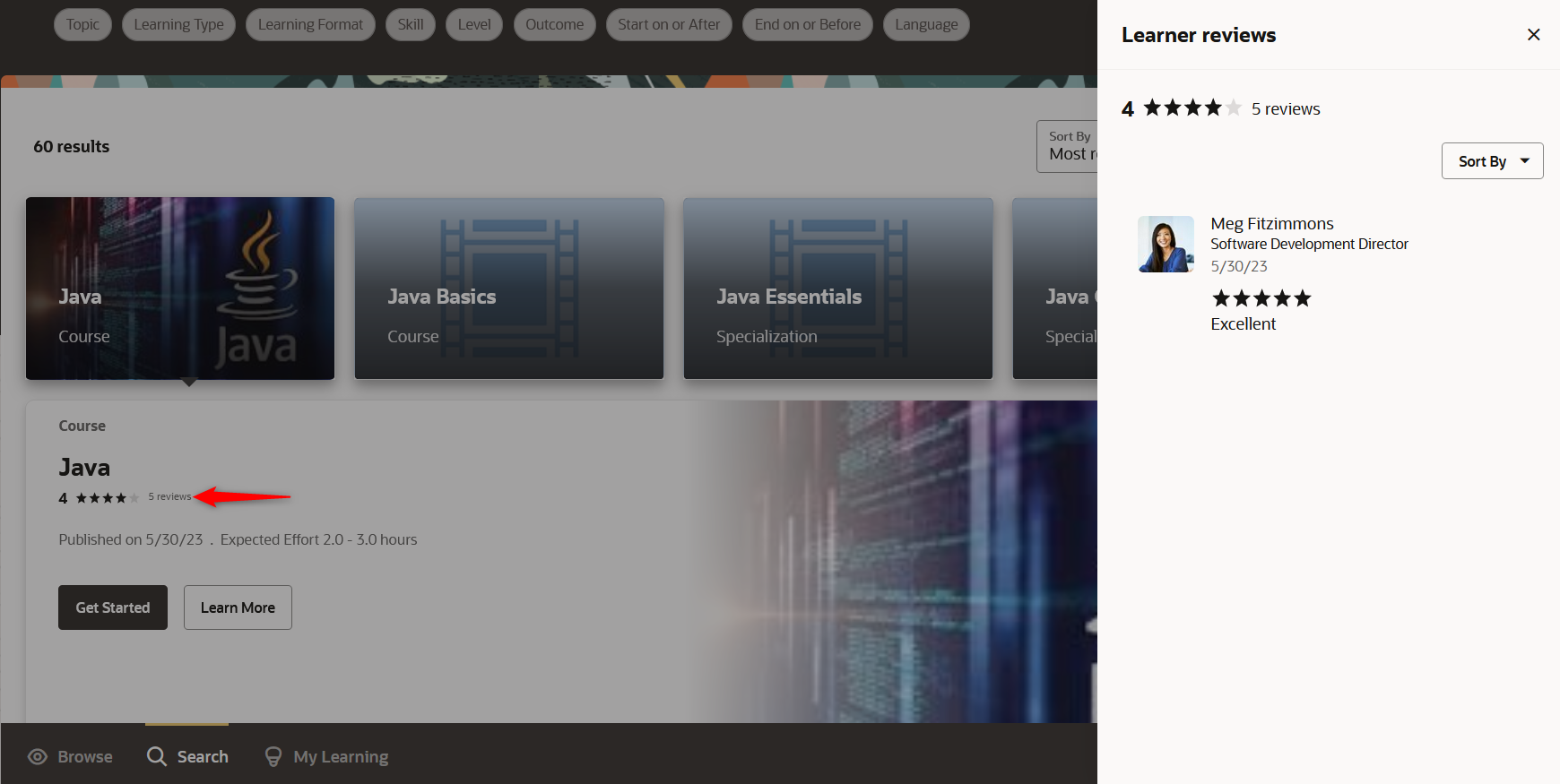
Redwood Search Learning Page with Learner Reviews Drawer Open
This enhancement continues your journey toward a unified Redwood experience.
Steps to Enable
If you enabled Redwood for Learners in an earlier release, you need to re-ingest the learning catalog to Oracle Search Cloud Service before learners will see additional catalog items on the Redwood browse and search pages. Refer to step 4 of the Enable Redwood Self-Service for Learners.
Key Resources
For information about Redwood profile options, see HCM Redwood Pages with Profile Options (Document ID 2922407.1) on My Oracle Support.
Redwood Commenting and Viewing Conversations
You can now use the new Redwood Conversation page to give your comments on a learning item, and even add attachments. People can access these conversations from the Redwood enrollment details and catalog details pages.
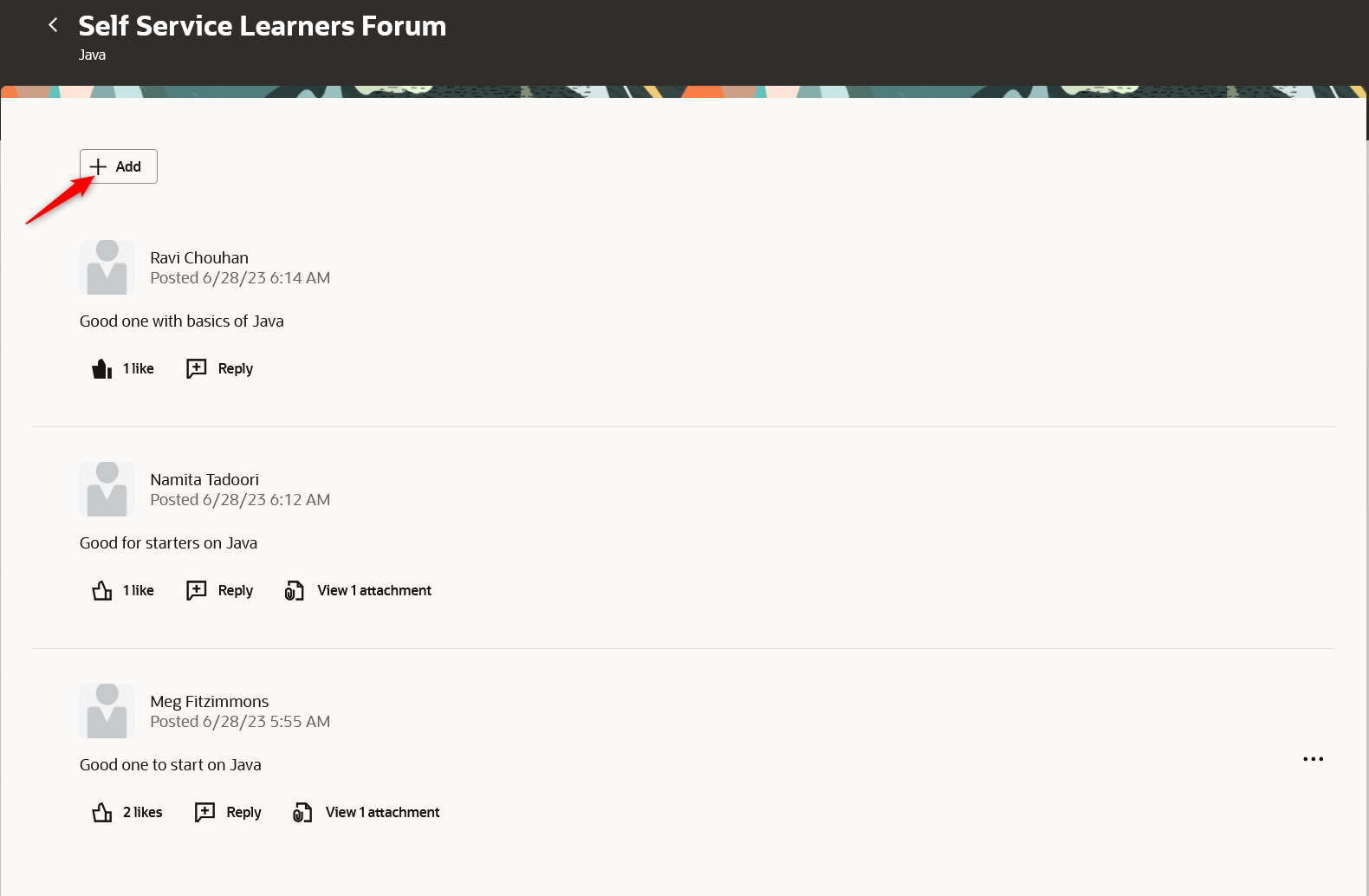
Self Service Learners Forum page
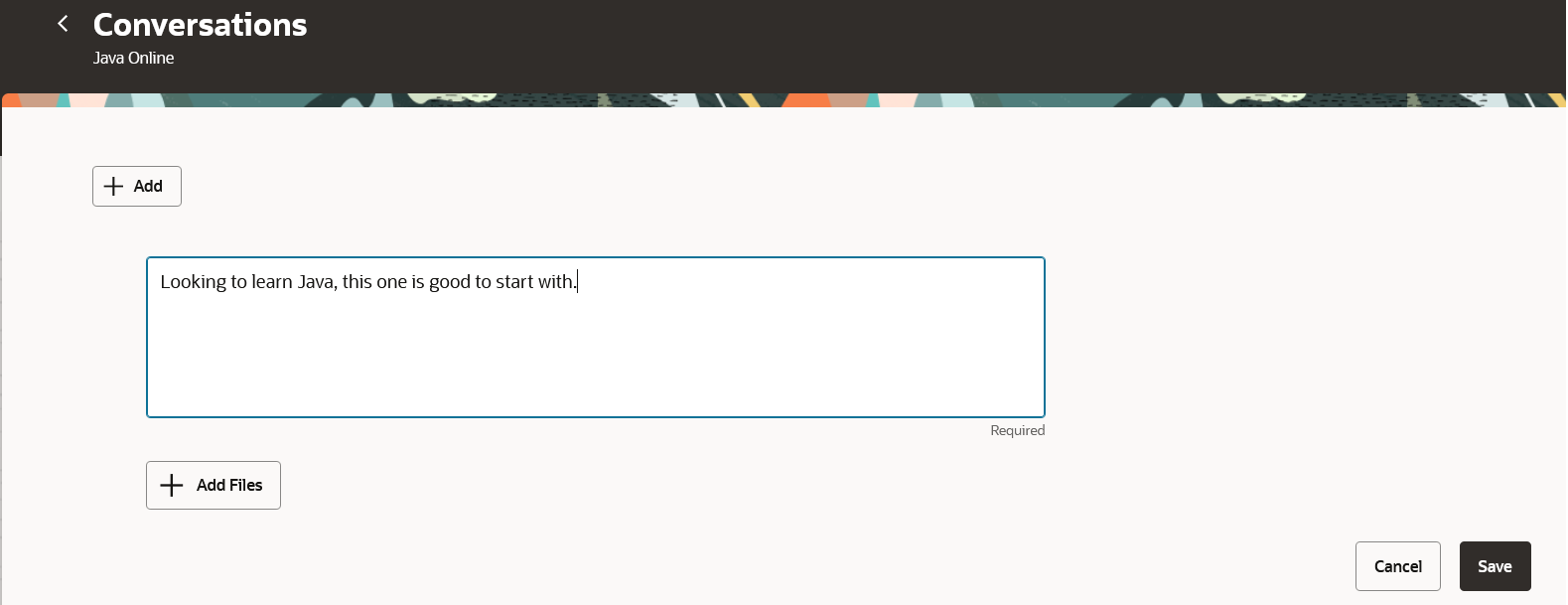
Conversations Page Where Learners Can Add Comments and Attach Files
This enhancement continues the journey towards a unified Redwood experience.
Steps to Enable
- If you haven't already done so, you need to enable activity sequencing.
- If you haven't already done so, you need to enable the Redwood Learner Experience
- Set profile option ORA_WLF_LEARN_SELFSERVICE_DETAIL_VBCS_ENABLED to 'Y'
Key Resources
For information about Redwood profile options, see HCM Redwood Pages with Profile Options (Document ID 2922407.1) on My Oracle Support.
Redwood Enrollment Details Page
Whether learners access the enrollment details page from My Learning Experiences, the Get Started action on the Redwood Browse or Search pages, a catalog item's details page, or directly from a link in their email, they can benefit from a redesigned page that guides them through to learning completion.
The enrollment details page is where learners go to complete their training. They can see the activities they need to complete and launch them. The course enrollment details page in Redwood was optimized for the most common scenarios, including offerings with a single activity and course learning assignments that let learners choose the offering to attain completion.
For offerings with a single activity, all the information that learners need about completion requirements and activity details is immediately visible to them. They don't need to click or expand for more details. The visible information includes:
- The activity rich text description
- Any applicable completion criteria, such as passing score, time limit for assessments, and number of allowed attempts
Videos will be played back on the page itself. The player for online content, such as SCORM, will automatically launch for the first play, minimizing clicks for the learner.
The past attempts table will display all attempts the learner made to attain the passing criteria. It's applicable for online content (SCORM and HACP) and assessments, when scoring is enabled.
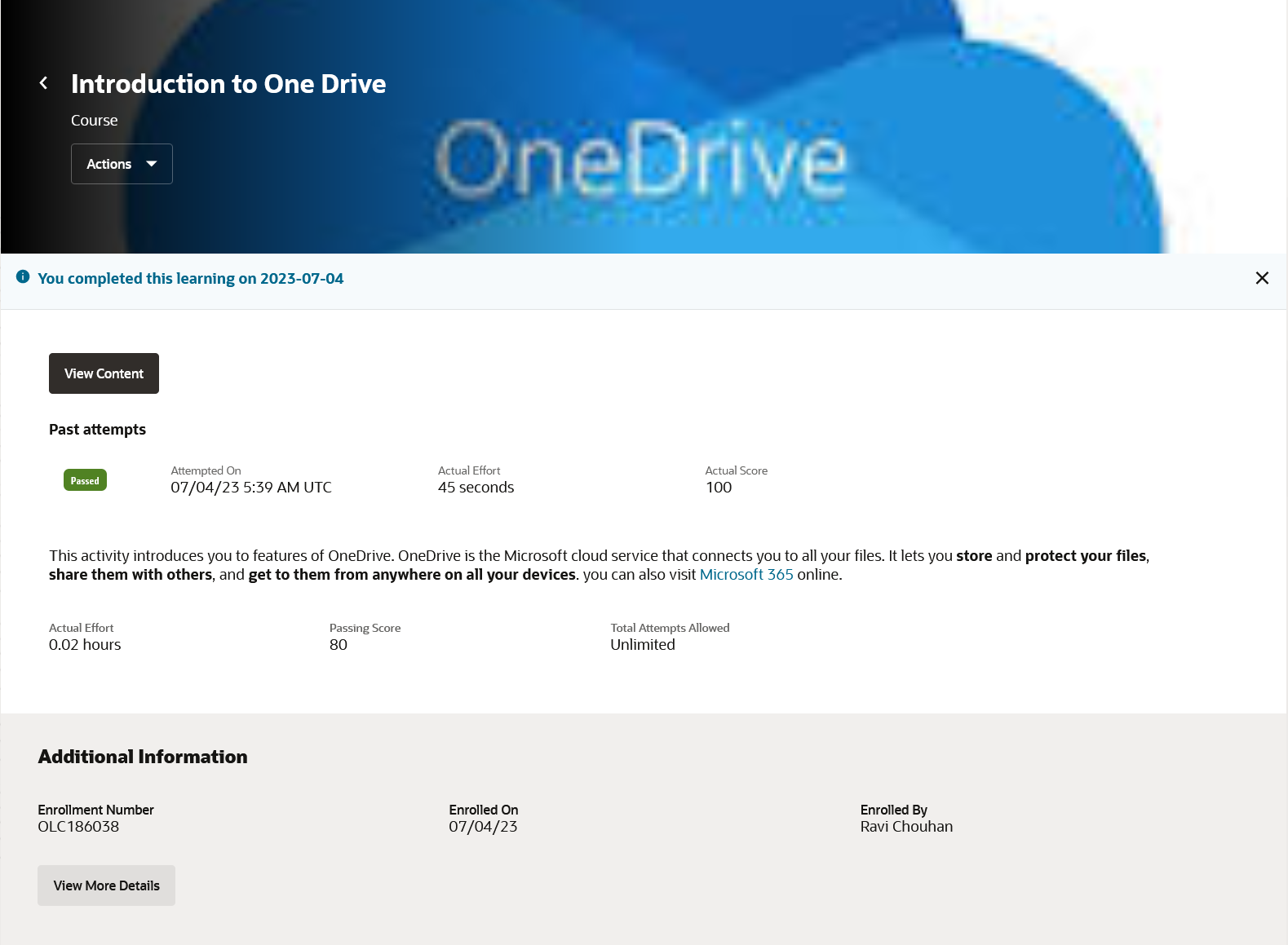
Course Enrollment Details for an Attained Completion Involving a Self-Paced Offering with a Single SCORM Activity
For instructor-led offerings, the Join Conference button appears to learners as soon as it's available. The prior limitation of showing the button only 15 minutes before the event start was removed.
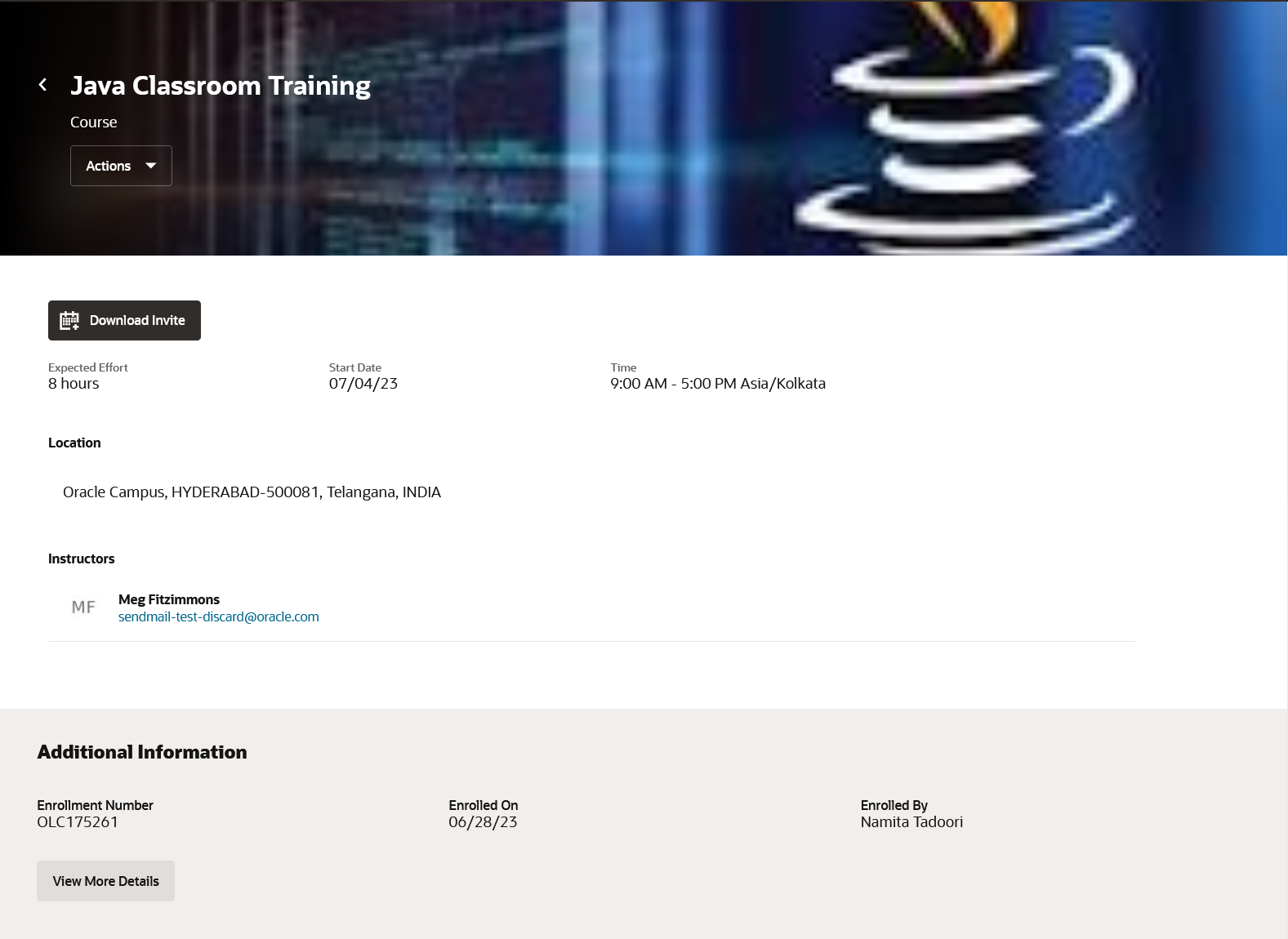
Course Enrollment Details for a Learning Assignment to be Completed with a Single-Event Instructor-Led Offering
When learners are enrolled in offerings where they need to complete more than one activity, the enrollment details page shows summary information about each activity. Learners can expand the activity to see the details. They no longer need to go to another page for the activity details and then return to the enrollment details. Similarly moving through the activities is simplified. To reduce the overall scrolling, as learners expand one activity, the currently expanded activity automatically collapses.

Enrollment Details Page of a Self-Paced Assignment with Multiple Activities
When learning administrators, line managers, or learning communities assign courses to learners, the learners need to choose an offering to progress to completion. Previously learners would see in the enrollment details that there was no active offering. In Redwood, that experience was optimized with clearer learner instructions so that they can better understand how to proceed. When learners click Find Offering, they'll get to choose from the available offerings, just as though they were self-enrolling from the learning catalog. For more details about self-enrollment, you can refer to the What's New: Redwood Learner Self-enrollment Experience.

Learning Course Assignment
The View More Enrollment Details drawer includes this information:
- Selected offerings
- Related materials
- Enrollment lifecycle
- Enrollment details
The Selected offering section shows all of the course offerings that the learner interacted with. For example, the learner joined the waitlist for one offering while holding an active seat in another, or withdrew from one offering and enrolled in another. The Selected offering section shows all of those interactions.
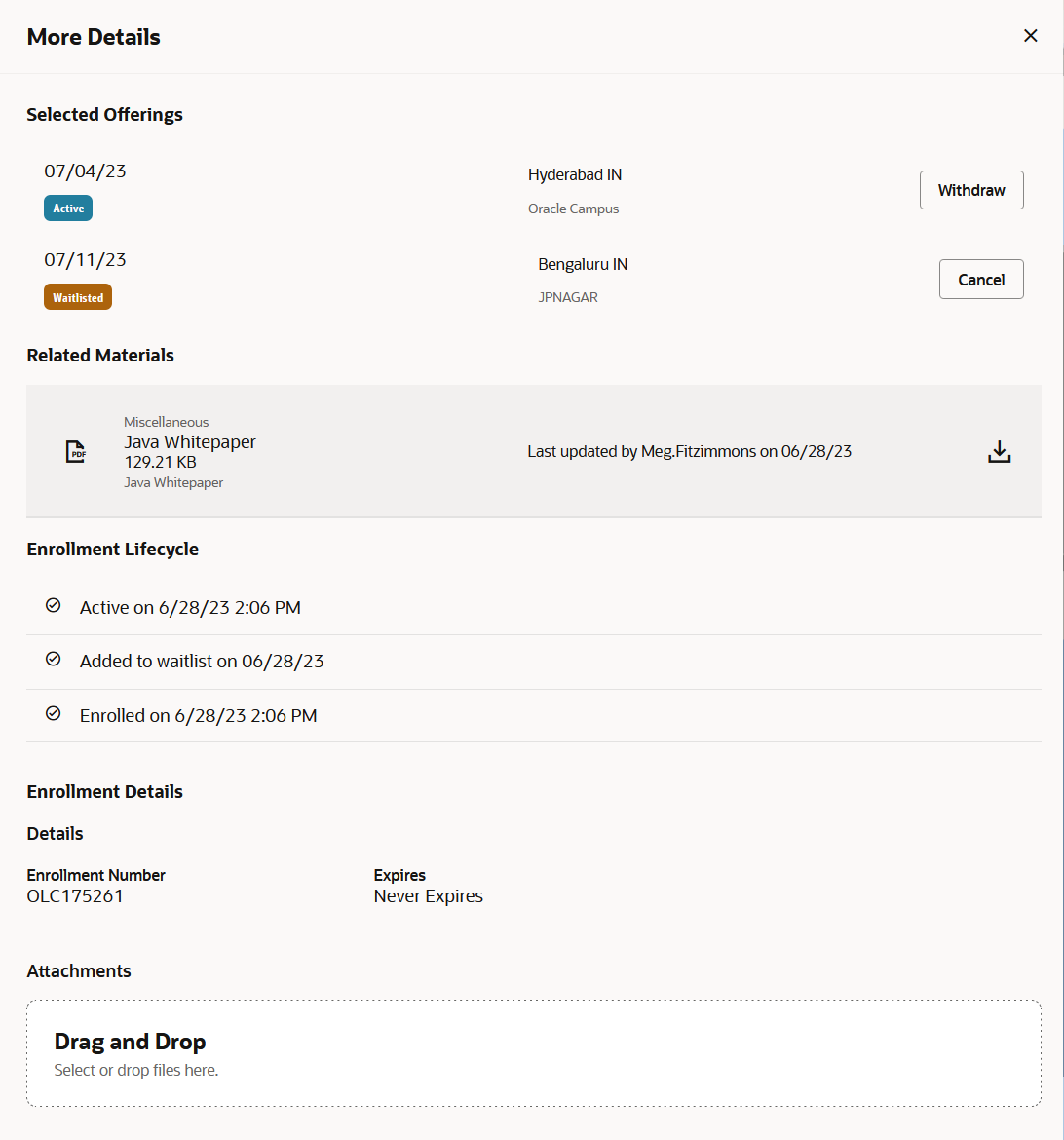
View More Details Drawer Opened from the Enrollment Details Page
The enrollment details page for a specialization looks very much like the page for a course offering with multiple activities. The learner can see the details of each activity, in this case courses, directly inline by expanding an activity. Launching an activity works just the same as for the nonRedwood page. It enrolls the learner in the course, and either requires the learner to pick an offering or launches the offering content, depending on the course and offering configuration. When learners complete one specialization activity, they go back to the specialization enrollment to continue their progress through other activities.
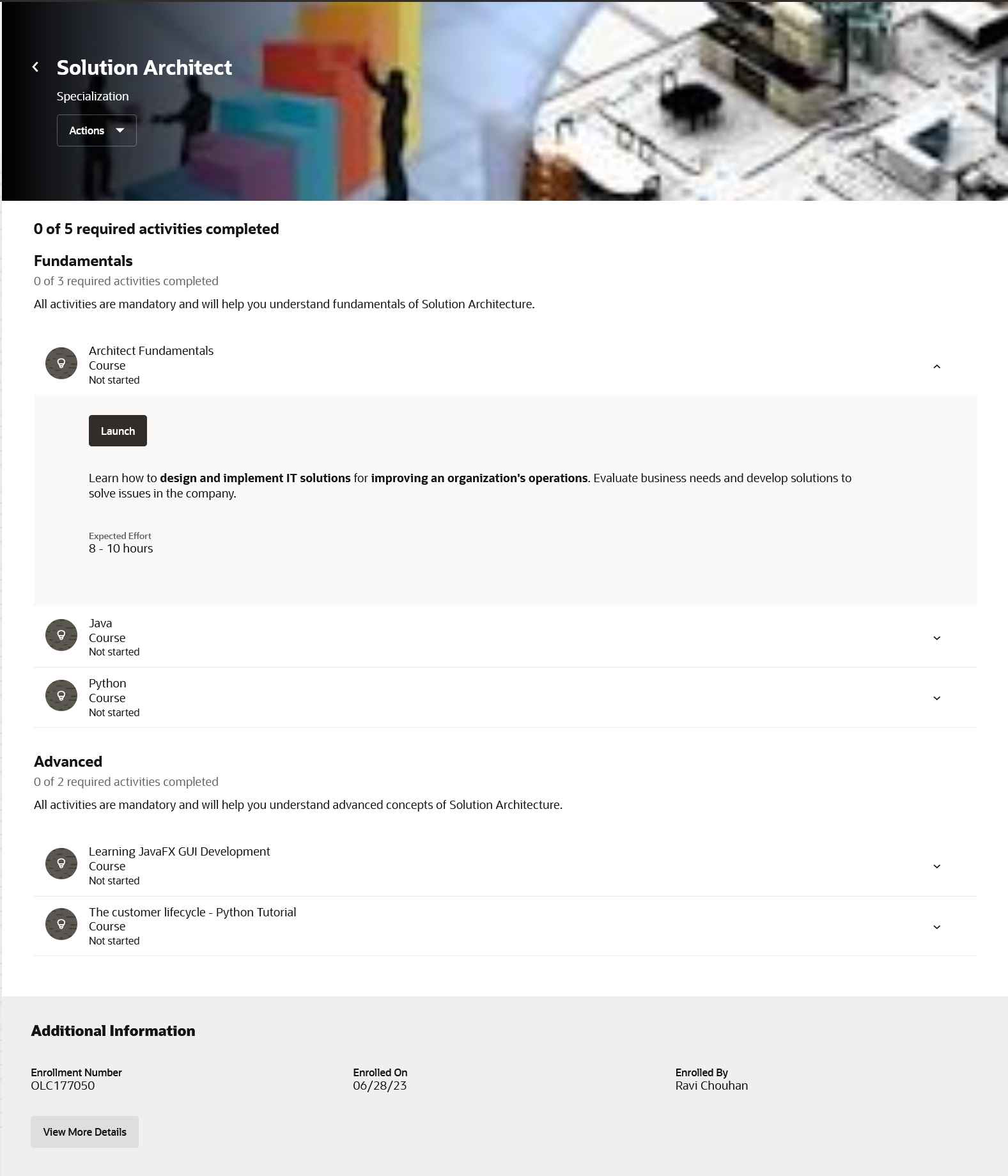
Enrollment Details Page for a Specialization
These are the Actions menu options available to learners on an enrollment details page, that open the appropriate Redwood page:
- View More Enrollment Details
- Report
- Withdraw
- View Learning Item Details: See all the details defined at the learning item level. You can view the enrollment details page and also do supported actions. For more information, see the 23C release What's New: Redwood Self-Service Catalog Details Page.
- Recommend: Recommend the learning to your colleagues. For more information, see the 23C release What's New: Redwood Self-Service Recommend Learning Page.
- Rate: Review other people's ratings for the learning and leave your own. For more information, see the 23C release What's New: Redwood Rate Learning and View Existing Ratings.

Actions Menu Options on an Enrollment Details Page
These enhancements continue your journey toward a unified Redwood experience.
Steps to Enable
- If you haven't already done so, you need to enable the Activity Sequencing.
- If you haven't already done so, you need to enable the Redwood Learner Experience
- Set the Site level value for the ORA_WLF_LEARN_SELFSERVICE_DETAIL_VBCS_ENABLED profile option to 'Y'.
Tips And Considerations
Deeplinks to enrollment details pages
You may have been sending deep links of enrollment details pages to your learners for quick access to complete their assigned learning. These links look like this https://YOUR_ENVIRONMENT/fscmUI/faces/deeplink?objType=WLF_LEARN_ENROLLMENT. Learners may have bookmarked them or they may still be in their email inbox, for example if you are sending them via resource alerts. After enabling this feature, those deeplinks will no longer display the catalog details, instead they will direct the learner to the new URL for the Redwood enrollment details. If you have resource alerts sending these deeplinks, you do not need to change anything, all new alerts generated after enabling this feature will automatically point to the Redwood enrollment details page.
Take note of the current limitations
- A SCORM or HACP based self-paced offering activity will display the details of each attempt the learner makes to attain completion. The review attempt action that appears should not as is not yet supported and clicking it does nothing.
- When a learner receives a required course assignment, they can select the offering they want to complete the assignment. If the learner subsequently withdraws from the offering they selected, they will not be able to select another. Administrators would need to add the learner to the offering in such cases.
- When enrollment approvals are enabled, the approver will receive an approval task with a link to the enrollment details. If they access that link, they will receive an access denied error.
- Instructor led activities held in a physical classroom will show the classroom address, but not the classroom title. The classroom title is included in the calendar download that the learner would add to their calendar.
- When a learner's enrollment includes an active selected offering and another in pending seat acceptance, the learner is unable to accept the seat.
- When a learner's enrollment includes an active selected offering and another in pending seat acceptance, the learner is able to decline the seat, but there's no confirmation it completed successfully.
- When a learner adds a comment to the conversation using the Actions > Comments feature, if enabled for the item, they can also like their own comment. Doing so produces an error.
- The completion and due date appearing on the page under the top banner are not presented in the user's localization preferences and are always in the format YYYY-MM-DD
- The past attempts listing for SCORM and HACP activities always show the Attempted On date and time in universal time (UTC)
Key Resources
For more information about setting up the Redwood learner experience, see the Redwood User Experience Setup chapter of the Implementing Learning guide.
For information about Redwood profile options, see HCM Redwood Pages with Profile Options (Document ID 2922407.1) on My Oracle Support.
Redwood Rate Learning and View Existing Ratings
Learners can now give their rating and comments for a learning using the new Redwood Rate Learning page.
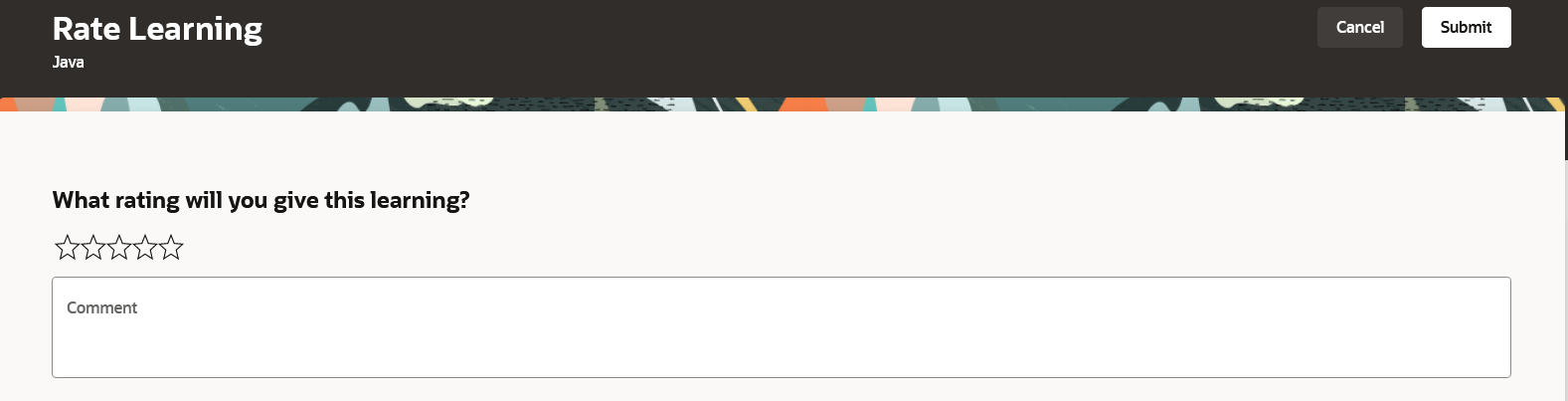
Redwood Rate Learning Page
Learners can view the existing ratings on the learning expansion card on the Redwood browse and search learning pages. When they click the number of reviews, such as 5 Reviews in this image, they open the Learner reviews drawer with the review details.
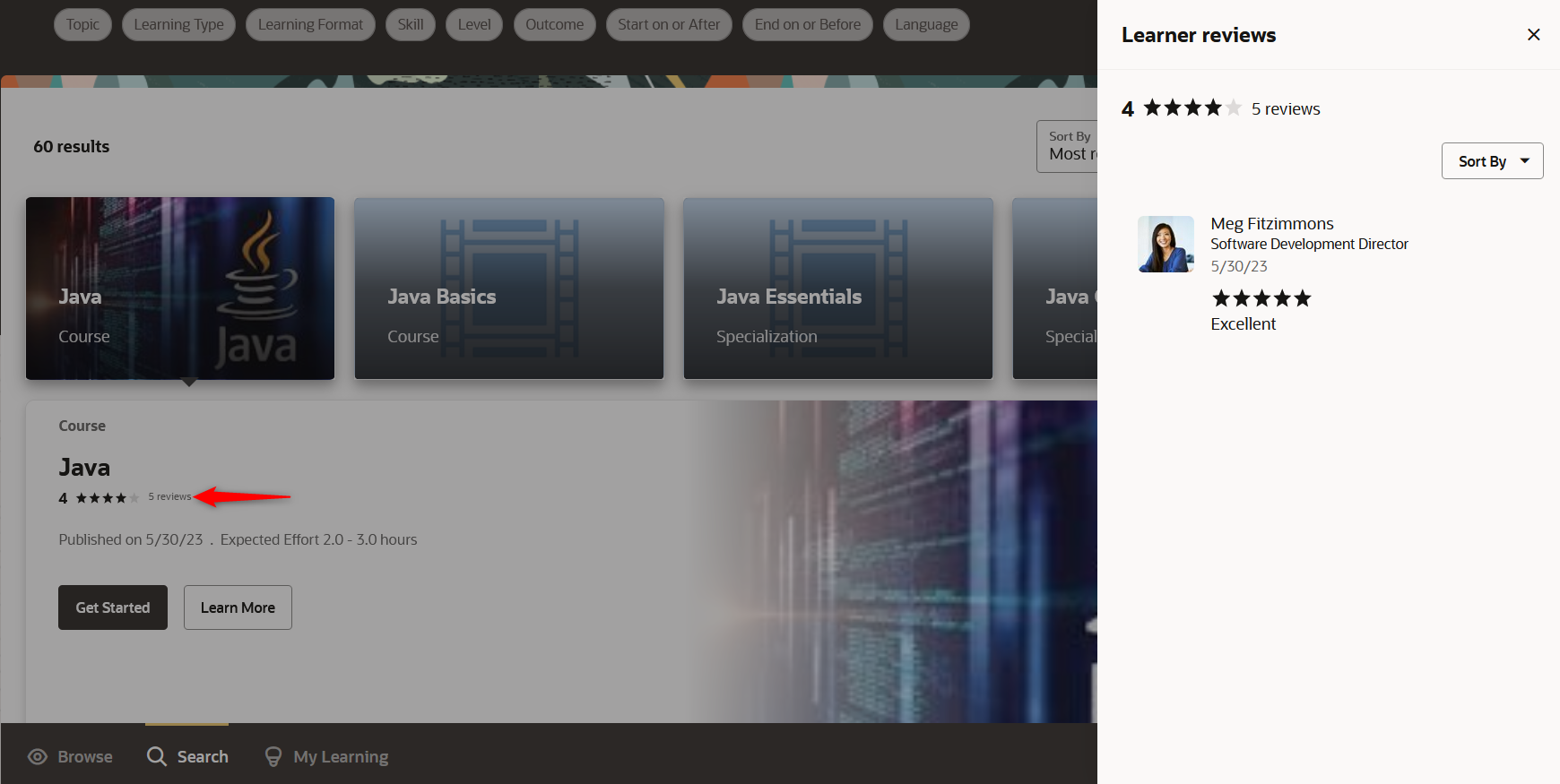
View Existing Ratings on the Redwood Browse and Search Learning Pages
This enhancement continues the journey towards a unified Redwood experience.
Steps to Enable
- If you haven't already done so, you need to enable activity sequencing.
- If you haven't already done so, you need to enable the Redwood Learner Experience
- Set profile option ORA_WLF_LEARN_SELFSERVICE_DETAIL_VBCS_ENABLED to 'Y'
Key Resources
- For details about enabling activity sequencing, see the 23A What's New, Activity Sequencing feature.
- For details about configuring the Redwood user experience, refer to the Redwood User Experience Setup chapter in the Implementing Learning guide, in Oracle Help Center.
- For information about Redwood profile options, see HCM Redwood Pages with Profile Options (Document ID 2922407.1) on My Oracle Support.
Redwood Request Noncatalog Learning and Record External Learning Pages
Learners can now use the new Redwood Request Noncatalog Learning page to request learning that isn't part of the Oracle Learning catalog. And they can use the new Redwood Record External Learning page to add learning that they completed outside of their organization to their learning history.

My Learning Experiences Page with the Record External Learning Button and Request Noncatalog Learning Action

Redwood Record External Learning
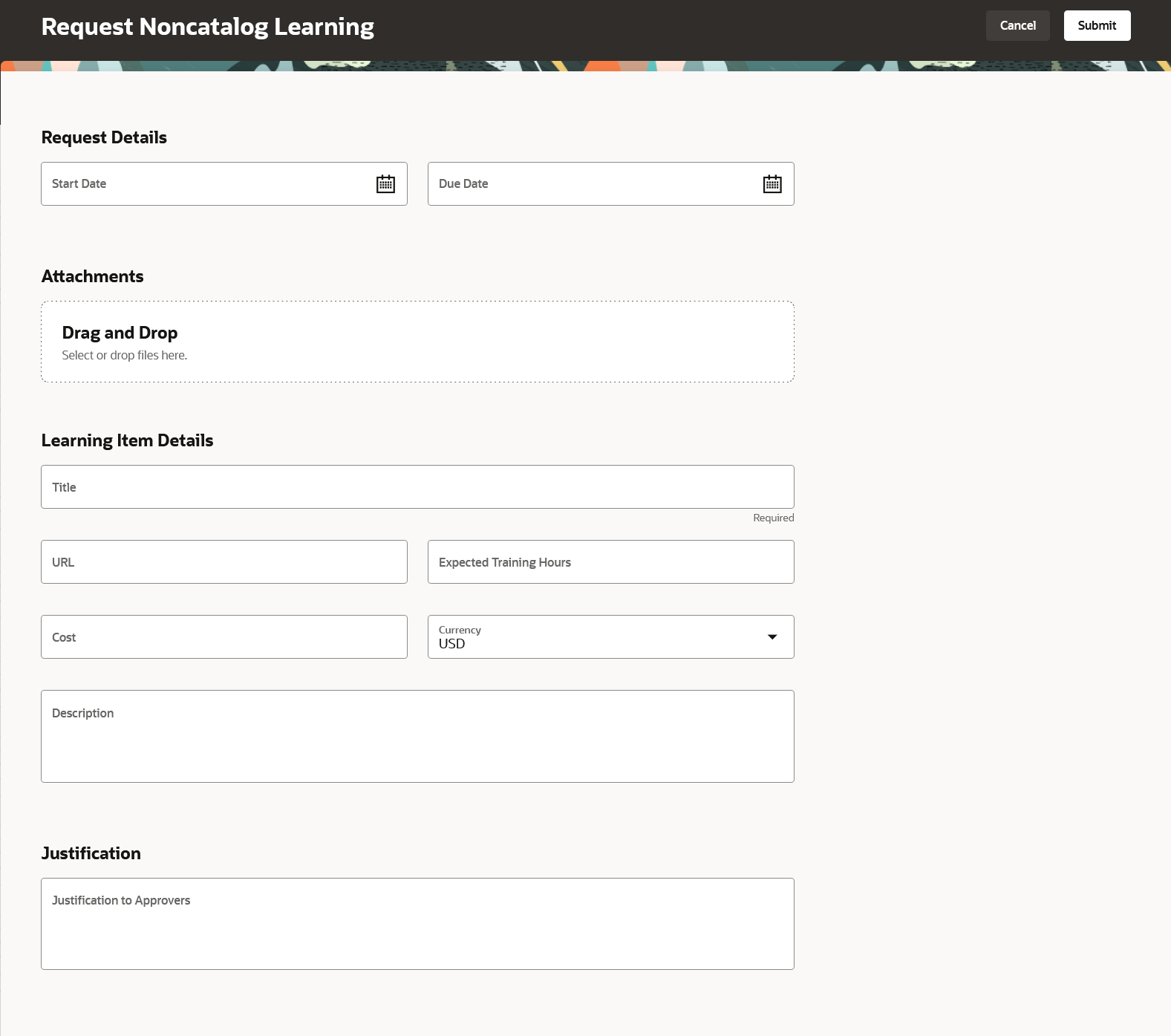
Redwood Request Noncatalog Learning
This enhancement continues your journey towards a unified Redwood learning experience
Steps to Enable
- If you haven't already done so, you need to enable activity sequencing.
- If you haven't already done so, you need to enable the Redwood Learner Experience
- Set the Site level ORA_WLF_LEARN_SELFSERVICE_DETAIL_VBCS_ENABLED profile option to 'Y'.
Tips And Considerations
Enabling flexfields and other customizations using Visual Studio isn't currently supported.
Key Resources
- For details about enabling activity sequencing, see the 23A What's New, Activity Sequencing feature.
- For details about configuring the Redwood user experience, refer to the Redwood User Experience Setup chapter in the Implementing Learning guide, in Oracle Help Center.
- For information about Redwood profile options, see HCM Redwood Pages with Profile Options (Document ID 2922407.1) on My Oracle Support.
Redwood Self-Enrollment Experience
New Redwood pages and self-enrollment links give learners a more informative, guided way to self-enroll in courses. Here's how they can enroll themselves:
- From the Redwood Browse and Search pages using Get Started
- From the course or specialization catalog details page using Enroll or Find Offering
- From their email using a direct link to a specific course, offering, or specialization enrollment page
In all cases, the learner's experience is curated to get them as far along in the enrollment process as possible with the fewest clicks. For example, if Jan uses Get Started for a recommended offering, or an enrollment link to that offering, and Jan is already enrolled in that offering, they're directed to the enrollment details page for the existing enrollment. If John started the same but wasn't already enrolled, they're taken through the enrollment process.
The self-enrollment process guides the learner through any decisions the learner needs to make. For example, the learner has multiple offerings that they can choose from to complete their training. They see all of the applicable offerings so that they can choose the best offering for them.
After the learner makes all necessary choices, or when there aren't any choices for them to make, they're automatically directed to the enrollment details page where they can complete the necessary activities. Video and online content, such as SCORM or HACP, for self-paced offerings with a single activity automatically launches to avoid unnecessary clicks by the learner.
This example illustrates the learner's self-enrollment experience for a course with multiple offerings. They started using either the Get Started action on the Redwood Browse or Search page, the link in their email notification. If there are less than 10 available offerings, filters are hidden to further simplify the learner's experience. The Enroll in Course action is also hidden when the course rules for the learner's initial status are set to None.

Course Enrollment Page with Multiple Offerings
Enrollment Link
You let learners enroll directly in a new offering, course, or specialization to by providing the link in an email. The link behavior is the same as clicking Get Started. To send enrollment links to learners instead of sending them to the catalog details page, use learningItemSelfEnrollmentURL attribute in your resource alert, backed by the learnerLearningCatalogItems or learningRecommendations attribute.
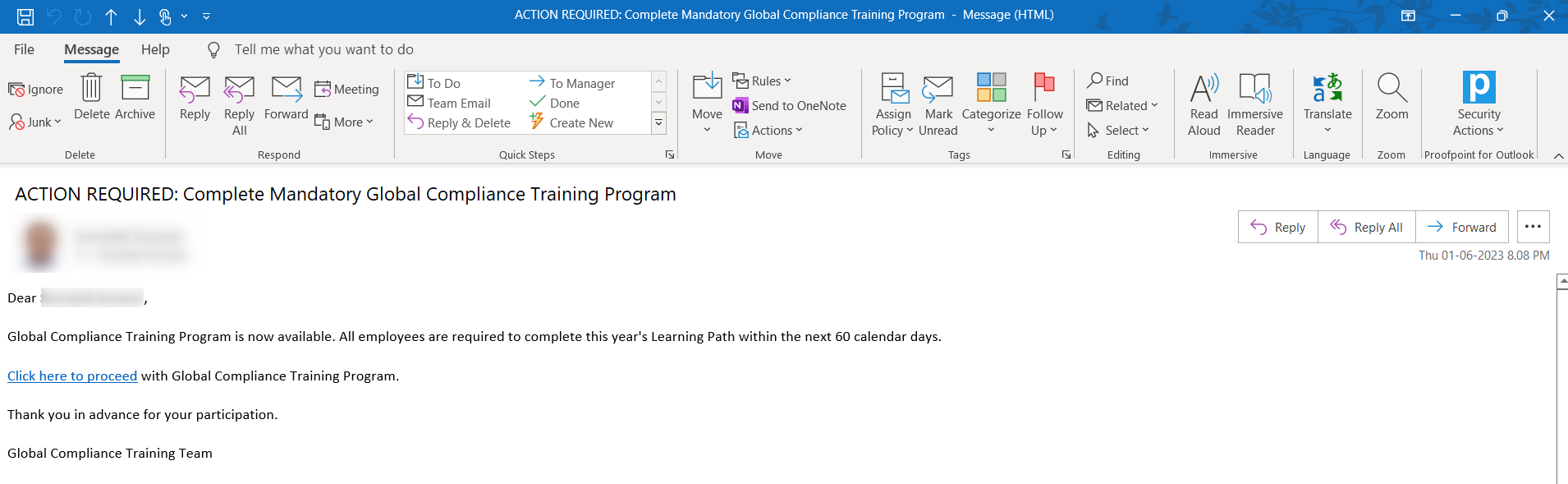
Email with Direct Enrollment Link
These enhancements continue the journey towards a unified Redwood experience.
Steps to Enable
- If you haven't already done so, you need to enable the Activity Sequencing.
- If you haven't already done so, you need to enable the Redwood Learner Experience
- Set profile option ORA_WLF_LEARN_SELFSERVICE_DETAIL_VBCS_ENABLED to 'Y'
Tips And Considerations
- When a learner is enrolling in a course that has 10 or more available offerings, the date filters on the available offerings page to filter instructor led offerings are off by 1 day. For example searching for offerings that start on or after August 1st 2023, returns offerings that start on July 31st 2023, or searching for offerings that end on or before July 31st 2023 does not include offerings ending on July 31st
- When clicking on Get Started from the catalog search page expanded card, the learner will be presented with the course syllabus and available offerings. They can not navigate to the offering details from here. Learners can use the Learn More action on the expanded card if they require more details prior to enrollment.
Key Resources
For more information about setting up the Redwood learner experience, see the Redwood User Experience Setup chapter of the Implementing Learning guide.
For information about Redwood profile options, see HCM Redwood Pages with Profile Options (Document ID 2922407.1) on My Oracle Support.
Redwood Self-Service Catalog Details Page
On Redwood Browse or Search pages, learners and managers can use the Learn More action to see the syllabus and all other details for an item in the learning catalog before enrolling in it or getting it assigned. The details page consists of 3 main parts:
- A primary action
- Secondary actions
- Item details
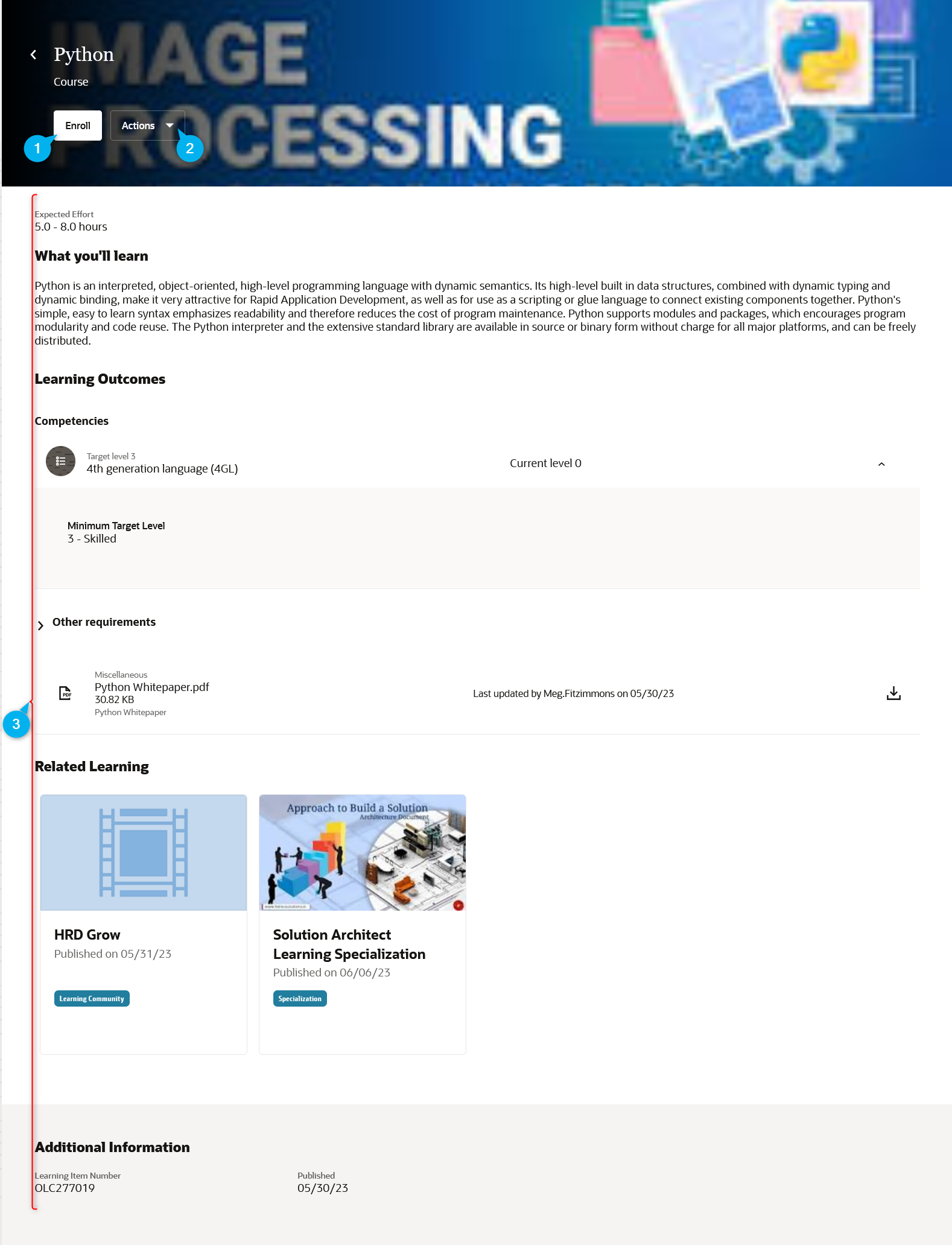
Redwood Course Details Page
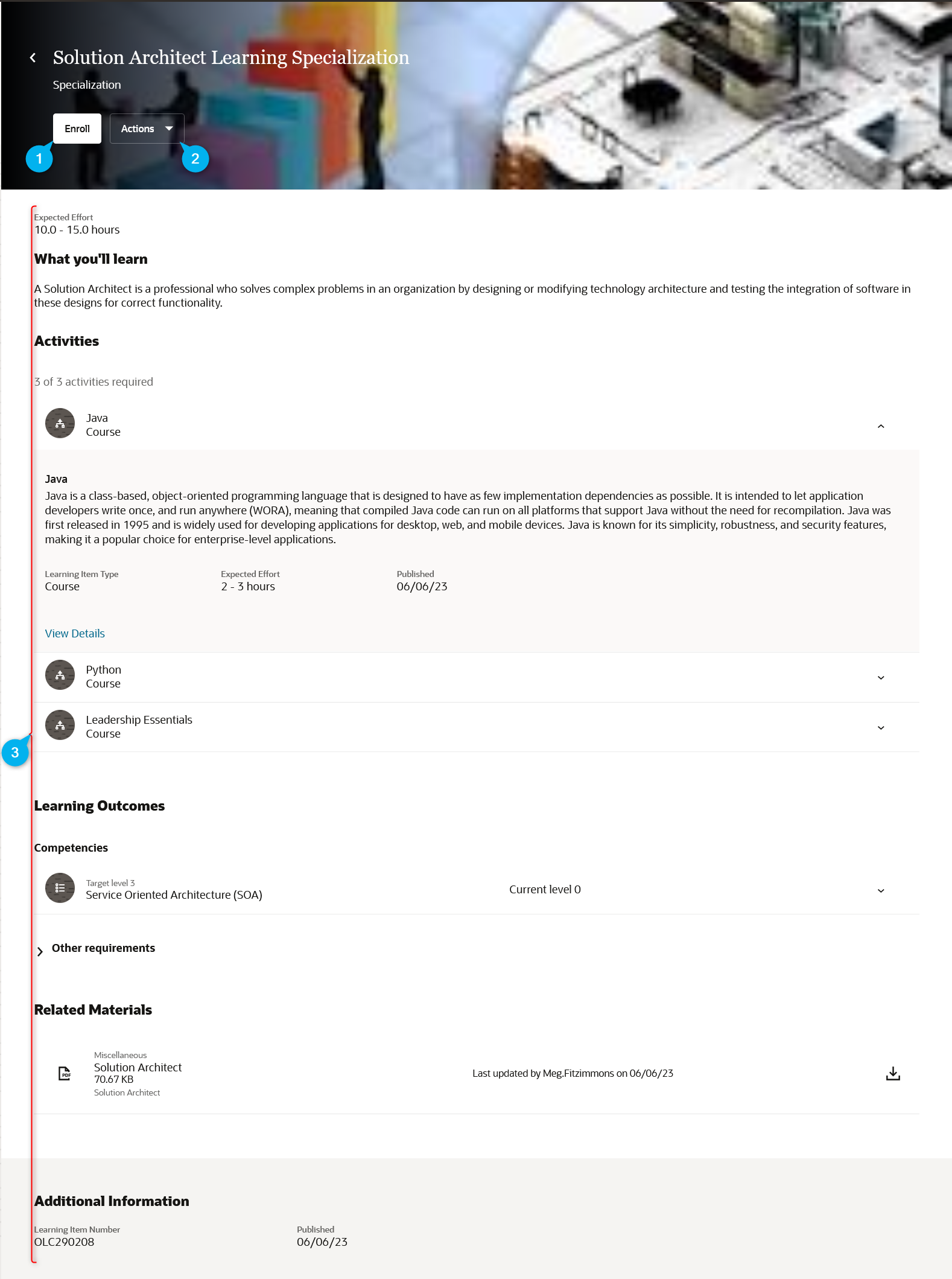
Redwood Specialization Details Page
Primary Actions
The primary action depends on the learning type, such as course or specialization; the learning configuration, such as the number of offerings; and the learner's relationship to the learning, such as if they're browsing the catalog or the learning was assigned.
| Learning Type | Possible Primary Actions |
|---|---|
| Course |
Enroll, Find offerings, View enrollment, Request, or no primary action |
| Course Offering |
Enroll, Request, Join Waitlist, Offering full, View enrollment, or no primary action |
| Specialization |
Enroll, Request, View enrollment, or no primary action |
| Community |
Join or no primary action |
| Video |
Get started |
| Learning Journey |
Get started |
- Enroll: There's no additional choices the learner needs to make, such as when there's only one self-paced offering available to them in their language or with no language defined.
- Find offerings: The learner has to choose which offering they want to use to complete the course. It's also be shown if there's only one time-based offering available to them, or one self-paced offering in a language other than their language preference.
- Request: When enrollment approval is enabled.
- Join waitlist: When the offering capacity is full and joining the waitlist is enabled.
- Offering full: For information purposes only. It appears when an offering is at capacity and joining the waitlist is disabled.
- View enrollment: When the learner has a pre-active, active, or completed assignment for the learning.
Note: For more details about the improved learner enrollment experience, see to the What's New: Redwood Self-Enrollment Experience.
Secondary Actions
Secondary actions are available in the Actions menu and include recommending or reporting the learning, copying it's link to share with others, viewing conversations about the learning. Managers can also assign the learning to people in their team.
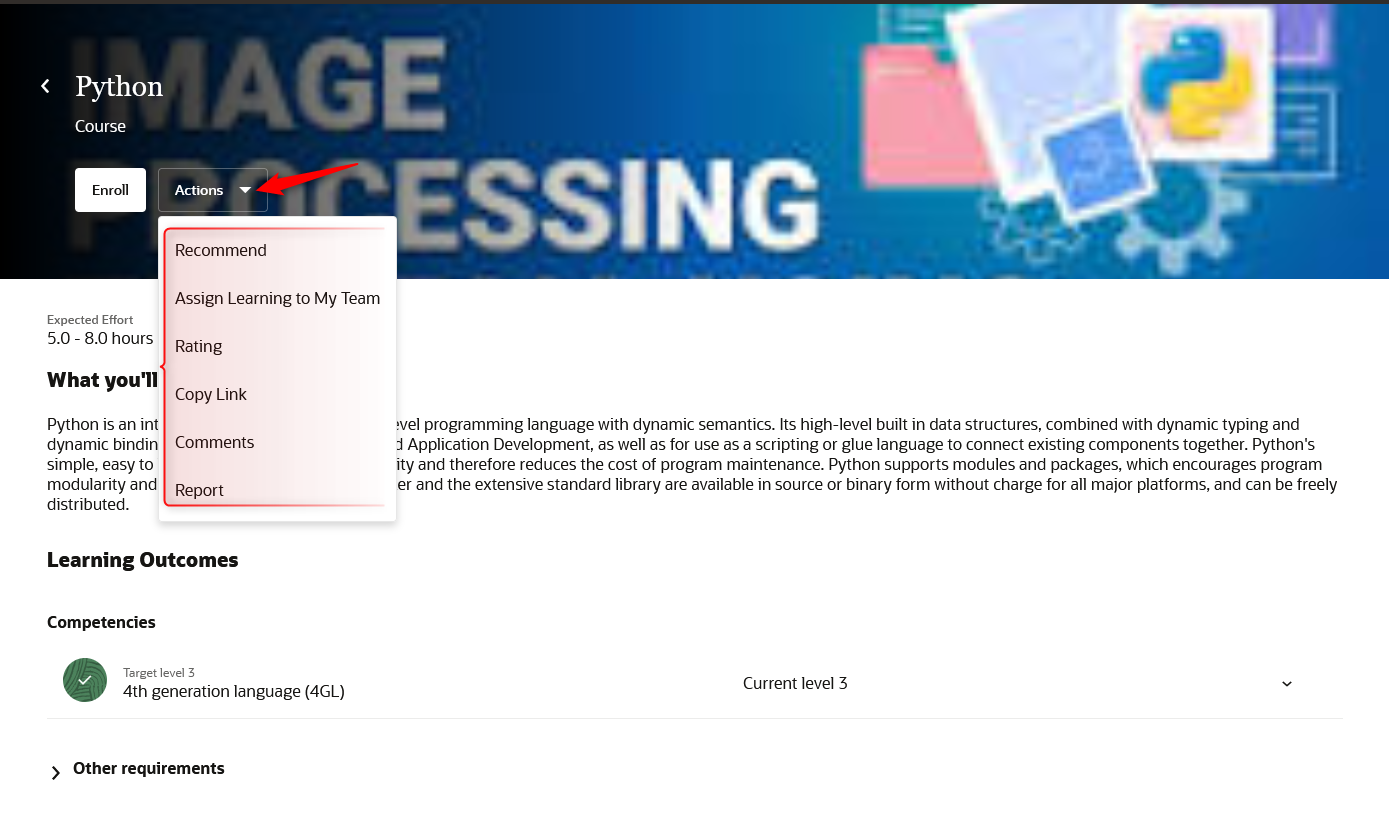
Secondary Redwood Enrollment Actions
Course, Offering, and Specialization Details
In addition to an updated look, the Redwood catalog details pages improve learner experience by automatically hiding empty sections and removing navigation to additional pages. For example, if a course or specialization doesn't have related materials, or learning outcomes, or learning prerequisites defined, those sections simply don't appear, giving the learner a cleaner and less distracting experience. Also, to view rating details, learners now just click the ratings counter, which is much more intuitive than using the Actions menu.
Items with activities, such as offerings and specializations, include the list of activities and their corresponding rich-text descriptions inline on the page. Learners just expand and collapse the relevant details as they click through the activities. Learners don't need to open pages with those details and then return to the main details page.
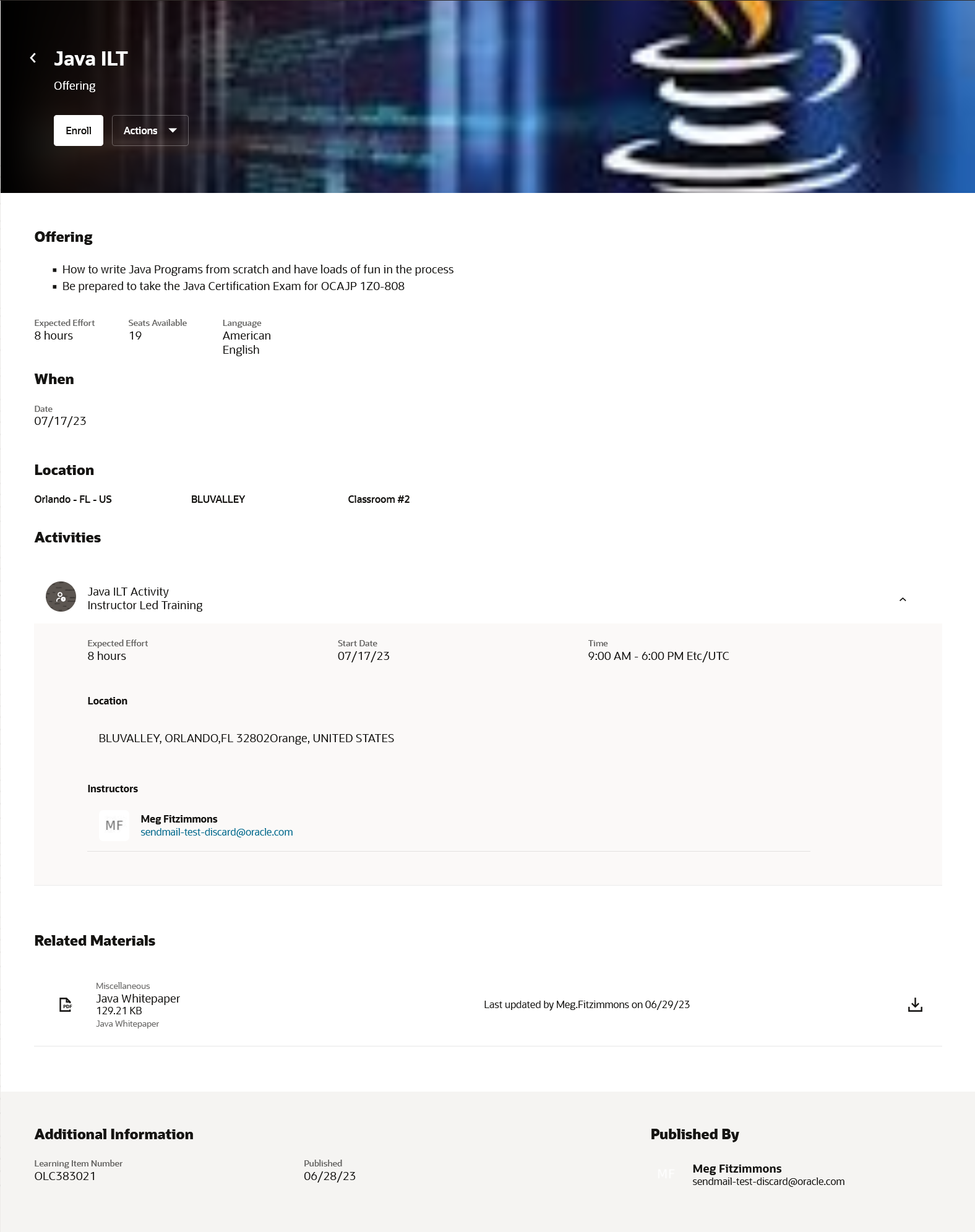
Redwood Catalog Details Page for an ILT Offering
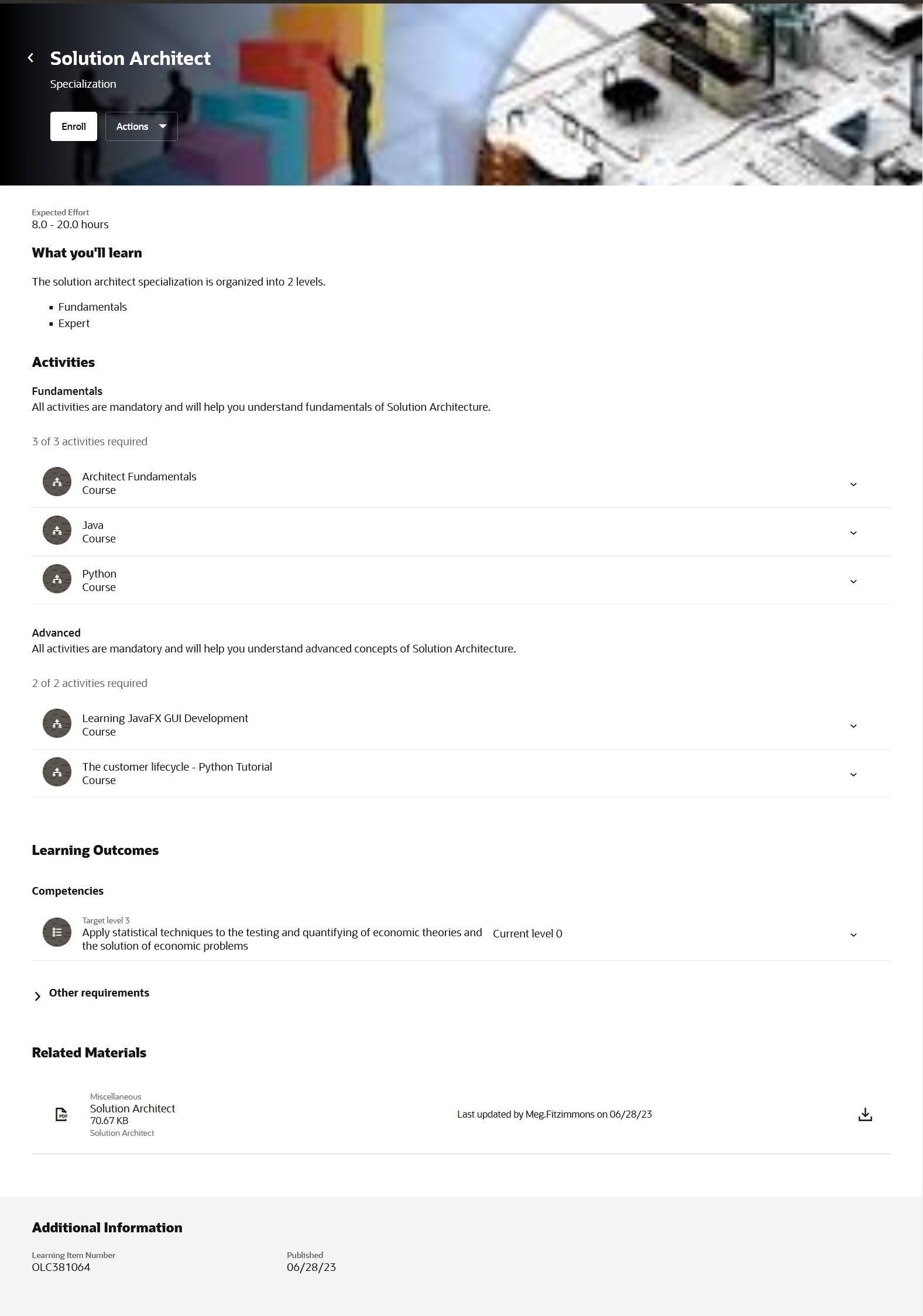
Redwood Catalog Details Page for a Specialization
Topic, Official, and Self-Service Community Details

Learner's View of a Redwood Community Catalog Details Page Before Joining the Community
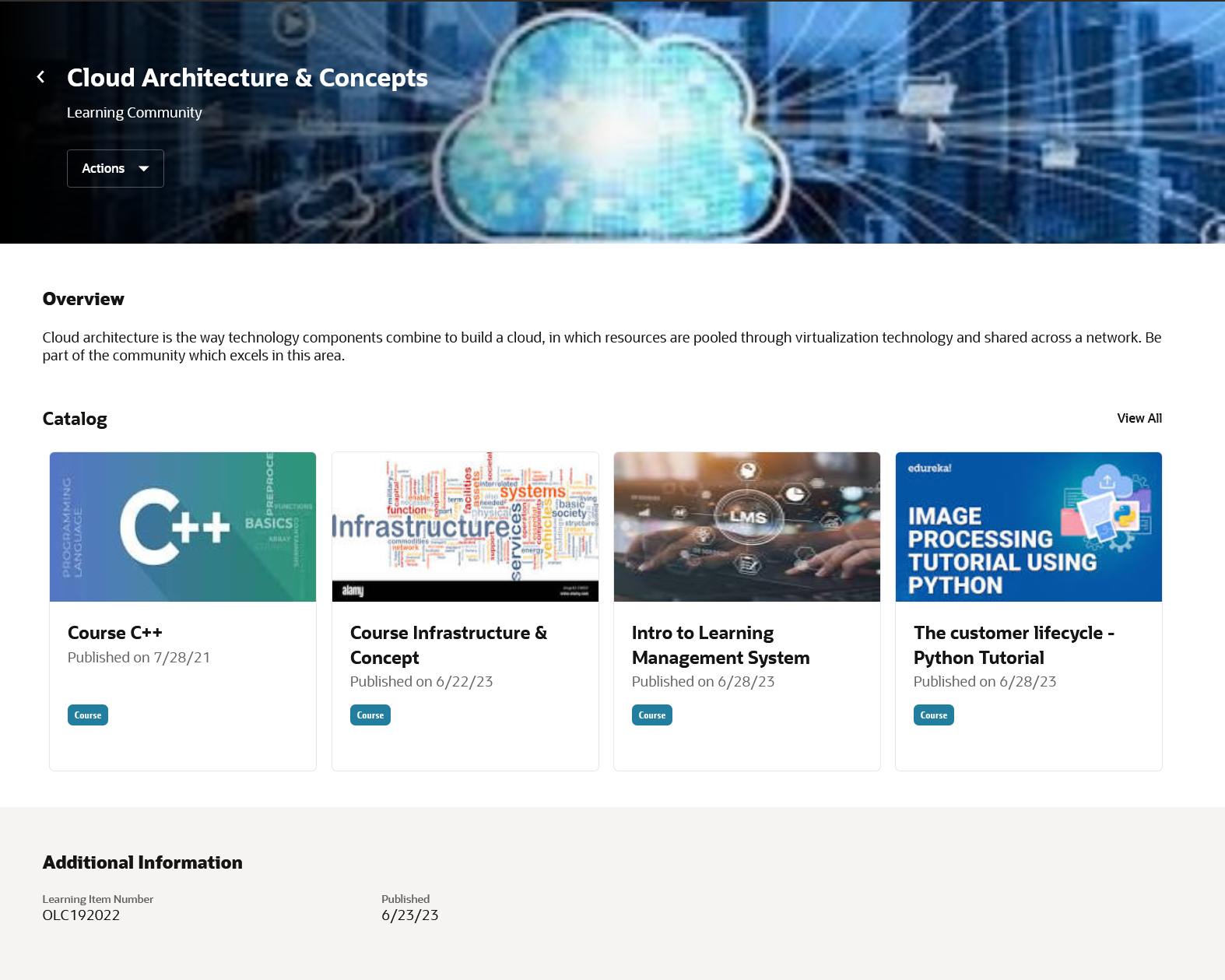
Learner's View of a Redwood Community Catalog Details Page After Joining the Community
These enhancements continue your journey toward a unified Redwood experience.
Steps to Enable
- If you haven't already done so, you need to enable activity sequencing.
- If you haven't already done so, you need to enable the Redwood Learner Experience
- Set the Site level value for the ORA_WLF_LEARN_SELFSERVICE_DETAIL_VBCS_ENABLED profile option to 'Y'.
Tips And Considerations
Deeplinks to catalog details pages
You may have been sending deep links of catalog details pages to your learners for quick access to a course, offering, or specialization catalog details page. These links look like this https://YOUR_ENVIRONMENT/fscmUI/faces/deeplink?objType=WLF_LEARN_LEARNING_ITEM. Learners may have bookmarked them or they may still be in their email inbox, for example if you are sending them via resource alerts. After enabling this feature, those deeplinks will no longer display the catalog details, instead they will direct the learner to the new URL for the Redwood catalog details page of the specific course, offering, or specialization. If you have reosurce alerts sending these deeplinks, you do not need to change anything, all new alerts generated after enabling this feature will automatically point to the Redwood page.
Take note of the current limitations
- When a course's initial learning assignment status setting is set to 'None', learners will not be able to self-enroll into any of it's offerings.
- When a learner accessed an old style deeplink to a catalog details page like https://YOUR_ENVIRONMENT/fscmUI/faces/deeplink?objType=WLF_LEARN_LEARNING_ITEM, and follows the link on that page to the Redwood catalog details page, the catalog details page will appear empty for several seconds before it shows a progress indicator of the page loading.
- When a learner is enrolling in a course that has 10 or more available offerings, the date filters on the available offerings page to filter instructor led offerings are off by 1 day. For example searching for offerings that start on or after August 1st 2023, returns offerings that start on July 31st 2023, or searching for offerings that end on or before July 31st 2023 does not include offerings ending on July 31st
- When a course has multiple available offerings visible to the learner and from the course catalog details page they navigate to the offering details page, the activities presented there will not show the activity rich text description formatting. These will properly appear post-enrollment.
Key Resources
For more information, refer to:
- The 23A release What's New: Activity Sequencing.
- The Redwood User Experience Setup chapter of the Implementing Learning guide, in Oracle Help Center.
- For information about Redwood profile options, see HCM Redwood Pages with Profile Options (Document ID 2922407.1) on My Oracle Support.
Redwood Self-Service Recommend Learning
Recommend learning to your colleagues using the new Redwood Recommend Learning page.
- Explain why you think they'll be interested in the learning using the Comments field.
- Start typing the person's name in the Recommend to this person field, and you'll start seeing the people with names that match.
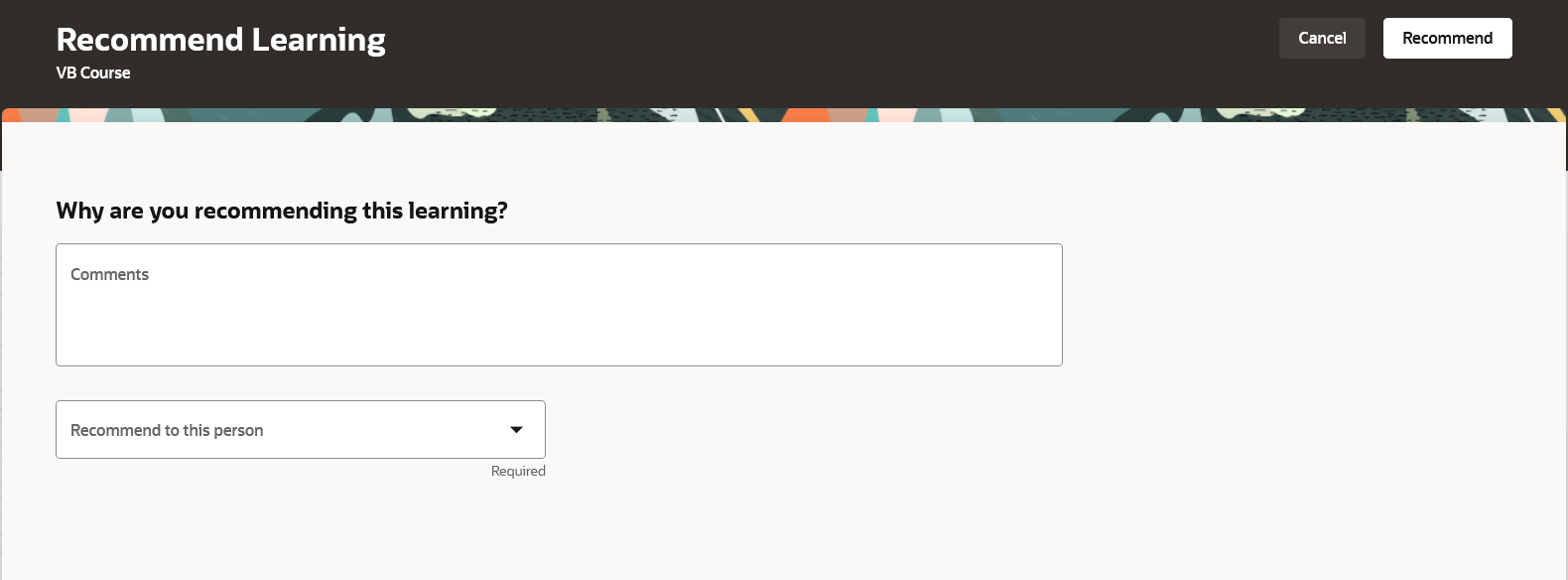
Redwood Recommend Learning Page
This enhancement continues your journey toward a unified Redwood experience.
Steps to Enable
- If you haven't already done so, you need to enable activity sequencing.
- If you haven't already done so, you need to enable the Redwood Learner Experience
- Set the Site level value for the ORA_WLF_LEARN_SELFSERVICE_DETAIL_VBCS_ENABLED profile option to 'Y'.
Key Resources
- For details about enabling activity sequencing, see the 23A What's New, Activity Sequencing feature.
- For details about configuring the Redwood user experience, refer to the Redwood User Experience Setup chapter in the Implementing Learning guide, in Oracle Help Center.
- For information about Redwood profile options, see HCM Redwood Pages with Profile Options (Document ID 2922407.1) on My Oracle Support.
Copy Offering and Specialization
You can now copy and edit offerings and specializations, including their activity sequencing rules, to more quickly create additional learning.
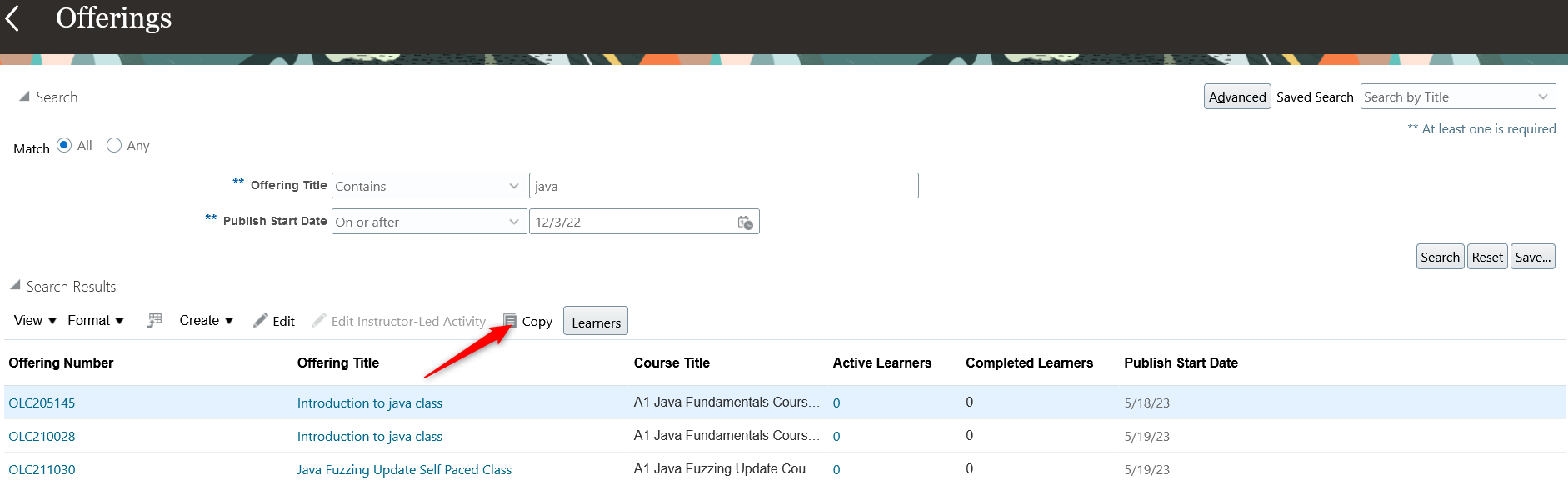
Offerings Page with the Copy Icon
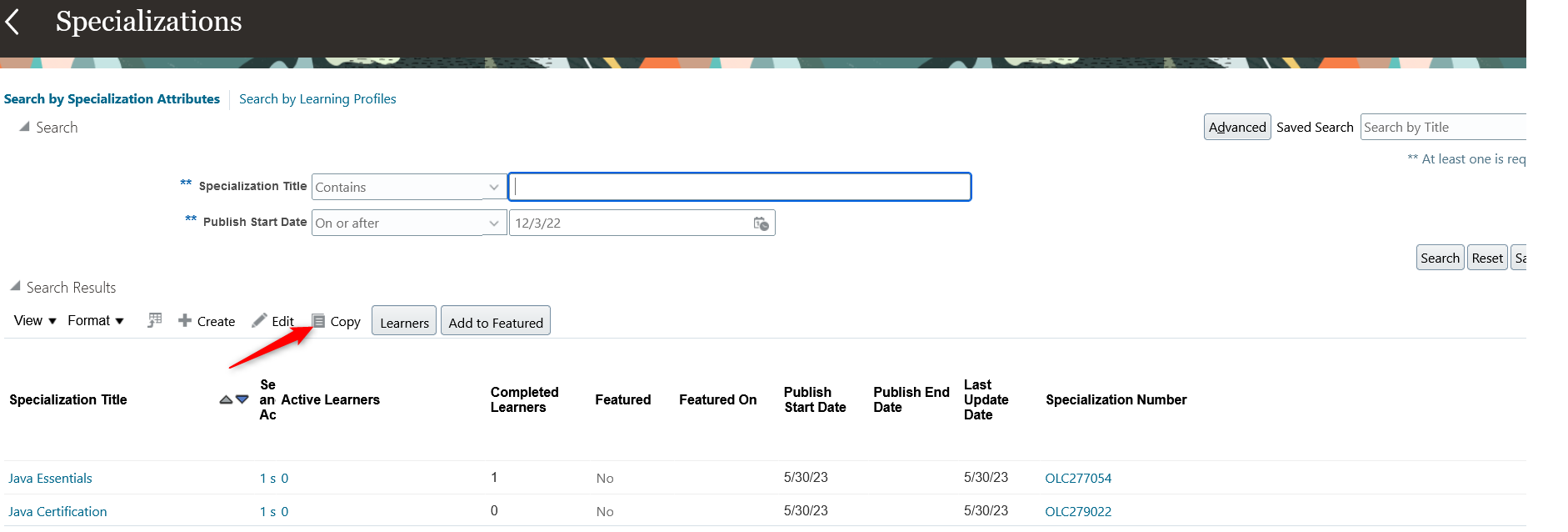
Specializations Page with the Copy Icon
This enhancement lets you create additional offerings and specializations more quickly by copying them, then replacing or updating the necessary activities.
Steps to Enable
You don't need to do anything to enable this feature.
Key Resources
For more information about activity sequencing, see these documents:
- Release 23A What's New: Activity Sequencing
- Add ILT Activities to a Blended or ILT Oracle Learning Offering
- Add Self-Paced Activities to a Blending or Self-Paced Oracle Learning Offering
- Add Courses as Activities to an Oracle Learning Specialization
Redwood Manager Assign, Request Noncatalog, and Record External Completion Actions
You can now use new Redwood My Team > Learning pages to assign learning to your team members. You can also record external learning that your team members completed outside your organization, in their learning history.

Assign Learning and Record External Learning Actions Available on the Team Learning Pages

Redwood Assign Learning Page

Redwood Record External Learning Page
On the Explore for My Team page, you can use the Request Noncatalog Learning action to request learning that isn’t part of the Oracle Learning catalog.
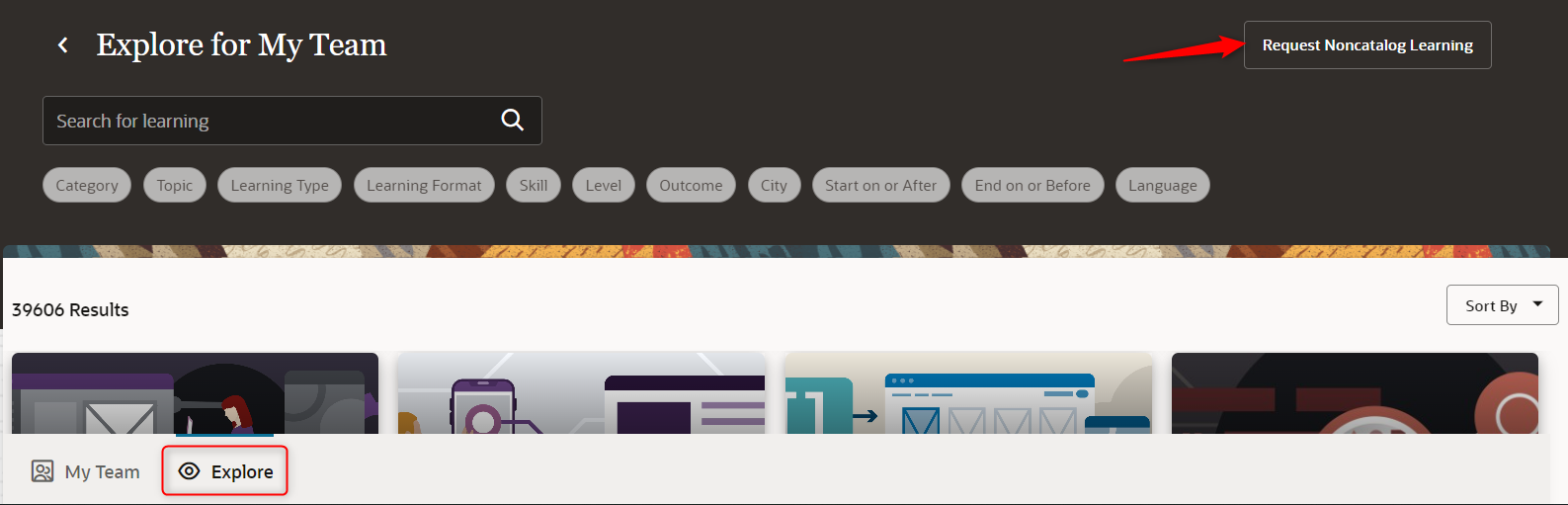
Request Noncatalog Learning Action on the Redwood Explore for My Team Page
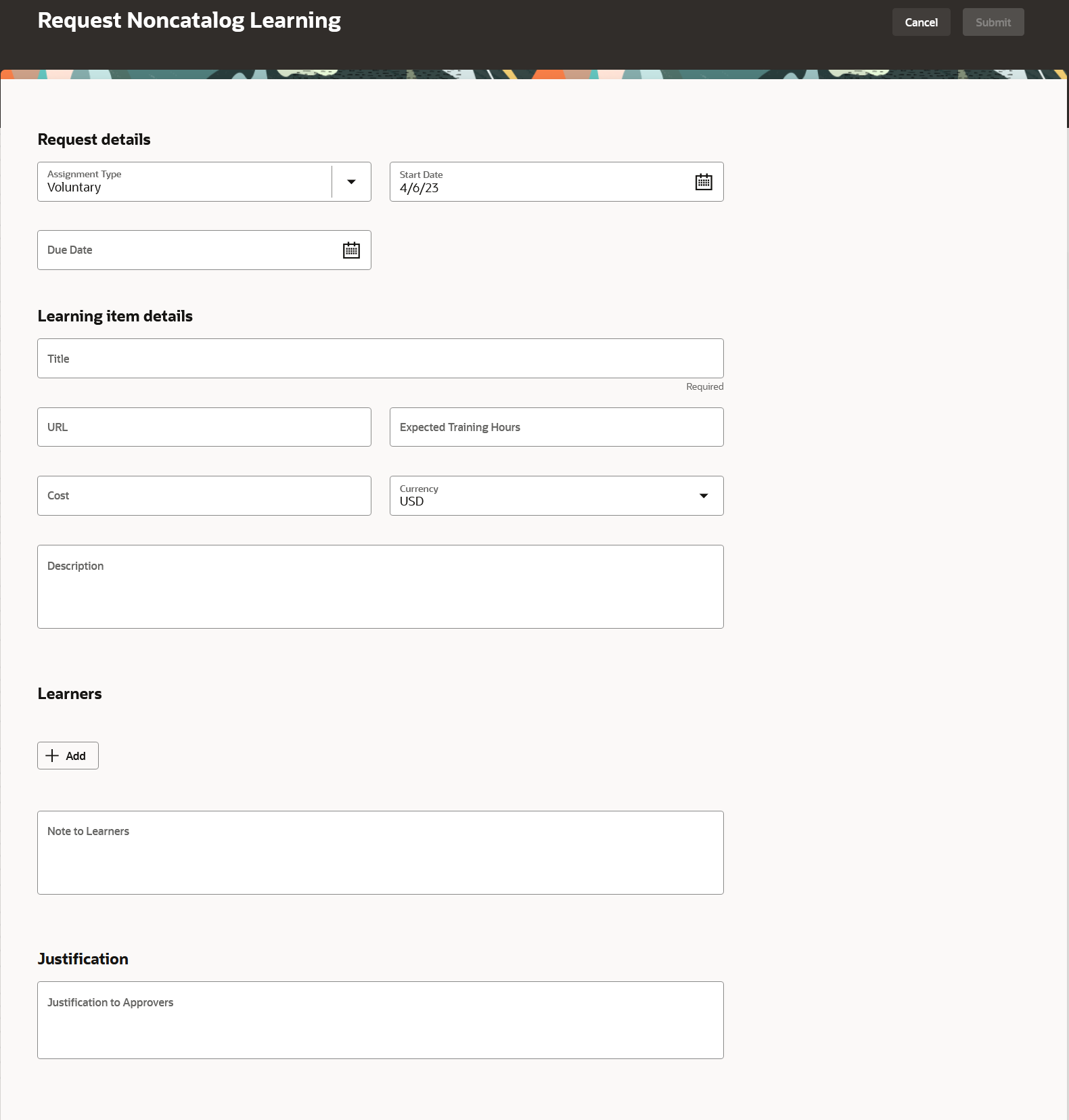
Redwood Request Noncatalog Learning Page
This enhancement continues your journey toward a unified Redwood manager experience.
Steps to Enable
- Enable Redwood learner experience, if you haven't already done so.
- Enable Redwood Team Learning, if you haven't already done so.
- Set the Site level value for the ORA_WLF_LEARN_SELFSERVICE_DETAIL_VBCS_ENABLED profile option to 'Y'.
- Grant the Manage Voluntary Learning by Learner Manager and the Manage Required Learning by Learner Manager privileges to the Manager role, if you haven't already done so.
Tips And Considerations
- Enabling flexfields and other customizations using Visual Studio isn't currently supported.
- You can choose learners in this form based on the Choose Person data security policy.
- Choose Learner data security policy which secured this in the non-Redwood pages will no longer be applicable.
Key Resources
- For details about configuring the Redwood user experience, refer to the Redwood User Experience Setup chapter in the Implementing Learning guide, in Oracle Help Center.
- For details about enabling Redwood team learning, see the release 23B What's New: Redwood Team Learning.
- For information about Redwood profile options, see HCM Redwood Pages with Profile Options (document ID 2922407.1) on My Oracle Support.
Access Requirements
This table shows the functional privileges that support these Redwood My Team > Learning pages, and the predefined roles that inherit them.
| Functional Privilege Name and Code |
Role inheriting the privilege |
Comments |
|---|---|---|
| Manage Voluntary Learning by Learner Manager WLF_MANAGE_VOLUNTARY_LEARNING_BY_LEARNER_MANAGER_PRIV |
ORA_PER_LINE_MANAGER_ABSTRACT Identifies the person as a line manager |
Allows creation and management of voluntary assignments using the My Team Redwood pages. |
| Manage Required Learning by Learner Manager WLF_MANAGE_REQUIRED_LEARNING_BY_LEARNER_MANAGER_PRIV |
ORA_PER_LINE_MANAGER_ABSTRACT Identifies the person as a line manager |
Allows creation and management of required assignments using the My Team Redwood pages. |
Learning Replaced or Removed Features
From time to time, Oracle replaces existing features with new features, or removes existing features.
Replaced features may be put on a path of removal, the features below will let you know what update you will have to have moved to the newer feature. As a best practice, you should move to the newer feature as soon as possible for full support and to stay up with the latest updates that the product offers.
Any feature that is removed, will have an Update in which that feature is no longer available. Please make necessary plans to move off the feature by the Update indicated, as it will no longer be available.
WebEx Classroom Provider Removal Notice
As of Update 24A, Webex classroom provider integration will no longer be supported.
Be sure to accommodate this change before the removal.
Steps to Enable
You don't need to do anything to enable this feature.
IMPORTANT Actions and Considerations for Learning
REPLACED OR REMOVED FEATURES
From time to time, Oracle replaces existing Cloud service features with new features or removes existing features. When a feature is replaced the older version may be removed immediately or at a future time. As a best practice, you should use the newer version of a replaced feature as soon as the newer version is available.
| Product |
Removed Feature |
Target Removal |
Replacement Feature |
Replaced In |
Additional Information |
|---|---|---|---|---|---|
| Learning / OTBI | Learning Management Subject Area |
TBD | 21A March/ 21B |
Customers should replace any reporting using the Learning Management subjects with the Learning Record subject area. |
|
| Learning | WebEx Classroom Provider Removal Notice | 24A |
_________________________
KNOWN ISSUES / MAINTENANCE PACK SPREADSHEETS
Oracle publishes a Known Issues document for every Update to make customers are aware of potential problems they could run into and the document provides workarounds if they are available.
Oracle also publishes Maintenance Pack and Statutory Maintenance Pack documentation of bugs that are fixed in the monthly or statutory patching.
To review these documents you must have access to My Oracle Support:
Oracle Human Capital Management Cloud Functional Known Issues and Maintenance Packs (Document ID 1554838.1)
This document will continue to evolve as existing sections change and new information is added. All updates appear in the following table:
| Date | Module | Feature | Notes |
|---|---|---|---|
| 05 DEC 2023 | Learning / Administrator Experience | Redwood Learning Recommendations List Page for Administrators | Updated document. Revised feature information. |
| 06 SEP 2023 | Controlled Availability | Controlled Availability for Learning | Updated document. Revised feature information. |
| 02 JUN 2023 | Created initial document. |
HCM Cloud applications have two types of patches you can receive that are documented in this What’s New:
- Release Updates (23A, 23B, 23C, and 23D)
- Optional Monthly Maintenance Packs to each update
It is important for you to know what Release Update your environment is on. You can find this in your Cloud Portal.
____________________
HAVE AN IDEA?
We’re here and we’re listening. If you have a suggestion on how to make our products better, please let us know. To enter an idea go to the Ideas Lab on Oracle Customer Connect. In this document wherever you see the light bulb icon after the feature name it means we delivered one of your ideas.
____________________
Suggested Reading for all HCM Products:
- HCM Common What's New - In this What's New you will find feature that are used across applications.
- Human Resources What’s New – In the Global Human Resources section you will find features on the base application in which other application are built upon.
NOTE: Not all Global Human Resource features are available for Talent and Compensation products.
- Oracle Human Capital Management Cloud Functional Known Issues and Maintenance Packs (Document ID 1554838.1). These documents identify bug fixes and possible known issues. You will also need to review these documents based in the release update version you are currently on or will be moving to.
- Oracle Help Center – Here you will find guides, videos and searchable help.
- Release Readiness – New Feature Summary, What’s New, Feature Listing Spreadsheet, Spotlights and Release Training
GIVE US FEEDBACK
We welcome your comments and suggestions to improve the content. Please send us your feedback at oracle_fusion_applications_help_ww_grp@oracle.com. Indicate you are inquiring or providing feedback regarding the HCM Cloud What’s New in the body or title of the email.
We’re here and we’re listening. If you have a suggestion on how to make our products better, please let us know. To enter an idea go to the Ideas Lab on Oracle Customer Connect. In this document wherever you see the light bulb icon after the feature name it means we delivered one of your ideas.
Column Definitions:
Report = New or modified, Oracle-delivered, ready to run reports.
UI or Process-Based: Small Scale = These UI or process-based features are typically comprised of minor field, validation, or program changes. Therefore, the potential impact to users is minimal.
UI or Process-Based: Larger Scale* = These UI or process-based features have more complex designs. Therefore, the potential impact to users is higher.
Features Delivered Disabled = Action is needed BEFORE these features can be used by END USERS. These features are delivered disabled and you choose if and when to enable them. For example, a) new or expanded BI subject areas need to first be incorporated into reports, b) Integration is required to utilize new web services, or c) features must be assigned to user roles before they can be accessed.
| Ready for Use by End Users Reports plus Small Scale UI or Process-Based new features will have minimal user impact after an update. Therefore, customer acceptance testing should focus on the Larger Scale UI or Process-Based* new features. |
Customer Must Take Action before Use by End Users Not disruptive as action is required to make these features ready to use. As you selectively choose to leverage, you set your test and roll out timing. |
|||||
|---|---|---|---|---|---|---|
| Feature |
Report |
UI or |
UI or |
|
||
Learning Recommendations to Close Gaps with Current Job Role and Careers of Interest |
||||||
Redwood Learning Recommendations List Page for Administrators |
||||||
These pages or flows have been recreated in the Redwood tool set Visual Builder Studio (VBS) to improve your user experience. The pages or flows look and act like Redwood pages or flows, to help create cohesiveness through the application.
Learning Recommendations to Close Gaps with Current Job Role and Careers of Interest
You can now automate learning recommendations to workers based on the gaps between their job role, chosen careers of interest, and current talent profile. They can see these automated recommendations on their Browse Learning pages.
Learning Recommendations for Current Job
Let's say that a software development director needs to have communication and presentation skills competency at a minimum proficiency level of 3. If a worker with that job currently has a communication competency at proficiency level 2, they have a gap between the current and required competency proficiency level. In this case, Oracle Learning can recommend learning items with outcomes that have communication competency at proficiency level 3 or above.
The learning recommendations that workers can see for their current job are now easily accessible on the Me > Learning > Redwood Browse Learning page, in the Recommendations for current jobs category. The related learning is also still accessible using the Me > Career and Performance > Career Development page. In the Career Outlook Section, they click their current job. On the job page that opens, in the expanded Competencies section, they can expand related learning.

Learning Recommendations for Job Gaps on the Current Job Page Opened from the Me >Career and Performance > Career Development Page
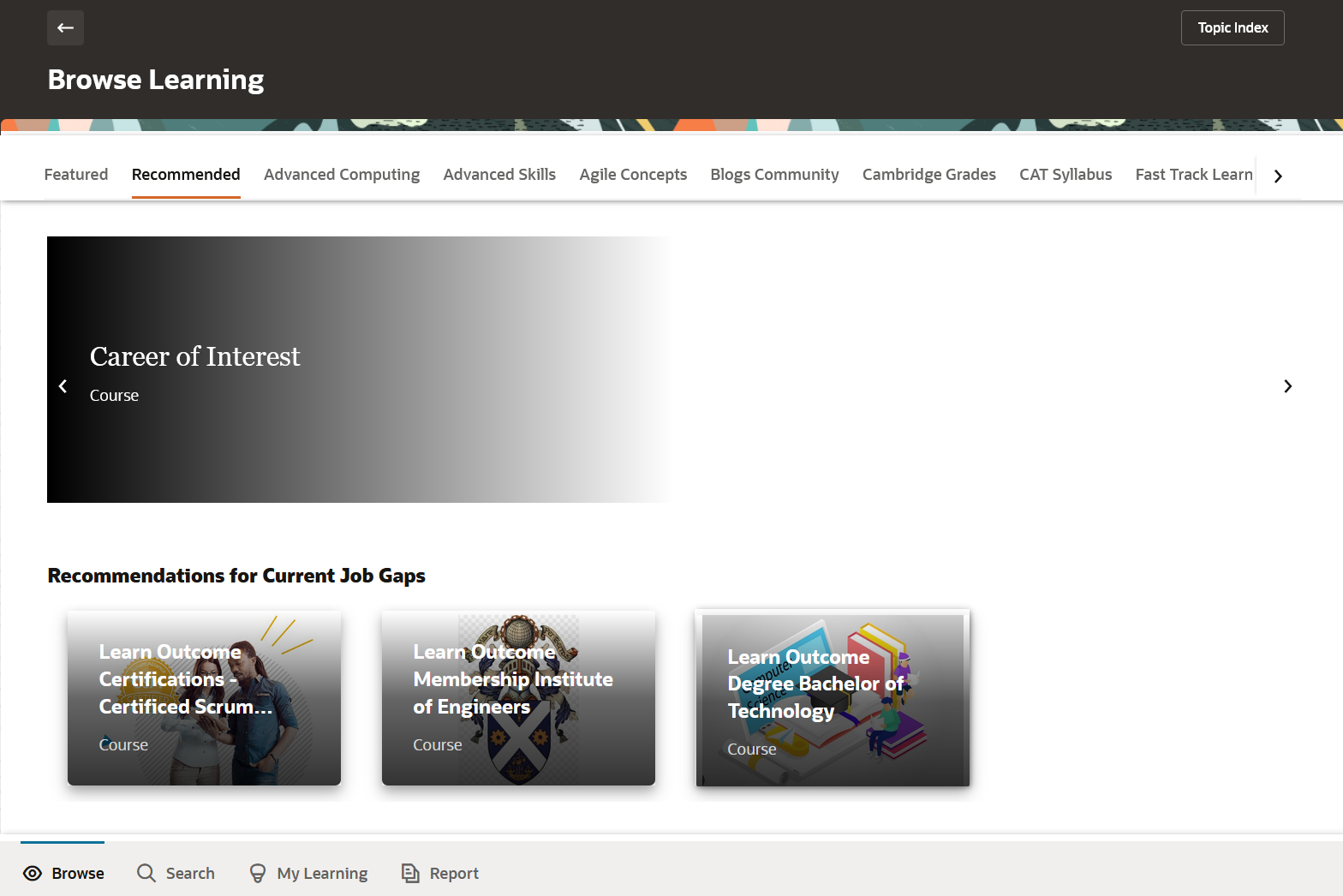
Learning Recommendations for Current Job Gaps on the Browse Learning Page Opened from Me > Learning
Learning Recommendations for Careers of Interest
Let's say that our software development director's career of interest is Software Development VP. For their director job, they need a minimum Leadership competency proficiency level of 3, which their talent profile shows they have. But the VP job requires a minimum proficiency level for the Leadership competency of 4. There's a gap between their current proficiency and required minimum proficiency level for their career of interest. In this case, Oracle Learning can recommend learning with outcomes that have a Leadership competency proficiency level of 4 or above.
The learning recommendations that workers can see for their careers of interest are now easily accessible on the Redwood Me > Learning >Browse Learning page, Recommendations view in the Recommendations for Career Interests category. The related learning is also still accessible using the Me > Career and Performance > Career Development page. In the Career Outlook Section, they click their relevant career of interest. On the career of interest page that opens, in the expanded Competencies section, they can expand related learning.
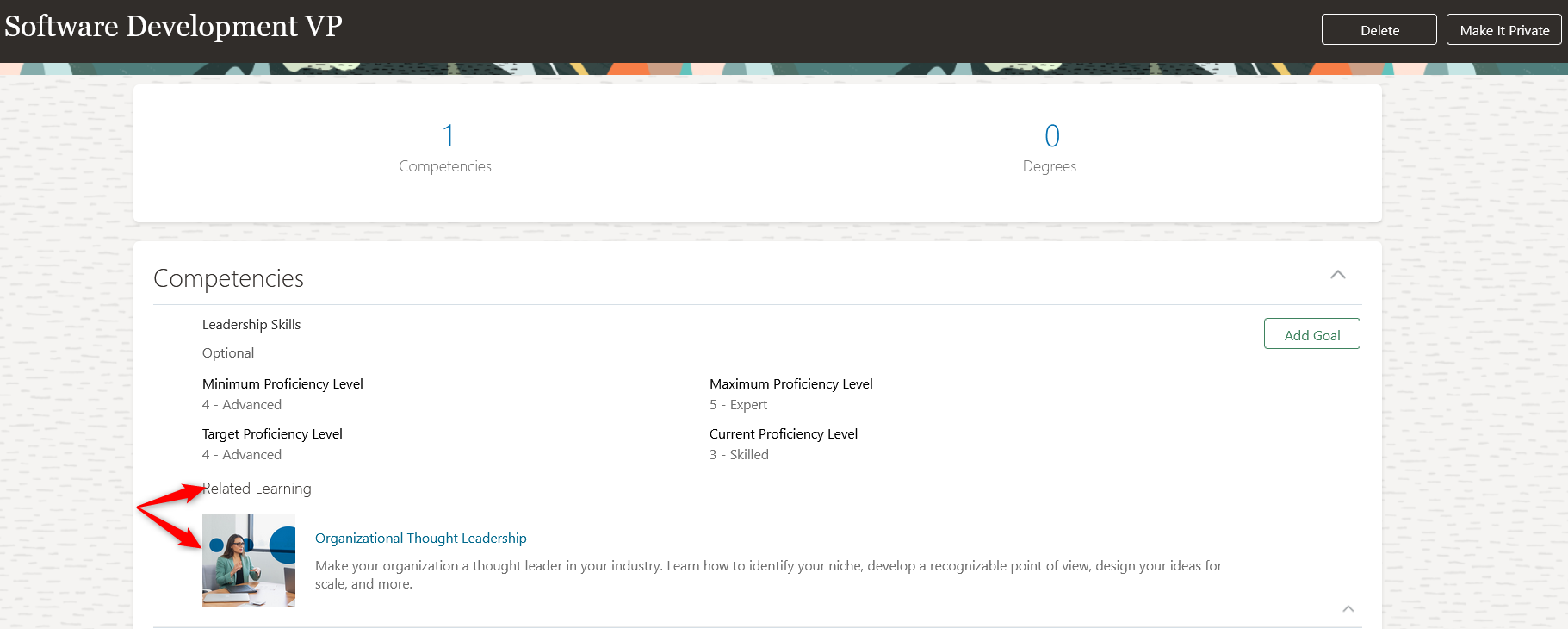
Learning Recommendations for Careers of Interest on the Career of Interest Page Opened from the Me >Career and Performance > Career Development Page

Learning Recommendations for Career of Interests on the Browse Learning Page Opened from Me > Learning
This feature lets you drive more learning engagement with minimal manual effort.
Steps to Enable
Schedule the Recommend the Most Popular Learning background process to run once a week by selecting the the appropriate options:
- Recommendations for current job gaps
- Recommendations based on your careers of interest gaps
- Popular with others in your job
Scheduling the process for a shorter frequency won't change the results, so for best performance, run it only once a week and on the weekend, if possible.
Tips And Considerations
- Recommendations won't include the learning items that the learner already completed.
- If a learner has multiple job roles, the gaps are determined by comparing the required content items defined for each job role and talent profile.
- If a learner has multiple careers of interest, the gaps are determined by comparing the required content items defined for each job role and talent profile.
Here's the set of content types used to determine gaps between the worker's job role, careers of interest, and talent profile.
- Competency
- Skills
- Language
- Certification
- Membership
- Education
- Honor
Key Resources
For more information see these topics in Oracle Help Center:
- Redwood User Experience Setup chapter in the Implementing Learning guide
- Oracle Learning Prerequisites and Outcomes, and Talent Prerequisite and Person Profile Types chapter in the Using Learning guide.
Mass Update Learning Assignments
As a learning administrator, you can now make mass updates, such as withdraw learners, delete assignments, bypass and complete assignments, and update assignment dates using new Mass Action options on the Learning Assignments pages.
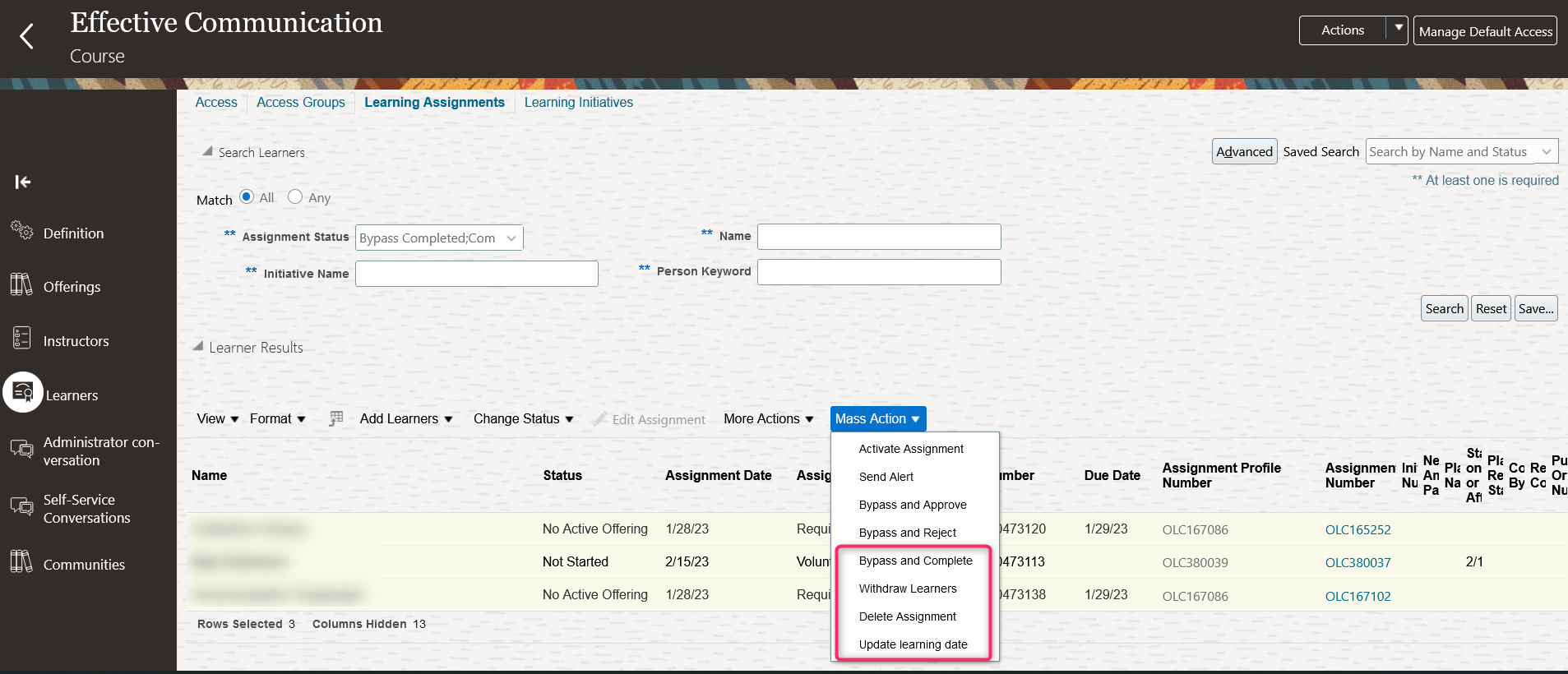
Mass Actions Options on the Learners Tab of the Effective Communication Course
When doing a mass action, you can need to provide additional information on the Action Details step.
| Mass Action | Additional Information | Applies To These Types of Assignments and Statuses |
|---|---|---|
| Withdraw Learners |
Select the reason for withdrawal and provide comments explaining why you picked that reason. |
Course, offering, specialization and eLearning assignments with these statuses:
|
| Delete Assignment |
Select the reason for deleting the assignment and provide comments explaining why you picked that reason. |
Course, offering, specialization, noncatalog, and eLearning assignments with any status |
| Bypass and Complete |
Select the reason for bypassing and completing the assignment and provide comments explaining why you picked that reason. Also provide a completion date, the actual effort, and the score. |
Course and specialization assignments with these statuses:
|
| Update Learning Date |
|
Assignment Date: When the assignment appears in the learner's current learning. You can update it only to on or after today. Change on any assignment. Due date: When a required assignment is due. You can update it to any date after the assignment date. Change on any required assignment. Completion Date: When the learner completed the assignment. You can update it only to on or before today. Change on any assignment with these statuses:
Expiration Date: When a completion's validity ends. You can update it only to after today. Change on any completed assignment. |
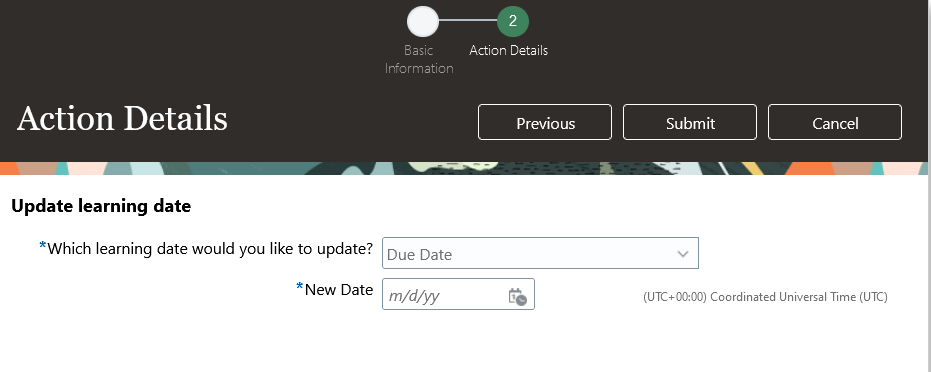
Action Details Page, Update Learning Date Section
This feature lets you reduce manual maintenance of learning assignments by applying changes to multiple assignments at a time.
Steps to Enable
Provide the required access before using the feature. Details are in the Access #Requirements section.
Tips And Considerations
- Deleting a course assignment also deletes the associated offering assignments.
- Deleting a specialization assignment doesn't delete the associated course assignments.
- Deleting an assignment with renewal rules is allowed and updates only the assignments included in the mass action. It doesn't delete any prior or future renewal that may exist unless they are explicitly included in the mass action.
- Deleting an assignment in Requested status removes the corresponding in-progress approval transactions. It also removes the corresponding approval tasks.
- Assignments with payment transactions won't be processed by any of these mass actions.
- Any assignments that don't fall under the selected mass action and the applicable statuses, will fail and generate error log.
- Mass action results are recorded in the log file of the background process submitted to complete the task. You can review the results using the Tools > Scheduled Processes task.
Key Resources
For details about customizing reason codes, see these topics in the Learning Lookups chapter of the Implementing Learning guide in Oracle Help Center:
- Assignment Deletion and Withdrawal Lookup Types for Oracle Learning
- Specialist-Initiated Completion Lookup Types for Oracle Learning
Access Requirements
You need to grant the Perform Mass Actions on Learning Assignments (WLF_PERFORM_MASS_ACTIONS_ON_LEARNING_ASSIGNMENTS_PRIV) functional privilege to learning administrators before they can apply mass actions.
Redwood Learning Recommendations List Page for Administrators
You can use the new Redwood Learning Recommendations page to search for, filter, and create learning recommendations. This page is where learning administrators can see all the recommendations, including process-generated recommendations for job role requirement gaps and learning popular by role categories The recommendations in these categories are generated by the Process Learning Recommendations process. The Learning Recommendations page also shows recommendations from learners' peers and managers, other administrators, and recommendation initiatives.
The number of each description corresponds to the area on the Learning Recommendations image with the same number.
- Search for learning recommendations using person name, learning title, and learning item number or recommendation number.
- Filter the recommendations using the available filters, including Recommended by, Recommendation category, Recommendation status, Recommended on date, Learning item title, Learning item number, Learning item type, Name, Person number, and Business title.
- Create a recommendation.
- Create saved searches and set a default to use when opening the page.
- Choose the columns to display.
- Sort the listed recommendations by clicking a column header.
- Table rows aren't editable.

Learning Recommendations Page
This feature lets you view all learner recommendations in one place.
Steps to Enable
- If you haven't already done so, enable the 23A activity sequencing enhancement.
- If you haven't already done so, enable the Redwood user experience.
- Grant the View Learning Recommendations by Administrators privilege to the delivered Learning Specialist role and any custom learning administrator roles.
- Use the Tools > Scheduled Processes task to run the ESS job to create index definition and perform initial ingest to OSCS process using these parameters:
| Frequency | Parameter Name | Parameter Value |
|---|---|---|
| Once | Index name to Reingest |
fa-hcm-acl |
If you haven't already enabled Redwood Team Learning or Redwood Assignment Listing, use the Tools > Scheduled Processes task for the remaining two steps.
-
Run the Compute Users ACL process using these parameters:
| Frequency | Parameter Name | Parameter Value |
|---|---|---|
| Once | User Population | All Users |
| Simulation | No |
-
Maintain access control lists synchronization by scheduling these processes using the provided parameters:
| Process Name | Frequency | Parameter Name | Parameter Value |
|---|---|---|---|
| Compute Users ACL by Events |
Every 15 minutes |
Index name to Reingest |
fa-hcm-learningrecommendation |
| Compute Users ACL | Every 30 minutes | User Population | Logged in users |
| Simulation | No |
Tip: You may already have these processes scheduled if you already enabled the Redwood Learning Assignments List Page for Administrators or Redwood Team Learning pages introduced in the 23B release.
Tips And Considerations
With the appropriate privileges, users can also create application-wide saved searches and set the application-wide default save search. To use the saved search feature users need these privileges:
- Use REST Service - Saved Searches
- Access HCM Common Components
To manage the application-wide saved searches, managers need the Manage System Searches privilege.
Key Resources
- For details about enabling activity sequencing, see the 23A What's New, Activity Sequencing feature.
- For details about enabling Redwood Team Learning and Redwood Assignment Listing, see the respective 23B What's New features.
- For details about configuring the Redwood user experience, refer to the Redwood User Experience Setup chapter in the Implementing Learning guide, in Oracle Help Center.
- For information about Redwood profile options, see HCM Redwood Pages with Profile Options (Document ID 2922407.1) on My Oracle Support.
Access Requirements
You need the View Learning Recommendations by Administrators (ORA_WLF_VIEW_LEARNING_RECOMMENDATIONS_BY_ADMIN) functional privilege that supports this feature.
This set of functional privileges support managing application-wide saved searches:
-
Use REST Service - Saved Searches (HRC_REST_SERVICE_ACCESS_SAVED_SEARCHES_PRIV)
-
Access HCM Common Components (HRC_ACCESS_HCM_COMMON_COMPONENTS_PRIV)
-
Manage System Searches (HRC_MANAGE_SYSTEM_SEARCHES_PRIV)
Oracle Grow, a part of the Oracle ME employee experience platform, combines learning, skill development, and career mobility to drive individual and organizational success. It brings together all the elements that your employees need to excel in their current roles and for career growth including learning, skill development, gigs to develop competence and expertise. Oracle Grow:
- Consolidates employee growth preferences, such as, skills, learning topics, careers, and jobs, as well as manager-assigned development, such as, core skills, all in one place.
- Delivers personalized development recommendations, such as, learning, skills, development journeys, and connections, based on those growth preferences and assignments.
- Continuously adapts recommendations based on the employee’s own actions as well as actions occurring elsewhere in the system.
- Supports in-context actions on recommendations, for ease and efficiency.
- Is accessible on a user’s device of choice, including desktop and mobile.
An employee can access their own Grow page through:
- The global search available across all applications.
- The Quick Action available under Me > Grow in the Career and Performance section.
With Oracle Grow, you can propel employee and organizational growth.
- Employees can leverage a connected experience across all development and growth resources, as well as visibility into role expectations and career growth.
- Organizations can support employees in adapting to new priorities and expectations, and ensure consistency and success.
Steps to Enable
You don't need to do anything to enable this feature.
Tips And Considerations
Grow requires that are you are live on Oracle Learning. You should also implement these for users to derive the maximum, targeted value:
- Dynamic Skills
- Career Development
- Job profiles with key specifications, such as, skills and competencies, for jobs they are associated with
- Up-to-date skills, qualifications, profiles, and job associations for employees
- A robust set of profile item libraries, such as competencies, that can tie together profiles with outcomes and recommendation
Key Resources
Access Requirements
The Grow page is available through a duty role, Career Growth Access Worker Duty (ORA_HRD_CAREER_GROWTH_ACCESS_BY_WORKER_DUTY), assigned to the Employee and Contingent Worker abstract roles (ORA_PER_EMPLOYEE_ABSTRACT, ORA_PER_CONTINGENT_WORKER_ABSTRACT). If you had made copies of the seeded Employee and Contingent Worker roles prior to this release, you need to add the new duty role to these copies.
Transactional Business Intelligence for Learning
Oracle Transactional Business Intelligence is a real time, self-service reporting solution offered to all Oracle Cloud application users to create ad hoc reports and analyze them for daily decision-making. Oracle Transactional Business Intelligence provides human resources managers and specialists, business executives, and line managers the critical workforce information to analyze workforce costs, staffing, compensation, performance management, talent management, succession planning, and employee benefits.
Don’t want to start from scratch building a report or analytics? Check out the library of sample reports for all products on Customer Connect on the Report Sharing Center.
Report on Pending Seat Acceptance
You can now build reports that include the dates when a learner’s offering entered and exited the pending seat acceptance status. Use these sets of new attributes:
| Folder | Attribute Name |
|---|---|
| Pre-Active Details |
Date Learning Item Entered Pending Seat Acceptance |
| Date Learning Item Exited Pending Seat Acceptance |
|
| Assigned Learning Item Information > Selected Course Offerings > Offering Pre-Active Details |
Date Offering Entered Pending Seat Acceptance |
| Date Offering Exited Pending Seat Acceptance |

Example Pending Seat Acceptance Report
This enhancement lets you report on pending seat acceptance statuses.
Steps to Enable
You don't need to do anything to enable this feature.
Tips And Considerations
- If the learner’s offering hasn't entered the pending seat acceptance status, there won't be any dates.
- The values are only populated for assignments that have transitioned in or out of pending seat acceptance at some point.
Grade and Organization Attributes in Learning Records
You can now enhance your learning assignment analysis reports by including more Grade and Organization attributes from the Worker Assignment Real Time subject area and attributes available in the Learning Records subject area. For example, you can now include the worker grade with learning record data.

Grade and Organization Attributes in the Learning Records Real Time Subject Area
This enhancement improves productivity by making it easier for learning administrators to create reports across subject areas.
Steps to Enable
You don't need to do anything to enable this feature.
Tips And Considerations
Adding columns from these dimensions can affect report performance. Our advice is to include only the columns from these dimensions that are critical for your reports. Also use appropriate filters to minimize the quantity of data.
IMPORTANT Actions and Considerations for Learning
REPLACED OR REMOVED FEATURES
From time to time, Oracle replaces existing Cloud service features with new features or removes existing features. When a feature is replaced the older version may be removed immediately or at a future time. As a best practice, you should use the newer version of a replaced feature as soon as the newer version is available.
| Product |
Removed Feature |
Target Removal |
Replacement Feature |
Replaced In |
Additional Information |
|---|---|---|---|---|---|
| Learning / OTBI | Learning Management Subject Area |
TBD | 21A March/ 21B |
Customers should replace any reporting using the Learning Management subjects with the Learning Record subject area. |
_________________________
KNOWN ISSUES / MAINTENANCE PACK SPREADSHEETS
Oracle publishes a Known Issues document for every Update to make customers are aware of potential problems they could run into and the document provides workarounds if they are available.
Oracle also publishes Maintenance Pack and Statutory Maintenance Pack documentation of bugs that are fixed in the monthly or statutory patching.
To review these documents you must have access to My Oracle Support:
Oracle Human Capital Management Cloud Functional Known Issues and Maintenance Packs (Document ID 1554838.1)
Controlled Availability for Learning
The following is a list of Controlled Availability features that are being offered by our Controlled Availability Program.
NOTE: These features are not generally available for all customers at this time. These are only available through the Controlled Availability Program and will require approval to become a part of the features program. To be a part of these programs you will be required to participate in testing and providing feedback. Some programs may require other participation as well.
Not to worry if you don't have to time to be a part of these early stage programs. You can uptake this feature when it is generally available for all customers. When these features are available for all customers you will see the features under their product headings as usual.
We invite you all to browse through the list of features to see if there are any features you are interested in implementing in advance of the features scheduled release. The table below will provide information on signing up for features. Please sign up soon, as these programs have limited availability and some are designed for specific types of customers.
The table below gives you a brief description of the features available and how to sign up. Some features are bigger than others, so for more information there may be a What's New describing the feature in more detail below this table.
We look forward to hearing your thoughts and ideas as you participate the Controlled Availability programs!
| Product |
Feature Name |
Feature Description |
Type of Customer Needed to Test |
How to Sign Up |
Controlled Availability Release |
Is the Program Still Open? |
|---|---|---|---|---|---|---|
| Learning |
Learning Planning |
Learning Planning allows learning departments to identify and disposition learner training needs, culminating in a set of learning assignments. Learning Plans may or may not be executed at some future date; a non-executed plan is sometimes referred to as a simulation. |
Customers must be:
|
You will need to log a Service Request (SR) in My Oracle Support to request to be part of this program. |
19D | Closed as of 23C. |