
- Revision History
- Overview
- Optional Uptake of New Features (Opt In)
- Feature Summary
- Project Management
-
- Project Management Common
- Billing and Revenue Management
- Cost Management and Control
- Planning, Scheduling, and Forecasting
-
- Extend the Manage Project Financial Settings Page with Parameters
- Maintain Plan Lines User Spread When Changing Plan Line Dates
- Maintain Project Progress Using Project Progress REST API
- Planning Currency Modifications for Planned Resources in the Financial Project Plan
- Project Budget Planning Options Management Using a REST API
- Project Status Workflow Enhancements
- Project Team Members Update and Delete from Project Templates Using a REST API
-
- Resource Management
- Program Management and Reporting
- Grant Management
- IMPORTANT Actions and Considerations
This document will continue to evolve as existing sections change and new information is added. All updates appear in the following table:
| Date | Product | Feature | Notes |
|---|---|---|---|
| 28 SEP 2023 | Planning, Scheduling, and Forecasting |
Maintain Plan Lines User Spread When Changing Plan Line Dates | Updated document. Revised feature information. |
| 15 JUN 2022 | Project Management Common | Predefined Roles for Oracle Fusion Enterprise Resource Planning for Self Service Cloud Service | Updated document. Delivered feature in update 22C. |
| 13 JUN 2022 | Project Management Common | Service Excellence Continuing Investments | Updated document. Revised feature information. |
| 13 JUN 2022 | Planning, Scheduling, and Forecasting | Maintain Project Progress Using Project Progress REST API | Updated document. Revised feature information. |
| 03 JUN 2022 | Created initial document. |
 HAVE AN IDEA?
We’re here and we’re listening. If you have a suggestion on how to make our cloud services even better then go ahead and tell us. There are several ways to submit your ideas, for example, through the Ideas Lab on Oracle Customer Connect. Wherever you see this icon after the feature name it means we delivered one of your ideas.
GIVE US FEEDBACK
We welcome your comments and suggestions to improve the content. Please send us your feedback at oracle_fusion_applications_help_ww_grp@oracle.com.
DISCLAIMER
The information contained in this document may include statements about Oracle’s product development plans. Many factors can materially affect Oracle’s product development plans and the nature and timing of future product releases. Accordingly, this Information is provided to you solely for information only, is not a commitment to deliver any material, code, or functionality, and should not be relied upon in making purchasing decisions. The development, release, and timing of any features or functionality described remains at the sole discretion of Oracle.
This information may not be incorporated into any contractual agreement with Oracle or its subsidiaries or affiliates. Oracle specifically disclaims any liability with respect to this information. Refer to the Legal Notices and Terms of Use for further information.
Optional Uptake of New Features (Opt In)
Oracle Cloud Applications delivers new updates every quarter. This means every three months you'll receive new functionality to help you efficiently and effectively manage your business. Some features are delivered Enabled meaning they are immediately available to end users. Other features are delivered Disabled meaning you have to take action to make available. Features delivered Disabled can be activated for end users by stepping through the following instructions using the following privileges:
- Review Applications Offering (ASM_REVIEW_APPLICATIONS_OFFERINGS_PRIV)
- Configure Oracle Fusion Applications Offering (ASM_CONFIGURE_OFFERING_PRIV)
Here’s how you opt in to new features:
- Click Navigator > My Enterprise > New Features.
- On the Features Overview page, select your offering to review new features specific to it. Or, you can leave the default selection All Enabled Offerings to review new features for all offerings.
- On the New Features tab, review the new features and check the opt-in status of the feature in the Enabled column. If a feature has already been enabled, you will see a check mark. Otherwise, you will see an icon to enable the feature.
- Click the icon in the Enabled column and complete the steps to enable the feature.
In some cases, you might want to opt in to a feature that's not listed in the New Features work area. Here's how to opt in:
- Click Navigator > My Enterprise > Offerings.
- On the Offerings page, select your offering, and then click Opt In Features.
- On the Opt In page, click the Edit Features (pencil) icon for the offering, or for the functional area that includes your feature.
- On the Edit Features page, complete the steps to enable the feature.
For more information and detailed instructions on opting in to new features for your offering, see Offering Configuration.
Opt In Expiration
Occasionally, features delivered Disabled via Opt In may be enabled automatically in a future update. This is known as an Opt In Expiration. If your cloud service has any Opt In Expirations you will see a related tab in this document. Click on that tab to see when the feature was originally delivered Disabled, and when the Opt In will expire, potentially automatically enabling the feature. You can also click here to see features with Opt In Expirations across all Oracle Cloud Applications.
Column Definitions:
Report = New or modified, Oracle-delivered, ready to run reports.
UI or Process-Based: Small Scale = These UI or process-based features are typically comprised of minor field, validation, or program changes. Therefore, the potential impact to users is minimal.
UI or Process-Based: Larger Scale* = These UI or process-based features have more complex designs. Therefore, the potential impact to users is higher.
Features Delivered Disabled = Action is needed BEFORE these features can be used by END USERS. These features are delivered disabled and you choose if and when to enable them. For example, a) new or expanded BI subject areas need to first be incorporated into reports, b) Integration is required to utilize new web services, or c) features must be assigned to user roles before they can be accessed.
Service Excellence Continuing Investments
In this update, improvements are available in the following areas:
PROJECT MANAGEMENT COMMON
-
Allow Access to View Project Cost Details from OTBI Reports: Users with reporting access to project costs can now drill down to view project cost details. Customers can define additional/new reports on any of the Project Costing Subject areas with deep link to view project cost details. Create a custom role with Manage Project Cost Transaction Analysis Duty, the new "View Project Expenditure Item" privilege with appropriate data security policy. Assign the user with the custom role to provide access to the report.
-
Easier maintenance of labor rate schedules: Person and job-based rate schedules now include a column for the Job Code on rate schedule lines. This makes it easier for users to bulk update rate schedules where a) multiple jobs have the same name or b) where the job code is a more widely recognized than job name or c) where the job code provides a more efficient data entry experience in a reduction list.
Person Assignment Job and Person Assignment Organization have also been renamed to Job Name and Expenditure Organization to be more consistent with other areas of the Project Management application.
COST MANAGEMENT AND CONTROL
- Resolve Account Derivation Exceptions More Effectively: Improvements to error messages displayed during derivation failures of budget accounts and depreciation expense accounts that use the transaction account builder definitions for Project Costing. This helps with effective error resolution as the error messages now point to an actionable insight.
GRANT MANAGEMENT
- Award and Award Project Reference Types and Award CFDA Auditing: Audit the child objects for award and award project using audit policies, such as reference types, certifications, attachments, and award CFDA. This audit helps ensure compliance and ensures data retention for contractual documents. The objects audited are:
- Award CFDA
- Award Terms
- Award Attachments
- Award Certifications
- Award Reference Types
- Award Project Certifications
- Award Project Reference Types
- Award Project Task Burden Schedules
- Award Funding Allocation Display Changes: The funding tree table in the Manage Award Funding train stop page displays the external funding source first and then the internal funding sources alphabetically. This ensures the external funding source amounts are visible upfront for easier viewing and maintenance.
- Sponsor (Party) Merge Support for Awards: Update grants sponsor data and related data, such as external funding source, when merging customer (party) information.
The external funding source number is appended with _M(n) to maintain uniqueness for budgetary control. If there are multiple parties merged into one party, then the external funding source number is appended with _M1, _M2 and so on. This ensures the external funding source number has a unique value as a budgetary control segment. The complete list of entities updated are:
- Sponsor
- Funding Source
- Award Template
- Institution Audit
- Award
- Award Funding Source
- Award Project Funding Source
- Award Funding
- SF 270 History
Budget, cost, commitment and budgetary control transactions reflect the correct external funding source after party merge.
You can also merge customer accounts and external contacts (persons). The external contact is updated in the Personnel object for Award Template, Award and Award Project.
Below are some considerations when merging sponsor data:
- If you have approval rules or subledger accounting rules based on funding source number, then ensure the rule is updated to handle the new funding source number.
- Sponsors will be merged only if the LOC indicator is same between the sponsors.
- If a sponsor being merged is referred in another sponsor as the related sponsor, then replace the related sponsor information with the master sponsor's LOC number and comments.
For more information on Customer Data Management's party merge functionality, refer to the following:
- Configuration details in Duplicate Resolution Setup of the Implementing CDM guide
- Creating merge requests in Resolve Duplicates topic of the Using CDM guide
PLANNING, SCHEDULING, AND FORECASTING
- Viewing Deliverable Attachments Directly from Manage Deliverables Dialog Window: View the number and titles of attachments across each task deliverable directly from the Deliverables tab of Task Details popup. Quickly viewing the deliverable attachments without navigating to Manage Attachments popup every time saves time and increases efficiency.
Steps to Enable
You don't need to do anything to enable this feature.
Predefined Roles for Oracle Fusion Enterprise Resource Planning for Self Service Cloud Service
Oracle Fusion Enterprise Resource Planning for Self Service Cloud Service enables customers to easily provide access to self-service functions, such as expense reporting, timecard entry, and transaction approval to users.
Either use the predefined abstract role Enterprise Resource Planning Self Service User or create a new role and assign it to users who need access to this service. The abstract role is a comprehensive collection of privileges that provide access to all ERP self-service capabilities, including expense reporting, timecard entry, talent profile management, and scheduled process submission. In addition, assign additional predefined duty roles for approvals and reporting access.
Enterprise Resource Planning Approval Duty
This duty allows a user with the Enterprise Resource Planning Approval Duty to:
- Manage time cards
- Manage change requests
- View payables invoices
- Approve lease contracts
Enterprise Resource Planning Reporting Duties
Assign one or more predefined reporting duty roles to allow self-service users to view reports and drill down to view transaction details. Each of the duties supports reporting for specific business functions and provides access to appropriate Oracle Transactional Business Intelligence (OTBI) subject areas, Financial Reporting Center, and drill-down to the related transaction pages.
Use the reporting duties as building blocks to create new roles tailored to business-specific requirements. Define data security policies for each new role to allow appropriate data access for each of the reporting duties.
The predefined reporting duty roles are:
- General Ledger Self Service Reporting Duty (with updated Drill Down to Journal privilege)
- Payables Self Service Reporting Duty
- Receivables Self Service Reporting Duty
- Fixed Assets Self Service Reporting Duty
- Budgetary Control Self Service Reporting Duty
- Revenue Management Self Service Reporting Duty
- Projects Self Service Reporting Duty
The business benefit of using the Enterprise Resource Planning Self Service User is to speed up implementation for defining self-service access with targeted business functions available in the new role.
Steps to Enable
These roles are delivered in 22C. For instructions, refer to security guide in Getting Started with Your Financials Implementation for more details.
Tips And Considerations
- Continue to use existing roles that provide targeted business functions for self-service users, such as Customer Account Payable Specialist, Team Collaborator, and Project Team Member, separately or in combination with the new Enterprise Resource Planning Self Service User role.
- Use the existing privilege Allocate Project Expense for allocation in combination with the new Enterprise Resource Planning Self Service User role to allow reporting of project expenses.
Key Resources
- Getting Started with Your Financials Implementation
- Updated Oracle Fusion Service Descriptions
Billing and Revenue Management
Additional Process Configurator Sources for Invoicing
Define process configurators for invoicing using newly added sources that equate to existing sources available for use in revenue recognition. For example, create your own percent spent or percent complete formulas for progress-based fixed price invoicing. Alternatively, create your own current run or inception-to-date formulas for fixed fee invoicing. New sources also include bill plan descriptive flexfields.
The new sources include:
| Name | Description | Filters |
|---|---|---|
| Calculation Level Invoiced Amount in Contract Currency - Run |
Current run invoiced amount in contract currency at the calculation level, recognized from expenditure items and manual events. |
|
| Associated Project Funding Amount in Contract Currency |
Associated project funding amount in contract currency. |
|
| Calculation Level Percent Complete |
Calculation level percent complete for an associated project or task. |
|
| Calculation Level Labor Burdened Cost in Project Functional Currency - ITD |
Inception to date labor burdened cost amount in project functional currency at the calculation level. |
|
| Calculation Level Nonlabor Burdened Cost in Project Functional Currency - ITD |
Inception to date non-labor burdened cost amount in project functional currency at the calculation level. |
|
| Calculation Level Planned Burdened Cost in Project Functional Currency |
Calculation level planned burdened cost amount in project functional currency. |
|
| Bill Plan Descriptive Flexfield 1 through Bill Plan Descriptive Flexfield 35 |
Bill plan descriptive flexfield 1. through Bill plan descriptive flexfield 35. |
|
| Bill Plan Number Descriptive Flexfield 1 through Bill Plan Number Descriptive Flexfield 10 |
Bill plan number descriptive flexfield 1. through Bill plan number descriptive flexfield 10. |
The business benefit of this feature is the ability to define custom formulas when creating automatic billing events for invoicing. The new sources are particularly useful for the following scenarios:
- Invoicing a fixed price contract line, based on progress, using a custom percent spent or percent complete formula at the calculation level of the process configurator.
- Invoicing a fee, based on the amount being invoiced in the current run of the Generate Invoices process, using a custom fee formula at the calculation level of the process configurator.
Steps to Enable
You don't need to do anything to enable this feature.
Tips And Considerations
To invoice a fixed price contract line based on progress, you could define the formula as follows:
(((Calculation Level Labor Burdened Cost in Project Functional Currency - ITD + Calculation Level Nonlabor Burdened Cost in Project Functional Currency - ITD) / Calculation Level Planned Burdened Cost in Project Functional Currency) * Associated Project Funding Amount in Contract Currency) - Calculation Level Event Amount in Contract Currency - ITD
Consider using filters to include or exclude certain costs or planned amounts from the above formula. The following image illustrates how such a process configurator could be defined, including a filter on the Calculation Level Event Amount in Contract Currency - ITD source that only includes invoice amounts from billing events where the event type is ITD Progress - Inv.
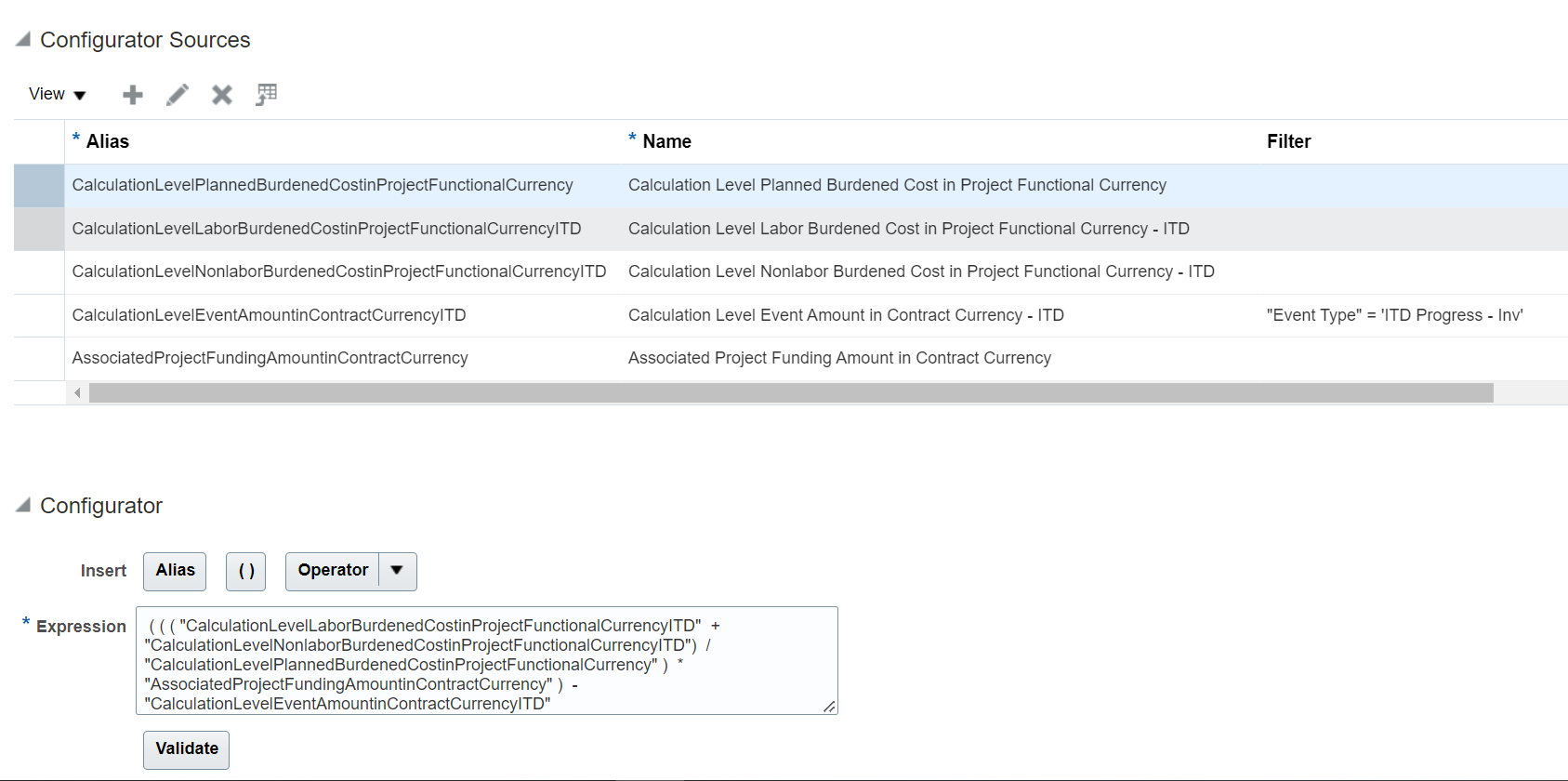
Create Project Process Configurator
To invoice a fee based on the amount being invoiced in the current run of the Generate Invoices process, you could define the formula as follows:
Calculation Level Invoiced Amount in Contract Currency - Run * Bill Plan Number Descriptive Flexfield 1
The formula above requires the fee percentage to be entered and maintained in the first numeric bill plan descriptive flexfield. The following image illustrates how such a process configurator could be defined.
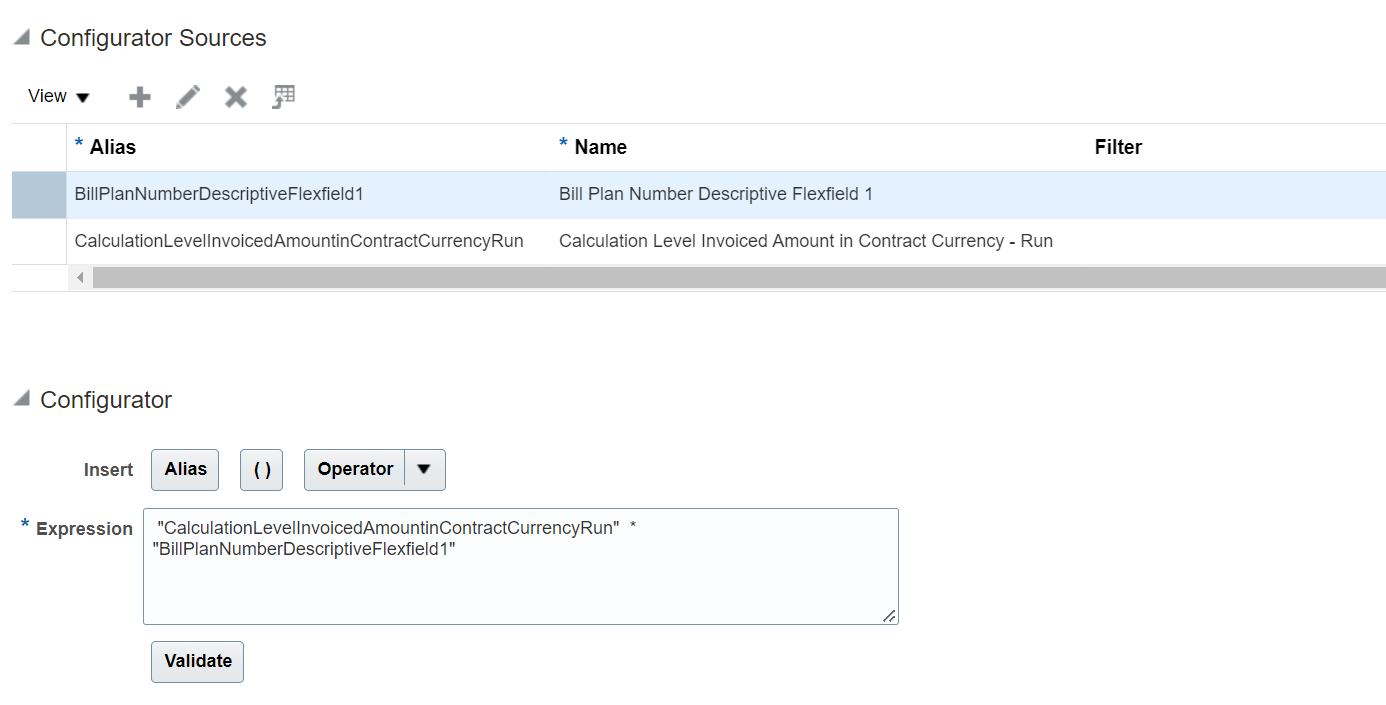
Create Project Process Configurator
Access Requirements
To use this feature, you need this role:
- Job Role Name and Code:
- Project Application Administrator (ORA_PJF_PROJECTS_APPLICATION_ADMINISTRATOR_JOB).
Invoice Search Using Project Number
Search for specific invoices using the project number as an alternative to project name. This simplifies and accelerates search for project billing specialists.
The project number field is added to the search pane in the manage invoices page as illustrated below.
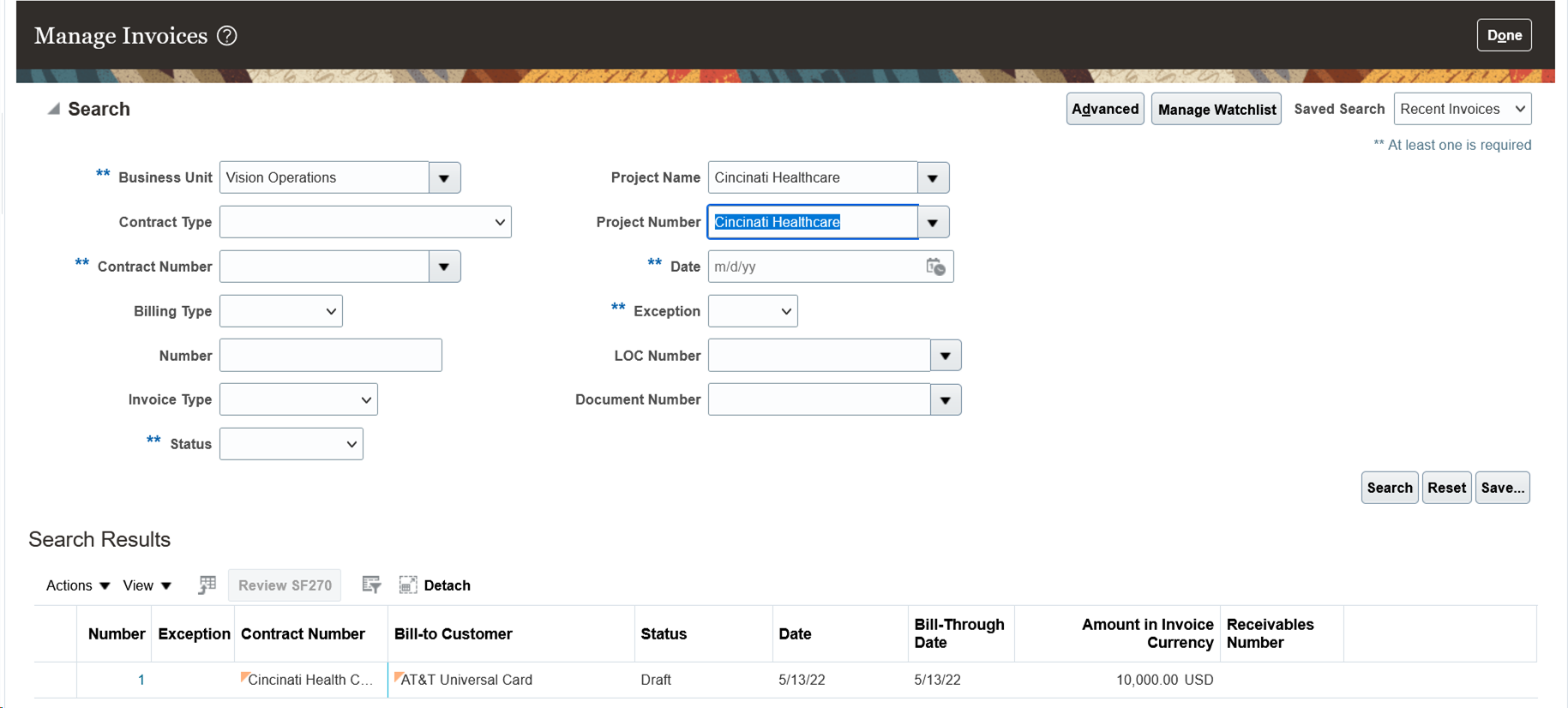
Project number search will retrieve project contract invoices that have project details captured on the invoice distributions. The project number field is added to the line details and the unbilled transactions sections on the invoice details page as illustrated below.
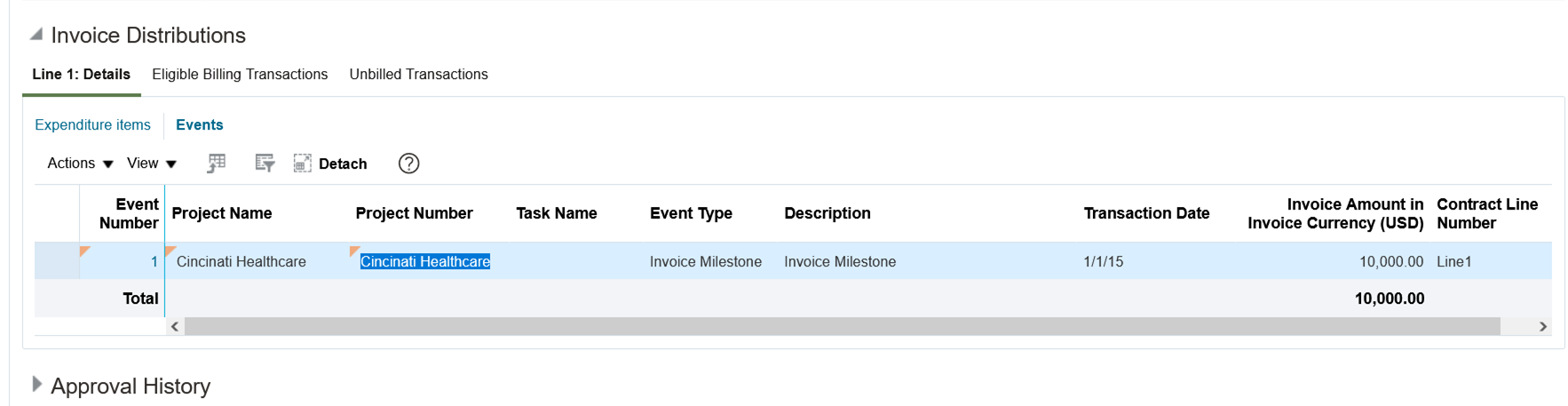
The business benefit of this feature is users can efficiently retrieve the project contract invoices based on the project number search field.
Steps to Enable
You don't need to do anything to enable this feature.
Access Requirements
To use this feature, you need the role:
- Job Role Name and Code:
- Project Billing Specialist (ORA_PJF_PROJECT_BILLING_SPECIALIST_JOB).
Project Cost Transfer with Workflow Approval Using a REST API
Transfer project cost transactions using the Project Costs REST API, adding to the list of adjustment types that are already available. This feature extends capabilities to build comprehensive integrated solutions for managing project costs, such as creating workbooks using the Oracle Visual Builder Add-in for Excel. This feature also brings workflow approval capabilities to all types of project cost adjustment initiated by REST API, delivering greater control and consistency with the user experience in the application.
The Project Costs REST API can now be used to transfer costs between:
- Projects
- Tasks
- Expenditure Types*
- Contracts**
- Funding Sources**
* Existing capability. ** Sponsored projects only (Grant Management).
For example, to transfer a project cost to a different task and expenditure type, the REST API request body would look something like this:
{
"name":"adjustProjectCosts",
"parameters":
[
{"AdjustmentType": "Transfer"},
{"ProjectNumber": "New Project"},
{"TaskNumber": "New Task"},
{"ExpenditureType": "Airfare"},
{"Justification": "This project cost was booked to the wrong task and incorrectly classified as mileage."}
]
}
This release also introduces the capability to use workflows to approve project cost adjustments initiated using REST API. The following table summarizes the project cost adjustment types that have approval workflow capability; other adjustment types that are not subject to approvals are available, but these are not included in the table. The table also highlights whether adjustment types are currently available in the user interface (UI) and/or REST API, and which privilege is required to circumvent approvals:
| Adjustment Type |
Description |
Adjustment Availability |
Approval Workflow Availability |
Privilege to Override Approval Workflow* |
|---|---|---|---|---|
| Hold invoice until released |
Holds invoicing on a project cost until released. |
UI and REST |
UI and REST |
Approve Project Expenditure Item Billing Hold Change |
| Hold invoice once |
Holds invoicing on a project cost once. |
UI and REST |
UI and REST |
Approve Project Expenditure Item Billing Hold Change |
| Hold revenue until released |
Holds a project cost from recognizing revenue until released. |
UI and REST |
UI and REST |
Approve Project Expenditure Item Revenue Hold Change |
| Release invoice hold |
Removes a project cost from invoice hold. |
UI and REST |
UI and REST |
Approve Project Expenditure Item Billing Hold Change |
| Release revenue hold |
Removes a project cost from revenue hold. |
UI and REST |
UI and REST |
Approve Project Expenditure Item Revenue Hold Change |
| Set to billable |
Sets a project cost as billable. |
UI and REST |
UI and REST |
Approve Project Expenditure Item Billing Status Change |
| Set to nonbillable |
Sets a project cost as nonbillable. |
UI and REST |
UI and REST |
Approve Project Expenditure Item Billing Status Change |
| Set to capitalizable |
Sets a project cost as capitalizable. |
UI and REST |
UI and REST |
Approve Project Expenditure Item Capitalizable Status Change |
| Set to noncapitalizable |
Sets a project cost as noncapitalizable. |
UI and REST |
UI and REST |
Approve Project Expenditure Item Capitalizable Status Change |
| Transfer |
Transfers a project cost. |
UI and REST |
UI and REST |
Approve Project Expenditure Item Transfer |
| Split |
Splits a project cost. |
UI only |
UI only |
Approve Project Expenditure Item Split |
| Split and transfer |
Splits and transfers project costs. |
UI only |
UI only |
Approve Project Expenditure Item Split and Transfer |
| Change work type |
Changes a project cost work type. |
UI only |
UI only |
Approve Project Expenditure Item Work Type Change |
* Approval workflows will not be launched if a user holds these privileges when initiating the above adjustments. All of the privileges listed belong to the Project Cost Adjustments Approval duty role, which is assigned to the seeded Project Accountant and Grants Accountant job roles.
The business benefits of this feature are:
- System integrators, administrators, and developers can create new or extend existing integration and automation solutions for managing project costs.
- Additional control has been provided by extending workflow approvals for project cost adjustments to the REST API. The experience between the application user interface and REST API is now consistent.
- Customers can also leverage complementary offerings such as the Oracle Visual Builder Add-in for Excel to create user-friendly workbooks to perform these operations.
Steps to Enable
Review the REST service definition in the REST API guides to leverage (available from the Oracle Help Center > your apps service area of interest > APIs & Schema). If you are new to Oracle's REST services you may want to begin with the Quick Start section.
There are no additional steps required to enable this feature.
Tips And Considerations
If approval workflows are not required when project cost adjustments are invoked using REST API, ensure that the user account calling the REST API has the corresponding privilege(s) assigned from the table above. For example, if you have an existing integration to perform project cost adjustments, and you do not want approvals to be invoked, please ensure that the integration user account has the necessary approval privileges.
- As per the UI, the Justification parameter is now mandatory when an non-privileged user performs a workflow-enabled adjustment using REST API.
- The request body has parameter support for different keys for each business object, for example, Project Id, Project Number or Project Name. If multiple keys are provided in the request body, the following order of precedence is applied:
- Id > Number > Name
- As per the UI, when a project cost that belongs to a group of costs is transferred using REST API, other costs within the group are also subject to the same transfer action. Groups of project cost transactions, such as those relating to Project Driven Supply Chain, share a common source distribution layer reference, and other project attributes.
- Please note that Split, Split and Transfer and Change Work Type adjustments are not yet available using REST API.
- To invoke REST APIs from Excel, consider using the Oracle Visual Builder Add-in for Excel.
Key Resources
- Related Help:
- REST API for Oracle Project Portfolio Management Cloud guide available on the Oracle Help Center.
- Developing Integrated Spreadsheets Using Oracle Visual Builder Add-in for Excel.
- There are examples of how to build integrated workbooks using the Oracle Visual Builder Add-in for Excel on Oracle Customer Connect. Search for posts in the Project Management category starting with the text "Did you know?".
- Based on Idea 508731 from the Project Management Idea Labs on Oracle Cloud Customer Connect.
Access Requirements
- To perform project cost adjustments using REST API you need the appropriate privilege(s) from the duty role:
- Project Cost Transaction Processing (ORA_PJC_PROJECT_COST_TRANSACTION_PROCESSING_DUTY)
- When performing project cost adjustments using REST API, to circumvent approval workflows you will need the appropriate privilege(s) from the duty role:
- Project Cost Adjustments Approval (ORA_PJC_PROJECT_COST_ADJUSTMENTS_WITH_APPROVAL_DUTY)
- The above duty roles are both assigned to the following job roles:
- Project Accountant (ORA_PJF_PROJECT_ACCOUNTANT_JOB)
- Grants Accountant (ORA_PJF_GRANTS_ACCOUNTANT_JOB)
Project Transaction Analysis Reports
Use the new Project Transaction Analysis Reports to view the manner in which a cost rate was calculated for project cost transactions, and identify causes where a cost rate cannot be determined or where a cost rate value is not as expected.
This release delivers two new analysis reports:
- Transaction Analysis for Unprocessed Project Costs Report
- Transaction Analysis for Project Costs Report
Use the new Project Transaction Analysis Reports to:
- More easily identify the root cause(s) for unprocessed transaction errors such as:
- No rate was found for the person.
- A rate wasn't found for the person job.
- No rate was found for the nonlabor transaction.
- The application can't find a costing rule for the labor transaction.
- A rate wasn't found for job X because the job doesn't exist in the job set or isn't mapped to another job in the job set.
- More easily understand how raw cost rates have been derived for unprocessed and processed project cost transactions. For example:
- Was a labor costing override used?
- Was a project cost rate override used?
- Was the correct date-effective rate schedule entry used?
- Was the correct organization costing rule used for the expenditure organization?
Example 1
The following worked example shows how a project application administrator uses the Transaction Analysis for Unprocessed Project Costs Report to assist a project accountant in troubleshooting a costing error.
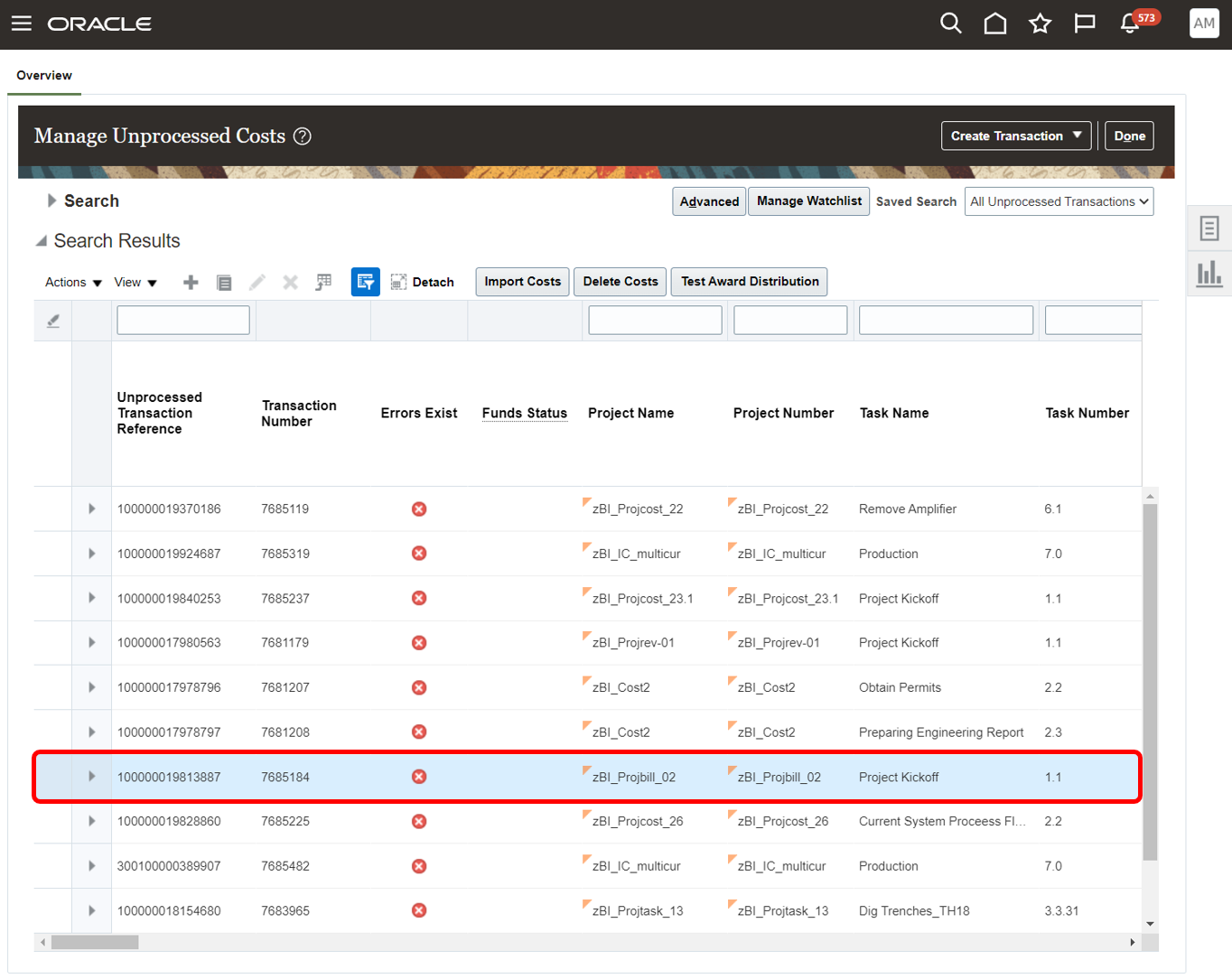
- A project accountant has identified a number of unprocessed project costs on the Costs overview page. The project accountant selects one of the groups of exceptions, for a specific Business Unit, Transaction Source and Document. They drill down to the individual unprocessed transactions using the link in the 'Exceptions' column:

- The project accountant then clicks on the 'Errors Exist' icon for a single unprocessed transaction:
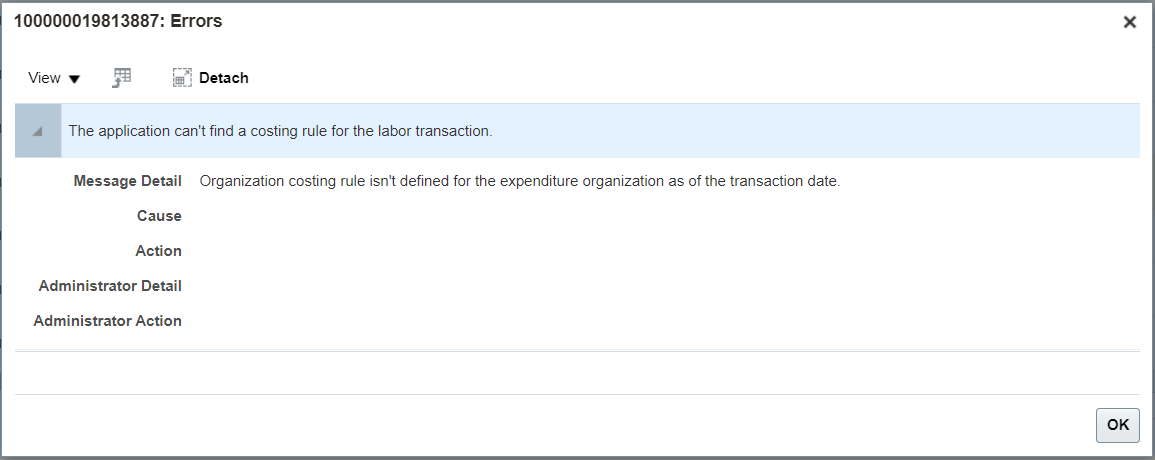
- The popup informs the project accountant of the error, in this case, 'The application can't find a costing rule for the labor transaction'. The project accountant makes a note of the Unprocessed Transaction Reference, 100000019813887 (which appears in the top-left of the popup), and contacts a project application administrator to help resolve this issue and import the cost transaction:
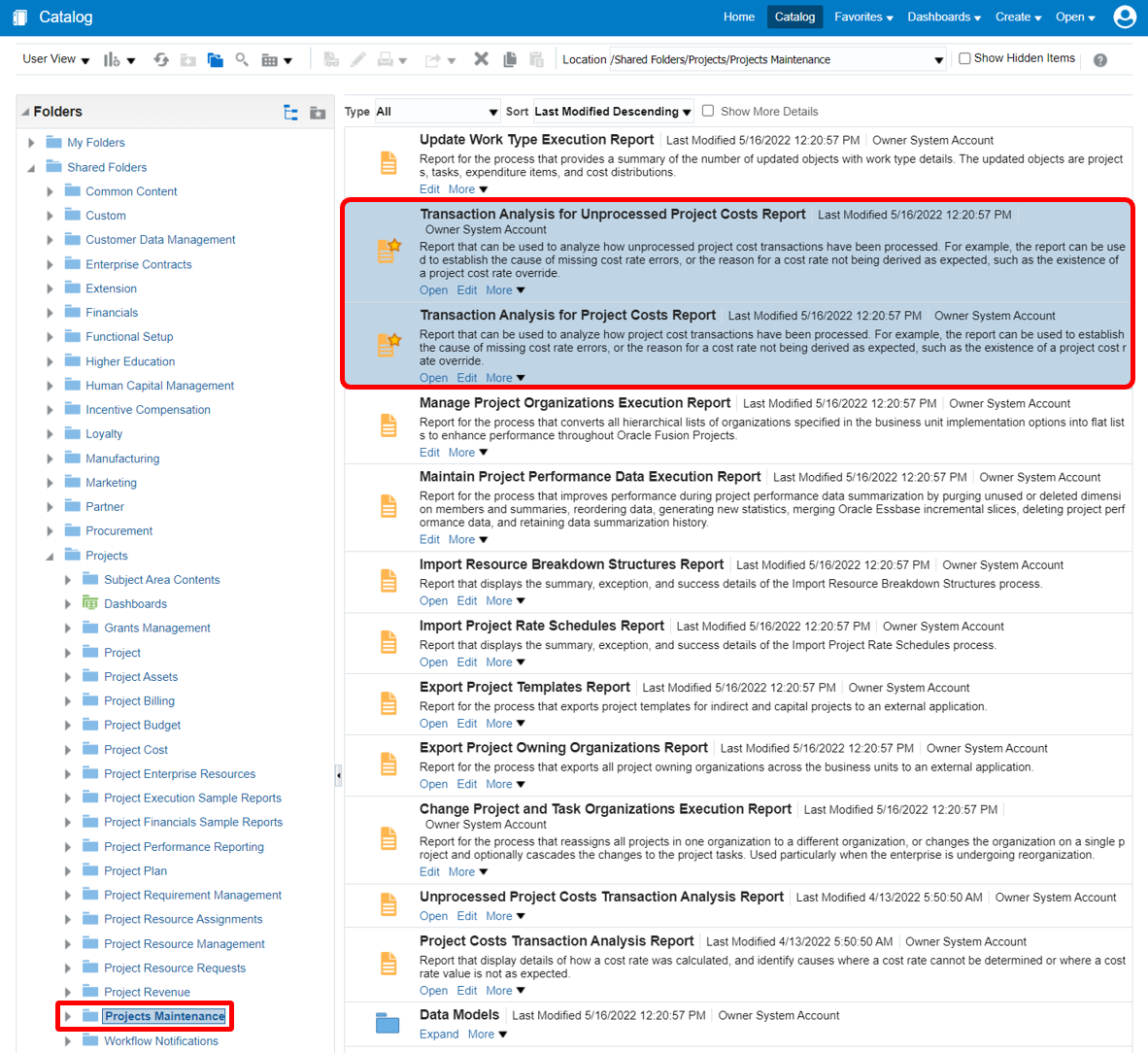
- The project application administrator navigates to Oracle Transactional Business Intelligence (OTBI), and opens the Transaction Analysis for Unprocessed Costs Report from the catalog. The catalog location is Shared Folders > Projects > Projects Maintenance:
- The project application administrator provides the Unprocessed Transaction Reference as a parameter and runs the report. The report output is downloaded and opened in Excel:

- The report has four sheets:
- Report Details - Displays the report parameter values, and runtime details such as the date the report was run and by which user.
- Transaction Details - Provides a summary of key transaction attributes to assist analysis.
- Transaction Errors - Provides a summary of any existing errors or warnings relating to the transaction.
- Costing - Provides a detailed breakdown of cost processing and related setups.

- The project application administrator opens the 'Costing' sheet. The sheet is arranged in a number of sections, each of which has detailed guidance within the sheet. To summarize:
- Cost Processing - Where a transaction has already been costed, this section shows the outcomes of those successful events. This section is applicable to the next worked example, where we explore a processed project cost.
- Simulated Cost Processing - When the report is run, the transaction is re-processed by costing in "simulation" mode. This serves two purposes:
- To check whether the costing error reported in the application still exists. For example, since the error was raised another user may have fixed the costing setups, but has yet to re-run Import Costs.
- Where a transaction has already been costed the simulated outcome can be compared to the existing cost outcome(s), for example, to identify where there have been any changes in costing setups since the transaction was processed. This use case is applicable to the next worked example, where we explore a processed project cost.
- Simulated Cost Processing Errors - Details any errors resulting from the simulated cost processing above.
- Cost Processing Setups - Lists out all of the application setups that relate to each of the costing methods that are considered when raw costs are calculated.
- Conditional formatting within the sheet makes it easy for the project application administrator to see where setups are a match or partial match to the transaction, including date effectivity. The project application administrator can see that:
- There are 3 Labor Costing Overrides for the person associated with the transaction, but one is not date effective and all three are defined for different Expenditure Business Units.
- There are four Organization Costing Rules matching the Expenditure Business Unit of the transaction, which are also date-effective as of the transaction date, but they are not a match for the Expenditure Organization.

- The project application administrator adds a new Organization Costing Rule entry for the Vision Operations business unit, and the Services-East expenditure organization (the Expenditure Organization for the transaction can be easily obtained from the Transaction Details sheet).
- The project accountant runs the Import Costs process, and the unprocessed cost is imported successfully.
Example 2
This second worked example shows how a project application administrator uses the Transaction Analysis for Project Costs Report to assist a project accountant understand why a raw cost amount for a project cost transaction is 840 USD, and not what they were expecting (1050 USD). Please read through the above example first, as a number of steps are repeated.
- Similar to the previous example, a project accountant provides the project application administrator with the Transaction Number, 8025225, for the project cost that requires analysis. They obtain this from the Manage Project Costs page:

- The project application administrator runs the Transaction Analysis for Project Costs Report for project cost with transaction number 8025225. They open the Costing sheet and can see that the transaction was costed using an Organization Costing Rule. The rate schedule associated with the costing rule has two date-effective matching lines for the transaction; one with person and job specificity, and one with just person specificity. The former takes precedence during costing, which is indicated by the higher rank in the report:

- The project application administrator discusses their findings with the project accountant, who says that the combined person and job rate schedule entry should have been end-dated. The project application administrator makes the necessary changes to the rate schedule, and prior to recalculating raw costs for the transaction, re-runs the Transaction Analysis for Project Costs Report to make sure the changes will have the desired effect.
- The simulation section of the Costing sheet in the report shows the project application administrator the outcome if the raw cost of the transaction were to be recalculated with current setups. The simulated cost amount is 1050 USD, as originally expected by the project accountant. The report also shows that there is now only one matching rate schedule line for the transaction:

- The project accountant can now recalculate the raw cost for the impacted transaction.
The business benefits of this feature are:
- Empower your project application administrators and application implementation consultants to provide better support to project accountants and other users of the Costs work area.
- Project Transaction Analysis Reports will reduce the effort and skill required to resolve costing issues.
Steps to Enable
You don't need to do anything to enable this feature.
Tips And Considerations
- This report is intended for the project application administrator and/or the application implementation consultant, and is therefore secured by a functional privilege only (see the Roles section below). No data security is applied to this report, regardless of the user's roles and privileges. If you are considering making this report available to end users, such as the project accountant, please bear in mind that the report may display data that the end users do not have access to in the standard application pages.
-
Taking the above into consideration, if you do share this report with end users, consider adding it to the Reports and Analytics panel in the relevant work areas:

- Consider using Excel features such as tables, filters and show/hide rows to navigate the reports more easily.
- The Costing sheet within the report has a limit of 10,000 rows for each costing method.
- If you raise a service request with Oracle Support related to costing errors, you may be asked to attach the output of the Project Transaction Analysis Reports. This will help expedite cost processing issues.
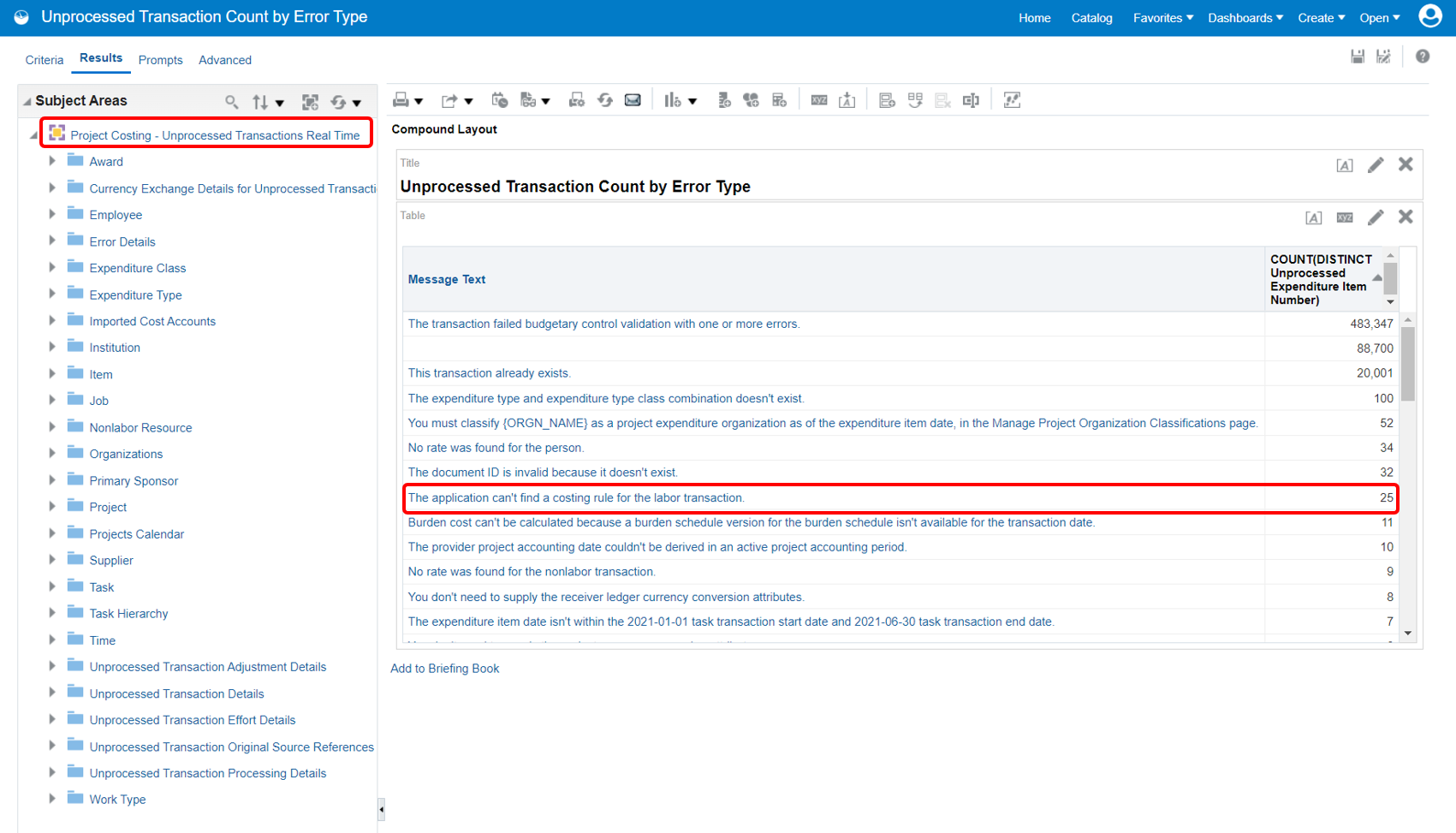
- An alternative method to get unprocessed cost errors is to use the 'Project Costing - Unprocessed Transactions Real Time' subject area in OTBI. This will allow you to get a count of processing errors by type. For example:
Key Resources
- View Analytics, Reports, and Dashboards topic in the Creating and Administering Analytics and Reports for PPM.
Access Requirements
- Project Transaction Analysis Reports are secured by the following privilege:
- View Project Transaction Analysis Report (PJF_VIEW_PROJECT_TRANSACTION_ANALYSIS_REPORT_PRIV_OBI)
- The above privilege is available in the following seeded job roles:
- Project Application Administrator (ORA_PJF_PROJECTS_APPLICATION_ADMINISTRATOR_JOB)
- Application Implementation Consultant (ORA_ASM_APPLICATION_IMPLEMENTATION_CONSULTANT_JOB)
Planning, Scheduling, and Forecasting
Extend the Manage Project Financial Settings Page with Parameters
Project application administrators can use context specific attributes in Page Composer, such as Project Type or whether the project is a template, to control properties of components in the Manage Project Financial Settings page.
The scope for this feature is the Manage Project Financial Settings page. This includes the following tabs within the page:
- General (Project)
- Parties
- Planning
- Financial
- Capital
- Reporting
- Additional Information
- Cost Rate Overrides
The following context specific attributes ("parameters") are made available in this release:
| Parameter Code | Comments |
|---|---|
| ProjectTemplateFlag |
Accepted values are Y or N. |
| ProjectStatusCode | |
| ProjectStatusName |
Note that the Project Status Name is translatable. |
| ProjectSystemStatusCode |
Accepted values are ACTIVE, CLOSED, DRAFT, PENDING_CLOSE, SUBMITTED. |
| ProjectBusinessUnitId |
|
| ProjectBusinessUnit |
Note that the Business Unit Name is translatable. |
| ProjectTypeId |
|
| ProjectTypeName |
Note that the Project Type Name is translatable. |
| ProjectTypeSponsoredFlag |
Indicates whether the project type is enabled for sponsored projects. Accepted values are Y or N. |
| ProjectTypeEnableBillingFlag |
Indicates whether the project type is enabled for billing. Accepted values are Y or N. |
| ProjectTypeEnableCapitalizationFlag |
Indicates whether the project type is enabled for capitalization. Accepted values are Y or N. |
| ProjectLegalEntityId |
|
| ProjectLegalEntityIdentifier |
|
| ProjectLegalEntityName |
The syntax to reference parameter values in Expression Language (EL) is as follows:
#{pageFlowScope.mfpsParameters.<Parameter Code>}
For example, the following expression would return 'true' if the project type is enabled for billing:
#{pageFlowScope.mfpsParameters.ProjectTypeEnableBillingFlag == 'Y'}
Let's consider an example with the following requirement:
-
The Project Currency drop down on a project is defaulted from the project template. This attribute cannot be changed if the project has incurred costs.
-
The requirement is to prevent users from changing the Project Currency on a project, regardless of whether costs have been incurred. But, this should only apply to projects and not project templates.
There are a couple of ways to satisfy this requirement, both using Page Composer and EL. For example:
- Use EL to only allow this attribute to be updated if the user holds a specific role, for example, the Project Application Administrator. This capability was available prior to this release.
OR
- Use EL to only allow this attribute to be updated in the context of a project template, and not a project. This is the option that we'll explore.
First, activate a Sandbox that has the Page Composer tool included. Navigate to the Financial tab on the Manage Financial Project Settings page and click Edit Pages from the Settings and Actions button.
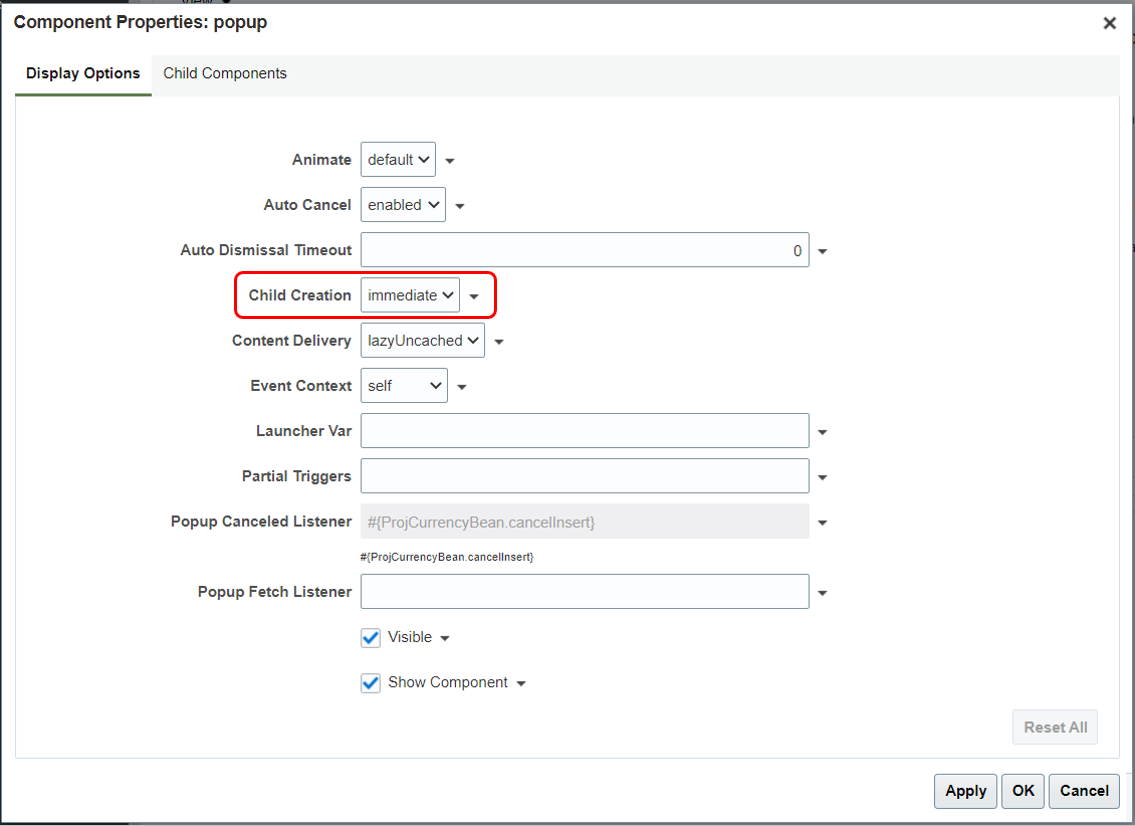
When a user edits currency conversion properties for a project or template, a modal popup is displayed. In order to use Page Composer to edit the child components of a modal popup, we first need to set the Child Creation property of the modal popup to 'immediate'. This will make the child components of the popup available in the Structure pane of Page Composer. To do this, select the popup from the Structure pane and click the Edit icon:

Change the Child Creation property of the popup to 'immediate'. You should now see the popup components in the Structure pane:
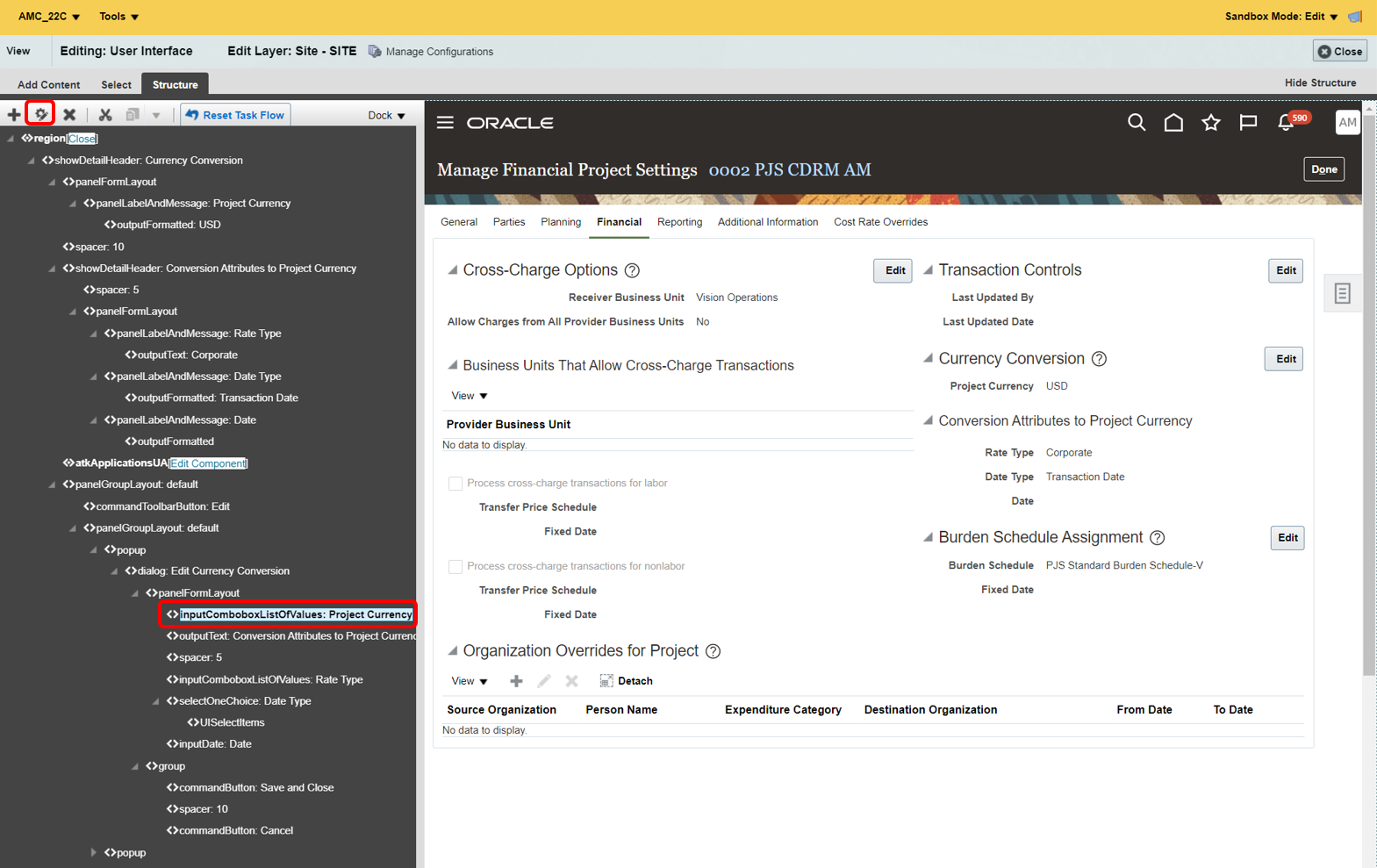
Now edit the Project Currency property:
Use the Expression Builder to edit the EL for the Disabled property:
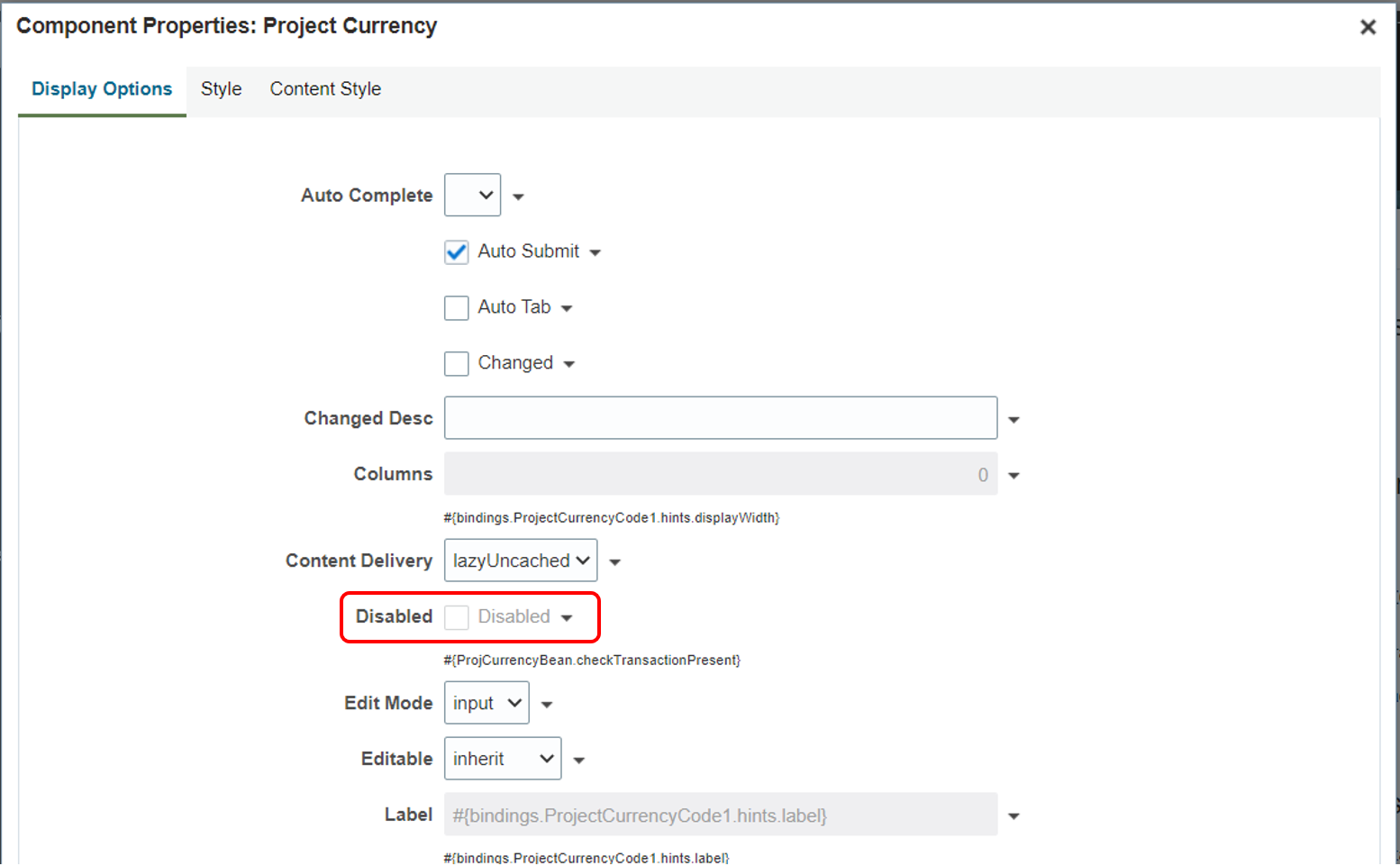
Change the EL from:
#{ProjCurrencyBean.checkTransactionPresent}
to:
#{ProjCurrencyBean.checkTransactionPresent || pageFlowScope.mfpsParameters.ProjectTemplateFlag == 'N'}
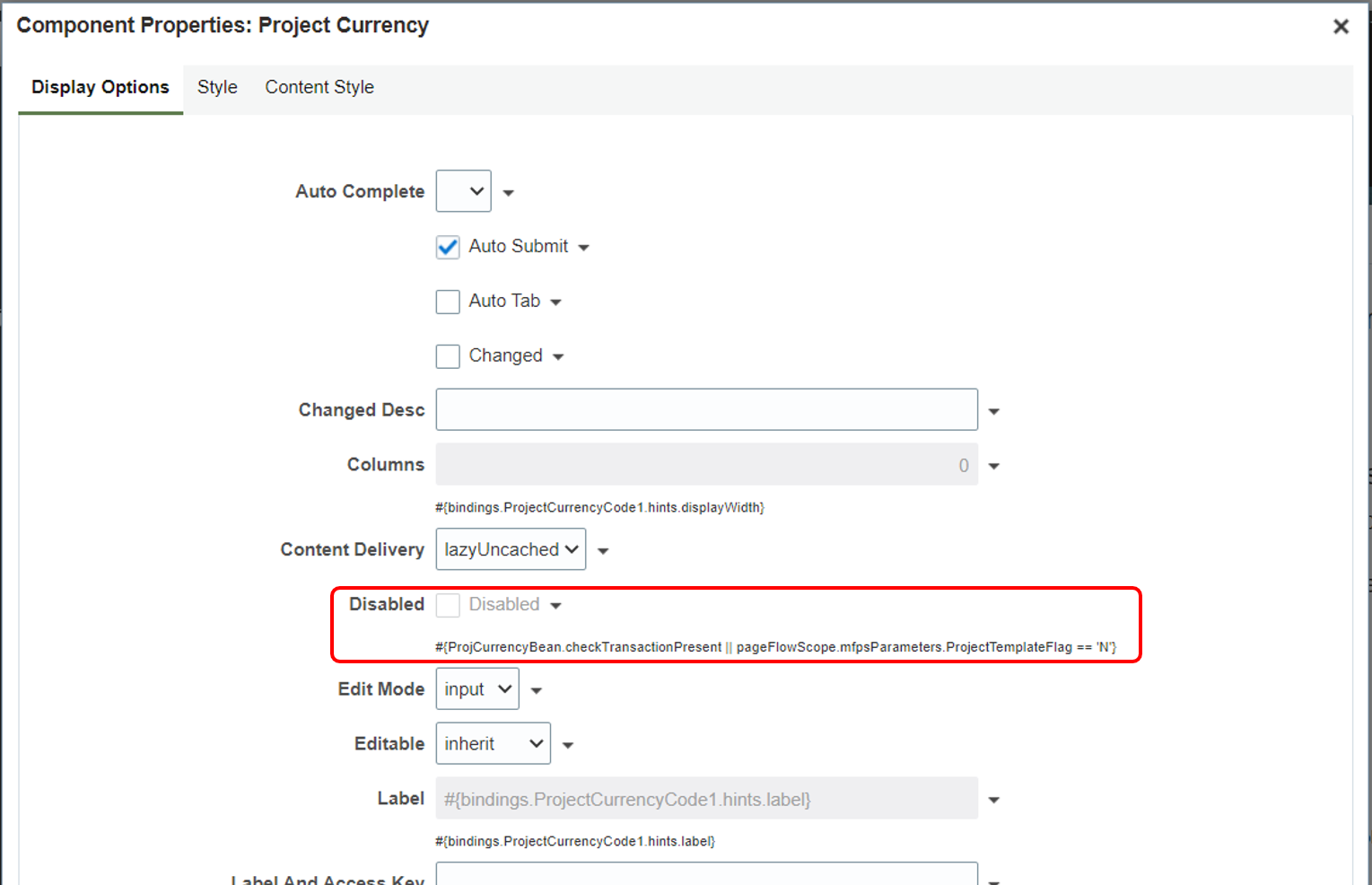
The expression will disable the Project Currency property if transactions are present or if the context is a project and not a project template. Apply the changes.
Don't forget to set the Child Creation property of the popup back to 'deferred'.
You can now test your changes before publishing the Sandbox.
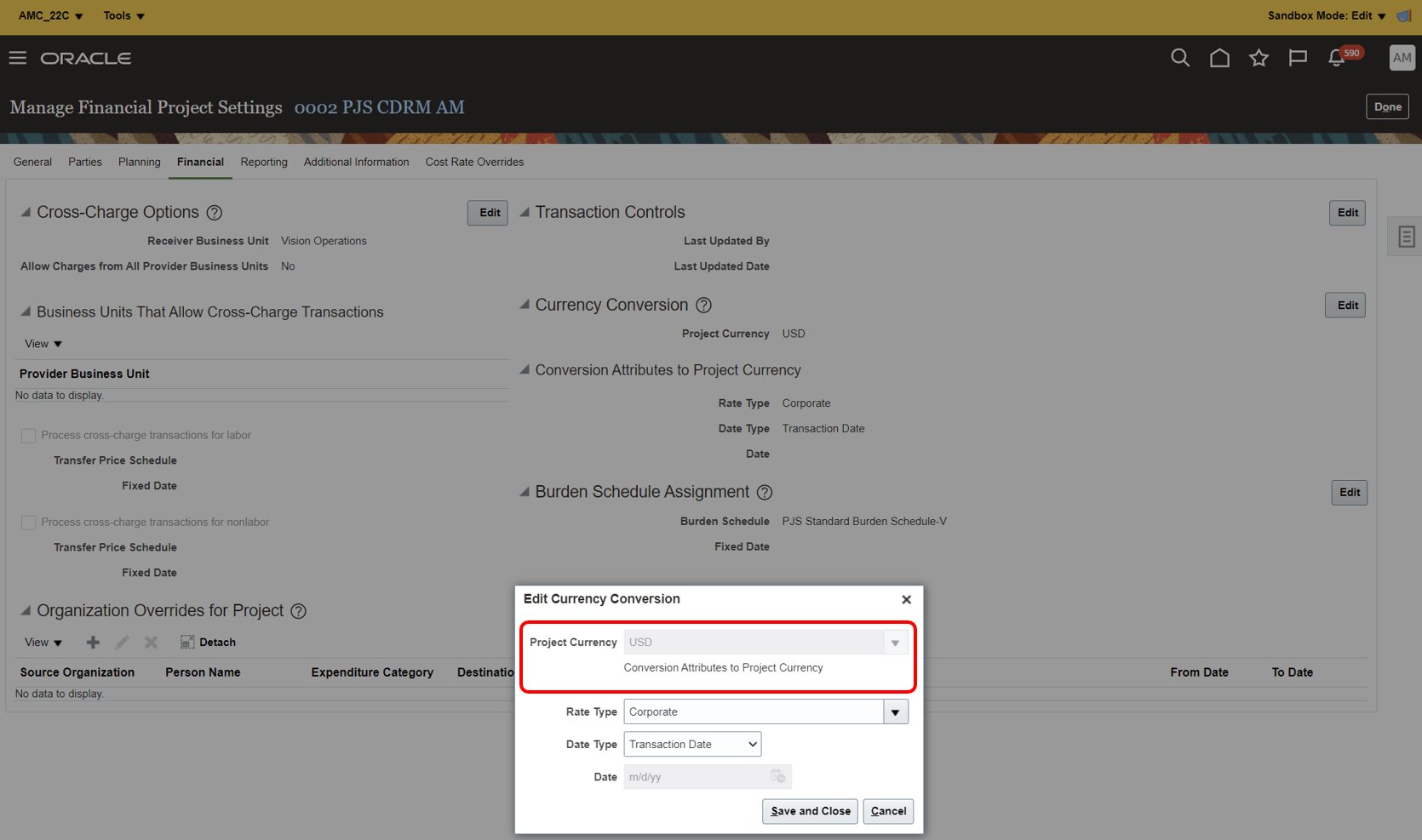
Here is an example of the Edit Currency Conversion popup in the context of a project; the Project Currency property is read-only:
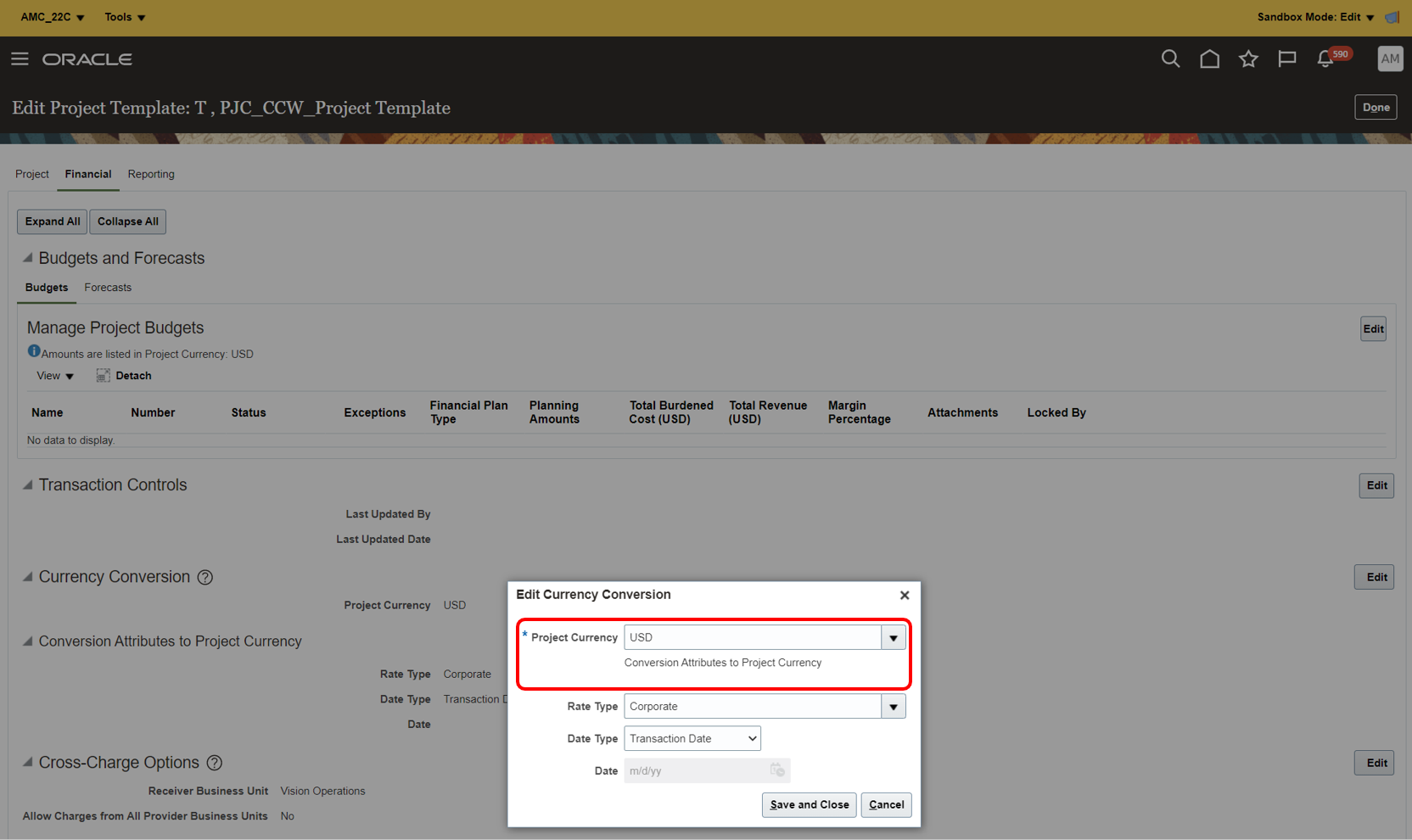
Here is an example of the Edit Currency Conversion popup in the context of a project template; the Project Currency property is updatable:
The business benefits of this feature are:
- Project application administrators can personalize components within the Manage Project Financial Settings page to better meet the needs of their end users. For example:
- Simplify the user experience by hiding page components, such as tabs or individual fields that are not relevant for a specific project type, business unit, legal entity, or other available context as documented above.
- Improve data quality and reduce business process errors by making certain fields read-only, such as those that should default from a project template. Context specific attributes enable this type of change to only apply when the Manage Project Financial Settings page has been opened in the context of a project (by an end user), and not a project template (by the Project Application Administrator).
Steps to Enable
Leverage Page Composer to expose and adjust the behavior of page components. To learn more about extending your application using Page Composer, visit Oracle Help Center > your apps service area of interest > Books > Configuration and Extension.
Tips And Considerations
- Changes made using Page Composer apply to the user interface (UI) only, and do not apply to integrated solutions such as those that leverage REST APIs.
- Execute caution when altering the properties of components using Page Composer. For example, do not hide mandatory fields that are empty and require the user to enter a value.
- Consider combining parameters with other Expression Language syntax. For example, a page component could be hidden if the project is of a certain type and the logged in user is not assigned a specific role.
- Some parameters relate to volatile fields, for example, the Project Status. Bear this in mind when defining Page Composer changes, and whether the desired business controls are achievable when users are making changes in parallel.
- Some parameters relate to translatable fields, for example, Business Unit Name. Bear this in mind when referencing these parameters in multi-language environments, where you may prefer to use key values (Ids) instead.
Key Resources
- Related Help:
- Review the Overview of Using Page Composer topic in the Configuring and Extending Applications guide.
- Review the Examples of EL Expressions in the Configuring and Extending Applications guide.
- Review Using Expression Language in Fusion Applications (Doc ID 1982300.1) on My Oracle Support.
- Based on Idea 633349 from the Project Management Idea Labs on Oracle Customer Connect.
Access Requirements
Page Composer changes can be made by users who are assigned the Project Application Administrator (ORA_PJF_PROJECTS_APPLICATION_ADMINISTRATOR_JOB) job role.
Maintain Plan Lines User Spread When Changing Plan Line Dates
Maintain manual periodic spread for financial project plan and budget lines even if the duration changes due to a scope change. Similarly, maintain manual periodic spread for financial project plan using the Financial Project Plan REST API and maintain manual periodic spread for budget lines using Project Budgets REST API.
This extends the capability, added to forecasting in release 21D, to the financial project plan and budgets.
Sample Illustration:

The business benefit is the flexibility to retain the manual periodic spread and add additional periods on financial project plan and budget lines date changes when scope changes. This allows for scope changes while still honoring decisions made previously about the spread of planned work.
Steps to Enable
You don't need to do anything to enable this feature.
Tips And Considerations
- Enable option to maintain manual spread on date changes at project plan type level to use the feature for financial project plan.
- Similarly, enable option to maintain manual spread on date changes at non-sponsored financial plan type level to use the feature for project budgets.
- If the scope of work increases and the financial project plan line dates are pushed out to increase the duration, then the manual spread prior to the date modifications is retained and blank periods are added to accommodate the new scope of the work.
- If the scope of work reduces and the financial project plan line dates are pulled in to reduce the duration, then the manual spread prior to the date modifications is retained and any periods falling outside the revised end date are reduced from the initial plan.
- If a task, that has been manually spread, has both the start delayed and the finish date brought in to an earlier date, then the periods lost will reduce the initial plan.
- The option to maintain manual spread on date changes doesn’t apply to non-periodic calendar versions.
- The option to maintain manual spread on date changes applies to line date changes performed in the user interface. Updates made using the Financial Project Plan REST API and Project Budgets REST API will follow the option and maintain the user spread when the plan line dates are modified.
Key Resources
- Retain User Spread on Forecast Lines on Modification to Forecast Line Dates
- How is the manual periodic spread maintained on date changes in the Defining and Managing Financial Projects guide
- Based on Idea 535500 from the Project Management Idea Labs on Oracle Cloud Customer Connect.
Access Requirements
To use this feature, you need one of these roles:
- Job Role Name and Code
- Project Application Administrator (ORA_PJF_PROJECTS_APPLICATION_ADMINISTRATOR_JOB)
- Project Manager (ORA_PJF_PROJECT_MANAGER_JOB)
- Project Administrator (ORA_PJF_PROJECT_ADMINISTRATOR_JOB)
Maintain Project Progress Using Project Progress REST API
Manage project progress such as refresh actual amounts or revise the progress as of date using the Project Progress REST API. Maintain notes, additional information, and attachments on the draft project progress using this REST API.
The business benefit of using the Project Progress REST API is that you can now manage the financial progress by revising the progress as of date and also refresh the project costs. You can also provide context to the project's draft progress, useful when generating a forecast during publishing of the progress, by adding a narrative that includes attachments, notes, and additional information.
Steps to Enable
Review the REST service definition in the REST API guides to leverage (available from the Oracle Help Center > your apps service area of interest > APIs & Schema). If you are new to Oracle's REST services you may want to begin with the Quick Start section.
Tips And Considerations
- You can revise progress as of date and refresh project costs on draft progress.
- You can provide additional information, notes, and attachments using the Project Progress REST API.
Key Resources
- REST API for Oracle Project Management Cloud guide available on the Oracle Help Center
- Based on Idea 610936 from the Program Management Idea Labs on Oracle Customer Connect
Access Requirements
To use this feature, you need these privileges or roles:
- Privilege Name and Code:
- Manage Project Progress (PJO_MANAGE_PROJECT_PROGRESS_PRIV)
- Duty Role Name and Code:
- Project Management Duty (ORA_PJF_PROJECT_MANAGEMENT_DUTY_ABSTRACT)
- Job Role Name and Code:
- Project Manager (ORA_PJF_PROJECT_MANAGER_JOB)
Planning Currency Modifications for Planned Resources in the Financial Project Plan
Modify the planning currency of planned resources on the financial project plan without having to delete and recreate the plan line. This simplifies planning updates for project managers.
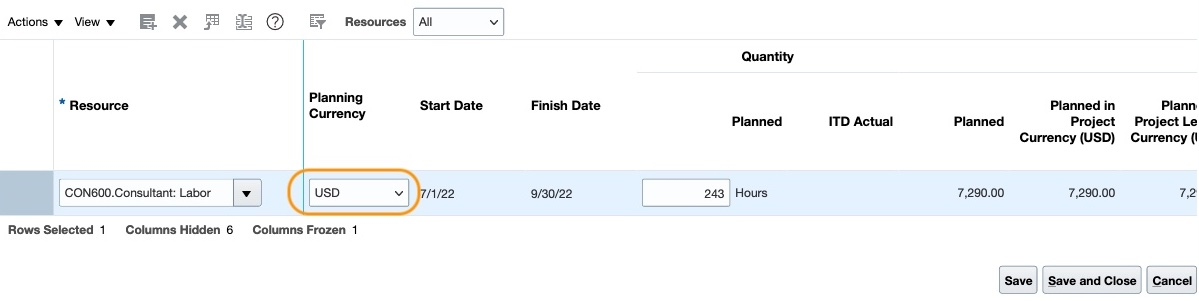
Planning Currency Update
The business benefit is you can convert your planning data from a planned currency to another currency by simply flipping the currency on the financial project plan resource assignment. The application automatically converts the planning currency to the target currency using the conversion rate.
Steps to Enable
You don't need to do anything to enable this feature.
Key Resources
- Can I change the planning currency of planned resources in a budget line, forecast line, or financial project plan in the Defining and Managing Financial Projects guide
Access Requirements
To use this feature, you need one of these roles:
- Job Role Name and Code
- Project Manager (ORA_PJF_PROJECT_MANAGER_JOB)
- Project Administrator (ORA_PJF_PROJECT_ADMINISTRATOR_JOB)
Project Budget Planning Options Management Using a REST API
Manage planning options for project budgets using the Project Budgets REST API. Override the default planning options defined from the financial plan type while creating a project budget using the Project Budgets REST API. This override facility better aligns to the user experience available to users in the user interface.
The business benefit of using the Project Budgets REST API is that you can now view and manage the planning options for existing project budget versions.
Steps to Enable
Review the REST service definition in the REST API guides to leverage (available from the Oracle Help Center > your apps service area of interest > APIs & Schema). If you are new to Oracle's REST services you may want to begin with the Quick Start section.
Tips And Considerations
- You can modify the planning options of project budget versions using the Project Budgets REST API.
- You can't modify the planning in multiple transaction currencies option of the project budget version using the Project Budgets REST API.
Key Resources
- REST API for Oracle Project Management Cloud guide available on the Oracle Help Center.
Access Requirements
To use this feature, you need one of these privileges and roles:
- Privilege Name and Code:
- Manage Project Budget Working Version (PJO_MANAGE_PROJECT_BUDGET_WORKING_VERSION_PRIV)
- Manage Project Budget (PJO_MANAGE_PROJECT_BUDGET_PRIV)
- Job Role Name and Code:
- Project Integration Specialist (ORA_PJF_PROJECT_INTEGRATION_SPECIALIST_JOB)
- Project Application Administrator (ORA_PJF_PROJECTS_APPLICATION_ADMINISTRATOR_JOB)
- Project Administrator (ORA_PJF_PROJECT_ADMINISTRATOR_JOB)
- Project Manager (ORA_PJF_PROJECT_MANAGER_JOB)
Project Status Workflow Enhancements
Project status change workflow notifications are enhanced to better inform approvers and help them make faster decisions. For example, the notification now includes comments entered by the submitter, as well as the next status the project will be set to after approval.
In summary, this release delivers the following enhancements to the project status change workflow:
- The comments entered by the submitter of the approval workflow are now included in the seeded approval notification.
- The seeded approval notification now displays the project status before approval was initiated, the current workflow-enabled status, as well as the statuses that will result from the approver's actions. To elaborate, the notification now shows:
- The status the project was in before the project was set to a status that triggered the approval workflow. For example, 'Draft'.
- The workflow-enabled status the project is currently in. For example, 'Submitted'.
- The status the project will be set to if the approver were to approve the status change. For example, 'Active'.
- The status the project will be set to if the approver were to reject the status change. For example, 'Rejected'.
- Prior to this feature, it was possible to configure the project status change workflow to include serial approvers. As each approver took action, a notification would be sent to the next approver in the chain, but the project status would remain the same until the whole approval task had concluded. However, with serial approvers in a single workflow task instance it is not possible to report approval progress using the project status (as the project status does not get updated until the whole workflow task has completed). With this feature, you now have the additional option to break up serial approval requirements into separate workflow tasks, each with their own workflow-enabled status. The following tables demonstrate how the same serial approval requirement could be solved using each approach:
Serial Approvers in a Single Workflow Task Instance
| Sequence | Project Status | Workflow-Enabled? | Workflow Approver(s) |
|---|---|---|---|
| 1 | Draft | ||
| 2 | Submitted | Yes | Project Manager > Financial Controller |
| 3 | Approved |
Single Approver in Serial Workflow Task Instances
| Sequence | Project Status | Workflow-Enabled? | Workflow Approver(s) |
|---|---|---|---|
| 1 | Draft | ||
| 2 | Submitted for Project Approval | Yes | Project Manager |
| 3 | Submitted for Finance Approval | Yes | Financial Controller |
| 4 | Approved |
The business benefits of this feature are:
-
Submitters of project status changes can now provide additional context, such as a justification, to help the approver make a quicker, better informed decision as to whether to approve or reject the project status change.
-
The inclusion of the previous/current/next project statuses in the approval notification will help the approver understand the full lineage of the project status, and what the consequences of their approval action will be.
-
Project Application Administrators will be able to configure complex serial project status change approval requirements, better meeting the approval and reporting needs of end users.
Steps to Enable
You don't need to do anything to enable this feature.
Tips And Considerations
- If you are using a customized version of the approval notification, you will need to take a fresh copy of the seeded notification and re-apply any changes you may have made.
- Where there is a requirement for serial approval it is recommended to use serial approvers within a single workflow task, and to only use separate statuses/workflow tasks if there is a requirement to report progress of serial approval through the project status. This helps to reduce the number of workflow tasks that are initiated.
- To configure one project status change workflow to trigger another project status change workflow, simply use the Manage Project Statuses task within Setup and Maintenance, and set the Status After Change Accepted attribute to another workflow-enabled status. When using this feature ensure to avoid "infinite loops" in your workflow rule design. For example, the use of automatic approvals for a participant could result in a circular flow of status changes. If such cases are detected, the workflow will automatically exit the loop after 10 iterations, and set the project back to the last status that was not workflow-enabled.
Key Resources
- Project Status Change Workflow topic in the Implementing Project Financial Management and Grants Management guide.
- Configurable Workflow Notifications topic in the Creating and Administering Analytics and Reports for PPM guide.
Access Requirements
To configure the Project Status Change Workflow you need these privileges and roles:
- Job Role Name and Code:
- Project Application Administrator (ORA_PJF_PROJECTS_APPLICATION_ADMINISTRATOR_JOB).
- Application Implementation Consultant (ORA_ASM_APPLICATION_IMPLEMENTATION_CONSULTANT_JOB).
Project Team Members Update and Delete from Project Templates Using a REST API
Update and delete project team members using the Project Templates REST API. This allows the quick update and maintenance of project templates, for example when project team members change.
The business benefits of this feature are:
- System integrators, administrators, and developers can create new or extend existing integration and automation solutions for maintaining project templates.
- Users such as the Project Application Administrator can efficiently bulk-update or delete team members across project templates. Customers can also leverage complementary offerings such as the Oracle Visual Builder Add-in for Excel to create user-friendly workbooks to perform these operations.
- Where high numbers of project templates are defined, this capability saves time and effort over row-wise updates in the UI.
Steps to Enable
Review the REST service definition in the REST API guides to leverage (available from the Oracle Help Center > your apps service area of interest > APIs & Schema). If you are new to Oracle's REST services you may want to begin with the Quick Start section.
There are no additional steps required to enable this feature.
Tips And Considerations
- To invoke REST APIs from Excel, consider using the Oracle Visual Builder Add-in for Excel.
- Some typical use cases for the new capabilities of this REST API:
- Bulk-delete team members on a range of project templates, for example, if a person has left your organization.
- Bulk-update team members on a range of project templates, for example, if a person's cost rate and bill rate need to change.
- Some team member attributes, such as cost rate and bill rate, are only applicable if the Maintain a Single Source of Truth for Project Team Members and Labor Resource feature is opted in.
- It is not currently possible to patch (update) the project role of a team member assigned to a project template. For this use case, it is recommended that the team member assignment is deleted and a new assignment, with the correct role, is created.
Key Resources
-
Related Help:
-
REST API for Oracle Project Portfolio Management Cloud guide available on the Oracle Help Center.
-
Developing Integrated Spreadsheets Using Oracle Visual Builder Add-in for Excel.
-
There are examples of how to build integrated workbooks using the Oracle Visual Builder Add-in for Excel on Oracle Customer Connect. Search for posts in the Project Management category starting with the text "Did you know?".
-
-
Based on Idea 597765 from the Project Management Idea Labs on Oracle Cloud Customer Connect.
Access Requirements
To use this feature you need the following privileges or roles:
- Privileges:
- Manage Project Template (PJF_MANAGE_PROJECT_TEMPLATE_PRIV)
- Job Roles:
- Project Application Administrator (ORA_PJF_PROJECTS_APPLICATION_ADMINISTRATOR_JOB).
- Project Integration Specialist (ORA_PJF_PROJECT_INTEGRATION_SPECIALIST_JOB)
Enhanced Resource Assignment Update in Import Project Resource Assignments FBDI
Update one or more project resource assignments created from any source when Assignment External Reference is not present. The additional attributes resource, project, project role, and assignment start date exposed now will uniquely identify any assignment for the update. Additionally, you can choose to only submit or submit and approve the project resource assignment updates.
For example, consider the screenshot below, where George Right and Aleen Elina are assigned to the ERP Upgrade project using the application user interface, where Assignment External Reference is not captured. Specify new attributes introduced in the PJR_RES_ASMT_UPDATE tab of the import template to update the resource assignments. Note that there are two assignments for Aleen Elina with the same role but different start dates.
- Update the assignment schedule of George Right by specifying resource and project-related attributes. Illustrated in row number 6 of the import template below.
- Update the assignment schedules of Aleen Elina by specifying Assignment Start Date in addition to resource and project-related attributes to identify the right assignment. Illustrated in rows numbers 7 and 8 of the import template below.

Screenshot of Manage Project Resource Assignments User Interface
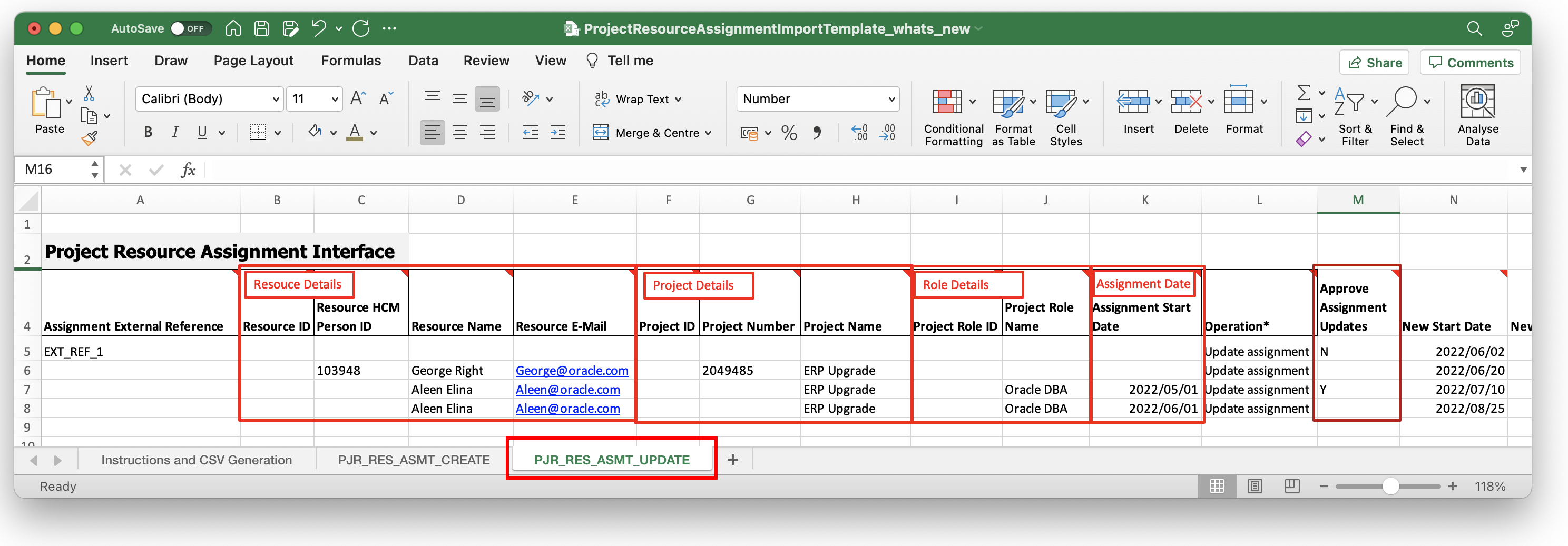
Screenshot of Import Template for File-Based Data Import
Additionally, you can either choose to approve schedule changes directly or involve the project manager in the final approval.
Valid values for Approve Assignment Updates column
| Approve Assignment Updates |
||
| Attribute Value |
Y |
N |
| Outcome | The assignment schedule updates get automatically approved without any involvement from the project manager. | The assignment schedule updates require approval from the project manager. |
Business Benefit
- Increased process efficiency by performing bulk updates of assignments created from sources other than file-based import-export. The additional attributes provide greater flexibility to identify assignments with no Assignment External Reference.
- Increased control of the business process of schedule change approval.
Steps to Enable
You don't need to do anything to enable this feature.
Tips And Considerations
- When Assignment External Reference is specified, the new attributes introduced to identify an assignment are not required.
- It is mandatory to provide details of at least one of each project and resource category when Assignment External Reference is not specified. Additionally, provide details related to role and assignment date to ensure duplicates are filtered out.
Attributes introduced for Assignment Identification
| Category |
Column Name |
| Resource |
Resource ID |
| Resource HCM Person ID |
|
| Resource Name |
|
| Resource E-Mail |
|
| Project |
Project ID |
| Project Number |
|
| Project Name |
|
| Role |
Project Role ID |
| Project Role Name |
|
| Assignment Dates |
Assignment Start Date |
- The execution report generated after running the import process contains a list of successful resource assignment updates and details on how to resolve errors if any.
- If no value is provided for approve assignment updates column, the system defaults the value to Y, and the application updates the assignments directly.
- The changes are in PJR_RES_ASMT_UPDATE tab of the import template only. There is no upgrade impact.
- The import template workbook contains the tab "Instructions and CSV Generation" that provides detailed explanations and instructions for completing the steps necessary for using the import template.
Key Resources
Related Help:
- File-Based Data Import for PPM in the Oracle Project Management Cloud Implementation guide.
- Overview of External Data Integration Services for Oracle Cloud in the Implementing Applications.
- For more information about project resource assignment adjustments, see Project Resource Assignment Adjustments.
Access Requirements
To use this feature, you need one of these privileges and roles:
- Job Role Name and Code:
- Project Integration Specialist (ORA_PJF_PROJECT_INTEGRATION_SPECIALIST_JOB)
- Project Application Administrator (ORA_PJF_PROJECTS_APPLICATION_ADMINISTRATOR_JOB)
- Project Execution Application Administration (ORA_PJT_PROJECT_EXECUTION_APPLICATION_ADMINISTRATION_DUTY)
- Privilege Name and Code:
- Run Import Project Resource Assignments Process (PJR_RUN_IMPORT_PROJECT_RESOURCE_ASSIGNMENTS_PROCESS_PRIV)
Resource Nomination Update Using a REST API
Manage assignment details including dates, roles, and status for all individual resources on the request using the Project Resource Request REST API. In addition, update assignment status, dates, or role when requesting for assignment approval for a nominated resource using Project Plan Resource Requests REST API.
The business benefit is that you can easily create and update assignment details for all individual resources on a request. You can use these additional REST API methods for integration solutions using Project Resource Request REST API and Project Plan Resource Request REST API.
Steps to Enable
Review the REST service definition in the REST API guides to leverage (available from the Oracle Help Center > your apps service area of interest > APIs & Schema). If you are new to Oracle's REST services you may want to begin with the Quick Start section.
Key Resources
- Related Help:
- REST API for Oracle Project Portfolio Management Cloud guide available on the Oracle Help Center.
- What's new - Update 22B: Resource Nomination, User Defined Status, and Assignment Details Retrieval & Modification Using a REST API
Access Requirements
To use this feature, you need one of these privileges and roles:
- Job Role Name and Code:
- Project Manager (ORA_PJF_PROJECT_MANAGER_JOB)
- Project Administrator (ORA_PJF_PROJECT_ADMINISTRATOR_JOB)
- Privilege Name and Code
- Manage Project Enterprise Resources Service (PJT_MANAGE_PROJECT_ENTERPRISE_RESOURCE_SERVICE_PRIV)
Program Management and Reporting
Program Earned Value Analysis Using Oracle Transactional Business Intelligence
Analyze program earned value using Oracle Transactional Business Intelligence, or OTBI, analyses. Earned value measures in the Program Performance Measures dimension of the Projects - Program Performance Reporting Real Time subject area include the following:
- Planned value
- Project complete (%)
- Earned value
- Earned value cost variance
- Cost performance index
- Earned value schedule variance
- Schedule performance index
The business benefit of using this feature is the ability of program managers and stakeholders to monitor earned value measures in program analyses. Earned value measures reflect the current level of work achieved against the plan. Timely earned value analyses can help identify projects that need attention to get back on schedule and budget.
Steps to Enable
You don't need to do anything to enable this feature.
Tips And Considerations
Program Security
- Access to specific programs is determined by the program's public access setting and member access value.
- Program managers can view program details in OTBI analyses for public programs, programs they own, and programs they've been invited to as a contributor.
- Project executives can view program details in OTBI analyses for public programs and programs they've been invited to as a stakeholder.
Setup and Maintenance
- Administrators configure program options and performance measures in the Project Financial Management offering. Earned value measures are enabled for programs using the Manage Performance Measures task. Administrators set the Earned Value Source as either the financial project plan or budget using the Manage Program Options task.
Key Resources
- Related Help:
- "Project Programs" chapter in the Using Project Performance Reporting guide
- "Project Performance Reporting Configuration" chapter in the Implementing Project Financial Management and Grants Management guide
- "Projects - Program Performance Reporting" subject area in the Subject Areas for Transactional Business Intelligence in PPM guide
- Creating and Administering Analytics and Reports for PPM guide
- REST API for Oracle Project Portfolio Management Cloud guide
- Program Manager, Project Executive, and Project Application Administrator in the Security Reference for PPM guide
- Securing ERP guide
-
Based on Idea 489752 from Project Management Idea Labs on Oracle Customer Connect.
Access Requirements
To use this feature, you need these roles:
- Privilege Name and Code:
- Manage Project Program Data (PJS_MANAGE_PROJECT_PROGRAM_DATA)
- View Project Program Performance Data (PJS_VIEW_PROJECT_PROGRAM_PERFORMANCE_DATA)
- Duty Role Name and Code:
- Project Program Analysis Duty (FBI_PROJECT_PROGRAM_MANAGEMENT_TRANSACTION_ANALYSIS_DUTY)
- Job Role Name and Code:
- Program Manager (ORA_PJF_PROGRAM_MANAGER)
- Project Executive (ORA_PJF_PROJECT_EXECUTIVE)
Enhanced Error Reporting When Importing Award Details
View detailed error information when importing award or award project details and the award number or project number is invalid. For example, the project number is invalid when importing the keywords or organization credit percentages for the award project.
The detailed error or warning information appears as following in the output report of the Import Awards process:
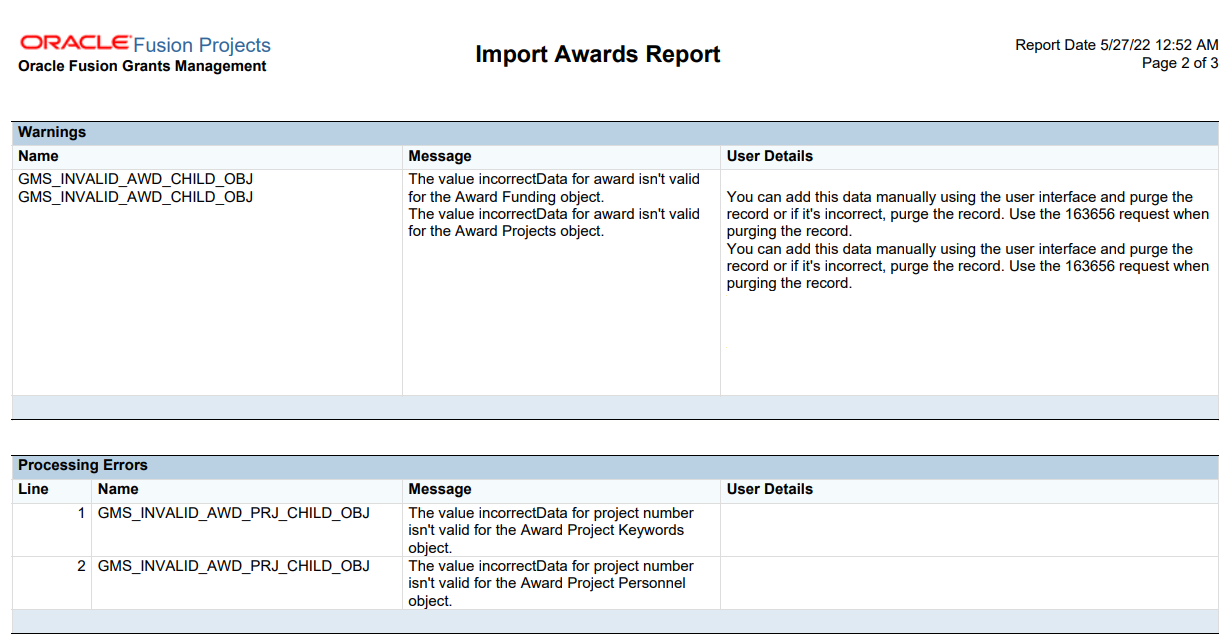
Award Warnings and Award Project Errors
The business benefit of providing complete error or warning information when importing awards and related data is that there is no loss of data, especially when importing awards from other systems or when loading historical awards. Grants administrators can make informed decision to correct and re-import or ignore the award, thus managing award data efficiently.
Steps to Enable
You don't need to do anything to enable this feature.
Key Resources
Related Help:
- File-Based Data Import for PPM in the Oracle Project Management Cloud Implementation guide.
Access Requirements
To use this feature, you need the below privilege and one of these roles:
- Privilege
- Run Import Award Process (GMS_RUN_IMPORT_AWARD_PROCESS_PRIV)
- Job Role Name and Code
- Project Application Administrator (ORA_PJF_PROJECTS_APPLICATION_ADMINISTRATOR_JOB)
- Project Integration Specialist (ORA_PJF_PROJECT_INTEGRATION_SPECIALIST_JOB)
Find Sponsored Projects Using the List of Values for Projects API
Limit results of the List of Values for Projects REST API to sponsored projects. This provides the ability to show just sponsored projects for customers using awards as part of Grant Management.
This is an enhancement to the existing LOV for the Projects REST endpoint.
The business benefit of this feature is that it provides more efficient access to and selection of sponsored projects.
Steps to Enable
You don't need to do anything to enable this feature.
Tips And Considerations
To use this REST resource, assign one or both the privileges listed in the Role section to the job role that accesses the page with the list of values.
After assigning the privileges, use the the example URL below to test and implement the updated REST endpoint:
-
https://<host name>/fscmRestApi/resources/11.13.18.05/projectsLOV?finder=findSponsoredProjects
Key Resources
- Related Help: REST API for Oracle Project Management Cloud guide, available on the Oracle Help Center.
Access Requirements
- To use this feature, you need at least one of the following privileges.
- Manage Project Labor Schedules (PJC_MANAGE_PROJECT_LABOR_SCHEDULES_PRIV)
- Get Project List Using Service (PJF_GET_PROJECT_LIST_PRIV)
IMPORTANT Actions and Considerations
From time to time, Oracle replaces existing Cloud service features with new features or removes existing features. When a feature is replaced the older version may be removed immediately or at a future time. As a best practice, you should use the newer version of a replaced feature as soon as the newer version is available.
| Product | Removed Feature | Target Removal | Replacement Feature | Replaced In | Additional Information |
|---|---|---|---|---|---|
| Project Management Cloud | PPM Mobile application (Android and iOS) |
23B | Oracle Digital Assistant for Project Time and Project Management |
21B | The mobile application will continue to work during the transition, but we do not plan any further enhancements. We will enhance the digital assistant skills for project time and project management in upcoming releases. |
| Project Management | Manage Project Plan – Old User Experience (Release 8) |
22D | 20A | ||
| Project Management | Enterprise Project Structures (EPS) | TBD | 22B | We recommend moving to program management for reporting needs. For related security requirements to access projects that currently leverage the EPS, consider the following two security enhancements: |
|
| Project Management Cloud | Projects REST API access using the "View Project Financial Tasks Service" privilege |
22D | Projects REST API access using the "View Project Service" privilege |
Release 11 | Transition to using the "View Project Service" privilege for Read access. |
Remember to review all upcoming opt in changes in the Opt In Expiration section.
KNOWN ISSUES / MAINTENANCE PACK SPREADSHEETS
Oracle publishes a Known Issues document for every Update to make customers are aware of potential problems they could run into and the document provides workarounds if they are available.
Oracle also publishes Maintenance Pack and Statutory Maintenance Pack documentation of bugs that are fixed in the monthly or statutory patching.
To review these documents you must have access to My Oracle Support:
Oracle Fusion Cloud Project Management Known Issues and Maintenance Packs (Doc ID 1545504.1)
DEPRECATION OF OLDER DIGITAL ASSISTANT SKILL VERSIONS
The Digital Assistant and its skills continuously receive updates as they get smarter and provide enhanced conversational experiences. Check for updated versions every release in the Skill Store. Versions stop working when the underlying platform version becomes inactive, at the longest 2 years after release.
The Project Time Entry skill using Oracle Digital Assistant platform version 22.01.02 and the Project Management skill using version 22.01.05 are deprecated. You can continue the use of your skills, however no updates or bug fixes for this specific version of the skill will be provided. We encourage you to move to the latest version of the Project Time Entry skill and Project Management skill at the earliest opportunity.
The 22.01.02 platform version of the Project Time Entry skill and the 22.01.05 platform version of the Project Management skill will be removed from the Skill Store in six months.