
This document will continue to evolve as existing sections change and new information is added. All updates appear in the following table:
| Date | Module | Feature | Notes |
|---|---|---|---|
| 22 DEC 2022 | Common Financials | Get News Feed Suggestions On Your Next Likely Actions | Updated document. Revised feature information. |
| 02 DEC 2022 | Created initial document. |
 HAVE AN IDEA?
We’re here and we’re listening. If you have a suggestion on how to make our cloud services even better then go ahead and tell us. There are several ways to submit your ideas, for example, through the Ideas Lab on Oracle Customer Connect. Wherever you see this icon after the feature name it means we delivered one of your ideas.
GIVE US FEEDBACK
We welcome your comments and suggestions to improve the content. Please send us your feedback at oracle_fusion_applications_help_ww_grp@oracle.com.
DISCLAIMER
The information contained in this document may include statements about Oracle’s product development plans. Many factors can materially affect Oracle’s product development plans and the nature and timing of future product releases. Accordingly, this Information is provided to you solely for information only, is not a commitment to deliver any material, code, or functionality, and should not be relied upon in making purchasing decisions. The development, release, and timing of any features or functionality described remains at the sole discretion of Oracle.
This information may not be incorporated into any contractual agreement with Oracle or its subsidiaries or affiliates. Oracle specifically disclaims any liability with respect to this information. Refer to the Legal Notices and Terms of Use for further information.
Optional Uptake of New Features (Opt In)
Oracle Cloud Applications delivers new updates every quarter. This means every three months you'll receive new functionality to help you efficiently and effectively manage your business. Some features are delivered Enabled meaning they are immediately available to end users. Other features are delivered Disabled meaning you have to take action to make available. Features delivered Disabled can be activated for end users by stepping through the following instructions using the following privileges:
- Review Applications Offering (ASM_REVIEW_APPLICATIONS_OFFERINGS_PRIV)
- Configure Oracle Fusion Applications Offering (ASM_CONFIGURE_OFFERING_PRIV)
Here’s how you opt in to new features:
- Click Navigator > My Enterprise > New Features.
- On the Features Overview page, select your offering to review new features specific to it. Or, you can leave the default selection All Enabled Offerings to review new features for all offerings.
- On the New Features tab, review the new features and check the opt-in status of the feature in the Enabled column. If a feature has already been enabled, you will see a check mark. Otherwise, you will see an icon to enable the feature.
- Click the icon in the Enabled column and complete the steps to enable the feature.
For more information and detailed instructions on opting in to new features for your offering, see Offering Configuration.
Opt In Expiration
Occasionally, features delivered Disabled via Opt In may be enabled automatically in a future update. This is known as an Opt In Expiration. If your cloud service has any Opt In Expirations in this update, you will see a related tab in this document. Click on that tab to see when the feature was originally delivered Disabled, and when the Opt In will expire, potentially automatically enabling the feature. You can also click here to see features with current Opt In Expirations across all Oracle Cloud Applications. Beyond the current update, the Financials forums on Cloud Customer Connect have details of Opt In Expirations upcoming in future updates.
Column Definitions:
Report = New or modified, Oracle-delivered, ready to run reports.
UI or Process-Based: Small Scale = These UI or process-based features are typically comprised of minor field, validation, or program changes. Therefore, the potential impact to users is minimal.
UI or Process-Based: Larger Scale* = These UI or process-based features have more complex designs. Therefore, the potential impact to users is higher.
Features Delivered Disabled = Action is needed BEFORE these features can be used by END USERS. These features are delivered disabled and you choose if and when to enable them. For example, a) new or expanded BI subject areas need to first be incorporated into reports, b) Integration is required to utilize new web services, or c) features must be assigned to user roles before they can be accessed.
| Ready for Use by End Users Reports plus Small Scale UI or Process-Based new features will have minimal user impact after an update. Therefore, customer acceptance testing should focus on the Larger Scale UI or Process-Based* new features. |
Customer Must Take Action before Use by End Users Not disruptive as action is required to make these features ready to use. As you selectively choose to leverage, you set your test and roll out timing. |
|||||
|---|---|---|---|---|---|---|
| Feature |
Report |
UI or |
UI or |
|
||
Monthly and Lifetime Rate Limit Enforcement for Miscellaneous Policies |
||||||
Preconfigured Merchant Category Code Mapping to Expense Types |
||||||
Print Preview for PDF and MS Office Document Attachments in Expense Reports |
||||||
Resend Approval Email Notifications
You can now resend approval email notifications for in-progress transactions. You can select one or more transactions in the Transaction Console page or drill-down to the Transaction details page for a transaction and use Resend Email Notification in the Actions menu to notify assignees.
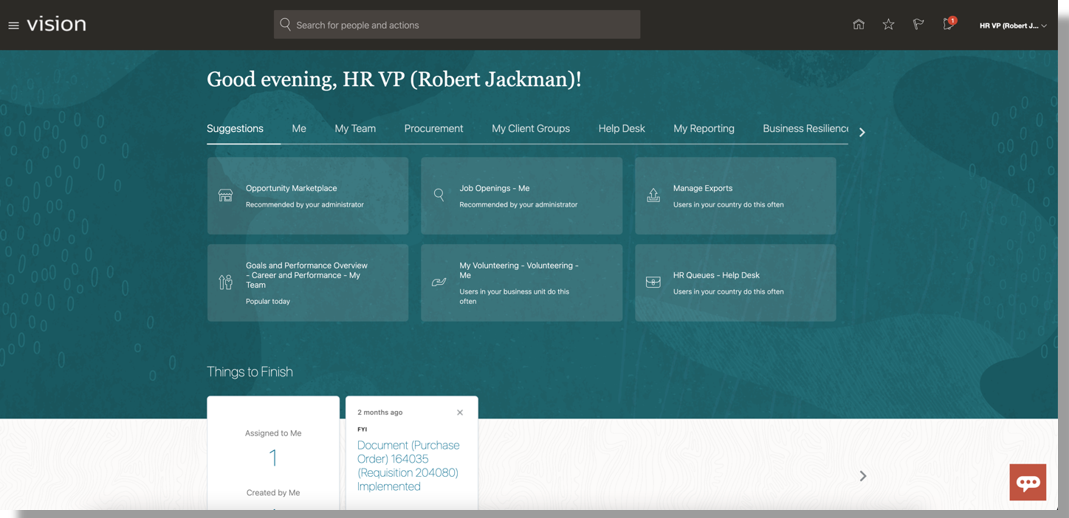
Resend Email Notification in Actions Menu on the Details Page

Confirmation Message Displays for Selected Transactions
When you click Resend Email Notification, if there are multiple tasks and assignees in the transaction then those tasks and assignees display in a dialog box. You can select the assignees to whom you want to send the notification. By default, all the assignees are selected in the dialog box.
After the notification is sent, the appropriate status displays in the Status dialog box.
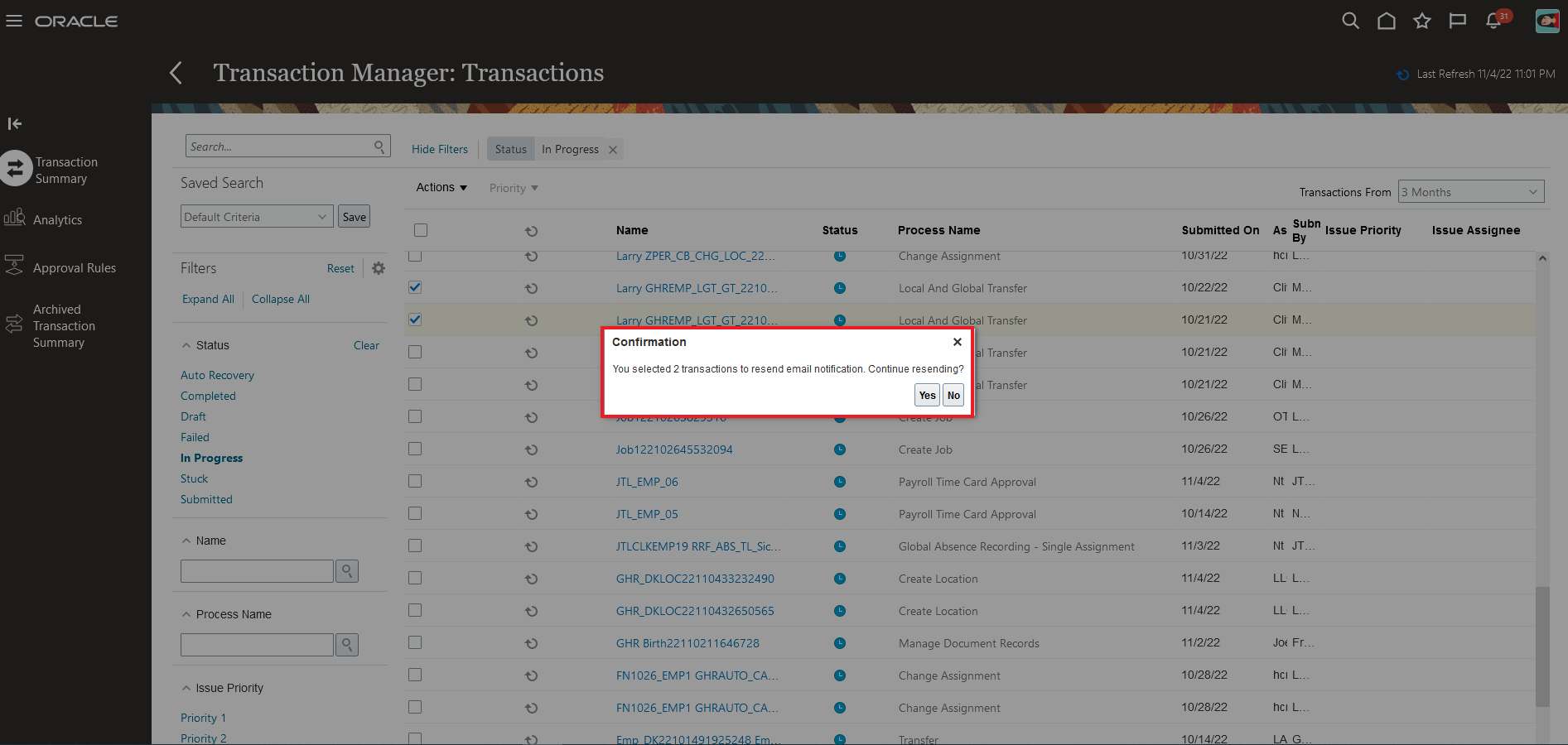
Status Dialog Box for Submitted Process
This feature provides the ability to resend email notifications in the event of any email deletions or loss of email data.
Steps to Enable
You don't need to do anything to enable this feature.
Tips And Considerations
- This action is available only to administrators and for in-progress assigned transactions.
- If there’s a change in the email ID after the first notification then on the resend the new email ID is automatically used.
Key Resources
Role And Privileges
You need to grant administrators the Perform HCM Approval Transaction Actions (PER_PERFORM_APPROVAL_TRANSACTION_ACTIONS_PRIV) privilege.
Service Excellence Continuing Investments
Our ongoing investment in service excellence has a focus on overall usability, resiliency, performance, and security. This work is based on monitoring performance trends, reviewing common use patterns, analyzing service requests, and participating in many discussions with customers.
In this update, our ongoing investment in service excellence includes improvements in the following areas:
Usability:
- Enhanced the Payables Invoice UI so the interactive viewer can display documents with a NULL attachment content type as PDFs.
- Enhanced business validation in Import Payables Invoices to ignore the purchase order details on freight lines for image invoices.
- Enhanced the bank reconciliation process to use the From/To system transaction date parameters in the Bank Statement Autoreconciliation process to select a specific range of unreconciled system transactions for reconciliation processing.
- Improved the efficacy of Adaptive Learning for correct supplier detection from a purchase order.
- Enhanced Purchase Order Number recognition by using PO data to evaluate candidates where the PO Number cannot be differentiated against invoice data.
- Enhanced the Stuck Transaction process to handle transactions which are stuck due to Alerted and Out of Index issues.
- Enhanced the Synchronize Transaction Workflow Status process to consider the transactions which are in ASSIGNED, ALERTED, INFO_REQUESTED, or SUSPENDED workflow status to withdraw transactions from the approval process.
- Enhanced the Edit Receipt Class and Methods UI to query the Receipt Method name using query by example to review the receipt method details where larger numbers of receipt methods are associated to a particular receipt class.
Performance:
- Improved performance of the Validate Payables Invoices process if tax calculation is in error for a small number of invoices during the tax calculation for invoices in bulk mode.
- Improved performance of the Validate Payables Invoices process when deriving the approval status and hold count for every invoice.
- Improved performance of the Validate Payables Invoices process when generating the distribution lines for invoices.
- Improved performance of Create Accounting program for accounting business flow use cases.
Resiliency:
- Prevent generation of duplicate approval notifications for intercompany transactions when users submit the intercompany transactions both through ADFdi and UI simultaneously.
Steps to Enable
You don't need to do anything to enable this feature.
Workflow Rules Report for Financial Workflows
Use the enhanced Workflow Rules Report to review the rules configured in Oracle Business Process Management (BPM) for financial workflows. This report shows the details of rule conditions and approval routing for each rule. This report was first introduced in update 18C for Invoice Approval, Journal Approval, and Expense Report Approval workflows.
Workflow administrators can use this report to ensure that any rules defined or modified in Oracle Business Process Management (BPM) adhere to recommended best practices. In update 23A, this report is enhanced for following financial workflows:
- Automatic or Manual Credit Request Processing
- Bank Account Transfer Approval
- Bankruptcy Request Approval
- Cash Advance Approval
- Credit Request Approval
- Credit Request Approval Postprocessing Action
- Delegation of Corporate Card Transactions for Inactive Employees
- Hold Resolution
- Incomplete Invoice Hold
- Intercompany Transaction Approval
- Intercompany Transaction Distribution Entry
- Invoice Account Coding
- Manually Entered Credit Request Completion
- Payment Approval
- Spend Authorization Approval
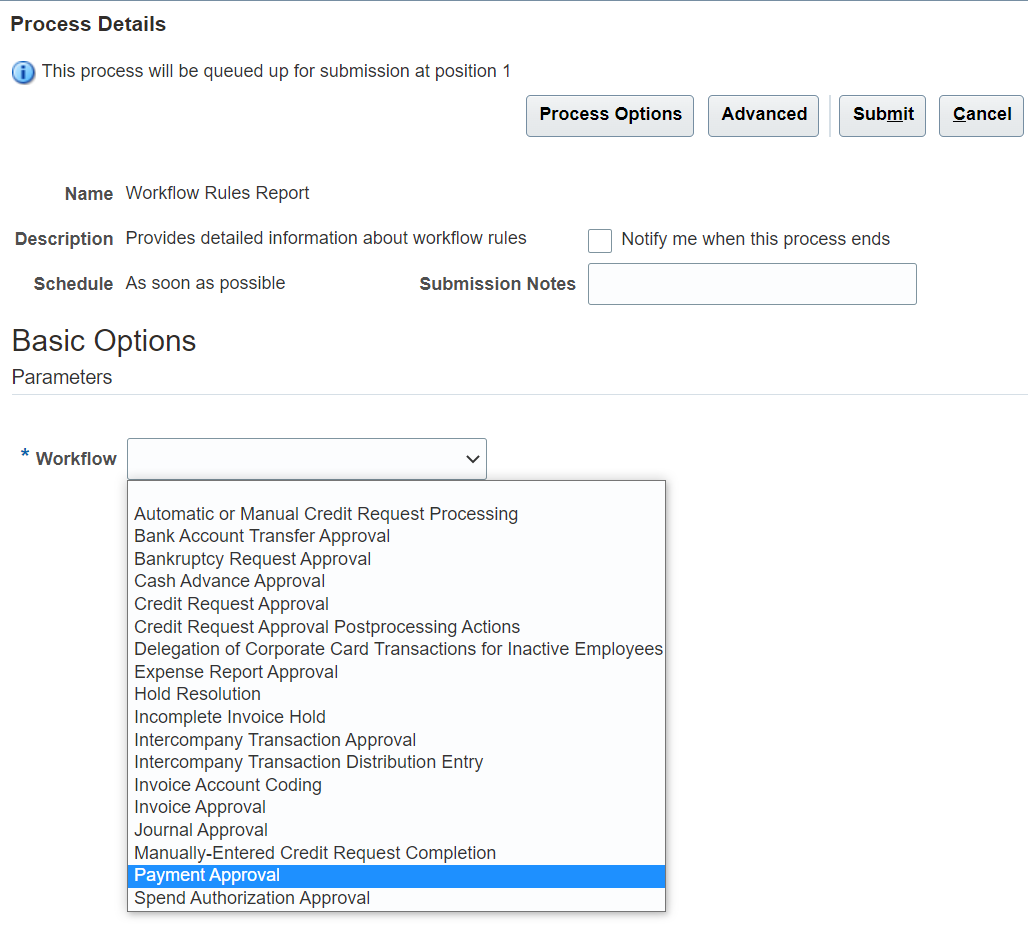
Steps to submit this report:
- Navigate to the Schedule Processes page.
- Click Schedule New Process.
- Search and select Workflow Rules Report.
- From the Workflow list, select the required workflow.
- Click Submit.

Workflow Rules Report Process Screenshot
You can view the report output in either spreadsheet or XML format.
Report Output in spreadsheet format:
Workflow Rules Report Output in Spreadsheet Format
Workflow administrators or business users can use this report to ensure that any rules defined or modified in Oracle Business Process Management (BPM) adhere to recommended best practices.
Steps to Enable
You don't need to do anything to enable this feature.
Tips And Considerations
For additional details about this feature, please click here.
Role And Privileges
- Users with Financials Application Administrator role can submit this report from ESS schedule process.
- To use this feature you need this privilege:
- Manage Financial Applications Workflow Rules (FUN_MANAGE_FINANCIAL_APPLICATIONS_WORKFLOW_RULES_PRIV)
Use the Workflow Transaction Console to monitor workflow tasks and resolve exceptions for the Payment Approval workflow. The Workflow Transaction Console was introduced in update 19D for the Invoice, Expense, and Journal workflows. In update 23A, the Workflow Transaction Console is enhanced to display the workflow tasks related to the Payment Approval workflow.
The Workflow Transaction Console is a single dashboard that lets you monitor workflow tasks, resolve exceptions, and search using user-defined criteria.
Use the Workflow Transaction Console to:
- View the latest status of all the tasks in the system.
- Search based on the task name and user-defined criteria.

Search "Payment Approval" for Task Status
- Review the issue description and resolution for failed tasks.

Select a Failed task and Check the Issue Details
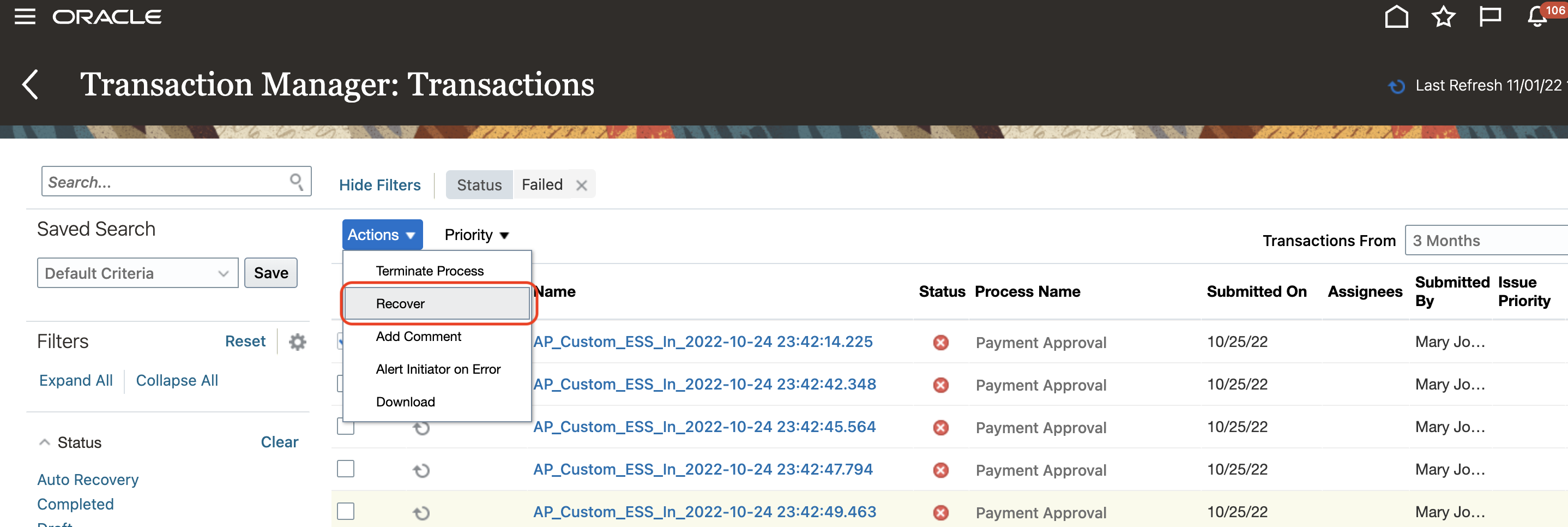
- Take appropriate actions based on the issue description and resolution. For example, you can recover a failed task after correcting the rule.

Recover a Failed Task After Correcting the Rule
- Download the search results to a spreadsheet in the CSV format.
Download Search Results
Steps to Enable
Use the Opt In UI to enable this feature. For instructions, refer to the Optional Uptake of New Features section of this document.
Offering: Financials
Tips And Considerations
To display only financial-related tasks in the Workflow Transaction Console, enable the transaction security feature by performing the following steps:
- Go to Navigator > Setup and Maintenance > Manage Enterprise HCM Information.
- Click Edit > Correct.
- In the Transaction Console Information section, select Enable Transaction Security.
Key Resources
- For an overview of the Workflow Transaction Console feature, refer to the Manage Workflow Transactions topic on the Oracle Help Center.
Role And Privileges
- Financial Application Administrator
Get News Feed Suggestions On Your Next Likely Actions
Get suggestions on your next likely actions in your news feed layout. This feature is currently in Controlled Availability and is available in Oracle Fusion Cloud Financials and Oracle Fusion Cloud Project Management. Artificial intelligence and machine learning algorithms predict and suggest the actions each user is most likely to take during a session. The algorithms use historic navigation behavior and patterns of each user and users like them to determine which navigation target they’re most likely to visit.
Oracle Fusion Cloud Applications have a wide range of functionality and it can sometimes be difficult to know how to navigate to a task. With news feed suggestions, you can get to the tasks that matter faster. For example, if reviewing and approving expense reports is a task commonly performed by managers in your organization, new managers will receive a suggestion in their news feed to perform that task. Or if a few team members are entering performance goals, other members of that team see this task as a suggestion in their news feed.
Business benefits include:
- Receive recommendations in your news feed on your next likely actions during that session
- Discover actions that other users like you have taken within Fusion
- As an administrator, you can pin specific task flow pages as a suggestion to raise the visibility of the task

Suggestions Tab in the News Feed Layout Showing Six Recommendations
Steps to Enable
To enable this feature, you need to log a Service Request (SR) through My Oracle Support and request for a promotion code. This feature is currently in Controlled Availability and requires a promotion code. For details, see Fusion Global FIN/PPM: How to Apply for News Feed Suggestions Under Controlled Availability (Doc ID 2915308.1).
Monthly and Lifetime Rate Limit Enforcement for Miscellaneous Policies
Enforce monthly and lifetime rate limits for miscellaneous expenses. Use this feature to enforce policies where a certain expenditure is allowed only up to a certain limit within a specified time period. For example, set a limit for the maximum reimbursement allowed for internet charges every month.
Monthly Limit
You can enforce monthly limits on recurring expenses, such as mobile bills and internet charges. You can configure the rate limits based on role, gender, location or enforce the same rate limit for all employees.
For example, if you want to enforce 50 USD monthly limit on internet expenses for all employees, then you can set the rate limit as 50 USD and attach the policy to the expense type corresponding to the internet charges. If you want to enforce a varying monthly limit for mobile charges based on the employee's role, then select Role as a rate determinant and enter the rate limits for different roles using the Create Rates spreadsheet.
The application enforces the monthly limits on employees' expenses across all expenses submitted for a given month.
Lifetime Limit
Use the lifetime limit to enforce limits on expenses that employees incur during their employment with the organization, such as specific budgets allocated to work-from-home setup for remote workers. You can enforce lifetime limits based on role, gender, location or use the same limit for all employees. Define the policy and attach it to the corresponding expense type.
The application enforces the lifetime limit across all expenses of that expense type submitted by an employee.
Policy Enforcement and Audit
You can enforce the monthly and lifetime policies to display warnings to the employees or prevent them from submitting the reports when the expense amounts exceed the defined tolerance percentages.
When the employees submit these expenses, approvers can see the policy violation warnings in the approval notifications if the expense amounts exceed the defined warning tolerance limits. Approvers can then review the expense details and choose to approve or reject the reports based on the company's policies.
Auditors also have visibility into the monthly and lifetime limit policy violations when auditing the reports. If any of the reported expenses are violating the defined monthly or lifetime policy rates, then the application reports the policy violations against such expenses on the audit report page. Auditors can verify the allowed limits on the audit page and take an appropriate action on the report. Auditors can review further details related to the violations in the Audit Reasons Details column.
Auditors can also define audit rules to track the number of policy violations against these rate limits in a specified time period.
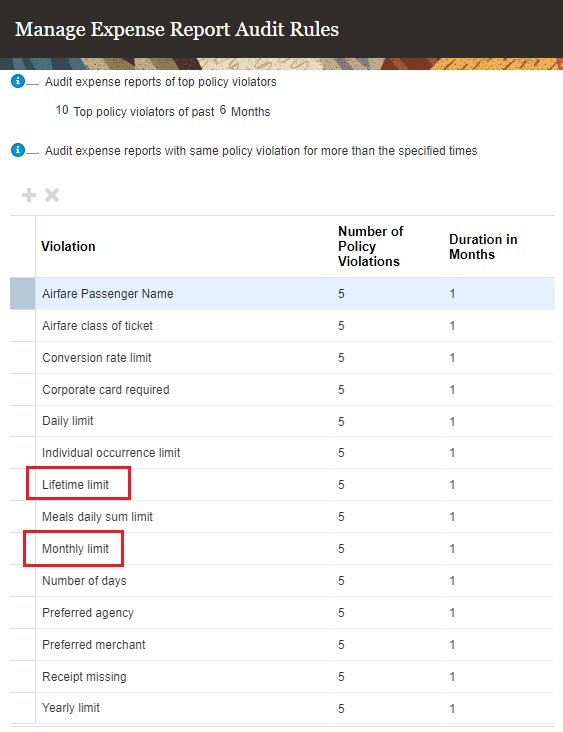
Business benefits include:
- Companies have more control over the enforcement of miscellaneous policies with the introduction of additional rate limits. These new rate limits simplify the enforcement of recurring or more frequently used policies.
- The ability to configure monthly and lifetime limits also provides more flexibility in defining the policies for various expense types and help provide better policy guidance to the employees.
- Approvers and auditors have visibility into the policy violations if employees are submitting the expenses above the defined limits.
Steps to Enable
To define monthly or lifetime limits in miscellaneous policies, perform the following steps:
- Sign in as the Expense Manager.
- From the Setup and Maintenance work area, navigate to the Manage Policies by Expense Category page.
- Select Create Policy > Miscellaneous.
- Enter the policy name and description and select the Miscellaneous Eligibility Rule if you want to enforce minimum number of days for the expense reimbursement.
- Choose the rate type as Rate limit or Percentage reimbursement with upper limit if you want to enforce rate limits.
- From rate limit, select Monthly limit or Lifetime limit depending on the policy you want to enforce. Select the rate currency.
- Choose the rate determinants - role, gender, location if you want to enforce rate limits based on any of these criteria.
- Configure the policy enforcement and save the policy.
- In the Create Rates window or spreadsheet, enter the rate limits you want to enforce for the policy.
- Save the policy and activate it from the Manage Policies by Expense Category page.
- Navigate to the Manage Expense Report Templates page, search for the template and select the expense type to which you want to associate the policy.
- In the Policies tab of the expense type setup page, select the policy you created in step 10. Enter the start and end dates and save the expense type setup.
The defined rate limits will be enforced based on the policy configuration when employees submit their expenses.
Key Resources
This feature originated based on the Idea Labs on Oracle Customer Connect: https://community.oracle.com/customerconnect/discussion/589116
Role And Privileges
To define monthly or lifetime limits for miscellaneous policies, you need one of these roles:
- Expense Manager
- Application Implementation Consultant
Preconfigured Merchant Category Code Mapping to Expense Types
Use preconfigured mapping of merchant category codes to corporate card expense types. This reduces implementation effort as customer do not need to create the mapping.
Merchant Category Codes (MCC) and Standard Industrial Classification (SIC) codes are used to set up corporate card expense type mapping rules for automatically deriving the expense types for corporate card charges. This feature provides predefined MCC and SIC lookup types, each with a comprehensive list of lookup codes for mapping to corporate card expense types.
The new lookup types are:
| Lookup Type | Lookup Meaning |
|---|---|
| ORA_EXM_MCC_CODES | Expense Merchant Category Codes |
| ORA_EXM_SIC_CODES | Expense SIC Codes |
Also, additional card expense types are added to the list available in the EXM_CARD_EXPENSE_TYPE lookup codes. These additional card expense types are available for use in the Corporate Card Expense Type Mapping Rules, as well as in the Card Expense Type Mapping tab in the Manage Expense Report Templates task.
Additionally, 2 new Corporate Card Expense Type Mapping Rules are available with preconfigured mappings of the newly predefined Merchant Category Codes (MCC) and Standard Industrial Classification (SIC) codes to card expense types. The predefined rules are:
- Merchant Category Codes
- Expense SIC Codes
Administrators can use these preconfigured mapping rules as is, when setting up the corporate credit card program or they can modify the mappings as per business requirements.
The predefined MCC and SIC codes and the mapping rules simplify the configuration of the corporate card upload process.
The wider range of card expense types gives administrators greater flexibility in mapping the card expense types to the company defined expense types, thus improving the accuracy of the expense type derivation for expenses created using corporate card charges.
Steps to Enable
You don't need to do anything to enable this feature.
Tips And Considerations
- To view the new MCC and SIC codes, and additional card expense types, use the Manage Standard Lookups task in Functional Setup Manager and search using the required lookup type.
- To view the new mapping rules, use the Manage Corporate Card Expense Type Mapping Rules task in Functional Setup Manager in the Setup and Maintenance work area.
- Administrators can use the new mapping rules as is, or modify the mappings as per business requirements.
Key Resources
For additional information about Corporate Card Expense Type Mapping rules, refer to the Mapping Rules topic in the Implementing Expenses guide on Oracle Help Center.
Role And Privileges
You need Corporate Card Administrator role to review preconfigured mapping rules.
Print Preview for PDF and MS Office Document Attachments in Expense Reports
Generate a print preview of an expense report and any pdf, image, .doc and .xls attachments. Employees and auditors can use this to view and print the expense report and related attachments as a single PDF document.
Prior to update 23A, only image attachments could be printed along with the expense report.
The single PDF document containing the report and the attachments makes it easy for users to review and print the expense report.
Steps to Enable
Use the Opt In UI to enable this feature. For instructions, refer to the Optional Uptake of New Features section of this document.
Offering: Financials No Longer Optional From: Update 23C
Tips And Considerations
- This feature is delivered enabled by default for all new customers in update 23A.
- For all existing customers upgrading to 23A, refer to the Steps to Enable section to enable the feature.
Role And Privileges
You don't need any additional privileges to view reports with attachments.