
- Revision History
- Overview
- Optional Uptake of New Features (Opt In)
- Feature Summary
- Supply Chain Orchestration
- Procurement Common
- Common Technologies and User Experience
- Self Service Procurement
- IMPORTANT Actions and Considerations
This document will continue to evolve as existing sections change and new information is added. All updates appear in the following table:
| Date | Module | Feature | Notes |
|---|---|---|---|
| 26 JUN 2023 | Self Service Procurement | Enhancements to Transaction Console Diagnostic Log | Updated document. Revised tips and considerations. |
| 15 JUN 2023 | IMPORTANT Actions and Considerations | Updated document. Revised the target removal and other details. | |
| 03 MAR 2023 | Created initial document. |
 HAVE AN IDEA?
We’re here and we’re listening. If you have a suggestion on how to make our cloud services even better then go ahead and tell us. There are several ways to submit your ideas, for example, through the Ideas Lab on Oracle Customer Connect. Wherever you see this icon after the feature name it means we delivered one of your ideas.
GIVE US FEEDBACK
We welcome your comments and suggestions to improve the content. Please send us your feedback at oracle_fusion_applications_help_ww_grp@oracle.com.
DISCLAIMER
The information contained in this document may include statements about Oracle’s product development plans. Many factors can materially affect Oracle’s product development plans and the nature and timing of future product releases. Accordingly, this Information is provided to you solely for information only, is not a commitment to deliver any material, code, or functionality, and should not be relied upon in making purchasing decisions. The development, release, and timing of any features or functionality described remains at the sole discretion of Oracle.
This information may not be incorporated into any contractual agreement with Oracle or its subsidiaries or affiliates. Oracle specifically disclaims any liability with respect to this information. Refer to the Legal Notices and Terms of Use for further information.
Optional Uptake of New Features (Opt In)
Oracle Cloud Applications delivers new updates every quarter. This means every three months you'll receive new functionality to help you efficiently and effectively manage your business. Some features are delivered Enabled meaning they are immediately available to end users. Other features are delivered Disabled meaning you have to take action to make available. Features delivered Disabled can be activated for end users by stepping through the following instructions using the following privileges:
- Review Applications Offering (ASM_REVIEW_APPLICATIONS_OFFERINGS_PRIV)
- Configure Oracle Fusion Applications Offering (ASM_CONFIGURE_OFFERING_PRIV)
Here’s how you opt in to new features:
- Click Navigator > My Enterprise > New Features.
- On the Features Overview page, select your offering to review new features specific to it. Or, you can leave the default selection All Enabled Offerings to review new features for all offerings.
- On the New Features tab, review the new features and check the opt-in status of the feature in the Enabled column. If a feature has already been enabled, you will see a check mark. Otherwise, you will see an icon to enable the feature.
- Click the icon in the Enabled column and complete the steps to enable the feature.
In some cases, you might want to opt in to a feature that's not listed in the New Features work area. Here's how to opt in:
- Click Navigator > My Enterprise > Offerings.
- On the Offerings page, select your offering, and then click Opt In Features.
- On the Opt In page, click the Edit Features (pencil) icon for the offering, or for the functional area that includes your feature.
- On the Edit Features page, complete the steps to enable the feature.
For more information and detailed instructions on opting in to new features for your offering, see Configure Offerings.
Opt In Expiration
Occasionally, features delivered Disabled via Opt In may be enabled automatically in a future update. This is known as an Opt In Expiration. If your cloud service has any Opt In Expirations you will see a related tab in this document. Click on that tab to see when the feature was originally delivered Disabled, and when the Opt In will expire, potentially automatically enabling the feature. You can also click here to see features with Opt In Expirations across all Oracle Cloud Applications.
Column Definitions:
Report = New or modified, Oracle-delivered, ready to run reports.
UI or Process-Based: Small Scale = These UI or process-based features are typically comprised of minor field, validation, or program changes. Therefore, the potential impact to users is minimal.
UI or Process-Based: Larger Scale* = These UI or process-based features have more complex designs. Therefore, the potential impact to users is higher.
Features Delivered Disabled = Action is needed BEFORE these features can be used by END USERS. These features are delivered disabled and you choose if and when to enable them. For example, a) new or expanded BI subject areas need to first be incorporated into reports, b) Integration is required to utilize new web services, or c) features must be assigned to user roles before they can be accessed.
| Ready for Use by End Users Reports plus Small Scale UI or Process-Based new features will have minimal user impact after an update. Therefore, customer acceptance testing should focus on the Larger Scale UI or Process-Based* new features. |
Customer Must Take Action before Use by End Users Not disruptive as action is required to make these features ready to use. As you selectively choose to leverage, you set your test and roll out timing. |
|||||
|---|---|---|---|---|---|---|
| Feature |
Report |
UI or |
UI or |
|
||
Use REST API to Get Supply Sources for Internal Material Transfers |
||||||
Include Reference Details for Supply Requests on REST API Error Messages |
||||||
Use Service Mappings to Extend Supply Chain Orchestration's Integration with Inventory |
||||||
Selected Supply Chain Orchestration Bug Fixes in This Update |
||||||
Remove Prefix from Subject Lines and Titles in Workflow Notifications |
||||||
Derive the Charge Account on Purchase Orders and Requisitions Based on the Line Amount |
||||||
Create Requisitions for Items That Are Fulfilled via Internal Material Transfers |
||||||
Use REST API to Get Supply Sources for Internal Material Transfers
Use the availableSupplySources REST resource to get the supply sources that can fulfill a request for an internal material transfer. Get the one source that can most effectively fulfill the request, or get a list of up to six sources, ranked according to how effectively they can fulfill the request. Get the actual quantity that's currently on hand in each source.
Add flexibility to how you select and use the supply source for each of your internal material transfers.
Steps to Enable
You don't need to do anything to enable this feature.
Tips And Considerations
- Use the findBestAvailableSupplySource finder to get the most effective source.
- Use the findAllAvailableSupplySources finder to get the list of all supply sources. This finder gets a maximum of 6 sources, ranked according to how effectively each one fulfills the request.
- Get the actual quantity that's currently on hand for each supply source.
- You can only read data, so you can use only the GET operation.
Key Resources
- Using Supply Chain Orchestration
- Supply Chain Orchestration
- availableSupplySources in REST API for Oracle Supply Chain Management Cloud
Access Requirements
You have a couple of options for giving people access to this feature, depending on whether you're assigning them predefined job roles or your own configured job roles.
- Users who are assigned any of these predefined job roles can access this feature:
- Supply Chain Operations Manager (ORA_DOS_SUPPLY_CHAIN_OPERATIONS_MANAGER_JOB)
- Users who are assigned a configured job role that contains these privileges can access this feature:
- Process Supply Order Interface (DOS_PROCESS_SUPPLY_ORDER_INTERFACE_PRIV)
- View Supply Orders (DOS_VIEW_SUPPLY_ORDERS_PRIV)
- Manage Supply Request Exceptions (DOS_MANAGE_SUPPLY_REQUEST_EXCEPTIONS_PRIV)
- View Supply Order Exceptions and Status (DOS_VIEW_SUPPLY_ORDER_EXCEPTIONS_AND_STATUS_PRIV)
- Manage Inventory Transfer Order (INV_MANAGE_INVENTORY_TRANSFER_ORDER_PRIV)
- Get Best Or All Available Supply Sources (DOS_GET_BEST_OR_ALL_AVAILABLE_SOURCES_PRIV)
- View Total On Hand Quantity in Supply Source (DOS_VIEW_AVAILABLE_ONHAND_QTY_PRIV)
Include Reference Details for Supply Requests on REST API Error Messages
Add the value of the SupplyOrderReferenceNumber attribute and the SupplyOrderReferenceLineNumber attribute as a prefix on each error message that REST API returns when it processes a supply request. Use the prefix to troubleshoot problems with the request.
Reduce the amount of time you need to troubleshoot and fix problems when you import through REST API.
Steps to Enable
Use the Opt In UI to enable this feature. For instructions, refer to the Optional Uptake of New Features section of this document.
Offering: Manufacturing and Supply Chain Materials Management No Longer Optional From: Update 23D
Tips And Considerations
Here's an example of an error message that REST API returns.
{
"title": "Bad Request",
"status": "400",
"o:errorDetails": [
{
"detail": "SupplyOrderReferenceNumber:A190102, SupplyOrderReferenceLineNumber:100, MessageType:ERROR, MessageText:The supply order wasn't created because the destination subinventory code, source subinventory code, or both aren't correct."
},
{
"detail": "SupplyOrderReferenceNumber:A190102, SupplyOrderReferenceLineNumber:100, MessageType:ERROR, MessageText:The supply order wasn't created because the shipment priority isn't correct. Ensure that a valid shipment priority is specified in the supply request."
}
]
}
Key Resources
- Using Supply Chain Orchestration
- Supply Chain Orchestration
- REST API for Oracle Supply Chain Management Cloud
Access Requirements
You have a couple of options for giving people access to this feature, depending on whether you're assigning them predefined job roles or your own configured job roles.
- Users who are assigned any of these predefined job roles can access this feature:
- Supply Chain Operations Manager (ORA_DOS_SUPPLY_CHAIN_OPERATIONS_MANAGER_JOB)
- Users who are assigned a configured job role that contains these privileges can access this feature:
- Process Supply Order Interface (DOS_PROCESS_SUPPLY_ORDER_INTERFACE_PRIV)
- View Supply Orders (DOS_VIEW_SUPPLY_ORDERS_PRIV)
- Manage Supply Request Exceptions (DOS_MANAGE_SUPPLY_REQUEST_EXCEPTIONS_PRIV)
- View Supply Order Exceptions and Status (DOS_VIEW_SUPPLY_ORDER_EXCEPTIONS_AND_STATUS_PRIV)
- Manage Inventory Transfer Order (INV_MANAGE_INVENTORY_TRANSFER_ORDER_PRIV)
If you're maintaining your own job roles, no new privileges were introduced to support this feature.
Use Service Mappings to Extend Supply Chain Orchestration's Integration with Inventory
Use a service mapping to help integrate your Oracle applications. Use the service mapping to meet your specific integration requirements in your transfer order flow. Create a sales order in Oracle Order Management, orchestrate supply in Oracle Supply Chain Orchestration, then create a transfer order in Oracle Inventory Management. As an option, use an extensible flexfield to integrate data that's specific to your implementation. You can also use a service mapping to integrate data that travels from planning and purchasing, to supply chain orchestration, and then to inventory.
For example, here's a service mapping that uses the TransferOrderRequest entity in the TransferRequestSource service to send a request to create a transfer order from Supply Chain Orchestration to inventory:
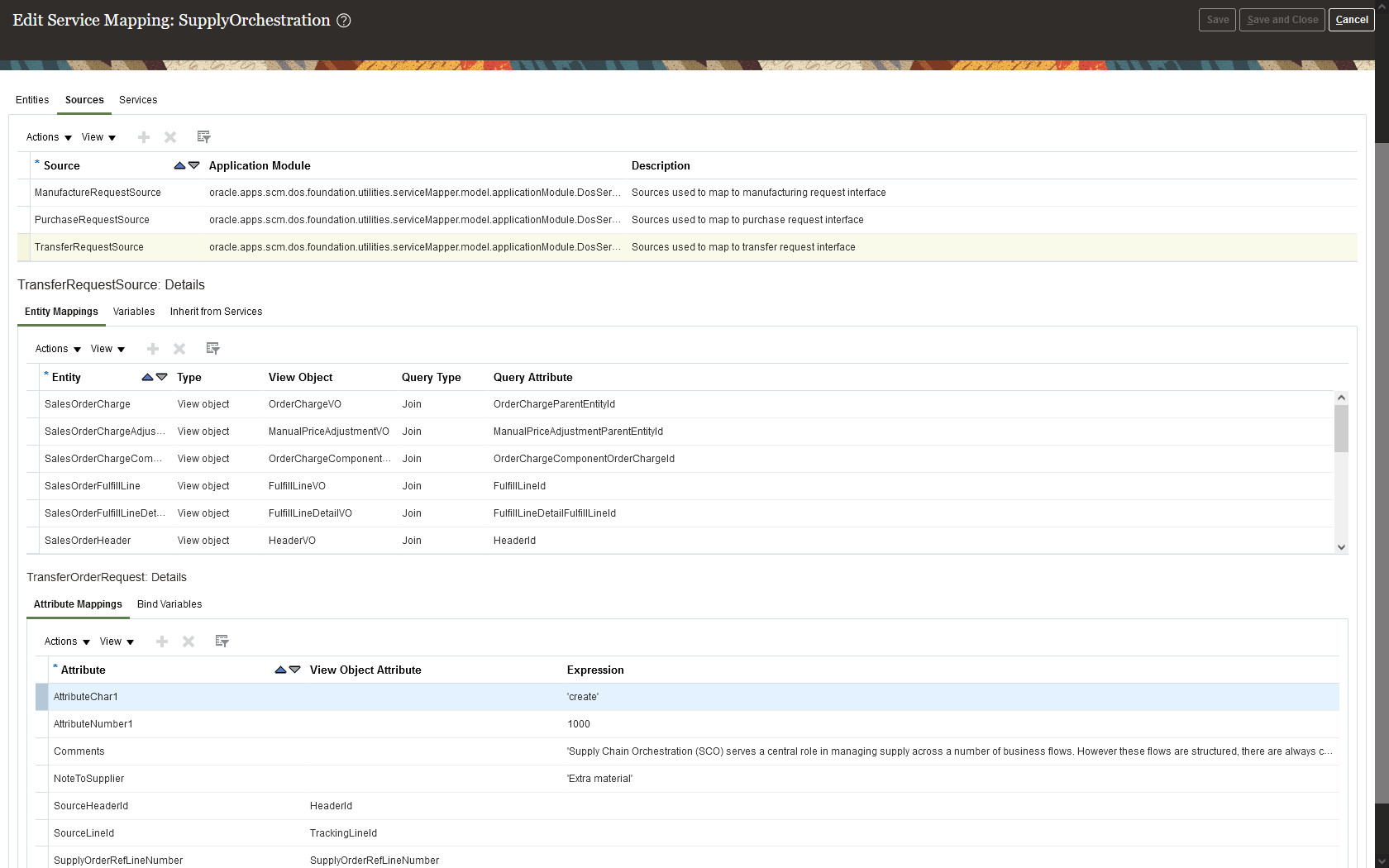
Modify supply orchestration data so it meets your requirements.
Watch a Demo.
Steps to Enable
Use the Opt In UI to enable this feature. For instructions, refer to the Optional Uptake of New Features section of this document.
Offering: Manufacturing and Supply Chain Materials Management
- Get the privileges that you need to manage service mappings and algorithms.
- Go to the Supply Chain Orchestration work area, click Tasks, then click one of:
- Manage Service Mappings
- Manage Algorithms
Watch a Setup Demo.
Tips And Considerations
- Make sure your integration can send the validations that Inventory Management applies. Your request payload might be fine, but Inventory Management might not accept the request.
- Check for empty values when you write expressions in your integration algorithm, especially when you for query more than one request line. A empty value at runtime might create errors.
- If you encounter an error, fix it, then use the Supply Chain Orchestration work area to resubmit your request.
Key Resources
Access Requirements
- Use these predefined privileges to set up this feature:
- Manage DOS Service Mappings
- Manage DOS Algorithms
- Administer Sandbox
- View Modified Data, so you can view the runtime results
Selected Supply Chain Orchestration Bug Fixes in This Update
This update includes some bug fixes that can change the way Oracle Supply Chain Orchestration works. This isn't a full list of all the bug fixes in this update. This list includes the bug fixes that can cause a noticeable change in application behavior.
Create Transfer Orders That Are Valid When You Import Through File-Based Data Import
Before update 23B, if you used the DosSupplyOrderImportTemplate.xlsm file to import a transfer request, and if the project details in your import weren't valid, then the Load Interface File for Import scheduled process finished successfully, reported the error in its error log, and the Process Supply Chain Orchestration Interface scheduled process created the transfer order without project details.
After you update to 23B, if the project details in your import aren't valid, then the Process Supply Chain Orchestration Interface scheduled process won't create the transfer order but will instead report the error in its error log.
Oracle reference: 34862468
Map the Project Organization ID from Supply Chain Orchestration to Procurement
Before update 23B, Oracle Supply Chain Orchestration ignored any mapping that you provided for the ProjectOrganizationId attribute to Oracle Fusion Cloud Procurement. After you update to 23B, if you map the ProjectOrganizationId attribute to Oracle Procurement, then Supply Chain Orchestration will include it when it communicates supply details to Procurement.
Oracle reference: 34902854
Steps to Enable
You don't need to do anything to enable this feature.
Integrate and Extend Procurement Using REST Services
In this update, Oracle Fusion Cloud Procurement and Oracle Fusion Cloud Self Service Procurement deliver new and modified REST APIs to enable and simplify integration with external systems.
The new REST APIs introduced in this update are:
- Procurement Persons LOV
- Procurement Approved Supplier List Entries
- Approved Supplier List Source Documents
NOTE: The Procurement Approved Supplier List Entries and Approved Supplier List Source Documents resources were also made available in the November monthly update of 22C, the November monthly update of 22D, and the January monthly update of 23A.
These REST APIs are enhanced:
- Requisition Preferences
- You can now provide a requester that's different from the preparer in requisition preferences during creation (POST) and update (PATCH) of requisitions. In update 23A, the requester and preparer had to be to be the same.
- Requisition Processing Requests
- GET, POST, and PATCH are supported for the Source Contract Purchase Agreement attribute.
- Draft Purchase Orders
- GET, POST, and PATCH are supported for the Override B2B Communication attribute.
- Use the Request Funds Override Flag to request funds override when submitting purchase orders that are subject to budgetary controls for approval.
- Purchase Orders
- GET is supported for these attributes: Supplier Communication Method, To Email, Cc Email, Bcc Email, Supplier Fax, and Override B2B Communication.
- Use the Communicate custom action to recommunicate any purchase order revision by specifying the revision number in the Change Order Number attribute.
- Supplier Negotiation Responses
- Use the Validate and Submit Negotiation Response custom action to validate and submit a draft supplier response.
You can use these new and modified REST services to simplify integrations and support standards-based interoperability with your other applications and external systems.
Steps to Enable
Review the REST service definition in the REST API guides to leverage (available from the Oracle Help Center > your apps service area of interest > APIs & Schema). If you are new to Oracle's REST services you may want to begin with the Quick Start section.
Key Resources
- Refer to the REST API for Oracle Fusion Cloud Procurement documentation available on the Oracle Help Center.
Access Requirements
- Refer to the Job Roles and Privileges section in the REST API for Oracle Fusion Cloud Procurement documentation, available on the Oracle Help Center.
Common Technologies and User Experience
Remove Prefix from Subject Lines and Titles in Workflow Notifications
By default, email and in-app notifications sent out as part of a workflow or approval process have a prefix in the subject line or title, for example Action Required. If you have a specific requirement, you can choose to exclude that prefix in the notifications that are sent.
For a particular workflow task, you can set this up for specific combinations of task statuses and recipients. For example, you can exclude the prefix when the task status is Assigned and notifications are sent to the assignees. Your setup won't apply to FYI notifications, which will always show the prefix.
To remove the prefix from the notification subject line or title:
- In the Setup and Maintenance work area, go to the Manage Task Configurations task in the Application Extensions functional area. Or, depending on your offering, you might use a different functional area or another approval setup task.
- In BPM Worklist, on the Task Configuration tab, search for the workflow task in the Tasks to be configured pane.
- Select the task from the search results and click the Edit task icon in the toolbar.
- Click the Notifications subtab.
- For any of the task status and recipient combinations, select the Exclude Notification Prefix check box.
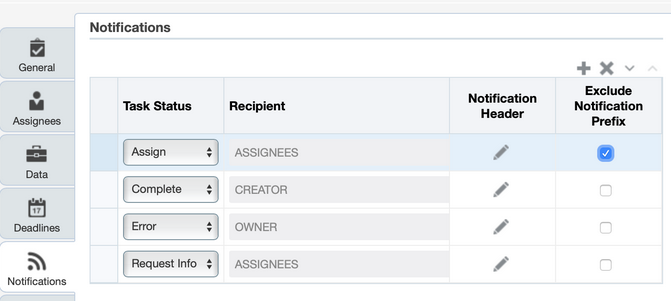
Removing the prefix can help grab the readers' attention with a more direct notification subject line or title, say for notifications advertising special offers. For example, Action Required: Early Payment Offer - Accelerate Payments for up to USD 1000 becomes Early Payment Offer - Accelerate Payments for up to USD 1000 after the prefix is removed.
Steps to Enable
You don't need to do anything to enable this feature.
Tips And Considerations
You should use this feature only if you have a very specific requirement to do so. Otherwise, leave the prefix displayed in the notifications.
Key Resources
- Remove Prefix from Subject Lines and Titles in Workflow Notifications (available April 7, 2023)
Access Requirements
- To manage task configurations and exclude the prefix, you need a custom role that includes the BPM Workflow System Admin Role (BPMWorkflowAdmin).
Derive the Charge Account on Purchase Orders and Requisitions Based on the Line Amount
Use the Transaction Account Builder to derive the charge account on purchase orders and requisitions based on the line amount. With the line amount as a new source, you can now configure account derivation rules to generate an asset account if the line amount goes above a certain threshold. This new source is expressed in the functional currency of the requisitioning business unit.
Suppose that you want to account a purchase to either an expense account or an asset account based on the line amount. You can do so by setting account rule conditions to check if the line amount is less than or greater than $100.
These screenshots illustrate the new source and an example:
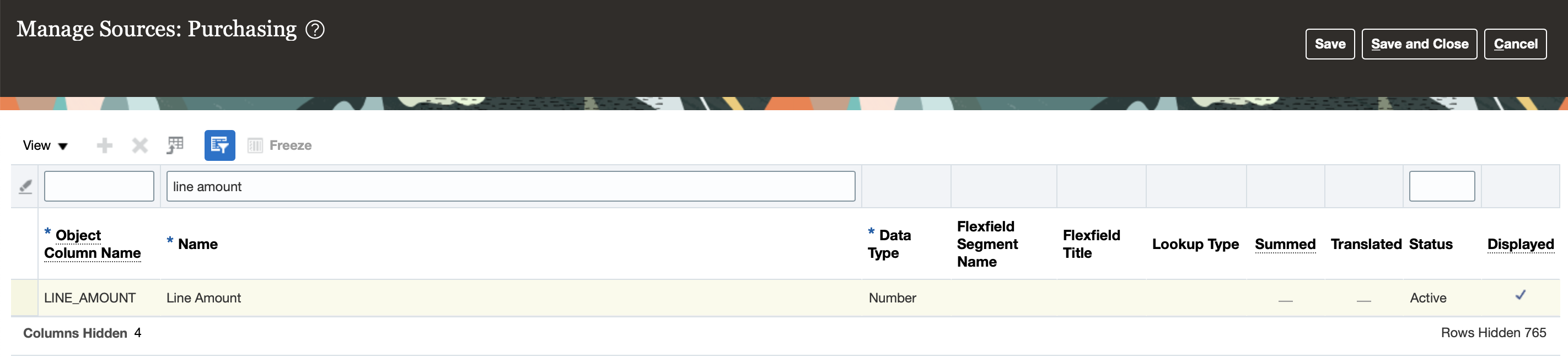
Source Line Amount
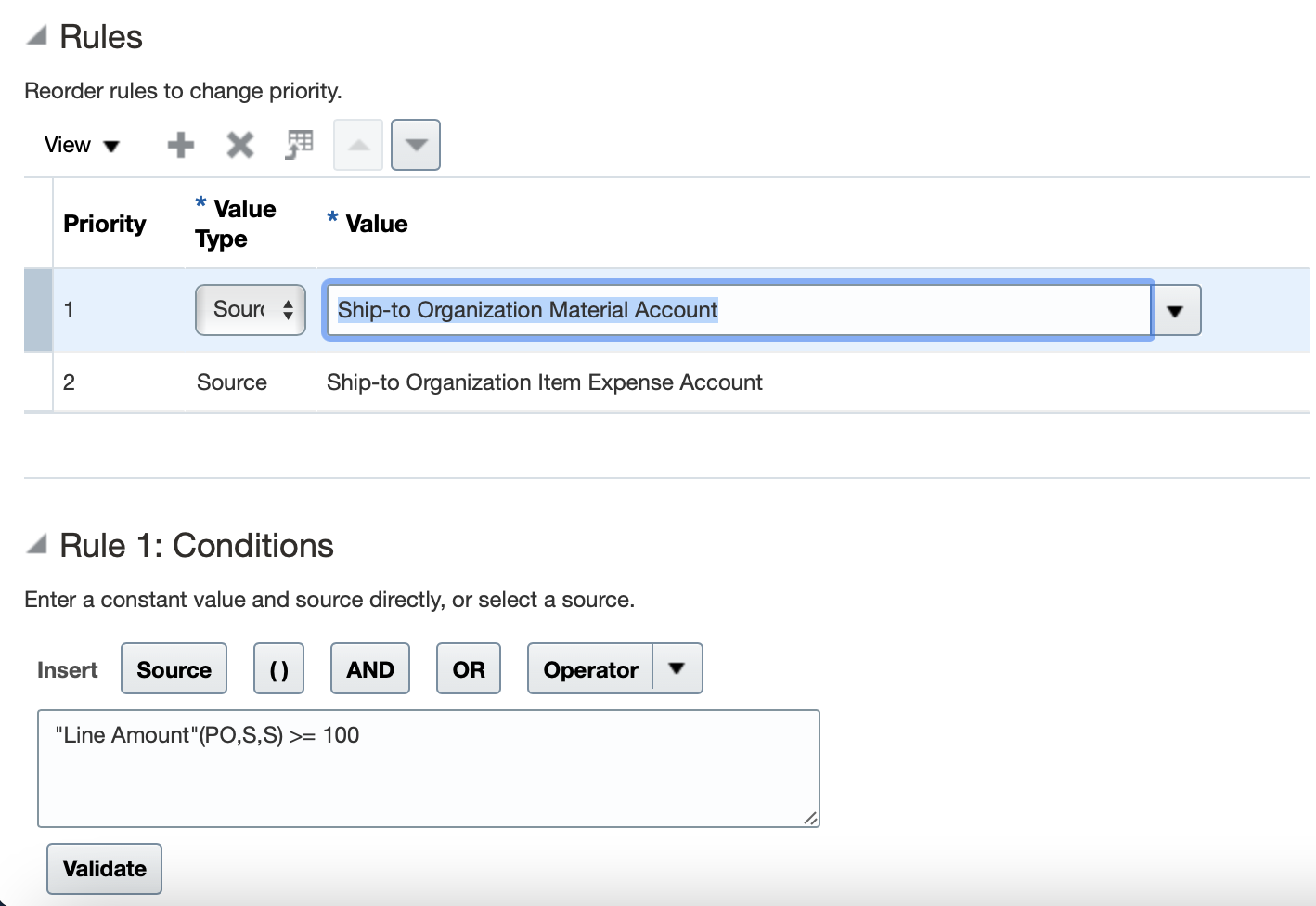
Account a Purchase as an Asset if the Line Amount Is Greater Than or Equal to $100
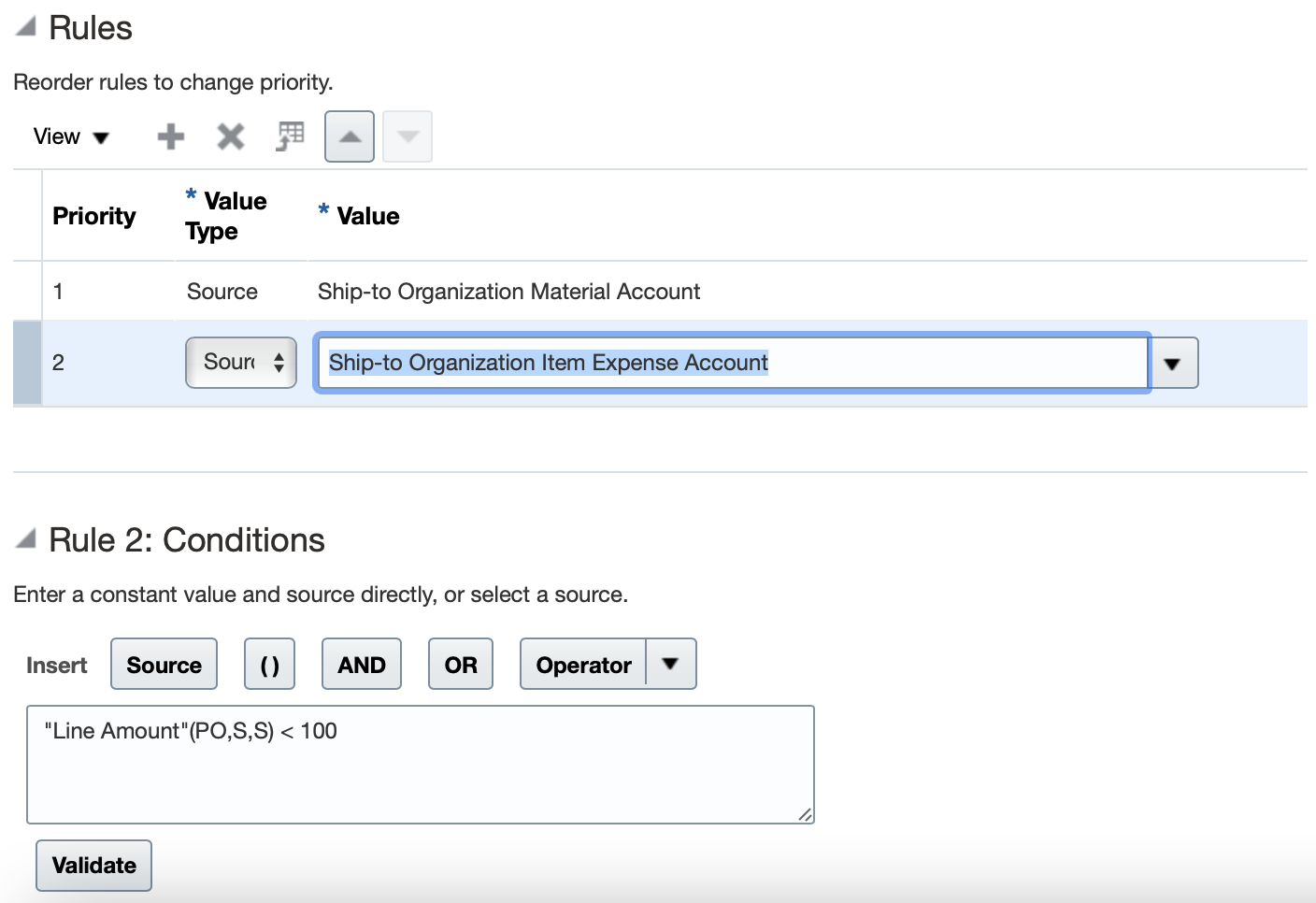
Account a Purchase as an Expense if the Line Amount Is Less Than $100
Steps to Enable
To use this feature, you need to configure your transaction account definition to add another priority to the account rule assigned to the PO Charge Account.
Key Resources
- To know more about Transaction Account builder, refer to the Define Transaction Accounting for Procurement topic.
Access Requirements
You have a couple of options for giving people access to set up and use this feature, depending on whether you're assigning them predefined job roles or your own configured job roles.
- Users who are assigned this predefined job role can access this feature:
- Buyer (ORA_PO_BUYER_JOB)
To set up this feature, you'll need these predefined job roles:
- Predefined job role names and codes:
- Procurement Application Administrator (ORA_PO_PROCUREMENT_APPLICATION_ADMIN_JOB)
- Accounting Hub Administration (ORA_XLA_ACCOUNTING_HUB_ADMINISTRATION_DUTY)
Selected Self Service Procurement Bug Fixes in This Update
This update includes some bug fixes that can change the way Oracle Self Service Procurement works. This isn't a full list of all the bug fixes in this update. This list includes the bug fixes that can cause a noticeable change in application behavior.
Automatically Source Blanket Purchase Agreements in the Foreign Currency
Before update 23B, the application couldn't automatically source a blanket purchase agreement with a different currency than the functional currency of the requisitioning BU. In this update, you can leverage the automatic source functionality that the Requisitions to Purchasing integration offers when the blanket purchase agreement has any currency other than the functional currency of the requisitioning BU. For additional details on the automatic source functionality, refer to the Oracle Cloud documentation Source Documents and Requisitions.
Oracle reference: 34670403
Steps to Enable
You don't need to do anything to enable this feature.
Enhancements to Transaction Console Diagnostic Log
The Transaction Console diagnostic log now includes two new sections you can enable and make use of.
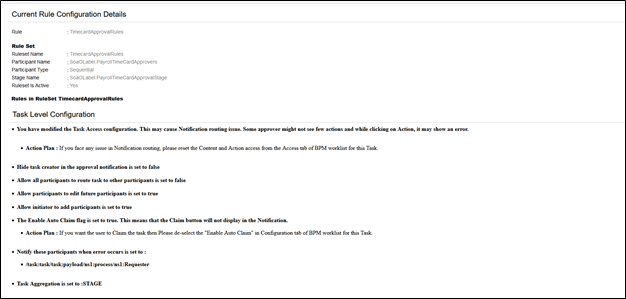
- Task Level Configuration
- Transaction History
You can view these sections when you download the diagnostic log from any pending or error transaction details page in the Transaction Console.
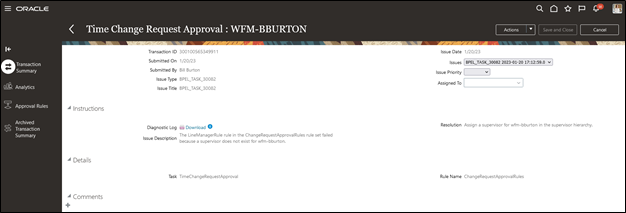
Task Level Configuration
This section lists details of task configuration in BPM Worklist for the process type of the selected transaction. The details shown in this section are for the current configuration of the task, not from the time the transaction was initiated.
Transaction History
This section lists all the approval stages a transaction has passed through based on the approval rule configuration.
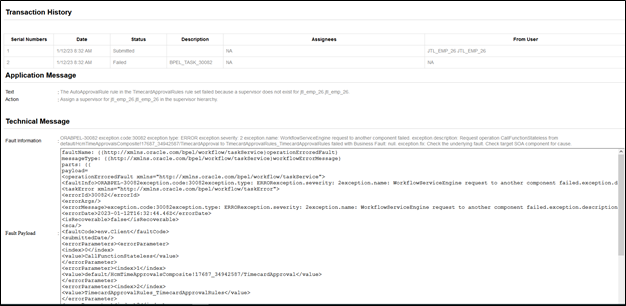
When diagnosing an issue, users can quickly get a snapshot of the task configuration and approval history in one place.
Steps to Enable
To create the profile option that controls whether these sections are in the log:
-
In the Setup and Maintenance work area, go to the Manage Applications Core Profile Options task in the Application Extensions functional area for your offering.
-
On the Manage Applications Core Profile Options page, click the New icon.
-
On the Create Profile Option page, enter HRC_TXN_TAC_DISABLE_EXTN_LOG as the profile option code.
-
Enter a display name that you can easily remember to help you find the profile option later, for example Disable Diagnostic Log.
-
From the Application list, select Common Work Setup.
-
From the Module list, select Application Common.
-
Click Save and Close.
-
On the Manage Profile Options page, select the Enabled and Updatable check boxes for the Site level.
-
Click Save.
To set the profile option value so the sections are included:
-
In the Setup and Maintenance work area, go to the Manage Applications Core Administrator Profile Values task in the Application Extensions functional area for your offering.
-
Search for the profile option code HRC_TXN_TAC_DISABLE_EXTN_LOG.
-
In the Profile Values section, set the Site to False.
Tips And Considerations
By default, the Task Level Configuration and Transaction History sections are included in the log. You can disable them, for example to improve performance, using the HRC_TXN_TAC_DISABLE_EXTN_LOG and HRC_TXN_TAC_DISABLE_RULE_AUDIT_TRAIL profile options.
-
If the HRC_TXN_TAC_DISABLE_EXTN_LOG profile option is created and is set to true, the Task Level Configuration and Transaction History sections isn’t included in the diagnostic log.
-
If the HRC_TXN_TAC_DISABLE_RULE_AUDIT_TRAIL profile option, which disables the audit trail segment along with rule details, is created and is set to true, the Task Level Configuration section isn’t included in the diagnostic log. If the profile option isn’t created or created and set to false then the Task Level Configuration section is omitted and only the Transaction History section is included.
Responsive Self Service Procurement Application
Shop Using Public Shopping Lists
You can now use the Responsive Self Service Procurement application to shop for goods and services using public shopping lists. You can view available shopping lists, navigate to a desired shopping list, search for the items within the shopping list, select one or more items, and add items to the cart.
On the Home page, you can use the Shopping Lists button to access the shopping lists.

Shopping Lists Option on the Self Service Procurement Home Page
You can also search for shopping lists by name.
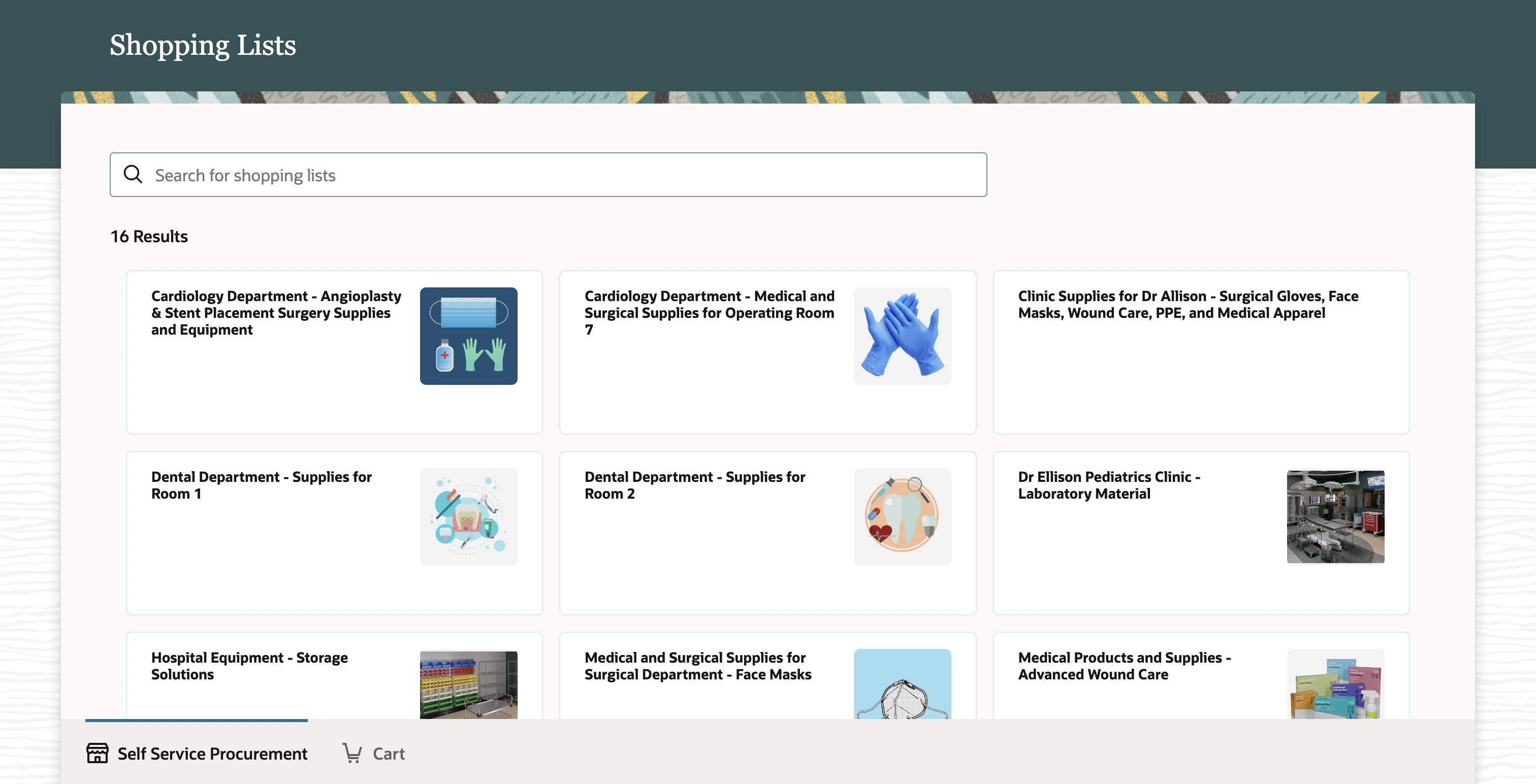
Public Shopping Lists
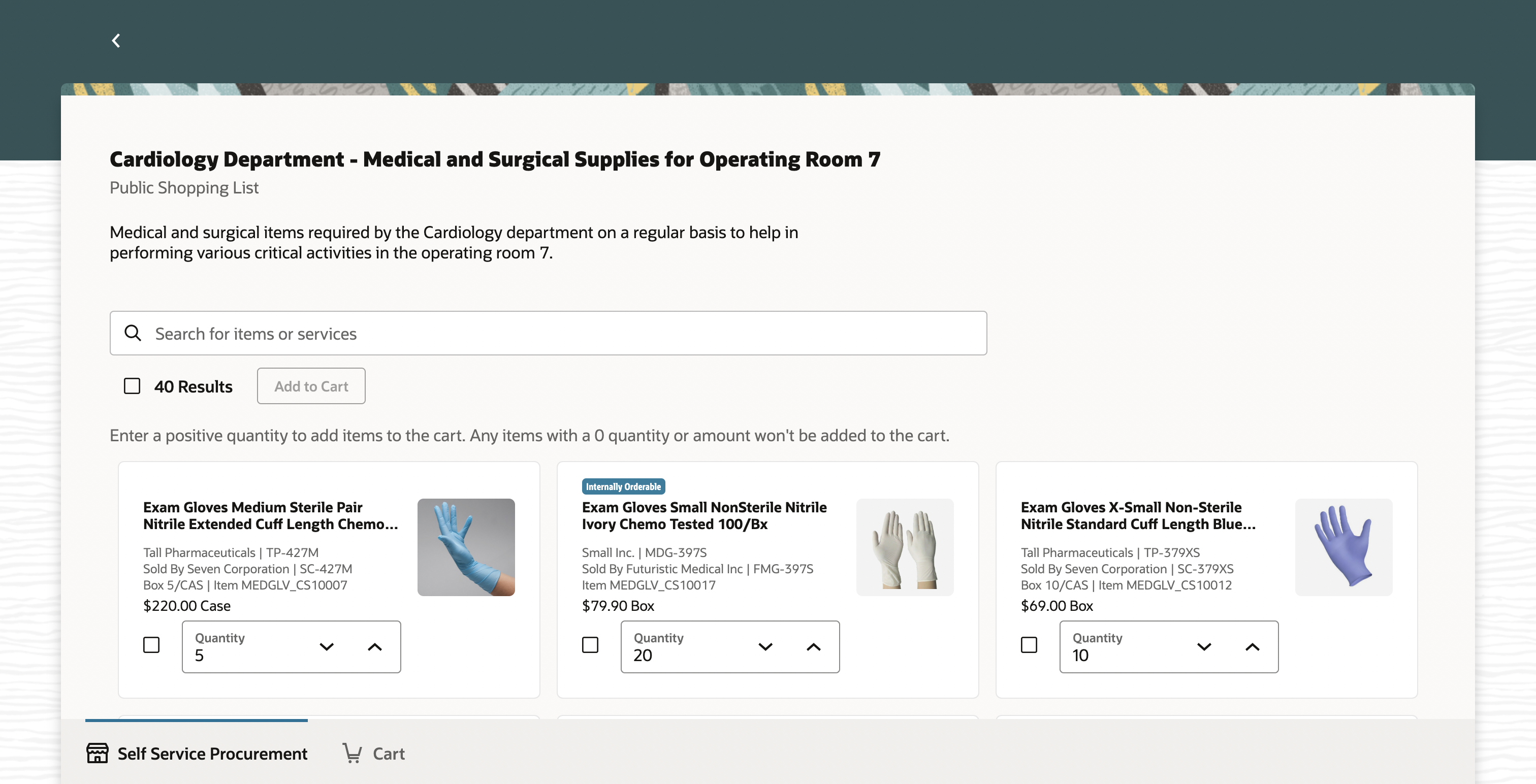
Public Shopping List
Using this feature, you can:
- Search
Search for items or services in the shopping lists with a smart search similar to catalog search that supports additional searchable attributes and built-in fuzzy matching. The searchable attributes include attributes such as item description, long description, supplier, supplier item, manufacturer, manufacturer part number, item number, and agreement number. You can successively narrow down search results by adding more than one keyword. You can drill down into the item to view more details.
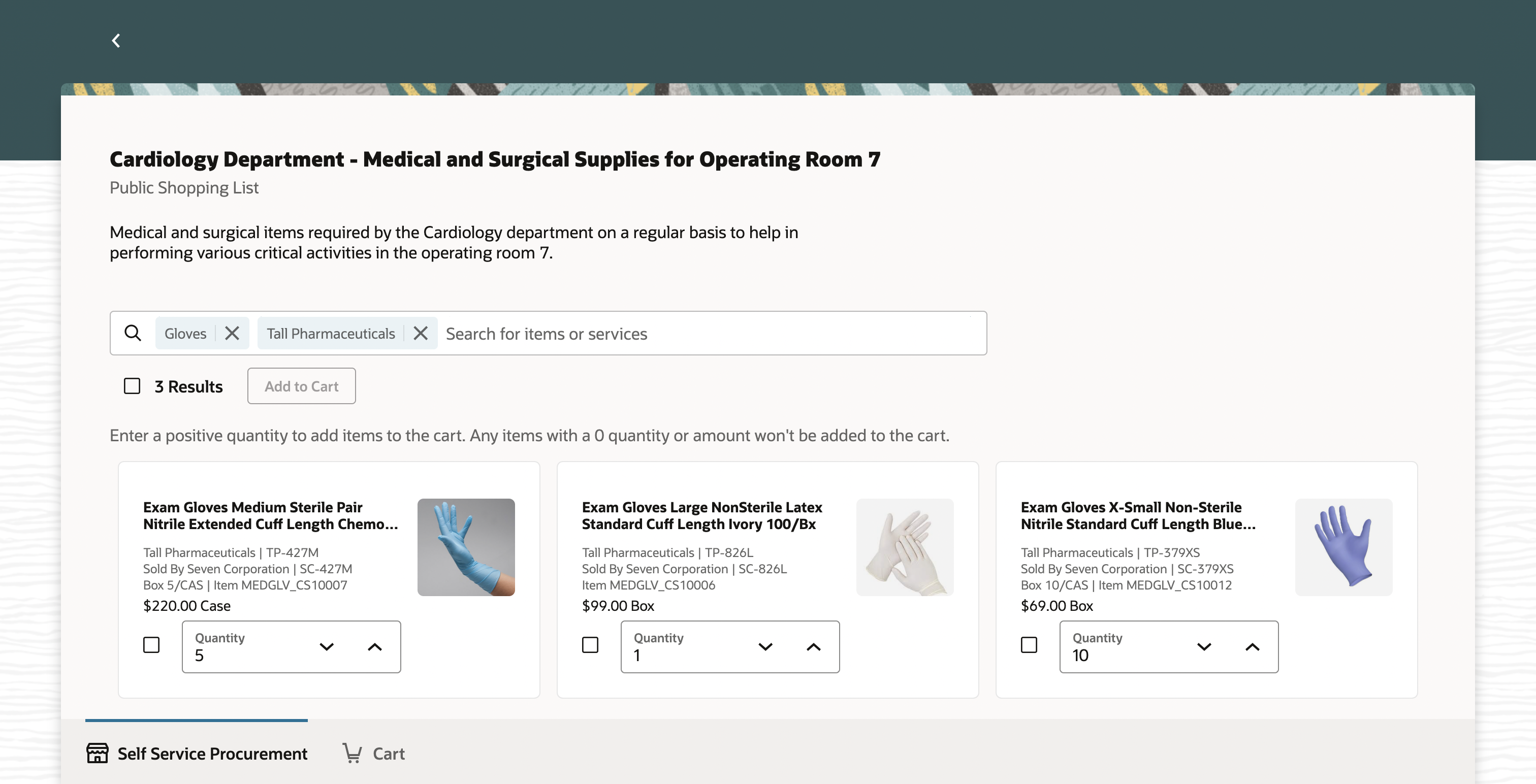
Search for Items in the Shopping List with Multiple Keyword Chips
- Item Selection
- An item will be automatically selected for you when you update the quantity to a value greater than 0.
- The current item selection will be cleared whenever you search. Therefore, it's recommended to add the selected items before you search.
- Add to Cart
- You can add a single item, a set of items, or all items to the cart.
- If your selection also contains items with 0 quantity, those won't be added to the cart.
- You can add up to 500 items to the cart.
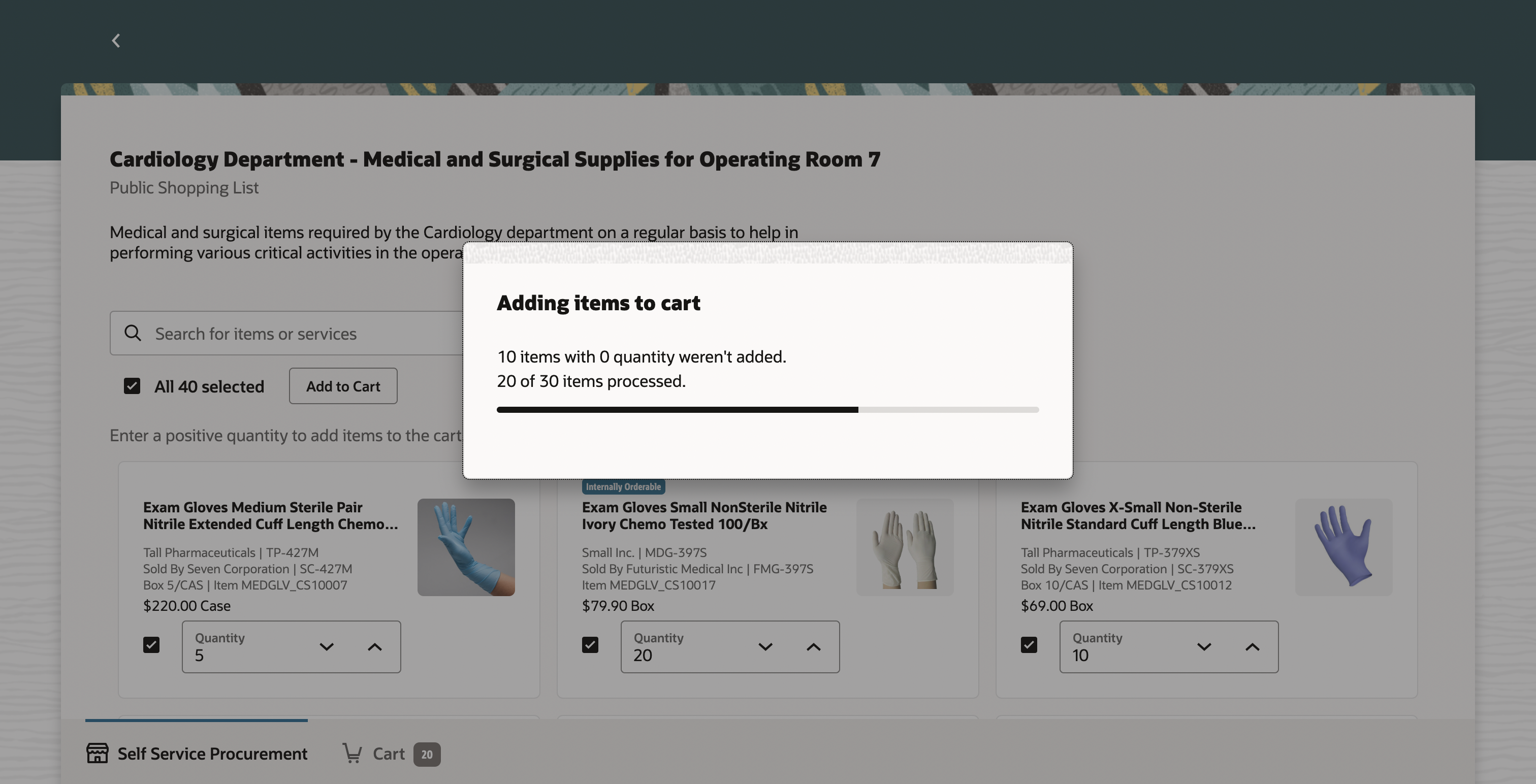
Adding Items to Cart from a Shopping List
The new and improved user experience allows for easy search and retrieval of items within the shopping list and selecting all or specific items to add to the cart.
Steps to Enable
Use the Opt In UI to enable this feature. For instructions, refer to the Optional Uptake of New Features section of this document.
Offering: Procurement
If you want to use the Shop Using Public Shopping Lists feature, then you must opt in to its parent feature: Procure Goods and Services Using the Responsive Self Service Procurement Application. If you’ve already opted in to this parent feature, then you don’t have to opt in again.
Tips And Considerations
- You can bookmark the Shopping Lists page or a specific shopping list using the browser's bookmark option to launch it directly.
- The length of the public shopping list name attribute has been increased to 100 characters compared to 50 earlier.
- As a Procurement catalog administrator, you can add an image URL to represent the shopping list using the Public Shopping Lists REST resource.
Key Resources
- To know more about how to use the Responsive Self Service Procurement application, refer to the Procure Goods and Services Using the Responsive Self Service Procurement Application readiness training.
- To know how to provide the required privileges to your requesters to use your own configured role instead of the Requisition Self Service User role, refer to the How You Configure Roles for the Responsive Self Service Procurement Application topic.
Access Requirements
- Users who are assigned to this duty role can access the Responsive Self Service Procurement application:
- Requisition Self Service Responsive Application User Duty (ORA_POR_REQUISITION_SELF_SERVICE_PWA_USER_DUTY)
Create Requisitions for Items That Are Fulfilled via Internal Material Transfers
You can now use the Responsive Self Service Procurement application to request items that are fulfilled by internal material transfers for expense destination type. Searching for items using keywords or using featured category drill down to shop displays the items configured for internal material transfers along with other catalog content. These items are also visible in public shopping lists based on the catalog setup. The Internally Orderable badge indicates that the item is fulfilled from an inventory organization within the enterprise.

Internally Orderable Badge in Search Results
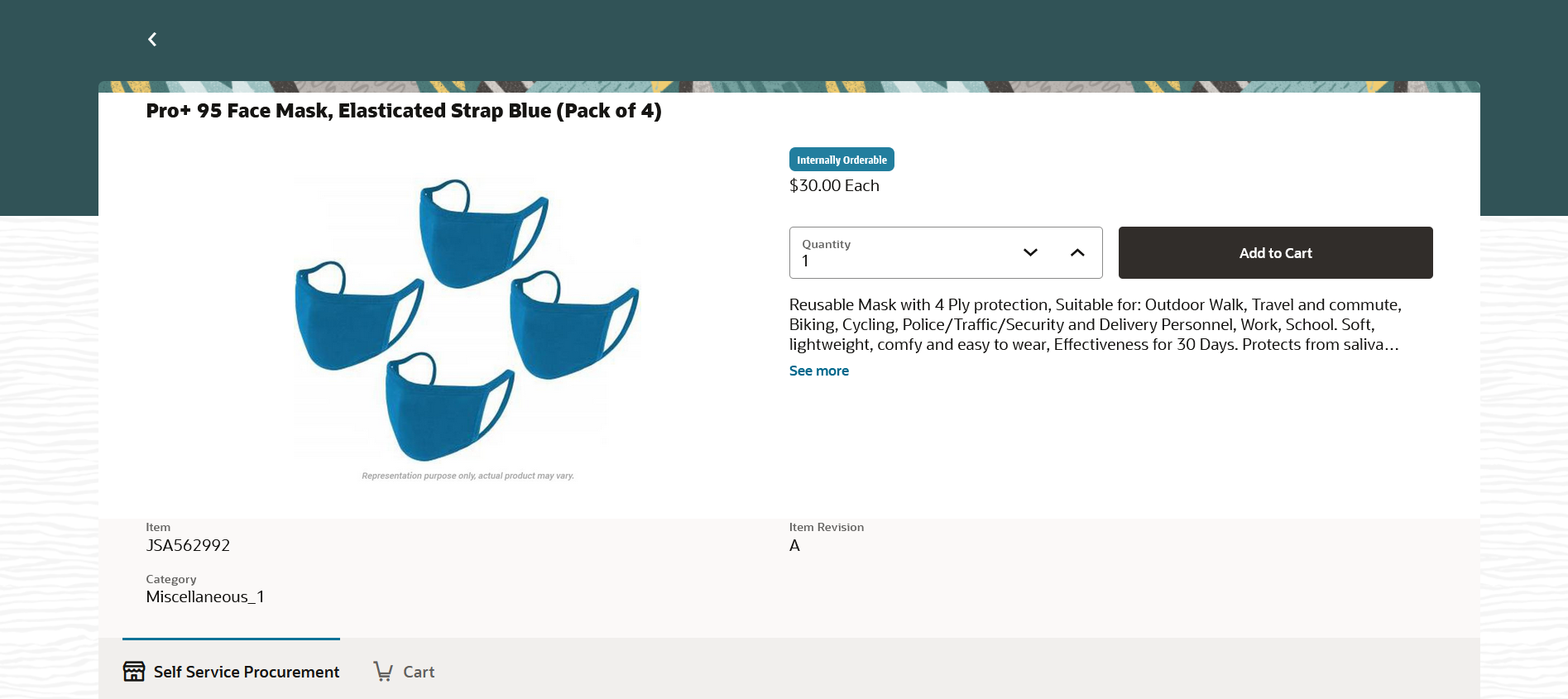
Internally Orderable Badge on Product Details
On adding the item to the cart, the application determines the top-ranked supply source for the item and displays the same with the applicable transfer price of the item during cart checkout.

Shopping Cart Indicating Internal Material Transfer Line
Once the requisition is submitted and approved, the application processes the internal material transfer line into a transfer order upon which the status of the line changes to Transfer initiated.

Requisition Details Shows Transfer Order for the Line
As the internal material transfer requisition line, undergoes downstream updates, the requisition details page displays the updated line status in real-time based on the following table:
Internal material transfer line level status
| Downstream Update | Requisition Line Status |
|---|---|
| Transfer order generated | Transfer initiated |
| Shipment confirmed | Shipped |
| Receipt recorded | In receiving |
| Delivery recorded | Delivered |
| Order line canceled | Transfer canceled |
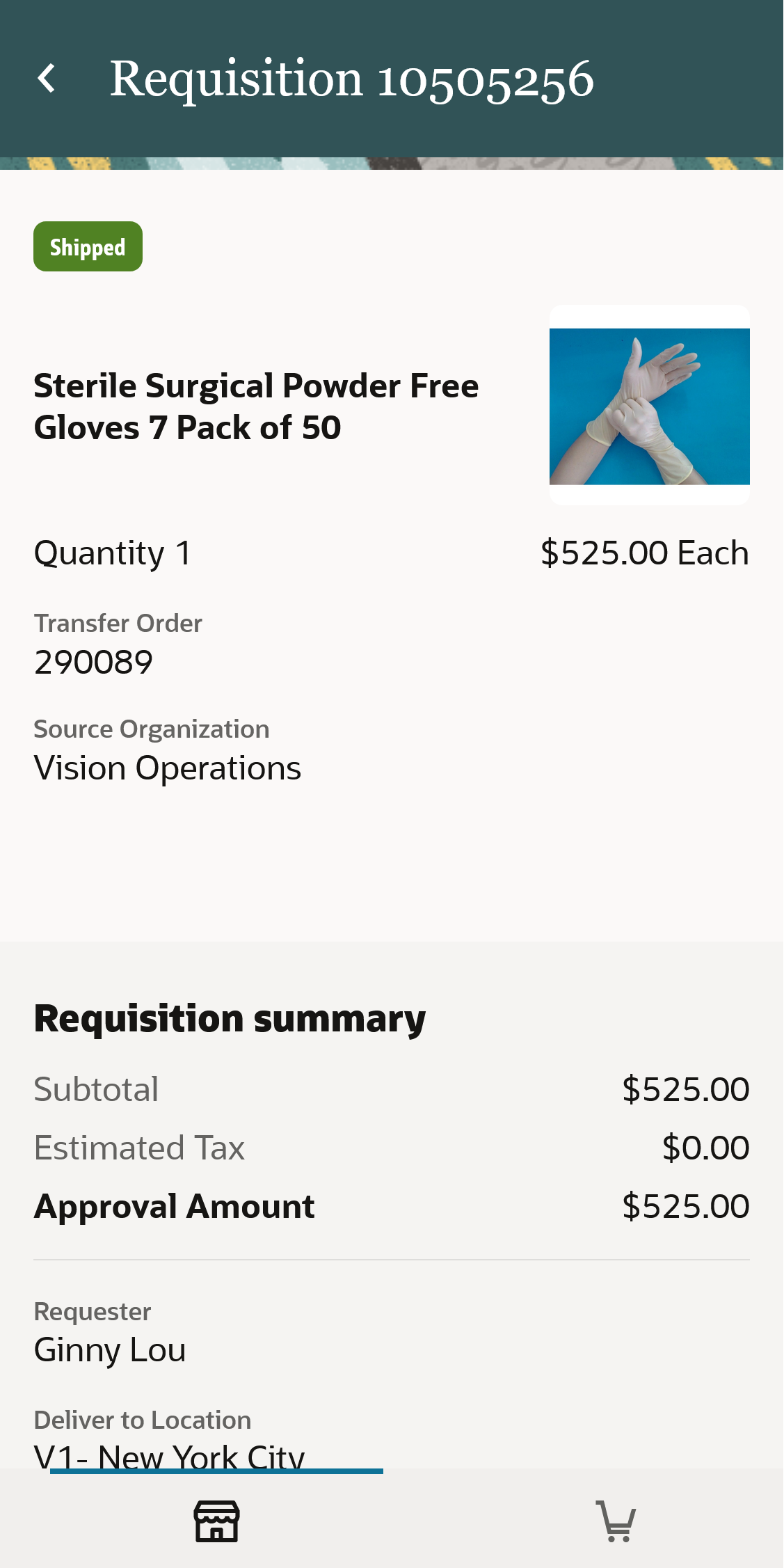
Requisition Details Indicating Goods Shipped from the Source Inventory
- Requesters can shop for items stocked internally while on the move from their mobile devices or from their desktops for their expense destination requirements.
- Using the requisition line statuses requesters can track if a transfer has been initiated for the items through shipping, receiving, and delivery of goods.
Steps to Enable
Use the Opt In UI to enable this feature. For instructions, refer to the Optional Uptake of New Features section of this document.
Offering: Procurement
- If you want to use the Create Requisitions for Items That Are Fulfilled via Internal Material Transfers feature, then you must opt in to the following:
- Parent feature: Procure Goods and Services Using the Responsive Self Service Procurement Application. If you’ve already opted in to this parent feature, then you don’t have to opt in again.
- Feature: Internal Material Transfers
- Child feature: Fulfill Expense Requisitions for Agreement Based Catalog Items from Internal Sources if blanket purchase agreement lines backed by master items should be eligible for internal material transfers.
Tips And Considerations
- There is no support to select the supply source for internal material transfers as the application determines the top ranked source based on the setup.
- The profile option Internal Transfers Allowed for Agreement-Based Items That Aren’t Purchasable (ORA_POR_SOURCE_NONPURCHASE_BPAITEMS_INTERNALLY) is not honored in the responsive self service procurement application.
Key Resources
- To know more about how to use the Responsive Self Service Procurement application, refer to the Procure Goods and Services Using the Responsive Self Service Procurement Application readiness training.
- To know how to provide the required privileges to your requesters to use your own configured role instead of the Requisition Self Service User role, refer to the How You Configure Roles for the Responsive Self Service Procurement Application topic.
Access Requirements
- Users who are assigned to this duty role can access the Responsive Self Service Procurement application:
- Requisition Self Service Responsive Application User Duty (ORA_POR_REQUISITION_SELF_SERVICE_PWA_USER_DUTY)
Send Deliver-to Location via cXML Punchout Setup Request
As a Procurement catalog administrator, you can now configure direct cXML supplier punchout catalogs to send internal deliver-to location details to the supplier site in the Responsive Self Service Procurement application. The internal deliver-to location name and code from the user's requisition preferences will be sent in the punchout setup request document (POSR).
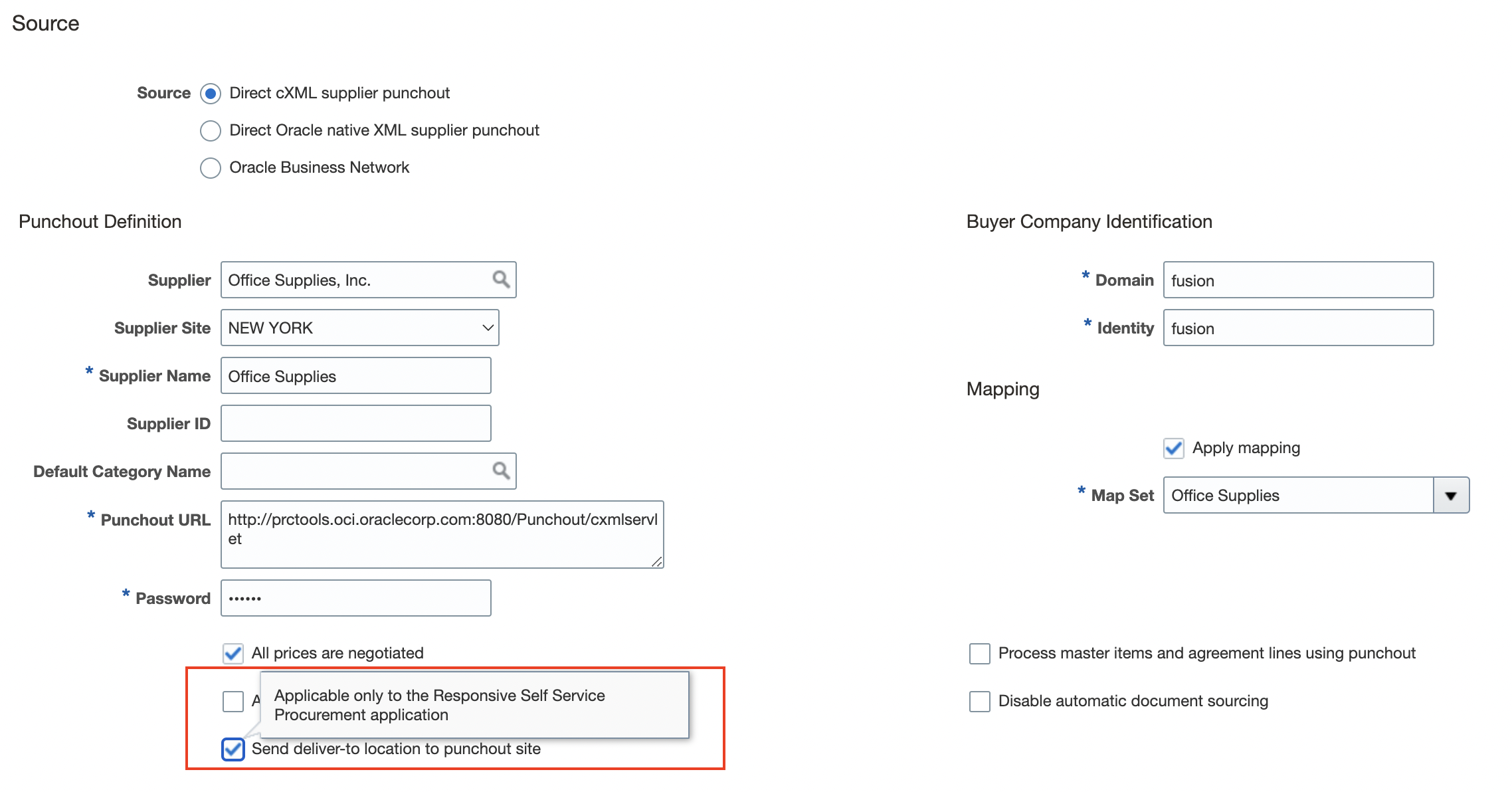
Send Deliver-to location to Punchout Site
When you enable this feature, the internal location code and name are sent in the ShipTo of POSR for addressId and Name attributes respectively.
For example, the location name and code saved in the user's requisition preferences is as follows:
- Code: US-CA-Redwood City-300 Oracle Parkway
- Name: 300 Oracle Parkway
When requester punchout to the supplier site, POSR will carry this information:
<ShipTo>
<Address addressID="US-CA-Redwood City-300 Oracle Parkway" addressIDDomain="buyerLocationID" isoCountryCode="US">
<Name xml:lang="en">300 Oracle Parkway</Name>
</Address>
</ShipTo>
This feature enables suppliers to use the internal location of the requester and filter shopping content as required.
Steps to Enable
Use the Opt In UI to enable this feature. For instructions, refer to the Optional Uptake of New Features section of this document.
Offering: Procurement
If you want to use the Send Deliver-to Location via cXML Punchout Setup Request feature, then you must opt in to its parent feature: Procure Goods and Services Using the Responsive Self Service Procurement Application. If you’ve already opted in to this parent feature, then you don’t have to opt in again.
Tips And Considerations
-
Only internal locations are sent in the POSR document. For one-time locations, POSR won't carry ShipTo.
-
Application continues to send Deliver-to organization name and code in ShipTo of POSR document when the Process master items and agreement lines using punchout option is enabled and the Send deliver-to location to punchout site option is disabled.
Key Resources
- To know more about how to use the Responsive Self Service Procurement application, refer to the Procure Goods and Services Using the Responsive Self Service Procurement Application readiness training.
- To know how to provide the required privileges to your requesters to use your own configured role instead of the Requisition Self Service User role, refer to the How You Configure Roles for the Responsive Self Service Procurement Application topic.
Access Requirements
- Users who are assigned to this duty role can access the Responsive Self Service Procurement application:
- Requisition Self Service Responsive Application User Duty (ORA_POR_REQUISITION_SELF_SERVICE_PWA_USER_DUTY)
View Additional Item Attributes During Shopping
You can now view Supplier Part Number, Manufacturer Part Number, and Item Number in search results and shopping lists when using the Responsive Self Service Procurement application.
This table summarizes the applicability of the attributes to different types of catalog content based on values set up:
Attribute Rules for Catalog Content
| Attribute | Display Behavior | Additional Information |
|---|---|---|
| Supplier Part Number |
|
|
| Manufacturer Part Number |
|
|
| Item Number |
|
N/A |
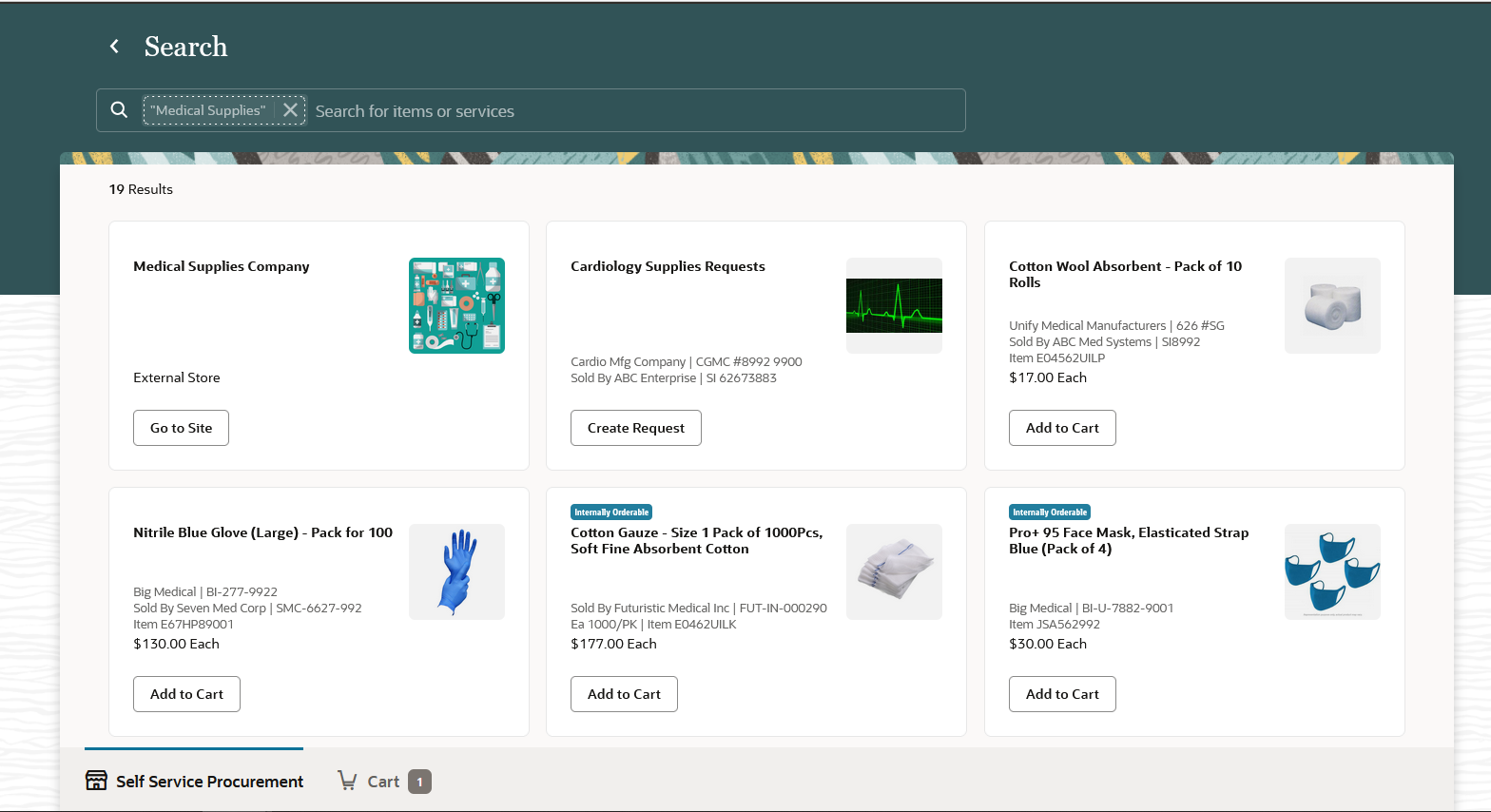
Additional Attributes on Search Results
Viewing item numbers and supplier or manufacturer part numbers on search results help requesters to make quick and precise buying choices during catalog shopping. This helps reduce lead times and make the procurement process efficient.
Steps to Enable
Use the Opt In UI to enable this feature. For instructions, refer to the Optional Uptake of New Features section of this document.
Offering: Procurement
- If you want to use the View Additional Item Attributes During Shopping feature, then you must opt in to its parent feature: Procure Goods and Services Using the Responsive Self Service Procurement Application. If you’ve already opted in to this parent feature, then you don’t have to opt in again.
- To display the additional attributes, this profile option must be set to Yes using the Functional Setup Manager task Manage Administrative profile options:
-
Additional Attributes Displayed During Shopping in the Responsive Self Service Procurement Application (ORA_POR_RESP_SHOW_ADDN_ITEM_ATTRS)
-
Key Resources
- To know more about how to use the Responsive Self Service Procurement application, refer to the Procure Goods and Services Using the Responsive Self Service Procurement Application readiness training.
- To know how to provide the required privileges to your requesters to use your own configured role instead of the Requisition Self Service User role, refer to the How You Configure Roles for the Responsive Self Service Procurement Application topic.
Access Requirements
- Users who are assigned to this duty role can access the Responsive Self Service Procurement application:
- Requisition Self Service Responsive Application User Duty (ORA_POR_REQUISITION_SELF_SERVICE_PWA_USER_DUTY)
Create Requisitions on Behalf of Other Requesters
You can now use the Responsive Self Service Procurement application to request goods and services on behalf of other requesters. When lines are added to the cart, the requester in requisition preferences defaults on the lines. During cart checkout, you can modify the requester on a single line or all lines if you have the privilege to create requisitions on behalf of other requesters. You can search for the requester using their name or email address and select the desired value.
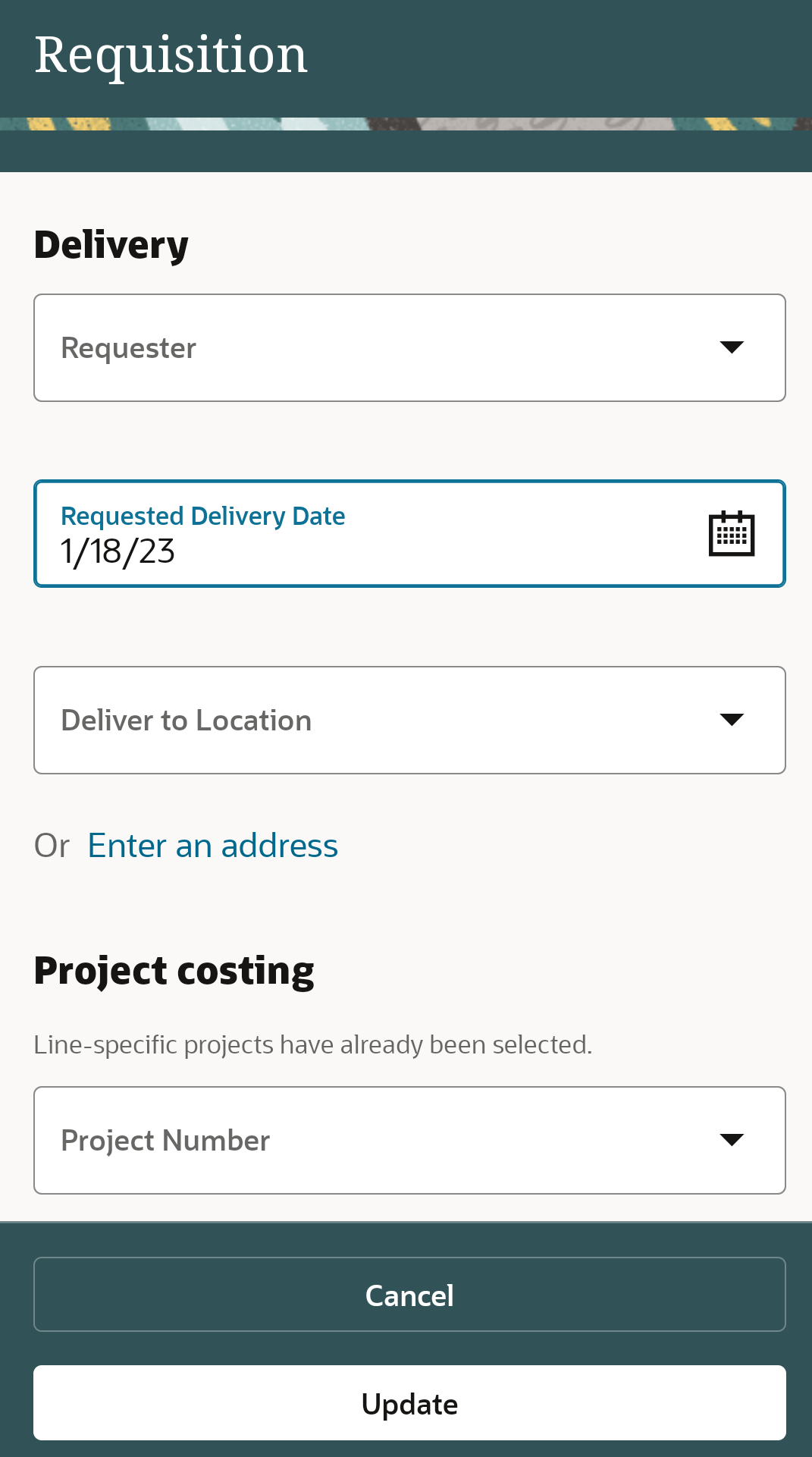
Delivery Section with Requester on the Edit Requisition Page
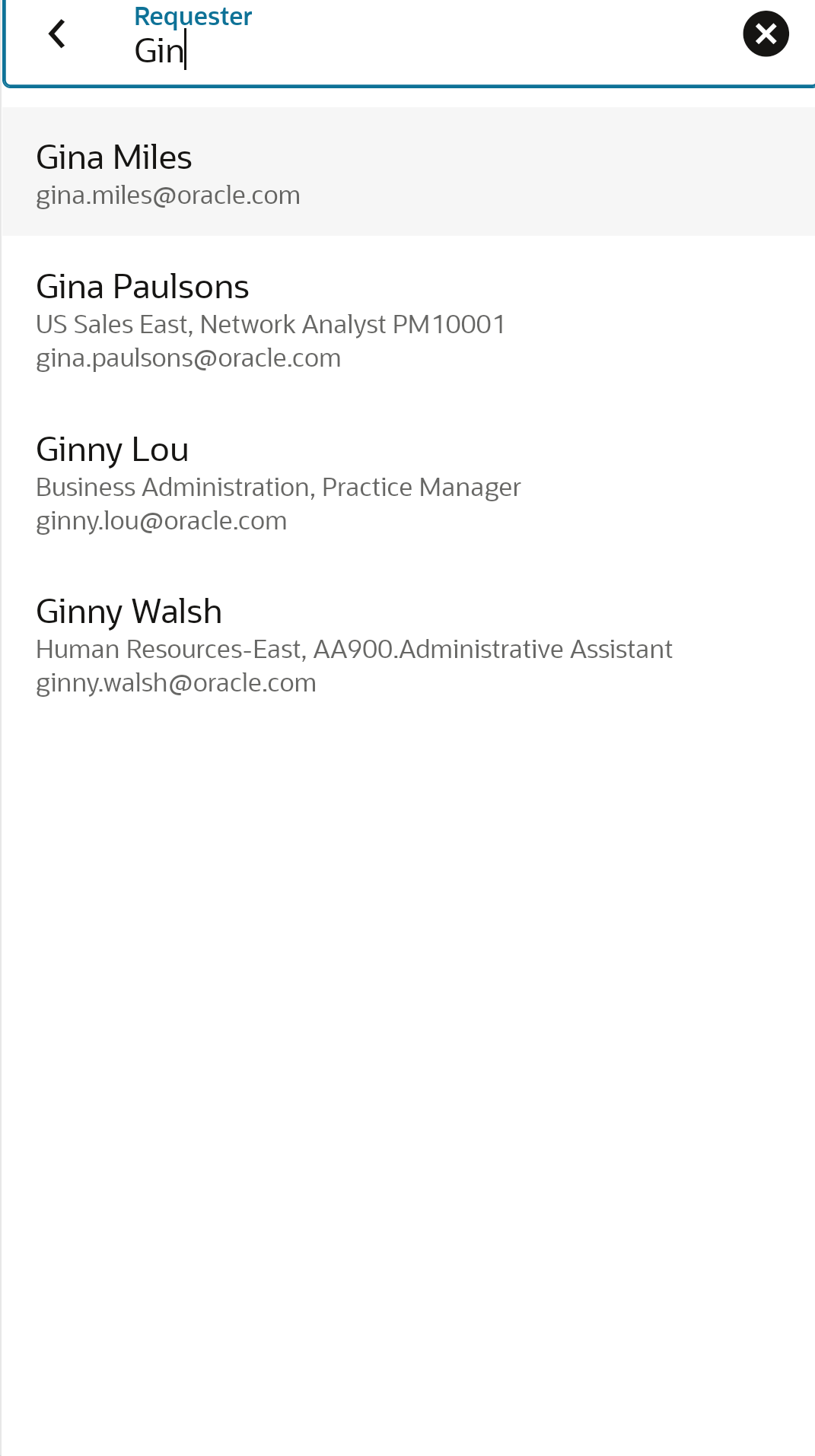
Search for a Person Using the Requester List of Values
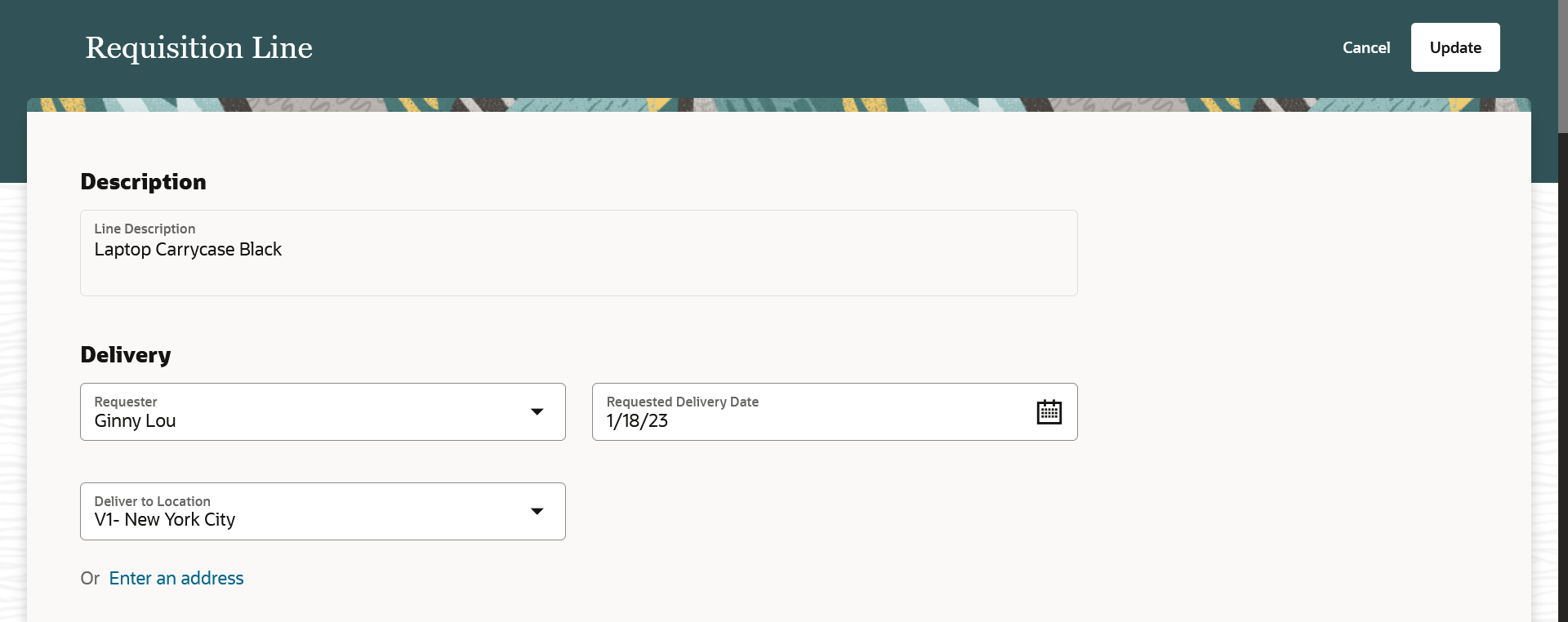
Requester Field on the Edit Requisition Line
If there are different requesters across lines, requester information is displayed on the cart for each line.

Requester Information Shown for Each Line
Using the feature, requisition preparers can use the Responsive Self Service Procurement application to request goods and services for other users for the Expense destination.
Steps to Enable
Use the Opt In UI to enable this feature. For instructions, refer to the Optional Uptake of New Features section of this document.
Offering: Procurement
To use the Create Requisitions on Behalf of Other Requesters feature, you must opt in to its parent feature: Procure Goods and Services Using the Responsive Self Service Procurement Application. If you’ve already opted in to this parent feature, then you don’t have to opt in again.
Tips And Considerations
- The requester can be modified after adding lines to the cart. Specifying a requester in the requisitioning preferences to be applied to all lines during shopping isn't supported.
- In the Requester field, always search with the first name or email address of the person.
- On change of requester, if no location has defaulted on the line, you must ensure the location is defined in the Human Capital Management assignment details.
Key Resources
- To know more about how to use the Responsive Self Service Procurement application, refer to the Procure Goods and Services Using the Responsive Self Service Procurement Application readiness training.
- To know how to provide the required privileges to your requesters to use your own configured role instead of the Requisition Self Service User role, refer to the How You Configure Roles for the Responsive Self Service Procurement Application topic.
Access Requirements
- Users who are assigned to this duty role can access the Responsive Self Service Procurement application:
- Requisition Self Service Responsive Application User Duty (ORA_POR_REQUISITION_SELF_SERVICE_PWA_USER_DUTY)
- Users who are assigned this privilege can update the requester in the Responsive Self Service Procurement application:
-
Create Requisition with Changes to Requester (POR_CREATE_REQUISITION_CHANGE_REQUESTER_PRIV)
-
IMPORTANT Actions and Considerations
From time to time, Oracle replaces existing Cloud service features with new features, or removes existing features. Replaced features may be put on a path to removal. As a best practice, you should use the newer version of a replaced feature as soon as the newer version is available.
This section identifies the features in this Cloud service that have been replaced or will be removed.
| Module | Removed Feature | Target Removal | Replacement Feature | Replaced In | Additional Information |
|---|---|---|---|---|---|
| Self Service Procurement | Self Service Procurement Mobile Application | 23D | Responsive Self Service Procurement Application | 22B | As of update 23B, the Self Service Procurement Mobile Application will no longer be enhanced or updated, nor will technical support be provided for issues. As of July 31, 2023, the mobile application will no longer be available for download. The mobile application will stop working when you update to 23D. If you're using the mobile app, you should move to the Responsive Self Service Procurement application as soon as possible. For details about the replacement application, see Procure Goods and Services Using the Responsive Self Service Procurement Application. |