
This document will continue to evolve as existing sections change and new information is added. All updates appear in the following table:
| Date | Product | Feature | Notes |
|---|---|---|---|
| 17 JUN 2022 | Created initial document. |
 HAVE AN IDEA?
We’re here and we’re listening. If you have a suggestion on how to make our cloud services even better then go ahead and tell us. There are several ways to submit your ideas, for example, through the Ideas Lab on Oracle Customer Connect. Wherever you see this icon after the feature name it means we delivered one of your ideas.
GIVE US FEEDBACK
We welcome your comments and suggestions to improve the content. Please send us your feedback at oracle_fusion_applications_help_ww_grp@oracle.com.
DISCLAIMER
The information contained in this document may include statements about Oracle’s product development plans. Many factors can materially affect Oracle’s product development plans and the nature and timing of future product releases. Accordingly, this Information is provided to you solely for information only, is not a commitment to deliver any material, code, or functionality, and should not be relied upon in making purchasing decisions. The development, release, and timing of any features or functionality described remains at the sole discretion of Oracle.
This information may not be incorporated into any contractual agreement with Oracle or its subsidiaries or affiliates. Oracle specifically disclaims any liability with respect to this information. Refer to the Legal Notices and Terms of Use for further information.
Column Definitions:
Report = New or modified, Oracle-delivered, ready to run reports.
UI or Process-Based: Small Scale = These UI or process-based features are typically comprised of minor field, validation, or program changes. Therefore, the potential impact to users is minimal.
UI or Process-Based: Larger Scale* = These UI or process-based features have more complex designs. Therefore, the potential impact to users is higher.
Features Delivered Disabled = Action is needed BEFORE these features can be used by END USERS. These features are delivered disabled and you choose if and when to enable them. For example, a) new or expanded BI subject areas need to first be incorporated into reports, b) Integration is required to utilize new web services, or c) features must be assigned to user roles before they can be accessed.
| Ready for Use by End Users Reports plus Small Scale UI or Process-Based new features will have minimal user impact after an update. Therefore, customer acceptance testing should focus on the Larger Scale UI or Process-Based* new features. |
Customer Must Take Action before Use by End Users Not disruptive as action is required to make these features ready to use. As you selectively choose to leverage, you set your test and roll out timing. |
|||||
|---|---|---|---|---|---|---|
| Feature |
Report |
UI or |
UI or |
|
||
Posting and Application of External Fund Credits to Student Charges |
||||||
Task and Checklist Configuration
Define more readable instructions for tasks and checklists with a rich text editor. Assignees will better understand how to complete a task or checklist with easier to read instructions.
Oracle Fusion Cloud Student Management now offers an enhanced user experience for managing tasks and checklists by removing some fields and adding new ones. It also enhances usability while creating and assigning tasks and checklists and managing versions of them.
With the newly-added rich text editor, you can make task and checklist instructions more clear for users, giving them better context to complete their assignments. You can also modify fonts and other text content to make it more readable.
These are some of the most significant enhancements to the task and checklist configuration wizard:
-
Instructions is now a separate section within the Details tab on the task or checklist edit page. Configure instructions using a rich text editor for better readability to the assignees.
-
On the Task Management landing page, the Institution field has been removed, and the Category field has been made optional.
-
The Revert option has been added to the action bar on the edit task page.
-
When creating a task, the status schemes linked to the category selected are shown in the drop-down list. Because the category field is now optional, when no category value is entered, the drop-down list displays all status schemes.
-
Now you see a summary section when you assign a task or checklist from the task or checklist tab.
-
The new task creation page no longer shows the Details and Versions tabs. These are now available on the edit task page only.
-
The task or checklist versioning framework has been enhanced, and the action menu options have been reduced to avoid duplication of actions. These are the new action menu choices.
Draft version
- Add Comment
- Edit
Unpublished version
- Create Draft
- Add Comment
Published version
- Create Draft
- Add Comment
NOTE: The action menu reads Edit Comment if a comment already exists.
Steps to Enable
You don't need to do anything to enable this feature.
Tips And Considerations
You can use these formatting functions of the rich text editor to edit and format the instruction text:
- Bold, Italics, and Underline
- Bullets (numeric and symbol)
- Paragraph indentation (forward and backward)
- Add link and Remove link
Key Resources
- For more information about the tasks and checklists, refer to the Tasks and Checklists chapter in the Implementing Student Management guide.
Oracle Fusion Cloud Student Management delivers new pages, page elements, and page permissions assigned to the predefined job roles in each release.
Here are the newly added pages, page elements, and page permissions for the mentioned predefined job roles.
| Page Name | New/Existing | Page Elements | New/Existing | Page Permission | New/Existing | Predefined Job Roles |
|---|---|---|---|---|---|---|
| Manage Credit Transaction Page |
New | View Credit Transaction Details |
New | View | New | Bursar, Registrar, Cashier, Admissions Manager, and External Payment Service Provider |
| Manage Credit Transaction Page |
New | Manage External Fund Transaction |
New | Manage | New | Bursar, Registrar, Cashier, Admissions Manager, and External Payment Service Provider |
| Manage Waiver Credit Page |
New | View Waiver Credit Details |
New | Create, update, view, and delete |
New | Higher Education Application Administrator and Bursar |
Steps to Enable
You don't need to do anything to enable this feature.
Tips And Considerations
If you created user-defined roles and assigned page access to them using the Manage Application Access task in the Setup and Maintenance work area, you must review your user-defined roles to see if you need to assign them access to the new pages, page elements, and page permissions.
Export and Import of Page and Data Access Configuration
Export page and data access configuration from one environment and import into another environment to complete page and data access configuration more efficiently.
You can now move your page and data access setup data from one environment to another using an implementation project in the Functional Setup Manager. Create the implementation project by selecting the Student Management Security task list, and then create a configuration package file from the implementation project to export and import the setup data.
Alternatively, you can use the Application Access functional area to export and import only the page and data access setup data. Define page and data access using the Manage Application Access task, which is mapped to the FSM business objects that store those page and data access definitions. Then, using the Application Access functional area in the Student Management offering, create a configuration package file to easily export and import the setup data.
However, before migrating your page and data access setup data, you must export and import all other product setup data.
For more information about the export and import of setup data, see the Setup Data Export and Import Using Implementation Project or Export a Subset of an Offering or Functional Area Setup Data chapter of the Using Functional Set up Manager Guide.
These business objects help in the packaging of page and data access definitions:
- Security Role Group
- Security Role Group Member
- Application Page Group
- Application Page Group Member
- Page Access Role Assignment
- Role Page Permission
- Page Access Role Group Assignment
- Role Group Page Permission
- Data Security Profile
- Data Security Profile Field
- Data Profile Role assignment
- Role Data Condition
- Role Data Condition Value
- Role Data Privilege Grant
- Data Profile Role Group Assignment
- Role Group Data Condition
- Role Group Data Condition Value
- Role Group Data Privilege Grant
Thus, Oracle Fusion Cloud Student Management saves time and provides an easy way to move the security setup data if you need to repeat the setup in a different environment.
Steps to Enable
You don't need to do anything to enable this feature.
Key Resources
For more information, refer to this resource on the Oracle Help Center:
- Export and Import of Page and Data Access Configuration topic in the Securing Student Management guide.
Role Information
You need the Higher Education Application Administrator or IT Security Manager role to use this feature.
Institutions can now use external fund credits. For each credit, they can manage the charge priority mapping, financial aid eligibility, and the transaction type, receivables activity, and memo line associated with an academic period.
Creating and posting credits to student accounts is pivotal for institutions that award financial aid. This feature provides core functionality that will be used in a planned integration with Oracle Fusion Cloud Student Financial Planning (SFP). In the future, institutions will be able to create as many credits as they require to meet their state, federal, or institutional funding guidelines.
Credits are payments applied to customer accounts that don't originate from the customer. These often come from external sources, such as third-party sponsors, federal financial aid awards, scholarships, institutional aid, state aid programs, or granted waivers.
Before this release, you could apply credits to student accounts using sponsorship credits, receipt methods, or direct payments from students. But sponsorship credits use specific criteria in applying payments, and they're closely tied to course enrollment. This means sponsorship credits couldn't be used to settle just any outstanding charge. External funds, on the other hand, let you use a credit method that isn't tied to specific calculation criteria.
Along with providing new ways to manage credits, this feature provides these benefits:
- Ability to map credits to SFP codes (planned integration).
- Ability to allocate refundable credits to students when all outstanding balances are paid. This enables the awarding of funding to students outside of the pay-to-enroll model.
- A unified experience where you can create and manage all credit types—external funds, sponsorships, receipt methods, and, in the future, waivers.
- Ability to set up unique transaction type values for each credit type. In the case of external funds, you can override the credit's default transaction type by specifying a different one for an academic period.

Manage Student Credits Page

Create External Fund Credit
When you create an external credit, the combination of the Charge Priority Mapping and Credit Priority forms the credit application criteria. The calculation and posting process uses these criteria to determine how to apply the credit.
If you enable Refundable Credit, you can refund the excess amount from the credit to the student. This is for a future release.
The values you set in Transaction Type, Receivables Activity, and Memo Line become the default values for that credit.

Add Academic Period Exceptions
In the Credit Setup Exceptions tab, you can choose to override the Transaction Type, Receivables Activity, and Memo Line by defining a different set of values for a specific academic period.
With this update to the Manage Student Credits page, you can create an external fund. You can apply active credits to student accounts to pay outstanding charges depending on the charge priority mapping.
Steps to Enable
You don't need to do anything to enable this feature.
Tips And Considerations
This feature is dependent on properly setting up transactions in Oracle Fusion Cloud Financials. This also uses on-account credit memos, which is a standalone credit memo that isn't associated to any invoice. We strongly recommend that you consult a core Financials consultant, implementation partner, or systems integrator to help you implement the various applications in Financials.
When setting up an external fund credit, we recommend mapping the credit to a transaction type, receivables activity, and memo line that best capture where the credit should draw its balance from.
You also need to set up charge priority mapping. A charge priority mapping lets you group individual fees or fee groups and set distinct payment priorities for each fee or group in the mapping. When you set up a credit but don't select a charge priority mapping, the process uses the default mapping for the academic business unit. For information on charge priority mapping, see Manage Charge Priority Mapping.
Role Information
You need the Higher Education Application Administrator or Bursar roles to use this feature.
Posting and Application of External Fund Credits to Student Charges
Creating and posting credits to student accounts is pivotal for institutions that award financial aid. The introduction of external fund credits as an option to offset outstanding balances is a needed functionality.
There are often federal, state, or institutional guidelines that determine which type of fees certain types of financial aid can apply to. You can set up each external fund credit using a variety of charge priority mapping and credit priority combinations. The calculation and posting process uses this combination to determine how to apply the credit.
For example, you want to create an external fund credit that's set up to pay only tuition. You would create a fee group on the Manage Fee Groups page—let's call it "Tuition-Only Fee Group." To this fee group, assign tuition charges. Then on the Charge Priority Mapping page, create a mapping using "Tuition-Only Fee Group." Next, create the external fund credit on the Manage Student Credits page, and then select the charge priority mapping you created that contains "Tuition-Only Fee Group." You might also want to assign a credit priority. Any time you use this credit and post it to a student's account, the process follows the mapping rule and credit priority and applies the credit only to the tuition charges that are present in the fee group.
If, for example, you want to create an external fund credit that could pay for any charge on the student's account, you would create an external fund credit that uses a charge priority mapping that's set up to pay all charges.
Use the Manage Credit Transactions page to review existing credits and then post to or reverse credits from student accounts. Once you initiate the posting process, the payment application rules take effect. This means the posting process looks at the charge priority mapping as well as the credit priority. These determine which charges are eligible, the order they should be paid, and what balance is paid.
This feature provides the backend processing for posting credits. Without this processing, the credit wouldn't be applied to any outstanding charge or would be indiscriminately applied to charges. You can configure rules that apply credits to outstanding charges in different ways. For example, you can create a rule that pays only a specific charge.
Steps to Enable
This feature is dependent on properly setting up transactions in Oracle Financials Cloud. This also uses on-account credit memos. We strongly recommend that you consult a core Financials consultant, implementation partner, or systems integrator to help you implement the various applications in Financials.
You also need to set up charge priority mapping. A charge priority mapping lets you group individual fees or fee groups and set distinct payment priorities for each fee or fee group in the mapping. When you set up an external fund credit but don't select a charge priority mapping, the process uses the default mapping for the academic business unit. For information on charge priority mapping, see Manage Charge Priority Mapping.
Lastly, you need to set up external fund credits on the Manage Student Credits page, and then use the Manage Credit Transactions page to post or reverse credits.
Role Information
You need the Higher Education Application Administrator or Bursar roles to use this feature.
Student Credit Calculation and Posting
Institutions can use the Manage Credit Transactions page to manually post or reverse external fund credits to student accounts. With the update to the Manage Student Credits page, Student Management now supports external funds. An external fund credit lets you use a credit method that isn't tied to specific calculation criteria. You determine the amount you want to post to a student's account. For example, you could have two students who are eligible for a state scholarship. One is awarded US$250 and the other is awarded US$1,000. You can post an external fund credit for each student and specify the exact amount that they're awarded.
This feature uses the external funds you create on the Manage Student Credits page. You can select from a list of active credits and post those credits to one or many student accounts. For external funds, you can specify an academic period and flat amount.
The Manage Credit Transactions page gives you these benefits:
-
A landing page where all posted credit transactions can be searched, filtered, and viewed.
-
Ability to select an external fund to post to one or more student accounts.
-
Ability to reverse one or more posted credits. In this release, only a full reversal of the credited amount is enabled. This means the posted credit is set to zero once you do a reversal. This is useful in cases where an awarded amount was incorrectly posted to a student's account. By reversing the credit, you can correct the mistake.

Manage Credit Transactions Landing Page
From the landing page, you can review, reverse, or post credit transactions. Click Actions to either post or reverse credits.
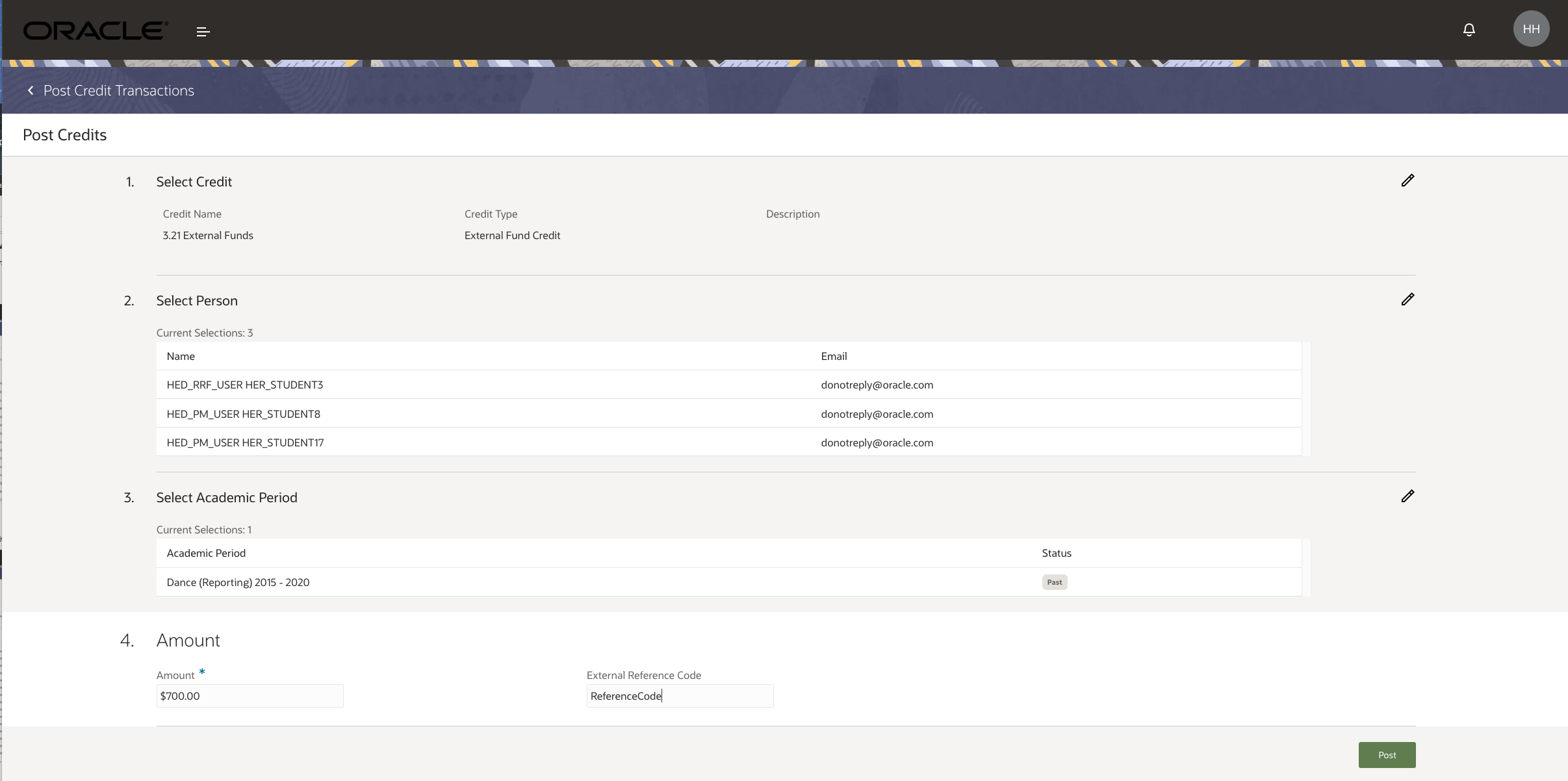
Post Credits Page
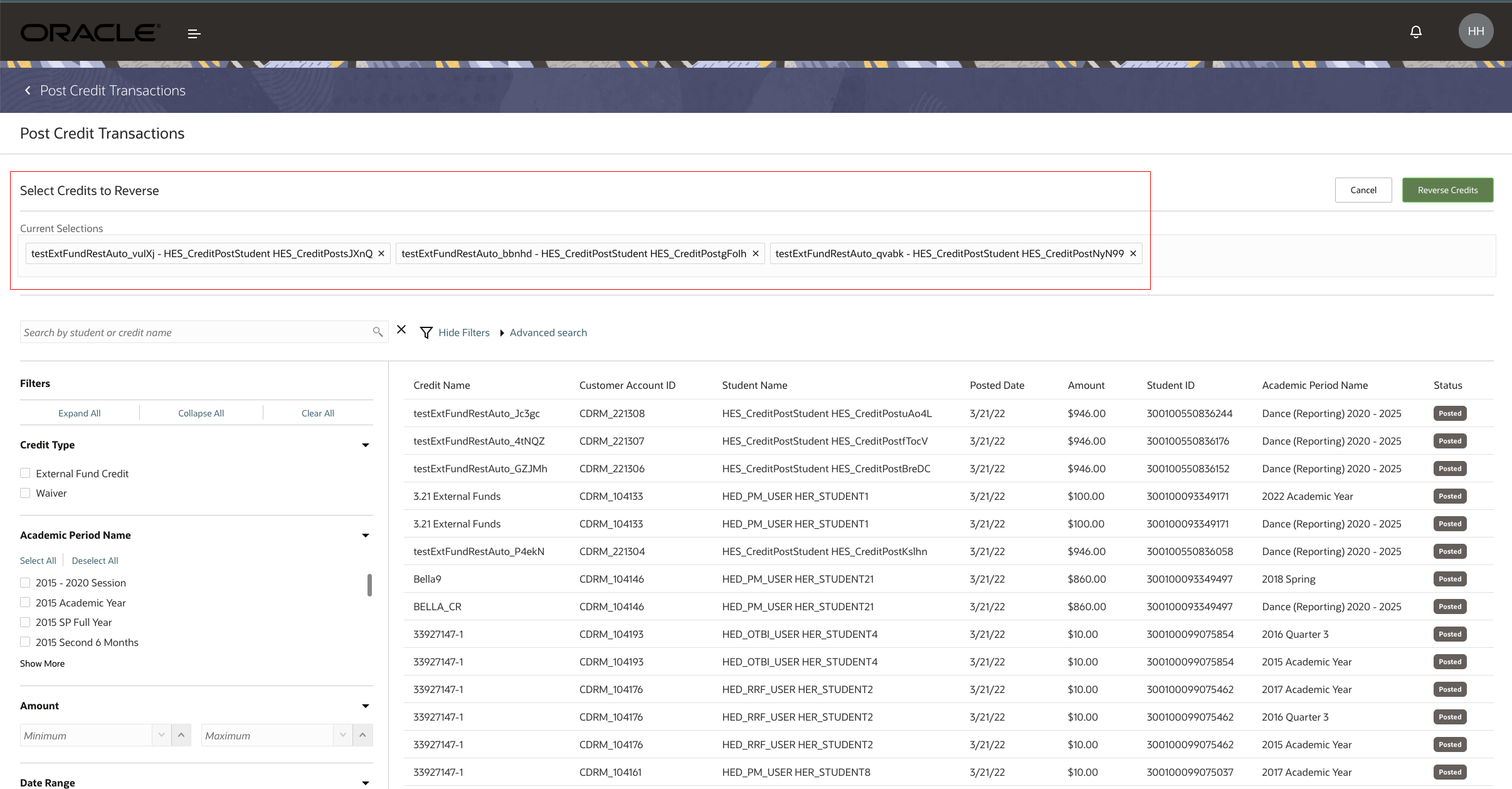
Reverse Credits Page
The credits you post could pay eligible outstanding charges. Excess credit amounts may be reversible to the student if the credit setup allows for it. This means that when you created the external fund credit, you enabled Refundable Credit. Refunding the excess amount from a credit is set for a future release.
You could also post credits from multiple accounting sources, and you aren't limited to sponsorship credits or cash, credit card receipts, and check payments to settle outstanding charges on a student's account.
This feature provides core functionality that will be used in a planned integration with Oracle Fusion Cloud Student Financial Planning. This also provides a unified experience from which you can post or reverse credits.
Steps to Enable
Because this page uses external funds, you need to create them. Go to the Finances work area, then click Actions > Manage Student Credits.
Tips And Considerations
This feature is dependent on how you set up transactions in Oracle Financials Cloud. This also uses on-account credit memos. We strongly recommend that you consult a core Financials consultant, implementation partner, or systems integrator to help you implement the various applications in Financials.
You also need to set up charge priority mapping. A charge priority mapping lets you group individual fees or fee groups and set distinct payment priorities for each fee or group in the mapping. When you set up a credit but don't select a charge priority mapping, the process uses the default mapping for the academic business unit. For information on charge priority mapping, see Manage Charge Priority Mapping.
Role Information
You need the Higher Education Application Administrator or Bursar roles to use this feature.
Control which users have security permissions to add students to waitlists, remove students from waitlists, enroll students from waitlists, update student positions on waitlists, and view student waitlist positions. For example, you might allow a user to view the students' positions on a waitlist but not allow the user to reorder students’ positions.
Use data profiles to control user access to waitlist information. In the Manage Application Access task, create a data profile and assign the profile to a role or user. Then control the access to waitlist information by granting users access to these permissions:
-
View Waitlist Position: Lets the user view a student's waitlist position. For example, an instructor can see the waitlist position of waitlisted students when viewing the course roster. A student advisor can see the student's waitlist position when looking at the course section for which the student is waitlisted.
-
Add Students to Waitlist: Lets the user add a student to a waitlist. All application administrators and registrars should have this ability. The institution might optionally add it for instructors and student advisors.
-
Remove Students from Waitlist: Lets the user remove a student from a waitlist. All application administrators and registrars should have this ability. The institution might optionally add it for instructors and student advisors.
-
Enroll Students from Waitlist: Lets the user enroll a student in a course from the course waitlist. All registrars should have this ability. The institution might optionally add it for instructors and student advisors.
-
Update Waitlist Position: Lets the user change a student's waitlist position number. All registrars should have this ability. The institution might optionally add it for instructors.
This feature means that your institution can more carefully control the impact of users on waitlists.
Steps to Enable
Make the feature accessible by assigning or updating privileges and/or job roles. Details are provided in the Role section below.
Key Resources
- For more information, refer to the Control Data Access by Role topic in the Securing Student Management guide.
Role Information
You need the IT Security Manager role to create a data profile and assign the profile to a role or user.
Notify students when they are added to, removed from, or enrolled from a course waitlist and when their position on a waitlist changes. The relevant communication events are now available.
This means that students receive timely notifications about any changes to their waitlist status.
Steps to Enable
You don't need to do anything to enable this feature.
Key Resources
- For more information about how to create communications, refer to the Overview of Communications topic in the Implementing Student Management guide.
External Organization Data Loading
Export external organizations from one environment and import them into another.
You can also use Rapid Implementation to load term type and accreditation entity reference data for external organizations, along with identifiers, contacts, and locations.
This means that you can more efficiently load, configure, and maintain all the data for your external organizations.
Steps to Enable
You don't need to do anything to enable this feature.
Key Resources
- For more information about external organizations, refer to the Manage External Organizations topic in the Using Student Management guide.