
This document will continue to evolve as existing sections change and new information is added. All updates appear in the following table:
| Date | Product | Feature | Notes |
|---|---|---|---|
| 28 JAN 2022 | HCM Common Architecture | Enhancements to Approvals and Notifications | Updated document. Revised feature information. |
| 24 NOV 2021 | HCM Common/ HCM Common Architecture |
Enhancements to Approvals and Notifications |
Updated document. Revised feature information. |
| 03 SEP 2021 | Created initial document. |
HCM Cloud applications have two types of patches you can receive that are documented in this What’s New:
- Release Updates (21A, 21B, 21C, and 21D)
- Optional Monthly Maintenance Packs to each update
It is important for you to know what Release Update your environment is on. You can find this in your Cloud Portal.
____________________
 HAVE AN IDEA?
We’re here and we’re listening. If you have a suggestion on how to make our products better, please let us know. To enter an idea go to the Ideas Lab on Oracle Customer Connect. In this document wherever you see the light bulb icon after the feature name it means we delivered one of your ideas.
____________________
Suggested Reading for all HCM Products:
- Human Resources What’s New – In the Global Human Resources section you will find features on the base application in which other application are built upon.
NOTE: Not all Global Human Resource features are available for Talent and Compensation products.
- Oracle Human Capital Management Cloud Functional Known Issues and Maintenance Packs (Document ID 1554838.1). These documents identify bug fixes and possible known issues. You will also need to review these documents based in the release update version you are currently on or will be moving to.
- Oracle Help Center – Here you will find guides, videos and searchable help.
- Release Readiness – New Feature Summary, What’s New, Feature Listing Spreadsheet, Spotlights and Release Training
GIVE US FEEDBACK
We welcome your comments and suggestions to improve the content. Please send us your feedback at oracle_fusion_applications_help_ww_grp@oracle.com. Indicate you are inquiring or providing feedback regarding the HCM Cloud What’s New in the body or title of the email.
Column Definitions:
Report = New or modified, Oracle-delivered, ready to run reports.
UI or Process-Based: Small Scale = These UI or process-based features are typically comprised of minor field, validation, or program changes. Therefore, the potential impact to users is minimal.
UI or Process-Based: Larger Scale* = These UI or process-based features have more complex designs. Therefore, the potential impact to users is higher.
Features Delivered Disabled = Action is needed BEFORE these features can be used by END USERS. These features are delivered disabled and you choose if and when to enable them. For example, a) new or expanded BI subject areas need to first be incorporated into reports, b) Integration is required to utilize new web services, or c) features must be assigned to user roles before they can be accessed.
| Ready for Use by End Users Reports plus Small Scale UI or Process-Based new features will have minimal user impact after an update. Therefore, customer acceptance testing should focus on the Larger Scale UI or Process-Based* new features. |
Customer Must Take Action before Use by End Users Not disruptive as action is required to make these features ready to use. As you selectively choose to leverage, you set your test and roll out timing. |
|||||
|---|---|---|---|---|---|---|
| Feature |
Report |
UI or |
UI or |
|
||
Oracle Time and Labor is a comprehensive, easy to use, rule-based time recording and management application. The calendar-based time entry interface and fully configurable time card layout easily address simple and complex time recording needs. Rule templates and the real-time rules engine provide an extensible and robust method to validate time entries and automatically apply pay rules, such as overtime calculations. Time and Labor now integrates completely with the following Oracle Cloud Human Capital Management applications: Global Human Resources, Absence Management, Global Payroll, and Project Costing. This integration insures accurate and consistent data for payroll processing and costing as well as project management billing.
Time Card Audit Data for Absence Reprocessing
You can now keep all audit information related to an absence before reprocessing in the change history for the appropriate time card. You can also gather the audit information related to its reprocessing in that same change history. Because that reprocessing audit information can include deleting the absence, the delivered ORA_HWM_CA_REASONS lookup now has an additional lookup code for deletions in Absence Management.
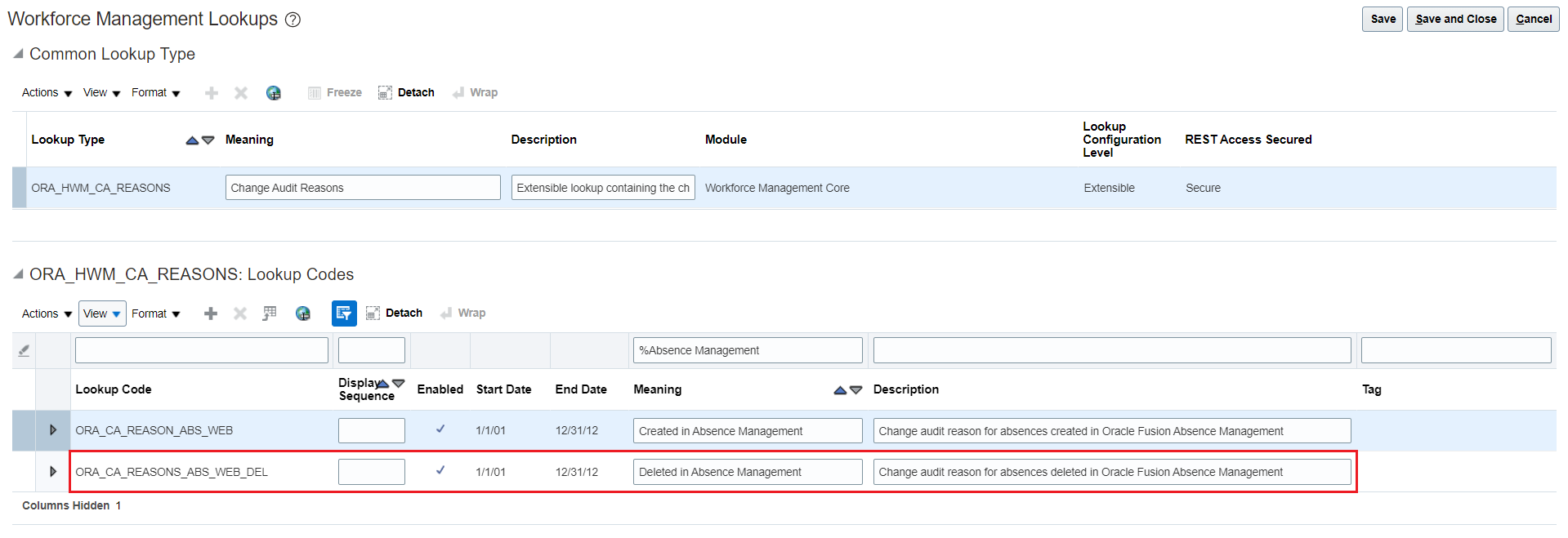
New Delivered Lookup Code to Identify Absences Deleted in Absence Management
Also, when people enter reasons for time entry changes and view audited entries on the responsive time card pages, the entries display the start and stop times or quantity.
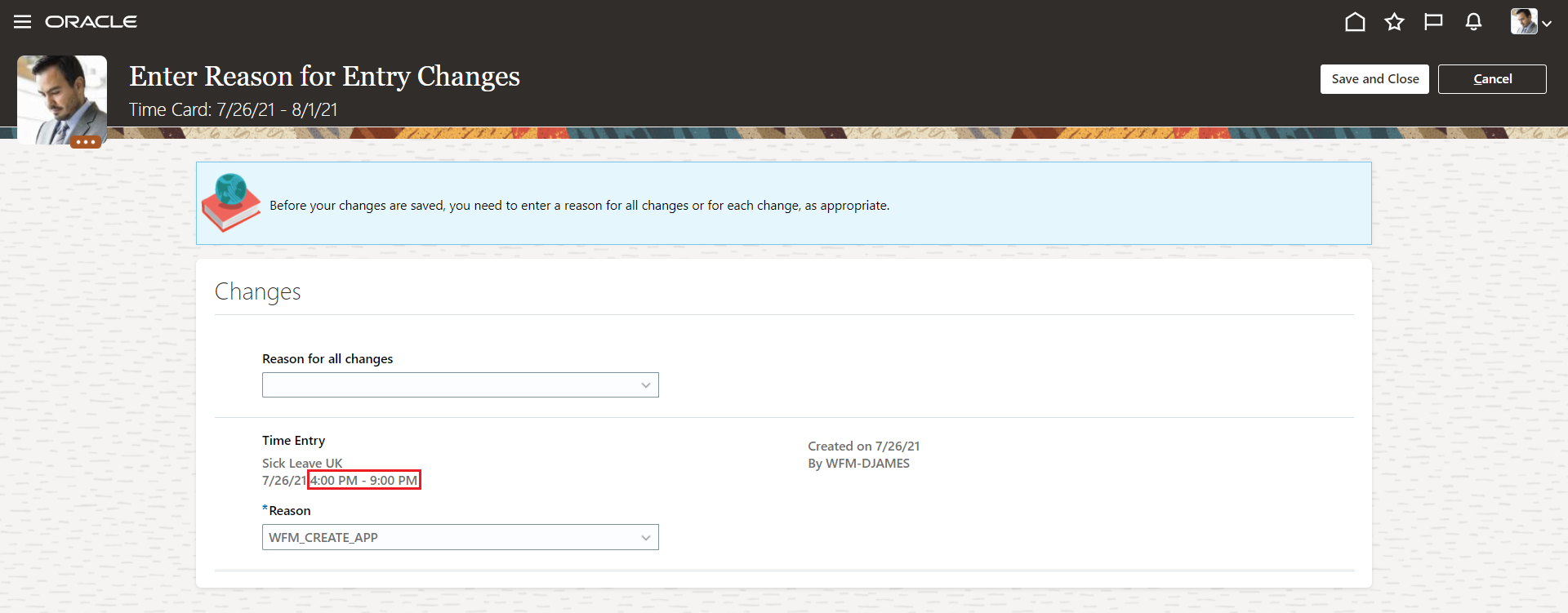
Responsive Enter Reason for Entry Changes Page Showing the Start and Stop Times of the Absence Entry
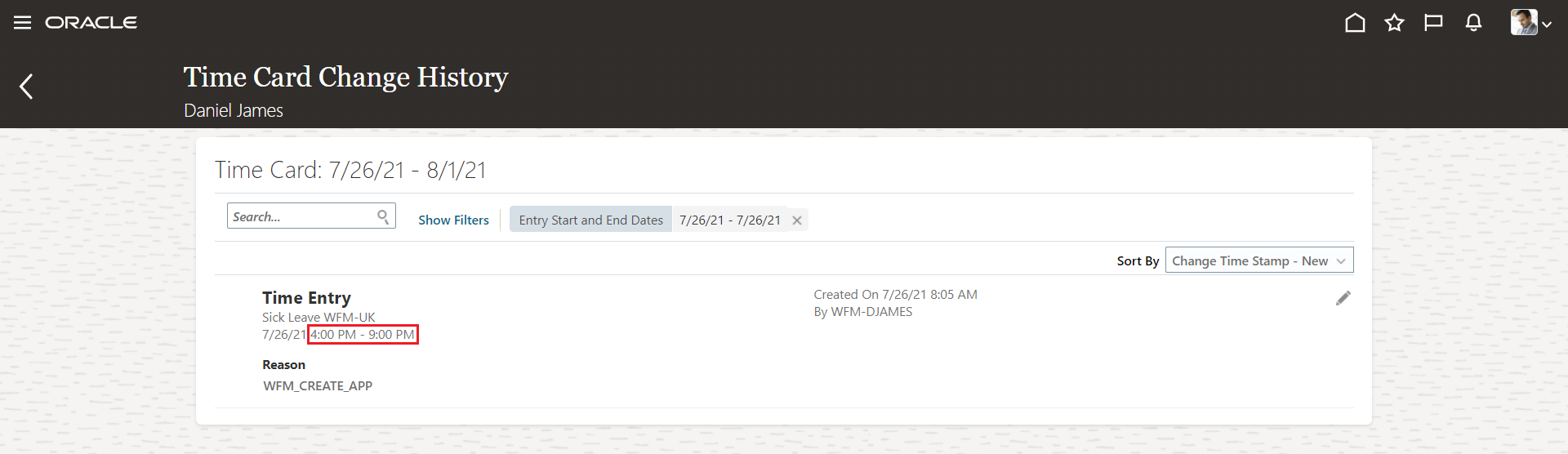
Responsive Time Card Change History Page Showing the Start and Stop Times of the Absence Entry
How the absence audit information shows on the Time Card Change History page after reprocessing with the Evaluate Absences process depends on the Override daily duration option of the absence type.
-
When the option is disabled, change history keeps the previous audit rows and adds rows for any deleted and created entries. For example, Daniel submitted a sick leave absence from the Add Absence page for Friday, 23 July from 4:00p to 9:00p to correspond to his scheduled shift. Later, his manager changed his shift to be from 6:00p to 9:00p and published the new schedule. To reflect that change in the approved absence, the administrator runs the Evaluate Absences process to reprocess the affected absence entry. The process deletes the original 5-hour entry and creates a 3-hour entry to replace it.
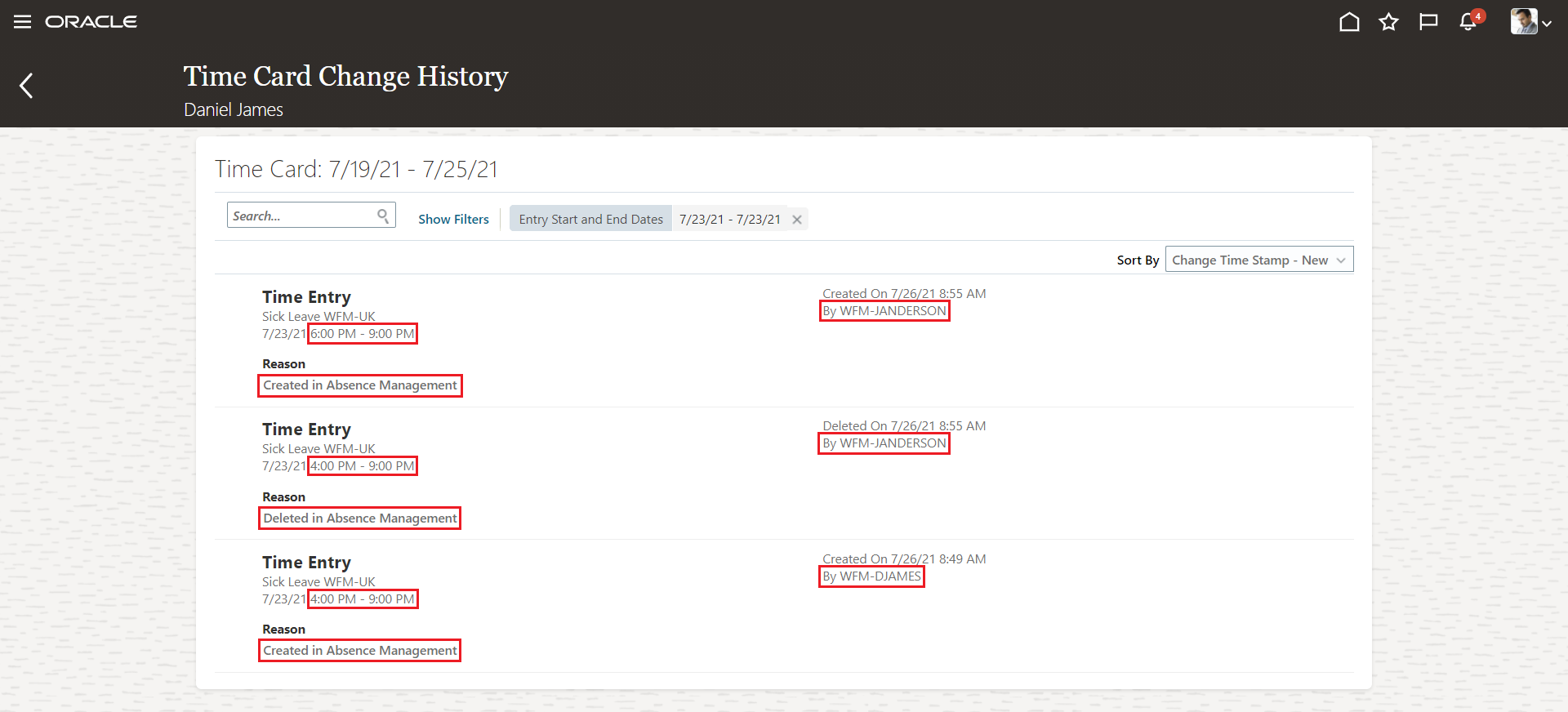
Time Card Change History Page with the Original Submitted Absence Entry and the Post Reprocessing Deletion and Creation Entries, All with Start and Stop Times
The Time Card Change History page would have the same deletion and creation audit rows after the absence is reprocessed if it was submitted from the time card and not the Add Absence page.
If the schedule was updated and the absence doesn't overlap the scheduled shift any more, the Time Card Change History page would have only a deletion audit row after the absence reprocessing.
-
When the option is enabled, the Time Card Change History page is the same as when it is disabled--when the absence was submitted from the Add Absence page. If it was submitted from the time card, the post reprocessing audit rows won't exist. And, the absence entry duration is now greater than the corresponding shift duration.
This enhancement improves productivity by giving people the information they need to more quickly resolve discrepancies in absence balances.
Steps to Enable
Complete these tasks in the Setup and Maintenance work area to enable change auditing of time cards. Use the Workforce Deployment offering, Time and Labor functional area.
-
Add the change audit reasons that support your time policies to the ORA_HWM_CA_REASONS lookup type using the Workforce Management Lookups task.

-
Select the time card fields that enable people to identify a time entry that changed using the Time Layout Sets task. For example, on one set of layouts, the Job and Pay Type fields together uniquely identify time entries.
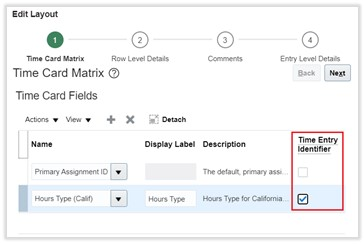
Time Entry Identifier on the Time Entry Layout
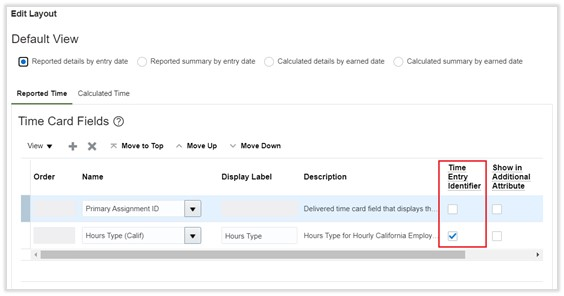
Time Entry Identifier on the Responsive Page Layout
-
Enable the appropriate change audit options using the Worker Time Processing Profiles task.

HCM Experience Design Studio for Time and Labor
You can configure the fields to show and hide, for display only, on time cards and team schedules. This way, you can show frequently used fields and hide the fields people don't use as much.
These are the basic details parameters you can configure on team time cards and existing time cards.
| Attribute | Default Value |
|---|---|
| Role | All |
| Business Unit | All |
| Legal Employer | All |
These are the read-only fields you can configure on team time cards screen after you select the Time Cards action and Team Time Cards region.
| Attribute | Visible by Default |
|---|---|
| Person Number | Yes |
| Total Hours | Yes |
| Scheduled Hours | Yes |
| Absence Hours | Yes |
| Submission Date | Yes |
| Manager | Yes |
| Job | No |
| Location | No |
| Position | No |
| Department | No |
These are the read-only fields you can configure on existing time cards after you select the Time Cards action and Worker Time Cards region.
| Attribute | Visible by Default |
|---|---|
| Status | Yes |
| Total Hours | Yes |
| Absence Hours | Yes |
This is the field you can configure on time cards after you select the Time Cards action and Worker Time Cards region.
| Attribute | Visible by Default |
|---|---|
| Overtime Period | No |
These are the read-only fields you can configure on the worker team schedule after you select the Worker Team Schedule action and Team Schedule region.
| Attribute | Visible by Default |
|---|---|
| Person Number | No |
| Assignment Number | Yes |
| Business Title | No |
| Job | Yes |
| Scheduled Work | Yes |
| Manager | No |
| Location | No |
| Position | No |
| Department | No |
| Full Time or Part Time | No |
| Length of service | No |
| Hire date | No |
| Worker Type | No |
| Publish Date | No |
These are the read-only fields you can configure for the shift info accessible from the worker team schedule after you select the Worker Team Schedule action and Info region.
| Attribute | Visible by Default | Comments |
|---|---|---|
| Assignment | Yes | |
| Code | No | |
| Employee | Yes | |
| Name | Yes | |
| Type | No | |
| Earned Date | Yes | We recommend that you keep this field displayed if you have workers who work overnight. With this field, you can see the day that the shift is referring to. Also, if line managers create shifts with fixed start and end times in the shift properties, they use the earned date to move the shift from one day to another. |
| Start Date and Time | Conditionally | Displayed for time shift. |
| End Date and Time | Conditionally | Displayed for time shift. |
| Time Worked | Yes | |
| Duration | Conditionally | Displayed for elapsed shift. |
| Time Not Worked | Yes | |
| Entry Source | No | |
| Owner | No | |
| Last Updated Date | No | |
| Publish Date | No | |
| Time Attributes | No |
These are the read-only fields you can configure on the manager team schedule after you select the Manager Team Schedule action and Team Schedule region.
| Attribute | Visible by Default |
|---|---|
| Person Number | No |
| Assignment Number | Yes |
| Business Title | No |
| Job | Yes |
| Scheduled Work | Yes |
| Manager | No |
| Location | No |
| Position | No |
| Department | No |
| Full Time or Part Time | No |
| Length of service | No |
| Hire date | No |
| Worker Type | No |
| Publish Date | No |
These are the read-only fields you can configure for the shift info accessible from the manager team schedule after you select the Manager Team Schedule action and Info region.
| Attribute | Visible by Default | Comments |
|---|---|---|
| Assignment | Yes | |
| Code | No | |
| Employee | Yes | |
| Name | Yes | |
| Type | No | |
| Earned Date | Yes | We recommend that you keep this field displayed if you have workers who work overnight. With this field, you can see the day that the shift is referring to. Also, if line managers create shifts with fixed start and end times in the shift properties, they use the earned date to move the shift from one day to another. |
| Start Date and Time | Conditionally | Displayed for time shift. |
| End Date and Time | Conditionally | Displayed for time shift. |
| Time Worked | Yes | |
| Duration | Conditionally | Displayed for elapsed shift. |
| Time Not Worked | Yes | |
| Entry Source | No | |
| Owner | No | |
| Last Updated Date | No | |
| Publish Date | No | |
| Time Attributes | No |
These are the read-only fields you can configure on the manager team schedule after you select the Time and Labor Manager Team Schedule action and Team Schedule region.
| Attribute | Visible by Default |
|---|---|
| Person Number | No |
| Assignment Number | Yes |
| Business Title | No |
| Job | Yes |
| Scheduled Work | Yes |
| Manager | No |
| Location | No |
| Position | No |
| Department | No |
| Full Time or Part Time | No |
| Length of service | No |
| Hire date | No |
| Worker Type | No |
| Publish Date | No |
These are the read-only fields you can configure for the shift info accessible from the manager team schedule after you select the Time and Labor Manager Team Schedule action and Info region.
| Attribute | Visible by Default | Comments |
|---|---|---|
| Assignment | Yes | |
| Code | No | |
| Employee | Yes | |
| Name | Yes | |
| Type | No | |
| Earned Date | Yes | We recommend that you keep this field displayed if you have workers who work overnight. With this field, you can see the day that the shift is referring to. Also, if line managers create shifts with fixed start and end times in the shift properties, they use the earned date to move the shift from one day to another. |
| Start Date and Time | Conditionally | Displayed for time shift. |
| End Date and Time | Conditionally | Displayed for time shift. |
| Time Worked | Yes | |
| Duration | Conditionally | Displayed for elapsed shift. |
| Time Not Worked | Yes | |
| Entry Source | No | |
| Owner | No | |
| Last Updated Date | No | |
| Publish Date | No | |
| Time Attributes | No |
These enhancements improve productivity by ensuring that team schedules and time cards display only relevant informational fields.
Steps to Enable
You don't need to do anything to enable this feature.
Team Schedule Self-Service Pages Enhancements
As a line manager or time and labor manager, you can now view multiple assignments on your responsive team schedule.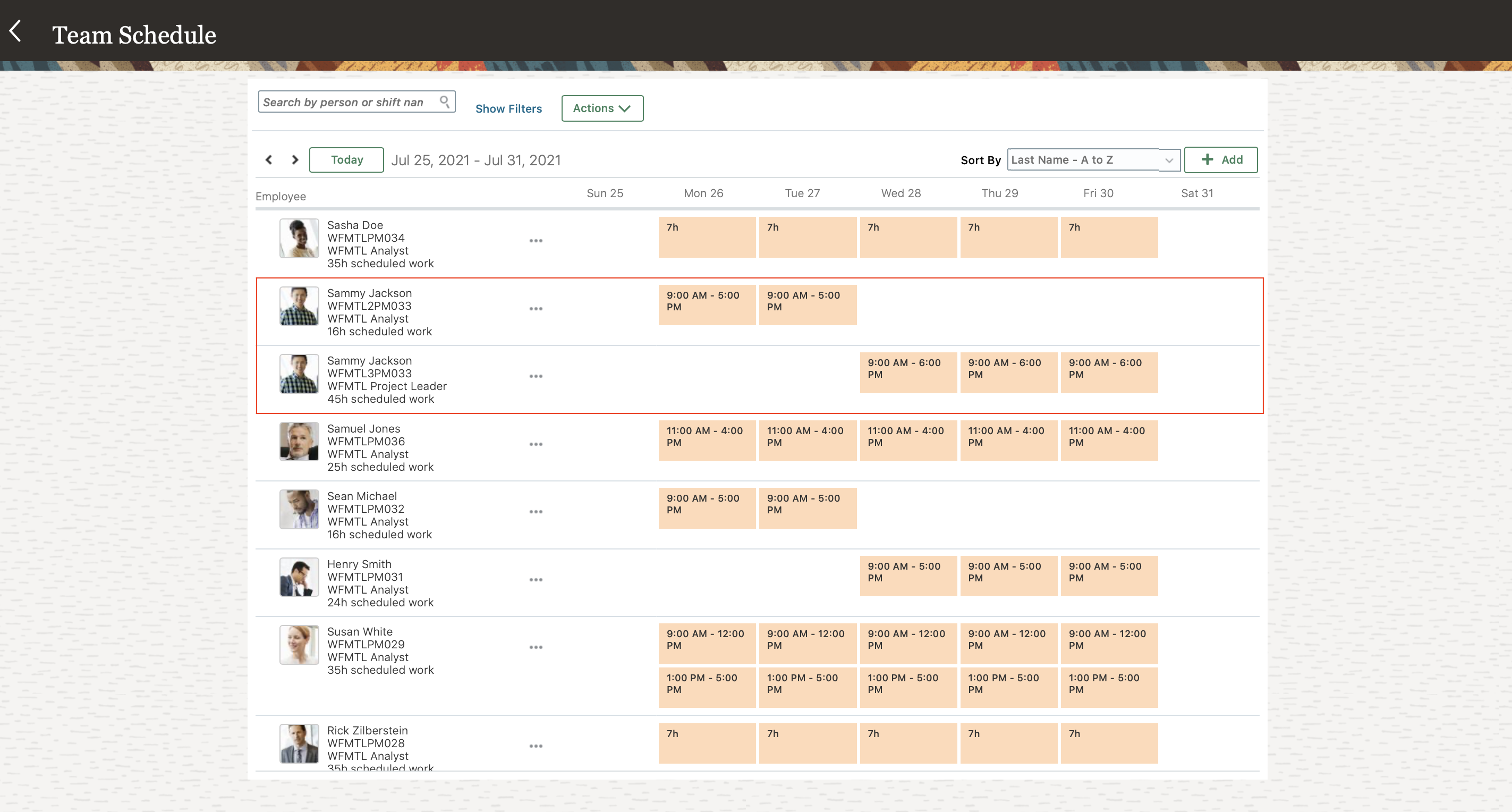
Responsive Team Schedule Showing Shifts for Multiple Assignments
You can also edit shifts for people with multiple assignments on your responsive team schedule. First select the person you're creating the shift for. This exposes the Assignment field where you can select the appropriate assignment for the shift.

Edit Shift Page Showing the Assignments Choice List for the Selected Employee
A new Assignment filter on manager Team Schedule pages lets you see only primary assignments.
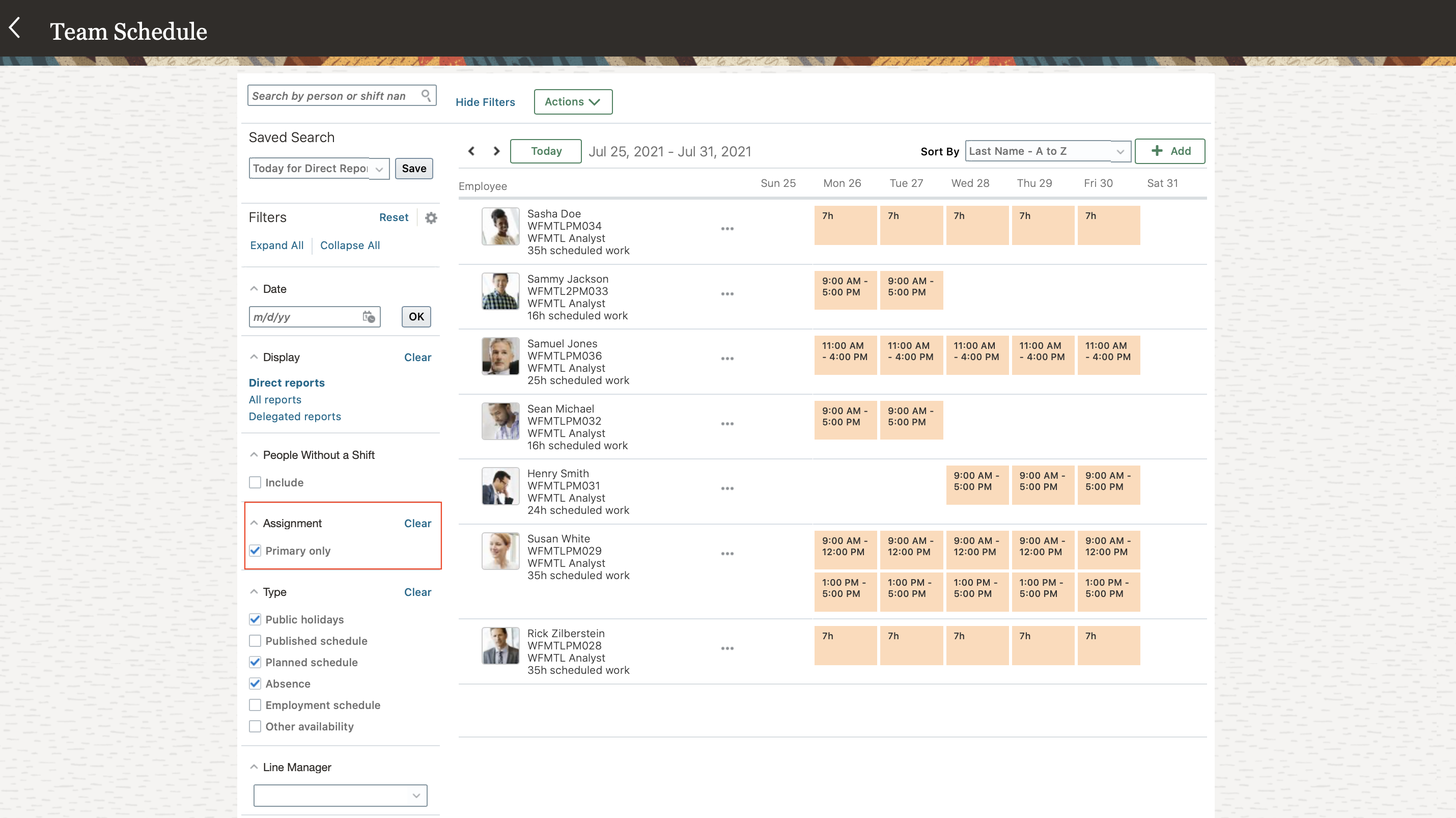
Manager Team Schedule Showing the New Assignment Filter with Primary Only Selected
Team Schedule pages for individuals lets them see the multiple assignments for themselves and their peers. A new filter lets them see their peers for a specific line manager.
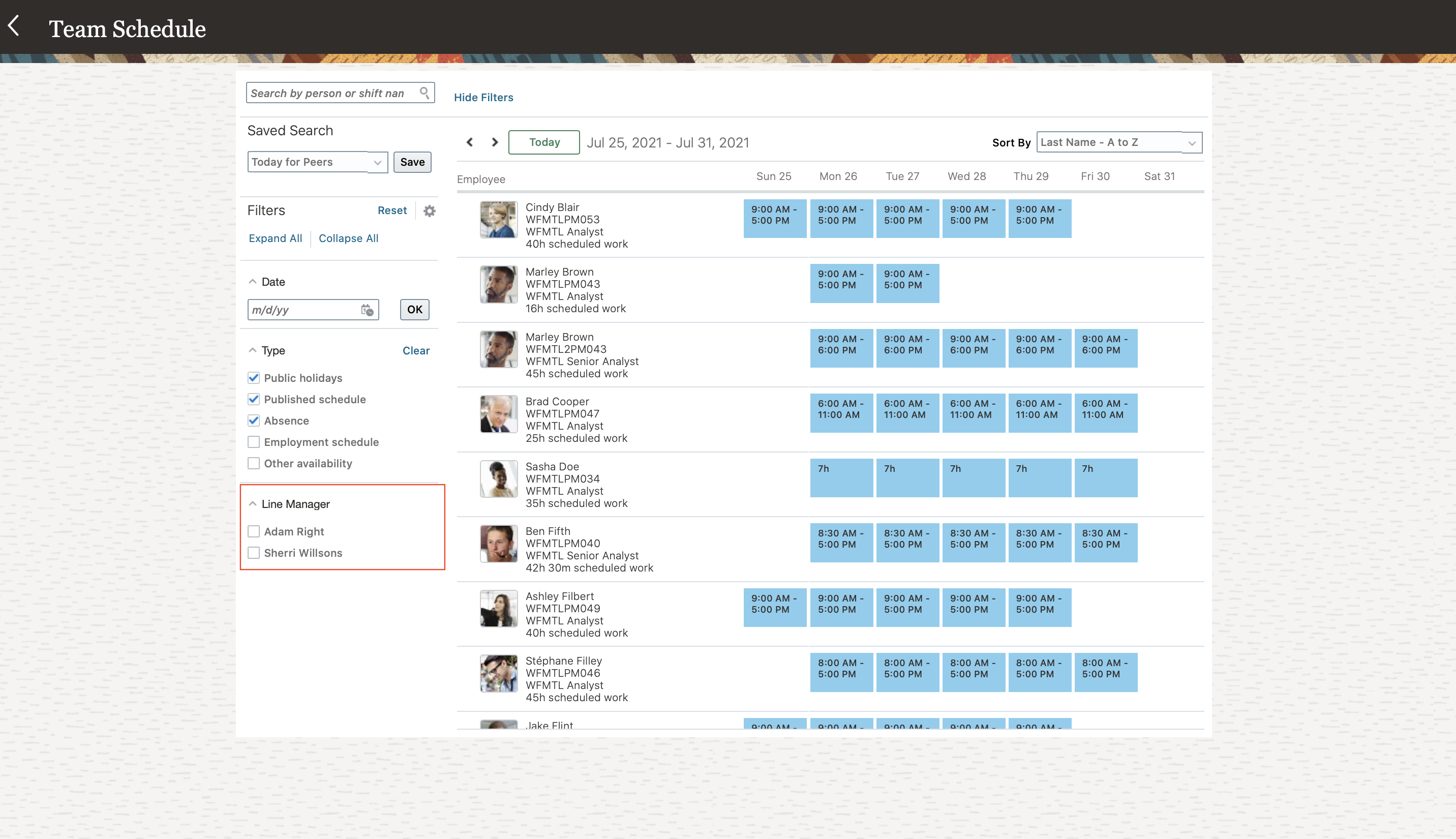
Individual Team Schedule Showing the New Line Manager Filter
You can also view multiple assignments on classic planned and published schedule pages in the Time Management work area.

Planned Schedule Page Showing Shifts for an Individual's Different Assignments
And you can edit shifts for someone with multiple assignments on classic planned schedule. In the Resource field, select the appropriate assignment.
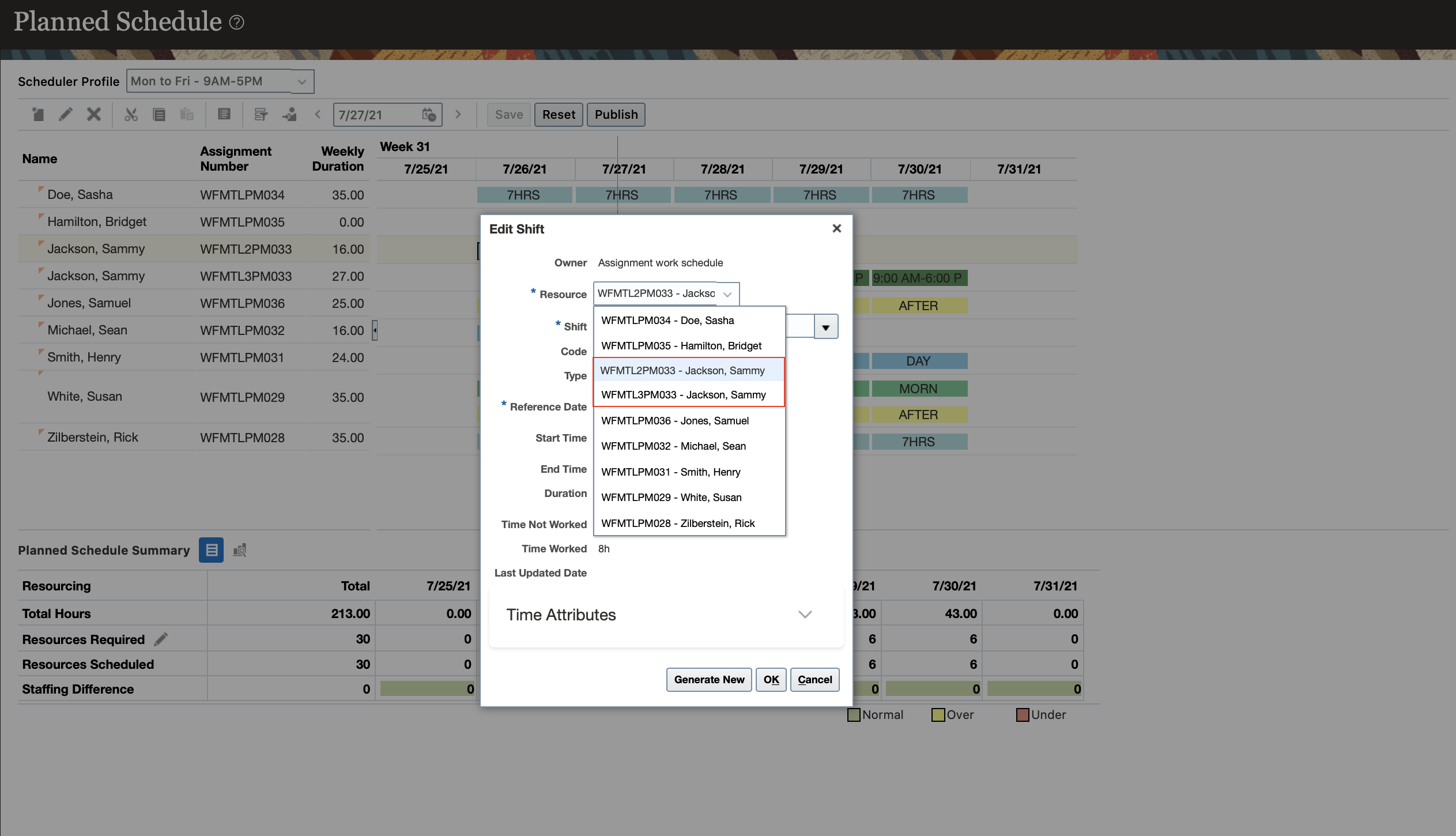
Edit Shift Dialog Box Showing the Resource Choice List with Separate Options for Each of an Individual's Multiple Assignments
You can also use a new toolbar icon on the classic planned and published schedule pages to see only primary assignments.
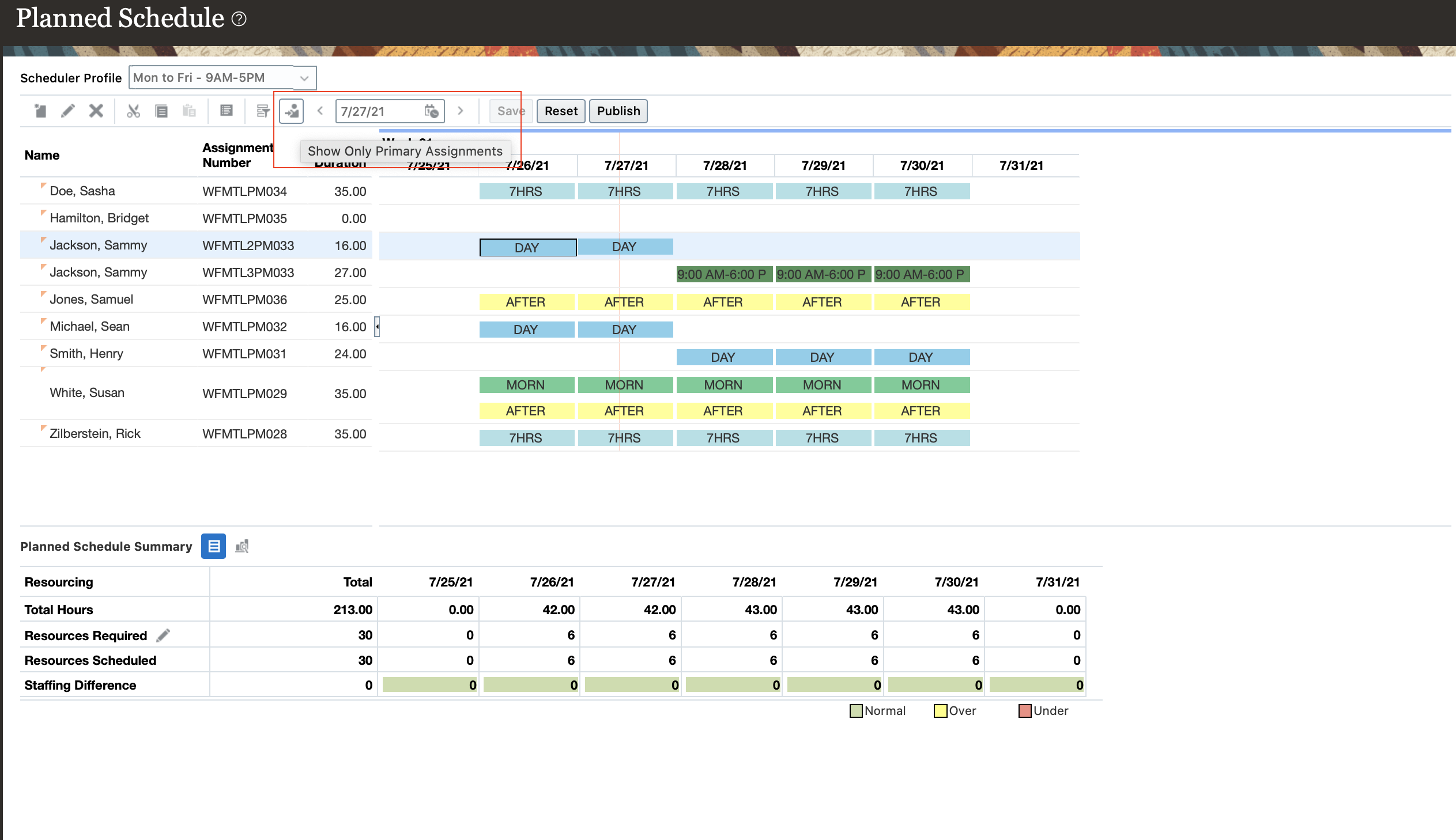
Planned Schedule Page with the Show Only Primary Assignments Icon Highlighted and the Schedule Still Showing Multiple Assignments

Planned Schedule Page After Clicking the Show Only Primary Assignments Icon and the Schedule Showing Only the Primary Assignments
These enhancements improve productivity by letting managers schedule appropriate shifts for people with multiple assignments. They also let individuals quickly find the schedules for relevant peers when they need to swap shifts or ensure coverage when asking for personal time off.
Steps to Enable
To enable multiple assignments on classic planned and published schedules and responsive team schedules, you must enable the following profile options.
| Field | Value |
|---|---|
| Profile Option Code | ORA_HTS_MULTIPLE_ASSIGNMENTS_ENABLED |
To enable the profile option, complete these steps in the Setup and Maintenance work area:
- Search for and click the Manage Administrator Profile Values task.
- Search for and select the profile option.
- In the Profile Value section, click the Add icon.
- Set the Level to Site.
- In the Profile Value field, enter Y.
- Click Save and Close.

Enabled ORA_HTS_MULTIPLE_ASSIGNMENTS_ENABLED Profile Option
Oracle Time and Payroll Reconciliation Extract
You can now more easily reconcile worked time with paid time by extracting a data file that includes people’s hours reported in Oracle Fusion Time and Labor Cloud Service versus Oracle Fusion Global Payroll Cloud Service.
A difference of 0 signifies that the hours are reconciled, while a negative difference signifies that some hours weren't transferred to Payroll. Time cards that cross the current payroll period are included in the extract. You can also include old time cards that were retroactively adjusted during the current period. Additionally, you can see people who are required to submit time cards, but are missing them. The following data are extracted:
| Person and Assignment Details (first row) | Time Card and Calculation Card Details (second row) |
|---|---|
| Legal Employer Name | Time Card Start Date |
| Business Unit Name | Time Card End Date |
| Employee Name | Time Card Status |
| Person Number | Transfer to Payroll Status |
| Assignment Number | OTL Hours |
| Business Title | OTL Hours in Payroll |
| Time Card Required (Y/N) | OTL Hours Difference |
| Manager Name | |
| Location Name | |
| Department Name |
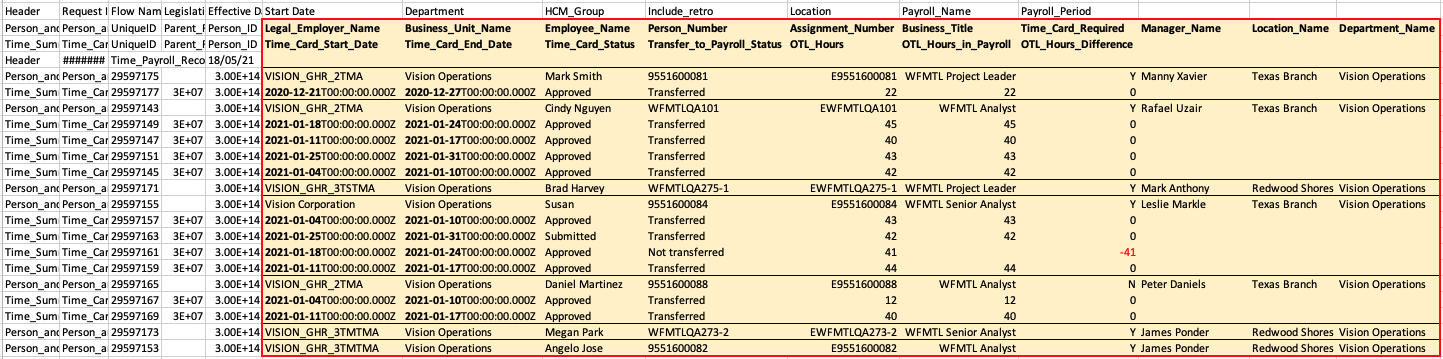
Example of an Extract for the Monthly Payroll Period of January 2021; Color Formatting Was Added for Illustrative Purposes
In the example above, people have weekly time cards. All of Cindy's time cards are reconciled. One of Susan's time cards didn't transfer to payroll, so she's missing 41 hours in payroll for the week of January 18-24, 2021. Mark retroactively adjusted an old time card for the week of December 21-27, 2020. Brad, Megan, and Angelo need to submit time cards, but are missing them, so they have no time card and calculation card details. Lastly, Daniel doesn't have to submit time cards, but submitted time cards for exceptions, so you see those exception time cards for him.
This enhancement improves productivity and accuracy by reconciling data between Time and Labor and Payroll to ensure that people are correctly paid for the time they worked. It also reduces the time and administrative burden of having to manually create custom reports from scratch.
Steps to Enable
- At the end of the payroll period, run the Load Time Card Batches process to transfer approved time entries to Payroll. Additionally, if applicable to your organization, run the Prepare Unapproved Time Entries for Payroll Transfer process to transfer unapproved time entries to Payroll.
- Open the My Client Groups > Data Exchange > HCM Extracts > Submit Extracts page and search for Time and Payroll Info for Reconciliation.

- Select your extract criteria and submit the instance. Note that the Payroll Name, Payroll Period, and Retroactive Update parameters are required fields. If you select Yes for retroactive updates, then the extract includes old time cards that were modified after the payroll period start date you selected.

-
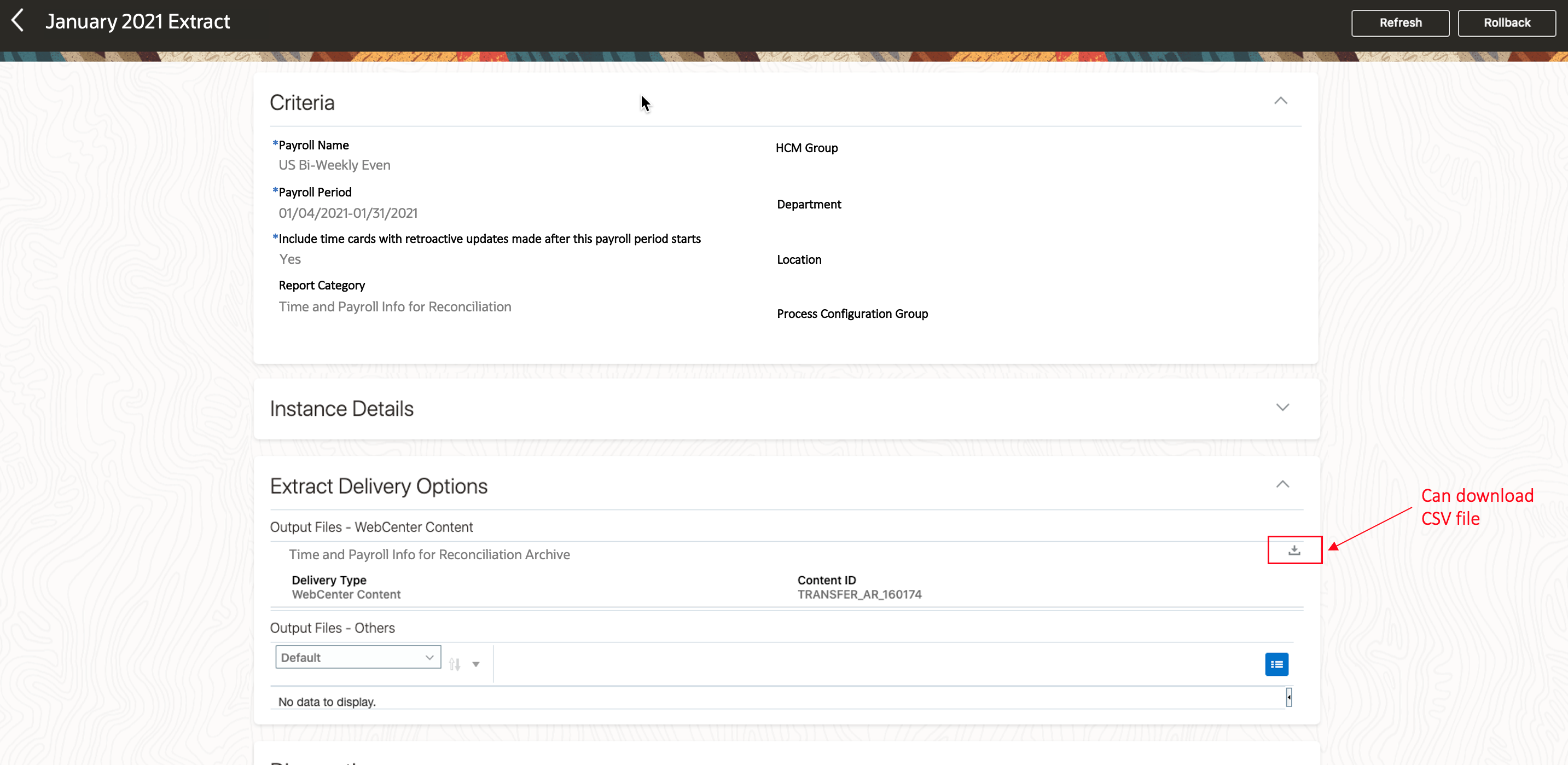
Open the View Extract Results page and under Extract Delivery Options, download the extract as a CSV file.
Tips And Considerations
Here's how you can open the CSV file in Microsoft Excel and view the data in appropriate columns:
- In Microsoft Excel, click column A to highlight the entire first column.
- On the Data tab, select Text to Columns.
- Select the Delimited option.
- Click Next.
- Under Delimiters, check Comma.
- Click Next.
- Under Column data format, select the General option.
- Click Finish.
You can load the data in this extract output to Oracle Analytics Cloud Service (requires additional purchase) for additional data visualization, ad-hoc analysis, and reporting capabilities.
The Oracle Absences and Payroll Info for Reconciliation extract will be available in a future release.
Transactional Business Intelligence for Time and Labor
Oracle Transactional Business Intelligence is a real time, self-service reporting solution offered to all Oracle Cloud application users to create ad hoc reports and analyze them for daily decision-making. Oracle Transactional Business Intelligence provides human resources managers and specialists, business executives, and line managers the critical workforce information to analyze workforce costs, staffing, compensation, performance management, talent management, succession planning, and employee benefits.
Don’t want to start from scratch building a report or analytics? Check out the library of sample reports for all products on Customer Connect on the Report Sharing Center.
Oracle Transactional Business Intelligence is a real time, self-service reporting solution offered to all Oracle Cloud application users to create ad hoc reports and analyze them for daily decision-making. Oracle Transactional Business Intelligence provides human resources managers and specialists, business executives, and line managers the critical workforce information to analyze workforce costs, staffing, compensation, performance management, talent management, succession planning, and employee benefits.
Don’t want to start from scratch building a report or analytics? Check out the library of sample reports for all products on Customer Connect on the Report Sharing Center.
Project Award Attributes in Time and Labor Subject Areas
The time entries that include the additional project award (contract) attributes is now added to the existing Workforce Management subject areas.
| Existing Subject Area |
Existing Folder |
New Attributes |
|---|---|---|
| Workforce Management - Change Audit Reported Time Cards Real Time |
Change Audit Time Entry Details |
|
| Workforce Management - Historical Processed Time Cards Real Time |
Historical Processed Time Entry Details Historical Reported Time Entry Details |
|
| Workforce Management - Historical Reported Time Cards Real Time |
Historical Reported Time Entry Details |
|
| Workforce Management - Processed Time Cards Real Time |
Processed Time Entry Details Reported Time Entry Details |
|
| Workforce Management - Reported Time Cards Real Time |
Reported Time Entry Details |
|
| Workforce Management - Time Change Requests Real Time |
Change Request Time Entry Details |
|
| Workforce Management - Worker Compliance Results Real Time |
Reported Time Entry Details |
With this enhancement you can report on all of the project attributes available on someone's time card.
Steps to Enable
You don't need to do anything to enable this feature.
IMPORTANT Actions and Considerations for Time & Labor
REPLACED OR REMOVED FEATURES
From time to time, Oracle replaces existing Cloud service features with new features or removes existing features. When a feature is replaced the older version may be removed immediately or at a future time. As a best practice, you should use the newer version of a replaced feature as soon as the newer version is available.
| Product | Removed Feature | Target Removal | Replacement Feature | Replaced In | Additional Information |
|---|---|---|---|---|---|
| Time & Labor |
Removal of Work Day Definition Rules and Enhancement of the Start Day Rule |
21B | N/A |
N/A |
_________________________
KNOWN ISSUES / MONTHLY AND STATUTORY MAINTENANCE PACK
Oracle publishes a Known Issues document for every Update to make customers are aware of potential problems they could run into and the document provides workarounds if they are available.
Oracle also publishes Maintenance Pack and Statutory Maintenance Pack documentation of bugs that are fixed in the monthly or statutory patching.
To review these documents you must have access to My Oracle Support:
Oracle Human Capital Management Cloud Functional Known Issues and Maintenance Packs (Document ID 1554838.1)