
This document will continue to evolve as existing sections change and new information is added. All updates appear in the following table:
| Date | Product | Feature | Notes |
|---|---|---|---|
| 14 JUL 2022 | Created initial document. |
 HAVE AN IDEA?
We’re here and we’re listening. If you have a suggestion on how to make our cloud services even better then go ahead and tell us. There are several ways to submit your ideas, for example, through the Ideas Lab on Oracle Customer Connect. Wherever you see this icon after the feature name it means we delivered one of your ideas.
GIVE US FEEDBACK
We welcome your comments and suggestions to improve the content. Please send us your feedback at omcdocumentation_ca@oracle.com.
DISCLAIMER
The information contained in this document may include statements about Oracle’s product development plans. Many factors can materially affect Oracle’s product development plans and the nature and timing of future product releases. Accordingly, this Information is provided to you solely for information only, is not a commitment to deliver any material, code, or functionality, and should not be relied upon in making purchasing decisions. The development, release, and timing of any features or functionality described remains at the sole discretion of Oracle.
This information may not be incorporated into any contractual agreement with Oracle or its subsidiaries or affiliates. Oracle specifically disclaims any liability with respect to this information. Refer to the Legal Notices and Terms of Use for further information.
Column Definitions:
Report = New or modified, Oracle-delivered, ready to run reports.
UI or Process-Based: Small Scale = These UI or process-based features are typically comprised of minor field, validation, or program changes. Therefore, the potential impact to users is minimal.
UI or Process-Based: Larger Scale* = These UI or process-based features have more complex designs. Therefore, the potential impact to users is higher.
Features Delivered Disabled = Action is needed BEFORE these features can be used by END USERS. These features are delivered disabled and you choose if and when to enable them. For example, a) new or expanded BI subject areas need to first be incorporated into reports, b) Integration is required to utilize new web services, or c) features must be assigned to user roles before they can be accessed.
| Ready for Use by End Users Reports plus Small Scale UI or Process-Based new features will have minimal user impact after an update. Therefore, customer acceptance testing should focus on the Larger Scale UI or Process-Based* new features. |
Customer Must Take Action before Use by End Users Not disruptive as action is required to make these features ready to use. As you selectively choose to leverage, you set your test and roll out timing. |
|||||
|---|---|---|---|---|---|---|
| Feature |
Report |
UI or |
UI or |
|
||
Token Format for Personalization Attributes in Message Live View |
||||||
Administration comprises all features accessible through Settings. All users can access Settings to administer their own user profiles. Instance Administrators can use Settings to view and manage their organization's configurations.
You can set up conversion tracking to track conversions on your web site and associate them to campaigns of origin.
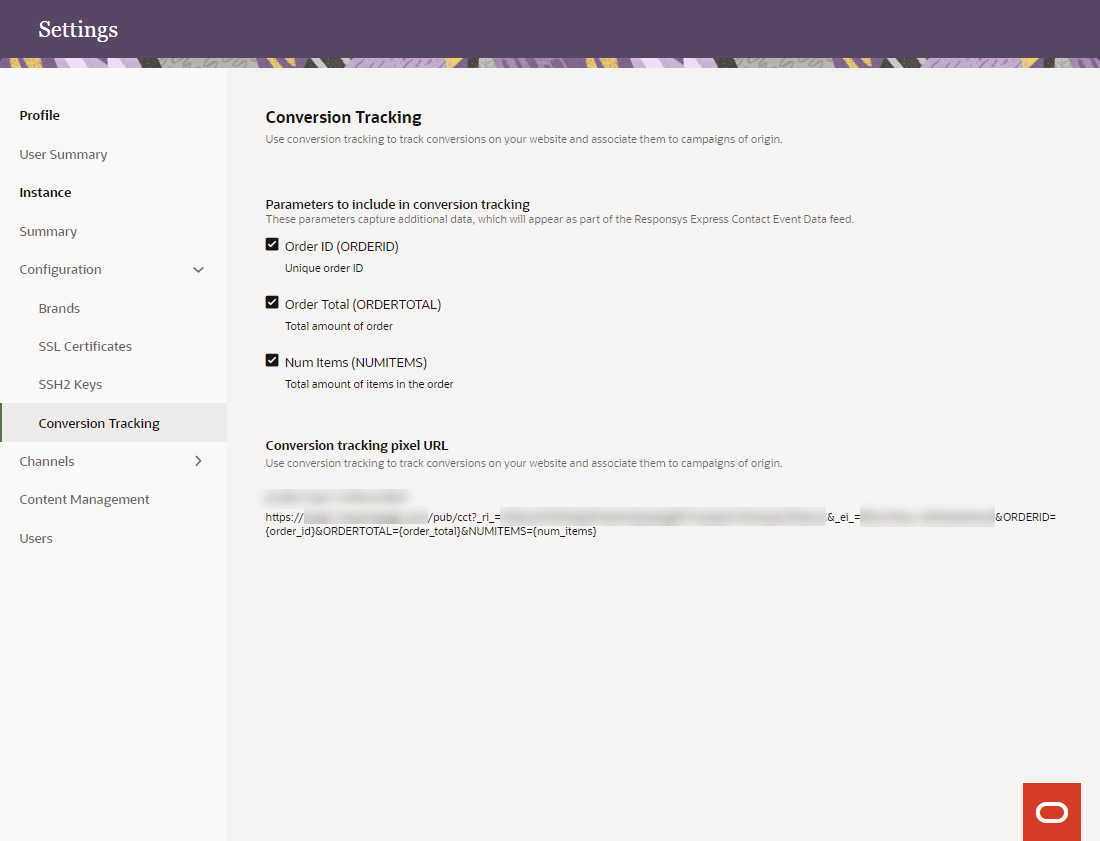
Conversion Tracking Settings Page in Oracle Responsys Express
Conversion tracking allows you to evaluate how effective your campaign is in driving a particular post-clickthrough action (such as making a purchase). With this feature you can monitor and report on the success of a campaign (with link tracking enabled) based on its resulting conversions.
A typical conversion occurs after a contact receives your email message and takes some desired action (purchases an advertised product, signs up for a newsletter or a training class, pledges for a charity, and so on) as requested in your originating campaign message.
Steps to Enable
You don't need to do anything to enable this feature.
Tips And Considerations
- To access the Conversion Tracking page and obtain the conversion tracking pixel URL to add to your conversion acknowledgement web page, go to Settings > Configuration > Conversion Tracking.
- Campaign Analysis Performance reports generated by Oracle Responsys Express include metrics for Revenue and Average Order Size. To leverage this functionality, select the Order ID, Order Total, and Num Items (total number of items in the order) parameters to include them in the conversion URL as variables.
- Additional setup is required to implement conversion tracking for your campaigns. You must copy the conversion tracking pixel URL and add it to a conversion acknowledgment page on your web site (for example, a "Thank you for your purchase" page) that displays after the contact performs the requested action. If you use additional parameters, you must configure the URL such that it will dynamically include the actual values for the contacts who perform the action. To learn more, see the "Conversion Tracking" topic link in the Key Resources section below.
Key Resources
With Data Management, you can review, manage, and update your data model as needed. Use the Data Viewer to upload customer contacts and view customer contact data.
Data Model Enhancements for Lookup Data
For each lookup attribute group in Data Management, you can now specify which attributes comprise the unique identifier. You can also select attributes to be indexed.
- Unique Identifier: An attribute that defines the uniqueness of a record.
- Indexed: An indexed attribute can be used to search for a record and to personalize a message. You can index up to four non-unique attributes.

Lookup Attribute Group in Data Management
These enhancements enable you to retrieve and include lookup data in your messages.
Steps to Enable
You don't need to do anything to enable this feature.
Tips And Considerations
The following attributes are automatically indexed for each attribute group:
- The attribute you choose to be the Unique Identifier
- System-defined attributes CREATED_DATE and MODIFIED DATE
Attribute types that can be indexed are:
- Number field
- Integer Field
- Date (timestamp with indexing on the date itself)
- Short text field STR25
- Short text field STR50
- Short text field STR100
Key Resources
Use the Data Viewer to upload and view customer contact data. You can also create and manage proof groups and their data.
Using Data Viewer, you can now create proof groups for testing your messages and campaigns.
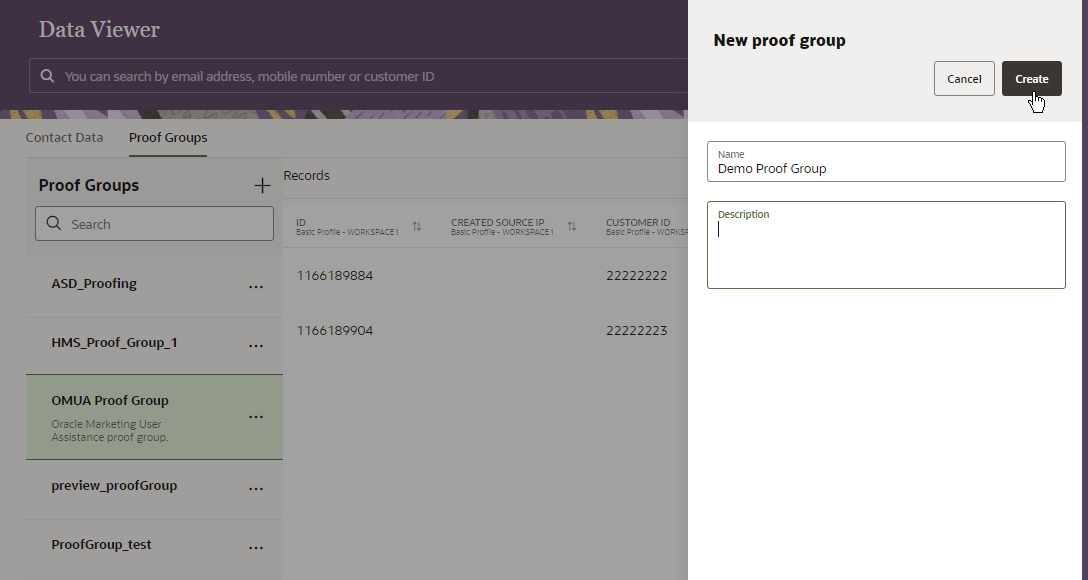
Creating a Proof Group
Proof groups provide a reusable group of test recipients, so that you can quickly select recipients to send a proof. Sending a proof lets you see how your message looks before you use it in a campaign. For example, you can validate that the variants and personalization attributes work as intended.
Steps to Enable
You don't need to do anything to enable this feature.
Tips And Considerations
- To create and view proof groups: Select Data Viewer from the Ask Oracle menu, and then click the Proof Groups tab.
- When you create a proof group, it uses the same data model as your Contact Data model.
- After you create a proof group, you can add records individually.
- Records in Proof Groups are kept separate from Contact Data records. A contact in a proof group does not have to exist in Contact Data.
- When you send a proof to the proof group, all applicable contacts in the proof group will receive email messages of the proof. Ensure that contacts you want to receive proofs have the EMAIL PERMISSION STATUS attribute in the Basic Profile attribute group set to I (Opt-In).
- You can customize the values of attributes and attribute groups for contacts in proof groups, so that you can test the personalization of your messages.
- Message personalization rules may affect which proof group recipients receive messages and which variants they see in the messages.
Key Resources
Developer Experience features help developers integrate their applications with Oracle Responsys Express.
The Responsys Express Application Programming Interface (API) and its documentation are now available. The API includes the following functionality:
Authentication: The Oracle Responsys Express API guide provides instructions for secure authentication to the API.
Campaigns: The campaign endpoints enable client applications to interact with a Responsys Express campaign resource, which includes creating and updating a campaign with a multi-stage canvas and providing an interface to manage a campaign's life cycle. Campaign endpoints include:
- List all campaigns
- Pause and resume a campaign
Messages: The message endpoints enable client applications to create, retrieve, update, and delete Responsys Express messages. Message endpoints include:
- List all messages
- Create a message
- Get a message by ID
- Update a message by ID
- Delete a message by ID
- Preview a message by ID
Message Polling: The message polling service provides polling for the result of an asynchronous API. When the API is processed, a unique request ID is returned to the user and based on that ID, client applications can poll for completion of the asynchronous operation using the Get message polling details by message ID endpoint.
Message Trigger: The merge trigger endpoints allow client applications to send messages to Responsys Express contacts by a specified channel in asynchronous mode. Before sending messages, the API can merge the contact using profile attributes. Message Trigger endpoints include:
- Send a message
- Get status of a message by message ID
You can now develop client applications that access Responsys Express programmatically.
Steps to Enable
Review the REST service definition in the REST API guides, available from the Oracle Help Center > your apps service area of interest > REST API. If you're new to Oracle's REST services you may want to begin with the Quick Start section.
IMPORTANT: Refer to the Key Resources section below for the direct link to the Oracle Responsys Express API guide.
Key Resources
Messages are the promotional and transactional content that you create to communicate with your customers.
IMPORTANT: Transactional messaging is available as an add-on that you can order for your instance. Please contact your account representative or Oracle Sales.
Content Blocks in Visual Editor
You can now create reusable content blocks using a visual editor, and you can use those blocks in messages that you create in visual editor.
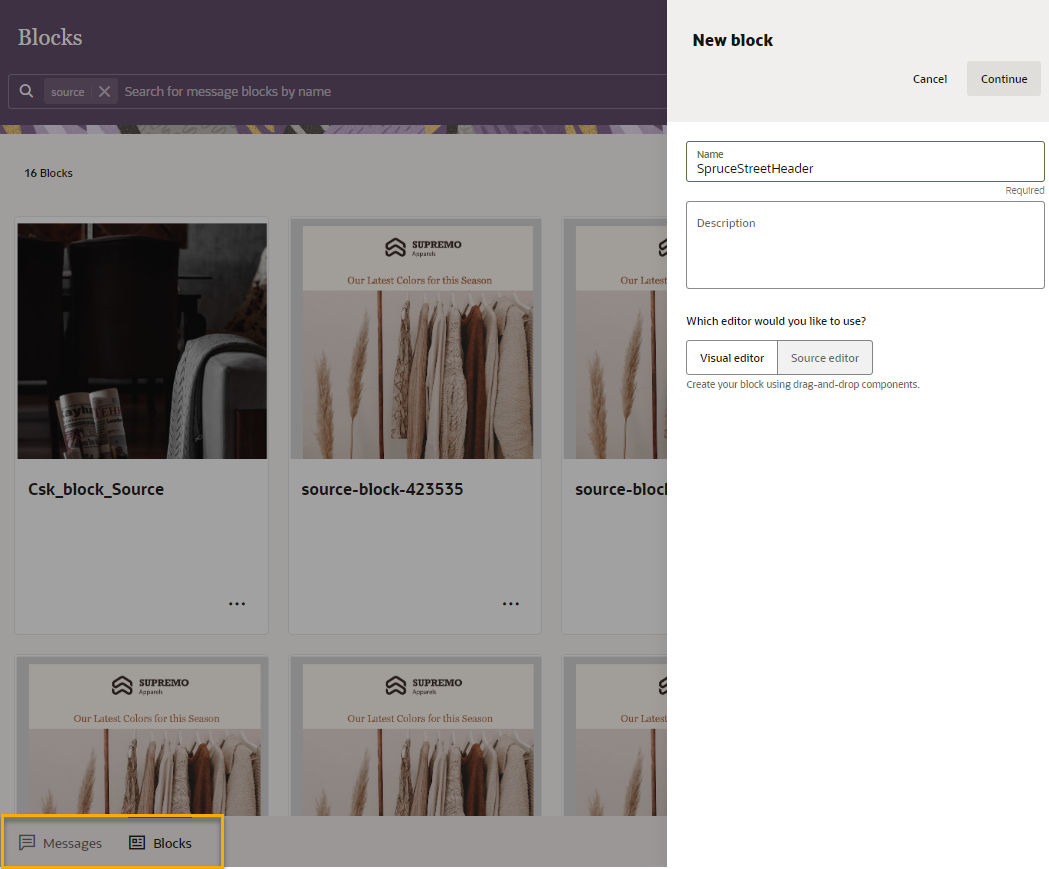
Creating a New Block Supports Visual Editor or Source Editor
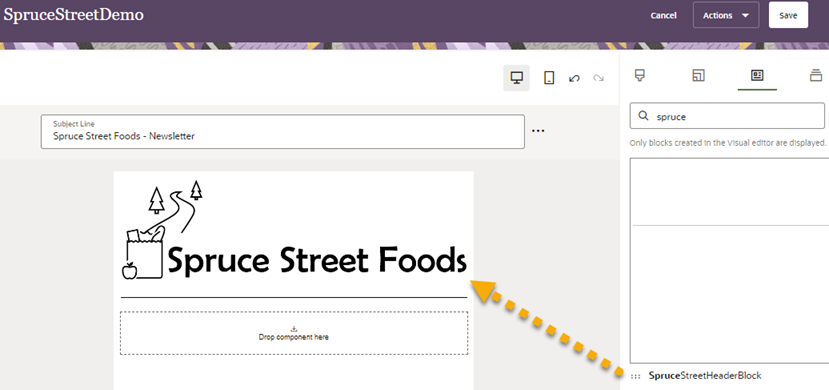
Using a Content Block in Visual Editor
This feature makes it easier for you to create appealing messages, whether displayed on desktop, mobile, or tablet - no coding required.
Steps to Enable
You don't need to do anything to enable this feature.
Key Resources
Lookup Attribute Support in Messages
You can use attributes from lookup attribute groups in messages.
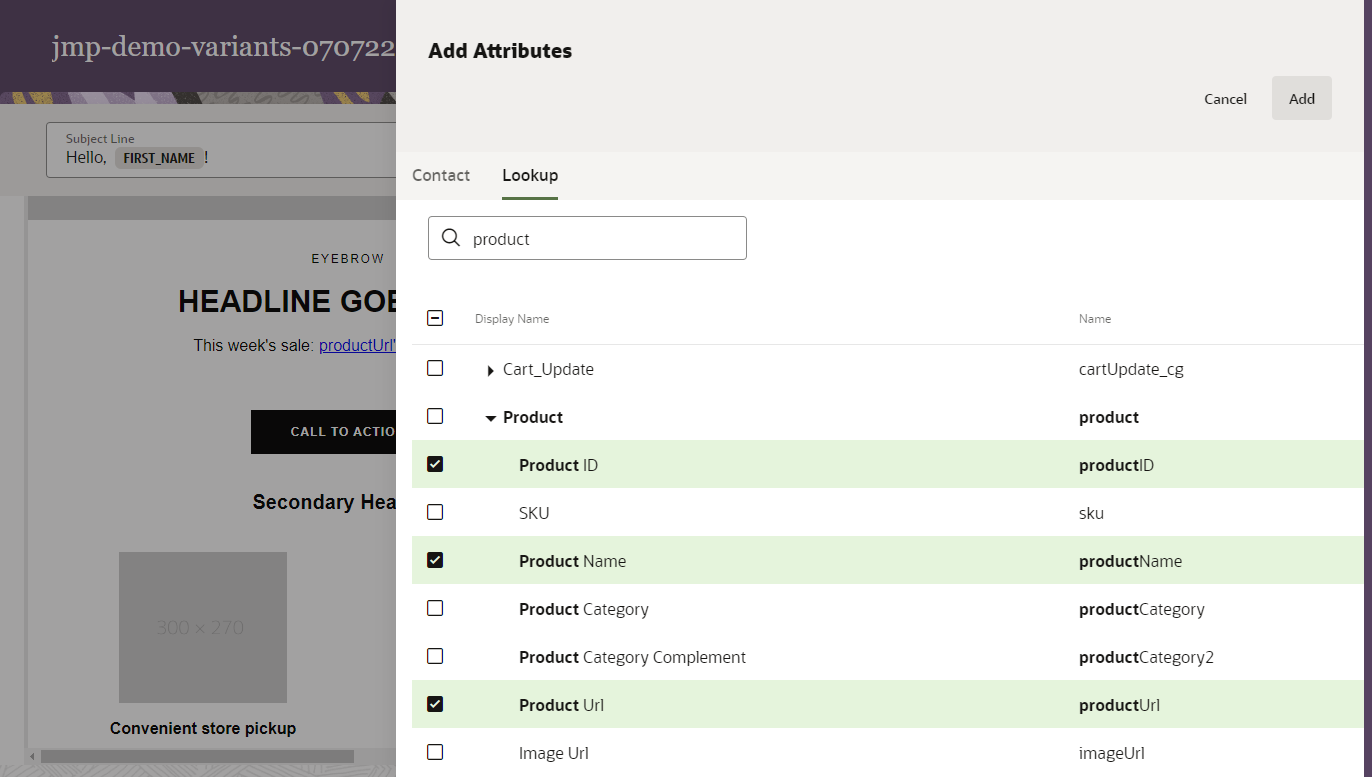
Adding Lookup Attributes to a Message
This enhancement enables you to use these attributes in Marketing Personalization Language (MPL) scripts in messages.
Steps to Enable
You don't need to do anything to enable this feature.
Tips And Considerations
- You must use Marketing Personalization Language (MPL) script to do the personalization.
- MPL scripting is supported only for messages using the Message Designer source editor.
- You can add attributes and view ones you have added by accessing the Manage Attributes panel, and then clicking Lookup.
Key Resources
Message Preview has two enhancements:
- You can use Proof Groups to preview messages.
- When previewing messages, you will now see the attributes used in the message.
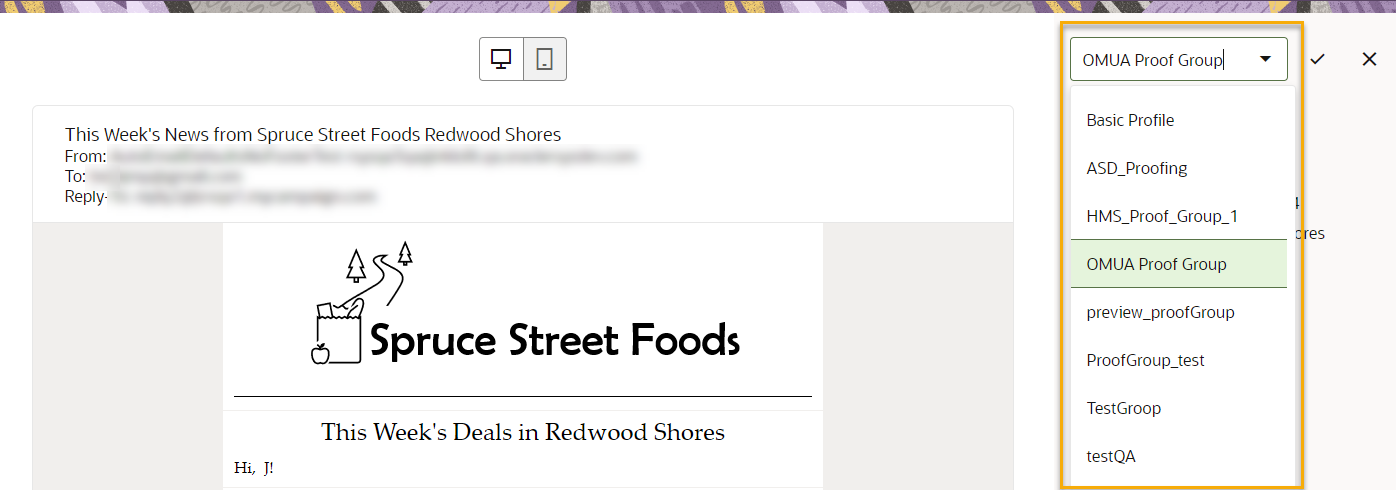
Selecting a Proof Group for Message Preview
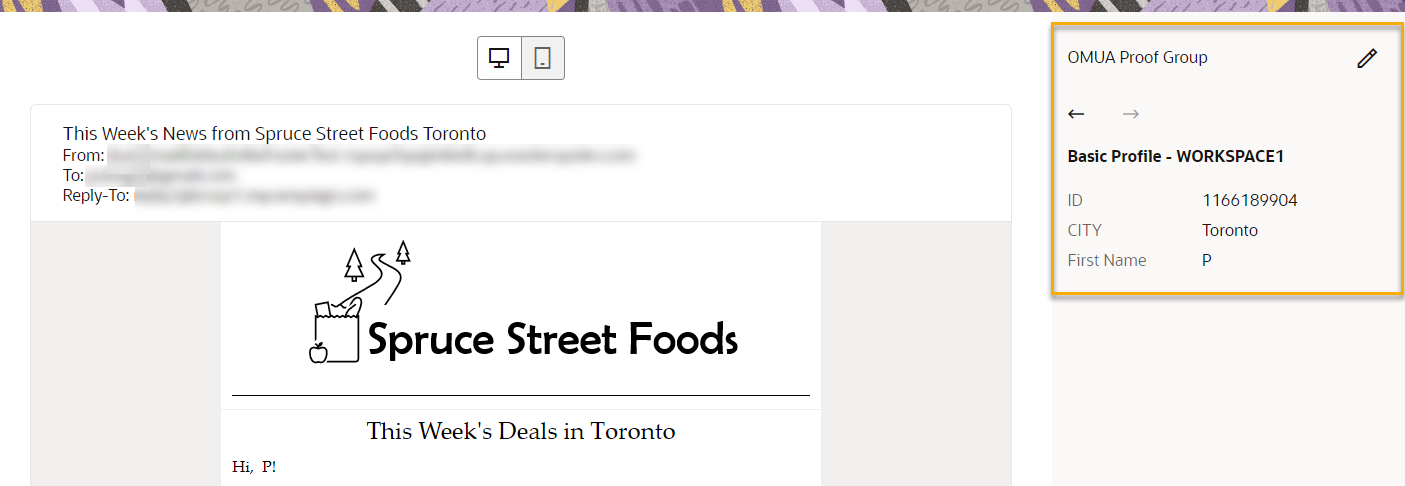
Message Preview Shows Attributes Used in Message
These enhancements make it easier for you to test and resolve issues with messages that include personalization and message variants.
Steps to Enable
You don't need to do anything to enable this feature.
Key Resources
The message variants user experience in Message Designer has the following enhancements:
-
The first step in creating message variants now combines naming the variant and defining who will see it, so that you can create a meaningful name for the variant more easily.
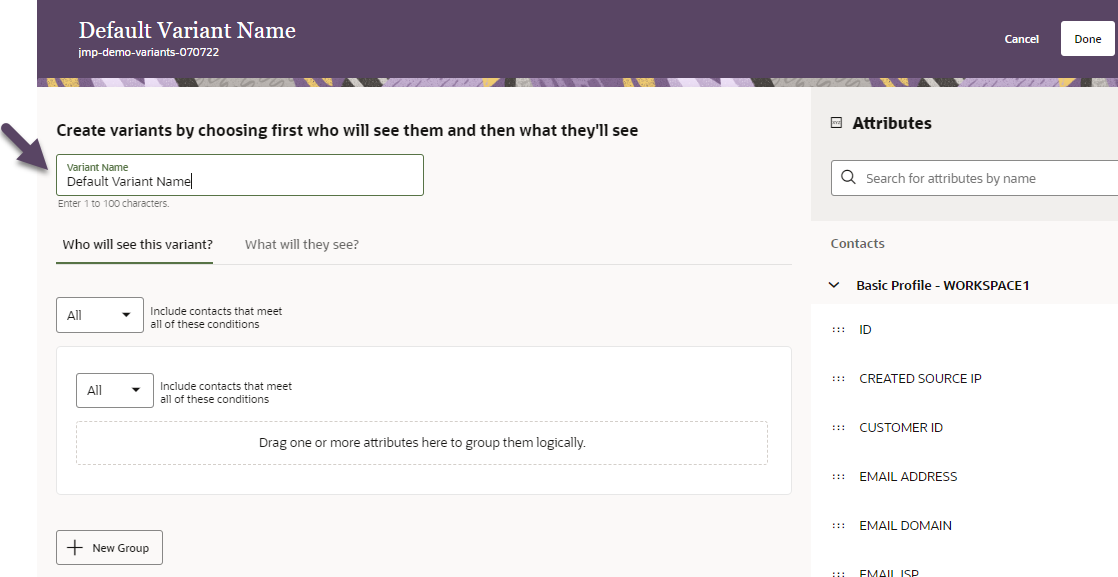
Updated Variants Editor
-
When a Subject Line or a message body region in the Message Designer visual editor has variants, a new set of controls lets you display the variants and navigate between them quickly.
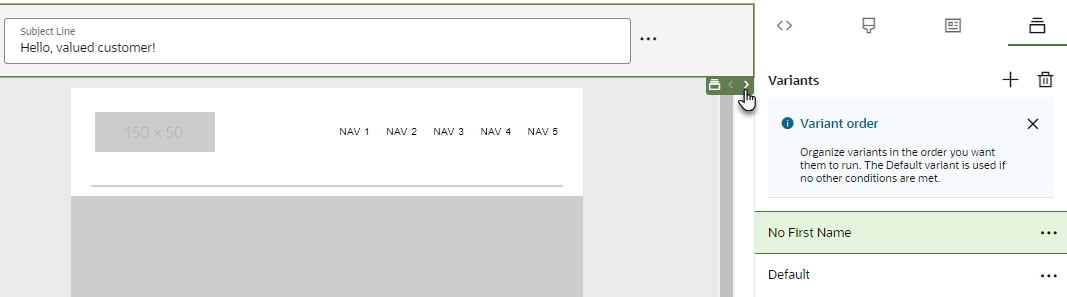
Variants Region Navigator
- The Conditional Variant Regions field shows you how many message variant regions are in the message. This field is available only for messages created with the Message Designer visual editor.
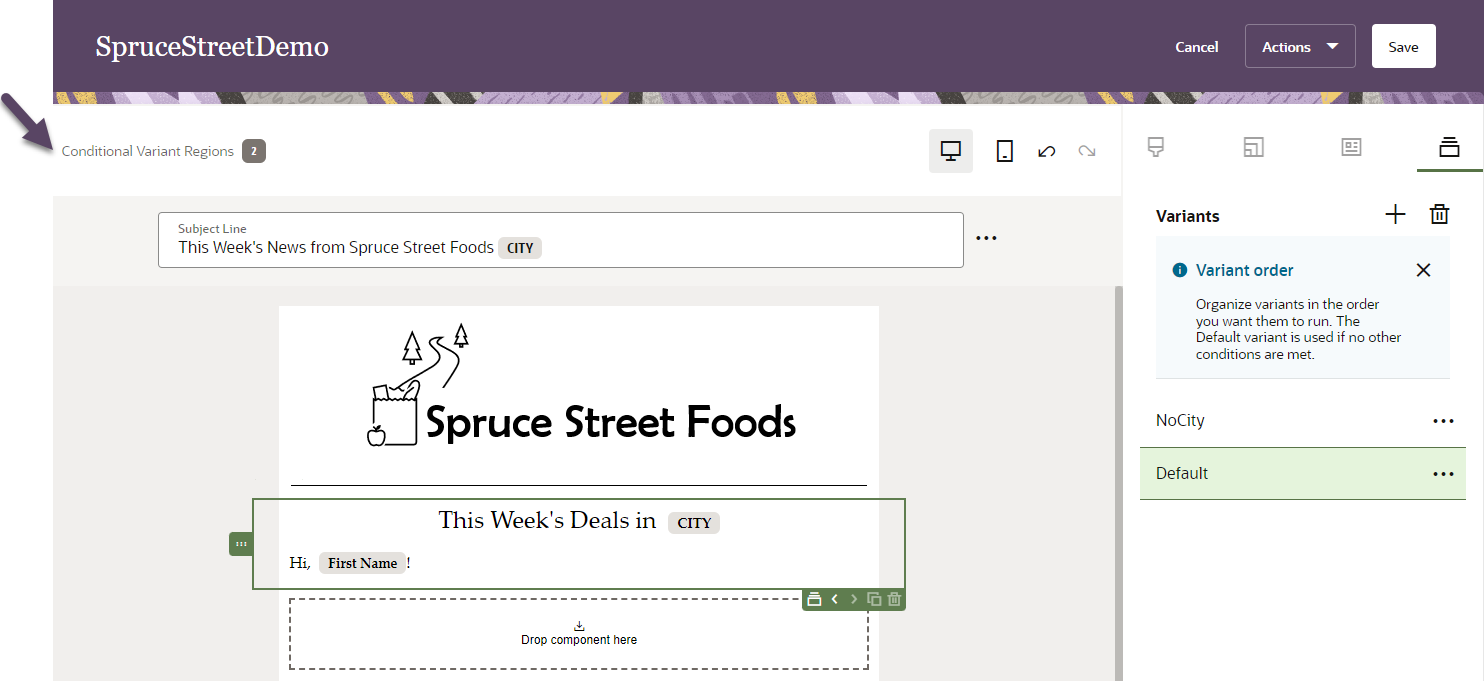
Conditional Variant Regions field (available only for messages created using the Message Designer visual editor)
These enhancements help you use message variants more effectively.
Steps to Enable
You don't need to do anything to enable this feature.
Key Resources
Message Variants in Visual Editor
Using the Message Designer visual editor, you can now create message variants for the following:
- Subject lines
- Message body regions
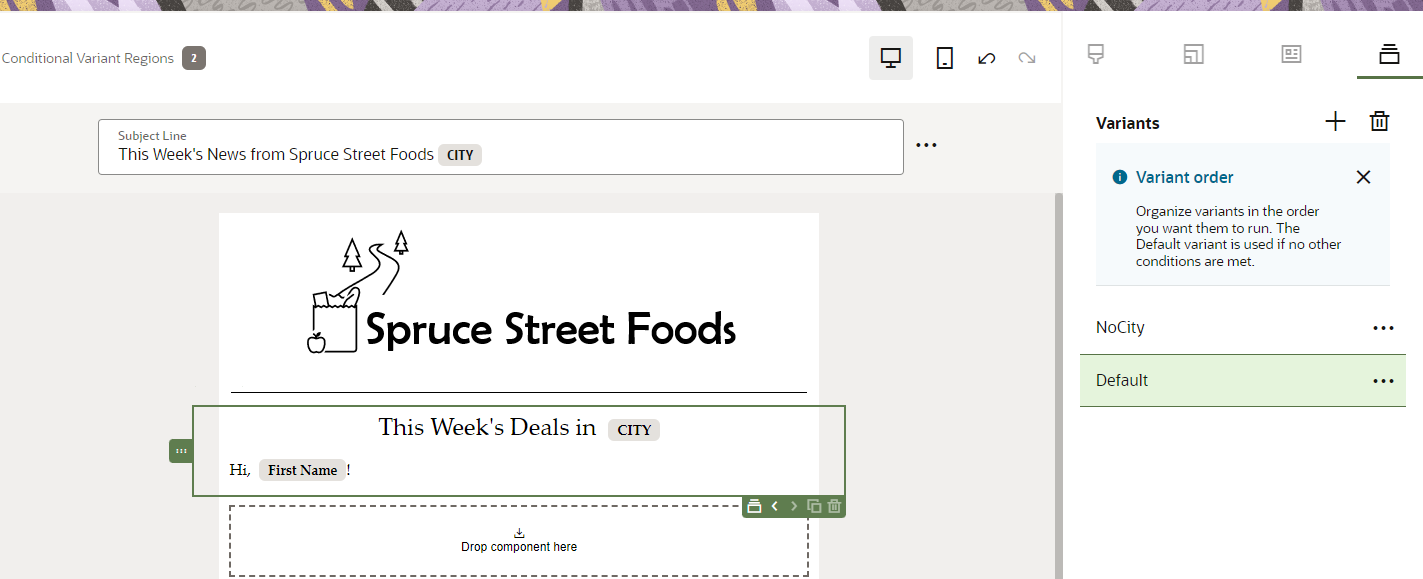
Variants in Message Designer Visual Editor
You can design a single message that is tailored to each recipient’s unique profile and related data, improving personalization and efficiency.
Steps to Enable
You don't need to do anything to enable this feature.
Key Resources
Send Proof from Message Designer
You can now send a proof of a message from Message Designer. This enables you to test the message or share it with internal contacts before using the message in campaigns.
- When you send a proof, you can send the message to contacts in a proof group that you set up in Data Viewer, or you can send all personalized messages to specific email addresses.
- You can use the debugging options to validate that your personalization rules are working as designed. Debugging options are only used when you send a proof, eliminating the chance that test content is accidentally sent to actual customers.
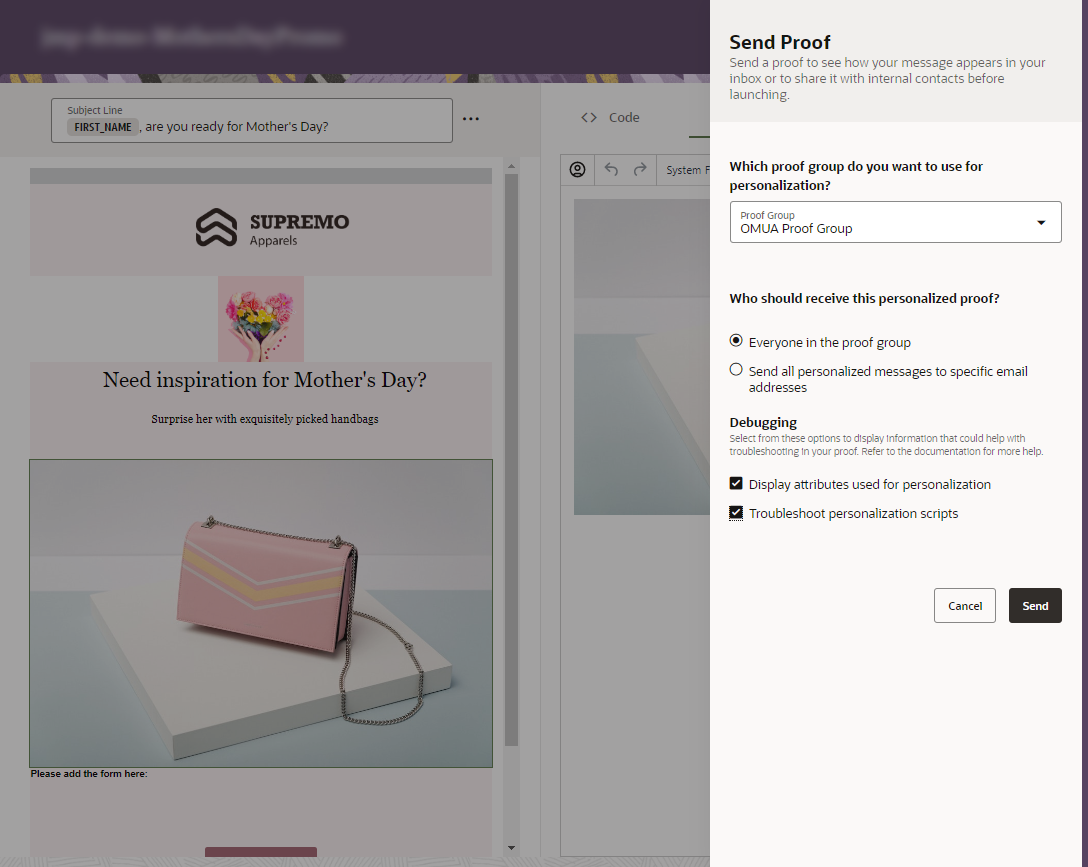
Sending a Proof Message from Message Designer
Testing your messages with proofs helps you identify and fix issues, so that your messages are ready for your customers to view when you use them in campaigns.
Steps to Enable
You don't need to do anything to enable this feature.
Tips And Considerations
- Proof groups enable you to have pre-defined and reusable groups for sending proofs. You can set up a proof group in Data Viewer.
- Before sending a proof, you can customize the values of attributes and attribute groups for contacts in the proof group that you plan to use for testing. Use values that will enable you to test variants and personalization in your messages.
- Before sending a proof, fix all errors or warnings in the message. Select Actions > Show errors and warnings to view them.
- To send a proof in Message Designer, select Actions > Send Proof and follow the instructions on the Send Proof panel.
Key Resources
Token Format for Personalization Attributes in Message Live View
In Message Designer source editor, when you add attributes to the code or rich text editor, they are shown in token format in the message live view on the left side of the page.
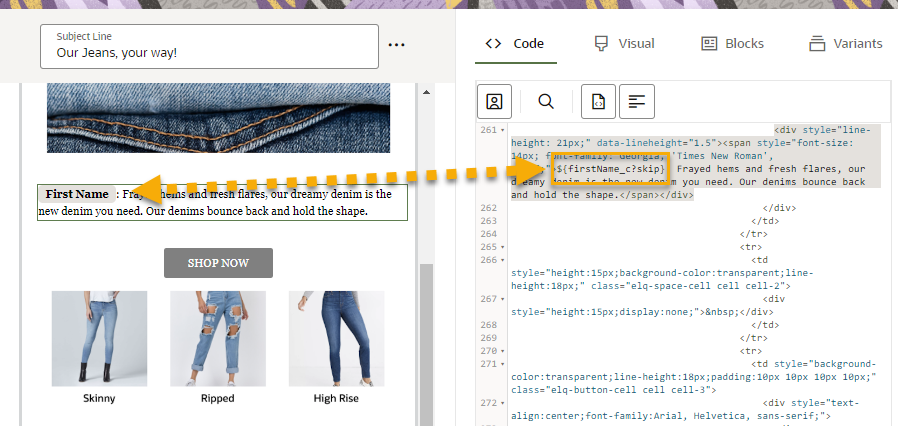
Personalization Attribute in Live View
Token format is a marketer-friendly view that makes it easier to see which attribute you are using for personalization. It also visually distinguishes personalization attributes from the surrounding content.
Steps to Enable
You don't need to do anything to enable this feature.
Key Resources