How-To Document
Build a Report Based on a Dynamic Query
Based on Oracle Application Express (formerly called HTML DB) version 1.5
After completing this How-To, you should be able to understand:
- How to create a report that's based on a dynamic query
Table of Contents
Introduction
In HTML DB a report is simply the formatted result of a SQL query. You can generate reports by:
- Selecting and running a built-in wizard
- Defining a report region based on a SQL query
- Defining a report region based on a PL/SQL function returning a SQL query
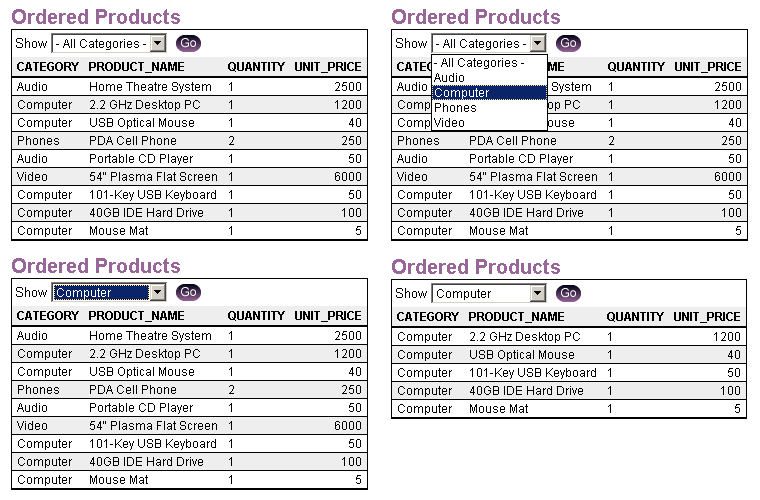
Certain applications require that report results are based on user input (see Figure 1). Typically, this requires a dynamic query which incorprates session state values. In this How To, we will create a report based on a PL/SQL function which generates a SQL Query at runtime.
Figure 1 - Ordered Products
Software Requirements
- Oracle HTML DB
- Web browser such as Netscape 7+ or Internet Explorer 5.5+
Create a Dynamic Query Report
We will extend Sample Application that is included when a new workspace is provisioned. To create a dynamic query report, follow these steps:
- In the 'Sample Application', create a Page as follows:
- navigate to the Application Builder
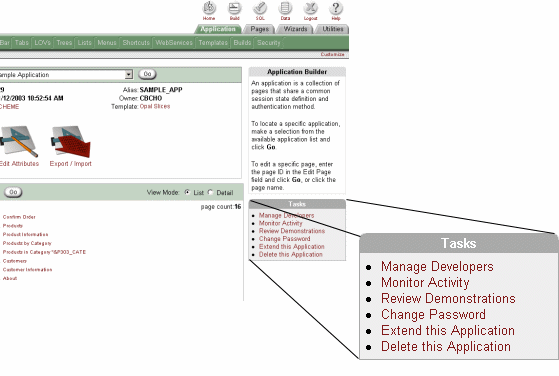
- click on Extend this Application link in the Tasks region
Figure 2 - Tasks
- select Extend this Application with a blank page
- Enter 600 as page number
- Enter 'Ordered Products' as the page name
- Select 'Do not use tabs' for the new page
- Click Finish to create the page
- Click Edit Page once you get to the success page
- Create a dynamic query report using the following steps:
- Navigate to the page definition for page 600
- Under Regions, click Create
- Choose Report as region type
- Choose PL/SQL Function Returning SQL Query as the report implementation type
- enter 'Ordered Products' as the region title and accept the default values for all other prompts
- Enter following PL/SQL function body:
declare q varchar2(4000); begin q:=' select p.category, '; q:=q||' p.product_name, '; q:=q||' i.quantity, '; q:=q||' i.unit_price '; q:=q||' from demo_product_info p, '; q:=q||' demo_order_items i '; q:=q||' where p.product_id = i.product_id '; if :p600_show != 'ALL' then q:=q||'and p.category = :p600_show'; end if; return q; end; - click the Create Region button to create the report
Add Item and Button
The PL/SQL function returning a SQL Query we are using above uses an page item. Follow these steps to create the page item:
- Under Items, click Create
- Enter P600_SHOW as item name, choose 'Select List' for Display As
- Enter '- All Categories-' as NULL text
- Enter 'ALL' as NULL value
- Enter the following List of Values Query:
select distinct category a, category b from demo_product_info order by 1 - Enter 'Show' as label
- Select 'Not Required Label' label template
- Click Create Item button to complete the creation of the item
For the report to be driven by the product category select list, we need to submit the page. To make this happen, we will add a button as follows:
- Under Buttons, click Create
- select Create a button displayed among this region's items
- enter P600_GO as button name
- enter 'themes/opal/go.gif' as the button image name
- click Create Button to complete the creation of this button
Now you can run the page, choosing different product categories to control the output of ths report. If you wish to enhance the look of the report, read the Customizing HTML DB Reports How To.
Additional Resources
Discuss this how-to in the OTN HTML DB Forum.