Tutorial: Build a Web Application (JSF) Using JPA
Version: 8/31/06 GlassFish: Version 2, Build 15
- Introduction
- JSR-220 Enterprise JavaBeans v3.0 Java Persistence API specification
- Ant
- Source Code:
- Example Source Code (
order-jsf-jpa-example.zip) - this is a completed version of the tutorial that you can build and deploy immediately. - Tutorial Source Code (
order-jsf-jpa-tutorial.zip) - this is the starting point for the tutorial. By the end of the tutorial, you will make this code match the example source code.
- Example Source Code (
- Relational Database:
You can use any modern, relational database. This tutorial assumes that you are using Oracle Database XE:
Use the JDBC driver recommended for your database.
For Oracle Database XE, JDBC drivers are located in
<ORACLE_HOME>\jdbc\lib.Note:
For an Oracle database, you may also need
<ORACLE_HOME>\lib\dms.jar. - Web Container:
You can use any Web container. This tutorial assumes that you are using one of the following Web containers:
- Install Ant
- Install the example and tutorial source files:
- Create a directory in which to unzip the example source files.
This is the
<EXAMPLE_HOME>directory. - Unzip the
order-jsf-jpa-example.zipfile to the<EXAMPLE_HOME>directory.This directory contains the completed tutorial source.
- Create a directory in which to unzip the tutorial source files.
This is the
<TUTORIAL_HOME>directory. - Unzip the
order-jsf-jpa-tutorial.zipfile to the<TUTORIAL_HOME>directory.This directory contains the stubbed tutorial source that you will complete in this tutorial.
For more information about the structure and content of the
<EXAMPLE_HOME>and<TUTORIAL_HOME>directories, see Understanding the Tutorial Source Files. - Create a directory in which to unzip the example source files.
- Install and setup your relational database:
- Installing Oracle Database XE - Linux
- Oracle Database XE - Windows
- Getting Started with Oracle Database XE
- Add your relational database JDBC driver to:
-
<EXAMPLE_HOME>\lib -
<TUTORIAL_HOME>\lib
-
- Install and setup your Web container:
- Installing and Setting Up Tomcat
Note:
Before starting OC4J, remove the
<ORACLE_HOME>/j2ee/home/lib/persistence.jar, if present. - Install TopLink JPA:
- Move the TopLink JPA installer JAR file to a temporary directory.
- Execute the TopLink JPA installer JAR file you downloaded by entering the following on the command line (you must use JDK 1.5):
- Scroll down to the end of the license agreement and click Accept.
- Add
toplink-essentials.jarandtoplink-essentials-agent.jarto:-
<EXAMPLE_HOME>\lib -
<TUTORIAL_HOME>\lib
-
java -jar glassfish-persistence-installer-X.X-bXX.jarThe installer un-packs the
README, license files, and the TopLink Essentials JAR files as follows:glassfish-persistence\README glassfish-persistence\3RD-PARTY-LICENSE.txt glassfish-persistence\toplink-essentials.jar glassfish-persistence\toplink-essentials-agent.jar glassfish-persistence\CDDLv1.0.txt - Validate your installation
- Edit the
<EXAMPLE_HOME>\persistence-unit\src\META-INF\persistence.xmlfile and set the following properties to match your relational database: -
<property name="toplink.jdbc.driver" value="<jdbc-driver>"/> <property name=" -
toplink.jdbc.url
" value="<jdbc-url>"/> <property name=" -
toplink.jdbc.password
" value="<jdbc-password>"/> <property name=" -
toplink.jdbc.user
" value="<jdbc-user>"/>
Where:
-
<jdbc-driver>is the name of your JDBC driver class. Example:oracle.jdbc.OracleDriver. -
<jdbc-url>is the JDBC connection URL to your database. Example:jdbc:oracle:thin:@myhost:l521:MYSID. -
<jdbc-password> is the JDBC password you use to connect to your database. Example:tiger. -
<jdbc-user>is the JDBC user name you use to connect to your databse. Example:scott
- Edit the
- From the command line, change directories to the
<EXAMPLE_HOME>directory and execute:ant -f build.xml generate-tables ant -f build.xml populate-data - Confirm that
TABLE CREATEstatements are visible in the log messages written to standard out.If they are, then you are connecting to the database successfully.
If they are not, then you are not connecting to the database. In this case, confirm your
persistence.xmlfile settings and ensure that your database is up and running. - From the command line, change directories to the
<EXAMPLE_HOME>directory and execute:ant -f build.xml package.webapp - Deploy the
<EXAMPLE_HOME>\web-application\deploy\jpa-example.warfile. See: - Run the application. See:
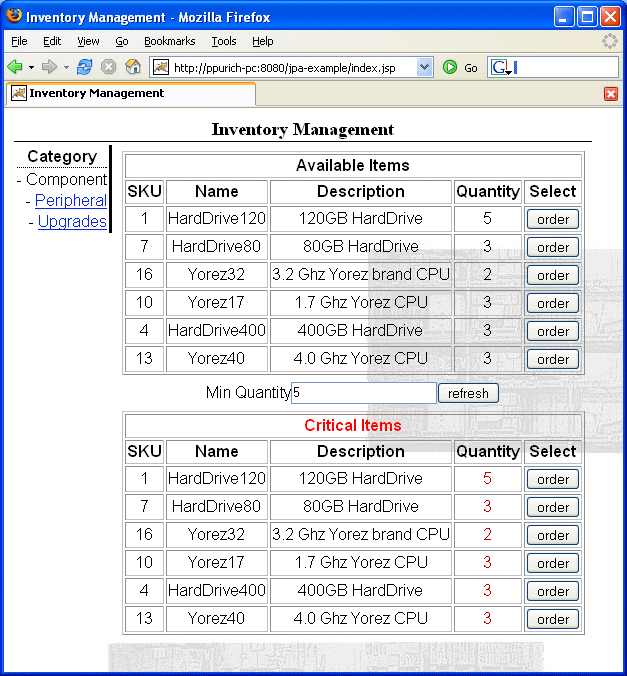
Confirm that you can see the tutorial application main page as Figure 1-2 shows.
You are now ready to start the tutorial (see Tutorial Steps).
Figure 1-2 Tutorial Application Main Page
-
generate-tables- invokesDDLGeneratorto generate the tutorial application's database tables. -
populate-data- invokesPopulatorto populate the tutorial application's database tables. - JSF and JSTL JARs (included)
- JDBC driver JARs (user-supplied)
- TopLink JPA JAR files (user-supplied)
-
The
oracle/toplink/jpa/example/inventory/servicesdirectory contains the sources for the services interfaces that provide access to the persistence layer: -
The
oracle/toplink/jpa/example/inventory/services/impldirectory contains the classes that implement the service interfaces.The
ManagedOrderBeanimplements theOrderServiceinterface.The
ManagedInventoryBeanimplements theInventoryServiceinterface.The
JPAResourceBeanis a helper class that the tutorial application uses to acquire anEntityManagerfor the tutorial application's persistence unit. -
The
oracle/toplink/jpa/example/inventory/uidirectory contains theInventoryManagerBeanclass that drives the tutorial application user interface. - Step 1: Annotating the Entities
- Step 2: Configuring the Persistence Unit
- Step 3: Using JPA to Implement the Service
- Step 4: Using JPA Queries
- Step 5: Packaging and Deployment
- Step 6: Run the Application
- Using the editor of your choice, open the
<TUTORIAL_HOME>\persistence-unit\src\oracle\toplink\jpa\example\inventory\model\Inventory.javasource file. -
Designate this class as a persistent entity using the
@Entityannotation as Example 1-2 shows.Example 1-2 @Entity in Inventory.java
@Entity public class Inventory { ...}By default, the name of an entity is its class name.
Also by default, the entity name is the name of the entity's database table. You can use the
@Tableannotation to override this default behavior (for an example, see Annotating the Order Entity).
An entity's table will contain all its persistent fields. JPA specifies that all the fields of an entity are persistent unless they are decorated with the
@Transientannotation. - Designate a persistent field as the entity's primary key using the
@Idannotation as Example 1-3 shows.Example 1-3 @Id in Inventory.java
@Entity public class Inventory { @Id protected long id; ... public void setItem(Item item) { this.item = item; this.id = item.getSKU(); } ... }Each entity must have a primary key.
The
Inventoryclass fieldidis designated as the primary key. In this case, a@GeneratedValueannotation is not used because theInventoryentity gets its primary key value from itsItemas theInventorymethodsetItemshows. - Specify the characteristics of the database table column that corresponds to the primary key field using the
@Columnannotation as Example 1-4 shows.Example 1-4 @Column in Inventory.java
@Entity public class Inventory { @Id @Column(name="ITEM_SKU", insertable=false, updatable=false) protected long id; ... public void setItem(Item item) { this.item = item; this.id = item.getSKU(); } ... }By default, JPA specifies that for each entity, each persistent field will correspond to a column in the entity's relational database table where the column name and type correspond to the field name and type.
You can use the
@Columnannotation to override this default behavior.In the
Inventoryclass, the@Columnannotation is used to fine-tune the relational database column for fieldidas Example 1-4 shows. Because theInventoryentity gets its primary key value from itsItemas theInventorymethodsetItemshows, we must ensure that this value is never overwritten in the database. In this case, we use the@Columnannotation to configure the column as not insertable or updatable. This means the JPA persistence provider will not include this column inSQL INSERTorSQL UPDATEstatements. Because this column contains the foreign key to theInventoryclass'sItem, we use the@Columnannotation attributenameto specify a name for this column that we can use when we specify the join column for theOneToOnemapping we will make toItem(see step 5 and 6). -
Specify the relationship between the
Inventoryentity and theItementity using the@OneToOneannotation as Example 1-5 shows.Example 1-5 @OneToOne in Inventory.java
By default, a JPA persistence provider will automatically manage basic mappings (for most Java primitive types, wrappers of the primitive types, and enums). You can use the@Entity public class Inventory { @Id @Column(name="ITEM_SKU", insertable=false, updatable=false) protected long id; @OneToOne protected Item item; ... public void setItem(Item item) { this.item = item; this.id = item.getSKU(); } }@Basicannotation to fine-tune basic mappings.You must specify mappings for relationships. In addition to the
@OneToOneannotation, you can use the following annotations for relationship mappings:-
@ManyToMany -
@ManyToOne -
@OneToMany
The
Inventoryclass fielditemis decorated with the@OneToOneannotation to specify the relationship betweenInventoryandItemas Example 1-5 shows. -
-
Specify that the foreign key column that references the
Itemis theInventorycolumn namedITEM_SKUusing the@JoinColumnannotation as Example 1-6 shows.Example 1-6 @JoinColumn in Inventory.java
@Entity public class Inventory { @Id @Column(name="ITEM_SKU", insertable=false, updatable=false) protected long id; @OneToOne @JoinColumn(name="ITEM_SKU") protected Item item; ... public void setItem(Item item) { this.item = item; this.id = item.getSKU(); } } -
Specify a persistent field as the optimistic locking field using the
@Versionannotation as Example 1-7 shows.Example 1-7 @Version in Inventory.java
@Entity public class Inventory { @Id @Column(name="ITEM_SKU", insertable=false, updatable=false) protected long id; @OneToOne @JoinColumn(name="ITEM_SKU") protected Item item; ... @Version protected int version; ... public void setItem(Item item) { this.item = item; this.id = item.getSKU(); } }The
Inventoryclass fieldversionis decorated with the@Versionannotation to specify it as the optimistic locking field.By default, a JPA persistence provider assumes that the application is responsible for data consistency.
Oracle recommends that you use the
@Versionannotation to enable JPA persistence provider-managed optimistic locking by specifying the version field or property of an entity class that serves as its optimistic lock value. -
Define a named query using the
<
@NamedQueryannotation as Example 1-8 shows.Example 1-8 @NamedQuery in Inventory.java
In a JPA application, you can use an@Entity @NamedQuery( name="inventoryForCategory", query="SELECT i FROM Inventory i WHERE i.item.category = :category and i.quantity <= :maxQuantity" ) public class Inventory { .... }EntityManagerto create JPA query language queries dynamically at runtime or you can pre-define such queries using the@NamedQueryannotation and execute them by name at runtime (see Step 4: Using JPA Queries). This is convenient for frequently used or complex queries.If you want to define two or more named queries, you must use the
@NamedQueriesannotations as is done inOrder.java(see Example 1-17).You can also create native SQL queries (see
@NamedNativeQueryand the@NamedNativeQueries). - Save and close the file.
- Using the editor of your choice, open the
<TUTORIAL_HOME>\persistence-unit\src\oracle\toplink\jpa\example\inventory\model\Item.javasource file. -
Designate this class as a persistent entity using the
@Entityannotation as Example 1-2 shows.Example 1-9 @Entity in Item.java
@Entity public class Item { ...} -
Designate a persistent field as the entity's primary key using the
@Idannotation as Example 1-10 shows.Example 1-10 @Id in Item.java
The@Entity public class Item { protected long SKU; ... @Id @GeneratedValue public long getSKU() { return SKU; } ... }Itemclass propertygetSKUis designated as the primary key as Example 1-10 shows. In general, you can annotate either the field (as inInventory.java) or the property associated with a field. The@GeneratedValueannotation tells the JPA persistence provider to take responsibility for sequencing: generating and managing unique identifier values for this field. - Specify a persistent field as the optimistic locking field using the
@Versionannotation as Example 1-11 shows.Example 1-11 @Version in Item.java
@Entity public class Item { protected long SKU; ... @Id @GeneratedValue public long getSKU() { return SKU; } ... @Version public void setVersion(int version) { this.version = version; } ... }The
Itemclass propertysetVersionis decorated with the@Versionannotation to specify that corresponding fieldversionis the optimistic locking field. - Save and close the file.
- Using the editor of your choice, open the
<TUTORIAL_HOME>\persistence-unit\src\oracle\toplink\jpa\example\inventory\model\Order.javasource file. -
Designate this class as a persistent entity using the
@Entityannotation as Example 1-2 shows.Example 1-12 @Entity in Order.java
@Entity public class Order {...}By default, the name of an entity is its class name and, also by default, the entity name is the name of the entity's database table.
For
Orderentities, you cannot create a table namedORDERbecause that name is a reserved word in most relational databases. In this case, we use the@Tableannotation to override the default table name as Example 1-13 shows.Example 1-13 @Table in Order.java
@Entity @Table(name="ORDER_TABLE") public class Order {...} -
Designate a persistent field as the entity's primary key using the
@Idannotation as Example 1-3 shows.Example 1-14 @Id in Order.java
The@Entity @Table(name="ORDER_TABLE") public class Order { @Id @GeneratedValue protected long orderId; ... }Orderclass fieldorderIdis designated as the primary key. The@GeneratedValueannotation tells the JPA persistence provider to take responsibility for sequencing: generating and managing unique identifier values for this field. - Specify the relationship between the
Orderentity and theItementity using the@OneToOneannotation as Example 1-5 shows.Example 1-15 @OneToOne in Order.java
The@Entity @Table(name="ORDER_TABLE") public class Order { @Id @GeneratedValue protected long orderId; ... @OneToOne protected Item item; ... }Orderclass fielditemis decorated with the@OneToOneannotation to specify the relationship betweenOrderandItemas Example 1-15 shows. - Specify a persistent field as the optimistic locking field using the
@Versionannotation as Example 1-7 shows.Example 1-16 @Version in Order.java
@Entity @Table(name="ORDER_TABLE") public class Order { @Id @GeneratedValue protected long orderId; ... @Version protected int version; @OneToOne protected Item item; ... }The
Orderclass fieldversionis decorated with the@Versionannotation to specify it as the optimistic locking field.By default, a JPA persistence provider assumes that the application is responsible for data consistency.
Oracle recommends that you use the
@Versionannotation to enable JPA persistence provider-managed optimistic locking by specifying the version field or property of an entity class that serves as its optimistic lock value. -
Define two named queries using the
@NamedQueriesannotation as Example 1-17 shows.Example 1-17 @NamedQueries in Order.java
If you want to define one named query, you must use the@Entity @Table(name="ORDER_TABLE") @NamedQueries({ @NamedQuery( name="shippedOrdersForItem", query="SELECT o FROM Order o JOIN o.item i WHERE i.sKU = :itemId and o.arrivalDate is not null" ), @NamedQuery( name="pendingOrdersForItem", query="SELECT o FROM Order o WHERE o.item.sKU = :itemId and o.arrivalDate is null" ) }) public class Order { ... }@NamedQueryannotation as is done inInventory.java(see Example 1-8). - Save and close the file.
- Using the editor of your choice, open the
<TUTORIAL_HOME>\persistence-unit\src\META-INF\persistence.xmlfile. - Replace the
- Set the following properties to match your relational database:
<property name=" -
toplink.jdbc.driver
" value="<jdbc-driver>"/> <property name=" -
toplink.jdbc.url
" value="<jdbc-url>"/> <property name=" -
toplink.jdbc.password
" value="<jdbc-password>"/> <property name=" -
toplink.jdbc.user
" value="<jdbc-user>"/> -
<jdbc-driver>is the name of your JDBC driver class. Example:oracle.jdbc.OracleDriver. -
<jdbc-url>is the JDBC connection URL to your database. Example:jdbc:oracle:thin:@myhost:l521:MYSID. -
<jdbc-password> is the JDBC password you use to connect to your databse. Example:tiger. -
<jdbc-user>is the JDBC user name you use to connect to your databse. Example:scott -
oracle.toplink.jpa.example.inventory.services.impl.ManagedOrderBean(implementsoracle.toplink.jpa.example.inventory.services.OrderService) -
oracle.toplink.jpa.example.inventory.services.impl.ManagedInventoryBean(implementsoracle.toplink.jpa.example.inventory.services.InventoryService) - Acquire an Entity Manager Factory
- Create an Entity
- Read an Entity
- Update an Entity
- Delete an Entity
- Using the editor of your choice, open the
<TUTORIAL_HOME>\web-application\src\oracle\toplink\jpa\example\inventory\services\impl\ManagedInventoryBean.javasource file. -
Use the
EntityManagermethodcreateNamedQueryto return aQueryinstance for the query namedinventoryForCategoryas Example 1-24 shows.Example 1-24 Using a Named Query in ManagedInventoryBean
You created this named query in thepublic class ManagedInventoryBean implements InventoryService{ ... public Collection<Inventory> getInventoryForCategoryMaxQuantity(String category, int quantity){ EntityManager em = jpaResourceBean.getEMF().createEntityManager(); try{ Query query = em.createNamedQuery("inventoryForCategory"); query.setParameter("category", category); query.setParameter("maxQuantity", quantity); return query.getResultList(); }finally{ em.close(); } } ... }Inventoryclass (see Example 1-8). - Use the
EntityManagermethodcreateQueryto create a dynamic query as Example 1-25 shows.Example 1-25 Using a Dynamic Query in ManagedInventoryBean
public class ManagedInventoryBean implements InventoryService{ ... //Returns a list of available item categories public Collection<Category> getCategories(){ //Create an EntityManager from the Factory stored in the JPAResourceBean EntityManager em = jpaResourceBean.getEMF().createEntityManager(); try{ //execute a JPQL query that collects summary data and stores it in a //non-entity class Category. This query will pass the results of the //query into the constructor of Category and return a list of Category //objects Collection<Category> result = em.createQuery ("Select new oracle.toplink.jpa.example. inventory.nonentity.Category(i.category) from Item i group by i.category").getResultList(); return result; }finally{ em.close(); } } ... }Note that this query builds and returns a
CollectionofCategoryclasses that are not entity classes. It uses summary data to create this non-entity helper class. - Save and close the file.
- Using the editor of your choice, open the
<TUTORIAL_HOME>\web-application\src\oracle\toplink\jpa\example\inventory\services\impl\ManagedOrderBean.javasource file. -
Use the
EntityManagermethodcreateNamedQueryto return aQueryinstance for the query namedinventoryForCategoryas Example 1-24 shows.Example 1-26 Using a Named Query in ManagedOrderBean
You created these named queries in thepublic class ManagedOrderBean implements OrderService{ ... // Returns those orders that have a set arrival date indicating that they have shipped public Collection<Order> getShippedOrdersForItem(long itemId){ //Create an EntityManager from the Factory stored in the JPAResourceBean EntityManager em = jpaResourceBean.getEMF().createEntityManager(); try{ //create an instance of the NamedQuery defined in the Inventory class. Query query = em.createNamedQuery("shippedOrdersForItem"); //setting the provided parameters on the query query.setParameter("itemId", itemId); //return result of query return query.getResultList(); }finally{ em.close(); } } // Returns those orders that have a set arrival date indicating that they have shipped public Collection<Order> getPendingOrdersForItem(long itemId){ EntityManager em = jpaResourceBean.getEMF().createEntityManager(); try{ Query query = em.createNamedQuery("pendingOrdersForItem"); query.setParameter("itemId", itemId); return query.getResultList(); }finally{ em.close(); } } ... }Orderclass (see Example 1-17). - Use the
EntityManagermethodcreateQueryto create a dynamic query as Example 1-25 shows.Example 1-27 Using a Dynamic Query in ManagedOrderBean
public class ManagedInventoryBean implements InventoryService{ ... //Returns a list of available item categories public Collection<Category> getCategories(){ //Create an EntityManager from the Factory stored in the JPAResourceBean EntityManager em = jpaResourceBean.getEMF().createEntityManager(); try{ //execute a JPQL query that collects summary data and stores it in a //non-entity class Category. This query will pass the results of the //query into the constructor of Category and return a list of Category //objects Collection<Category> result = em.createQuery ("Select new oracle.toplink.jpa.example.inventory.nonentity. Category(i.category) from Item i group by i.category").getResultList(); return result; }finally{ em.close(); } } ... } -
As
Example 1-28 shows, use the appropriate
EntityManagermethods to transactionally find anOrderby primary key and remove it.Example 1-28 Finding and Removing an Order in a Transaction in ManagedOrderBean
public class ManagedInventoryBean implements InventoryService{ ... // request that an order be canceled. Assume success if no exception is thrown public void requestCancelOrder(long orderId){ //Create an EntityManager from the Factory stored in the JPAResourceBean EntityManager em = jpaResourceBean.getEMF().createEntityManager(); try{ //changes will be made so begin a transaction em.getTransaction().begin(); //find the order that will be deleted. This step ensures the order //will be managed as the specification requires the object be //managed before remove can be called. Order order = em.find(Order.class, orderId); //set the order to be delet4ed em.remove(order); //commit the transaction, this will cause the the delete SQL to be //sent to the database. em.getTransaction().commit(); }finally{ em.close(); } } // request that an order be canceled assume success if no exception is thrown public void alterOrderQuantity(long orderId, int newQuantity){ EntityManager em = jpaResourceBean.getEMF().createEntityManager(); try{ em.getTransaction().begin(); //ensure that this order is a managed object. Order order = em.find(Order.class, orderId); //update the order object directly order.setQuantity(newQuantity); //commit the transaction to have the update sent to the database em.getTransaction().commit(); }finally{ em.close(); } } // Create a new order request for a particular item; public void createNewOrder(Order order){ EntityManager em = jpaResourceBean.getEMF().createEntityManager(); try{ em.getTransaction().begin(); //calling persist on the order object will mark the object as new //within the persistence context. em.persist(order); //commit the transaction to have the object data inserted to the //database em.getTransaction().commit(); }finally{ em.close(); } } ... } -
As
Example 1-29 shows, use
EntityManagermethodfindto retrieve anOrderby primary key.Example 1-29 Finding an Order by Primary Key in ManagedOrderBean
public class ManagedInventoryBean implements InventoryService{ ... // finds a particular order by the specified order id public Order getOrderById(long orderId){ EntityManager em = jpaResourceBean.getEMF().createEntityManager(); try{ return em.find(Order.class, orderId); }finally{ em.close(); } } // finds a particular order by the specified order id public Item getItemById(long itemId){ EntityManager em = jpaResourceBean.getEMF().createEntityManager(); try{ return em.find(Item.class, itemId); }finally{ em.close(); } } ... } - Save and close the file.
- Verify that the following system properties are set:
-
JAVA_HOME- set to your JDK 1.5 installation.Example:
C:\Program Files\Java\jdk1.5.0_06 -
ORACLE_HOME- set to your OC4J installation directoryExample:
C:\OC4JHome -
PATH- your path must include%JAVA_HOME%\bin
-
- Start OC4J from the command line:
On Windows:
cd %ORACLE_HOME% cd bin oc4j.cmd -startOn UNIX:
cd %ORACLE_HOME% cd bin oc4j.sh -start - Log into the Oracle Enterprise Manager Application Server Control console:
Start a browser and enter the following URL:
http://<hostname>:8888/em/console/ias/oc4j/administrationWhere
<hostname>is the name of the computer you started OC4J on. - Select Home > Applications and click the Deploy button.
- In the Archive area, click the radio button next to Archive is present on local host.
- Click the
Browse button and locate the
jpa-example.warfile. - Click Next.
- Enter an application name without spaces. For example, "JSF-JPA-Tutorial" and then click Next.
- Click
Deploy.
Confirm that the application deploys successfully according to the displayed log message "Application Deployer for JSF JPA Tutorial COMPLETES".
- Click Return. Confirm that the "JSF JPA Tutorial" application is listed in the Applications tab.
- Verify that the following system properties are set:
-
JAVA_HOME- set to your JDK 1.5 installation.Example:
C:\Program Files\Java\jdk1.5.0_06 -
CATALINA_HOME- set to your Tomcat installation directory.Example:
C:\apache-tomcat-5.5.17 -
PATH- your path must include%JAVA_HOME%\bin
-
- Copy the
jpa-example.warfile to the TomcatCATALINA_HOME\webappsdirectory. - Start Tomcat from the command line:
On Windows:
cd %CATALINA_HOME% cd bin startup.cmdOn UNIX:
cd $CATALINA_HOME cd bin startup.sh - Confirm that the application deploys successfully by looking for the log message "deployWAR INFO: Deploying web application archive jpa-example.war" on standard out or in the
CATALINA_HOME/logs/catalina.outlog file. - JSF on OTN
- JSR-220 Enterprise JavaBeans v3.0 Java Persistence API specification
- @Entity in Inventory.java
- @Id in Inventory.java
- @Column in Inventory.java
- @OneToOne in Inventory.java
- @JoinColumn in Inventory.java
- @Version in Inventory.java
- @NamedQuery in Inventory.java
- @Entity in Item.javaa
- @Id in Item.java
- @Version in Item.java
- @Entity in Order.java
- @Table in Order.java
- @Id in Order.java
- @OneToOne in Order.java
- @Version in Order.java
- @NamedQueries in Order.java
- Persistence Unit in Persistence.xml
- Acquiring the Entity Manager Factory
- Creating an Order in ManagedOrderBean
- Reading an Order in ManagedOrderBean
- Updating an Order in ManagedOrderBean
- Deleting an Order in ManagedOrderBean
- Using a Named Query in ManagedInventoryBean
- Using a Dynamic Query in ManagedInventoryBean
- Using a Named Query in ManagedOrderBean
- Using a Dynamic Query in ManagedOrderBean
- Finding and Removing an Order in a Transaction in ManagedOrderBean
- Finding an Order by Primary Key in ManagedOrderBean
Introduction
This tutorial will walk you through the basic steps of developing, packaging, and deploying a Web application using the EJB 3.0 Java Persistence API (JPA).
In this application, a Java Server Faces (JSF) presentation layer will make use of JPA for persistence outside of an EJB 3.0 container.
Figure 1-1 shows the object model that this tutorial uses.Figure 1-1 Tutorial Object Model

For more information on JPA, see:
Required Software
Setup and Configuration
Before starting this tutorial, you must setup and configure the required software:

Understanding the Tutorial Source Files
After unzipping the
order-jsf-jpa-example.zip and
order-jsf-jpa-tutorial.zip (see
Setup and Configuration), you have an
<EXAMPLE_HOME> and <TUTORIAL_HOME> directory.
These directories contain the same structure as Example 1-1 shows. Table 1-1 describes the important content of these subdirectories.
The source files in the
<EXAMPLE_HOME> are completed versions of the tutorial that you can build and deploy immediately.
The source files in the
<TUTORIAL_HOME> subdirectory are the starting point for the tutorial. By the end of the tutorial, you will make this code match the example source code.
Example 1-1 Structure of <EXAMPLE_HOME> and <TUTORIAL_HOME>
build.xml
extras/
    bin/
    classes/
    src/oracle/toplink/jpa/example/inventory/tools/
        DDLGenerator.java
        Populator.java
lib/
    - JSF and JSTL JARs
    - JDBC driver JARs (user-supplied)
    - TopLink JPA JARs (user-supplied)
persistence-unit/
    classes/
    deploy/
    src/META-INF
        persistence.xml
    src/oracle/toplink/jpa/example/inventory/
        model/
            Inventory.java
            Item.java
            Order.java
        nonentity/
            Category.java
web-application/
    classes/
    deploy/
    public_html/
        *.jsp
        css/
        images/
        WEB-INF/
            faces-config.xml
            web.xml
    src/oracle/toplink/jpa/example/inventory/
        services/
            InventoryService.java
            OrderService.java
        services/impl/
            JPAResourceBean.java
            ManagedInventoryBean.java
            ManagedOrderBean.java
        ui/
            InventoryManagerBean.java
Table 1-1 Important Subdirectories in <EXAMPLE_HOME> and <TUTORIAL_HOME>
| Subdirectory | Description |
|---|---|
|
|
Contains source files that are not directly executed by the tutorial application. |
classes/
|
The directory in which the
|
src/
|
The
|
|
|
The
|
|
|
Contains the source files for persistent JPA entities. |
classes/
|
This is a temporary directory where the persistence unit source files are built before packaging into the persistence unit archive. |
deploy/
|
This directory will contain the built and packaged persistence unit
|
src/
|
This directory contains the sources required for the persistence unit including the domain classes. It also contains the
|
|
|
Contains the source files that implement the services and user interface of the tutorial application that use the JPA entities. |
classes/
|
This is a temporary directory where the sources are built before packaging into the deployable archive. |
deploy/
|
This directory will contain the built deployable Web application,
|
public_html/
|
Contains the presentation layer of the application including JSPs, stylesheets (
|
src/
|
This directory includes the sources for the controller layer of the application. |
Tutorial Steps
The following procedure leads you through the important steps in creating the tutorial application. At each step, you will be directed to modify the
<TUTORIAL_HOME> source files as necessary.
Step 1: Annotating the Entities
Annotations are a simple, expressive means of decorating Java source code with metadata that is compiled into the corresponding Java class files for interpretation at runtime by a JPA persistence provider to manage JPA behavior.
Persistent classes are decorated with JPA annotations to tell the JPA persistence provider what classes require persistence and to specify persistent class details.
In most cases, you can rely on JPA defaults. This tutorial shows the required annotations and some common optional annotations.
This section describes:
Annotating the Inventory Entity
This section describes how to annotate the
Inventory.java file. This is a plain old Java object (POJO). It is one of the persistent entities we want to manage using JPA.
Annotating the Item Entity
This section describes how to annotate the
Item.java file. This is a plain old Java object (POJO). It is one of the persistent entities we want to manage using JPA.
Annotating the Order Entity
This section describes how to annotate the
Order.java file. This is a plain old Java object (POJO). It is one of the persistent entities we want to manage using JPA.
Step 2: Configuring the Persistence Unit
The entity manager is the primary JPA interface you use to perform basic persistence operations on your entities (create, read, update, and delete).
A persistence unit defines an entity manager's configuration by logically grouping details like entity manager provider, configuration properties, and persistent managed classes.
Each persistence unit must have a name. Only one persistence unit of a given name may exist in a given EJB-JAR, WAR, EAR, or application client JAR. You specify a persistence unit by name when you acquire an entity manager factory (see Acquire an Entity Manager Factory).
You define persistence units in the
persistence.xml file.
To configure the persistence unit:
<!-- class list goes here --> comment with a
<class> element for each of the persistent JPA entity classes:
<class>oracle.toplink.jpa.example.
               inventory.model.Inventory</class>
<class>oracle.toplink.jpa.example.
inventory.model.Order</class>
<class>oracle.toplink.jpa.example.
inventory.model.Item</class>
Where:
Your
persistence.xml file should look like
Example 1-18.
Example 1-18 Persistence Unit in Persistence.xml
...
    <persistence-unit name="default" transaction-type="RESOURCE_LOCAL">
        <provider>
           oracle.toplink.essentials.PersistenceProvider
        </provider>
        <class>oracle.toplink.jpa.example.inventory.model.Inventory</class>
        <class>oracle.toplink.jpa.example.inventory.model.Order</class>
        <class>oracle.toplink.jpa.example.inventory.model.Item</class>
        <properties>
            <property name="toplink.logging.level" value="FINE"/>
            <property name="toplink.jdbc.driver" value="oracle.jdbc.OracleDriver"/
            >  <!-- update to match database-->
            <property name="toplink.jdbc.url" value="jdbc:oracle:thin:
            @localhost:1521:XE"/> <!-- update to match database-->
            <property name="toplink.jdbc.password" value="tiger"/>
            <!-- update to match database-->
            <property name="toplink.jdbc.user" value="scott"/>
            <!-- update to match database-->
        </properties>
    </persistence-unit>
...
The name of this persistence unit is
default.
Its
transaction-type is
RESOURCE_LOCAL, meaning that entity managers for this persistence unit do not participate in JTA transactions.
It uses provider
oracle.toplink.essentials.PersistenceProvider.
Finally, persistence unit properties are set. You can use persistence unit properties to fine-tune the underlying JPA persistence provider and to specify the connection details for the underlying relational database that this persistence unit should be associated with.
For more information about the
persistence.xml file, see
JSR-000220 Enterprise JavaBeans v3.0 JPA specification, section 6.3.
Save and close the file.
Step 3: Using JPA to Implement the Service
The main resource for managing the tutorial user interface is
oracle.toplink.jpa.example.inventory.ui.InventoryManagerBean. It contains a reference to the following classes that use JPA to implement the services provided by this application:
These two classes show how to use JPA to:
Acquire an Entity Manager Factory
Both the
ManagedOrderBean and
ManagedInventoryBean use an instance of helper class
oracle.toplink.jpa.example.inventory.services.impl.JPAResourceBean to acquire an instance of the entity manager factory for the persistence unit named
default that we defined in the
persistence.xml file (see
Step 2: Configuring the Persistence Unit).
Example 1-19 shows how the entity manager factory is acquired.
Example 1-19 Acquiring the Entity Manager Factory
public EntityManagerFactory getEMF (){
    if (emf == null){
        emf = Persistence.createEntityManagerFactory("default");
    }
    return emf;
}
Once acquired, the
ManagedOrderBean and
ManagedInventoryBean classes use the entity manager factory to obtain an entity manager to perform all the basic persistence operations (create, read, update, and delete).
Create an Entity
Example 1-20 shows how the
ManagedOrderBean uses its
EntityManager to create a new
Order entity.
Example 1-20 Creating an Order in ManagedOrderBean
public void  createNewOrder(Order order){
    EntityManager em = jpaResourceBean.getEMF().createEntityManager();
    try{
        em.getTransaction().begin();
        em.persist(order);
        em.getTransaction().commit();
    }finally{
        em.close();
    }
}
Read an Entity
Example 1-21 shows how the
ManagedOrderBean uses its
EntityManager to read an existing
Order entity by primary key.
Example 1-21 Reading an Order in ManagedOrderBean
public Order getOrderById(long orderId){
    EntityManager em = jpaResourceBean.getEMF().createEntityManager();
    try{
        return em.find(Order.class, orderId);
    }finally{
        em.close();
    }
}
Update an Entity
Example 1-22 shows how the
ManagedOrderBean uses its
EntityManager to update an existing
Order entity. Any changes made to the
Order entity are persisted when the local transaction is committed.
Example 1-22 Updating an Order in ManagedOrderBean
public void alterOrderQuantity(long orderId, int newQuantity){
    EntityManager em = jpaResourceBean.getEMF().createEntityManager();
    try{
        em.getTransaction().begin();
        Order order = em.find(Order.class, orderId);
        order.setQuantity(newQuantity);
        em.getTransaction().commit();
    }finally{
        em.close();
    }
}
Delete an Entity
Example 1-23 shows how the
ManagedOrderBean uses its
EntityManager to delete an existing
Order entity by primary key.
Example 1-23 Deleting an Order in ManagedOrderBean
public void requestCancelOrder(long orderId){
    EntityManager em = jpaResourceBean.getEMF().createEntityManager();
    try{
        em.getTransaction().begin();
        Order order = em.find(Order.class, orderId);
        em.remove(order);
        em.getTransaction().commit();
    }finally{
        em.close();
    }
}
Step 4: Using JPA Queries
Both the
ManagedInventoryBean and
ManagedOrderBean classes use JPA queries. This section describes:
Using Queries in the ManagedInventoryBean Class
This section describes how to code named and dynamic queries in the
ManagedInventoryBean.java file.
Using Queries in the ManagedOrderBean Class
This section describes how to code named and dynamic queries in the
ManagedOrderBean.java file.
Step 5: Packaging and Deployment
This section describes how to package and deploy the tutorial application, including:
Compiling and Packaging the Application
To compile and package the tutorial application, from the command line, change directories to the
<TUTORIAL_HOME> directory and execute the following:
ant -f build.xml package.webapp
This creates
<TUTORIAL_HOME>\web-application\deploy\jpa-example.war.
In this tutorial, we package the persistence unit in
WEB-INF\lib\persistence-unit.jar within the
jpa-example.war file. By confining the persistence unit to its own JAR file, you can easily re-use the persistence unit in other applications.
Deploying to OC4J
To deploy the tutorial application to OC4J:
Deploying to Tomcat
To deploy the tutorial application to Tomcat:
Step 6: Run the Application
This section describes how to access the application after deployment:
Running the Application on OC4J
Start a browser and enter the following URL:
http://<hostname>:8888/jpa-example/index.faces
Where
<hostname> is the name of the computer you deployed the application to.
Running the Application on Tomcat
Start a browser and enter the following URL:
http://<hostname>:8080/jpa-example/ or
http://<hostname>:8080/jpa-example/index.jsp
Where
<hostname> is the name of the computer you deployed the application to.
Summary
This tutorial described a JSF Web application that manages persistence using JPA.
For more information, see:
List of Examples
This tutorial includes the following examples:
Structure of <EXAMPLE_HOME> and <TUTORIAL_HOME>