
When a comparison has been run, the results area is populated with the results of the analysis. The top section of the results area is populated with a list of the components which have been analyzed and the overall results of the comparison for that component:
In the example above, we can see that three of the processes (Complaint analysis, Payroll and Servicedesk) are the same in both versions of the product. Two new processes have been added (Payroll v.2 and Servicedesk v.2), and one of the processes (Referrals) has been changed.
To see further details of any of the changes, click on the row containing the comparison. The lower portion of the results pane will be populated with further information on the component. The information displayed will be different depending on whether the selected component is a process or any other type of component.
When a process is selected in the upper pane, the lower details area will be subdivided into two further panes.
The upper of these two panes is very similar to the top pane. This pane contains a list of the processes contained within the component selected in the top pane, and their overall comparison status:

In this example, we can see at the top level that the 'Referrals' process has changed. In the second pane, we can see that one processor (the Data Types Profiler) has been added to the process, and the two other processors have changed.
Click on one of the components listed in the middle pane to view the configuration differences between them:
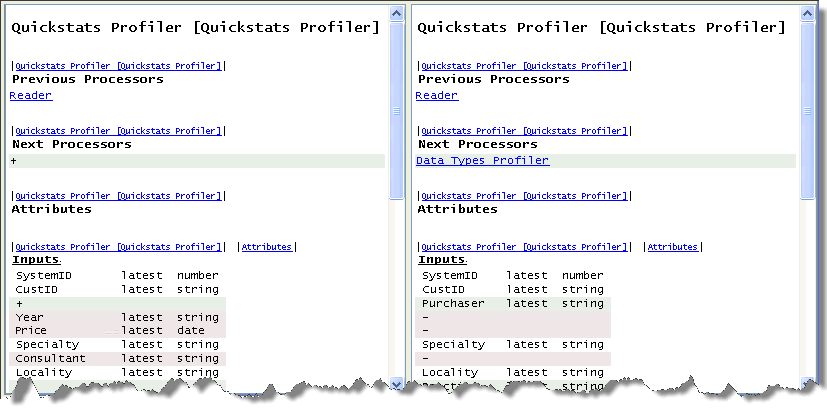
Colored highlights are used to emphasize the configuration differences between the components.
If you are comparing components which do not contain other components (such as data stores, reference data and external tasks), the results area will be divided into only two panes. Selecting a component in the upper pane will display a comparison of the configuration of the two components in the lower pane:
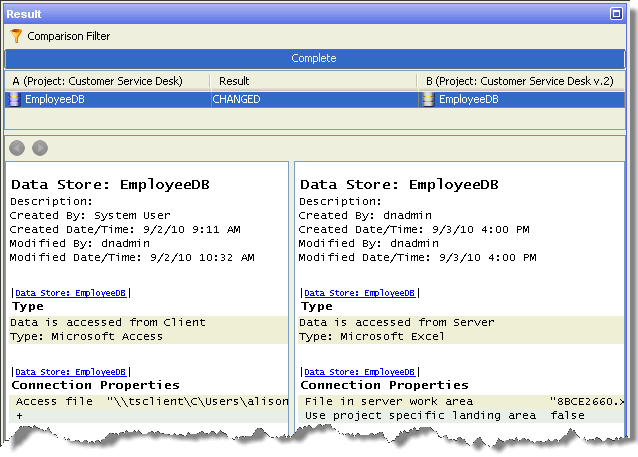
Colored highlights are used emphasize the configuration differences between the components.
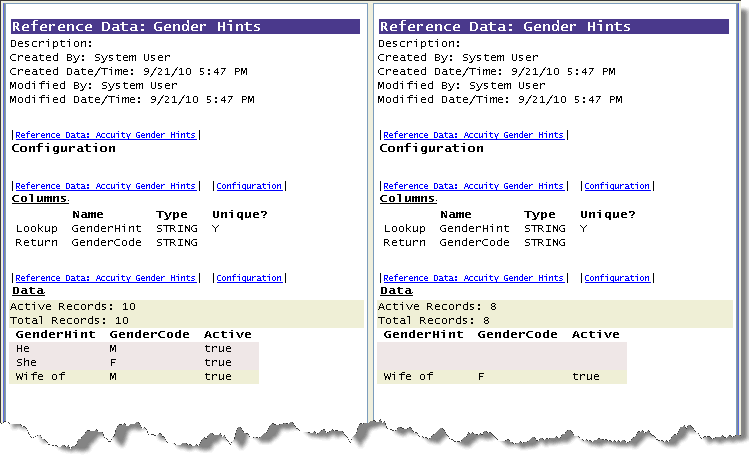
Reference data configuration can differ both in the structure of the data definition and the contents of the data. If the two sets of reference data being compared have the same structure but different contents, the data differences will be displayed in the results browser:
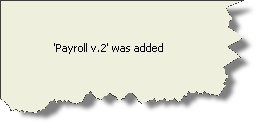
If a component has been added or deleted, no details will be displayed. Instead, a simple message is presented, for example:
If you require further details on the component, select it in one of the selection panes and run a report on its configuration.
Oracle ® Enterprise Data Quality Help version 9.0
Copyright ©
2006,2011 Oracle and/or its affiliates. All rights reserved.