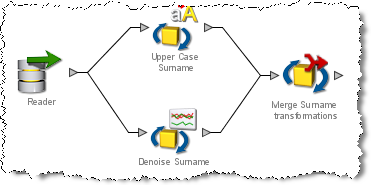
|
|
Merge Attributes |
The Merge Attributes processor allows you to merge together a number of attributes into a single attribute, by selecting the first non-empty value from a number of input attributes.
Use Merge Attributes:
A number of attributes may all be mapped to the same merged attribute, in order. Merge Attributes will perform selections for each record, picking the first non-empty (that is, Null, or consisting only of whitespace characters) value from this ordered list of attributes.
So, for example, if you have an original firstname attribute, and checked it contains a valid Forename using a List Check, you might apply a fix (for example, using the Replace processor) only on the invalid records. You therefore might have two attributes that you wish to merge to a single MergedFirstname attribute. The Merge Attributes processor allows you to do this, by selecting the first non-empty value, considering a number of attributes in order, for example:
It is possible to create a number of merged attributes in a single Merge Attributes processor.
For example, if you have applied fixes to the values for a title attribute in the same way as above, you might want to create both MergedFirstname and MergedTitle in the same processor. See the following diagram that shows how Merge Attributes may be configured to do this:
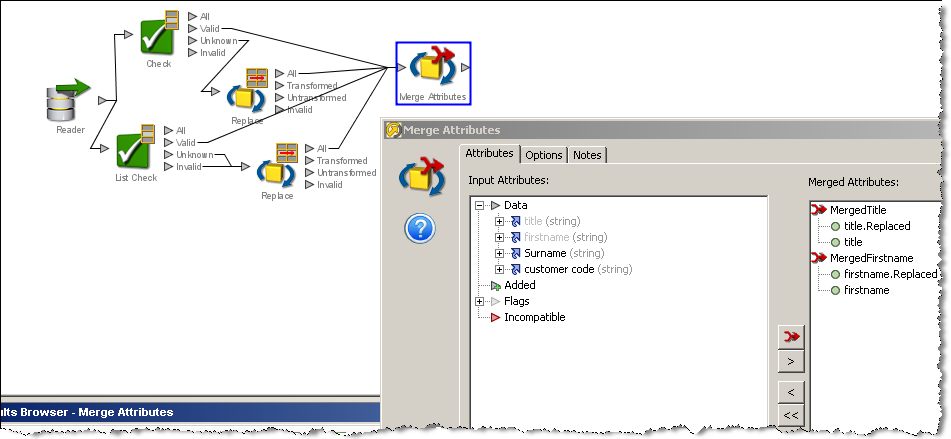
Note that title.replaced is above title in the above dialog, indicating that its value will be selected if it is not empty/Null. The same applies for firstname.replaced and firstname.
Any attributes that you wish to merge together to create a new attribute. Attributes that are used for selection to create a new Merged Attribute must share the same data type (String, Number or DATE).
To map input attributes to create a new merged attribute, select the
attributes you wish to merge on the left-hand side, and use the Merge
button: 

Note that the merged attributes, on the right-hand side of the dialog, are named Merged, Merged.1, Merged.2, and so on, by default. Double-click on the name of the merged attribute to rename it as you wish (for example, MergedFirstname above).
Use the up and down arrow buttons on the dialog to change the order of selection of the input attributes within each merged attribute.
|
Option |
Type |
Purpose |
Default Value |
|
Yes/No |
Determines whether or not empty strings are selected when merging attributes. If set to Yes, an attribute value will only not be selected if it is Null, or if no attribute value exists (for example, the attribute was added on a stream the record did not go down) |
No |
|
Data attribute |
Type |
Purpose |
Value |
|
The new merged attributes as named in the Inputs tab |
Added |
New attributes containing values merged from the configured input attributes |
Selected as the first not null value from the ordered input attributes |
None
|
Execution Mode |
Supported |
|
Batch |
Yes |
|
Real time Monitoring |
Yes |
|
Real time Response |
Yes |
The Merge Attributes processor produces no summary view of its results. Use the Data View to check that the configured merge selections are working as expected.
None
In this example, replacements to title and firstname values have been applied to a subset of records (with Titles and Names that were not recognized as valid in list checks). The replaced values are used where available. Where not available, the original values for title and firstname are used:
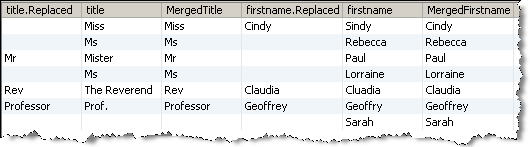
After the attributes have been merged, you may wish to re-check the merged attributes - for example, to ensure that MergedFirstname and MergedTitle in the example above now both contain valid data.
Oracle ® Enterprise Data Quality Help version 9.0
Copyright ©
2006,2011 Oracle and/or its affiliates. All rights reserved.
 Note
regarding the use of the latest version of Input Attributes with the Merge
Attributes processor (Click to expand)
Note
regarding the use of the latest version of Input Attributes with the Merge
Attributes processor (Click to expand) .
.