Step 4. Managing Persistent Entities with the JPA Persistence Entity Editor
Time to complete this step: 30 minutes
Workshop allows you to view, create, and manage JPA
entity relationships. The Entities Editor provides a centralized
view of all entity relationships, allows you to modify entity properties,
and navigate between the object model, mapping associations, and database
schema layers.
The tasks you will complete in this step are:
To View an Entity Relationship Diagram using the Entities Editor
As described previously, the Entity Editor displays relationship
diagrams for entities defined in the project.
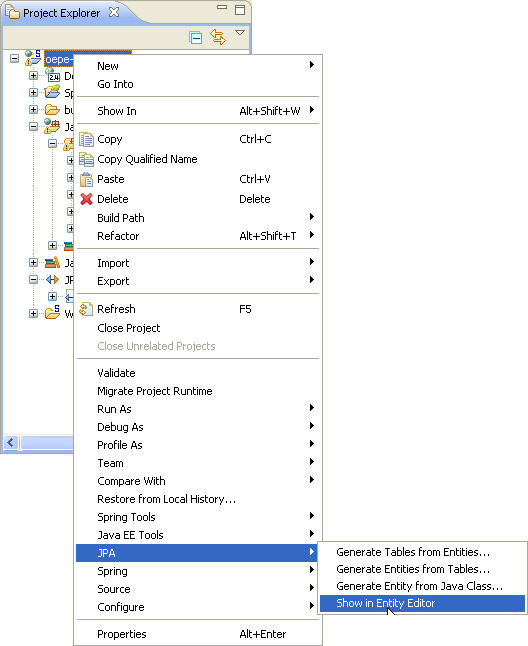
- In the Project Explorer view, expand oepe-jpa-tutorial
> JPA >Show in Entity Editor.
OEPE provides a list of entities under the Entities branch
based on the entities defined in the Persistence configurations file.
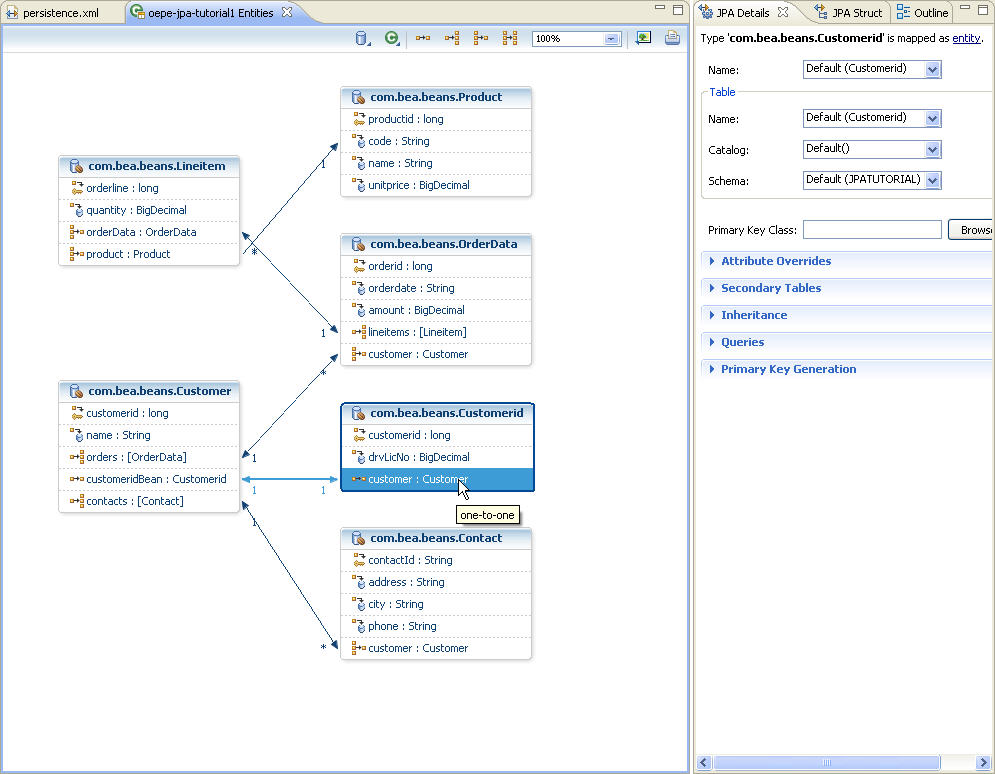
The JPA Persistence Entities Editor displays all entity
relationships defined in the web application. Each box displays a specific
entity, its properties, and an icon denoting the nature of the relationship.
- The JPA Persistence Entities Editor displays and selects property
types for an entity with tool tip popups.
You can work with entity relationship diagram by selecting operations such as Zoom In, Zoom Out, Export to Image, and Print. To view a tool tip, hover your cursor over the respective entity. To view and edit the details, use the JPA Details View.
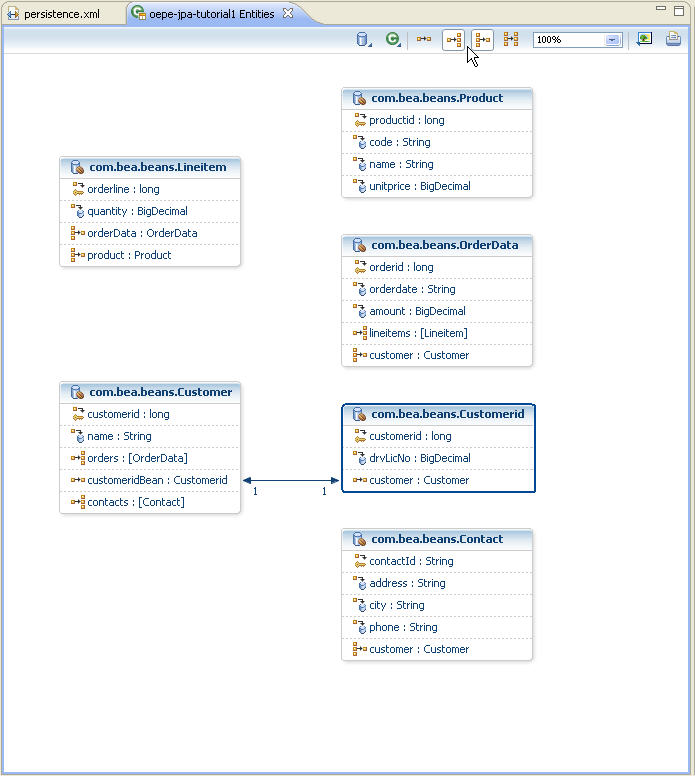
The JPA Persistence Entities Editor also allows you to filter
relationships between entities. This feature helps you simplify your view of the diagram when it is large and complex.
- Click Filters and select the options Many
to One and One to Many to filter which entity relationships are noted in the diagram.
- Reset both filters.
Viewing and Editing JPA Persistent Entities using the Entity Editor
Using the JPA Details View,
you can easily edit entity properties.
- Select the Contact entity in the JPA Entities Editor.
- Click the Properties tab to view the JPA Details View. The JPA DetailsView displays
the properties for the Contact entity.
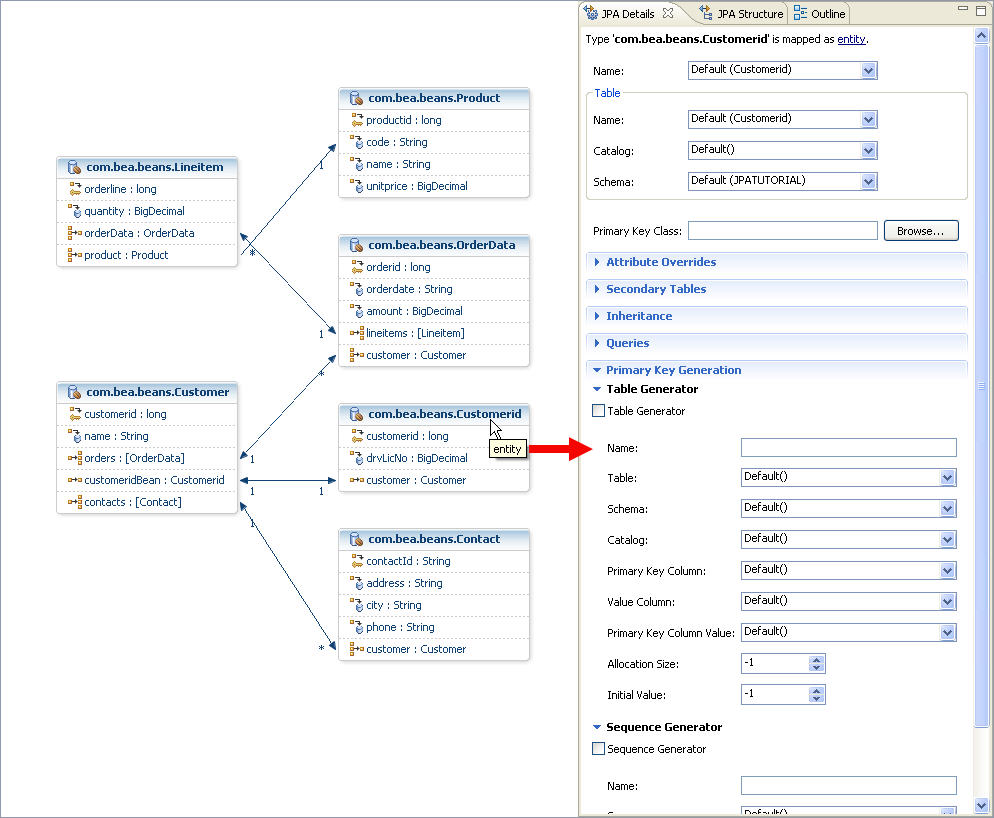
- With the JPA Details View, you can edit the associated Java Bean class,
strategy for persistence, and the database access information for the selected entity. To edit, either enter text in the text box or click on the drop down lists for the schema binding, Primary Key Generation, Sequence Generators, Queries, etc.
- In JPA Persistence Entities Editor select the phone
property of the Contact entity. The JPA Details View
displays properties of the phone property. Observe the properties.
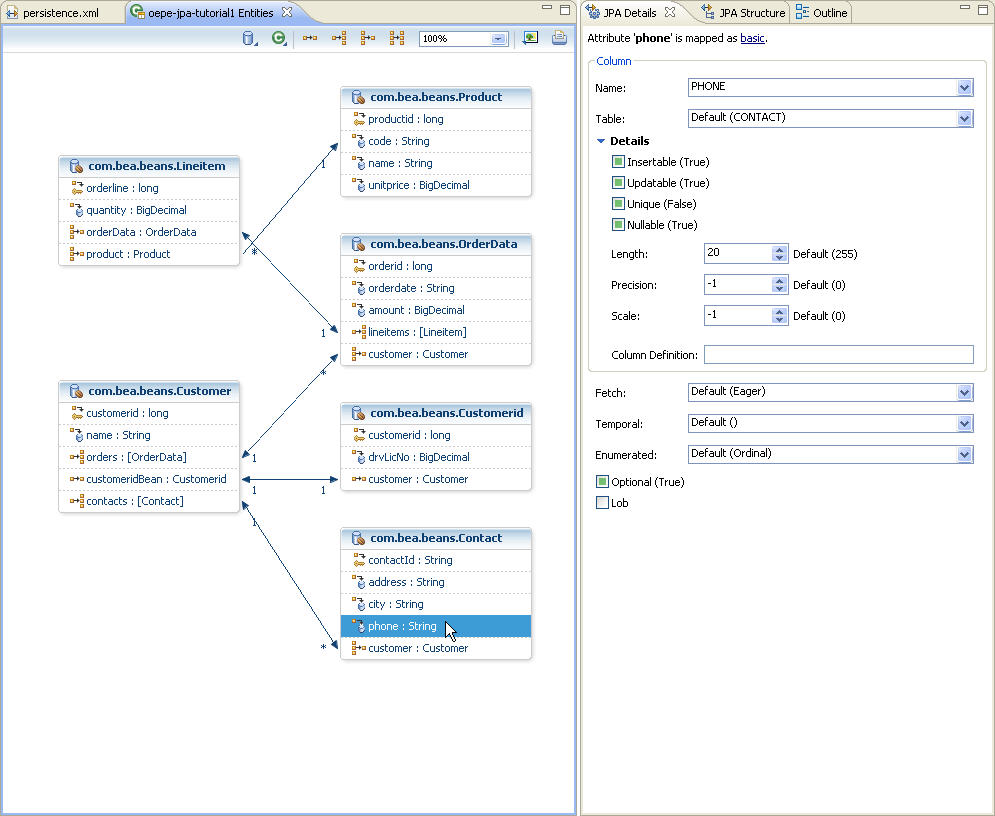
- Use the JPA Details View to modify the Length of phone property.
For example:
- Set Nullable to false
- Update the Length value from 20 to 25
- Press CTRL+S to save the changes.

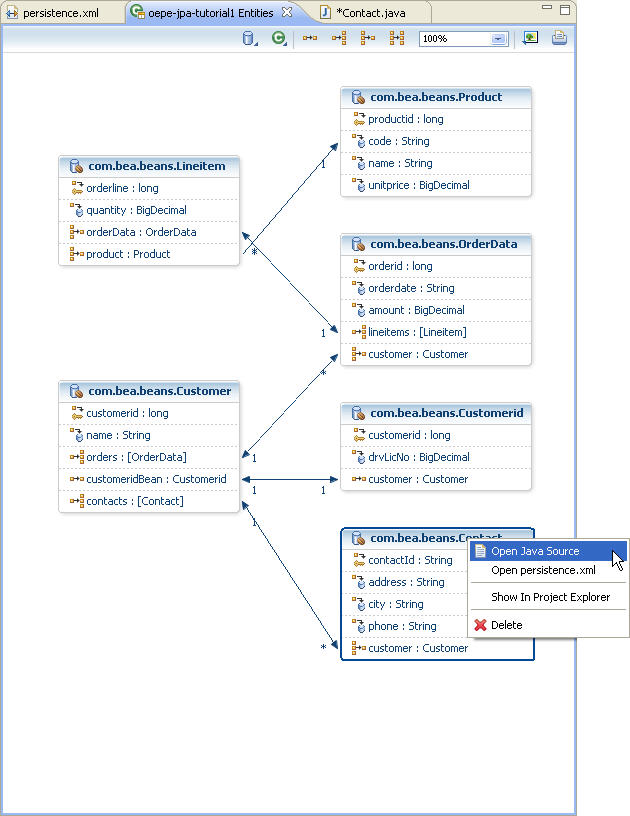
- Within the JPA Entities Editor, right-click the entity Contact to view its source code or see the associated configuration in persistence.xml.
To Manage JPA Entity Mappings
The following describes how the annotations are translated into what
the JPA Details View displays. When the JPA Details View displays an underlined
label, you can click the label to view the corresponding Java source code or
item in the DbXplorer.
- In the JPA Entities Editor, review the many-to-one association between OrderData
and Customer. Select the customer property
in the OrderData entity to view its properties in the JPA Details View.
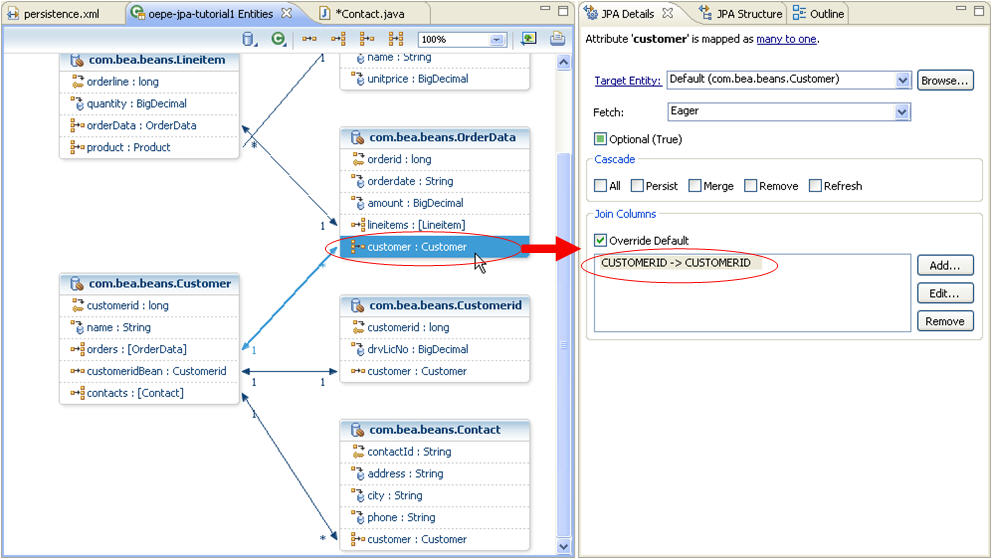
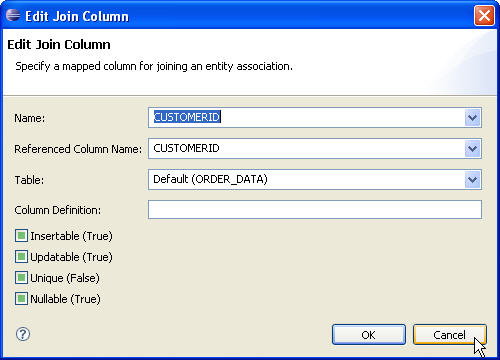
- Within the JPA Details View, examine the Join Columns. Select the association and click Edit to edit the mapping
association.
Click Cancel.
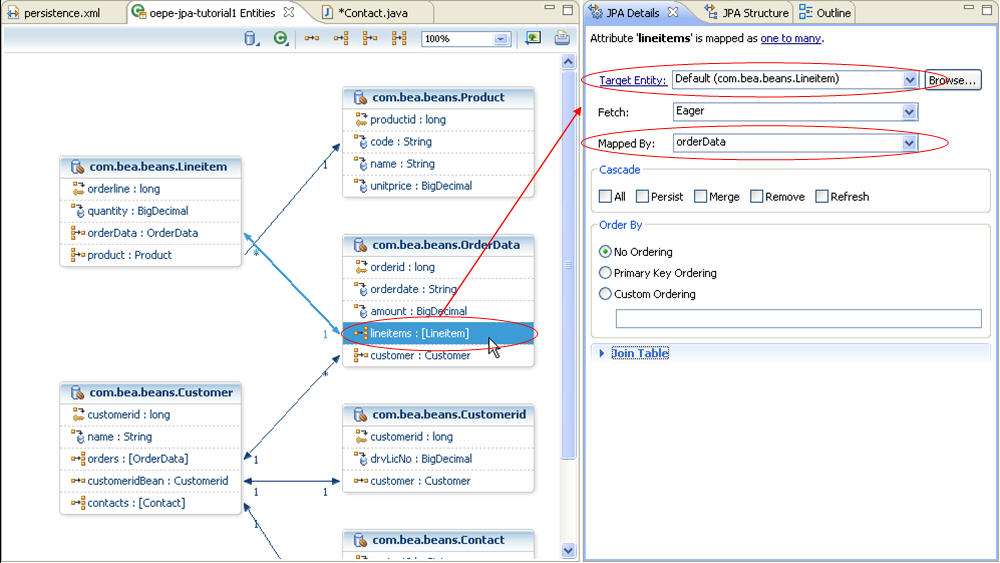
- Next, locate the one-to-many association
between OrderData and Lineitems.
Click on
the
lineitems property in the OrderData entity
and view Target Entity and Mapped By properties in
the
JPA Details View.
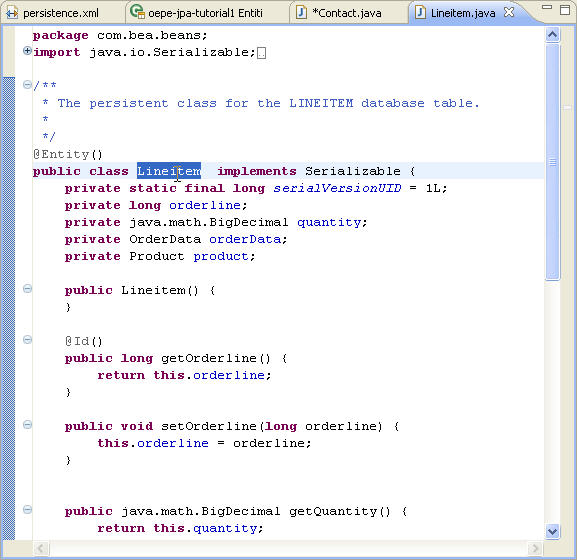
- Clicking Target Entity in the JPA Details View will take you to the class for
the related entity type Lineitem.
- Close the LineItem.java file.
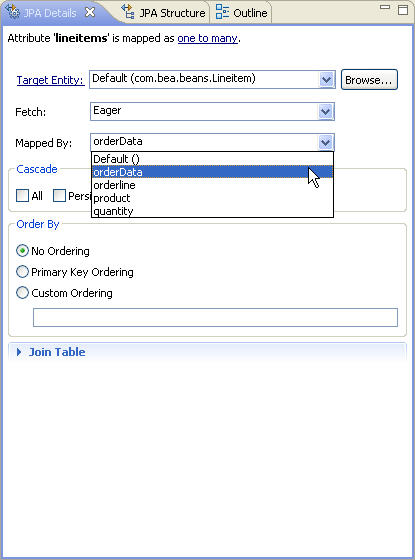
- Clicking Mapped By under the Join Properties will
allow you to change the field by which the many-to-one association of OrderData
to Lineitem is mapped by. Do not make any changes at this time.
- Close the LineItem.java file.
Click one of the following arrows to navigate through the tutorial:

