Loading Data from On-Premises Database into DBaaS Database
Overview
Purpose
This tutorial covers data unloading and loading methods to migrate on-premises Oracle Database 12c data into an Oracle Database 12c DBaaS.Time to Complete
Approximately 60 minutes.
Introduction
In this tutorial, you learn how to unload data from an on-premises Oracle Database 12c PDB tables to load the same data into the tables of the Oracle Database 12c DBaaS database tables using SQL Developer or using external tables.
Prerequisites
Before starting this tutorial, it may be helpful to have followed the Signing Up for a Database Cloud Service, Connecting to a Database Cloud Service (DBaaS) Instance Through an SSH Tunnel and Creating a Database Cloud Service (DBaaS) Instance tutorials.Loading Data Using SQL Developer
This section explains how SQL Developer can unload data from tables of the
PDB_PREMISE PDB of the on-premises CDB2
CDB, and load data into tables of the existing PDB1 PDB
of the DBaaS ORCL CDB.There are three possible methods.
- Export Cart using Insert
- Export Cart using Loader
- Deploy Cloud (Only for the Schema Service)
- Export Cart is a method that allows you to create a
cart into which you add selected objects to be loaded
into the DBaaS database (non-CDB or PDB).
Export Cart using Insert format generates a SQL file. The script contains the DDL statements to recreate the tables selected in the cart and other dependent objects into the DBaaS database (non-CDB or PDB), and INSERT statements to load data into the DBaaS database.
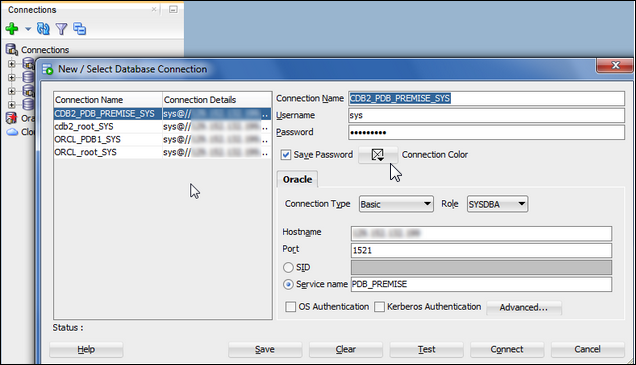
- Create a connection to the on-premises database.
In this case, the on-premises database is a PDB.
Remark: The VM IP Address is blurred for security reason.
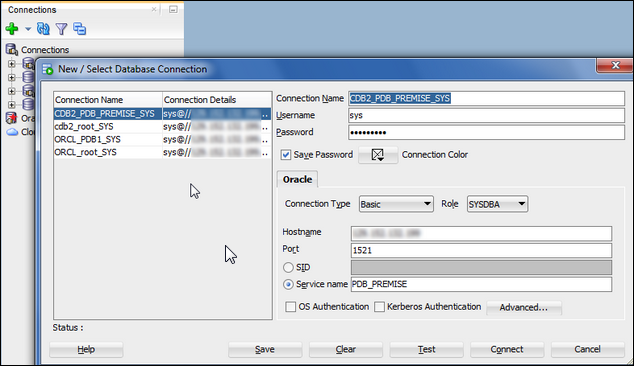
- Create a cart into which you add selected objects
to be loaded into the DBaaS database (non-CDB or
PDB). From the menu, click View and
the Cart.
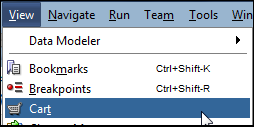
Then click Connect.
- Click the first icon to create a new cart.
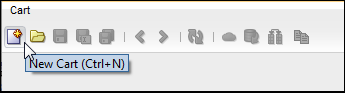
A new cart is created. If other carts already exist such ascart_1andcart_2, the new cart is calledcart_3.
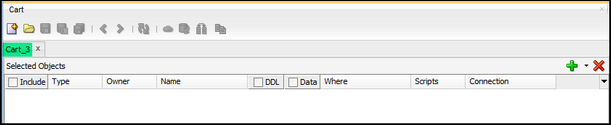
- Expand the
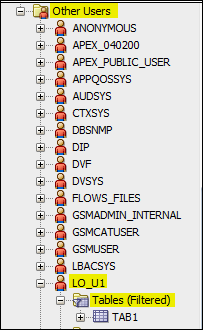
CDB2_PDB_PREMISE_SYSconnection folder by clicking the +, then expand the Other Users, then expand theLO_U1local user, then expand the Tables (Filtered).
- Right-click the
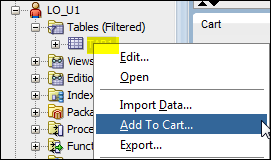
TAB1table and select Add to Cart....
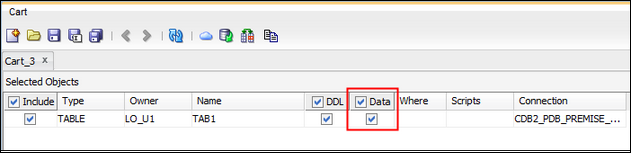
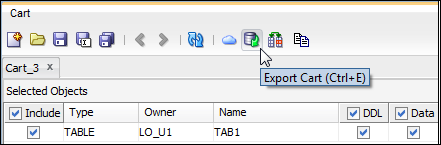
Observe that the table is included in the cart. Click
Data to
retrieve the data of the rows as well as the
definition of the table.
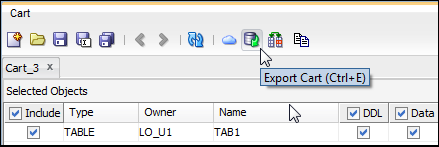
- Click the Export
Cart (Ctrl+E) icon to export the selected
objects of the cart and thus generate DDL and DML
statements for recreating the table and dependent
objects and reloading data into the DBaaS database.
- Select the options that will create supplementary
DDL statements in the
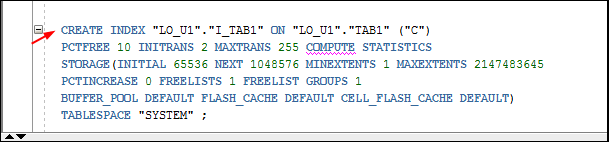
D:\export.sqlscript file. For example, selecting Dependents will generateCREATE INDEXstatements if indexes exist on the table. Selecting Grants will generateGRANTstatements if indexes exist on the table. Selecting Drops will generateDROP TABLEstatements. You can also define how often aCOMMITstatement will occur when rows will be inserted in tables in the DBaaS database by executing the generated SQL script.
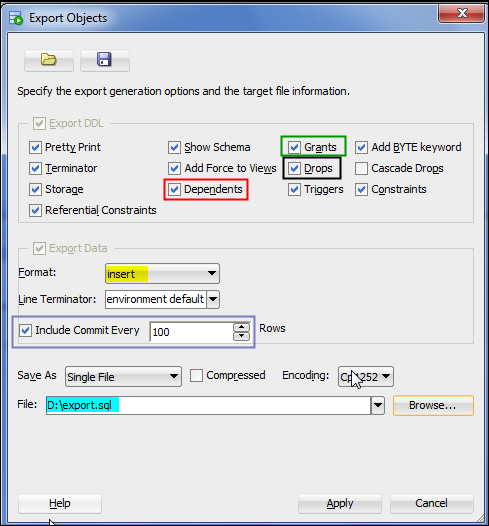
Notice that the default Format of the resulting export is insert. This means that SQL Developer generates a single SQL script file containing the DDL statements to drop and recreate the tables along with dependent objects (indexes, constraints and others) and other types of objects defined in the cart into the DBaaS database (non-CDB or PDB), and grant privileges on objects to users in the DBaaS database. - Click Apply.
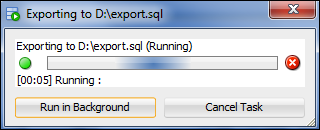
The content of theD:\export.sqlscript file is displayed in the SQL Worksheet page in a new Worksheet tab.

- Create a connection to the on-premises database.
In this case, the on-premises database is a PDB.
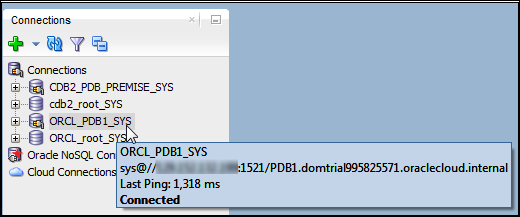
- Create the connection to the DBaaS database if this
one does not exist yet. In this case, the DBaaS database
is the
PDB1PDB of theORCLCDB.
- If the
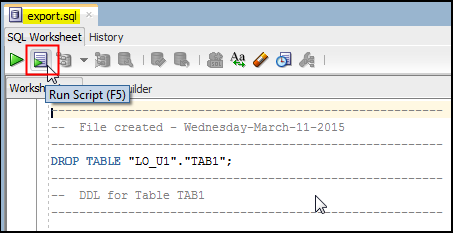
export.sqlSQL script is no more opened, from the menu, click File, then Open. Select theexport.sqlSQL file. The content of the SQL script appears in the SQL Worksheet page. Click the Run Script (F5) icon.
- Select the connection to
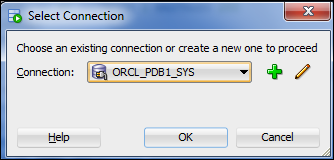
PDB1. Click OK.
- Export Cart using Loader format generates multiple
files.
- A SQL file containing the DDL statements to recreate the tables and other objects into the DBaaS database (non-CDB or PDB)
- A SQL*Loader control file describing the SQL*Loader parameters to load data
- A SQL*Loader data file containing the data to be
reinserted into the tables into the DBaaS database
(non-CDB or PDB)
- Create a connection to the on-premises database
if this one does not exist yet. In this case, the
on-premises database is a PDB.
- Either use the same cart created in the previous
section - Export Cart Using Insert, or create a new
cart to add new and or different objects. Because
the steps to create a cart are covered in the
previous section, you will use the same cart. Click
the Export Cart
(Ctrl+E) icon to export the selected
objects of the cart and thus generate appropriate
files for recreating the table and dependent objects
and reloading data into the DBaaS database.
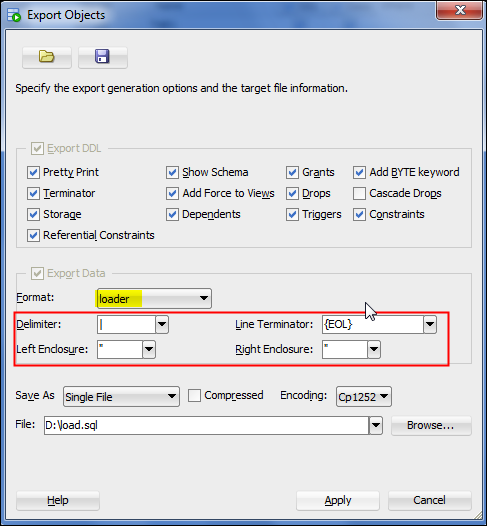
- Choose loader in
the Format field. Select the options that will
create supplementary DDL statements in the
D:\load.sqlscript file. For example, selecting Dependents will generateCREATE INDEXstatements if indexes exist on the table. Selecting Grants will generateGRANTstatements if indexes exist on the table. Selecting Drops will generateDROP TABLEstatements.
- Click Apply.
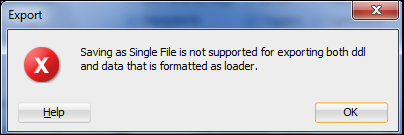
An error is returned because the loader method will generate three types of files.
You have to declare a directory where the three types of files will be generated as Separate Files before clicking Apply.
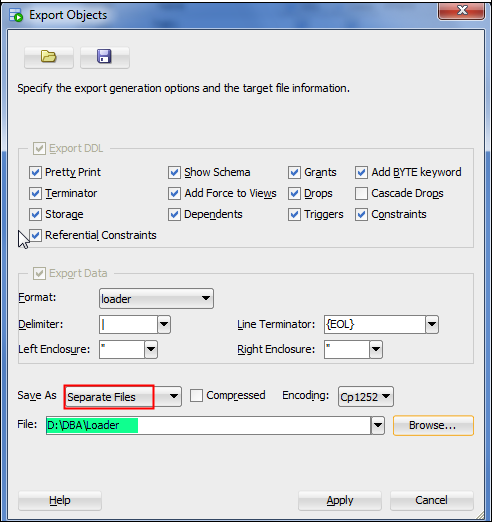
The list of files generated in theD:\DBA\Loaderdirectory is displayed in the SQL Worksheet page in a new Worksheet tab.
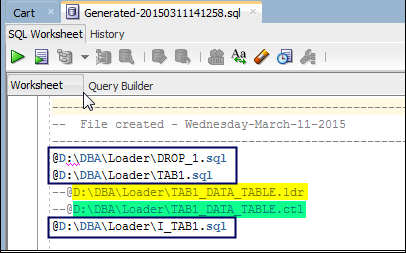
There are three types of files generated. - A
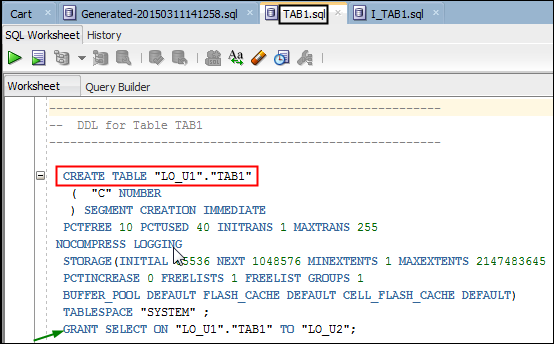
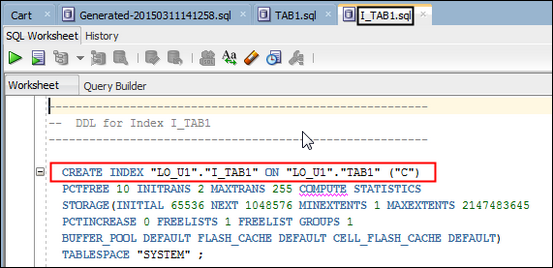
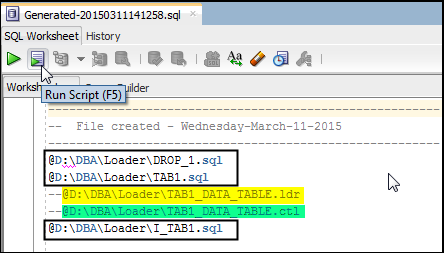
Generated-nnn.sqlSQL script containing a list of SQL script file names, each of them executing the DDL statements to drop (DROP_1.sql), recreate the tables (TAB1.sql) and other objects such as indexes (I_TAB1.sql) into the DBaaS database. - A SQL*Loader control file
(
TAB1_DATA_TABLE.ctl) describing the SQL*Loader parameters to load data - A SQL*Loader data file
(
TAB1_DATA_TABLE.ldr) containing the data to be reinserted into the tables into the DBaaS database (non-CDB or PDB)
Then click Connect.
- To view the content of the files, click View
then Files.
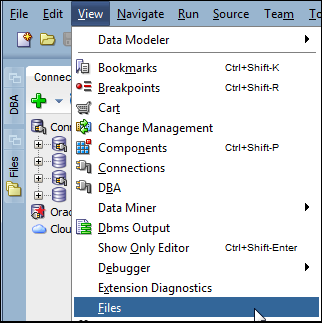
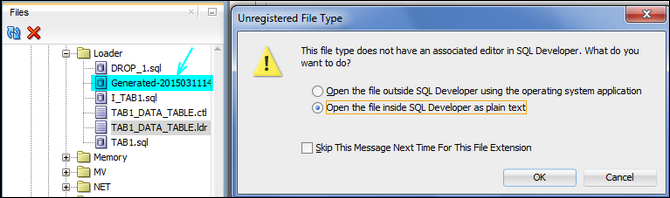
Find theD:\DBA\Loaderdirectory. - To view the content of the SQL*Loader data file,
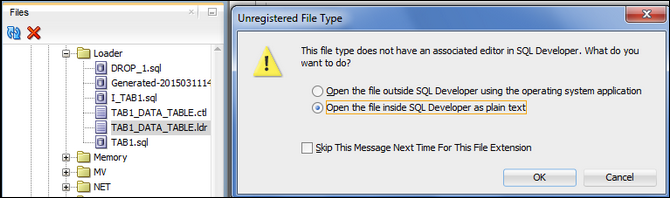
right-click the
TAB1_DATA_TABLE.ldrfile name and select Open. Choose Open the file inside SQL Developer as plain text.

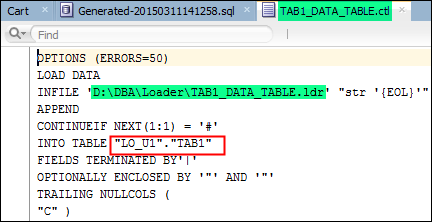
- To view the content of the SQL*Loader control file,
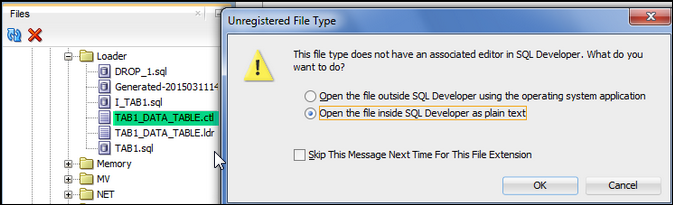
right-click the
TAB1_DATA_TABLE.ctlfile name and select Open. Choose Open the file inside SQL Developer as plain text.
- To view the content of the SQL script files,
right-click the
TAB1.sqlfile name and select Open. Then right-click theI_TAB1.sqlfile name and select Open.
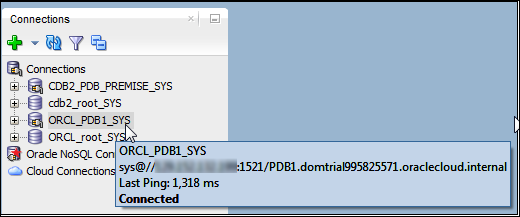
- Create the connection to the DBaaS database if this
one does not exist yet. In this case, the DBaaS database
is the
PDB1PDB of theORCLCDB.
- If the
Generated-20150311141258.sqlSQL script is no more opened, from the menu, click File, then Open. Select theGenerated-20150311141258.sqlSQL file to execute each SQL script file name described in the theGenerated-20150311141258.sqlscript.
- The content of the SQL script appears in the SQL
Worksheet page. Click the Run Script (F5)
icon.
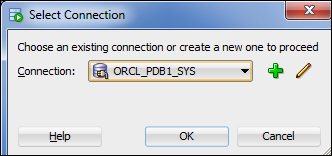
- Select the connection to
PDB1. Click OK.
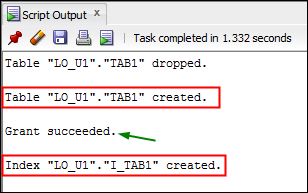
- Transfer the SQL*Loader control and data files from the SQL Developer client machine to the DBaaS VM.
- Use a secure file transfer utility such as WinSCP.
Remark: The key used to scp the files can be any key generated by puttygen.
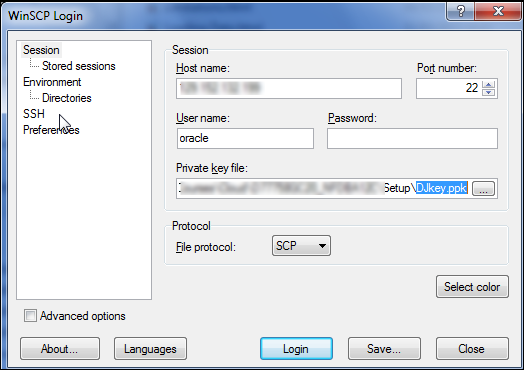
Click Login.
- The authentication is secure because it uses an
encrypted private key.
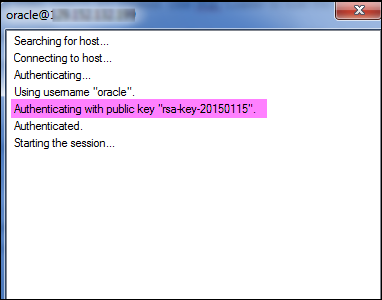
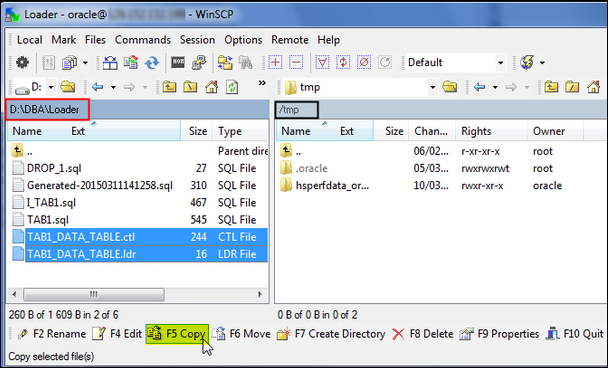
- In the left pane of the tool, find the D:\DBA\Loader
directory and select the SQL*Loader control and data
files. In the right pane of the tool, selectthe
directory where you want to copy the files to. Click F5
to copy.
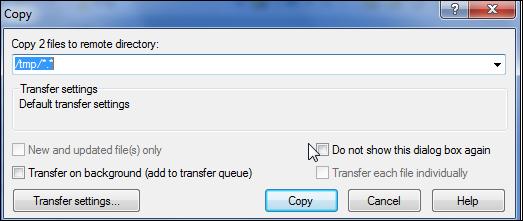
Click Copy.
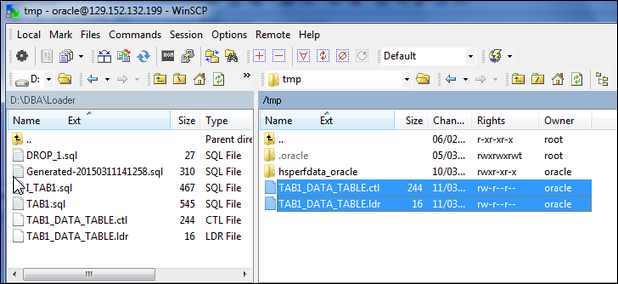
Files are now copied to the DBaaS VM.
-
You have created a PuTTY definition for connecting through an SSH tunnel to the DBaaS instance. Now open this definition to connect to the VM.
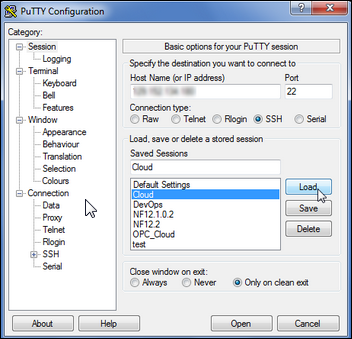
Then click Open.
-
Because this is not the first time you are connecting to the VM, the SSH utility does not prompt you to confirm the public key. If it were the first time, the SSH utility would have prompted you to confirm the public key. You would have confirmed by clicking Yes.
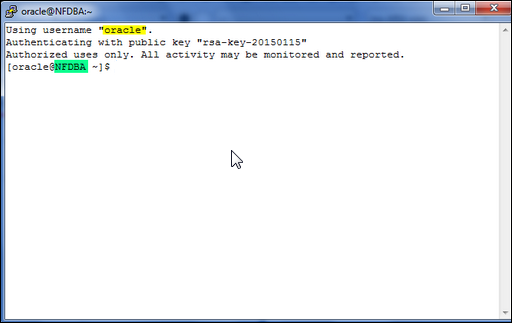
- Launch
sqlldrby using the SQL*Loader control and data files.
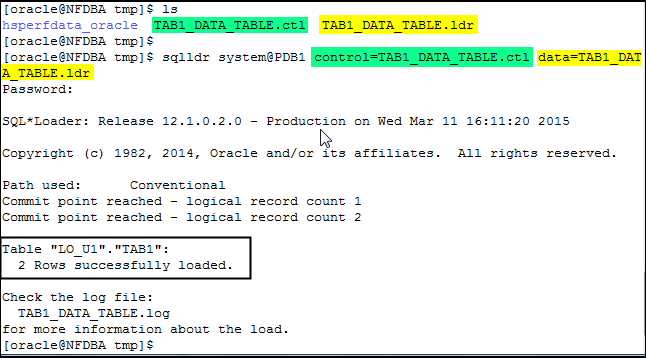
- Verify that the
LO_U1.TAB1is correctly loaded with the appropriate values and that theLO_U1.I_TAB1index has been correctly created on the table.
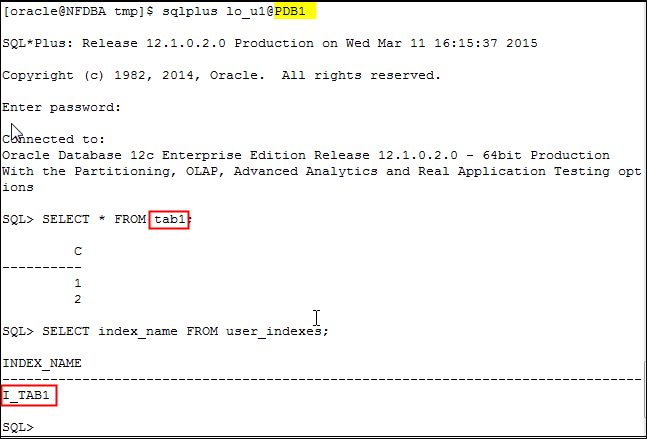
Export Cart Using Insert
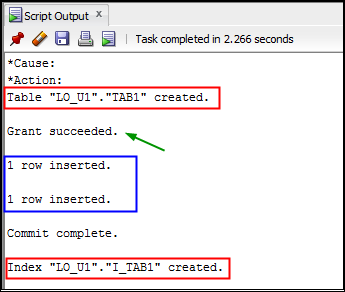
Note: All DDL and DML statements are successfully executed in the DBaaS PDB by using the
export.sql SQL
file.Export Cart Using Loader
Notice that the SQL*Loader data file contains 2 rows separated by the
{EOL} Line Terminator
defined in the Export Objects parameters.The definition of the
TAB1 table and I_TAB
index objects are created. Use SQL*Loader to load the
data.Deploy Cloud
-
Deploy Cloud is a method that automatically unloads,
transfers and reloads data of the cart from the on-premises
database into the DBaaS database.
You can get all the details of the steps required to complete a Deploy Cloud operation in the Oracle Cloud documentation. This method works only for the Schema Service and not for the Database Service.
Loading Data With External Files
This section explains how to manually unload data from tables of an on-premises database and reload data into the tables of the DBaaS database using external files. This method is useful when SQL Developer is not available.
- Unload the definitions and data of selected tables
from the on-premises database. In this case, the
on-premises database is a PDB. Connect under the schema
owner of the objects to be unloaded from the
on-premises
PDB_PREMISEPDB.
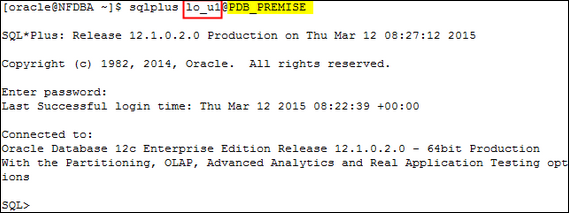
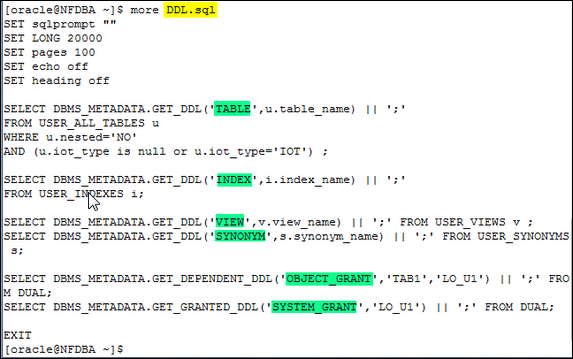
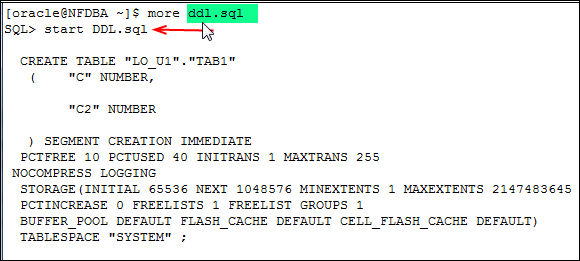
- Prepare a SQL script that will retrieve the definition
of the objects to unload.
- Execute the
DDL.sqlscript in thePDB_PREMISEPDB and keep the DDL statements in theddl.sqlscript.
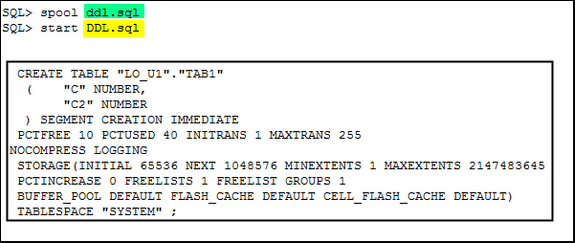
- Remove unnecessary lines from
ddl.sqlscript file.
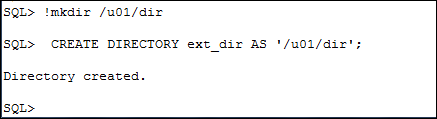
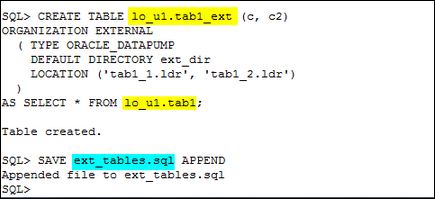
- Connect under the schema owner of the tables to be
unloaded from the on-premises
PDB_PREMISEPDB. Unload tables data into external files and log the DDL statements into a SQL script file.
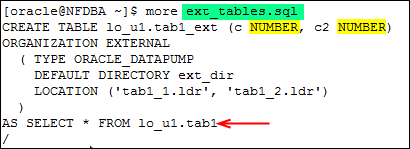
- Remove unnecessary lines from
ext_tables.sqlscript file and add data types to columns. The script will be used to recreate the external tables in the DBaaS database to reload data into heap tables.
-
You have created a PuTTY definition for connecting through an SSH tunnel to the DBaaS instance. Now open this definition to connect to the VM.
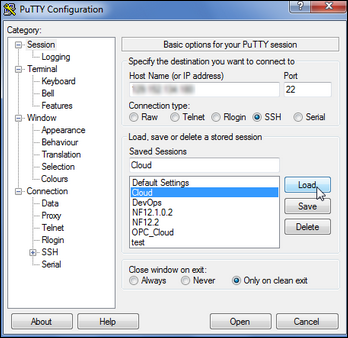
Then click Open.
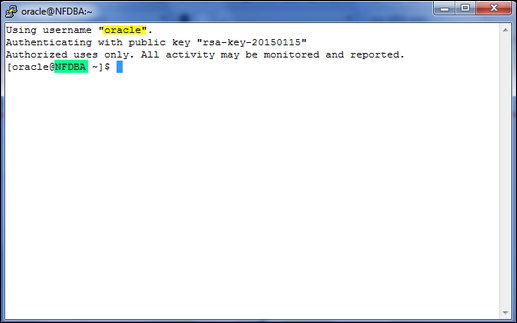
-
Because this is not the first time you are connecting to the VM, the SSH utility does not prompt you to confirm the public key. If it were the first time, the SSH utility would have prompted you to confirm the public key. You would have confirmed by clicking Yes.
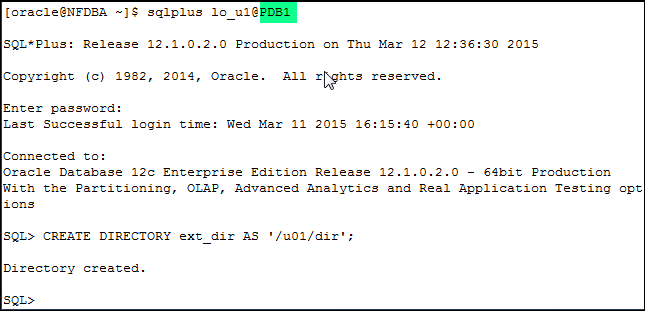
- Connect under the schema owner of the objects to be
reloaded into the DBaaS
PDB1PDB. Create the directory where the external files have been copied.
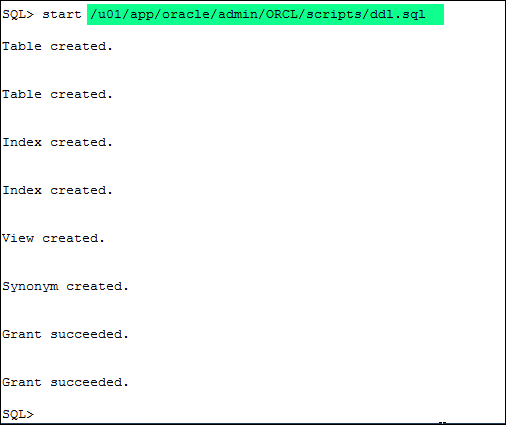
- Execute the SQL script to create the objects (tables,
indexes, synonyms, views) and grant the privileges to the
owner of the objects.
- Execute the SQL script to create the external tables.

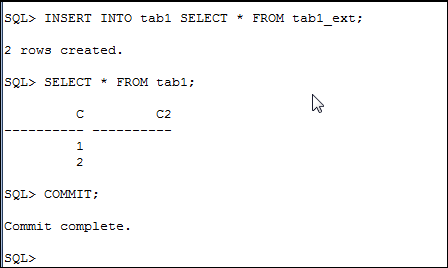
- Load data into
lo_u1.tab1using INSERT statements and the external files.
Generate SQL Scripts from the On-premises Database
Unload On-premises Data
Transfer the Files of the On-premises Platform to the DBaaS VM
-
Use SCP to transfer the SQL script files (
DDL.sql
and ext_tables.sql) and the external files (tab1_1.ldr
and tab1_2.ldr) securely from the
on-premises platform to the DBaaS VM.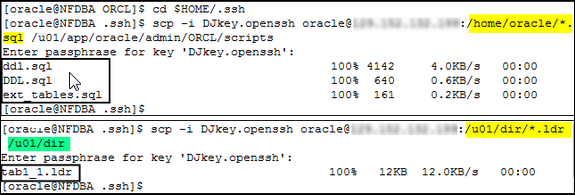
Note that a passphrase is used to securely transfer the files. Without the passphrase, SCP does not work so well.
Load On-premises Data into the DBaaS CDB
Summary
-
You can unload data from tables of an on-premises Oracle Database
12c to load the same data into tables of the Oracle Database 12c
DBaaS database using SQL Developer or using external tables.
- Use SQL Developer Export Cart with insert format
- Use SQL Developer Export Cart with loader format
- Use SQL Developer Deploy Cloud
- Create external tables to unload data and use external files to reload data
In this tutorial, you learned to:
- To learn more about Oracle Database Cloud Service, visit the Database Cloud Service.
- For training on the Oracle Cloud platform-as-a-service (PaaS) Services, visit the Oracle Learning Library
- Look at these Oracle By Examples on working with the Oracle Database Cloud Service:
- Creating a Database Instance in the Oracle Database Cloud Service
- Connecting to a Database Instance in the Oracle Database Cloud Service
- Limitations During Migration From on-premises Databases to DBaaS Databases
- Exporting an on-premises PDB and Importing into the DBaaS Database
- Unplugging and Plugging non-CDBs and PDBs into DBaaS CDB
- Remote Cloning Method to Migrate on-premises Databases to the Cloud
- Using
RMAN to Migrate on-premises Databases to DBaaS
Databases
- Lead Curriculum Developer: Dominique Jeunot
- Other Contributors: James Spiller
Resources
Credits
To navigate this Oracle by Example tutorial, note the following:
- Topic List:
- Click a topic to navigate to that section.
- Expand All Topics:
- Click the button to show or hide the details for the sections. By default, all topics are collapsed.
- Hide All Images:
- Click the button to show or hide the screenshots. By default, all images are displayed.
- Print:
- Click the button to print the content. The content that is currently displayed or hidden is printed.
To navigate to a particular section in this tutorial, select the topic from the list.