This tutorial describes to debug Oracle PL/SQL from Visual Studio.
Time to Complete
Approximately 30 minutes.
Background
The integrated PL/SQL debugger in Oracle Developer Tools for Visual Studio (ODT) allows you to remain inside of Visual Studio for end-to-end debugging of your .NET and Oracle solution. You can debug PL/SQL code such as procedures and functions (both stand-alone and packaged), object methods, and triggers from within the Visual Studio environment in the same way as you would debug your C# or VB.NET code. With the ODT integrated PL/SQL debugger, you can use traditional debugging features such as setting break points, viewing and modifying variable values, and examining the call stack.
You use the PL/SQL debugger in one of three modes:
Direct Database Debugging
The Direct Database Debugging mode allows you to debug PL/SQL code directly from Server Explorer. When you use the Direct Database Debugging mode, you do not need a Visual Studio solution or .NET code. By right clicking on a procedure or function in Server Explorer, you can step into a PL/SQL procedure or function. Any arguments required by the procedure must be entered by hand. This limits the use of this feature to procedures or functions that have scalar parameter values.
External Application Debugging
External Application Debugging allows you to dedicate an instance of Visual Studio solely for waiting on a breakpoint to be called in a PL/SQL stored procedure or function, and then debug it with that instance of Visual Studio. This is particularly useful when the stored procedure is called by a middle tier web server. In the case of ASP.NET web applications, one Visual Studio instance can be dedicated to debugging the ASP.NET code and the other can debug the PL/SQL code. This mode is most heavily used by ASP.NET developers.
Multi-tier Application Debugging
This mode allows you to seamlessly debug both .NET and PL/SQL code from within a single Visual Studio instance. You can step directly from your .NET code into the PL/SQL code and back out again. This is most useful in client server applications (rather than ASP.NET web applications). This Oracle by Example walkthrough will demonstrate Multi-tier Application Debugging.
What Do You Need?
Microsoft Visual Studio 2015 or later with .NET Framework 4.5 or later
Oracle Database 11g Release 2 or later
Oracle 12c Oracle Data Access Components (ODAC) with Oracle Developer Tools for Visual Studio version 12.1.0.2.4 or later
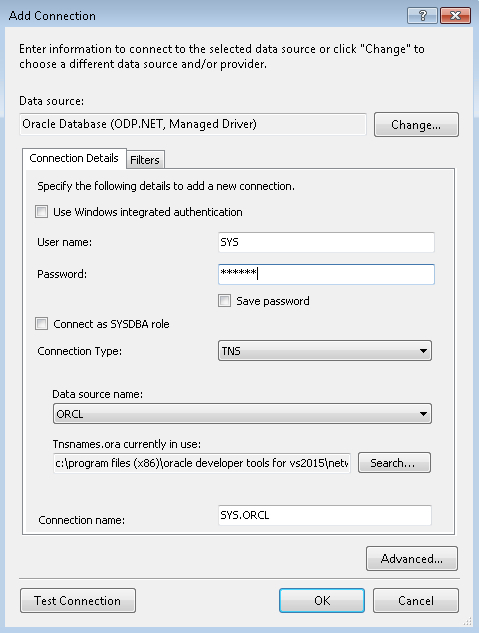
Creating Oracle Database Connection
Perform the following steps to create Oracle database connection.
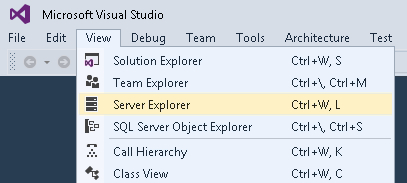
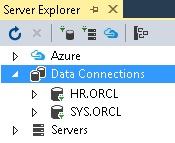
Open Visual Studio. From the View menu, select Server Explorer.
Perform the following steps to create a PL/SQL Package and Package Body that determines whether each number in a PL/SQL array is a prime number and then creates a new row in the JOBS table using a PL/SQL record.
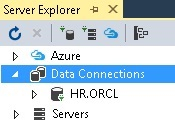
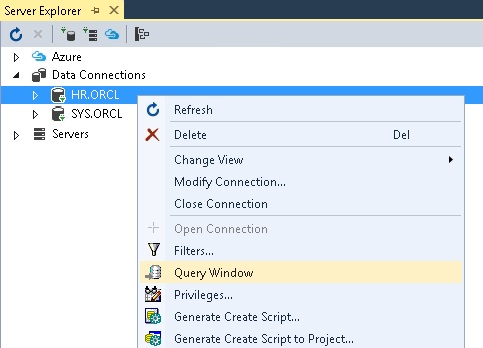
In the Server Explorer, right click on HR.ORCL and then select Query Window.
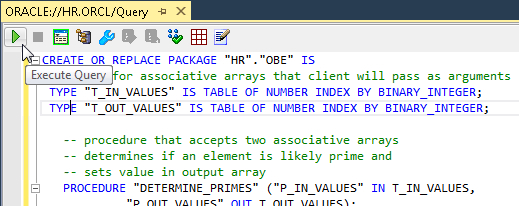
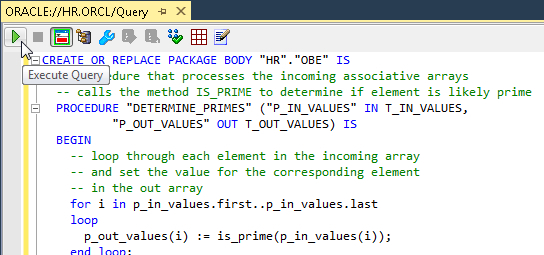
Write the following code in the Query Window and click Execute. After successful execution, remove the code from the Query Window.
CREATE OR REPLACE PACKAGE "HR"."OBE" IS
-- types for associative arrays that client will pass as arguments
TYPE "T_IN_VALUES" IS TABLE OF NUMBER INDEX BY BINARY_INTEGER;
TYPE "T_OUT_VALUES" IS TABLE OF NUMBER INDEX BY BINARY_INTEGER;

-- procedure that accepts two associative arrays
-- determines if an element is likely prime and
-- sets value in output array
PROCEDURE "DETERMINE_PRIMES" ("P_IN_VALUES" IN T_IN_VALUES,
"P_OUT_VALUES" OUT T_OUT_VALUES);

-- function that determines if a number is likely prime
FUNCTION "IS_PRIME" ("P_NUMBER" IN NUMBER) RETURN NUMBER;

-- constants used to return values from function
IS_NOT_A_PRIME CONSTANT NUMBER DEFAULT 0;
IS_A_PRIME CONSTANT NUMBER DEFAULT 1;

-- pl/sql record type for the jobs table
"JOBS_REC" jobs%rowtype;

-- pl/sql procedure to add new job to jobs table
PROCEDURE "ADD_NEW_JOB" ("P_JOB_ID" IN JOBS.JOB_ID%TYPE,
"P_JOB_TITLE" IN JOBS.JOB_TITLE%TYPE,
"P_MIN_SALARY" IN JOBS.MIN_SALARY%TYPE,
"P_MAX_SALARY" IN JOBS.MAX_SALARY%TYPE);

END "OBE";
Description of this imageNote: You will get PL/SQL procedure successfully completed message on successful execution.
Write the following code in the Query Window and click Execute. After successful execution, remove the code from the Query Window.
CREATE OR REPLACE PACKAGE BODY "HR"."OBE" IS
-- procedure that processes the incoming associative arrays
-- calls the method IS_PRIME to determine if element is likely prime
PROCEDURE "DETERMINE_PRIMES" ("P_IN_VALUES" IN T_IN_VALUES,
"P_OUT_VALUES" OUT T_OUT_VALUES) IS
BEGIN
-- loop through each element in the incoming array
-- and set the value for the corresponding element
-- in the out array
for i in p_in_values.first..p_in_values.last
loop
p_out_values(i) := is_prime(p_in_values(i));
end loop;
END "DETERMINE_PRIMES";
-- private function to determine if a number is likely prime
FUNCTION "IS_PRIME" ("P_NUMBER" IN NUMBER) RETURN NUMBER IS
l_sqrt number := 0;
l_sqrt_ceil number := 0;
l_divisor number := 0;
l_divisor_squared number := 0;
begin
-- prime numbers must be >= 2
if p_number < 2 then
return IS_NOT_A_PRIME;
end if;
-- only integers can be prime
if p_number != ceil(p_number) then
return IS_NOT_A_PRIME;
end if;
-- 2 is the only even prime, so it is a special case
if p_number = 2 then
return IS_A_PRIME;
end if;
-- eliminate all other even numbers
if mod(p_number,2) = 0 then
return IS_NOT_A_PRIME;
end if;
-- if the sqrt of the number is an integer, the number is not prime
l_sqrt := sqrt(p_number);
l_sqrt_ceil := ceil(l_sqrt);
if l_sqrt = l_sqrt_ceil then
return IS_NOT_A_PRIME;
end if;
-- the number has passed the basic elimination tests and may be prime
-- loop through set of odd divisors to determine if number is prime
l_divisor := 3;
for i in 1..l_sqrt_ceil
loop
l_divisor_squared := l_divisor * l_divisor;
-- if l_divisor is a factor of p_number, then not a prime
if mod(p_number,l_divisor) = 0 and l_divisor_squared < p_number then
return IS_NOT_A_PRIME;
end if;
-- no factor found, therefore number is likely a prime
if l_divisor_squared > p_number then
return IS_A_PRIME;
end if;
l_divisor := l_divisor + 2;
end loop;
END "IS_PRIME";
-- pl/sql procedure to add new job to jobs table
PROCEDURE "ADD_NEW_JOB" ("P_JOB_ID" IN JOBS.JOB_ID%TYPE,
"P_JOB_TITLE" IN JOBS.JOB_TITLE%TYPE,
"P_MIN_SALARY" IN JOBS.MIN_SALARY%TYPE,
"P_MAX_SALARY" IN JOBS.MAX_SALARY%TYPE) IS
BEGIN
-- use the package variable JOBS_REC to create new record
jobs_rec.job_id := p_job_id;
jobs_rec.job_title := p_job_title;
jobs_rec.min_salary := p_min_salary;
jobs_rec.max_salary := p_max_salary;
-- insert the job record into the table
insert into jobs (job_id, job_title, min_salary, max_salary)
values (jobs_rec.job_id, jobs_rec.job_title,
jobs_rec.min_salary, jobs_rec.max_salary);
END "ADD_NEW_JOB";
END "OBE";
Description of this imageNote: You will get PL/SQL procedure successfully completed message on successful execution.
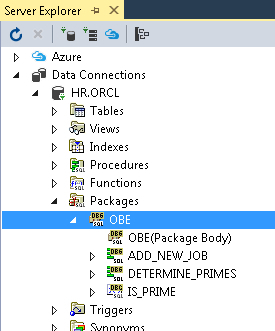
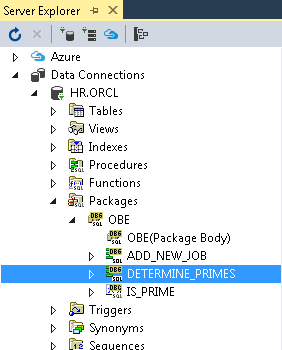
In the Server Explorer, expand Data Connections, and then expand HR.ORCL, and then expand Packages, and then expand OBE. You should see the list of objects that were created.
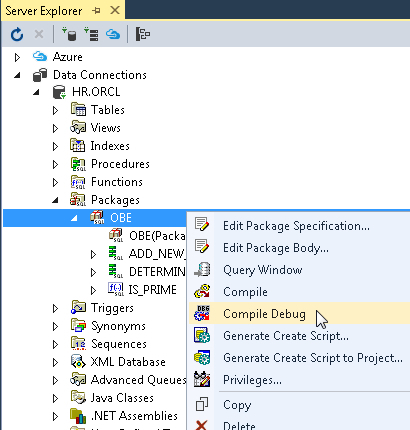
The package compiles successfully and the result is displayed in the Output window. This action enables debugging of the package by adding debugging metadata. All of the package icons under the OBE root node change color to indicate that they have been compiled with debug metadata. This is to remind you to do a normal compile later.
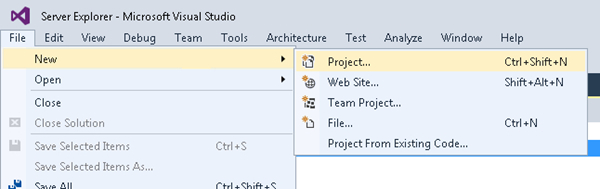
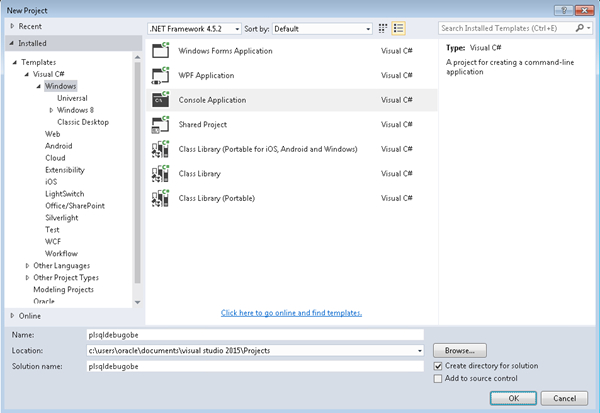
The New Project window opens up. In the left side pane, expand Installed, and then expand Templates, and then expand Visual C#, and then expand Windows. In the center pane, select Console Application. Enter plsqldebugobe as the name of the project, and then click OK.
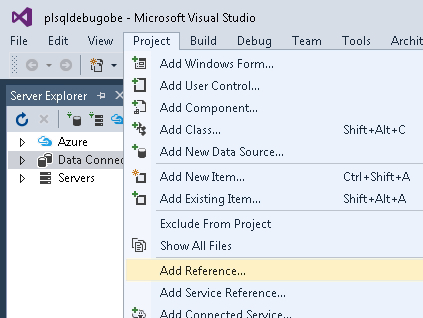
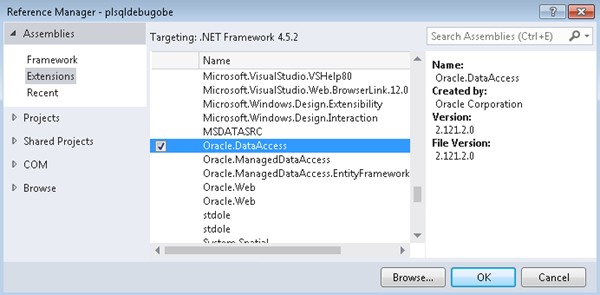
The Reference Manager window opens up. In the left side pane, expand Assemblies, and then expand Extensions. In the center pane, scroll down the list of extensions and select Oracle.DataAccess and then click OK.
Description of this imageNote: There may be several versions of ODP.NET listed. The first digit in the version number, (for example "4") represents the version of the .NET framework it is designed for. The rest of the digits represent the Oracle version number. Depending on your configuration, it may be necessary to click the "Browse" button and navigate to where Oracle.ManagedDataAccess.dll is located.
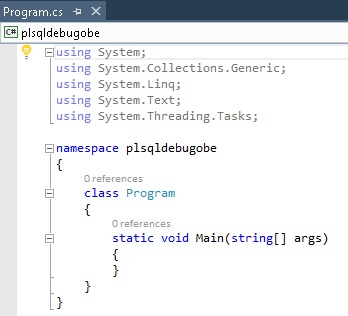
Open the Program.cs file. Enter the following code in Program.cs file and Save.
using System;
using System.Data;
using Oracle.DataAccess.Client;
using Oracle.DataAccess.Types;

namespace plsqldebugobe
{
  /// Summary description for Class1.
  class Program
  {
    /// The main entry point for the application.
    [STAThread]
    static void Main(string[] args)
    {
      try
      {
      // constants used to represent values returned
      // from the pl/sql procedure call
      const int IS_NOT_A_PRIME = 0;
      const int IS_A_PRIME = 1;

      // display progress message
      Console.WriteLine("Testing array for prime numbers...\n");

      // connection string: adjust for your environment
      string constr = "User Id=hr; Password=hr; Data Source=ORCL; enlist=false; pooling=false";

      // create and open connection object
      OracleConnection con = new OracleConnection(constr);
      con.Open();

      // create command object for the function call
      OracleCommand cmd = new OracleCommand();
      cmd.Connection = con;
      cmd.CommandText = "OBE.determine_primes";

      // set the proper command type
      cmd.CommandType = CommandType.StoredProcedure;

      // parameter object for the input array
      OracleParameter p_in_values = new OracleParameter();
      p_in_values.OracleDbType = OracleDbType.Decimal;
      p_in_values.CollectionType = OracleCollectionType.PLSQLAssociativeArray;
      p_in_values.Value = new decimal[10]{1, 2, 3, 4, 5, 6, 7, 8, 9, 10};
      p_in_values.Size = 10;
      p_in_values.Direction = ParameterDirection.Input;

      // parameter object for the output array
      OracleParameter p_out_values = new OracleParameter();
      p_out_values.OracleDbType = OracleDbType.Decimal;
      p_out_values.CollectionType = OracleCollectionType.PLSQLAssociativeArray;
      p_out_values.Value = null;
      p_out_values.Size = 10;
      p_out_values.Direction = ParameterDirection.Output;

      // add parameters to the collection
      // they must be added in the proper
      // order when using bind by position (the default)
      cmd.Parameters.Add(p_in_values);
      cmd.Parameters.Add(p_out_values);

      // execute the pl/sql procedure to populate output array
      cmd.ExecuteNonQuery();

      // display results to console window
      for (int i = 0; i < p_in_values.Size; i++)
      {
        foreach (OracleParameter p in cmd.Parameters)
        {
          // the input array is treated as System.Decimal[]
          // within the .NET code
          if (p.Value is System.Decimal[])
          {
            Console.Write("The Number {0} ", ((p.Value as System.Decimal[])[i]).ToString());
          }

          // the output array is treated as OracleDecimal[]
          // within the .NET code
          if (p.Value is OracleDecimal[])
          {
            if (((p.Value as OracleDecimal[])[i]).ToInt32() == IS_NOT_A_PRIME)
            {
              Console.WriteLine("is not a prime number!");
            }
            else if (((p.Value as OracleDecimal[])[i]).ToInt32() == IS_A_PRIME)
            {
              Console.WriteLine("is a prime number!");
            }
          }
        }
      }

      // display a separator line
      Console.WriteLine();

      // display progress message
      Console.WriteLine("Using PL/SQL record...\n");

      // remove parameters from command collection
      // and set new command text
      cmd.Parameters.Clear();
      cmd.CommandText = "obe.add_new_job";

      // parameter object for the job_id
      OracleParameter p_job_id = new OracleParameter();
      p_job_id.Value = "IT_DBA";

      // parameter object for the job_title
      OracleParameter p_job_title = new OracleParameter();
      p_job_title.Value = "Database Administrator";

      // parameter object for the min_salary
      OracleParameter p_min_salary = new OracleParameter();
      p_min_salary.OracleDbType = OracleDbType.Decimal;
      p_min_salary.Value = 10000;

      // parameter object for the max_salary
      OracleParameter p_max_salary = new OracleParameter();
      p_max_salary.OracleDbType = OracleDbType.Decimal;
      p_max_salary.Value = 15000;

      // add parameters to collection
      cmd.Parameters.Add(p_job_id);
      cmd.Parameters.Add(p_job_title);
      cmd.Parameters.Add(p_min_salary);
      cmd.Parameters.Add(p_max_salary);

      // execute the pl/sql procedure to add new job
      cmd.ExecuteNonQuery();

      // display simple message to indicate procedure completed
      Console.WriteLine("New job successfully created!");

      // display a separator line
      Console.WriteLine();

      // Simple prompt to prevent the console from closing
      // when running from the IDE
      Console.WriteLine("Press ENTER to continue...");
      Console.ReadLine();

      // clean up objects
      p_max_salary.Dispose();
      p_min_salary.Dispose();
      p_job_title.Dispose();
      p_job_id.Dispose();
      p_out_values.Dispose();
      p_in_values.Dispose();
      cmd.Dispose();
      con.Dispose();
      }
          catch (Exception e)
          {
              Console.WriteLine(e.Message);
              Console.WriteLine(e.StackTrace);
          }
    }
  }
}
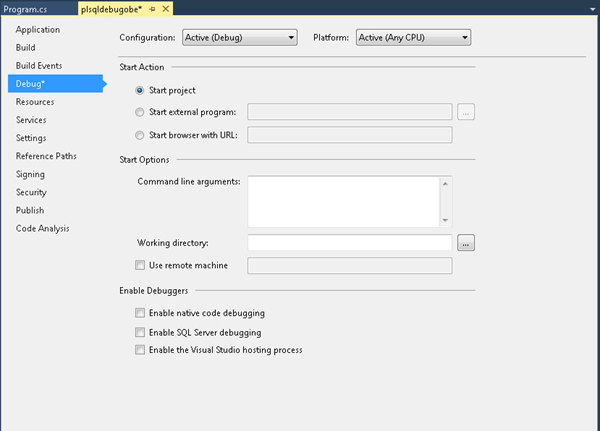
The Properties window opens up. In the left side pane, select the Debug option. Deselect the Enable the Visual Studio hosting process checkbox and then Save.
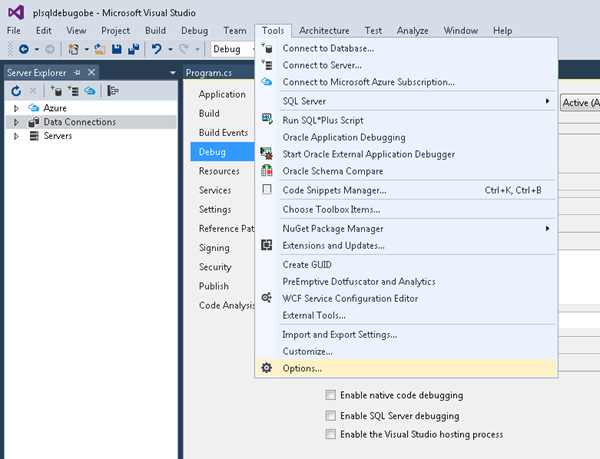
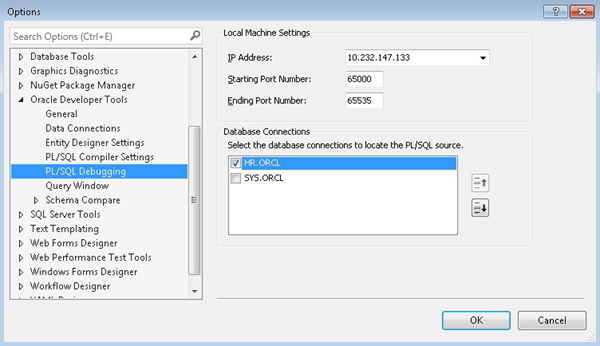
The Options window opens up. In the left pane, expand Oracle Developer Tools, and then select PL/SQL Debugging. Provide the following values, and then select the HR.ORCL checkbox for Database Connections, and then click OK.
IP Address: <your ip address>
Starting Port Number: 65000
Ending Port Number: 65535
Description of this imageNote: Notice that you see an IP address dropdown box and a TCP/IP port range. During PL/SQL debugging, the Oracle Database connects to Visual Studio via TCP/IP on an IP address and on a random port within this range. If your machine has multiple IP addresses make sure to choose one that the Oracle database can connect to. Make sure the port range specified represents open ports on your machine and that they are not blocked by a firewall.
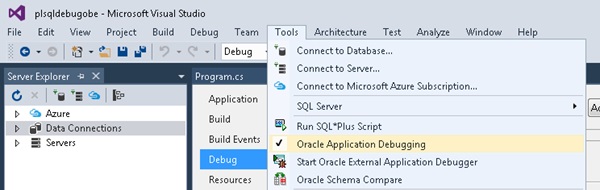
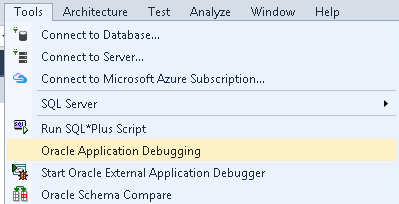
From the Tools menu, select Oracle Application Debugging.
Perform the following steps to grant DEBUG CONNECT SESSION and DEBUG ANY PROCEDURE permission to the HR user. If your database is Oracle 12.1 or later, security ACLs must also be registered with the database to enable connections to your IP address and port range.
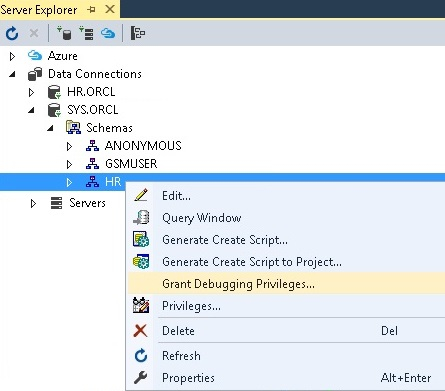
In the Server Explorer, expand HR.ORCL, and then expand Schemas. Right click on HR, and select Grant Debugging Privileges option.
Note: If you don't uncheck this, you will get connection errors when you try to connect to Oracle later.
Description of this image
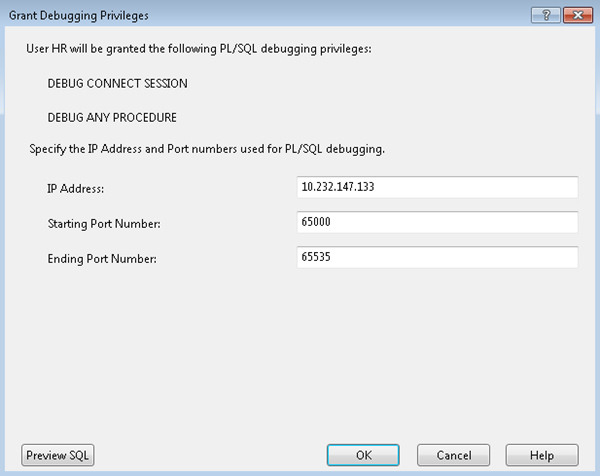
The Grant Debugging Privileges window opens up. Verify the values and click OK. You will receive a success message in the Output window.
Description of this imageNote: The values in the IP Address, Starting Port Number and Ending Port Number field are used to set the security ACLs and are populated automatically because of the previous steps. If the values provided are not acceptable, change them. For Oracle databases earlier than version 12, IP address and port fields will not appear in this dialog.
Setting Breakpoints
Perform the following steps to set some breakpoints in both your C# and PL/SQL code to stop the debugger during execution.
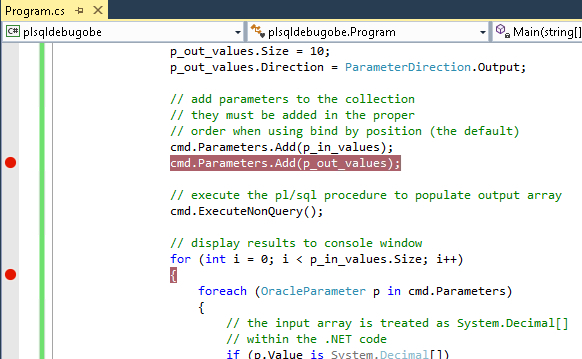
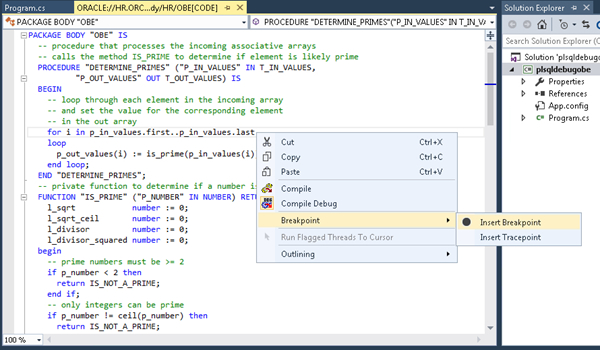
Open the Program.cs file and locate cmd.Parameters.Add(p_out_values) statement. Click anywhere on that line. Right click on that line, and select Breakpoint, and then select Insert Breakpoint. You will see a breakpoint indicator appear in the left side of the line.
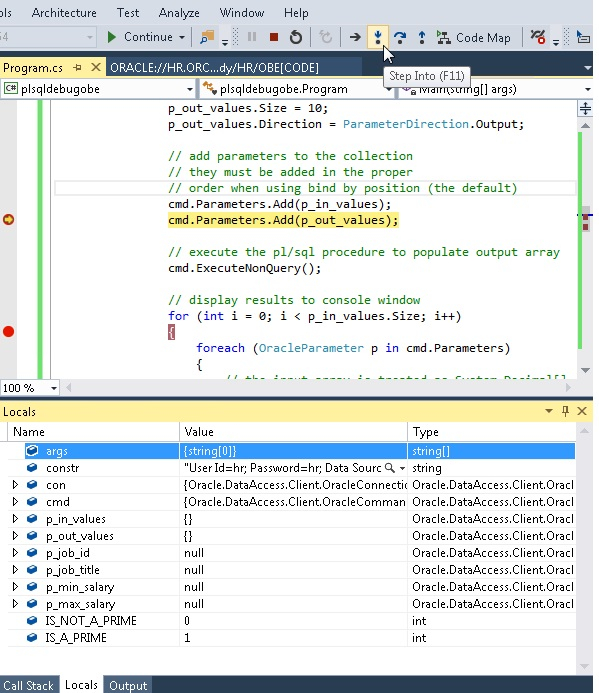
The debugger stops at the first breakpoint. To see the variables and their values, click the Locals tab at the bottom of the window. Have a look at the code leading up to this breakpoint to understand how an array bind parameter is set up.
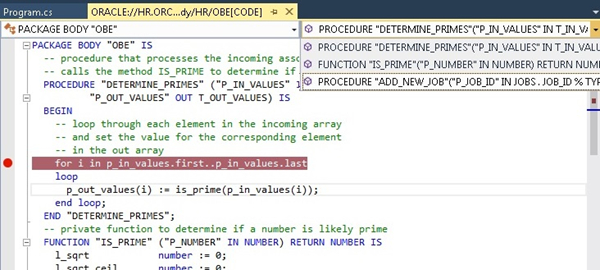
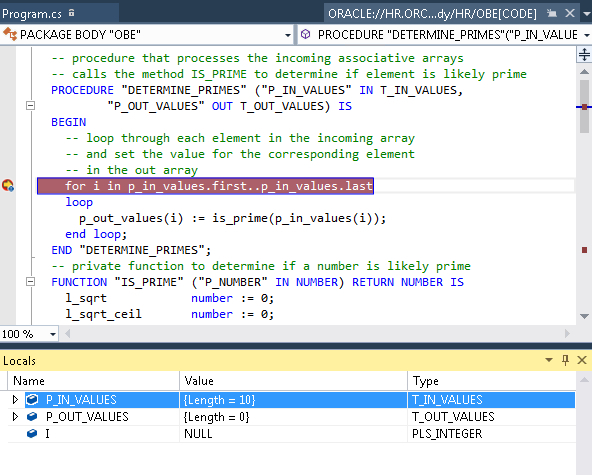
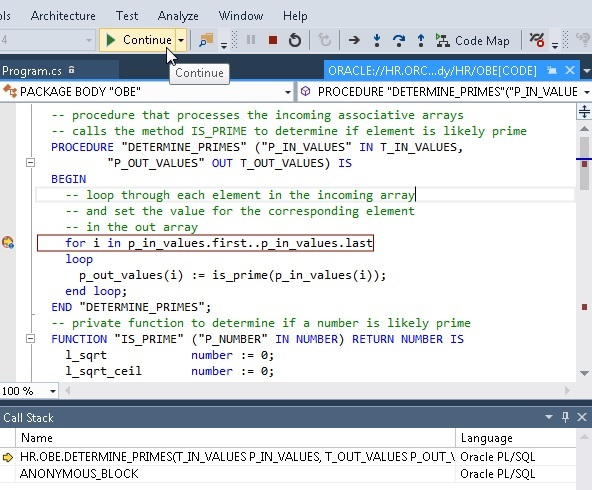
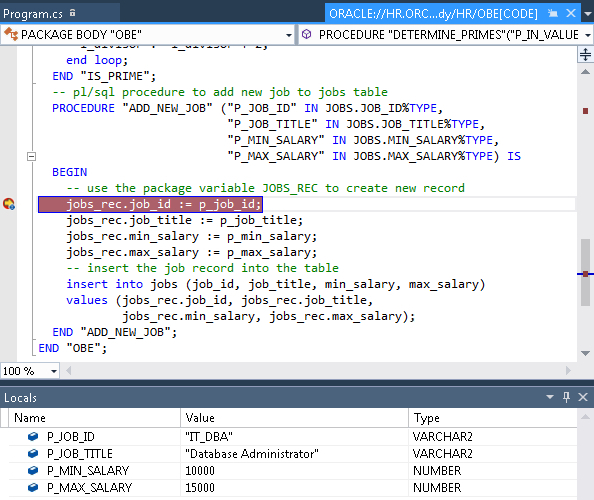
The next breakpoint is reached in the DETERMINE_PRIMES procedure. Notice that the P_IN_VALUES is an array of length 10 so the loop will be performed 10 times. Click the Continue icon to see the values in the Local window change.
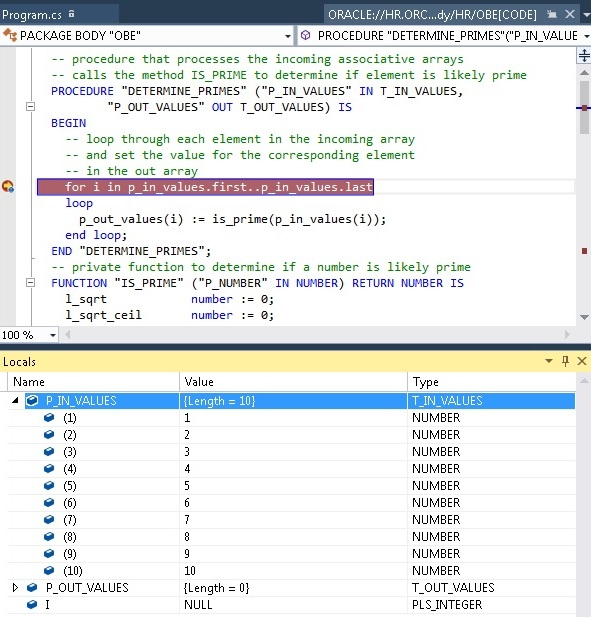
Click on the + icon next to the P_IN_VALUES variable name in the Locals window to view the contents of the input array. This is the array of values that was passed into this stored procedure from the C# application. Continue stepping through the code for a while. You can also expand the P_OUT_VALUES array to watch as it gets filled with values that are eventually returned by this stored procedure.
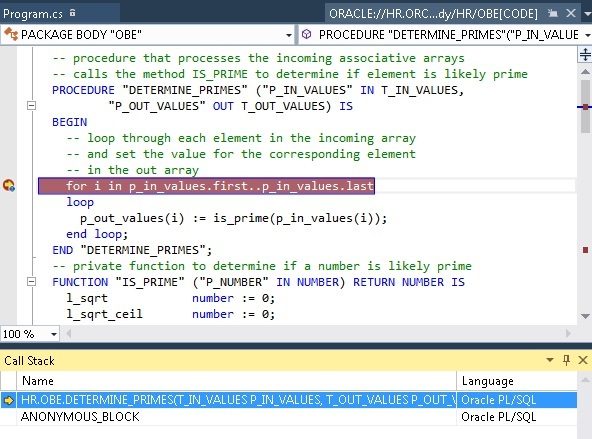
Click the Call Stack tab in the lower right window. By examining the call stack, you can determine the code path to the current point in the execution of your program.
Disable this breakpoint so the program continues to the next breakpoint. Right click on the breakpoint, and then select Disable Breakpoint. You can also click directly on the red circle breakpoint icon to delete the breakpoint.
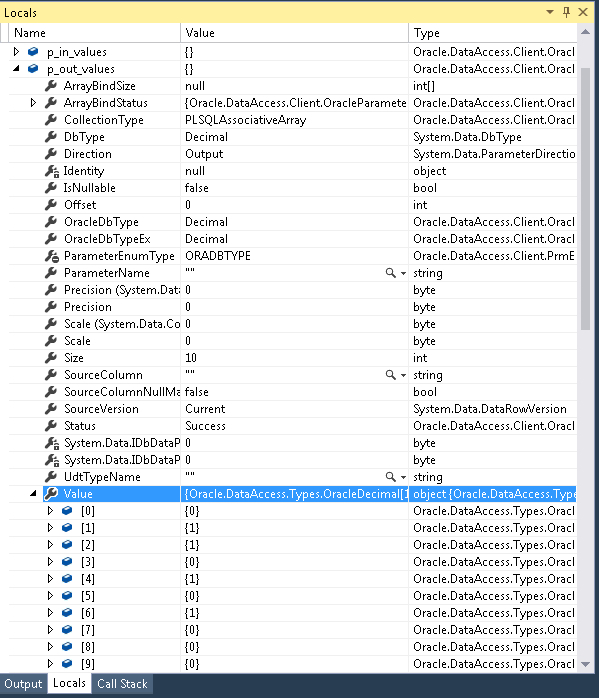
The debugger has returned to the C# code. In the Locals window expand the p_out_values variable and look at the Value member to view the results of the call to the DETERMINE_PRIMES. Then click Step Into a few more times.