New System Tray Functionality in Java SE 6
By Robert Eckstein, November 2005
Contents
The latest beta release of the Java Platform, Standard Edition 6 (Java SE 6) now lets you access the system tray in Java with the help of two separate classes in the java.awt package: SystemTray and TrayIcon. These classes give you the ability to add graphics, popup menus, and floating tip functionality to the system tray. If approved by the JSR 270 Expert Group through the Java Community Process, you can expect to find this feature in the final version.
Note: To run the code in this article, you must download and install the latest build.
What Is the System Tray?
The system tray is a specialized area, typically at the bottom of the desktop, where users can access continually running programs. On Microsoft Windows, the system tray is often referred to as the Taskbar Status Area, while on the Gnome Desktop, it is typically referred to as the Notification Area. On KDE, it is referred to as the System Tray. On each system, this tray area is shared by all applications running on the desktop.
Figures 1 and 2 show the system tray on both Windows and Gnome (Linux). In both cases, the system tray resides by default in the lower right corner of the screen.
Figure 1. Windows System Tray
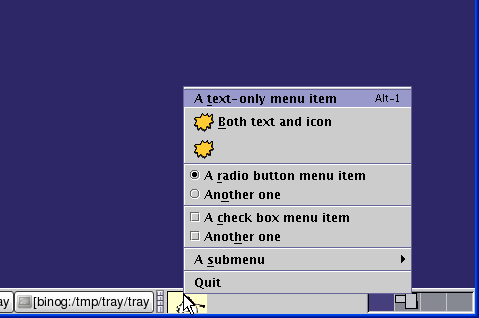
Figure 2. Linux System Tray
Accessing the System Tray
The java.awt.SystemTray class represents the system tray for a desktop. You can access the system tray by calling the static SystemTray.getSystemTray() method. Before doing so, however, the application should always check if the system tray is supported using the static SystemTray.isSupported() method. If the system tray is not present or supported on this platform, the isSupported() method returns false. If the application attempts to call getSystemTray() in such a case, the method will throw a java.lang.UnsupportedOperationException.
Every Java application has a single SystemTray instance. Hence, an application cannot create its own instance of SystemTray; instead, it must obtain the current one using the getSystemTray() method.
The SystemTray contains one or more TrayIcons, which are added to the tray using the add(java.awt.TrayIcon) method, and removed when no longer needed with the remove(java.awt.TrayIcon). Note that a recent addition to the beta code base specifies that the add() method can throw an AWTException if the operating system or the Java runtime determines that the icon cannot be added to the system tray. For example, an AWTException will be thrown by X-Windows desktops if the system tray does not exist.
The following code snippet demonstrates how to access and customize the system tray:
final TrayIcon trayIcon;


if (SystemTray.isSupported()) {

    SystemTray tray = SystemTray.getSystemTray();
    Image image = Toolkit.getDefaultToolkit().getImage("tray.gif");

    MouseListener mouseListener = new MouseListener() {

        public void mouseClicked(MouseEvent e) {
            System.out.println("Tray Icon - Mouse clicked!");
        }

        public void mouseEntered(MouseEvent e) {
            System.out.println("Tray Icon - Mouse entered!");
        }

        public void mouseExited(MouseEvent e) {
            System.out.println("Tray Icon - Mouse exited!");
        }

        public void mousePressed(MouseEvent e) {
            System.out.println("Tray Icon - Mouse pressed!");
        }

        public void mouseReleased(MouseEvent e) {
            System.out.println("Tray Icon - Mouse released!");
        }
    };

    ActionListener exitListener = new ActionListener() {
        public void actionPerformed(ActionEvent e) {
            System.out.println("Exiting...");
            System.exit(0);
        }
    };

    PopupMenu popup = new PopupMenu();
    MenuItem defaultItem = new MenuItem("Exit");
    defaultItem.addActionListener(exitListener);
    popup.add(defaultItem);

    trayIcon = new TrayIcon(image, "Tray Demo", popup);

    ActionListener actionListener = new ActionListener() {
        public void actionPerformed(ActionEvent e) {
            trayIcon.displayMessage("Action Event",
                "An Action Event Has Been Performed!",
                TrayIcon.MessageType.INFO);
        }
    };

    trayIcon.setImageAutoSize(true);
    trayIcon.addActionListener(actionListener);
    trayIcon.addMouseListener(mouseListener);

    try {
        tray.add(trayIcon);
    } catch (AWTException e) {
        System.err.println("TrayIcon could not be added.");
    }

} else {

    //  System Tray is not supported

}
Implementing Tray Icons
The system tray allows only one or more instances of java.awt.TrayIcon to be added or removed from it: A TrayIcon object represents a tray icon that can be added to the system tray. However, the TrayIcon functionality goes beyond simply the icon that is shown in the tray. It can also have a text tooltip, an AWT popup menu, and a set of listeners associated with it.
A TrayIcon generates various MouseEvents (pressed, released, and clicked) and supports the addition of corresponding listeners to receive notification of these events. Note, however, that the coordinates received from the TrayIcon in the MouseEvents are relative to the screen, not the TrayIcon itself. TrayIcon processes some of the events by itself. For example, by default, when a right-click is performed on the TrayIcon, it displays the specified popup menu. When the mouse hovers over the TrayIcon, the tooltip is displayed. A TrayIcon can also generate an ActionEvent. On some platforms, this occurs when the user selects the tray icon using either the mouse or keyboard. A well-behaved TrayIcon implementation will assign different gestures to showing a popup menu and selecting a tray icon.
Note that, according to the latest beta Javadocs, when a MouseEvent is dispatched to its registered listeners, its component property (returned by the superclass ComponentEvent.getComponent()) will be set to null. The source property (returned by EventObject.getSource()) will be set to this TrayIcon.
Helpful Features
You can update the image of the TrayIcon later in the program to indicate a change in application status using the setImage() method.
trayIcon.setImage(updatedImage);
Likewise, you can get and set the tooltip that is displayed when the mouse hovers over the TrayIcon for an OS-dependent period of time.
trayIcon.setTooltip("I'm busy. Go away.");
The TrayIcon class has an auto-size property that can be helpful. Auto-size determines whether the tray image is automatically sized to fit the space allocated for the image on the tray. By default, the auto-size property is set to false. If auto-size is false, and the image size doesn't match the tray icon space, the image is painted at its full size inside the space. In other words, if the image is larger than the allocated space, it will be cropped. On the other hand, if auto-size is true, the image is stretched or shrunk to fit the tray icon space.
trayIcon.setImageAutoSize(true);
Finally, if you wish to casually notify the user of a change in application status using a tooltip from the tray icon, use the displayMessage() method. This method displays a popup message near the tray icon, which will disappear after a time or if the user clicks on it. Clicking on the message may trigger an ActionEvent, depending on the platform.
    trayIcon.displayMessage("Finished downloading",

           "Your Java application has finished downloading",
           TrayIcon.MessageType.INFO);
The first parameter to the displayMessage() method is the caption, which often appears in bold at the top of the popup. The second parameter, also a String, is the actual text of the message itself. Finally, the last parameter is an enumeration of the TrayIcon.MessageType class, from which there are four options to choose. These options help to determine if any supporting graphics or other system actions can be taken while displaying your message. These options are shown in Table 1.
Table 1. TrayIcon.MessageType Enumerations
TrayIcon.MessageType.ERROR |
An error message |
TrayIcon.MessageType.INFO |
An information message |
TrayIcon.MessageType.NONE |
A simple message |
TrayIcon.MessageType.WARNING |
A warning message |
For More Information
- Download Java SE 6
- Download the Example Source Code in a NetBeans Project Folder
- API documentation for
SystemTrayclass - API documentation for
TrayIconclass
About the Author
Robert Eckstein is a Sun Microsystems staff writer. He has authored and edited several books on Java programming.