Architect: SOA
Hands-on Guide: Creating an Oracle Service Registry 11g High-Availability Setup on Oracle WebLogic Server 11g
by Yogesh Sontakke
Published May 2010
This guide provides step-by-step instructions for creating an active-active high-availability (HA) setup for Oracle Service Registry 11g in an Oracle WebLogic Server cluster environment.
Prerequisites
- Oracle Service Registry 11g, installable
- Oracle WebLogic Server 11g (10.3.1+), installed
- Oracle Database 10g or 11g, installed
DOWNLOAD
Overview
Figure 1 depicts the HA architecture this article discusses:

Figure 1
Here are the steps involved:
- Create the Oracle WebLogic Server environment: domain, servers, and cluster.
- Create an Oracle Service Registry application for the cluster.
- Deploy the Oracle Service Registry application to the clustered nodes.
- Simulate a load balancer, using Oracle WebLogic Server's built-in HTTPClusterServlet.
- Test the newly created Oracle Service Registry HA environment.
Create the Oracle WebLogic Server Environment: Domain, Servers, and Cluster
Figure 2 and Table 1 show the Oracle WebLogic Server setup we will be creating:

Figure 2: The Oracle Service Registry setup includes an admin server and several managed servers.
| Oracle WebLogic Server Component | Port | Description |
|---|---|---|
| osr_ha_domain | NA | The Oracle WebLogic Server domain where our Oracle Service Registry HA resides. |
| Admin server | 7001 | The admin server of our osr_ha_domain. Every Oracle WebLogic Server domain has one, and only one, admin server. |
| osr_ha_lbr | 7101 | The managed server that will host the simulated load balancer. It is not a part of any cluster. |
| wls_cluster | NA | An Oracle WebLogic Server cluster we create where both of the Oracle Service Registry nodes-osr_ha_nodeA and osr_ha_nodeB will live. |
| osr_ha_nodeA | 17101 | A managed server, the first of the two Oracle Service Registry nodes. |
| osr_ha_nodeB | 27101 | A managed server, the second of the two Oracle Service Registry nodes. |
Table 1: The components in our Oracle WebLogic Server environment
Creating the Oracle WebLogic Server environment for our Oracle Service Registry HA setup involves the following steps. Further detailed instructions on Oracle WebLogic Server administration are available here.
- Select Start → All Programs → Oracle WebLogic → WebLogic Server 11gR1 → Tools → Configuration Wizard.
- On the Welcome screen, select Create a new Oracle WebLogic Server domain and click Next.
- On the Select Domain Source screen, select Generate a domain configured automatically to support the following products and click Next.
-
Enter your new domain information, and click Next:
- Domain name: osr_ha_domain
- Domain location: <$MIDDLEWARE_HOME>\user_projects\domains
- On the Configure Administrator User Name and Password screen, assign a username and password for your admin server and click Next. Take note of this information, as you will need these credentials later.
- On the Configure Server Start Mode and JDK screens, leave the default settings — Development Mode and Sun JDK — and click Next.
- On the Select Optional Configuration screen, check Administration Server, Managed Servers, Clusters, and Machines and click Next.
- On the Configure the Administration Server screen, click Next.
- On the Configure Managed Servers screen, click Add to add the following managed servers, and click Next (Figure 3):
- On the Configure Clusters screen, click Add to add osr_cluster as shown below and click Next (Figure 4):
- On the Assign Servers to Clusters screen, assign osr_nodeA and osr_nodeB to osr_cluster and click Next (Figure 5).
- On the Create HTTP Proxy Applications screen, leave the defaults and click Next.
- On the Configure Machines screen, click Next.
- On the Configuration Summary screen, verify the information and click Create.
- When creation is complete, click Done.

Figure 3
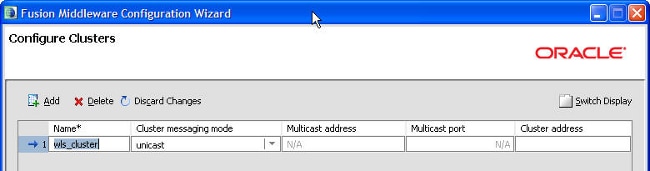
Figure 4
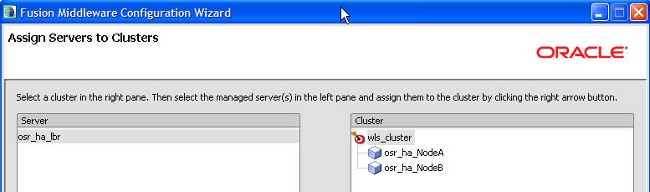
Figure 5
Start your newly created admin server, and go to the Admin Console by using the following URL: http://<hostname>:7001/console
Log in, using the username/password you provided. Go to Servers and/or Clusters, where you should see the following overview of the Oracle WebLogic Server environment you just created (Figure 6):
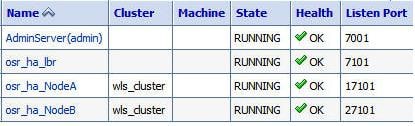
Figure 6
Create an Oracle Service Registry Application for the Cluster
Here we create the Oracle Service Registry application (Web archive [WAR] file) we'll deploy to the Oracle WebLogic Server cluster later.
For detailed instructions on installing Oracle Service Registry, see the Installation Guide, which is a part of the registry.pdf that comes with the Oracle Service Registry installable.
- Run the Oracle Service Registry 11.1.1.2 installer, using the following command: $java -jar oracle-service-registry-11.1.1.jar -debug.
- Choose Standalone Registry on the Installation Type screen (Figure 7).
- Make sure the installation directory you provide is unique and, as a best practice, at the same level as the Oracle WebLogic Server home, such as $MIDDLEWARE_HOME\osr_ha_home. For example, in the image below, ofm11gps2 is the $MIDDLEWARE_HOME, wlsserver_103 is the $WEBLOGIC_HOME, and osr11g is the $REGISTRY_HOME (Registry Installation Directory) (Figure 8).
- If you chose the Create New Tablespace/Database option on the Database Setup page, make sure you enter a unique tablespace name that does not already exist in your database, such as uddinode_ha.
- If you chose the Create New Schema option on the Database Setup page, make sure you enter a unique user/schema name that does not already exist in your tablespace, such as uddiuser_ha.
- For this exercise, don't choose to use or create a datasource at this time. (If you would like to, make sure you create a datasource accordingly in your osr_ha_domain, using the WLS Console before deployment of this application.)
- On the Choose a Method of Deployment screen, select Manual Deployment (Figure 9).
- On the next screen, enter the hostname and port of the osr_ha_lbr managed server. Although we are not deploying the application via the installer now, we want the URL references created in the Oracle Service Registry WAR file to point to the load balancer to leverage its HA functionality (Figure 10).
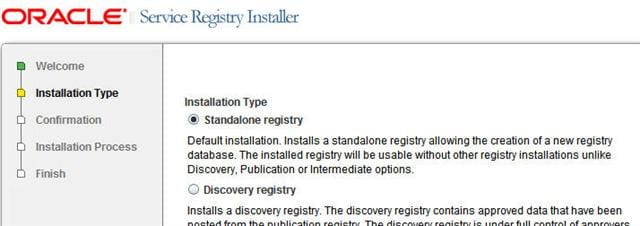
Figure 7
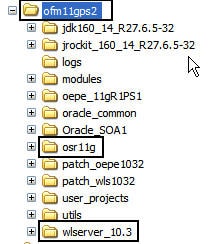
Figure 8
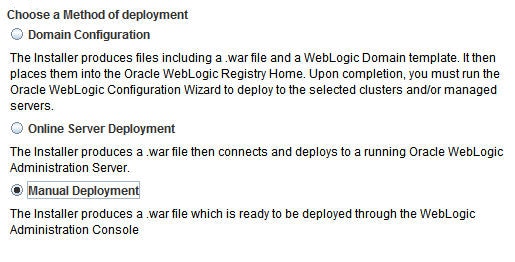
Figure 9
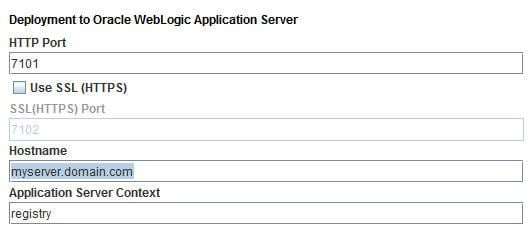
Figure 10
When you have completed the installation successfully, registry.war should be created under $MIDDLEWARE_HOME/osr_ha_home/conf/porting/weblogic/build.
Deploy the Oracle Service Registry Application to the Clustered Nodes
Now that we have the Oracle Service Registry application ( registry.war) ready, we can proceed to deploy it to the Oracle Service Registry HA nodes:
- Ensure that the admin server of your osr_ha_domain is running.
- Go to the Oracle WebLogic Server admin console: http://<hostname>:7001/console.
- From the Domain Structure group, select Deployments.
- In Deployments, select Install, then browse to registry.war, which the Oracle Service Registry installer created under $MIDDLEWARE_HOME/osr_ha_home/conf/ porting/weblogic/build. Click Next.
- Select Install this deployment as an application, and click Next.
- Select wls_cluster and All Servers in the cluster, and click Next (Figure 11).
- Select Copy this application onto every target for me, and click Next.
- Click Finish.
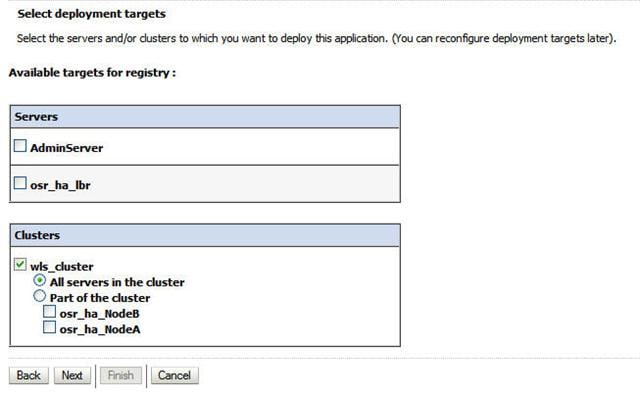
Figure 11
The Oracle Service Registry application is now deployed to both of the Oracle Service Registry HA nodes: osr_ha_nodeA and osr_ha_nodeB.
Simulate a Load Balancer Using Oracle WebLogic Server's Built-in HTTPClusterServlet
In this step, we simulate a load balancer by using the HTTPClusterServlet. The servlet is already available in Oracle WebLogic Server, but we need to configure the descriptor files for this servlet and tell it about the existence of our two Oracle Service Registry HA nodes. Also, we need to copy some of the user interface information of Oracle Service Registry to the load balancer application. Finally, we have a load balancer application ( balancer.war), which we deploy to the managed server osr_ha_lbr.
Create the directory structure for the balancer application
The first step is to create a new directory structure to hold all the files that need to get packaged into balancer.war (Figure 12):
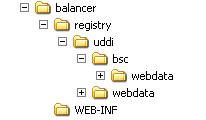
Figure 12
To create the directory structure:
- Create the balancer directory under $MIDDLEWARE_HOME\osr_ha_home.
- Create all the subdirectories shown under balancer in the correct hierarchy ( registry, registry → uddi, registry → uddi → bsc, registry → uddi → bsc → webdata, registry → webdata, and WEB-INF).
- Create two new temporary directories, c:\tmp_bsc and c:\tmp_web.
Create the load balancer's Web configuration file.
You must create the Web configuration file that describes the host and the port for each of the clustered nodes as well as the context paths for the user interfaces and the online documentation.
To create the Web configuration file, open a simple text editor such as Notepad and create $MIDDLEWARE_HOME\osr_ha_home\balancer\WEB-INF\web.xml with this content:
<web-app>
 <servlet>
   <servlet-name>HttpClusterServlet</servlet-name>
   <servlet-class>weblogic.servlet.proxy.HttpClusterServlet</servlet-class>
   <init-param>
   <param-name>WebLogicCluster</param-name>
   <param-value><your_hostname>:17101|<yourhostname>:27101</param-value>
   </init-param>
 </servlet>
 <servlet>
   <servlet-name>FileServlet</servlet-name>
   <servlet-class>weblogic.servlet.FileServlet</servlet-class>
 </servlet>
 <servlet-mapping>
    <servlet-name>FileServlet</servlet-name>
    <url-pattern>registry/uddi/bsc/webdata*</url-pattern>
 </servlet-mapping>
 <servlet-mapping>
    <servlet-name>FileServlet</servlet-name>
    <url-pattern>registry/uddi/webdata*</url-pattern>
 </servlet-mapping>
 <servlet-mapping>
    <servlet-name>FileServlet</servlet-name>
    <url-pattern>registry/uddi/doc*</url-pattern>
 </servlet-mapping>
 <servlet-mapping>
    <servlet-name>HttpClusterServlet</servlet-name>
    <url-pattern>/</url-pattern>
 </servlet-mapping>
</web-app>
Create the registry context file
To create the registry context file, open a simple editor such as Notepad and create $MIDDLEWARE_HOME\osr_ha_home \balancer\WEB-INF\weblogic.xml with this content:
<weblogic-web-app>
  <context-root>/registry</context-root>
</weblogic-web-app>
Copy registry user interface information to the balancer
You need to copy some of the content from the Oracle Service Registry installation that describes the user interface location into the balancer directory structure. One way to do this is to extract all the files from the bsc.jar and the web.jar packages into the temporary directories you created:
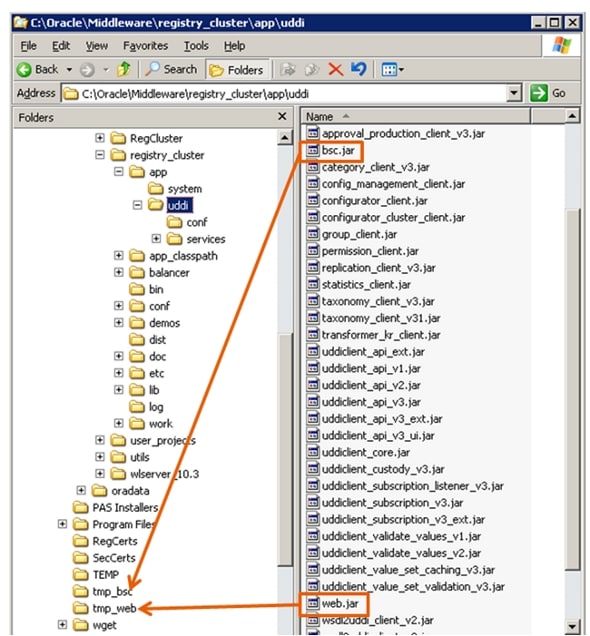
Figure 13
- To extract the jar files bsc.jar and web.jar, you can use the command line (jar xvf bsc.jar) or simply use a program such as Winzip or 7-zip.
- Copy the contents of c:\tmp_web\webroot (but not webroot itself) into $MIDDLEWARE_HOME\osr_ha_home\balancer\registry\uddi\webdata.
- Copy the contents of c:\tmp_bsc\webroot (but not webroot itself) into $MIDDLEWARE_HOME\osr_ha_home\balancer\registry\uddi\bsc\webdata.
Your directory structure should now look like this (Figure 14):
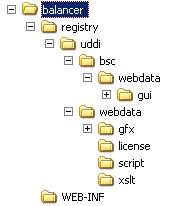
Figure 14
Create the load balancer package
The package balancer.war should include all the files and subdirectories in $MIDDLEWARE_HOME\osr_ha_home\balancer.
To create the load balancer package (balancer.war ), open a command prompt, browse to $MIDDLEWARE_HOME\osr_ha_home\balancer, and run the following: jar cvf balancer.war *.*
Deploy load balancer to the osr_ha_lbr managed server
Deploy the load balancer package ( balancer.war) to the managed server, osr_ha_lbr:
- Open the Oracle WebLogic Server administrator console by browsing to http://localhost:7001/console.
- From the Domain Structure group, select Deployments. Click Install, browse to $MIDDLEWARE_HOME\osr_ha_home\balancer\balancer.war, and click Next.
- Choose Install this deployment as an application, and click Next.
- Choose osr_ha_lbr, and click Next.
- Choose Copy this application onto every target for me, and click Next.
- Click Finish.
Test the Newly Created Oracle Service Registry HA Environment
To test that the load balancing in your new Oracle Service Registry HA environment works:
- Start each of the managed servers (osr_ha_lbr, osr_ha_nodeA, and osr_ha_nodeA).
- Once all the servers are running, access Oracle Service Registry by browsing to http://<hostname>:7101/registry/uddi/web. Browse around, and try to search some entities, services, and so on to check that you get valid data back.
- Shut down either osr_ha_nodeA or osr_ha_nodeB, and check that the registry consoles still work.
- Shut down both osr_ha_nodeA and osr_ha_nodeB, and make sure you get the message "No backend servers are available."
You have now successfully created a highly available Oracle Service Registry 11g active-active environment on Oracle WebLogic Server 11g.
Yogesh Sontakke is a Principal Engineer in the Oracle Java Technologies Team, specialising in Oracle's SOA Web Services stack which includes Web Services Architecture, WS-Security, Oracle Web Services Manager and Oracle Service Registry. He has over 10 years of technology experience in the Java/J2EE world in Design, Development, Consulting, Support and Pre-Sales.