Step 1. Create External Bindings Declarations file for WSDL
Time to complete this step: 10 minutes
Due to the distributed nature of a WSDL, you cannot always control or change its contents to meet the requirements of your application. For example, the WSDL may not be owned by you or it may already be in use by your partners, making changes impractical or impossible. If directly editing the WSDL is not an option, you can customize how the WSDL components are mapped to Java objects by specifying custom binding declarations. You can use binding declarations to control specific features as well, such as asynchrony, wrapper style, and to control the JAXB data binding artifacts that are produced by customizing the XML Schema.
You can define binding declarations in one of the following ways:
- Create an external binding declarations file that contains all binding declarations for a specific WSDL or XML Schema document. Note: If customizations are required, Oracle recommends this method to maintain flexibility by keeping the customizations separate from the WSDL or XML Schema document.
- Embed binding declarations within the WSDL or XML Schema document.
The Oracle Enterprise Pack for Eclipse (OEPE) provides a JAX-WS Bindings Customization wizard to generate a custom bindings file and JAX-WS Bindings Editor for editing the bindings declarations file.
In this tutorial, you will create an external bindings declarations file that contains all binding declarations for the TroubleTicketSystem Product Web Service WSDL.
You will also define/implement the JAX-WS protocol and logical handlers.
In this step, you will create the external bindings declarations file in the TroubleTicketSystemWebClient project.
You will perform the following tasks in this step:
- Create the WSDL for the Product Web Service
- Create the external bindings declaration file for the Product Web Service
- Create Web Service client artifacts for the Product Web Service
Create the WSDL for the Product Web Service
ProductProduct
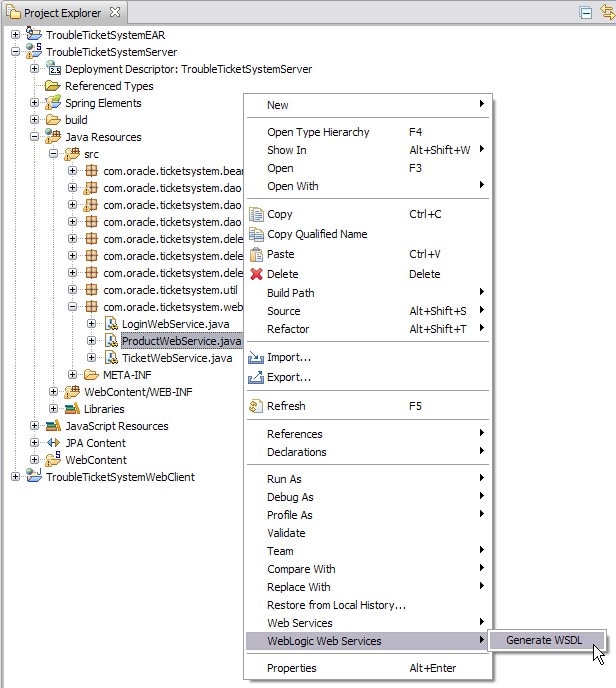
- We have implemented the ProductWebService in the TroubleTicketSystemService project. In the Project Explorer view, right-click the TroubleTicketSystemServer > Java Resources > com.oracle.ticketsystem.webservices > ProductWebService class and select the WebLogic Web Services > Generate the WSDL from the context menu.
- In the WSDL Destination wizard, select TroubleTicketSystemServer/WebContent/WEB-INF as the parent directory and enter wsdl as the directory name to generate the wsdl file into.
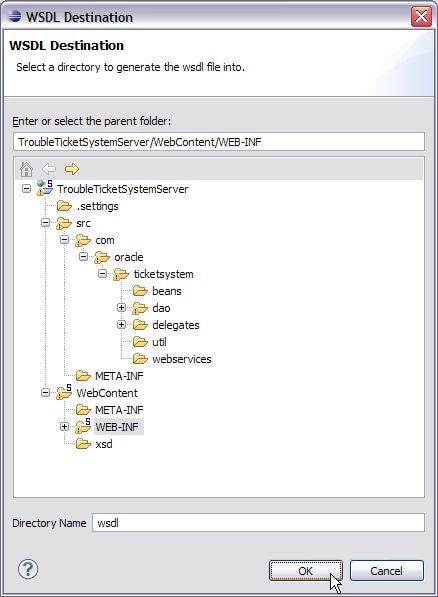
- Click OK.
- That runs wsdlc to generate the WSDL for the Product Web Service.
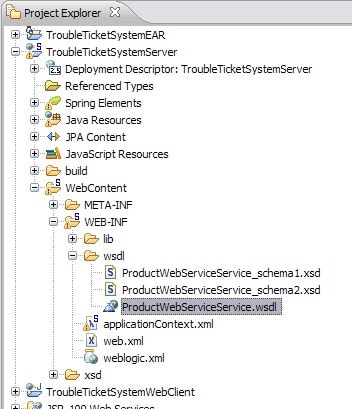
- Open the generated ProductWebServiceService.wsdl with the WSDL Editor. You need to replace the SOAP address location with the URL pointing to the Product Web Service.
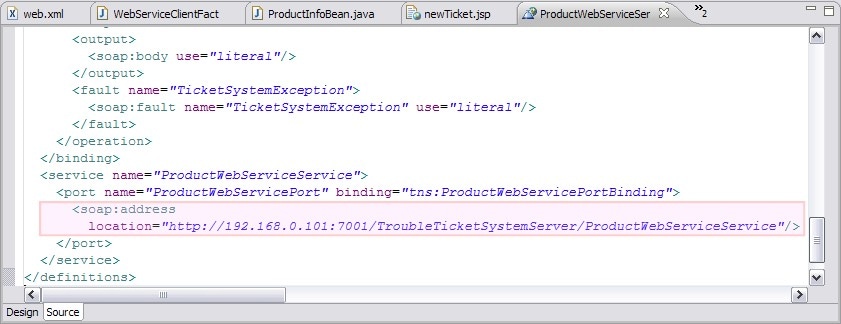
- Save the ProductWebServiceService.wsdl file.
Create the external bindings declaration file for the Product Web Service
The web service client proxy classes for the Product Web Service are generated under the com.oracle.ticketsystem.webservices package based on the target namespace defined in its WSDL. In this step, you will generate the custom bindings declaration file for the Product Web Service using its WSDL. In the custom bindings file, you will generate the Product Web Service client proxy classes under the com.oracle.ticketsystem.webservices.product package.
- You have generated the WSDL file (and corresponding schema files) for the Product Web Service. Copy the wsdl folder from the TroubleTicketSystemServer project to the TroubleTicketSystemWebClient/WebContent/WEB-INF folder.
- In the Project Explorer, right-click the TroubleTicketSystemWebClient project and select New > Other...
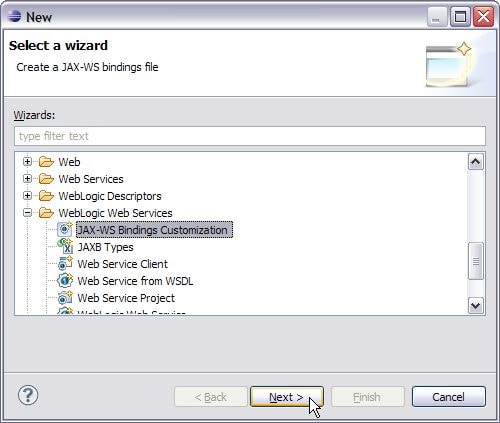
- In the New wizard, select WebLogic Web Services > JAX-WS Bindings Customization and click Next.
- Choose TroubleTicketSystemWebClient/WebContent/WEB-INF/wsdl as the parent folder and enter the file name productBindings.xml.
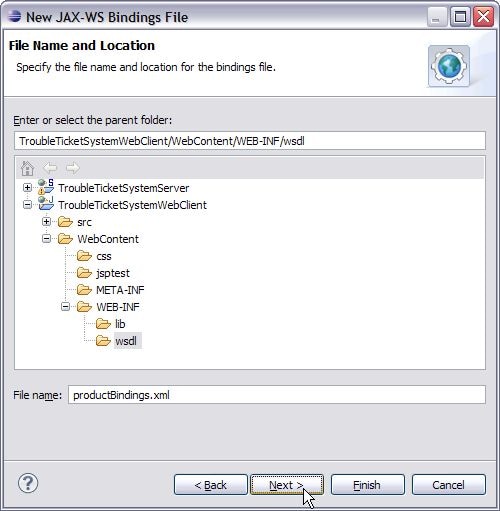
- Click Next.
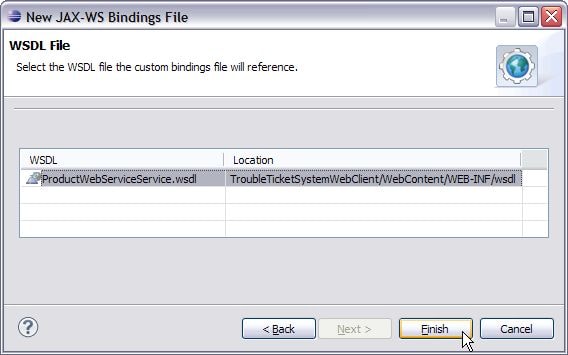
- In the WSDL File page, choose the ProductWebServiceService.wsdl and click Finish.
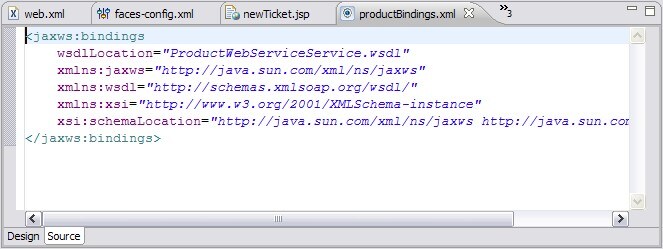
- That creates productBindings.xml file and opens it in JAX-WS Bindings Editor.
- The Design page of JAX-WS Bindings Editor provides an interface to edit the bindings information.
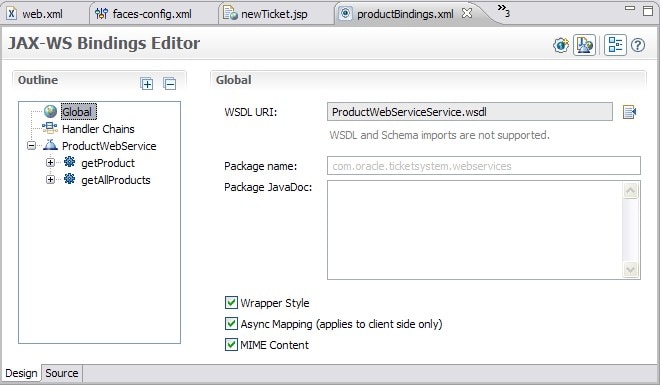
- You can see the content by switching to the Source tab.
- Switch back to the Design view in JAX-WS Bindings Editor.
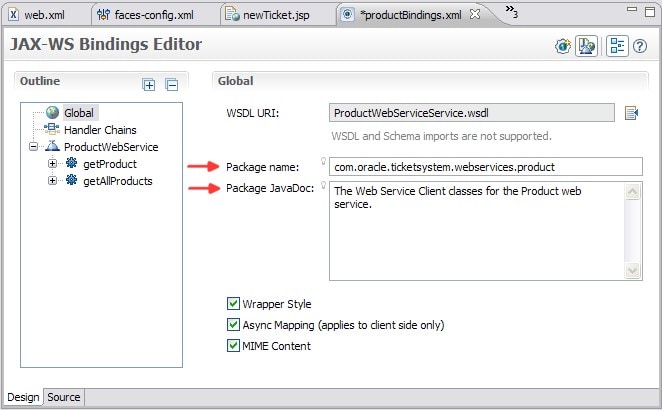
- The Package name field describes the package under which the Web Service Client classes are generated. Modify the package name to generate the Web Service Client classes under the com.oracle.ticketsystem.webservices.product package. Also, specify the Package JavaDoc as shown below:
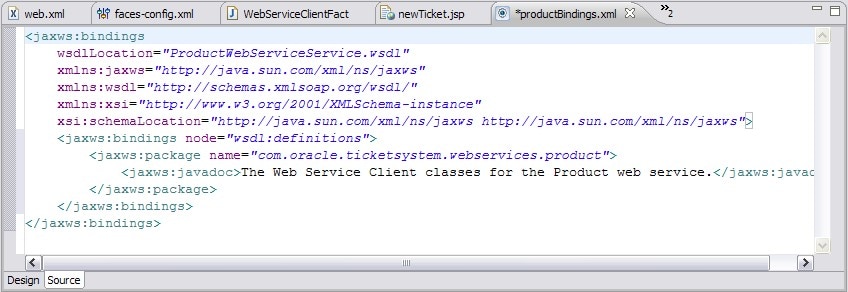
- Review the changes in XML by switching to the Source View. For the WSDL root node (i.e. definitions), it describes to generate the client classes under the com.oracle.ticketsystem.webservices.product package.
- Save the productBindings.xml file.
Create the web service client artifacts for the Product Web Service
- Before creating the new web service client JAR for the Product Web Service, remove the TroubleTicketSystemWebClient\WebContent\WEB-INF\lib\ProductWebServiceService.jar file.
- In the Project Explorer view, right click the TroubleTicketSystemWebClient and choose New > Other...
- In the New wizard page, select WebLogic Web Services > Web Service Client.
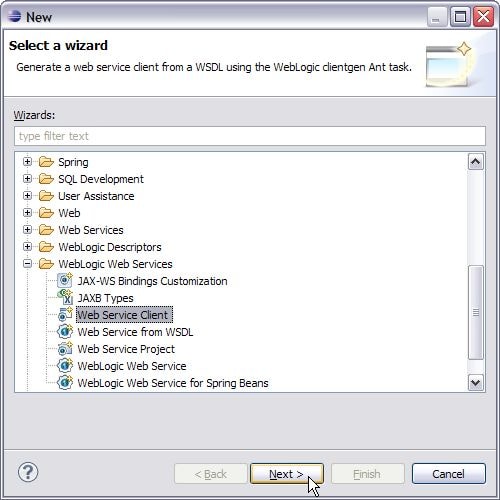
- Click Next.
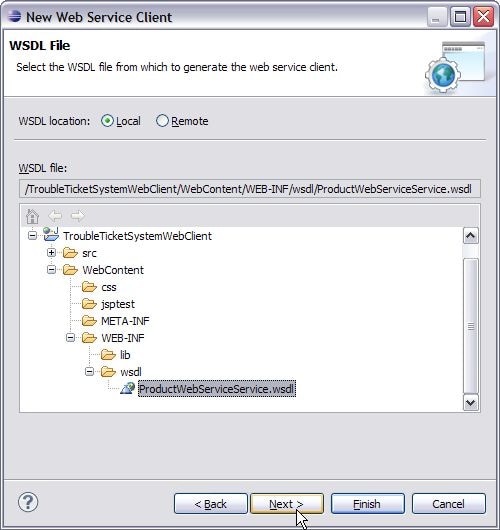
- In the WSDL file wizard page, select the Local option for WSDL location and browse to the TroubleTicketSystemWebClient/WebContent/WEB-INF/wsdl/ProductWebServiceService.wsdl WSDL file from which to generate the client artifacts for the ProductWebService.
- Make sure that the ProductWebServiceService is selected as the service and JAR location WebContent/WEB-INF/lib/ProductWebServiceService.jar.
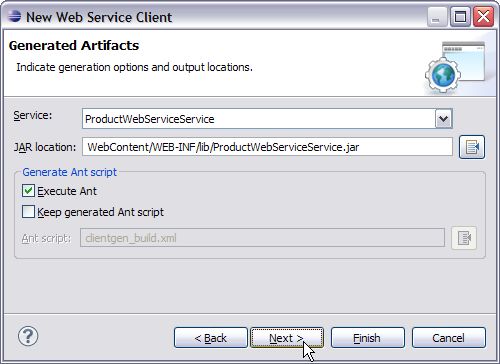
- Click Next.
- In the Customization Options wizard page, click the Add
 button and choose WebContent/WEB-INF/wsdl/productBindings.xml from the Bindings Selection dialog.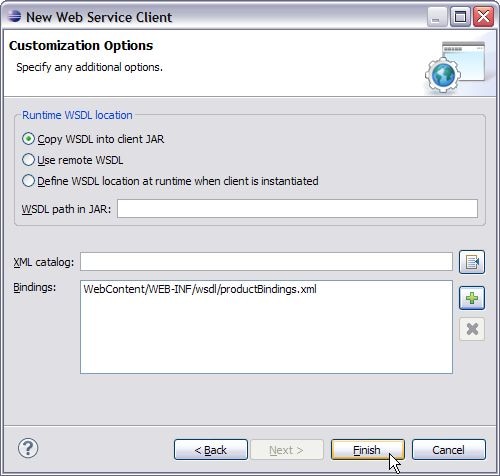
- Click Finish. You may get a prompt for overwriting the ProductWebServiceService.jar file. Click OK, if you receive such a prompt.
- That generates the ProductWebServiceService.jar file under the TroubleTicketSystemWebClient/WebContent/WEB-INF/lib folder.
- To verify the contents of ProductWebServiceService.jar file, in Project Explorer, expand the nodes TroubleTicketSystemWebClient > Java Resources > Libraries > Web App Libraries > ProductWebServiceService.jar. You can observe the Product Web Service client proxy classes generated under the com.oracle.ticketsystem.webservices.product package.
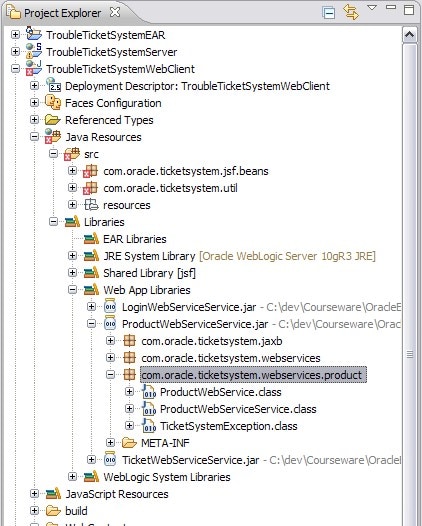
- You can also double-click the class to review its source.
- Since, the classes are under the com.oracle.ticketsystem.webservices.product package, you may see compilation errors in TroubleTicketSystemWebClient project. To fix those errors:
A) In WebServiceClientFactory, replace the two imports
import com.oracle.ticketsystem.webservices.ProductWebService; import com.oracle.ticketsystem.webservices.ProductWebServiceService; with
import com.oracle.ticketsystem.webservices.product.*; B) In ProductInfoBean.java,
Replace the import com.oracle.ticketsystem.webservices.ProductWebService;
with:
import com.oracle.ticketsystem.webservices.product.*; and remove or comment out the
import com.oracle.ticketsystem.webservices.TicketSystemException; Lastly, you may also wish to fix the TroubleTicketSystemWebClient\WebContent\newTicket.jsp. Replace the import:
<%@ page import="com.oracle.ticketsystem.webservices.* with the correct package:
<%@ page import="com.oracle.ticketsystem.webservices.product.*,