To gain local access to the tools, utilities, and other
resources on a cluster node associated with Oracle
Big Data Cloud, you use Secure Shell (SSH) client
software to establish a secure connection and log in as the user
opc.
By default, network access to cluster nodes associated with Oracle
Big Data Cloud is provided by Secure Shell (SSH)
connections on port 22. Port 22 is the standard TCP/IP port that
is assigned to SSH servers.
What Do You Need?
A running BDC instance
Putty ssh client for Windows.
A client credentials zip file and its keystore password,
that you defined in the previous tutorial or obtained from
your Oracle Big Data Cloud administrator.
Connect
to Big Data Cloud via SSH
Perform the following steps to open up a connection to BDC via
SSH.
Login to your BDC account.
In the Instances page, click the Manage this
Instanceicon of the cluster
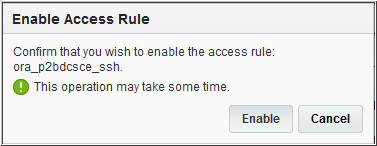
and then select Access Rules.
Open Putty on your local machine. In the Host Name (or IP
address) box, enter the IP address of your BDC node.
Confirm that the Connection type option is set to SSH.
In the Category tree, expand Connection and then click Data.
In the Auto-login username box, enter opc.
As an opc user, you can use the sudo
command to gain root access to the node.
Confirm that the When
username is not specified option is set to Prompt.
In the Category tree, expand SSH and then
click Auth . Click Browse
and select the private key file that matches the public key
associated with your cluster.
In the Category tree, click Session.
In the Saved Sessions box, enter a
name for this connection configuration. Then, click Save.
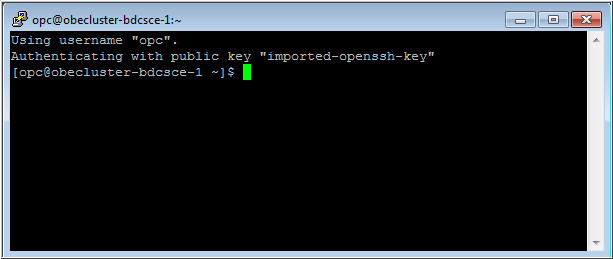
Click Open
to open the connection. The PuTTY Configuration window is
closed and the PuTTY window is displayed.
Description of the illustration
a11.jpgNote: If this is the first time you are
connecting to the VM, the PuTTY Security
Alert window is displayed, prompting you to confirm
the public key. Click Yes
to continue connecting.

 Connecting
to Big Data Cloud via SSH
Connecting
to Big Data Cloud via SSH Before You Begin
 Connect
to Big Data Cloud via SSH
Connect
to Big Data Cloud via SSH icon of the cluster
and then select Access Rules.
icon of the cluster
and then select Access Rules.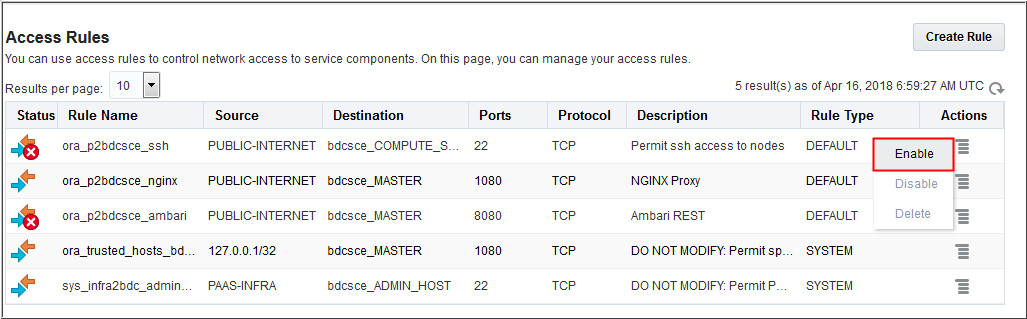
 Next
Tutorial
Next
Tutorial Want
to Learn More?
Want
to Learn More?