
 Accessing
Big Data Cloud Using Ambari
Accessing
Big Data Cloud Using Ambari  Before You Begin
This 10-minute tutorial shows you how to connect to the Ambari web console from Big Data Cloud cluster.
This is the 4th tutorial in the Provisioning and Administering the Big Data Cloud series. Perform the tutorials sequentially.
- Provisioning Oracle Big Data Cloud
- Viewing Cluster Details and Cloud Console
- Connecting to Big Data Cloud(BDC) via SSH
- Accessing Big Data Cloud Using Ambari
Background
You can use Apache Ambari to access and manage Oracle Big Data Cloud clusters. While Ambari isn't needed for normal operations with the cluster, it's useful to open Ambari access to help with troubleshooting and certain administrative actions.
What Do You Need?
- A running BDC instance
- Putty ssh client for Windows.
 Setup
a SSH tunnel
Setup
a SSH tunnel
Ambari runs on port 8080 on the master server of your BDC cluster. Perform the following steps to setup a SSH tunnel from port 8080 on the BDC master server to your local computer’s port 8080.
- Open Putty and choose Change Settings from the top-left icon menu.
- In the Category tree, expand SSH and then click Tunnels.
- Enter 8080 for the Source Port and 127.0.0.1:8080 for the Destination.
- Click Add to add
the forwarded port. Then click Apply
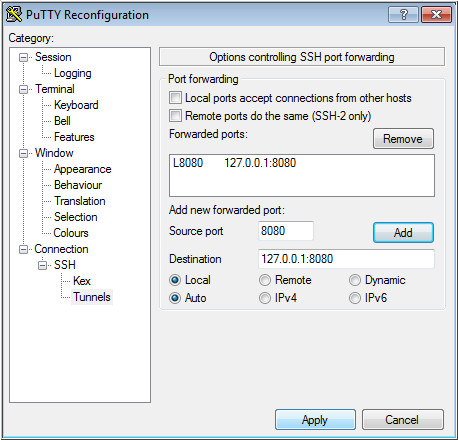
Description of the illustration b4.jpg - Leave your Putty window open. If the Putty window is closed or the connection in Putty drops, then your connection to Ambari will drop as well.
 Connect
to Ambari
Connect
to Ambari
- Open https://127.0.0.1:8080/ in your local browser.
- Accept the self-signed certificate on your first connection.
- Login using your BDC Console username and password. Use
the credentials which you provided while provisioning the
cluster.
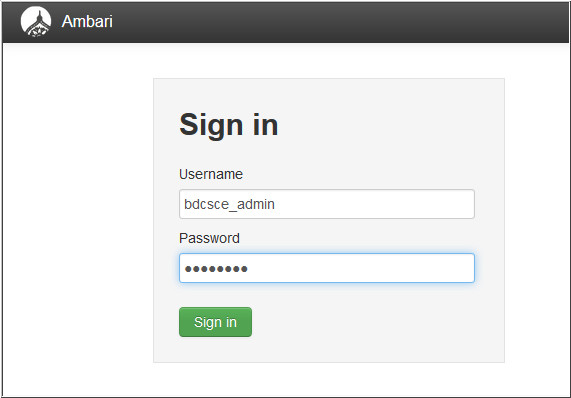
Description of the illustration c3.jpg
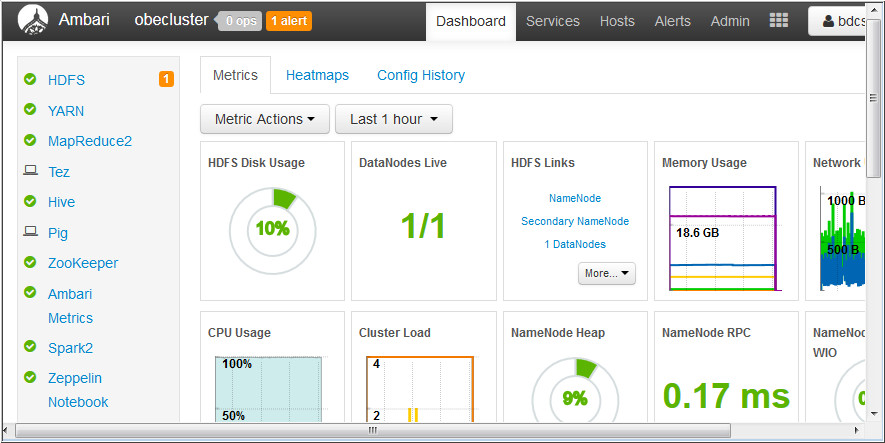
Description of the illustration c3_1.jpg
 Want
to Learn More?
Want
to Learn More?