The Workflow Editor is used to define and edit case and alert workflows. It allows users to:
It is also possible to save the current workflow, open other workflows for editing and create new workflows from within the workflow editor, without returning to Case Management Administration.
The top level of the workflow editor provides several functions which allow you to edit multiple workflows in succession, without leaving the editor:
 (or the File|New menu item) to start creating a new workflow.
 (or the File|Open menu item) to open an existing workflow.
 (or the File|Save menu item) to save the changes to the workflow you are currently editing, before moving
 The workflow editor also displays the name and description of the workflow that you are currently editing.
The 'States and Transitions' tab of the Workflow Editor displays the states and transitions defined for the workflow. Each state in the States list also shows its list of assigned transitions, and the automatic expiry time, if configured. As is the case for all of the Workflow Editor screens, the name and description of the workflow is displayed at the top of the dialog:
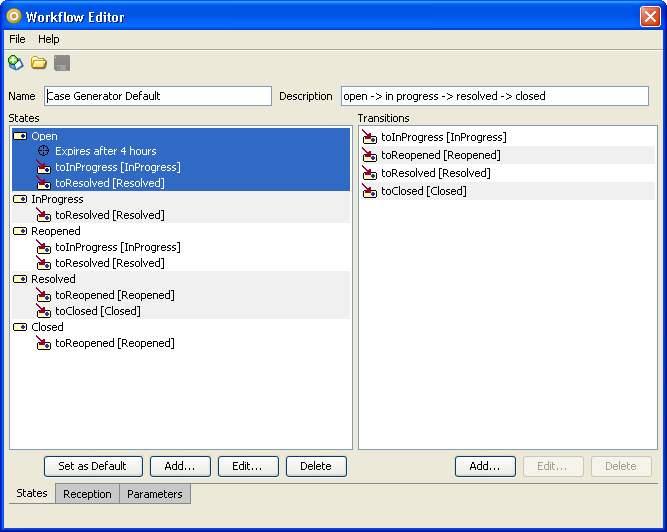
In this example, the 'Case Generator Default' workflow is being edited. Five states and four transitions have been defined for the workflow. The currently selected state, called 'Open', has two associated transitions, 'toInProgress' and 'toResolved'. Each transition is displayed by showing both its name and, in square brackets, its target state. In addition, the 'Open' state has a marker indicating that it will automatically expire after four hours.
States can be added, edited or deleted from this screen.
For more details on editing existing states, or creating new ones, see the Defining States topic.
Transitions can be added, edited or deleted from this screen.
For more details on editing existing transitions, or creating new ones, see the Defining Transitions topic.
A workflow should also define a default state, which will be assigned to cases or alerts when they are created. To set the default state for the workflow, or to change the default state for the workflow, click on the desired default state in the States list and press the 'Set as Default...' button.
Reception rules specify the way cases and alerts are handled by the workflow when they are first created, and/or when the data attached to them (the value of any attribute that is part of the case source) is updated.
The Reception tab lists the actions that may be applied to each case or alert, and the transitions that have been defined for use by the actions. Transitions defined on the Reception tab are separate from those on the States tab:
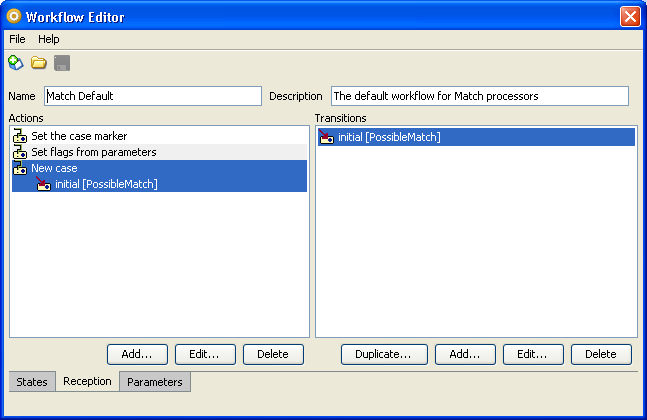
In this example, the 'Match Default' workflow is being edited. Three actions and a single transition have been defined for the workflow. The currently selected action, called 'New case', has an associated transition, 'initial'. Each transition is displayed by showing both its name and, in square brackets, its target state.
Actions can be added, edited or deleted from this screen.
For more details on editing existing actions, or creating new ones, see the Defining Actions topic.
Transitions can be added, edited, duplicated or deleted from this screen.
For more details on editing existing transitions, or creating new ones, see the Defining Transitions topic.
Parameters are defined as part of a workflow. They are used to pass additional information from a match processor into the cases and alerts generated from it. Each match processor that uses the workflow can define the ways in which parameter values will be populated. In turn, the workflow will define the ways in which those parameters are used.
Workflows use parameter values to populate the attributes and extended attributes of cases and alerts. Parameter values can be inspected and used when:
|
Note: You must configure both the way that parameters are populated by the matching process and the way in which those values are used in the case or alert workflow. Attributes and extended attributes are not automatically populated with parameter values. |
The Parameters tab lists the parameters that have been defined for the current workflow, plus any global parameters that exist:
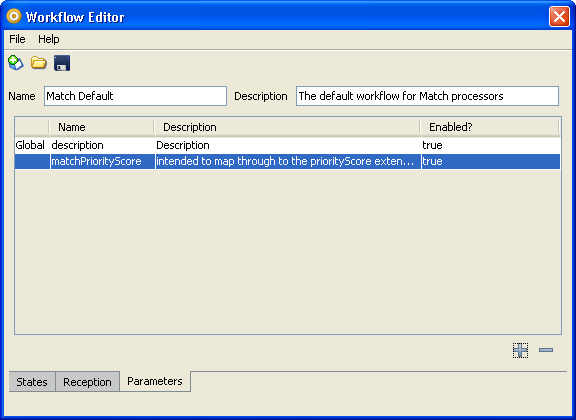
Parameters can be created, edited and deleted from this tab.
For more details on editing existing parameters, or creating new ones, see the Defining Parameters topic.
Global parameters are marked with the 'Global' label in the parameters list. Global parameters are available to all workflows, and cannot be configured by the user.
The matchPriorityScore parameter is the exception to the rule that parameters are not populated automatically. Match processors will automatically recognize and populate any parameter called matchPriorityScore. The matchPriorityScore parameter is populated with the Priority Score of the matching rule that was used to identify a relationship between the records in the alert. If an alert contains multiple relationships, the highest Priority Score in the alert is used to populate the parameter.
For the matchPriorityScore to carry meaningful values, care must be taken when configuring the match processor. In particular:
|
Note:OEDQ is not intrinsically a score-based matching system, although it can be configured to behave like one. If the match rules are correctly configured, it will be possible to use the matchPriorityScore parameter to indicate the relative confidence of the match represented by the alert. |
Oracle ® Enterprise Data Quality Help version 9.0
Copyright ©
2006,2011 Oracle and/or its affiliates. All rights reserved.